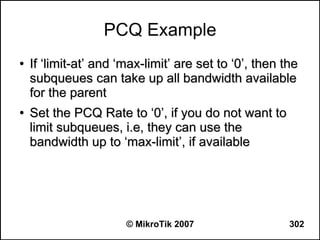
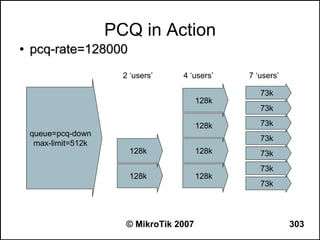
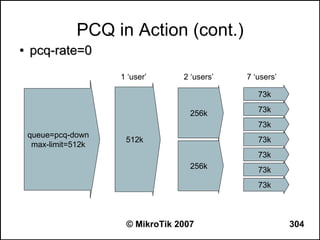
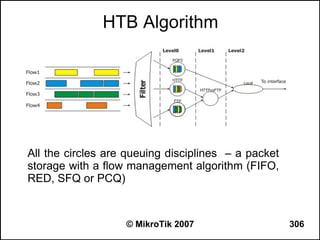
MikroTik RouterOS
     Training
     Advanced Class
 Johannesburg South Africa
    April 14 – 17, 2009
Schedule


●   09:00 – 10:30 Morning Session I
●   11:00 – 12:30 Morning Session II
●   12:30 – 13:30 Lunch
●   13:30 – 15:00 Afternoon Session I
●   15:30 – 17:00 Afternoon Session II


                    © MikroTik 2007      2
Instructor
●   Christopher Sutherland
    –   Support and Training engineer for Miro distribution


                        © MikroTik 2007                       3
Housekeeping
●   Course materials
●   Routers, cables
●   Break times and lunch

●   Restrooms and smoking area locations


                      © MikroTik 2007      4
Course Objective
●   Provide knowledge about advanced features of
    MikroTik RouterOS and hands-on training for
    configuring, maintaining and troubleshooting
    networks built using RouterOS software and
    RouterBoard hardware
●   Upon completion of the course you will be able
    to plan and implement advanced network
    configurations using RouterOS


                    © MikroTik 2007                  5
About MikroTik
●   Mission Statement
    –   MikroTik is a router software and hardware
        manufacturer, that offers user friendly carrier-class
        routing and network management solutions. Their
        products are used by ISPs, individual users and
        companies for building data network infrastructures.
●   Their goal is to make existing Internet
    technologies faster, more powerful and more
    affordable to wider range of users


                        © MikroTik 2007                     6
MikroTik's History
●   Active in WISP solutions since 1995
●   Incorporated in 1996
●   Wireless ISP Projects around the World
●   Since 1997 Development of own Software for
    Intel (PC) based routing solutions
●   Since 2002 Development of own Hardware
●   2006: 60 employees


                    © MikroTik 2007              7
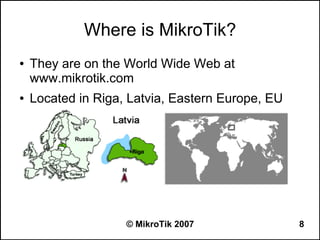
Where is MikroTik?
●   They are on the World Wide Web at
    www.mikrotik.com
●   Located in Riga, Latvia, Eastern Europe, EU


                    © MikroTik 2007               8
Introduce Yourself
●   Please introduce yourself to the class:
    –   Your Name
    –   Your Company
    –   Previous knowledge about RouterOS
    –   Previous knowledge about data networking
    –   What do you expect from this course?


                       © MikroTik 2007             9
Class Setup
●   Please remember your number XY in the class
●   My number is:__________


                   © MikroTik 2007            10
© MikroTik 2007   11
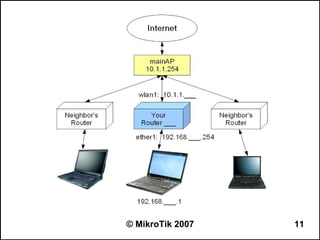
Get Connected!
●   Connect to your router and:
    –   Set System Identity to your Number_Name
    –   Set Radio Name for wireless as Number_Name
    –   Use SSID “mainAP” and mode=station
    –   Add IP address 10.1.1.___/24 for wireless
    –   Default gateway is 10.1.1.254
    –   DNS Server is 10.1.1.254
    –   Use masquerading to hide your private LAN
    –   Test, if you can browse! Back up the configuration!
                        © MikroTik 2007                   12
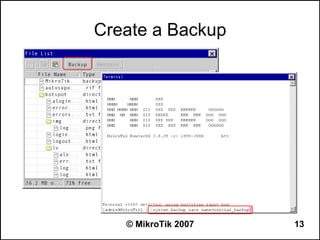
Create a Backup


   © MikroTik 2007   13
Security and Routing


Bridge Features, Firewall, Policy Routing,
    ECMP Routing, Dynamic Routing

               © MikroTik 2007               14
Bridge
●   Ethernet-like networks can be connected
    together using OSI Layer 2 bridges
●   The bridge feature allows interconnection of
    hosts connected to separate LANs as if they
    were attached to a single LAN segment
●   Bridges extend the broadcast domain and
    increase the network traffic on bridged LAN


                    © MikroTik 2007                15
Bridge Configuration
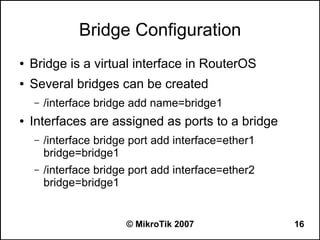
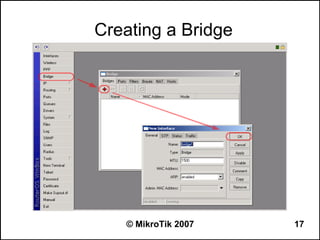
●   Bridge is a virtual interface in RouterOS
●   Several bridges can be created
    –   /interface bridge add name=bridge1
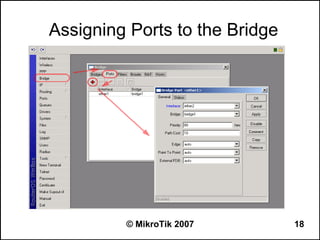
●   Interfaces are assigned as ports to a bridge
    –   /interface bridge port add interface=ether1
        bridge=bridge1
    –   /interface bridge port add interface=ether2
        bridge=bridge1


                        © MikroTik 2007               16
Creating a Bridge


   © MikroTik 2007   17
Assigning Ports to the Bridge


         © MikroTik 2007        18
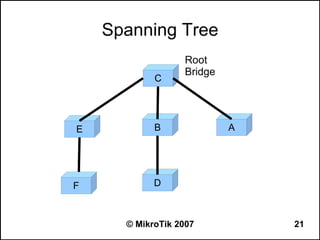
Spanning Tree Protocol
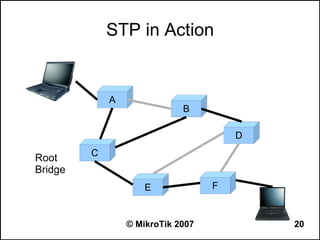
●   The Spanning Tree Protocol (STP)
    –   is defined by IEEE Standard 802.1D
    –   provides a loop free topology for any bridged LAN
    –   finds a spanning tree within the mesh network and
        disables the links not part of that tree


                        © MikroTik 2007                     19
STP in Action


             A
                             B

                                       D
         C
Root
Bridge
                     E             F


                 © MikroTik 2007           20
Spanning Tree
                  Root
                  Bridge
            C


E           B              A


F           D


      © MikroTik 2007          21
Rapid Spanning Tree Protocol
●   Rapid Spanning Tree Protocol (RSTP)
    –   is an evolution of the STP
    –   provides faster spanning tree convergence after a
        topology change than STP
●   rstp-bridge-test package is required for the
    RSTP feature to be available in RouterOS


                        © MikroTik 2007                     22
Routed Networks vs Bridging
●   Routers do not forward broadcast frames
●   Communication loops and their resultant
    broadcast storms are no longer a design issue
    in routed networks
●   Redundant media and meshed topologies can
    offer traffic load sharing and more robust fault
    tolerance than bridged network topologies


                     © MikroTik 2007                   23
IP Firewall Filters
●   Firewalls are used as a means of preventing or
    minimizing the security risks inherent in
    connecting to other networks
●   IP firewall filters
    –   are a tool to apply traffic policies based on flow
        properties
    –   allow stateful packet inspection
    –   separately manage traffic flowing to, from and
        through the router

                          © MikroTik 2007                    24
Stateful Inspection
●   Stateful inspection tracks each connection
    traversing all interfaces of the firewall and
    makes sure they are valid
●   The examination may include
    –   the header information about its source and
        destination
    –   the contents of the packet up through the
        application layer in order to determine more about
        the packet


                        © MikroTik 2007                      25
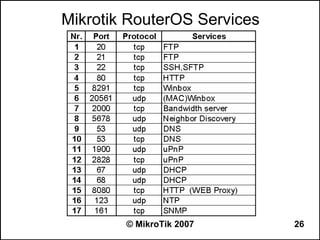
Mikrotik RouterOS Services


        © MikroTik 2007      26
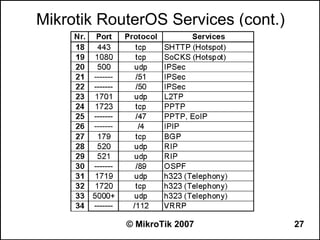
Mikrotik RouterOS Services (cont.)


            © MikroTik 2007          27
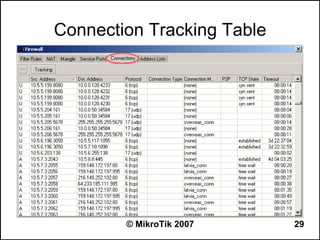
Connection Tracking
●   Connection Tracking (CONNTRACK) is a system that
    gathers and stores information about active
    connections
●   A connection is defined as a bidirectional data
    exchange
●   CONNTRACK information is not limited to TCP
    connections
●   Firewall facilities can use CONNTRACK information
    to classify packets
●   CONNTRACK is necessary for Network Address
    Translation (NAT) and Mangle

                     © MikroTik 2007               28
Connection Tracking Table


        © MikroTik 2007     29
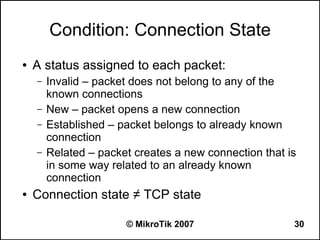
Condition: Connection State
●   A status assigned to each packet:
    –   Invalid – packet does not belong to any of the
        known connections
    –   New – packet opens a new connection
    –   Established – packet belongs to already known
        connection
    –   Related – packet creates a new connection that is
        in some way related to an already known
        connection
●   Connection state ≠ TCP state

                       © MikroTik 2007                  30
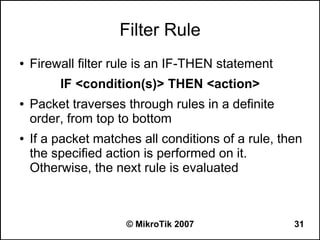
Filter Rule
●   Firewall filter rule is an IF-THEN statement
         IF <condition(s)> THEN <action>
●   Packet traverses through rules in a definite
    order, from top to bottom
●   If a packet matches all conditions of a rule, then
    the specified action is performed on it.
    Otherwise, the next rule is evaluated


                     © MikroTik 2007                31
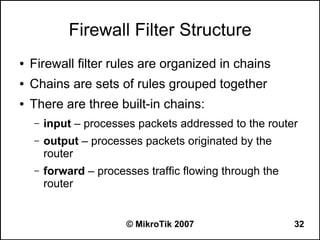
Firewall Filter Structure
●   Firewall filter rules are organized in chains
●   Chains are sets of rules grouped together
●   There are three built-in chains:
    –   input – processes packets addressed to the router
    –   output – processes packets originated by the
        router
    –   forward – processes traffic flowing through the
        router


                        © MikroTik 2007                   32
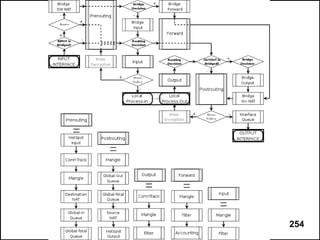
Packet Flow Diagram
●   Refer to the Packet Flow Diagram whenever
    you need to find out how packets are processed
    by the router


                    © MikroTik 2007             33
© MikroTik 2007   34
User-Defined Chains
●   Help to reduce the average number of lookup
    steps needed to process a packet, thus
    improving the performance
●   Frequently used to optimize firewall structure
    and make it more readable and manageable


                    © MikroTik 2007             35
© MikroTik 2007   36
User-Defined Chains (cont.)
●   The traffic can reach user-defined chains only
    from one of the default chains with the help of
    the rules with action=jump
●   The chain is created as soon as a rule for the
    chain is added


                     © MikroTik 2007                  37
Monitoring the Firewall
●   Each rule has counters of packets and bytes that
    passed through it
●   Rules can be moved to arrange them in the desired
    processing order
●   Make rules with action=log to see the kinds of
    packets that are processed
●   Use action=passthrough to add simple counter rules
●   Use connection tracking table to see current
    connections


                     © MikroTik 2007                38
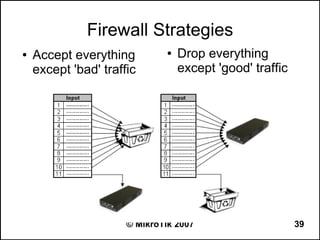
Firewall Strategies
●   Accept everything          ●   Drop everything
    except 'bad' traffic           except 'good' traffic


                      © MikroTik 2007                      39
Firewall Rule Actions
●   The most basic firewall rule actions are
    –   accept – accept the packet and stop evaluating
        other rules
    –   drop – silently discard the packet
    –   reject - drop the packet and send ICMP reject
        message
    –   jump – jump to the chain specified by the jump-
        target parameter value


                        © MikroTik 2007                   40
More Firewall Rule Actions
●   More firewall rule actions are
    –   jump – jump to the chain specified by the jump-
        target parameter value
    –   return – return to the previous chain, from where
        the jump took place


                        © MikroTik 2007                     41
Firewall Filter Rule Sequence
●   Since the majority of the packets is most likely
    going to be packets belonging to established
    connections, it is wise to put a rule accepting
    them in the beginning (top) of the firewall filter
●   In such a way, the firewall filters are processed
    more efficiently
●   Further rules may be those dealing with packets
    establishing new connections


                      © MikroTik 2007                    42
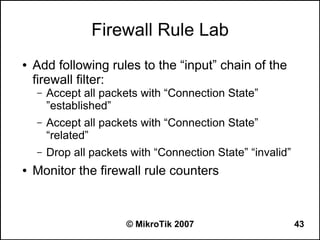
Firewall Rule Lab
●   Add following rules to the “input” chain of the
    firewall filter:
    –   Accept all packets with “Connection State”
        ”established”
    –   Accept all packets with “Connection State”
        “related”
    –   Drop all packets with “Connection State” “invalid”
●   Monitor the firewall rule counters


                        © MikroTik 2007                      43
Port Scan Detection (PSD)
●   PSD detects connection attempts to different
    ports appearing in quick succession
●   High (privileged) ports are from 0 to 1023


                     © MikroTik 2007               44
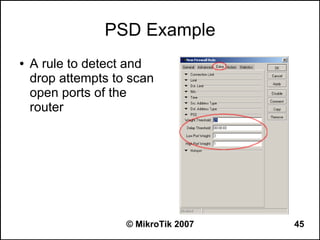
PSD Example
●   A rule to detect and
    drop attempts to scan
    open ports of the
    router


                    © MikroTik 2007   45
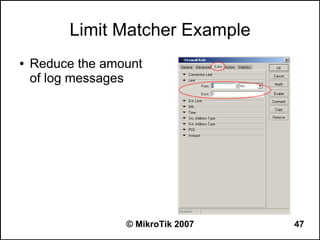
Limit Matcher
●   A rule with Limit will match until a given rate is
    reached
●   Burst specifies initial number of packets to
    match: this number gets recharged by one
    every time the rate is not reached


                      © MikroTik 2007                46
Limit Matcher Example
●   Reduce the amount
    of log messages


                  © MikroTik 2007   47
Firewall Filter Limit Lab

●   Limit the rules allowing ICMP packets to 5
    packets per second (block Ping Flood attacks)
●   Modify the rule to instantly allow first 5 packets
●   Add a rule to log HTTP traffic going trough the
    router at a rate of 200 packets per hour


                      © MikroTik 2007                 48
Connection Limit
●   Connection limit limits the packet per second
    (pps) rate on a per destination IP or per
    destination port base
●   As opposed to the limit match, every destination
    IP address / destination port has it's own limit


                     © MikroTik 2007                49
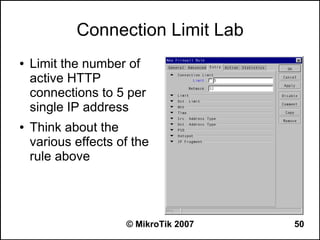
Connection Limit Lab
●   Limit the number of
    active HTTP
    connections to 5 per
    single IP address
●   Think about the
    various effects of the
    rule above


                     © MikroTik 2007   50
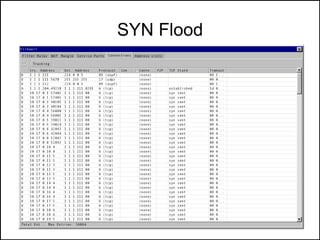
SYN Flood


© MikroTik 2007   51
Dealing with DoS Attacks
●   Limit the number of active connections
●   Optimize processing workflow
●   Enable TCP SYN cookies
●   Use rules with action=tarpit


                     © MikroTik 2007         52
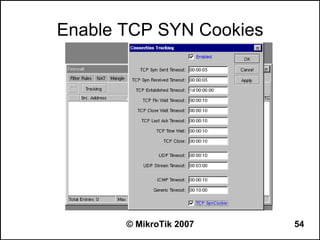
TCP SYN Cookie
●   SYN cookie protects against TCP SYN flooding
●   Instead of allocating a record, it sends a SYN-
    ACK with a carefully constructed sequence
    number generated as a hash of the clients IP
    address, port number, and other information


                     © MikroTik 2007                  53
Enable TCP SYN Cookies


       © MikroTik 2007   54
Some Observations about Attacks
●   Those, who attacked once, will probably attack
    in the future
●   Most attacks are automated (at least partially)
●   Attackers seek a “positive” outcome


                     © MikroTik 2007                  55
More Firewall Actions
●   tarpit – drop the packet and reply with
    SYN,ACK to the inbound TCP SYN packet
●   add-dst-to-address-list – add packet’s
    destination address to the specified address list
●   add-src-to-address-list – add packet’s source
    address to the specified address list


                     © MikroTik 2007               56
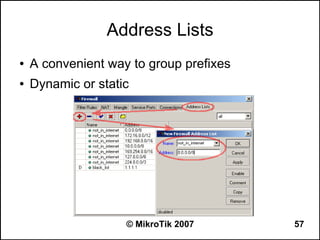
Address Lists
●   A convenient way to group prefixes
●   Dynamic or static


                    © MikroTik 2007      57
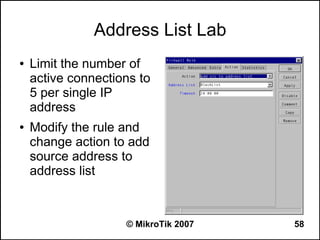
Address List Lab
●   Limit the number of
    active connections to
    5 per single IP
    address
●   Modify the rule and
    change action to add
    source address to
    address list


                    © MikroTik 2007   58
Address List Lab (cont.)
●   Add new rule to either drop or tarpit
    connections from addresses in BlackList
●   Place this rule on top of the input chain


                     © MikroTik 2007            59
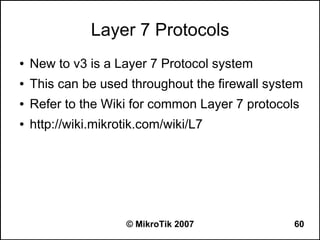
Layer 7 Protocols
●   New to v3 is a Layer 7 Protocol system
●   This can be used throughout the firewall system
●   Refer to the Wiki for common Layer 7 protocols
●   http://wiki.mikrotik.com/wiki/L7


                     © MikroTik 2007             60
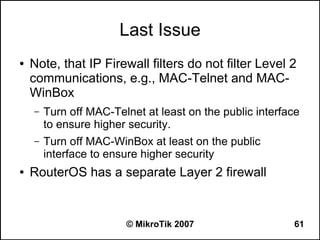
Last Issue
●   Note, that IP Firewall filters do not filter Level 2
    communications, e.g., MAC-Telnet and MAC-
    WinBox
    –   Turn off MAC-Telnet at least on the public interface
        to ensure higher security.
    –   Turn off MAC-WinBox at least on the public
        interface to ensure higher security
●   RouterOS has a separate Layer 2 firewall


                        © MikroTik 2007                   61
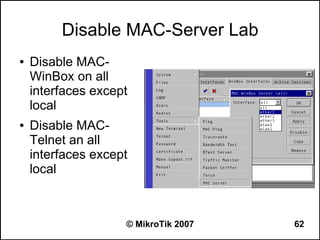
Disable MAC-Server Lab
●   Disable MAC-
    WinBox on all
    interfaces except
    local
●   Disable MAC-
    Telnet an all
    interfaces except
    local


                    © MikroTik 2007   62
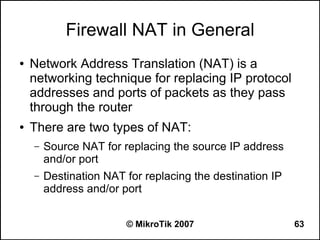
Firewall NAT in General
●   Network Address Translation (NAT) is a
    networking technique for replacing IP protocol
    addresses and ports of packets as they pass
    through the router
●   There are two types of NAT:
    –   Source NAT for replacing the source IP address
        and/or port
    –   Destination NAT for replacing the destination IP
        address and/or port


                        © MikroTik 2007                    63
Firewall NAT Structure
●   NAT rule is an IF-THEN statement
    –   IF <condition(s)> THEN <action>
●   Packet traverses through rules in a definite
    order, from top to bottom
●   If a packet matches all conditions of a rule, then
    the specified action is performed on it.
    Otherwise, the next rule is evaluated


                       © MikroTik 2007              64
NAT Chains
●   NAT rules are organized in chains
●   There are two built-in chains:
    –   dstnat - used for changing destination address and
        ports. (actions src-nat and masquerade can not be
        used in this chain)
    –   srcnat - used for changing source address and
        ports. (actions dst-nat and redirect can not be used
        in this chain)
●   New user-defined chains can be added, as
    necessary
                        © MikroTik 2007                    65
“Known” NAT Actions (1/2)
●   accept - the packet is accepted by the router
●   jump – jump to the chain specified by the jump-
    target argument value
●   return – return to the previous chain, from
    where the jump took place
●   log – add a record to log file when all conditions
    of a rule are satisfied
●   passthrough - ignore this rule and go on to the
    next one
                     © MikroTik 2007                66
“Known” NAT Actions (2/2)
●   add-dst-to-address-list – add packet’s
    destination address to the specified address list
●   add-src-to-address-list – add packet’s source
    address to the specified address list


                     © MikroTik 2007               67
“New” NAT Actions
●   There are 6 new actions in the NAT:
    –   “src-nat” and “masquarade” change source
        address and/or port of IP packet
    –   “dst-nat” and “redirect” change destination
        address and/or port of IP packet
    –   “netmap” creates a static 1:1 mapping of one set
        of IP addresses to another one
    –   “same” gives a particular client the same
        source/destination IP address from supplied range
        for each connection
                        © MikroTik 2007                    68
Masquerade and Source NAT
●   Both “masquerade” and “src-nat” change the
    source IP address and/or port of an IP packet
●   For the new source address,
    –   “masquerade” uses the IP address of the router by
        default
    –   “src-nat” uses the specified “to-address”


                       © MikroTik 2007                 69
Source NAT Applications
●   A typical application of masquerading and
    source NAT is hiding a private network behind
    one or more external addresses to
    –   enhance network security, and
    –   conserve IP address space


                       © MikroTik 2007              70
SRC-NAT Lab
●   Hide your LAN 192.168.____.0/24 behind
    router's IP address 10.1.1.____
●   Make your workstation to be hidden behind a
    “public” IP address 172.16.1.____, but the rest
    of the LAN stays hidden behind the router's IP
    address


                    © MikroTik 2007               71
Redirect and Destination NAT
●   Both “redirect” and “dst-nat” change the
    destination IP address and/or port of an IP
    packet
●   For the new destination address,
    –   “redirect” uses the IP address of the router by
        default, i.e., it “grabs” the packet and sends it to the
        router itself
    –   “dst-nat” uses the specified “to-address”


                          © MikroTik 2007                     72
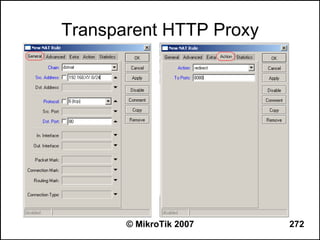
Destination NAT Applications
●   Action dst-nat is typically used for accessing
    services on a private network from public
    addresses via a public address
●   Action redirect is mostly used for proxying
    network requests (for example, providing
    transparent HTTP, DNS or other proxy
    services)


                     © MikroTik 2007                 73
Destination NAT Lab #1
●   Add a dst-nat rule to redirect TCP port 2323
    connection requests to router's TCP port 23
●   From your workstation, try establishing a telnet
    connection to port 2323 of the main router
    10.1.1.254 or of any other host
    –   Use C:>telnet 10.1.1.254 2323
    –   Check if the counters of the NAT rule change
    –   Check if you can get the login prompt of your own
        router


                        © MikroTik 2007                     74
Destination NAT Lab #2
●   Configure destination NAT to send all client's
    HTTP requests to a specific server, say, to the
    access point's ip address 10.1.1.254
●   Check how the rule is working
    –   Try to access yahoo.com, google.com, etc.
    –   Are you getting only AP's welcome page wherever
        you go?
    –   Monitore the counters


                       © MikroTik 2007                75
Destination NAT Lab #3
●   Make your router accessible by HTTP at TCP
    port 81
    –   Check if you can access your router at
        http://192.168.___.254:81


                        © MikroTik 2007          76
Firewall Mangle
●   The mangle facility allows to mark IP packets
    with special marks
●   These marks are used to identify the packets by
    –   other mangle rules, firewall filter rules
    –   simple queues, queue trees
    –   policy routing
●   In addition, the mangle facility is used to modify
    some fields in the IP header, like TOS and TTL
    fields

                          © MikroTik 2007            77
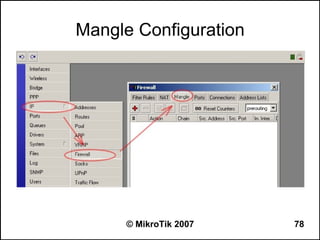
Mangle Configuration


      © MikroTik 2007   78
Mangle Structure
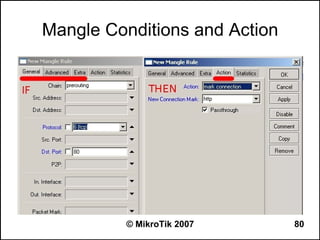
●   Mangle rule is an IF-THEN statement
    –   IF <condition(s)> THEN <action>
●   Packet traverses through rules in a definite
    order, from top to bottom
●   If a packet matches all conditions of a rule, then
    the specified action is performed on it.
    Otherwise, the next rule is evaluated


                       © MikroTik 2007              79
Mangle Conditions and Action


          © MikroTik 2007      80
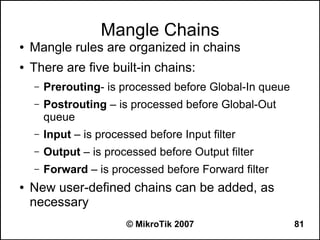
Mangle Chains
●   Mangle rules are organized in chains
●   There are five built-in chains:
    –   Prerouting- is processed before Global-In queue
    –   Postrouting – is processed before Global-Out
        queue
    –   Input – is processed before Input filter
    –   Output – is processed before Output filter
    –   Forward – is processed before Forward filter
●   New user-defined chains can be added, as
    necessary
                         © MikroTik 2007                  81
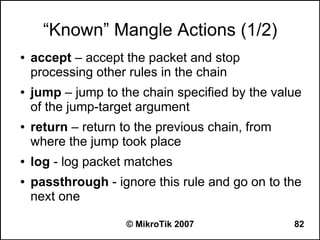
“Known” Mangle Actions (1/2)
●   accept – accept the packet and stop
    processing other rules in the chain
●   jump – jump to the chain specified by the value
    of the jump-target argument
●   return – return to the previous chain, from
    where the jump took place
●   log - log packet matches
●   passthrough - ignore this rule and go on to the
    next one

                     © MikroTik 2007              82
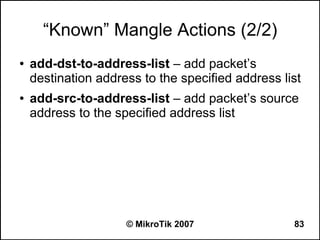
“Known” Mangle Actions (2/2)
●   add-dst-to-address-list – add packet’s
    destination address to the specified address list
●   add-src-to-address-list – add packet’s source
    address to the specified address list


                     © MikroTik 2007               83
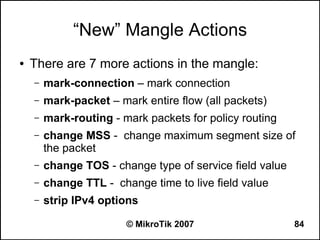
“New” Mangle Actions
●   There are 7 more actions in the mangle:
    –   mark-connection – mark connection
    –   mark-packet – mark entire flow (all packets)
    –   mark-routing - mark packets for policy routing
    –   change MSS - change maximum segment size of
        the packet
    –   change TOS - change type of service field value
    –   change TTL - change time to live field value
    –   strip IPv4 options

                        © MikroTik 2007                   84
A: Marking Connections
●   Mark connection to identify all packets
    belonging to a certain connection, e.g., http or
    ftp traffic
    –   Set connection mark to be used in other mangle
        rules
    –   Specify “passthrough=yes” so the processing of
        mangle rules is continued
●   Mark packets based on the connection mark
    –   Set packet mark to be used in queue trees, or
    –   Set routing mark to be used in routing
                        © MikroTik 2007                  85
B: Marking Packets
●   Packets can be marked without using the
    connection mark, for example, based on
    protocol and port.
●   There might be problems when identifying, for
    example, web proxy requests and responses:
    –   TCP destination port 8080
    –   TCP source port 8080 can match source port of a
        client's request to a server


                       © MikroTik 2007                    86
Mangle Lab
●   Mark all HTTP connections
●   Mark all packets belong to these connections
●   Add the simple queue with HTTP limitation
●   Check the limitations!


                     © MikroTik 2007               87
Dynamic Address Lists
●   Use the mangle action “add src to address list”
    or “add dst to address list” to dynamically create
    address lists of certain hosts
●   Once added to the list, the addresses are kept
    there for the timeout period.
●   Some possible uses of dynamic address lists:
    –   Blacklisting attackers and intruders and filtering
        them out based on the address list


                         © MikroTik 2007                     88
Dynamic Address List Lab
●   Try creating dynamic address list of all source
    addresses for HTTP requests going to or
    through the router
    –   Go to the “IP” > “Firewall” “Mangle” tab
    –   Add a mangle rule to the “prerouting” chain for TCP
        port 80 requests
    –   Specify “Action”, “Address List”, and “Timeout”
●   Monitor the address list and see for how long
    time period the addresses stay there

                         © MikroTik 2007                  89
Dynamic Address List Lab (cont.)
●   Create another mangle rule that adds all
    destination addresses of HTTP connections
    through the router to another address list


                    © MikroTik 2007              90
P2P Traffic Identification Lab
●   Add a mangle rule to identify and mark all p2p
    connections
    –   Select the “forward” chain and set “P2P” to “all-p2p”
    –   Use “Action” “mark connection” and specify a “New
        Connection Mark”
    –   Enable “Passthrough”
●   See “Statistics” for bytes and packets
    –   You may need to force the p2p connections to be
        re-established in order to identify them

                        © MikroTik 2007                    91
Bridge Firewall
●   The bridge firewall implements packet filtering
    and thereby provides security functions that are
    used to manage data flow to, from and through
    bridge
●   Elements of bridge firewall are:
    –   Bridge Filter
    –   Bridge Network Address Translation (NAT)
    –   Bridge Route


                        © MikroTik 2007            92
Bridge Filter
●   Bridge filter has three predefined chains, input,
    forward, and output
●   Bridging filters are always applied before IP
    filters/NAT of the built-in chain of the same
    name, except for the output which is executed
    after IP Firewall Output
●   Example application is filtering broadcast traffic


                     © MikroTik 2007                 93
Bridge NAT
●   Bridge network address translation (NAT)
    –   provides ways for changing source/destination MAC
        addresses of the packets traversing a bridge
    –   has two built-in chains
         ●   src-nat
         ●   dst-nat
●   Bridge NAT can be used for ARP


                         © MikroTik 2007               94
Bridge Route
●   Bridge Route
    –   makes bridge a brouter - router that performs
        routing on some of the packets, and bridging - on
        others
    –   has one predefined chain, brouting, which is
        traversed right after a packet enters an enslaved
        interface before "Bridging Decision"
●   For example, IP can be routed, and everything
    else bridged


                        © MikroTik 2007                     95
VRRP
●   Virtual Router Redundancy Protocol
●   A number of VRRP routers to form a virtual
    router
●   Each VRRP node can have following states:
    –   MASTER state (there can be only one master node
        in virtual router)
    –   BACKUP state – if MASTER node goes down,
        election process happens and BACKUP node
        becomes master based on nodes priority.

                       © MikroTik 2007               96
VRRP Fail-Over Example

ISP 1                        ISP 2


  GW 1                     GW 2


         192.168.0.0/24


         © MikroTik 2007             97
VRRP Properties
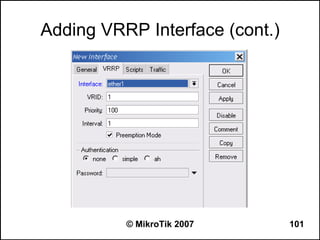
●   Interface - which interface to use for VRRP.
●   vrid – Virtual Router Identifier. Available range
    is from 1-255 (decimal)
●
    Priority - Priority value to be used by this VRRP
    router in Master election. Available range is
    from 1-254 (decimal):
    –   255 is reserved to Router that owns IP
    –   0 is reserved for Master router to indicate that it is
        releasing responsibility

                          © MikroTik 2007                        98
VRRP Properties (cont.)
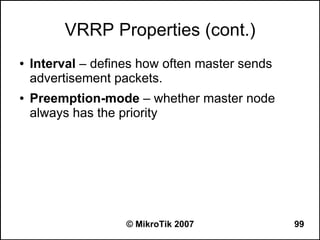
●   Interval – defines how often master sends
    advertisement packets.
●   Preemption-mode – whether master node
    always has the priority


                    © MikroTik 2007             99
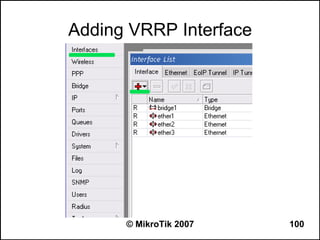
Adding VRRP Interface


      © MikroTik 2007   100
Adding VRRP Interface (cont.)


          © MikroTik 2007       101
VRRP Security
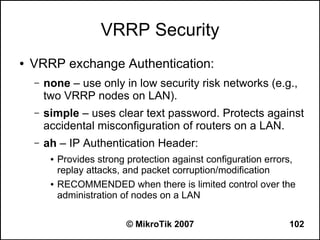
●   VRRP exchange Authentication:
    –   none – use only in low security risk networks (e.g.,
        two VRRP nodes on LAN).
    –   simple – uses clear text password. Protects against
        accidental misconfiguration of routers on a LAN.
    –   ah – IP Authentication Header:
         ●   Provides strong protection against configuration errors,
             replay attacks, and packet corruption/modification
         ●   RECOMMENDED when there is limited control over the
             administration of nodes on a LAN

                             © MikroTik 2007                       102
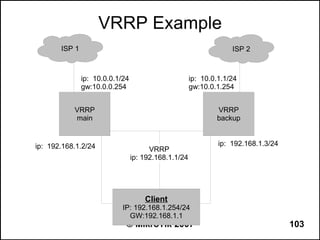
VRRP Example
       ISP 1                                                       ISP 2


               ip: 10.0.0.1/24                        ip: 10.0.1.1/24
               gw:10.0.0.254                          gw:10.0.1.254


           VRRP                                               VRRP
           main                                               backup


ip: 192.168.1.2/24                                             ip: 192.168.1.3/24
                                       VRRP
                                 ip: 192.168.1.1/24


                                     Client
                            IP: 192.168.1.254/24
                              GW:192.168.1.1
                             © MikroTik 2007                                        103
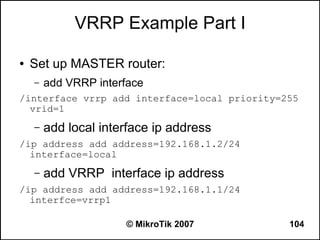
VRRP Example Part I

●   Set up MASTER router:
    –   add VRRP interface
/interface vrrp add interface=local priority=255
  vrid=1
    –   add local interface ip address
/ip address add address=192.168.1.2/24
  interface=local
    –   add VRRP interface ip address
/ip address add address=192.168.1.1/24
  interfce=vrrp1

                      © MikroTik 2007         104
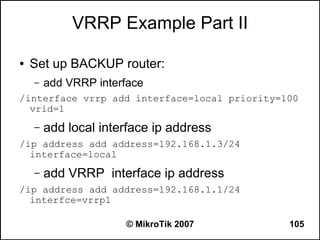
VRRP Example Part II

●   Set up BACKUP router:
    –   add VRRP interface
/interface vrrp add interface=local priority=100
  vrid=1
    –   add local interface ip address
/ip address add address=192.168.1.3/24
  interface=local
    –   add VRRP interface ip address
/ip address add address=192.168.1.1/24
  interfce=vrrp1

                      © MikroTik 2007         105
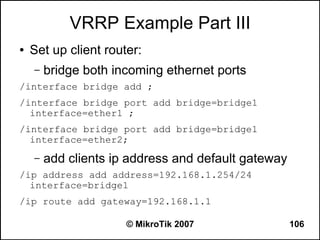
VRRP Example Part III
●   Set up client router:
    –   bridge both incoming ethernet ports
/interface bridge add ;
/interface bridge port add bridge=bridge1
  interface=ether1 ;
/interface bridge port add bridge=bridge1
  interface=ether2;
    –   add clients ip address and default gateway
/ip address add address=192.168.1.254/24
  interface=bridge1
/ip route add gateway=192.168.1.1

                      © MikroTik 2007                106
VRRP Example Part IV


●   Try to ping gateway from client
●   unplug cable connected to MASTER router and
    see how it works
●   after few seconds backup router becomes
    master


                     © MikroTik 2007          107
Static Routing
●   Predictable
●   No overhead
●   Easy to configure on a small network


                    © MikroTik 2007        108
ECMP Routing
●   The Equal Cost Multipath (ECMP) Routing
    mechanism enables packet routing along
    multiple paths with equal cost and ensures load
    balancing
●   A new gateway is chosen for each new source/
    destination IP pair


                    © MikroTik 2007              109
Creating ECMP Routes
●   The ECMP routes can be created by
    –   routing protocols (RIP or OSPF)
    –   adding a static route with multiple gateways,
        separated by a comma (e.g., /ip route add
        gateway=192.168.0.1,192.168.1.1)


                        © MikroTik 2007                 110
Policy Based Routing
●   Policy based routing is a routing approach
    where the next hop (gateway) for a packet is
    chosen, based on a policy, which is configured
    by the network administrator
●   Example policies can be based on:
    –   protocols (HTTP vs FTP)
    –   interfaces (incoming/outgoing)
    –   addresses (source or destination)
    –   traffic type (p2p and “normal” traffic)

                         © MikroTik 2007          111
Creating Policy Based Routing
●   In RouterOS, the procedure of creating policy
    based routing is as follows:
    –   mark the desired packets with a routing-mark
    –   choose a gateway for the marked packets


                        © MikroTik 2007                112
Dynamic Routing
●   Scalability
●   Adaptability
●   The network can adjust to failures


                     © MikroTik 2007     113
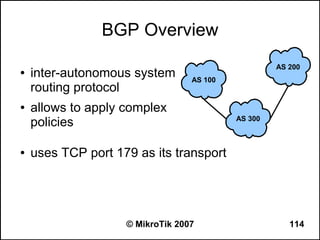
BGP Overview
                                                    AS 200
●   inter-autonomous system       AS 100
    routing protocol
●   allows to apply complex
    policies                               AS 300


●   uses TCP port 179 as its transport


                    © MikroTik 2007                    114
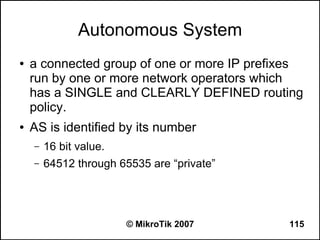
Autonomous System
●   a connected group of one or more IP prefixes
    run by one or more network operators which
    has a SINGLE and CLEARLY DEFINED routing
    policy.
●   AS is identified by its number
    –   16 bit value.
    –   64512 through 65535 are “private”


                        © MikroTik 2007      115
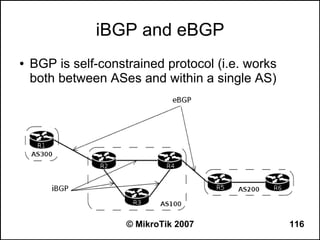
iBGP and eBGP
●   BGP is self-constrained protocol (i.e. works
    both between ASes and within a single AS)


                     © MikroTik 2007               116
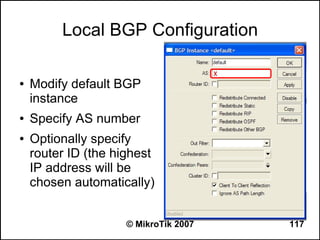
Local BGP Configuration

●   Modify default BGP
    instance
●   Specify AS number
●   Optionally specify
    router ID (the highest
    IP address will be
    chosen automatically)


                     © MikroTik 2007   117
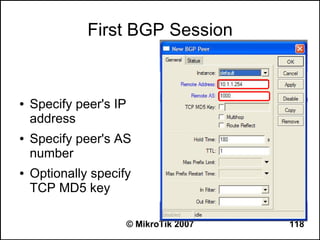
First BGP Session


●   Specify peer's IP
    address
●   Specify peer's AS
    number
●   Optionally specify
    TCP MD5 key

                        © MikroTik 2007   118
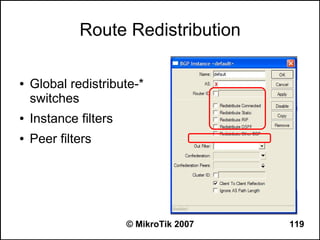
Route Redistribution

●   Global redistribute-*
    switches
●   Instance filters
●   Peer filters


                       © MikroTik 2007   119
BGP Lab
●   Set your router to redistribute connected
    networks
●   Check what you are actually redistributing
●   Verify that your router receives networks via
    BGP


                     © MikroTik 2007                120
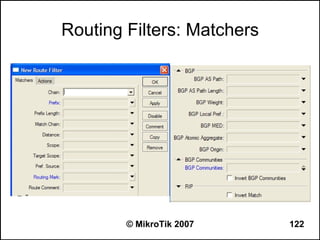
Routing Filters
●   Allow to deploy arbitrary complex routing
    policies

●   Out filter for BGP instance

●   In and out filters for individual peers


                      © MikroTik 2007           121
Routing Filters: Matchers


        © MikroTik 2007     122
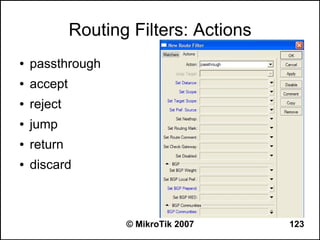
Routing Filters: Actions
●   passthrough
●   accept
●   reject
●   jump
●   return
●   discard


                    © MikroTik 2007     123
AS_PATH
●   the advertised path for a route
●   Each EBGP peer prepends their own AS to
    each route before sending it out
    –   The AS-Path, when read left to right is the path the
        packet will take from the sender to the receiver, with
        the destination AS being the rightmost value
    –   Since the AS is prepended at the EBGP peer, the
        AS-path of a route within an AS won’t contain the
        AS itself


                         © MikroTik 2007                  124
NEXT_HOP
●   EBGP sets the next hop address to the IP
    address of the peer that advertised the prefix
●   IBGP sets the next hop address to the IP
    address of the peer that advertised the prefix
    for routes that originate internally
●   IBGP passes the next hop unaltered for
    prefixes that are learned with EBGP


                     © MikroTik 2007                 125
COMMUNITIES
●   a way to logically classify a prefix for use in policies by
    attaching an identifier that is significant within a
    network
●   communities are represented as two numbers
    separated by a “:”, for example “65001:500” or
    “65000:750”. Each number can have a range between
    0 – 65535. The convention used is to set first number
    to the local AS, and the second number to an arbitrary
    value that is defined by the networks’ administrative
    policy


                        © MikroTik 2007                     126
BGP Weight
●   Used to apply local routing policy within a single
    router
●   Route with numerically greater weight is
    preferred


                     © MikroTik 2007               127
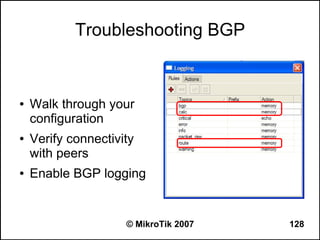
Troubleshooting BGP


●   Walk through your
    configuration
●   Verify connectivity
    with peers
●   Enable BGP logging


                     © MikroTik 2007   128
What is OSPF?
OSPF means:
● Open


   – Common standard, everybody free to implement or
     use it
● Shortest


   – Optimal, with less interruptions, best
● Path


   – A sequence of links packet needs to pass to reach
     destination
● First


   – ... to find the above best path


                     © MikroTik 2007                     129
Why do I need one?
●   OSPF can be used for:
    –   switching to a redundant or standby link upon the
        failure or abnormal termination of the currently-
        active link
    –   routing topology updates in highly dynamic
        network
    –   ensuring internal AS consistency when using BGP


                       © MikroTik 2007                 130
Before you Begin
●   OSPF support in RouterOS is provided via
    separate 'routing' package
    –   Check that the package is installed using '/system
        package print' command
    –   Install the missing package, if required
●   Make sure the firewall does not filter out OSPF
    communications
    –   (OSPF neighbors use IP protocol 89 for
        communication with each other)

                        © MikroTik 2007                 131
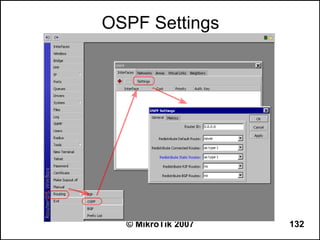
OSPF Settings


  © MikroTik 2007   132
Configuration Checklist
●   Add networks you want OSPF to be run on to
    the '/routing OSPF networks' list
●   (optional) Configure general OSPF settings
●   Check that OSPF is working
●    (optional) Adjust interface parameters, if
    necessary
●   (optional) Configure redistribution filters


                     © MikroTik 2007              133
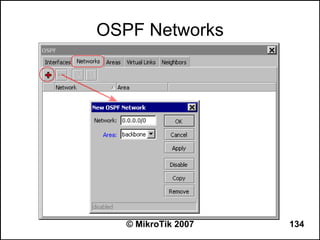
OSPF Networks


   © MikroTik 2007   134
OSPF Networks
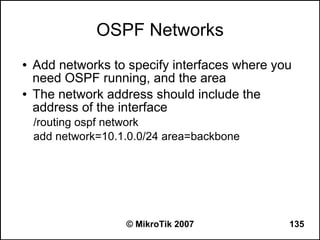
●   Add networks to specify interfaces where you
    need OSPF running, and the area
●   The network address should include the
    address of the interface
    /routing ospf network
    add network=10.1.0.0/24 area=backbone


                    © MikroTik 2007            135
OSPF Neighbors
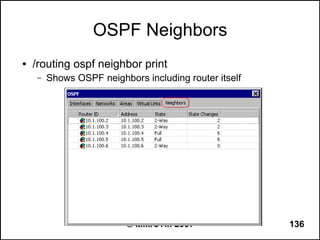
●   /routing ospf neighbor print
    –   Shows OSPF neighbors including router itself


                          © MikroTik 2007              136
OSPF Neighbor States
●   Neighbor state shows status of the OSPF
    neighbor:
    –   Full: link state databases completely synchronized
    –   2-Way: bidirectional communication established
    –   Down, Attempt, Init, Loading, ExStart, Exchange:
        not completely running, see the documentation!


                       © MikroTik 2007                  137
OSPF Router ID
●   Router ID must be unique within the AS
●   Router ID can be left as 0.0.0.0
    –   Largest IP address assigned to the router will be
        used


                        © MikroTik 2007                     138
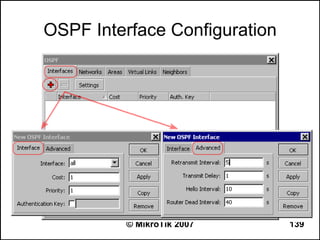
OSPF Interface Configuration


         © MikroTik 2007       139
Redistribution
●   Global redistribute- switches

●   Routing filters


                      © MikroTik 2007   140
OSPF Route Redistribution
●   Set redistribute connected routes [and static
    routes]:
    /routing ospf
    set redistribute-connected=as-type-1
    set redistribute-static=as-type-1
●   If you use RIP or BGP as well, you may want
    to redistribute routes learned by these
    protocols


                      © MikroTik 2007               141
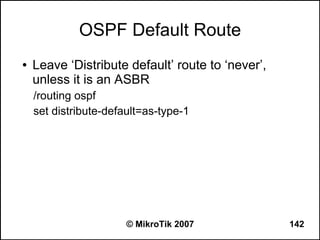
OSPF Default Route
●   Leave ‘Distribute default’ route to ‘never’,
    unless it is an ASBR
    /routing ospf
    set distribute-default=as-type-1


                       © MikroTik 2007             142
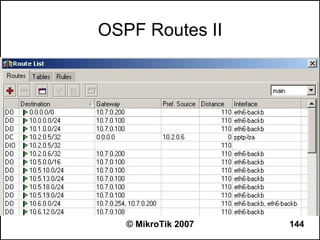
OSPF Routes I
●   /ip route print
    –   DO: a route added by OSPF shows that OSPF is
        running on that interface
    –   Equal cost multipath routes have one destination
        address and gateways separated by ‘,’.


                       © MikroTik 2007                 143
OSPF Routes II


   © MikroTik 2007   144
OSPF Logs
●   OSPF logs show information exchange
    between routers:
    /system logging add topics=ospf action=memory
●   Turn it off after OSPF is set up and running


                     © MikroTik 2007                145
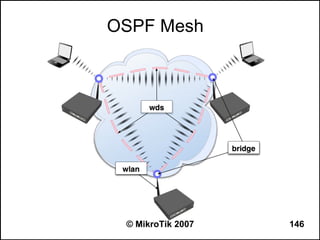
OSPF Mesh


 © MikroTik 2007   146
Configuring Mesh
●   Set router to distribute the default route and
    redistribute connected routes:
    /routing ospf
    distribute-default=always-as-type-1
    redistribute-connected=as-type-1
●   Configure OSPF to run on two local interfaces:
    /routing ospf network
    add network 10.0.0.0/8 area=backbone


                      © MikroTik 2007                147
Configuring Mesh (cont.)
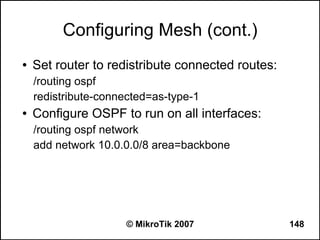
●   Set router to redistribute connected routes:
    /routing ospf
    redistribute-connected=as-type-1
●   Configure OSPF to run on all interfaces:
    /routing ospf network
    add network 10.0.0.0/8 area=backbone


                     © MikroTik 2007               148
Areas
●   When no OSPF areas are configured, each
    router running OSPF has an identical view of
    the routing topology of the Autonomous System
    (AS)
●   OSPF allows collections of contiguous networks
    and hosts to be grouped together into areas
●   The topology of an area is invisible from the
    outside of the area


                     © MikroTik 2007                149
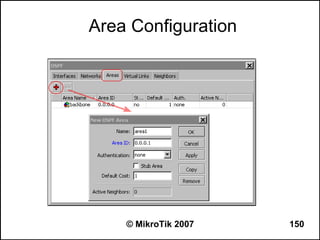
Area Configuration


    © MikroTik 2007   150
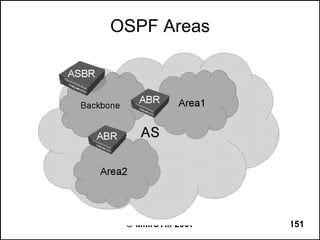
OSPF Areas


 © MikroTik 2007   151
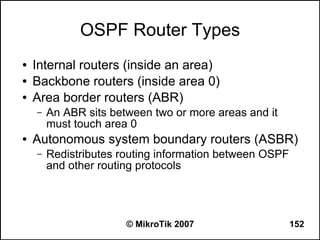
OSPF Router Types
●   Internal routers (inside an area)
●   Backbone routers (inside area 0)
●   Area border routers (ABR)
    –   An ABR sits between two or more areas and it
        must touch area 0
●   Autonomous system boundary routers (ASBR)
    –   Redistributes routing information between OSPF
        and other routing protocols


                       © MikroTik 2007                   152
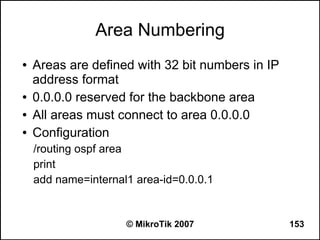
Area Numbering
●   Areas are defined with 32 bit numbers in IP
    address format
●   0.0.0.0 reserved for the backbone area
●   All areas must connect to area 0.0.0.0
●   Configuration
    /routing ospf area
    print
    add name=internal1 area-id=0.0.0.1


                     © MikroTik 2007              153
Troubleshooting OSPF
●   seek to narrow down the source of a problem
    by figuring out what is and isn't working until a
    single cause is identified
●   change only one thing at a time
●   make notes as you move forward


                      © MikroTik 2007               154
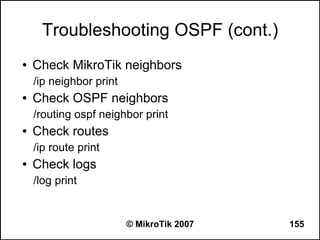
Troubleshooting OSPF (cont.)
●   Check MikroTik neighbors
    /ip neighbor print
●   Check OSPF neighbors
    /routing ospf neighbor print
●   Check routes
    /ip route print
●   Check logs
    /log print


                         © MikroTik 2007   155
Alternatives to OSPF backup
●   Use Netwatch to run scripts that change
    routing
●   Bridging using EoIP tunnels or WDS
●   Hint: when configuring the bridge,
    –   Turn on Spanning Tree Protocol (STP) to avoid
        loops;
    –   Use port cost argument to set ‘preferred’ path to
        be used.


                        © MikroTik 2007                     156
Wireless and Tunnels


Wireless Concepts, Encryption, User Manager,
  WDS and Mesh, nStreme Protocol, VLAN,
         PPPoE, PPTP, L2TP, IPSec

               © MikroTik 2007            157
Wireless Setup Lab
●   Upgrade your router to the latest RouterOS
    V3.xx
●   Set wireless cards “Radio name” option to
    “XY_<name>”, where “XY” is your number


                    © MikroTik 2007              158
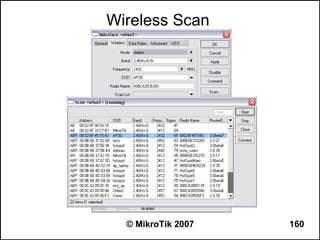
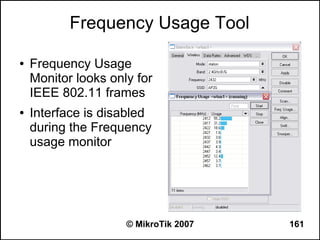
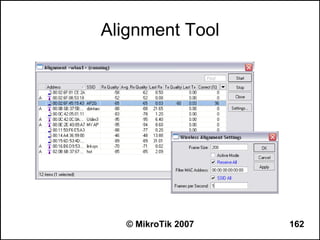
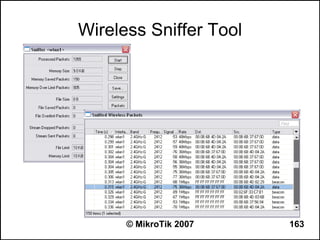
Wireless Tools
●   RouterOS offers a number of diagnostic tools
    for the wireless interface
    –   Scan for finding access points
    –   Frequency usage monitor to find free frequency
    –   Alignment tool to help align antennas
    –   Sniffer to sniff packets from wireless network
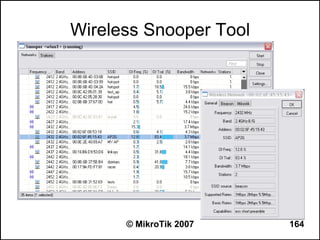
    –   Snooper to monitor traffic load on each channel


                        © MikroTik 2007                   159
Wireless Scan


  © MikroTik 2007   160
Frequency Usage Tool

●   Frequency Usage
    Monitor looks only for
    IEEE 802.11 frames
●   Interface is disabled
    during the Frequency
    usage monitor


                     © MikroTik 2007   161
Alignment Tool


   © MikroTik 2007   162
Wireless Sniffer Tool


      © MikroTik 2007   163
Wireless Snooper Tool


      © MikroTik 2007   164
Wireless Standards
●   IEEE 802.11b
    –   2.4ghz-b - 11Mbps
    –   2.4ghz-b/g - 11Mbps,
●   IEEE 802.11g
    –   2.4ghz-b/g - 54Mbps
    –   2.4ghz-only-g - 54Mbps
    –   2.4ghz-g-turbo - 108Mbps
●   IEEE 802.11a
    –   5ghz - 54Mbps
    –   5ghz-turbo - 108Mbps


                         © MikroTik 2007   165
Supported Frequencies
●   Wireless cards usually support the following
    frequencies:
    –   For all 2.4GHz bands: 2312-2499MHz
    –   For all 5GHz bands: 4920-6100MHz
●   Your country regulations allow only particular
    frequency ranges
●   Custom frequency license unlocks all
    frequencies supported by the wireless hardware


                      © MikroTik 2007                166
Supported Bands
●   All 802.11a and 802.11b/g standard bands
●   Variation of IEEE 802.11 with half of the band
    –   2Ghz-10MHz and 5Ghz-10MHz
    –   max rate half of 54 Mbps (27Mbps)
●   Variation of IEEE 802.11 with quarter of the
    band
    –   2Ghz-5MHz and 5Ghz-5MHz
    –   max rate quarter of 54 Mbps (13.5Mbit)


                        © MikroTik 2007              167
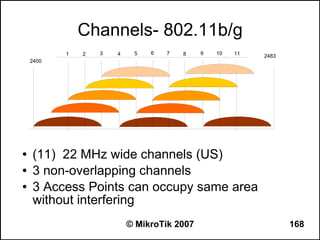
Channels- 802.11b/g
           1   2   3   4    5   6   7   8    9   10   11   2483
    2400


●   (11) 22 MHz wide channels (US)
●   3 non-overlapping channels
●   3 Access Points can occupy same area
    without interfering
                           © MikroTik 2007                        168
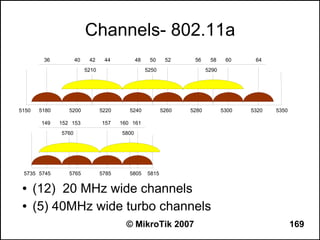
Channels- 802.11a
         36           40    42     44           48    50     52     56     58     60     64
                           5210                      5250                 5290


5150    5180      5200            5220      5240            5260   5280          5300   5320   5350

        149    152 153            157    160 161
               5760                      5800


 5735 5745        5765            5785      5805     5815

 ●     (12) 20 MHz wide channels
 ●     (5) 40MHz wide turbo channels
                                           © MikroTik 2007                                            169
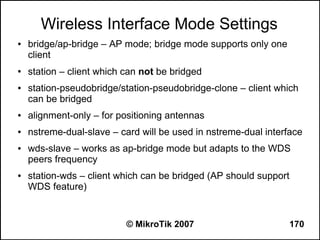
Wireless Interface Mode Settings
●   bridge/ap-bridge – AP mode; bridge mode supports only one
    client
●   station – client which can not be bridged
●   station-pseudobridge/station-pseudobridge-clone – client which
    can be bridged
●   alignment-only – for positioning antennas
●   nstreme-dual-slave – card will be used in nstreme-dual interface
●   wds-slave – works as ap-bridge mode but adapts to the WDS
    peers frequency
●   station-wds – client which can be bridged (AP should support
    WDS feature)


                           © MikroTik 2007                      170
Wireless AP/Station Lab
●   Work in pairs to make AP/Station connection
    with your neighbor's router
●   Create a AP on the wlan1 interface in 5Ghz
    band with SSID “apXY” where XY is your
    number
●   On wlan2 interface create a station to connect
    to your neighbor's AP (you need to know the
    neighbor's AP SSID)
●   Make a backup from this configuration

                    © MikroTik 2007              171
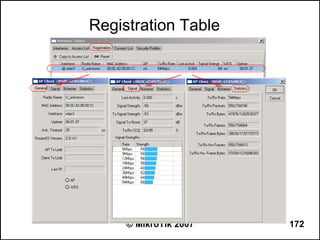
Registration Table


     © MikroTik 2007   172
Clients Access Management
●   default-forwarding – gives ability to disable the
    communication between the wireless clients
●   default-authentication – enables AP to register
    a client even if it is not in access list. In turn for
    client it allows to associate with AP not listed in
    client's connect list


                      © MikroTik 2007                  173
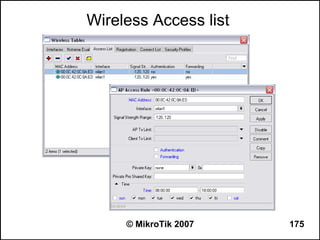
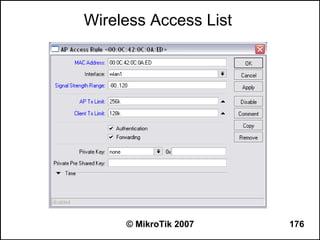
Wireless Access List
●Individual settings for each client in access list
will override the interface default settings
● Access list entries can be made from the
registration table entries by using action 'Copy to
Access List'
● Access list entries are ordered, just like in
firewall
●   Matching by all interfaces “interface=all”
●   “Time” - works just like in firewall

                     © MikroTik 2007              174
Wireless Access list


     © MikroTik 2007   175
Wireless Access List


     © MikroTik 2007   176
Wireless Access List Lab
●   Check if the neighbor's wireless router is
    connected to your AP interface (wlan1)
●   Disable the default interface settings on wlan1:
    default-forwarding, default-authentication
●   Make sure that nobody is connected to your AP
●   Add access list entry with your neighbor's MAC
    address and make sure it connects


                     © MikroTik 2007              177
Wireless RADIUS Authentication


           © MikroTik 2007       178
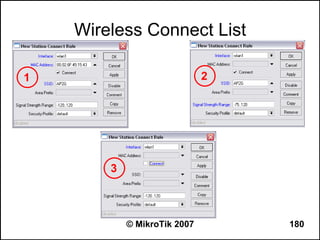
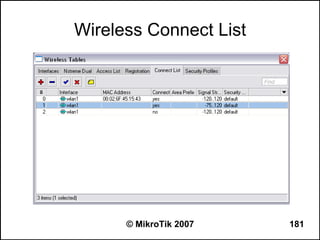
Wireless Connect List
●Allow or deny clients from connecting to
specific AP by using Connect list
● Connect list entries can be made from the
registration table entries by using action 'Copy to
Connect List'
● Connect list entries are ordered, just like in
firewall
●   Used also for WDS links


                  © MikroTik 2007                  179
Wireless Connect List

1                             2


        3


            © MikroTik 2007       180
Wireless Connect List


      © MikroTik 2007   181
Wireless Connect List Lab
●   On the AP interface (wlan1) enable the 'hide-
    ssid' option
●   On the Station interface (wlan2) leave the SSID
    field empty
●   Add connect list entry for wlan2 interface to
    connect to your neighbor's AP (you will need
    the neighbor's AP MAC address)


                     © MikroTik 2007                182
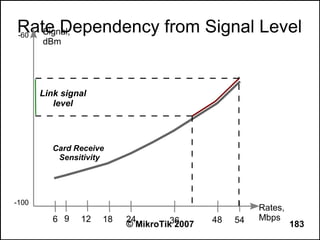
Rate Dependency from Signal Level
-60 Signal,
       dBm


       Link signal
          level


          Card Receive
           Sensitivity


-100
                                                      Rates,
          6 9   12   18   24        36      48   54   Mbps
                          © MikroTik 2007                      183
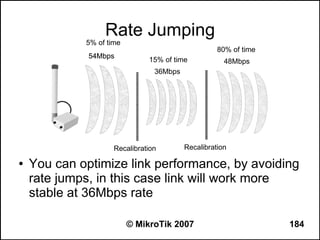
Rate Jumping
             5% of time
                                                    80% of time
              54Mbps
                               15% of time            48Mbps
                                 36Mbps


                     Recalibration        Recalibration

●   You can optimize link performance, by avoiding
    rate jumps, in this case link will work more
    stable at 36Mbps rate

                          © MikroTik 2007                         184
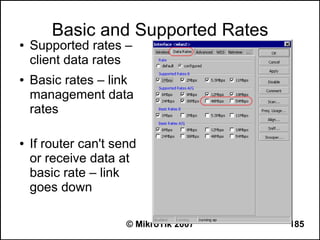
Basic and Supported Rates
●   Supported rates –
    client data rates
●   Basic rates – link
    management data
    rates

●   If router can't send
    or receive data at
    basic rate – link
    goes down

                      © MikroTik 2007   185
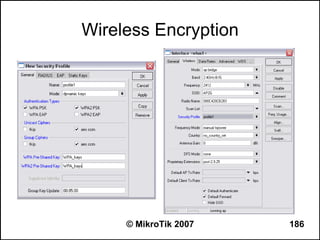
Wireless Encryption


     © MikroTik 2007   186
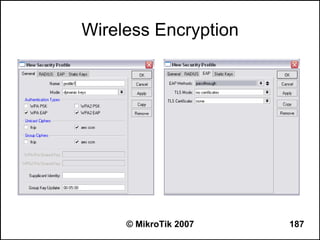
Wireless Encryption


     © MikroTik 2007   187
Wireless Encryption Lab
●   Create a new security profile with options:
    mode=dynamic-keys
    authentication-type=wpa2-psk
    group/unicast ciphers=aes-ccm
    wpa2-key=wireless
●   Apply the new profile to wlan1 and check if the
    neighbors wireless client connects


                     © MikroTik 2007              188
Wireless Distribution System
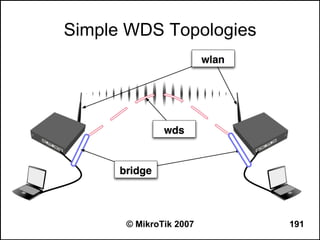
●   WDS (Wireless Distribution System) allows
    packets to pass from one AP to another, just as
    if the APs were ports on a wired Ethernet switch
●   APs must use the same band and SSID and
    operate on the same frequency in order to
    connect to each other
●   WDS is used to make bridged networks across
    the wireless links and to extend the span of the
    wireless network


                     © MikroTik 2007              189
Wireless Distribution System
●   WDS link can be created between wireless
    interfaces in several mode variations:
    –   bridge/ap-bridge – bridge/ap-bridge
    –   bridge/ap-bridge – wds-slave
    –   bridge/ap-bridge – station-wds

●   You must disable DFS setting when using WDS
    with more than one AP


                        © MikroTik 2007        190
Simple WDS Topologies


      © MikroTik 2007   191
Dynamic WDS
                  Interface
●   It is created 'on the fly' and appears under wds
    menu as a dynamic interface ('D' flag)
●   When the link between WDS devices goes
    down, attached IP addresses will slip off from
    WDS interface
●   Specify “wds-default-bridge” parameter and
    attach IP addresses to the bridge


                     © MikroTik 2007                 192
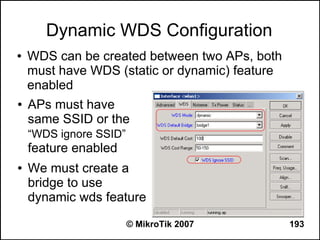
Dynamic WDS Configuration
●   WDS can be created between two APs, both
    must have WDS (static or dynamic) feature
    enabled
●   APs must have
    same SSID or the
    “WDS ignore SSID”
    feature enabled
●   We must create a
    bridge to use
    dynamic wds feature
                        © MikroTik 2007         193
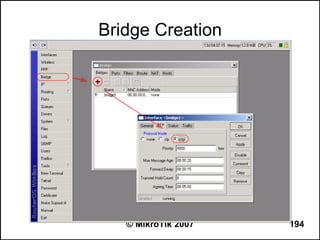
Bridge Creation


   © MikroTik 2007   194
Dynamic WDS Lab
●   Create a bridge interface with protocol-mode=rstp
●   Make sure that wlan1 interface is set to “ap-bridge” mode
    and choose with your neighbor an equal SSID
●   Enable the dynamic WDS mode on the wlan1 and specify
    the default-wds-bridge option to use bridge1
●   Add 10.1.1.XY/24 IP to the bridge interface
●   Check your network: From Your router try to ping
    neighbors router
●   Optional: Add ether1 to the bridge and change laptops IP
    to 10.1.1.1XY/24


                         © MikroTik 2007                    195
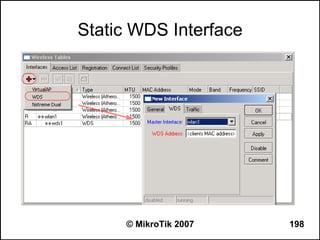
Static WDS
●   It should be created manually
●   It requires the destination MAC address and
    master interface parameters to be specified
    manually
●   Static WDS interfaces never disappear, unless
    you disable or remove them


                    © MikroTik 2007               196
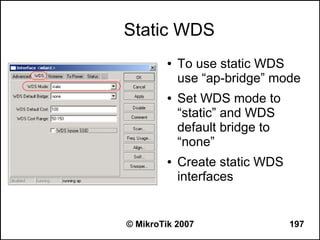
Static WDS
         ●   To use static WDS
             use “ap-bridge” mode
         ●   Set WDS mode to
             “static” and WDS
             default bridge to
             “none”
         ●   Create static WDS
             interfaces


© MikroTik 2007                  197
Static WDS Interface


     © MikroTik 2007   198
Static WDS Lab
●   Adjust setup from the previous lab, to use WDS
    static mode
    –   Configure your wireless card accordingly
    –   Create the static WDS interface
    –   Add necessary ports to the bridge
●   Optional: Add ether1 to the bridge and change
    laptops IP to 10.1.1.1XY/24


                        © MikroTik 2007            199
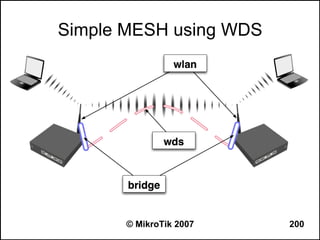
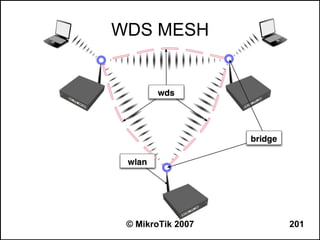
Simple MESH using WDS


       © MikroTik 2007   200
WDS MESH


 © MikroTik 2007   201
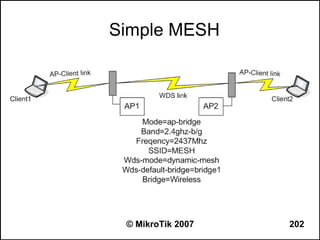
Simple MESH


 © MikroTik 2007   202
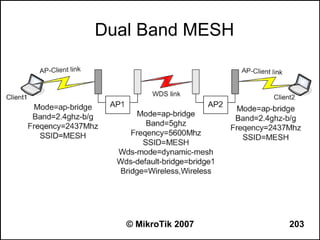
Dual Band MESH


   © MikroTik 2007   203
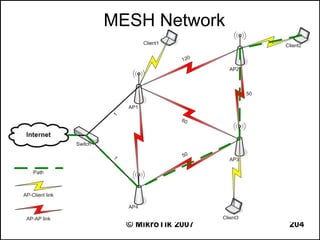
MESH Network


  © MikroTik 2007   204
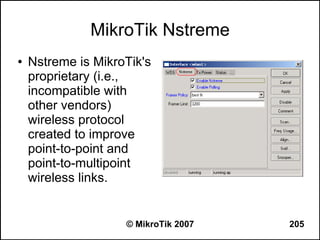
MikroTik Nstreme
●   Nstreme is MikroTik's
    proprietary (i.e.,
    incompatible with
    other vendors)
    wireless protocol
    created to improve
    point-to-point and
    point-to-multipoint
    wireless links.


                    © MikroTik 2007   205
Nstreme Protocol
Benefits of Nstreme protocol:
●   Client polling
●   Very low protocol overhead per frame allowing
    super-high data rates
●   No protocol limits on link distance
●   No protocol speed degradation for long link
    distances
●   Dynamic protocol adjustment depending on
    traffic type and resource usage

                     © MikroTik 2007              206
Nstreme Protocol: Frames
●   framer-limit - maximal frame size
●   framer-policy - the method how to combine frames.
    There are several methods of framing:
     ●   none - do not combine packets
     ●   best-fit - put as much packets as possible in one frame,
         until the limit is met, but do not fragment packets
     ●   exact-size - same as best-fit, but with the last packet
         fragmentation
     ●   dynamic-size - choose the best frame size dynamically


                           © MikroTik 2007                          207
Nstreme Lab
●   Restore configuration backup file
●   Route your private network together with your
    neighbor's network
●   Enable N-streme and check link productivity
    with different framer polices


                    © MikroTik 2007               208
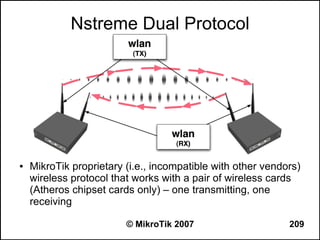
Nstreme Dual Protocol


●   MikroTik proprietary (i.e., incompatible with other vendors)
    wireless protocol that works with a pair of wireless cards
    (Atheros chipset cards only) – one transmitting, one
    receiving

                         © MikroTik 2007                     209
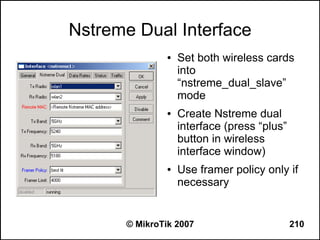
Nstreme Dual Interface
               ●   Set both wireless cards
                   into
                   “nstreme_dual_slave”
                   mode
               ●   Create Nstreme dual
                   interface (press “plus”
                   button in wireless
                   interface window)
               ●   Use framer policy only if
                   necessary


      © MikroTik 2007                        210
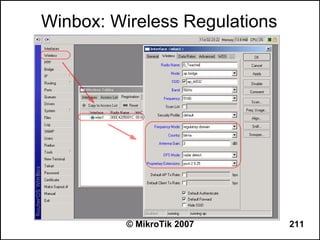
Winbox: Wireless Regulations


          © MikroTik 2007      211
Wireless Regulations
●   To follow all the regulations in your wireless
    communication domain you must specify:
    –   Country where wireless system will operate
    –   Frequency mode to regulatory domain – you will be
        able to use only allowed channels with allowed
        transmit powers
    –   Antenna gain of antenna attached to this router
    –   DFS mode – periodically will check for less used
        frequency and change to it
    –   (Proprietary-extensions to post-2.9.25)

                        © MikroTik 2007                    212
Wireless Country Settings Lab
●   Open terminal
●   Issue “/interface wireless info print” command
●   Change country to “australia”
●   Issue “/interface wireless info print” command
●   Compare results
●   Set country back to 'no_country_set'


                      © MikroTik 2007                213
VPN Benefits
●   Secures communications between corporate
    private LANs over
    –   Public networks
    –   Leased lines
    –   Wireless links
●   Corporate resources (e-mail, corporate
    servers, printers) can be accessed securely by
    users having granted access rights from
    outside (home, while traveling, etc.)

                          © MikroTik 2007       214
Simple Tunneling Protocols

●   Simple in configuration!
●   Do not require authentication
●   Do not use data encryption
●   Such protocols are:
    –   IPIP (IP over IP)
    –   EOIP (Ethernet over IP)
    –   VLAN (Virtual LAN)


                            © MikroTik 2007   215
EoIP Tunnels
●   MikroTik proprietary protocol.
●   Encapsulates Ethernet frames into IP protocol
    47/gre packets.
●   EoIP interface supports all features of an
    Ethernet interface.
●   EoIP Tunnel may be run over any connection
    that supports IP
●   Maximum number of EoIP tunnels is 65535


                    © MikroTik 2007             216
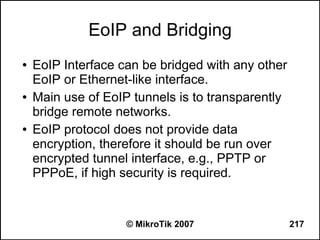
EoIP and Bridging
●   EoIP Interface can be bridged with any other
    EoIP or Ethernet-like interface.
●   Main use of EoIP tunnels is to transparently
    bridge remote networks.
●   EoIP protocol does not provide data
    encryption, therefore it should be run over
    encrypted tunnel interface, e.g., PPTP or
    PPPoE, if high security is required.


                    © MikroTik 2007                217
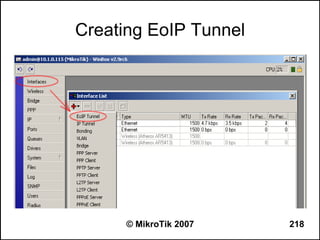
Creating EoIP Tunnel


      © MikroTik 2007   218
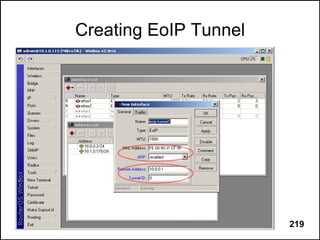
Creating EoIP Tunnel


      © MikroTik 2007   219
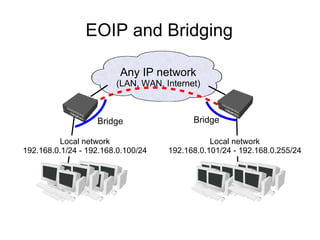
EOIP and Bridging

                         Any IP network
                        (LAN, WAN, Internet)


                   Bridge                 Bridge

         Local network                         Local network
192.168.0.1/24 - 192.168.0.100/24   192.168.0.101/24 - 192.168.0.255/24
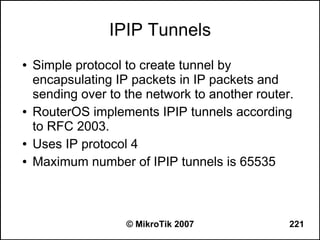
IPIP Tunnels
●   Simple protocol to create tunnel by
    encapsulating IP packets in IP packets and
    sending over to the network to another router.
●   RouterOS implements IPIP tunnels according
    to RFC 2003.
●   Uses IP protocol 4
●   Maximum number of IPIP tunnels is 65535


                    © MikroTik 2007              221
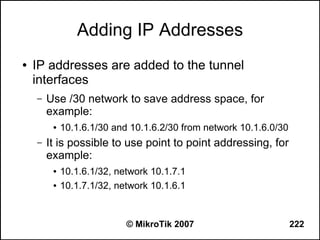
Adding IP Addresses
●   IP addresses are added to the tunnel
    interfaces
    –   Use /30 network to save address space, for
        example:
         ●   10.1.6.1/30 and 10.1.6.2/30 from network 10.1.6.0/30
    –   It is possible to use point to point addressing, for
        example:
         ●   10.1.6.1/32, network 10.1.7.1
         ●   10.1.7.1/32, network 10.1.6.1


                            © MikroTik 2007                         222
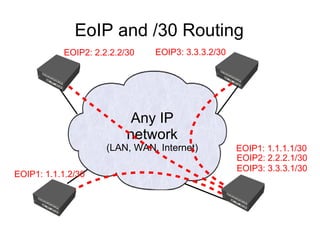
EoIP and /30 Routing
           EOIP2: 2.2.2.2/30   EOIP3: 3.3.3.2/30


                           Any IP
                          network
                     (LAN, WAN, Internet)          EOIP1: 1.1.1.1/30
                                                   EOIP2: 2.2.2.1/30
                                                   EOIP3: 3.3.3.1/30
EOIP1: 1.1.1.2/30
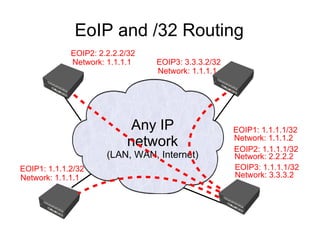
EoIP and /32 Routing
             EOIP2: 2.2.2.2/32
             Network: 1.1.1.1    EOIP3: 3.3.3.2/32
                                 Network: 1.1.1.1


                            Any IP                   EOIP1: 1.1.1.1/32
                           network                   Network: 1.1.1.2
                                                     EOIP2: 1.1.1.1/32
                      (LAN, WAN, Internet)           Network: 2.2.2.2
EOIP1: 1.1.1.2/32                                    EOIP3: 1.1.1.1/32
Network: 1.1.1.1                                     Network: 3.3.3.2
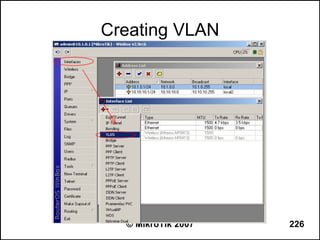
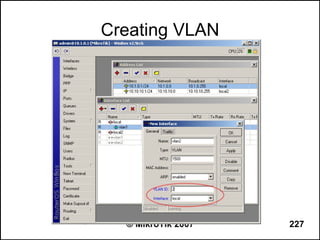
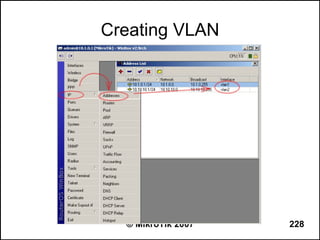
VLAN interfaces
●   VLAN is an implementation of the 802.1Q
    protocol
●   VLAN allows multiple Virtual LANs on a single
    ethernet cable
●   VLAN supports up to 250 vlan interfaces per
    ethernet device


                    © MikroTik 2007             225
Creating VLAN


  © MikroTik 2007   226
Creating VLAN


  © MikroTik 2007   227
Creating VLAN


  © MikroTik 2007   228
Point-to-Point Protocol Tunnels
●   A little bit sophisticated in configuration
●   Offer user authentication
●   Permit data encryption
●   Such protocols are:
       PPPoE (Point-to-Point Protocol over Ethernet)
       PPTP (Point-to-Point Tunneling Protocol)
       L2TP (Layer 2 Tunneling Protocol)


                        © MikroTik 2007                 229
PPPoE Tunnels
●   PPPoE is used to hand out IP addresses to
    clients after authentication
●   PPPoE works in OSI layer 2 (data link layer)
●   The PPPoE protocol provides extensive user
    and network management, together with
    accounting benefits to ISPs and network
    administrators


                    © MikroTik 2007                230
PPPoE Server and Client
●   PPPoE requires a dedicated access
    concentrator (server), which PPPoE clients
    connect to.
●   Most operating systems have PPPoE client
    software. Windows XP has PPPoE client
    installed by default
●   MikroTik RouterOS has both PPPoE server and
    client capabilities


                    © MikroTik 2007              231
PPPoE Client Setup Lab
●   Remove the IP address from your router's
    wireless interface
●   Remove the default route from the routing table
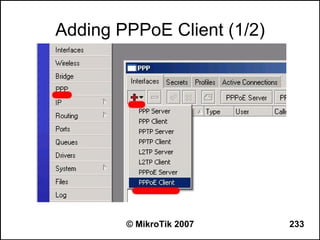
●   Add a PPPoE client to the router's wireless
    interface
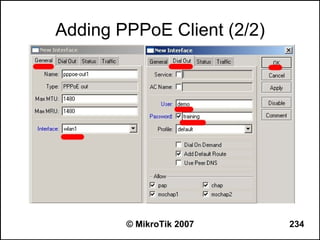
    –   Use user 'demo' and password 'training'
    –   Check “Add Default Route” to use the PPPoE
        connection as the default route


                        © MikroTik 2007              232
Adding PPPoE Client (1/2)


        © MikroTik 2007     233
Adding PPPoE Client (2/2)


        © MikroTik 2007     234
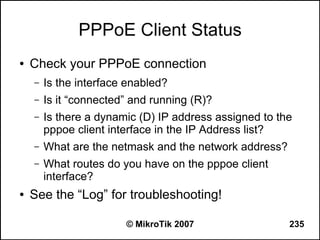
PPPoE Client Status
●   Check your PPPoE connection
    –   Is the interface enabled?
    –   Is it “connected” and running (R)?
    –   Is there a dynamic (D) IP address assigned to the
        pppoe client interface in the IP Address list?
    –   What are the netmask and the network address?
    –   What routes do you have on the pppoe client
        interface?
●   See the “Log” for troubleshooting!

                        © MikroTik 2007                 235
Can you browse?
●   Commands to use from the workstation:
    –   C:>tracert -d 8.8.8.8 (see how far it goes)
    –   C:>tracert -d google.com (does it resolve the name
        to an IP address?)
    –   C:>ipconfig /all (are the IP address, netmask,
        gateway correct, what is the DNS server?)
●   Commands to use from the router:
    –   [john@22_John] > tool traceroute 8.8.8.8
    –   [john@22_John] > tool traceroute google.com

                        © MikroTik 2007                  236
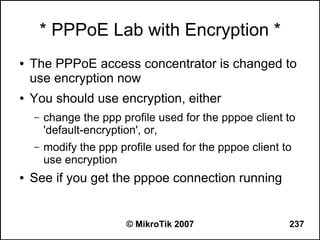
* PPPoE Lab with Encryption *
●   The PPPoE access concentrator is changed to
    use encryption now
●   You should use encryption, either
    –   change the ppp profile used for the pppoe client to
        'default-encryption', or,
    –   modify the ppp profile used for the pppoe client to
        use encryption
●   See if you get the pppoe connection running


                         © MikroTik 2007                  237
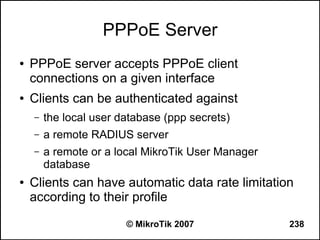
PPPoE Server
●   PPPoE server accepts PPPoE client
    connections on a given interface
●   Clients can be authenticated against
    –   the local user database (ppp secrets)
    –   a remote RADIUS server
    –   a remote or a local MikroTik User Manager
        database
●   Clients can have automatic data rate limitation
    according to their profile

                        © MikroTik 2007             238
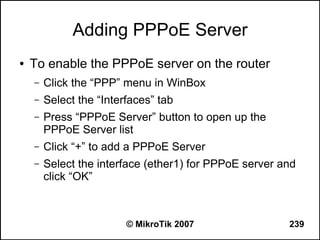
Adding PPPoE Server
●   To enable the PPPoE server on the router
    –   Click the “PPP” menu in WinBox
    –   Select the “Interfaces” tab
    –   Press “PPPoE Server” button to open up the
        PPPoE Server list
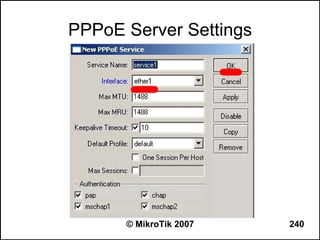
    –   Click “+” to add a PPPoE Server
    –   Select the interface (ether1) for PPPoE server and
        click “OK”


                         © MikroTik 2007                239
PPPoE Server Settings


      © MikroTik 2007   240
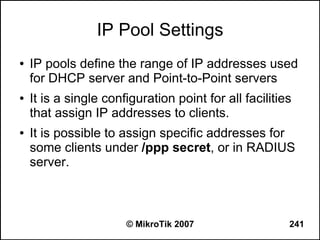
IP Pool Settings
●   IP pools define the range of IP addresses used
    for DHCP server and Point-to-Point servers
●   It is a single configuration point for all facilities
    that assign IP addresses to clients.
●   It is possible to assign specific addresses for
    some clients under /ppp secret, or in RADIUS
    server.


                       © MikroTik 2007                  241
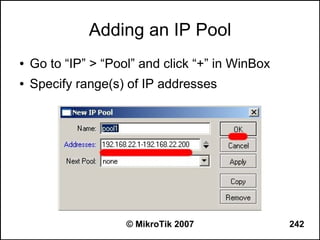
Adding an IP Pool
●   Go to “IP” > “Pool” and click “+” in WinBox
●   Specify range(s) of IP addresses


                     © MikroTik 2007              242
PPP Secret and Profile
●   PPP profiles define default values for user
    access records stored under /ppp secret
    submenu
●   PPP secret (aka local PPP user database)
    stores PPP user access records with PPP user
    profile assigned to each user.
●   Settings in /ppp secret user database override
    corresponding /ppp profile settings


                     © MikroTik 2007              243
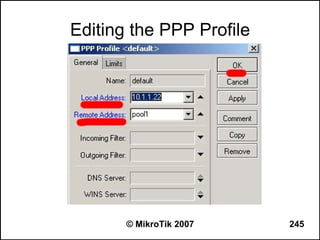
PPP Profile
●   Go to “PPP” > “Profile” in WinBox
●   Click “+” to add a new profile, or, edit an
    existing one
    –   “Local Address” will be used on the server's side of
        PPPoE tunnel, set it to the IP address of the router,
        e.g., 10.1.1.22, or, any other IP address, say,
        192.168.22.254 (not important)
    –   “Remote Address” will be assigned to the PPPoE
        clients, set it to “pool1”


                         © MikroTik 2007                  244
Editing the PPP Profile


       © MikroTik 2007    245
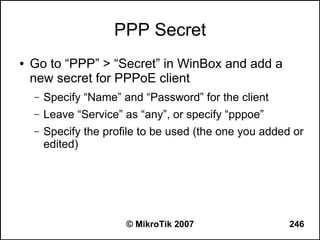
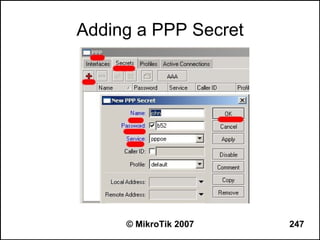
PPP Secret
●   Go to “PPP” > “Secret” in WinBox and add a
    new secret for PPPoE client
    –   Specify “Name” and “Password” for the client
    –   Leave “Service” as “any”, or specify “pppoe”
    –   Specify the profile to be used (the one you added or
        edited)


                        © MikroTik 2007                  246
Adding a PPP Secret


     © MikroTik 2007   247
PPPoE Server Lab
●   Create a PPPoE connection between your
    workstation and your router once the PPPoE
    service is configured on the router
    –   Add a PPPoE network connection to your
        workstation
    –   Connect to the router using the name and password
        specified in PPP Secret
●   Modify the connection settings to
    –   force mschap2 password authentication
    –   require data encryption
                        © MikroTik 2007               248
PPPoE, MTU, and MSS
●   Always set the MTU value of a PPPoE interface
    to at least 12 bytes less than the MTU of the
    physical interface where PPPoE is running
●   Make sure there is a mangle rule added for
    each client or in general for all PPPoE clients to
    change the MSS of TCP SYN packets


                     © MikroTik 2007               249
PPTP Tunnels
●   PPTP (Point to Point Tunnel Protocol) provides
    encrypted tunnels over IP
●   PPTP requires a dedicated server, which PPTP
    clients connect to
●   PPTP traffic uses TCP port 1723 and IP
    protocol 47/GRE
●   PPTP clients are available for and/or included
    in almost all OSes


                     © MikroTik 2007             250
Firewall Service Ports
●   Enable PPTP and GRE “helpers” when using
    NAT (masquerading) for PPTP clients on
    private network, that are making connections to
    “outside” PPTP servers
    –   “IP” > “Firewall” > “Service Ports”
●   There are no “helpers” for VoIP SIP in V2.9.XX
●   SIP “helpers” will be implemented in the 2.10
    version


                         © MikroTik 2007            251
L2TP tunnels
●   L2TP (Layer 2 Tunnel Protocol) supports
    encrypted tunnels over IP
●   L2TP requires a dedicated server, which L2TP
    clients connect to
●   L2TP traffic uses UDP port 1701 only for link
    establishment, further traffic is using any
    available UDP port
●   L2TP clients are available for and/or included
    in almost all OS


                    © MikroTik 2007             252
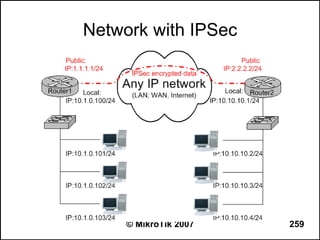
IPSec
●   IPsec (IP Security) supports secure (encrypted)
    communications over IP networks.
●   After packet is src-natted, but before putting it into interface
    queue, IPsec policy database is consulted to find out if packet
    should be encrypted
●   Security Policy Database (SPD) is a list of rules that have two
    parts:
     –   Packet matching - packet source/destination, protocol and ports (for
         TCP and UDP) are compared to values in policy rules, one after
         another
     –   Action - if rule matches action specified in rule is performed:
          ●   accept - continue with packet as if there was no IPsec
          ●   drop - drop packet
          ●
              encrypt - encrypt packet


                                  © MikroTik 2007                          253
© MikroTik 2007   254
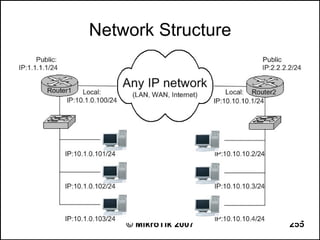
Network Structure


    © MikroTik 2007   255
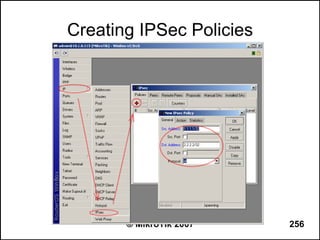
Creating IPSec Policies


       © MikroTik 2007    256
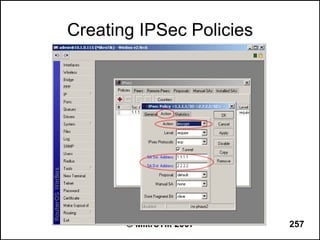
Creating IPSec Policies


       © MikroTik 2007    257
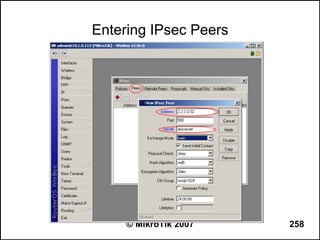
Entering IPsec Peers


     © MikroTik 2007   258
Network with IPSec


     © MikroTik 2007   259
HotSpot and QoS


ARP/DHCP, Proxy, QoS,
HotSpot, User Manager


     © MikroTik 2007    260
Static ARP
●   Static ARP entries are used to bind IP
    addresses to MAC addresses of clients
    ●   Change the arp setting for the relevant interface to
        “reply-only” (Interface menu)
    ●   Add IP address and MAC address pairs to the ARP
        table (/ip arp menu)
●   Note, that there are more advanced user
    control methods, like PPPoE and HotSpot


                         © MikroTik 2007                  261
IP and MAC Address Linking
●   If you are concerned about someone bypassing
    your IP firewall by using a different IP address,
    try locking down client's IP address to the MAC
    address of his network interface card
    ●   Use static ARP entries for static IP addresses
    ●   Configure the DHCP server to add ARP entries for
        leases of dynamic addresses


                        © MikroTik 2007                  262
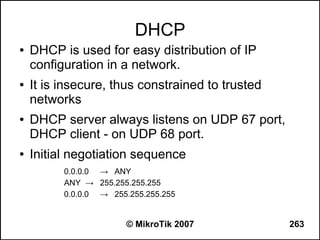
DHCP
●   DHCP is used for easy distribution of IP
    configuration in a network.
●   It is insecure, thus constrained to trusted
    networks
●   DHCP server always listens on UDP 67 port,
    DHCP client - on UDP 68 port.
●   Initial negotiation sequence
          0.0.0.0 → ANY
          ANY → 255.255.255.255
          0.0.0.0 → 255.255.255.255


                        © MikroTik 2007           263
DHCP Client
●   The client can accept:
    –   IP address with respective netmask
    –   Default gateway
    –   Two DNS server addresses
    –   Two NTP server addresses
    –   Domain name
    –   WINS-server information
●   These settings will not override those you had
    on your router before.

                          © MikroTik 2007        264
DHCP Relay

●   a proxy that is able to receive a DHCP request
    and resend it to the real DHCP server
●   You can use one DHCP server in two LANs
    simultaneously by using DHCP relays
●   There can be only one DHCP relay between
    client and server


                    © MikroTik 2007             265
DHCP Server
●   An individual DHCP server for each Ethernet-
    like interface
●   There can be more then one DHCP server on
    the one interface, but “relay” option must be
    different
●   You can use step-by-step DHCP server
    configuration by using DHCP-server setup


                    © MikroTik 2007             266
IP Pool
●   IP pools are used to define range of IP
    addresses that is used for DHCP server and
    Point-to-Point servers
●   You can easily monitor used addresses
●   You can specify next pool should the first one
    run out of addresses


                     © MikroTik 2007             267
DHCP Server Networks
●   Now you can create a server with your
    previously created IP pool
●   For DHCP additional options you must create
    DHCP server networks, there you can select
    DNS, NTP, WINS servers addresses
●   You can also specify any other (one of 254)
    DHCP option and override netmask


                    © MikroTik 2007               268
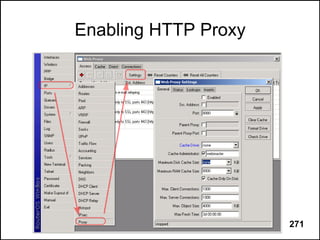
HTTP Proxy
●   Speeds up Internet access and reduces data
    flow from Internet
●   Web Proxy requests information on behalf of
    clients and saves it
●   Successive requests will be taken from the Web
    Proxy cache
●   Caches HTTP and FTP connections; works as
    a mediator to HTTPS connections


                    © MikroTik 2007               269
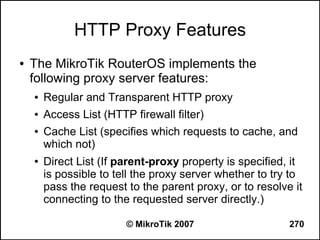
HTTP Proxy Features
●   The MikroTik RouterOS implements the
    following proxy server features:
    ●   Regular and Transparent HTTP proxy
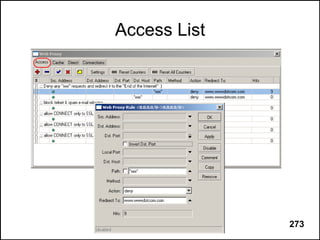
    ●   Access List (HTTP firewall filter)
    ●   Cache List (specifies which requests to cache, and
        which not)
    ●   Direct List (If parent-proxy property is specified, it
        is possible to tell the proxy server whether to try to
        pass the request to the parent proxy, or to resolve it
        connecting to the requested server directly.)

                         © MikroTik 2007                   270
Enabling HTTP Proxy


     © MikroTik 2007   271
Transparent HTTP Proxy


       © MikroTik 2007   272
Access List


 © MikroTik 2007   273
Proxy HTTP Methods
●   OPTIONS - method represents a request for
    information about the communication options
●   GET – retrieve object by URL
●   HEAD – method is identical to GET except that
    the server must not return a message-body in
    the response
●   DELETE– method requests that the origin
    server delete the resource


                    © MikroTik 2007               274
Web-Proxy HTTP Methods (cont.)
●   POST – method is used to request that the
    origin server accept the entity enclosed in the
    request as a new subordinate of the resource
●   PUT - method requests that the enclosed entity
    be stored under the supplied server
●   TRACE - allows the client to see what is being
    received at the other end of the request chain
    and use that data for testing or diagnostic
    information

                     © MikroTik 2007                  275
Destination Host and Path
●   For URL http://www.any.com/img/a1.gif
    –   Destination host is http://www.any.com
    –   Destination path is /img/a1.gif
●   Special symbols can be used
    –   “*” is for any number of characters
    –   “?” is for any characters, e.g., *.mi?roti?.com


                         © MikroTik 2007                  276
Regular Expression Mode
●   Place a colon “:” at the beginning to enable
    regular expression mode
    ●   ”^“ - show that no symbols are allowed before the
        given pattern
    ●   “$“ - show that no symbols are allowed after the
        given pattern
    ●   “[....]” - A character class matches a single
        character out of all the possibilities offered by the
        character class
    ●    (backslash) followed by any of [^$.|?*+() suppress
        their special meaning.
                         © MikroTik 2007                        277
Speed Limiting
●   Forthright control over data rate of inbound
    traffic is impossible
●   The router controls the data rate indirectly by
    dropping incoming packets
●   TCP protocol adapts itself to the effective
    connection speed
●   Simple Queue is the easiest way to limit data
    rate


                     © MikroTik 2007                  278
Simple Queues

●   Simple queues make data rate limitation
    easy. One can limit:
    –   Client's rx rate (client's download)
    –   Client's tx rate (client's upload)
    –   Client's tx + rx rate (client's aggregate)


●   While being easy to configure, Simple
    Queues give control over all QoS features

                        © MikroTik 2007              279
Limits and QoS
●   QoS is not only about limits
●   QoS is an attempt to use the existing
    resources optimally
●   QoS balances and prioritizes the traffic flow
    and prevents one from monopolizing the
    (always too narrow) channel. That is why it is
    called “Quality of Service”


                    © MikroTik 2007                  280
Burst

●   Burst is one of the means to ensure QoS
●   Bursts are used to allow higher data rates for a
    short period of time
●   If average data rate is less than burst-
    threshold, burst is enabled (actual data rate
    can reach burst-limit)


                    © MikroTik 2007              281
Simple limitation with Burst


         © MikroTik 2007       282
Average Data Rate
●   Average data rate is calculated as follows:
    ●   burst-time is being divided into 16 periods
    ●   router calculates the average data rate of each
        class over these small periods
●   Note, that the actual burst period is not equal
    to the burst-time. It can be several times shorter
    than the burst-time depending on the max-limit,
    burst-limit, burst-threshold, and actual data rate
    history (see the graph example on the previous
    slide)
                        © MikroTik 2007                   283
Burst Lab
●   Limit your laptop's upload/download speed
    ●   max-limit to 64Kbps/128Kbps
    ●   burst-limit up to 128Kbps/256Kbps
    ●   burst-threshold 48Kbps/96Kbps
    ●   burst-time 10 seconds
●   Try downloading and see how the burst works
    after you haven't downloaded for some time
●   Monitor the traffic of the queue

                       © MikroTik 2007          284
Burst Lab (cont.)
●   Following what was required in the previous
    slide, try to
    ●   change the burst-threshold to 256kbps/512kbps
    ●   change the burst-threshold to 96kbps/192kbps
●   Compare the results


                       © MikroTik 2007                  285
Dual Limitation
●   Double limitation has two data rate limits:
    –   CIR (Committed Information Rate) - data rate that
        is guaranteed to a flow in a worst case scenario
        (limit-at argument value)
    –   MIR (Maximal Information Rate) - maximal data
        rate that is allowed for a flow to reach in the best
        case scenario, if there is spare bandwidth available
        (max-limit argument value)


                        © MikroTik 2007                  286
Parent Queue Lab
●   Make a “main” queue
    –   max-limit to 256Kbps/512Kbps
●   Make a “child” queue to the “main” queue that
    limits your laptop's upload/download
    –   parent “main” queue
    –   limit-at 128Kbps/256Kbps
    –   max-limit to 256Kbps/512Kbps
    –   dst-address <first test server>


                        © MikroTik 2007         287
Parent Queue Lab (cont.)
●   Make a second “child” queue to the “main”
    queue that limits your laptop's upload/download
    –   parent “main” queue
    –   limit-at 128Kbps/256Kbps
    –   max-limit to 256Kbps/512Kbps
    –   dst-address <second test server>


                       © MikroTik 2007          288
Priority
●   Allows to prioritize different data flows
●   8 is the lowest priority, 1 is the highest
●   Distinction between priorities is irrelevant (two
    queues with priorities 1 and 8, will have same
    relation as two queues with priorities 1 and 2)
●   Queue with higher priority will reach its CIR
    before the queue with lower priority
●   Queue with higher priority will reach its MIR
    before the queue with lower priority
                      © MikroTik 2007             289
Priority Lab
●   Repeat previous lab, but this time use priorities
●   Compare the results


                     © MikroTik 2007               290
Queuing Disciplines
●   Queuing disciplines can be classified into two
    groups by their influence on the traffic flow –
    schedulers and shapers
●   Scheduler queues reorder the packet flow.
    These disciplines limit the number of waiting
    packets, not the data rate
●   Shaper queues control data flow speed. They
    can also do a scheduling job


                     © MikroTik 2007                  291
Shapers


© MikroTik 2007   292
Schedulers


 © MikroTik 2007   293
Queue Types
●   Scheduler queues
    –   BFIFO
    –   PFIFO
    –   RED
    –   SFQ
●   Shaper queues
    –   PCQ
    –   HTB


                    © MikroTik 2007   294
FIFO Algorithm
            ●   PFIFO and BFIFO
            ●   FIFO queuing
                disciplines do not
                change packet order,
                they just accumulate
                packets until a
                defined limit is
                reached


   © MikroTik 2007                295
RED Algorithm
●   Random Early Detect (Random Early Drop)
●   Does not limit the speed; indirectly equalizes
    users' data rates when the channel is full
●   When the average queue size reaches min-
    threshold, RED randomly chooses which
    arriving packet to drop
●   If the average queue size reaches max-
    threshold, all packets are dropped


                     © MikroTik 2007                 296
RED Algorithm


           ●   If real queue size is
               much greater than max-
               threshold, then all
               excess packets are
               dropped

  © MikroTik 2007                  297
SFQ Algorithm
●   Stochastic Fairness Queuing (SFQ) cannot
    limit traffic at all. Its main idea is to equalize
    traffic flows when your link is completely full.
●   The fairness of SFQ is ensured by hashing
    and round-robin algorithms
●   Hashing algorithm is able to divide the session
    traffic in up to 1024 sub queues, if there are
    more, some of them will have to skip the round
●   The round-robin algorithm dequeues allot
    bytes from each sub queue in a turn
                      © MikroTik 2007                    298
SFQ algorithm


           After perturb seconds the
            hashing algorithm changes
            and divides the session
            traffic to other subqueues


  © MikroTik 2007                        299
PCQ Algorithm
●   Per Connection Queue allows to choose
    classifiers (one or more of src-address, dst-
    address, src-port, dst-port)
●   PCQ does not limit the number of sub flows
●   It is possible to limit the maximal data rate that
    is given to each of the sub flows
●   PCQ is memory consumptive!!


                     © MikroTik 2007                300
PCQ Algorithm


      If you classify the packets by
      src-address, then all packets
      with different source IP
      addresses will be grouped
      into different subqueues
  © MikroTik 2007                      301
PCQ Example
●   If ‘limit-at’ and ‘max-limit’ are set to ‘0’, then the
    subqueues can take up all bandwidth available
    for the parent
●   Set the PCQ Rate to ‘0’, if you do not want to
    limit subqueues, i.e, they can use the
    bandwidth up to ‘max-limit’, if available


                       © MikroTik 2007                  302
PCQ in Action
●   pcq-rate=128000
                        2 ‘users’    4 ‘users’    7 ‘users’

                                                     73k
                                           128k
                                                     73k

                                           128k      73k
    queue=pcq-down
                                                     73k
     max-limit=512k
                         128k              128k      73k
                                                     73k
                         128k              128k
                                                     73k


                         © MikroTik 2007                      303
PCQ in Action (cont.)
●   pcq-rate=0
                      1 ‘user’     2 ‘users’   7 ‘users’

                                                  73k

                                     256k         73k
                                                  73k
    queue=pcq-down
                       512k                       73k
     max-limit=512k
                                                  73k
                                     256k         73k
                                                  73k


                       © MikroTik 2007                     304
HTB
●   HTB mentioned before is not managed like
    other queues
●   HTB is a hierarchical queuing discipline. HTB
    stands for Hierarchical Token Bucket
●   HTB is able to prioritize and group traffic flows
●   HTB is not co-existing with another queue on
    an interface – there can only be one queue and
    HTB is the one.


                     © MikroTik 2007                305
HTB Algorithm


All the circles are queuing disciplines – a packet
storage with a flow management algorithm (FIFO,
RED, SFQ or PCQ)


                   © MikroTik 2007                   306
HTB
●   There are 3 HTB trees maintained by
    RouterOS:
    –   global-in
    –   global-total
    –   global-out
●   And one more for each interface


                       © MikroTik 2007    307
HTB (cont.)
●   When packet travels through the router, it
    passes all 4 HTB trees
●   When packet travels to the router, it passes
    only global-in and global-total HTB.
●   When packet travels from the router, it passes
    global-out, global-total and interface HTB.


                     © MikroTik 2007               308
HTB Algorithm
●   In order of priority HTB satisfies all “limit-at”s for
    leaf classes
●   When the “limit-at” is reached the class
    becomes “yellow”
●   When the “max-limit” is reached the class
    becomes “red”


                       © MikroTik 2007                 309
HTB Algorithm
●   Some attributes of HTB classes :
    –   limit-at
    –   max-limit
    –   priority
●   Simple queues are executed by the HTB facility
    in “global-out” ('direct' queue), “global-in”
    ('reverse' queue) and “global-total” ('total'
    queue) trees


                      © MikroTik 2007           310
Queue Tree
●   Tree queues are an alternative way to manage
    the traffic. They allow to build custom hierarchy
    of classes
●   Queue tree is only one directional (simple
    queues are two directional (direct, reverse))
●   Tree queue filters are applied on the specified
    interface (simple queues can be applied only on
    “global-in” and “global-out”)
●   The queues are only checking firewall flow
    marks (made in “mangle”)

                      © MikroTik 2007               311
Whole Picture
From http://www.mikrotik.com/docs/ros/2.9/graphics:packet_flow31.jpg


                             © MikroTik 2007                           312
Queue Tree and Simple Queues
●   Tree queue can be placed in 4 different places:
    –   Global-in (“direct” part of simple queues are placed
        here automatically)
    –   Global-out(“total” part of simple queues are placed
        here automatically)
    –   Global-total (“reverse” part simple queues are
        placed here automatically )
    –   Interface queue
●   If placed in same place Simple queue will take
    traffic before Queue Tree
                          © MikroTik 2007                 313
User Access Control
●   Controlling the Hardware
    –   Static IP and ARP entry
    –   DHCP for assigning IP addresses and managing
        ARP entries
●   Controlling the Users
    –   PPPoE requires PPPoE client configuration
    –   HotSpot redirects client request to the signup page
    –   PPTP requires PPTP client configuration


                        © MikroTik 2007                 314
HotSpot
●   HotSpot is used for authentication in local
    network
●   Authentication is based on HTTP/HTTPS
    protocol which means it can work with any
    Internet browser
●   HotSpot is a system combining together
    various independent features of the RouterOS
    to provide the so called ‘Plug-and-Play’ access


                    © MikroTik 2007              315
How does it work?
●   User tries to open a
    web page
●   Router checks if the
    user is already
    authenticated in the
    HotSpot system.
●   If not, user is redirected
    to the HotSpot login
    page.
●   User specifies the login
    information

                        © MikroTik 2007   316
How does it work?
●   If the login information
    has been correct, then
    the router
    –   authenticates the client in the
        Hotspot system;
    –   opens the requested web
        page;
    –   opens a status popup window
●   This user can access
    the network through the
    HotSpot gateway


                               © MikroTik 2007   317
HotSpot Features
●   User authentication
●   User accounting by time, data
    transferred/received
●   Data limitation
    –   by data rate
    –   by amount
●   User limitation by time
●   RADIUS support
●   Walled garden

                       © MikroTik 2007   318
HotSpot Setup Wizard
●   The preferred way to configure HotSpot server
●   Automatically creates configuration entries in
     ●   /ip hotspot
     ●   /ip hotspot profile
     ●   /ip hotspot users
     ●   /ip pool
     ●   /ip dhcp-server
     ●   /ip dhcp-server networks
     ●   /ip firewall nat (dynamic rules)
     ●   /ip firewall filter (dynamic rules)

                              © MikroTik 2007        319
HotSpot Setup Lab
●   Create simple Hotspot server for your private
    network using HotSpot Setup Wizard
●   Login and check the setup!
●   Logout
●   Type any random IP, netmask, gateway, DNS
    values on your Laptop network configuration
●   Login and check the setup!


                    © MikroTik 2007                 320
HotSpot Server Profiles
●   HotSpot server profiles are used for
    common server settings
●   Think of profiles as of server groups
●   You can choose 6 different authentication
    methods in profile settings


                  © MikroTik 2007          321
HotSpot Authentication Methods
–   HTTP PAP - simplest method, which shows the
    HotSpot login page and expect to get the
    authentication info in plain text. (Needed for some
    old browsers)

–   HTTP CHAP - standard method, which includes
    CHAP computing for the string which will be sent
    to the HotSpot gateway.

–   HTTPS - the same as HTTP PAP, but using SSL
    protocol for encrypting transmissions.


                    © MikroTik 2007                  322
HotSpot Authentication Methods
            (cont.)
–   HTTP cookie - after each successful login, a
    cookie is sent to web browser and the same
    cookie is added to active HTTP cookie list.. This
    method may only be used together with HTTP
    PAP, HTTP CHAP or HTTPS methods as there
    would be nothing to generate cookies in the first
    place otherwise.
–   MAC address - try to authenticate clients as soon
    as they appear in the hosts list, using client's MAC
    address as username
–   Trial - does not require authentication for a certain
    amount of time
                    © MikroTik 2007                    323
HotSpot Users
●   Specify username and password and profile of
    this particular client
●   Limit uptime, bytes-in and bytes-out of the user
●   Set IP address that client will always get
●   Allow user only from particular MAC address


                     © MikroTik 2007              324
HotSpot User Profiles
●   Store common settings for a group of users
●   You can choose firewall filter chain for incoming
    and outgoing traffic check
●   You can set a packet mark on all the packets to
    every user of this profile automatically
●   You can set rate limitation in the profile


                      © MikroTik 2007             325
HotSpot IP bindings
●   Setup NAT translations statically based on
    either
    –   the original IP address (or IP network),
    –   or the original MAC address.
●   You can allow some addresses to bypass
    HotSpot authentication, or you can completely
    block some addresses


                        © MikroTik 2007            326
HotSpot HTTP-level walled garden

●   Walled garden is a system which allows
    unauthorized use of some resources, but
    requires authorization to access other
    resources
●   HTTP-level Walled Garden manages HTTP
    and HTTPS protocols
●   HTTP-level Walled Garden works similar like
    Web-proxy, you can use same HTTP methods
    and same regular expressions to make an
    URL string

                   © MikroTik 2007           327
HotSpot IP-Level Walled Garden


●   IP-level Walled Garden works on the IP level,
    so we can use it like IP firewall filter


                    © MikroTik 2007             328
User Manager for HotSpot
• Centralized Authorization and Accounting
  system
• Works as a RADIUS server
• Built in MikroTik RouterOS as a separate
  package


                  © MikroTik 2007            329
Requirements for User Manager
• x86 based router with MikroTik RouterOS
  v2.9.x
• Router with at least 32MB RAM
• Free 2MB of HDD space
• RouterOS Level 4 license for more than 10
  active sessions (in RouterOS v2.9.x)


                  © MikroTik 2007             330
Features
• User Authorization using PAP,CHAP
• Multiple subscriber support and permission
  management
• Credits/Prepaid support for users
• Rate-limit attribute support
• User friendly WEB interface support
• Report generation by time/amount
• Detailed sessions and logs support
• Simple user adding and voucher printing support


                    © MikroTik 2007                 331
New Features
•   User Authorization using MSCHAPv1,MSCHAPv2
•   User status page
•   User sign up system
•   Support for decimal places in credits
•   Authorize.net and PayPal payment gateway support
•   Database backup feature
•   License changes in RouterOS v3.0 for active users:
     – Level3 – 10 active users
     – Level4 – 20 active users
     – Level5 – 50 active users
     – Level6 – Unlimited active users


                        © MikroTik 2007                  332
Supported Services
• Hotspot user authorization
• PPP/PPtP/PPPoE users authorization,
  Encryption also supported
• DHCP MAC authorization
• Wireless MAC authorization
• RouterOS users authorization


                 © MikroTik 2007        333
User Manager Usage
•   Hotels
•   Airports
•   Cafés
•   Universities
•   Companies
•   ISPs


                   © MikroTik 2007   334
User Signup


           User can create a new
           account by filling out
           the form. An account
           activation email will be
           sent to the users email
           address


 © MikroTik 2007                335
Buying Prepaid Credit Time

               • Authorize.net/PayPal payment
                 support for buying a credit
               • Payment data (such as credit
                 card number and expiry date) is
                 sent directly from user's computer
                 to payment gateway and is not
                 captured by User Manager. User
                 Manager processes only
                 response about the payment
                 result from the payment gateway.


        © MikroTik 2007                        336
Future plans
•   Still in development – BETA
•   New improved User Manager WEB interface
•   Radius Incoming (RFC3576)
•   Your suggestions are welcome...
    support@mikrotik.com


                  © MikroTik 2007             337
Advanced Tools and Features


     The Dude, VRRP, Scripting,
  Logging, Monitoring and other Tools


             © MikroTik 2007            338
The Dude
●   The Dude is easy to use graphical network
    monitoring and management system
●   The Dude consists of
    –   Dude Server running in the background on a
        workstation or a router
    –   Dude Client running on a workstation
●   The Dude Client connects to a local or remote
    Dude server, and is used as a graphical
    interface to it

                        © MikroTik 2007              339
The Dude Installation
●   Download the Dude installation archive from
    MikroTik's website and install it on your
    workstation
●   Run the Dude and discover the networks near
    you
●   Try setting the server to run only when the
    Dude client is running
●   More about Dude at wiki.mikrotik.com


                     © MikroTik 2007              340
RouterOS Scripting
●   Scripts are used :
    –   to automate some router maintenance tasks;
    –   to execute console commands at certain time or on
        an event;
    –   to speed up accomplishment of certain tasks
●   A script consists of configuration commands
    and expressions
    –   expressions are prefixed with : and are accessible
        from all submenus

                        © MikroTik 2007                  341
Writing a Script
●   Use ‘/system script’ menu to add a script
●   Example:
    –   /system script add name=test1 source={:log info
        “Hello, World!”}
●   Write a script directly from command line
●   Example:
    –   [admin@MikroTik] >:log info “Hello, World!”


                        © MikroTik 2007                   342
Script Execution
●   The events used to trigger script execution
    include, but are not limited to the
    –   System Scheduler
    –   Traffic Monitoring Tool
    –   Netwatch Tool
●   You can execute a script by using the 'run'
    command, for example:
    –   /system script run test1


                         © MikroTik 2007          343
Using Variables in Scripts
●   There are four kinds of variables:
    –   Global
    –   Local
    –   Loop
    –   Monitoring
●   The visibility for each of variables is strictly
    defined
●   You can get the value of the variable by typing
    ‘$’ symbol in front of it
                       © MikroTik 2007                 344
Variable Examples
●   Global:
    –   :global i; :set i 5; :put $i
●   Local:
    –   :local e; :set e 11; :put $e
●   Loop:
    –   :foreach t in 1,2,3 do={:put $t}
●   Monitoring:
    –   /interface ethernet monitor ether1 do={:put $status}

                            © MikroTik 2007              345
Get and Find Commands
●   The most used commands in scripting are:
    –   get – returns the value of a parameter
    –   find – returns the internal numbers of the records
        depending on the values of the specific parameters
●   ‘Enable’, ‘disable’, ‘set’, ‘comment’ and ‘get’
    commands can accept both the names or
    numbers of the record and also internal
    numbers got by ‘find’ command
●   You can specify internal numbers in the 'from‘
    parameter of the ‘print’ and ‘export’ commands
                        © MikroTik 2007                346
Internal Console Expressions (1/2)
 –   :put - prints some values on the screen
 –   :if - compares variables or expressions
 –   :do - executes a command set in a loop, while
     some statement becomes positive boolean value
     (i.e. ‘true’)
 –   :while - similar to ‘:do’, but with the checking of the
     statement correctness at the beginning
 –   :for - executes algorithms or console commands
     (((to-1)-from)step) times where the loop starts with
     the ‘from’ number and ends with the ‘to’ number

                      © MikroTik 2007                     347
Internal Console Expressions (2/2)
 –   :foreach - executes console commands as many
     times as specified in ‘in’ parameter
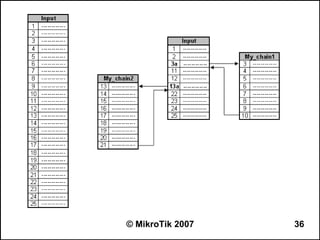
 –   :delay - does nothing for a given amount of time
 –   :time - calculates the amount of time needed to
     execute the given console command
 –   :log - adds an entry to the system log
 –   :environment - prints a list of variables
 –   :beep - makes a beep


                      © MikroTik 2007                   348
Scripting Lab
●   Write a script to monitor a host on the network
    and send an e-mail message to you whenever it
    goes down or comes back up again
●   Emulate the up/down condition of the host
    using a firewall filter rule


                    © MikroTik 2007             349
Monitoring the Network Traffic
●   MikroTik RouterOS tools for monitoring the
    network traffic:
    –   Interface tx/rx bits/s and packets/s, numbers and
        graphs
    –   Torch tool for detailed reports about traffic flowing
        through an interface
    –   Sniffer for capturing raw Ethernet packets
        transmitted on a LAN segment connected to an
        interface
    –   Firewall logs and connection tracking table
    –   Interface traffic graphs
                         © MikroTik 2007                    350
Interface Traffic Monitor
●   Open up interface menu in WinBox to see tx/rx
    rates per interface
●   Open up any interface and select the “Traffic”
    tab to see the graphs
●   Use the “monitor-traffic” command in terminal to
    get the traffic data per one or more interfaces,
    for example:
    –   /interface monitor-traffic ether1
    –   /interface monitor-traffic ether1,ether2,ether3

                         © MikroTik 2007                  351
Torch Tool
●   Torch tool offers more detailed actual traffic
    report for an interface
●   It's most easy to use the torch in WinBox:
    –   Go to “Tools” > “Torch”
    –   Select an interface to monitor and click “Start”
    –   Use “Stop” and “Start” to freeze/continue
    –   Refine the output by selecting protocol and port
    –   Double-click on specific IP address to fill in the Src.
        Or Dst. Address field (0.0.0.0/0 is for any address)

                         © MikroTik 2007                    352
Torch Tool in Command Line
●   Try to run the torch in CLI, for example:
    –   /tool torch ether1
    –   /tool torch ether1 dst-address=0.0.0.0/0
    –   /tool torch ether1 dst-address=0.0.0.0/0
        protocol=any port=any
●   Use “D” to dump the screen's output to a file
●   Download the “console-dump.txt” file from the
    router using ftp


                         © MikroTik 2007            353
Sniffer
●   To use sniffer in WinBox:
    –   Go to “Tools” > “Packet Sniffer”
    –   Click “Settings” under the “Packets” tab
    –   Select an interface, click “Apply” and then “Start”
    –   Wait 10s and press “Stop” to stop capturing and
        display the results
●   More options available by using protocol and
    address filter settings
●   Captured data can be saved locally on the disk
    or streamed to a remote server
                         © MikroTik 2007                      354
Firewall Filter and Logs
●   Add a firewall filter rule with “action=log” to the
    “input” or “forward” chain for specific traffic to be
    logged.
●   Use a prefix to better distinguish log records
    from various sources
●   Make sure the logging is enabled, configure it
    under “System” > “Logging”
●   Monitor the log records under “Log”


                      © MikroTik 2007                 355
Firewall Connection Tracking
●   Use “IP” > “Firewall” > “Connections” to see the
    connections through the router and their status
    –   Works only if the connection tracking is enabled
        (default setting)
    –   The number of maximum connections shown is
        ~2049, it's an internal limitation in RouterOS to
        avoid unnecessary resource usage.
●   Sort the list by the source or destination
    address

                         © MikroTik 2007                    356
Graphing Tool
●   Use “Tools” > “Graphing” to enable data
    collection and graphing of interface traffic,
    queues and system resources
    –   Enable the “Store on Disk” option to preserve the
        data between reboots
●   The graphs can be viewed in WinBox, or, by
    accessing the router using a browser
    –   Go directly to http://router's_address/graphs/ or
        follow a link to graphs from the router's main page
    –   Use the “Allow Address” option to limit access to
        the graphs based on IP addresses
                        © MikroTik 2007                     357

Mikro tik advanced training

  • 1.
    MikroTik RouterOS Training Advanced Class Johannesburg South Africa April 14 – 17, 2009
  • 2.
    Schedule ● 09:00 – 10:30 Morning Session I ● 11:00 – 12:30 Morning Session II ● 12:30 – 13:30 Lunch ● 13:30 – 15:00 Afternoon Session I ● 15:30 – 17:00 Afternoon Session II © MikroTik 2007 2
  • 3.
    Instructor ● Christopher Sutherland – Support and Training engineer for Miro distribution © MikroTik 2007 3
  • 4.
    Housekeeping ● Course materials ● Routers, cables ● Break times and lunch ● Restrooms and smoking area locations © MikroTik 2007 4
  • 5.
    Course Objective ● Provide knowledge about advanced features of MikroTik RouterOS and hands-on training for configuring, maintaining and troubleshooting networks built using RouterOS software and RouterBoard hardware ● Upon completion of the course you will be able to plan and implement advanced network configurations using RouterOS © MikroTik 2007 5
  • 6.
    About MikroTik ● Mission Statement – MikroTik is a router software and hardware manufacturer, that offers user friendly carrier-class routing and network management solutions. Their products are used by ISPs, individual users and companies for building data network infrastructures. ● Their goal is to make existing Internet technologies faster, more powerful and more affordable to wider range of users © MikroTik 2007 6
  • 7.
    MikroTik's History ● Active in WISP solutions since 1995 ● Incorporated in 1996 ● Wireless ISP Projects around the World ● Since 1997 Development of own Software for Intel (PC) based routing solutions ● Since 2002 Development of own Hardware ● 2006: 60 employees © MikroTik 2007 7
  • 8.
    Where is MikroTik? ● They are on the World Wide Web at www.mikrotik.com ● Located in Riga, Latvia, Eastern Europe, EU © MikroTik 2007 8
  • 9.
    Introduce Yourself ● Please introduce yourself to the class: – Your Name – Your Company – Previous knowledge about RouterOS – Previous knowledge about data networking – What do you expect from this course? © MikroTik 2007 9
  • 10.
    Class Setup ● Please remember your number XY in the class ● My number is:__________ © MikroTik 2007 10
  • 11.
  • 12.
    Get Connected! ● Connect to your router and: – Set System Identity to your Number_Name – Set Radio Name for wireless as Number_Name – Use SSID “mainAP” and mode=station – Add IP address 10.1.1.___/24 for wireless – Default gateway is 10.1.1.254 – DNS Server is 10.1.1.254 – Use masquerading to hide your private LAN – Test, if you can browse! Back up the configuration! © MikroTik 2007 12
  • 13.
    Create a Backup © MikroTik 2007 13
  • 14.
    Security and Routing BridgeFeatures, Firewall, Policy Routing, ECMP Routing, Dynamic Routing © MikroTik 2007 14
  • 15.
    Bridge ● Ethernet-like networks can be connected together using OSI Layer 2 bridges ● The bridge feature allows interconnection of hosts connected to separate LANs as if they were attached to a single LAN segment ● Bridges extend the broadcast domain and increase the network traffic on bridged LAN © MikroTik 2007 15
  • 16.
    Bridge Configuration ● Bridge is a virtual interface in RouterOS ● Several bridges can be created – /interface bridge add name=bridge1 ● Interfaces are assigned as ports to a bridge – /interface bridge port add interface=ether1 bridge=bridge1 – /interface bridge port add interface=ether2 bridge=bridge1 © MikroTik 2007 16
  • 17.
    Creating a Bridge © MikroTik 2007 17
  • 18.
    Assigning Ports tothe Bridge © MikroTik 2007 18
  • 19.
    Spanning Tree Protocol ● The Spanning Tree Protocol (STP) – is defined by IEEE Standard 802.1D – provides a loop free topology for any bridged LAN – finds a spanning tree within the mesh network and disables the links not part of that tree © MikroTik 2007 19
  • 20.
    STP in Action A B D C Root Bridge E F © MikroTik 2007 20
  • 21.
    Spanning Tree Root Bridge C E B A F D © MikroTik 2007 21
  • 22.
    Rapid Spanning TreeProtocol ● Rapid Spanning Tree Protocol (RSTP) – is an evolution of the STP – provides faster spanning tree convergence after a topology change than STP ● rstp-bridge-test package is required for the RSTP feature to be available in RouterOS © MikroTik 2007 22
  • 23.
    Routed Networks vsBridging ● Routers do not forward broadcast frames ● Communication loops and their resultant broadcast storms are no longer a design issue in routed networks ● Redundant media and meshed topologies can offer traffic load sharing and more robust fault tolerance than bridged network topologies © MikroTik 2007 23
  • 24.
    IP Firewall Filters ● Firewalls are used as a means of preventing or minimizing the security risks inherent in connecting to other networks ● IP firewall filters – are a tool to apply traffic policies based on flow properties – allow stateful packet inspection – separately manage traffic flowing to, from and through the router © MikroTik 2007 24
  • 25.
    Stateful Inspection ● Stateful inspection tracks each connection traversing all interfaces of the firewall and makes sure they are valid ● The examination may include – the header information about its source and destination – the contents of the packet up through the application layer in order to determine more about the packet © MikroTik 2007 25
  • 26.
    Mikrotik RouterOS Services © MikroTik 2007 26
  • 27.
    Mikrotik RouterOS Services(cont.) © MikroTik 2007 27
  • 28.
    Connection Tracking ● Connection Tracking (CONNTRACK) is a system that gathers and stores information about active connections ● A connection is defined as a bidirectional data exchange ● CONNTRACK information is not limited to TCP connections ● Firewall facilities can use CONNTRACK information to classify packets ● CONNTRACK is necessary for Network Address Translation (NAT) and Mangle © MikroTik 2007 28
  • 29.
    Connection Tracking Table © MikroTik 2007 29
  • 30.
    Condition: Connection State ● A status assigned to each packet: – Invalid – packet does not belong to any of the known connections – New – packet opens a new connection – Established – packet belongs to already known connection – Related – packet creates a new connection that is in some way related to an already known connection ● Connection state ≠ TCP state © MikroTik 2007 30
  • 31.
    Filter Rule ● Firewall filter rule is an IF-THEN statement IF <condition(s)> THEN <action> ● Packet traverses through rules in a definite order, from top to bottom ● If a packet matches all conditions of a rule, then the specified action is performed on it. Otherwise, the next rule is evaluated © MikroTik 2007 31
  • 32.
    Firewall Filter Structure ● Firewall filter rules are organized in chains ● Chains are sets of rules grouped together ● There are three built-in chains: – input – processes packets addressed to the router – output – processes packets originated by the router – forward – processes traffic flowing through the router © MikroTik 2007 32
  • 33.
    Packet Flow Diagram ● Refer to the Packet Flow Diagram whenever you need to find out how packets are processed by the router © MikroTik 2007 33
  • 34.
  • 35.
    User-Defined Chains ● Help to reduce the average number of lookup steps needed to process a packet, thus improving the performance ● Frequently used to optimize firewall structure and make it more readable and manageable © MikroTik 2007 35
  • 36.
  • 37.
    User-Defined Chains (cont.) ● The traffic can reach user-defined chains only from one of the default chains with the help of the rules with action=jump ● The chain is created as soon as a rule for the chain is added © MikroTik 2007 37
  • 38.
    Monitoring the Firewall ● Each rule has counters of packets and bytes that passed through it ● Rules can be moved to arrange them in the desired processing order ● Make rules with action=log to see the kinds of packets that are processed ● Use action=passthrough to add simple counter rules ● Use connection tracking table to see current connections © MikroTik 2007 38
  • 39.
    Firewall Strategies ● Accept everything ● Drop everything except 'bad' traffic except 'good' traffic © MikroTik 2007 39
  • 40.
    Firewall Rule Actions ● The most basic firewall rule actions are – accept – accept the packet and stop evaluating other rules – drop – silently discard the packet – reject - drop the packet and send ICMP reject message – jump – jump to the chain specified by the jump- target parameter value © MikroTik 2007 40
  • 41.
    More Firewall RuleActions ● More firewall rule actions are – jump – jump to the chain specified by the jump- target parameter value – return – return to the previous chain, from where the jump took place © MikroTik 2007 41
  • 42.
    Firewall Filter RuleSequence ● Since the majority of the packets is most likely going to be packets belonging to established connections, it is wise to put a rule accepting them in the beginning (top) of the firewall filter ● In such a way, the firewall filters are processed more efficiently ● Further rules may be those dealing with packets establishing new connections © MikroTik 2007 42
  • 43.
    Firewall Rule Lab ● Add following rules to the “input” chain of the firewall filter: – Accept all packets with “Connection State” ”established” – Accept all packets with “Connection State” “related” – Drop all packets with “Connection State” “invalid” ● Monitor the firewall rule counters © MikroTik 2007 43
  • 44.
    Port Scan Detection(PSD) ● PSD detects connection attempts to different ports appearing in quick succession ● High (privileged) ports are from 0 to 1023 © MikroTik 2007 44
  • 45.
    PSD Example ● A rule to detect and drop attempts to scan open ports of the router © MikroTik 2007 45
  • 46.
    Limit Matcher ● A rule with Limit will match until a given rate is reached ● Burst specifies initial number of packets to match: this number gets recharged by one every time the rate is not reached © MikroTik 2007 46
  • 47.
    Limit Matcher Example ● Reduce the amount of log messages © MikroTik 2007 47
  • 48.
    Firewall Filter LimitLab ● Limit the rules allowing ICMP packets to 5 packets per second (block Ping Flood attacks) ● Modify the rule to instantly allow first 5 packets ● Add a rule to log HTTP traffic going trough the router at a rate of 200 packets per hour © MikroTik 2007 48
  • 49.
    Connection Limit ● Connection limit limits the packet per second (pps) rate on a per destination IP or per destination port base ● As opposed to the limit match, every destination IP address / destination port has it's own limit © MikroTik 2007 49
  • 50.
    Connection Limit Lab ● Limit the number of active HTTP connections to 5 per single IP address ● Think about the various effects of the rule above © MikroTik 2007 50
  • 51.
  • 52.
    Dealing with DoSAttacks ● Limit the number of active connections ● Optimize processing workflow ● Enable TCP SYN cookies ● Use rules with action=tarpit © MikroTik 2007 52
  • 53.
    TCP SYN Cookie ● SYN cookie protects against TCP SYN flooding ● Instead of allocating a record, it sends a SYN- ACK with a carefully constructed sequence number generated as a hash of the clients IP address, port number, and other information © MikroTik 2007 53
  • 54.
    Enable TCP SYNCookies © MikroTik 2007 54
  • 55.
    Some Observations aboutAttacks ● Those, who attacked once, will probably attack in the future ● Most attacks are automated (at least partially) ● Attackers seek a “positive” outcome © MikroTik 2007 55
  • 56.
    More Firewall Actions ● tarpit – drop the packet and reply with SYN,ACK to the inbound TCP SYN packet ● add-dst-to-address-list – add packet’s destination address to the specified address list ● add-src-to-address-list – add packet’s source address to the specified address list © MikroTik 2007 56
  • 57.
    Address Lists ● A convenient way to group prefixes ● Dynamic or static © MikroTik 2007 57
  • 58.
    Address List Lab ● Limit the number of active connections to 5 per single IP address ● Modify the rule and change action to add source address to address list © MikroTik 2007 58
  • 59.
    Address List Lab(cont.) ● Add new rule to either drop or tarpit connections from addresses in BlackList ● Place this rule on top of the input chain © MikroTik 2007 59
  • 60.
    Layer 7 Protocols ● New to v3 is a Layer 7 Protocol system ● This can be used throughout the firewall system ● Refer to the Wiki for common Layer 7 protocols ● http://wiki.mikrotik.com/wiki/L7 © MikroTik 2007 60
  • 61.
    Last Issue ● Note, that IP Firewall filters do not filter Level 2 communications, e.g., MAC-Telnet and MAC- WinBox – Turn off MAC-Telnet at least on the public interface to ensure higher security. – Turn off MAC-WinBox at least on the public interface to ensure higher security ● RouterOS has a separate Layer 2 firewall © MikroTik 2007 61
  • 62.
    Disable MAC-Server Lab ● Disable MAC- WinBox on all interfaces except local ● Disable MAC- Telnet an all interfaces except local © MikroTik 2007 62
  • 63.
    Firewall NAT inGeneral ● Network Address Translation (NAT) is a networking technique for replacing IP protocol addresses and ports of packets as they pass through the router ● There are two types of NAT: – Source NAT for replacing the source IP address and/or port – Destination NAT for replacing the destination IP address and/or port © MikroTik 2007 63
  • 64.
    Firewall NAT Structure ● NAT rule is an IF-THEN statement – IF <condition(s)> THEN <action> ● Packet traverses through rules in a definite order, from top to bottom ● If a packet matches all conditions of a rule, then the specified action is performed on it. Otherwise, the next rule is evaluated © MikroTik 2007 64
  • 65.
    NAT Chains ● NAT rules are organized in chains ● There are two built-in chains: – dstnat - used for changing destination address and ports. (actions src-nat and masquerade can not be used in this chain) – srcnat - used for changing source address and ports. (actions dst-nat and redirect can not be used in this chain) ● New user-defined chains can be added, as necessary © MikroTik 2007 65
  • 66.
    “Known” NAT Actions(1/2) ● accept - the packet is accepted by the router ● jump – jump to the chain specified by the jump- target argument value ● return – return to the previous chain, from where the jump took place ● log – add a record to log file when all conditions of a rule are satisfied ● passthrough - ignore this rule and go on to the next one © MikroTik 2007 66
  • 67.
    “Known” NAT Actions(2/2) ● add-dst-to-address-list – add packet’s destination address to the specified address list ● add-src-to-address-list – add packet’s source address to the specified address list © MikroTik 2007 67
  • 68.
    “New” NAT Actions ● There are 6 new actions in the NAT: – “src-nat” and “masquarade” change source address and/or port of IP packet – “dst-nat” and “redirect” change destination address and/or port of IP packet – “netmap” creates a static 1:1 mapping of one set of IP addresses to another one – “same” gives a particular client the same source/destination IP address from supplied range for each connection © MikroTik 2007 68
  • 69.
    Masquerade and SourceNAT ● Both “masquerade” and “src-nat” change the source IP address and/or port of an IP packet ● For the new source address, – “masquerade” uses the IP address of the router by default – “src-nat” uses the specified “to-address” © MikroTik 2007 69
  • 70.
    Source NAT Applications ● A typical application of masquerading and source NAT is hiding a private network behind one or more external addresses to – enhance network security, and – conserve IP address space © MikroTik 2007 70
  • 71.
    SRC-NAT Lab ● Hide your LAN 192.168.____.0/24 behind router's IP address 10.1.1.____ ● Make your workstation to be hidden behind a “public” IP address 172.16.1.____, but the rest of the LAN stays hidden behind the router's IP address © MikroTik 2007 71
  • 72.
    Redirect and DestinationNAT ● Both “redirect” and “dst-nat” change the destination IP address and/or port of an IP packet ● For the new destination address, – “redirect” uses the IP address of the router by default, i.e., it “grabs” the packet and sends it to the router itself – “dst-nat” uses the specified “to-address” © MikroTik 2007 72
  • 73.
    Destination NAT Applications ● Action dst-nat is typically used for accessing services on a private network from public addresses via a public address ● Action redirect is mostly used for proxying network requests (for example, providing transparent HTTP, DNS or other proxy services) © MikroTik 2007 73
  • 74.
    Destination NAT Lab#1 ● Add a dst-nat rule to redirect TCP port 2323 connection requests to router's TCP port 23 ● From your workstation, try establishing a telnet connection to port 2323 of the main router 10.1.1.254 or of any other host – Use C:>telnet 10.1.1.254 2323 – Check if the counters of the NAT rule change – Check if you can get the login prompt of your own router © MikroTik 2007 74
  • 75.
    Destination NAT Lab#2 ● Configure destination NAT to send all client's HTTP requests to a specific server, say, to the access point's ip address 10.1.1.254 ● Check how the rule is working – Try to access yahoo.com, google.com, etc. – Are you getting only AP's welcome page wherever you go? – Monitore the counters © MikroTik 2007 75
  • 76.
    Destination NAT Lab#3 ● Make your router accessible by HTTP at TCP port 81 – Check if you can access your router at http://192.168.___.254:81 © MikroTik 2007 76
  • 77.
    Firewall Mangle ● The mangle facility allows to mark IP packets with special marks ● These marks are used to identify the packets by – other mangle rules, firewall filter rules – simple queues, queue trees – policy routing ● In addition, the mangle facility is used to modify some fields in the IP header, like TOS and TTL fields © MikroTik 2007 77
  • 78.
    Mangle Configuration © MikroTik 2007 78
  • 79.
    Mangle Structure ● Mangle rule is an IF-THEN statement – IF <condition(s)> THEN <action> ● Packet traverses through rules in a definite order, from top to bottom ● If a packet matches all conditions of a rule, then the specified action is performed on it. Otherwise, the next rule is evaluated © MikroTik 2007 79
  • 80.
    Mangle Conditions andAction © MikroTik 2007 80
  • 81.
    Mangle Chains ● Mangle rules are organized in chains ● There are five built-in chains: – Prerouting- is processed before Global-In queue – Postrouting – is processed before Global-Out queue – Input – is processed before Input filter – Output – is processed before Output filter – Forward – is processed before Forward filter ● New user-defined chains can be added, as necessary © MikroTik 2007 81
  • 82.
    “Known” Mangle Actions(1/2) ● accept – accept the packet and stop processing other rules in the chain ● jump – jump to the chain specified by the value of the jump-target argument ● return – return to the previous chain, from where the jump took place ● log - log packet matches ● passthrough - ignore this rule and go on to the next one © MikroTik 2007 82
  • 83.
    “Known” Mangle Actions(2/2) ● add-dst-to-address-list – add packet’s destination address to the specified address list ● add-src-to-address-list – add packet’s source address to the specified address list © MikroTik 2007 83
  • 84.
    “New” Mangle Actions ● There are 7 more actions in the mangle: – mark-connection – mark connection – mark-packet – mark entire flow (all packets) – mark-routing - mark packets for policy routing – change MSS - change maximum segment size of the packet – change TOS - change type of service field value – change TTL - change time to live field value – strip IPv4 options © MikroTik 2007 84
  • 85.
    A: Marking Connections ● Mark connection to identify all packets belonging to a certain connection, e.g., http or ftp traffic – Set connection mark to be used in other mangle rules – Specify “passthrough=yes” so the processing of mangle rules is continued ● Mark packets based on the connection mark – Set packet mark to be used in queue trees, or – Set routing mark to be used in routing © MikroTik 2007 85
  • 86.
    B: Marking Packets ● Packets can be marked without using the connection mark, for example, based on protocol and port. ● There might be problems when identifying, for example, web proxy requests and responses: – TCP destination port 8080 – TCP source port 8080 can match source port of a client's request to a server © MikroTik 2007 86
  • 87.
    Mangle Lab ● Mark all HTTP connections ● Mark all packets belong to these connections ● Add the simple queue with HTTP limitation ● Check the limitations! © MikroTik 2007 87
  • 88.
    Dynamic Address Lists ● Use the mangle action “add src to address list” or “add dst to address list” to dynamically create address lists of certain hosts ● Once added to the list, the addresses are kept there for the timeout period. ● Some possible uses of dynamic address lists: – Blacklisting attackers and intruders and filtering them out based on the address list © MikroTik 2007 88
  • 89.
    Dynamic Address ListLab ● Try creating dynamic address list of all source addresses for HTTP requests going to or through the router – Go to the “IP” > “Firewall” “Mangle” tab – Add a mangle rule to the “prerouting” chain for TCP port 80 requests – Specify “Action”, “Address List”, and “Timeout” ● Monitor the address list and see for how long time period the addresses stay there © MikroTik 2007 89
  • 90.
    Dynamic Address ListLab (cont.) ● Create another mangle rule that adds all destination addresses of HTTP connections through the router to another address list © MikroTik 2007 90
  • 91.
    P2P Traffic IdentificationLab ● Add a mangle rule to identify and mark all p2p connections – Select the “forward” chain and set “P2P” to “all-p2p” – Use “Action” “mark connection” and specify a “New Connection Mark” – Enable “Passthrough” ● See “Statistics” for bytes and packets – You may need to force the p2p connections to be re-established in order to identify them © MikroTik 2007 91
  • 92.
    Bridge Firewall ● The bridge firewall implements packet filtering and thereby provides security functions that are used to manage data flow to, from and through bridge ● Elements of bridge firewall are: – Bridge Filter – Bridge Network Address Translation (NAT) – Bridge Route © MikroTik 2007 92
  • 93.
    Bridge Filter ● Bridge filter has three predefined chains, input, forward, and output ● Bridging filters are always applied before IP filters/NAT of the built-in chain of the same name, except for the output which is executed after IP Firewall Output ● Example application is filtering broadcast traffic © MikroTik 2007 93
  • 94.
    Bridge NAT ● Bridge network address translation (NAT) – provides ways for changing source/destination MAC addresses of the packets traversing a bridge – has two built-in chains ● src-nat ● dst-nat ● Bridge NAT can be used for ARP © MikroTik 2007 94
  • 95.
    Bridge Route ● Bridge Route – makes bridge a brouter - router that performs routing on some of the packets, and bridging - on others – has one predefined chain, brouting, which is traversed right after a packet enters an enslaved interface before "Bridging Decision" ● For example, IP can be routed, and everything else bridged © MikroTik 2007 95
  • 96.
    VRRP ● Virtual Router Redundancy Protocol ● A number of VRRP routers to form a virtual router ● Each VRRP node can have following states: – MASTER state (there can be only one master node in virtual router) – BACKUP state – if MASTER node goes down, election process happens and BACKUP node becomes master based on nodes priority. © MikroTik 2007 96
  • 97.
    VRRP Fail-Over Example ISP1 ISP 2 GW 1 GW 2 192.168.0.0/24 © MikroTik 2007 97
  • 98.
    VRRP Properties ● Interface - which interface to use for VRRP. ● vrid – Virtual Router Identifier. Available range is from 1-255 (decimal) ● Priority - Priority value to be used by this VRRP router in Master election. Available range is from 1-254 (decimal): – 255 is reserved to Router that owns IP – 0 is reserved for Master router to indicate that it is releasing responsibility © MikroTik 2007 98
  • 99.
    VRRP Properties (cont.) ● Interval – defines how often master sends advertisement packets. ● Preemption-mode – whether master node always has the priority © MikroTik 2007 99
  • 100.
    Adding VRRP Interface © MikroTik 2007 100
  • 101.
    Adding VRRP Interface(cont.) © MikroTik 2007 101
  • 102.
    VRRP Security ● VRRP exchange Authentication: – none – use only in low security risk networks (e.g., two VRRP nodes on LAN). – simple – uses clear text password. Protects against accidental misconfiguration of routers on a LAN. – ah – IP Authentication Header: ● Provides strong protection against configuration errors, replay attacks, and packet corruption/modification ● RECOMMENDED when there is limited control over the administration of nodes on a LAN © MikroTik 2007 102
  • 103.
    VRRP Example ISP 1 ISP 2 ip: 10.0.0.1/24 ip: 10.0.1.1/24 gw:10.0.0.254 gw:10.0.1.254 VRRP VRRP main backup ip: 192.168.1.2/24 ip: 192.168.1.3/24 VRRP ip: 192.168.1.1/24 Client IP: 192.168.1.254/24 GW:192.168.1.1 © MikroTik 2007 103
  • 104.
    VRRP Example PartI ● Set up MASTER router: – add VRRP interface /interface vrrp add interface=local priority=255 vrid=1 – add local interface ip address /ip address add address=192.168.1.2/24 interface=local – add VRRP interface ip address /ip address add address=192.168.1.1/24 interfce=vrrp1 © MikroTik 2007 104
  • 105.
    VRRP Example PartII ● Set up BACKUP router: – add VRRP interface /interface vrrp add interface=local priority=100 vrid=1 – add local interface ip address /ip address add address=192.168.1.3/24 interface=local – add VRRP interface ip address /ip address add address=192.168.1.1/24 interfce=vrrp1 © MikroTik 2007 105
  • 106.
    VRRP Example PartIII ● Set up client router: – bridge both incoming ethernet ports /interface bridge add ; /interface bridge port add bridge=bridge1 interface=ether1 ; /interface bridge port add bridge=bridge1 interface=ether2; – add clients ip address and default gateway /ip address add address=192.168.1.254/24 interface=bridge1 /ip route add gateway=192.168.1.1 © MikroTik 2007 106
  • 107.
    VRRP Example PartIV ● Try to ping gateway from client ● unplug cable connected to MASTER router and see how it works ● after few seconds backup router becomes master © MikroTik 2007 107
  • 108.
    Static Routing ● Predictable ● No overhead ● Easy to configure on a small network © MikroTik 2007 108
  • 109.
    ECMP Routing ● The Equal Cost Multipath (ECMP) Routing mechanism enables packet routing along multiple paths with equal cost and ensures load balancing ● A new gateway is chosen for each new source/ destination IP pair © MikroTik 2007 109
  • 110.
    Creating ECMP Routes ● The ECMP routes can be created by – routing protocols (RIP or OSPF) – adding a static route with multiple gateways, separated by a comma (e.g., /ip route add gateway=192.168.0.1,192.168.1.1) © MikroTik 2007 110
  • 111.
    Policy Based Routing ● Policy based routing is a routing approach where the next hop (gateway) for a packet is chosen, based on a policy, which is configured by the network administrator ● Example policies can be based on: – protocols (HTTP vs FTP) – interfaces (incoming/outgoing) – addresses (source or destination) – traffic type (p2p and “normal” traffic) © MikroTik 2007 111
  • 112.
    Creating Policy BasedRouting ● In RouterOS, the procedure of creating policy based routing is as follows: – mark the desired packets with a routing-mark – choose a gateway for the marked packets © MikroTik 2007 112
  • 113.
    Dynamic Routing ● Scalability ● Adaptability ● The network can adjust to failures © MikroTik 2007 113
  • 114.
    BGP Overview AS 200 ● inter-autonomous system AS 100 routing protocol ● allows to apply complex policies AS 300 ● uses TCP port 179 as its transport © MikroTik 2007 114
  • 115.
    Autonomous System ● a connected group of one or more IP prefixes run by one or more network operators which has a SINGLE and CLEARLY DEFINED routing policy. ● AS is identified by its number – 16 bit value. – 64512 through 65535 are “private” © MikroTik 2007 115
  • 116.
    iBGP and eBGP ● BGP is self-constrained protocol (i.e. works both between ASes and within a single AS) © MikroTik 2007 116
  • 117.
    Local BGP Configuration ● Modify default BGP instance ● Specify AS number ● Optionally specify router ID (the highest IP address will be chosen automatically) © MikroTik 2007 117
  • 118.
    First BGP Session ● Specify peer's IP address ● Specify peer's AS number ● Optionally specify TCP MD5 key © MikroTik 2007 118
  • 119.
    Route Redistribution ● Global redistribute-* switches ● Instance filters ● Peer filters © MikroTik 2007 119
  • 120.
    BGP Lab ● Set your router to redistribute connected networks ● Check what you are actually redistributing ● Verify that your router receives networks via BGP © MikroTik 2007 120
  • 121.
    Routing Filters ● Allow to deploy arbitrary complex routing policies ● Out filter for BGP instance ● In and out filters for individual peers © MikroTik 2007 121
  • 122.
    Routing Filters: Matchers © MikroTik 2007 122
  • 123.
    Routing Filters: Actions ● passthrough ● accept ● reject ● jump ● return ● discard © MikroTik 2007 123
  • 124.
    AS_PATH ● the advertised path for a route ● Each EBGP peer prepends their own AS to each route before sending it out – The AS-Path, when read left to right is the path the packet will take from the sender to the receiver, with the destination AS being the rightmost value – Since the AS is prepended at the EBGP peer, the AS-path of a route within an AS won’t contain the AS itself © MikroTik 2007 124
  • 125.
    NEXT_HOP ● EBGP sets the next hop address to the IP address of the peer that advertised the prefix ● IBGP sets the next hop address to the IP address of the peer that advertised the prefix for routes that originate internally ● IBGP passes the next hop unaltered for prefixes that are learned with EBGP © MikroTik 2007 125
  • 126.
    COMMUNITIES ● a way to logically classify a prefix for use in policies by attaching an identifier that is significant within a network ● communities are represented as two numbers separated by a “:”, for example “65001:500” or “65000:750”. Each number can have a range between 0 – 65535. The convention used is to set first number to the local AS, and the second number to an arbitrary value that is defined by the networks’ administrative policy © MikroTik 2007 126
  • 127.
    BGP Weight ● Used to apply local routing policy within a single router ● Route with numerically greater weight is preferred © MikroTik 2007 127
  • 128.
    Troubleshooting BGP ● Walk through your configuration ● Verify connectivity with peers ● Enable BGP logging © MikroTik 2007 128
  • 129.
    What is OSPF? OSPFmeans: ● Open – Common standard, everybody free to implement or use it ● Shortest – Optimal, with less interruptions, best ● Path – A sequence of links packet needs to pass to reach destination ● First – ... to find the above best path © MikroTik 2007 129
  • 130.
    Why do Ineed one? ● OSPF can be used for: – switching to a redundant or standby link upon the failure or abnormal termination of the currently- active link – routing topology updates in highly dynamic network – ensuring internal AS consistency when using BGP © MikroTik 2007 130
  • 131.
    Before you Begin ● OSPF support in RouterOS is provided via separate 'routing' package – Check that the package is installed using '/system package print' command – Install the missing package, if required ● Make sure the firewall does not filter out OSPF communications – (OSPF neighbors use IP protocol 89 for communication with each other) © MikroTik 2007 131
  • 132.
    OSPF Settings © MikroTik 2007 132
  • 133.
    Configuration Checklist ● Add networks you want OSPF to be run on to the '/routing OSPF networks' list ● (optional) Configure general OSPF settings ● Check that OSPF is working ● (optional) Adjust interface parameters, if necessary ● (optional) Configure redistribution filters © MikroTik 2007 133
  • 134.
    OSPF Networks © MikroTik 2007 134
  • 135.
    OSPF Networks ● Add networks to specify interfaces where you need OSPF running, and the area ● The network address should include the address of the interface /routing ospf network add network=10.1.0.0/24 area=backbone © MikroTik 2007 135
  • 136.
    OSPF Neighbors ● /routing ospf neighbor print – Shows OSPF neighbors including router itself © MikroTik 2007 136
  • 137.
    OSPF Neighbor States ● Neighbor state shows status of the OSPF neighbor: – Full: link state databases completely synchronized – 2-Way: bidirectional communication established – Down, Attempt, Init, Loading, ExStart, Exchange: not completely running, see the documentation! © MikroTik 2007 137
  • 138.
    OSPF Router ID ● Router ID must be unique within the AS ● Router ID can be left as 0.0.0.0 – Largest IP address assigned to the router will be used © MikroTik 2007 138
  • 139.
    OSPF Interface Configuration © MikroTik 2007 139
  • 140.
    Redistribution ● Global redistribute- switches ● Routing filters © MikroTik 2007 140
  • 141.
    OSPF Route Redistribution ● Set redistribute connected routes [and static routes]: /routing ospf set redistribute-connected=as-type-1 set redistribute-static=as-type-1 ● If you use RIP or BGP as well, you may want to redistribute routes learned by these protocols © MikroTik 2007 141
  • 142.
    OSPF Default Route ● Leave ‘Distribute default’ route to ‘never’, unless it is an ASBR /routing ospf set distribute-default=as-type-1 © MikroTik 2007 142
  • 143.
    OSPF Routes I ● /ip route print – DO: a route added by OSPF shows that OSPF is running on that interface – Equal cost multipath routes have one destination address and gateways separated by ‘,’. © MikroTik 2007 143
  • 144.
    OSPF Routes II © MikroTik 2007 144
  • 145.
    OSPF Logs ● OSPF logs show information exchange between routers: /system logging add topics=ospf action=memory ● Turn it off after OSPF is set up and running © MikroTik 2007 145
  • 146.
    OSPF Mesh ©MikroTik 2007 146
  • 147.
    Configuring Mesh ● Set router to distribute the default route and redistribute connected routes: /routing ospf distribute-default=always-as-type-1 redistribute-connected=as-type-1 ● Configure OSPF to run on two local interfaces: /routing ospf network add network 10.0.0.0/8 area=backbone © MikroTik 2007 147
  • 148.
    Configuring Mesh (cont.) ● Set router to redistribute connected routes: /routing ospf redistribute-connected=as-type-1 ● Configure OSPF to run on all interfaces: /routing ospf network add network 10.0.0.0/8 area=backbone © MikroTik 2007 148
  • 149.
    Areas ● When no OSPF areas are configured, each router running OSPF has an identical view of the routing topology of the Autonomous System (AS) ● OSPF allows collections of contiguous networks and hosts to be grouped together into areas ● The topology of an area is invisible from the outside of the area © MikroTik 2007 149
  • 150.
    Area Configuration © MikroTik 2007 150
  • 151.
    OSPF Areas ©MikroTik 2007 151
  • 152.
    OSPF Router Types ● Internal routers (inside an area) ● Backbone routers (inside area 0) ● Area border routers (ABR) – An ABR sits between two or more areas and it must touch area 0 ● Autonomous system boundary routers (ASBR) – Redistributes routing information between OSPF and other routing protocols © MikroTik 2007 152
  • 153.
    Area Numbering ● Areas are defined with 32 bit numbers in IP address format ● 0.0.0.0 reserved for the backbone area ● All areas must connect to area 0.0.0.0 ● Configuration /routing ospf area print add name=internal1 area-id=0.0.0.1 © MikroTik 2007 153
  • 154.
    Troubleshooting OSPF ● seek to narrow down the source of a problem by figuring out what is and isn't working until a single cause is identified ● change only one thing at a time ● make notes as you move forward © MikroTik 2007 154
  • 155.
    Troubleshooting OSPF (cont.) ● Check MikroTik neighbors /ip neighbor print ● Check OSPF neighbors /routing ospf neighbor print ● Check routes /ip route print ● Check logs /log print © MikroTik 2007 155
  • 156.
    Alternatives to OSPFbackup ● Use Netwatch to run scripts that change routing ● Bridging using EoIP tunnels or WDS ● Hint: when configuring the bridge, – Turn on Spanning Tree Protocol (STP) to avoid loops; – Use port cost argument to set ‘preferred’ path to be used. © MikroTik 2007 156
  • 157.
    Wireless and Tunnels WirelessConcepts, Encryption, User Manager, WDS and Mesh, nStreme Protocol, VLAN, PPPoE, PPTP, L2TP, IPSec © MikroTik 2007 157
  • 158.
    Wireless Setup Lab ● Upgrade your router to the latest RouterOS V3.xx ● Set wireless cards “Radio name” option to “XY_<name>”, where “XY” is your number © MikroTik 2007 158
  • 159.
    Wireless Tools ● RouterOS offers a number of diagnostic tools for the wireless interface – Scan for finding access points – Frequency usage monitor to find free frequency – Alignment tool to help align antennas – Sniffer to sniff packets from wireless network – Snooper to monitor traffic load on each channel © MikroTik 2007 159
  • 160.
    Wireless Scan © MikroTik 2007 160
  • 161.
    Frequency Usage Tool ● Frequency Usage Monitor looks only for IEEE 802.11 frames ● Interface is disabled during the Frequency usage monitor © MikroTik 2007 161
  • 162.
    Alignment Tool © MikroTik 2007 162
  • 163.
    Wireless Sniffer Tool © MikroTik 2007 163
  • 164.
    Wireless Snooper Tool © MikroTik 2007 164
  • 165.
    Wireless Standards ● IEEE 802.11b – 2.4ghz-b - 11Mbps – 2.4ghz-b/g - 11Mbps, ● IEEE 802.11g – 2.4ghz-b/g - 54Mbps – 2.4ghz-only-g - 54Mbps – 2.4ghz-g-turbo - 108Mbps ● IEEE 802.11a – 5ghz - 54Mbps – 5ghz-turbo - 108Mbps © MikroTik 2007 165
  • 166.
    Supported Frequencies ● Wireless cards usually support the following frequencies: – For all 2.4GHz bands: 2312-2499MHz – For all 5GHz bands: 4920-6100MHz ● Your country regulations allow only particular frequency ranges ● Custom frequency license unlocks all frequencies supported by the wireless hardware © MikroTik 2007 166
  • 167.
    Supported Bands ● All 802.11a and 802.11b/g standard bands ● Variation of IEEE 802.11 with half of the band – 2Ghz-10MHz and 5Ghz-10MHz – max rate half of 54 Mbps (27Mbps) ● Variation of IEEE 802.11 with quarter of the band – 2Ghz-5MHz and 5Ghz-5MHz – max rate quarter of 54 Mbps (13.5Mbit) © MikroTik 2007 167
  • 168.
    Channels- 802.11b/g 1 2 3 4 5 6 7 8 9 10 11 2483 2400 ● (11) 22 MHz wide channels (US) ● 3 non-overlapping channels ● 3 Access Points can occupy same area without interfering © MikroTik 2007 168
  • 169.
    Channels- 802.11a 36 40 42 44 48 50 52 56 58 60 64 5210 5250 5290 5150 5180 5200 5220 5240 5260 5280 5300 5320 5350 149 152 153 157 160 161 5760 5800 5735 5745 5765 5785 5805 5815 ● (12) 20 MHz wide channels ● (5) 40MHz wide turbo channels © MikroTik 2007 169
  • 170.
    Wireless Interface ModeSettings ● bridge/ap-bridge – AP mode; bridge mode supports only one client ● station – client which can not be bridged ● station-pseudobridge/station-pseudobridge-clone – client which can be bridged ● alignment-only – for positioning antennas ● nstreme-dual-slave – card will be used in nstreme-dual interface ● wds-slave – works as ap-bridge mode but adapts to the WDS peers frequency ● station-wds – client which can be bridged (AP should support WDS feature) © MikroTik 2007 170
  • 171.
    Wireless AP/Station Lab ● Work in pairs to make AP/Station connection with your neighbor's router ● Create a AP on the wlan1 interface in 5Ghz band with SSID “apXY” where XY is your number ● On wlan2 interface create a station to connect to your neighbor's AP (you need to know the neighbor's AP SSID) ● Make a backup from this configuration © MikroTik 2007 171
  • 172.
    Registration Table © MikroTik 2007 172
  • 173.
    Clients Access Management ● default-forwarding – gives ability to disable the communication between the wireless clients ● default-authentication – enables AP to register a client even if it is not in access list. In turn for client it allows to associate with AP not listed in client's connect list © MikroTik 2007 173
  • 174.
    Wireless Access List ●Individualsettings for each client in access list will override the interface default settings ● Access list entries can be made from the registration table entries by using action 'Copy to Access List' ● Access list entries are ordered, just like in firewall ● Matching by all interfaces “interface=all” ● “Time” - works just like in firewall © MikroTik 2007 174
  • 175.
    Wireless Access list © MikroTik 2007 175
  • 176.
    Wireless Access List © MikroTik 2007 176
  • 177.
    Wireless Access ListLab ● Check if the neighbor's wireless router is connected to your AP interface (wlan1) ● Disable the default interface settings on wlan1: default-forwarding, default-authentication ● Make sure that nobody is connected to your AP ● Add access list entry with your neighbor's MAC address and make sure it connects © MikroTik 2007 177
  • 178.
    Wireless RADIUS Authentication © MikroTik 2007 178
  • 179.
    Wireless Connect List ●Allowor deny clients from connecting to specific AP by using Connect list ● Connect list entries can be made from the registration table entries by using action 'Copy to Connect List' ● Connect list entries are ordered, just like in firewall ● Used also for WDS links © MikroTik 2007 179
  • 180.
    Wireless Connect List 1 2 3 © MikroTik 2007 180
  • 181.
    Wireless Connect List © MikroTik 2007 181
  • 182.
    Wireless Connect ListLab ● On the AP interface (wlan1) enable the 'hide- ssid' option ● On the Station interface (wlan2) leave the SSID field empty ● Add connect list entry for wlan2 interface to connect to your neighbor's AP (you will need the neighbor's AP MAC address) © MikroTik 2007 182
  • 183.
    Rate Dependency fromSignal Level -60 Signal, dBm Link signal level Card Receive Sensitivity -100 Rates, 6 9 12 18 24 36 48 54 Mbps © MikroTik 2007 183
  • 184.
    Rate Jumping 5% of time 80% of time 54Mbps 15% of time 48Mbps 36Mbps Recalibration Recalibration ● You can optimize link performance, by avoiding rate jumps, in this case link will work more stable at 36Mbps rate © MikroTik 2007 184
  • 185.
    Basic and SupportedRates ● Supported rates – client data rates ● Basic rates – link management data rates ● If router can't send or receive data at basic rate – link goes down © MikroTik 2007 185
  • 186.
    Wireless Encryption © MikroTik 2007 186
  • 187.
    Wireless Encryption © MikroTik 2007 187
  • 188.
    Wireless Encryption Lab ● Create a new security profile with options: mode=dynamic-keys authentication-type=wpa2-psk group/unicast ciphers=aes-ccm wpa2-key=wireless ● Apply the new profile to wlan1 and check if the neighbors wireless client connects © MikroTik 2007 188
  • 189.
    Wireless Distribution System ● WDS (Wireless Distribution System) allows packets to pass from one AP to another, just as if the APs were ports on a wired Ethernet switch ● APs must use the same band and SSID and operate on the same frequency in order to connect to each other ● WDS is used to make bridged networks across the wireless links and to extend the span of the wireless network © MikroTik 2007 189
  • 190.
    Wireless Distribution System ● WDS link can be created between wireless interfaces in several mode variations: – bridge/ap-bridge – bridge/ap-bridge – bridge/ap-bridge – wds-slave – bridge/ap-bridge – station-wds ● You must disable DFS setting when using WDS with more than one AP © MikroTik 2007 190
  • 191.
    Simple WDS Topologies © MikroTik 2007 191
  • 192.
    Dynamic WDS Interface ● It is created 'on the fly' and appears under wds menu as a dynamic interface ('D' flag) ● When the link between WDS devices goes down, attached IP addresses will slip off from WDS interface ● Specify “wds-default-bridge” parameter and attach IP addresses to the bridge © MikroTik 2007 192
  • 193.
    Dynamic WDS Configuration ● WDS can be created between two APs, both must have WDS (static or dynamic) feature enabled ● APs must have same SSID or the “WDS ignore SSID” feature enabled ● We must create a bridge to use dynamic wds feature © MikroTik 2007 193
  • 194.
    Bridge Creation © MikroTik 2007 194
  • 195.
    Dynamic WDS Lab ● Create a bridge interface with protocol-mode=rstp ● Make sure that wlan1 interface is set to “ap-bridge” mode and choose with your neighbor an equal SSID ● Enable the dynamic WDS mode on the wlan1 and specify the default-wds-bridge option to use bridge1 ● Add 10.1.1.XY/24 IP to the bridge interface ● Check your network: From Your router try to ping neighbors router ● Optional: Add ether1 to the bridge and change laptops IP to 10.1.1.1XY/24 © MikroTik 2007 195
  • 196.
    Static WDS ● It should be created manually ● It requires the destination MAC address and master interface parameters to be specified manually ● Static WDS interfaces never disappear, unless you disable or remove them © MikroTik 2007 196
  • 197.
    Static WDS ● To use static WDS use “ap-bridge” mode ● Set WDS mode to “static” and WDS default bridge to “none” ● Create static WDS interfaces © MikroTik 2007 197
  • 198.
    Static WDS Interface © MikroTik 2007 198
  • 199.
    Static WDS Lab ● Adjust setup from the previous lab, to use WDS static mode – Configure your wireless card accordingly – Create the static WDS interface – Add necessary ports to the bridge ● Optional: Add ether1 to the bridge and change laptops IP to 10.1.1.1XY/24 © MikroTik 2007 199
  • 200.
    Simple MESH usingWDS © MikroTik 2007 200
  • 201.
    WDS MESH ©MikroTik 2007 201
  • 202.
    Simple MESH ©MikroTik 2007 202
  • 203.
    Dual Band MESH © MikroTik 2007 203
  • 204.
    MESH Network © MikroTik 2007 204
  • 205.
    MikroTik Nstreme ● Nstreme is MikroTik's proprietary (i.e., incompatible with other vendors) wireless protocol created to improve point-to-point and point-to-multipoint wireless links. © MikroTik 2007 205
  • 206.
    Nstreme Protocol Benefits ofNstreme protocol: ● Client polling ● Very low protocol overhead per frame allowing super-high data rates ● No protocol limits on link distance ● No protocol speed degradation for long link distances ● Dynamic protocol adjustment depending on traffic type and resource usage © MikroTik 2007 206
  • 207.
    Nstreme Protocol: Frames ● framer-limit - maximal frame size ● framer-policy - the method how to combine frames. There are several methods of framing: ● none - do not combine packets ● best-fit - put as much packets as possible in one frame, until the limit is met, but do not fragment packets ● exact-size - same as best-fit, but with the last packet fragmentation ● dynamic-size - choose the best frame size dynamically © MikroTik 2007 207
  • 208.
    Nstreme Lab ● Restore configuration backup file ● Route your private network together with your neighbor's network ● Enable N-streme and check link productivity with different framer polices © MikroTik 2007 208
  • 209.
    Nstreme Dual Protocol ● MikroTik proprietary (i.e., incompatible with other vendors) wireless protocol that works with a pair of wireless cards (Atheros chipset cards only) – one transmitting, one receiving © MikroTik 2007 209
  • 210.
    Nstreme Dual Interface ● Set both wireless cards into “nstreme_dual_slave” mode ● Create Nstreme dual interface (press “plus” button in wireless interface window) ● Use framer policy only if necessary © MikroTik 2007 210
  • 211.
    Winbox: Wireless Regulations © MikroTik 2007 211
  • 212.
    Wireless Regulations ● To follow all the regulations in your wireless communication domain you must specify: – Country where wireless system will operate – Frequency mode to regulatory domain – you will be able to use only allowed channels with allowed transmit powers – Antenna gain of antenna attached to this router – DFS mode – periodically will check for less used frequency and change to it – (Proprietary-extensions to post-2.9.25) © MikroTik 2007 212
  • 213.
    Wireless Country SettingsLab ● Open terminal ● Issue “/interface wireless info print” command ● Change country to “australia” ● Issue “/interface wireless info print” command ● Compare results ● Set country back to 'no_country_set' © MikroTik 2007 213
  • 214.
    VPN Benefits ● Secures communications between corporate private LANs over – Public networks – Leased lines – Wireless links ● Corporate resources (e-mail, corporate servers, printers) can be accessed securely by users having granted access rights from outside (home, while traveling, etc.) © MikroTik 2007 214
  • 215.
    Simple Tunneling Protocols ● Simple in configuration! ● Do not require authentication ● Do not use data encryption ● Such protocols are: – IPIP (IP over IP) – EOIP (Ethernet over IP) – VLAN (Virtual LAN) © MikroTik 2007 215
  • 216.
    EoIP Tunnels ● MikroTik proprietary protocol. ● Encapsulates Ethernet frames into IP protocol 47/gre packets. ● EoIP interface supports all features of an Ethernet interface. ● EoIP Tunnel may be run over any connection that supports IP ● Maximum number of EoIP tunnels is 65535 © MikroTik 2007 216
  • 217.
    EoIP and Bridging ● EoIP Interface can be bridged with any other EoIP or Ethernet-like interface. ● Main use of EoIP tunnels is to transparently bridge remote networks. ● EoIP protocol does not provide data encryption, therefore it should be run over encrypted tunnel interface, e.g., PPTP or PPPoE, if high security is required. © MikroTik 2007 217
  • 218.
    Creating EoIP Tunnel © MikroTik 2007 218
  • 219.
    Creating EoIP Tunnel © MikroTik 2007 219
  • 220.
    EOIP and Bridging Any IP network (LAN, WAN, Internet) Bridge Bridge Local network Local network 192.168.0.1/24 - 192.168.0.100/24 192.168.0.101/24 - 192.168.0.255/24
  • 221.
    IPIP Tunnels ● Simple protocol to create tunnel by encapsulating IP packets in IP packets and sending over to the network to another router. ● RouterOS implements IPIP tunnels according to RFC 2003. ● Uses IP protocol 4 ● Maximum number of IPIP tunnels is 65535 © MikroTik 2007 221
  • 222.
    Adding IP Addresses ● IP addresses are added to the tunnel interfaces – Use /30 network to save address space, for example: ● 10.1.6.1/30 and 10.1.6.2/30 from network 10.1.6.0/30 – It is possible to use point to point addressing, for example: ● 10.1.6.1/32, network 10.1.7.1 ● 10.1.7.1/32, network 10.1.6.1 © MikroTik 2007 222
  • 223.
    EoIP and /30Routing EOIP2: 2.2.2.2/30 EOIP3: 3.3.3.2/30 Any IP network (LAN, WAN, Internet) EOIP1: 1.1.1.1/30 EOIP2: 2.2.2.1/30 EOIP3: 3.3.3.1/30 EOIP1: 1.1.1.2/30
  • 224.
    EoIP and /32Routing EOIP2: 2.2.2.2/32 Network: 1.1.1.1 EOIP3: 3.3.3.2/32 Network: 1.1.1.1 Any IP EOIP1: 1.1.1.1/32 network Network: 1.1.1.2 EOIP2: 1.1.1.1/32 (LAN, WAN, Internet) Network: 2.2.2.2 EOIP1: 1.1.1.2/32 EOIP3: 1.1.1.1/32 Network: 1.1.1.1 Network: 3.3.3.2
  • 225.
    VLAN interfaces ● VLAN is an implementation of the 802.1Q protocol ● VLAN allows multiple Virtual LANs on a single ethernet cable ● VLAN supports up to 250 vlan interfaces per ethernet device © MikroTik 2007 225
  • 226.
    Creating VLAN © MikroTik 2007 226
  • 227.
    Creating VLAN © MikroTik 2007 227
  • 228.
    Creating VLAN © MikroTik 2007 228
  • 229.
    Point-to-Point Protocol Tunnels ● A little bit sophisticated in configuration ● Offer user authentication ● Permit data encryption ● Such protocols are:  PPPoE (Point-to-Point Protocol over Ethernet)  PPTP (Point-to-Point Tunneling Protocol)  L2TP (Layer 2 Tunneling Protocol) © MikroTik 2007 229
  • 230.
    PPPoE Tunnels ● PPPoE is used to hand out IP addresses to clients after authentication ● PPPoE works in OSI layer 2 (data link layer) ● The PPPoE protocol provides extensive user and network management, together with accounting benefits to ISPs and network administrators © MikroTik 2007 230
  • 231.
    PPPoE Server andClient ● PPPoE requires a dedicated access concentrator (server), which PPPoE clients connect to. ● Most operating systems have PPPoE client software. Windows XP has PPPoE client installed by default ● MikroTik RouterOS has both PPPoE server and client capabilities © MikroTik 2007 231
  • 232.
    PPPoE Client SetupLab ● Remove the IP address from your router's wireless interface ● Remove the default route from the routing table ● Add a PPPoE client to the router's wireless interface – Use user 'demo' and password 'training' – Check “Add Default Route” to use the PPPoE connection as the default route © MikroTik 2007 232
  • 233.
    Adding PPPoE Client(1/2) © MikroTik 2007 233
  • 234.
    Adding PPPoE Client(2/2) © MikroTik 2007 234
  • 235.
    PPPoE Client Status ● Check your PPPoE connection – Is the interface enabled? – Is it “connected” and running (R)? – Is there a dynamic (D) IP address assigned to the pppoe client interface in the IP Address list? – What are the netmask and the network address? – What routes do you have on the pppoe client interface? ● See the “Log” for troubleshooting! © MikroTik 2007 235
  • 236.
    Can you browse? ● Commands to use from the workstation: – C:>tracert -d 8.8.8.8 (see how far it goes) – C:>tracert -d google.com (does it resolve the name to an IP address?) – C:>ipconfig /all (are the IP address, netmask, gateway correct, what is the DNS server?) ● Commands to use from the router: – [john@22_John] > tool traceroute 8.8.8.8 – [john@22_John] > tool traceroute google.com © MikroTik 2007 236
  • 237.
    * PPPoE Labwith Encryption * ● The PPPoE access concentrator is changed to use encryption now ● You should use encryption, either – change the ppp profile used for the pppoe client to 'default-encryption', or, – modify the ppp profile used for the pppoe client to use encryption ● See if you get the pppoe connection running © MikroTik 2007 237
  • 238.
    PPPoE Server ● PPPoE server accepts PPPoE client connections on a given interface ● Clients can be authenticated against – the local user database (ppp secrets) – a remote RADIUS server – a remote or a local MikroTik User Manager database ● Clients can have automatic data rate limitation according to their profile © MikroTik 2007 238
  • 239.
    Adding PPPoE Server ● To enable the PPPoE server on the router – Click the “PPP” menu in WinBox – Select the “Interfaces” tab – Press “PPPoE Server” button to open up the PPPoE Server list – Click “+” to add a PPPoE Server – Select the interface (ether1) for PPPoE server and click “OK” © MikroTik 2007 239
  • 240.
    PPPoE Server Settings © MikroTik 2007 240
  • 241.
    IP Pool Settings ● IP pools define the range of IP addresses used for DHCP server and Point-to-Point servers ● It is a single configuration point for all facilities that assign IP addresses to clients. ● It is possible to assign specific addresses for some clients under /ppp secret, or in RADIUS server. © MikroTik 2007 241
  • 242.
    Adding an IPPool ● Go to “IP” > “Pool” and click “+” in WinBox ● Specify range(s) of IP addresses © MikroTik 2007 242
  • 243.
    PPP Secret andProfile ● PPP profiles define default values for user access records stored under /ppp secret submenu ● PPP secret (aka local PPP user database) stores PPP user access records with PPP user profile assigned to each user. ● Settings in /ppp secret user database override corresponding /ppp profile settings © MikroTik 2007 243
  • 244.
    PPP Profile ● Go to “PPP” > “Profile” in WinBox ● Click “+” to add a new profile, or, edit an existing one – “Local Address” will be used on the server's side of PPPoE tunnel, set it to the IP address of the router, e.g., 10.1.1.22, or, any other IP address, say, 192.168.22.254 (not important) – “Remote Address” will be assigned to the PPPoE clients, set it to “pool1” © MikroTik 2007 244
  • 245.
    Editing the PPPProfile © MikroTik 2007 245
  • 246.
    PPP Secret ● Go to “PPP” > “Secret” in WinBox and add a new secret for PPPoE client – Specify “Name” and “Password” for the client – Leave “Service” as “any”, or specify “pppoe” – Specify the profile to be used (the one you added or edited) © MikroTik 2007 246
  • 247.
    Adding a PPPSecret © MikroTik 2007 247
  • 248.
    PPPoE Server Lab ● Create a PPPoE connection between your workstation and your router once the PPPoE service is configured on the router – Add a PPPoE network connection to your workstation – Connect to the router using the name and password specified in PPP Secret ● Modify the connection settings to – force mschap2 password authentication – require data encryption © MikroTik 2007 248
  • 249.
    PPPoE, MTU, andMSS ● Always set the MTU value of a PPPoE interface to at least 12 bytes less than the MTU of the physical interface where PPPoE is running ● Make sure there is a mangle rule added for each client or in general for all PPPoE clients to change the MSS of TCP SYN packets © MikroTik 2007 249
  • 250.
    PPTP Tunnels ● PPTP (Point to Point Tunnel Protocol) provides encrypted tunnels over IP ● PPTP requires a dedicated server, which PPTP clients connect to ● PPTP traffic uses TCP port 1723 and IP protocol 47/GRE ● PPTP clients are available for and/or included in almost all OSes © MikroTik 2007 250
  • 251.
    Firewall Service Ports ● Enable PPTP and GRE “helpers” when using NAT (masquerading) for PPTP clients on private network, that are making connections to “outside” PPTP servers – “IP” > “Firewall” > “Service Ports” ● There are no “helpers” for VoIP SIP in V2.9.XX ● SIP “helpers” will be implemented in the 2.10 version © MikroTik 2007 251
  • 252.
    L2TP tunnels ● L2TP (Layer 2 Tunnel Protocol) supports encrypted tunnels over IP ● L2TP requires a dedicated server, which L2TP clients connect to ● L2TP traffic uses UDP port 1701 only for link establishment, further traffic is using any available UDP port ● L2TP clients are available for and/or included in almost all OS © MikroTik 2007 252
  • 253.
    IPSec ● IPsec (IP Security) supports secure (encrypted) communications over IP networks. ● After packet is src-natted, but before putting it into interface queue, IPsec policy database is consulted to find out if packet should be encrypted ● Security Policy Database (SPD) is a list of rules that have two parts: – Packet matching - packet source/destination, protocol and ports (for TCP and UDP) are compared to values in policy rules, one after another – Action - if rule matches action specified in rule is performed: ● accept - continue with packet as if there was no IPsec ● drop - drop packet ● encrypt - encrypt packet © MikroTik 2007 253
  • 254.
  • 255.
    Network Structure © MikroTik 2007 255
  • 256.
    Creating IPSec Policies © MikroTik 2007 256
  • 257.
    Creating IPSec Policies © MikroTik 2007 257
  • 258.
    Entering IPsec Peers © MikroTik 2007 258
  • 259.
    Network with IPSec © MikroTik 2007 259
  • 260.
    HotSpot and QoS ARP/DHCP,Proxy, QoS, HotSpot, User Manager © MikroTik 2007 260
  • 261.
    Static ARP ● Static ARP entries are used to bind IP addresses to MAC addresses of clients ● Change the arp setting for the relevant interface to “reply-only” (Interface menu) ● Add IP address and MAC address pairs to the ARP table (/ip arp menu) ● Note, that there are more advanced user control methods, like PPPoE and HotSpot © MikroTik 2007 261
  • 262.
    IP and MACAddress Linking ● If you are concerned about someone bypassing your IP firewall by using a different IP address, try locking down client's IP address to the MAC address of his network interface card ● Use static ARP entries for static IP addresses ● Configure the DHCP server to add ARP entries for leases of dynamic addresses © MikroTik 2007 262
  • 263.
    DHCP ● DHCP is used for easy distribution of IP configuration in a network. ● It is insecure, thus constrained to trusted networks ● DHCP server always listens on UDP 67 port, DHCP client - on UDP 68 port. ● Initial negotiation sequence 0.0.0.0 → ANY ANY → 255.255.255.255 0.0.0.0 → 255.255.255.255 © MikroTik 2007 263
  • 264.
    DHCP Client ● The client can accept: – IP address with respective netmask – Default gateway – Two DNS server addresses – Two NTP server addresses – Domain name – WINS-server information ● These settings will not override those you had on your router before. © MikroTik 2007 264
  • 265.
    DHCP Relay ● a proxy that is able to receive a DHCP request and resend it to the real DHCP server ● You can use one DHCP server in two LANs simultaneously by using DHCP relays ● There can be only one DHCP relay between client and server © MikroTik 2007 265
  • 266.
    DHCP Server ● An individual DHCP server for each Ethernet- like interface ● There can be more then one DHCP server on the one interface, but “relay” option must be different ● You can use step-by-step DHCP server configuration by using DHCP-server setup © MikroTik 2007 266
  • 267.
    IP Pool ● IP pools are used to define range of IP addresses that is used for DHCP server and Point-to-Point servers ● You can easily monitor used addresses ● You can specify next pool should the first one run out of addresses © MikroTik 2007 267
  • 268.
    DHCP Server Networks ● Now you can create a server with your previously created IP pool ● For DHCP additional options you must create DHCP server networks, there you can select DNS, NTP, WINS servers addresses ● You can also specify any other (one of 254) DHCP option and override netmask © MikroTik 2007 268
  • 269.
    HTTP Proxy ● Speeds up Internet access and reduces data flow from Internet ● Web Proxy requests information on behalf of clients and saves it ● Successive requests will be taken from the Web Proxy cache ● Caches HTTP and FTP connections; works as a mediator to HTTPS connections © MikroTik 2007 269
  • 270.
    HTTP Proxy Features ● The MikroTik RouterOS implements the following proxy server features: ● Regular and Transparent HTTP proxy ● Access List (HTTP firewall filter) ● Cache List (specifies which requests to cache, and which not) ● Direct List (If parent-proxy property is specified, it is possible to tell the proxy server whether to try to pass the request to the parent proxy, or to resolve it connecting to the requested server directly.) © MikroTik 2007 270
  • 271.
    Enabling HTTP Proxy © MikroTik 2007 271
  • 272.
    Transparent HTTP Proxy © MikroTik 2007 272
  • 273.
    Access List ©MikroTik 2007 273
  • 274.
    Proxy HTTP Methods ● OPTIONS - method represents a request for information about the communication options ● GET – retrieve object by URL ● HEAD – method is identical to GET except that the server must not return a message-body in the response ● DELETE– method requests that the origin server delete the resource © MikroTik 2007 274
  • 275.
    Web-Proxy HTTP Methods(cont.) ● POST – method is used to request that the origin server accept the entity enclosed in the request as a new subordinate of the resource ● PUT - method requests that the enclosed entity be stored under the supplied server ● TRACE - allows the client to see what is being received at the other end of the request chain and use that data for testing or diagnostic information © MikroTik 2007 275
  • 276.
    Destination Host andPath ● For URL http://www.any.com/img/a1.gif – Destination host is http://www.any.com – Destination path is /img/a1.gif ● Special symbols can be used – “*” is for any number of characters – “?” is for any characters, e.g., *.mi?roti?.com © MikroTik 2007 276
  • 277.
    Regular Expression Mode ● Place a colon “:” at the beginning to enable regular expression mode ● ”^“ - show that no symbols are allowed before the given pattern ● “$“ - show that no symbols are allowed after the given pattern ● “[....]” - A character class matches a single character out of all the possibilities offered by the character class ● (backslash) followed by any of [^$.|?*+() suppress their special meaning. © MikroTik 2007 277
  • 278.
    Speed Limiting ● Forthright control over data rate of inbound traffic is impossible ● The router controls the data rate indirectly by dropping incoming packets ● TCP protocol adapts itself to the effective connection speed ● Simple Queue is the easiest way to limit data rate © MikroTik 2007 278
  • 279.
    Simple Queues ● Simple queues make data rate limitation easy. One can limit: – Client's rx rate (client's download) – Client's tx rate (client's upload) – Client's tx + rx rate (client's aggregate) ● While being easy to configure, Simple Queues give control over all QoS features © MikroTik 2007 279
  • 280.
    Limits and QoS ● QoS is not only about limits ● QoS is an attempt to use the existing resources optimally ● QoS balances and prioritizes the traffic flow and prevents one from monopolizing the (always too narrow) channel. That is why it is called “Quality of Service” © MikroTik 2007 280
  • 281.
    Burst ● Burst is one of the means to ensure QoS ● Bursts are used to allow higher data rates for a short period of time ● If average data rate is less than burst- threshold, burst is enabled (actual data rate can reach burst-limit) © MikroTik 2007 281
  • 282.
    Simple limitation withBurst © MikroTik 2007 282
  • 283.
    Average Data Rate ● Average data rate is calculated as follows: ● burst-time is being divided into 16 periods ● router calculates the average data rate of each class over these small periods ● Note, that the actual burst period is not equal to the burst-time. It can be several times shorter than the burst-time depending on the max-limit, burst-limit, burst-threshold, and actual data rate history (see the graph example on the previous slide) © MikroTik 2007 283
  • 284.
    Burst Lab ● Limit your laptop's upload/download speed ● max-limit to 64Kbps/128Kbps ● burst-limit up to 128Kbps/256Kbps ● burst-threshold 48Kbps/96Kbps ● burst-time 10 seconds ● Try downloading and see how the burst works after you haven't downloaded for some time ● Monitor the traffic of the queue © MikroTik 2007 284
  • 285.
    Burst Lab (cont.) ● Following what was required in the previous slide, try to ● change the burst-threshold to 256kbps/512kbps ● change the burst-threshold to 96kbps/192kbps ● Compare the results © MikroTik 2007 285
  • 286.
    Dual Limitation ● Double limitation has two data rate limits: – CIR (Committed Information Rate) - data rate that is guaranteed to a flow in a worst case scenario (limit-at argument value) – MIR (Maximal Information Rate) - maximal data rate that is allowed for a flow to reach in the best case scenario, if there is spare bandwidth available (max-limit argument value) © MikroTik 2007 286
  • 287.
    Parent Queue Lab ● Make a “main” queue – max-limit to 256Kbps/512Kbps ● Make a “child” queue to the “main” queue that limits your laptop's upload/download – parent “main” queue – limit-at 128Kbps/256Kbps – max-limit to 256Kbps/512Kbps – dst-address <first test server> © MikroTik 2007 287
  • 288.
    Parent Queue Lab(cont.) ● Make a second “child” queue to the “main” queue that limits your laptop's upload/download – parent “main” queue – limit-at 128Kbps/256Kbps – max-limit to 256Kbps/512Kbps – dst-address <second test server> © MikroTik 2007 288
  • 289.
    Priority ● Allows to prioritize different data flows ● 8 is the lowest priority, 1 is the highest ● Distinction between priorities is irrelevant (two queues with priorities 1 and 8, will have same relation as two queues with priorities 1 and 2) ● Queue with higher priority will reach its CIR before the queue with lower priority ● Queue with higher priority will reach its MIR before the queue with lower priority © MikroTik 2007 289
  • 290.
    Priority Lab ● Repeat previous lab, but this time use priorities ● Compare the results © MikroTik 2007 290
  • 291.
    Queuing Disciplines ● Queuing disciplines can be classified into two groups by their influence on the traffic flow – schedulers and shapers ● Scheduler queues reorder the packet flow. These disciplines limit the number of waiting packets, not the data rate ● Shaper queues control data flow speed. They can also do a scheduling job © MikroTik 2007 291
  • 292.
  • 293.
  • 294.
    Queue Types ● Scheduler queues – BFIFO – PFIFO – RED – SFQ ● Shaper queues – PCQ – HTB © MikroTik 2007 294
  • 295.
    FIFO Algorithm ● PFIFO and BFIFO ● FIFO queuing disciplines do not change packet order, they just accumulate packets until a defined limit is reached © MikroTik 2007 295
  • 296.
    RED Algorithm ● Random Early Detect (Random Early Drop) ● Does not limit the speed; indirectly equalizes users' data rates when the channel is full ● When the average queue size reaches min- threshold, RED randomly chooses which arriving packet to drop ● If the average queue size reaches max- threshold, all packets are dropped © MikroTik 2007 296
  • 297.
    RED Algorithm ● If real queue size is much greater than max- threshold, then all excess packets are dropped © MikroTik 2007 297
  • 298.
    SFQ Algorithm ● Stochastic Fairness Queuing (SFQ) cannot limit traffic at all. Its main idea is to equalize traffic flows when your link is completely full. ● The fairness of SFQ is ensured by hashing and round-robin algorithms ● Hashing algorithm is able to divide the session traffic in up to 1024 sub queues, if there are more, some of them will have to skip the round ● The round-robin algorithm dequeues allot bytes from each sub queue in a turn © MikroTik 2007 298
  • 299.
    SFQ algorithm  After perturb seconds the hashing algorithm changes and divides the session traffic to other subqueues © MikroTik 2007 299
  • 300.
    PCQ Algorithm ● Per Connection Queue allows to choose classifiers (one or more of src-address, dst- address, src-port, dst-port) ● PCQ does not limit the number of sub flows ● It is possible to limit the maximal data rate that is given to each of the sub flows ● PCQ is memory consumptive!! © MikroTik 2007 300
  • 301.
    PCQ Algorithm If you classify the packets by src-address, then all packets with different source IP addresses will be grouped into different subqueues © MikroTik 2007 301
  • 302.
    PCQ Example ● If ‘limit-at’ and ‘max-limit’ are set to ‘0’, then the subqueues can take up all bandwidth available for the parent ● Set the PCQ Rate to ‘0’, if you do not want to limit subqueues, i.e, they can use the bandwidth up to ‘max-limit’, if available © MikroTik 2007 302
  • 303.
    PCQ in Action ● pcq-rate=128000 2 ‘users’ 4 ‘users’ 7 ‘users’ 73k 128k 73k 128k 73k queue=pcq-down 73k max-limit=512k 128k 128k 73k 73k 128k 128k 73k © MikroTik 2007 303
  • 304.
    PCQ in Action(cont.) ● pcq-rate=0 1 ‘user’ 2 ‘users’ 7 ‘users’ 73k 256k 73k 73k queue=pcq-down 512k 73k max-limit=512k 73k 256k 73k 73k © MikroTik 2007 304
  • 305.
    HTB ● HTB mentioned before is not managed like other queues ● HTB is a hierarchical queuing discipline. HTB stands for Hierarchical Token Bucket ● HTB is able to prioritize and group traffic flows ● HTB is not co-existing with another queue on an interface – there can only be one queue and HTB is the one. © MikroTik 2007 305
  • 306.
    HTB Algorithm All thecircles are queuing disciplines – a packet storage with a flow management algorithm (FIFO, RED, SFQ or PCQ) © MikroTik 2007 306
  • 307.
    HTB ● There are 3 HTB trees maintained by RouterOS: – global-in – global-total – global-out ● And one more for each interface © MikroTik 2007 307
  • 308.
    HTB (cont.) ● When packet travels through the router, it passes all 4 HTB trees ● When packet travels to the router, it passes only global-in and global-total HTB. ● When packet travels from the router, it passes global-out, global-total and interface HTB. © MikroTik 2007 308
  • 309.
    HTB Algorithm ● In order of priority HTB satisfies all “limit-at”s for leaf classes ● When the “limit-at” is reached the class becomes “yellow” ● When the “max-limit” is reached the class becomes “red” © MikroTik 2007 309
  • 310.
    HTB Algorithm ● Some attributes of HTB classes : – limit-at – max-limit – priority ● Simple queues are executed by the HTB facility in “global-out” ('direct' queue), “global-in” ('reverse' queue) and “global-total” ('total' queue) trees © MikroTik 2007 310
  • 311.
    Queue Tree ● Tree queues are an alternative way to manage the traffic. They allow to build custom hierarchy of classes ● Queue tree is only one directional (simple queues are two directional (direct, reverse)) ● Tree queue filters are applied on the specified interface (simple queues can be applied only on “global-in” and “global-out”) ● The queues are only checking firewall flow marks (made in “mangle”) © MikroTik 2007 311
  • 312.
  • 313.
    Queue Tree andSimple Queues ● Tree queue can be placed in 4 different places: – Global-in (“direct” part of simple queues are placed here automatically) – Global-out(“total” part of simple queues are placed here automatically) – Global-total (“reverse” part simple queues are placed here automatically ) – Interface queue ● If placed in same place Simple queue will take traffic before Queue Tree © MikroTik 2007 313
  • 314.
    User Access Control ● Controlling the Hardware – Static IP and ARP entry – DHCP for assigning IP addresses and managing ARP entries ● Controlling the Users – PPPoE requires PPPoE client configuration – HotSpot redirects client request to the signup page – PPTP requires PPTP client configuration © MikroTik 2007 314
  • 315.
    HotSpot ● HotSpot is used for authentication in local network ● Authentication is based on HTTP/HTTPS protocol which means it can work with any Internet browser ● HotSpot is a system combining together various independent features of the RouterOS to provide the so called ‘Plug-and-Play’ access © MikroTik 2007 315
  • 316.
    How does itwork? ● User tries to open a web page ● Router checks if the user is already authenticated in the HotSpot system. ● If not, user is redirected to the HotSpot login page. ● User specifies the login information © MikroTik 2007 316
  • 317.
    How does itwork? ● If the login information has been correct, then the router – authenticates the client in the Hotspot system; – opens the requested web page; – opens a status popup window ● This user can access the network through the HotSpot gateway © MikroTik 2007 317
  • 318.
    HotSpot Features ● User authentication ● User accounting by time, data transferred/received ● Data limitation – by data rate – by amount ● User limitation by time ● RADIUS support ● Walled garden © MikroTik 2007 318
  • 319.
    HotSpot Setup Wizard ● The preferred way to configure HotSpot server ● Automatically creates configuration entries in ● /ip hotspot ● /ip hotspot profile ● /ip hotspot users ● /ip pool ● /ip dhcp-server ● /ip dhcp-server networks ● /ip firewall nat (dynamic rules) ● /ip firewall filter (dynamic rules) © MikroTik 2007 319
  • 320.
    HotSpot Setup Lab ● Create simple Hotspot server for your private network using HotSpot Setup Wizard ● Login and check the setup! ● Logout ● Type any random IP, netmask, gateway, DNS values on your Laptop network configuration ● Login and check the setup! © MikroTik 2007 320
  • 321.
    HotSpot Server Profiles ● HotSpot server profiles are used for common server settings ● Think of profiles as of server groups ● You can choose 6 different authentication methods in profile settings © MikroTik 2007 321
  • 322.
    HotSpot Authentication Methods – HTTP PAP - simplest method, which shows the HotSpot login page and expect to get the authentication info in plain text. (Needed for some old browsers) – HTTP CHAP - standard method, which includes CHAP computing for the string which will be sent to the HotSpot gateway. – HTTPS - the same as HTTP PAP, but using SSL protocol for encrypting transmissions. © MikroTik 2007 322
  • 323.
    HotSpot Authentication Methods (cont.) – HTTP cookie - after each successful login, a cookie is sent to web browser and the same cookie is added to active HTTP cookie list.. This method may only be used together with HTTP PAP, HTTP CHAP or HTTPS methods as there would be nothing to generate cookies in the first place otherwise. – MAC address - try to authenticate clients as soon as they appear in the hosts list, using client's MAC address as username – Trial - does not require authentication for a certain amount of time © MikroTik 2007 323
  • 324.
    HotSpot Users ● Specify username and password and profile of this particular client ● Limit uptime, bytes-in and bytes-out of the user ● Set IP address that client will always get ● Allow user only from particular MAC address © MikroTik 2007 324
  • 325.
    HotSpot User Profiles ● Store common settings for a group of users ● You can choose firewall filter chain for incoming and outgoing traffic check ● You can set a packet mark on all the packets to every user of this profile automatically ● You can set rate limitation in the profile © MikroTik 2007 325
  • 326.
    HotSpot IP bindings ● Setup NAT translations statically based on either – the original IP address (or IP network), – or the original MAC address. ● You can allow some addresses to bypass HotSpot authentication, or you can completely block some addresses © MikroTik 2007 326
  • 327.
    HotSpot HTTP-level walledgarden ● Walled garden is a system which allows unauthorized use of some resources, but requires authorization to access other resources ● HTTP-level Walled Garden manages HTTP and HTTPS protocols ● HTTP-level Walled Garden works similar like Web-proxy, you can use same HTTP methods and same regular expressions to make an URL string © MikroTik 2007 327
  • 328.
    HotSpot IP-Level WalledGarden ● IP-level Walled Garden works on the IP level, so we can use it like IP firewall filter © MikroTik 2007 328
  • 329.
    User Manager forHotSpot • Centralized Authorization and Accounting system • Works as a RADIUS server • Built in MikroTik RouterOS as a separate package © MikroTik 2007 329
  • 330.
    Requirements for UserManager • x86 based router with MikroTik RouterOS v2.9.x • Router with at least 32MB RAM • Free 2MB of HDD space • RouterOS Level 4 license for more than 10 active sessions (in RouterOS v2.9.x) © MikroTik 2007 330
  • 331.
    Features • User Authorizationusing PAP,CHAP • Multiple subscriber support and permission management • Credits/Prepaid support for users • Rate-limit attribute support • User friendly WEB interface support • Report generation by time/amount • Detailed sessions and logs support • Simple user adding and voucher printing support © MikroTik 2007 331
  • 332.
    New Features • User Authorization using MSCHAPv1,MSCHAPv2 • User status page • User sign up system • Support for decimal places in credits • Authorize.net and PayPal payment gateway support • Database backup feature • License changes in RouterOS v3.0 for active users: – Level3 – 10 active users – Level4 – 20 active users – Level5 – 50 active users – Level6 – Unlimited active users © MikroTik 2007 332
  • 333.
    Supported Services • Hotspotuser authorization • PPP/PPtP/PPPoE users authorization, Encryption also supported • DHCP MAC authorization • Wireless MAC authorization • RouterOS users authorization © MikroTik 2007 333
  • 334.
    User Manager Usage • Hotels • Airports • Cafés • Universities • Companies • ISPs © MikroTik 2007 334
  • 335.
    User Signup User can create a new account by filling out the form. An account activation email will be sent to the users email address © MikroTik 2007 335
  • 336.
    Buying Prepaid CreditTime • Authorize.net/PayPal payment support for buying a credit • Payment data (such as credit card number and expiry date) is sent directly from user's computer to payment gateway and is not captured by User Manager. User Manager processes only response about the payment result from the payment gateway. © MikroTik 2007 336
  • 337.
    Future plans • Still in development – BETA • New improved User Manager WEB interface • Radius Incoming (RFC3576) • Your suggestions are welcome... support@mikrotik.com © MikroTik 2007 337
  • 338.
    Advanced Tools andFeatures The Dude, VRRP, Scripting, Logging, Monitoring and other Tools © MikroTik 2007 338
  • 339.
    The Dude ● The Dude is easy to use graphical network monitoring and management system ● The Dude consists of – Dude Server running in the background on a workstation or a router – Dude Client running on a workstation ● The Dude Client connects to a local or remote Dude server, and is used as a graphical interface to it © MikroTik 2007 339
  • 340.
    The Dude Installation ● Download the Dude installation archive from MikroTik's website and install it on your workstation ● Run the Dude and discover the networks near you ● Try setting the server to run only when the Dude client is running ● More about Dude at wiki.mikrotik.com © MikroTik 2007 340
  • 341.
    RouterOS Scripting ● Scripts are used : – to automate some router maintenance tasks; – to execute console commands at certain time or on an event; – to speed up accomplishment of certain tasks ● A script consists of configuration commands and expressions – expressions are prefixed with : and are accessible from all submenus © MikroTik 2007 341
  • 342.
    Writing a Script ● Use ‘/system script’ menu to add a script ● Example: – /system script add name=test1 source={:log info “Hello, World!”} ● Write a script directly from command line ● Example: – [admin@MikroTik] >:log info “Hello, World!” © MikroTik 2007 342
  • 343.
    Script Execution ● The events used to trigger script execution include, but are not limited to the – System Scheduler – Traffic Monitoring Tool – Netwatch Tool ● You can execute a script by using the 'run' command, for example: – /system script run test1 © MikroTik 2007 343
  • 344.
    Using Variables inScripts ● There are four kinds of variables: – Global – Local – Loop – Monitoring ● The visibility for each of variables is strictly defined ● You can get the value of the variable by typing ‘$’ symbol in front of it © MikroTik 2007 344
  • 345.
    Variable Examples ● Global: – :global i; :set i 5; :put $i ● Local: – :local e; :set e 11; :put $e ● Loop: – :foreach t in 1,2,3 do={:put $t} ● Monitoring: – /interface ethernet monitor ether1 do={:put $status} © MikroTik 2007 345
  • 346.
    Get and FindCommands ● The most used commands in scripting are: – get – returns the value of a parameter – find – returns the internal numbers of the records depending on the values of the specific parameters ● ‘Enable’, ‘disable’, ‘set’, ‘comment’ and ‘get’ commands can accept both the names or numbers of the record and also internal numbers got by ‘find’ command ● You can specify internal numbers in the 'from‘ parameter of the ‘print’ and ‘export’ commands © MikroTik 2007 346
  • 347.
    Internal Console Expressions(1/2) – :put - prints some values on the screen – :if - compares variables or expressions – :do - executes a command set in a loop, while some statement becomes positive boolean value (i.e. ‘true’) – :while - similar to ‘:do’, but with the checking of the statement correctness at the beginning – :for - executes algorithms or console commands (((to-1)-from)step) times where the loop starts with the ‘from’ number and ends with the ‘to’ number © MikroTik 2007 347
  • 348.
    Internal Console Expressions(2/2) – :foreach - executes console commands as many times as specified in ‘in’ parameter – :delay - does nothing for a given amount of time – :time - calculates the amount of time needed to execute the given console command – :log - adds an entry to the system log – :environment - prints a list of variables – :beep - makes a beep © MikroTik 2007 348
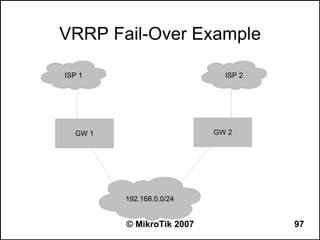
  • 349.
    Scripting Lab ● Write a script to monitor a host on the network and send an e-mail message to you whenever it goes down or comes back up again ● Emulate the up/down condition of the host using a firewall filter rule © MikroTik 2007 349
  • 350.
    Monitoring the NetworkTraffic ● MikroTik RouterOS tools for monitoring the network traffic: – Interface tx/rx bits/s and packets/s, numbers and graphs – Torch tool for detailed reports about traffic flowing through an interface – Sniffer for capturing raw Ethernet packets transmitted on a LAN segment connected to an interface – Firewall logs and connection tracking table – Interface traffic graphs © MikroTik 2007 350
  • 351.
    Interface Traffic Monitor ● Open up interface menu in WinBox to see tx/rx rates per interface ● Open up any interface and select the “Traffic” tab to see the graphs ● Use the “monitor-traffic” command in terminal to get the traffic data per one or more interfaces, for example: – /interface monitor-traffic ether1 – /interface monitor-traffic ether1,ether2,ether3 © MikroTik 2007 351
  • 352.
    Torch Tool ● Torch tool offers more detailed actual traffic report for an interface ● It's most easy to use the torch in WinBox: – Go to “Tools” > “Torch” – Select an interface to monitor and click “Start” – Use “Stop” and “Start” to freeze/continue – Refine the output by selecting protocol and port – Double-click on specific IP address to fill in the Src. Or Dst. Address field (0.0.0.0/0 is for any address) © MikroTik 2007 352
  • 353.
    Torch Tool inCommand Line ● Try to run the torch in CLI, for example: – /tool torch ether1 – /tool torch ether1 dst-address=0.0.0.0/0 – /tool torch ether1 dst-address=0.0.0.0/0 protocol=any port=any ● Use “D” to dump the screen's output to a file ● Download the “console-dump.txt” file from the router using ftp © MikroTik 2007 353
  • 354.
    Sniffer ● To use sniffer in WinBox: – Go to “Tools” > “Packet Sniffer” – Click “Settings” under the “Packets” tab – Select an interface, click “Apply” and then “Start” – Wait 10s and press “Stop” to stop capturing and display the results ● More options available by using protocol and address filter settings ● Captured data can be saved locally on the disk or streamed to a remote server © MikroTik 2007 354
  • 355.
    Firewall Filter andLogs ● Add a firewall filter rule with “action=log” to the “input” or “forward” chain for specific traffic to be logged. ● Use a prefix to better distinguish log records from various sources ● Make sure the logging is enabled, configure it under “System” > “Logging” ● Monitor the log records under “Log” © MikroTik 2007 355
  • 356.
    Firewall Connection Tracking ● Use “IP” > “Firewall” > “Connections” to see the connections through the router and their status – Works only if the connection tracking is enabled (default setting) – The number of maximum connections shown is ~2049, it's an internal limitation in RouterOS to avoid unnecessary resource usage. ● Sort the list by the source or destination address © MikroTik 2007 356
  • 357.
    Graphing Tool ● Use “Tools” > “Graphing” to enable data collection and graphing of interface traffic, queues and system resources – Enable the “Store on Disk” option to preserve the data between reboots ● The graphs can be viewed in WinBox, or, by accessing the router using a browser – Go directly to http://router's_address/graphs/ or follow a link to graphs from the router's main page – Use the “Allow Address” option to limit access to the graphs based on IP addresses © MikroTik 2007 357