This document provides an overview of an MS Office course, including its objectives and what is covered. It discusses Microsoft Word, describing its history and features such as the Microsoft Office button, quick access toolbar, ribbon, ruler, and tabs. It also outlines modules on basic text functions in Word like typing, alignment, editing, copying, pasting, and finding and replacing text.
Introduction to MS Office covering basic to advanced features in Word, Excel, PowerPoint, and Access, with objectives to utilize these applications effectively.
Overview of MS Word as a word processing software including its history and origin as Multi-Tool Word.
Description of the Microsoft Office Button and its commands such as New, Open, Save, and Print, which facilitate document management.
Explanation of the Quick Access Toolbar located next to the Microsoft Office Button, allowing quick access to frequently used commands.
Description of the Title Bar and Ribbon in MS Word, including tabs that provide quick access to commands needed to navigate and format documents.
Detailed overview of various tabs in the Ribbon including Home, Insert, Page Layout, References, Mailings, Review, and View tabs and their respective commands.
Introduction to the ruler for document formatting and basics of text manipulation in MS Word, initiating the first module on text basics.
Detailed steps on typing, alignment, editing, selecting, copying, and deleting text in MS Word, addressing essential text handling skills.
Course Overview
This coursecovers Basic to Advanced topics of MS Word, MS Excel, MS PowerPoint, and MS Access
3.
Objectives
To study howto use the MS-
Office Application.
To study how to utilize the
features of MS-Office for
research perspective.
4.
What is MSWord?
Microsoft Word is word processing
software.
It is developed by Microsoft and is part of
Microsoft Office Suite.
It enables you to create, edit and save
professional documents like letters and
reports.
5.
Brief History
Microsoft wordwas released in 1983 as
Multi-Tool Word.
Its first version was based on the
framework of Bravo which was world's
first graphical writing program.
Microsoft renamed Multi Tool Word to
Microsoft Word, and then in October
1983, Microsoft released its first
version for the IBM PC.
6.
Microsoft Office Button
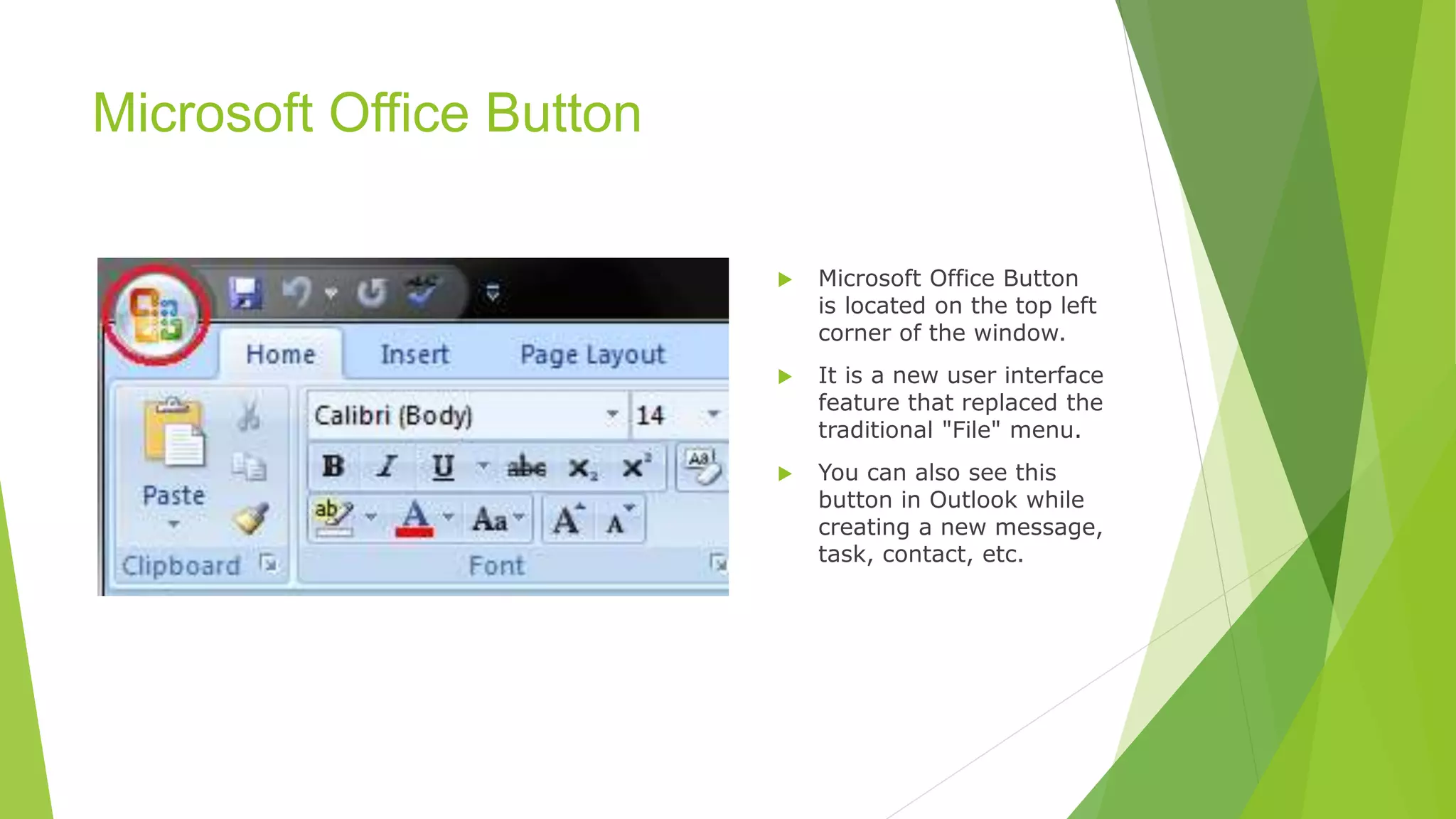
Microsoft Office Button
is located on the top left
corner of the window.
It is a new user interface
feature that replaced the
traditional "File" menu.
You can also see this
button in Outlook while
creating a new message,
task, contact, etc.
7.
Microsoft Office Button
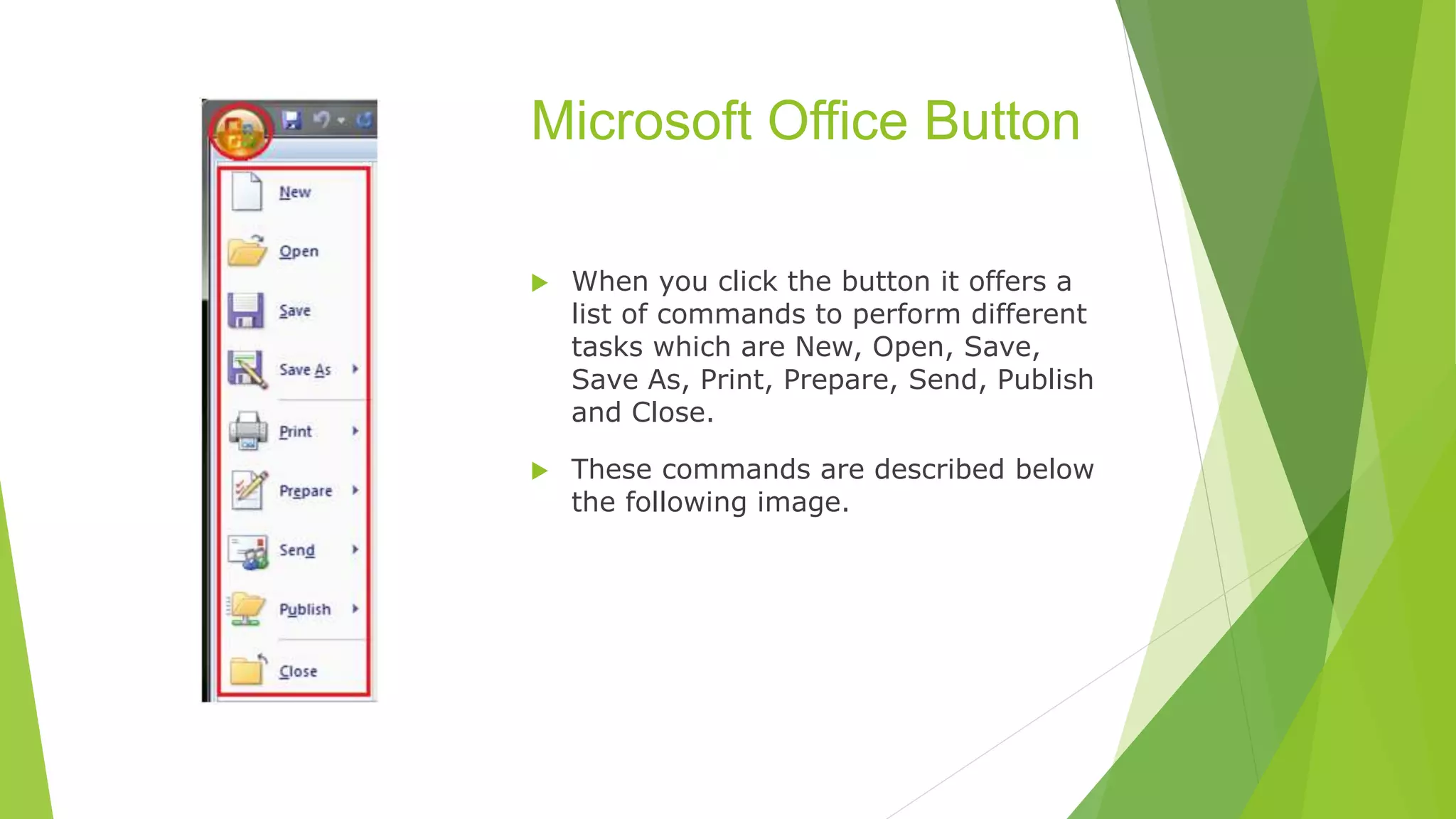
When you click the button it offers a
list of commands to perform different
tasks which are New, Open, Save,
Save As, Print, Prepare, Send, Publish
and Close.
These commands are described below
the following image.
8.
Microsoft Office Button
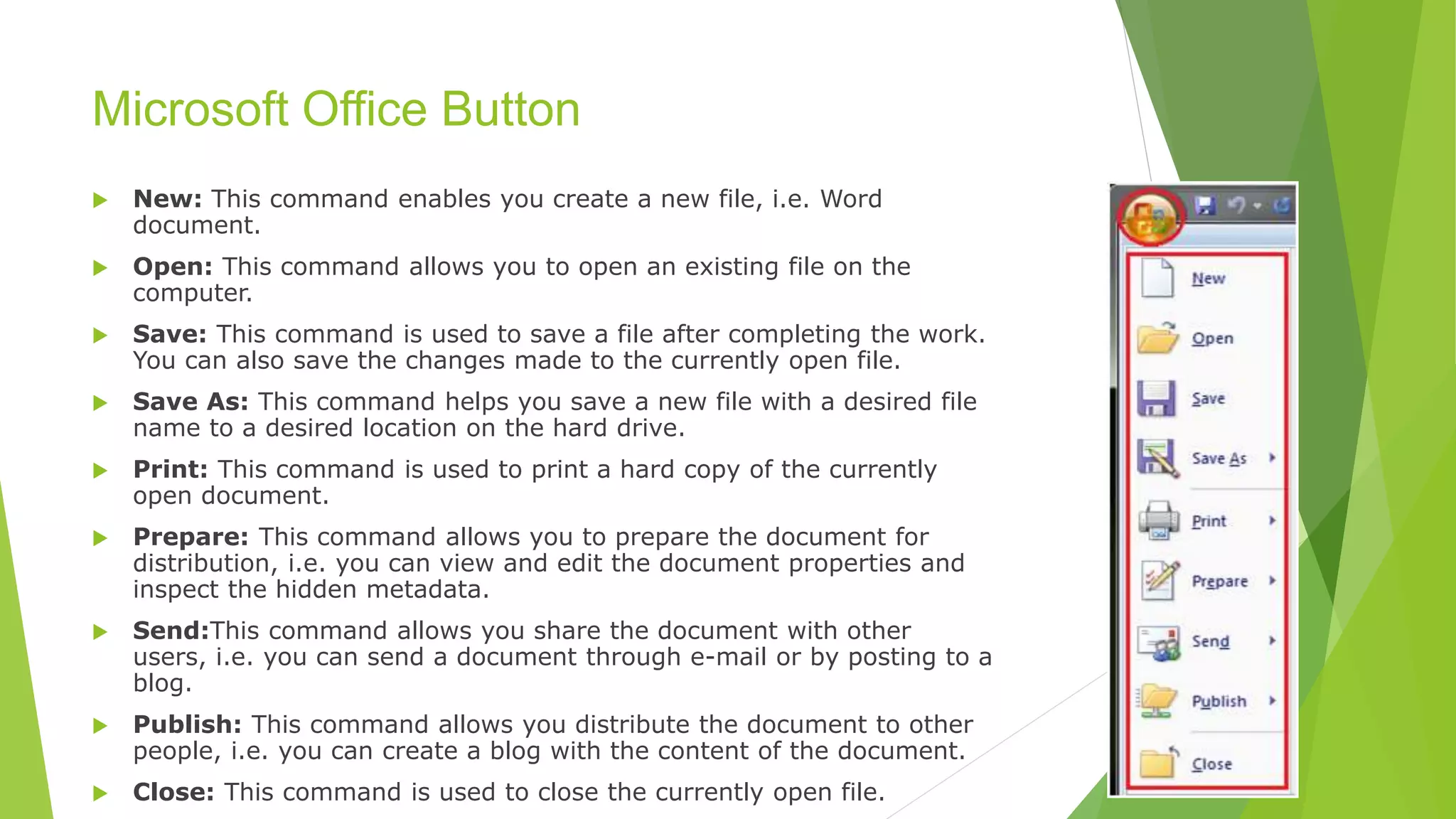
New: This command enables you create a new file, i.e. Word
document.
Open: This command allows you to open an existing file on the
computer.
Save: This command is used to save a file after completing the work.
You can also save the changes made to the currently open file.
Save As: This command helps you save a new file with a desired file
name to a desired location on the hard drive.
Print: This command is used to print a hard copy of the currently
open document.
Prepare: This command allows you to prepare the document for
distribution, i.e. you can view and edit the document properties and
inspect the hidden metadata.
Send:This command allows you share the document with other
users, i.e. you can send a document through e-mail or by posting to a
blog.
Publish: This command allows you distribute the document to other
people, i.e. you can create a blog with the content of the document.
Close: This command is used to close the currently open file.
9.
Quick Access Toolbar
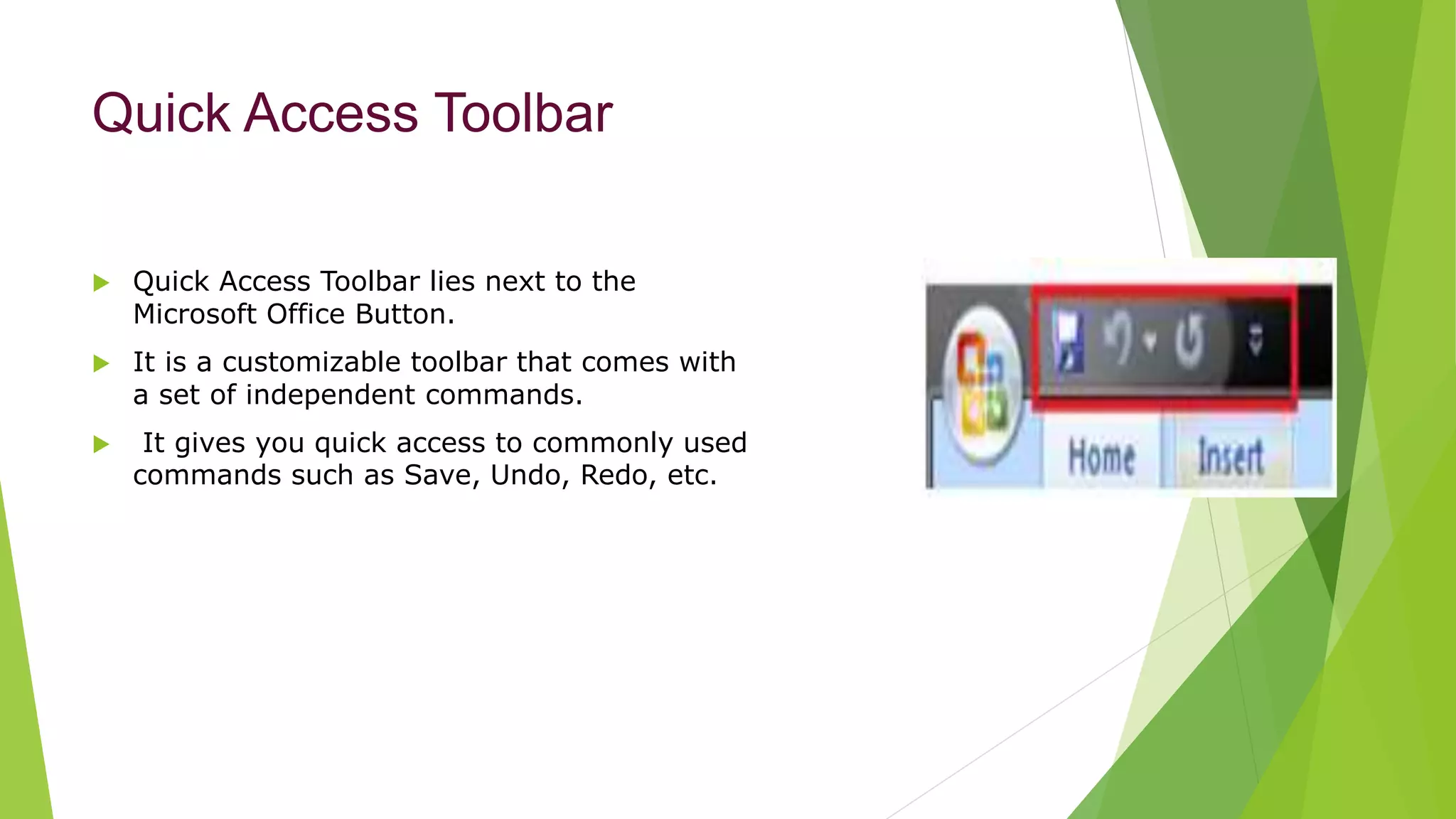
Quick Access Toolbar lies next to the
Microsoft Office Button.
It is a customizable toolbar that comes with
a set of independent commands.
It gives you quick access to commonly used
commands such as Save, Undo, Redo, etc.
10.
Quick Access
Toolbar
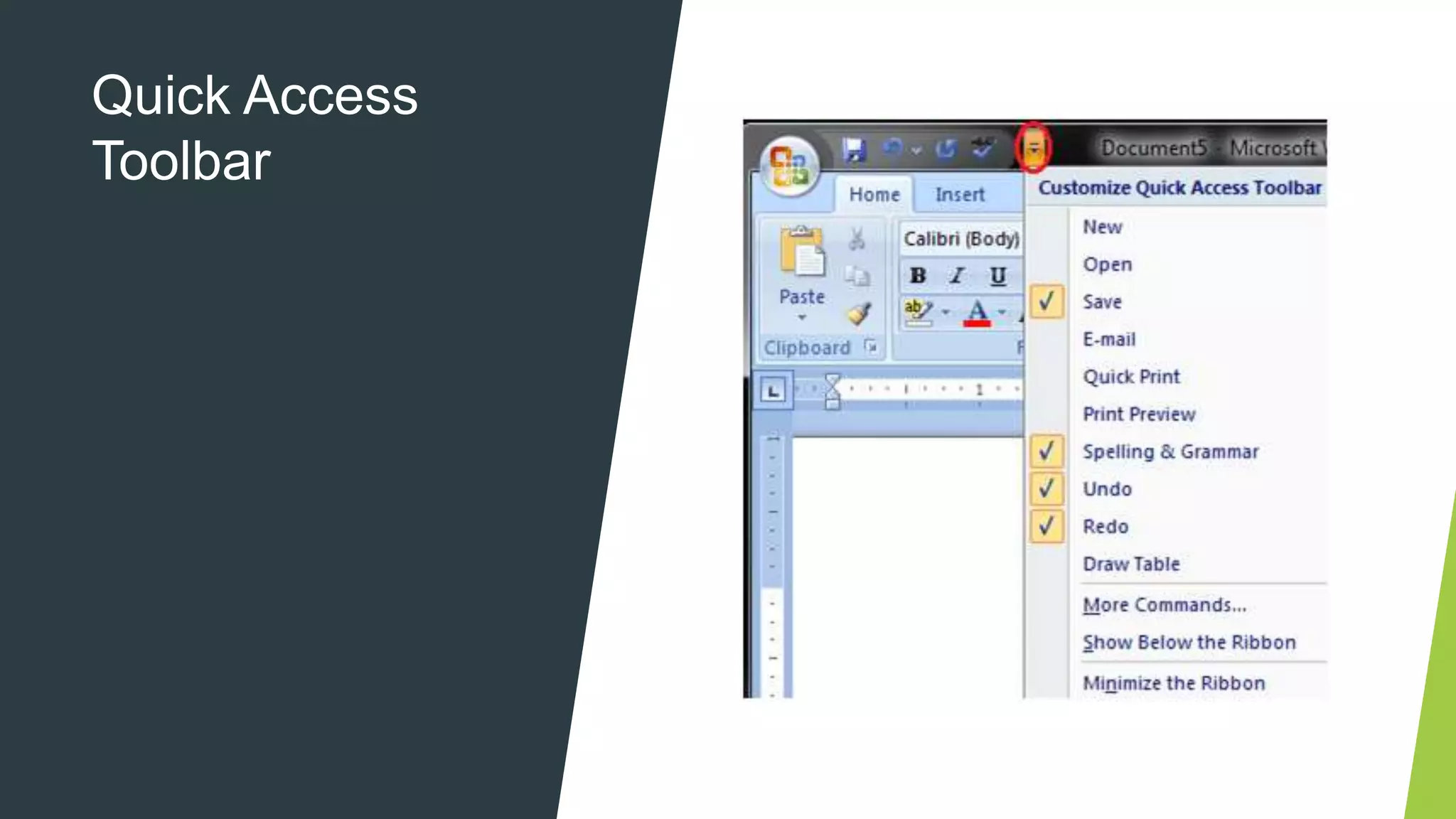
When youclick the drop-down arrow next to toolbar it offers
more commands.
With a left click you can add any of these commands to Quick
Access Toolbar.
You can also remove the commands added to the tool bar. The
indent, spacing values, individual styles and other features that
appear on the ribbon cannot be added to quick access toolbar.
The following image is showing the menu of quick access toolbar.
Title Bar
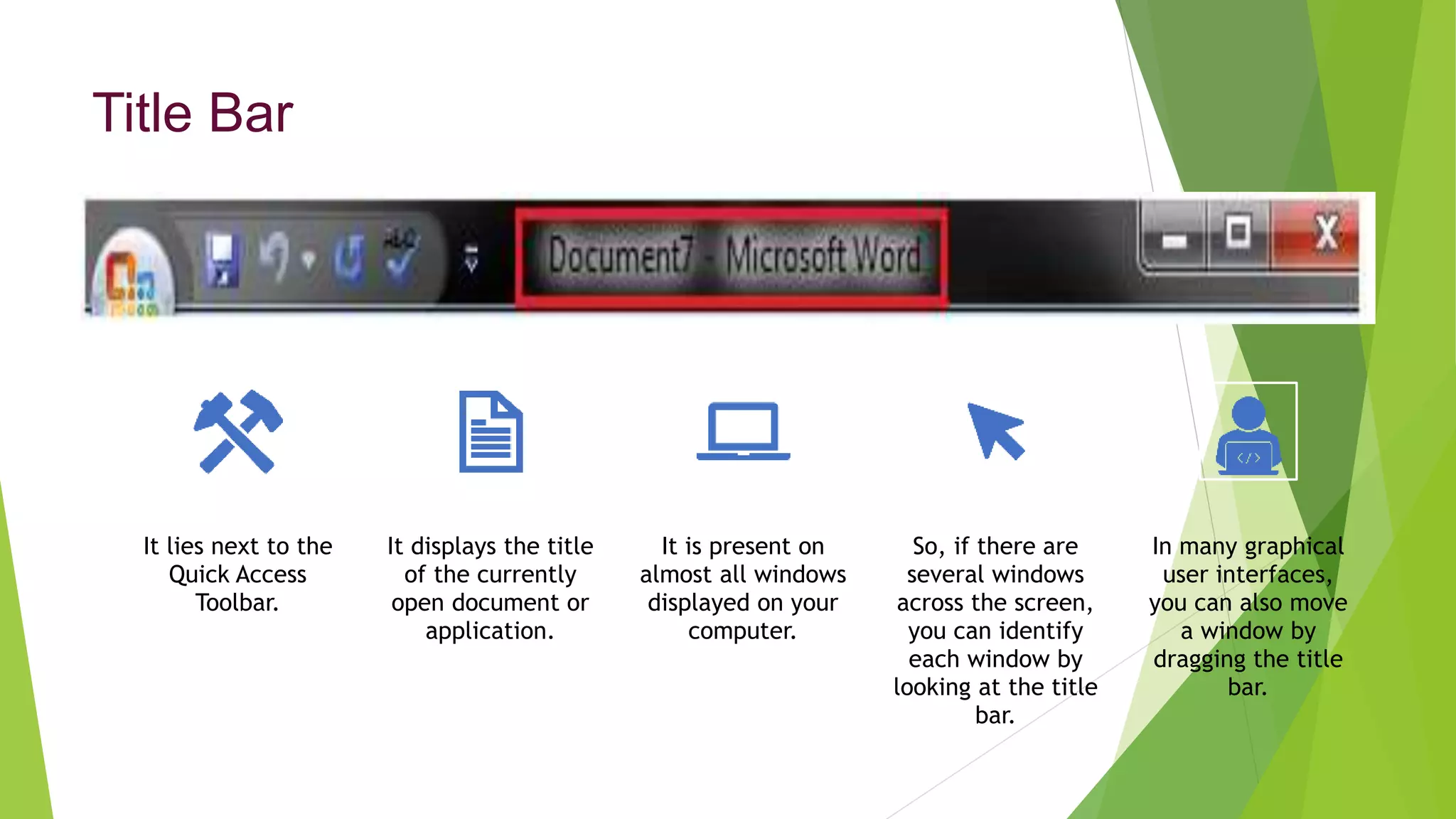
It liesnext to the
Quick Access
Toolbar.
It displays the title
of the currently
open document or
application.
It is present on
almost all windows
displayed on your
computer.
So, if there are
several windows
across the screen,
you can identify
each window by
looking at the title
bar.
In many graphical
user interfaces,
you can also move
a window by
dragging the title
bar.
13.
Ribbon and Tabs
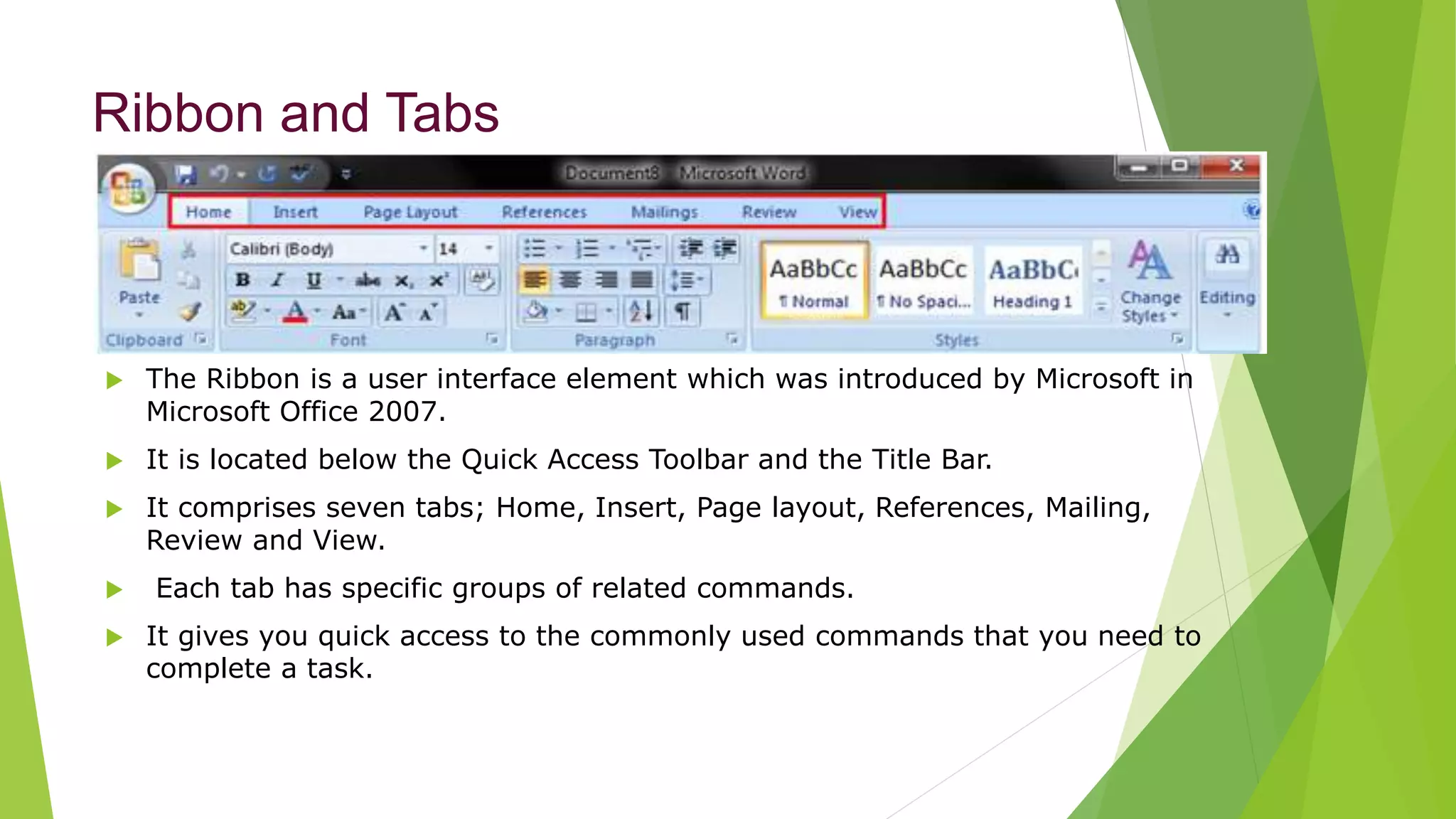
The Ribbon is a user interface element which was introduced by Microsoft in
Microsoft Office 2007.
It is located below the Quick Access Toolbar and the Title Bar.
It comprises seven tabs; Home, Insert, Page layout, References, Mailing,
Review and View.
Each tab has specific groups of related commands.
It gives you quick access to the commonly used commands that you need to
complete a task.
14.
Home tab:
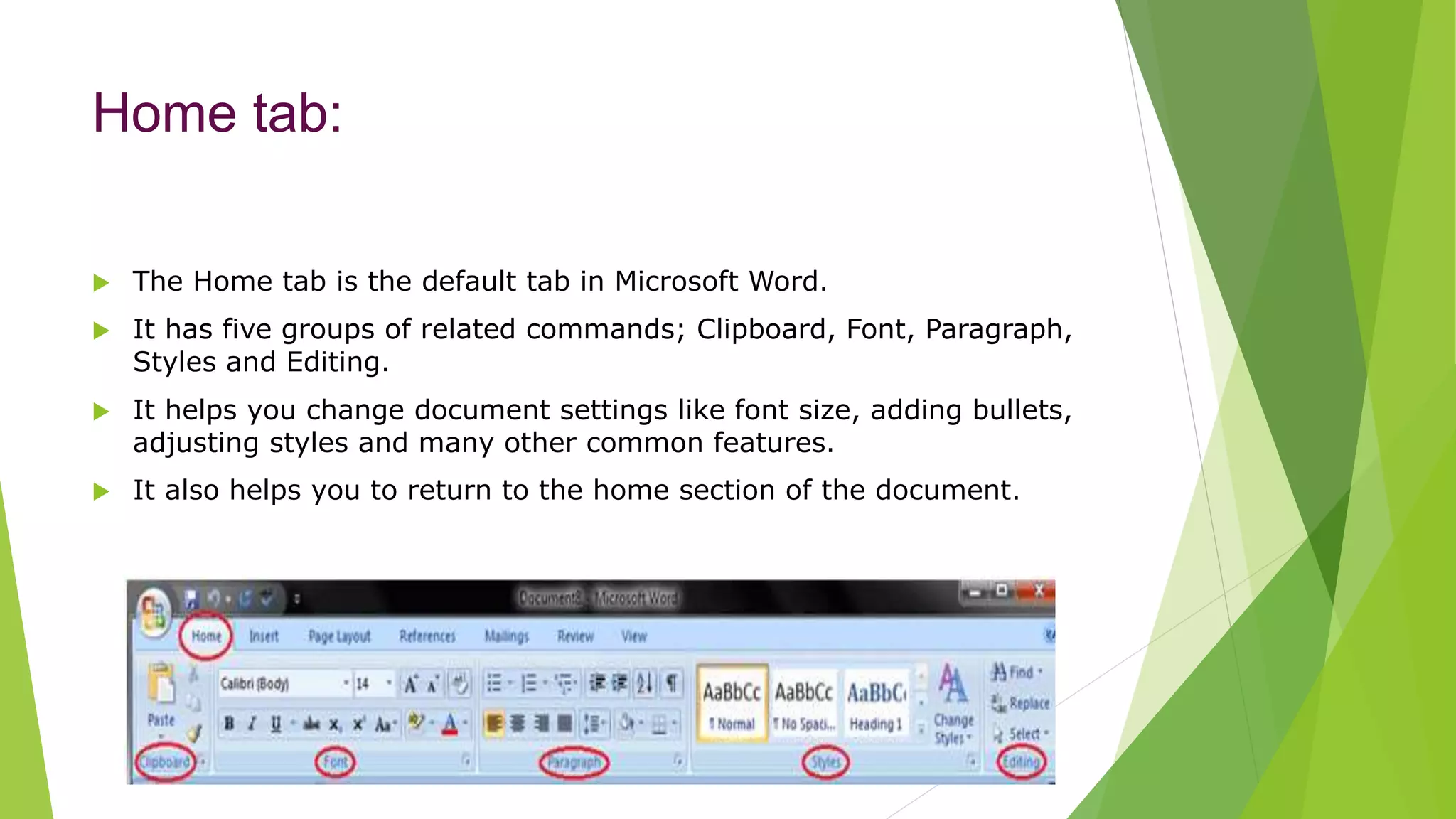
TheHome tab is the default tab in Microsoft Word.
It has five groups of related commands; Clipboard, Font, Paragraph,
Styles and Editing.
It helps you change document settings like font size, adding bullets,
adjusting styles and many other common features.
It also helps you to return to the home section of the document.
15.
Insert tab:
Insert Tabis the
second tab in the
Ribbon.
As the name
suggests, it is used
to insert or add
extra features in
your document.
It is commonly
used to add tables,
pictures, clip art,
shapes, page
number, etc.
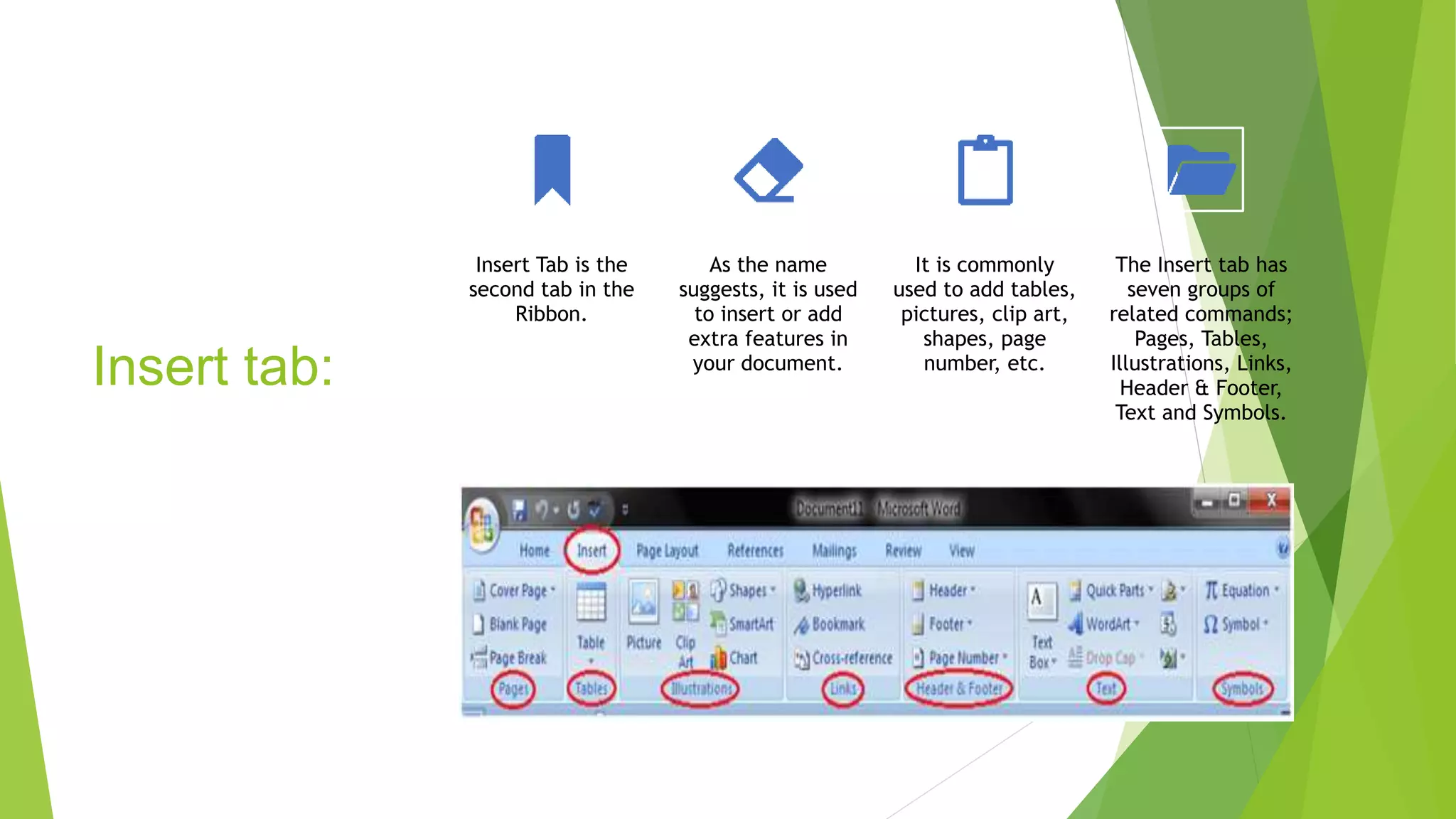
The Insert tab has
seven groups of
related commands;
Pages, Tables,
Illustrations, Links,
Header & Footer,
Text and Symbols.
16.
Page Layout
tab:
Itis the third tab in the Ribbon.
This tab allows you to control the look and
feel of your document, i.e. you can change
the page size, margins, line spacing,
indentation, documentation orientation, etc.
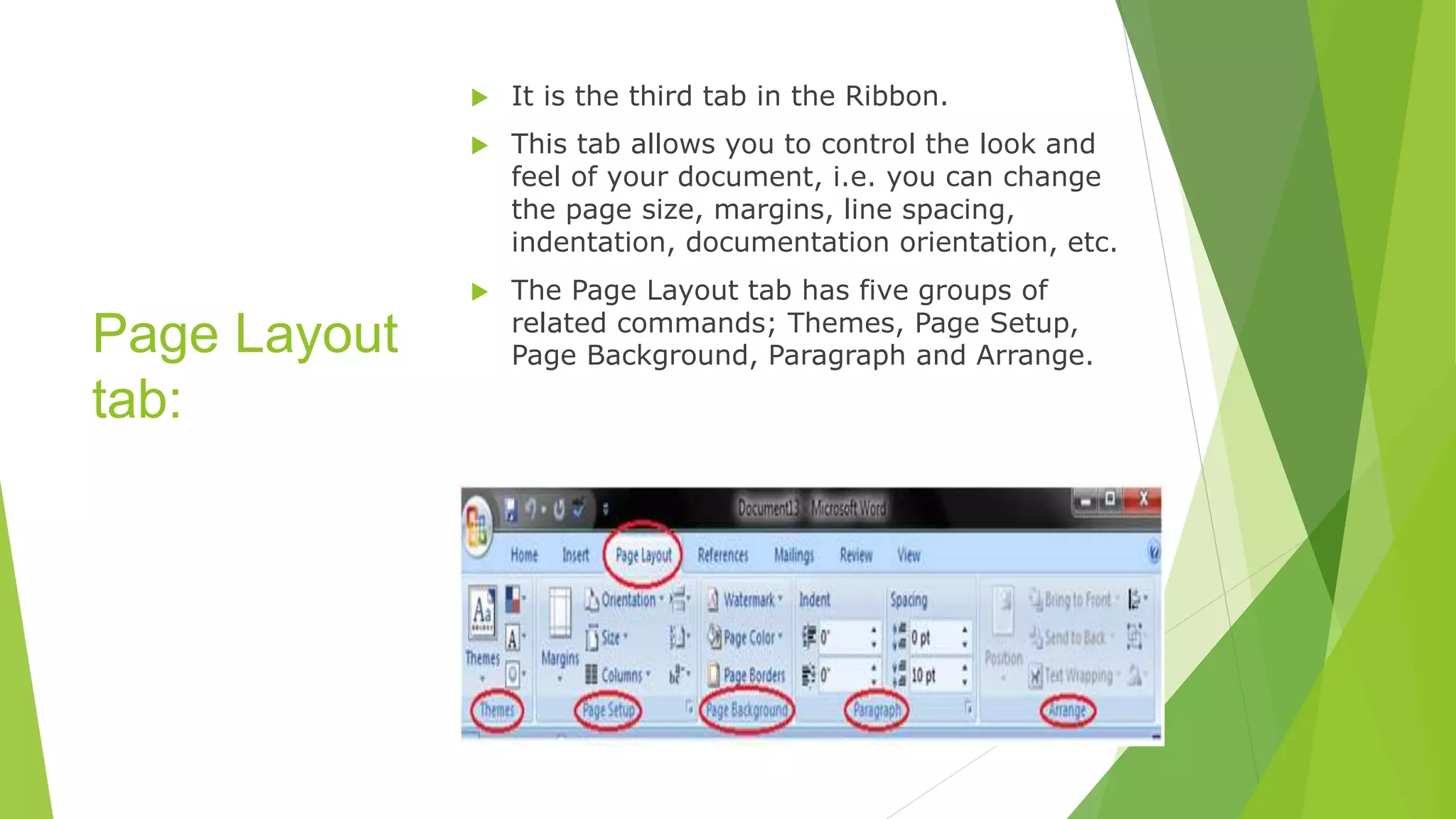
The Page Layout tab has five groups of
related commands; Themes, Page Setup,
Page Background, Paragraph and Arrange.
17.
References
tab:
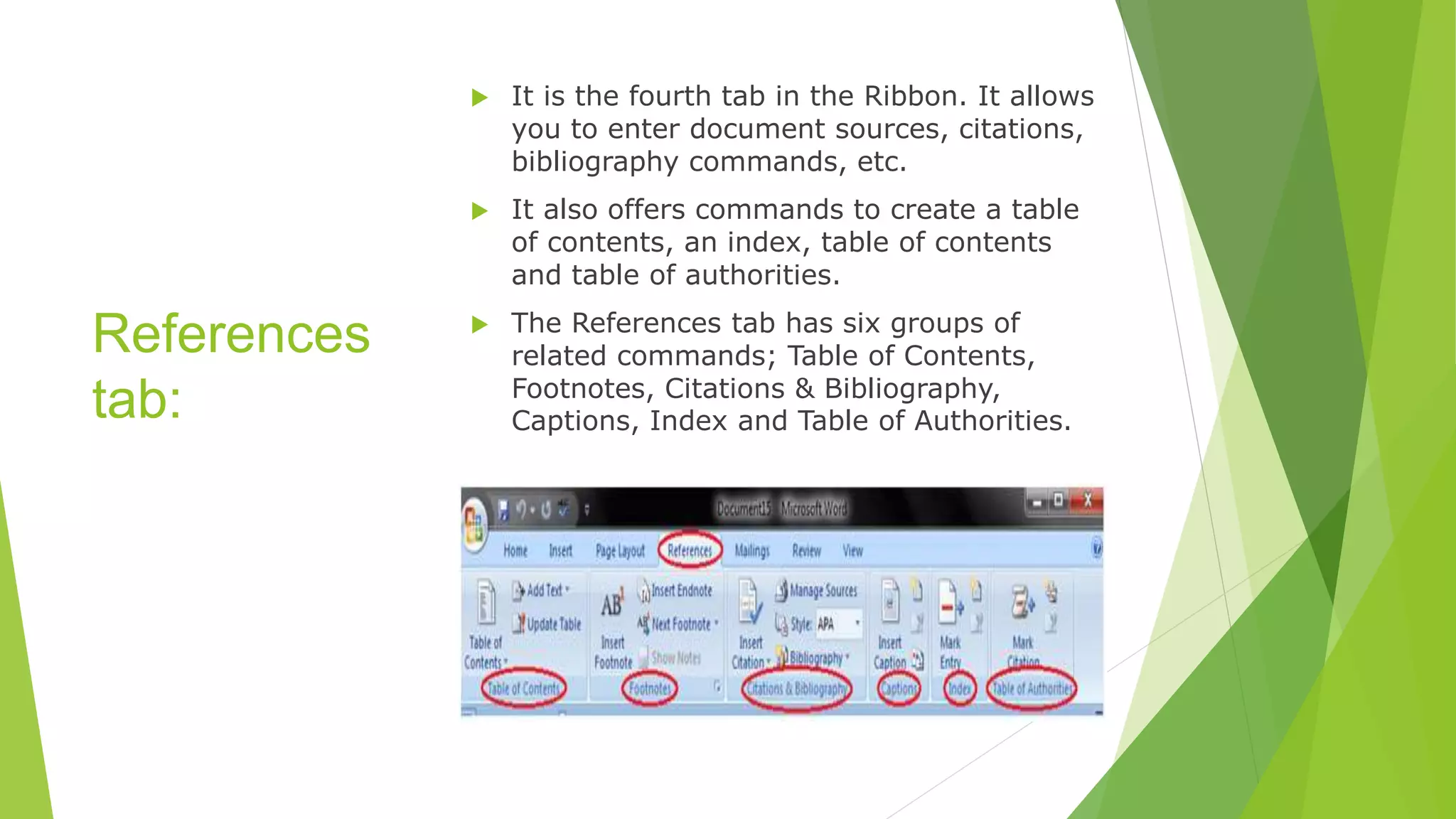
It isthe fourth tab in the Ribbon. It allows
you to enter document sources, citations,
bibliography commands, etc.
It also offers commands to create a table
of contents, an index, table of contents
and table of authorities.
The References tab has six groups of
related commands; Table of Contents,
Footnotes, Citations & Bibliography,
Captions, Index and Table of Authorities.
18.
Mailings tab:
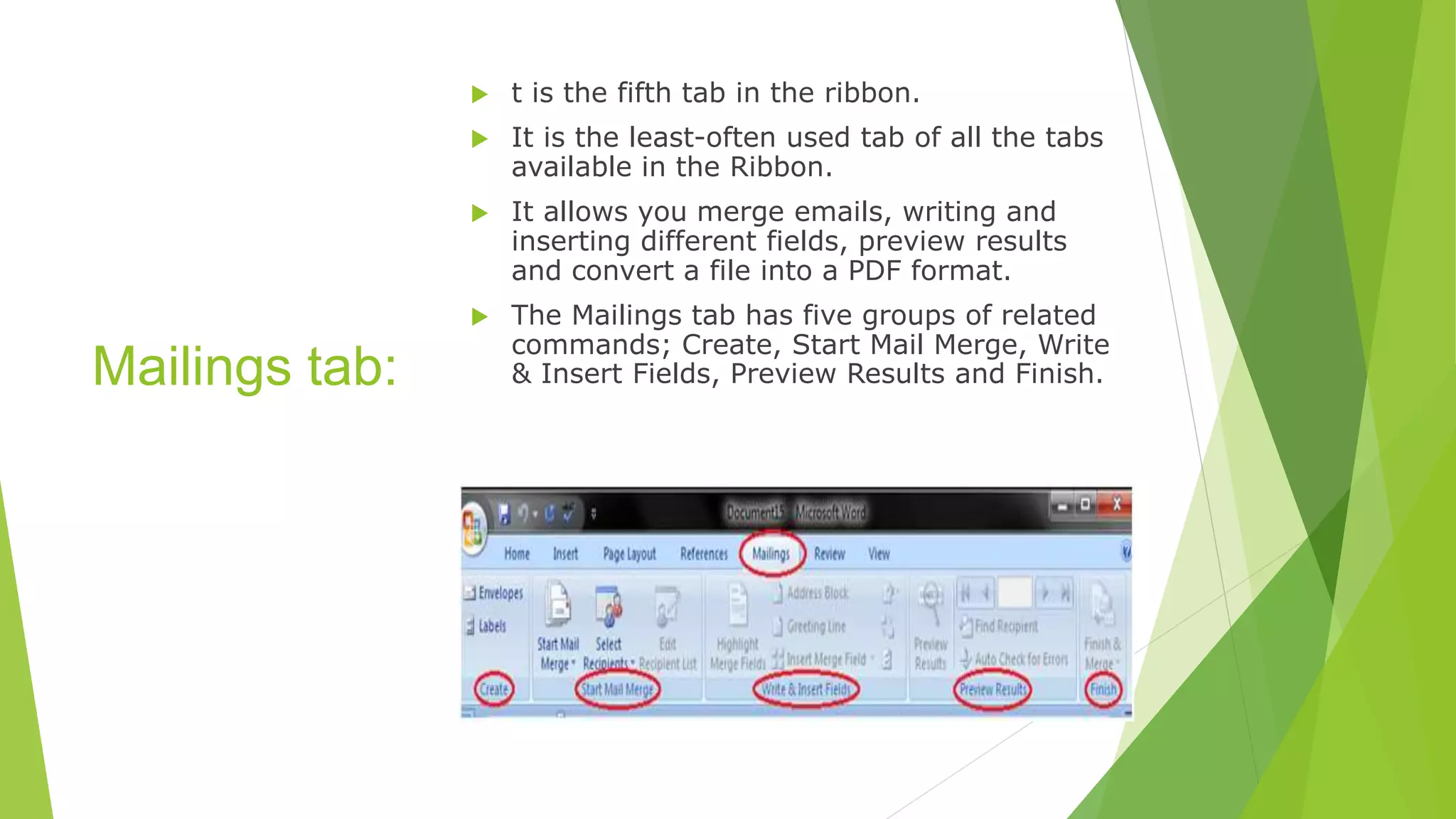
tis the fifth tab in the ribbon.
It is the least-often used tab of all the tabs
available in the Ribbon.
It allows you merge emails, writing and
inserting different fields, preview results
and convert a file into a PDF format.
The Mailings tab has five groups of related
commands; Create, Start Mail Merge, Write
& Insert Fields, Preview Results and Finish.
19.
Review tab:
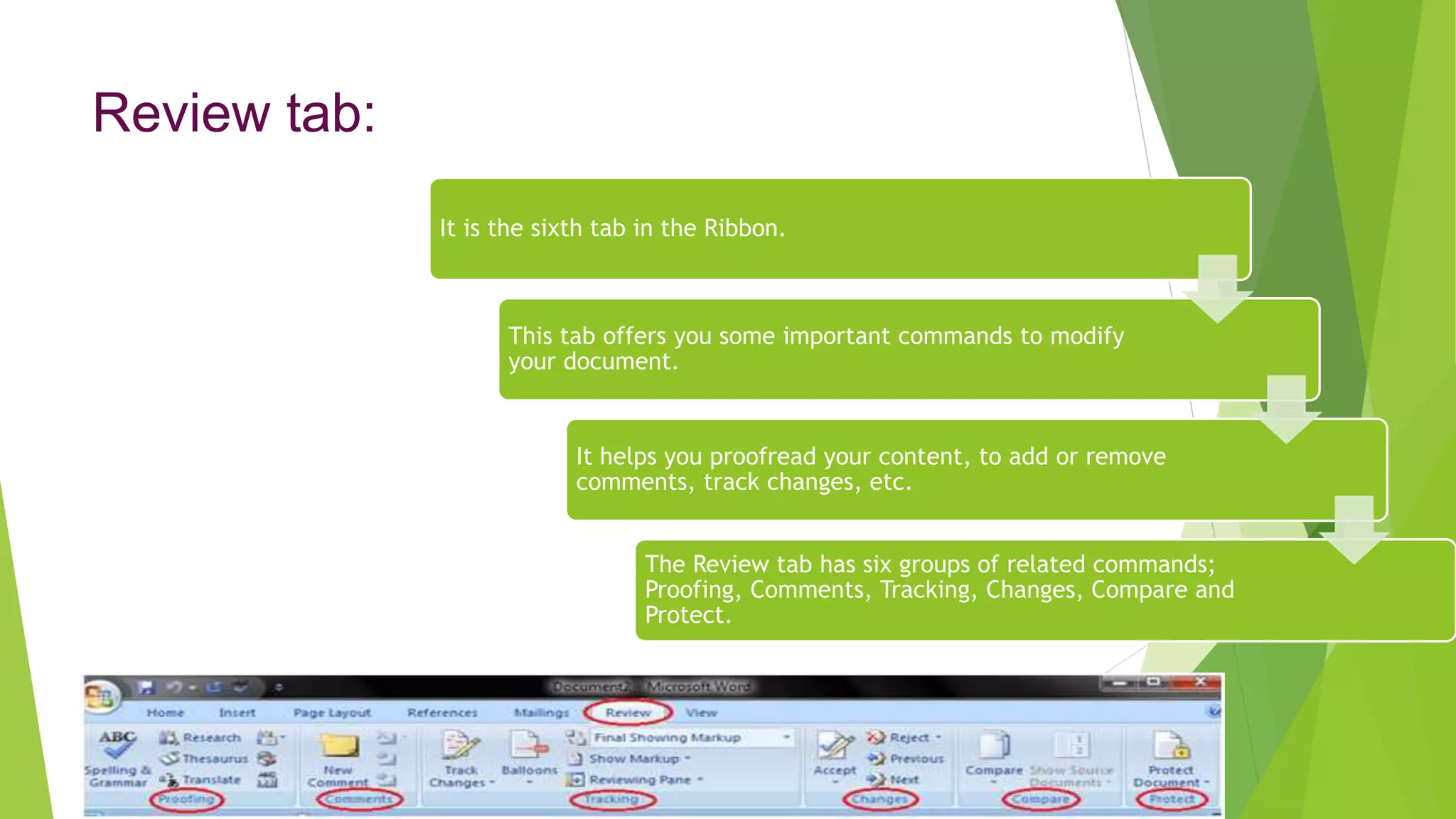
It isthe sixth tab in the Ribbon.
This tab offers you some important commands to modify
your document.
It helps you proofread your content, to add or remove
comments, track changes, etc.
The Review tab has six groups of related commands;
Proofing, Comments, Tracking, Changes, Compare and
Protect.
20.
View tab:
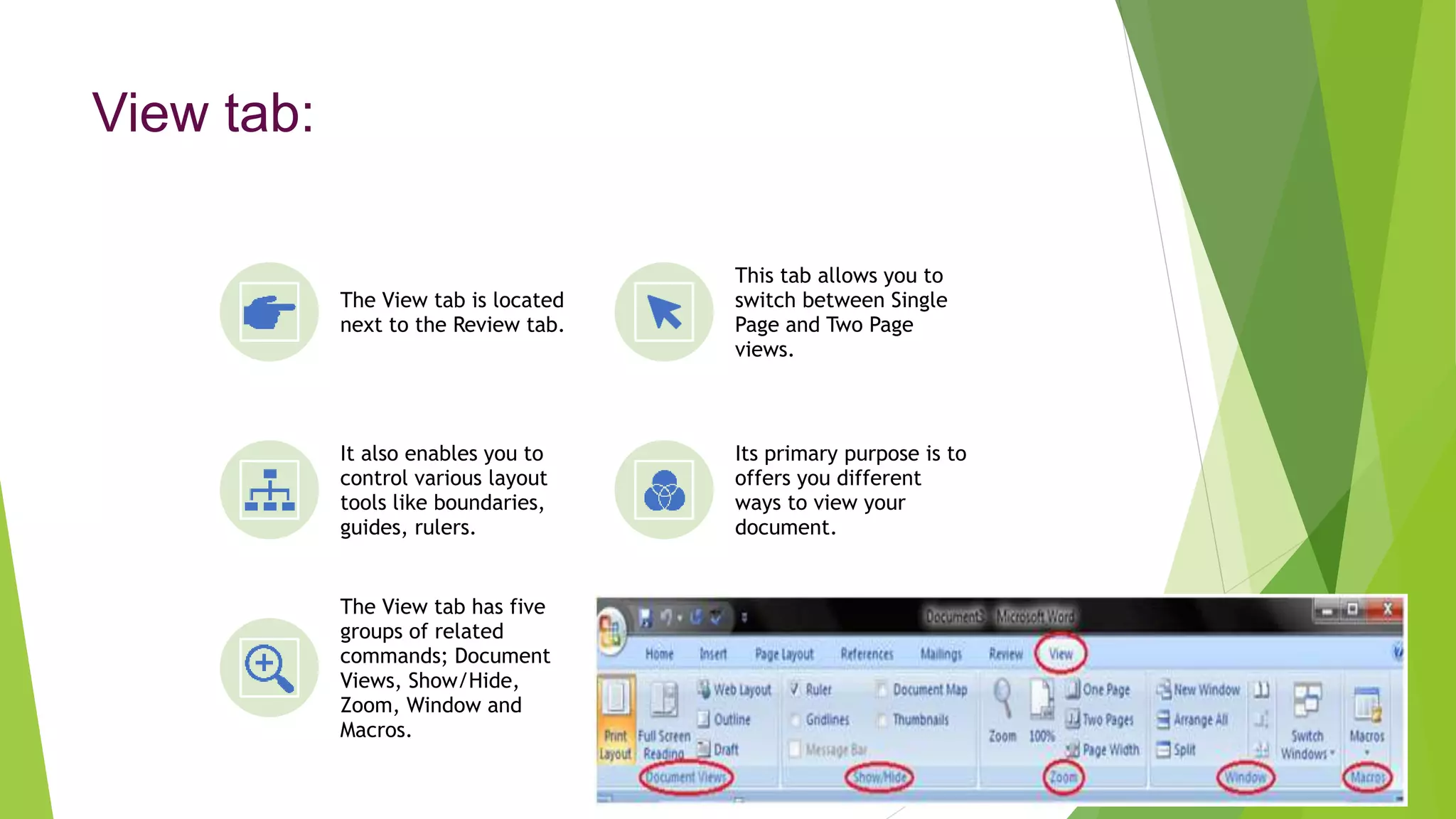
The Viewtab is located
next to the Review tab.
This tab allows you to
switch between Single
Page and Two Page
views.
It also enables you to
control various layout
tools like boundaries,
guides, rulers.
Its primary purpose is to
offers you different
ways to view your
document.
The View tab has five
groups of related
commands; Document
Views, Show/Hide,
Zoom, Window and
Macros.
21.
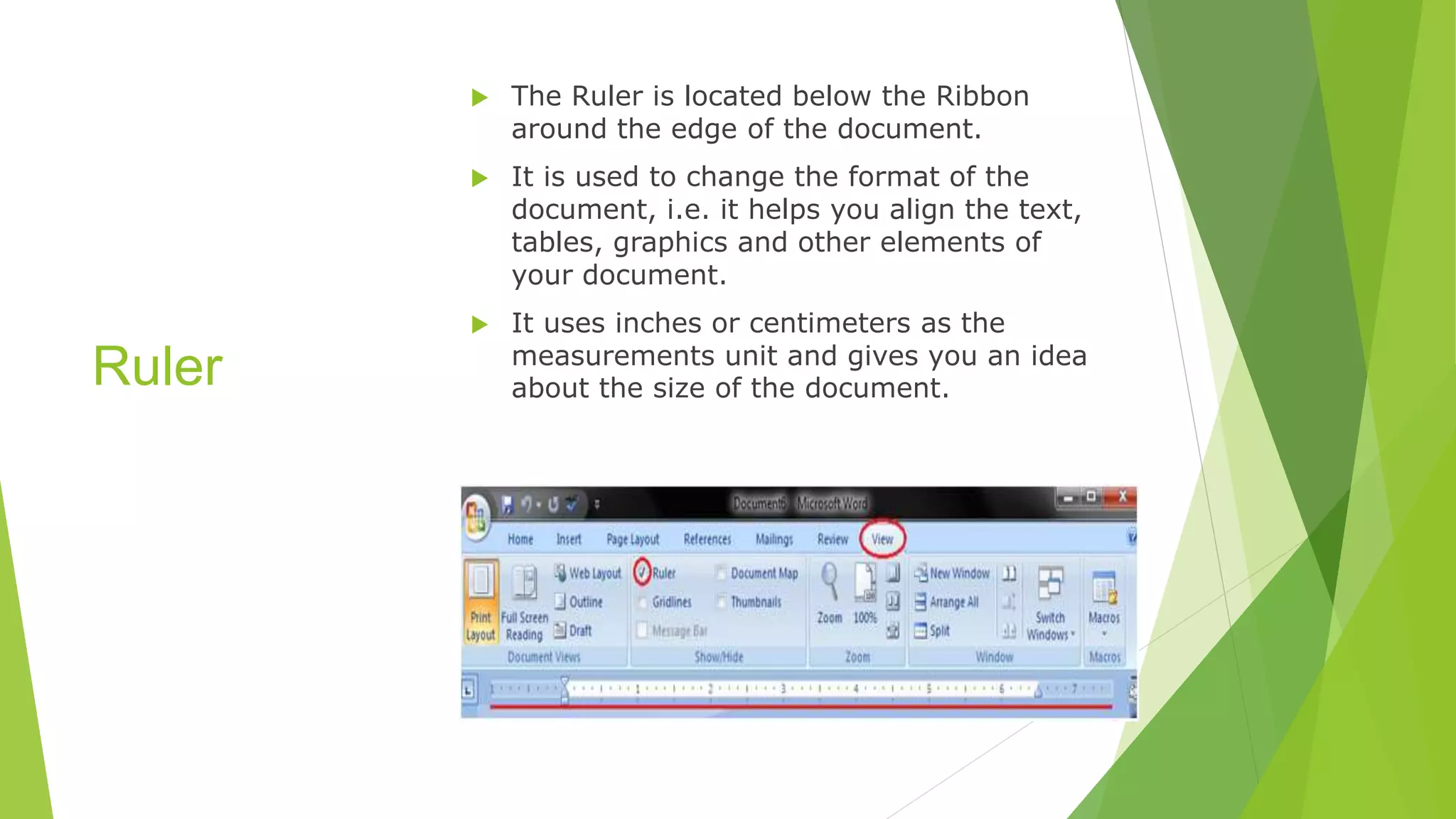
Ruler
The Ruleris located below the Ribbon
around the edge of the document.
It is used to change the format of the
document, i.e. it helps you align the text,
tables, graphics and other elements of
your document.
It uses inches or centimeters as the
measurements unit and gives you an idea
about the size of the document.
Module 1
TYPING THETEXT,
ALIGNMENT OF TEXT
EDITING TEXT: CUT, COPY,
PASTE, SELECT ALL, CLEAR
FIND & REPLACE
24.
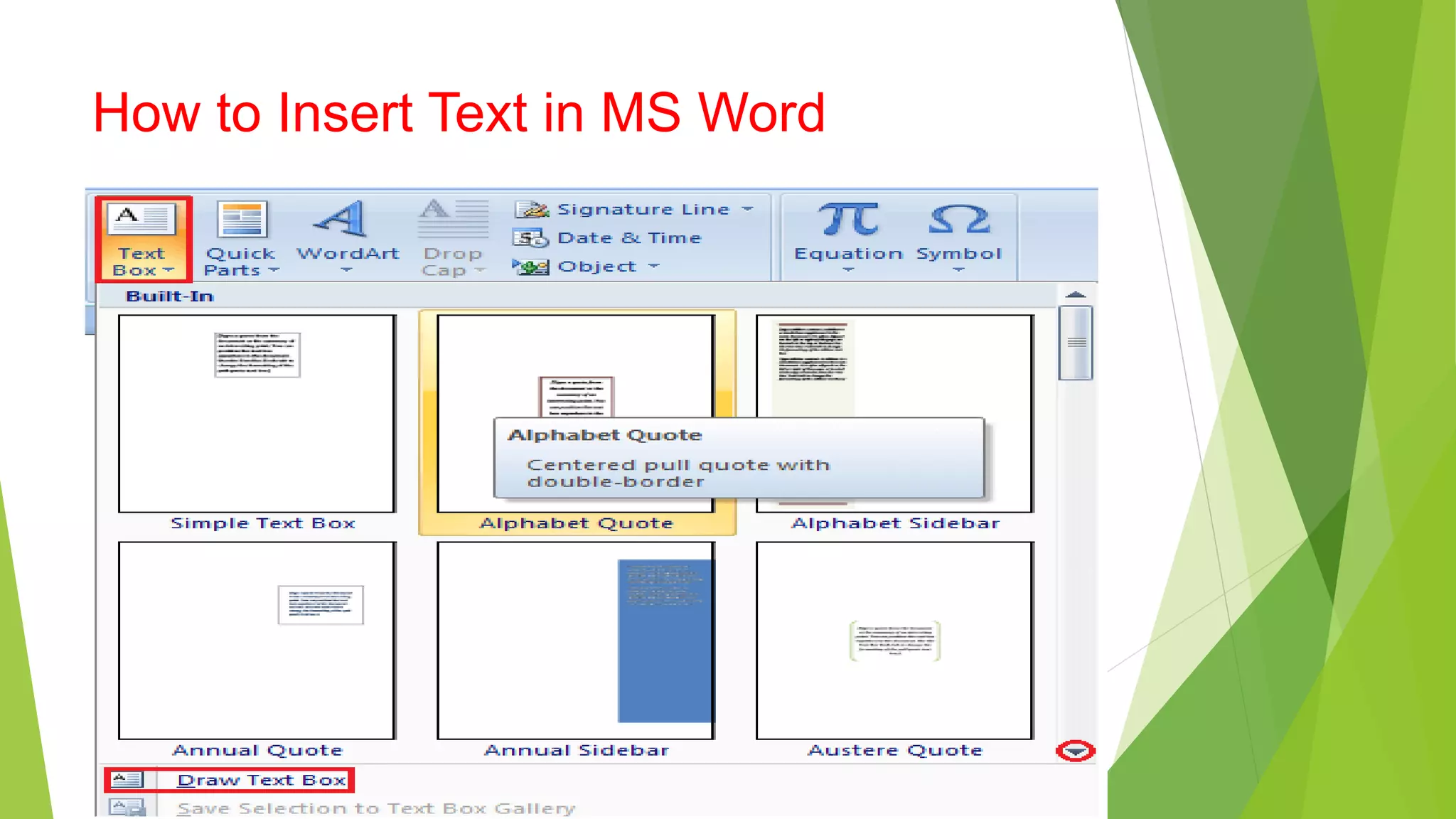
The basicsteps to insert text or to create a new
document in Word are listed below;
Go to the start menu and look for Microsoft Word
icon
Click the icon to open the Microsoft Word
You will see a blinking cursor or insertion point in
the text area below the ribbon
Now, as you start typing, the words will appear on
the screen in the text area
To change the location of insertion point press
spacebar, Enter or Tab keys
How to Insert
Text in MS
Word
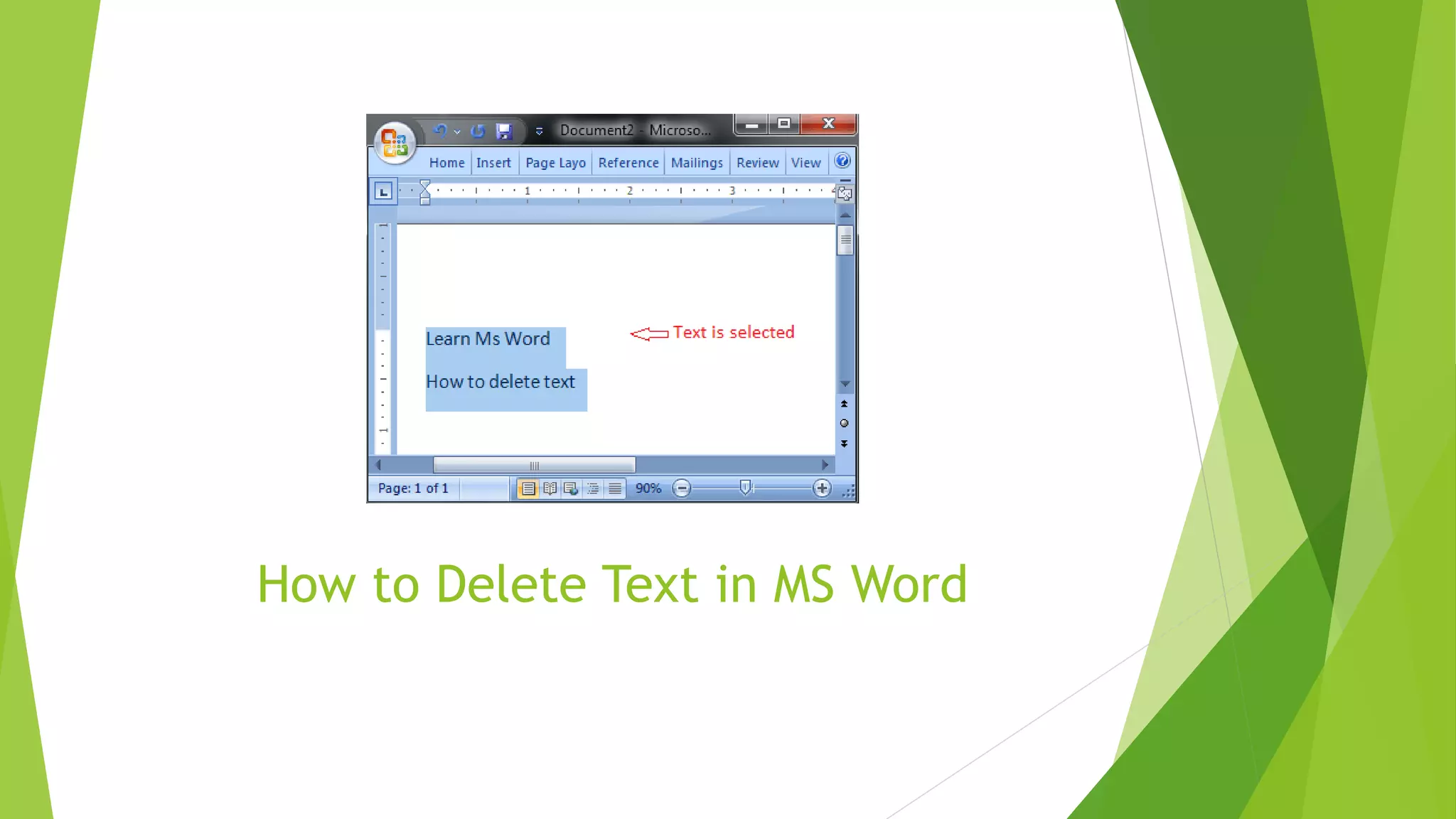
How to DeleteText in MS Word
You can easily delete the text in Word including characters,
paragraphs or all of the content of your document.
Place the cursor next to the text then press Backspace key.
• Place the cursor to the left of the text then press Delete key.
• Select the text and press the Backspace or Delete key.
• Select the text and type over it the new text.
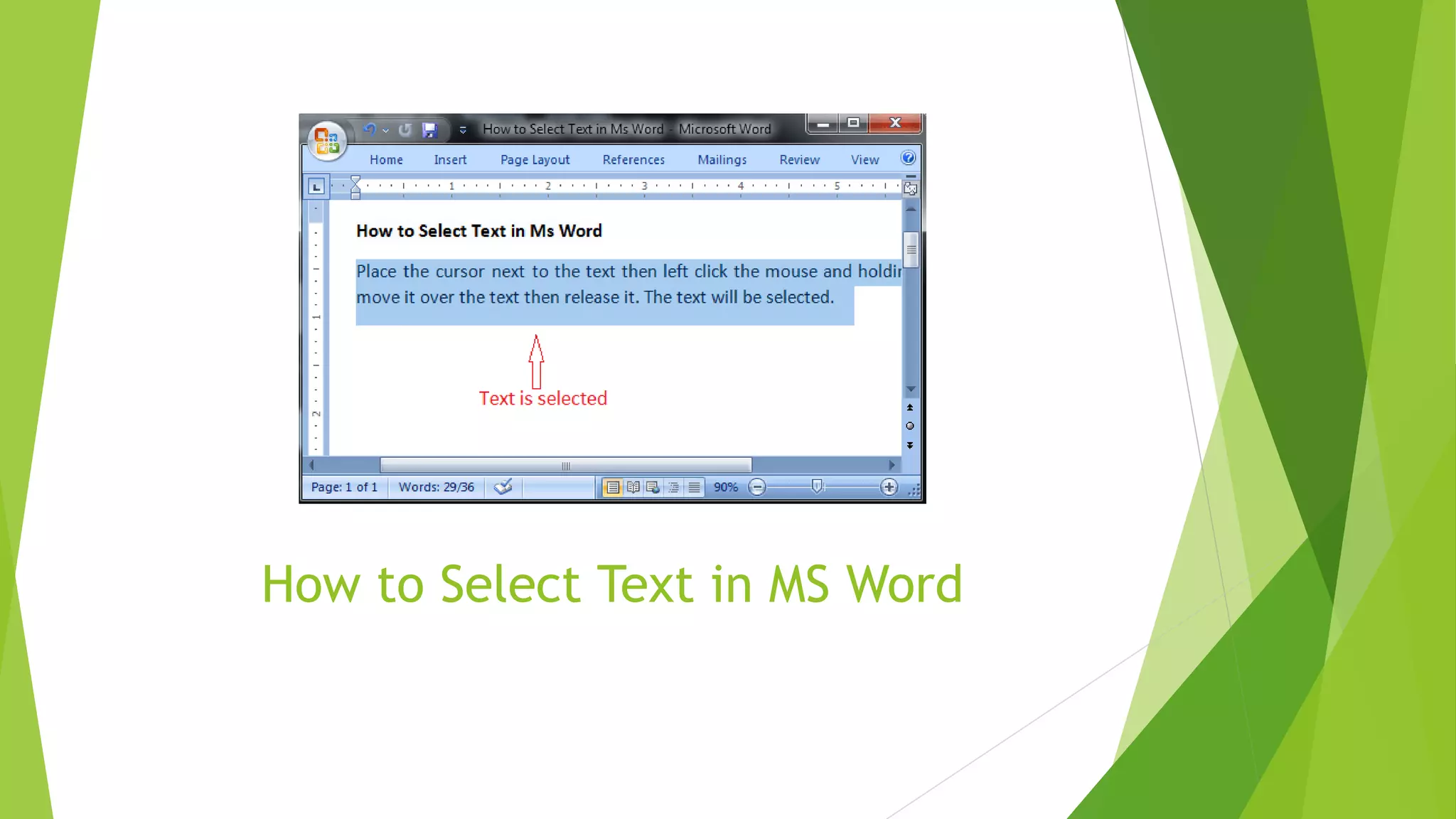
How to SelectText in MS Word
• To select a single word double click within the word
• To select the entire paragraph triple click within the paragraph
• To select entire document, in Home tab, in Editing group click Select
then choose Select All option or press CTRL+A
• o Shift + Arrow; hold down the shift key then press the arrow key,
the word will select the text in the direction of the arrow key. There
are three arrow keys, so you can select the text in three different
directions.
How to Copyand Paste Text in MS Word
Method 1;
• Select the text you want to copy
• Select the Home tab and click the Copy command
• Place the cursor where you want to paste the text
• Click the Paste command in Home tab
31.
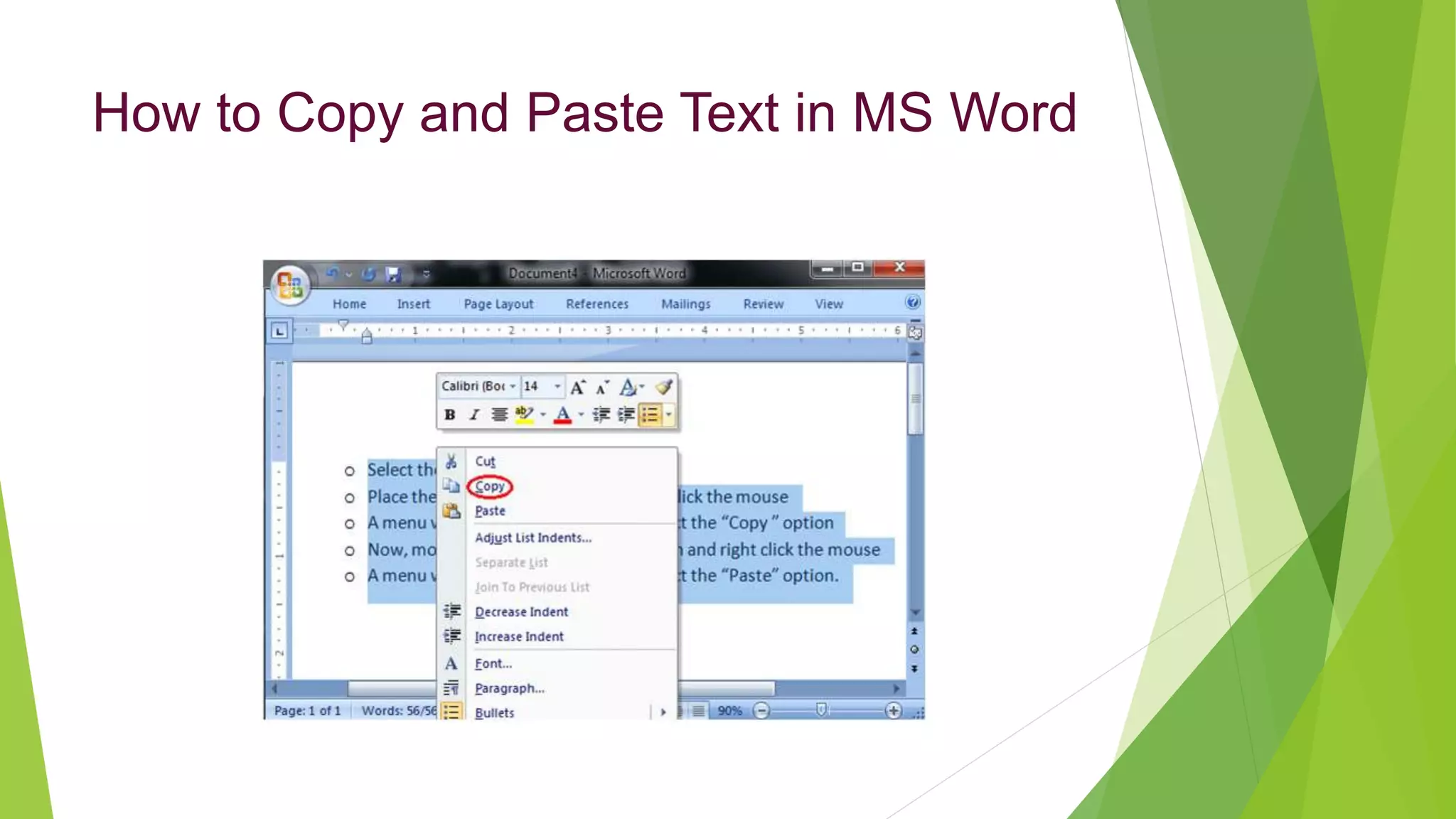
Method 2;
•Select the text
• Place the cursor over the text and right click the mouse
• A menu will appear; with a left click select the "Copy" option
• Now, move the cursor to a desired location and right click the mouse
• A menu will appear; with a left click select the 'Paste" option.
How to Copy and Paste Text in MS Word