MS Project
Martin Sillaots
2018
2
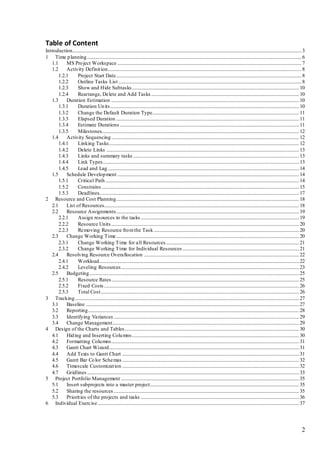
Table of Content
Introduction.............................................................................................................................................................................................3
1 Time planning.................................................................................................................................................................................6
1.1 MS Project Workspace ........................................................................................................................................................7
1.2 Activity Definition................................................................................................................................................................8
1.2.1 Project Start Date.........................................................................................................................................................8
1.2.2 Outline Tasks List .......................................................................................................................................................8
1.2.3 Show and Hide Subtasks..........................................................................................................................................10
1.2.4 Rearrange, Delete and Add Tasks ..........................................................................................................................10
1.3 Duration Estimation ...........................................................................................................................................................10
1.3.1 Duration Units............................................................................................................................................................10
1.3.2 Change the Default Duration Type.........................................................................................................................11
1.3.3 Elapsed Duration .......................................................................................................................................................11
1.3.4 Estimate Durations ....................................................................................................................................................11
1.3.5 Milestones...................................................................................................................................................................12
1.4 Activity Sequencing...........................................................................................................................................................12
1.4.1 Linking Tasks.............................................................................................................................................................12
1.4.2 Delete Links ...............................................................................................................................................................13
1.4.3 Links and summary tasks .........................................................................................................................................13
1.4.4 Link Types..................................................................................................................................................................13
1.4.5 Lead and Lag..............................................................................................................................................................14
1.5 Schedule Development ......................................................................................................................................................14
1.5.1 Critical Path................................................................................................................................................................14
1.5.2 Constrains ...................................................................................................................................................................15
1.5.3 Deadlines.....................................................................................................................................................................17
2 Resource and Cost Planning.......................................................................................................................................................18
2.1 List of Resources.................................................................................................................................................................18
2.2 Resource Assignments.......................................................................................................................................................19
2.2.1 Assign resources to the tasks...................................................................................................................................19
2.2.2 Resource Units ...........................................................................................................................................................20
2.2.3 Removing Resource fromthe Task ........................................................................................................................20
2.3 Change Working Time.......................................................................................................................................................20
2.3.1 Change Working Time for all Resources..............................................................................................................21
2.3.2 Change Working Time for Individual Resources ................................................................................................21
2.4 Resolving Resource Overallocation ................................................................................................................................22
2.4.1 Workload.....................................................................................................................................................................22
2.4.2 Leveling Resources...................................................................................................................................................23
2.5 Budgeting.............................................................................................................................................................................25
2.5.1 Resource Rates...........................................................................................................................................................25
2.5.2 Fixed Costs .................................................................................................................................................................26
2.5.3 Total Cost....................................................................................................................................................................26
3 Tracking.........................................................................................................................................................................................27
3.1 Baseline ................................................................................................................................................................................27
3.2 Reporting..............................................................................................................................................................................28
3.3 Identifying Variances .........................................................................................................................................................29
3.4 Change Management..........................................................................................................................................................29
4 Design of the Charts and Tables................................................................................................................................................30
4.1 Hiding and Inserting Columns..........................................................................................................................................30
4.2 Formatting Columns...........................................................................................................................................................31
4.3 Gantt Chart Wizard.............................................................................................................................................................31
4.4 Add Texts to Gantt Chart ..................................................................................................................................................31
4.5 Gantt Bar Color Schemas ..................................................................................................................................................32
4.6 Timescale Customization ..................................................................................................................................................32
4.7 Gridlines ...............................................................................................................................................................................33
5 Project Portfolio Management ...................................................................................................................................................35
5.1 Insert subprojects into a master project...........................................................................................................................35
5.2 Sharing the resources .........................................................................................................................................................35
5.3 Priorities of the projects and tasks ...................................................................................................................................36
6 Individual Exercise ......................................................................................................................................................................37
3
Introduction
Microsoft Project is project management software. Current document is a learning material for MS
Project training course. In order to describe what kind of support the MS Project offers to the
project managers, the domain of project management is presented in the following matrix (Table 1).
In this table all aspects that are important in project management are divided in to 5 project
management processes and 9 management areas. The bold font indicates areas that are supported by
the MS Project functionalities. MS Project is a project management information system for planning
and controlling the project time, resources and costs.
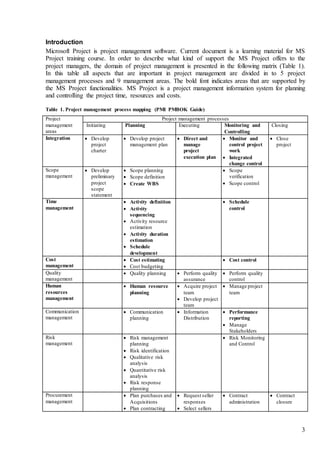
Table 1. Project management process mapping (PMI PMBOK Guide)
Project
management
areas
Project management processes
Initiating Planning Executing Monitoring and
Controlling
Closing
Integration  Develop
project
charter
 Develop project
management plan
 Direct and
manage
project
execution plan
 Monitor and
control project
work
 Integrated
change control
 Close
project
Scope
management
 Develop
preliminary
project
scope
statement
 Scope planning
 Scope definition
 Create WBS
 Scope
verification
 Scope control
Time
management
 Activity definition
 Activity
sequencing
 Activity resource
estimation
 Activity duration
estimation
 Schedule
development
 Schedule
control
Cost
management
 Cost estimating
 Cost budgeting
 Cost control
Quality
management
 Quality planning  Perform quality
assurance
 Perform quality
control
Human
resources
management
 Human resource
planning
 Acquire project
team
 Develop project
team
 Manage project
team
Communication
management
 Communication
planning
 Information
Distribution
 Performance
reporting
 Manage
Stakeholders
Risk
management
 Risk management
planning
 Risk identification
 Qualitative risk
analysis
 Quantitative risk
analysis
 Risk response
planning
 Risk Monitoring
and Control
Procurement
management
 Plan purchases and
Acquisitions
 Plan contracting
 Request seller
responses
 Select sellers
 Contract
administration
 Contract
closure
4
In contemporary project management all management processes are strongly integrated with each
other. In order to simplify the project planning and execution those processes can be clearly defined
and sequenced. For example project planning starts form scope definition and ends with project
plan as a document (Figure 1). Depending on the project nature different aspect such as WBS,
schedule, budget, communication plan, resource plan, procurement plan and risk mitigation plan
can be prepared in parallel.
Figure 1. Project planning processes.
Project execution and control are conducted at the same time. In general project execution has
simple cyclic nature: distributing work commands, executing the work, reporting and managing
changes. More detailed description is presented on Figure 2.
Figure 2. Project execution and control processes.
MS Project is supporting partly the project management processes. It is very good for planning and
controlling the project schedule, resources and budgets but not so good for scope, quality,
procurement and risk management. Therefore the content of this manual is structured according to
5
topics that are executable with the MS Project and sequenced by the logical framework of the
project management:
1. Time planning
2. Resource and cost planning
3. Tracking the project
4. Design of the charts and tables
5. Managing the project portfolio
Theoretical introductions for every chapter are inspired by the PMBOK Guide. Most of the text in
current manual originates from the MS Project 2007 electronic help but they are adjusted according
to MS Project 2016 updates. The instructions are illustrated by a simplified example from Eesti
Energia (2008). This exercise can be used in order to test the MS Project functionalities in the
format of group training or individual study.
6
1 Time planning
Time management is one of the most prominent processes among other management fields. It’s
because no other domain uses time management techniques in such intensive way then project
management. But project management is much more then putting together time plans and
schedules. Figure 3 describes what information is needed in order to start creating the project time
plans, what methods can be used for time planning and what are the outcomes of time planning.
Figure 3. General process of time planning (PMBOK Guide)
Topic overview in this manual:
1. MS Project workspace (Gantt chart)
2. Task list
3. Duration of the tasks
4. Sequence of the tasks
5. How to shorten the schedule
7
1.1 MS ProjectWorkspace
Figure 4. MS Project Working window. Time table on the left, Gantt char on the right.
8
1.2 Activity Definition
Topic overview:
1. Project start date
2. Outline tasks list
3. Show and hide subtasks
4. Rearrange and delete tasks
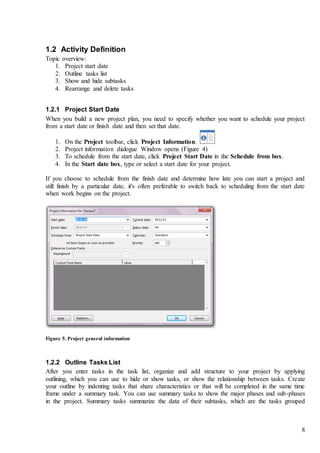
1.2.1 Project Start Date
When you build a new project plan, you need to specify whether you want to schedule your project
from a start date or finish date and then set that date.
1. On the Project toolbar, click Project Information.
2. Project information dialogue Window opens (Figure 4)
3. To schedule from the start date, click Project Start Date in the Schedule from box.
4. In the Start date box, type or select a start date for your project.
If you choose to schedule from the finish date and determine how late you can start a project and
still finish by a particular date, it's often preferable to switch back to scheduling from the start date
when work begins on the project.
Figure 5. Project general information
1.2.2 Outline Tasks List
After you enter tasks in the task list, organize and add structure to your project by applying
outlining, which you can use to hide or show tasks, or show the relationship between tasks. Create
your outline by indenting tasks that share characteristics or that will be completed in the same time
frame under a summary task. You can use summary tasks to show the major phases and sub-phases
in the project. Summary tasks summarize the data of their subtasks, which are the tasks grouped
9
beneath them. You can indent tasks as many levels as you need to reflect the organization of your
project.
Project management theoretical framework recommends creating outlined task list based on the
WBS (work breakdown structure). WBS is a deliverable oriented decomposition of project. It is the
outcome of the project scope management and basis for rest of the planning.
Figure 6. Example WBS
Create an outline for your tasks by indenting and outdenting them to create the summary tasks and
subtasks.
1. Click the row for the task that you want to indent as a subtask or outdent as a summary task.
2. Click Indent Task to indent the task, making it a subtask.
3. Click Outdent Task to outdent the task, making it a summary task.
This summary task information summarizes the period between the earliest start and latest finish
date of all the included subtasks. It does not show the sum of all the subtask durations
Table 2. Outlined task list of the example project
WBS Task Name
1 Technical design and projectfeasibility
1.1 Technical feasibility assessment
1.2 Decision to proceed
1.3 Feasibility study
1.3.1 Geology & hydrogeology
1.3.2 Preliminary mining study
1.3.3 Conceptual design of the pow er complex
1.3.4 Environmental issues
1.3.5 Common facilities and infrastructure
1.3.6 Economics
1.3.7 Detailed project development and implementation plan
1.3.8 Report and budgetary offersformain equipment
1.3.9 Decision to proceed
2 Tendering / pre-engineering
2.1 Fixing design basis
2.2 Boiler FEED package
2.2.1 Box cut
2.2.2 Combustion tests
2.2.3 Fixing the design
2.3 Basic design for the complex
2.4 Finalize mining concept
2.5 Feasibility Study update
2.6 Environmental Impact Assessment
2.7 Draft agreements w ith the government
2.8 Preliminary financialagreements
2.9 Firm price offers
3 Contract negotiations
4 Financial close
Project Outcome
Feasibility study Engineering Execution Handover
10
1.2.3 Show and Hide Subtasks
In an outline, you can show or hide the subtasks of a summary task. For example, you may want to
hide your subtasks to display only top-level tasks, and then print that view to create a summary
report of your project.
1. To hide sub tasks click on ▼ in the front of summary task name.
2. To show subtasks click on ►.
3. To show all subtasks, click on in View toolbar and Data section, and then
click All Subtasks.
1.2.4 Rearrange, Delete and Add Tasks
You can easily rearrange project tasks in your outlined schedule.
1. In the ID field, click the ID number of the task that you want to move.
2. Hold down the left mouse button
3. Drag the task in new position
4. Release the button and drop the Task
For deleting the task click the ID number of the task that you want to delete and press DELETE
button on keyboard. When you move or delete a summary task, you automatically move or delete
all the subtasks associated with it.
For adding the tasks click on the Insert Tasks button (Tasks toolbar and Insert section) or
click on INSERT key on the keyboard.
1.3 Duration Estimation
You can enter an accurate duration for a task or a new estimated duration to replace the estimated
duration that Microsoft Project assigns to each task by default.
It's important to note that you can schedule your tasks most effectively by entering a duration and
links for each task and letting Project calculate the start and finish dates for you. For the greatest
flexibility in scheduling, avoid inflexible constraints.
Topic overview:
1. Duration units
2. Change the default duration type
3. Elapsed duration
4. Estimate durations
5. Input of the duration of the subtasks
6. Calculation of the duration of the summary tasks
7. Milestones
1.3.1 Duration Units
In the Duration column for the task, type the duration that you want. You can enter durations in:
1. Minutes (m)
2. Hours (h)
11
3. Days (d)
4. Weeks (w)
5. Months (mo)
1.3.2 Change the Default Duration Type
In Microsoft Office Project, the default duration unit is days, but you can change it to be minutes,
hours, weeks, or months:
1. On the File menu, click Options, and then click the Schedule tab.
2. Under Scheduling options for, in the Duration is entered in list, click a duration unit.
1.3.3 Elapsed Duration
Elapsed duration is the amount of time that a task will take to finish, based on a 24-hour day and a
7-day week, including holidays and other nonworking days. For example:
day = M, T, ... F (8 h/day)
eday = M, T, ... S (8 h/day)
hour = 8:00 ... 17:00 (8 h)
ehour = 0:00 ... 0:00 (24 h)
em = elapsed minute, eh = elapsed hour, ed = elapsed day, ew = elapsed week, emo = elapsed
month.
1.3.4 Estimate Durations
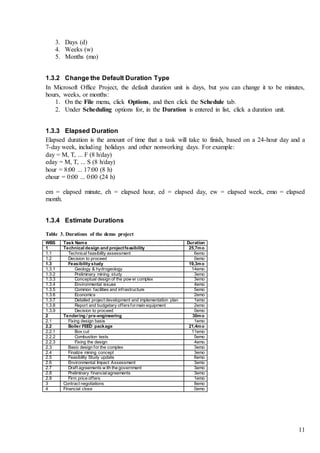
Table 3. Durations of the demo project
WBS Task Name Duration
1 Technical design and projectfeasibility 25,7mo
1.1 Technical feasibility assessment 6emo
1.2 Decision to proceed 0emo
1.3 Feasibility study 19,3mo
1.3.1 Geology & hydrogeology 14emo
1.3.2 Preliminary mining study 3emo
1.3.3 Conceptual design of the pow er complex 3emo
1.3.4 Environmental issues 4emo
1.3.5 Common facilities and infrastructure 5emo
1.3.6 Economics 2emo
1.3.7 Detailed project development and implementation plan 1emo
1.3.8 Report and budgetary offersformain equipment 2emo
1.3.9 Decision to proceed 0emo
2 Tendering / pre-engineering 30mo
2.1 Fixing design basis 1emo
2.2 Boiler FEED package 21,4mo
2.2.1 Box cut 11emo
2.2.2 Combustion tests 5emo
2.2.3 Fixing the design 4emo
2.3 Basic design for the complex 3emo
2.4 Finalize mining concept 3emo
2.5 Feasibility Study update 6emo
2.6 Environmental Impact Assessment 3emo
2.7 Draft agreements w ith the government 3emo
2.8 Preliminary financialagreements 3emo
2.9 Firm price offers 1emo
3 Contract negotiations 8emo
4 Financial close 0emo
12
1.3.5 Milestones
Milestone is a reference point marking a major event in a project and used to monitor the project's
progress. Any task with zero duration is automatically displayed as a milestone.
1. Type 0 in the Duration field of the task you want to change.
2. Press ENTER.
When you enter duration of zero for a task, Microsoft Project displays the milestone symbol on the
Gantt Chart on that day.
1.4 Activity Sequencing
Linking in a MS Project is establishing a dependency between tasks. Linking tasks defines a
dependency between their start and finish dates.
Topic overview:
1. Linking tasks
2. Delete links
3. Links and summary tasks
4. Link types
5. Lead and lag
Figure 7. Links between tasks in the demo project
1.4.1 Linking Tasks
1. In the Task Name field, select two or more tasks you want to link in the order you want to
link them.
2. In the Tasks toolbar Schedule section click Link Tasks .
13
To select nonadjacent tasks, hold down CTRL, and then click the tasks you want to link. To select
adjacent tasks, hold down SHIFT, and then click the first and last tasks you want to link.
You can choose between two different scheduling modes:
Manually Schedule – task start and finish dates are entered manually.
Auto Schedule – task start and finish dates are calculated automatically.
1.4.2 Delete Links
If you want to unlink tasks, select the tasks you want to unlink in the Task Name field, and then
click Unlink Tasks .
1.4.3 Links and summary tasks
Alternatives how to link summary tasks
A B C
1.4.4 Link Types
There are four kinds of task dependencies: Finish-to-start [FS], Start-to-start [SS], Finish-to-finish
[FF], and Start-to-finish [SF]. A simple finish-to-start link does not work in every situation.
Microsoft Project provides additional types of task links so you can model your project realistically.
For example, when two tasks need to start at the same time, you can create a start-to-start link.
When tasks need to finish at the same time, you can use a finish-to-finish link.
To change a task link:
1. On Gantt Chart,
2. Double-click the link line between the two tasks you want to change,
3. The Task dependency dialogue box will appear.
(FS) Finish-to-Start
(SS) Start-to-Start
(FF) Finish-to-Finish
(SF) Start-to-Finish
14
1.4.5 Lead and Lag
Lead time is overlap between tasks that have a dependency. For example, if a task can start
when its predecessor is half finished, you can specify a finish-to-start dependency with a lead time
of 50 percent for the successor task. You enter lead time as a negative value.
Lag time is a delay between tasks that have a dependency. For example, if you need a two-
day delay between the finish of one task and the start of another, you can establish a finish-to-start
dependency and specify two days of lag time. You enter lag time as a positive value.
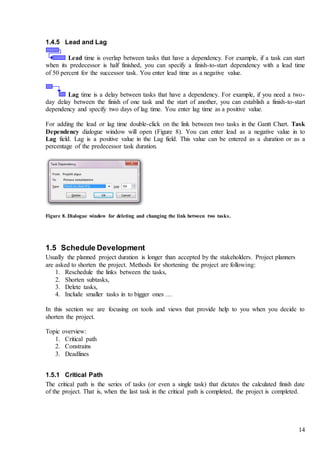
For adding the lead or lag time double-click on the link between two tasks in the Gantt Chart. Task
Dependency dialogue window will open (Figure 8). You can enter lead as a negative value in to
Lag field. Lag is a positive value in the Lag field. This value can be entered as a duration or as a
percentage of the predecessor task duration.
Figure 8. Dialogue window for deleting and changing the link between two tasks.
1.5 Schedule Development
Usually the planned project duration is longer than accepted by the stakeholders. Project planners
are asked to shorten the project. Methods for shortening the project are following:
1. Reschedule the links between the tasks,
2. Shorten subtasks,
3. Delete tasks,
4. Include smaller tasks in to bigger ones …
In this section we are focusing on tools and views that provide help to you when you decide to
shorten the project.
Topic overview:
1. Critical path
2. Constrains
3. Deadlines
1.5.1 Critical Path
The critical path is the series of tasks (or even a single task) that dictates the calculated finish date
of the project. That is, when the last task in the critical path is completed, the project is completed.
15
By knowing and tracking the critical path for your project, as well as the resources assigned to
critical tasks, you can determine which tasks can affect your project's finish date and whether your
project will finish on time.
If it's important for your project to finish on schedule, pay close attention to the tasks on the critical
path and the resources assigned to them. These elements determine whether your project will finish
on time.
The series of tasks are generally interrelated by task dependencies. Although there are likely to be
many such networks of tasks throughout your project plan, the network finishing the latest is the
project's critical path.
Be aware that the critical path can change from one series of tasks to another as you progress
through the schedule. The critical path can change as critical tasks are completed, or as tasks in
another series of tasks are delayed. There is always one overall critical path for any project
schedule. The new critical path then becomes the series of tasks you track more closely to ensure
the finish date you want.
Show the critical path:
1. On the Format toolbar, Bar Stiles section click on Critical Tasks check box.
2. Other possibility is to open the Detail Gantt from the Task Views – View – More Views.
Figure 9. Critical path of the demo project
1.5.2 Constrains
Constraints impose restrictions on the way Microsoft Project calculates the start and finish dates of
tasks. By default, Project applies flexible constraints, such as As Soon As Possible (ASAP), to
tasks.
16
For optimal scheduling flexibility, it's recommended that you allow Project to use flexible
constraints to calculate the start and finish dates for tasks based on the durations and task
dependencies you enter. Only if you have unavoidable constraints, such as an event date that cannot
be moved, should you consider setting a constraint for a task manually.
Available constraints
Microsoft Project provides the following constraints:
1. ALAP - As Late As Possible - This flexible constraint schedules the task as late as possible
with the task ending before the project finish and without delaying subsequent tasks. This is
the default constraint for tasks when scheduling from the project finish date. Do not enter a
task or finish date with this constraint.
2. ASAP - As Soon As Possible - This flexible constraint schedules the task to begin as early
as possible. This is the default constraint for tasks when scheduling from the project start
date. Do not enter a start or finish date with this constraint.
3. FNET - Finish No Earlier Than - Schedules the task to finish on or after a specified date.
Use this constraint to ensure that a task does not finish before a certain date.
4. FNLT - Finish No Later Than - Schedules the task to finish on or before a specified date.
Use this constraint to ensure that a task does not finish after a certain date.
5. MFO - Must Finish On - This inflexible constraint schedules the task to finish on a specified
date. Sets the early, scheduled, and late finish dates to the date you type and anchors the task
in the schedule.
6. MSO - Must Start On - This inflexible constraint schedules the task to start on a specified
date. Sets the early, scheduled, and late start dates to the date you type and anchors the task
in the schedule.
7. SNET - Start No Earlier Than - Schedules the task to start on or after a specified date. Use
this constraint to ensure that a task does not start before a specified date.
8. SNLT - Start No Later Than - Schedules the task to start on or before a specified date. Use
this constraint to ensure that a task does not start after a specified date.
How to create a constrain?
If you drag the mouse in the chart portion of the Gantt Chart to create a new task, however, Project
automatically assigns the Start No Earlier Than (SNET) constraint when you schedule your project
from the start date. When scheduling from the finish date, Project automatically assigns the Start No
Later Than (SNLT) constraint.
When you manually enter a start or finish date for task, you automatically apply a constraint to it.
How to remove a constrain?
Constraints are often mistaken for deadlines and are therefore erroneously applied, which restricts
the scheduling flexibility of Microsoft Project. You may want to review your tasks with constraints
and make sure they are valid.
1. On the Gantt Chart select the task with constraint.
2. To get more information about constraint, click Information .
3. Task Information dialogue window will open (Figure 10).
4. Click the Advanced tab.
5. Select ASAP from the Constraint Type field
17
Figure 10. Task information tab for setting data constrains
1.5.3 Deadlines
Deadline is a target date indicating when you want a task to be completed. If the deadline date
passes and the task is not completed, Project displays an indicator.
You can set a deadline date for a task to keep track of its finish date without locking the schedule
with an inflexible constraint.
1. In the Task Name field, click the task for which you want to set a deadline.
2. Open Task Information, and then click the Advanced tab.
3. Under Constrain task, type or select the deadline date in the Deadline box.
Figure 11. Project deadline, milestone and warning about crossing the deadline.
18
2 Resource and Cost Planning
A resource is traditionally defined as any of the people, equipment, and materials used to complete
tasks that make a project. For the most accurate scheduling, first add resources to your project and
then assign them to tasks. The tasks are then scheduled according to resource work, assignment
units, and resource calendars. Figure 12 describes theoretically what are the resource management
inputs, methods and outcomes.
Figure 12. Human resource management process (PMBOK Guide)
Topics covered in current manual:
1. Resource list
2. Assign resources
3. Change working time
4. Resolving resource overallocation
5. Costs
2.1 List of Resources
1. On the Resources toolbar, View section, click Resource Sheet.
2. In the Resource Name field (Table 4), type a resource name.
3. If you want to designate resource groups, then in the Group field for the resource name,
type the name of the group.
4. Specify the Resource type:
a. Work - People and equipment resources that perform work to accomplish a task.
Work resources consume time to accomplish tasks.
b. Material - Consumable materials or supplies, such as concrete, wood, or nails. In the
Material Label field, enter the unit of measure for a material resource, such as tons,
cubic yards, or board feet.
c. Cost - a cost resource.
5. In the Max. Units - the maximum percentage or number of units that a resource is available
to be scheduled for any tasks. The maximum units value indicates the highest capacity at
which the resource is available for work. The default value is 100 percent. You can enter
maximum units as a percentage (50%, 100%, 300%), or as a decimal (0.5, 1, 3).
19
For example, suppose you have a resource named Engineers, a single resource that represents three
individual engineers on your team. You can enter the maximum units for Engineers as 300%. You
can schedule all three engineers for full-time work at one time without overallocating.
Table 4. List of resources of the demo project
Resource name Type Material label Max. Units Standard rate
TTÜ Work
FW Work
Pöyry Work
Foster Wheeler Work
EE Work
Lexicon Work
WF Work
TÜ Work
Dohmen Work
Herzog Work
Ramboll Work
2.2 ResourceAssignments
Topic overview:
1. Assign resources to the tasks
2. Resource units
3. Remove resource from the task
2.2.1 Assign resources to the tasks
You assign resources to tasks to clarify responsibility for getting those tasks done. Assigning
resources also helps you determine how long it will take for a task to get done, and, if you track
costs, how much the task will cost.
1. Open Gantt Chart (from the Resources toolbar, View section).
2. In the Task Name field, select the task to which you want to assign a resource.
3. In the Resources toolbar, Assignments section click on Assign Resources.
4. In the Resource Name field, click the name of the resource you want to assign.
5. Click Assign.
20
Figure 13. Resource assignment window
2.2.2 Resource Units
For time based resources:
1. Assign a single work resource full time - Make sure that the Units field indicates 100% for
the selected resource.
2. Assign a single work resource part time - In the Units field, type a percentage less than 100.
3. Assign a group of multiple work resources - In the Units field, type a percentage amount
greater than 100.
For materials:
1. In the Units field, type a decimal that indicates the amount of material to be used for this
assignment. For example, if you're using 20 yards of lumber, type 20.
2. If the amount of material used depends on the task duration, enter the rate of use by adding a
slash (/) and a duration. For example, if 20 yards of lumber is used per week, enter 20/w.
2.2.3 Removing Resource from the Task
You might remove a resource assignment from a task to account for overallocation or
underallocation, or to control costs.
1. Open Gantt Chart (from the Resources toolbar, View section).
2. In the Task Name field, select the task from which you want to remove a resource.
3. Click Assign Resources .
4. In the Resource Name field, select the resource you want to remove.
5. Click Remove.
2.3 Change Working Time
Using calendars, you can set up project and resource working times to accurately reflect resource
availability information that Microsoft Project uses when scheduling tasks, examining whether
resources are overallocated, and when leveling resources.
Topic overview:
1. Set the working times and days off for all resources on the project
21
2. Change the working times, days off, and vacations for individual resources
3. Change base calendar for he resource
2.3.1 Change Working Time for all Resources
1. On the Project toolbar, Properties section, click Change Working Time.
2. Change Working Time dialogue window opens (Figure 14).
3. Select day(s) from the calendar (e.g.: 1st Jan).
a. To change a day of the week for the entire project calendar, click the abbreviation for
the day at the top of the calendar.
b. To change all the working days, click the abbreviation at the top of the first day, and
then hold down SHIFT and click the abbreviation at the top of the last day.
4. In the Exceptions section type the name for the change (e.g. New Year)
5. Start and Finish dates appear automatically based on previous selection.
6. For specifying the information click Details (Figure 15).
7. For a free day select Nonworking. If that day repeats define the Reucurrence Patern
2.3.2 Change Working Time for Individual Resources
1. In the Change Working Time dialogue window.
2. From the For calendar box, select the resource whose calendar you want to change.
Figure 14. Dialogue window for changing working time
22
Figure 15. Changing working time details dialogue window
2.4 Resolving Resource Overallocation
A resource is overallocated when it is assigned too much work to complete within the resource's
available time. You can resolve resource overallocations by adjusting either tasks or resources in
your project or by leveling.
A resource overallocation can be caused by:
1. A resource assigned to work full-time on more than one task at the same time.
2. Increased duration of tasks.
3. Decreased unit availability for resources.
4. Restricted availability after entering dates for the resource.
5. A work contour applied to the assignment.
6. A resource assigned to a summary task, as well as one or more subtasks.
Topic overview:
1. Checking the workload
2. Leveling resources
2.4.1 Workload
A resource overallocation can be caused by a resource assigned to work full-time on more than one
task at the same time. For example, if you assign a resource to two tasks of eight hours each on the
same day, then the resource is overallocated because only one eight-hour task can be accomplished
on that day. To view a resource's workload, from the Resource toolbar, View section, click
Resource Graph .
23
Figure 16. Distribution of demo resource during the selected time period.
2.4.2 Leveling Resources
Leveling mean resolving resource conflicts or overallocations by delaying certain tasks. When
Project levels a resource, its selected assignments are distributed and rescheduled.
Resource leveling is a way to fix resource overallocation. Generally, resources are leveled in two
ways:
1. By delaying a task until the assigned resource has time to work on it.
2. By splitting a task so that part of a task is done when planned and the rest of it is done later
when the assigned resource has time.
You can delay or split tasks yourself, or you can have Microsoft Project do it for you, using the
Resource Leveling feature. In addition, there are other methods you can use to balance the resource
workload. The methods you choose to reduce overallocations depend on the limitations of your
project, including budget, resource availability, finish date, and the amount of flexibility available
for scheduling tasks.
In most cases, consider leveling overallocated resources only after you have entered all information
about task scheduling and resource availability. In some cases, you might want to level resources,
see how it comes out, and then adjust other task and assignment information.
When entering schedule information for your tasks, keep the following in mind to make sure Project
schedules your project accurately for your needs, and to help prevent unnecessary resource
overallocations:
1. Use task dependencies to reflect a sequence of events.
2. Use the more inflexible date constraints (such as Must Start On and Must Finish On) only
when required. Such constraints limit the adjustments that Project can make when
determining which tasks to adjust when leveling resources.
3. Use priorities sparingly. Use a task priority of 1000 (meaning do not level this task) only
when a task absolutely cannot be delayed or split or when you have other tasks that you
definitely prefer to delay or split if leveling is necessary.
When you're ready to have Project level resources, on the Resources toolbar, Level sections, click
on Level All.
24
After Project finishes leveling an overallocated resource, certain tasks assigned to that resource are
split or delayed. The split or delayed tasks are then scheduled for when the resource has time to
work on them.
You can see the results of leveling in the Leveling Gantt (Figure 17) view, which graphically
shows preleveled values compared with postleveled values, including newly added task delays and
splits.
To open the Leveling Gantt view:
1. Select More Views from Resources toolbar, under the View list.
2. Leveling Gant.
3. Click Apply.
Figure 17. Leveling Gant for solving work overlocation
For removing the leveling click Clear Leveling (Resources toolbar, Level section). For
specifying the leveling parameters click Leveling Options . Resource Leveling dialogue window
will open (Figure 18).
25
Figure 18. Leveling options dialogue window
2.5 Budgeting
You can use one of two estimating methods to estimate cost totals:
1. Enter base rates or per-use costs for resources, and fixed costs for individual tasks, and then
have Microsoft Project calculate cost totals for resources, tasks, and the entire project. This
method (known as bottom-up estimating) should produce reliable and accurate results.
2. Enter broad overall resource, task, and project cost totals based on past experiences and
previous, similar projects. Although this method (known as top-down estimating) is quick to
implement, it's generally less accurate than the bottom-up estimating method.
Topic overview:
1. Enter base rates or per-use costs for resources
2. Set a fixed cost for a task or project
3. Cost totals of the resources, tasks and projects
2.5.1 Resource Rates
Enter resource rates
1. On the Task or Resource toolbar, in the View section, click Resource Sheet.
2. In the Resource Name field, select a resource or type a new resource name.
3. In the Std. Rate type the resource rates.
To enter a per-use cost in the Cost/Use field, type a cost value.
Project can calculate cost totals as soon as rate-based resources and resources with per-use costs are
assigned to tasks. Changing the resource standard rate also effects the cost of a task which has the
same resource assigned to it.
26
2.5.2 Fixed Costs
1. Open Gantt Chart.
2. Click on the left upper corner of the table and chose Cost.
3. In the Task Name field, select the task for which you want to enter a fixed cost.
4. In the Fixed Cost field, type a cost value.
2.5.3 Total Cost
You can view the cost per task, per resource, per assignment, or per project.
View costs per task
1. Open Gant Chart.
2. Click on the left upper corner of the table and chose Cost.
3. Review the Total Cost field.
View costs per resource
1. Open Resource Sheet.
2. Click on the left upper corner of the table and chose Cost.
3. Review the Cost field.
View project costs
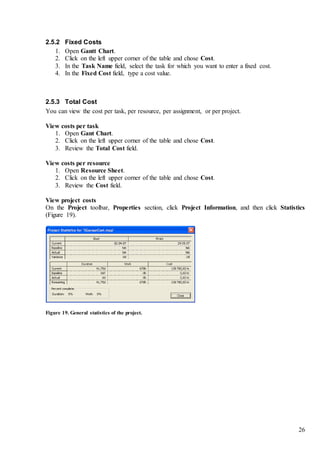
On the Project toolbar, Properties section, click Project Information, and then click Statistics
(Figure 19).
Figure 19. General statistics of the project.
27
3 Tracking
Project execution is based on previously created and accepted project plan. In this phase the project
process will be monitored and changes managed. In real life this is a complex management end
verification of different project aspects like schedule, budget, quality, contract, human resources
and risks. In this document we focus mainly on schedule control and management (see Figure 20).
Figure 20. Project schedule execution and control process (PMBOK Guide)
Topic overview:
1. Change the project start date
2. Baseline
3. Input of the actual data
4. Comparing the actual and baseline plans
5. Making changes in the plan
6. Checking the project costs
7. Overall statistics of the project
3.1 Baseline
A baseline is the set of original start and finish dates, durations, work, and cost estimates that you
save after you've completed and fine-tuned your project plan but before the project begins. It is the
primary reference point against which you measure changes in your project. In addition, a baseline
saves nearly 20 pieces of information, including totals and timephased information for tasks,
resources, and assignments.
Save or update a baseline for the entire project
1. On the Project toolbar, Schedule section, click on Set Baseline.
2. Click Set Baseline, and then click the baseline you want to save (Figure 21).
3. Click Entire project.
28
Figure 21. Baseline setting dialogue window.
For deleting the baseline choose Clear Baseline form Project toolbar, Schedule section.
3.2 Reporting
For convenient data input open:
1. Tracking Gantt - Task toolbar, View section . (Figure 23).
2. Tracking table - right click on the upper-left corner of the table, choose Tracking (Table 5).
3. Tracking toolbar - Task toolbar, Schedule section (Figure 22).
Figure 22. Tools for defining the work execution.
Table 5. Tracking table
Task Name Act. Start Act. Finish % Comp. Act. Dur. Rem. Dur.
Technical design and projectfeasibility 5/1/07 NA 62% 20,92 mo 13,03 mo
Technical feasibility assessment 5/1/07 10/14/07 100% 5,55 emo 0 emo
Decision to proceed 10/28/07 10/28/07 100% 0 emo 0 emo
Feasibility study 10/28/07 NA 55% 15,15 mo 12,35 mo
Geology & hydrogeology 10/28/07 NA 95% 12 emo 0,67 emo
Preliminary mining study 2/25/08 5/25/08 100% 3 emo 0 emo
Conceptual design of the pow er complex 2/25/08 5/25/08 100% 3 emo 0 emo
Environmental issues NA NA 0% 0 emo 4 emo
Common facilities and infrastructure NA NA 0% 0 emo 5 emo
Economics NA NA 0% 0 emo 2 emo
Detailed project development and implementation plan NA NA 0% 0 emo 1 emo
Report and budgetary offersformain equipment NA NA 0% 0 emo 2 emo
Decision to proceed NA NA 0% 0 emo 0 emo
Tendering / pre-engineering NA NA 0% 0 mo 30 mo
29
3.3 Identifying Variances
If you have set a baseline for your project, you can see how tasks progress over time and see
whether their start and finish dates are slipping. You can track progress by comparing baseline and
scheduled or actual start and finish dates.
The Tracking Gantt view displays two task bars, one on top of the other, for each task. The lower
bar shows baseline start and finish dates, and the upper bar shows scheduled start and finish dates so
that you can see the difference between your plan and the current schedule.
Figure 23. Tracking Gantt of the demo project.
3.4 Change Management
The delayed tasks should be moved back to the previously planed place as soon as possible. For this
purpose you can:
1. Shorten the initially planned additional time (lag),
2. Change links between tasks,
3. Add additional resources,
4. Change working time,
5. Delete tasks.
Most of the solutions are theoretical kind. The Tracking Gantt is suitable environment for dragging
bask the tasks to their former positions.
30
4 Design of the Charts and Tables
Topic overview:
1. Hiding and Inserting the columns in the table
2. Formatting the columns in the table
3. Gantt Chart Wizard
4. Add text to Gantt bars
5. Change the color, shape, or pattern of Gantt bars
6. Change the timescale
7. Gridlines
4.1 Hiding and Inserting Columns
Remove a column from a table
1. In a sheet view or the Gantt Chart view, select the column you want to remove.
2. Click on the column header with the right mouse button.
3. Click Hide Column.
When you remove a column (field) from a table, you hide that column. Hiding a column does not
remove information from your project file.
Add a column (field) to a table
1. Select the column (field) to the right of where you want to insert the new column.
2. Click on the column header with the right mouse button.
3. Click Insert Column.
4. Specify the field name, title, title alignment, data alignment, and width of the column
(Figure 24).
Figure 24. Column information dialogue window.
Display outline number - WBS fields in a view
To view outline numbers, outline codes or work breakdown structure (WBS) codes for tasks or
resources, you need to insert their field in a table.
1. Open Gantt Chart view.
2. Select the field to the right of where you want to insert the new field.
3. Click on the column header with the right mouse button.
4. Click Insert Column.
5. To insert the WBS field, click WBS in the Field name box.
31
4.2 Formatting Columns
Change the settings for duration units:
1. On the File menu, click Options.
2. Click on the Advanced tab.
3. In the section Display options for this project change day to d.
Change the date format for date fields
1. On the File menu, click Options.
2. Click on the General tab.
3. In the Date format box, click the date format you want to use.
4.3 Gantt ChartWizard
Using the Gantt Chart Wizard, you can instantly change the formatting of items such as the critical
path, display link lines between dependent tasks, or select color options and patterns for Gantt bars
representing summary tasks, subtasks, or milestones. Options for customizing the Gantt Chart are
located on Format toolbar, Bar Style section (Figure 25).
Figure 25. Gant chart formatting options.
4.4 Add Texts to Gantt Chart
You can add specific project information, such as task names, resource names, completion
percentages, and start dates, to bars on the Gantt Chart.
1. Open Gantt Chart.
2. In the Task Name field, select the tasks whose Gantt bar you want to annotate.
3. On the Format toolbar, Bar Style section, click on Format button.
4. Format Bar dialogue window opens (Figure 26).
5. Open Bar Text tab.
6. In the Left, Right, Top, Bottom and Inside boxes, type or select the data you want to display
on the Gantt bar.
32
Figure 26. Format bar dialogue window – adding texts
To change the format of dates on Gantt bars, click Layout on the Format menu, and then click the
date format you want in the Date format box.
4.5 Gantt Bar Color Schemas
To call attention to task bars on the Gantt chart, you can change their color, shape, or pattern to
separate them from other bars of a similar type.
1. Open Gantt chart.
2. In the Task Name field, select the task whose Gantt bar you want to change.
3. Open the Format Bar dialogue window, and then click the Bar Shape tab.
4. Under Start, Middle, and End, select shapes, types or pattern, and colors for the bar.
Figure 27. Format bar stile
4.6 Timescale Customization
Gantt Chart has a timescale at the top. By default, the timescale displays two tiers, but you can
customize it to show up to three tiers: a top tier, a middle tier, and a bottom tier. For formatting the
timescale:
1. Double-click on the Gantt chart timescale.
2. Timescale formatting window opens (Figure 28).
33
3. Choose Top Tier, Middle Tier, or Bottom Tier tab for formatting.
4. On the tab for the displayed timescale tier, in the Units box, click the time unit you want to
use.
5. In the Label box, click the label you want for displaying the time unit.
6. In the Count box, type or select a number to specify the frequency of unit labels on the
timescale tier.
7. To condense or spread out the columns of the timescale tier, type or select the percentage
you want in the Size box.
Figure 28. Timescale formatting dialogue window.
4.7 Gridlines
To enhance the readability and clarity of a view, you can change gridlines that appear only once in a
view (such as the horizontal line that divides column headings from fields) or that appear repeatedly
(such as the lines that divide a sheet view into rows).
1. On the Format toolbar, Format section, click Gridlines.
2. Guidelines dialogue window will open (Figure 29)
3. In the Line to change list, click the type of gridline you want to change.
4. In the Type box under Normal, click the line pattern you want.
5. In the Color box under Normal, click the line color you want.
If you don't want a gridline for the selected line type, click the blank area in the Type box.
Figure 29. Guidelines formatting dialogue window.
34
If the gridline appears repeatedly and you want contrasting gridlines at specified intervals, select an
interval, line type, and line color under At interval. If you want to skip a gridline at certain
intervals, click the blank area in the Type box under At interval.
35
5 Project Portfolio Management
By consolidating related projects into a project portfolio (master project), you can organize and
manage complex projects or multiple related projects more effectively.
Topic overview:
1. Insert subprojects into a master project
2. Sharing the resources
3. Priorities of the projects and tasks
5.1 Insertsubprojects into a master project
1. Open the project that you want to become a master project.
2. Open Gantt Chart.
3. In the Task Name field, click the row where you want to insert the project. You can insert a
project at any level of the master project's outline.
4. On the Project menu Insert section click Subproject.
5. Click the project you want to insert.
6. If you don't want the subproject to be updated with changes from the original project, or
changes from the subproject to be shown in the original project, clear the Link to Project
check box.
7. Click Insert.
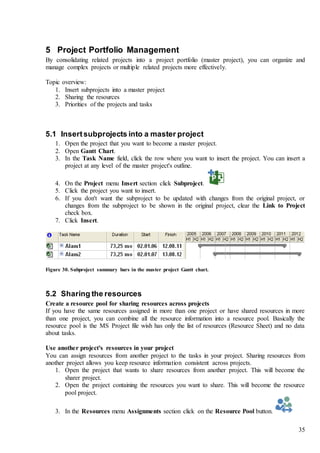
Figure 30. Subproject summary bars in the master project Gantt chart.
5.2 Sharing the resources
Create a resource pool for sharing resources across projects
If you have the same resources assigned in more than one project or have shared resources in more
than one project, you can combine all the resource information into a resource pool. Basically the
resource pool is the MS Project file wish has only the list of resources (Resource Sheet) and no data
about tasks.
Use another project's resources in your project
You can assign resources from another project to the tasks in your project. Sharing resources from
another project allows you keep resource information consistent across projects.
1. Open the project that wants to share resources from another project. This will become the
sharer project.
2. Open the project containing the resources you want to share. This will become the resource
pool project.
3. In the Resources menu Assignments section click on the Resource Pool button.
36
4. Share Resources dialogue window opens (see Figure 31).
5. Click Use resources, and then, in the From box, select the resource pool project that you
opened in step 2.
6. Click OK.
Figure 31. Dialogue window for selecting resources from other MS Project file.
The resources are now available to use in the active project. If your project already had resources
entered, the resources from both projects are combined.
5.3 Priorities of the projects and tasks
There are two types of priorities you can set to control the order in which Project levels tasks: task
and project priorities.
Priorities range from 0–1000, the highest priority being 1000 and the lowest 0. This wide range
allows for the greatest flexibility when leveling. The default task priority is 500.
Set task priorities when you want to set priorities on specific tasks to control how they are leveled in
relation to one another. The highest priority, 1000, has the effect of saying "Do not level," meaning
that Project never delays or splits this task when leveling, nor does it remove existing leveling
delays or splits. You can set task priorities on the General tab in the Task Information dialog box
(double click on the task name opens the Task Information dialogue window).
Set project priorities when you want to set priorities on specific projects in a multiple-project plan
or when you're sharing resources among different projects. Project-level priorities control how the
tasks in the project are leveled in relation to other projects and tasks in a multiple-project plan. You
can set project priorities in the Project Information dialog box.
There is no overlap of priorities between projects. For example, if Project A has a priority of 500
and Project B a priority of 400, the tasks within Project A will always have a higher priority for
leveling than those in Project B. So a priority 1000 task in Project B will have a lower priority than
a priority 0 task in Project A.
37
6 Individual Exercise
In order to retain the knowledge you learned with the help of this manual, it is recommended to
repeat MS Project functionalities in the contexts of project that is related with your everyday work.
It can be a bigger project on more general level or smaller project in detail level. In current case
simplification is important in order to experiment with different MS Project possibilities.
Try to create project plan that satisfies following conditions:
1. Project starting date is earlier than today.
2. Project has approximately 20 tasks (summary tasks and milestones excluded).
3. Tasks are organized in outline list (at least 2 summary tasks).
4. All tasks are linked (at least 2 parallel chains).
5. Milestones are defined (minimum 2).
6. Resource list is created (minimum 4 different human resources).
7. Resources are assigned.
8. Overloads are leveled.
9. Project baseline has set.
10. Tasks until today are marked completed.
Try to avoid following schedule design elements:
1. Date constrains (no calendar icons in the indicators).
2. Manually scheduled tasks.
3. Unlinked tasks.

MS Project

  • 1.
  • 2.
    2 Table of Content Introduction.............................................................................................................................................................................................3 1Time planning.................................................................................................................................................................................6 1.1 MS Project Workspace ........................................................................................................................................................7 1.2 Activity Definition................................................................................................................................................................8 1.2.1 Project Start Date.........................................................................................................................................................8 1.2.2 Outline Tasks List .......................................................................................................................................................8 1.2.3 Show and Hide Subtasks..........................................................................................................................................10 1.2.4 Rearrange, Delete and Add Tasks ..........................................................................................................................10 1.3 Duration Estimation ...........................................................................................................................................................10 1.3.1 Duration Units............................................................................................................................................................10 1.3.2 Change the Default Duration Type.........................................................................................................................11 1.3.3 Elapsed Duration .......................................................................................................................................................11 1.3.4 Estimate Durations ....................................................................................................................................................11 1.3.5 Milestones...................................................................................................................................................................12 1.4 Activity Sequencing...........................................................................................................................................................12 1.4.1 Linking Tasks.............................................................................................................................................................12 1.4.2 Delete Links ...............................................................................................................................................................13 1.4.3 Links and summary tasks .........................................................................................................................................13 1.4.4 Link Types..................................................................................................................................................................13 1.4.5 Lead and Lag..............................................................................................................................................................14 1.5 Schedule Development ......................................................................................................................................................14 1.5.1 Critical Path................................................................................................................................................................14 1.5.2 Constrains ...................................................................................................................................................................15 1.5.3 Deadlines.....................................................................................................................................................................17 2 Resource and Cost Planning.......................................................................................................................................................18 2.1 List of Resources.................................................................................................................................................................18 2.2 Resource Assignments.......................................................................................................................................................19 2.2.1 Assign resources to the tasks...................................................................................................................................19 2.2.2 Resource Units ...........................................................................................................................................................20 2.2.3 Removing Resource fromthe Task ........................................................................................................................20 2.3 Change Working Time.......................................................................................................................................................20 2.3.1 Change Working Time for all Resources..............................................................................................................21 2.3.2 Change Working Time for Individual Resources ................................................................................................21 2.4 Resolving Resource Overallocation ................................................................................................................................22 2.4.1 Workload.....................................................................................................................................................................22 2.4.2 Leveling Resources...................................................................................................................................................23 2.5 Budgeting.............................................................................................................................................................................25 2.5.1 Resource Rates...........................................................................................................................................................25 2.5.2 Fixed Costs .................................................................................................................................................................26 2.5.3 Total Cost....................................................................................................................................................................26 3 Tracking.........................................................................................................................................................................................27 3.1 Baseline ................................................................................................................................................................................27 3.2 Reporting..............................................................................................................................................................................28 3.3 Identifying Variances .........................................................................................................................................................29 3.4 Change Management..........................................................................................................................................................29 4 Design of the Charts and Tables................................................................................................................................................30 4.1 Hiding and Inserting Columns..........................................................................................................................................30 4.2 Formatting Columns...........................................................................................................................................................31 4.3 Gantt Chart Wizard.............................................................................................................................................................31 4.4 Add Texts to Gantt Chart ..................................................................................................................................................31 4.5 Gantt Bar Color Schemas ..................................................................................................................................................32 4.6 Timescale Customization ..................................................................................................................................................32 4.7 Gridlines ...............................................................................................................................................................................33 5 Project Portfolio Management ...................................................................................................................................................35 5.1 Insert subprojects into a master project...........................................................................................................................35 5.2 Sharing the resources .........................................................................................................................................................35 5.3 Priorities of the projects and tasks ...................................................................................................................................36 6 Individual Exercise ......................................................................................................................................................................37
  • 3.
    3 Introduction Microsoft Project isproject management software. Current document is a learning material for MS Project training course. In order to describe what kind of support the MS Project offers to the project managers, the domain of project management is presented in the following matrix (Table 1). In this table all aspects that are important in project management are divided in to 5 project management processes and 9 management areas. The bold font indicates areas that are supported by the MS Project functionalities. MS Project is a project management information system for planning and controlling the project time, resources and costs. Table 1. Project management process mapping (PMI PMBOK Guide) Project management areas Project management processes Initiating Planning Executing Monitoring and Controlling Closing Integration  Develop project charter  Develop project management plan  Direct and manage project execution plan  Monitor and control project work  Integrated change control  Close project Scope management  Develop preliminary project scope statement  Scope planning  Scope definition  Create WBS  Scope verification  Scope control Time management  Activity definition  Activity sequencing  Activity resource estimation  Activity duration estimation  Schedule development  Schedule control Cost management  Cost estimating  Cost budgeting  Cost control Quality management  Quality planning  Perform quality assurance  Perform quality control Human resources management  Human resource planning  Acquire project team  Develop project team  Manage project team Communication management  Communication planning  Information Distribution  Performance reporting  Manage Stakeholders Risk management  Risk management planning  Risk identification  Qualitative risk analysis  Quantitative risk analysis  Risk response planning  Risk Monitoring and Control Procurement management  Plan purchases and Acquisitions  Plan contracting  Request seller responses  Select sellers  Contract administration  Contract closure
  • 4.
    4 In contemporary projectmanagement all management processes are strongly integrated with each other. In order to simplify the project planning and execution those processes can be clearly defined and sequenced. For example project planning starts form scope definition and ends with project plan as a document (Figure 1). Depending on the project nature different aspect such as WBS, schedule, budget, communication plan, resource plan, procurement plan and risk mitigation plan can be prepared in parallel. Figure 1. Project planning processes. Project execution and control are conducted at the same time. In general project execution has simple cyclic nature: distributing work commands, executing the work, reporting and managing changes. More detailed description is presented on Figure 2. Figure 2. Project execution and control processes. MS Project is supporting partly the project management processes. It is very good for planning and controlling the project schedule, resources and budgets but not so good for scope, quality, procurement and risk management. Therefore the content of this manual is structured according to
  • 5.
    5 topics that areexecutable with the MS Project and sequenced by the logical framework of the project management: 1. Time planning 2. Resource and cost planning 3. Tracking the project 4. Design of the charts and tables 5. Managing the project portfolio Theoretical introductions for every chapter are inspired by the PMBOK Guide. Most of the text in current manual originates from the MS Project 2007 electronic help but they are adjusted according to MS Project 2016 updates. The instructions are illustrated by a simplified example from Eesti Energia (2008). This exercise can be used in order to test the MS Project functionalities in the format of group training or individual study.
  • 6.
    6 1 Time planning Timemanagement is one of the most prominent processes among other management fields. It’s because no other domain uses time management techniques in such intensive way then project management. But project management is much more then putting together time plans and schedules. Figure 3 describes what information is needed in order to start creating the project time plans, what methods can be used for time planning and what are the outcomes of time planning. Figure 3. General process of time planning (PMBOK Guide) Topic overview in this manual: 1. MS Project workspace (Gantt chart) 2. Task list 3. Duration of the tasks 4. Sequence of the tasks 5. How to shorten the schedule
  • 7.
    7 1.1 MS ProjectWorkspace Figure4. MS Project Working window. Time table on the left, Gantt char on the right.
  • 8.
    8 1.2 Activity Definition Topicoverview: 1. Project start date 2. Outline tasks list 3. Show and hide subtasks 4. Rearrange and delete tasks 1.2.1 Project Start Date When you build a new project plan, you need to specify whether you want to schedule your project from a start date or finish date and then set that date. 1. On the Project toolbar, click Project Information. 2. Project information dialogue Window opens (Figure 4) 3. To schedule from the start date, click Project Start Date in the Schedule from box. 4. In the Start date box, type or select a start date for your project. If you choose to schedule from the finish date and determine how late you can start a project and still finish by a particular date, it's often preferable to switch back to scheduling from the start date when work begins on the project. Figure 5. Project general information 1.2.2 Outline Tasks List After you enter tasks in the task list, organize and add structure to your project by applying outlining, which you can use to hide or show tasks, or show the relationship between tasks. Create your outline by indenting tasks that share characteristics or that will be completed in the same time frame under a summary task. You can use summary tasks to show the major phases and sub-phases in the project. Summary tasks summarize the data of their subtasks, which are the tasks grouped
  • 9.
    9 beneath them. Youcan indent tasks as many levels as you need to reflect the organization of your project. Project management theoretical framework recommends creating outlined task list based on the WBS (work breakdown structure). WBS is a deliverable oriented decomposition of project. It is the outcome of the project scope management and basis for rest of the planning. Figure 6. Example WBS Create an outline for your tasks by indenting and outdenting them to create the summary tasks and subtasks. 1. Click the row for the task that you want to indent as a subtask or outdent as a summary task. 2. Click Indent Task to indent the task, making it a subtask. 3. Click Outdent Task to outdent the task, making it a summary task. This summary task information summarizes the period between the earliest start and latest finish date of all the included subtasks. It does not show the sum of all the subtask durations Table 2. Outlined task list of the example project WBS Task Name 1 Technical design and projectfeasibility 1.1 Technical feasibility assessment 1.2 Decision to proceed 1.3 Feasibility study 1.3.1 Geology & hydrogeology 1.3.2 Preliminary mining study 1.3.3 Conceptual design of the pow er complex 1.3.4 Environmental issues 1.3.5 Common facilities and infrastructure 1.3.6 Economics 1.3.7 Detailed project development and implementation plan 1.3.8 Report and budgetary offersformain equipment 1.3.9 Decision to proceed 2 Tendering / pre-engineering 2.1 Fixing design basis 2.2 Boiler FEED package 2.2.1 Box cut 2.2.2 Combustion tests 2.2.3 Fixing the design 2.3 Basic design for the complex 2.4 Finalize mining concept 2.5 Feasibility Study update 2.6 Environmental Impact Assessment 2.7 Draft agreements w ith the government 2.8 Preliminary financialagreements 2.9 Firm price offers 3 Contract negotiations 4 Financial close Project Outcome Feasibility study Engineering Execution Handover
  • 10.
    10 1.2.3 Show andHide Subtasks In an outline, you can show or hide the subtasks of a summary task. For example, you may want to hide your subtasks to display only top-level tasks, and then print that view to create a summary report of your project. 1. To hide sub tasks click on ▼ in the front of summary task name. 2. To show subtasks click on ►. 3. To show all subtasks, click on in View toolbar and Data section, and then click All Subtasks. 1.2.4 Rearrange, Delete and Add Tasks You can easily rearrange project tasks in your outlined schedule. 1. In the ID field, click the ID number of the task that you want to move. 2. Hold down the left mouse button 3. Drag the task in new position 4. Release the button and drop the Task For deleting the task click the ID number of the task that you want to delete and press DELETE button on keyboard. When you move or delete a summary task, you automatically move or delete all the subtasks associated with it. For adding the tasks click on the Insert Tasks button (Tasks toolbar and Insert section) or click on INSERT key on the keyboard. 1.3 Duration Estimation You can enter an accurate duration for a task or a new estimated duration to replace the estimated duration that Microsoft Project assigns to each task by default. It's important to note that you can schedule your tasks most effectively by entering a duration and links for each task and letting Project calculate the start and finish dates for you. For the greatest flexibility in scheduling, avoid inflexible constraints. Topic overview: 1. Duration units 2. Change the default duration type 3. Elapsed duration 4. Estimate durations 5. Input of the duration of the subtasks 6. Calculation of the duration of the summary tasks 7. Milestones 1.3.1 Duration Units In the Duration column for the task, type the duration that you want. You can enter durations in: 1. Minutes (m) 2. Hours (h)
  • 11.
    11 3. Days (d) 4.Weeks (w) 5. Months (mo) 1.3.2 Change the Default Duration Type In Microsoft Office Project, the default duration unit is days, but you can change it to be minutes, hours, weeks, or months: 1. On the File menu, click Options, and then click the Schedule tab. 2. Under Scheduling options for, in the Duration is entered in list, click a duration unit. 1.3.3 Elapsed Duration Elapsed duration is the amount of time that a task will take to finish, based on a 24-hour day and a 7-day week, including holidays and other nonworking days. For example: day = M, T, ... F (8 h/day) eday = M, T, ... S (8 h/day) hour = 8:00 ... 17:00 (8 h) ehour = 0:00 ... 0:00 (24 h) em = elapsed minute, eh = elapsed hour, ed = elapsed day, ew = elapsed week, emo = elapsed month. 1.3.4 Estimate Durations Table 3. Durations of the demo project WBS Task Name Duration 1 Technical design and projectfeasibility 25,7mo 1.1 Technical feasibility assessment 6emo 1.2 Decision to proceed 0emo 1.3 Feasibility study 19,3mo 1.3.1 Geology & hydrogeology 14emo 1.3.2 Preliminary mining study 3emo 1.3.3 Conceptual design of the pow er complex 3emo 1.3.4 Environmental issues 4emo 1.3.5 Common facilities and infrastructure 5emo 1.3.6 Economics 2emo 1.3.7 Detailed project development and implementation plan 1emo 1.3.8 Report and budgetary offersformain equipment 2emo 1.3.9 Decision to proceed 0emo 2 Tendering / pre-engineering 30mo 2.1 Fixing design basis 1emo 2.2 Boiler FEED package 21,4mo 2.2.1 Box cut 11emo 2.2.2 Combustion tests 5emo 2.2.3 Fixing the design 4emo 2.3 Basic design for the complex 3emo 2.4 Finalize mining concept 3emo 2.5 Feasibility Study update 6emo 2.6 Environmental Impact Assessment 3emo 2.7 Draft agreements w ith the government 3emo 2.8 Preliminary financialagreements 3emo 2.9 Firm price offers 1emo 3 Contract negotiations 8emo 4 Financial close 0emo
  • 12.
    12 1.3.5 Milestones Milestone isa reference point marking a major event in a project and used to monitor the project's progress. Any task with zero duration is automatically displayed as a milestone. 1. Type 0 in the Duration field of the task you want to change. 2. Press ENTER. When you enter duration of zero for a task, Microsoft Project displays the milestone symbol on the Gantt Chart on that day. 1.4 Activity Sequencing Linking in a MS Project is establishing a dependency between tasks. Linking tasks defines a dependency between their start and finish dates. Topic overview: 1. Linking tasks 2. Delete links 3. Links and summary tasks 4. Link types 5. Lead and lag Figure 7. Links between tasks in the demo project 1.4.1 Linking Tasks 1. In the Task Name field, select two or more tasks you want to link in the order you want to link them. 2. In the Tasks toolbar Schedule section click Link Tasks .
  • 13.
    13 To select nonadjacenttasks, hold down CTRL, and then click the tasks you want to link. To select adjacent tasks, hold down SHIFT, and then click the first and last tasks you want to link. You can choose between two different scheduling modes: Manually Schedule – task start and finish dates are entered manually. Auto Schedule – task start and finish dates are calculated automatically. 1.4.2 Delete Links If you want to unlink tasks, select the tasks you want to unlink in the Task Name field, and then click Unlink Tasks . 1.4.3 Links and summary tasks Alternatives how to link summary tasks A B C 1.4.4 Link Types There are four kinds of task dependencies: Finish-to-start [FS], Start-to-start [SS], Finish-to-finish [FF], and Start-to-finish [SF]. A simple finish-to-start link does not work in every situation. Microsoft Project provides additional types of task links so you can model your project realistically. For example, when two tasks need to start at the same time, you can create a start-to-start link. When tasks need to finish at the same time, you can use a finish-to-finish link. To change a task link: 1. On Gantt Chart, 2. Double-click the link line between the two tasks you want to change, 3. The Task dependency dialogue box will appear. (FS) Finish-to-Start (SS) Start-to-Start (FF) Finish-to-Finish (SF) Start-to-Finish
  • 14.
    14 1.4.5 Lead andLag Lead time is overlap between tasks that have a dependency. For example, if a task can start when its predecessor is half finished, you can specify a finish-to-start dependency with a lead time of 50 percent for the successor task. You enter lead time as a negative value. Lag time is a delay between tasks that have a dependency. For example, if you need a two- day delay between the finish of one task and the start of another, you can establish a finish-to-start dependency and specify two days of lag time. You enter lag time as a positive value. For adding the lead or lag time double-click on the link between two tasks in the Gantt Chart. Task Dependency dialogue window will open (Figure 8). You can enter lead as a negative value in to Lag field. Lag is a positive value in the Lag field. This value can be entered as a duration or as a percentage of the predecessor task duration. Figure 8. Dialogue window for deleting and changing the link between two tasks. 1.5 Schedule Development Usually the planned project duration is longer than accepted by the stakeholders. Project planners are asked to shorten the project. Methods for shortening the project are following: 1. Reschedule the links between the tasks, 2. Shorten subtasks, 3. Delete tasks, 4. Include smaller tasks in to bigger ones … In this section we are focusing on tools and views that provide help to you when you decide to shorten the project. Topic overview: 1. Critical path 2. Constrains 3. Deadlines 1.5.1 Critical Path The critical path is the series of tasks (or even a single task) that dictates the calculated finish date of the project. That is, when the last task in the critical path is completed, the project is completed.
  • 15.
    15 By knowing andtracking the critical path for your project, as well as the resources assigned to critical tasks, you can determine which tasks can affect your project's finish date and whether your project will finish on time. If it's important for your project to finish on schedule, pay close attention to the tasks on the critical path and the resources assigned to them. These elements determine whether your project will finish on time. The series of tasks are generally interrelated by task dependencies. Although there are likely to be many such networks of tasks throughout your project plan, the network finishing the latest is the project's critical path. Be aware that the critical path can change from one series of tasks to another as you progress through the schedule. The critical path can change as critical tasks are completed, or as tasks in another series of tasks are delayed. There is always one overall critical path for any project schedule. The new critical path then becomes the series of tasks you track more closely to ensure the finish date you want. Show the critical path: 1. On the Format toolbar, Bar Stiles section click on Critical Tasks check box. 2. Other possibility is to open the Detail Gantt from the Task Views – View – More Views. Figure 9. Critical path of the demo project 1.5.2 Constrains Constraints impose restrictions on the way Microsoft Project calculates the start and finish dates of tasks. By default, Project applies flexible constraints, such as As Soon As Possible (ASAP), to tasks.
  • 16.
    16 For optimal schedulingflexibility, it's recommended that you allow Project to use flexible constraints to calculate the start and finish dates for tasks based on the durations and task dependencies you enter. Only if you have unavoidable constraints, such as an event date that cannot be moved, should you consider setting a constraint for a task manually. Available constraints Microsoft Project provides the following constraints: 1. ALAP - As Late As Possible - This flexible constraint schedules the task as late as possible with the task ending before the project finish and without delaying subsequent tasks. This is the default constraint for tasks when scheduling from the project finish date. Do not enter a task or finish date with this constraint. 2. ASAP - As Soon As Possible - This flexible constraint schedules the task to begin as early as possible. This is the default constraint for tasks when scheduling from the project start date. Do not enter a start or finish date with this constraint. 3. FNET - Finish No Earlier Than - Schedules the task to finish on or after a specified date. Use this constraint to ensure that a task does not finish before a certain date. 4. FNLT - Finish No Later Than - Schedules the task to finish on or before a specified date. Use this constraint to ensure that a task does not finish after a certain date. 5. MFO - Must Finish On - This inflexible constraint schedules the task to finish on a specified date. Sets the early, scheduled, and late finish dates to the date you type and anchors the task in the schedule. 6. MSO - Must Start On - This inflexible constraint schedules the task to start on a specified date. Sets the early, scheduled, and late start dates to the date you type and anchors the task in the schedule. 7. SNET - Start No Earlier Than - Schedules the task to start on or after a specified date. Use this constraint to ensure that a task does not start before a specified date. 8. SNLT - Start No Later Than - Schedules the task to start on or before a specified date. Use this constraint to ensure that a task does not start after a specified date. How to create a constrain? If you drag the mouse in the chart portion of the Gantt Chart to create a new task, however, Project automatically assigns the Start No Earlier Than (SNET) constraint when you schedule your project from the start date. When scheduling from the finish date, Project automatically assigns the Start No Later Than (SNLT) constraint. When you manually enter a start or finish date for task, you automatically apply a constraint to it. How to remove a constrain? Constraints are often mistaken for deadlines and are therefore erroneously applied, which restricts the scheduling flexibility of Microsoft Project. You may want to review your tasks with constraints and make sure they are valid. 1. On the Gantt Chart select the task with constraint. 2. To get more information about constraint, click Information . 3. Task Information dialogue window will open (Figure 10). 4. Click the Advanced tab. 5. Select ASAP from the Constraint Type field
  • 17.
    17 Figure 10. Taskinformation tab for setting data constrains 1.5.3 Deadlines Deadline is a target date indicating when you want a task to be completed. If the deadline date passes and the task is not completed, Project displays an indicator. You can set a deadline date for a task to keep track of its finish date without locking the schedule with an inflexible constraint. 1. In the Task Name field, click the task for which you want to set a deadline. 2. Open Task Information, and then click the Advanced tab. 3. Under Constrain task, type or select the deadline date in the Deadline box. Figure 11. Project deadline, milestone and warning about crossing the deadline.
  • 18.
    18 2 Resource andCost Planning A resource is traditionally defined as any of the people, equipment, and materials used to complete tasks that make a project. For the most accurate scheduling, first add resources to your project and then assign them to tasks. The tasks are then scheduled according to resource work, assignment units, and resource calendars. Figure 12 describes theoretically what are the resource management inputs, methods and outcomes. Figure 12. Human resource management process (PMBOK Guide) Topics covered in current manual: 1. Resource list 2. Assign resources 3. Change working time 4. Resolving resource overallocation 5. Costs 2.1 List of Resources 1. On the Resources toolbar, View section, click Resource Sheet. 2. In the Resource Name field (Table 4), type a resource name. 3. If you want to designate resource groups, then in the Group field for the resource name, type the name of the group. 4. Specify the Resource type: a. Work - People and equipment resources that perform work to accomplish a task. Work resources consume time to accomplish tasks. b. Material - Consumable materials or supplies, such as concrete, wood, or nails. In the Material Label field, enter the unit of measure for a material resource, such as tons, cubic yards, or board feet. c. Cost - a cost resource. 5. In the Max. Units - the maximum percentage or number of units that a resource is available to be scheduled for any tasks. The maximum units value indicates the highest capacity at which the resource is available for work. The default value is 100 percent. You can enter maximum units as a percentage (50%, 100%, 300%), or as a decimal (0.5, 1, 3).
  • 19.
    19 For example, supposeyou have a resource named Engineers, a single resource that represents three individual engineers on your team. You can enter the maximum units for Engineers as 300%. You can schedule all three engineers for full-time work at one time without overallocating. Table 4. List of resources of the demo project Resource name Type Material label Max. Units Standard rate TTÜ Work FW Work Pöyry Work Foster Wheeler Work EE Work Lexicon Work WF Work TÜ Work Dohmen Work Herzog Work Ramboll Work 2.2 ResourceAssignments Topic overview: 1. Assign resources to the tasks 2. Resource units 3. Remove resource from the task 2.2.1 Assign resources to the tasks You assign resources to tasks to clarify responsibility for getting those tasks done. Assigning resources also helps you determine how long it will take for a task to get done, and, if you track costs, how much the task will cost. 1. Open Gantt Chart (from the Resources toolbar, View section). 2. In the Task Name field, select the task to which you want to assign a resource. 3. In the Resources toolbar, Assignments section click on Assign Resources. 4. In the Resource Name field, click the name of the resource you want to assign. 5. Click Assign.
  • 20.
    20 Figure 13. Resourceassignment window 2.2.2 Resource Units For time based resources: 1. Assign a single work resource full time - Make sure that the Units field indicates 100% for the selected resource. 2. Assign a single work resource part time - In the Units field, type a percentage less than 100. 3. Assign a group of multiple work resources - In the Units field, type a percentage amount greater than 100. For materials: 1. In the Units field, type a decimal that indicates the amount of material to be used for this assignment. For example, if you're using 20 yards of lumber, type 20. 2. If the amount of material used depends on the task duration, enter the rate of use by adding a slash (/) and a duration. For example, if 20 yards of lumber is used per week, enter 20/w. 2.2.3 Removing Resource from the Task You might remove a resource assignment from a task to account for overallocation or underallocation, or to control costs. 1. Open Gantt Chart (from the Resources toolbar, View section). 2. In the Task Name field, select the task from which you want to remove a resource. 3. Click Assign Resources . 4. In the Resource Name field, select the resource you want to remove. 5. Click Remove. 2.3 Change Working Time Using calendars, you can set up project and resource working times to accurately reflect resource availability information that Microsoft Project uses when scheduling tasks, examining whether resources are overallocated, and when leveling resources. Topic overview: 1. Set the working times and days off for all resources on the project
  • 21.
    21 2. Change theworking times, days off, and vacations for individual resources 3. Change base calendar for he resource 2.3.1 Change Working Time for all Resources 1. On the Project toolbar, Properties section, click Change Working Time. 2. Change Working Time dialogue window opens (Figure 14). 3. Select day(s) from the calendar (e.g.: 1st Jan). a. To change a day of the week for the entire project calendar, click the abbreviation for the day at the top of the calendar. b. To change all the working days, click the abbreviation at the top of the first day, and then hold down SHIFT and click the abbreviation at the top of the last day. 4. In the Exceptions section type the name for the change (e.g. New Year) 5. Start and Finish dates appear automatically based on previous selection. 6. For specifying the information click Details (Figure 15). 7. For a free day select Nonworking. If that day repeats define the Reucurrence Patern 2.3.2 Change Working Time for Individual Resources 1. In the Change Working Time dialogue window. 2. From the For calendar box, select the resource whose calendar you want to change. Figure 14. Dialogue window for changing working time
  • 22.
    22 Figure 15. Changingworking time details dialogue window 2.4 Resolving Resource Overallocation A resource is overallocated when it is assigned too much work to complete within the resource's available time. You can resolve resource overallocations by adjusting either tasks or resources in your project or by leveling. A resource overallocation can be caused by: 1. A resource assigned to work full-time on more than one task at the same time. 2. Increased duration of tasks. 3. Decreased unit availability for resources. 4. Restricted availability after entering dates for the resource. 5. A work contour applied to the assignment. 6. A resource assigned to a summary task, as well as one or more subtasks. Topic overview: 1. Checking the workload 2. Leveling resources 2.4.1 Workload A resource overallocation can be caused by a resource assigned to work full-time on more than one task at the same time. For example, if you assign a resource to two tasks of eight hours each on the same day, then the resource is overallocated because only one eight-hour task can be accomplished on that day. To view a resource's workload, from the Resource toolbar, View section, click Resource Graph .
  • 23.
    23 Figure 16. Distributionof demo resource during the selected time period. 2.4.2 Leveling Resources Leveling mean resolving resource conflicts or overallocations by delaying certain tasks. When Project levels a resource, its selected assignments are distributed and rescheduled. Resource leveling is a way to fix resource overallocation. Generally, resources are leveled in two ways: 1. By delaying a task until the assigned resource has time to work on it. 2. By splitting a task so that part of a task is done when planned and the rest of it is done later when the assigned resource has time. You can delay or split tasks yourself, or you can have Microsoft Project do it for you, using the Resource Leveling feature. In addition, there are other methods you can use to balance the resource workload. The methods you choose to reduce overallocations depend on the limitations of your project, including budget, resource availability, finish date, and the amount of flexibility available for scheduling tasks. In most cases, consider leveling overallocated resources only after you have entered all information about task scheduling and resource availability. In some cases, you might want to level resources, see how it comes out, and then adjust other task and assignment information. When entering schedule information for your tasks, keep the following in mind to make sure Project schedules your project accurately for your needs, and to help prevent unnecessary resource overallocations: 1. Use task dependencies to reflect a sequence of events. 2. Use the more inflexible date constraints (such as Must Start On and Must Finish On) only when required. Such constraints limit the adjustments that Project can make when determining which tasks to adjust when leveling resources. 3. Use priorities sparingly. Use a task priority of 1000 (meaning do not level this task) only when a task absolutely cannot be delayed or split or when you have other tasks that you definitely prefer to delay or split if leveling is necessary. When you're ready to have Project level resources, on the Resources toolbar, Level sections, click on Level All.
  • 24.
    24 After Project finishesleveling an overallocated resource, certain tasks assigned to that resource are split or delayed. The split or delayed tasks are then scheduled for when the resource has time to work on them. You can see the results of leveling in the Leveling Gantt (Figure 17) view, which graphically shows preleveled values compared with postleveled values, including newly added task delays and splits. To open the Leveling Gantt view: 1. Select More Views from Resources toolbar, under the View list. 2. Leveling Gant. 3. Click Apply. Figure 17. Leveling Gant for solving work overlocation For removing the leveling click Clear Leveling (Resources toolbar, Level section). For specifying the leveling parameters click Leveling Options . Resource Leveling dialogue window will open (Figure 18).
  • 25.
    25 Figure 18. Levelingoptions dialogue window 2.5 Budgeting You can use one of two estimating methods to estimate cost totals: 1. Enter base rates or per-use costs for resources, and fixed costs for individual tasks, and then have Microsoft Project calculate cost totals for resources, tasks, and the entire project. This method (known as bottom-up estimating) should produce reliable and accurate results. 2. Enter broad overall resource, task, and project cost totals based on past experiences and previous, similar projects. Although this method (known as top-down estimating) is quick to implement, it's generally less accurate than the bottom-up estimating method. Topic overview: 1. Enter base rates or per-use costs for resources 2. Set a fixed cost for a task or project 3. Cost totals of the resources, tasks and projects 2.5.1 Resource Rates Enter resource rates 1. On the Task or Resource toolbar, in the View section, click Resource Sheet. 2. In the Resource Name field, select a resource or type a new resource name. 3. In the Std. Rate type the resource rates. To enter a per-use cost in the Cost/Use field, type a cost value. Project can calculate cost totals as soon as rate-based resources and resources with per-use costs are assigned to tasks. Changing the resource standard rate also effects the cost of a task which has the same resource assigned to it.
  • 26.
    26 2.5.2 Fixed Costs 1.Open Gantt Chart. 2. Click on the left upper corner of the table and chose Cost. 3. In the Task Name field, select the task for which you want to enter a fixed cost. 4. In the Fixed Cost field, type a cost value. 2.5.3 Total Cost You can view the cost per task, per resource, per assignment, or per project. View costs per task 1. Open Gant Chart. 2. Click on the left upper corner of the table and chose Cost. 3. Review the Total Cost field. View costs per resource 1. Open Resource Sheet. 2. Click on the left upper corner of the table and chose Cost. 3. Review the Cost field. View project costs On the Project toolbar, Properties section, click Project Information, and then click Statistics (Figure 19). Figure 19. General statistics of the project.
  • 27.
    27 3 Tracking Project executionis based on previously created and accepted project plan. In this phase the project process will be monitored and changes managed. In real life this is a complex management end verification of different project aspects like schedule, budget, quality, contract, human resources and risks. In this document we focus mainly on schedule control and management (see Figure 20). Figure 20. Project schedule execution and control process (PMBOK Guide) Topic overview: 1. Change the project start date 2. Baseline 3. Input of the actual data 4. Comparing the actual and baseline plans 5. Making changes in the plan 6. Checking the project costs 7. Overall statistics of the project 3.1 Baseline A baseline is the set of original start and finish dates, durations, work, and cost estimates that you save after you've completed and fine-tuned your project plan but before the project begins. It is the primary reference point against which you measure changes in your project. In addition, a baseline saves nearly 20 pieces of information, including totals and timephased information for tasks, resources, and assignments. Save or update a baseline for the entire project 1. On the Project toolbar, Schedule section, click on Set Baseline. 2. Click Set Baseline, and then click the baseline you want to save (Figure 21). 3. Click Entire project.
  • 28.
    28 Figure 21. Baselinesetting dialogue window. For deleting the baseline choose Clear Baseline form Project toolbar, Schedule section. 3.2 Reporting For convenient data input open: 1. Tracking Gantt - Task toolbar, View section . (Figure 23). 2. Tracking table - right click on the upper-left corner of the table, choose Tracking (Table 5). 3. Tracking toolbar - Task toolbar, Schedule section (Figure 22). Figure 22. Tools for defining the work execution. Table 5. Tracking table Task Name Act. Start Act. Finish % Comp. Act. Dur. Rem. Dur. Technical design and projectfeasibility 5/1/07 NA 62% 20,92 mo 13,03 mo Technical feasibility assessment 5/1/07 10/14/07 100% 5,55 emo 0 emo Decision to proceed 10/28/07 10/28/07 100% 0 emo 0 emo Feasibility study 10/28/07 NA 55% 15,15 mo 12,35 mo Geology & hydrogeology 10/28/07 NA 95% 12 emo 0,67 emo Preliminary mining study 2/25/08 5/25/08 100% 3 emo 0 emo Conceptual design of the pow er complex 2/25/08 5/25/08 100% 3 emo 0 emo Environmental issues NA NA 0% 0 emo 4 emo Common facilities and infrastructure NA NA 0% 0 emo 5 emo Economics NA NA 0% 0 emo 2 emo Detailed project development and implementation plan NA NA 0% 0 emo 1 emo Report and budgetary offersformain equipment NA NA 0% 0 emo 2 emo Decision to proceed NA NA 0% 0 emo 0 emo Tendering / pre-engineering NA NA 0% 0 mo 30 mo
  • 29.
    29 3.3 Identifying Variances Ifyou have set a baseline for your project, you can see how tasks progress over time and see whether their start and finish dates are slipping. You can track progress by comparing baseline and scheduled or actual start and finish dates. The Tracking Gantt view displays two task bars, one on top of the other, for each task. The lower bar shows baseline start and finish dates, and the upper bar shows scheduled start and finish dates so that you can see the difference between your plan and the current schedule. Figure 23. Tracking Gantt of the demo project. 3.4 Change Management The delayed tasks should be moved back to the previously planed place as soon as possible. For this purpose you can: 1. Shorten the initially planned additional time (lag), 2. Change links between tasks, 3. Add additional resources, 4. Change working time, 5. Delete tasks. Most of the solutions are theoretical kind. The Tracking Gantt is suitable environment for dragging bask the tasks to their former positions.
  • 30.
    30 4 Design ofthe Charts and Tables Topic overview: 1. Hiding and Inserting the columns in the table 2. Formatting the columns in the table 3. Gantt Chart Wizard 4. Add text to Gantt bars 5. Change the color, shape, or pattern of Gantt bars 6. Change the timescale 7. Gridlines 4.1 Hiding and Inserting Columns Remove a column from a table 1. In a sheet view or the Gantt Chart view, select the column you want to remove. 2. Click on the column header with the right mouse button. 3. Click Hide Column. When you remove a column (field) from a table, you hide that column. Hiding a column does not remove information from your project file. Add a column (field) to a table 1. Select the column (field) to the right of where you want to insert the new column. 2. Click on the column header with the right mouse button. 3. Click Insert Column. 4. Specify the field name, title, title alignment, data alignment, and width of the column (Figure 24). Figure 24. Column information dialogue window. Display outline number - WBS fields in a view To view outline numbers, outline codes or work breakdown structure (WBS) codes for tasks or resources, you need to insert their field in a table. 1. Open Gantt Chart view. 2. Select the field to the right of where you want to insert the new field. 3. Click on the column header with the right mouse button. 4. Click Insert Column. 5. To insert the WBS field, click WBS in the Field name box.
  • 31.
    31 4.2 Formatting Columns Changethe settings for duration units: 1. On the File menu, click Options. 2. Click on the Advanced tab. 3. In the section Display options for this project change day to d. Change the date format for date fields 1. On the File menu, click Options. 2. Click on the General tab. 3. In the Date format box, click the date format you want to use. 4.3 Gantt ChartWizard Using the Gantt Chart Wizard, you can instantly change the formatting of items such as the critical path, display link lines between dependent tasks, or select color options and patterns for Gantt bars representing summary tasks, subtasks, or milestones. Options for customizing the Gantt Chart are located on Format toolbar, Bar Style section (Figure 25). Figure 25. Gant chart formatting options. 4.4 Add Texts to Gantt Chart You can add specific project information, such as task names, resource names, completion percentages, and start dates, to bars on the Gantt Chart. 1. Open Gantt Chart. 2. In the Task Name field, select the tasks whose Gantt bar you want to annotate. 3. On the Format toolbar, Bar Style section, click on Format button. 4. Format Bar dialogue window opens (Figure 26). 5. Open Bar Text tab. 6. In the Left, Right, Top, Bottom and Inside boxes, type or select the data you want to display on the Gantt bar.
  • 32.
    32 Figure 26. Formatbar dialogue window – adding texts To change the format of dates on Gantt bars, click Layout on the Format menu, and then click the date format you want in the Date format box. 4.5 Gantt Bar Color Schemas To call attention to task bars on the Gantt chart, you can change their color, shape, or pattern to separate them from other bars of a similar type. 1. Open Gantt chart. 2. In the Task Name field, select the task whose Gantt bar you want to change. 3. Open the Format Bar dialogue window, and then click the Bar Shape tab. 4. Under Start, Middle, and End, select shapes, types or pattern, and colors for the bar. Figure 27. Format bar stile 4.6 Timescale Customization Gantt Chart has a timescale at the top. By default, the timescale displays two tiers, but you can customize it to show up to three tiers: a top tier, a middle tier, and a bottom tier. For formatting the timescale: 1. Double-click on the Gantt chart timescale. 2. Timescale formatting window opens (Figure 28).
  • 33.
    33 3. Choose TopTier, Middle Tier, or Bottom Tier tab for formatting. 4. On the tab for the displayed timescale tier, in the Units box, click the time unit you want to use. 5. In the Label box, click the label you want for displaying the time unit. 6. In the Count box, type or select a number to specify the frequency of unit labels on the timescale tier. 7. To condense or spread out the columns of the timescale tier, type or select the percentage you want in the Size box. Figure 28. Timescale formatting dialogue window. 4.7 Gridlines To enhance the readability and clarity of a view, you can change gridlines that appear only once in a view (such as the horizontal line that divides column headings from fields) or that appear repeatedly (such as the lines that divide a sheet view into rows). 1. On the Format toolbar, Format section, click Gridlines. 2. Guidelines dialogue window will open (Figure 29) 3. In the Line to change list, click the type of gridline you want to change. 4. In the Type box under Normal, click the line pattern you want. 5. In the Color box under Normal, click the line color you want. If you don't want a gridline for the selected line type, click the blank area in the Type box. Figure 29. Guidelines formatting dialogue window.
  • 34.
    34 If the gridlineappears repeatedly and you want contrasting gridlines at specified intervals, select an interval, line type, and line color under At interval. If you want to skip a gridline at certain intervals, click the blank area in the Type box under At interval.
  • 35.
    35 5 Project PortfolioManagement By consolidating related projects into a project portfolio (master project), you can organize and manage complex projects or multiple related projects more effectively. Topic overview: 1. Insert subprojects into a master project 2. Sharing the resources 3. Priorities of the projects and tasks 5.1 Insertsubprojects into a master project 1. Open the project that you want to become a master project. 2. Open Gantt Chart. 3. In the Task Name field, click the row where you want to insert the project. You can insert a project at any level of the master project's outline. 4. On the Project menu Insert section click Subproject. 5. Click the project you want to insert. 6. If you don't want the subproject to be updated with changes from the original project, or changes from the subproject to be shown in the original project, clear the Link to Project check box. 7. Click Insert. Figure 30. Subproject summary bars in the master project Gantt chart. 5.2 Sharing the resources Create a resource pool for sharing resources across projects If you have the same resources assigned in more than one project or have shared resources in more than one project, you can combine all the resource information into a resource pool. Basically the resource pool is the MS Project file wish has only the list of resources (Resource Sheet) and no data about tasks. Use another project's resources in your project You can assign resources from another project to the tasks in your project. Sharing resources from another project allows you keep resource information consistent across projects. 1. Open the project that wants to share resources from another project. This will become the sharer project. 2. Open the project containing the resources you want to share. This will become the resource pool project. 3. In the Resources menu Assignments section click on the Resource Pool button.
  • 36.
    36 4. Share Resourcesdialogue window opens (see Figure 31). 5. Click Use resources, and then, in the From box, select the resource pool project that you opened in step 2. 6. Click OK. Figure 31. Dialogue window for selecting resources from other MS Project file. The resources are now available to use in the active project. If your project already had resources entered, the resources from both projects are combined. 5.3 Priorities of the projects and tasks There are two types of priorities you can set to control the order in which Project levels tasks: task and project priorities. Priorities range from 0–1000, the highest priority being 1000 and the lowest 0. This wide range allows for the greatest flexibility when leveling. The default task priority is 500. Set task priorities when you want to set priorities on specific tasks to control how they are leveled in relation to one another. The highest priority, 1000, has the effect of saying "Do not level," meaning that Project never delays or splits this task when leveling, nor does it remove existing leveling delays or splits. You can set task priorities on the General tab in the Task Information dialog box (double click on the task name opens the Task Information dialogue window). Set project priorities when you want to set priorities on specific projects in a multiple-project plan or when you're sharing resources among different projects. Project-level priorities control how the tasks in the project are leveled in relation to other projects and tasks in a multiple-project plan. You can set project priorities in the Project Information dialog box. There is no overlap of priorities between projects. For example, if Project A has a priority of 500 and Project B a priority of 400, the tasks within Project A will always have a higher priority for leveling than those in Project B. So a priority 1000 task in Project B will have a lower priority than a priority 0 task in Project A.
  • 37.
    37 6 Individual Exercise Inorder to retain the knowledge you learned with the help of this manual, it is recommended to repeat MS Project functionalities in the contexts of project that is related with your everyday work. It can be a bigger project on more general level or smaller project in detail level. In current case simplification is important in order to experiment with different MS Project possibilities. Try to create project plan that satisfies following conditions: 1. Project starting date is earlier than today. 2. Project has approximately 20 tasks (summary tasks and milestones excluded). 3. Tasks are organized in outline list (at least 2 summary tasks). 4. All tasks are linked (at least 2 parallel chains). 5. Milestones are defined (minimum 2). 6. Resource list is created (minimum 4 different human resources). 7. Resources are assigned. 8. Overloads are leveled. 9. Project baseline has set. 10. Tasks until today are marked completed. Try to avoid following schedule design elements: 1. Date constrains (no calendar icons in the indicators). 2. Manually scheduled tasks. 3. Unlinked tasks.