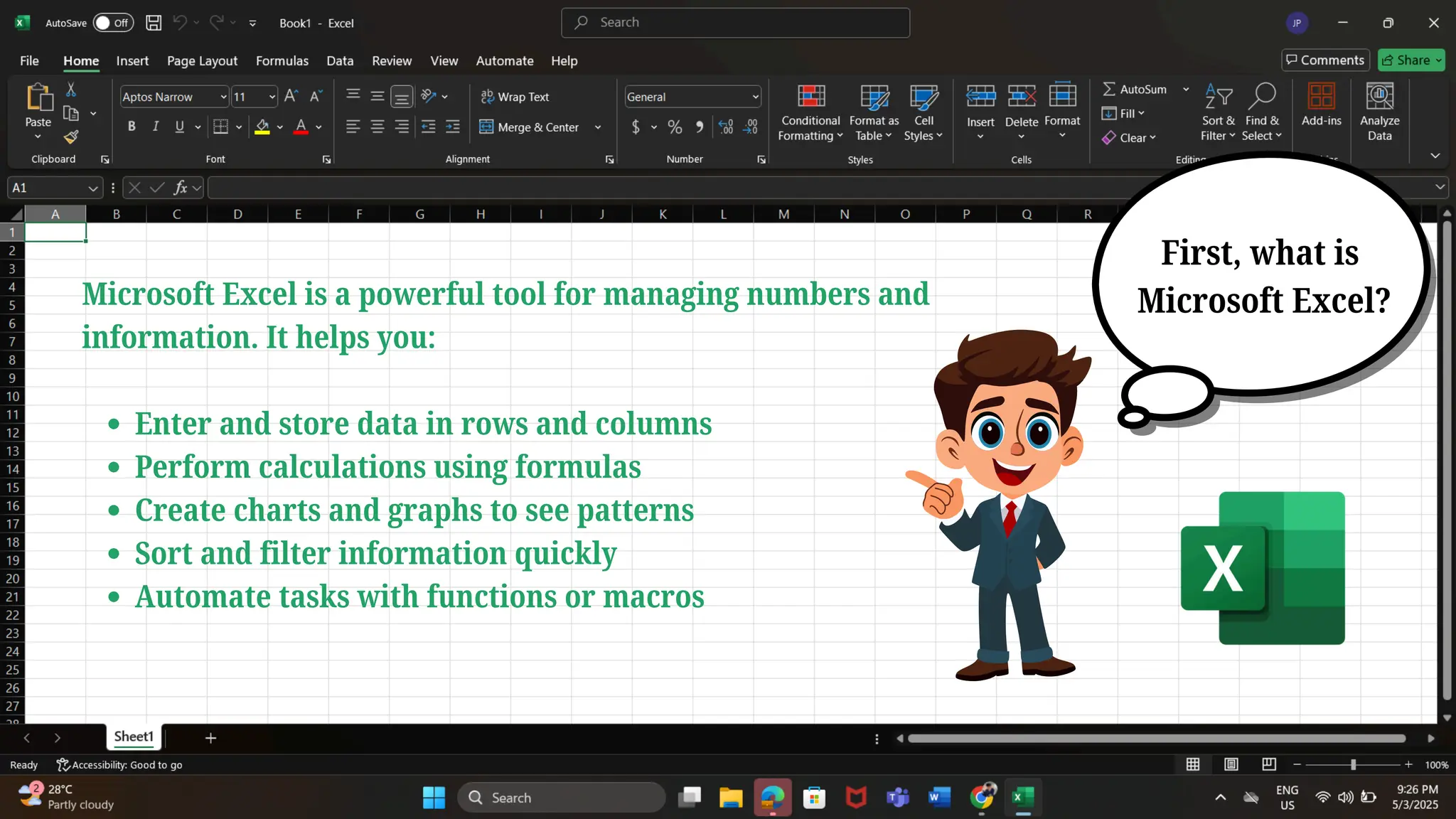
Microsoft Excel isa powerful tool for managing numbers and
information. It helps you:
Enter and store data in rows and columns
Perform calculations using formulas
Create charts and graphs to see patterns
Sort and filter information quickly
Automate tasks with functions or macros
First, what is
Microsoft Excel?
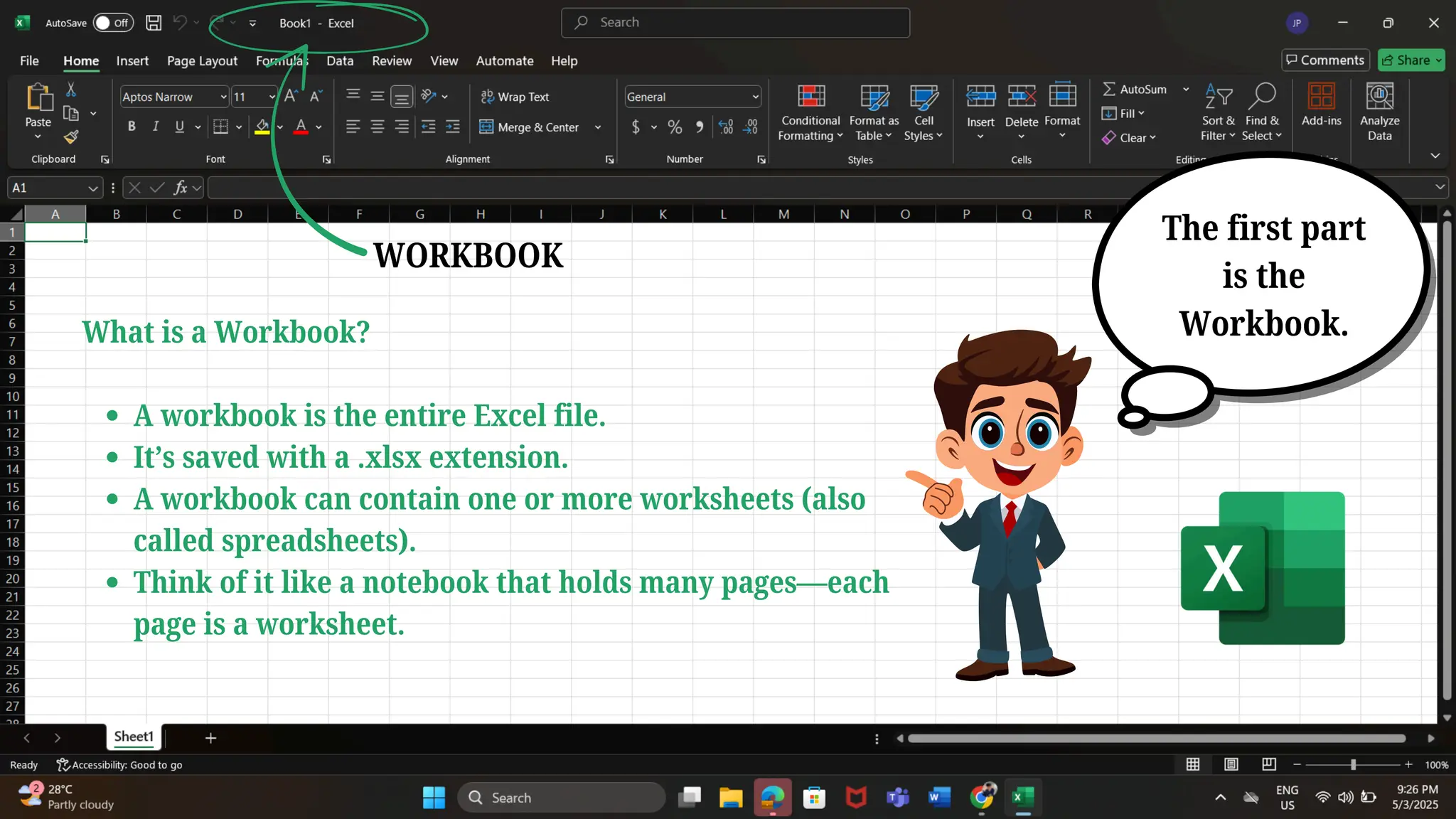
What is aWorkbook?
A workbook is the entire Excel file.
It’s saved with a .xlsx extension.
A workbook can contain one or more worksheets (also
called spreadsheets).
Think of it like a notebook that holds many pages—each
page is a worksheet.
The first part
is the
Workbook.
WORKBOOK
5.
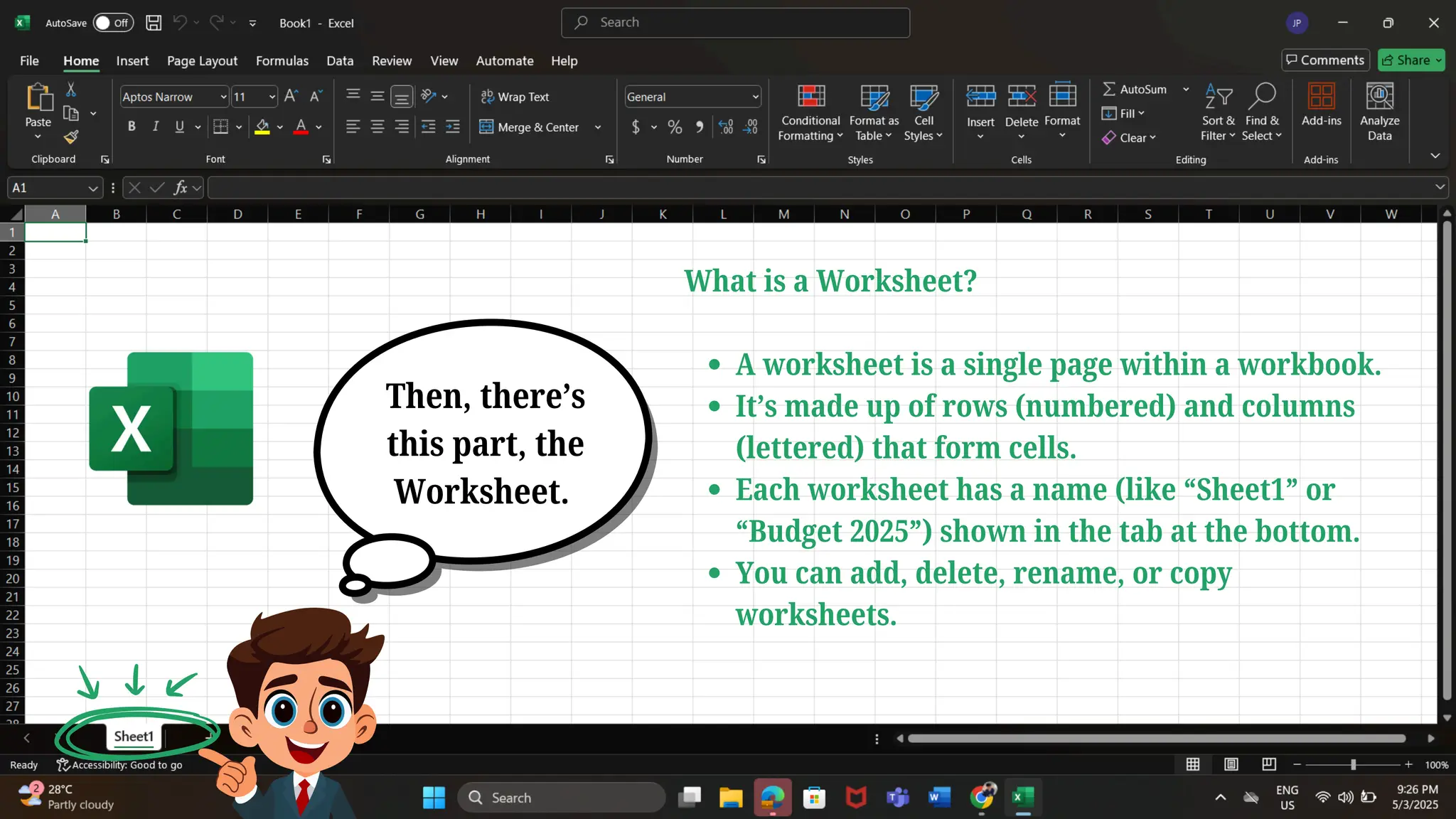
What is aWorksheet?
A worksheet is a single page within a workbook.
It’s made up of rows (numbered) and columns
(lettered) that form cells.
Each worksheet has a name (like “Sheet1” or
“Budget 2025”) shown in the tab at the bottom.
You can add, delete, rename, or copy
worksheets.
Then, there’s
this part, the
Worksheet.
6.
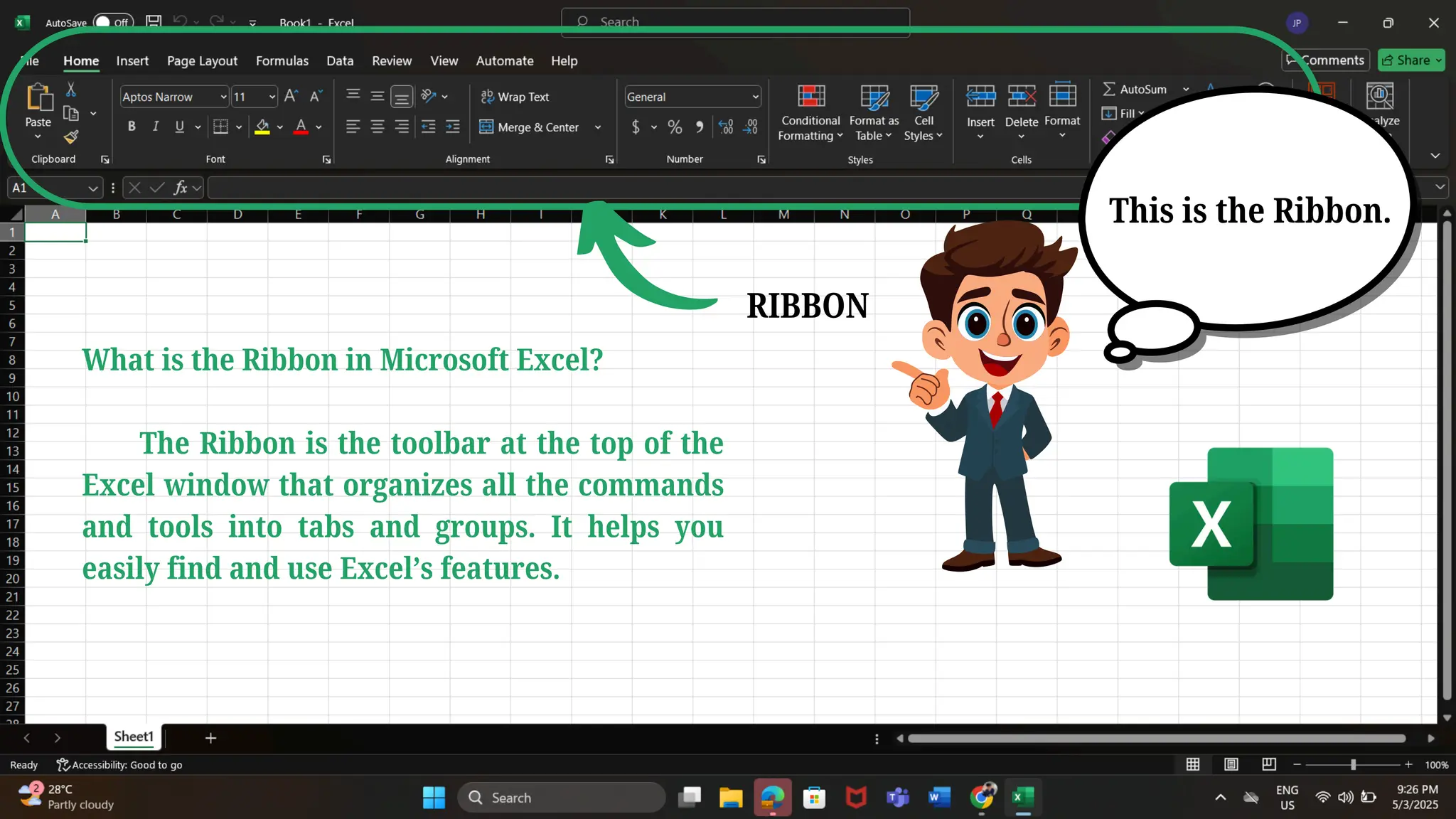
What is theRibbon in Microsoft Excel?
The Ribbon is the toolbar at the top of the
Excel window that organizes all the commands
and tools into tabs and groups. It helps you
easily find and use Excel’s features.
RIBBON
This is the Ribbon.
7.
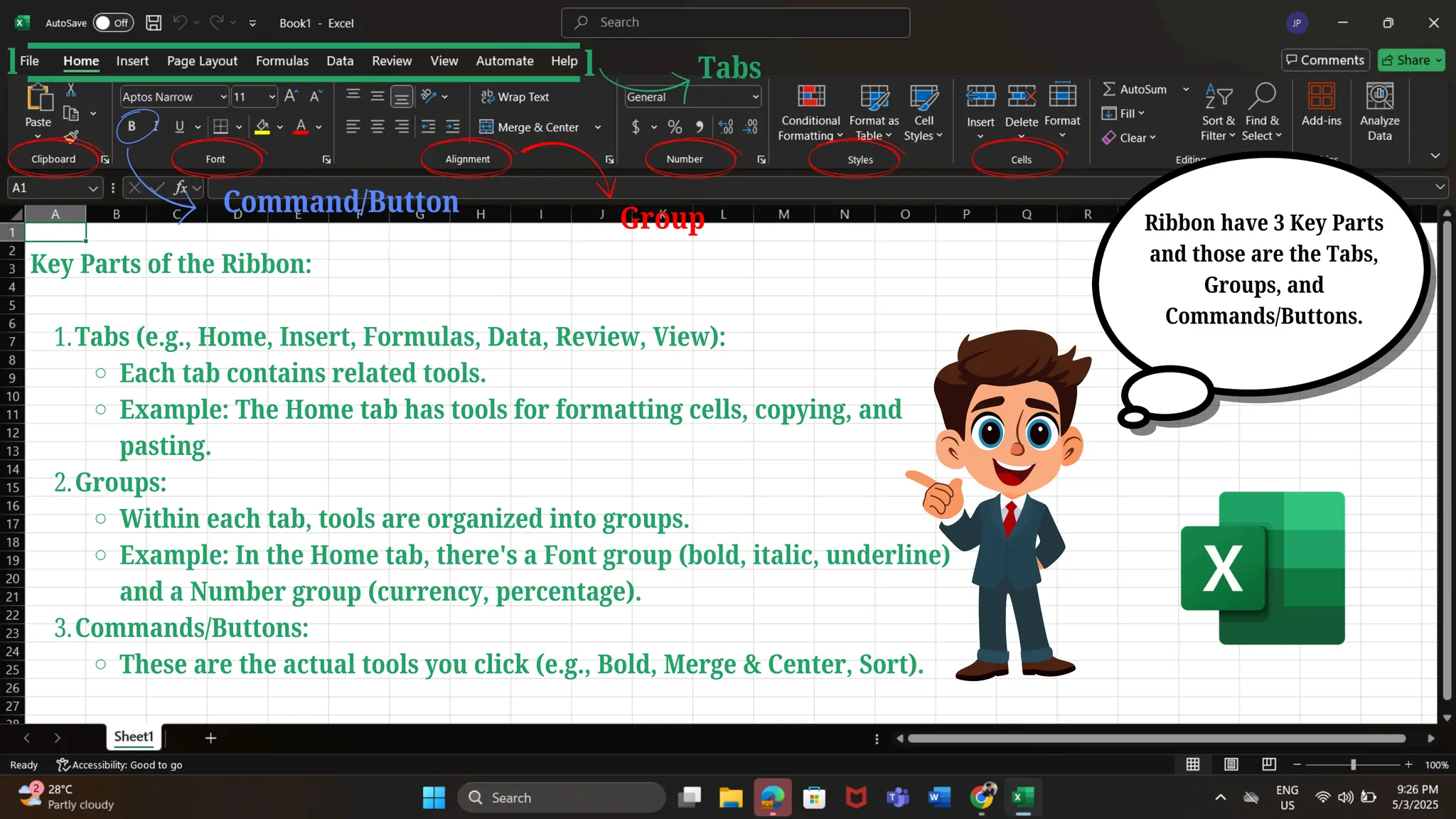
Key Parts ofthe Ribbon:
Tabs (e.g., Home, Insert, Formulas, Data, Review, View):
1.
Each tab contains related tools.
Example: The Home tab has tools for formatting cells, copying, and
pasting.
Groups:
2.
Within each tab, tools are organized into groups.
Example: In the Home tab, there's a Font group (bold, italic, underline)
and a Number group (currency, percentage).
Commands/Buttons:
3.
These are the actual tools you click (e.g., Bold, Merge & Center, Sort).
Ribbon have 3 Key Parts
and those are the Tabs,
Groups, and
Commands/Buttons.
l l Tabs
Group
Command/Button
8.
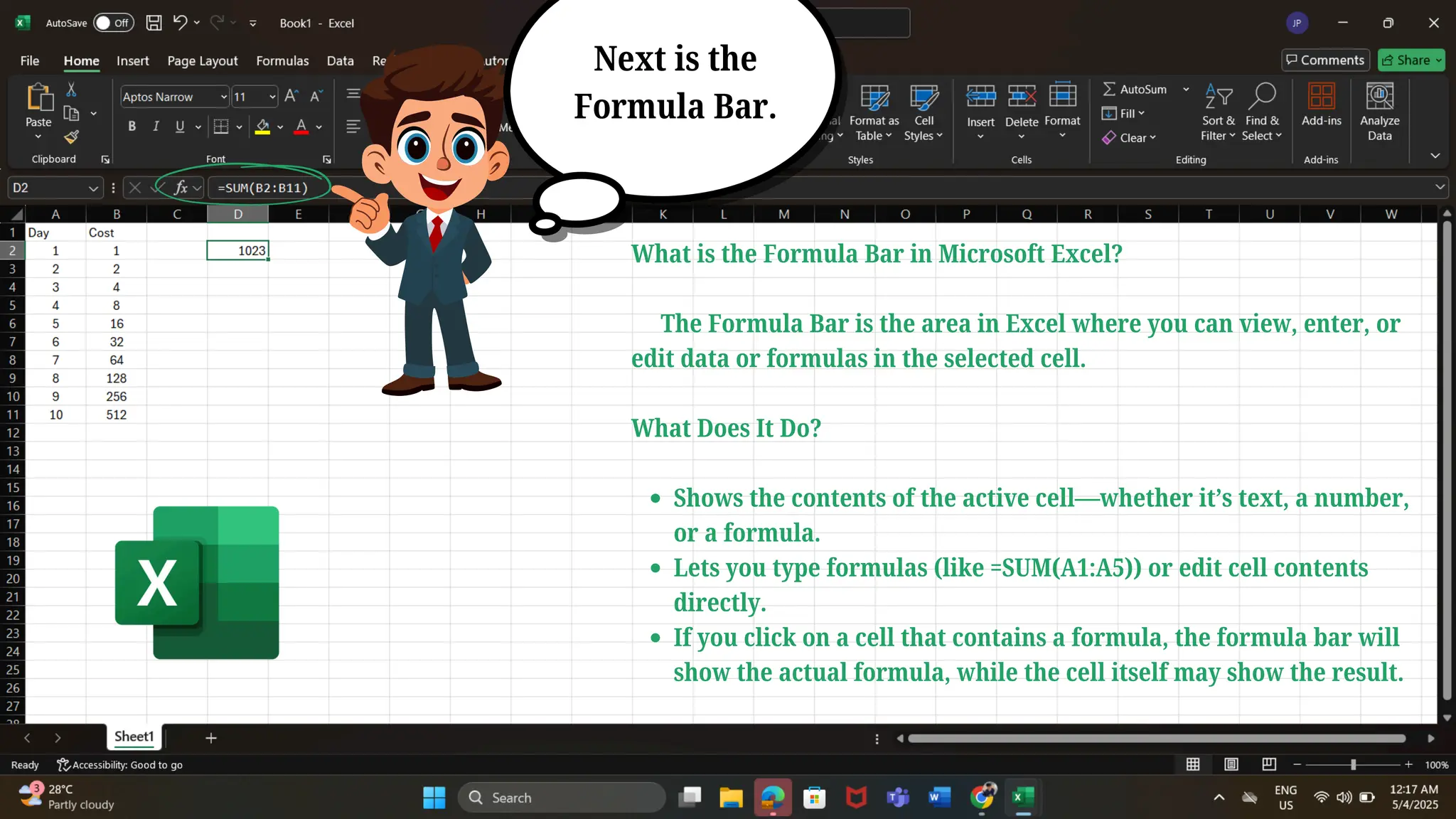
What is theFormula Bar in Microsoft Excel?
The Formula Bar is the area in Excel where you can view, enter, or
edit data or formulas in the selected cell.
What Does It Do?
Shows the contents of the active cell—whether it’s text, a number,
or a formula.
Lets you type formulas (like =SUM(A1:A5)) or edit cell contents
directly.
If you click on a cell that contains a formula, the formula bar will
show the actual formula, while the cell itself may show the result.
Next is the
Formula Bar.
9.
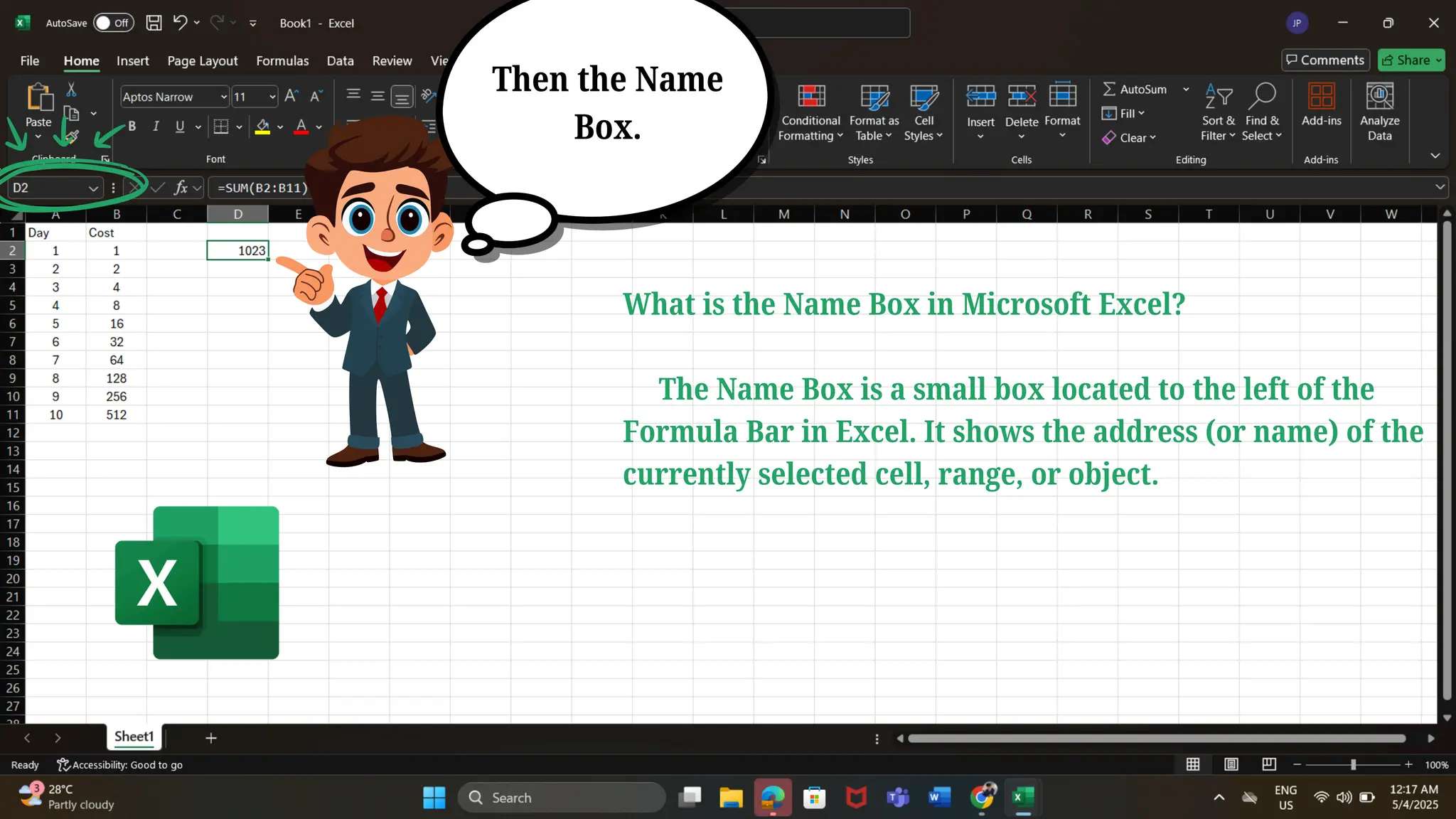
Then the Name
Box.
Whatis the Name Box in Microsoft Excel?
The Name Box is a small box located to the left of the
Formula Bar in Excel. It shows the address (or name) of the
currently selected cell, range, or object.
10.
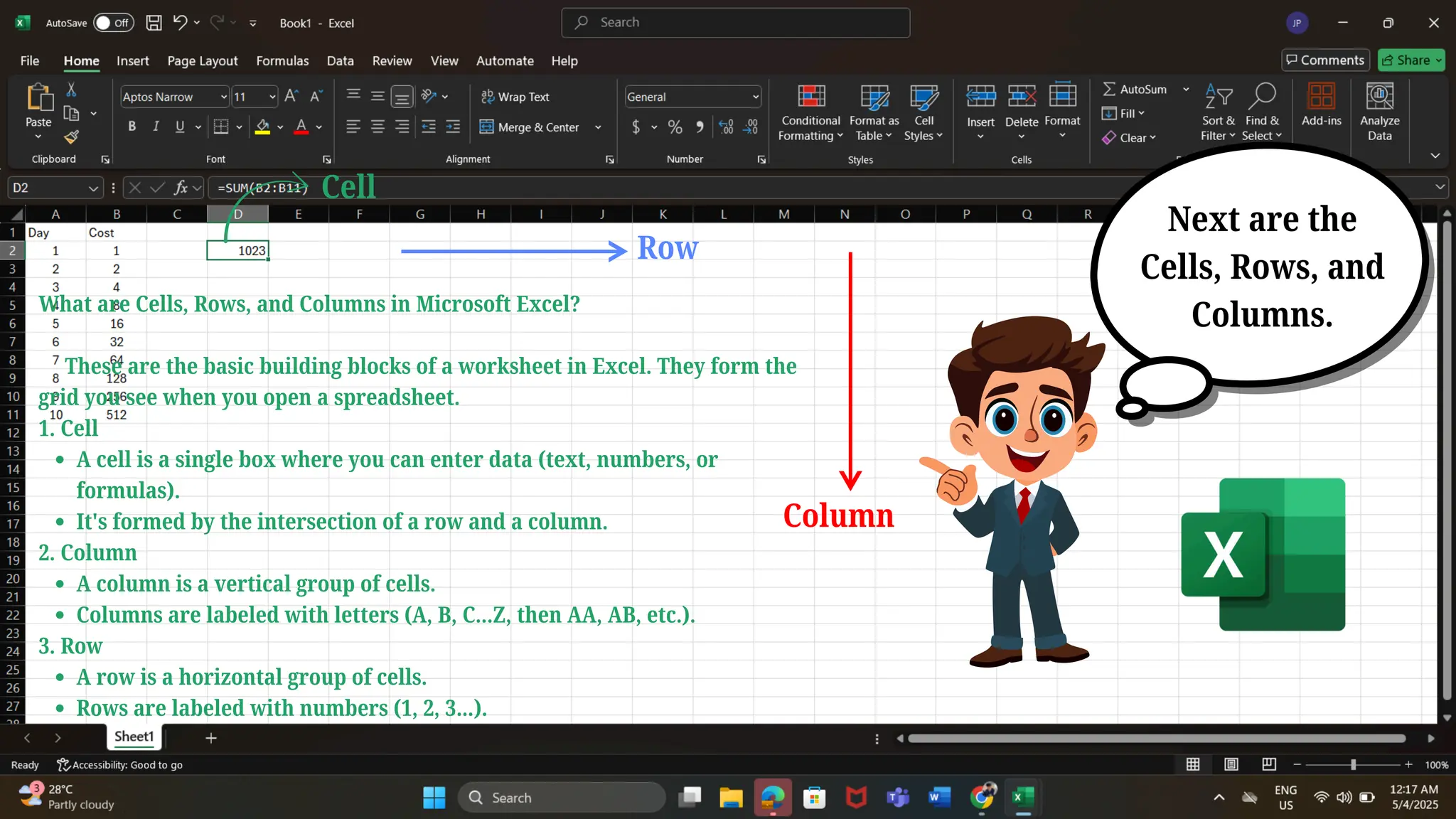
Next are the
Cells,Rows, and
Columns.
Cell
What are Cells, Rows, and Columns in Microsoft Excel?
These are the basic building blocks of a worksheet in Excel. They form the
grid you see when you open a spreadsheet.
1. Cell
A cell is a single box where you can enter data (text, numbers, or
formulas).
It's formed by the intersection of a row and a column.
2. Column
A column is a vertical group of cells.
Columns are labeled with letters (A, B, C...Z, then AA, AB, etc.).
3. Row
A row is a horizontal group of cells.
Rows are labeled with numbers (1, 2, 3…).
Row
Column
11.
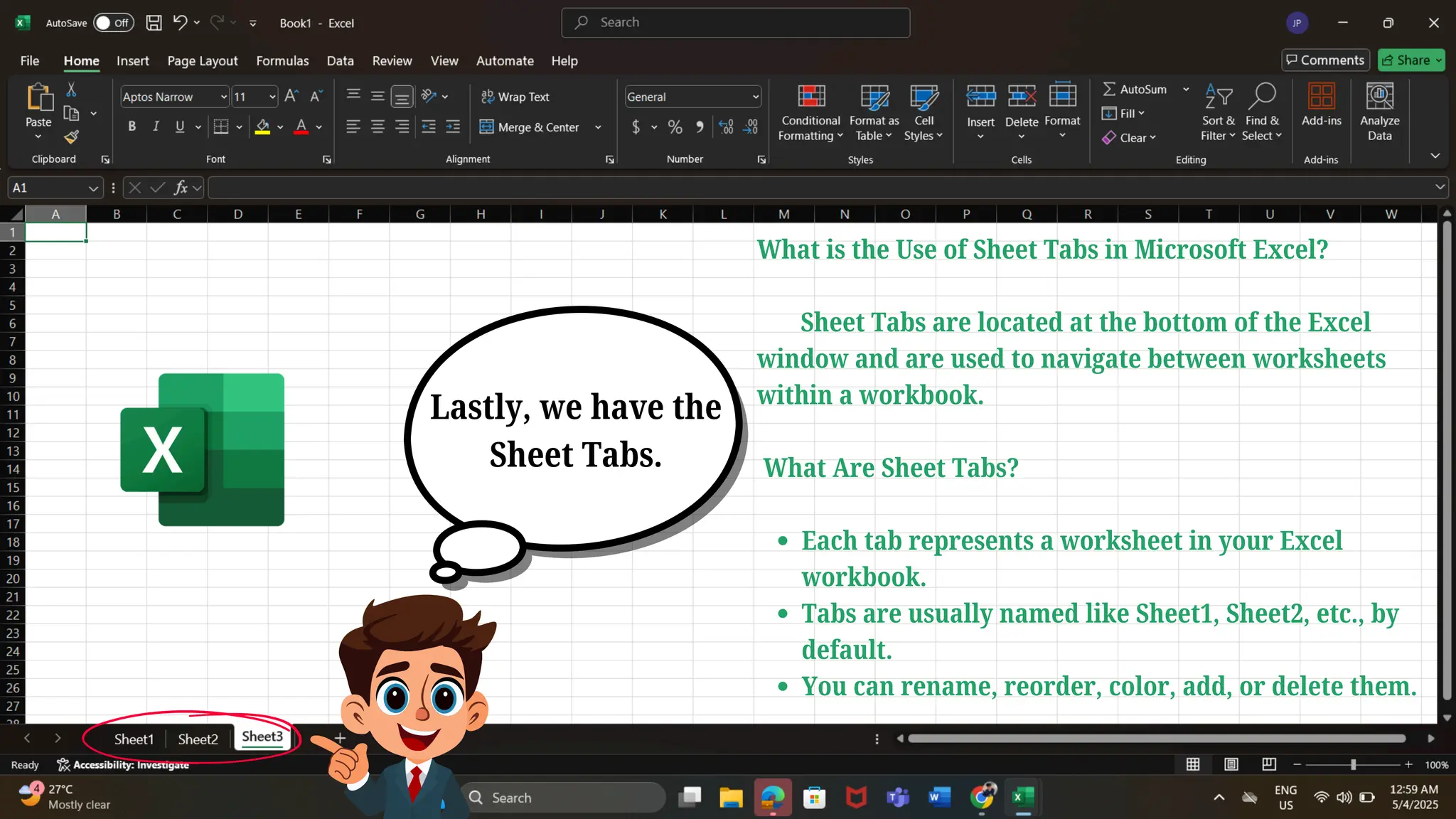
Lastly, we havethe
Sheet Tabs.
What is the Use of Sheet Tabs in Microsoft Excel?
Sheet Tabs are located at the bottom of the Excel
window and are used to navigate between worksheets
within a workbook.
What Are Sheet Tabs?
Each tab represents a worksheet in your Excel
workbook.
Tabs are usually named like Sheet1, Sheet2, etc., by
default.
You can rename, reorder, color, add, or delete them.
12.
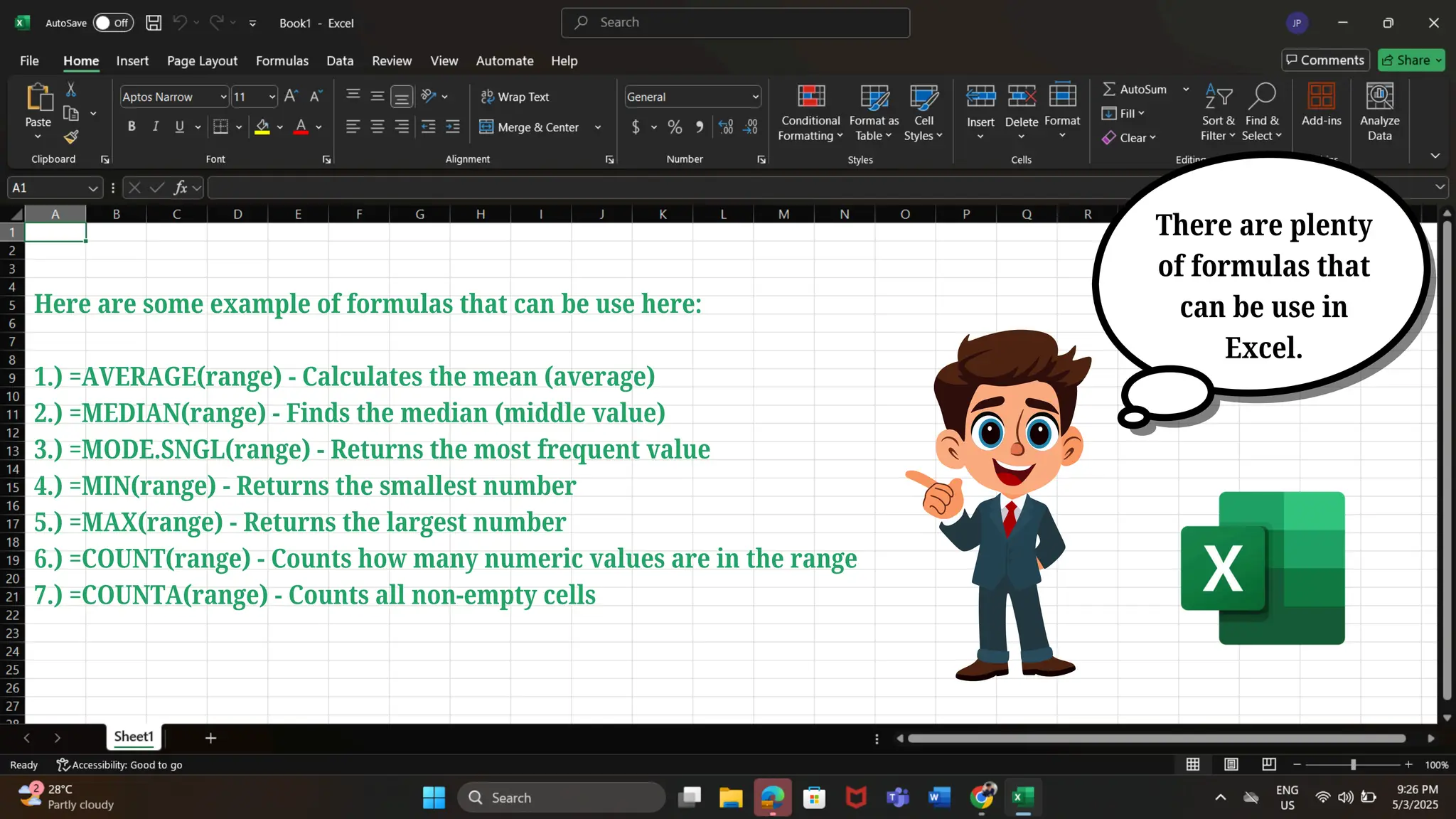
There are plenty
offormulas that
can be use in
Excel.
Here are some example of formulas that can be use here:
1.) =AVERAGE(range) - Calculates the mean (average)
2.) =MEDIAN(range) - Finds the median (middle value)
3.) =MODE.SNGL(range) - Returns the most frequent value
4.) =MIN(range) - Returns the smallest number
5.) =MAX(range) - Returns the largest number
6.) =COUNT(range) - Counts how many numeric values are in the range
7.) =COUNTA(range) - Counts all non-empty cells
13.
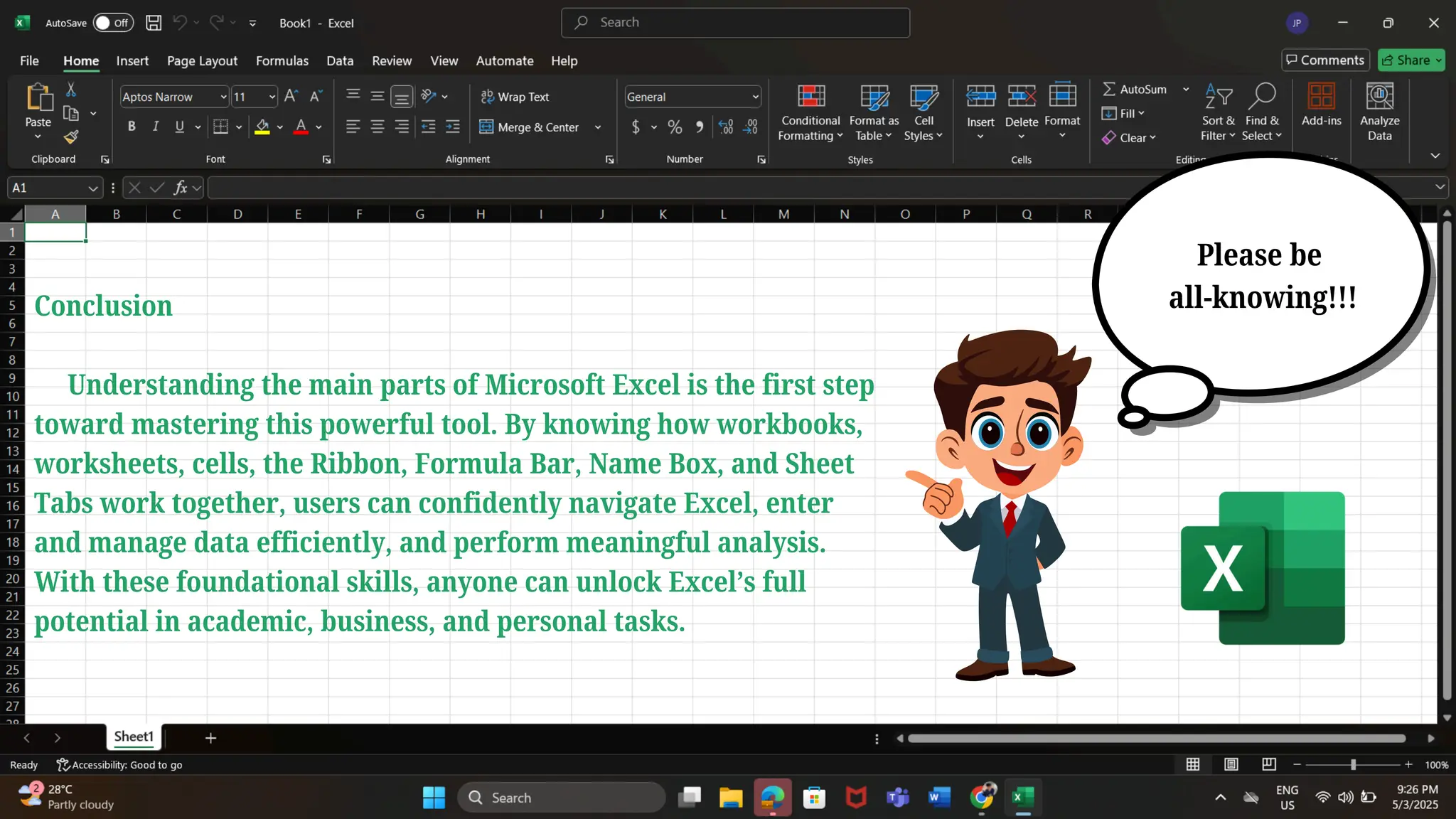
Please be
all-knowing!!!
Conclusion
Understanding themain parts of Microsoft Excel is the first step
toward mastering this powerful tool. By knowing how workbooks,
worksheets, cells, the Ribbon, Formula Bar, Name Box, and Sheet
Tabs work together, users can confidently navigate Excel, enter
and manage data efficiently, and perform meaningful analysis.
With these foundational skills, anyone can unlock Excel’s full
potential in academic, business, and personal tasks.