DATA ANALYSIS USING
SPREADSHEET
BY
Proff. Resmi T J
Microsoft
•Microsoft is a major technology company known for its
software, hardware, and cloud services.
•Popular products include Windows OS, Microsoft Office Suite
(Word, Excel, PowerPoint, Outlook), Azure cloud, Surface
devices, and more.
Excel
•Microsoft Excel is a spreadsheet program that’s part of the
Microsoft Office Suite.
•It’s widely used for data organization, analysis, and
visualization.
•Features include formulas, functions, pivot tables, charts,
macros, and Power Query.
•Commonly used in business, finance, education, and many
other fields.
What is Excel?
• Excel is part of Microsoft Office Suite
• It’s a spreadsheet application used to store, organize, and analyze data
• Columns = vertical (A, B, C…)
• Rows = horizontal (1, 2, 3…)
Microsoft Excel was first introduced in 1985!
Here’s a quick timeline:
•1985: Excel 1.0 was released for the Apple
Macintosh. It was one of the first spreadsheet
programs to use a graphical interface and mouse-
driven menus.
•1987: The first Windows version, Excel 2.0, was
released.
•Over the years, Excel grew rapidly in features and
popularity.
•1990s–2000s: Excel became a key part of Microsoft
Office and the dominant spreadsheet software
worldwide.
•Today, Excel continues to evolve with powerful data
analysis tools, cloud integration (Excel for the web),
and AI-powered features.
Excel Interface Tour
Part Description
Title Bar
Shows the name of your file (topmost
bar)
Menu Bar File, Edit, View… (classic, if visible)
Ribbon
Tabs like Home, Insert, Page Layout—
grouped tools
Quick Access Toolbar Save, Undo, Redo
Spreadsheet Area Where you enter data (cells in grid)
Formula Bar Shows what’s inside the selected cell
Name Box Displays cell address (e.g., A1)
Sheet Tabs Tabs at the bottom (Sheet1, Sheet2…)
Status Bar
Displays info like average, sum, count
(bottom)
Spreadsheet window pane
 A pane is a viewing section of your spreadsheet. We can divide Excel
window into two or four panes so you can scroll in one section while
keeping other parts fixed or visible.
 Found in: View tab > Freeze Panes
Activity
 Activity 1
 Find the sum of list of numbers
 Try changing font, alignment, and cell color using Ribbon
Activity 2
Month Income Rent
Groceri
es
Transpor
t
Other
Total
Expense
s
Savings
January 1000 400 150 100 50
=SUM(C
2:F2)
=B2-G2
Februar
y
1050 400 160 110 60
=SUM(C
3:F3)
=B3-G3
March ... ... ...
Step 1: Create a table like this:
Apply Freeze Panes
•Click on cell B2
•Go to the View tab → Click Freeze Panes → Choose Freeze Panes
Format the Sheet
•Apply bold headers
•Use currency format for numbers
•Apply borders to the table
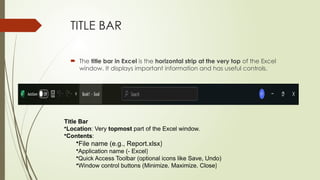
TITLE BAR
 The title bar in Excel is the horizontal strip at the very top of the Excel
window. It displays important information and has useful controls.
Title Bar
•Location: Very topmost part of the Excel window.
•Contents:
•File name (e.g., Report.xlsx)
•Application name (- Excel)
•Quick Access Toolbar (optional icons like Save, Undo)
•Window control buttons (Minimize, Maximize, Close)
MENU BAR
 The Menu Bar is a horizontal strip located near the top of most application
windows. It contains a list of menus that provide access to various
commands and features of the software.
•Location: Usually found just below the Title Bar.
•Menus Included: Common ones are File, Edit, View, Insert, Format, Tools, Help, etc.
Menu (Column A) Command (Column B - Mixed)
File Save
Insert Table
Home Bold
Layout Page Orientation
Review Spelling & Grammar
Answers
•Save → File
•Bold → Home
•Insert -Table
•Page Orientation → Layout
•Spelling & Grammar → Review
Status Bar
 The status bar is the horizontal bar at the very bottom of the Excel window.
 It provides information about the current state of Excel and offers quick
insights and tools while you work.
Mode Indicators (left side):
 Ready → Excel is idle, waiting for your input.
 Enter → You’re entering data into a cell.
 Edit → You’re editing the contents of a cell.
 Point → You’re selecting cells for a formula.
Cell/Range Info (right side):
 When you select multiple numeric cells, the status bar can show:
 Average
 Count
 Numerical Count
 Min
 Max
 Sum
View Shortcuts:
 Buttons to switch between Normal View, Page Layout View, and Page
Break Preview.
Task pane
Data Analysis using spreadsheet. How excel helps in data analysis.

Data Analysis using spreadsheet. How excel helps in data analysis.

  • 1.
  • 2.
    Microsoft •Microsoft is amajor technology company known for its software, hardware, and cloud services. •Popular products include Windows OS, Microsoft Office Suite (Word, Excel, PowerPoint, Outlook), Azure cloud, Surface devices, and more. Excel •Microsoft Excel is a spreadsheet program that’s part of the Microsoft Office Suite. •It’s widely used for data organization, analysis, and visualization. •Features include formulas, functions, pivot tables, charts, macros, and Power Query. •Commonly used in business, finance, education, and many other fields.
  • 3.
    What is Excel? •Excel is part of Microsoft Office Suite • It’s a spreadsheet application used to store, organize, and analyze data • Columns = vertical (A, B, C…) • Rows = horizontal (1, 2, 3…)
  • 4.
    Microsoft Excel wasfirst introduced in 1985! Here’s a quick timeline: •1985: Excel 1.0 was released for the Apple Macintosh. It was one of the first spreadsheet programs to use a graphical interface and mouse- driven menus. •1987: The first Windows version, Excel 2.0, was released. •Over the years, Excel grew rapidly in features and popularity. •1990s–2000s: Excel became a key part of Microsoft Office and the dominant spreadsheet software worldwide. •Today, Excel continues to evolve with powerful data analysis tools, cloud integration (Excel for the web), and AI-powered features.
  • 6.
    Excel Interface Tour PartDescription Title Bar Shows the name of your file (topmost bar) Menu Bar File, Edit, View… (classic, if visible) Ribbon Tabs like Home, Insert, Page Layout— grouped tools Quick Access Toolbar Save, Undo, Redo Spreadsheet Area Where you enter data (cells in grid) Formula Bar Shows what’s inside the selected cell Name Box Displays cell address (e.g., A1) Sheet Tabs Tabs at the bottom (Sheet1, Sheet2…) Status Bar Displays info like average, sum, count (bottom)
  • 7.
    Spreadsheet window pane A pane is a viewing section of your spreadsheet. We can divide Excel window into two or four panes so you can scroll in one section while keeping other parts fixed or visible.  Found in: View tab > Freeze Panes
  • 8.
    Activity  Activity 1 Find the sum of list of numbers  Try changing font, alignment, and cell color using Ribbon
  • 9.
    Activity 2 Month IncomeRent Groceri es Transpor t Other Total Expense s Savings January 1000 400 150 100 50 =SUM(C 2:F2) =B2-G2 Februar y 1050 400 160 110 60 =SUM(C 3:F3) =B3-G3 March ... ... ... Step 1: Create a table like this:
  • 10.
    Apply Freeze Panes •Clickon cell B2 •Go to the View tab → Click Freeze Panes → Choose Freeze Panes Format the Sheet •Apply bold headers •Use currency format for numbers •Apply borders to the table
  • 11.
    TITLE BAR  Thetitle bar in Excel is the horizontal strip at the very top of the Excel window. It displays important information and has useful controls. Title Bar •Location: Very topmost part of the Excel window. •Contents: •File name (e.g., Report.xlsx) •Application name (- Excel) •Quick Access Toolbar (optional icons like Save, Undo) •Window control buttons (Minimize, Maximize, Close)
  • 12.
    MENU BAR  TheMenu Bar is a horizontal strip located near the top of most application windows. It contains a list of menus that provide access to various commands and features of the software. •Location: Usually found just below the Title Bar. •Menus Included: Common ones are File, Edit, View, Insert, Format, Tools, Help, etc.
  • 13.
    Menu (Column A)Command (Column B - Mixed) File Save Insert Table Home Bold Layout Page Orientation Review Spelling & Grammar
  • 14.
    Answers •Save → File •Bold→ Home •Insert -Table •Page Orientation → Layout •Spelling & Grammar → Review
  • 15.
    Status Bar  Thestatus bar is the horizontal bar at the very bottom of the Excel window.  It provides information about the current state of Excel and offers quick insights and tools while you work. Mode Indicators (left side):  Ready → Excel is idle, waiting for your input.  Enter → You’re entering data into a cell.  Edit → You’re editing the contents of a cell.  Point → You’re selecting cells for a formula.
  • 16.
    Cell/Range Info (rightside):  When you select multiple numeric cells, the status bar can show:  Average  Count  Numerical Count  Min  Max  Sum
  • 17.
    View Shortcuts:  Buttonsto switch between Normal View, Page Layout View, and Page Break Preview.
  • 20.