Creating a Power Point 
Lisa Vail 
COMI 169
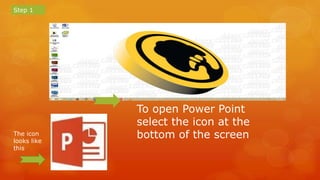
Step 1 
To open Power Point 
select the icon at the 
The icon bottom of the screen 
looks like 
this
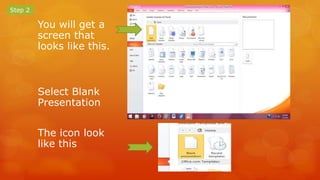
You will get a 
screen that 
looks like this. 
Select Blank 
Presentation 
The icon look 
like this 
Step 2
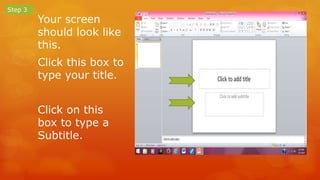
Your screen 
should look like 
this. 
Click this box to 
type your title. 
Click on this 
box to type a 
Subtitle. 
Step 3
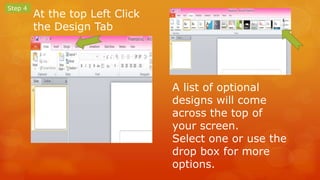
At the top Left Click 
the Design Tab 
Step 4 
A list of optional 
designs will come 
across the top of 
your screen. 
Select one or use the 
drop box for more 
options.
Select the design that you want by clicking 
on it.
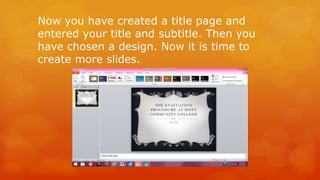
Now you have created a title page and 
entered your title and subtitle. Then you 
have chosen a design. Now it is time to 
create more slides.
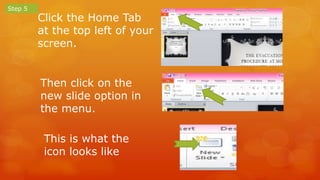
Click the Home Tab 
at the top left of your 
screen. 
Step 5 
Then click on the 
new slide option in 
the menu. 
This is what the 
icon looks like
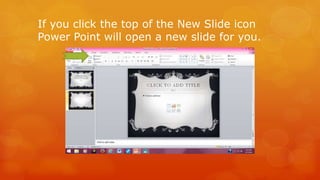
If you click the top of the New Slide icon 
Power Point will open a new slide for you.
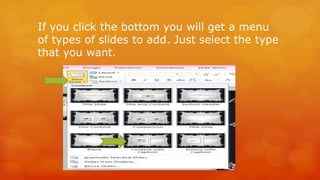
If you click the bottom you will get a menu 
of types of slides to add. Just select the type 
that you want.
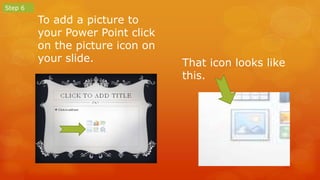
To add a picture to 
your Power Point click 
on the picture icon on 
your slide. 
Step 6 
That icon looks like 
this.
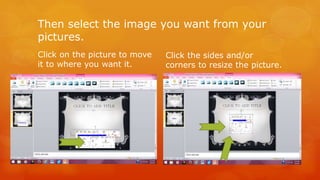
Then select the image you want from your 
pictures. 
Click on the picture to move 
it to where you want it. 
Click the sides and/or 
corners to resize the picture.
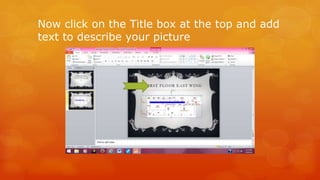
Now click on the Title box at the top and add 
text to describe your picture
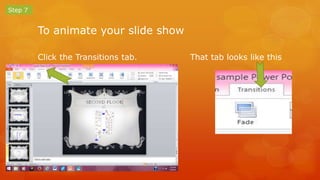
To animate your slide show 
Click the Transitions tab. That tab looks like this 
Step 7
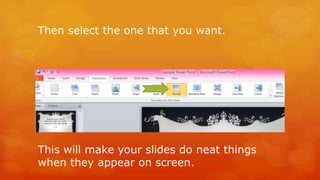
Then select the one that you want. 
This will make your slides do neat things 
when they appear on screen.
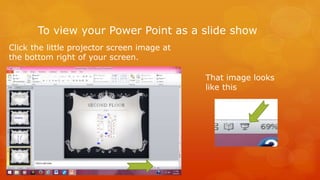
To view your Power Point as a slide show 
Click the little projector screen image at 
the bottom right of your screen. 
That image looks 
like this
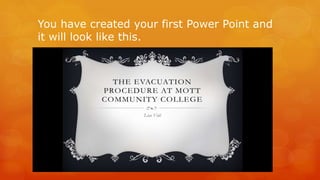
You have created your first Power Point and 
it will look like this.
In conclusion 
 Now you have learned to; 
 Create a Power Point 
 Change the theme of the presentation 
 Add text 
 Add pictures 
 Animate the transitions between screens 
 How to view your Power Point in a slide show

Learning to Create a Power Point basics

  • 1.
    Creating a PowerPoint Lisa Vail COMI 169
  • 2.
    Step 1 Toopen Power Point select the icon at the The icon bottom of the screen looks like this
  • 3.
    You will geta screen that looks like this. Select Blank Presentation The icon look like this Step 2
  • 4.
    Your screen shouldlook like this. Click this box to type your title. Click on this box to type a Subtitle. Step 3
  • 5.
    At the topLeft Click the Design Tab Step 4 A list of optional designs will come across the top of your screen. Select one or use the drop box for more options.
  • 6.
    Select the designthat you want by clicking on it.
  • 7.
    Now you havecreated a title page and entered your title and subtitle. Then you have chosen a design. Now it is time to create more slides.
  • 8.
    Click the HomeTab at the top left of your screen. Step 5 Then click on the new slide option in the menu. This is what the icon looks like
  • 9.
    If you clickthe top of the New Slide icon Power Point will open a new slide for you.
  • 10.
    If you clickthe bottom you will get a menu of types of slides to add. Just select the type that you want.
  • 11.
    To add apicture to your Power Point click on the picture icon on your slide. Step 6 That icon looks like this.
  • 12.
    Then select theimage you want from your pictures. Click on the picture to move it to where you want it. Click the sides and/or corners to resize the picture.
  • 13.
    Now click onthe Title box at the top and add text to describe your picture
  • 14.
    To animate yourslide show Click the Transitions tab. That tab looks like this Step 7
  • 15.
    Then select theone that you want. This will make your slides do neat things when they appear on screen.
  • 16.
    To view yourPower Point as a slide show Click the little projector screen image at the bottom right of your screen. That image looks like this
  • 17.
    You have createdyour first Power Point and it will look like this.
  • 18.
    In conclusion Now you have learned to;  Create a Power Point  Change the theme of the presentation  Add text  Add pictures  Animate the transitions between screens  How to view your Power Point in a slide show