
MAXIMIZING YOUR TIME WITH
STUDENTS – MAXIMIZING
TEACHABLE MOMENTS
Anastasia Trekles, Ph.D.
Director of Learning Technology & Clinical Professor
atrekles@pnc.edu
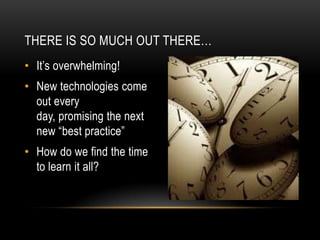
THERE IS SO MUCH OUT THERE…
• It’s overwhelming!

• New technologies come
out every
day, promising the next
new “best practice”
• How do we find the time
to learn it all?
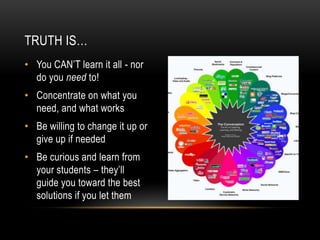
TRUTH IS…
• You CAN’T learn it all - nor
do you need to!
• Concentrate on what you
need, and what works
• Be willing to change it up or
give up if needed
• Be curious and learn from
your students – they’ll
guide you toward the best
solutions if you let them
WHAT’S IN IT FOR ME?
• Technology can save you TIME!

• Upload created assignments and quizzes
• Automatic grading
• Easy viewing of student progress

• More engaging atmosphere for students
• Engaged class = fewer discipline issues = more complete during
a class period
• Learn one tool, you have learned many
SHARE YOUR IDEAS!

Ask questions, share ideas, and share
your favorite links here:

http://tinyurl.com/valpoPLC
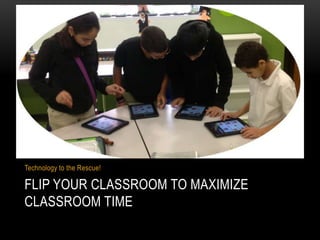
Technology to the Rescue!

FLIP YOUR CLASSROOM TO MAXIMIZE
CLASSROOM TIME
WHAT THE HECK IS “FLIPPING” ANYHOW?
• When students receive key instruction at home, and work on
tasks and application at school, you are “flipping” your
classroom
• Instruction can happen in many forms:
videos, podcasts, websites, DVDs

• In this way, students can work together on more meaningful
projects and activities more in the classroom, while under your
guidance
• You can gain back valuable class time and learning
opportunities through this method!
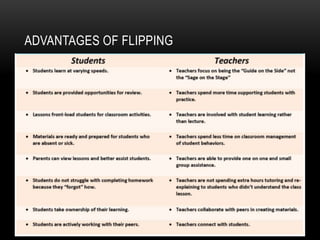
ADVANTAGES OF FLIPPING
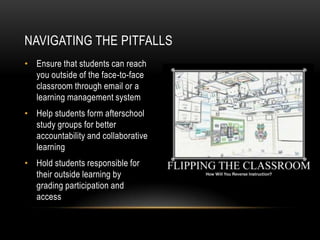
NAVIGATING THE PITFALLS
• Ensure that students can reach
you outside of the face-to-face
classroom through email or a
learning management system
• Help students form afterschool
study groups for better
accountability and collaborative
learning
• Hold students responsible for
their outside learning by
grading participation and
access
WHAT ABOUT KIDS WHO DON’T HAVE ACCESS AT
HOME?
• Provide downloads of videos or other learning materials on a
thumb drive or CD/DVD
• Provide transcripts and/or lecture notes (this is good for ADA
accessibility anyhow)
• Give students a place to study after school on school
grounds, such as in your classroom with a dedicated
machine, or in the computer lab
• Use tools that allow for media to be accessed and/or
downloaded onto mobile devices that students may very well
have available to them, like smartphones and iPads
SUMMARY: BASICS OF FLIPPING
1. Students need to understand the flip and the expectations
2. Provide textbooks for a reference
3. Create a web presence to post your videos to (e.g. Edmodo)
4. Locate a place to post your videos (e.g. Vimeo, Screencast.com)
5. Locate a screen casting tool to record your videos
6. Storyboard your lesson and practice, practice, practice!
7. Create videos which are 3-5 minutes (lengthy videos lose attention)
8. Create online assignments and assessments to accompany video
9. Provide meaningful classroom activities so that students are engaged
during class time rather than doing homework without learning
http://www.21things4teachers.net/21--flipping-theclassroom.html
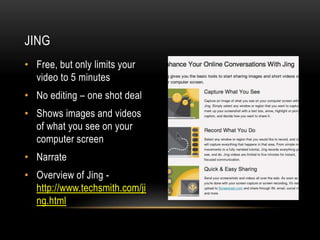
JING
• Free, but only limits your
video to 5 minutes
• No editing – one shot deal
• Shows images and videos
of what you see on your
computer screen
• Narrate
• Overview of Jing http://www.techsmith.com/ji
ng.html
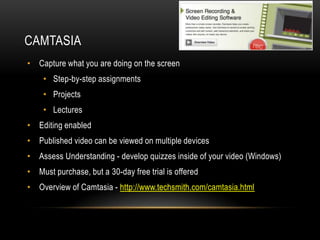
CAMTASIA
• Capture what you are doing on the screen
• Step-by-step assignments
• Projects
• Lectures
• Editing enabled

• Published video can be viewed on multiple devices
• Assess Understanding - develop quizzes inside of your video (Windows)
• Must purchase, but a 30-day free trial is offered
• Overview of Camtasia - http://www.techsmith.com/camtasia.html
SCREENR
• Screenr (http://screenr.com) is a online recording
program that allows you to make up to 5 minute screencastings.
• Nothing to install or download to use it

• Either PC or Mac works!
• Plays everywhere (iPhones included)
• Hosts your videos!

• Best of all, completely FREE!
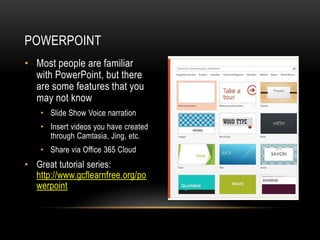
POWERPOINT
• Most people are familiar
with PowerPoint, but there
are some features that you
may not know
• Slide Show Voice narration
• Insert videos you have created
through Camtasia, Jing, etc.
• Share via Office 365 Cloud

• Great tutorial series:
http://www.gcflearnfree.org/po
werpoint
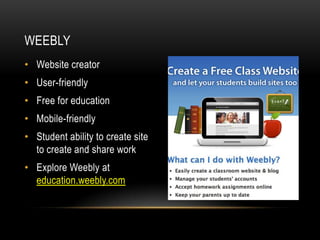
WEEBLY
• Website creator

• User-friendly
• Free for education
• Mobile-friendly

• Student ability to create site
to create and share work
• Explore Weebly at
education.weebly.com
Technology to the Rescue!

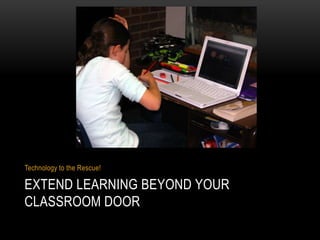
EXTEND LEARNING BEYOND YOUR
CLASSROOM DOOR
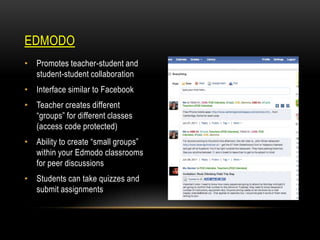
EDMODO
• Promotes teacher-student and
student-student collaboration
• Interface similar to Facebook
• Teacher creates different
“groups” for different classes
(access code protected)

• Ability to create “small groups”
within your Edmodo classrooms
for peer discussions
• Students can take quizzes and
submit assignments
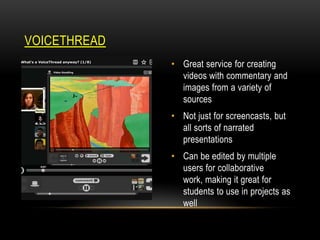
VOICETHREAD
• Great service for creating
videos with commentary and
images from a variety of
sources
• Not just for screencasts, but
all sorts of narrated
presentations
• Can be edited by multiple
users for collaborative
work, making it great for
students to use in projects as
well
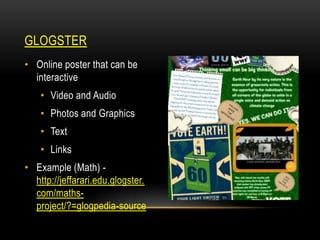
GLOGSTER
• Online poster that can be
interactive
• Video and Audio
• Photos and Graphics
• Text
• Links
• Example (Math) http://jeffarari.edu.glogster.
com/mathsproject/?=glogpedia-source
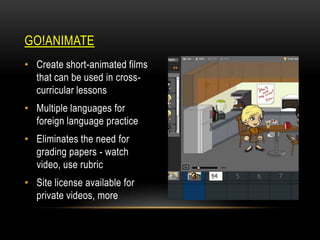
GO!ANIMATE
• Create short-animated films
that can be used in crosscurricular lessons
• Multiple languages for
foreign language practice

• Eliminates the need for
grading papers - watch
video, use rubric
• Site license available for
private videos, more
Technology to the Rescue!

STAY ORGANIZED
TECHNOLOGY FOR INCREASED PRODUCTIVITY
• LiveBinders.com
• Teachers are always bombarded with a plethora of links to check
out, but how do they remember what they are when they actually
need them?
• Examples
• Teacher Blogs - http://hoosierteacher.blogspot.com/2013/04/technology-to-rescue-pbl-bookclub.html
• Pinterest - http://pinterest.com/alruiz/technology-to-the-rescue/
• Twitter https://docs.google.com/document/d/1bYft9_jfYuuXU0DvNeXgzC0nVT813YUrwRniGM2-94/edit?pli=1
INFORMATION CURATION TOOLS
Scoop.It

Symbaloo.com

• Great tool for news curation to
collect articles related to a
particular topic

• Provides a means to create a
series of links, documents, and
more related to any topic

• Links that might be useful are
suggested to you, and you
decide to “scoop” and add it to a
topic, or not

• Links are organized on a grid
and can be done in a variety of
creative ways

• You can also “re-scoop” what
others have scooped and follow
their topics as well

• For example, you can create a
path of learning resources until
students reach a goal
GOOGLE DRIVE (FORMERLY GOOGLE DOCS)
• Presentation, Forms, Spreadsheets, Drawing, Documents

• Organization – i.e. Folders
• Work off-line by downloading Google Drive for PC
• Strong collaboration

• Teachers can view what students are working on and offer
comments along the way
• What do teachers and principals have to say about using
GoogleDocs? - http://youtu.be/TYPjJK6LZdM
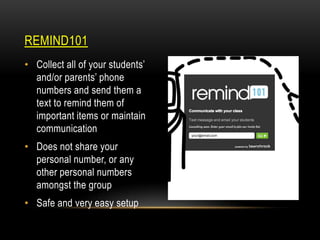
REMIND101
• Collect all of your students’
and/or parents’ phone
numbers and send them a
text to remind them of
important items or maintain
communication
• Does not share your
personal number, or any
other personal numbers
amongst the group
• Safe and very easy setup
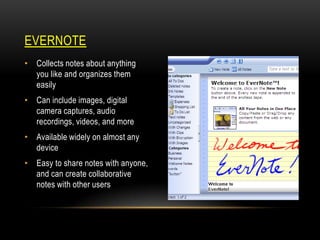
EVERNOTE
• Collects notes about anything
you like and organizes them
easily
• Can include images, digital
camera captures, audio
recordings, videos, and more

• Available widely on almost any
device
• Easy to share notes with anyone,
and can create collaborative
notes with other users
OTHER IDEAS?
What other ideas do you have for finding time in your
classroom and in your day?
Staci: atrekles@pnc.edu
Download these slides: http://slideshare.net/andella

Twitter and Facebook: @PNCOLT
RESOURCES
• Teachers Using Technology to Flip Classrooms:
http://www.techsmith.com/flipped-classroom.html
• Screen capture in the classroom ideas: http://prezi.com/a81jjsnnnjiu/usingscreen-capture-tools-in-the-classroom/
• 10 Tools to Flip Your Class (tip: most are screen-capture related!):
http://electriceducator.blogspot.com/2011/04/10-tools-to-help-you-flipyour.html
• Flipped classroom design: http://digitalsandbox.weebly.com/flippedclassroom-design.html
• Flipped class best practices: http://www.edutopia.org/blog/flipped-classroombest-practices-andrew-miller
RESOURCES
• Graphite app curation service (FREE!): http://graphite.org

• Cool Tools for Schools wiki:
http://cooltoolsforschools.wikispaces.com
• Cool Apps for Schools wiki:
http://coolappsforschools.wikispaces.com
• APPitic app list for education: http://www.appitic.com
• Apple Education apps: http://www.apple.com/education/apps/
• Top 10 list of apps for Android and iOS:
http://www.eschoolnews.com/2013/04/26/new-10-of-the-bestapple-and-android-apps-for-education-in-2013/
RESOURCES
• Learning Forward/NSDC has produced two excellent resources
on making time for professional learning and lesson
development:
• Establishing Time for Professional Learning (with a focus on
Common Core preparation):
http://www.learningforward.org/docs/defaultsource/commoncore/establishing-time-for-professionallearning.pdf
• Finding Time for Professional Learning:
http://k12.wa.us/CoreStandards/Workshop/finding_time-final110807.pdf

Maximizing Your Time with Students - Maximizing Teachable Moments

  • 1.
    MAXIMIZING YOUR TIMEWITH STUDENTS – MAXIMIZING TEACHABLE MOMENTS Anastasia Trekles, Ph.D. Director of Learning Technology & Clinical Professor atrekles@pnc.edu
  • 2.
    THERE IS SOMUCH OUT THERE… • It’s overwhelming! • New technologies come out every day, promising the next new “best practice” • How do we find the time to learn it all?
  • 3.
    TRUTH IS… • YouCAN’T learn it all - nor do you need to! • Concentrate on what you need, and what works • Be willing to change it up or give up if needed • Be curious and learn from your students – they’ll guide you toward the best solutions if you let them
  • 4.
    WHAT’S IN ITFOR ME? • Technology can save you TIME! • Upload created assignments and quizzes • Automatic grading • Easy viewing of student progress • More engaging atmosphere for students • Engaged class = fewer discipline issues = more complete during a class period • Learn one tool, you have learned many
  • 5.
    SHARE YOUR IDEAS! Askquestions, share ideas, and share your favorite links here: http://tinyurl.com/valpoPLC
  • 6.
    Technology to theRescue! FLIP YOUR CLASSROOM TO MAXIMIZE CLASSROOM TIME
  • 7.
    WHAT THE HECKIS “FLIPPING” ANYHOW? • When students receive key instruction at home, and work on tasks and application at school, you are “flipping” your classroom • Instruction can happen in many forms: videos, podcasts, websites, DVDs • In this way, students can work together on more meaningful projects and activities more in the classroom, while under your guidance • You can gain back valuable class time and learning opportunities through this method!
  • 8.
  • 9.
    NAVIGATING THE PITFALLS •Ensure that students can reach you outside of the face-to-face classroom through email or a learning management system • Help students form afterschool study groups for better accountability and collaborative learning • Hold students responsible for their outside learning by grading participation and access
  • 10.
    WHAT ABOUT KIDSWHO DON’T HAVE ACCESS AT HOME? • Provide downloads of videos or other learning materials on a thumb drive or CD/DVD • Provide transcripts and/or lecture notes (this is good for ADA accessibility anyhow) • Give students a place to study after school on school grounds, such as in your classroom with a dedicated machine, or in the computer lab • Use tools that allow for media to be accessed and/or downloaded onto mobile devices that students may very well have available to them, like smartphones and iPads
  • 11.
    SUMMARY: BASICS OFFLIPPING 1. Students need to understand the flip and the expectations 2. Provide textbooks for a reference 3. Create a web presence to post your videos to (e.g. Edmodo) 4. Locate a place to post your videos (e.g. Vimeo, Screencast.com) 5. Locate a screen casting tool to record your videos 6. Storyboard your lesson and practice, practice, practice! 7. Create videos which are 3-5 minutes (lengthy videos lose attention) 8. Create online assignments and assessments to accompany video 9. Provide meaningful classroom activities so that students are engaged during class time rather than doing homework without learning http://www.21things4teachers.net/21--flipping-theclassroom.html
  • 12.
    JING • Free, butonly limits your video to 5 minutes • No editing – one shot deal • Shows images and videos of what you see on your computer screen • Narrate • Overview of Jing http://www.techsmith.com/ji ng.html
  • 13.
    CAMTASIA • Capture whatyou are doing on the screen • Step-by-step assignments • Projects • Lectures • Editing enabled • Published video can be viewed on multiple devices • Assess Understanding - develop quizzes inside of your video (Windows) • Must purchase, but a 30-day free trial is offered • Overview of Camtasia - http://www.techsmith.com/camtasia.html
  • 14.
    SCREENR • Screenr (http://screenr.com)is a online recording program that allows you to make up to 5 minute screencastings. • Nothing to install or download to use it • Either PC or Mac works! • Plays everywhere (iPhones included) • Hosts your videos! • Best of all, completely FREE!
  • 15.
    POWERPOINT • Most peopleare familiar with PowerPoint, but there are some features that you may not know • Slide Show Voice narration • Insert videos you have created through Camtasia, Jing, etc. • Share via Office 365 Cloud • Great tutorial series: http://www.gcflearnfree.org/po werpoint
  • 16.
    WEEBLY • Website creator •User-friendly • Free for education • Mobile-friendly • Student ability to create site to create and share work • Explore Weebly at education.weebly.com
  • 17.
    Technology to theRescue! EXTEND LEARNING BEYOND YOUR CLASSROOM DOOR
  • 18.
    EDMODO • Promotes teacher-studentand student-student collaboration • Interface similar to Facebook • Teacher creates different “groups” for different classes (access code protected) • Ability to create “small groups” within your Edmodo classrooms for peer discussions • Students can take quizzes and submit assignments
  • 19.
    VOICETHREAD • Great servicefor creating videos with commentary and images from a variety of sources • Not just for screencasts, but all sorts of narrated presentations • Can be edited by multiple users for collaborative work, making it great for students to use in projects as well
  • 20.
    GLOGSTER • Online posterthat can be interactive • Video and Audio • Photos and Graphics • Text • Links • Example (Math) http://jeffarari.edu.glogster. com/mathsproject/?=glogpedia-source
  • 21.
    GO!ANIMATE • Create short-animatedfilms that can be used in crosscurricular lessons • Multiple languages for foreign language practice • Eliminates the need for grading papers - watch video, use rubric • Site license available for private videos, more
  • 22.
    Technology to theRescue! STAY ORGANIZED
  • 23.
    TECHNOLOGY FOR INCREASEDPRODUCTIVITY • LiveBinders.com • Teachers are always bombarded with a plethora of links to check out, but how do they remember what they are when they actually need them? • Examples • Teacher Blogs - http://hoosierteacher.blogspot.com/2013/04/technology-to-rescue-pbl-bookclub.html • Pinterest - http://pinterest.com/alruiz/technology-to-the-rescue/ • Twitter https://docs.google.com/document/d/1bYft9_jfYuuXU0DvNeXgzC0nVT813YUrwRniGM2-94/edit?pli=1
  • 24.
    INFORMATION CURATION TOOLS Scoop.It Symbaloo.com •Great tool for news curation to collect articles related to a particular topic • Provides a means to create a series of links, documents, and more related to any topic • Links that might be useful are suggested to you, and you decide to “scoop” and add it to a topic, or not • Links are organized on a grid and can be done in a variety of creative ways • You can also “re-scoop” what others have scooped and follow their topics as well • For example, you can create a path of learning resources until students reach a goal
  • 25.
    GOOGLE DRIVE (FORMERLYGOOGLE DOCS) • Presentation, Forms, Spreadsheets, Drawing, Documents • Organization – i.e. Folders • Work off-line by downloading Google Drive for PC • Strong collaboration • Teachers can view what students are working on and offer comments along the way • What do teachers and principals have to say about using GoogleDocs? - http://youtu.be/TYPjJK6LZdM
  • 26.
    REMIND101 • Collect allof your students’ and/or parents’ phone numbers and send them a text to remind them of important items or maintain communication • Does not share your personal number, or any other personal numbers amongst the group • Safe and very easy setup
  • 27.
    EVERNOTE • Collects notesabout anything you like and organizes them easily • Can include images, digital camera captures, audio recordings, videos, and more • Available widely on almost any device • Easy to share notes with anyone, and can create collaborative notes with other users
  • 28.
    OTHER IDEAS? What otherideas do you have for finding time in your classroom and in your day? Staci: atrekles@pnc.edu Download these slides: http://slideshare.net/andella Twitter and Facebook: @PNCOLT
  • 29.
    RESOURCES • Teachers UsingTechnology to Flip Classrooms: http://www.techsmith.com/flipped-classroom.html • Screen capture in the classroom ideas: http://prezi.com/a81jjsnnnjiu/usingscreen-capture-tools-in-the-classroom/ • 10 Tools to Flip Your Class (tip: most are screen-capture related!): http://electriceducator.blogspot.com/2011/04/10-tools-to-help-you-flipyour.html • Flipped classroom design: http://digitalsandbox.weebly.com/flippedclassroom-design.html • Flipped class best practices: http://www.edutopia.org/blog/flipped-classroombest-practices-andrew-miller
  • 30.
    RESOURCES • Graphite appcuration service (FREE!): http://graphite.org • Cool Tools for Schools wiki: http://cooltoolsforschools.wikispaces.com • Cool Apps for Schools wiki: http://coolappsforschools.wikispaces.com • APPitic app list for education: http://www.appitic.com • Apple Education apps: http://www.apple.com/education/apps/ • Top 10 list of apps for Android and iOS: http://www.eschoolnews.com/2013/04/26/new-10-of-the-bestapple-and-android-apps-for-education-in-2013/
  • 31.
    RESOURCES • Learning Forward/NSDChas produced two excellent resources on making time for professional learning and lesson development: • Establishing Time for Professional Learning (with a focus on Common Core preparation): http://www.learningforward.org/docs/defaultsource/commoncore/establishing-time-for-professionallearning.pdf • Finding Time for Professional Learning: http://k12.wa.us/CoreStandards/Workshop/finding_time-final110807.pdf