The Basics of
Flipped Learning
A Beginner’s
Guide
By: Debby Caven
Welcome WEMTA Attendees!
Your presenter for today is:
Debby Caven / debbycaven@mac.com
• Former Educator of 28 years
• SMART Certified Trainer
• InfoCor, WEI
• Online Certified Teacher
• eClass4learning
• MEIT from Cardinal Stritch University
• Adjunct professor
•Viterbo University,
• Cardinal Stritch University
• George Williams College of Aurora
University
Definition and Background Information
Regarding the Flipped Classroom
Pedagogy and Strategies Necessary for a
Seamless Flipped Classroom
The “Nuts & Bolts” Needed for a
Flipped Classroom
Further Information for Future Follow-Ups
or Questions
Agenda for Today’s Session
Resources
What is Flipped
Learning?
Teaching Strategies
Putting Together a
Video
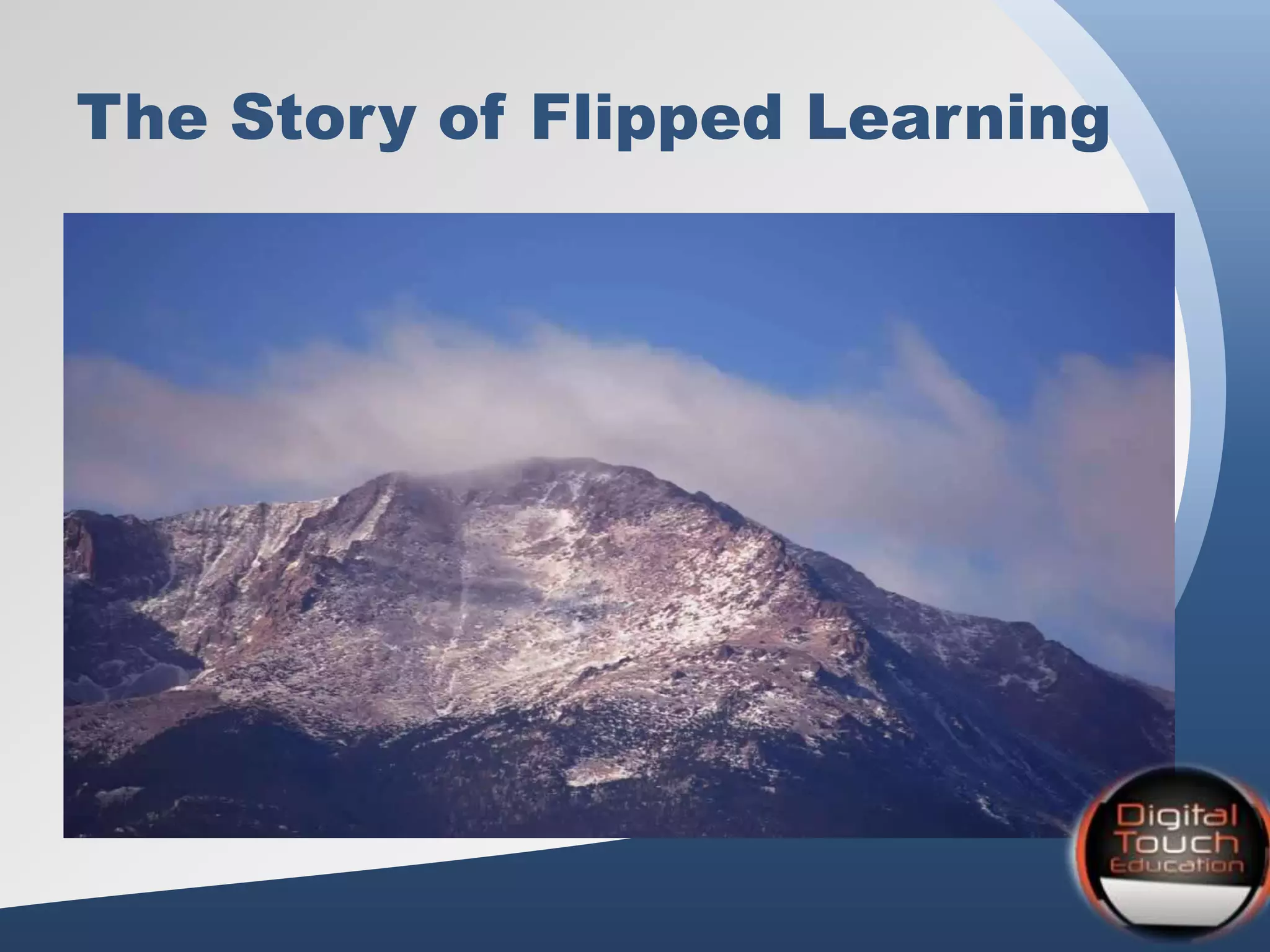
The Story of Flipped Learning
• Humble beginnings in Woodland Park,
Colorado in 2006 by Jonathan
Bergmann and Aaron Sams
• Aaron discovers a site where
PowerPoints could be recorded with
voice and annotations and then
recorded to a video file
• What began as selfishness to save
them time, became a model for other
educators.
The Story of Flipped Learning
Vocabulary as a Foundation
• Podcasts/Vodcasts
• Blended Learning
• Reverse-Instruction
• Flipped Classroom
• Inverted Classroom
• Direct Instruction (DI)
• Project Based Learning (PBL)
Similar
Ask One Question
• Where in the learning cycle do my students
most need me face-to-face?
Lecture?
Practice?
Discussion?
Application?
Assessment?
Remediation?
Then ask …..
• What can I remove from class by using
technology to increase the value of fact-to-face
time?
Lecture?
Practice?
Discussion?
Application?
Assessment?
Remediation?
Do NOT Ask ….
• Where can I put a
video in my lesson?
Remember:
“Technology does not drive change -- it
enables change.”
Things to Remember:
• Do not make a video simply for the sake
of making a video
• Pedagogy must drive technology
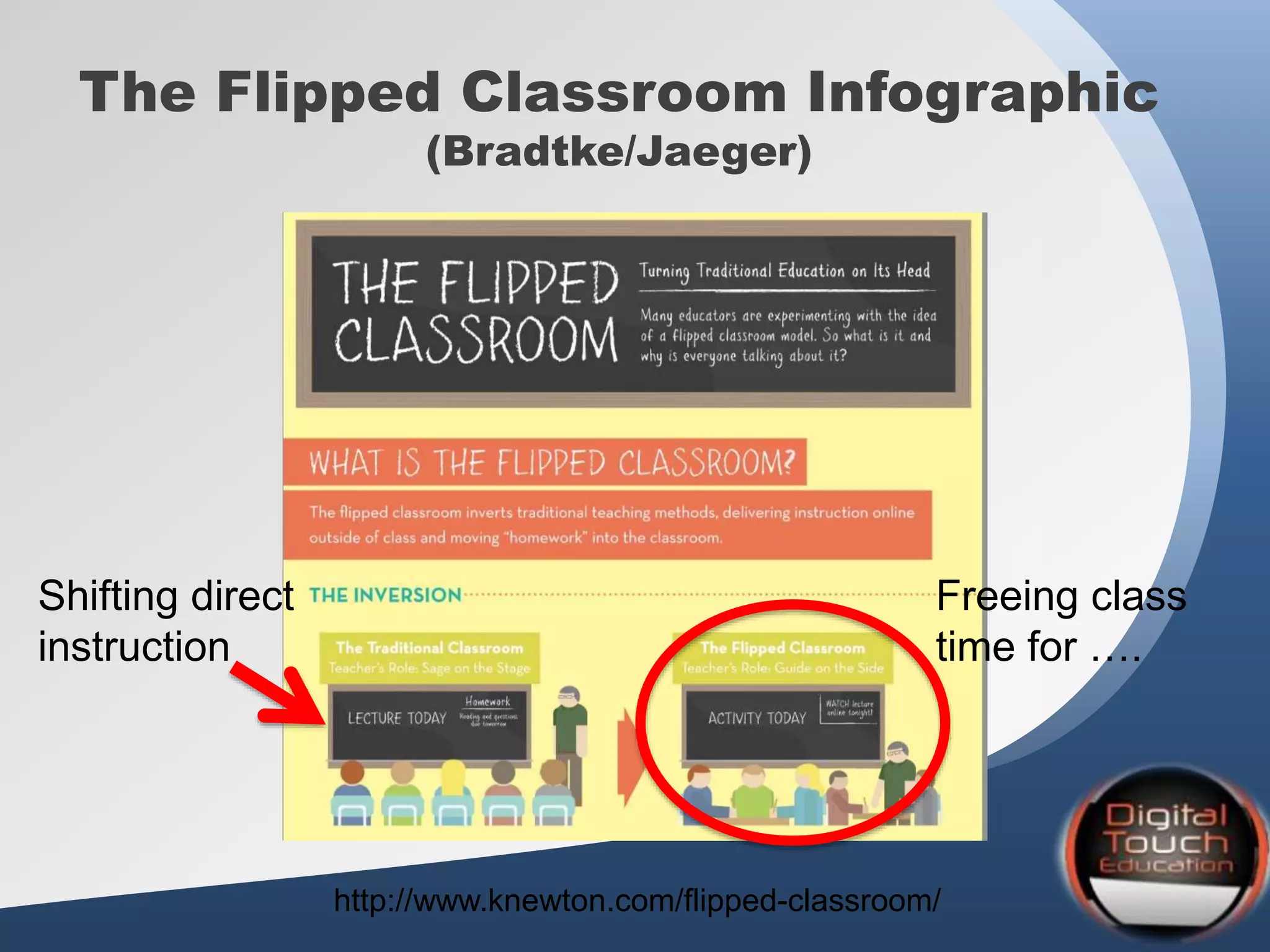
The Flipped Classroom Infographic
(Bradtke/Jaeger)
http://www.knewton.com/flipped-classroom/
Shifting direct
instruction
Freeing class
time for ….
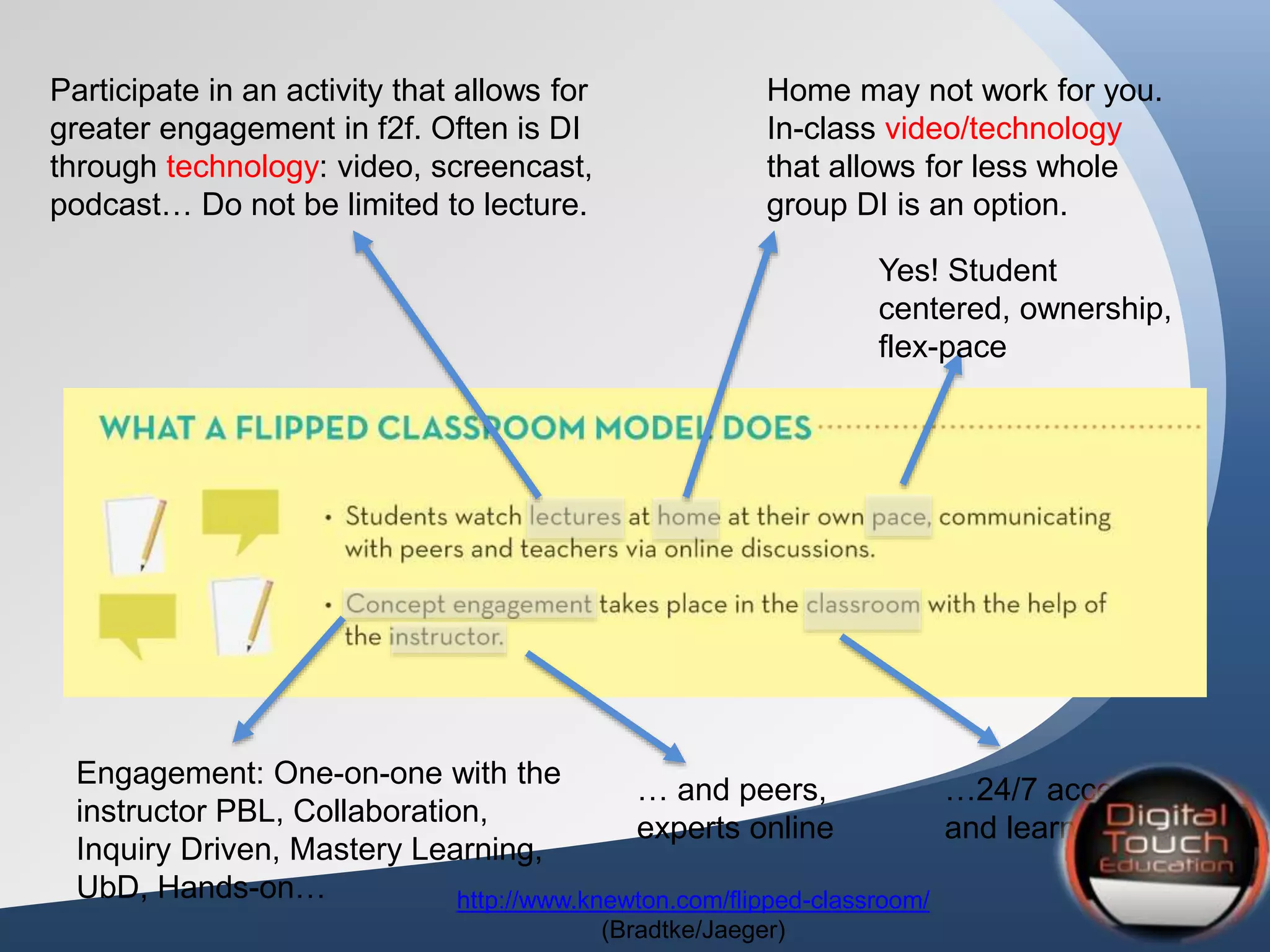
Participate in an activity that allows for
greater engagement in f2f. Often is DI
through technology: video, screencast,
podcast… Do not be limited to lecture.
Home may not work for you.
In-class video/technology
that allows for less whole
group DI is an option.
Yes! Student
centered, ownership,
flex-pace
Engagement: One-on-one with the
instructor PBL, Collaboration,
Inquiry Driven, Mastery Learning,
UbD, Hands-on…
… and peers,
experts online
…24/7 access
and learning
http://www.knewton.com/flipped-classroom/
(Bradtke/Jaeger)
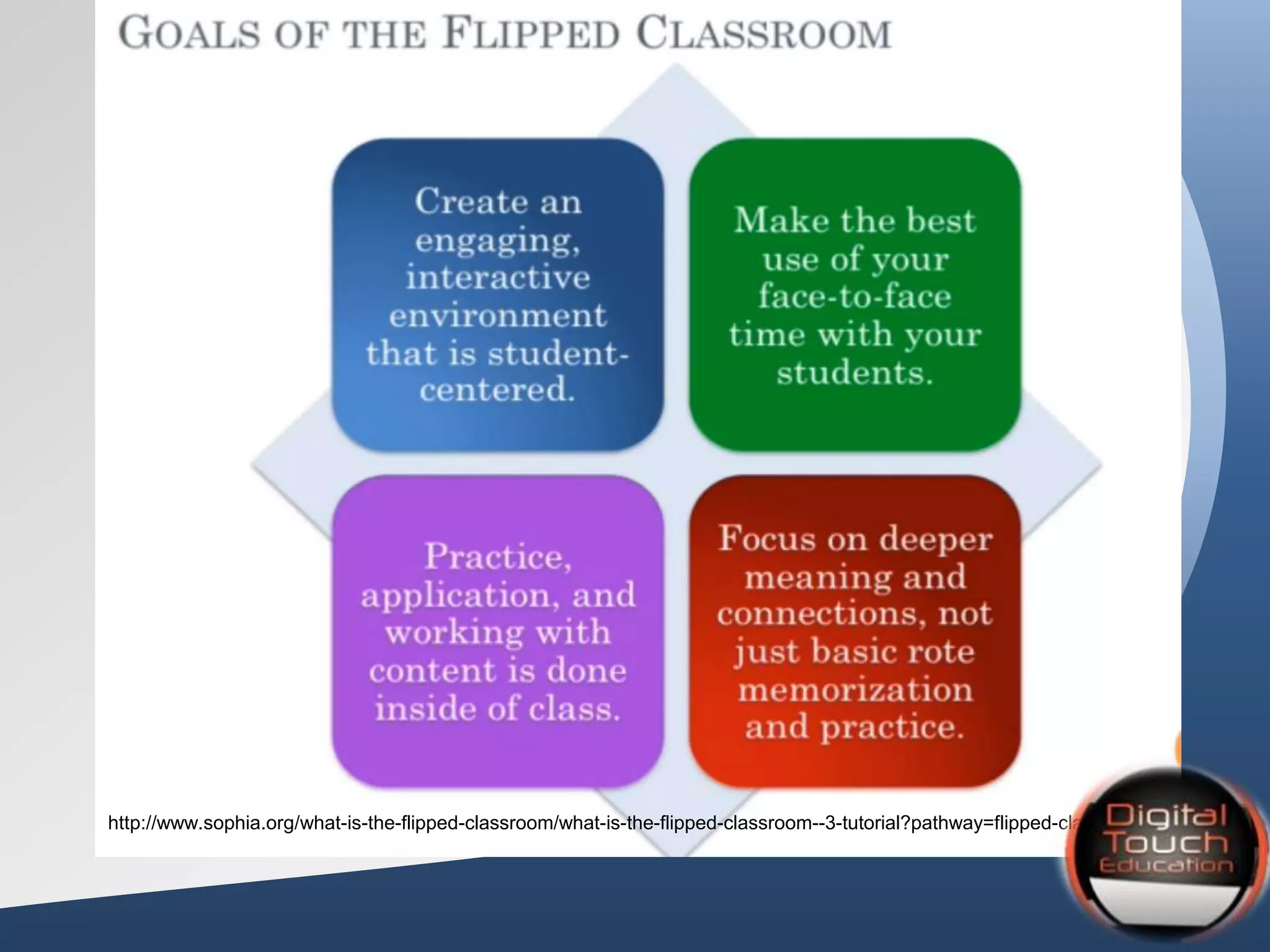
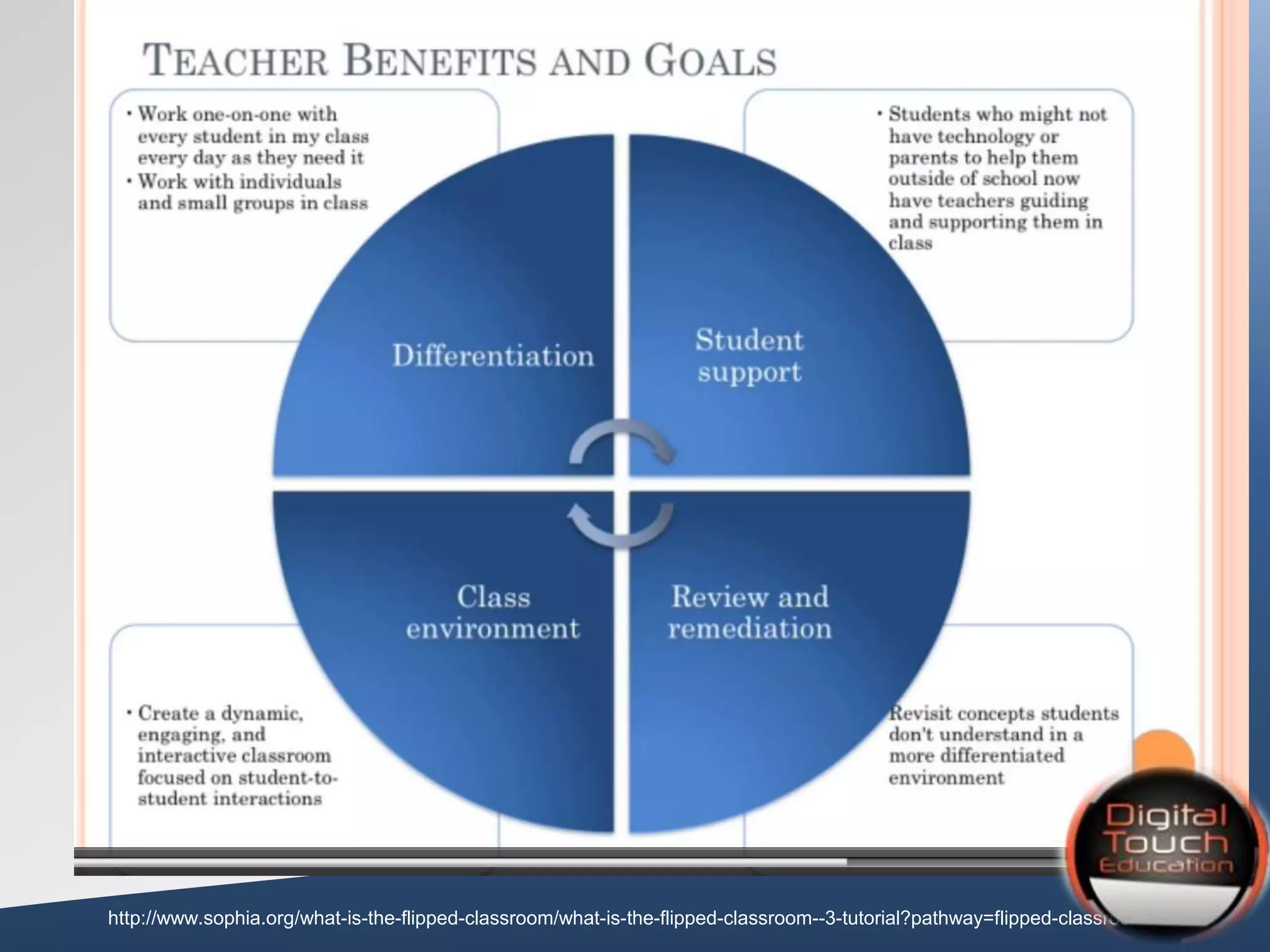
Purposes for Flipping
• Students learning at different
paces (slow, medium, fast)
• Students missing important
pieces of information from
class even though they were
"present”
• Students absent (sick, sports,
etc) and missing critical
lessons
• Students not completing
homework fully or correctly at
home because they "forgot"
how to do it from class (or
simply copying from a friend)
• Teacher spending most of
class time going over problems
and not giving students a lot of
time to practice on their own
with support
• Teacher spending many extra
hours tutoring and re-
explaining to students who
didn't "get it" in class
Students Teachers
http://www.sophia.org/what-is-the-flipped-classroom/what-is-the-flipped-classroom--3-tutorial?pathway=flipped-classroom
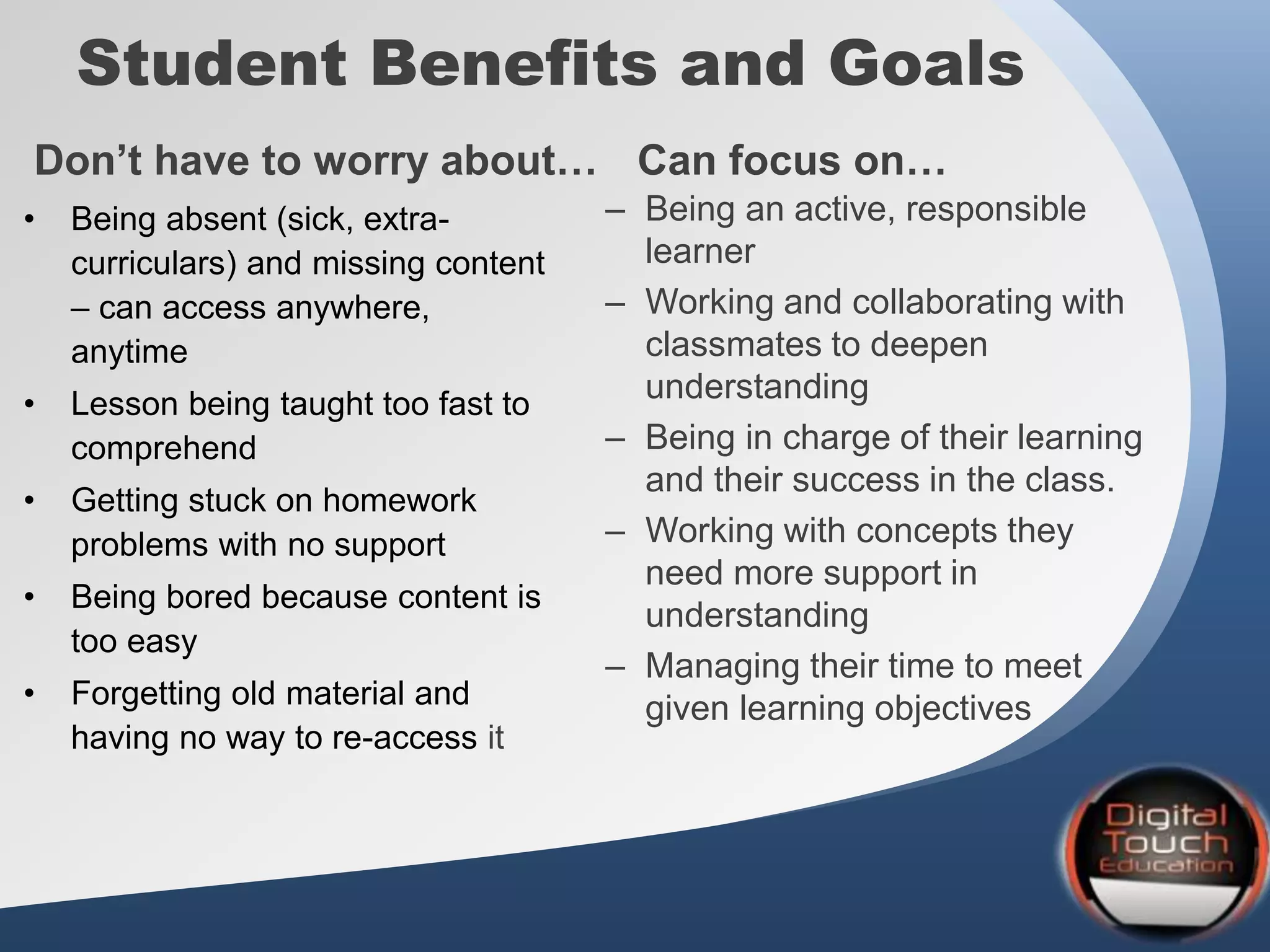
Student Benefits and Goals
• Being absent (sick, extra-
curriculars) and missing content
– can access anywhere,
anytime
• Lesson being taught too fast to
comprehend
• Getting stuck on homework
problems with no support
• Being bored because content is
too easy
• Forgetting old material and
having no way to re-access it
– Being an active, responsible
learner
– Working and collaborating with
classmates to deepen
understanding
– Being in charge of their learning
and their success in the class.
– Working with concepts they
need more support in
understanding
– Managing their time to meet
given learning objectives
Don’t have to worry about… Can focus on…
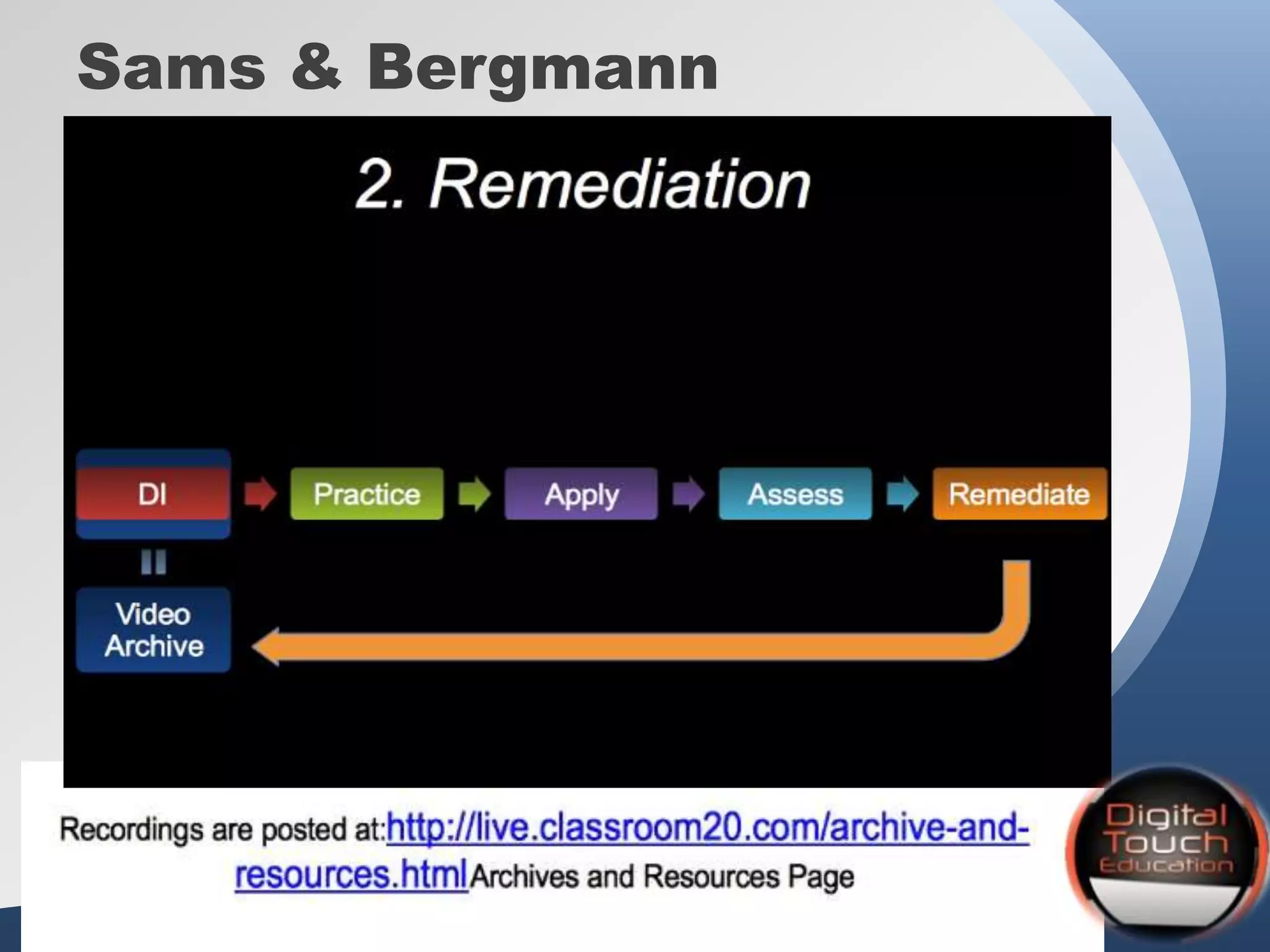
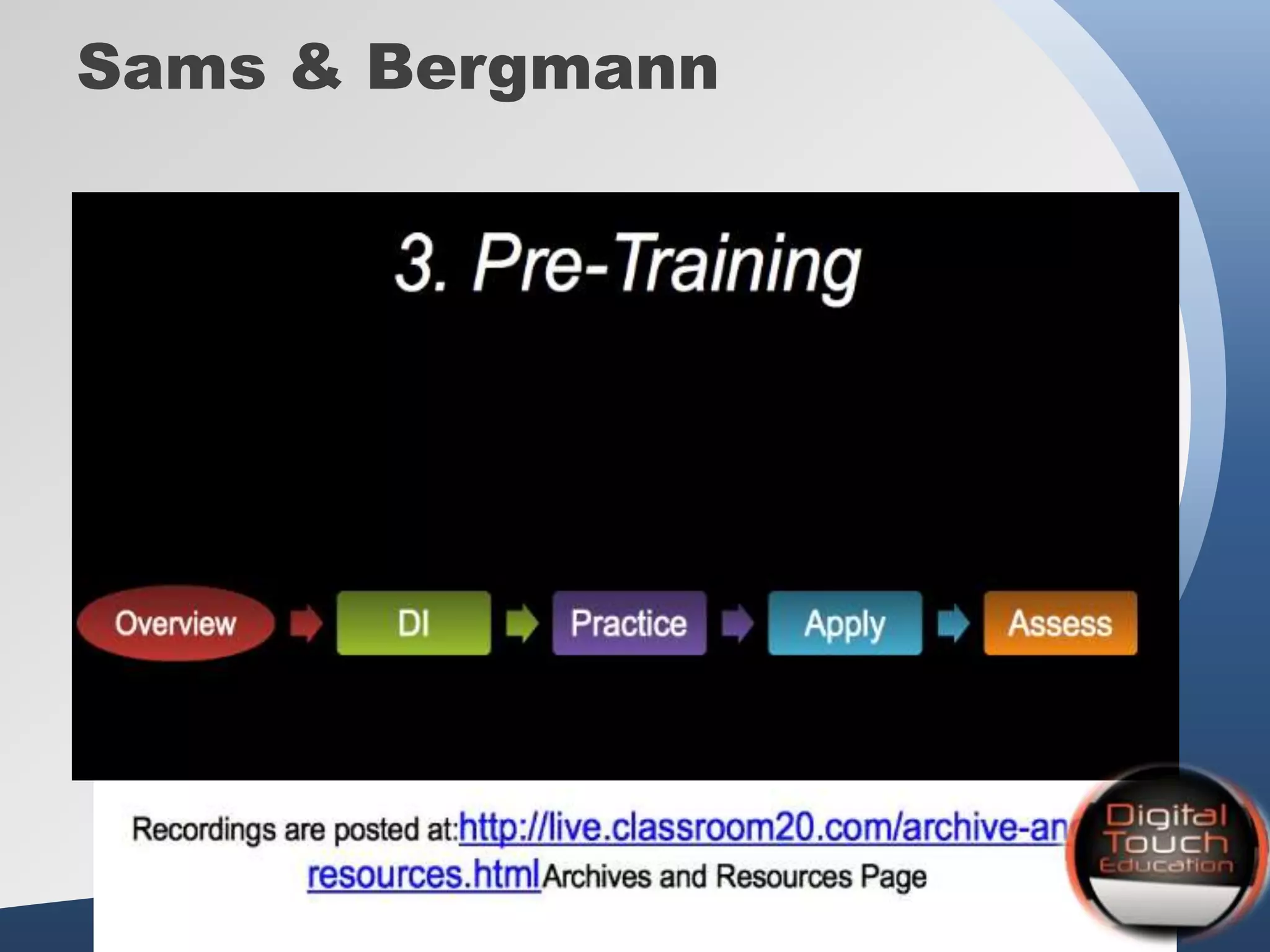
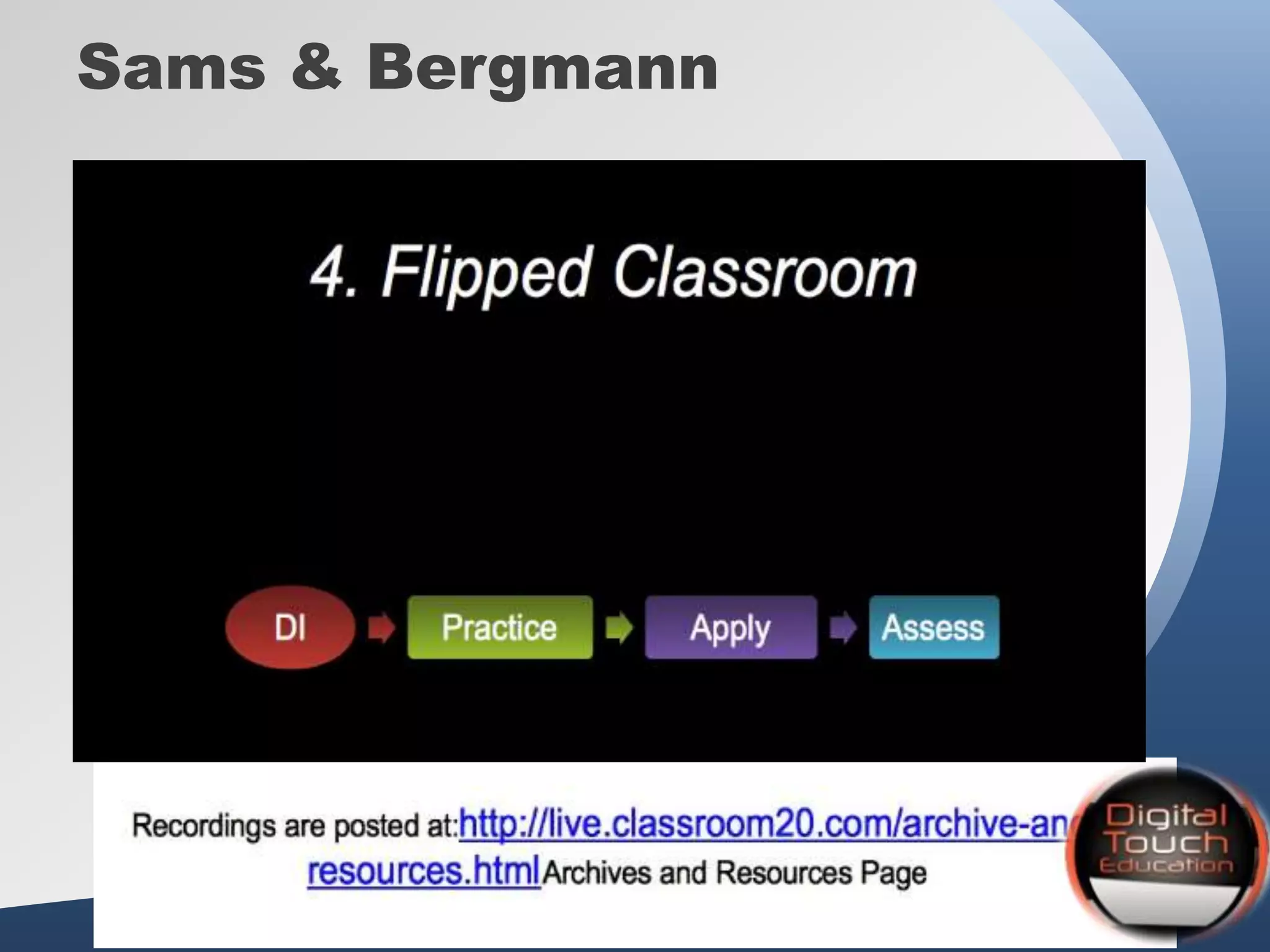
Sams & Bergmann
Sams & Bergmann
Sams & Bergmann
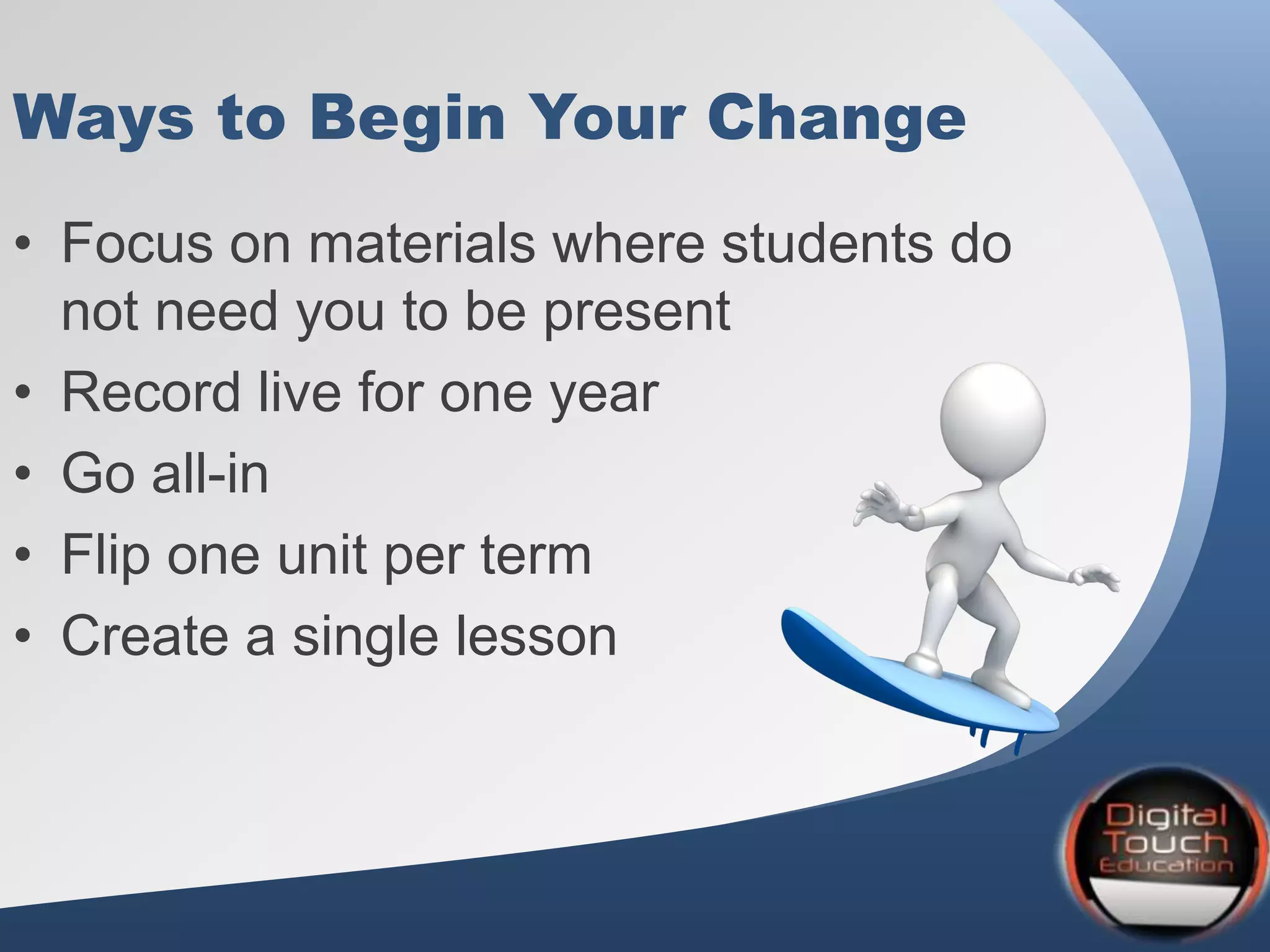
Ways to Begin Your Change
• Focus on materials where students do
not need you to be present
• Record live for one year
• Go all-in
• Flip one unit per term
• Create a single lesson
Ways to Begin Your Change
Consider a single lesson to start:
• If you want to have students work on problem-
solving skills, perhaps model problem-solving in
your screencasts.
• If you want to guide them through a book
reading, perhaps create an online version of the
lecture to help cue their attention to the important
ideas
Ideas for Videos to Make:
1. A lecture (can use pre-recorded ones) *
2. Video of you demonstrating how something
works in real life
3. Video of a lab procedure
4. Guided problem-solving
5. Homework solutions
6. Pre-lab activity
7. Exam review
Tips for Creating a Screencast
• Keep it short
• 5 minutes for elementary
• 8 – 15 minutes for grades 6-12
• 15 – 20 for college
• Always include an assignment, on-task
requirement (WSQ)
• Allow thinking
• Add a secret question
Address the Needs (Bradtke/Jaeger)
• The need – absent students – class question
• Solution – Showme video for instruction
http://www.showme.com/sh/?h=qv7fEcC
Address the Needs
(BradtkeJaeger)
The need – teacher feedback
Solution - video grading session for written work
Lit Review Comments
• Recorded with Jing
• Shared via public dropbox
http://dl.dropbox.com/u/9779677/Student%20Work/Lit_Review_2_comments--Aida%201.swf
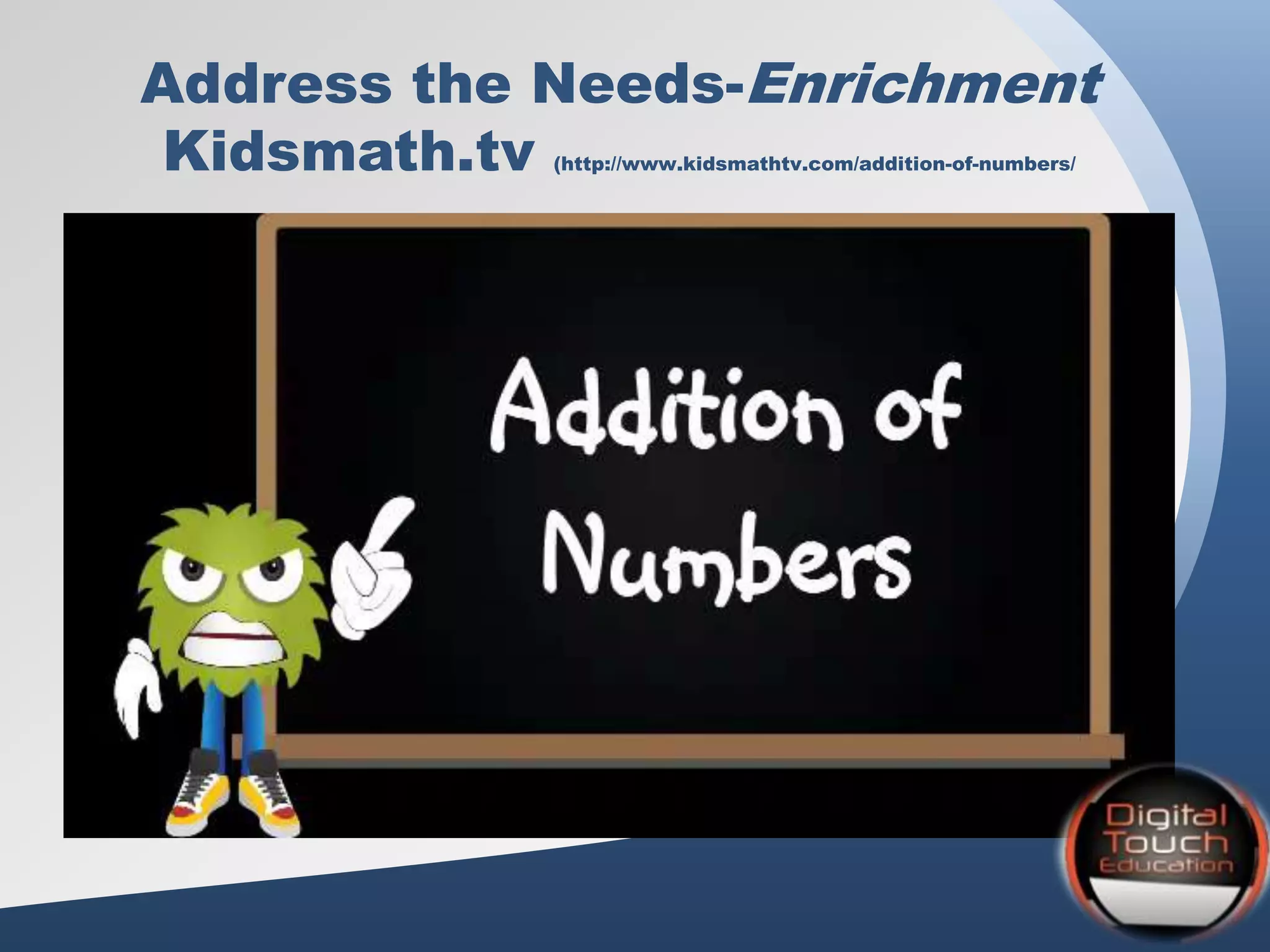
Address the Needs-Enrichment
Kidsmath.tv (http://www.kidsmathtv.com/addition-of-numbers/
Address the Needs-A Flipped
Video Already Created!
Review:
Three Key Elements of the Flipped
Classroom:
1) Quality instructional videos
2) Engaging class activities
3) Robust assessment
Strategies for
Using Videos at Home
1. Study guides
2. Note taking
3. Require reconnect each day
During Video
• Cooperative learning strategies
• Socratic Questioning
• Group Discussion
• Notes (WSQ)
• Brainstorming
• Graphic Organizers
• Classification
• Notes
How to Flip
1) Choose your topic
2) Create or find a screencast
3) Share content
4) Day After - Plan activities or center work
Screencast Tips and Ideas
What is a screencast?
Per Wikipedia:
A screencast is a digital recording of computer screen
output, also known as a video screen capture, often
containing audio narration. The term screencast
compares with the related term screenshot; whereas
screenshot is a picture of a computer screen, a
screencast is essentially a movie of the changes over
time that a user sees on a computer screen, enhanced
with audio narration.
http://en.wikipedia.org/wiki/Screencast
Screencast Resources
(Kathy Schrock’s Screencasting in Classroom)
1. SMART Recorder (Slides 37-49)
2. Screencast-o-matic.com
3. Screenr
4. Jing
5. Sophia.org
6. Quicktime
7. Snagit
8. Camtasia
9. Educreations – iPad
10.Snapguide – iPad (how-to videos)
Using your SMART Board
• Two choices:
–SMART Recorder
–Page Recorder
SMART Recorder
• Make a video recording no matter what
applications you are using on the
interactive whiteboard
• With a microphone attached can also
record voice
• File saved as a .wmv file
• Recordings can be played using SMART
video player or Windows Media player
When to use SMART Recorder
• Flipping your classroom
• Sample math problems, spreadsheet or
formula to review at end of class or to
view once again
• Upload to website for student access at
home, Moodle or wiki
• Record student work as a form of
assessment
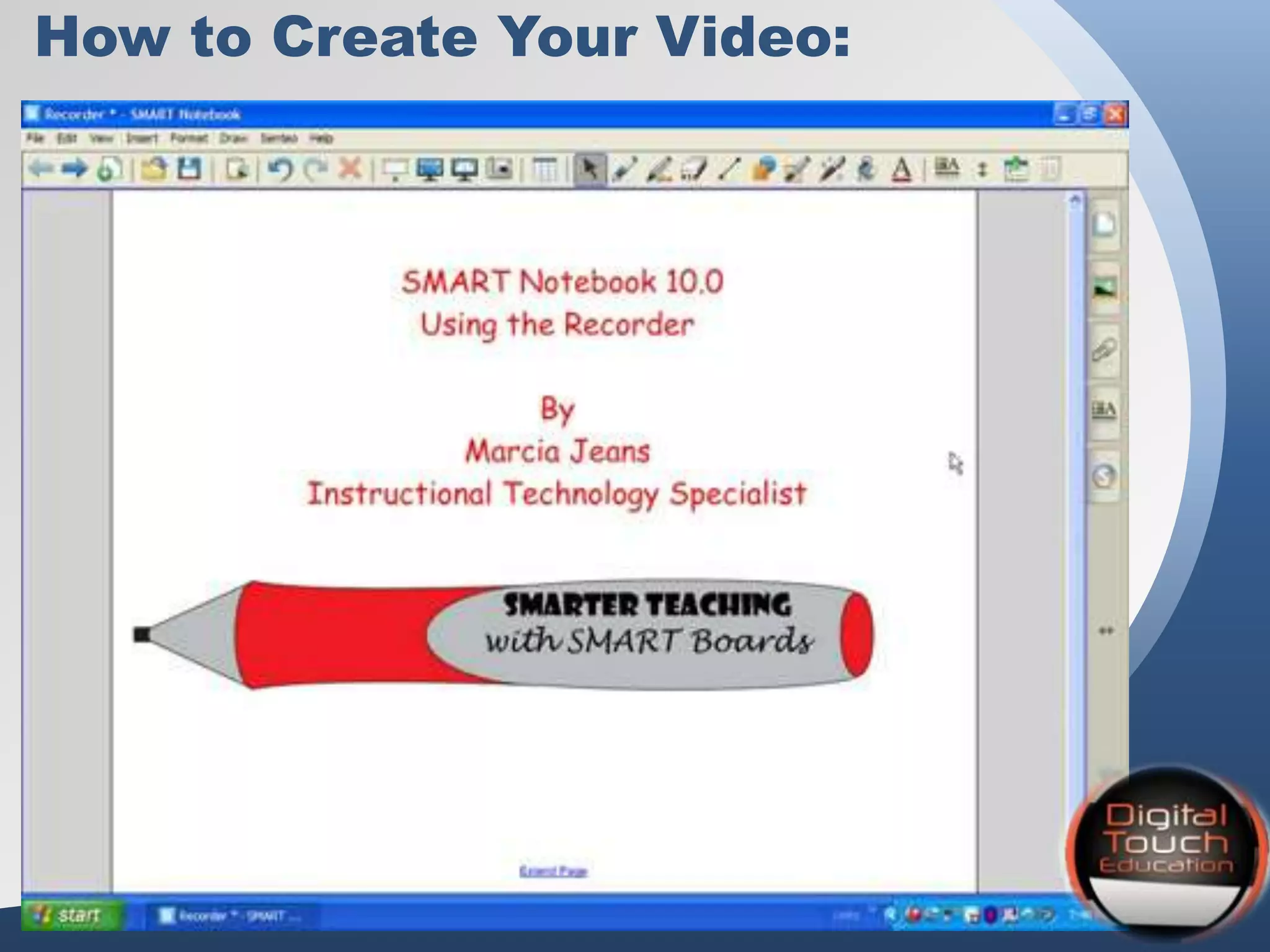
How to Create Your Video:
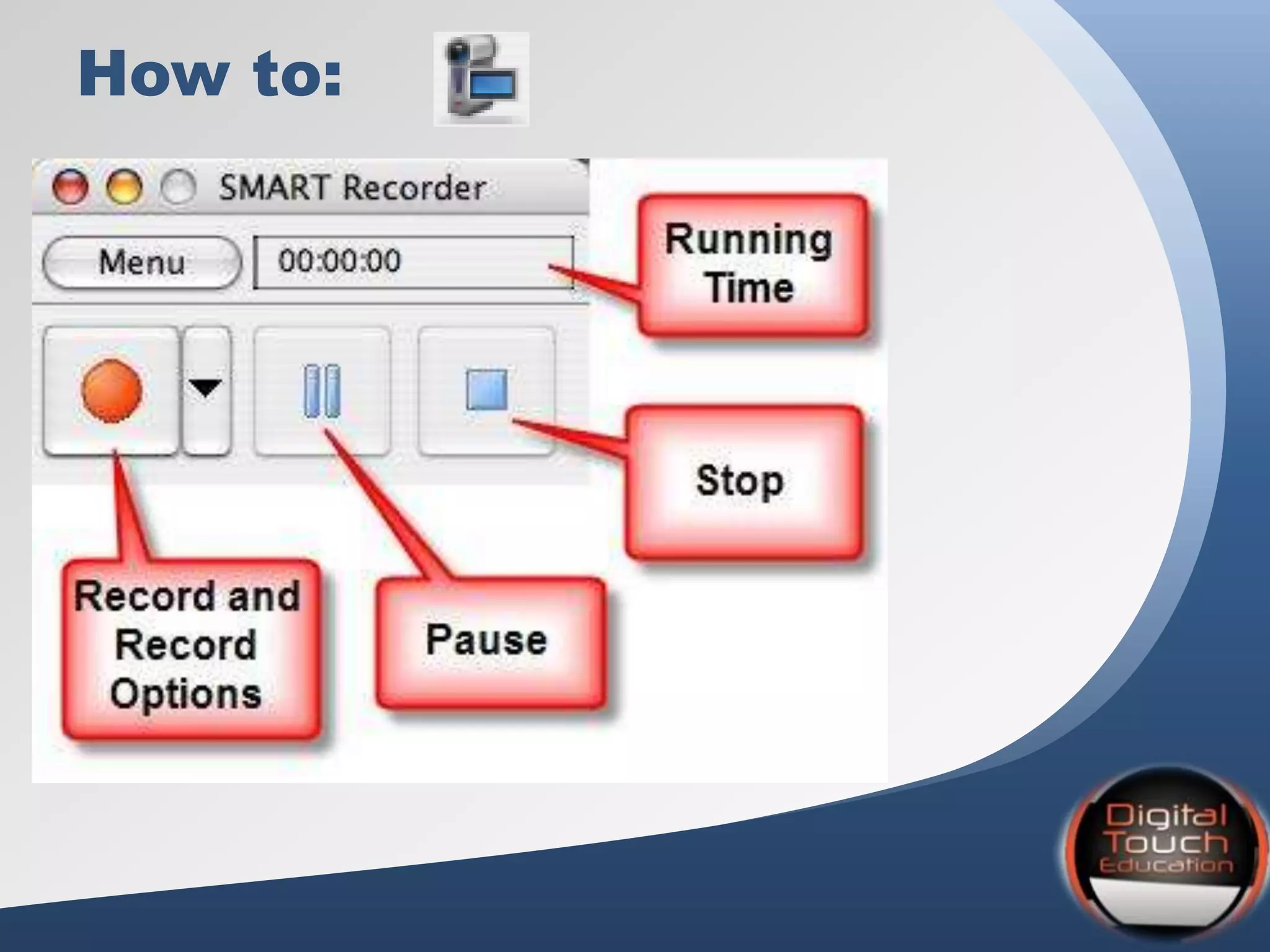
How to:
How to:
How to (continued):
– Press Stop button to end recording
• Prompted to save file
– Select location, name file and press Save
• Recording Complete dialog box
appears, providing details of the
recording, including the size and
recording time
• To immediately view your recording,
check Play Recording
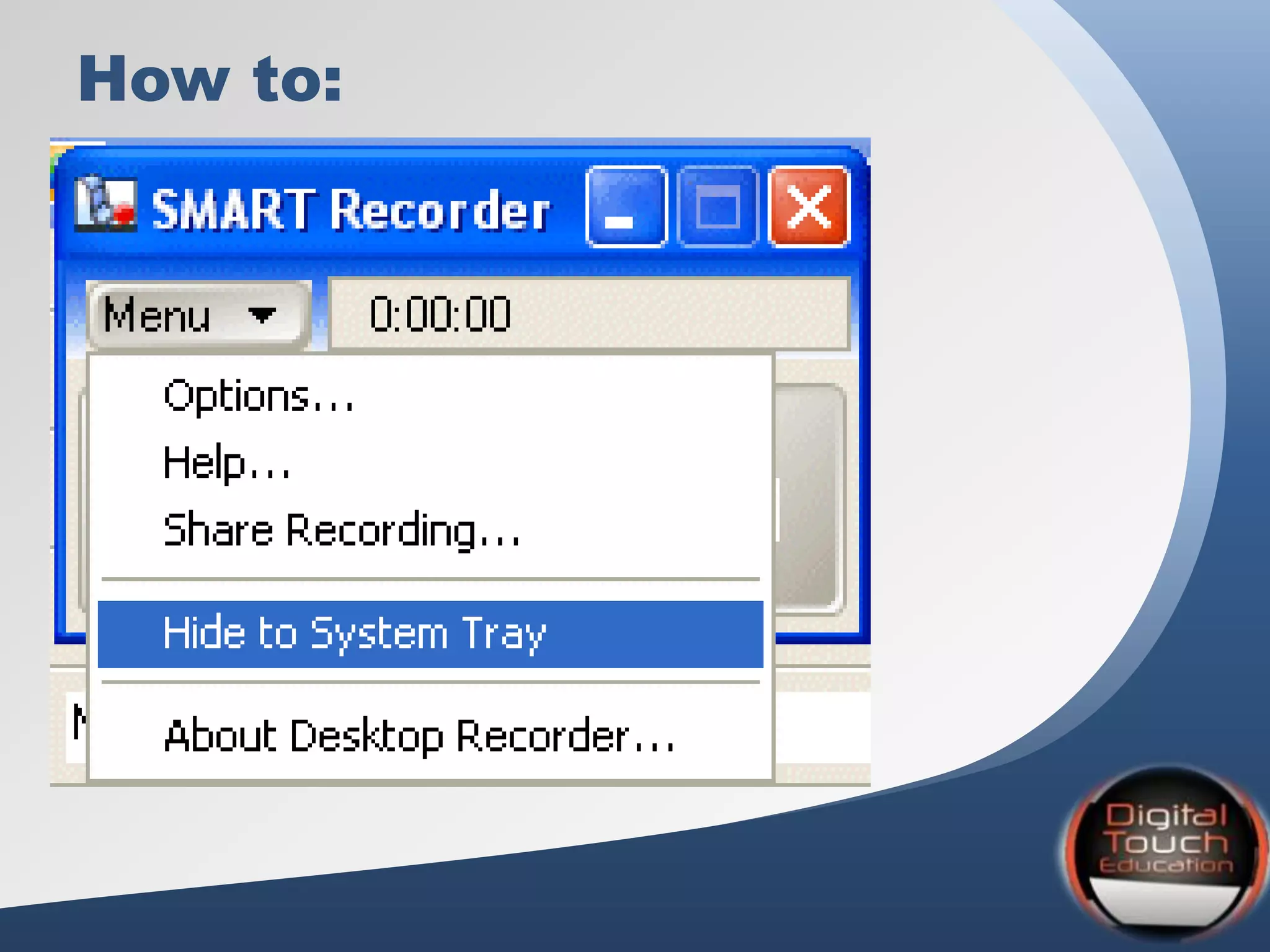
Hiding the SMART Recorder
• Press Menu button and select Hide to
System Tray
• Click on SMART Recorder icon to access
a menu providing access to Record,
Pause, Stop and other features of
Recorder. Select Show to restore
SMART Recorder to full size
When to Use
SMART Page Recorder
• Record an example of an activity or
problem to replay when using the lesson
activity in class
• Students working independently at
whiteboard can view and review without
seeking help of teacher
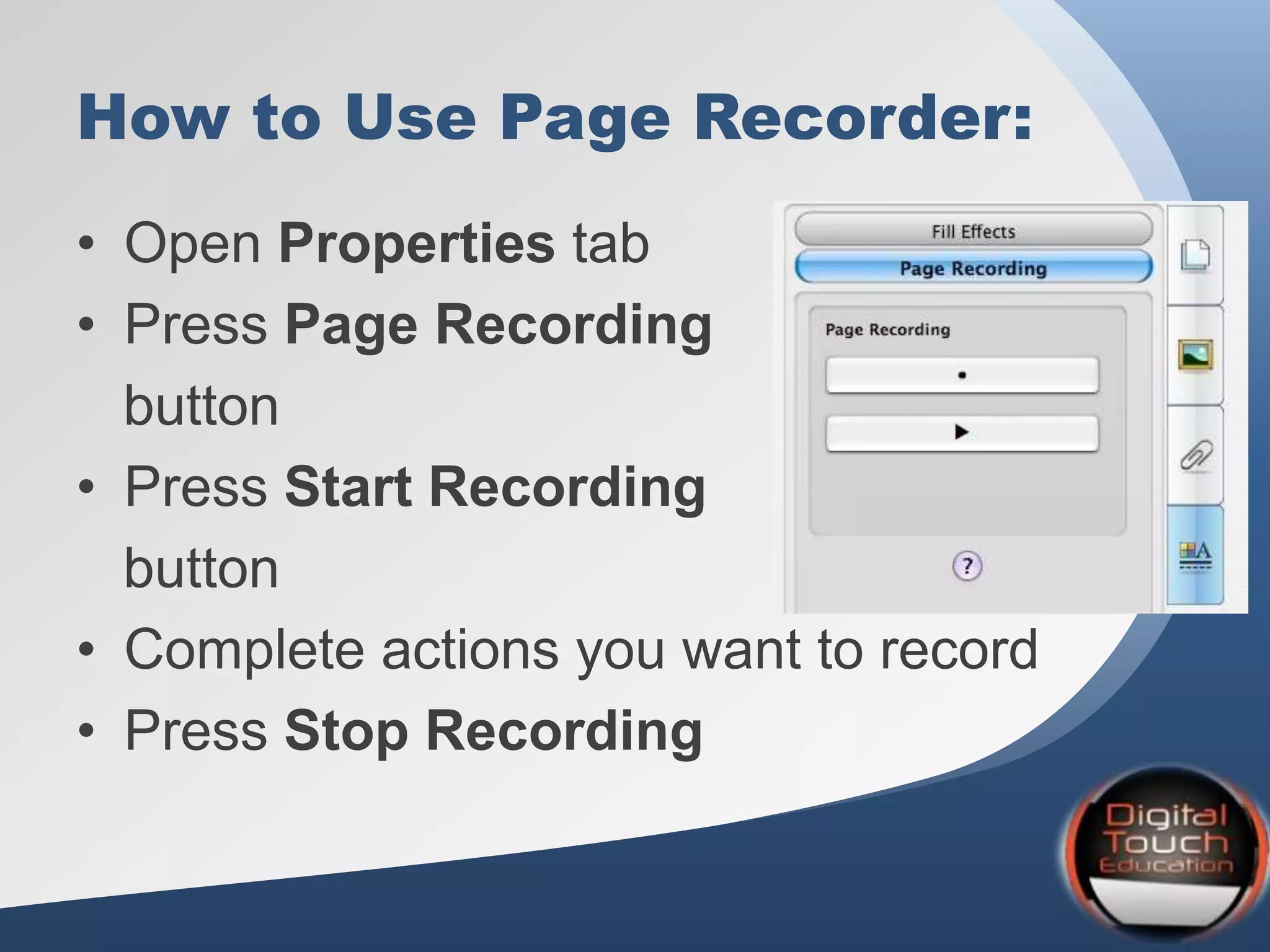
How to Use Page Recorder:
• Open Properties tab
• Press Page Recording
button
• Press Start Recording
button
• Complete actions you want to record
• Press Stop Recording
How to Use Page Recorder:
• Page Recording Toolbar appears at
bottom of SMART Notebook page – play
and pause recording from this SMART
Notebook page at any time
• Also play a recording by pressing on Play
button in the Page Recording section of
the Properties tab.
Qualities of Good Recordings
• Keep it short
• Make sure your hand writing is legible
• Students want to hear your voice
• Do you want it perfect or tomorrow?
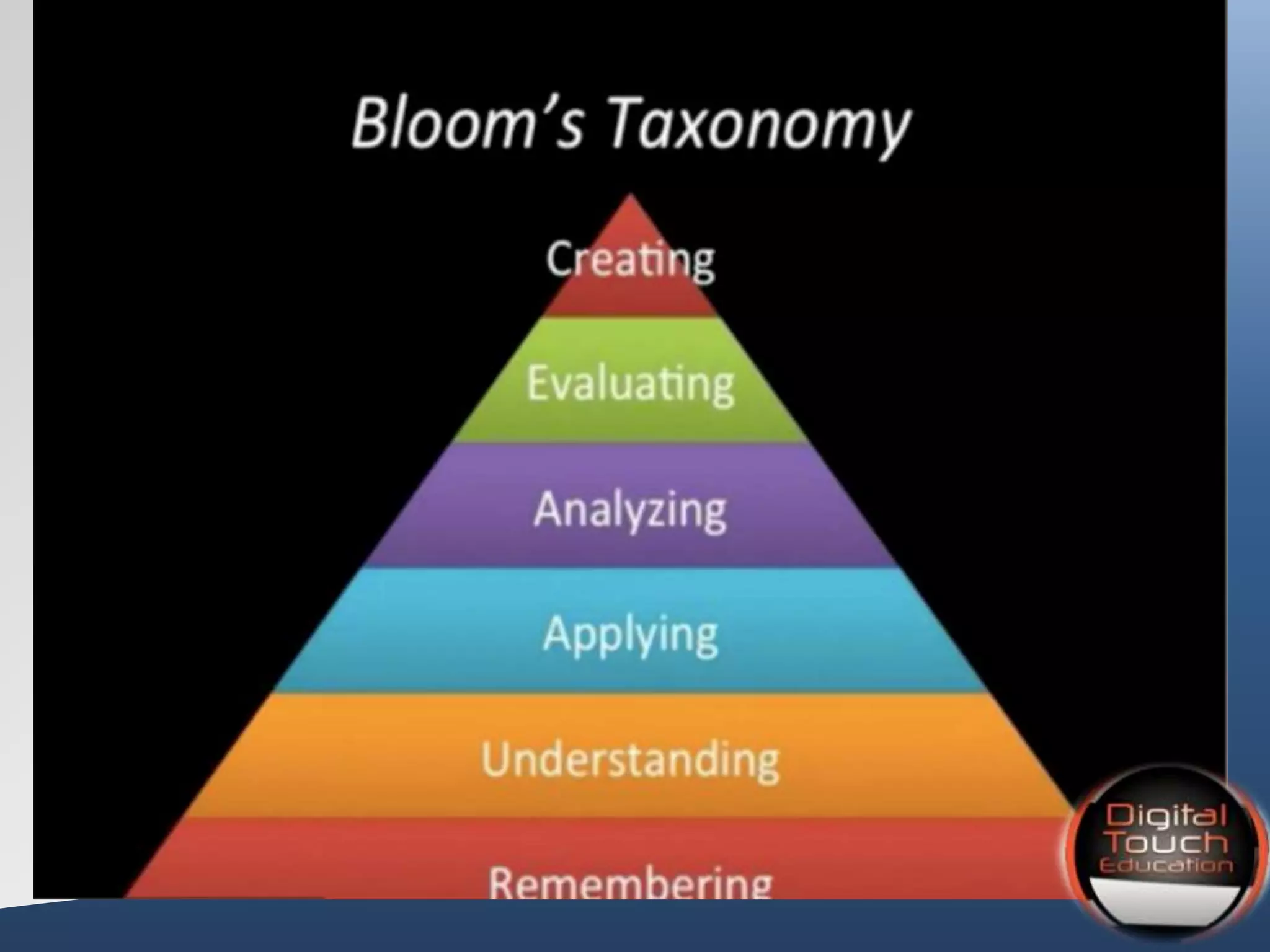
• Focus on information that are
foundational skills and the lower levels
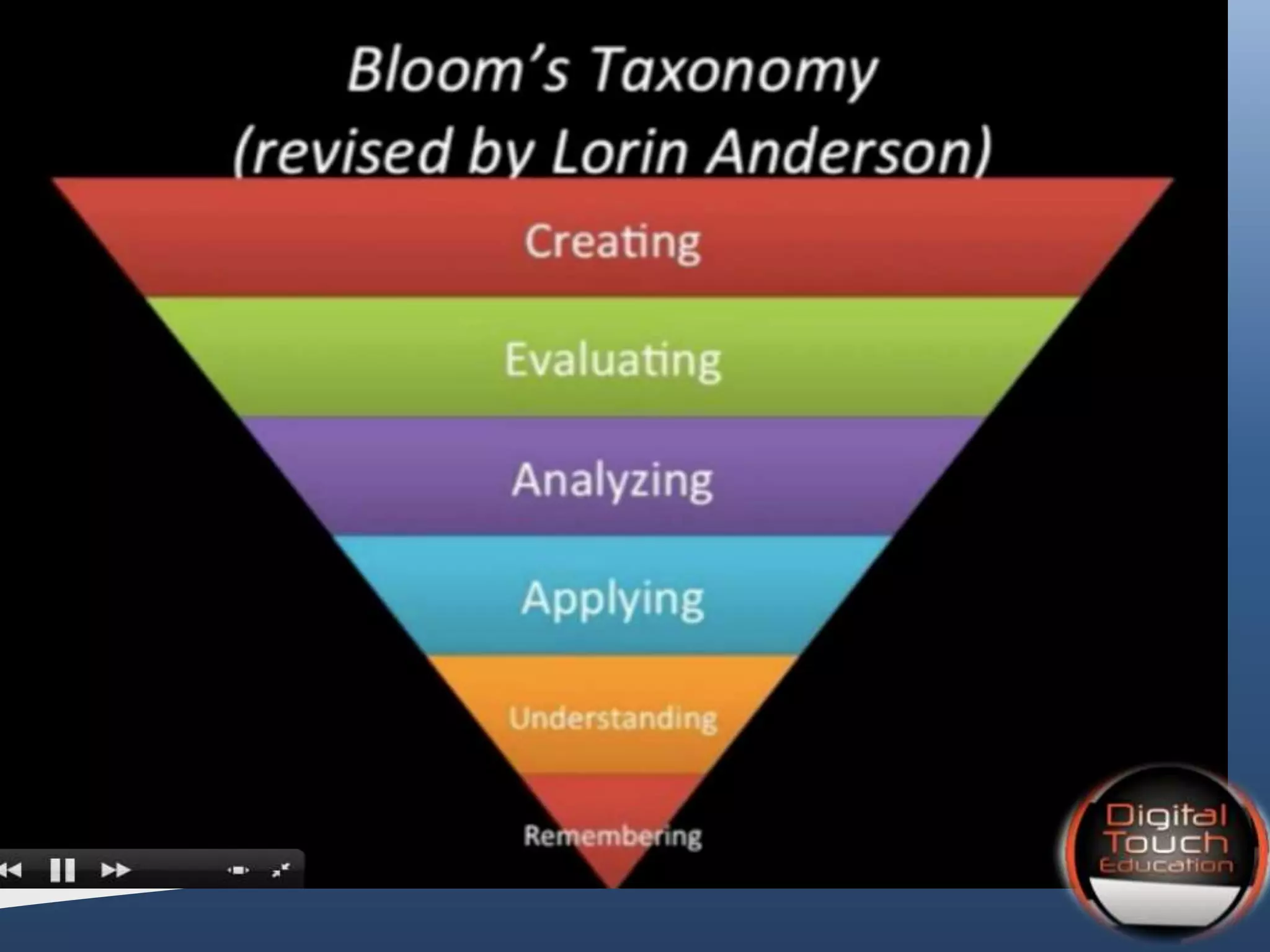
of Bloom’s Taxonomy
Screencast Resources
(Not commonly thought of)
1. Smart Phone
2. Voicethread
Videos Already Made
1. Khan Academy
2. TedEd
3. iTunes U
4. Sophia.org
5. Educreations
6. YouTube
7. Vimeo
8. TeacherTube
Posting/Uploading/Storing Your
Videos
1. LMS-Moodle
2. YouTube
3. TeacherTube
4. Edmodo
5. Vimeo
6. Screencast.com
7. School or personal website
AHEAD
Now it is your turn to take
that next step and begin
“flipping your classroom”,
a proven successful
pedagogy!
of the
CURVE
Time for
Questions/Comments/Concern
s
Questions?
debbycaven@mac.com
Static Content Slide
Static Layout.
Static Content Slide
Static Layout.
Static Content Slide
Static Layout.
Static Content Slide
Static Layout.
Static Content Slide
Static Layout.
Address the Needs-
Main Content Slide
Animated Layout.
Static Content Slide
Static Layout.
Main Content Slide
Animated Layout.
Main Content Slide
Animated Layout.
Main Content Slide
Animated Layout.
Static Content Slide
Static Layout.
Static Content Slide
Static Layout.
Static Content Slide
Static Layout.
Static Content Slide
Static Layout.
Static Content Slide
Static Layout.
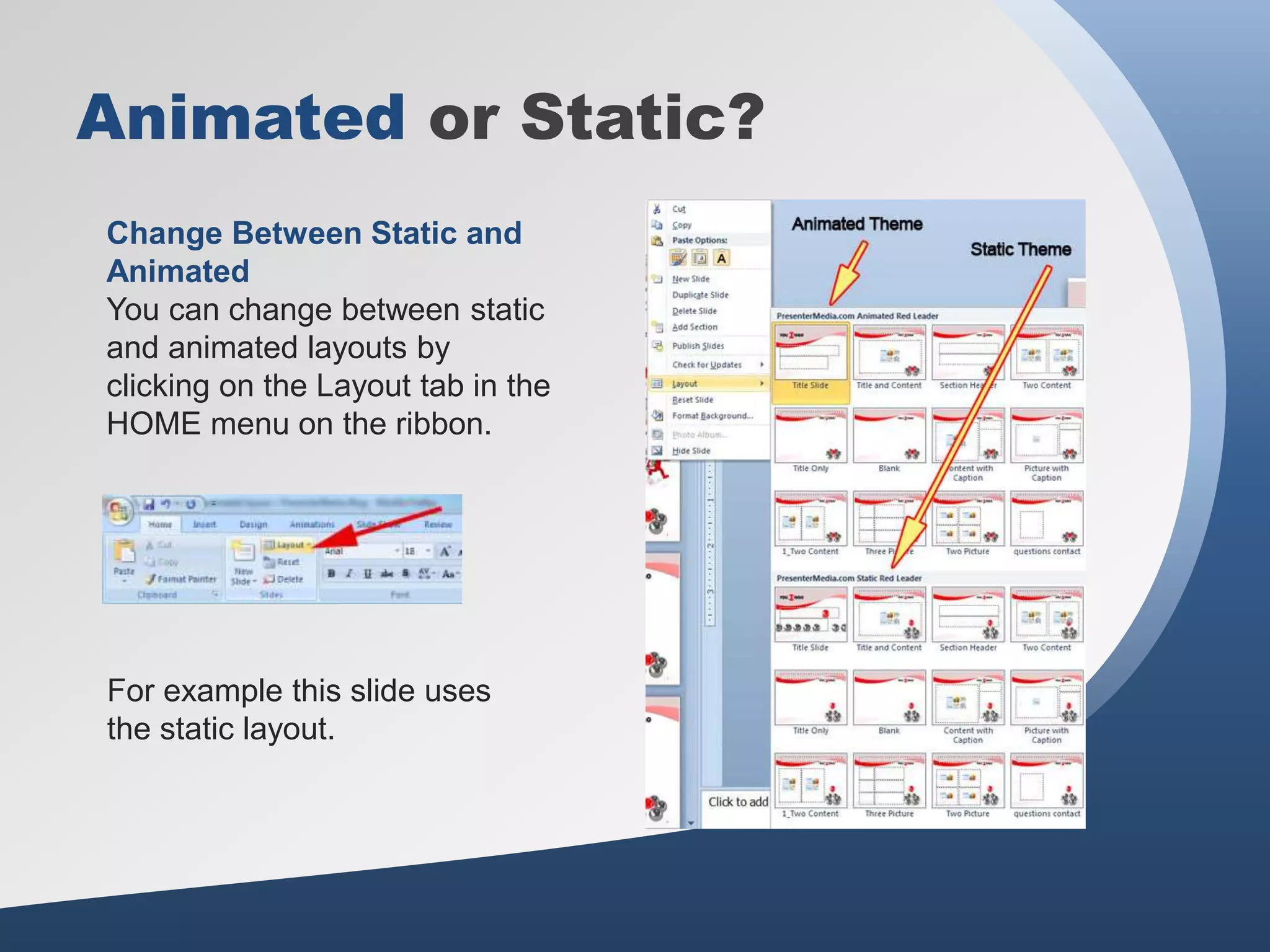
Animated or Static?
Change Between Static and
Animated
You can change between static
and animated layouts by
clicking on the Layout tab in the
HOME menu on the ribbon.
For example this slide uses
the static layout.
Useful Clipart and Images
Alternate Content Page
Printable Slide Layout
An alternate content page with a printable background
color.
Bulleted Content Page
• This Layout Page has bullets
– And Indented Levels
• Level 3 Text Placeholder
– Level 4 Place Holder
» Level 5 Place Holder
• A placeholder for text for the
first picture
• More information can
be added here by
changing this text.
• A placeholder for the second
picture
• More information can
be added here by
changing this text.
• Make changes to this
text.
Two Picture Page Layout
• A description of
the first picture.
You may change
this text.
• A description of
the first picture.
You may change
this text.
• A description of
the second
picture. You may
change this text.
• A description of
the second
picture. You may
change this text.
• A description of
the third picture.
You may change
this text.
• A description of
the third picture.
You may change
this text.
Three Picture Page Layout
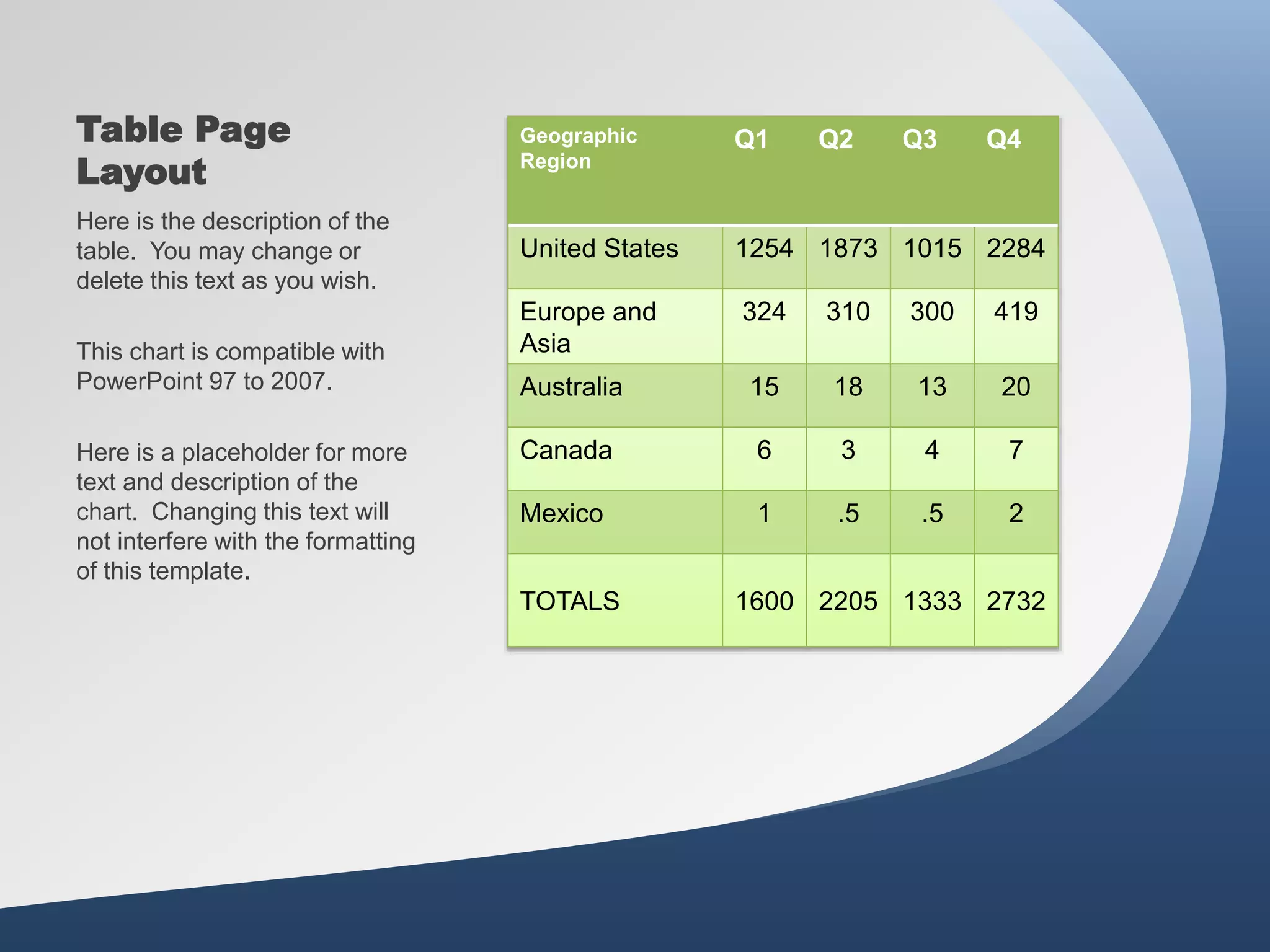
Table Page
Layout
Geographic
Region
Q1 Q2 Q3 Q4
United States 1254 1873 1015 2284
Europe and
Asia
324 310 300 419
Australia 15 18 13 20
Canada 6 3 4 7
Mexico 1 .5 .5 2
TOTALS 1600 2205 1333 2732
Here is the description of the
table. You may change or
delete this text as you wish.
This chart is compatible with
PowerPoint 97 to 2007.
Here is a placeholder for more
text and description of the
chart. Changing this text will
not interfere with the formatting
of this template.
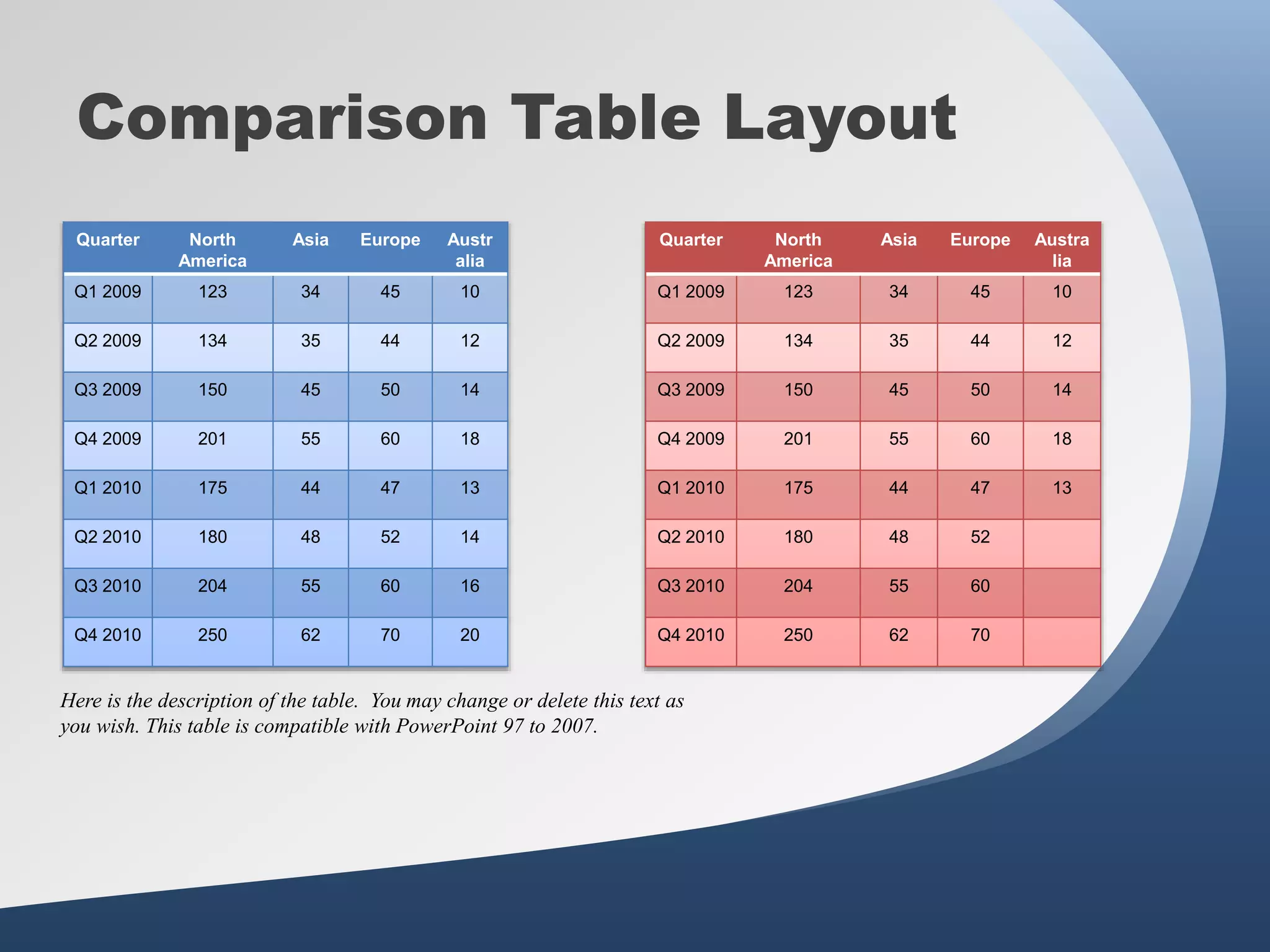
Comparison Table Layout
Quarter North
America
Asia Europe Austr
alia
Q1 2009 123 34 45 10
Q2 2009 134 35 44 12
Q3 2009 150 45 50 14
Q4 2009 201 55 60 18
Q1 2010 175 44 47 13
Q2 2010 180 48 52 14
Q3 2010 204 55 60 16
Q4 2010 250 62 70 20
Quarter North
America
Asia Europe Austra
lia
Q1 2009 123 34 45 10
Q2 2009 134 35 44 12
Q3 2009 150 45 50 14
Q4 2009 201 55 60 18
Q1 2010 175 44 47 13
Q2 2010 180 48 52
Q3 2010 204 55 60
Q4 2010 250 62 70
Here is the description of the table. You may change or delete this text as
you wish. This table is compatible with PowerPoint 97 to 2007.
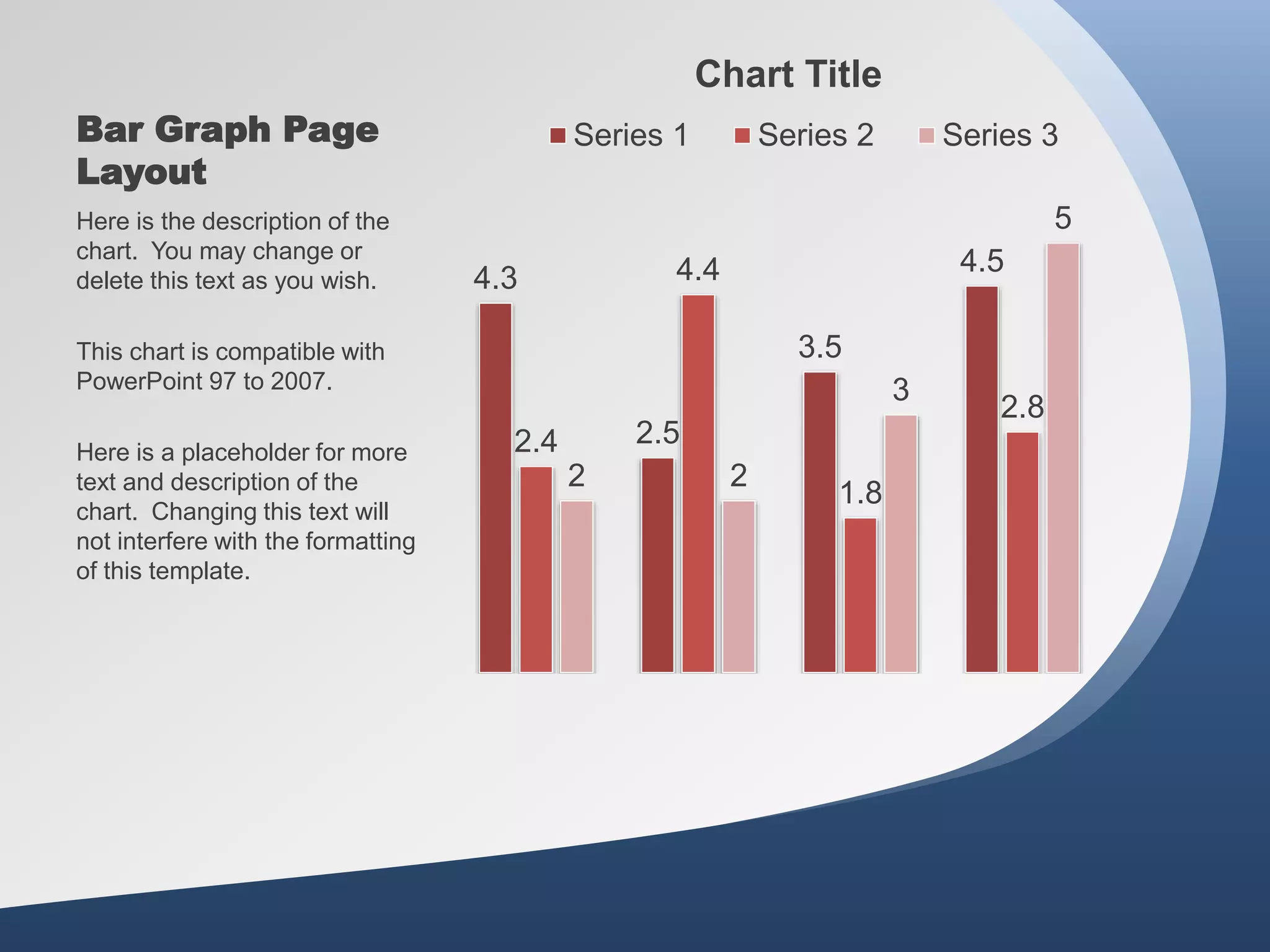
Bar Graph Page
Layout
4.3
2.5
3.5
4.5
2.4
4.4
1.8
2.8
2 2
3
5
Chart Title
Series 1 Series 2 Series 3
Here is the description of the
chart. You may change or
delete this text as you wish.
This chart is compatible with
PowerPoint 97 to 2007.
Here is a placeholder for more
text and description of the
chart. Changing this text will
not interfere with the formatting
of this template.
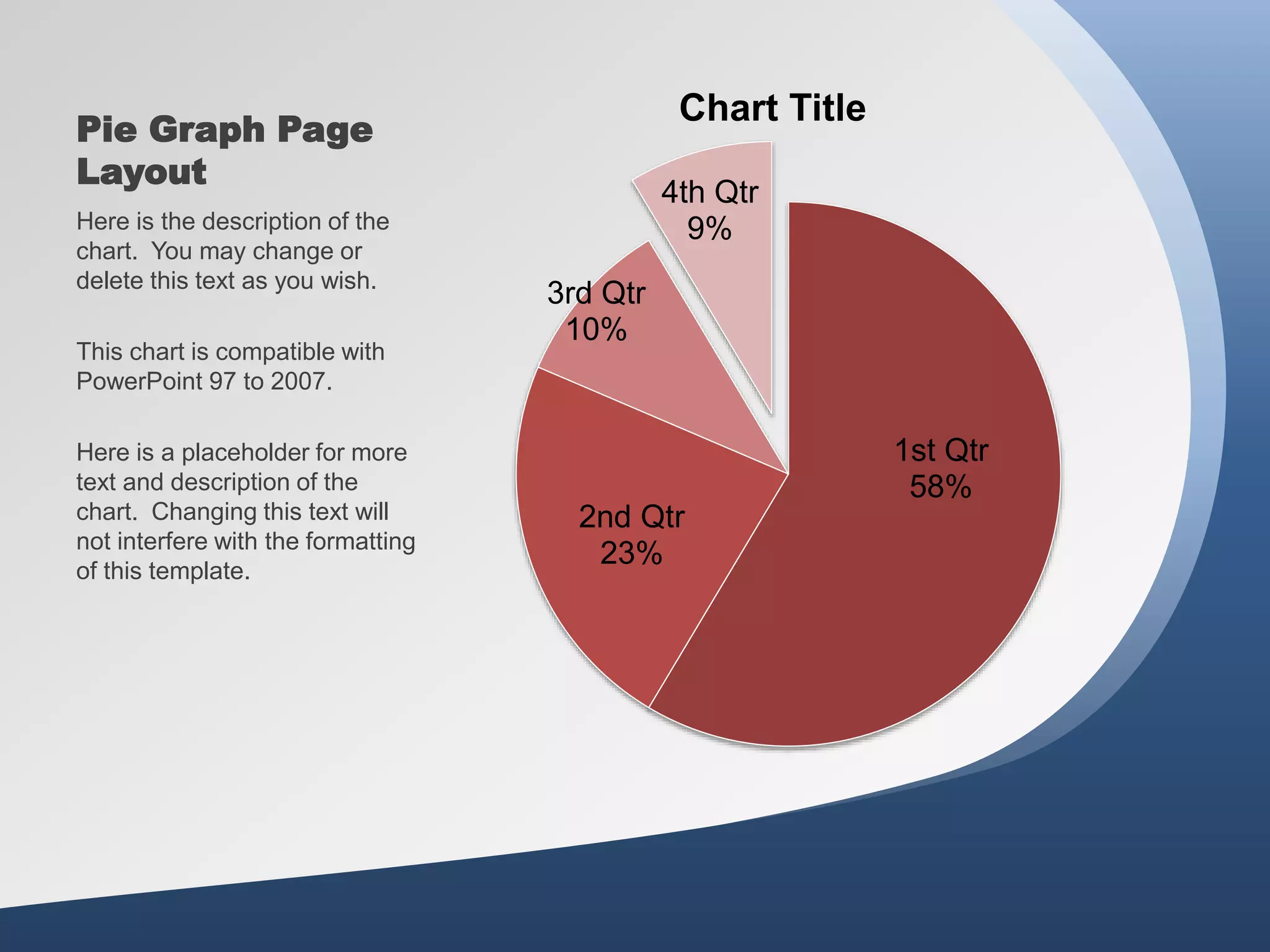
Pie Graph Page
Layout
1st Qtr
58%
2nd Qtr
23%
3rd Qtr
10%
4th Qtr
9%
Chart Title
Here is the description of the
chart. You may change or
delete this text as you wish.
This chart is compatible with
PowerPoint 97 to 2007.
Here is a placeholder for more
text and description of the
chart. Changing this text will
not interfere with the formatting
of this template.
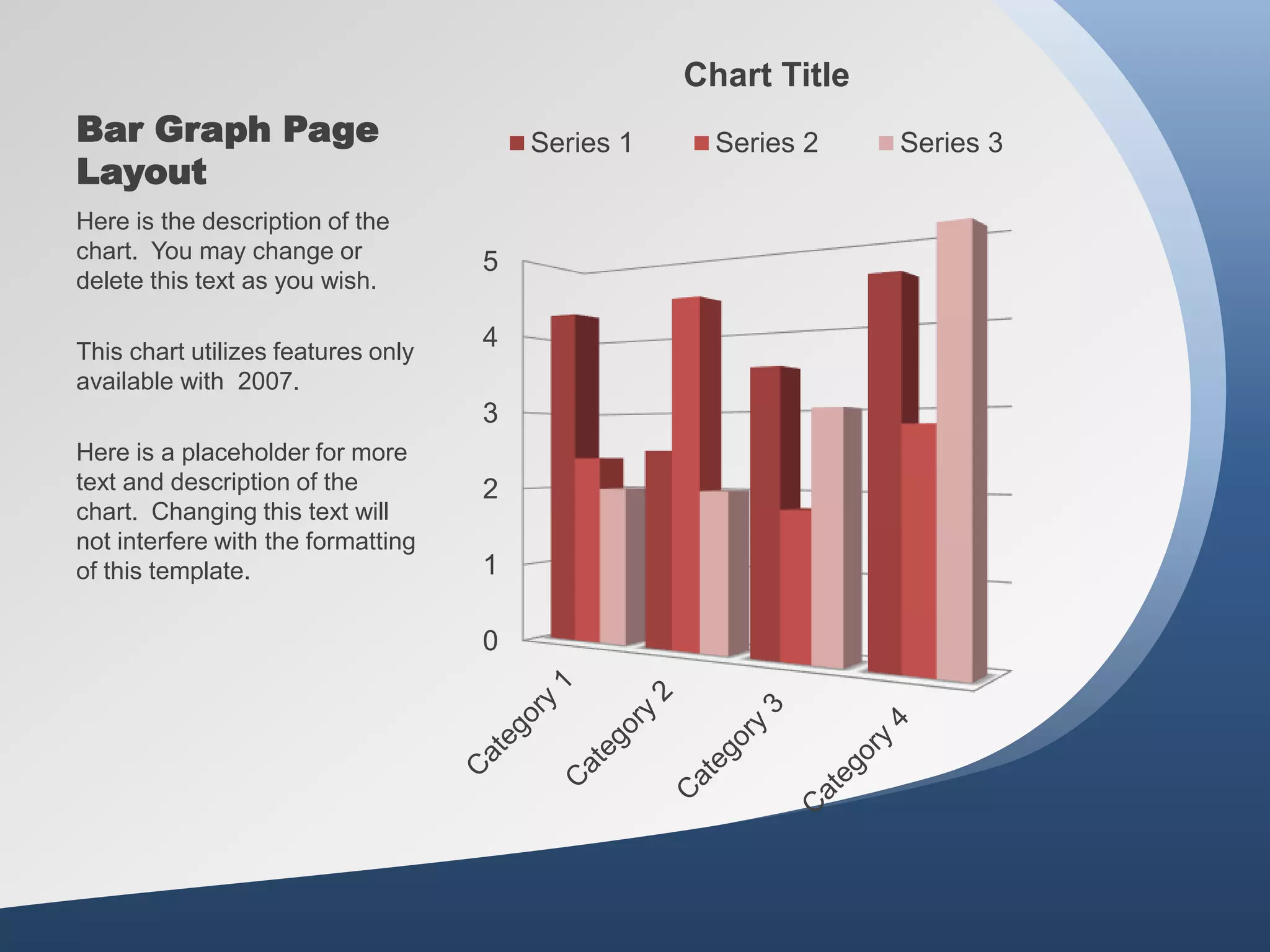
Bar Graph Page
Layout
0
1
2
3
4
5
Chart Title
Series 1 Series 2 Series 3
Here is the description of the
chart. You may change or
delete this text as you wish.
This chart utilizes features only
available with 2007.
Here is a placeholder for more
text and description of the
chart. Changing this text will
not interfere with the formatting
of this template.
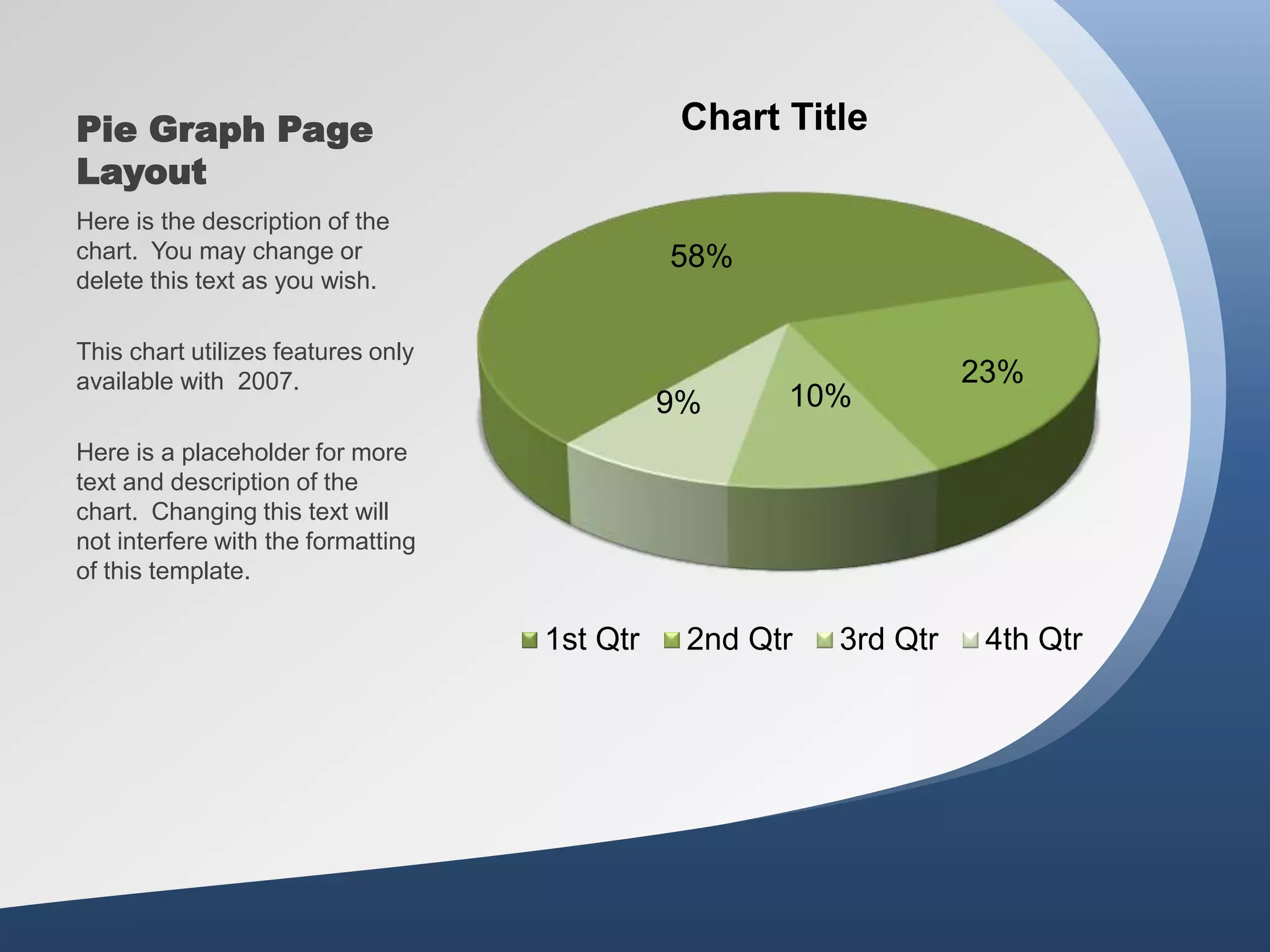
Pie Graph Page
Layout
58%
23%
10%
9%
Chart Title
1st Qtr 2nd Qtr 3rd Qtr 4th Qtr
Here is the description of the
chart. You may change or
delete this text as you wish.
This chart utilizes features only
available with 2007.
Here is a placeholder for more
text and description of the
chart. Changing this text will
not interfere with the formatting
of this template.
Smart Art Page
Layout
Stage 1
This chart utilizes Smart Art
which is feature in PowerPoint
2007. If you wish to make
charts like this and don’t have
PPT 2007, we have provided
the graphical elements to help
you build this yourself.
Here is the description of the
chart. You may change or
delete this text as you wish.
Here is a placeholder for more
text and description of the
chart. Changing this text will
not interfere with the formatting
of this template.
Smart Art Page
Layout
Area 1 Area 2
This chart utilizes Smart Art
which is feature in PowerPoint
2007. If you wish to make
charts like this and don’t have
PPT 2007, we have provided
the graphical elements to help
you build this yourself.
Here is the description of the
chart. You may change or
delete this text as you wish.
Here is a placeholder for more
text and description of the
chart. Changing this text will
not interfere with the formatting
of this template.
Smart Art Page
Layout
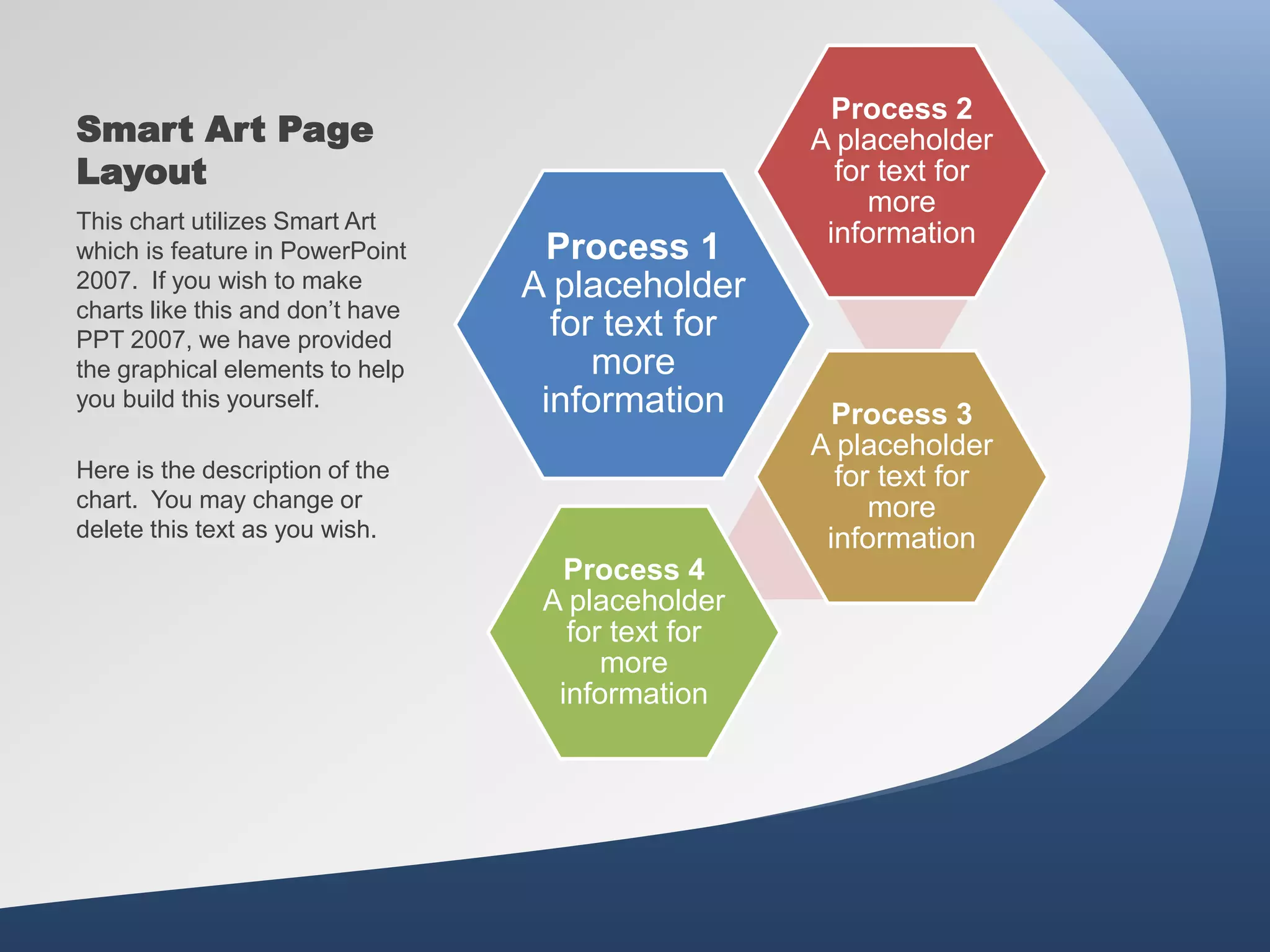
Process 1
A placeholder
for text for
more
information
Process 2
A placeholder
for text for
more
information
Process 3
A placeholder
for text for
more
information
Process 4
A placeholder
for text for
more
information
This chart utilizes Smart Art
which is feature in PowerPoint
2007. If you wish to make
charts like this and don’t have
PPT 2007, we have provided
the graphical elements to help
you build this yourself.
Here is the description of the
chart. You may change or
delete this text as you wish.
PresenterMedia.com
support@presentermedia.com
4416 S. Technology Dr
Sioux Falls, SD 57106
Questions?
More
Information?

Wemta flipped classroom1

  • 1.
    The Basics of FlippedLearning A Beginner’s Guide By: Debby Caven
  • 2.
    Welcome WEMTA Attendees! Yourpresenter for today is: Debby Caven / debbycaven@mac.com • Former Educator of 28 years • SMART Certified Trainer • InfoCor, WEI • Online Certified Teacher • eClass4learning • MEIT from Cardinal Stritch University • Adjunct professor •Viterbo University, • Cardinal Stritch University • George Williams College of Aurora University
  • 3.
    Definition and BackgroundInformation Regarding the Flipped Classroom Pedagogy and Strategies Necessary for a Seamless Flipped Classroom The “Nuts & Bolts” Needed for a Flipped Classroom Further Information for Future Follow-Ups or Questions Agenda for Today’s Session Resources What is Flipped Learning? Teaching Strategies Putting Together a Video
  • 4.
    The Story ofFlipped Learning • Humble beginnings in Woodland Park, Colorado in 2006 by Jonathan Bergmann and Aaron Sams • Aaron discovers a site where PowerPoints could be recorded with voice and annotations and then recorded to a video file • What began as selfishness to save them time, became a model for other educators.
  • 5.
    The Story ofFlipped Learning
  • 6.
    Vocabulary as aFoundation • Podcasts/Vodcasts • Blended Learning • Reverse-Instruction • Flipped Classroom • Inverted Classroom • Direct Instruction (DI) • Project Based Learning (PBL) Similar
  • 7.
    Ask One Question •Where in the learning cycle do my students most need me face-to-face? Lecture? Practice? Discussion? Application? Assessment? Remediation?
  • 8.
    Then ask ….. •What can I remove from class by using technology to increase the value of fact-to-face time? Lecture? Practice? Discussion? Application? Assessment? Remediation?
  • 9.
    Do NOT Ask…. • Where can I put a video in my lesson?
  • 10.
    Remember: “Technology does notdrive change -- it enables change.”
  • 11.
    Things to Remember: •Do not make a video simply for the sake of making a video • Pedagogy must drive technology
  • 14.
    The Flipped ClassroomInfographic (Bradtke/Jaeger) http://www.knewton.com/flipped-classroom/ Shifting direct instruction Freeing class time for ….
  • 15.
    Participate in anactivity that allows for greater engagement in f2f. Often is DI through technology: video, screencast, podcast… Do not be limited to lecture. Home may not work for you. In-class video/technology that allows for less whole group DI is an option. Yes! Student centered, ownership, flex-pace Engagement: One-on-one with the instructor PBL, Collaboration, Inquiry Driven, Mastery Learning, UbD, Hands-on… … and peers, experts online …24/7 access and learning http://www.knewton.com/flipped-classroom/ (Bradtke/Jaeger)
  • 16.
    Purposes for Flipping •Students learning at different paces (slow, medium, fast) • Students missing important pieces of information from class even though they were "present” • Students absent (sick, sports, etc) and missing critical lessons • Students not completing homework fully or correctly at home because they "forgot" how to do it from class (or simply copying from a friend) • Teacher spending most of class time going over problems and not giving students a lot of time to practice on their own with support • Teacher spending many extra hours tutoring and re- explaining to students who didn't "get it" in class Students Teachers
  • 17.
  • 18.
  • 19.
    Student Benefits andGoals • Being absent (sick, extra- curriculars) and missing content – can access anywhere, anytime • Lesson being taught too fast to comprehend • Getting stuck on homework problems with no support • Being bored because content is too easy • Forgetting old material and having no way to re-access it – Being an active, responsible learner – Working and collaborating with classmates to deepen understanding – Being in charge of their learning and their success in the class. – Working with concepts they need more support in understanding – Managing their time to meet given learning objectives Don’t have to worry about… Can focus on…
  • 20.
  • 21.
  • 22.
  • 23.
    Ways to BeginYour Change • Focus on materials where students do not need you to be present • Record live for one year • Go all-in • Flip one unit per term • Create a single lesson
  • 24.
    Ways to BeginYour Change Consider a single lesson to start: • If you want to have students work on problem- solving skills, perhaps model problem-solving in your screencasts. • If you want to guide them through a book reading, perhaps create an online version of the lecture to help cue their attention to the important ideas
  • 25.
    Ideas for Videosto Make: 1. A lecture (can use pre-recorded ones) * 2. Video of you demonstrating how something works in real life 3. Video of a lab procedure 4. Guided problem-solving 5. Homework solutions 6. Pre-lab activity 7. Exam review
  • 26.
    Tips for Creatinga Screencast • Keep it short • 5 minutes for elementary • 8 – 15 minutes for grades 6-12 • 15 – 20 for college • Always include an assignment, on-task requirement (WSQ) • Allow thinking • Add a secret question
  • 27.
    Address the Needs(Bradtke/Jaeger) • The need – absent students – class question • Solution – Showme video for instruction http://www.showme.com/sh/?h=qv7fEcC
  • 28.
    Address the Needs (BradtkeJaeger) Theneed – teacher feedback Solution - video grading session for written work Lit Review Comments • Recorded with Jing • Shared via public dropbox http://dl.dropbox.com/u/9779677/Student%20Work/Lit_Review_2_comments--Aida%201.swf
  • 29.
    Address the Needs-Enrichment Kidsmath.tv(http://www.kidsmathtv.com/addition-of-numbers/
  • 30.
    Address the Needs-AFlipped Video Already Created!
  • 31.
    Review: Three Key Elementsof the Flipped Classroom: 1) Quality instructional videos 2) Engaging class activities 3) Robust assessment
  • 32.
    Strategies for Using Videosat Home 1. Study guides 2. Note taking 3. Require reconnect each day
  • 33.
    During Video • Cooperativelearning strategies • Socratic Questioning • Group Discussion • Notes (WSQ) • Brainstorming • Graphic Organizers • Classification • Notes
  • 34.
    How to Flip 1)Choose your topic 2) Create or find a screencast 3) Share content 4) Day After - Plan activities or center work
  • 35.
    Screencast Tips andIdeas What is a screencast? Per Wikipedia: A screencast is a digital recording of computer screen output, also known as a video screen capture, often containing audio narration. The term screencast compares with the related term screenshot; whereas screenshot is a picture of a computer screen, a screencast is essentially a movie of the changes over time that a user sees on a computer screen, enhanced with audio narration. http://en.wikipedia.org/wiki/Screencast
  • 36.
    Screencast Resources (Kathy Schrock’sScreencasting in Classroom) 1. SMART Recorder (Slides 37-49) 2. Screencast-o-matic.com 3. Screenr 4. Jing 5. Sophia.org 6. Quicktime 7. Snagit 8. Camtasia 9. Educreations – iPad 10.Snapguide – iPad (how-to videos)
  • 37.
    Using your SMARTBoard • Two choices: –SMART Recorder –Page Recorder
  • 38.
    SMART Recorder • Makea video recording no matter what applications you are using on the interactive whiteboard • With a microphone attached can also record voice • File saved as a .wmv file • Recordings can be played using SMART video player or Windows Media player
  • 39.
    When to useSMART Recorder • Flipping your classroom • Sample math problems, spreadsheet or formula to review at end of class or to view once again • Upload to website for student access at home, Moodle or wiki • Record student work as a form of assessment
  • 40.
    How to CreateYour Video:
  • 41.
  • 42.
  • 43.
    How to (continued): –Press Stop button to end recording • Prompted to save file – Select location, name file and press Save • Recording Complete dialog box appears, providing details of the recording, including the size and recording time • To immediately view your recording, check Play Recording
  • 44.
    Hiding the SMARTRecorder • Press Menu button and select Hide to System Tray • Click on SMART Recorder icon to access a menu providing access to Record, Pause, Stop and other features of Recorder. Select Show to restore SMART Recorder to full size
  • 45.
    When to Use SMARTPage Recorder • Record an example of an activity or problem to replay when using the lesson activity in class • Students working independently at whiteboard can view and review without seeking help of teacher
  • 46.
    How to UsePage Recorder: • Open Properties tab • Press Page Recording button • Press Start Recording button • Complete actions you want to record • Press Stop Recording
  • 47.
    How to UsePage Recorder: • Page Recording Toolbar appears at bottom of SMART Notebook page – play and pause recording from this SMART Notebook page at any time • Also play a recording by pressing on Play button in the Page Recording section of the Properties tab.
  • 48.
    Qualities of GoodRecordings • Keep it short • Make sure your hand writing is legible • Students want to hear your voice • Do you want it perfect or tomorrow? • Focus on information that are foundational skills and the lower levels of Bloom’s Taxonomy
  • 49.
    Screencast Resources (Not commonlythought of) 1. Smart Phone 2. Voicethread
  • 50.
    Videos Already Made 1.Khan Academy 2. TedEd 3. iTunes U 4. Sophia.org 5. Educreations 6. YouTube 7. Vimeo 8. TeacherTube
  • 51.
    Posting/Uploading/Storing Your Videos 1. LMS-Moodle 2.YouTube 3. TeacherTube 4. Edmodo 5. Vimeo 6. Screencast.com 7. School or personal website
  • 52.
    AHEAD Now it isyour turn to take that next step and begin “flipping your classroom”, a proven successful pedagogy! of the CURVE
  • 53.
  • 54.
  • 56.
  • 57.
  • 58.
  • 59.
  • 60.
  • 61.
  • 62.
  • 63.
  • 64.
  • 65.
  • 66.
  • 67.
  • 68.
  • 69.
  • 70.
  • 71.
  • 72.
    Animated or Static? ChangeBetween Static and Animated You can change between static and animated layouts by clicking on the Layout tab in the HOME menu on the ribbon. For example this slide uses the static layout.
  • 73.
  • 74.
    Alternate Content Page PrintableSlide Layout An alternate content page with a printable background color.
  • 75.
    Bulleted Content Page •This Layout Page has bullets – And Indented Levels • Level 3 Text Placeholder – Level 4 Place Holder » Level 5 Place Holder
  • 76.
    • A placeholderfor text for the first picture • More information can be added here by changing this text. • A placeholder for the second picture • More information can be added here by changing this text. • Make changes to this text. Two Picture Page Layout
  • 77.
    • A descriptionof the first picture. You may change this text. • A description of the first picture. You may change this text. • A description of the second picture. You may change this text. • A description of the second picture. You may change this text. • A description of the third picture. You may change this text. • A description of the third picture. You may change this text. Three Picture Page Layout
  • 78.
    Table Page Layout Geographic Region Q1 Q2Q3 Q4 United States 1254 1873 1015 2284 Europe and Asia 324 310 300 419 Australia 15 18 13 20 Canada 6 3 4 7 Mexico 1 .5 .5 2 TOTALS 1600 2205 1333 2732 Here is the description of the table. You may change or delete this text as you wish. This chart is compatible with PowerPoint 97 to 2007. Here is a placeholder for more text and description of the chart. Changing this text will not interfere with the formatting of this template.
  • 79.
    Comparison Table Layout QuarterNorth America Asia Europe Austr alia Q1 2009 123 34 45 10 Q2 2009 134 35 44 12 Q3 2009 150 45 50 14 Q4 2009 201 55 60 18 Q1 2010 175 44 47 13 Q2 2010 180 48 52 14 Q3 2010 204 55 60 16 Q4 2010 250 62 70 20 Quarter North America Asia Europe Austra lia Q1 2009 123 34 45 10 Q2 2009 134 35 44 12 Q3 2009 150 45 50 14 Q4 2009 201 55 60 18 Q1 2010 175 44 47 13 Q2 2010 180 48 52 Q3 2010 204 55 60 Q4 2010 250 62 70 Here is the description of the table. You may change or delete this text as you wish. This table is compatible with PowerPoint 97 to 2007.
  • 80.
    Bar Graph Page Layout 4.3 2.5 3.5 4.5 2.4 4.4 1.8 2.8 22 3 5 Chart Title Series 1 Series 2 Series 3 Here is the description of the chart. You may change or delete this text as you wish. This chart is compatible with PowerPoint 97 to 2007. Here is a placeholder for more text and description of the chart. Changing this text will not interfere with the formatting of this template.
  • 81.
    Pie Graph Page Layout 1stQtr 58% 2nd Qtr 23% 3rd Qtr 10% 4th Qtr 9% Chart Title Here is the description of the chart. You may change or delete this text as you wish. This chart is compatible with PowerPoint 97 to 2007. Here is a placeholder for more text and description of the chart. Changing this text will not interfere with the formatting of this template.
  • 82.
    Bar Graph Page Layout 0 1 2 3 4 5 ChartTitle Series 1 Series 2 Series 3 Here is the description of the chart. You may change or delete this text as you wish. This chart utilizes features only available with 2007. Here is a placeholder for more text and description of the chart. Changing this text will not interfere with the formatting of this template.
  • 83.
    Pie Graph Page Layout 58% 23% 10% 9% ChartTitle 1st Qtr 2nd Qtr 3rd Qtr 4th Qtr Here is the description of the chart. You may change or delete this text as you wish. This chart utilizes features only available with 2007. Here is a placeholder for more text and description of the chart. Changing this text will not interfere with the formatting of this template.
  • 84.
    Smart Art Page Layout Stage1 This chart utilizes Smart Art which is feature in PowerPoint 2007. If you wish to make charts like this and don’t have PPT 2007, we have provided the graphical elements to help you build this yourself. Here is the description of the chart. You may change or delete this text as you wish. Here is a placeholder for more text and description of the chart. Changing this text will not interfere with the formatting of this template.
  • 85.
    Smart Art Page Layout Area1 Area 2 This chart utilizes Smart Art which is feature in PowerPoint 2007. If you wish to make charts like this and don’t have PPT 2007, we have provided the graphical elements to help you build this yourself. Here is the description of the chart. You may change or delete this text as you wish. Here is a placeholder for more text and description of the chart. Changing this text will not interfere with the formatting of this template.
  • 86.
    Smart Art Page Layout Process1 A placeholder for text for more information Process 2 A placeholder for text for more information Process 3 A placeholder for text for more information Process 4 A placeholder for text for more information This chart utilizes Smart Art which is feature in PowerPoint 2007. If you wish to make charts like this and don’t have PPT 2007, we have provided the graphical elements to help you build this yourself. Here is the description of the chart. You may change or delete this text as you wish.
  • 87.
    PresenterMedia.com support@presentermedia.com 4416 S. TechnologyDr Sioux Falls, SD 57106 Questions? More Information?