TECHNOLOGY
in the classroom
To use it or not to use it:
THAT is the question
Good reasons to use      Good reasons to avoid or
  technology:              limit use of technology:
 Keep up with            Students aren’t always
  students’ interests      proficient; can become
  and proficiencies        overwhelmed
 Part of 21st century    Can take the focus off
  learning that we         of what we’re teaching
  cannot and should       Doesn’t always work as
  not ignore               it should
 Engages students        Can be time-consuming
 Engages us               or require too much
 Can make teaching        work
  some concepts           Can be fun and cool but
  easier                   not pedagogically
                           sound
To consider . . .
 What do you already know? What is
 your comfort level?
  – Do you use Facebook and Twitter? Do
    you have a laptop or iPad? Do you
    regularly read blogs and RSS feeds?

 What is your teaching style and how
 might technology complement that
 style?
To consider . . .
 What   is your access to technology?
   What does your school provide?
   How much (if anything) do you want to
    spend out of pocket?
 How  much time/energy do you have
 to invest in this aspect of your
 career?
  – As opposed to concentrating on
    pedagogy, mastering your school’s
    curriculum, refining your teaching
    skills, conducting research
To consider . . .
 Allof those questions focus on you as the
  teacher. The most important question,
  though, should focus on your students:
  –What technology will help
   them become better
   learners, writers, readers,
   thinkers?
Integrating technology into your
classes
 Start   gradually.
  – Don’t try to use all of these exciting
    technologies in one semester
 Think   about your “lifeload”:
  – Your own classes; jobs; spouses and
    children.
  – Technology can be time-consuming and
    frustrating
Integrating technology into your
classes
 Use   “down” time:
  – Summer and other breaks, periods
    during the semester when you have
    little or no grading
 Look for professional development
 or other learning opportunities:
  – Summer technology workshops,
    opportunities by UC organizations such
    as the Teaching & Technology
    Committee, sessions at
    professional conferences
Integrating technology into your
classes
 Keep a log/journal/list of
  technologies you want to investigate.
 Choose technologies that utilize your
  strength or expertise:
     You’re a strong public speaker: use audio and
      video recording technologies
     You’re a visual learner/teacher: use artistic
      presentation software
     You’re an organization freak: re-organize
      Blackboard or use your own blog or wiki
Integrating technology into your
classes
 Think
      about your class and cater
 technology accordingly:
     You’re teaching ENGL 1000 and many
      students struggle with paragraph cohesion.
         Can you expect them to master a wiki?
     You’re teaching an Honors section and
      students are driven and independent.
         Can you assign a multimedia text in addition to a
          written essay?
     You’re teaching a short summer section.
         Can you expect students to create and maintain a
          comprehensive website?
Other current and future
considerations
 How  do we include students with
  disabilities?
 How do we accommodate students
  without access to technology at
  home?
 How do we avoid contributing further
  to the rising cost of higher
  education?
Now that I have you bummed out . . .

 Let’s   play with technology!
     Blackboard
     Presentation software
     Audio
     Video
     Screen capture software
     On the horizon: iPads, apps, social
      networking, oh my!
Blackboard: It’s all
we’ve got, baby
 Make     it your own! Personalize with:
      Buttons
      Organization (subheads, dividers, tool links)
      Banners
      Colors
      Consistent announcements
   Visual formatting:
        Course ToolsCustomizationStyle
Blackboard …

 Create    interactions:
     Discussion Board (I use for peer review)
     Blogs (class or individual)
     Wikis (I don’t love them, but hey, you might)
     Journals (good for personal writing)
     SafeAssign (for research essays)
     Starfish (again, don’t love it. I use Google
      Docs and post link to Blackboard)
     CollaborationOffice Hours: Bb’s chat
      function. Works great for off-campus
      conferences and student group work
Blackboard . . .

 Build   content
     RSS, audio, image, video, URL
     Learning Modules and Content Folders
     SlideShare and YouTube


 Add   Interactive Tool
     Various options
Presentation Software

 In
   one corner, the reigning champion,
 PowerPoint vs. the contender, Prezi
   Experiences?    Impressions? Preferences?
   Are you presenting or entertaining?
   Good for flipped instruction, online
    instruction, introduction, and review
      My bias: Prezi jumps too much, distracts my
       students, is better when I’m present
 Others:
      Adobe Presenter (ExPENsive!)
      Keynote for iPad ($9.99)
Audio

 What’s  on your computer?
 Any iPad voice recorder that
  produces mp3 files
 Audacity: free and easy
   http://audacity.sourceforge.net/

Suggestions & Cautions:
   Make sure files aren’t too big
   Don’t use for grading
   Write a script
Video
 What’s on your computer or iPad?
 Your decision: record your face or
  your computer screen?
 Suggestions & Cautions:
     A brief introductory video of you or a weekly
      vlog is nice, but beyond that students
      probably don’t want to see your face so much
     Avoid recording “lectures”
     Write a script if necessary
     Let your students do the recording!
      (accompanied by something
      written, of course)
Screen Capture Images & Videos
 PowerPoint       videos
     Convey presentations in video and static form
 Yourown YouTube channel or store
 on Screencast.com
     House your own videos and links to often-used
      or favorite videos
 Authorstream        and Slideshare hosting
     www.authorstream.com and www.slideshare.net
 Jing   and Screencast-O-Matic
     Capture images or videos;
      create tutorials and presentations
Screen Capture Images & Videos
 Screencast-O-Matic
     www.screencast-o-matic.com
     Website, so you can use it from any computer
     My favorite for making screen capture videos
     Will upload directly to YouTube
 Jing
     House your own videos and links to often-used
      or favorite videos
     Must be downloaded, so it’s computer specific
     My favorite for capturing images
     Must upload to Screencast.com
Your Own Creation
 Create your own website/blog/wiki
 My favorite: Wordpress
 Others: tumblr, blogger, blogspot,
  pbworks (wiki)
 Suggestions & Cautions:
     Very time-consuming
     Must have a clear purpose
     Consider it an investment in your career and
      do it only if worthwhile
Recast and other assignments:
The good, the bad, and the ugly
 Encouraging      students to use
 technology:
     The more you use technology, the more your
      students will use it
     Teach them what you know, but . . .
     Also let them experiment
     Use UC resources such as the STRC
     Set up a practice Discussion Board
     Post final products somewhere like
      Discussion Board or a Bb blog
     Make them write about it!
      Analyze, reflect, and so on
Recast and other assignments:
The good, the bad, and the ugly
 My research steps: Blogs and Vlogs
 Recasts from fall semester:
     iMovie video
     Screencast video presentation
     Screen captured Prezi video
     Prezi
     Facebook page
     Twitter feed
     Blog
     Comic strip
     Tumblr site
On the horizon
 iPad and apps
 Cell phone and other mobile devices
 Social networking
My wish list . . . To investigate
 iPad   & apps
     iAnnotate and Evernote organizer
 RSS feeds
 Voicethread
     conversations in the cloud
 Pearltrees
     collect, organize, and share Web content
 Pinterest    (just because it’s fun)
 Zotero
     research organization
UC IT’s list of “8 Time-Saving Tech Tools
That We Can’t Live Without”
 Zotero  – zotero.org
 Dropbox – dropbox.com
 Jing – techsmith.com/jing
 Google Calendar – calendar.google.com
 Remember the Milk –
  rememberthemilk.com (organizer)
 Evernote – evernote.com
 Diigo – diigo.com (digital bookmarking)
 Doodle – doodle.com (meeting time poll)
Source: UC IT and Center for the Enhancement
of Teaching & Learning, Dec. 27, 2011
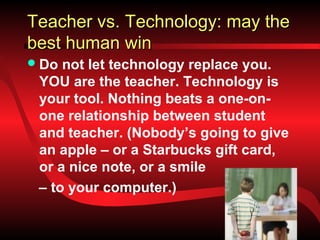
Teacher vs. Technology: may the
best human win
 Do not let technology replace you.
 YOU are the teacher. Technology is
 your tool. Nothing beats a one-on-
 one relationship between student
 and teacher. (Nobody’s going to give
 an apple – or a Starbucks gift card,
 or a nice note, or a smile
 – to your computer.)

Technology teaching college writing class

  • 1.
  • 2.
    To use itor not to use it: THAT is the question Good reasons to use Good reasons to avoid or technology: limit use of technology:  Keep up with  Students aren’t always students’ interests proficient; can become and proficiencies overwhelmed  Part of 21st century  Can take the focus off learning that we of what we’re teaching cannot and should  Doesn’t always work as not ignore it should  Engages students  Can be time-consuming  Engages us or require too much  Can make teaching work some concepts  Can be fun and cool but easier not pedagogically sound
  • 3.
    To consider .. .  What do you already know? What is your comfort level? – Do you use Facebook and Twitter? Do you have a laptop or iPad? Do you regularly read blogs and RSS feeds?  What is your teaching style and how might technology complement that style?
  • 4.
    To consider .. .  What is your access to technology?  What does your school provide?  How much (if anything) do you want to spend out of pocket?  How much time/energy do you have to invest in this aspect of your career? – As opposed to concentrating on pedagogy, mastering your school’s curriculum, refining your teaching skills, conducting research
  • 5.
    To consider .. .  Allof those questions focus on you as the teacher. The most important question, though, should focus on your students: –What technology will help them become better learners, writers, readers, thinkers?
  • 6.
    Integrating technology intoyour classes  Start gradually. – Don’t try to use all of these exciting technologies in one semester  Think about your “lifeload”: – Your own classes; jobs; spouses and children. – Technology can be time-consuming and frustrating
  • 7.
    Integrating technology intoyour classes  Use “down” time: – Summer and other breaks, periods during the semester when you have little or no grading  Look for professional development or other learning opportunities: – Summer technology workshops, opportunities by UC organizations such as the Teaching & Technology Committee, sessions at professional conferences
  • 8.
    Integrating technology intoyour classes  Keep a log/journal/list of technologies you want to investigate.  Choose technologies that utilize your strength or expertise:  You’re a strong public speaker: use audio and video recording technologies  You’re a visual learner/teacher: use artistic presentation software  You’re an organization freak: re-organize Blackboard or use your own blog or wiki
  • 9.
    Integrating technology intoyour classes  Think about your class and cater technology accordingly:  You’re teaching ENGL 1000 and many students struggle with paragraph cohesion.  Can you expect them to master a wiki?  You’re teaching an Honors section and students are driven and independent.  Can you assign a multimedia text in addition to a written essay?  You’re teaching a short summer section.  Can you expect students to create and maintain a comprehensive website?
  • 10.
    Other current andfuture considerations  How do we include students with disabilities?  How do we accommodate students without access to technology at home?  How do we avoid contributing further to the rising cost of higher education?
  • 11.
    Now that Ihave you bummed out . . .  Let’s play with technology!  Blackboard  Presentation software  Audio  Video  Screen capture software  On the horizon: iPads, apps, social networking, oh my!
  • 12.
    Blackboard: It’s all we’vegot, baby  Make it your own! Personalize with:  Buttons  Organization (subheads, dividers, tool links)  Banners  Colors  Consistent announcements  Visual formatting: Course ToolsCustomizationStyle
  • 13.
    Blackboard …  Create interactions:  Discussion Board (I use for peer review)  Blogs (class or individual)  Wikis (I don’t love them, but hey, you might)  Journals (good for personal writing)  SafeAssign (for research essays)  Starfish (again, don’t love it. I use Google Docs and post link to Blackboard)  CollaborationOffice Hours: Bb’s chat function. Works great for off-campus conferences and student group work
  • 14.
    Blackboard . ..  Build content  RSS, audio, image, video, URL  Learning Modules and Content Folders  SlideShare and YouTube  Add Interactive Tool  Various options
  • 15.
    Presentation Software  In one corner, the reigning champion, PowerPoint vs. the contender, Prezi  Experiences? Impressions? Preferences?  Are you presenting or entertaining?  Good for flipped instruction, online instruction, introduction, and review  My bias: Prezi jumps too much, distracts my students, is better when I’m present  Others:  Adobe Presenter (ExPENsive!)  Keynote for iPad ($9.99)
  • 16.
    Audio  What’s on your computer?  Any iPad voice recorder that produces mp3 files  Audacity: free and easy  http://audacity.sourceforge.net/ Suggestions & Cautions:  Make sure files aren’t too big  Don’t use for grading  Write a script
  • 17.
    Video  What’s onyour computer or iPad?  Your decision: record your face or your computer screen?  Suggestions & Cautions:  A brief introductory video of you or a weekly vlog is nice, but beyond that students probably don’t want to see your face so much  Avoid recording “lectures”  Write a script if necessary  Let your students do the recording! (accompanied by something written, of course)
  • 18.
    Screen Capture Images& Videos  PowerPoint videos  Convey presentations in video and static form  Yourown YouTube channel or store on Screencast.com  House your own videos and links to often-used or favorite videos  Authorstream and Slideshare hosting  www.authorstream.com and www.slideshare.net  Jing and Screencast-O-Matic  Capture images or videos; create tutorials and presentations
  • 19.
    Screen Capture Images& Videos  Screencast-O-Matic  www.screencast-o-matic.com  Website, so you can use it from any computer  My favorite for making screen capture videos  Will upload directly to YouTube  Jing  House your own videos and links to often-used or favorite videos  Must be downloaded, so it’s computer specific  My favorite for capturing images  Must upload to Screencast.com
  • 20.
    Your Own Creation Create your own website/blog/wiki  My favorite: Wordpress  Others: tumblr, blogger, blogspot, pbworks (wiki)  Suggestions & Cautions:  Very time-consuming  Must have a clear purpose  Consider it an investment in your career and do it only if worthwhile
  • 21.
    Recast and otherassignments: The good, the bad, and the ugly  Encouraging students to use technology:  The more you use technology, the more your students will use it  Teach them what you know, but . . .  Also let them experiment  Use UC resources such as the STRC  Set up a practice Discussion Board  Post final products somewhere like Discussion Board or a Bb blog  Make them write about it! Analyze, reflect, and so on
  • 22.
    Recast and otherassignments: The good, the bad, and the ugly  My research steps: Blogs and Vlogs  Recasts from fall semester:  iMovie video  Screencast video presentation  Screen captured Prezi video  Prezi  Facebook page  Twitter feed  Blog  Comic strip  Tumblr site
  • 23.
    On the horizon iPad and apps  Cell phone and other mobile devices  Social networking
  • 24.
    My wish list. . . To investigate  iPad & apps  iAnnotate and Evernote organizer  RSS feeds  Voicethread  conversations in the cloud  Pearltrees  collect, organize, and share Web content  Pinterest (just because it’s fun)  Zotero  research organization
  • 25.
    UC IT’s listof “8 Time-Saving Tech Tools That We Can’t Live Without”  Zotero – zotero.org  Dropbox – dropbox.com  Jing – techsmith.com/jing  Google Calendar – calendar.google.com  Remember the Milk – rememberthemilk.com (organizer)  Evernote – evernote.com  Diigo – diigo.com (digital bookmarking)  Doodle – doodle.com (meeting time poll) Source: UC IT and Center for the Enhancement of Teaching & Learning, Dec. 27, 2011
  • 26.
    Teacher vs. Technology:may the best human win  Do not let technology replace you. YOU are the teacher. Technology is your tool. Nothing beats a one-on- one relationship between student and teacher. (Nobody’s going to give an apple – or a Starbucks gift card, or a nice note, or a smile – to your computer.)