Choosing to implement video in your
MOOC – what are the options?
Mathy Vanbuel, ATiT
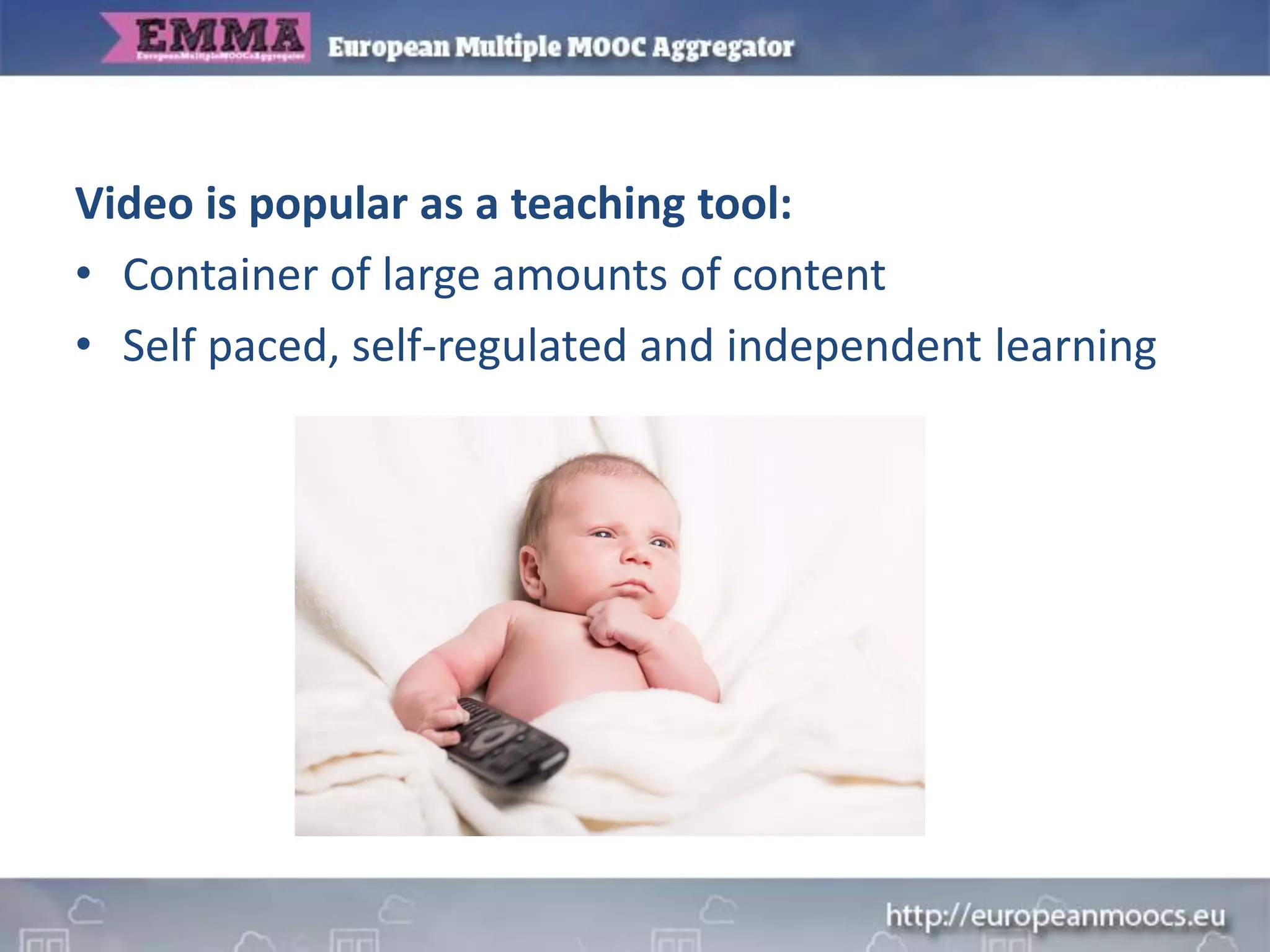
Video is popular as a teaching tool:
• Container of large amounts of content
• Self paced, self-regulated and independent learning
Video is popular as a teaching tool:
• Container of large amounts of content
• Self paced, self-regulated and independent learning
“Media are mere vehicles that deliver instruction but
do not influence student achievement any more than
the truck that delivers our groceries causes changes in
our nutrition”
(R. Clark, 1983)
Focus should be on the learner experience, less on the
instruction.
Provider Perspective
• Putting videos on EMMA
• What kind of videos can be used in a
MOOC? When to use video for learning?
• How to maximise student learning
outcomes with video in a MOOC?
• Prejudices about video
Learner Perspective
• Interface
Contents
Putting videos on EMMA
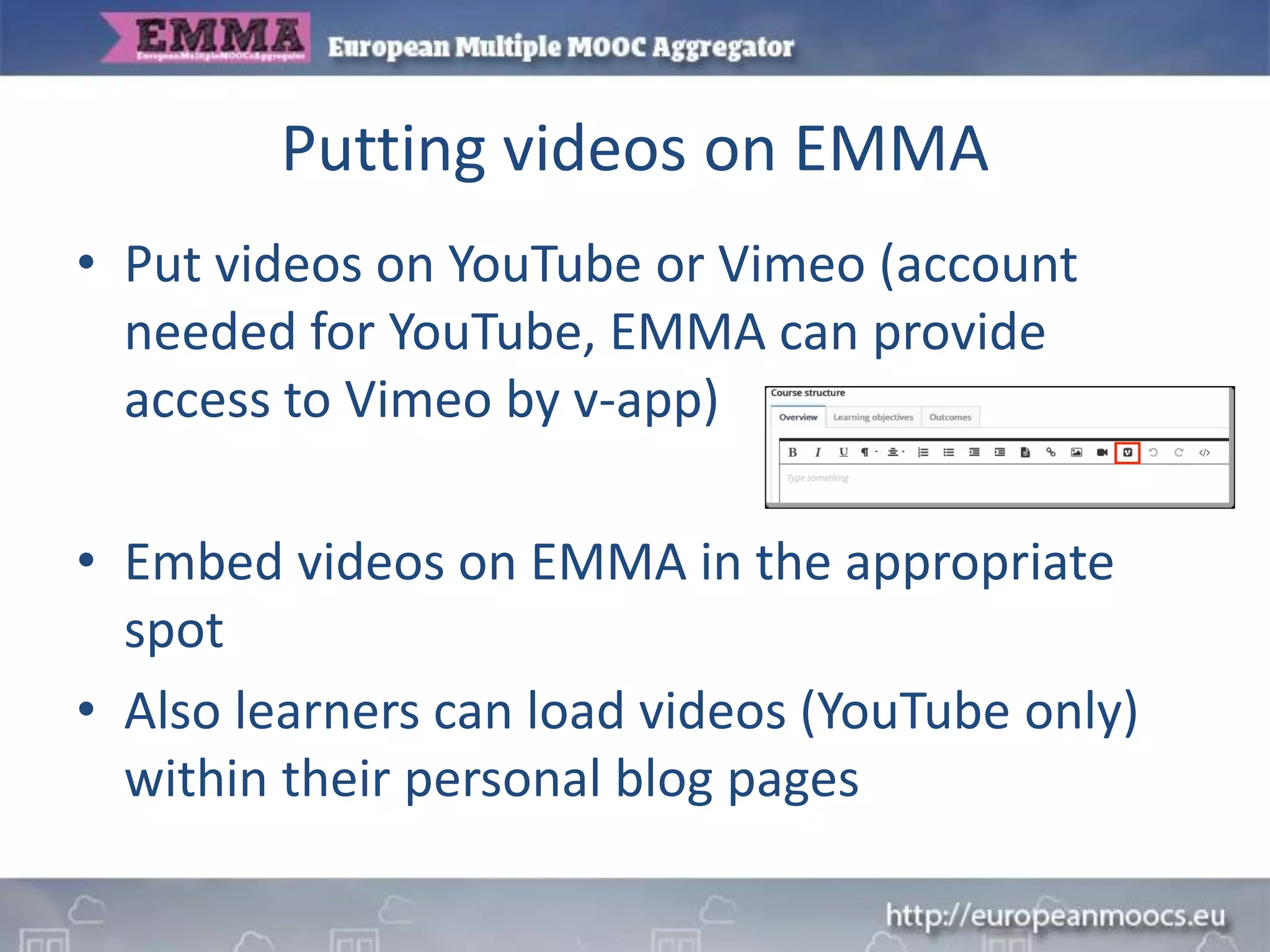
• Put videos on YouTube or Vimeo (account
needed for YouTube, EMMA can provide
access to Vimeo by v-app)
• Embed videos on EMMA in the appropriate
spot
• Also learners can load videos (YouTube only)
within their personal blog pages
Key question 1
What kind of videos can be used in a MOOC?
• Lecture-style videos: instructor(s) with/without
slides or graphs, in office, classroom, studio
• Tutorial videos: video screencast, Khan-style
• Expert interviews
• Panel discussion
• Documentary/reportage style (live demos, e.g.
surgeries; location shoot)
• All moving images: archives, Europeana…
When to use video?
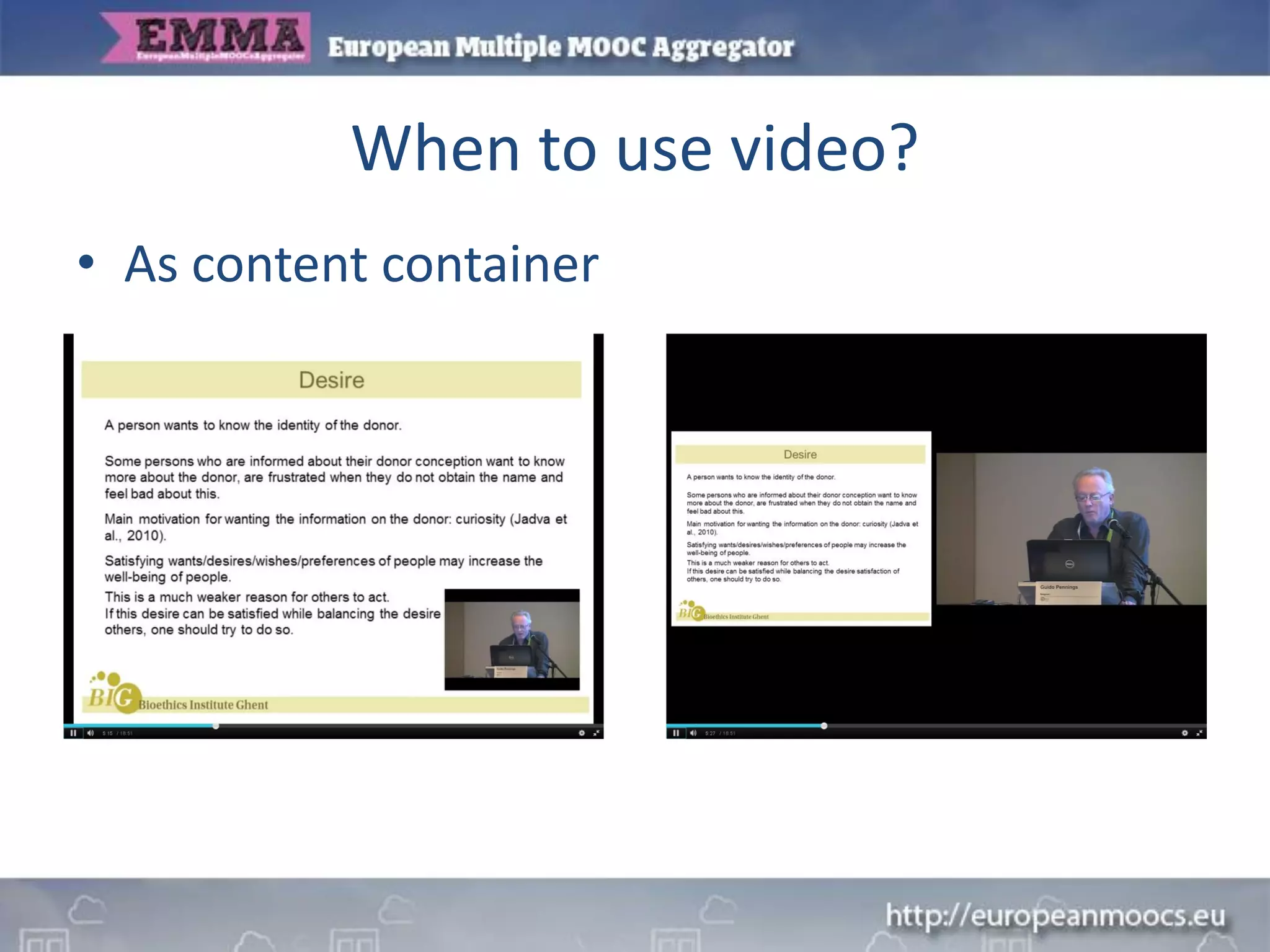
• As content container
When to use video?
• As content container,
yes but more interestingly also…
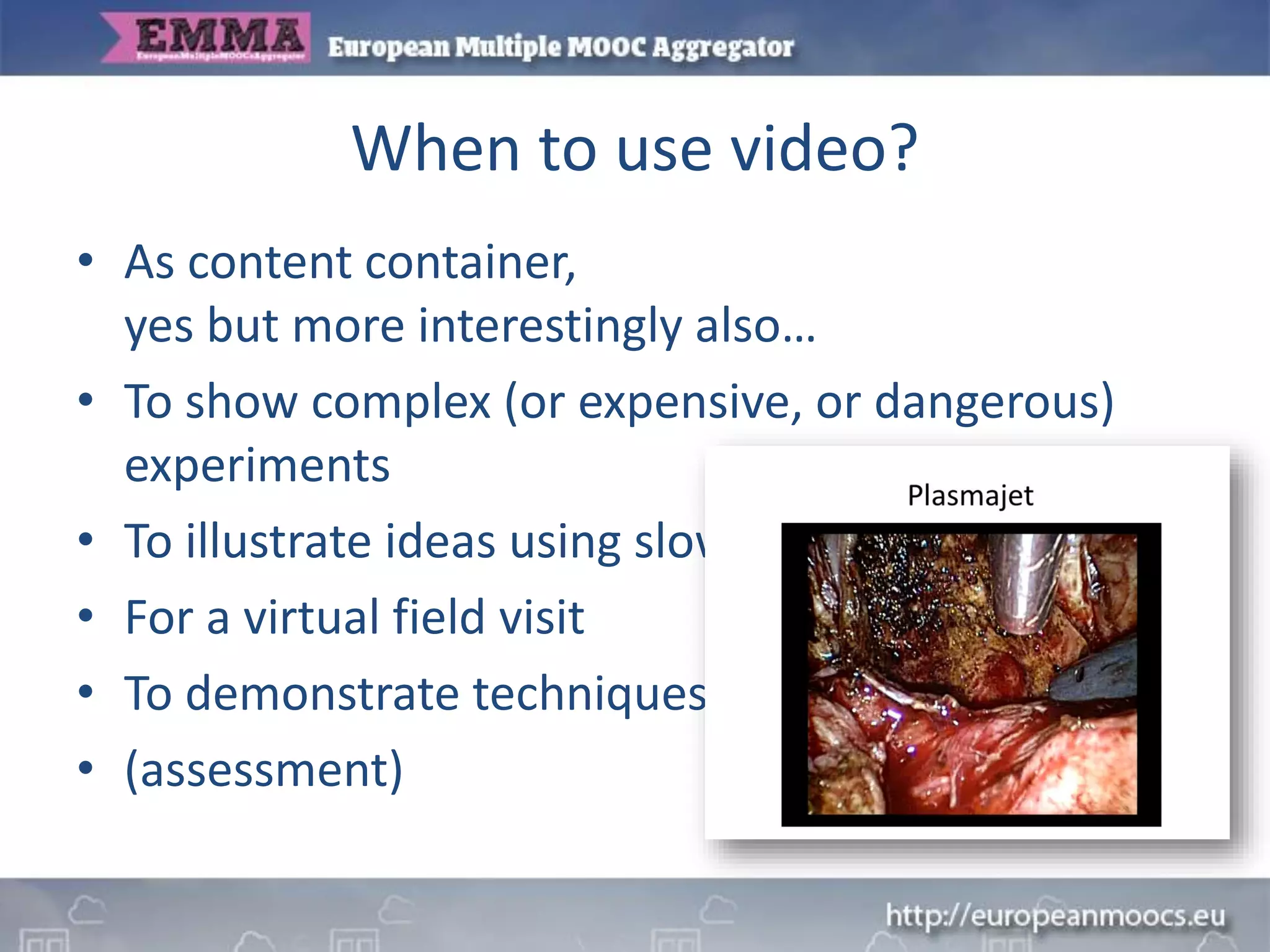
• To show complex (or expensive, or dangerous)
experiments
• To illustrate ideas using slow-motion or animation
• For a virtual field visit
• To demonstrate techniques or mechanical skills
• (assessment)
When to use video?
• As content container,
yes but more interestingly also…
• To show complex (or expensive, or dangerous)
experiments
• To illustrate ideas using slow-motion or animation
• For a virtual field visit
• To demonstrate techniques or mechanical skills
• (assessment)
When to use video?
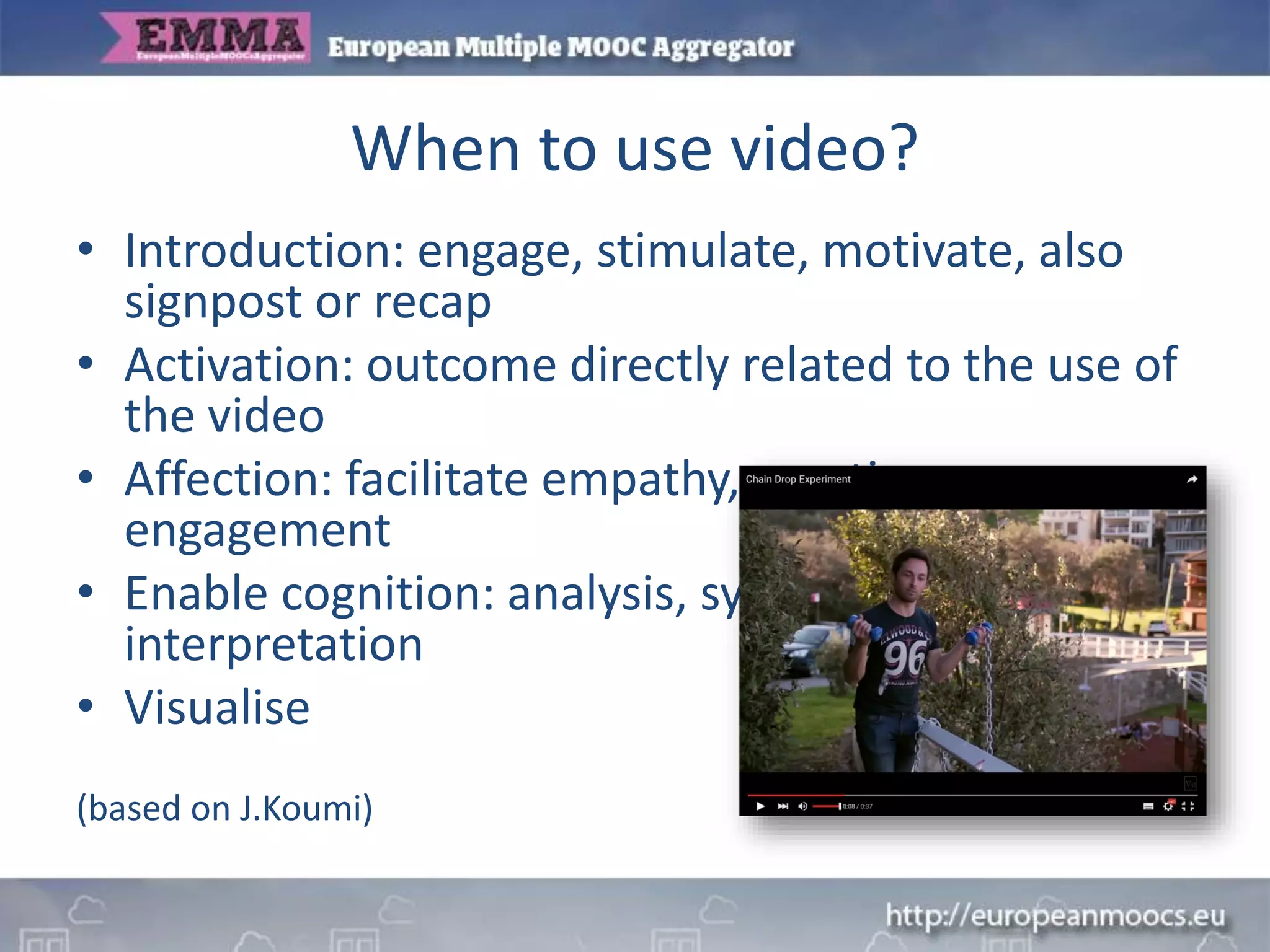
• Introduction: engage, stimulate, motivate, also
signpost or recap
• Activation: outcome directly related to the use of
the video
• Affection: facilitate empathy, emotion,
engagement
• Enable cognition: analysis, synthesis,
interpretation
• Visualise
(based on J.Koumi)
When to use video?
• Introduction: engage, stimulate, motivate, also
signpost or recap
• Activation: outcome directly related to the use of
the video
• Affection: facilitate empathy, emotion,
engagement
• Enable cognition: analysis, synthesis,
interpretation
• Visualise
(based on J.Koumi)
Key question 2
• How to maximise student learning outcomes
with video in a MOOC?
‼ Does not equal more views.
Videos with high numbers of views usually have a direct
connection to course assignments or assessments
Guo, Kim, Rubin; McConachie, Schmidt e a; Hibbert; Chauhan, Goel
How to maximise student learning?
• Short videos have higher engagement (impact)
• Segment videos: 6 minutes seems to be a good
compromise between what instructors want to
instruct and what students accept.
Shorter videos are also more engaging than
longer videos.
Videos of <30 seconds are most likely watched all
the way (85%). Drop off starts and levels to 50%
between 2 and 10 minutes.
Put the most important parts of the message at
the very beginning.
How to maximise student learning?
• Talking heads edited with slides are more
engaging than slides alone.
• Requires post-production editing (unless
players allow simultaneous view)
‼ Classroom lecture recordings require
preproduction and planning in order to be
engaging
How to maximise student learning?
• Videos with a more personal feel are more
engaging.
• Record in an informal setting
‼ High production values do not pay off, but it is
important to apply the “laws” of good quality
media production, e.g. eye contact, good
audio, clear graphs, readable text…
Ambiguous effect of production values…
How to maximise student learning?
• Candid drawing (“Khan Academy Style”) is more
engaging than PowerPoint slides or screencasts.
• Continuous speaking, motion and visual flow
engage the learning.
‼ More pre-production planning needed, does not
suit all instructors (clear handwriting, good
drawing skills, careful layout planning, good
presentation skills, good voice technique,
prepared narrative…)
How to maximise student learning?
• Quality of the teacher as an “actor” is
important: enthusiastic delivery, relating to
personal experiences, humour, create
suspense etc. is more engaging.
‼ Speed up text, edit out pauses and filler words
in post-production can help.
Prejudices
• Are students watching your videos?
Prejudices
• Are students watching your videos?
– Do they, yes or no?
– Preference for text materials
– Video is boring
– If the video is not well made, they won’t look
– Is it worth all the trouble?
Prejudices
• Are students watching your videos?
• Is video difficult to produce?
Prejudices
• Are students watching your videos?
• Is video difficult to produce?
• Is video expensive?
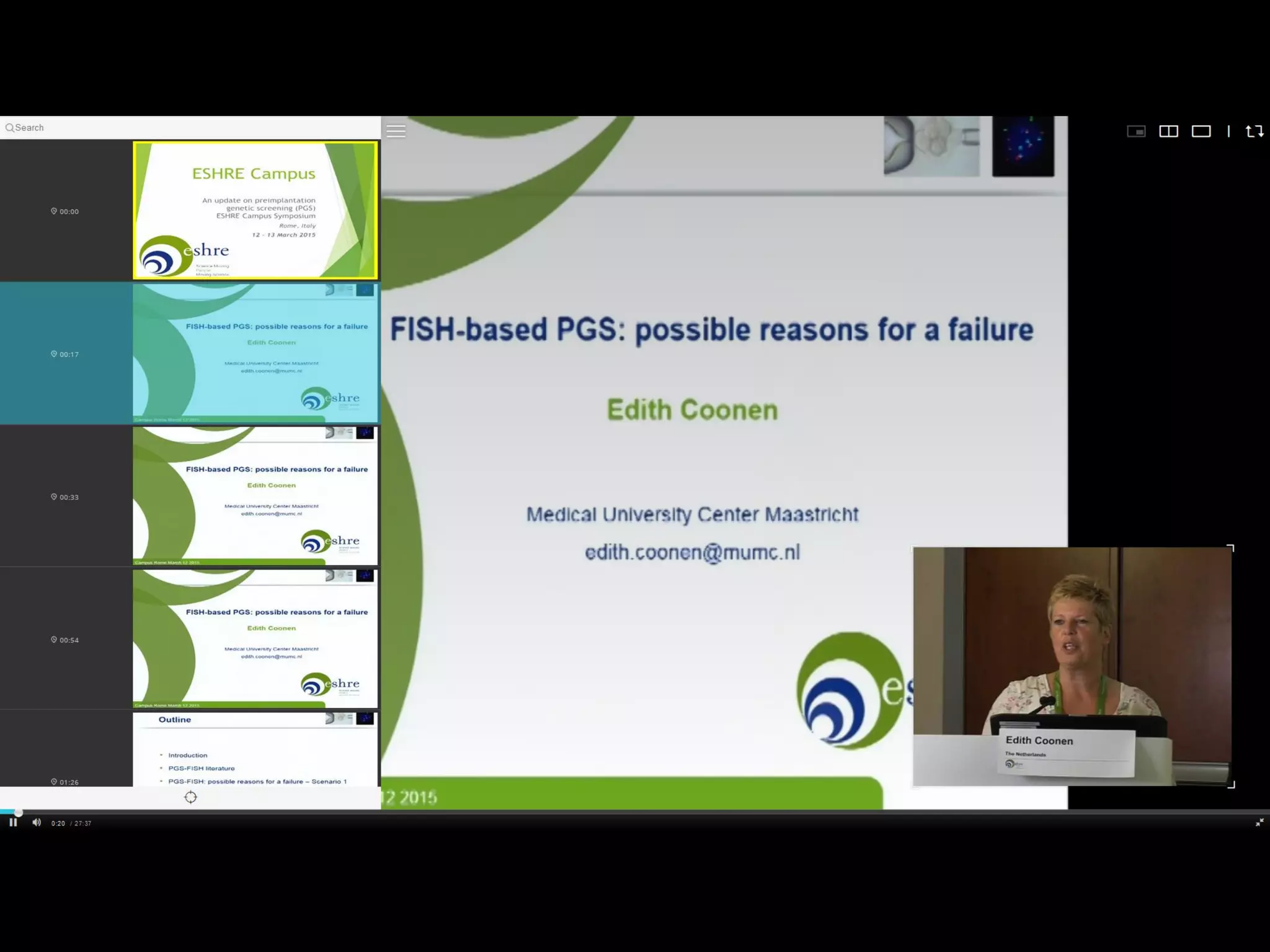
Interface: the player side
• Navigate
– Play, pause, stop
– Volume control
– Full screen play out
– Increase/decrease speed
– Current time/total time of video
– Progress bar
– Navigation by keyboard
• Captions
– Subtitle options
Interface
• Download, view off-line, watch on youtube
• Full screen mode, adjust video quality
• Interaction with(in) video is important
– In-video activity (e.g. quiz)
– Edit, segment, extract (A/V)
– Annotate
– Tag
– Quiz
– Assessment
– Statistics
– Search in video, in supplementary materials
Interface
• Search inside video, inside transcript, inside
presentation
• Supplement
– Presentation slides
– Related document
– Transcript of video
– Language selection
• Secondary screen integration
Interface
• Favorites, add to watch later, personal playlist,
tag, annotate,
• Social functionalities
– Share
– Recommend
– Annotate
– Like etc...
• Support: browser issues, player issues
All originally created materials are de facto copyrighted
If you want to share as an Open Education Resource or
under a CC license, this has to be explicitly declared.
• Warning: the newly composed work inherits the underlying
rights of its components.
• Note: international context of the newly composed work
possible discrepancies with your own (national) legislation.
CC version 4.0
Intellectual property aspects (add’l)
Questions?

Mathy Vanbuel - EMMA webinar: Capturing and delivering effective video as part of your MOOC

  • 1.
    Choosing to implementvideo in your MOOC – what are the options? Mathy Vanbuel, ATiT
  • 2.
    Video is popularas a teaching tool: • Container of large amounts of content • Self paced, self-regulated and independent learning
  • 3.
    Video is popularas a teaching tool: • Container of large amounts of content • Self paced, self-regulated and independent learning “Media are mere vehicles that deliver instruction but do not influence student achievement any more than the truck that delivers our groceries causes changes in our nutrition” (R. Clark, 1983) Focus should be on the learner experience, less on the instruction.
  • 4.
    Provider Perspective • Puttingvideos on EMMA • What kind of videos can be used in a MOOC? When to use video for learning? • How to maximise student learning outcomes with video in a MOOC? • Prejudices about video Learner Perspective • Interface Contents
  • 5.
    Putting videos onEMMA • Put videos on YouTube or Vimeo (account needed for YouTube, EMMA can provide access to Vimeo by v-app) • Embed videos on EMMA in the appropriate spot • Also learners can load videos (YouTube only) within their personal blog pages
  • 6.
    Key question 1 Whatkind of videos can be used in a MOOC? • Lecture-style videos: instructor(s) with/without slides or graphs, in office, classroom, studio • Tutorial videos: video screencast, Khan-style • Expert interviews • Panel discussion • Documentary/reportage style (live demos, e.g. surgeries; location shoot) • All moving images: archives, Europeana…
  • 7.
    When to usevideo? • As content container
  • 8.
    When to usevideo? • As content container, yes but more interestingly also… • To show complex (or expensive, or dangerous) experiments • To illustrate ideas using slow-motion or animation • For a virtual field visit • To demonstrate techniques or mechanical skills • (assessment)
  • 9.
    When to usevideo? • As content container, yes but more interestingly also… • To show complex (or expensive, or dangerous) experiments • To illustrate ideas using slow-motion or animation • For a virtual field visit • To demonstrate techniques or mechanical skills • (assessment)
  • 10.
    When to usevideo? • Introduction: engage, stimulate, motivate, also signpost or recap • Activation: outcome directly related to the use of the video • Affection: facilitate empathy, emotion, engagement • Enable cognition: analysis, synthesis, interpretation • Visualise (based on J.Koumi)
  • 11.
    When to usevideo? • Introduction: engage, stimulate, motivate, also signpost or recap • Activation: outcome directly related to the use of the video • Affection: facilitate empathy, emotion, engagement • Enable cognition: analysis, synthesis, interpretation • Visualise (based on J.Koumi)
  • 12.
    Key question 2 •How to maximise student learning outcomes with video in a MOOC? ‼ Does not equal more views. Videos with high numbers of views usually have a direct connection to course assignments or assessments Guo, Kim, Rubin; McConachie, Schmidt e a; Hibbert; Chauhan, Goel
  • 13.
    How to maximisestudent learning? • Short videos have higher engagement (impact) • Segment videos: 6 minutes seems to be a good compromise between what instructors want to instruct and what students accept. Shorter videos are also more engaging than longer videos. Videos of <30 seconds are most likely watched all the way (85%). Drop off starts and levels to 50% between 2 and 10 minutes. Put the most important parts of the message at the very beginning.
  • 14.
    How to maximisestudent learning? • Talking heads edited with slides are more engaging than slides alone. • Requires post-production editing (unless players allow simultaneous view) ‼ Classroom lecture recordings require preproduction and planning in order to be engaging
  • 15.
    How to maximisestudent learning? • Videos with a more personal feel are more engaging. • Record in an informal setting ‼ High production values do not pay off, but it is important to apply the “laws” of good quality media production, e.g. eye contact, good audio, clear graphs, readable text… Ambiguous effect of production values…
  • 16.
    How to maximisestudent learning? • Candid drawing (“Khan Academy Style”) is more engaging than PowerPoint slides or screencasts. • Continuous speaking, motion and visual flow engage the learning. ‼ More pre-production planning needed, does not suit all instructors (clear handwriting, good drawing skills, careful layout planning, good presentation skills, good voice technique, prepared narrative…)
  • 17.
    How to maximisestudent learning? • Quality of the teacher as an “actor” is important: enthusiastic delivery, relating to personal experiences, humour, create suspense etc. is more engaging. ‼ Speed up text, edit out pauses and filler words in post-production can help.
  • 18.
    Prejudices • Are studentswatching your videos?
  • 19.
    Prejudices • Are studentswatching your videos? – Do they, yes or no? – Preference for text materials – Video is boring – If the video is not well made, they won’t look – Is it worth all the trouble?
  • 20.
    Prejudices • Are studentswatching your videos? • Is video difficult to produce?
  • 21.
    Prejudices • Are studentswatching your videos? • Is video difficult to produce? • Is video expensive?
  • 22.
    Interface: the playerside • Navigate – Play, pause, stop – Volume control – Full screen play out – Increase/decrease speed – Current time/total time of video – Progress bar – Navigation by keyboard • Captions – Subtitle options
  • 24.
    Interface • Download, viewoff-line, watch on youtube • Full screen mode, adjust video quality • Interaction with(in) video is important – In-video activity (e.g. quiz) – Edit, segment, extract (A/V) – Annotate – Tag – Quiz – Assessment – Statistics – Search in video, in supplementary materials
  • 25.
    Interface • Search insidevideo, inside transcript, inside presentation • Supplement – Presentation slides – Related document – Transcript of video – Language selection • Secondary screen integration
  • 26.
    Interface • Favorites, addto watch later, personal playlist, tag, annotate, • Social functionalities – Share – Recommend – Annotate – Like etc... • Support: browser issues, player issues
  • 27.
    All originally createdmaterials are de facto copyrighted If you want to share as an Open Education Resource or under a CC license, this has to be explicitly declared. • Warning: the newly composed work inherits the underlying rights of its components. • Note: international context of the newly composed work possible discrepancies with your own (national) legislation. CC version 4.0 Intellectual property aspects (add’l)
  • 28.