




LEVERAGE THE POWER OF
              GOOGLE+
             Rebecca Wardlow
      www.RebeccaWardlow.com
About Rebecca
CONNECT WITH ME on other social
media platforms...

• Website
  www.RebeccaWardlow.com
• LinkedIn
  www.linkedin.com/in/rebeccawardlo
  w
• Twitter
  http://www.twitter.com/rwardlow7
• Facebook
  https://www.facebook.com/GetSoci
  alSolutions
• Pinterest http://pinterest.com/Soci
  alSolutions
• Google+ http://gplus.to/rwardlow7

Let’s Go SOCIAL! Have an Amazing Day!
Key Topics Today
• How To Get Started on Google+
• Creating Your Google+ Profile
• Finding People to Circle
• Creating Your Google+ Business Page
• Optimizing Your Profile & Business Page
• How Google+ and YouTube work together
• Engaging Customers with Google+ Hangouts
• Share your passion with others in the Google+
  Communities
• Google+ Local and why it’s important
• Using Google Authorship to Stand Out in Search
Why
Google+?
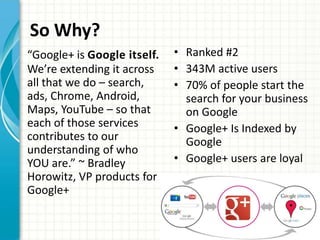
So Why?
“Google+ is Google itself.   • Ranked #2
We’re extending it across    • 343M active users
all that we do – search,     • 70% of people start the
ads, Chrome, Android,          search for your business
Maps, YouTube – so that        on Google
each of those services       • Google+ Is Indexed by
contributes to our             Google
understanding of who
YOU are.” ~ Bradley          • Google+ users are loyal
Horowitz, VP products for
Google+
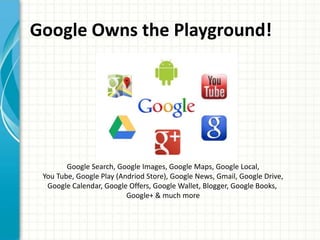
Google Owns the Playground!


        Google Search, Google Images, Google Maps, Google Local,
 You Tube, Google Play (Andriod Store), Google News, Gmail, Google Drive,
  Google Calendar, Google Offers, Google Wallet, Blogger, Google Books,
                          Google+ & much more
Google+ vs. Facebook
• Visibility of Posts - any follower as well as the
  public.
• Easier to share and rank other people’s posts
  and comments
• Variety of sharing options (video, posts, photos)
• Personalized Circles. Follow who you want to
  follow and no one else.
• Connected with YouTube
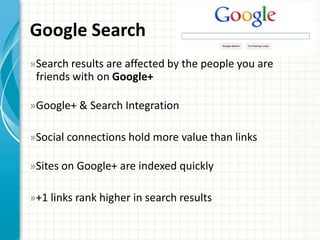
Google Search
» Search results are affected by the people you are
 friends with on Google+

» Google+ & Search Integration

»Social connections hold more value than links

»Sites on Google+ are indexed quickly

»+1 links rank higher in search results
How To Get
Started on
Google+
Let’s Get Started

         • Build a personal presence
     1     on G+

         • Create your G+ Business
     2     Page

     3   • Find People to Circle
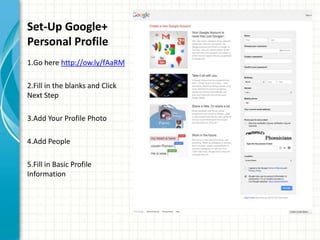
Set-Up Google+
Personal Profile
1.Go here http://ow.ly/fAaRM

2.Fill in the blanks and Click
Next Step

3.Add Your Profile Photo

4.Add People

5.Fill in Basic Profile
Information
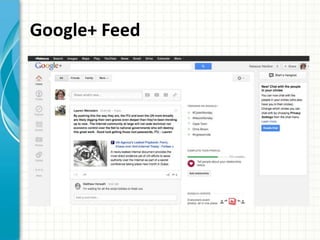
Google+ Feed
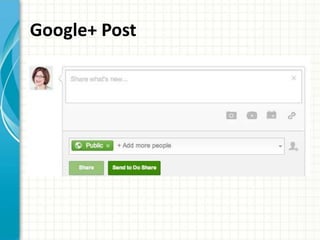
Google+ Post
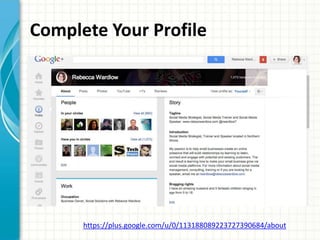
Complete Your Profile


      https://plus.google.com/u/0/113188089223727390684/about
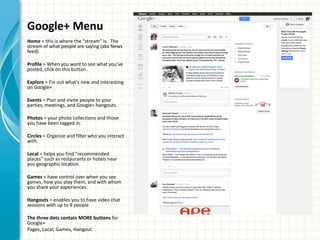
Google+ Menu
Home = this is where the “stream” is. The
stream of what people are saying (aka News
feed)

Profile = When you want to see what you’ve
posted, click on this button.

Explore = Fin out what’s new and interesting
on Google+

Events = Plan and invite people to your
parties, meetings, and Google+ hangouts.

Photos = your photo collections and those
you have been tagged in.

Circles = Organize and filter who you interact
with.

Local = helps you find “recommended
places” such as restaurants or hotels near
you geographic location

Games = have control over when you see
games, how you play them, and with whom
you share your experiences

Hangouts = enables you to have video chat
sessions with up to 9 people

The three dots contain MORE buttons for
Google+
Pages, Local, Games, Hangout
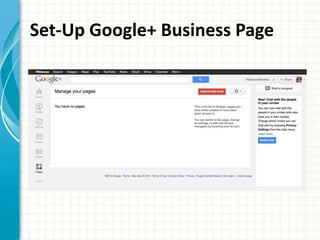
Set-Up Google+ Business Page
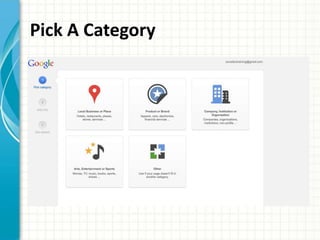
Pick A Category
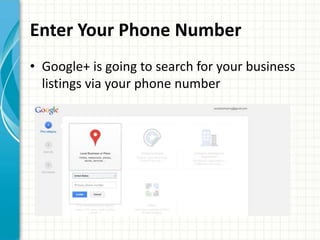
Enter Your Phone Number
• Google+ is going to search for your business
  listings via your phone number
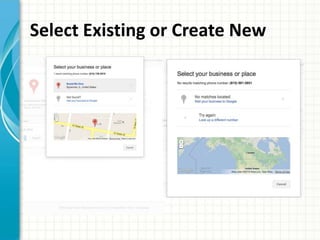
Select Existing or Create New
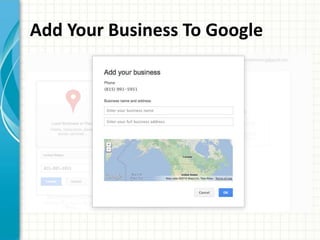
Add Your Business To Google
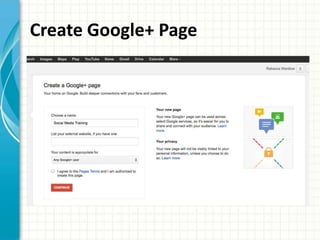
Create Google+ Page
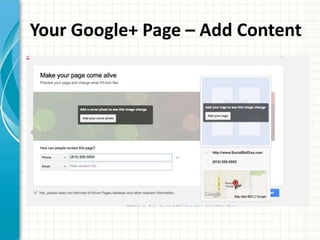
Your Google+ Page – Add Content
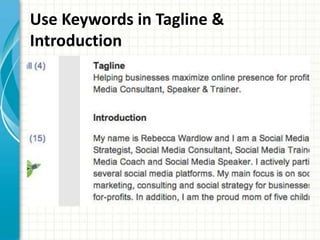
Use Keywords in Tagline &
Introduction
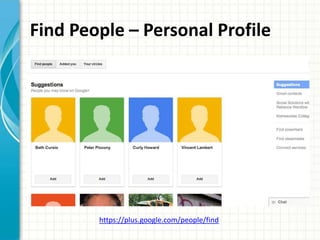
Find People – Personal Profile


        https://plus.google.com/people/find
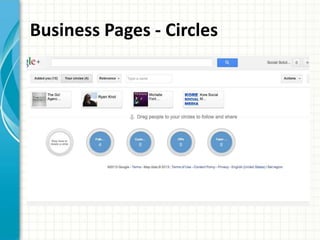
Business Pages - Circles
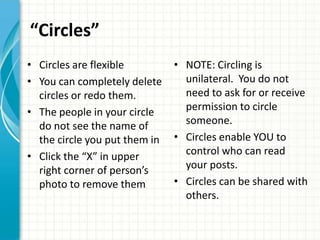
“Circles”
• Circles are flexible         • NOTE: Circling is
• You can completely delete      unilateral. You do not
  circles or redo them.          need to ask for or receive
• The people in your circle      permission to circle
  do not see the name of         someone.
  the circle you put them in   • Circles enable YOU to
• Click the “X” in upper         control who can read
  right corner of person’s       your posts.
  photo to remove them         • Circles can be shared with
                                 others.
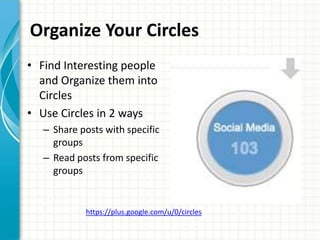
Organize Your Circles
• Find Interesting people
  and Organize them into
  Circles
• Use Circles in 2 ways
   – Share posts with specific
     groups
   – Read posts from specific
     groups


            https://plus.google.com/u/0/circles
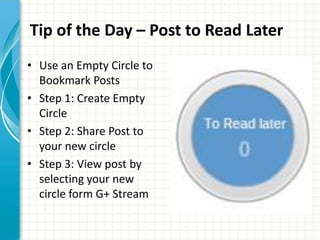
Tip of the Day – Post to Read Later
• Use an Empty Circle to
  Bookmark Posts
• Step 1: Create Empty
  Circle
• Step 2: Share Post to
  your new circle
• Step 3: View post by
  selecting your new
  circle form G+ Stream
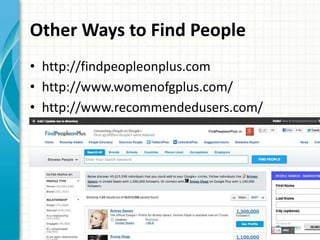
Other Ways to Find People
• http://findpeopleonplus.com
• http://www.womenofgplus.com/
• http://www.recommendedusers.com/
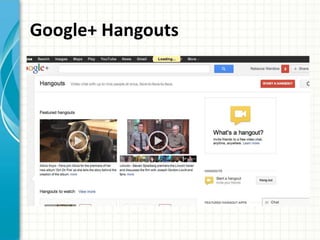
Google+ Hangouts
Google+ Hangouts
Google+ Hangouts             Google+ Hangouts on Air
• Up to 9 friends            • Live Broadcast
• Chat face-to-face          • Stream your hangout
• Host Virtual Meetings        publicly on Google+, your
• Broadcast to the World       YouTube channel, and
                               your website.
                             • Save instantly to YouTube
• http://youtu.be/7qlunRCj
  Z2U                        • Share to the World
                             • http://youtu.be/3pmSWh
                               2BQco
Google+ and YouTube
Google+ and YouTube
• Link Google+ Page to Your YouTube Channel
  (in Beta)
• Improved video sharing to YouTube, Google+
  and more
• Hangouts On Air will be linked properly
• YouTube tab on your page
Steps to Link Google+ & YouTube
1.   Your channel’s Google account must first have a Google+ profile on the account
     to start this process. If you don’t have a profile on your channel’s account, go
     toplus.google.com and create a profile with your name (not your channel’s
     name).

1.   If you have an existing Google+ page to which you’d like to link your channel,
     add your channel’s Google account as a manager of the corresponding page
     (instructions)

2.   On YouTube, go to your advanced account settings, and click "Connect with a
     Google+ page (beta)." From there you'll see a number of options:
        •    Link with a new Google+ page
        •    Link with an existing Google+ page that your channel’s google account owns or manages
        •    Link with a Google+ profile instead of a page

3.   Select a linking option, follow the instructions, and you're done!


             This is still in BETA mode and not available to all users
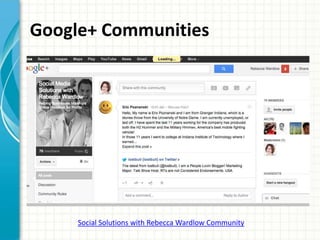
Google+ Communities


     Social Solutions with Rebecca Wardlow Community
Four Types of Communities
The four types of Google+ community groups you
can create are:
• Public group that anyone can join and post.
• Public group where only moderators can post,
  but anyone can view or comment.
• Private group (members only) that can be
  discovered by search.
• Private group (members only) hidden from
  search.
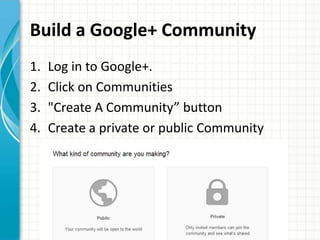
Build a Google+ Community
1.   Log in to Google+.
2.   Click on Communities
3.   "Create A Community” button
4.   Create a private or public Community
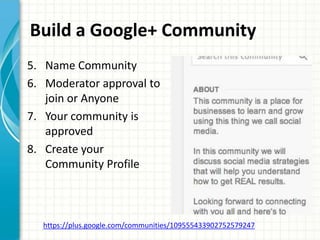
Build a Google+ Community
5. Name Community
6. Moderator approval to
   join or Anyone
7. Your community is
   approved
8. Create your
   Community Profile


  https://plus.google.com/communities/109555433902752579247
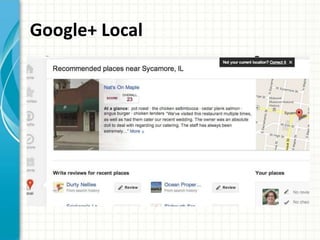
Google+ Local
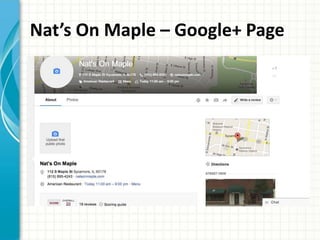
Nat’s On Maple – Google+ Page
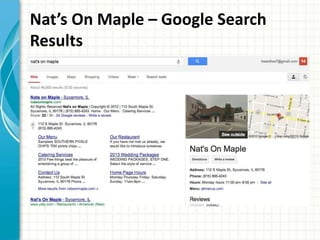
Nat’s On Maple – Google Search
Results
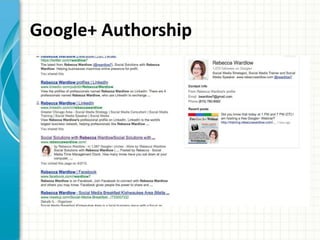
Google+ Authorship
Why Establish Authority on Google+?
• Immediate impact on SEO results
• Google Authorship lets Google know the
  content you write can be trusted to provide
  value to customer
• Yahoo scrapes public Google+ data
• Use Google Author Stats in Webmaster Tools
• New sites can rank quickly with G+ and retain
  rankings
Google+ Authorship
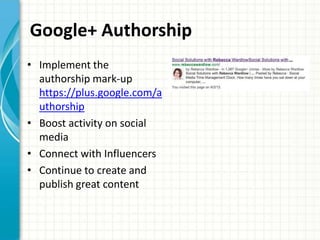
• Implement the
  authorship mark-up
  https://plus.google.com/a
  uthorship
• Boost activity on social
  media
• Connect with Influencers
• Continue to create and
  publish great content
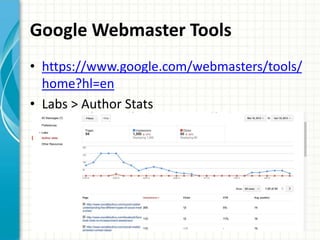
Google Webmaster Tools
• https://www.google.com/webmasters/tools/
  home?hl=en
• Labs > Author Stats
TIPS
Top 12 Ways To Grow
1. Complete Your Profile
2. Upload a Striking Cover Photo and Profile
   Photo
3. Assign Multiple Managers
4. Add Users to Your Circles
5. Add a Google+ Badge to Your Website
6. Post (Relevant) Content Regularly
Top 12 Ways To Grow
7. Ensure Rich Snippets Are Rendering
   Correctly
8. Utilize #Hashtags in Your Posts
9. Create Events
10. Host a Hangout
11. Submit a Page Verification Request
12. Set a Vanity URL
   (http://gplus.to/rwardlow7)
Be Active Without Wasting Time
Get it all done in 60 minutes or less.

15 minutes – Look for information outside
  Google+ that your circles would enjoy.
15 minutes – Engage in conversation on a post
10 minutes – Read posts by others and comment
10 minutes – Comment on your own posts
5 minutes – Share a new post
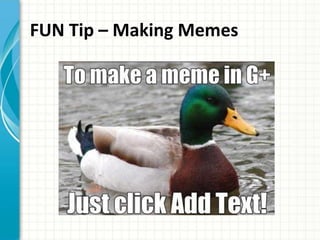
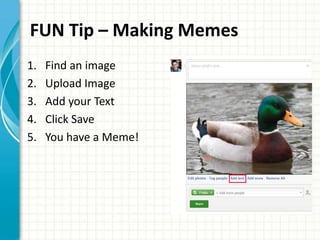
FUN Tip – Making Memes
1.   Find an image
2.   Upload Image
3.   Add your Text
4.   Click Save
5.   You have a Meme!
RESOURCES
& TOOLS
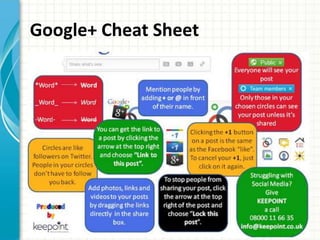
Google+ Cheat Sheet
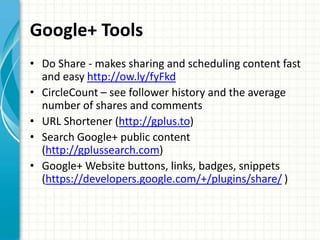
Google+ Tools
• Do Share - makes sharing and scheduling content fast
  and easy http://ow.ly/fyFkd
• CircleCount – see follower history and the average
  number of shares and comments
• URL Shortener (http://gplus.to)
• Search Google+ public content
  (http://gplussearch.com)
• Google+ Website buttons, links, badges, snippets
  (https://developers.google.com/+/plugins/share/ )
A Favor To
Ask YOU!
Did you learn something?
• Would you please give me a review on my
  Facebook Fan Page
• https://www.facebook.com/GetSocialSolutio
  ns/app_271714849531389
SPECIAL
OFFERS FOR
YOU!
50% OFF use Coupon Code 50off


         http://ow.ly/kcQuI                           http://ow.ly/kcQbn

•   Private Facebook Group                 •   12-week course (at your own pace)
•   Daily Social Media challenges &        •   Starts June 1, 2013
    action steps
                                           •   Covering WordPress, Branding,
•   Daily ‘Support Each Other’ events
                                               Facebook, Twitter, LinkedIn,
•   Bi-Weekly 5-10 min training video
                                               Google+, YouTube, Pinterest, Time
•   Monthly LIVE conference call,
    Google+Hangout, Webinar                    Management, Mobile Marketing,
•   Support & advice from other                Brand Advocates & Tribe Building,
    members & more                             Tracking Social Engagement

                                  Special Pricing
                                    Valid Thru
                                    April 22nd
QUESTIONS &
ANSWERS

Leverage Google+

  • 1.
    LEVERAGE THE POWEROF GOOGLE+ Rebecca Wardlow www.RebeccaWardlow.com
  • 2.
    About Rebecca CONNECT WITHME on other social media platforms... • Website www.RebeccaWardlow.com • LinkedIn www.linkedin.com/in/rebeccawardlo w • Twitter http://www.twitter.com/rwardlow7 • Facebook https://www.facebook.com/GetSoci alSolutions • Pinterest http://pinterest.com/Soci alSolutions • Google+ http://gplus.to/rwardlow7 Let’s Go SOCIAL! Have an Amazing Day!
  • 3.
    Key Topics Today •How To Get Started on Google+ • Creating Your Google+ Profile • Finding People to Circle • Creating Your Google+ Business Page • Optimizing Your Profile & Business Page • How Google+ and YouTube work together • Engaging Customers with Google+ Hangouts • Share your passion with others in the Google+ Communities • Google+ Local and why it’s important • Using Google Authorship to Stand Out in Search
  • 4.
  • 5.
    So Why? “Google+ isGoogle itself. • Ranked #2 We’re extending it across • 343M active users all that we do – search, • 70% of people start the ads, Chrome, Android, search for your business Maps, YouTube – so that on Google each of those services • Google+ Is Indexed by contributes to our Google understanding of who YOU are.” ~ Bradley • Google+ users are loyal Horowitz, VP products for Google+
  • 6.
    Google Owns thePlayground! Google Search, Google Images, Google Maps, Google Local, You Tube, Google Play (Andriod Store), Google News, Gmail, Google Drive, Google Calendar, Google Offers, Google Wallet, Blogger, Google Books, Google+ & much more
  • 7.
    Google+ vs. Facebook •Visibility of Posts - any follower as well as the public. • Easier to share and rank other people’s posts and comments • Variety of sharing options (video, posts, photos) • Personalized Circles. Follow who you want to follow and no one else. • Connected with YouTube
  • 8.
    Google Search » Searchresults are affected by the people you are friends with on Google+ » Google+ & Search Integration »Social connections hold more value than links »Sites on Google+ are indexed quickly »+1 links rank higher in search results
  • 9.
  • 10.
    Let’s Get Started • Build a personal presence 1 on G+ • Create your G+ Business 2 Page 3 • Find People to Circle
  • 11.
    Set-Up Google+ Personal Profile 1.Gohere http://ow.ly/fAaRM 2.Fill in the blanks and Click Next Step 3.Add Your Profile Photo 4.Add People 5.Fill in Basic Profile Information
  • 12.
  • 13.
  • 14.
    Complete Your Profile https://plus.google.com/u/0/113188089223727390684/about
  • 15.
    Google+ Menu Home =this is where the “stream” is. The stream of what people are saying (aka News feed) Profile = When you want to see what you’ve posted, click on this button. Explore = Fin out what’s new and interesting on Google+ Events = Plan and invite people to your parties, meetings, and Google+ hangouts. Photos = your photo collections and those you have been tagged in. Circles = Organize and filter who you interact with. Local = helps you find “recommended places” such as restaurants or hotels near you geographic location Games = have control over when you see games, how you play them, and with whom you share your experiences Hangouts = enables you to have video chat sessions with up to 9 people The three dots contain MORE buttons for Google+ Pages, Local, Games, Hangout
  • 16.
  • 17.
  • 18.
    Enter Your PhoneNumber • Google+ is going to search for your business listings via your phone number
  • 19.
  • 20.
  • 21.
  • 22.
    Your Google+ Page– Add Content
  • 23.
    Use Keywords inTagline & Introduction
  • 24.
    Find People –Personal Profile https://plus.google.com/people/find
  • 25.
  • 26.
    “Circles” • Circles areflexible • NOTE: Circling is • You can completely delete unilateral. You do not circles or redo them. need to ask for or receive • The people in your circle permission to circle do not see the name of someone. the circle you put them in • Circles enable YOU to • Click the “X” in upper control who can read right corner of person’s your posts. photo to remove them • Circles can be shared with others.
  • 27.
    Organize Your Circles •Find Interesting people and Organize them into Circles • Use Circles in 2 ways – Share posts with specific groups – Read posts from specific groups https://plus.google.com/u/0/circles
  • 28.
    Tip of theDay – Post to Read Later • Use an Empty Circle to Bookmark Posts • Step 1: Create Empty Circle • Step 2: Share Post to your new circle • Step 3: View post by selecting your new circle form G+ Stream
  • 29.
    Other Ways toFind People • http://findpeopleonplus.com • http://www.womenofgplus.com/ • http://www.recommendedusers.com/
  • 30.
  • 31.
    Google+ Hangouts Google+ Hangouts Google+ Hangouts on Air • Up to 9 friends • Live Broadcast • Chat face-to-face • Stream your hangout • Host Virtual Meetings publicly on Google+, your • Broadcast to the World YouTube channel, and your website. • Save instantly to YouTube • http://youtu.be/7qlunRCj Z2U • Share to the World • http://youtu.be/3pmSWh 2BQco
  • 32.
  • 33.
    Google+ and YouTube •Link Google+ Page to Your YouTube Channel (in Beta) • Improved video sharing to YouTube, Google+ and more • Hangouts On Air will be linked properly • YouTube tab on your page
  • 34.
    Steps to LinkGoogle+ & YouTube 1. Your channel’s Google account must first have a Google+ profile on the account to start this process. If you don’t have a profile on your channel’s account, go toplus.google.com and create a profile with your name (not your channel’s name). 1. If you have an existing Google+ page to which you’d like to link your channel, add your channel’s Google account as a manager of the corresponding page (instructions) 2. On YouTube, go to your advanced account settings, and click "Connect with a Google+ page (beta)." From there you'll see a number of options: • Link with a new Google+ page • Link with an existing Google+ page that your channel’s google account owns or manages • Link with a Google+ profile instead of a page 3. Select a linking option, follow the instructions, and you're done! This is still in BETA mode and not available to all users
  • 35.
    Google+ Communities Social Solutions with Rebecca Wardlow Community
  • 36.
    Four Types ofCommunities The four types of Google+ community groups you can create are: • Public group that anyone can join and post. • Public group where only moderators can post, but anyone can view or comment. • Private group (members only) that can be discovered by search. • Private group (members only) hidden from search.
  • 37.
    Build a Google+Community 1. Log in to Google+. 2. Click on Communities 3. "Create A Community” button 4. Create a private or public Community
  • 38.
    Build a Google+Community 5. Name Community 6. Moderator approval to join or Anyone 7. Your community is approved 8. Create your Community Profile https://plus.google.com/communities/109555433902752579247
  • 39.
  • 40.
    Nat’s On Maple– Google+ Page
  • 41.
    Nat’s On Maple– Google Search Results
  • 42.
  • 43.
    Why Establish Authorityon Google+? • Immediate impact on SEO results • Google Authorship lets Google know the content you write can be trusted to provide value to customer • Yahoo scrapes public Google+ data • Use Google Author Stats in Webmaster Tools • New sites can rank quickly with G+ and retain rankings
  • 44.
    Google+ Authorship • Implementthe authorship mark-up https://plus.google.com/a uthorship • Boost activity on social media • Connect with Influencers • Continue to create and publish great content
  • 45.
    Google Webmaster Tools •https://www.google.com/webmasters/tools/ home?hl=en • Labs > Author Stats
  • 46.
  • 47.
    Top 12 WaysTo Grow 1. Complete Your Profile 2. Upload a Striking Cover Photo and Profile Photo 3. Assign Multiple Managers 4. Add Users to Your Circles 5. Add a Google+ Badge to Your Website 6. Post (Relevant) Content Regularly
  • 48.
    Top 12 WaysTo Grow 7. Ensure Rich Snippets Are Rendering Correctly 8. Utilize #Hashtags in Your Posts 9. Create Events 10. Host a Hangout 11. Submit a Page Verification Request 12. Set a Vanity URL (http://gplus.to/rwardlow7)
  • 49.
    Be Active WithoutWasting Time Get it all done in 60 minutes or less. 15 minutes – Look for information outside Google+ that your circles would enjoy. 15 minutes – Engage in conversation on a post 10 minutes – Read posts by others and comment 10 minutes – Comment on your own posts 5 minutes – Share a new post
  • 50.
    FUN Tip –Making Memes
  • 51.
    FUN Tip –Making Memes 1. Find an image 2. Upload Image 3. Add your Text 4. Click Save 5. You have a Meme!
  • 52.
  • 53.
  • 54.
    Google+ Tools • DoShare - makes sharing and scheduling content fast and easy http://ow.ly/fyFkd • CircleCount – see follower history and the average number of shares and comments • URL Shortener (http://gplus.to) • Search Google+ public content (http://gplussearch.com) • Google+ Website buttons, links, badges, snippets (https://developers.google.com/+/plugins/share/ )
  • 55.
  • 56.
    Did you learnsomething? • Would you please give me a review on my Facebook Fan Page • https://www.facebook.com/GetSocialSolutio ns/app_271714849531389
  • 57.
  • 58.
    50% OFF useCoupon Code 50off http://ow.ly/kcQuI http://ow.ly/kcQbn • Private Facebook Group • 12-week course (at your own pace) • Daily Social Media challenges & • Starts June 1, 2013 action steps • Covering WordPress, Branding, • Daily ‘Support Each Other’ events Facebook, Twitter, LinkedIn, • Bi-Weekly 5-10 min training video Google+, YouTube, Pinterest, Time • Monthly LIVE conference call, Google+Hangout, Webinar Management, Mobile Marketing, • Support & advice from other Brand Advocates & Tribe Building, members & more Tracking Social Engagement Special Pricing Valid Thru April 22nd
  • 59.

Editor's Notes

  • #6 #1 Facebook #2 Google+ #3 YouTube #4 Twitter according to ForbesGoogle+ users are loyal60% of users logged in daily80% engage weekly
  • #8 (Facebook Edgerank determines which friends or fans see posts)
  • #12 When you’ve circled approximately 50 people, Google+ gets really interested.Provide a detailed introduction, employment details, educational background, and places.Be sure to fill out all subheadings and sidebars as well. The text beneath your name, for instance, will serve as a meta description in searches Use targeted keywords.Include a +1 button on every page of your website, and encourage visitors to click it. The number of +1’s you receive is displayed to Google searchers even if they’re not logged into Google+.
  • #15 cover photo Is 2120px by 1192px.Profile pic 250 pixels x 250 pixels.
  • #16 Circling on Google+ does not involve sending people a “friend” request. You circle people unilaterally without their permission, although they are notified when you circle them.
  • #17 Use Google+ to educate followers, handle customer service, build a community & share media. Pages have such great potential on Google+. They are free, they are simple to set up, they can have great reach, they are flexible, and so on. Their success, by whatever standards you set, will come come to you and each brushstroke you make on the canvas.First step – set one up Second step – promote it
  • #18 Select the ”local business/place" category so you can also get listed in Google+ Local
  • #25 On Business Pages – You have “C
  • #26 In order to circle people on a business page, you will need to search for them by name and then follow.
  • #29 1. give it a name like "Bookmarks" or "To Read Later,”
  • #31 Google+ Hangouts are like SkypeGoogle Hangouts Reduce Travel ExpensesLive video chat, Small team meetings, virtual office hours, branstorming sessions or customer Q&A Sessions
  • #32 Google+ Hangout on AirOnce your hangout is over, it’s easy to keep the conversation going. Your hangout video will be available on Google+ and on your YouTube channel.
  • #36 Talk about the stuff you’re into with people who love it tooGather TogetherHave Rich ConversationsExplore Your Interest
  • #45 Boost activity on social sites — Put some quality time into interacting on social media sites, especially Google+. Focus on your top three. For example, for me that would be my blog, Twitter, and Google+. For you that might mean Google+, Pinterest, and LinkedIn.Connect with influencers — Get in a habit of re-sharing content from your friends and thought leaders. “+1″ their posts and make intelligent comments. Write interesting posts on Google+ and quote these influencers by name. Build upon the content they’ve already created — add to or challenge their work in a re-share.Continue to create and publish great content — This is what you will ultimately be judged upon, and is the core driver of the qualitative history of a writer that’s behind Author Rank. Keep writing and publishing those thoughtful, useful blog posts and building your authoritative bank of content.
  • #48 Google+ relies almost entirely on organic growthComplete Your ProfileThis may seem like a no-brainer, but many brand pages do not have a complete “About” section on the profile. Fill out this section completely. Include a link to your business or organization’s website (this is important to receive Verified Page status – more on that later). Add a link to your blog as well. Most importantly: include keyword hyperlinks in the Introduction section.Cover Photo image makes an impression. The profile photo serves as an avatar when using Google+ as your brand – commenting on and +1-ing posts. Updates in users’ newsfeeds will be accompanied by your profile photo, so make sure it’s indicative of your brand.Multiple ManagersClick “Settings” right below where your fans are listed on the right-hand side, and then click the “Managers” tab.Add Users to Your CirclesA brand page can add any other brand page to a circle, regardless of whether that brand page has already done the same. However, a brand page cannot add a human user to a circle unless that user has added the brand page to a circle first. If you’re starting from scratch, begin by having your employees, clients and vendors add your brand page to their circles. Add a Google+ Badge to Your WebsiteA Google+ badge on your website will allow visitors to add your page directly into a circle right from your website.Post (Relevant) Content RegularlyThe best way to keep your audience engaged is to regularly post high-quality content that matters to them. We post daily about SEO and inbound marketing. Informative blog posts and videos typically see high engagement. Find out what your audience is interested in and give them what they want.
  • #49 Ensure Rich Snippets Are Rendering CorrectlyIt’s not enough to just post your content. You’ll want to make sure it looks as good as possible in users’ newsfeeds. The three biggest components that you’ll want optimized are the featured image, page title and meta description:Utilize #Hashtags in Your PostsDid you know that Google+ supports hashtags in the exact same fashion that Twitter does? It’s true! You can include hashtags to signify certain topics in your posts. This is a great way to increase the visibility of your content to users who may be interested in the topics you post about.Create EventsOne of my favorite features of Google+ is Events. Similarly to how Facebook events work, you can invite users to attend a meetup, conference or webinar. Users can search the database of scheduled public events, which represents an opportunity to get your brand in front of new users who haven’t yet added your brand page to their circles.HangoutsConsider also holding Hangouts, which are live video chats with other Google+ users. You can even record Hangouts right to YouTube for an easy piece of content that can be repurposed. Ideas to get started are: Customer service Hangouts which should be hosted at regular times so customers can ask questions and receive direct answers, product demos, live courses for training and even business seminars. Submit a Page Verification RequestHaving a verified page gives your brand more authority and instant credibility.About 1,000 should still do the trick. Other criteria include:Your Google+ page must be authorized by your commercial entity, organization, brand, or product.Your Google+ page’s profile must contain a link to your organization’s website.Your organization’s website must connect to your Google+ page, by adding the Google+ badge or by adding a snippet of code.Read more at http://www.business2community.com/google-plus/best-practices-for-achieving-critical-mass-on-your-google-brand-page-0283000#RgBjw3YkhKCWhOlk.99
  • #59 Ramp It Up Social Media http://ow.ly/kcQuI On Demand Learning http://ow.ly/kcQbnGoogle+ Community https://plus.google.com/u/0/communities/109555433902752579247