Google+ for business
Outline:
1. What is Google+
2. Why Google+
3. Benefits
4. Set up your page
5. An effective Hovercard
6. Google+ Dashboard
7. Connect with others (Circles)
8. Get noticed/posting
9. Communities
10. Insights and Ripples
What is Google +
Google+ is the social network created by Google
and was launched in September 2011.
as of January 2013 Google + had replaced
Twitter as the second largest social network
behind Facebook.
Current figures of over 400 million users.
Why Google+
88.37% of searches in the UK use Google
The Google +1 button is used 5 billion times per day.
Why Google+
Benefits
Authorship – Your Google+ presence will solidify your identity across the
internet.
Build the following for your brand.
Boosts SEO performance.
Join and/or build online communities relating to your customers passions
Create ‘hangouts’ to enable group meetings, demonstrations or
discussions.
Publicise and promote events.
Create webinars (hangouts through your business page).
It’s VERY simple!
…using Google+ can help increase your company’s visibility
in Google’s organic search results, therefore increasing the
likelihood of potential customers finding you.
Set up your business page
Local business pages
Connect with your local customer/potential
customer base.
Create footfall.
Include a map of the business's location and
feature its address, phone number and hours
of operation.
Set up your business page
Pages for brands, organisations or artists
connect with followers, fans and customers.
These pages don’t include addresses or other physical
location information that appears on Google Maps.
You may choose from the following page types:
– Product or Brand
– Company, Institution or Organisation
– Arts, Entertainment or Sports
– Other
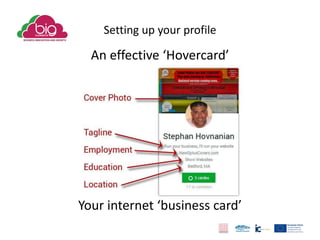
Setting up your profile
An effective ‘Hovercard’
Your internet ‘business card’
The Google+ Dashboard
Connect with others
Click People, then click ‘Your Circles’.
Circles
Circles
• Circles allow you to create and share information with groups just like you have in
your real life social circles. For example:
• Friends – Those I trust with my information and can see the majority of my
posts, photos, etc.
• Following – Don’t see my posts, but I want to see their posts.
• Business Contacts – See some of my posts, mostly those related to
business.
• Work Friends – See some of my posts, mostly those related to life at work.
• Geeks – See some of my posts, mostly those on topics about technology
and gadgets.
• Competition – research your competitors.
So come up with your list of circles and create them. Once you’ve created your circles,
begin adding your contacts to one or more circles. It’s perfectly fine to add a contact
to more than one circle.
Connect with others
start adding contacts to specific circles.
The names of these circles can also be customised to whatever you require. (This is done by right
clicking the circle and choosing edit.)
You’re ‘Circled’!
Google+ users can circle your company page, it means they
have opted in to receive information from you without
having to fill out any forms or communicate via email.
It’s THAT easy!
Get noticed!
• Circle the influencers in your specific industry.
• Comment on popular posts, as well as not so popular
posts.
• Press the magic Google +1 button, it really does help
people.
• Look for people that are engaging in conversations and
circle them.
• Reach out to people on an individual basis, thank
them, let them know you like their information.
• Share helpful and useful information so that people
will want to circle you.
Posting
Posts shared to circles or to
individuals cannot be seen by the
public as a whole.
People that view your profile will not see any of the posts
that haven't been shared with them - they can only see
public posts.
Posting
HOWEVER….. Only public posts are eligible to be
listed in the Google search results.
SO….if you are optimising your posts for SEO be
sure to make your post.
Public.
Posting
Sharing a post to a circle DOESN'T
mean that everyone you have placed
in that circle will see the post,
only those that follow you back
will.
Communities
There are communities for almost every subject
on Google+ and these can be accessed via the
left hand side Navigation pane, Communities.
Google Insights
Understand your audience and their
interactions.
Google Insights
Audience view – a demographic portrait of
your followers.
Engagement reports.
Visibility tab – shows your page view totals.
Creating ‘Ripples’
On any Google+ post, there's a small icon in the upper right
corner that reveals the Options Menu for that post. Within that
menu you can edit or delete the post, disable comments or lock
sharing,
and access Ripples.
Creating ‘Ripples’
Hangouts!
This feature is essentially a video chatroom, and enables
Google+ users to participate in live, and often times
spontaneous, video chats. Hangout can be opened to any of
your Circles, offered to friends via email, or left public so that
anyone could choose to pop in. All participants are required to
have a webcam, mic and a Google+ profile.
Hangouts!
Google+ workshop presentation

Google+ workshop presentation

  • 1.
  • 2.
    Google+ for business Outline: 1.What is Google+ 2. Why Google+ 3. Benefits 4. Set up your page 5. An effective Hovercard 6. Google+ Dashboard 7. Connect with others (Circles) 8. Get noticed/posting 9. Communities 10. Insights and Ripples
  • 3.
    What is Google+ Google+ is the social network created by Google and was launched in September 2011. as of January 2013 Google + had replaced Twitter as the second largest social network behind Facebook. Current figures of over 400 million users.
  • 4.
    Why Google+ 88.37% ofsearches in the UK use Google The Google +1 button is used 5 billion times per day.
  • 5.
    Why Google+ Benefits Authorship –Your Google+ presence will solidify your identity across the internet. Build the following for your brand. Boosts SEO performance. Join and/or build online communities relating to your customers passions Create ‘hangouts’ to enable group meetings, demonstrations or discussions. Publicise and promote events. Create webinars (hangouts through your business page).
  • 6.
    It’s VERY simple! …usingGoogle+ can help increase your company’s visibility in Google’s organic search results, therefore increasing the likelihood of potential customers finding you.
  • 7.
    Set up yourbusiness page Local business pages Connect with your local customer/potential customer base. Create footfall. Include a map of the business's location and feature its address, phone number and hours of operation.
  • 8.
    Set up yourbusiness page Pages for brands, organisations or artists connect with followers, fans and customers. These pages don’t include addresses or other physical location information that appears on Google Maps. You may choose from the following page types: – Product or Brand – Company, Institution or Organisation – Arts, Entertainment or Sports – Other
  • 9.
    Setting up yourprofile An effective ‘Hovercard’ Your internet ‘business card’
  • 10.
  • 11.
    Connect with others ClickPeople, then click ‘Your Circles’.
  • 12.
    Circles Circles • Circles allowyou to create and share information with groups just like you have in your real life social circles. For example: • Friends – Those I trust with my information and can see the majority of my posts, photos, etc. • Following – Don’t see my posts, but I want to see their posts. • Business Contacts – See some of my posts, mostly those related to business. • Work Friends – See some of my posts, mostly those related to life at work. • Geeks – See some of my posts, mostly those on topics about technology and gadgets. • Competition – research your competitors. So come up with your list of circles and create them. Once you’ve created your circles, begin adding your contacts to one or more circles. It’s perfectly fine to add a contact to more than one circle.
  • 13.
    Connect with others startadding contacts to specific circles. The names of these circles can also be customised to whatever you require. (This is done by right clicking the circle and choosing edit.)
  • 14.
    You’re ‘Circled’! Google+ userscan circle your company page, it means they have opted in to receive information from you without having to fill out any forms or communicate via email. It’s THAT easy!
  • 15.
    Get noticed! • Circlethe influencers in your specific industry. • Comment on popular posts, as well as not so popular posts. • Press the magic Google +1 button, it really does help people. • Look for people that are engaging in conversations and circle them. • Reach out to people on an individual basis, thank them, let them know you like their information. • Share helpful and useful information so that people will want to circle you.
  • 16.
    Posting Posts shared tocircles or to individuals cannot be seen by the public as a whole. People that view your profile will not see any of the posts that haven't been shared with them - they can only see public posts.
  • 17.
    Posting HOWEVER….. Only publicposts are eligible to be listed in the Google search results. SO….if you are optimising your posts for SEO be sure to make your post. Public.
  • 18.
    Posting Sharing a postto a circle DOESN'T mean that everyone you have placed in that circle will see the post, only those that follow you back will.
  • 19.
    Communities There are communitiesfor almost every subject on Google+ and these can be accessed via the left hand side Navigation pane, Communities.
  • 20.
    Google Insights Understand youraudience and their interactions.
  • 21.
    Google Insights Audience view– a demographic portrait of your followers. Engagement reports. Visibility tab – shows your page view totals.
  • 22.
    Creating ‘Ripples’ On anyGoogle+ post, there's a small icon in the upper right corner that reveals the Options Menu for that post. Within that menu you can edit or delete the post, disable comments or lock sharing, and access Ripples.
  • 23.
  • 24.
    Hangouts! This feature isessentially a video chatroom, and enables Google+ users to participate in live, and often times spontaneous, video chats. Hangout can be opened to any of your Circles, offered to friends via email, or left public so that anyone could choose to pop in. All participants are required to have a webcam, mic and a Google+ profile.
  • 25.