

Supernova Media Presents:


                     + 101
Stay Informed
                  Join our E-Club http://bit.ly/SNMe-club to receive our
                  monthly newsletter, with practical tips to increase
                  brand awareness and strategies for more engaging
                  relationships with your clients.


                   Visit and Like our Facebook page
 http://on.fb.me/KFujSu Go ahead - post your Social
  Media & WordPress questions and get answers in
                                           real time.
It Starts With Passion
           There‟s no shortage of creative thinkers out there.
           What‟s a little harder to find are creative thinkers who
           understand business. That‟s where Supernova Media
           Shines.

           We are a full service web company. We provide our
           customers with a uniform custom branded web
           presence.

           At Supernova Media we specialize in the speedy setup
           of WordPress websites & blogs. All our websites are
           mobile friendly, have onsite search engine optimization
           and social media integration.
Full Screen


 For a better view of the
 screenshots throughout this
 presentation you may want to
 view this presentation in full
 screen mode.
What is Google+?

          Google+ is the latest social media innovation offering a series
          of tools to help you stay connected with the people you care
          about. Google+ comprises of several new features including
          Circles, Sparks, Hangouts, Mobile, Location, Instant Upload,
          and Huddle. Here is a quick video of the project and we‟ll go
          through each feature.


          Check out this short video for an introduction to Google+.
Getting Started With Google+

                ‱   Google+ can be accessed from http://google.com/+ or
                    http://plus.google.com or http://google.com/plus or, for
                    mobile device, from http://m.google.com/plus.

                ‱   Google+ has a “+1” feature that functions in the same
                    way as the “Like” feature on Facebook.

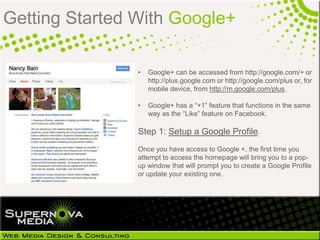
                Step 1: Setup a Google Profile.
                Once you have access to Google +, the first time you
                attempt to access the homepage will bring you to a pop-
                up window that will prompt you to create a Google Profile
                or update your existing one.
Getting Started With Google+

Step 2:

At this step you will also be prompted to integrate your Picasa photo albums. They'll be
transferred with the same security settings as they had before (ie: if an album was only
shared with a few people, only those people will still have access), but you might want to
go through your albums.
Getting Started With Google+

Step 3: Establish your Circles
1. Click on the circle tab. This opens a page where all of
   your circles will be displayed.
2. On the left there will be blank circle with text drop
   here to create a circle written inside it. Just hover it
   an then the text will change to Create Circle now
   make a click on that.
3. Type in the name for new circle and then click on
   create Create Empty Circle.
Getting Started With Google+


             Step 4: Check your privacy settings
             Click on your name in the upper right corner of the screen and
             select Account Settings from the context menu. Switch to
             Google+ to access the notification preferences.

             All notifications are enabled by default and usually linked to
             the primary email address of the Google+ user. I suggest you
             look at the notification settings and modify them according to
             your needs. If you do not want to receive notifications at all,
             disable everything on that screen.
Getting Started With Google+


Step 5: Add your contacts

At the moment Google+ only allows you to
import your HotMail or Yahoo contacts while
your Gmail contacts will already be listed.

Tip: Learn from your mistakes at Facebook -
start from scratch and experience a newsfeed
not cluttered by the frivolity of high school
"friends."
Getting Started With Google+

          Step 6: Organize a Huddle
          Huddle is a new way for you to easily stay in touch while you're on the
          go. With Huddle, you can text groups of people or individual friends in
          Google+ Mobile

          1. From the Google+ Home screen, touch Huddle.
          2. Touch the conversation icon to start a huddle.
          3. Start to type the name of a person or circle you'd like to add. Add up
          to 50 people to each huddle.
          4. Write your message.
          5. Touch Done. Your message will be sent instantly.
          When you start a huddle with someone for the first time, they'll
          automatically receive an invitation to join your huddle.
Getting Started With Google+

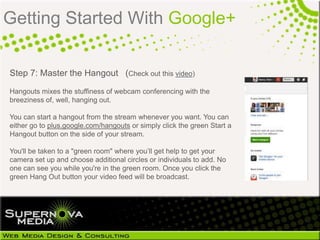
Step 7: Master the Hangout (Check out this video)
Hangouts mixes the stuffiness of webcam conferencing with the
breeziness of, well, hanging out.

You can start a hangout from the stream whenever you want. You can
either go to plus.google.com/hangouts or simply click the green Start a
Hangout button on the side of your stream.

You'll be taken to a "green room" where you‟ll get help to get your
camera set up and choose additional circles or individuals to add. No
one can see you while you're in the green room. Once you click the
green Hang Out button your video feed will be broadcast.
Edit Your
                                                                               Profile
                       About Page
                                    Your Photos
                                                   Your Videos

             Your Posts
                                                              Sites You‟ve
                                                              +1‟ed


Profile Picture
                                                                             View how
                                                                             your profile
                  Send an email                                              looks to
                                                                             the public
                                                                             or another
                     Your Circles                                            individual


                                                  Your Post
                                                  History
                     Circles your
                     added to


                          Google Profile Interface
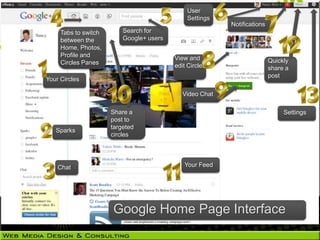
User
                                              Settings
                                                          Notifications
     Tabs to switch       Search for
     between the          Google+ users
     Home, Photos,
     Profile and                          View and
     Circles Panes                                                        Quickly
                                          edit Circles                    share a
                                                                          post
Your Circles

                                             Video Chat

                      Share a                                                  Settings
                      post to
                      targeted
   Sparks
                      circles


    Chat                                     Your Feed


                      Google Home Page Interface
+Stream

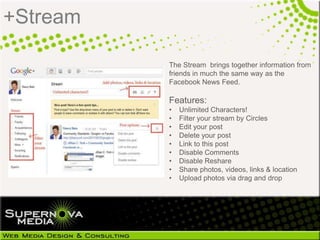
          The Stream brings together information from
          friends in much the same way as the
          Facebook News Feed.

          Features:
          ‱   Unlimited Characters!
          ‱   Filter your stream by Circles
          ‱   Edit your post
          ‱   Delete your post
          ‱   Link to this post
          ‱   Disable Comments
          ‱   Disable Reshare
          ‱   Share photos, videos, links & location
          ‱   Upload photos via drag and drop
+Circles
Share the RIGHT information with the RIGHT people
Google+ redefines privacy in the social network by forcing you to group everyone you want to
connect with into Circles. It provides four default circles to get you started:
 ‱   Friends - your closest buddies who you share those drunk pictures
     with.
 ‱   Family - your parents and siblings and in-laws who you share
     pictures of the baby with.
 ‱   Acquaintances - your work buddies who you don't want to know
     why you're really skipping work today.
 ‱   Following - the public people you're interested in, who probably
     don't know you in real life.
 You can then define your own circles or modify the existing ones to
 fit whatever grouping you need.
+Circles

           Manage your social circle and organize your
           contacts into groups for targeting your posts. No one
           can see what you've named your circles, or what
           circle they are in. You can easily drag and drop
           friends into circles.

           Go to the Settings Gear and select Profile and
           Privacy to see how your profile looks to other users.
           Type in a user name from different circles and click
           Preview to see what your profile looks like from the
           specified user.

           Watch this video on Circles
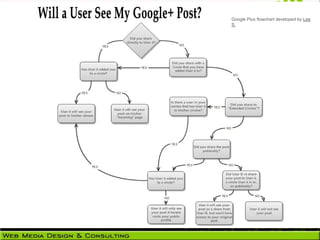
Google Plus flowchart developed by Lee
S.
+Sparks

Find topics you might be interested in
sharing with others.
Google+ Sparks is sort of like your personal
assistant who sits through all of your incoming
article and video feeds online so you really only get
the information you wanted to watch read or share.

Sparks is a great way to find information and all
information is current and reliable.

Watch this video for more information on Sparks.
+Chat

Before you can use Chat in Google+ , you have to enable
it. To get started:

① Click Enable chat on the side of your stream.
② Select the circles that are allowed to see when you're
  online. (If you haven't set up your circles yet, learn
  more about circles, and create your own.)

The Google+ chat list will be automatically populated with
people you‟ve already chosen to chat with in Gmail,
iGoogle, Google Talk, or Orkut. If someone isn't already a
contact of yours, you can invite them to chat right from the
Chat search box.
+Chat


        After you've enabled Chat, you can update the
        circles that are allowed to see when you're
        online. Simply click the drop-down arrow next
        to Chat and then select Circles.

        You can disable Chat by signing out. To sign
        out of Chat, click the drop-down arrow next to
        Chat and select Sign Out.
How to Send a Private Message

In Google+ both public and private messages are sent from the same place. When you post a
stream update, you can decide precisely who receives the message. If you want to send a
private message, just @mention the person or their email address in the stream and update and
make sure that “public” or none of your circles are added.

① In the Stream area, click “Share what‟s new
“.

② Use the @ symbol followed by your friend‟s username or email
  to add them to the stream update.

⑱ Make sure that the public tag is not added and make sure that
  there are no circles added to the message.

④ Click Share and your message will be sent!
+Mobile

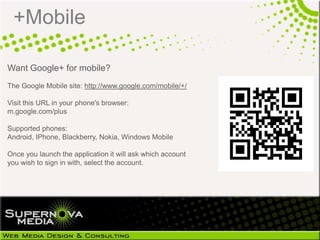
Want Google+ for mobile?
The Google Mobile site: http://www.google.com/mobile/+/

Visit this URL in your phone's browser:
m.google.com/plus

Supported phones:
Android, IPhone, Blackberry, Nokia, Windows Mobile

Once you launch the application it will ask which account
you wish to sign in with, select the account.
+Mobile

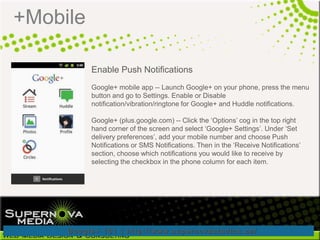
          Enable Push Notifications
          Google+ mobile app -- Launch Google+ on your phone, press the menu
          button and go to Settings. Enable or Disable
          notification/vibration/ringtone for Google+ and Huddle notifications.

          Google+ (plus.google.com) -- Click the „Options‟ cog in the top right
          hand corner of the screen and select „Google+ Settings‟. Under „Set
          delivery preferences‟, add your mobile number and choose Push
          Notifications or SMS Notifications. Then in the „Receive Notifications‟
          section, choose which notifications you would like to receive by
          selecting the checkbox in the phone column for each item.
+Cheat Sheet

This is your basic Google+ Cheat
Sheet, courtesy of Simon Laustsen.
+Friend Cap

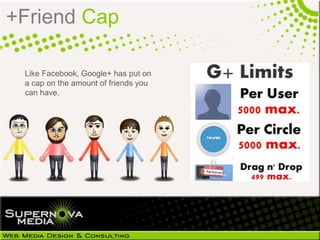
 Like Facebook, Google+ has put on
 a cap on the amount of friends you
 can have.
+Vanity URL


         Currently Google Plus profile URLs are defined by a long string of
         numbers and Google+ doesn't offer its own vanity URL shorteners
         (yet) like Facebook, Twitter and LinkedIn

         There are some alternatives here. http://bit.ly/pa1WEp

         You can use a third-party service at your own risk, such
         as Google Plus Nick. Just copy and paste the numbers on your
         profile URL after "plus.google.com/".
Want an Invite?

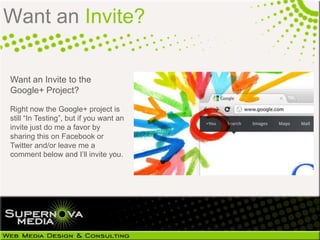
Want an Invite to the
Google+ Project?

Right now the Google+ project is
still “In Testing”, but if you want an
invite just do me a favor by
sharing this on Facebook or
Twitter and/or leave me a
comment below and I‟ll invite you.
Changes


          There have been a few
          changes with the Google
          Plus interface recently so we
          recommend checking out our
          Google Plus- 8 Major
          Changes presentation next.
Our Services
Being Passionate comes easy when you
genuinely enjoy what you do. We offer an
array of services at Supernova Media but
here‟s what we do best:

‱   Web Design & Hosting
‱   Consulting
‱   Branding
‱   Virtual Tours

We know that your success is our success.
Contact Us
About Nancy Bain
      Nancy is a business owner, educator, and business strategist
      with more than 20 years experience. When she is not advising
      and teaching people about social media, Nancy spends a lot of
      her own time using social media.

      Find Nancy online:

      Google+ : Nancy Bain       Like Supernova Media on
      Follow Nancy on Twitter    Facebook
      Visit her Website          Find her on LinkedIn
      Follow her Blog            And visit her YouTube Channel

Google+ 101 Guide

  • 1.
  • 2.
    Stay Informed Join our E-Club http://bit.ly/SNMe-club to receive our monthly newsletter, with practical tips to increase brand awareness and strategies for more engaging relationships with your clients. Visit and Like our Facebook page http://on.fb.me/KFujSu Go ahead - post your Social Media & WordPress questions and get answers in real time.
  • 3.
    It Starts WithPassion There‟s no shortage of creative thinkers out there. What‟s a little harder to find are creative thinkers who understand business. That‟s where Supernova Media Shines. We are a full service web company. We provide our customers with a uniform custom branded web presence. At Supernova Media we specialize in the speedy setup of WordPress websites & blogs. All our websites are mobile friendly, have onsite search engine optimization and social media integration.
  • 4.
    Full Screen Fora better view of the screenshots throughout this presentation you may want to view this presentation in full screen mode.
  • 5.
    What is Google+? Google+ is the latest social media innovation offering a series of tools to help you stay connected with the people you care about. Google+ comprises of several new features including Circles, Sparks, Hangouts, Mobile, Location, Instant Upload, and Huddle. Here is a quick video of the project and we‟ll go through each feature. Check out this short video for an introduction to Google+.
  • 6.
    Getting Started WithGoogle+ ‱ Google+ can be accessed from http://google.com/+ or http://plus.google.com or http://google.com/plus or, for mobile device, from http://m.google.com/plus. ‱ Google+ has a “+1” feature that functions in the same way as the “Like” feature on Facebook. Step 1: Setup a Google Profile. Once you have access to Google +, the first time you attempt to access the homepage will bring you to a pop- up window that will prompt you to create a Google Profile or update your existing one.
  • 7.
    Getting Started WithGoogle+ Step 2: At this step you will also be prompted to integrate your Picasa photo albums. They'll be transferred with the same security settings as they had before (ie: if an album was only shared with a few people, only those people will still have access), but you might want to go through your albums.
  • 8.
    Getting Started WithGoogle+ Step 3: Establish your Circles 1. Click on the circle tab. This opens a page where all of your circles will be displayed. 2. On the left there will be blank circle with text drop here to create a circle written inside it. Just hover it an then the text will change to Create Circle now make a click on that. 3. Type in the name for new circle and then click on create Create Empty Circle.
  • 9.
    Getting Started WithGoogle+ Step 4: Check your privacy settings Click on your name in the upper right corner of the screen and select Account Settings from the context menu. Switch to Google+ to access the notification preferences. All notifications are enabled by default and usually linked to the primary email address of the Google+ user. I suggest you look at the notification settings and modify them according to your needs. If you do not want to receive notifications at all, disable everything on that screen.
  • 10.
    Getting Started WithGoogle+ Step 5: Add your contacts At the moment Google+ only allows you to import your HotMail or Yahoo contacts while your Gmail contacts will already be listed. Tip: Learn from your mistakes at Facebook - start from scratch and experience a newsfeed not cluttered by the frivolity of high school "friends."
  • 11.
    Getting Started WithGoogle+ Step 6: Organize a Huddle Huddle is a new way for you to easily stay in touch while you're on the go. With Huddle, you can text groups of people or individual friends in Google+ Mobile 1. From the Google+ Home screen, touch Huddle. 2. Touch the conversation icon to start a huddle. 3. Start to type the name of a person or circle you'd like to add. Add up to 50 people to each huddle. 4. Write your message. 5. Touch Done. Your message will be sent instantly. When you start a huddle with someone for the first time, they'll automatically receive an invitation to join your huddle.
  • 12.
    Getting Started WithGoogle+ Step 7: Master the Hangout (Check out this video) Hangouts mixes the stuffiness of webcam conferencing with the breeziness of, well, hanging out. You can start a hangout from the stream whenever you want. You can either go to plus.google.com/hangouts or simply click the green Start a Hangout button on the side of your stream. You'll be taken to a "green room" where you‟ll get help to get your camera set up and choose additional circles or individuals to add. No one can see you while you're in the green room. Once you click the green Hang Out button your video feed will be broadcast.
  • 13.
    Edit Your Profile About Page Your Photos Your Videos Your Posts Sites You‟ve +1‟ed Profile Picture View how your profile Send an email looks to the public or another Your Circles individual Your Post History Circles your added to Google Profile Interface
  • 14.
    User Settings Notifications Tabs to switch Search for between the Google+ users Home, Photos, Profile and View and Circles Panes Quickly edit Circles share a post Your Circles Video Chat Share a Settings post to targeted Sparks circles Chat Your Feed Google Home Page Interface
  • 15.
    +Stream The Stream brings together information from friends in much the same way as the Facebook News Feed. Features: ‱ Unlimited Characters! ‱ Filter your stream by Circles ‱ Edit your post ‱ Delete your post ‱ Link to this post ‱ Disable Comments ‱ Disable Reshare ‱ Share photos, videos, links & location ‱ Upload photos via drag and drop
  • 16.
    +Circles Share the RIGHTinformation with the RIGHT people Google+ redefines privacy in the social network by forcing you to group everyone you want to connect with into Circles. It provides four default circles to get you started: ‱ Friends - your closest buddies who you share those drunk pictures with. ‱ Family - your parents and siblings and in-laws who you share pictures of the baby with. ‱ Acquaintances - your work buddies who you don't want to know why you're really skipping work today. ‱ Following - the public people you're interested in, who probably don't know you in real life. You can then define your own circles or modify the existing ones to fit whatever grouping you need.
  • 17.
    +Circles Manage your social circle and organize your contacts into groups for targeting your posts. No one can see what you've named your circles, or what circle they are in. You can easily drag and drop friends into circles. Go to the Settings Gear and select Profile and Privacy to see how your profile looks to other users. Type in a user name from different circles and click Preview to see what your profile looks like from the specified user. Watch this video on Circles
  • 18.
    Google Plus flowchartdeveloped by Lee S.
  • 19.
    +Sparks Find topics youmight be interested in sharing with others. Google+ Sparks is sort of like your personal assistant who sits through all of your incoming article and video feeds online so you really only get the information you wanted to watch read or share. Sparks is a great way to find information and all information is current and reliable. Watch this video for more information on Sparks.
  • 20.
    +Chat Before you canuse Chat in Google+ , you have to enable it. To get started: ① Click Enable chat on the side of your stream. ② Select the circles that are allowed to see when you're online. (If you haven't set up your circles yet, learn more about circles, and create your own.) The Google+ chat list will be automatically populated with people you‟ve already chosen to chat with in Gmail, iGoogle, Google Talk, or Orkut. If someone isn't already a contact of yours, you can invite them to chat right from the Chat search box.
  • 21.
    +Chat After you've enabled Chat, you can update the circles that are allowed to see when you're online. Simply click the drop-down arrow next to Chat and then select Circles. You can disable Chat by signing out. To sign out of Chat, click the drop-down arrow next to Chat and select Sign Out.
  • 22.
    How to Senda Private Message In Google+ both public and private messages are sent from the same place. When you post a stream update, you can decide precisely who receives the message. If you want to send a private message, just @mention the person or their email address in the stream and update and make sure that “public” or none of your circles are added. ① In the Stream area, click “Share what‟s new
“. ② Use the @ symbol followed by your friend‟s username or email to add them to the stream update. ⑱ Make sure that the public tag is not added and make sure that there are no circles added to the message. ④ Click Share and your message will be sent!
  • 23.
    +Mobile Want Google+ formobile? The Google Mobile site: http://www.google.com/mobile/+/ Visit this URL in your phone's browser: m.google.com/plus Supported phones: Android, IPhone, Blackberry, Nokia, Windows Mobile Once you launch the application it will ask which account you wish to sign in with, select the account.
  • 24.
    +Mobile Enable Push Notifications Google+ mobile app -- Launch Google+ on your phone, press the menu button and go to Settings. Enable or Disable notification/vibration/ringtone for Google+ and Huddle notifications. Google+ (plus.google.com) -- Click the „Options‟ cog in the top right hand corner of the screen and select „Google+ Settings‟. Under „Set delivery preferences‟, add your mobile number and choose Push Notifications or SMS Notifications. Then in the „Receive Notifications‟ section, choose which notifications you would like to receive by selecting the checkbox in the phone column for each item.
  • 25.
    +Cheat Sheet This isyour basic Google+ Cheat Sheet, courtesy of Simon Laustsen.
  • 26.
    +Friend Cap LikeFacebook, Google+ has put on a cap on the amount of friends you can have.
  • 27.
    +Vanity URL Currently Google Plus profile URLs are defined by a long string of numbers and Google+ doesn't offer its own vanity URL shorteners (yet) like Facebook, Twitter and LinkedIn There are some alternatives here. http://bit.ly/pa1WEp You can use a third-party service at your own risk, such as Google Plus Nick. Just copy and paste the numbers on your profile URL after "plus.google.com/".
  • 28.
    Want an Invite? Wantan Invite to the Google+ Project? Right now the Google+ project is still “In Testing”, but if you want an invite just do me a favor by sharing this on Facebook or Twitter and/or leave me a comment below and I‟ll invite you.
  • 29.
    Changes There have been a few changes with the Google Plus interface recently so we recommend checking out our Google Plus- 8 Major Changes presentation next.
  • 30.
    Our Services Being Passionatecomes easy when you genuinely enjoy what you do. We offer an array of services at Supernova Media but here‟s what we do best: ‱ Web Design & Hosting ‱ Consulting ‱ Branding ‱ Virtual Tours We know that your success is our success. Contact Us
  • 31.
    About Nancy Bain Nancy is a business owner, educator, and business strategist with more than 20 years experience. When she is not advising and teaching people about social media, Nancy spends a lot of her own time using social media. Find Nancy online: Google+ : Nancy Bain Like Supernova Media on Follow Nancy on Twitter Facebook Visit her Website Find her on LinkedIn Follow her Blog And visit her YouTube Channel