Google + 
User Guide 
Business Pages & Communities 
Cristina Juesas 
Euskampus Fundazioa 
November ’14
Google + User Guide / Business Pages & Communities 
• What’s Google +? 
• Integrating Google Tools 
• What are Circles? 
• How do you post in Google+? 
• How do you mention someone in a 
post? 
• Hashtags 
• +1 
• General posting tips 
• Share other people’s publications 
• Formatting the text 
• Official pages 
• Photo albums 
• Communities 
Contents
Google + User Guide / Business Pages & Communities 
What’s Google +? 
• Google+ is a social network “on steroids” by Google. 
• The beta version was launched in June 2011 and it opened to the public in 
September that same year. 
• It aims to be more than a just a typical social network like Facebook or 
Twitter. Google wanted to create a place that included all the interactions 
with its other sites: gmail, gTalk, YouTube, Google, Photos, Sites, etc. 
• Relationships on this network are based on circles. 
• You can follow people without them necessarily following you back. It’s an 
asynchronous network.
Google + User Guide / Business Pages & Communities 
Integrating Google Tools 
• All Google’s tools (the search engine, YouTube, Gmail, Gtalk, Photos, Calendar, 
Sites, etc.) are integrated into Google+. 
• This integration affects future searches on Google. 
• Sharing on Google+ from Google sites is as easy as clicking a button and 
everything that appears on Google+ is indexed better on Google.
Google + User Guide / Business Pages & Communities 
How do you open Google+ user account? 
• If you have a Google account, it is practically automatic. A Google+ account is 
generated automatically when you fill in your profile information. If you are 
already a Google user, visit www.plus.google.com 
• You don’t need to have a Google email address to sign up for Google+, 
although it is recommended. 
• It’s also best to fill in the required fields on the profile, like the photo, short 
bio, etc. It can be as comprehensive as we want, and with the viewing and 
indexing limitations and restrictions that we want. 
• (For example, we can fill in our entire CV, but only enable people from a 
certain circle to view it)
Google + User Guide / Business Pages & Communities 
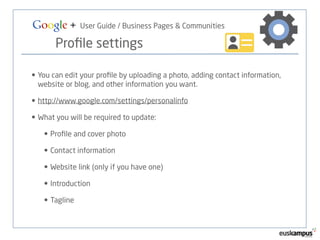
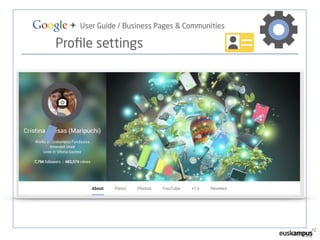
Profile settings 
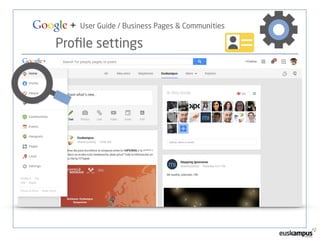
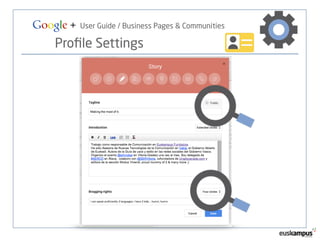
• You can edit your profile by uploading a photo, adding contact information, 
website or blog, and other information you want. 
• http://www.google.com/settings/personalinfo 
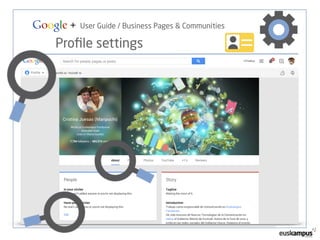
• What you will be required to update: 
• Profile and cover photo 
• Contact information 
• Website link (only if you have one) 
• Introduction 
• Tagline
Google + User Guide / Business Pages & Communities 
Profile settings
Google + User Guide / Business Pages & Communities 
Profile settings
Google + User Guide / Business Pages & Communities 
Profile settings
Google + User Guide / Business Pages & Communities 
Profile Settings
Google + User Guide / Business Pages & Communities 
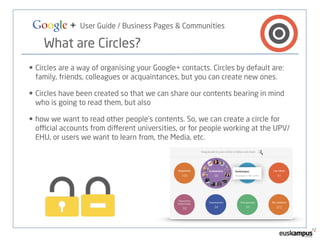
What are Circles? 
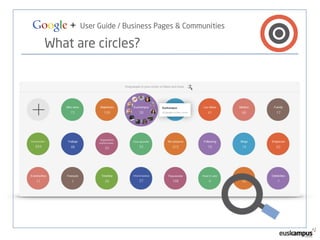
• Circles are a way of organising your Google+ contacts. Circles by default are: 
family, friends, colleagues or acquaintances, but you can create new ones. 
• Circles have been created so that we can share our contents bearing in mind 
who is going to read them, but also 
• how we want to read other people’s contents. So, we can create a circle for 
official accounts from different universities, or for people working at the UPV/ 
EHU, or users we want to learn from, the Media, etc.
Google + User Guide / Business Pages & Communities 
What are circles?
Google + User Guide / Business Pages & Communities 
+1 
• Google+’s “+1” is equivalent to “Like” on Facebook. 
• When someone posts something we like, we click on “+1”. 
• We can also “+1” on any webpage that has this button installed and it will 
automatically be shared in our public list of “+1s”
Google + User Guide / Business Pages & Communities 
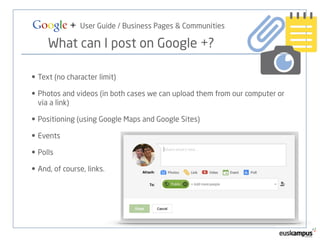
What can I post on Google +? 
• Text (no character limit) 
• Photos and videos (in both cases we can upload them from our computer or 
via a link) 
• Positioning (using Google Maps and Google Sites) 
• Events 
• Polls 
• And, of course, links.
Google + User Guide / Business Pages & Communities 
Photo albums 
• We can create albums and share them with various circles (photos of the 
family with the Family Circle, photos of friends with the Friends Circle, and so 
on) 
• Thanks to the positioning of the photos given by the search engine, and its 
excellent visibility, Google+ is a powerful tool for the mass media.
Google + User Guide / Business Pages & Communities 
How do you mention someone on Google + 
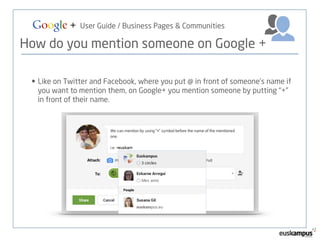
• Like on Twitter and Facebook, where you put @ in front of someone’s name if 
you want to mention them, on Google+ you mention someone by putting “+” 
in front of their name.
Google + User Guide / Business Pages & Communities 
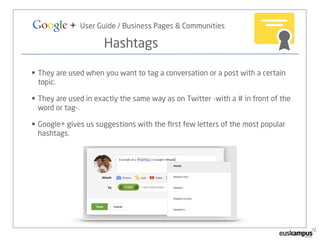
Hashtags 
• They are used when you want to tag a conversation or a post with a certain 
topic. 
• They are used in exactly the same way as on Twitter -with a # in front of the 
word or tag-. 
• Google+ gives us suggestions with the first few letters of the most popular 
hashtags.
Google + User Guide / Business Pages & Communities 
Sharing other people’s posts 
• When an account posts something, we have the following options: 
• +1 
• Comment 
• Share
Google + User Guide / Business Pages & Communities 
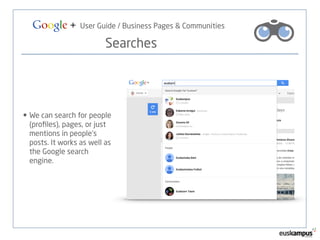
Searches 
• We can search for people 
(profiles), pages, or just 
mentions in people’s 
posts. It works as well as 
the Google search 
engine.
Google + User Guide / Business Pages & Communities 
Formatting the text 
• Google + supports basic text formatting with the following commands: 
• Italics = put the _underscores_ around the words 
• Bold = put *asterisks* around the words 
• Strike = put -dashes- around the words
Google + User Guide / Business Pages & Communities 
Hangouts 
• Hangouts are video calls and chats 
• They can include up to 100 people at once in text hangouts 
• They can include up to 10 people at once in video hangouts. 15 in some 
accounts. 
• A convenient way of holding meetings 
• Great for answering questions 
http://support.google.com/plus/bin/answer.py?hl=es&answer=2459411
Google + User Guide / Business Pages & Communities 
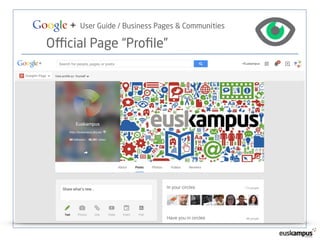
Official pages 
• Multi-administrator, with different levels of permission 
• Analytics and search engine interaction with “parent” websites 
• Same functions as the profiles, although they can’t follow users that don’t 
follow them, but they can mention them in posts 
• Cover photo 
• They can create communities or groups to interact better with the users
Google + User Guide / Business Pages & Communities 
Official Page “Profile”
Google + User Guide / Business Pages & Communities 
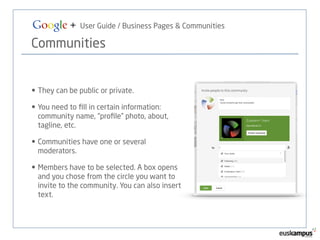
Communities 
• They can be public or private. 
• You need to fill in certain information: 
community name, “profile” photo, about, 
tagline, etc. 
• Communities have one or several 
moderators. 
• Members have to be selected. A box opens 
and you chose from the circle you want to 
invite to the community. You can also insert 
text.
Google + User Guide / Business Pages & Communities 
Communities 
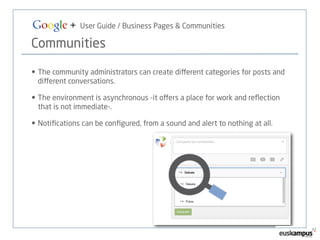
• The community administrators can create different categories for posts and 
different conversations. 
• The environment is asynchronous -it offers a place for work and reflection 
that is not immediate-. 
• Notifications can be configured, from a sound and alert to nothing at all.
Google + User Guide / Business Pages & Communities 
Communities 
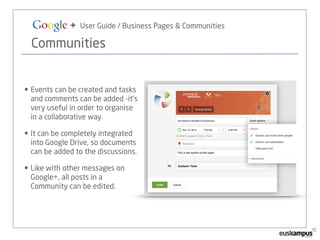
• Events can be created and tasks 
and comments can be added -it’s 
very useful in order to organise 
in a collaborative way. 
• It can be completely integrated 
into Google Drive, so documents 
can be added to the discussions. 
• Like with other messages on 
Google+, all posts in a 
Community can be edited.
Google + User Guide / Business Pages & Communities 
Tips for posting on Google + 
• Never post anything that you wouldn’t want on the front page of a 
newspaper. 
• The posting rate is more like Facebook than Twitter (although you can post 
more frequently by playing with the circles). 
• General tips: Post positive messages, don’t feed the troll!!, don’t post personal 
opinions on business pages, it’s ok to joke (careful, irony is hard to catch on 
the internet), answer when someone mentions you and thank people when 
they re-post awhat you share. 
• Watch what people who know how to use the tool are doing, and ask if you 
have any questions.
Google + User Guide / Business Pages & Communities 
cristina.juesas@euskampus.eu 
The End

Google+: user guide, business pages & communities

  • 1.
    Google + UserGuide Business Pages & Communities Cristina Juesas Euskampus Fundazioa November ’14
  • 2.
    Google + UserGuide / Business Pages & Communities • What’s Google +? • Integrating Google Tools • What are Circles? • How do you post in Google+? • How do you mention someone in a post? • Hashtags • +1 • General posting tips • Share other people’s publications • Formatting the text • Official pages • Photo albums • Communities Contents
  • 3.
    Google + UserGuide / Business Pages & Communities What’s Google +? • Google+ is a social network “on steroids” by Google. • The beta version was launched in June 2011 and it opened to the public in September that same year. • It aims to be more than a just a typical social network like Facebook or Twitter. Google wanted to create a place that included all the interactions with its other sites: gmail, gTalk, YouTube, Google, Photos, Sites, etc. • Relationships on this network are based on circles. • You can follow people without them necessarily following you back. It’s an asynchronous network.
  • 4.
    Google + UserGuide / Business Pages & Communities Integrating Google Tools • All Google’s tools (the search engine, YouTube, Gmail, Gtalk, Photos, Calendar, Sites, etc.) are integrated into Google+. • This integration affects future searches on Google. • Sharing on Google+ from Google sites is as easy as clicking a button and everything that appears on Google+ is indexed better on Google.
  • 5.
    Google + UserGuide / Business Pages & Communities How do you open Google+ user account? • If you have a Google account, it is practically automatic. A Google+ account is generated automatically when you fill in your profile information. If you are already a Google user, visit www.plus.google.com • You don’t need to have a Google email address to sign up for Google+, although it is recommended. • It’s also best to fill in the required fields on the profile, like the photo, short bio, etc. It can be as comprehensive as we want, and with the viewing and indexing limitations and restrictions that we want. • (For example, we can fill in our entire CV, but only enable people from a certain circle to view it)
  • 6.
    Google + UserGuide / Business Pages & Communities Profile settings • You can edit your profile by uploading a photo, adding contact information, website or blog, and other information you want. • http://www.google.com/settings/personalinfo • What you will be required to update: • Profile and cover photo • Contact information • Website link (only if you have one) • Introduction • Tagline
  • 7.
    Google + UserGuide / Business Pages & Communities Profile settings
  • 8.
    Google + UserGuide / Business Pages & Communities Profile settings
  • 9.
    Google + UserGuide / Business Pages & Communities Profile settings
  • 10.
    Google + UserGuide / Business Pages & Communities Profile Settings
  • 11.
    Google + UserGuide / Business Pages & Communities What are Circles? • Circles are a way of organising your Google+ contacts. Circles by default are: family, friends, colleagues or acquaintances, but you can create new ones. • Circles have been created so that we can share our contents bearing in mind who is going to read them, but also • how we want to read other people’s contents. So, we can create a circle for official accounts from different universities, or for people working at the UPV/ EHU, or users we want to learn from, the Media, etc.
  • 12.
    Google + UserGuide / Business Pages & Communities What are circles?
  • 13.
    Google + UserGuide / Business Pages & Communities +1 • Google+’s “+1” is equivalent to “Like” on Facebook. • When someone posts something we like, we click on “+1”. • We can also “+1” on any webpage that has this button installed and it will automatically be shared in our public list of “+1s”
  • 14.
    Google + UserGuide / Business Pages & Communities What can I post on Google +? • Text (no character limit) • Photos and videos (in both cases we can upload them from our computer or via a link) • Positioning (using Google Maps and Google Sites) • Events • Polls • And, of course, links.
  • 15.
    Google + UserGuide / Business Pages & Communities Photo albums • We can create albums and share them with various circles (photos of the family with the Family Circle, photos of friends with the Friends Circle, and so on) • Thanks to the positioning of the photos given by the search engine, and its excellent visibility, Google+ is a powerful tool for the mass media.
  • 16.
    Google + UserGuide / Business Pages & Communities How do you mention someone on Google + • Like on Twitter and Facebook, where you put @ in front of someone’s name if you want to mention them, on Google+ you mention someone by putting “+” in front of their name.
  • 17.
    Google + UserGuide / Business Pages & Communities Hashtags • They are used when you want to tag a conversation or a post with a certain topic. • They are used in exactly the same way as on Twitter -with a # in front of the word or tag-. • Google+ gives us suggestions with the first few letters of the most popular hashtags.
  • 18.
    Google + UserGuide / Business Pages & Communities Sharing other people’s posts • When an account posts something, we have the following options: • +1 • Comment • Share
  • 19.
    Google + UserGuide / Business Pages & Communities Searches • We can search for people (profiles), pages, or just mentions in people’s posts. It works as well as the Google search engine.
  • 20.
    Google + UserGuide / Business Pages & Communities Formatting the text • Google + supports basic text formatting with the following commands: • Italics = put the _underscores_ around the words • Bold = put *asterisks* around the words • Strike = put -dashes- around the words
  • 21.
    Google + UserGuide / Business Pages & Communities Hangouts • Hangouts are video calls and chats • They can include up to 100 people at once in text hangouts • They can include up to 10 people at once in video hangouts. 15 in some accounts. • A convenient way of holding meetings • Great for answering questions http://support.google.com/plus/bin/answer.py?hl=es&answer=2459411
  • 22.
    Google + UserGuide / Business Pages & Communities Official pages • Multi-administrator, with different levels of permission • Analytics and search engine interaction with “parent” websites • Same functions as the profiles, although they can’t follow users that don’t follow them, but they can mention them in posts • Cover photo • They can create communities or groups to interact better with the users
  • 23.
    Google + UserGuide / Business Pages & Communities Official Page “Profile”
  • 24.
    Google + UserGuide / Business Pages & Communities Communities • They can be public or private. • You need to fill in certain information: community name, “profile” photo, about, tagline, etc. • Communities have one or several moderators. • Members have to be selected. A box opens and you chose from the circle you want to invite to the community. You can also insert text.
  • 25.
    Google + UserGuide / Business Pages & Communities Communities • The community administrators can create different categories for posts and different conversations. • The environment is asynchronous -it offers a place for work and reflection that is not immediate-. • Notifications can be configured, from a sound and alert to nothing at all.
  • 26.
    Google + UserGuide / Business Pages & Communities Communities • Events can be created and tasks and comments can be added -it’s very useful in order to organise in a collaborative way. • It can be completely integrated into Google Drive, so documents can be added to the discussions. • Like with other messages on Google+, all posts in a Community can be edited.
  • 27.
    Google + UserGuide / Business Pages & Communities Tips for posting on Google + • Never post anything that you wouldn’t want on the front page of a newspaper. • The posting rate is more like Facebook than Twitter (although you can post more frequently by playing with the circles). • General tips: Post positive messages, don’t feed the troll!!, don’t post personal opinions on business pages, it’s ok to joke (careful, irony is hard to catch on the internet), answer when someone mentions you and thank people when they re-post awhat you share. • Watch what people who know how to use the tool are doing, and ask if you have any questions.
  • 28.
    Google + UserGuide / Business Pages & Communities cristina.juesas@euskampus.eu The End