Excel 2016
Level 1
Copyright © 2015 30 Bird Media LLC
Course Objectives
After you complete this course, you will know:
 How to open and interact with Excel, and how to save and close
workbooks
 How to enter various kinds of data, how to enter formulas and
functions, how to move and copy data, and about the various
reference types and how to use them
 How to format text and numbers, how to align text, and how to
apply borders and styles to cells and ranges
 About various data-entry shortcuts; how to use paste options; and
how to insert, delete, and hide data in your worksheets
 How to create charts, change their type, and insert and control the
elements they contain
 How to split and manage worksheet windows, set print options,
print and preview workbooks, create headers and footers, and
share workbooks with other users
 About workbook properties and how to use templates
Copyright © 2015 30 Bird Media LLC
Chapter 1: Fundamentals
You will learn:
 How to use the Excel interface to interact
with the program, workbooks, and
worksheets
 How to open and enter data in a
workbook, as well as how to save and
close a workbook
Module A: Getting Around
You will learn:
 How to start Excel
 To identify basic features of a workbook
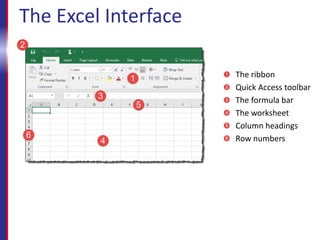
The Excel Interface
The ribbon
Quick Access toolbar
The formula bar
The worksheet
Column headings
Row numbers
Assessment: Getting Around
Which of the following are ways to interact with
Excel? Choose all that apply.
A. Click buttons on the ribbon.
B. Use the Start menu.
C. Click buttons on the Quick Access toolbar.
D. Use the Control Panel.
A and C are correct. You can click buttons on the
ribbon or on the Quick Access toolbar.
Assessement: Getting Around
Excel columns are identified by numbers.
True or false?
A. True
B. False
That’s false. Columns are identified by
letters.
Assessment: Getting Around
How many rows are there in an Excel
worksheet? Choose the best response.
A. About 50,000.
B. Under 200,000.
C. Over half a million.
D. Over a million.
D, over a million, is correct. There are 1,048,576,
to be exact.
Module B: Workbook Basics
You will learn:
 How to open and move through a
workbook
 How to enter simple data
 How to save and close a workbook
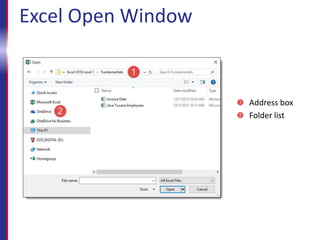
Excel Open Window
Address box
Folder list
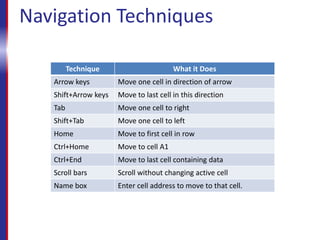
Navigation Techniques
Technique What it Does
Arrow keys Move one cell in direction of arrow
Shift+Arrow keys Move to last cell in this direction
Tab Move one cell to right
Shift+Tab Move one cell to left
Home Move to first cell in row
Ctrl+Home Move to cell A1
Ctrl+End Move to last cell containing data
Scroll bars Scroll without changing active cell
Name box Enter cell address to move to that cell.
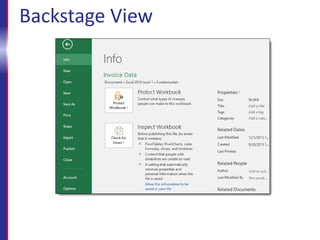
Backstage View
Assessment: Workbook Basics
The Open command is on the Edit tab of the
ribbon. True or false?
A. True
B. False
That’s false. The Open command is actually
on the File tab, also called Backstage view.
Assessment: Workbook Basics
When you use the scroll bars, the active cell
does not change. True or false?
A. True
B. False
That's true. Only your view of the worksheet
changes.
Assessment: Workbook Basics
Which of the following techniques will move the
active cell one column to the right? Choose all that
apply.
A. Pressing Home.
B. Pressing the Right Arrow key.
C. Pressing Tab.
D. Clicking in the Name box.
B and C are correct. You can use the Right Arrow or
Tab key to move the active cell one column to the
right.
Assessment: Workbook Basics
Which command do you use if you want to
change the name, location, or type of a
workbook?
A. Save
B. Save As
B is correct. The Save command will only update
the workbook with its current name and
location.
Summary: Fundamentals
You should now know:
 How to start Excel and identify its main
interface elements
 How to open a workbook, move around,
find data, change and append data, and
save and close a workbook
Chapter 2: Creating Worksheets
You will learn:
 How to enter data and about Excel data types
 How to perform calculations using formulas
 About special formulas called functions, and
how to use them
 How to move and copy data
 About relative and absolute references, and
how and when to use each
Copyright © 2015 30 Bird Media LLC
Module A: Entering Data
You will learn:
 About different Excel data types
 How to enter text and numbers
Copyright © 2015 30 Bird Media LLC
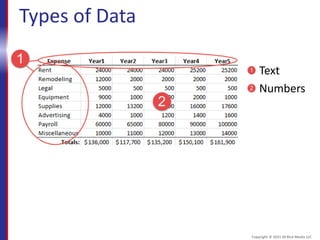
Types of Data
Text
Numbers
Copyright © 2015 30 Bird Media LLC
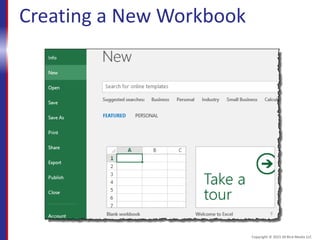
Creating a New Workbook
Copyright © 2015 30 Bird Media LLC
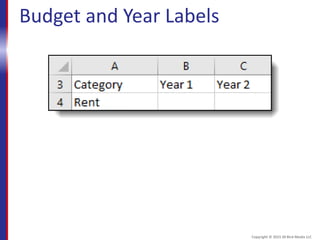
Budget and Year Labels
Copyright © 2015 30 Bird Media LLC
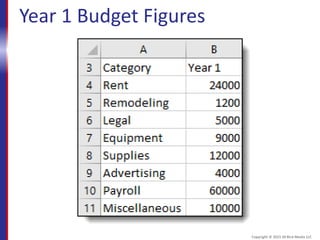
Year 1 Budget Figures
Copyright © 2015 30 Bird Media LLC
Assessment: Entering Data
By default, Excel will left-align all data that
you enter. True or false?
A. True
B. False
That’s false. Text will be left aligned, but
numbers will be right-aligned.
Copyright © 2015 30 Bird Media LLC
Assessment: Entering Data
How will Excel handle text that is too wide for the
column in which it appears?
A. By cutting it off at the right-hand border of the
cell.
B. By spilling the text over into the next column.
C. It depends on what is in the next cell to the
right.
C is correct. If there is no data, the text will spill
over. If there is data, the text will be cut off.
Copyright © 2015 30 Bird Media LLC
Assessment: Entering Data
You can change the width of a column by
using the mouse. True or false?
A. True
B. False
That's true. You can drag the border
between column headings.
Copyright © 2015 30 Bird Media LLC
Assessment: Entering Data
Which of the following are ways that Excel handles
numbers that are too wide for a cell? Choose all
that apply.
A. Scientific notation
B. Binary
C. Number signs (####)
D. Rounding the stored number
A and C are correct. Excel will sometimes round the
display of a number, but will never automatically
round the stored number.
Copyright © 2015 30 Bird Media LLC
Module B: Formulas
You will learn:
 To identify the elements on an Excel
formula
 About worksheet design considerations
 How to perform calculations by entering
formulas in cells
Copyright © 2015 30 Bird Media LLC
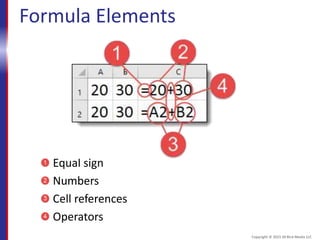
Formula Elements
Equal sign
Numbers
Cell references
Operators
Copyright © 2015 30 Bird Media LLC
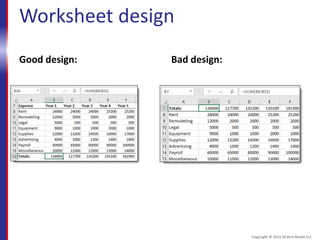
Worksheet design
Good design: Bad design:
Copyright © 2015 30 Bird Media LLC
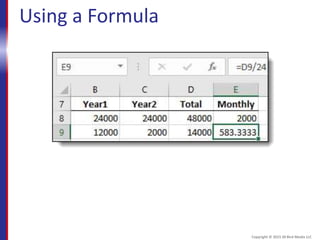
Using a Formula
Copyright © 2015 30 Bird Media LLC
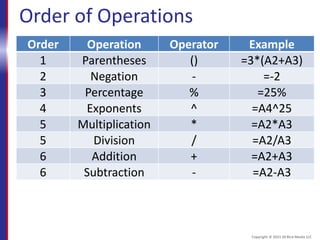
Order of Operations
Order Operation Operator Example
1 Parentheses () =3*(A2+A3)
2 Negation - =-2
3 Percentage % =25%
4 Exponents ^ =A4^25
5 Multiplication * =A2*A3
5 Division / =A2/A3
6 Addition + =A2+A3
6 Subtraction - =A2-A3
Copyright © 2015 30 Bird Media LLC
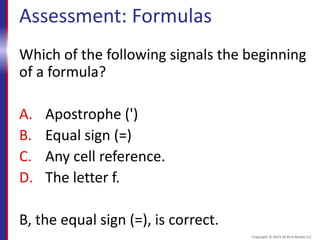
Assessment: Formulas
Which of the following signals the beginning
of a formula?
A. Apostrophe (')
B. Equal sign (=)
C. Any cell reference.
D. The letter f.
B, the equal sign (=), is correct.
Copyright © 2015 30 Bird Media LLC
Assessment: Formulas
It is good practice to put formulas in the first
column of a worksheet. True or false?
A. True
B. False
That's false. In general, you should put formulas
to the right of or below the values they act
upon. The first column would be to the left of
any values.
Copyright © 2015 30 Bird Media LLC
Assessment: Formulas
Which of the following has the lowest
precedence in the Excel order of operations?
A. Multiplication
B. Subtraction
C. Percentage
D. Exponents
B is correct. Addition and subtraction have the
lowest order of precedence.
Copyright © 2015 30 Bird Media LLC
Assessment: Formulas
Which of the following are ways to enter
Edit mode in Excel? Choose all that apply.
A. Double-click a cell.
B. Press F2.
C. Press Esc.
D. Click in the formula bar.
A, B, and D are correct.
Copyright © 2015 30 Bird Media LLC
Module C: Functions
You will learn:
 About special formulas called functions
 How to enter functions and function
arguments to perform calculations
Copyright © 2015 30 Bird Media LLC
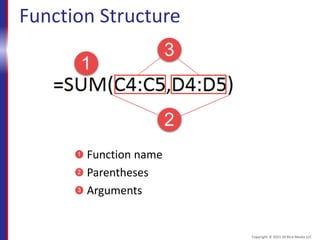
Function Structure
Function name
Parentheses
Arguments
Copyright © 2015 30 Bird Media LLC
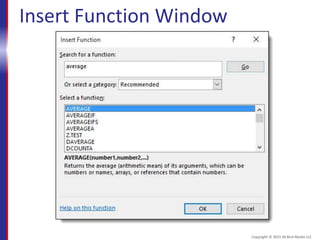
Insert Function Window
Copyright © 2015 30 Bird Media LLC
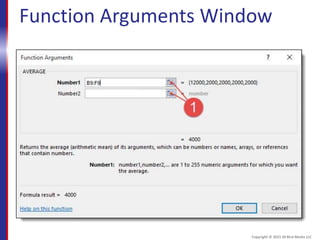
Function Arguments Window
Copyright © 2015 30 Bird Media LLC
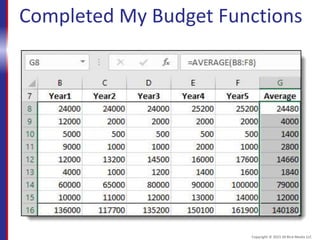
Completed My Budget Functions
Copyright © 2015 30 Bird Media LLC
Assessment: Functions
Functions are a type of formula. True or
False?
A. True
B. False
That's true. They are built-in, named
formulas you can use to perform various
calculations.
Copyright © 2015 30 Bird Media LLC
Assessment: Functions
Functions can be entered only in the
formula bar. True or False?
A. True
B. False
That’s false. You can enter and edit function
in the cell or in the formula bar, just like any
other data.
Copyright © 2015 30 Bird Media LLC
Assessment: Functions
Which of the following is the name for the
values on which a function takes action or
performs calculations?
A. Variables
B. Parameters
C. Arguments
C, Arguments, is correct.
Copyright © 2015 30 Bird Media LLC
Assessment: Functions
Which of the following are ways that you can
enter function arguments?
A. Typing.
B. The mouse.
C. The Insert Arguments button.
D. The Function Arguments window.
A, B, and D are correct. There isn't actually an
Insert Arguments button.
Copyright © 2015 30 Bird Media LLC
Assessment: Functions
AutoSum can be used to enter only SUM()
functions. True or False?
A. True
B. False
That’s false. You can use AutoSum to enter
many different functions.
Copyright © 2015 30 Bird Media LLC
Module D: Moving and Copying Data
You will learn:
 How to move data within a worksheet by
cutting and pasting
 How to copy data by copying and pasting
 How to move and copy data by dragging
 How Excel handles a moved or copied
formula
Copyright © 2015 30 Bird Media LLC
Moving and Copying
1. Select data to move/copy.
2. Click Cut or Copy.
3. Select where to move/copy to.
4. Click Paste.
Copyright © 2015 30 Bird Media LLC
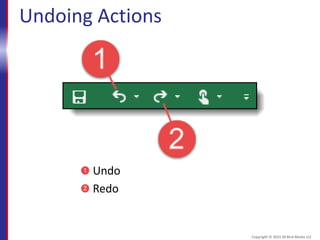
Undoing Actions
Undo
Redo
Copyright © 2015 30 Bird Media LLC
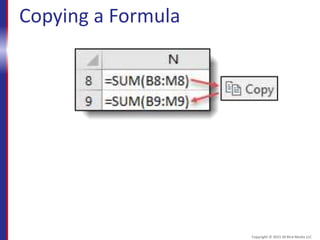
Copying a Formula
Copyright © 2015 30 Bird Media LLC
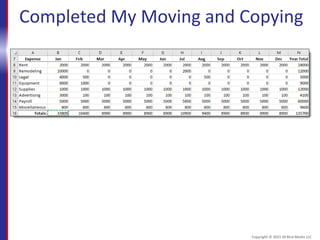
Completed My Moving and Copying
Copyright © 2015 30 Bird Media LLC
Assessment: Moving and Copying
You use the Copy command to move data.
True or false?
A. True
B. False
That's false. You actually would use the Cut
command.
Copyright © 2015 30 Bird Media LLC
Assessment: Moving and Copying
Which of the following can be accomplished
by dragging?
A. Moving but not copying.
B. Copying but not moving.
C. Both moving and copying.
C is correct. You can both move and copy by
dragging.
Copyright © 2015 30 Bird Media LLC
Assessment: Moving and Copying
What is the keyboard shortcut to undo the
most recent action?
A. F1
B. Ctrl+U
C. Ctrl+Z
D. Alt+X
D, Ctrl+Z, is corrrect.
Copyright © 2015 30 Bird Media LLC
Assessment: Moving and Copying
To copy data by dragging, which key do you
hold down?
A. Shift
B. Ctrl
C. Alt
B, Ctrl, is correct.
Copyright © 2015 30 Bird Media LLC
Assessment: Moving and Copying
When you paste a copied formula, Excel will
update references in the pasted formula
relatively to the new location.
A. True
B. False
That's true. Excel updates the references to
be appropriate for the new location.
Copyright © 2015 30 Bird Media LLC
Module E: Reference Types
You will learn:
 About the limitations of relative
references
 How to enter absolute and mixed
references in formulas
Copyright © 2015 30 Bird Media LLC
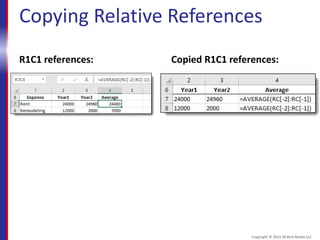
Copying Relative References
R1C1 references: Copied R1C1 references:
Copyright © 2015 30 Bird Media LLC
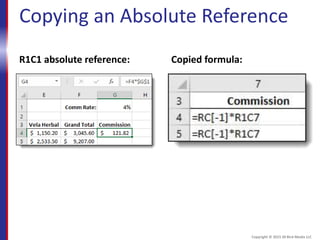
Copying an Absolute Reference
R1C1 absolute reference: Copied formula:
Copyright © 2015 30 Bird Media LLC
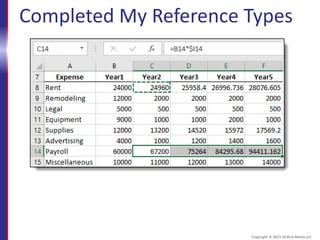
Completed My Reference Types
Copyright © 2015 30 Bird Media LLC
Assessment: Reference Types
All references in Excel are relative, in terms
of their location. True or false?
A. True
B. False
That’s false. References can be relative,
absolute, or mixed.
Copyright © 2015 30 Bird Media LLC
Assessment: Reference Types
Which type of reference is best for referring to a
multiplier value that is in one cell or a
worksheet for all formulas, no matter where
they are?
A. Mixed
B. Relative
C. Absolute
C is correct. If the value is in a single cell, an
absolute reference is the best choice.
Copyright © 2015 30 Bird Media LLC
Assessment: Reference Types
Which character do you use to make a
reference absolute?
A. Colon (:)
B. Dollar sign ($)
C. Ampersand (&)
D. Number sign (#)
B, dollar sign ($), is correct.
Copyright © 2015 30 Bird Media LLC
Assessment: Reference Types
You can use the F3 key to toggle through
reference types while you enter a formula.
True or false?
A. True
B. False
That’s false. You actually use the F4 key.
Copyright © 2015 30 Bird Media LLC
Summary: Creating Worksheets
You should now know:
 How to enter numbers and text, and how Excel
handles them
 About the elements of Excel formulas, and how to
perform calculations by entering formulas in a
worksheet
 About special, named formulas called functions, and
how to use them to calculate sums and averages
 How to move and copy data, and about how Excel
updates references in copied formulas
 How and when to use relative, absolute, and mixed
references
Copyright © 2015 30 Bird Media LLC
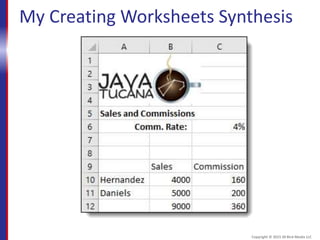
My Creating Worksheets Synthesis
Copyright © 2015 30 Bird Media LLC
Chapter 3: Formatting
You will learn how to:
 Format text
 Format numbers
 Control alignment of data
 Apply borders to cells and ranges
 Use styles to quickly apply various kinds of
formatting in a single step
Copyright © 2015 30 Bird Media LLC
Module A: Text Formatting
You will learn:
 How to format text
 How to select multiple ranges
Copyright © 2015 30 Bird Media LLC
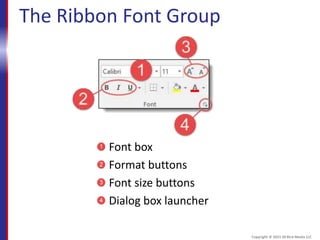
The Ribbon Font Group
Font box
Format buttons
Font size buttons
Dialog box launcher
Copyright © 2015 30 Bird Media LLC
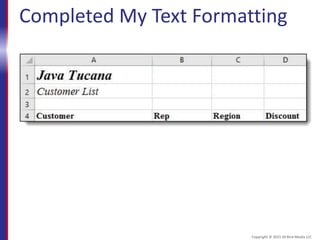
Completed My Text Formatting
Copyright © 2015 30 Bird Media LLC
Assessment: Text Formatting
To format a cell, you click the formatting
button before selecting the cell you want to
format. True or false?
A. True
B. False
That’s false. You need to select the cell first.
Copyright © 2015 30 Bird Media LLC
Assessment: Text Formatting
Which key do you hold down to add another
cell or range to a selection?
A. Ctrl
B. Shift
C. Alt
A, Ctrl, is correct.
Copyright © 2015 30 Bird Media LLC
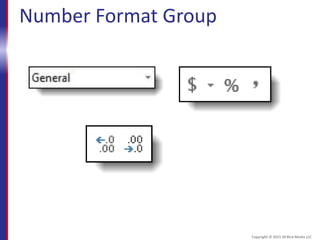
Module B: Number Formatting
You will learn how to:
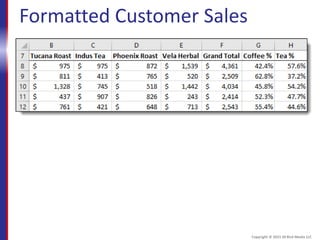
 Apply currency and percentage formats
 Control decimal places
 Use the keyboard to select ranges
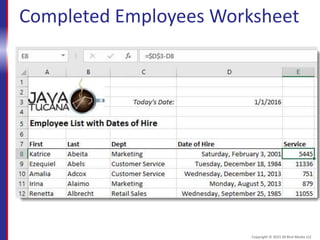
 Format and perform simple calculations
on dates
Copyright © 2015 30 Bird Media LLC
Number Format Group
Copyright © 2015 30 Bird Media LLC
Formatted Customer Sales
Copyright © 2015 30 Bird Media LLC
Completed Employees Worksheet
Copyright © 2015 30 Bird Media LLC
Assessment: Number Formatting
When you change a number format, you
change the underlying data. True or false?
A. True
B. False
That’s false. Changing the format does not
affect the underlying data.
Copyright © 2015 30 Bird Media LLC
Assessment: Number Formatting
Which of the following is not a category of Excel
number formats?
A. Currency
B. Exponent
C. Percentage
D. Date
B is correct. Exponent is not a format category.
Copyright © 2015 30 Bird Media LLC
Assessment: Number Formatting
Which key enables you to extend a selection by
using the arrow keys?
A. Shift
B. Ctrl
C. Alt
A, Shift, is correct. Using Ctrl with the arrow
keys selects the last cell in that direction that
contains data. The Alt key isn't used in selection.
Copyright © 2015 30 Bird Media LLC
Assessment: Number Formatting
How are dates stored in Excel?
A. As two pieces of data, a combination of a
date and a time
B. In the format in which you enter them
C. As serial numbers
C is correct. Dates are stored as serial numbers
so that you can perform calculations on them.
Copyright © 2015 30 Bird Media LLC
Module C: Alignment
You will learn how to:
 Align cell contents vertically and
horizontally
 Wrap text within a cell
 Merge the contents of multiple cells
Copyright © 2015 30 Bird Media LLC
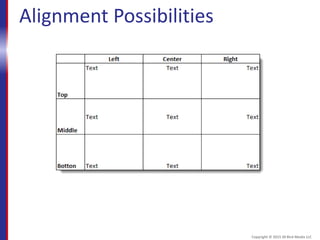
Alignment Possibilities
Copyright © 2015 30 Bird Media LLC
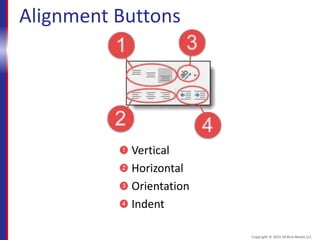
Alignment Buttons
Vertical
Horizontal
Orientation
Indent
Copyright © 2015 30 Bird Media LLC
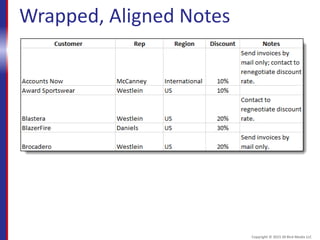
Wrapped, Aligned Notes
Copyright © 2015 30 Bird Media LLC
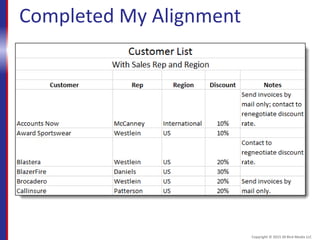
Completed My Alignment
Copyright © 2015 30 Bird Media LLC
Assessment: Alignment
You can align cell contents:
A. Horizontally but not vertically.
B. Vertically but not horizontally.
C. Both vertically and horizontally.
C is correct. You can align both vertically and
horizontally.
Copyright © 2015 30 Bird Media LLC
Assessment: Alignment
You cannot wrap text in Excel. True or false?
A. True
B. False
That’s false. You actually can wrap text.
Copyright © 2015 30 Bird Media LLC
Assessment: Alignment
The Merge & Center command is most useful for
which of the following?
A. Data values.
B. Column headings.
C. Overall worksheet headings and
subheadings.
C is the most common use of merging and
centering.
Copyright © 2015 30 Bird Media LLC
Module D: Borders
You will learn:
 How to apply borders to cells and ranges
 How to apply highlighting and fill colors
Copyright © 2015 30 Bird Media LLC
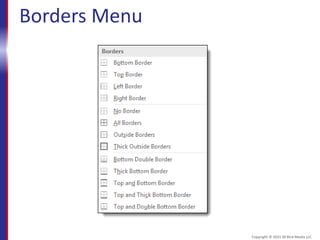
Borders Menu
Copyright © 2015 30 Bird Media LLC
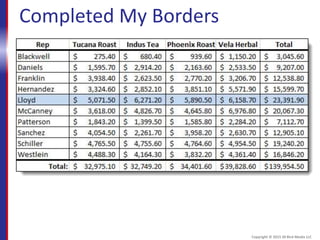
Completed My Borders
Copyright © 2015 30 Bird Media LLC
Assessment: Borders
Which of the following are ways to apply
borders to a cell or range? Choose all that apply.
A. Buttons in the Borders menu.
B. Double-click cell borders.
C. Use the Draw Border feature.
D. Use the Borders tab of the Format Cells
window.
A, C, and D are correct.
Copyright © 2015 30 Bird Media LLC
Assessment: Borders
Thin and thick lines are the only border style
options. True or false?
A. True
B. False
That’s false. There are many possibilities,
including various dashed lines and double
lines.
Copyright © 2015 30 Bird Media LLC
Module E: Styles and Themes
You will learn:
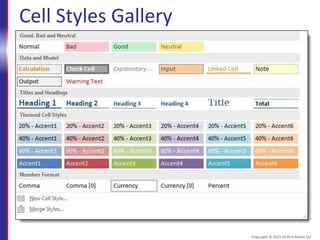
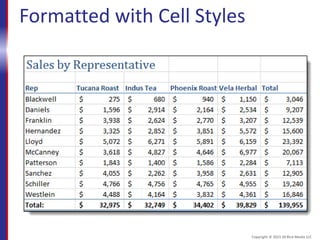
 How to apply cell styles to cells and ranges
 How to clear formats from a selected cell
or range
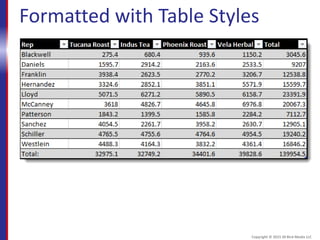
 How to use table styles to quickly format
an entire table of data
 About themes and how to change and
customize them
Copyright © 2015 30 Bird Media LLC
Cell Styles Gallery
Copyright © 2015 30 Bird Media LLC
Formatted with Cell Styles
Copyright © 2015 30 Bird Media LLC
Formatted with Table Styles
Copyright © 2015 30 Bird Media LLC
Assessment: Styles
You have to create a style before using one.
True or false?
A. True
B. False
That’s false. Excel comes with many built-in
styles.
Copyright © 2015 30 Bird Media LLC
Assessment: Styles
Which of the following can a style include?
Choose all that apply.
A. Number format
B. Formulas
C. Text format
D. Borders
E. Shading
A, C, D, and E are correct. Formulas are not a
type of formatting.
Copyright © 2015 30 Bird Media LLC
Assessment: Styles
Which of the following statements is most
accurate? Choose only one.
A. Table styles never include headings.
B. Table styles may or may not include
headings.
C. Table styles always include headings.
B is correct. Table styles can, but don't have to,
include headings.
Copyright © 2015 30 Bird Media LLC
Assessment: Styles
Which elements of a theme can you control
individually? Choose all that apply.
A. Borders
B. Font
C. Number formats
D. Colors
E. Effects
B and D, E are correct. You can control font, color
and effects elements individually.
Copyright © 2015 30 Bird Media LLC
Summary: Formatting
You should now know:
 How to apply text formatting to cells, ranges, and
multiple ranges
 How to apply number formats to values, about how to
format and work with dates
 How to align cell contents vertically and horizontally,
how to wrap text, and how to merge cells
 How to apply borders by using commands, by drawing,
and by using the Format Cells window
 About styles and how to apply them to cells, ranges,
and tables to quickly format worksheets
Copyright © 2015 30 Bird Media LLC
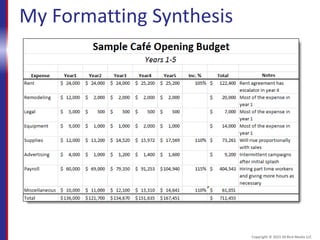
My Formatting Synthesis
Copyright © 2015 30 Bird Media LLC
Chapter 4: Manipulating Data
You will learn:
 How to use various techniques to enter
similar data quickly
 How to paste parts of cell data and
formats
 How to insert, delete, and hide cells,
ranges, and worksheets
Copyright © 2015 30 Bird Media LLC
Module A: Data Entry Shortcuts
You will learn:
 How to use Fill commands to copy data to
adjacent cells
 How to use Auto Fill to copy data or
extend series
 How to find and replace data
Copyright © 2015 30 Bird Media LLC
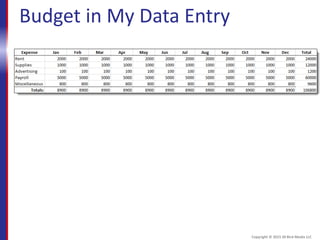
Budget in My Data Entry
Copyright © 2015 30 Bird Media LLC
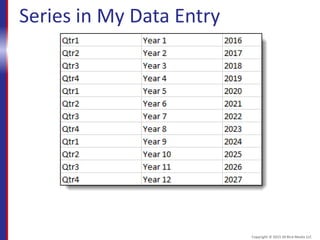
Series in My Data Entry
Copyright © 2015 30 Bird Media LLC
Assessment: Data Entry Shortcuts
You can use the Fill commands to extend
series. True or false?
A. True
B. False
That’s false. The Fill commands can only
copy, not fill series.
Copyright © 2015 30 Bird Media LLC
Assessment: Data Entry Shortcuts
Auto Fill will recognize any series from a single
value. True or false?
A. True
B. False
That’s False. Auto Fill recognizes many series
from a single value, such as "Qtr1" or "Year 1,"
but not always. Sometimes, you'll need to enter
the first two values.
Copyright © 2015 30 Bird Media LLC
Assessment: Data Entry Shortcuts
What could you do if you used Auto Fill and Excel
copied instead of creating a series? Choose all that
apply.
A. Enter the series manually.
B. Use the Fill, Series command.
C. Try entering the first two values in the series
before using Auto Fill.
D. Try the Auto Fill Options button.
C and D are the best answers. A could work, but
isn’t the best option.
Copyright © 2015 30 Bird Media LLC
Assessment: Data Entry Shortcuts
You can only replace found text one item at
a time. True or false?
A. True
B. False
False. You can find and replace multiple
selections of text at once.
Copyright © 2015 30 Bird Media LLC
Module B: Paste Options
You will learn how to:
 Copy formatting using the Format Painter
 Use paste options to paste values,
formatting, formulas, or combinations
 Paste links to cells and ranges
Copyright © 2015 30 Bird Media LLC
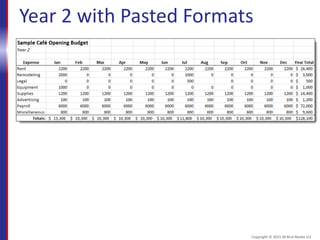
Year 2 with Pasted Formats
Copyright © 2015 30 Bird Media LLC
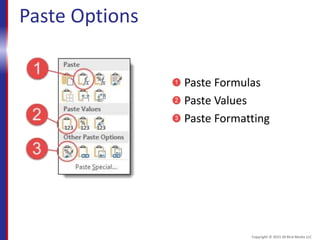
Paste Options
Paste Formulas
Paste Values
Paste Formatting
Copyright © 2015 30 Bird Media LLC
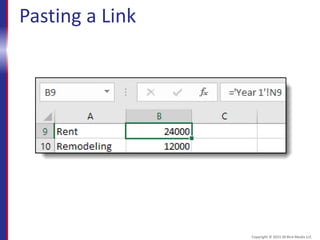
Pasting a Link
Copyright © 2015 30 Bird Media LLC
Assessment: Paste Options
You can copy only the formulas of a cell or
range, and not the formats or values. True
or false.
A. True
B. False
That’s false. You can actually copy formulas,
values, formats, and combinations of those.
Copyright © 2015 30 Bird Media LLC
Assessment: Paste Options
How do you use the Format Painter to copy
formatting to more than one destination?
A. Hold down Ctrl while clicking the Format
Painter.
B. Double-click the Format Painter.
C. Hold down Shift while clicking the Format
Painter.
D. Hold down Alt while clicking the destination
ranges.
B is correct. You double-click the Format Painter.
Copyright © 2015 30 Bird Media LLC
Assessment: Paste Options
When you paste values, Excel creates a link
to the source data. True or false?
A. True
B. False
That’s false. There is no link.
Copyright © 2015 30 Bird Media LLC
Assessment: Paste Options
Which of the following are possible with linking?
Choose all that apply.
A. Linking within a worksheet.
B. Linking between worksheets in the same
workbook.
C. Linking between worksheets in different
workbooks.
All three answers are correct. You can actually link
within worksheets, between worksheets in the
same workbook, or between workbooks.
Copyright © 2015 30 Bird Media LLC
Module C: Inserting, Deleting, and Hiding
You will learn how to:
 Insert and delete rows and columns
 Insert and delete ranges
 Hide and unhide rows and columns
Copyright © 2015 30 Bird Media LLC
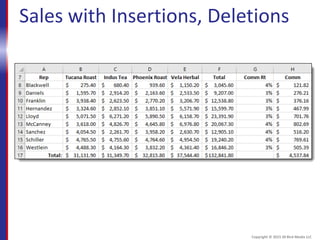
Sales with Insertions, Deletions
Copyright © 2015 30 Bird Media LLC
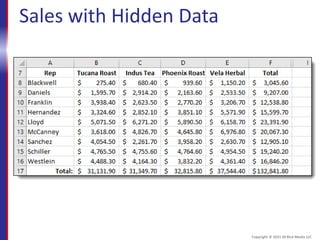
Sales with Hidden Data
Copyright © 2015 30 Bird Media LLC
Assessment: Inserting, Deleting, & Hiding
When inserting or deleting, you do not always
need to specify how to shift cells. True or false?
A. True
B. False
That’s true. When you insert or delete entire
rows or columns, Excel handles the shifting
automatically.
Copyright © 2015 30 Bird Media LLC
Assessment: Inserting, Deleting, & Hiding
When you insert in a range referred to by a formula,
under which circumstances will Excel automatically
update the formula?
A. When you insert within the endpoints of the
reference, but not at the edge of the reference.
B. When you insert at the edge of the reference, but
not within the endpoints of the reference.
C. Both when you insert within the endpoints of a
reference and when you insert at the edge of a
reference.
A is correct. Excel will update the formulas only when
you insert within the endpoints of the reference.
Copyright © 2015 30 Bird Media LLC
Assessment: Inserting, Deleting, & Hiding
When you hide a row or column, its data is
removed from the workbook. True or false?
A. True
B. False
That’s false. The data is only hidden.
Copyright © 2015 30 Bird Media LLC
Summary: Manipulating Data
You should now know:
 How to Fill data to adjacent cells, and how
to Auto Fill to copy or extend series
 About paste options, and how to paste
only values, formulas, formats
 How to insert and delete rows, columns,
cells, and ranges, and how to hide and
unhide rows and columns
Copyright © 2015 30 Bird Media LLC
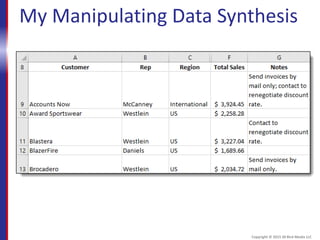
My Manipulating Data Synthesis
Copyright © 2015 30 Bird Media LLC
Chapter 5: Charts
You will learn how to:
 Create simple charts
 Change a chart's type and add elements to it
Copyright © 2015 30 Bird Media LLC
Module A: Creating Charts
You will learn:
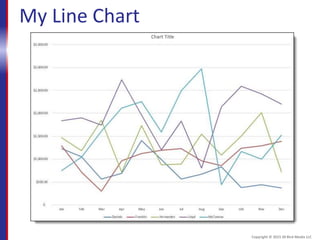
 How to create a simple line chart
 About the connection between a chart
and its source data
Copyright © 2015 30 Bird Media LLC
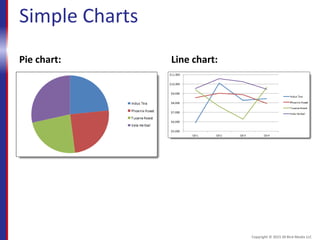
Simple Charts
Pie chart: Line chart:
Copyright © 2015 30 Bird Media LLC
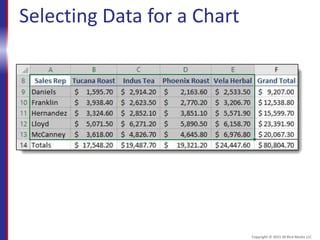
Selecting Data for a Chart
Copyright © 2015 30 Bird Media LLC
My Line Chart
Copyright © 2015 30 Bird Media LLC
Assessment: Creating Charts
You should not select labels when selecting
data for a chart. True or false?
A. True
B. False
That’s false. In most cases, you should select
labels.
Copyright © 2015 30 Bird Media LLC
Assessment: Creating Charts
How do you update a chart after changing its
source data?
A. By press F9.
B. By clicking the Update button on the Design
tab of the ribbon.
C. You don't need to do anything, because the
chart will update automatically.
C is correct. The chart will update automatically.
Copyright © 2015 30 Bird Media LLC
Assessment: Creating Charts
Which of the following are ways to move a
chart? Choose all that apply.
A. Selecting the chart and using the arrow
keys.
B. By dragging.
C. By clicking the Move Chart button.
B and C are correct. The arrow keys don't move
a selected chart.
Copyright © 2015 30 Bird Media LLC
Module B: Chart Types & Elements
You will learn how to:
 Create a pie chart
 Control style and layout in a chart
 Create a column chart
 Switch the plotting of rows and columns in
a chart
 Control and format chart elements
Copyright © 2015 30 Bird Media LLC
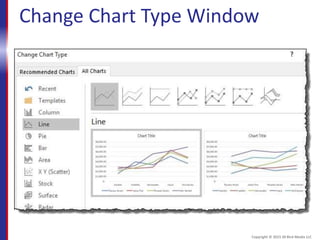
Change Chart Type Window
Copyright © 2015 30 Bird Media LLC
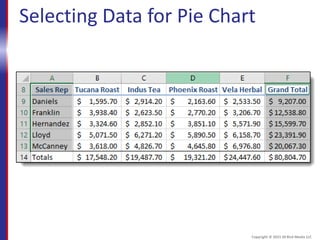
Selecting Data for Pie Chart
Copyright © 2015 30 Bird Media LLC
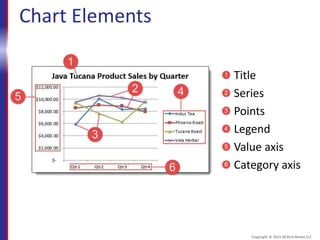
Chart Elements
Title
Series
Points
Legend
Value axis
Category axis
Copyright © 2015 30 Bird Media LLC
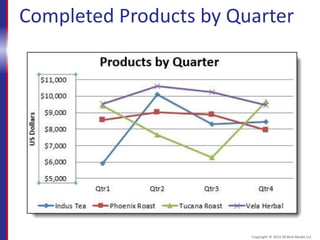
Completed Products by Quarter
Copyright © 2015 30 Bird Media LLC
Assessment: Chart Types & Elements
You can specify the type for a chart only
when you create the chart. True or false?
A. True
B. False
That’s false. You can change a chart's type at
any time.
Copyright © 2015 30 Bird Media LLC
Assessment: Chart Types & Elements
Which type of chart is best for showing trends?
A. Pie
B. Line
C. Column
D. Scatter
B, line, is correct. Pie charts show relationship to
a whole. You can see a trend in a column chart,
but not as well as in a line chart. Scatter charts
show distribution of two related variables.
Copyright © 2015 30 Bird Media LLC
Assessment: Chart Types & Elements
The only way to change the axis Excel uses for
your data is to transpose the data in a
worksheet and create a new chart. True or
false?
A. True
B. False
That’s false. You can do this by simply clicking
the Switch Rows/Columns button.
Copyright © 2015 30 Bird Media LLC
Assessment: Chart Types & Elements
Not all chart elements come from the data
you select when you create the chart. True
or false?
A. True
B. False
That’s true. You can also add elements such
as a title, axis labels, and more.
Copyright © 2015 30 Bird Media LLC
Assessment: Chart Types & Elements
The only way to control the format of the value
axis numbers by changing the format in the
source data. True or false?
A. True
B. False
That’s false. Although changing the format in
the source data will change it in the chart, you
can also change the format for the axis
independently by using the Format Axis window.
Copyright © 2015 30 Bird Media LLC
Summary: Charts
You should now know how to:
 Create a simple chart and move it within a
worksheet or to a chart sheet, and about
the link between a chart and its source
 Change a chart's type, create pie and
stacked or unstacked column charts,
switch rows and columns in a chart, and
control titles, legend, and value axis
Copyright © 2015 30 Bird Media LLC
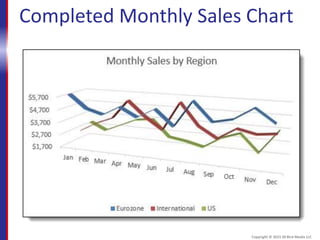
Completed Monthly Sales Chart
Copyright © 2015 30 Bird Media LLC
Chapter 6: Output
You will learn how to:
 Split and arrange worksheet windows
 Print worksheets and control how they will
print by using print setup options
 Save workbooks to other formats and
share workbooks with other users
Copyright © 2015 30 Bird Media LLC
Module A: Managing Worksheet Windows
You will learn how to:
 Split worksheets and freeze panes to keep
headings in view
 Manage and arrange multiple windows
 Save the arrangement of windows by
using a workspace
Copyright © 2015 30 Bird Media LLC
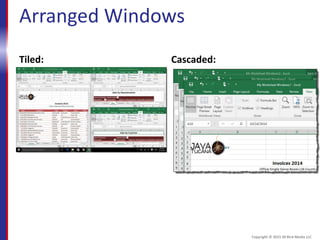
Arranged Windows
Tiled: Cascaded:
Copyright © 2015 30 Bird Media LLC
Assessment: Managing Worksheet Windows
The Split command always creates four
window panes. True or false?
A. True
B. False
That’s false. You can create four panes by
splitting at a cell, or two by splitting at a row
or column.
Copyright © 2015 30 Bird Media LLC
Assessment: Managing Worksheet Windows
You do not have to split windows before
freezing panes. True or False?
A. True
B. False
That’s true. You can freeze directly without
first splitting.
Copyright © 2015 30 Bird Media LLC
Module B: Printing Worksheets
You will learn how to:
 Preview and print the active worksheet with
current settings
 Print an entire workbook or selected
worksheets
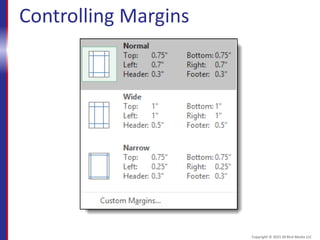
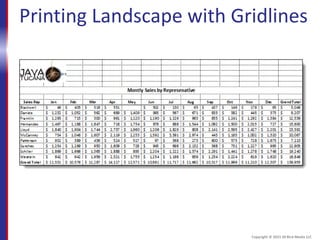
 Control print setup options such as scale,
orientation, gridlines, headings, and margins
 Control the print area and how to set print
titles that appear on every page
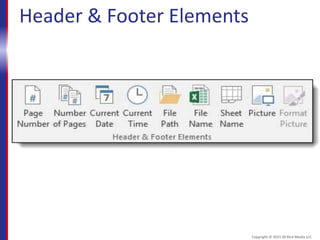
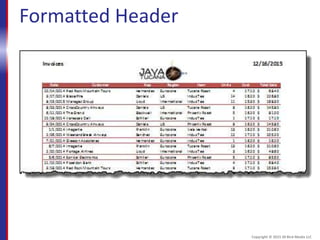
 Create headers and footers
Copyright © 2015 30 Bird Media LLC
Scaling Options
Copyright © 2015 30 Bird Media LLC
Controlling Margins
Copyright © 2015 30 Bird Media LLC
Printing Landscape with Gridlines
Copyright © 2015 30 Bird Media LLC
Header & Footer Elements
Copyright © 2015 30 Bird Media LLC
Formatted Header
Copyright © 2015 30 Bird Media LLC
Assessment: Printing Worksheets
Where can you find the Print command in Excel?
A. On the ribbon's Home tab.
B. In Backstage view (by clicking File).
C. On the ribbon's Page Layout tab.
D. On the ribbon's View tab.
B is correct. You need to click File to go to
Backstage view.
Copyright © 2015 30 Bird Media LLC
Assessment: Printing Worksheets
You can control many aspects of how a
worksheet will print on the Page Layout tab.
True or false?
A. True
B. False
That's true. You can control many aspects on the
Print screen or in the Page Setup window as
well.
Copyright © 2015 30 Bird Media LLC
Assessment: Printing Worksheets
What is the best way to show column headings on every
page of a printout?
A. Break your data up and enter headings after every
page break.
B. On the Page Layout tab, under Headings, click Print.
C. Set a row or rows and print titles for the worksheet.
C is correct. A could work, but it's not the best solution.
B, printing headings, will only show column and row
headings
Copyright © 2015 30 Bird Media LLC
Assessment: Printing Worksheets
When you insert a header, which workbook
view does Excel switch to?
A. Page Layout view
B. Page Break preview
C. Normal view
D. A custom view
A is correct. Excel switches to
Page Layout view.
Copyright © 2015 30 Bird Media LLC
Assessment: Printing Worksheets
The Header & Footer Tools Design tab has
tools for formatting. True or false?
A. True
B. False
That’s false. You actually need to use the
Home tab to format headers and footers.
Copyright © 2015 30 Bird Media LLC
Module C: Sharing Workbooks
You will learn how to:
 Save an Excel workbook in a different
format
 Share workbook either as an email
attachment, or online by using OneDrive
Copyright © 2015 30 Bird Media LLC
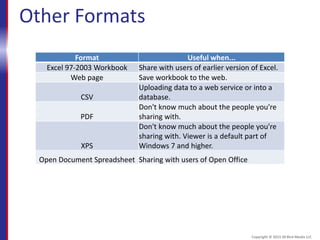
Other Formats
Format Useful when...
Excel 97-2003 Workbook Share with users of earlier version of Excel.
Web page Save workbook to the web.
CSV
Uploading data to a web service or into a
database.
PDF
Don't know much about the people you're
sharing with.
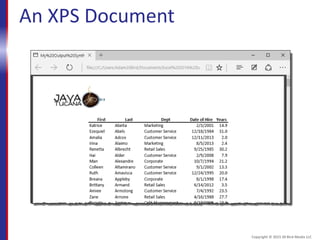
XPS
Don't know much about the people you're
sharing with. Viewer is a default part of
Windows 7 and higher.
Open Document Spreadsheet Sharing with users of Open Office
Copyright © 2015 30 Bird Media LLC
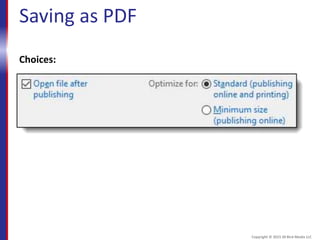
Saving as PDF
Choices:
Copyright © 2015 30 Bird Media LLC
Assessment: Sharing Workbooks
Which format is the best option if you want to
show a workbook to someone who might not
have Excel?
A. Excel 97-2003 Workbook
B. CSV
C. PDF
D. Open Document Spreadsheet
C is the best choice. Anyone with the free Adobe
Acrobat Reader program can read a PDF file.
Copyright © 2015 30 Bird Media LLC
Assessment: Sharing Workbooks
You need to open your mail program to send a
workbook as an attachment. True or false?
A. True
B. False
That’s false. You can send a workbook as an
email attachment directly from Excel by using a
Save & Send option in Backstage view.
Copyright © 2015 30 Bird Media LLC
Summary: Output
You should now know how to:
 Split and freeze worksheets, arrange windows,
and save window arrangements in workspaces
 Preview and print worksheets; control scale,
orientation, gridlines, and margins; set print
area and titles; create headers and footers
 Save a workbook to an earlier version of Excel
or to portable formats such as PDF and XPS,
and share a workbook with another user by
attaching it to an email
Copyright © 2015 30 Bird Media LLC
An XPS Document
Copyright © 2015 30 Bird Media LLC
Chapter 7: Settings & Templates
You will learn how to:
 Control workbook and worksheet options,
as well as workbook properties
 Use templates to create highly functional
workbooks quickly
Copyright © 2015 30 Bird Media LLC
Module A: Workbook Options & Properties
You will learn how to:
 Set options for Excel, for workbooks, and
for worksheets
 Set document properties for a workbook
 Inspect a workbook for personal
information and compatibility or
accessibility issues
Copyright © 2015 30 Bird Media LLC
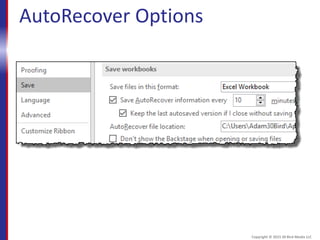
AutoRecover Options
Copyright © 2015 30 Bird Media LLC
Assessment: Workbook Options & Properties
You can control display options for Excel as a
whole, for a particular workbook, or for a
particular worksheet. True or false?
A. True
B. False
That's true. There are separate sections in
the Advanced options for all of these.
Copyright © 2015 30 Bird Media LLC
Assessment: Workbook Options & Properties
The document property called "Title" is the
same as workbook's file name. True or
false?
A. True
B. False
That’s false. The title property can be
different from the file name.
Copyright © 2015 30 Bird Media LLC
Assessment: Workbook Options & Properties
What is the best way to remove personal
information from a workbook's properties?
Choose the best answer.
A. Remove the properties carefully, one at a
time.
B. Use the Document Inspector.
C. Copy all of its data to a new, blank workbook.
B is correct. The Document Inspector is the best
way to remove personal information.
Copyright © 2015 30 Bird Media LLC
Assessment: Workbook Options & Properties
After attempting to fix an accessibility issue, you
must choose the Check Accessibility command
again to see if you've fixed the issue. True or
false?
A. True
B. False
That’s false. Fixing an accessibility issue will
automatically correct itself.
Copyright © 2015 30 Bird Media LLC
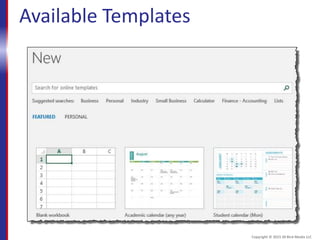
Module B: Templates
You will learn how to:
 Create a workbook based upon a template
 Save a workbook as a template
Copyright © 2015 30 Bird Media LLC
Available Templates
Copyright © 2015 30 Bird Media LLC
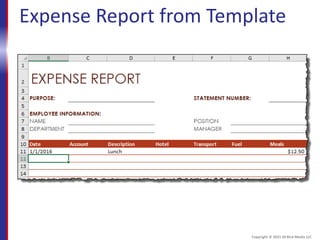
Expense Report from Template
Copyright © 2015 30 Bird Media LLC
Assessment: Templates
When you create a new workbook from a
template, you are editing the actual template.
True or false?
A. True
B. False
That’s false. When you create a new workbook
based on a template, it's a copy of the template.
Copyright © 2015 30 Bird Media LLC
Assessment: Templates
Which of the following are reasons to save a
template in the default templates folder?
A. Because you cannot save them anywhere else.
B. Because the template will show up with your
others when you create new files.
C. Because it will be easy to find when you want
to edit it.
B is correct. You can save a template anywhere, but
it will be most useful in the default folder.
Copyright © 2015 30 Bird Media LLC
Assessment: Templates
Data is not stored with a template. True or false?
A. True
B. False
That’s false. Anything you enter into the
template when you create it will be part of the
template. But it's good practice not to put data
that you'll want to change into a template.
Copyright © 2015 30 Bird Media LLC
Summary: Settings and Templates
You should now know how to:
 Control options for Excel, workbooks, and
worksheets, including display and
AutoRecover; use Document Properties
panel to set workbook properties
 Use built-in templates to create
workbooks quickly, and turn workbooks
into templates
Copyright © 2015 30 Bird Media LLC
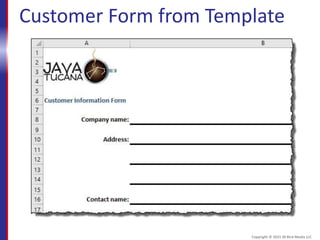
Customer Form from Template
Copyright © 2015 30 Bird Media LLC

Excel-2016-L1-PPT.pptx

  • 1.
    Excel 2016 Level 1 Copyright© 2015 30 Bird Media LLC
  • 2.
    Course Objectives After youcomplete this course, you will know:  How to open and interact with Excel, and how to save and close workbooks  How to enter various kinds of data, how to enter formulas and functions, how to move and copy data, and about the various reference types and how to use them  How to format text and numbers, how to align text, and how to apply borders and styles to cells and ranges  About various data-entry shortcuts; how to use paste options; and how to insert, delete, and hide data in your worksheets  How to create charts, change their type, and insert and control the elements they contain  How to split and manage worksheet windows, set print options, print and preview workbooks, create headers and footers, and share workbooks with other users  About workbook properties and how to use templates Copyright © 2015 30 Bird Media LLC
  • 3.
    Chapter 1: Fundamentals Youwill learn:  How to use the Excel interface to interact with the program, workbooks, and worksheets  How to open and enter data in a workbook, as well as how to save and close a workbook
  • 4.
    Module A: GettingAround You will learn:  How to start Excel  To identify basic features of a workbook
  • 5.
    The Excel Interface Theribbon Quick Access toolbar The formula bar The worksheet Column headings Row numbers
  • 6.
    Assessment: Getting Around Whichof the following are ways to interact with Excel? Choose all that apply. A. Click buttons on the ribbon. B. Use the Start menu. C. Click buttons on the Quick Access toolbar. D. Use the Control Panel. A and C are correct. You can click buttons on the ribbon or on the Quick Access toolbar.
  • 7.
    Assessement: Getting Around Excelcolumns are identified by numbers. True or false? A. True B. False That’s false. Columns are identified by letters.
  • 8.
    Assessment: Getting Around Howmany rows are there in an Excel worksheet? Choose the best response. A. About 50,000. B. Under 200,000. C. Over half a million. D. Over a million. D, over a million, is correct. There are 1,048,576, to be exact.
  • 9.
    Module B: WorkbookBasics You will learn:  How to open and move through a workbook  How to enter simple data  How to save and close a workbook
  • 10.
  • 11.
    Navigation Techniques Technique Whatit Does Arrow keys Move one cell in direction of arrow Shift+Arrow keys Move to last cell in this direction Tab Move one cell to right Shift+Tab Move one cell to left Home Move to first cell in row Ctrl+Home Move to cell A1 Ctrl+End Move to last cell containing data Scroll bars Scroll without changing active cell Name box Enter cell address to move to that cell.
  • 12.
  • 13.
    Assessment: Workbook Basics TheOpen command is on the Edit tab of the ribbon. True or false? A. True B. False That’s false. The Open command is actually on the File tab, also called Backstage view.
  • 14.
    Assessment: Workbook Basics Whenyou use the scroll bars, the active cell does not change. True or false? A. True B. False That's true. Only your view of the worksheet changes.
  • 15.
    Assessment: Workbook Basics Whichof the following techniques will move the active cell one column to the right? Choose all that apply. A. Pressing Home. B. Pressing the Right Arrow key. C. Pressing Tab. D. Clicking in the Name box. B and C are correct. You can use the Right Arrow or Tab key to move the active cell one column to the right.
  • 16.
    Assessment: Workbook Basics Whichcommand do you use if you want to change the name, location, or type of a workbook? A. Save B. Save As B is correct. The Save command will only update the workbook with its current name and location.
  • 17.
    Summary: Fundamentals You shouldnow know:  How to start Excel and identify its main interface elements  How to open a workbook, move around, find data, change and append data, and save and close a workbook
  • 18.
    Chapter 2: CreatingWorksheets You will learn:  How to enter data and about Excel data types  How to perform calculations using formulas  About special formulas called functions, and how to use them  How to move and copy data  About relative and absolute references, and how and when to use each Copyright © 2015 30 Bird Media LLC
  • 19.
    Module A: EnteringData You will learn:  About different Excel data types  How to enter text and numbers Copyright © 2015 30 Bird Media LLC
  • 20.
    Types of Data Text Numbers Copyright© 2015 30 Bird Media LLC
  • 21.
    Creating a NewWorkbook Copyright © 2015 30 Bird Media LLC
  • 22.
    Budget and YearLabels Copyright © 2015 30 Bird Media LLC
  • 23.
    Year 1 BudgetFigures Copyright © 2015 30 Bird Media LLC
  • 24.
    Assessment: Entering Data Bydefault, Excel will left-align all data that you enter. True or false? A. True B. False That’s false. Text will be left aligned, but numbers will be right-aligned. Copyright © 2015 30 Bird Media LLC
  • 25.
    Assessment: Entering Data Howwill Excel handle text that is too wide for the column in which it appears? A. By cutting it off at the right-hand border of the cell. B. By spilling the text over into the next column. C. It depends on what is in the next cell to the right. C is correct. If there is no data, the text will spill over. If there is data, the text will be cut off. Copyright © 2015 30 Bird Media LLC
  • 26.
    Assessment: Entering Data Youcan change the width of a column by using the mouse. True or false? A. True B. False That's true. You can drag the border between column headings. Copyright © 2015 30 Bird Media LLC
  • 27.
    Assessment: Entering Data Whichof the following are ways that Excel handles numbers that are too wide for a cell? Choose all that apply. A. Scientific notation B. Binary C. Number signs (####) D. Rounding the stored number A and C are correct. Excel will sometimes round the display of a number, but will never automatically round the stored number. Copyright © 2015 30 Bird Media LLC
  • 28.
    Module B: Formulas Youwill learn:  To identify the elements on an Excel formula  About worksheet design considerations  How to perform calculations by entering formulas in cells Copyright © 2015 30 Bird Media LLC
  • 29.
    Formula Elements Equal sign Numbers Cellreferences Operators Copyright © 2015 30 Bird Media LLC
  • 30.
    Worksheet design Good design:Bad design: Copyright © 2015 30 Bird Media LLC
  • 31.
    Using a Formula Copyright© 2015 30 Bird Media LLC
  • 32.
    Order of Operations OrderOperation Operator Example 1 Parentheses () =3*(A2+A3) 2 Negation - =-2 3 Percentage % =25% 4 Exponents ^ =A4^25 5 Multiplication * =A2*A3 5 Division / =A2/A3 6 Addition + =A2+A3 6 Subtraction - =A2-A3 Copyright © 2015 30 Bird Media LLC
  • 33.
    Assessment: Formulas Which ofthe following signals the beginning of a formula? A. Apostrophe (') B. Equal sign (=) C. Any cell reference. D. The letter f. B, the equal sign (=), is correct. Copyright © 2015 30 Bird Media LLC
  • 34.
    Assessment: Formulas It isgood practice to put formulas in the first column of a worksheet. True or false? A. True B. False That's false. In general, you should put formulas to the right of or below the values they act upon. The first column would be to the left of any values. Copyright © 2015 30 Bird Media LLC
  • 35.
    Assessment: Formulas Which ofthe following has the lowest precedence in the Excel order of operations? A. Multiplication B. Subtraction C. Percentage D. Exponents B is correct. Addition and subtraction have the lowest order of precedence. Copyright © 2015 30 Bird Media LLC
  • 36.
    Assessment: Formulas Which ofthe following are ways to enter Edit mode in Excel? Choose all that apply. A. Double-click a cell. B. Press F2. C. Press Esc. D. Click in the formula bar. A, B, and D are correct. Copyright © 2015 30 Bird Media LLC
  • 37.
    Module C: Functions Youwill learn:  About special formulas called functions  How to enter functions and function arguments to perform calculations Copyright © 2015 30 Bird Media LLC
  • 38.
  • 39.
    Insert Function Window Copyright© 2015 30 Bird Media LLC
  • 40.
    Function Arguments Window Copyright© 2015 30 Bird Media LLC
  • 41.
    Completed My BudgetFunctions Copyright © 2015 30 Bird Media LLC
  • 42.
    Assessment: Functions Functions area type of formula. True or False? A. True B. False That's true. They are built-in, named formulas you can use to perform various calculations. Copyright © 2015 30 Bird Media LLC
  • 43.
    Assessment: Functions Functions canbe entered only in the formula bar. True or False? A. True B. False That’s false. You can enter and edit function in the cell or in the formula bar, just like any other data. Copyright © 2015 30 Bird Media LLC
  • 44.
    Assessment: Functions Which ofthe following is the name for the values on which a function takes action or performs calculations? A. Variables B. Parameters C. Arguments C, Arguments, is correct. Copyright © 2015 30 Bird Media LLC
  • 45.
    Assessment: Functions Which ofthe following are ways that you can enter function arguments? A. Typing. B. The mouse. C. The Insert Arguments button. D. The Function Arguments window. A, B, and D are correct. There isn't actually an Insert Arguments button. Copyright © 2015 30 Bird Media LLC
  • 46.
    Assessment: Functions AutoSum canbe used to enter only SUM() functions. True or False? A. True B. False That’s false. You can use AutoSum to enter many different functions. Copyright © 2015 30 Bird Media LLC
  • 47.
    Module D: Movingand Copying Data You will learn:  How to move data within a worksheet by cutting and pasting  How to copy data by copying and pasting  How to move and copy data by dragging  How Excel handles a moved or copied formula Copyright © 2015 30 Bird Media LLC
  • 48.
    Moving and Copying 1.Select data to move/copy. 2. Click Cut or Copy. 3. Select where to move/copy to. 4. Click Paste. Copyright © 2015 30 Bird Media LLC
  • 49.
  • 50.
    Copying a Formula Copyright© 2015 30 Bird Media LLC
  • 51.
    Completed My Movingand Copying Copyright © 2015 30 Bird Media LLC
  • 52.
    Assessment: Moving andCopying You use the Copy command to move data. True or false? A. True B. False That's false. You actually would use the Cut command. Copyright © 2015 30 Bird Media LLC
  • 53.
    Assessment: Moving andCopying Which of the following can be accomplished by dragging? A. Moving but not copying. B. Copying but not moving. C. Both moving and copying. C is correct. You can both move and copy by dragging. Copyright © 2015 30 Bird Media LLC
  • 54.
    Assessment: Moving andCopying What is the keyboard shortcut to undo the most recent action? A. F1 B. Ctrl+U C. Ctrl+Z D. Alt+X D, Ctrl+Z, is corrrect. Copyright © 2015 30 Bird Media LLC
  • 55.
    Assessment: Moving andCopying To copy data by dragging, which key do you hold down? A. Shift B. Ctrl C. Alt B, Ctrl, is correct. Copyright © 2015 30 Bird Media LLC
  • 56.
    Assessment: Moving andCopying When you paste a copied formula, Excel will update references in the pasted formula relatively to the new location. A. True B. False That's true. Excel updates the references to be appropriate for the new location. Copyright © 2015 30 Bird Media LLC
  • 57.
    Module E: ReferenceTypes You will learn:  About the limitations of relative references  How to enter absolute and mixed references in formulas Copyright © 2015 30 Bird Media LLC
  • 58.
    Copying Relative References R1C1references: Copied R1C1 references: Copyright © 2015 30 Bird Media LLC
  • 59.
    Copying an AbsoluteReference R1C1 absolute reference: Copied formula: Copyright © 2015 30 Bird Media LLC
  • 60.
    Completed My ReferenceTypes Copyright © 2015 30 Bird Media LLC
  • 61.
    Assessment: Reference Types Allreferences in Excel are relative, in terms of their location. True or false? A. True B. False That’s false. References can be relative, absolute, or mixed. Copyright © 2015 30 Bird Media LLC
  • 62.
    Assessment: Reference Types Whichtype of reference is best for referring to a multiplier value that is in one cell or a worksheet for all formulas, no matter where they are? A. Mixed B. Relative C. Absolute C is correct. If the value is in a single cell, an absolute reference is the best choice. Copyright © 2015 30 Bird Media LLC
  • 63.
    Assessment: Reference Types Whichcharacter do you use to make a reference absolute? A. Colon (:) B. Dollar sign ($) C. Ampersand (&) D. Number sign (#) B, dollar sign ($), is correct. Copyright © 2015 30 Bird Media LLC
  • 64.
    Assessment: Reference Types Youcan use the F3 key to toggle through reference types while you enter a formula. True or false? A. True B. False That’s false. You actually use the F4 key. Copyright © 2015 30 Bird Media LLC
  • 65.
    Summary: Creating Worksheets Youshould now know:  How to enter numbers and text, and how Excel handles them  About the elements of Excel formulas, and how to perform calculations by entering formulas in a worksheet  About special, named formulas called functions, and how to use them to calculate sums and averages  How to move and copy data, and about how Excel updates references in copied formulas  How and when to use relative, absolute, and mixed references Copyright © 2015 30 Bird Media LLC
  • 66.
    My Creating WorksheetsSynthesis Copyright © 2015 30 Bird Media LLC
  • 67.
    Chapter 3: Formatting Youwill learn how to:  Format text  Format numbers  Control alignment of data  Apply borders to cells and ranges  Use styles to quickly apply various kinds of formatting in a single step Copyright © 2015 30 Bird Media LLC
  • 68.
    Module A: TextFormatting You will learn:  How to format text  How to select multiple ranges Copyright © 2015 30 Bird Media LLC
  • 69.
    The Ribbon FontGroup Font box Format buttons Font size buttons Dialog box launcher Copyright © 2015 30 Bird Media LLC
  • 70.
    Completed My TextFormatting Copyright © 2015 30 Bird Media LLC
  • 71.
    Assessment: Text Formatting Toformat a cell, you click the formatting button before selecting the cell you want to format. True or false? A. True B. False That’s false. You need to select the cell first. Copyright © 2015 30 Bird Media LLC
  • 72.
    Assessment: Text Formatting Whichkey do you hold down to add another cell or range to a selection? A. Ctrl B. Shift C. Alt A, Ctrl, is correct. Copyright © 2015 30 Bird Media LLC
  • 73.
    Module B: NumberFormatting You will learn how to:  Apply currency and percentage formats  Control decimal places  Use the keyboard to select ranges  Format and perform simple calculations on dates Copyright © 2015 30 Bird Media LLC
  • 74.
    Number Format Group Copyright© 2015 30 Bird Media LLC
  • 75.
    Formatted Customer Sales Copyright© 2015 30 Bird Media LLC
  • 76.
    Completed Employees Worksheet Copyright© 2015 30 Bird Media LLC
  • 77.
    Assessment: Number Formatting Whenyou change a number format, you change the underlying data. True or false? A. True B. False That’s false. Changing the format does not affect the underlying data. Copyright © 2015 30 Bird Media LLC
  • 78.
    Assessment: Number Formatting Whichof the following is not a category of Excel number formats? A. Currency B. Exponent C. Percentage D. Date B is correct. Exponent is not a format category. Copyright © 2015 30 Bird Media LLC
  • 79.
    Assessment: Number Formatting Whichkey enables you to extend a selection by using the arrow keys? A. Shift B. Ctrl C. Alt A, Shift, is correct. Using Ctrl with the arrow keys selects the last cell in that direction that contains data. The Alt key isn't used in selection. Copyright © 2015 30 Bird Media LLC
  • 80.
    Assessment: Number Formatting Howare dates stored in Excel? A. As two pieces of data, a combination of a date and a time B. In the format in which you enter them C. As serial numbers C is correct. Dates are stored as serial numbers so that you can perform calculations on them. Copyright © 2015 30 Bird Media LLC
  • 81.
    Module C: Alignment Youwill learn how to:  Align cell contents vertically and horizontally  Wrap text within a cell  Merge the contents of multiple cells Copyright © 2015 30 Bird Media LLC
  • 82.
  • 83.
  • 84.
    Wrapped, Aligned Notes Copyright© 2015 30 Bird Media LLC
  • 85.
    Completed My Alignment Copyright© 2015 30 Bird Media LLC
  • 86.
    Assessment: Alignment You canalign cell contents: A. Horizontally but not vertically. B. Vertically but not horizontally. C. Both vertically and horizontally. C is correct. You can align both vertically and horizontally. Copyright © 2015 30 Bird Media LLC
  • 87.
    Assessment: Alignment You cannotwrap text in Excel. True or false? A. True B. False That’s false. You actually can wrap text. Copyright © 2015 30 Bird Media LLC
  • 88.
    Assessment: Alignment The Merge& Center command is most useful for which of the following? A. Data values. B. Column headings. C. Overall worksheet headings and subheadings. C is the most common use of merging and centering. Copyright © 2015 30 Bird Media LLC
  • 89.
    Module D: Borders Youwill learn:  How to apply borders to cells and ranges  How to apply highlighting and fill colors Copyright © 2015 30 Bird Media LLC
  • 90.
    Borders Menu Copyright ©2015 30 Bird Media LLC
  • 91.
    Completed My Borders Copyright© 2015 30 Bird Media LLC
  • 92.
    Assessment: Borders Which ofthe following are ways to apply borders to a cell or range? Choose all that apply. A. Buttons in the Borders menu. B. Double-click cell borders. C. Use the Draw Border feature. D. Use the Borders tab of the Format Cells window. A, C, and D are correct. Copyright © 2015 30 Bird Media LLC
  • 93.
    Assessment: Borders Thin andthick lines are the only border style options. True or false? A. True B. False That’s false. There are many possibilities, including various dashed lines and double lines. Copyright © 2015 30 Bird Media LLC
  • 94.
    Module E: Stylesand Themes You will learn:  How to apply cell styles to cells and ranges  How to clear formats from a selected cell or range  How to use table styles to quickly format an entire table of data  About themes and how to change and customize them Copyright © 2015 30 Bird Media LLC
  • 95.
    Cell Styles Gallery Copyright© 2015 30 Bird Media LLC
  • 96.
    Formatted with CellStyles Copyright © 2015 30 Bird Media LLC
  • 97.
    Formatted with TableStyles Copyright © 2015 30 Bird Media LLC
  • 98.
    Assessment: Styles You haveto create a style before using one. True or false? A. True B. False That’s false. Excel comes with many built-in styles. Copyright © 2015 30 Bird Media LLC
  • 99.
    Assessment: Styles Which ofthe following can a style include? Choose all that apply. A. Number format B. Formulas C. Text format D. Borders E. Shading A, C, D, and E are correct. Formulas are not a type of formatting. Copyright © 2015 30 Bird Media LLC
  • 100.
    Assessment: Styles Which ofthe following statements is most accurate? Choose only one. A. Table styles never include headings. B. Table styles may or may not include headings. C. Table styles always include headings. B is correct. Table styles can, but don't have to, include headings. Copyright © 2015 30 Bird Media LLC
  • 101.
    Assessment: Styles Which elementsof a theme can you control individually? Choose all that apply. A. Borders B. Font C. Number formats D. Colors E. Effects B and D, E are correct. You can control font, color and effects elements individually. Copyright © 2015 30 Bird Media LLC
  • 102.
    Summary: Formatting You shouldnow know:  How to apply text formatting to cells, ranges, and multiple ranges  How to apply number formats to values, about how to format and work with dates  How to align cell contents vertically and horizontally, how to wrap text, and how to merge cells  How to apply borders by using commands, by drawing, and by using the Format Cells window  About styles and how to apply them to cells, ranges, and tables to quickly format worksheets Copyright © 2015 30 Bird Media LLC
  • 103.
    My Formatting Synthesis Copyright© 2015 30 Bird Media LLC
  • 104.
    Chapter 4: ManipulatingData You will learn:  How to use various techniques to enter similar data quickly  How to paste parts of cell data and formats  How to insert, delete, and hide cells, ranges, and worksheets Copyright © 2015 30 Bird Media LLC
  • 105.
    Module A: DataEntry Shortcuts You will learn:  How to use Fill commands to copy data to adjacent cells  How to use Auto Fill to copy data or extend series  How to find and replace data Copyright © 2015 30 Bird Media LLC
  • 106.
    Budget in MyData Entry Copyright © 2015 30 Bird Media LLC
  • 107.
    Series in MyData Entry Copyright © 2015 30 Bird Media LLC
  • 108.
    Assessment: Data EntryShortcuts You can use the Fill commands to extend series. True or false? A. True B. False That’s false. The Fill commands can only copy, not fill series. Copyright © 2015 30 Bird Media LLC
  • 109.
    Assessment: Data EntryShortcuts Auto Fill will recognize any series from a single value. True or false? A. True B. False That’s False. Auto Fill recognizes many series from a single value, such as "Qtr1" or "Year 1," but not always. Sometimes, you'll need to enter the first two values. Copyright © 2015 30 Bird Media LLC
  • 110.
    Assessment: Data EntryShortcuts What could you do if you used Auto Fill and Excel copied instead of creating a series? Choose all that apply. A. Enter the series manually. B. Use the Fill, Series command. C. Try entering the first two values in the series before using Auto Fill. D. Try the Auto Fill Options button. C and D are the best answers. A could work, but isn’t the best option. Copyright © 2015 30 Bird Media LLC
  • 111.
    Assessment: Data EntryShortcuts You can only replace found text one item at a time. True or false? A. True B. False False. You can find and replace multiple selections of text at once. Copyright © 2015 30 Bird Media LLC
  • 112.
    Module B: PasteOptions You will learn how to:  Copy formatting using the Format Painter  Use paste options to paste values, formatting, formulas, or combinations  Paste links to cells and ranges Copyright © 2015 30 Bird Media LLC
  • 113.
    Year 2 withPasted Formats Copyright © 2015 30 Bird Media LLC
  • 114.
    Paste Options Paste Formulas PasteValues Paste Formatting Copyright © 2015 30 Bird Media LLC
  • 115.
    Pasting a Link Copyright© 2015 30 Bird Media LLC
  • 116.
    Assessment: Paste Options Youcan copy only the formulas of a cell or range, and not the formats or values. True or false. A. True B. False That’s false. You can actually copy formulas, values, formats, and combinations of those. Copyright © 2015 30 Bird Media LLC
  • 117.
    Assessment: Paste Options Howdo you use the Format Painter to copy formatting to more than one destination? A. Hold down Ctrl while clicking the Format Painter. B. Double-click the Format Painter. C. Hold down Shift while clicking the Format Painter. D. Hold down Alt while clicking the destination ranges. B is correct. You double-click the Format Painter. Copyright © 2015 30 Bird Media LLC
  • 118.
    Assessment: Paste Options Whenyou paste values, Excel creates a link to the source data. True or false? A. True B. False That’s false. There is no link. Copyright © 2015 30 Bird Media LLC
  • 119.
    Assessment: Paste Options Whichof the following are possible with linking? Choose all that apply. A. Linking within a worksheet. B. Linking between worksheets in the same workbook. C. Linking between worksheets in different workbooks. All three answers are correct. You can actually link within worksheets, between worksheets in the same workbook, or between workbooks. Copyright © 2015 30 Bird Media LLC
  • 120.
    Module C: Inserting,Deleting, and Hiding You will learn how to:  Insert and delete rows and columns  Insert and delete ranges  Hide and unhide rows and columns Copyright © 2015 30 Bird Media LLC
  • 121.
    Sales with Insertions,Deletions Copyright © 2015 30 Bird Media LLC
  • 122.
    Sales with HiddenData Copyright © 2015 30 Bird Media LLC
  • 123.
    Assessment: Inserting, Deleting,& Hiding When inserting or deleting, you do not always need to specify how to shift cells. True or false? A. True B. False That’s true. When you insert or delete entire rows or columns, Excel handles the shifting automatically. Copyright © 2015 30 Bird Media LLC
  • 124.
    Assessment: Inserting, Deleting,& Hiding When you insert in a range referred to by a formula, under which circumstances will Excel automatically update the formula? A. When you insert within the endpoints of the reference, but not at the edge of the reference. B. When you insert at the edge of the reference, but not within the endpoints of the reference. C. Both when you insert within the endpoints of a reference and when you insert at the edge of a reference. A is correct. Excel will update the formulas only when you insert within the endpoints of the reference. Copyright © 2015 30 Bird Media LLC
  • 125.
    Assessment: Inserting, Deleting,& Hiding When you hide a row or column, its data is removed from the workbook. True or false? A. True B. False That’s false. The data is only hidden. Copyright © 2015 30 Bird Media LLC
  • 126.
    Summary: Manipulating Data Youshould now know:  How to Fill data to adjacent cells, and how to Auto Fill to copy or extend series  About paste options, and how to paste only values, formulas, formats  How to insert and delete rows, columns, cells, and ranges, and how to hide and unhide rows and columns Copyright © 2015 30 Bird Media LLC
  • 127.
    My Manipulating DataSynthesis Copyright © 2015 30 Bird Media LLC
  • 128.
    Chapter 5: Charts Youwill learn how to:  Create simple charts  Change a chart's type and add elements to it Copyright © 2015 30 Bird Media LLC
  • 129.
    Module A: CreatingCharts You will learn:  How to create a simple line chart  About the connection between a chart and its source data Copyright © 2015 30 Bird Media LLC
  • 130.
    Simple Charts Pie chart:Line chart: Copyright © 2015 30 Bird Media LLC
  • 131.
    Selecting Data fora Chart Copyright © 2015 30 Bird Media LLC
  • 132.
    My Line Chart Copyright© 2015 30 Bird Media LLC
  • 133.
    Assessment: Creating Charts Youshould not select labels when selecting data for a chart. True or false? A. True B. False That’s false. In most cases, you should select labels. Copyright © 2015 30 Bird Media LLC
  • 134.
    Assessment: Creating Charts Howdo you update a chart after changing its source data? A. By press F9. B. By clicking the Update button on the Design tab of the ribbon. C. You don't need to do anything, because the chart will update automatically. C is correct. The chart will update automatically. Copyright © 2015 30 Bird Media LLC
  • 135.
    Assessment: Creating Charts Whichof the following are ways to move a chart? Choose all that apply. A. Selecting the chart and using the arrow keys. B. By dragging. C. By clicking the Move Chart button. B and C are correct. The arrow keys don't move a selected chart. Copyright © 2015 30 Bird Media LLC
  • 136.
    Module B: ChartTypes & Elements You will learn how to:  Create a pie chart  Control style and layout in a chart  Create a column chart  Switch the plotting of rows and columns in a chart  Control and format chart elements Copyright © 2015 30 Bird Media LLC
  • 137.
    Change Chart TypeWindow Copyright © 2015 30 Bird Media LLC
  • 138.
    Selecting Data forPie Chart Copyright © 2015 30 Bird Media LLC
  • 139.
    Chart Elements Title Series Points Legend Value axis Categoryaxis Copyright © 2015 30 Bird Media LLC
  • 140.
    Completed Products byQuarter Copyright © 2015 30 Bird Media LLC
  • 141.
    Assessment: Chart Types& Elements You can specify the type for a chart only when you create the chart. True or false? A. True B. False That’s false. You can change a chart's type at any time. Copyright © 2015 30 Bird Media LLC
  • 142.
    Assessment: Chart Types& Elements Which type of chart is best for showing trends? A. Pie B. Line C. Column D. Scatter B, line, is correct. Pie charts show relationship to a whole. You can see a trend in a column chart, but not as well as in a line chart. Scatter charts show distribution of two related variables. Copyright © 2015 30 Bird Media LLC
  • 143.
    Assessment: Chart Types& Elements The only way to change the axis Excel uses for your data is to transpose the data in a worksheet and create a new chart. True or false? A. True B. False That’s false. You can do this by simply clicking the Switch Rows/Columns button. Copyright © 2015 30 Bird Media LLC
  • 144.
    Assessment: Chart Types& Elements Not all chart elements come from the data you select when you create the chart. True or false? A. True B. False That’s true. You can also add elements such as a title, axis labels, and more. Copyright © 2015 30 Bird Media LLC
  • 145.
    Assessment: Chart Types& Elements The only way to control the format of the value axis numbers by changing the format in the source data. True or false? A. True B. False That’s false. Although changing the format in the source data will change it in the chart, you can also change the format for the axis independently by using the Format Axis window. Copyright © 2015 30 Bird Media LLC
  • 146.
    Summary: Charts You shouldnow know how to:  Create a simple chart and move it within a worksheet or to a chart sheet, and about the link between a chart and its source  Change a chart's type, create pie and stacked or unstacked column charts, switch rows and columns in a chart, and control titles, legend, and value axis Copyright © 2015 30 Bird Media LLC
  • 147.
    Completed Monthly SalesChart Copyright © 2015 30 Bird Media LLC
  • 148.
    Chapter 6: Output Youwill learn how to:  Split and arrange worksheet windows  Print worksheets and control how they will print by using print setup options  Save workbooks to other formats and share workbooks with other users Copyright © 2015 30 Bird Media LLC
  • 149.
    Module A: ManagingWorksheet Windows You will learn how to:  Split worksheets and freeze panes to keep headings in view  Manage and arrange multiple windows  Save the arrangement of windows by using a workspace Copyright © 2015 30 Bird Media LLC
  • 150.
  • 151.
    Assessment: Managing WorksheetWindows The Split command always creates four window panes. True or false? A. True B. False That’s false. You can create four panes by splitting at a cell, or two by splitting at a row or column. Copyright © 2015 30 Bird Media LLC
  • 152.
    Assessment: Managing WorksheetWindows You do not have to split windows before freezing panes. True or False? A. True B. False That’s true. You can freeze directly without first splitting. Copyright © 2015 30 Bird Media LLC
  • 153.
    Module B: PrintingWorksheets You will learn how to:  Preview and print the active worksheet with current settings  Print an entire workbook or selected worksheets  Control print setup options such as scale, orientation, gridlines, headings, and margins  Control the print area and how to set print titles that appear on every page  Create headers and footers Copyright © 2015 30 Bird Media LLC
  • 154.
    Scaling Options Copyright ©2015 30 Bird Media LLC
  • 155.
    Controlling Margins Copyright ©2015 30 Bird Media LLC
  • 156.
    Printing Landscape withGridlines Copyright © 2015 30 Bird Media LLC
  • 157.
    Header & FooterElements Copyright © 2015 30 Bird Media LLC
  • 158.
    Formatted Header Copyright ©2015 30 Bird Media LLC
  • 159.
    Assessment: Printing Worksheets Wherecan you find the Print command in Excel? A. On the ribbon's Home tab. B. In Backstage view (by clicking File). C. On the ribbon's Page Layout tab. D. On the ribbon's View tab. B is correct. You need to click File to go to Backstage view. Copyright © 2015 30 Bird Media LLC
  • 160.
    Assessment: Printing Worksheets Youcan control many aspects of how a worksheet will print on the Page Layout tab. True or false? A. True B. False That's true. You can control many aspects on the Print screen or in the Page Setup window as well. Copyright © 2015 30 Bird Media LLC
  • 161.
    Assessment: Printing Worksheets Whatis the best way to show column headings on every page of a printout? A. Break your data up and enter headings after every page break. B. On the Page Layout tab, under Headings, click Print. C. Set a row or rows and print titles for the worksheet. C is correct. A could work, but it's not the best solution. B, printing headings, will only show column and row headings Copyright © 2015 30 Bird Media LLC
  • 162.
    Assessment: Printing Worksheets Whenyou insert a header, which workbook view does Excel switch to? A. Page Layout view B. Page Break preview C. Normal view D. A custom view A is correct. Excel switches to Page Layout view. Copyright © 2015 30 Bird Media LLC
  • 163.
    Assessment: Printing Worksheets TheHeader & Footer Tools Design tab has tools for formatting. True or false? A. True B. False That’s false. You actually need to use the Home tab to format headers and footers. Copyright © 2015 30 Bird Media LLC
  • 164.
    Module C: SharingWorkbooks You will learn how to:  Save an Excel workbook in a different format  Share workbook either as an email attachment, or online by using OneDrive Copyright © 2015 30 Bird Media LLC
  • 165.
    Other Formats Format Usefulwhen... Excel 97-2003 Workbook Share with users of earlier version of Excel. Web page Save workbook to the web. CSV Uploading data to a web service or into a database. PDF Don't know much about the people you're sharing with. XPS Don't know much about the people you're sharing with. Viewer is a default part of Windows 7 and higher. Open Document Spreadsheet Sharing with users of Open Office Copyright © 2015 30 Bird Media LLC
  • 166.
    Saving as PDF Choices: Copyright© 2015 30 Bird Media LLC
  • 167.
    Assessment: Sharing Workbooks Whichformat is the best option if you want to show a workbook to someone who might not have Excel? A. Excel 97-2003 Workbook B. CSV C. PDF D. Open Document Spreadsheet C is the best choice. Anyone with the free Adobe Acrobat Reader program can read a PDF file. Copyright © 2015 30 Bird Media LLC
  • 168.
    Assessment: Sharing Workbooks Youneed to open your mail program to send a workbook as an attachment. True or false? A. True B. False That’s false. You can send a workbook as an email attachment directly from Excel by using a Save & Send option in Backstage view. Copyright © 2015 30 Bird Media LLC
  • 169.
    Summary: Output You shouldnow know how to:  Split and freeze worksheets, arrange windows, and save window arrangements in workspaces  Preview and print worksheets; control scale, orientation, gridlines, and margins; set print area and titles; create headers and footers  Save a workbook to an earlier version of Excel or to portable formats such as PDF and XPS, and share a workbook with another user by attaching it to an email Copyright © 2015 30 Bird Media LLC
  • 170.
    An XPS Document Copyright© 2015 30 Bird Media LLC
  • 171.
    Chapter 7: Settings& Templates You will learn how to:  Control workbook and worksheet options, as well as workbook properties  Use templates to create highly functional workbooks quickly Copyright © 2015 30 Bird Media LLC
  • 172.
    Module A: WorkbookOptions & Properties You will learn how to:  Set options for Excel, for workbooks, and for worksheets  Set document properties for a workbook  Inspect a workbook for personal information and compatibility or accessibility issues Copyright © 2015 30 Bird Media LLC
  • 173.
    AutoRecover Options Copyright ©2015 30 Bird Media LLC
  • 174.
    Assessment: Workbook Options& Properties You can control display options for Excel as a whole, for a particular workbook, or for a particular worksheet. True or false? A. True B. False That's true. There are separate sections in the Advanced options for all of these. Copyright © 2015 30 Bird Media LLC
  • 175.
    Assessment: Workbook Options& Properties The document property called "Title" is the same as workbook's file name. True or false? A. True B. False That’s false. The title property can be different from the file name. Copyright © 2015 30 Bird Media LLC
  • 176.
    Assessment: Workbook Options& Properties What is the best way to remove personal information from a workbook's properties? Choose the best answer. A. Remove the properties carefully, one at a time. B. Use the Document Inspector. C. Copy all of its data to a new, blank workbook. B is correct. The Document Inspector is the best way to remove personal information. Copyright © 2015 30 Bird Media LLC
  • 177.
    Assessment: Workbook Options& Properties After attempting to fix an accessibility issue, you must choose the Check Accessibility command again to see if you've fixed the issue. True or false? A. True B. False That’s false. Fixing an accessibility issue will automatically correct itself. Copyright © 2015 30 Bird Media LLC
  • 178.
    Module B: Templates Youwill learn how to:  Create a workbook based upon a template  Save a workbook as a template Copyright © 2015 30 Bird Media LLC
  • 179.
    Available Templates Copyright ©2015 30 Bird Media LLC
  • 180.
    Expense Report fromTemplate Copyright © 2015 30 Bird Media LLC
  • 181.
    Assessment: Templates When youcreate a new workbook from a template, you are editing the actual template. True or false? A. True B. False That’s false. When you create a new workbook based on a template, it's a copy of the template. Copyright © 2015 30 Bird Media LLC
  • 182.
    Assessment: Templates Which ofthe following are reasons to save a template in the default templates folder? A. Because you cannot save them anywhere else. B. Because the template will show up with your others when you create new files. C. Because it will be easy to find when you want to edit it. B is correct. You can save a template anywhere, but it will be most useful in the default folder. Copyright © 2015 30 Bird Media LLC
  • 183.
    Assessment: Templates Data isnot stored with a template. True or false? A. True B. False That’s false. Anything you enter into the template when you create it will be part of the template. But it's good practice not to put data that you'll want to change into a template. Copyright © 2015 30 Bird Media LLC
  • 184.
    Summary: Settings andTemplates You should now know how to:  Control options for Excel, workbooks, and worksheets, including display and AutoRecover; use Document Properties panel to set workbook properties  Use built-in templates to create workbooks quickly, and turn workbooks into templates Copyright © 2015 30 Bird Media LLC
  • 185.
    Customer Form fromTemplate Copyright © 2015 30 Bird Media LLC