Chapter 6
Finding the Roots of
Equations
The Bisection Method
Copyright © The McGraw-Hill Companies, Inc. Permission required for reproduction or display.
Finding Roots of Equations
• In this chapter, we are examining equations with
one independent variable.
• These equations may be linear or non-linear
• Non-linear equations may be polynomials or
generally non-linear equations
• A root of the equation is simply a value of the
independent variable that satisfies the equation
Engineering Computation: An Introduction Using MATLAB and Excel
Classification of Equations
• Linear: independent variable appears to the first
power only, either alone or multiplied by a
constant
• Nonlinear:
– Polynomial: independent variable appears
raised to powers of positive integers only
– General non-linear: all other equations
Engineering Computation: An Introduction Using MATLAB and Excel
Finding Roots of Equations
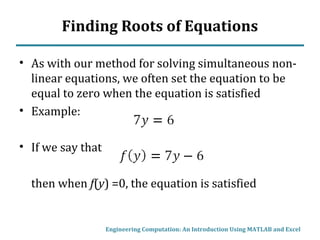
• As with our method for solving simultaneous non-
linear equations, we often set the equation to be
equal to zero when the equation is satisfied
• Example:
• If we say that
then when f(y) =0, the equation is satisfied
Engineering Computation: An Introduction Using MATLAB and Excel
Solution Methods
• Linear: Easily solved analytically
• Polynomials: Some can be solved analytically
(such as by quadratic formula), but most will
require numerical solution
• General non-linear: unless very simple, will
require numerical solution
Engineering Computation: An Introduction Using MATLAB and Excel
The Bisection Method
• In the bisection method, we start with an interval
(initial low and high guesses) and halve its width
until the interval is sufficiently small
• As long as the initial guesses are such that the
function has opposite signs at the two ends of the
interval, this method will converge to a solution
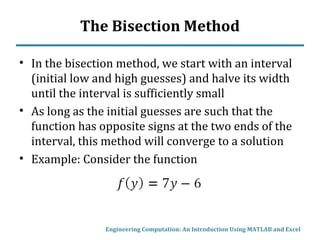
• Example: Consider the function
Engineering Computation: An Introduction Using MATLAB and Excel
Bisection Method Example
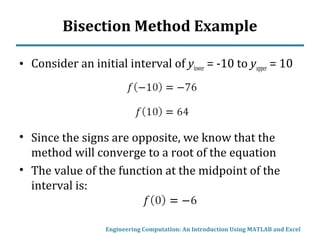
• Consider an initial interval of ylower = -10 to yupper = 10
• Since the signs are opposite, we know that the
method will converge to a root of the equation
• The value of the function at the midpoint of the
interval is:
Engineering Computation: An Introduction Using MATLAB and Excel
Bisection Method Example
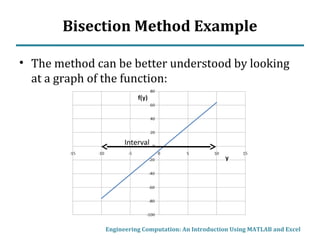
• The method can be better understood by looking
at a graph of the function:
Engineering Computation: An Introduction Using MATLAB and Excel
Interval
Bisection Method Example
• Now we eliminate half of the interval, keeping the
half where the sign of f(midpoint) is opposite the
sign of f(endpoint)
• In this case, since f(ymid) = -6 and f(yupper) = 64, we
keep the upper half of the interval, since the
function crosses zero in this interval
Engineering Computation: An Introduction Using MATLAB and Excel
Bisection Method Example
• Now we eliminate half of the interval, keeping the
half where the sign of f(midpoint) is opposite the
sign of f(endpoint)
• In this case, since f(ymid) = -6 and f(yupper) = 64, we
keep the upper half of the interval, since the
function crosses zero in this interval
Engineering Computation: An Introduction Using MATLAB and Excel
Bisection Method Example
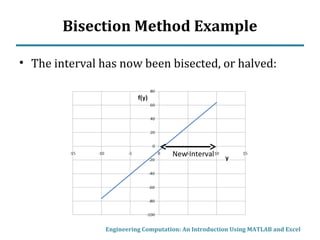
• The interval has now been bisected, or halved:
Engineering Computation: An Introduction Using MATLAB and Excel
New Interval
Bisection Method Example
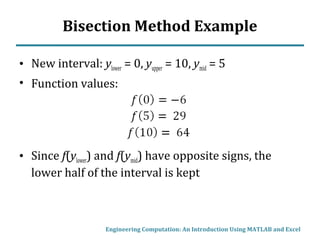
• New interval: ylower = 0, yupper = 10, ymid = 5
• Function values:
• Since f(ylower) and f(ymid) have opposite signs, the
lower half of the interval is kept
Engineering Computation: An Introduction Using MATLAB and Excel
Bisection Method Example
• At each step, the difference between the high and
low values of y is compared to 2*(allowable error)
• If the difference is greater, than the procedure
continues
• Suppose we set the allowable error at 0.0005. As
long as the width of the interval is greater than
0.001, we will continue to halve the interval
• When the width is less than 0.001, then the
midpoint of the range becomes our answer
Engineering Computation: An Introduction Using MATLAB and Excel
Bisection Method Example
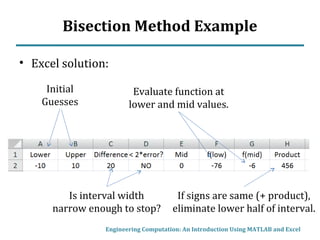
• Excel solution:
Engineering Computation: An Introduction Using MATLAB and Excel
Initial
Guesses
Is interval width
narrow enough to stop?
Evaluate function at
lower and mid values.
If signs are same (+ product),
eliminate lower half of interval.
Bisection Method Example
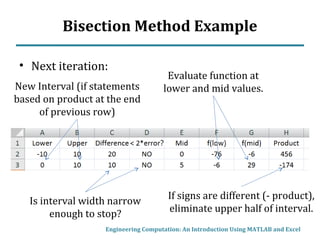
• Next iteration:
Engineering Computation: An Introduction Using MATLAB and Excel
New Interval (if statements
based on product at the end
of previous row)
Is interval width narrow
enough to stop?
Evaluate function at
lower and mid values.
If signs are different (- product),
eliminate upper half of interval.
Bisection Method Example
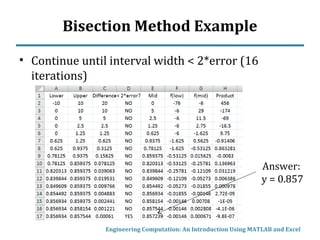
• Continue until interval width < 2*error (16
iterations)
Engineering Computation: An Introduction Using MATLAB and Excel
Answer:
y = 0.857
Bisection Method Example
• Or course, we know that the exact answer is 6/7
(0.857143)
• If we wanted our answer accurate to 5 decimal
places, we could set the allowable error to
0.000005
• This increases the number of iterations only from
16 to 22 – the halving process quickly reduces the
interval to very small values
• Even if the initial guesses are set to -10,000 and
10000, only 32 iterations are required to get a
solution accurate to 5 decimal places
Engineering Computation: An Introduction Using MATLAB and Excel
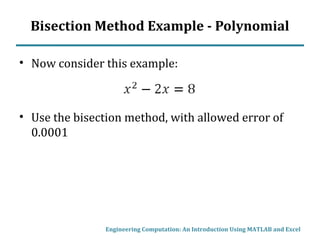
Bisection Method Example - Polynomial
• Now consider this example:
• Use the bisection method, with allowed error of
0.0001
Engineering Computation: An Introduction Using MATLAB and Excel
Bisection Method Example - Polynomial
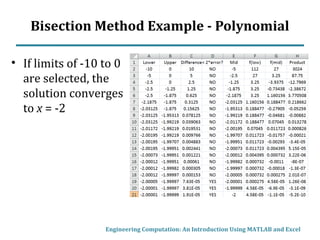
• If limits of -10 to 0
are selected, the
solution converges
to x = -2
Engineering Computation: An Introduction Using MATLAB and Excel
Bisection Method Example - Polynomial
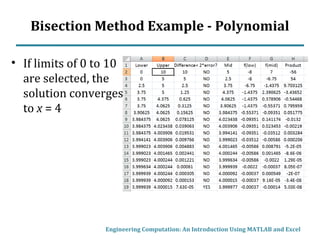
• If limits of 0 to 10
are selected, the
solution converges
to x = 4
Engineering Computation: An Introduction Using MATLAB and Excel
Bisection Method Example - Polynomial
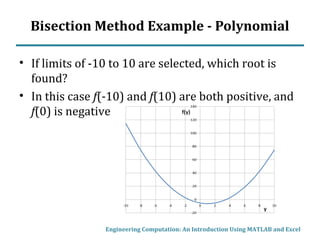
• If limits of -10 to 10 are selected, which root is
found?
• In this case f(-10) and f(10) are both positive, and
f(0) is negative
Engineering Computation: An Introduction Using MATLAB and Excel
Bisection Method Example - Polynomial
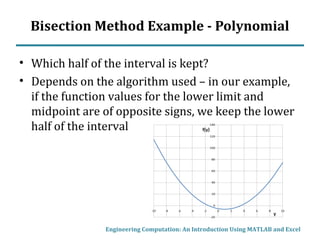
• Which half of the interval is kept?
• Depends on the algorithm used – in our example,
if the function values for the lower limit and
midpoint are of opposite signs, we keep the lower
half of the interval
Engineering Computation: An Introduction Using MATLAB and Excel
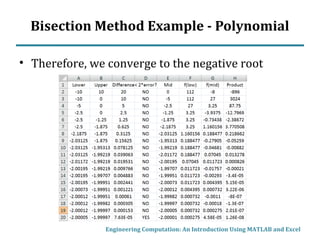
Bisection Method Example - Polynomial
• Therefore, we converge to the negative root
Engineering Computation: An Introduction Using MATLAB and Excel
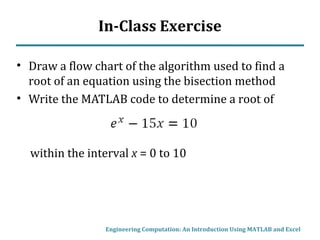
In-Class Exercise
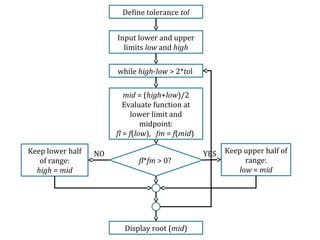
• Draw a flow chart of the algorithm used to find a
root of an equation using the bisection method
• Write the MATLAB code to determine a root of
within the interval x = 0 to 10
Engineering Computation: An Introduction Using MATLAB and Excel
Input lower and upper
limits low and high
Define tolerance tol
while high-low > 2*tol
mid = (high+low)/2
Evaluate function at
lower limit and
midpoint:
fl = f(low), fm = f(mid)
fl*fm > 0?
Keep upper half of
range:
low = mid
Keep lower half
of range:
high = mid
Display root (mid)
YESNO
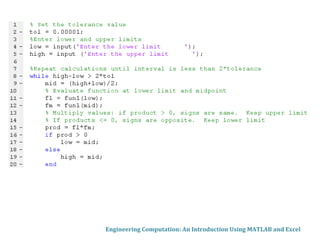
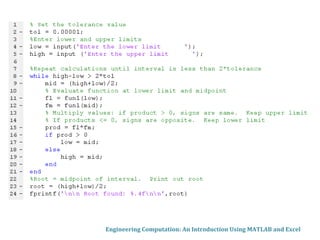
MATLAB Solution
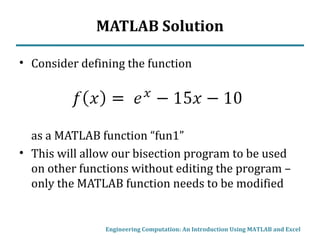
• Consider defining the function
as a MATLAB function “fun1”
• This will allow our bisection program to be used
on other functions without editing the program –
only the MATLAB function needs to be modified
Engineering Computation: An Introduction Using MATLAB and Excel
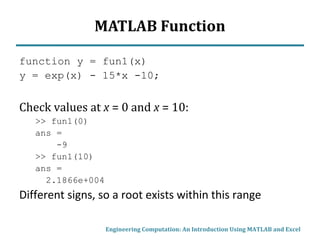
MATLAB Function
function y = fun1(x)
y = exp(x) - 15*x -10;
Check values at x = 0 and x = 10:
>> fun1(0)
ans =
-9
>> fun1(10)
ans =
2.1866e+004
Different signs, so a root exists within this range
Engineering Computation: An Introduction Using MATLAB and Excel
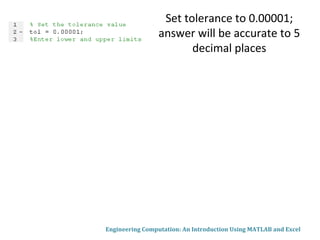
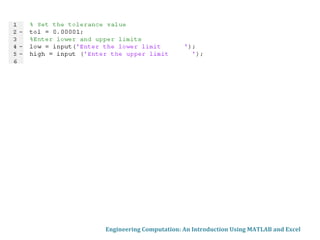
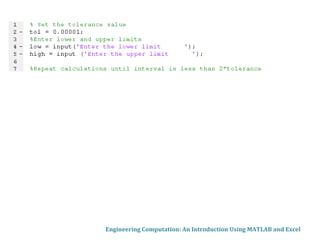
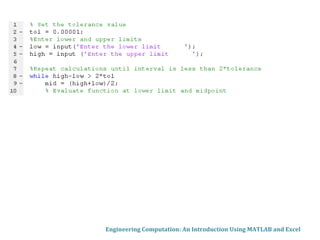
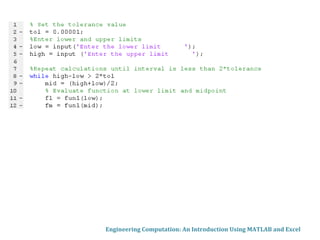
Set tolerance to 0.00001;
answer will be accurate to 5
decimal places
Engineering Computation: An Introduction Using MATLAB and Excel
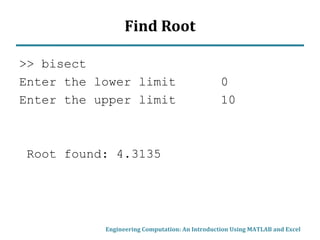
Find Root
>> bisect
Enter the lower limit 0
Enter the upper limit 10
Root found: 4.3135
Engineering Computation: An Introduction Using MATLAB and Excel
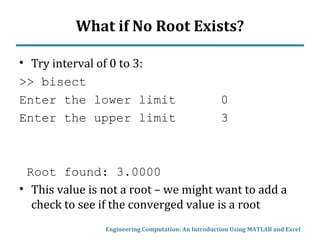
What if No Root Exists?
• Try interval of 0 to 3:
>> bisect
Enter the lower limit 0
Enter the upper limit 3
Root found: 3.0000
• This value is not a root – we might want to add a
check to see if the converged value is a root
Engineering Computation: An Introduction Using MATLAB and Excel
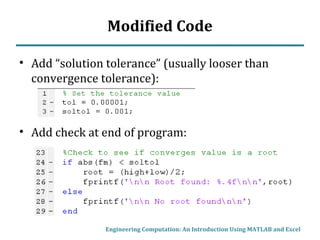
Modified Code
• Add “solution tolerance” (usually looser than
convergence tolerance):
• Add check at end of program:
Engineering Computation: An Introduction Using MATLAB and Excel
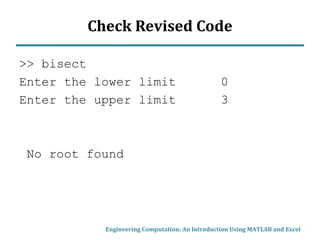
Check Revised Code
>> bisect
Enter the lower limit 0
Enter the upper limit 3
No root found
Engineering Computation: An Introduction Using MATLAB and Excel
Numerical Tools
• Of course, Excel and MATLAB have built-in tools
for finding roots of equations
• However, the examples we have considered
illustrate an important concept about non-linear
solutions:
Remember that there may be many roots to a
non-linear equation. Even when specifying an
interval to be searched, keep in mind that there
may be multiple solutions (or no solution) within
the interval.
Engineering Computation: An Introduction Using MATLAB and Excel

bisection method

  • 1.
    Chapter 6 Finding theRoots of Equations The Bisection Method Copyright © The McGraw-Hill Companies, Inc. Permission required for reproduction or display.
  • 2.
    Finding Roots ofEquations • In this chapter, we are examining equations with one independent variable. • These equations may be linear or non-linear • Non-linear equations may be polynomials or generally non-linear equations • A root of the equation is simply a value of the independent variable that satisfies the equation Engineering Computation: An Introduction Using MATLAB and Excel
  • 3.
    Classification of Equations •Linear: independent variable appears to the first power only, either alone or multiplied by a constant • Nonlinear: – Polynomial: independent variable appears raised to powers of positive integers only – General non-linear: all other equations Engineering Computation: An Introduction Using MATLAB and Excel
  • 4.
    Finding Roots ofEquations • As with our method for solving simultaneous non- linear equations, we often set the equation to be equal to zero when the equation is satisfied • Example: • If we say that then when f(y) =0, the equation is satisfied Engineering Computation: An Introduction Using MATLAB and Excel
  • 5.
    Solution Methods • Linear:Easily solved analytically • Polynomials: Some can be solved analytically (such as by quadratic formula), but most will require numerical solution • General non-linear: unless very simple, will require numerical solution Engineering Computation: An Introduction Using MATLAB and Excel
  • 6.
    The Bisection Method •In the bisection method, we start with an interval (initial low and high guesses) and halve its width until the interval is sufficiently small • As long as the initial guesses are such that the function has opposite signs at the two ends of the interval, this method will converge to a solution • Example: Consider the function Engineering Computation: An Introduction Using MATLAB and Excel
  • 7.
    Bisection Method Example •Consider an initial interval of ylower = -10 to yupper = 10 • Since the signs are opposite, we know that the method will converge to a root of the equation • The value of the function at the midpoint of the interval is: Engineering Computation: An Introduction Using MATLAB and Excel
  • 8.
    Bisection Method Example •The method can be better understood by looking at a graph of the function: Engineering Computation: An Introduction Using MATLAB and Excel Interval
  • 9.
    Bisection Method Example •Now we eliminate half of the interval, keeping the half where the sign of f(midpoint) is opposite the sign of f(endpoint) • In this case, since f(ymid) = -6 and f(yupper) = 64, we keep the upper half of the interval, since the function crosses zero in this interval Engineering Computation: An Introduction Using MATLAB and Excel
  • 10.
    Bisection Method Example •Now we eliminate half of the interval, keeping the half where the sign of f(midpoint) is opposite the sign of f(endpoint) • In this case, since f(ymid) = -6 and f(yupper) = 64, we keep the upper half of the interval, since the function crosses zero in this interval Engineering Computation: An Introduction Using MATLAB and Excel
  • 11.
    Bisection Method Example •The interval has now been bisected, or halved: Engineering Computation: An Introduction Using MATLAB and Excel New Interval
  • 12.
    Bisection Method Example •New interval: ylower = 0, yupper = 10, ymid = 5 • Function values: • Since f(ylower) and f(ymid) have opposite signs, the lower half of the interval is kept Engineering Computation: An Introduction Using MATLAB and Excel
  • 13.
    Bisection Method Example •At each step, the difference between the high and low values of y is compared to 2*(allowable error) • If the difference is greater, than the procedure continues • Suppose we set the allowable error at 0.0005. As long as the width of the interval is greater than 0.001, we will continue to halve the interval • When the width is less than 0.001, then the midpoint of the range becomes our answer Engineering Computation: An Introduction Using MATLAB and Excel
  • 14.
    Bisection Method Example •Excel solution: Engineering Computation: An Introduction Using MATLAB and Excel Initial Guesses Is interval width narrow enough to stop? Evaluate function at lower and mid values. If signs are same (+ product), eliminate lower half of interval.
  • 15.
    Bisection Method Example •Next iteration: Engineering Computation: An Introduction Using MATLAB and Excel New Interval (if statements based on product at the end of previous row) Is interval width narrow enough to stop? Evaluate function at lower and mid values. If signs are different (- product), eliminate upper half of interval.
  • 16.
    Bisection Method Example •Continue until interval width < 2*error (16 iterations) Engineering Computation: An Introduction Using MATLAB and Excel Answer: y = 0.857
  • 17.
    Bisection Method Example •Or course, we know that the exact answer is 6/7 (0.857143) • If we wanted our answer accurate to 5 decimal places, we could set the allowable error to 0.000005 • This increases the number of iterations only from 16 to 22 – the halving process quickly reduces the interval to very small values • Even if the initial guesses are set to -10,000 and 10000, only 32 iterations are required to get a solution accurate to 5 decimal places Engineering Computation: An Introduction Using MATLAB and Excel
  • 18.
    Bisection Method Example- Polynomial • Now consider this example: • Use the bisection method, with allowed error of 0.0001 Engineering Computation: An Introduction Using MATLAB and Excel
  • 19.
    Bisection Method Example- Polynomial • If limits of -10 to 0 are selected, the solution converges to x = -2 Engineering Computation: An Introduction Using MATLAB and Excel
  • 20.
    Bisection Method Example- Polynomial • If limits of 0 to 10 are selected, the solution converges to x = 4 Engineering Computation: An Introduction Using MATLAB and Excel
  • 21.
    Bisection Method Example- Polynomial • If limits of -10 to 10 are selected, which root is found? • In this case f(-10) and f(10) are both positive, and f(0) is negative Engineering Computation: An Introduction Using MATLAB and Excel
  • 22.
    Bisection Method Example- Polynomial • Which half of the interval is kept? • Depends on the algorithm used – in our example, if the function values for the lower limit and midpoint are of opposite signs, we keep the lower half of the interval Engineering Computation: An Introduction Using MATLAB and Excel
  • 23.
    Bisection Method Example- Polynomial • Therefore, we converge to the negative root Engineering Computation: An Introduction Using MATLAB and Excel
  • 24.
    In-Class Exercise • Drawa flow chart of the algorithm used to find a root of an equation using the bisection method • Write the MATLAB code to determine a root of within the interval x = 0 to 10 Engineering Computation: An Introduction Using MATLAB and Excel
  • 25.
    Input lower andupper limits low and high Define tolerance tol while high-low > 2*tol mid = (high+low)/2 Evaluate function at lower limit and midpoint: fl = f(low), fm = f(mid) fl*fm > 0? Keep upper half of range: low = mid Keep lower half of range: high = mid Display root (mid) YESNO
  • 26.
    MATLAB Solution • Considerdefining the function as a MATLAB function “fun1” • This will allow our bisection program to be used on other functions without editing the program – only the MATLAB function needs to be modified Engineering Computation: An Introduction Using MATLAB and Excel
  • 27.
    MATLAB Function function y= fun1(x) y = exp(x) - 15*x -10; Check values at x = 0 and x = 10: >> fun1(0) ans = -9 >> fun1(10) ans = 2.1866e+004 Different signs, so a root exists within this range Engineering Computation: An Introduction Using MATLAB and Excel
  • 28.
    Engineering Computation: AnIntroduction Using MATLAB and Excel Set tolerance to 0.00001; answer will be accurate to 5 decimal places
  • 29.
    Engineering Computation: AnIntroduction Using MATLAB and Excel
  • 30.
    Engineering Computation: AnIntroduction Using MATLAB and Excel
  • 31.
    Engineering Computation: AnIntroduction Using MATLAB and Excel
  • 32.
    Engineering Computation: AnIntroduction Using MATLAB and Excel
  • 33.
    Engineering Computation: AnIntroduction Using MATLAB and Excel
  • 34.
    Engineering Computation: AnIntroduction Using MATLAB and Excel
  • 35.
    Find Root >> bisect Enterthe lower limit 0 Enter the upper limit 10 Root found: 4.3135 Engineering Computation: An Introduction Using MATLAB and Excel
  • 36.
    What if NoRoot Exists? • Try interval of 0 to 3: >> bisect Enter the lower limit 0 Enter the upper limit 3 Root found: 3.0000 • This value is not a root – we might want to add a check to see if the converged value is a root Engineering Computation: An Introduction Using MATLAB and Excel
  • 37.
    Modified Code • Add“solution tolerance” (usually looser than convergence tolerance): • Add check at end of program: Engineering Computation: An Introduction Using MATLAB and Excel
  • 38.
    Check Revised Code >>bisect Enter the lower limit 0 Enter the upper limit 3 No root found Engineering Computation: An Introduction Using MATLAB and Excel
  • 39.
    Numerical Tools • Ofcourse, Excel and MATLAB have built-in tools for finding roots of equations • However, the examples we have considered illustrate an important concept about non-linear solutions: Remember that there may be many roots to a non-linear equation. Even when specifying an interval to be searched, keep in mind that there may be multiple solutions (or no solution) within the interval. Engineering Computation: An Introduction Using MATLAB and Excel