Chapter 3
F I N I T E P R E C I S I O N A R I T H M E T I C :
3 . 1 N U M E R I C A L V E R S U S S Y M B O L I C C A L C U L A T I O N
3 . 2 F I N D I N G R O O T S O F N O N L I N E A R E Q U A T I O N S - ( 1 ) F I X E D P O I N T , B I S E C T I O N M E T H O D S ( 2 ) N E W T O N M E T H O D S
4/5/2016 DR. MOHAMMED DANISH/ UNIKL-MICET 1
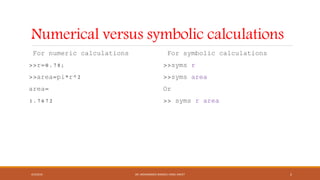
Numerical versus symbolic calculations
For numeric calculations
>>r=0.78;
>>area=pi*r^2
area=
1.7672
For symbolic calculations
>>syms r
>>syms area
Or
>> syms r area
4/5/2016 DR. MOHAMMED DANISH/ UNIKL-MICET 2
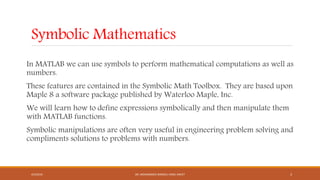
Symbolic Mathematics
In MATLAB we can use symbols to perform mathematical computations as well as
numbers.
These features are contained in the Symbolic Math Toolbox. They are based upon
Maple 8 a software package published by Waterloo Maple, Inc.
We will learn how to define expressions symbolically and then manipulate them
with MATLAB functions.
Symbolic manipulations are often very useful in engineering problem solving and
compliments solutions to problems with numbers.
4/5/2016 DR. MOHAMMED DANISH/ UNIKL-MICET 3
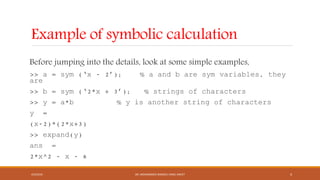
Example of symbolic calculation
Before jumping into the details, look at some simple examples,
>> a = sym (‘x - 2’); % a and b are sym variables, they
are
>> b = sym (‘2*x + 3’); % strings of characters
>> y = a*b % y is another string of characters
y =
(x-2)*(2*x+3)
>> expand(y)
ans =
2*x^2 - x - 6
4/5/2016 DR. MOHAMMED DANISH/ UNIKL-MICET 4
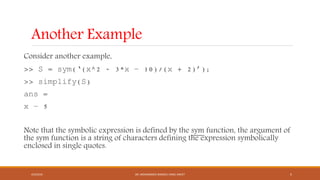
Another Example
Consider another example,
>> S = sym(‘(x^2 - 3*x – 10)/(x + 2)’);
>> simplify(S)
ans =
x – 5
Note that the symbolic expression is defined by the sym function, the argument of
the sym function is a string of characters defining the expression symbolically
enclosed in single quotes.
4/5/2016 DR. MOHAMMED DANISH/ UNIKL-MICET 5
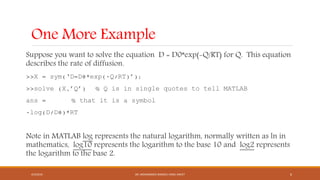
One More Example
Suppose you want to solve the equation D = D0*exp(-Q/RT) for Q. This equation
describes the rate of diffusion.
>>X = sym(‘D=D0*exp(-Q/RT)’);
>>solve (X,’Q’) % Q is in single quotes to tell MATLAB
ans = % that it is a symbol
-log(D/D0)*RT
Note in MATLAB log represents the natural logarithm, normally written as ln in
mathematics, log10 represents the logarithm to the base 10 and log2 represents
the logarithm to the base 2.
4/5/2016 DR. MOHAMMED DANISH/ UNIKL-MICET 6
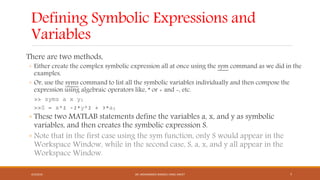
Defining Symbolic Expressions and
Variables
There are two methods,
◦ Either create the complex symbolic expression all at once using the sym command as we did in the
examples,
◦ Or, use the syms command to list all the symbolic variables individually and then compose the
expression using algebraic operators like, * or + and -, etc.
>> syms a x y;
>>S = x^2 -2*y^2 + 3*a;
◦ These two MATLAB statements define the variables a, x, and y as symbolic
variables, and then creates the symbolic expression S.
◦ Note that in the first case using the sym function, only S would appear in the
Workspace Window, while in the second case, S, a, x, and y all appear in the
Workspace Window.
4/5/2016 DR. MOHAMMED DANISH/ UNIKL-MICET 7
Plotting Symbolic Expressions
MATLAB provides an easy way to plot symbolic expressions of a single variable, it is
called ezplot. Suppose S is a symbolic expression of x, then
>>ezplot(S, [xmin, xmax])
will plot S between the limits of xmin and xmax.
>> ezplot(S) always uses the range [-2 *pi, 2*pi]
You can use the commands xlabel, ylabel, and title to add x and y labels, etc., in the
usual way. Also use grid on, hold on and hold off, subplots, etc.
4/5/2016 DR. MOHAMMED DANISH/ UNIKL-MICET 8
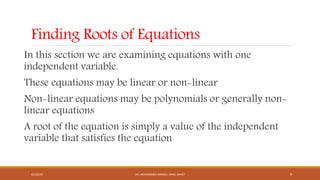
Finding Roots of Equations
In this section we are examining equations with one
independent variable.
These equations may be linear or non-linear
Non-linear equations may be polynomials or generally non-
linear equations
A root of the equation is simply a value of the independent
variable that satisfies the equation
4/5/2016 DR. MOHAMMED DANISH/ UNIKL-MICET 9
Classification of Equations
Linear: independent variable appears to the first power only, either alone or
multiplied by a constant
Nonlinear:
◦ Polynomial: independent variable appears raised to powers of positive integers
only
◦ General non-linear: all other equations
4/5/2016 DR. MOHAMMED DANISH/ UNIKL-MICET 10
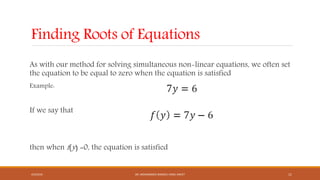
Finding Roots of Equations
As with our method for solving simultaneous non-linear equations, we often set
the equation to be equal to zero when the equation is satisfied
Example:
If we say that
then when f(y) =0, the equation is satisfied
4/5/2016 DR. MOHAMMED DANISH/ UNIKL-MICET 11
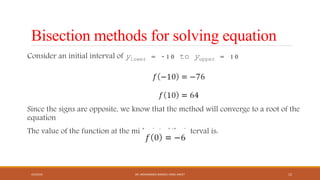
Bisection methods for solving equation
Consider an initial interval of ylower = -10 to yupper = 10
Since the signs are opposite, we know that the method will converge to a root of the
equation
The value of the function at the midpoint of the interval is:
4/5/2016 DR. MOHAMMED DANISH/ UNIKL-MICET 12
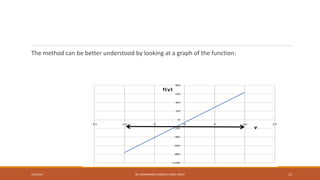
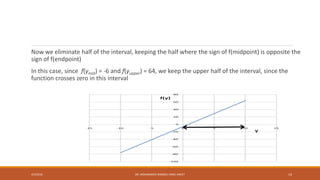
The method can be better understood by looking at a graph of the function:
4/5/2016 DR. MOHAMMED DANISH/ UNIKL-MICET 13
Now we eliminate half of the interval, keeping the half where the sign of f(midpoint) is opposite the
sign of f(endpoint)
In this case, since f(ymid) = -6 and f(yupper) = 64, we keep the upper half of the interval, since the
function crosses zero in this interval
4/5/2016 DR. MOHAMMED DANISH/ UNIKL-MICET 14
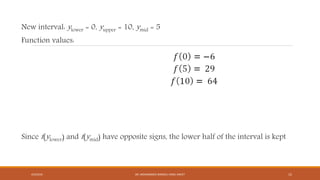
New interval: ylower = 0, yupper = 10, ymid = 5
Function values:
Since f(ylower) and f(ymid) have opposite signs, the lower half of the interval is kept
4/5/2016 DR. MOHAMMED DANISH/ UNIKL-MICET 15
At each step, the difference between the high and low values of y is compared to 2*
(allowable error)
If the difference is greater, than the procedure continues
Suppose we set the allowable error at 0.0005. As long as the width of the interval
is greater than 0.001, we will continue to halve the interval
When the width is less than 0.001, then the midpoint of the range becomes our
answer
4/5/2016 DR. MOHAMMED DANISH/ UNIKL-MICET 16
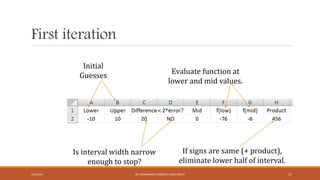
First iteration
If signs are same (+ product),
eliminate lower half of interval.
Is interval width narrow
enough to stop?
Evaluate function at
lower and mid values.
Initial
Guesses
4/5/2016 DR. MOHAMMED DANISH/ UNIKL-MICET 17
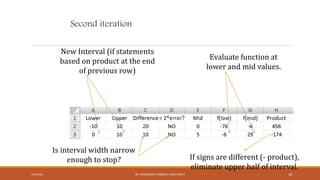
Second iteration
New Interval (if statements
based on product at the end
of previous row)
Evaluate function at
lower and mid values.
Is interval width narrow
enough to stop? If signs are different (- product),
eliminate upper half of interval.
4/5/2016 DR. MOHAMMED DANISH/ UNIKL-MICET 18
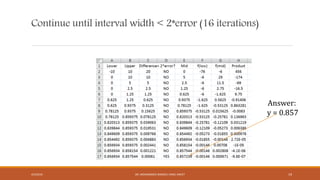
Continue until interval width < 2*error (16 iterations)
Answer:
y = 0.857
4/5/2016 DR. MOHAMMED DANISH/ UNIKL-MICET 19
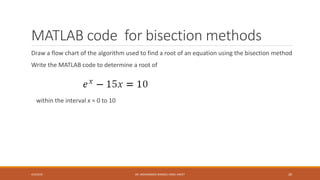
MATLAB code for bisection methods
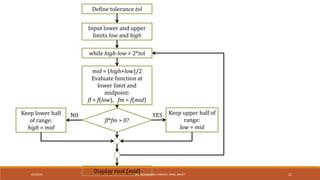
Draw a flow chart of the algorithm used to find a root of an equation using the bisection method
Write the MATLAB code to determine a root of
within the interval x = 0 to 10
4/5/2016 DR. MOHAMMED DANISH/ UNIKL-MICET 20
Input lower and upper
limits low and high
Define tolerance tol
while high-low > 2*tol
mid = (high+low)/2
Evaluate function at
lower limit and
midpoint:
fl = f(low), fm = f(mid)
fl*fm > 0?
Keep upper half of
range:
low = mid
Keep lower half
of range:
high = mid
Display root (mid)
YESNO
4/5/2016 DR. MOHAMMED DANISH/ UNIKL-MICET 21
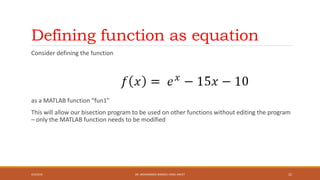
Defining function as equation
Consider defining the function
as a MATLAB function “fun1”
This will allow our bisection program to be used on other functions without editing the program
– only the MATLAB function needs to be modified
4/5/2016 DR. MOHAMMED DANISH/ UNIKL-MICET 22
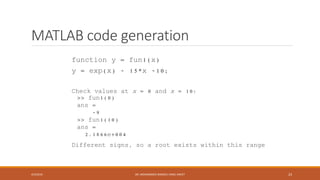
MATLAB code generation
function y = fun1(x)
y = exp(x) - 15*x -10;
Check values at x = 0 and x = 10:
>> fun1(0)
ans =
-9
>> fun1(10)
ans =
2.1866e+004
Different signs, so a root exists within this range
4/5/2016 DR. MOHAMMED DANISH/ UNIKL-MICET 23
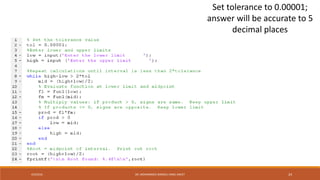
Set tolerance to 0.00001;
answer will be accurate to 5
decimal places
4/5/2016 DR. MOHAMMED DANISH/ UNIKL-MICET 24
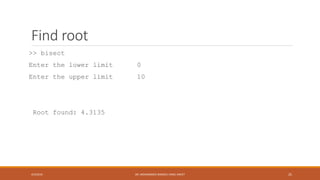
Find root
>> bisect
Enter the lower limit 0
Enter the upper limit 10
Root found: 4.3135
4/5/2016 DR. MOHAMMED DANISH/ UNIKL-MICET 25
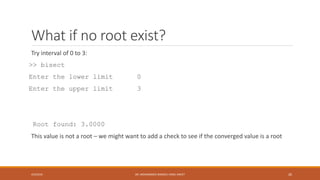
What if no root exist?
Try interval of 0 to 3:
>> bisect
Enter the lower limit 0
Enter the upper limit 3
Root found: 3.0000
This value is not a root – we might want to add a check to see if the converged value is a root
4/5/2016 DR. MOHAMMED DANISH/ UNIKL-MICET 26
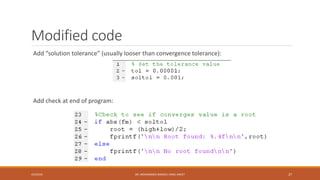
Modified code
Add “solution tolerance” (usually looser than convergence tolerance):
Add check at end of program:
4/5/2016 DR. MOHAMMED DANISH/ UNIKL-MICET 27
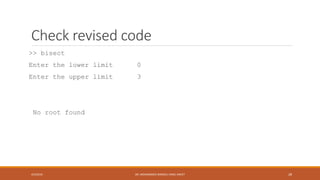
Check revised code
>> bisect
Enter the lower limit 0
Enter the upper limit 3
No root found
4/5/2016 DR. MOHAMMED DANISH/ UNIKL-MICET 28
Numerical tools
Of course, Excel and MATLAB have built-in tools for finding roots of equations
However, the examples we have considered illustrate an important concept
about non-linear solutions:
Remember that there may be many roots to a non-linear equation.
Even when specifying an interval to be searched, keep in mind
that there may be multiple solutions (or no solution) within the
interval.
4/5/2016 DR. MOHAMMED DANISH/ UNIKL-MICET 29
Perform symbolic computations
Derivative of single –variable expressions
Partial derivatives
Second and higher order derivatives
Mixed derivatives
4/5/2016 DR. MOHAMMED DANISH/ UNIKL-MICET 30
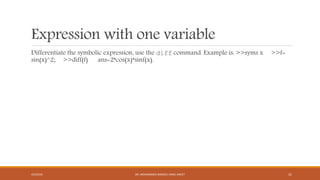
Expression with one variable
Differentiate the symbolic expression, use the diff command. Example is: >>syms x >>f=
sin(x)^2; >>diff(f) ans=2*cos(x)*sinf(x).
4/5/2016 DR. MOHAMMED DANISH/ UNIKL-MICET 31
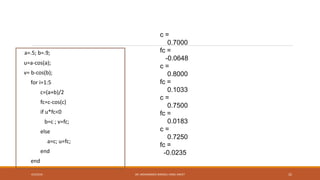
c =
0.7000
fc =
-0.0648
c =
0.8000
fc =
0.1033
c =
0.7500
fc =
0.0183
c =
0.7250
fc =
-0.0235
a=.5; b=.9;
u=a-cos(a);
v= b-cos(b);
for i=1:5
c=(a+b)/2
fc=c-cos(c)
if u*fc<0
b=c ; v=fc;
else
a=c; u=fc;
end
end
4/5/2016 DR. MOHAMMED DANISH/ UNIKL-MICET 32
Newton methods
Newton’s Method (also know as the Newton-Rapshon Method) is another widely-used
algorithm for finding roots of equations
In this method, the slope (derivative) of the function is calculated at the initial guess
value and projected to the x-axis
The corresponding x-value becomes the new guess value
The steps are repeated until the answer is obtained to a specified tolerance
4/5/2016 DR. MOHAMMED DANISH/ UNIKL-MICET 33
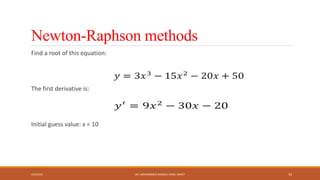
Newton-Raphson methods
Find a root of this equation:
The first derivative is:
Initial guess value: x = 10
4/5/2016 DR. MOHAMMED DANISH/ UNIKL-MICET 34
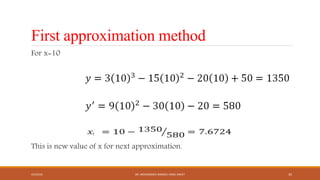
First approximation method
For x=10
This is new value of x for next approximation.
4/5/2016 DR. MOHAMMED DANISH/ UNIKL-MICET 35
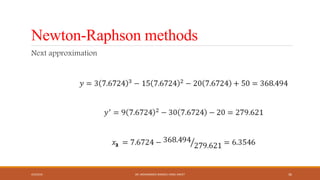
Newton-Raphson methods
Next approximation
4/5/2016 DR. MOHAMMED DANISH/ UNIKL-MICET 36
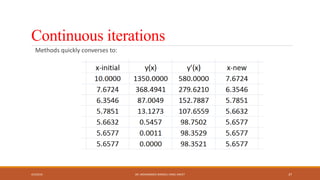
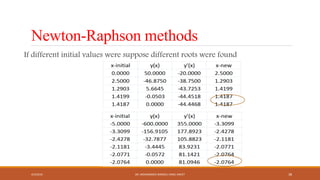
Continuous iterations
Methods quickly converses to:
4/5/2016 DR. MOHAMMED DANISH/ UNIKL-MICET 37
Newton-Raphson methods
If different initial values were suppose different roots were found
4/5/2016 DR. MOHAMMED DANISH/ UNIKL-MICET 38
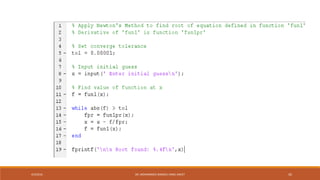
MATLAB code for Newton-Raphson
methods
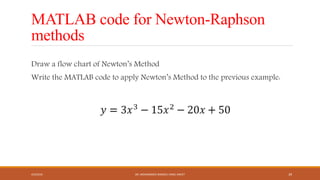
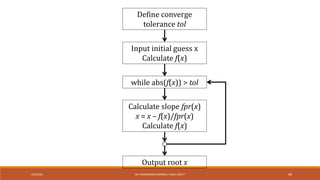
Draw a flow chart of Newton’s Method
Write the MATLAB code to apply Newton’s Method to the previous example:
4/5/2016 DR. MOHAMMED DANISH/ UNIKL-MICET 39
Define converge
tolerance tol
while abs(f(x)) > tol
Input initial guess x
Calculate f(x)
Calculate slope fpr(x)
x = x – f(x)/fpr(x)
Calculate f(x)
Output root x
4/5/2016 DR. MOHAMMED DANISH/ UNIKL-MICET 40
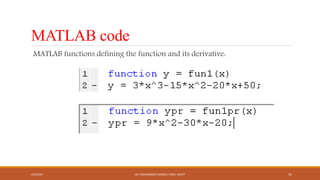
MATLAB code
MATLAB functions defining the function and its derivative:
4/5/2016 DR. MOHAMMED DANISH/ UNIKL-MICET 41
4/5/2016 DR. MOHAMMED DANISH/ UNIKL-MICET 42
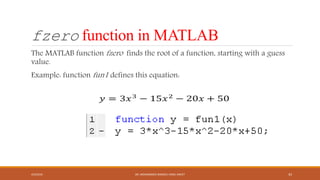
fzero function in MATLAB
The MATLAB function fzero finds the root of a function, starting with a guess
value.
Example: function fun1 defines this equation:
4/5/2016 DR. MOHAMMED DANISH/ UNIKL-MICET 43
fzero command in MATLAB
The function fzero has arguments of the name of the function to be evaluated and a guess value:
>> fzero('fun1',10)
ans =
5.6577
Or the name of function to be evaluated and a range of values to be considered:
>> fzero('fun1',[4 10])
ans =
5.6577
4/5/2016 DR. MOHAMMED DANISH/ UNIKL-MICET 44
Slides End here
4/5/2016 DR. MOHAMMED DANISH/ UNIKL-MICET 45
Dr. Mohammed Danish
Sr. Lecturer, Malaysian Institute of Chemical and bioengineering
Technology (MICET)-UniKL, Alor Gajah-78000, Melaka, Malaysia

03 Chapter MATLAB finite precision arithmatic

  • 1.
    Chapter 3 F IN I T E P R E C I S I O N A R I T H M E T I C : 3 . 1 N U M E R I C A L V E R S U S S Y M B O L I C C A L C U L A T I O N 3 . 2 F I N D I N G R O O T S O F N O N L I N E A R E Q U A T I O N S - ( 1 ) F I X E D P O I N T , B I S E C T I O N M E T H O D S ( 2 ) N E W T O N M E T H O D S 4/5/2016 DR. MOHAMMED DANISH/ UNIKL-MICET 1
  • 2.
    Numerical versus symboliccalculations For numeric calculations >>r=0.78; >>area=pi*r^2 area= 1.7672 For symbolic calculations >>syms r >>syms area Or >> syms r area 4/5/2016 DR. MOHAMMED DANISH/ UNIKL-MICET 2
  • 3.
    Symbolic Mathematics In MATLABwe can use symbols to perform mathematical computations as well as numbers. These features are contained in the Symbolic Math Toolbox. They are based upon Maple 8 a software package published by Waterloo Maple, Inc. We will learn how to define expressions symbolically and then manipulate them with MATLAB functions. Symbolic manipulations are often very useful in engineering problem solving and compliments solutions to problems with numbers. 4/5/2016 DR. MOHAMMED DANISH/ UNIKL-MICET 3
  • 4.
    Example of symboliccalculation Before jumping into the details, look at some simple examples, >> a = sym (‘x - 2’); % a and b are sym variables, they are >> b = sym (‘2*x + 3’); % strings of characters >> y = a*b % y is another string of characters y = (x-2)*(2*x+3) >> expand(y) ans = 2*x^2 - x - 6 4/5/2016 DR. MOHAMMED DANISH/ UNIKL-MICET 4
  • 5.
    Another Example Consider anotherexample, >> S = sym(‘(x^2 - 3*x – 10)/(x + 2)’); >> simplify(S) ans = x – 5 Note that the symbolic expression is defined by the sym function, the argument of the sym function is a string of characters defining the expression symbolically enclosed in single quotes. 4/5/2016 DR. MOHAMMED DANISH/ UNIKL-MICET 5
  • 6.
    One More Example Supposeyou want to solve the equation D = D0*exp(-Q/RT) for Q. This equation describes the rate of diffusion. >>X = sym(‘D=D0*exp(-Q/RT)’); >>solve (X,’Q’) % Q is in single quotes to tell MATLAB ans = % that it is a symbol -log(D/D0)*RT Note in MATLAB log represents the natural logarithm, normally written as ln in mathematics, log10 represents the logarithm to the base 10 and log2 represents the logarithm to the base 2. 4/5/2016 DR. MOHAMMED DANISH/ UNIKL-MICET 6
  • 7.
    Defining Symbolic Expressionsand Variables There are two methods, ◦ Either create the complex symbolic expression all at once using the sym command as we did in the examples, ◦ Or, use the syms command to list all the symbolic variables individually and then compose the expression using algebraic operators like, * or + and -, etc. >> syms a x y; >>S = x^2 -2*y^2 + 3*a; ◦ These two MATLAB statements define the variables a, x, and y as symbolic variables, and then creates the symbolic expression S. ◦ Note that in the first case using the sym function, only S would appear in the Workspace Window, while in the second case, S, a, x, and y all appear in the Workspace Window. 4/5/2016 DR. MOHAMMED DANISH/ UNIKL-MICET 7
  • 8.
    Plotting Symbolic Expressions MATLABprovides an easy way to plot symbolic expressions of a single variable, it is called ezplot. Suppose S is a symbolic expression of x, then >>ezplot(S, [xmin, xmax]) will plot S between the limits of xmin and xmax. >> ezplot(S) always uses the range [-2 *pi, 2*pi] You can use the commands xlabel, ylabel, and title to add x and y labels, etc., in the usual way. Also use grid on, hold on and hold off, subplots, etc. 4/5/2016 DR. MOHAMMED DANISH/ UNIKL-MICET 8
  • 9.
    Finding Roots ofEquations In this section we are examining equations with one independent variable. These equations may be linear or non-linear Non-linear equations may be polynomials or generally non- linear equations A root of the equation is simply a value of the independent variable that satisfies the equation 4/5/2016 DR. MOHAMMED DANISH/ UNIKL-MICET 9
  • 10.
    Classification of Equations Linear:independent variable appears to the first power only, either alone or multiplied by a constant Nonlinear: ◦ Polynomial: independent variable appears raised to powers of positive integers only ◦ General non-linear: all other equations 4/5/2016 DR. MOHAMMED DANISH/ UNIKL-MICET 10
  • 11.
    Finding Roots ofEquations As with our method for solving simultaneous non-linear equations, we often set the equation to be equal to zero when the equation is satisfied Example: If we say that then when f(y) =0, the equation is satisfied 4/5/2016 DR. MOHAMMED DANISH/ UNIKL-MICET 11
  • 12.
    Bisection methods forsolving equation Consider an initial interval of ylower = -10 to yupper = 10 Since the signs are opposite, we know that the method will converge to a root of the equation The value of the function at the midpoint of the interval is: 4/5/2016 DR. MOHAMMED DANISH/ UNIKL-MICET 12
  • 13.
    The method canbe better understood by looking at a graph of the function: 4/5/2016 DR. MOHAMMED DANISH/ UNIKL-MICET 13
  • 14.
    Now we eliminatehalf of the interval, keeping the half where the sign of f(midpoint) is opposite the sign of f(endpoint) In this case, since f(ymid) = -6 and f(yupper) = 64, we keep the upper half of the interval, since the function crosses zero in this interval 4/5/2016 DR. MOHAMMED DANISH/ UNIKL-MICET 14
  • 15.
    New interval: ylower= 0, yupper = 10, ymid = 5 Function values: Since f(ylower) and f(ymid) have opposite signs, the lower half of the interval is kept 4/5/2016 DR. MOHAMMED DANISH/ UNIKL-MICET 15
  • 16.
    At each step,the difference between the high and low values of y is compared to 2* (allowable error) If the difference is greater, than the procedure continues Suppose we set the allowable error at 0.0005. As long as the width of the interval is greater than 0.001, we will continue to halve the interval When the width is less than 0.001, then the midpoint of the range becomes our answer 4/5/2016 DR. MOHAMMED DANISH/ UNIKL-MICET 16
  • 17.
    First iteration If signsare same (+ product), eliminate lower half of interval. Is interval width narrow enough to stop? Evaluate function at lower and mid values. Initial Guesses 4/5/2016 DR. MOHAMMED DANISH/ UNIKL-MICET 17
  • 18.
    Second iteration New Interval(if statements based on product at the end of previous row) Evaluate function at lower and mid values. Is interval width narrow enough to stop? If signs are different (- product), eliminate upper half of interval. 4/5/2016 DR. MOHAMMED DANISH/ UNIKL-MICET 18
  • 19.
    Continue until intervalwidth < 2*error (16 iterations) Answer: y = 0.857 4/5/2016 DR. MOHAMMED DANISH/ UNIKL-MICET 19
  • 20.
    MATLAB code forbisection methods Draw a flow chart of the algorithm used to find a root of an equation using the bisection method Write the MATLAB code to determine a root of within the interval x = 0 to 10 4/5/2016 DR. MOHAMMED DANISH/ UNIKL-MICET 20
  • 21.
    Input lower andupper limits low and high Define tolerance tol while high-low > 2*tol mid = (high+low)/2 Evaluate function at lower limit and midpoint: fl = f(low), fm = f(mid) fl*fm > 0? Keep upper half of range: low = mid Keep lower half of range: high = mid Display root (mid) YESNO 4/5/2016 DR. MOHAMMED DANISH/ UNIKL-MICET 21
  • 22.
    Defining function asequation Consider defining the function as a MATLAB function “fun1” This will allow our bisection program to be used on other functions without editing the program – only the MATLAB function needs to be modified 4/5/2016 DR. MOHAMMED DANISH/ UNIKL-MICET 22
  • 23.
    MATLAB code generation functiony = fun1(x) y = exp(x) - 15*x -10; Check values at x = 0 and x = 10: >> fun1(0) ans = -9 >> fun1(10) ans = 2.1866e+004 Different signs, so a root exists within this range 4/5/2016 DR. MOHAMMED DANISH/ UNIKL-MICET 23
  • 24.
    Set tolerance to0.00001; answer will be accurate to 5 decimal places 4/5/2016 DR. MOHAMMED DANISH/ UNIKL-MICET 24
  • 25.
    Find root >> bisect Enterthe lower limit 0 Enter the upper limit 10 Root found: 4.3135 4/5/2016 DR. MOHAMMED DANISH/ UNIKL-MICET 25
  • 26.
    What if noroot exist? Try interval of 0 to 3: >> bisect Enter the lower limit 0 Enter the upper limit 3 Root found: 3.0000 This value is not a root – we might want to add a check to see if the converged value is a root 4/5/2016 DR. MOHAMMED DANISH/ UNIKL-MICET 26
  • 27.
    Modified code Add “solutiontolerance” (usually looser than convergence tolerance): Add check at end of program: 4/5/2016 DR. MOHAMMED DANISH/ UNIKL-MICET 27
  • 28.
    Check revised code >>bisect Enter the lower limit 0 Enter the upper limit 3 No root found 4/5/2016 DR. MOHAMMED DANISH/ UNIKL-MICET 28
  • 29.
    Numerical tools Of course,Excel and MATLAB have built-in tools for finding roots of equations However, the examples we have considered illustrate an important concept about non-linear solutions: Remember that there may be many roots to a non-linear equation. Even when specifying an interval to be searched, keep in mind that there may be multiple solutions (or no solution) within the interval. 4/5/2016 DR. MOHAMMED DANISH/ UNIKL-MICET 29
  • 30.
    Perform symbolic computations Derivativeof single –variable expressions Partial derivatives Second and higher order derivatives Mixed derivatives 4/5/2016 DR. MOHAMMED DANISH/ UNIKL-MICET 30
  • 31.
    Expression with onevariable Differentiate the symbolic expression, use the diff command. Example is: >>syms x >>f= sin(x)^2; >>diff(f) ans=2*cos(x)*sinf(x). 4/5/2016 DR. MOHAMMED DANISH/ UNIKL-MICET 31
  • 32.
    c = 0.7000 fc = -0.0648 c= 0.8000 fc = 0.1033 c = 0.7500 fc = 0.0183 c = 0.7250 fc = -0.0235 a=.5; b=.9; u=a-cos(a); v= b-cos(b); for i=1:5 c=(a+b)/2 fc=c-cos(c) if u*fc<0 b=c ; v=fc; else a=c; u=fc; end end 4/5/2016 DR. MOHAMMED DANISH/ UNIKL-MICET 32
  • 33.
    Newton methods Newton’s Method(also know as the Newton-Rapshon Method) is another widely-used algorithm for finding roots of equations In this method, the slope (derivative) of the function is calculated at the initial guess value and projected to the x-axis The corresponding x-value becomes the new guess value The steps are repeated until the answer is obtained to a specified tolerance 4/5/2016 DR. MOHAMMED DANISH/ UNIKL-MICET 33
  • 34.
    Newton-Raphson methods Find aroot of this equation: The first derivative is: Initial guess value: x = 10 4/5/2016 DR. MOHAMMED DANISH/ UNIKL-MICET 34
  • 35.
    First approximation method Forx=10 This is new value of x for next approximation. 4/5/2016 DR. MOHAMMED DANISH/ UNIKL-MICET 35
  • 36.
    Newton-Raphson methods Next approximation 4/5/2016DR. MOHAMMED DANISH/ UNIKL-MICET 36
  • 37.
    Continuous iterations Methods quicklyconverses to: 4/5/2016 DR. MOHAMMED DANISH/ UNIKL-MICET 37
  • 38.
    Newton-Raphson methods If differentinitial values were suppose different roots were found 4/5/2016 DR. MOHAMMED DANISH/ UNIKL-MICET 38
  • 39.
    MATLAB code forNewton-Raphson methods Draw a flow chart of Newton’s Method Write the MATLAB code to apply Newton’s Method to the previous example: 4/5/2016 DR. MOHAMMED DANISH/ UNIKL-MICET 39
  • 40.
    Define converge tolerance tol whileabs(f(x)) > tol Input initial guess x Calculate f(x) Calculate slope fpr(x) x = x – f(x)/fpr(x) Calculate f(x) Output root x 4/5/2016 DR. MOHAMMED DANISH/ UNIKL-MICET 40
  • 41.
    MATLAB code MATLAB functionsdefining the function and its derivative: 4/5/2016 DR. MOHAMMED DANISH/ UNIKL-MICET 41
  • 42.
    4/5/2016 DR. MOHAMMEDDANISH/ UNIKL-MICET 42
  • 43.
    fzero function inMATLAB The MATLAB function fzero finds the root of a function, starting with a guess value. Example: function fun1 defines this equation: 4/5/2016 DR. MOHAMMED DANISH/ UNIKL-MICET 43
  • 44.
    fzero command inMATLAB The function fzero has arguments of the name of the function to be evaluated and a guess value: >> fzero('fun1',10) ans = 5.6577 Or the name of function to be evaluated and a range of values to be considered: >> fzero('fun1',[4 10]) ans = 5.6577 4/5/2016 DR. MOHAMMED DANISH/ UNIKL-MICET 44
  • 45.
    Slides End here 4/5/2016DR. MOHAMMED DANISH/ UNIKL-MICET 45 Dr. Mohammed Danish Sr. Lecturer, Malaysian Institute of Chemical and bioengineering Technology (MICET)-UniKL, Alor Gajah-78000, Melaka, Malaysia