AUGMENTED REALITY
AND EDUCATION
Mark Billinghurst
University of South Australia
Overview
• Introduction
• History of Augmented Reality
• AR Technology
• Example Applications
• AR in Education
• Hands-on with Envisage software
• Future Research in AR
INTRODUCTION
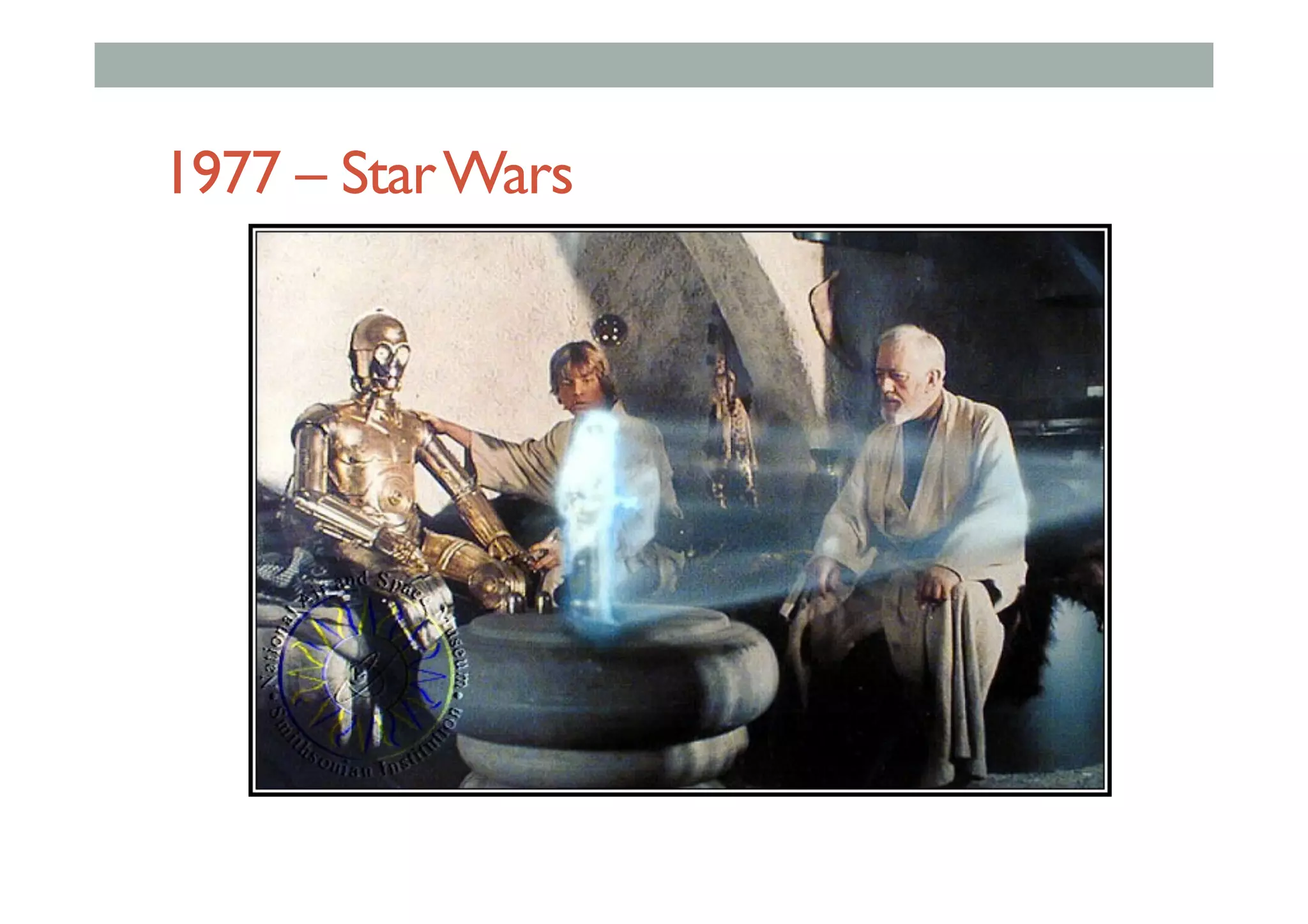
1977 – StarWars
2008 - CNN
https://www.youtube.com/watch?v=v7fQ_EsMJMs
Augmented Reality Definition
• Combines Real andVirtual Images
• Both can be seen at the same time
• Interactive in real-time
• The virtual content can be interacted with
• Registered in 3D
• Virtual objects appear fixed in space
•  Put AR pictures here
Augmented Reality Examples
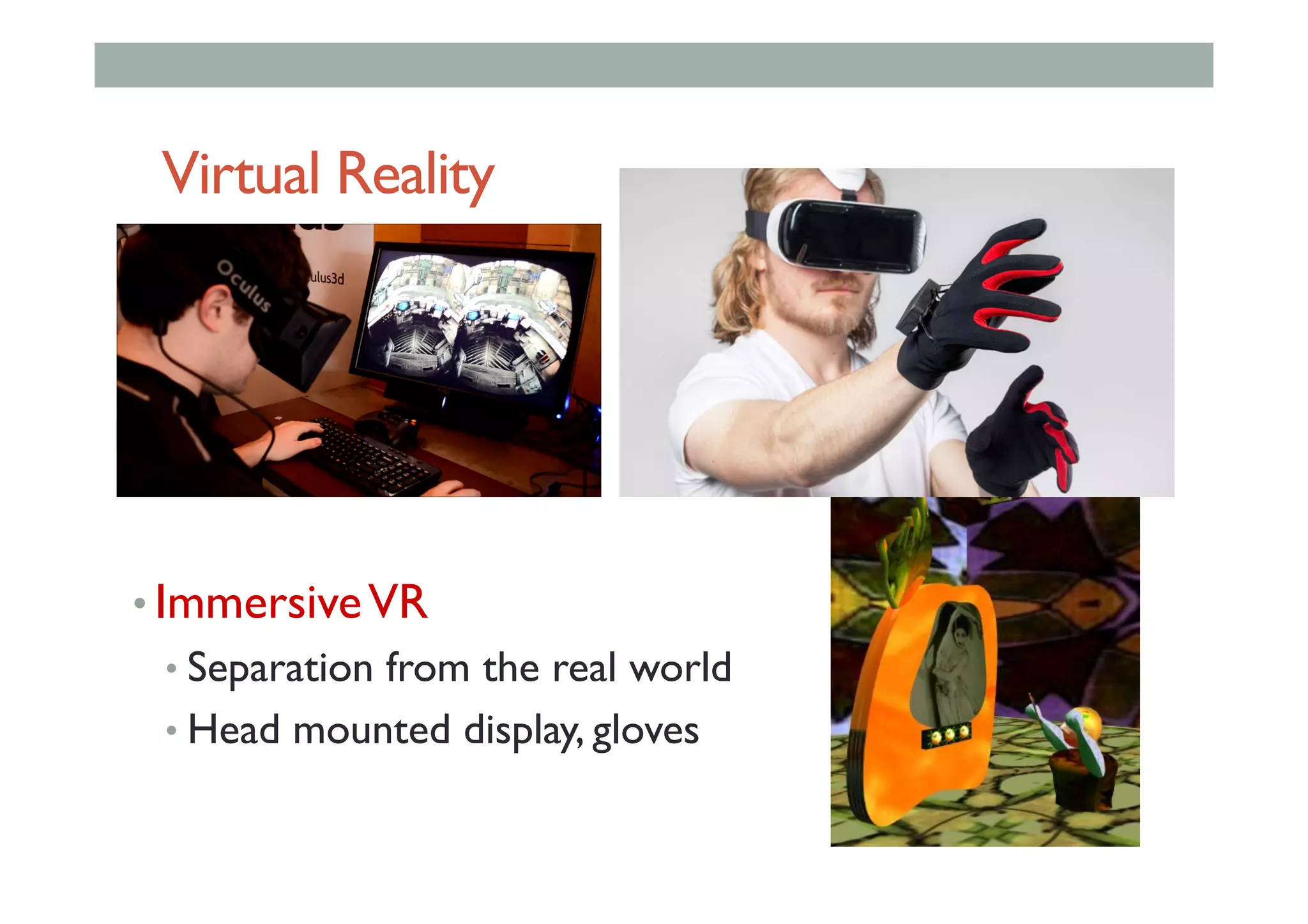
Virtual Reality
• ImmersiveVR
• Separation from the real world
• Head mounted display, gloves
AR vsVR
HISTORY OF AR
Pepper’s Ghost (1862)
• Dates back to Giambattista della Porta (1584)
Sutherland HMD (1968)
•  1968: Sutherland / Sproull’s
first HMD system
•  see-through stereo display
•  head tracking
US SuperCockpit Program (1970’s-80’s)
Superimpose flight information over real world
Industrial andAcademic Research (1990’s- )
• Early 1990’s: Boeing coined the term “AR.”
• Mid 1990’s AR research in tracking and display (UNC)
Early Commercialization (2000 – 2010)
• 2000:Augmented sports broadcasts
• 2007: PlayStation Eye of Judgement
Consumer Adoption (2009 - )
•  Web pages with AR experiences integrated into them
•  Smart phones with built-in sensors suitable for mobile AR
Augmented Reality BusinessToday
• Rapidly Growing
• > $80 Billion USD by 2020
• Wide range of HW/SW available
• HMD, mobile phones, PCs
• Many easy to use developer tools
• Many application areas
• Marketing, gaming, education
• Mobile AR
Pokemon GO
Killer Combo: brand + social + mobile + geo-location + AR
Pokemon GO Effect
•  Fastest App to reach $500 million in Revenue
•  Only 63 days after launch, > $1 Billion in 6 months
•  Over 500 million downloads, > 25 million DAU
•  Nintendo stock price up by 50% (gain of $9 Billion USD)
AR TECHNOLOGY
Technology Requirements
• Combines Real andVirtual Images
• Needs display technology
• Interactive in real-time
• Needs interaction technology
• Registered in 3D
• Needs to track user viewpoint
AR Display Technologies
• Handheld Displays
• Mobile phone, tablets
• Head mounted displays
• Optical/video see-through
• Fixed Displays
• Desktop, large screen
• Projected Displays
• Projected images on real world
AR Interaction
• Natural user interaction
•  Gesture, body input
• Handheld
•  Touch based interaction
•  Device motion
• Physical object
•  Familiar tool, object
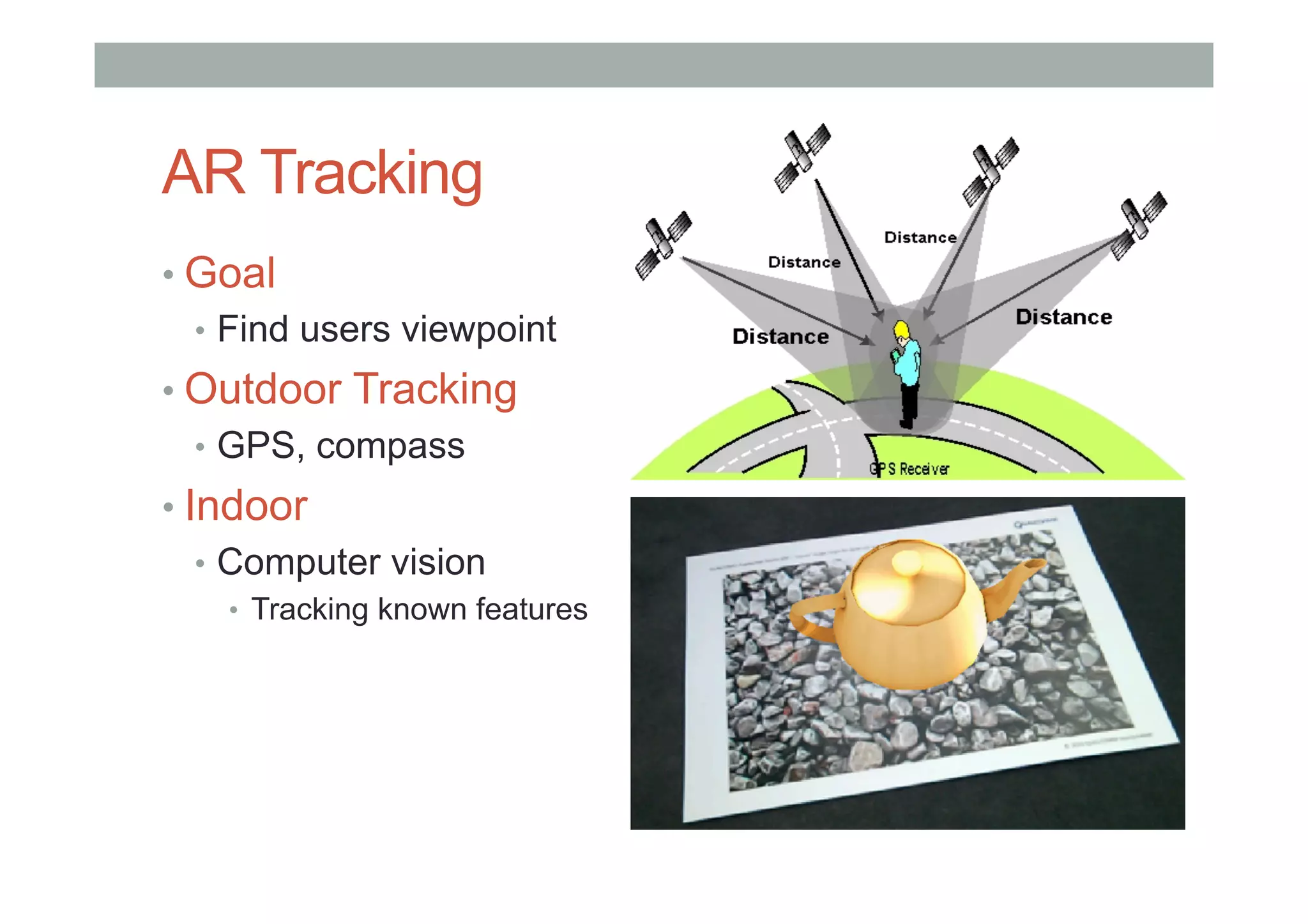
AR Tracking
• Goal
•  Find users viewpoint
• Outdoor Tracking
•  GPS, compass
• Indoor
•  Computer vision
•  Tracking known features
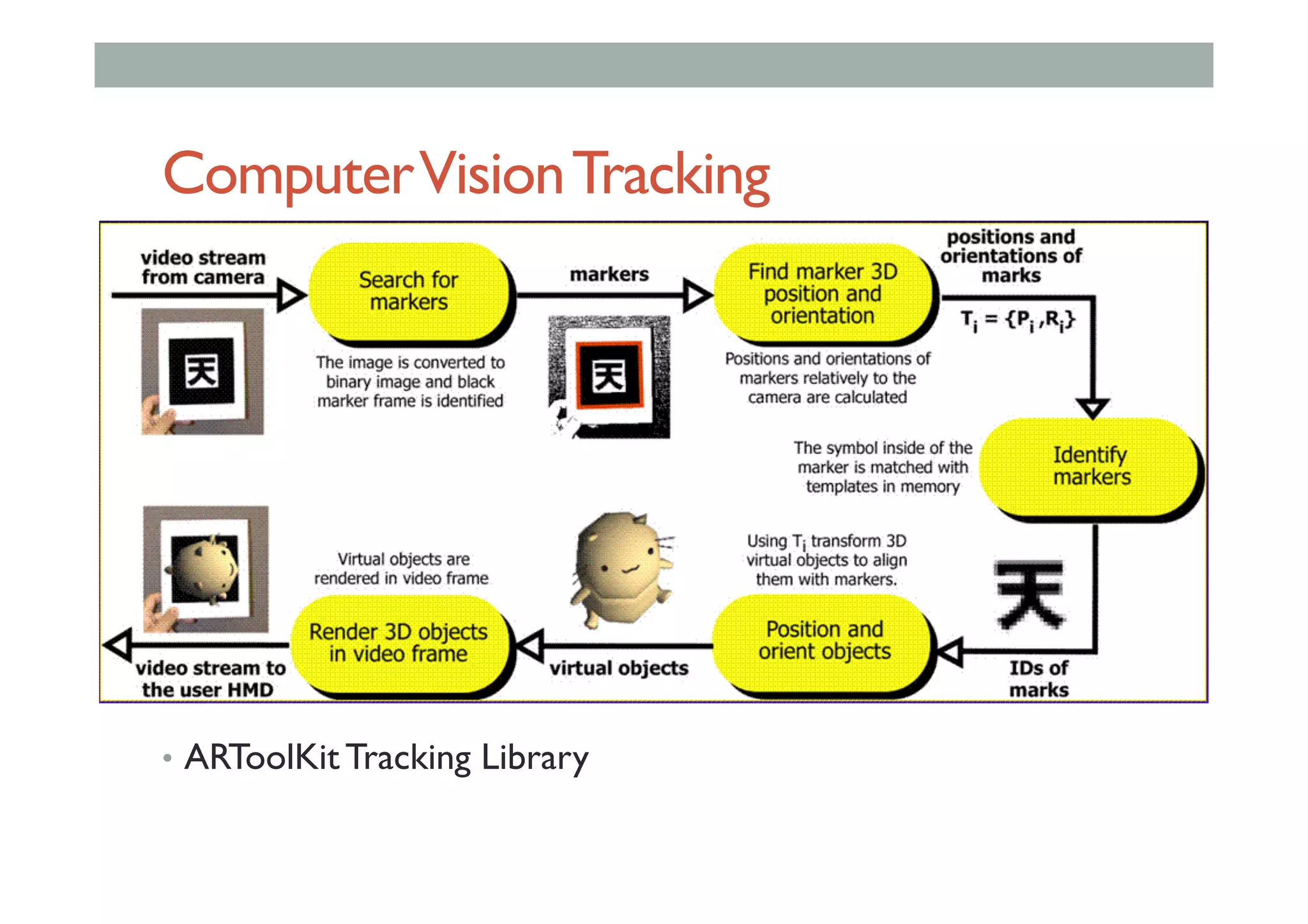
ComputerVisionTracking
•  ARToolKit Tracking Library
EXAMPLE APPLICATIONS
•  Web based AR
•  Flash, HTML 5 based AR
•  Marketing, education
•  Outdoor Mobile AR
•  GPS, compass tracking
•  Viewing Points of Interest in real world
•  Handheld AR
•  Vision based tracking
•  Marketing, gaming
•  Location Based Experiences
•  HMD, fixed screens
•  Museums, point of sale, advertising
Typical AR Experiences
Medical Applications
• Using AR to see imagery superimposed inside body
• Enables doctor to see information at body site
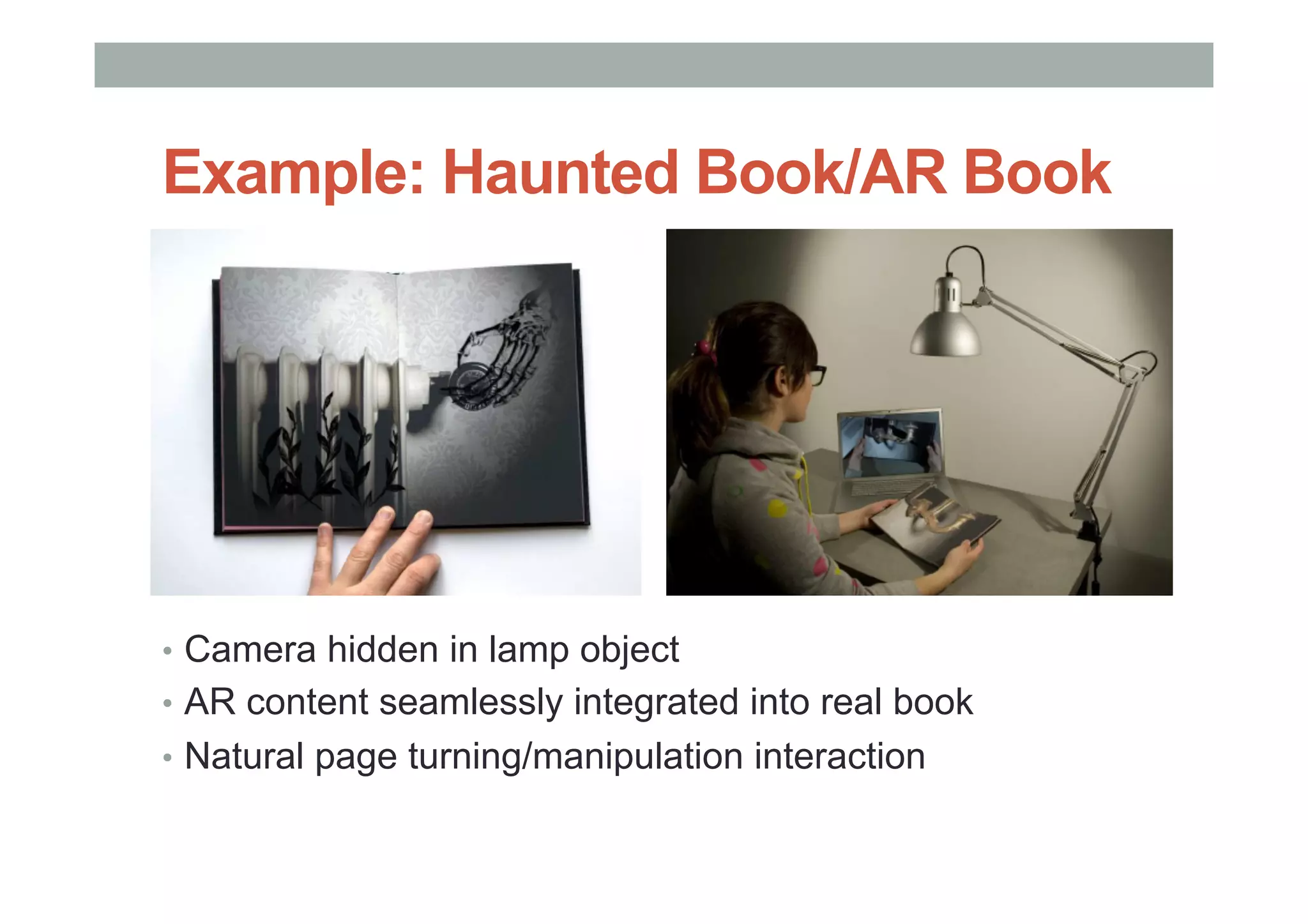
Example: Haunted Book/AR Book
•  Camera hidden in lamp object
•  AR content seamlessly integrated into real book
•  Natural page turning/manipulation interaction
Gaming:Rock-em Sock-em
• Shared AR Demo
• Markerless tracking
Rockem Sockem Demo
https://www.youtube.com/watch?v=hXtq1qBMLIw
Sales and Marketing
• Connect with brands and branded objects
• Location Based Experiences
•  Lynx Angels
• Web based
•  Rayban glasses
• Mobile
•  Ford Ka campaign
• Print based
•  Red Bull Magazine
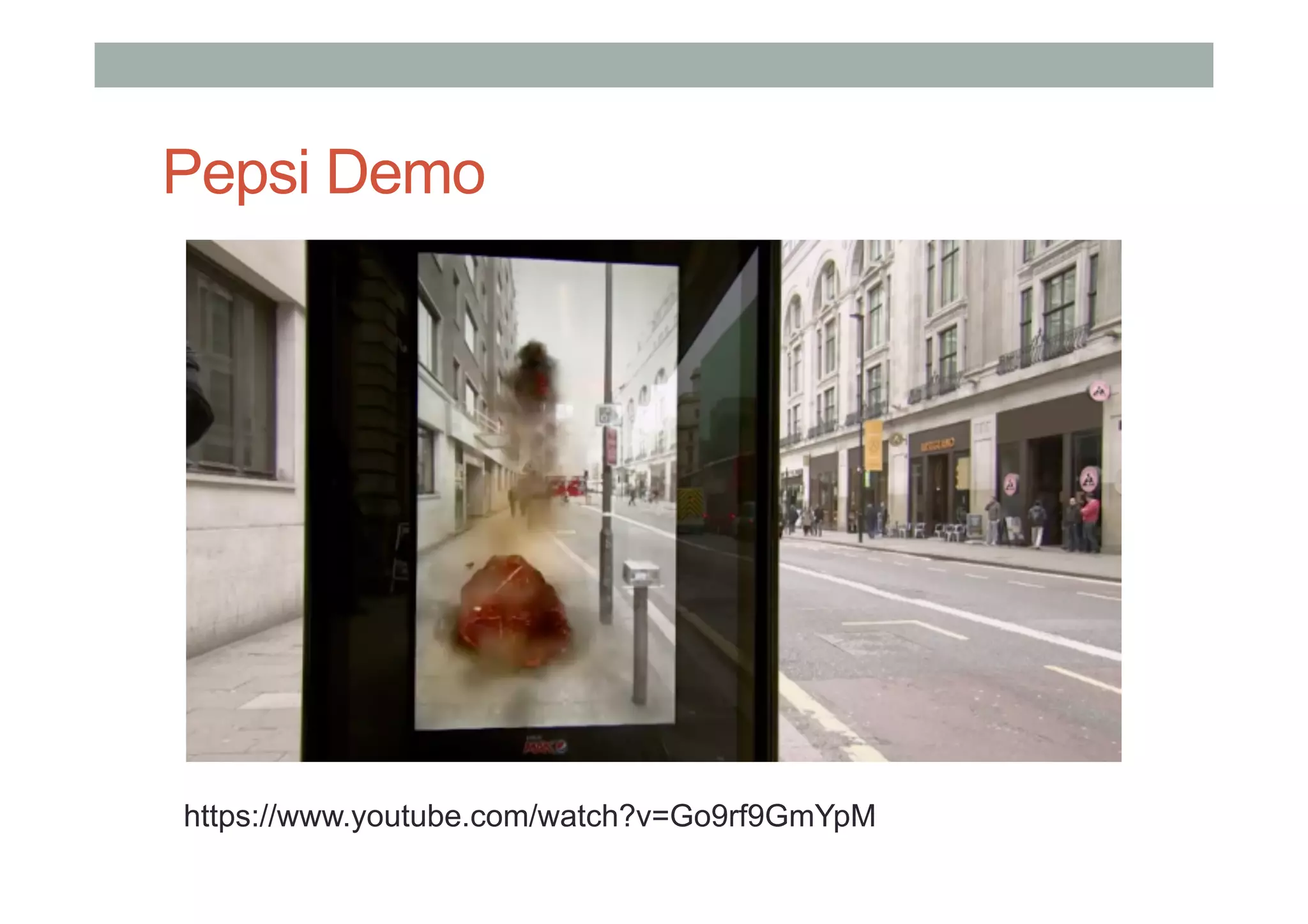
Pepsi AR Experience (2014)
•  Video see-through AR in bus shelter
•  Bus shelter appears under attack
Pepsi Demo
https://www.youtube.com/watch?v=Go9rf9GmYpM
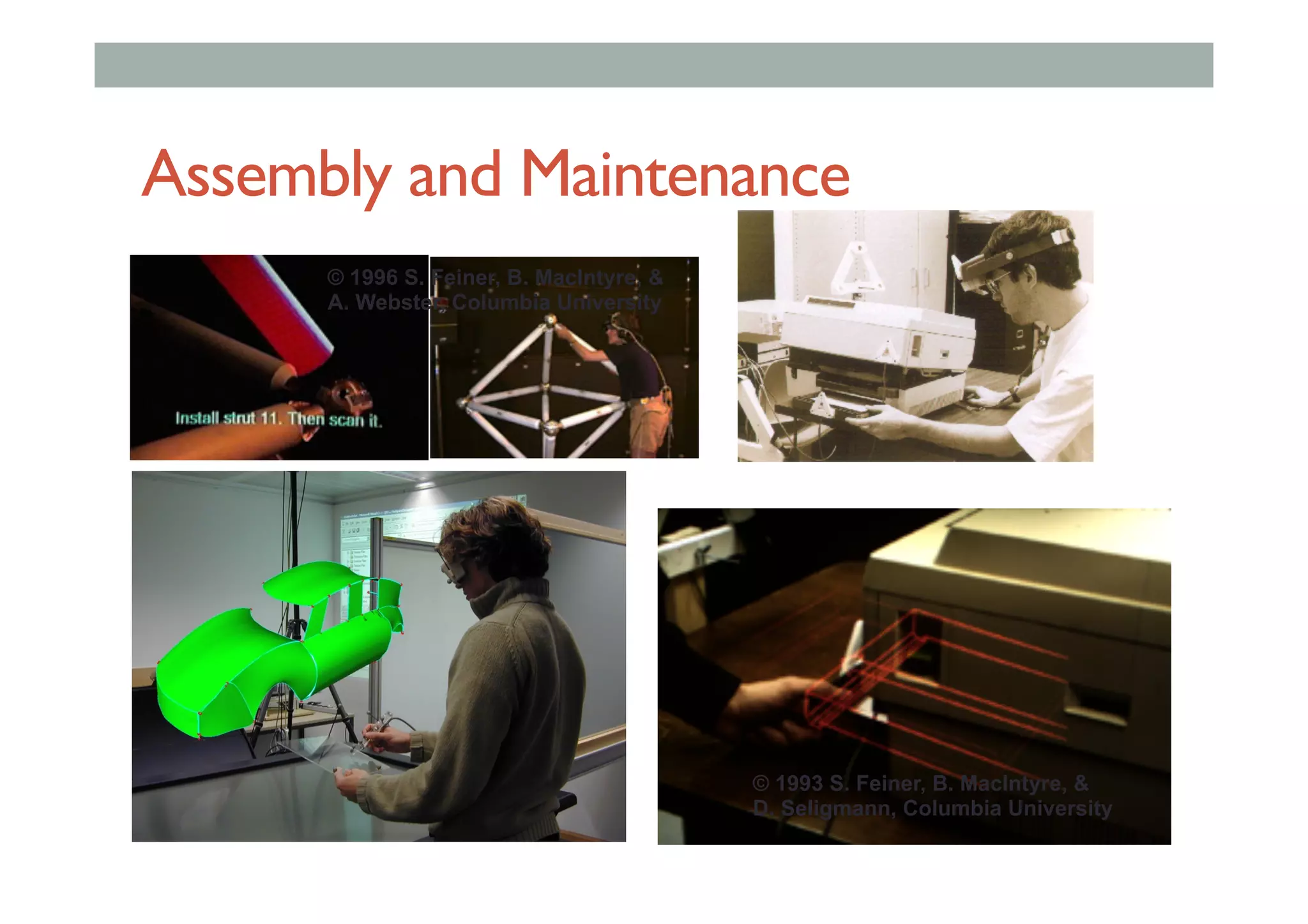
Assembly and Maintenance
© 1993 S. Feiner, B. MacIntyre, &
D. Seligmann, Columbia University
© 1996 S. Feiner, B. MacIntyre, &
A. Webster, Columbia University
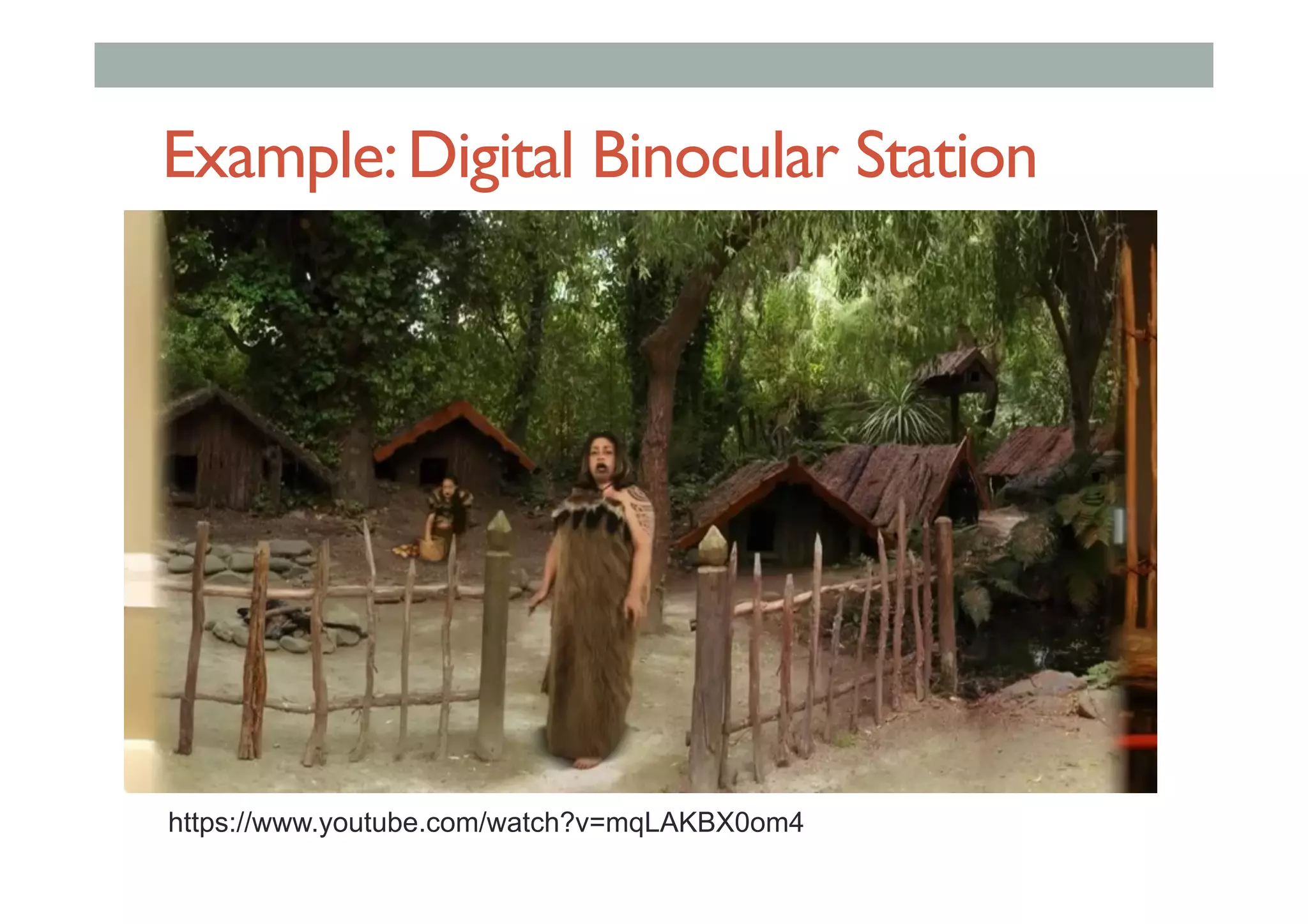
Example:Digital Binocular Station
Using AR to bring Museum content to live
Installed in Canterbury Museum
http://www.DigitalBinocularStation.com/
Example:Digital Binocular Station
https://www.youtube.com/watch?v=mqLAKBX0om4
AR IN EDUCATION
Benefits of AR for Education
• AR can aid Education in a number of ways:
• Teaching spatial concepts
• Visualizing knowledge objects
• Improving literacy and numeracy
• Increase understanding of real environment
• AR allows students to view and interact
with spatial content in a seamless manner
• Focus on educational content rather than
learning the computer interface
New Zealand Examples
• Geo AR Games
•  Mobile outdoor gaming
• CityViewAR
•  See historical Christchurch
• Quiver
•  Interactive Colouring Books
• Envisage
•  AR scene creation
GeoAR Games (iOS/Android)
•  Outdoor Mobile AR experience
•  Playing with virtual content in real world
•  E.g. Sharks in the park – collecting fish, avoiding sharks
•  Encourages teamwork and physical activity in the real world
•  http://www.geoar.tech/
Example:GeoAR Games Magic Park
https://www.youtube.com/watch?v=STD1MF51PTw
CityViewARApplication (Android)
• Visualize Christchurch before the earthquakes
• Search for CityViewAR on Android play store
CityViewAR
https://www.youtube.com/watch?v=fdgrXxJx4SE
Quiver (iOS/Android)
•  Interactive Colouring Books
•  Children colour their own AR scenes
•  Wide range of educational pages available
•  Animals, cells, volcanos, etc
•  http://www.quivervision.com/
Quiver Demo
https://www.youtube.com/watch?v=tBYm53L79YY
Envisage (Windows)
• Desktop software for easy authoring of AR scenes
•  Create your own visual tracking markers
•  Upload your own 3D content
• Create and save educational scenes
• www.envisage-ar.com
HANDS ON WITH ENVISAGE
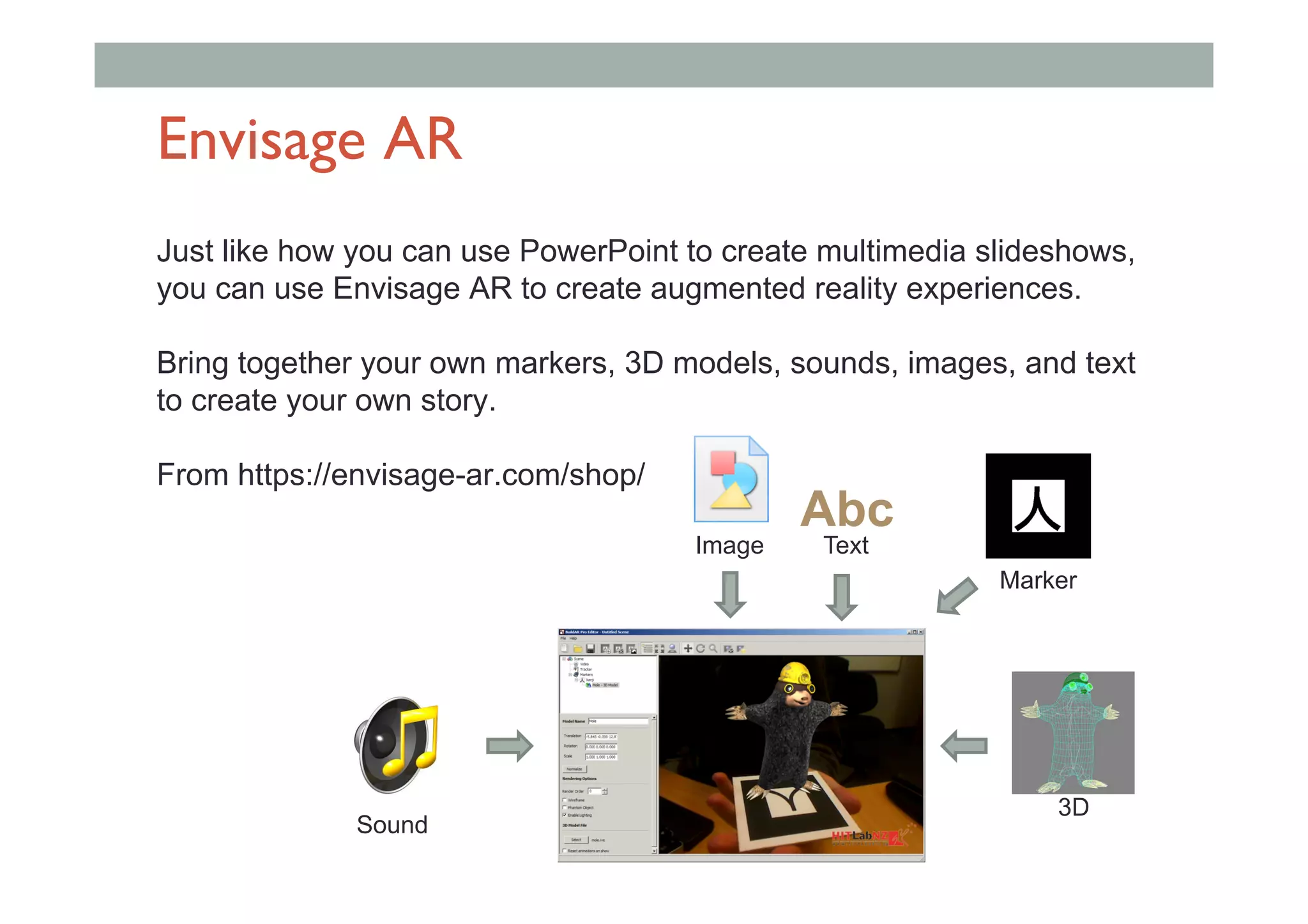
Envisage AR
Just like how you can use PowerPoint to create multimedia slideshows,
you can use Envisage AR to create augmented reality experiences.
Bring together your own markers, 3D models, sounds, images, and text
to create your own story.
From https://envisage-ar.com/shop/
Image
Sound
3D
Text
Abc
Marker
Envisage User Interface
Toolbar
Scene Tree
Configuration
Panels
3D / AR View
Getting Started:Video
1. Select “Video” in the scene tree
2. In the configuration area, select “Camera”
3. Press the green “play” button
4. This dialog box appears – press “OK”
1
2
3
4
Adding Markers
4.  Click “OK” to add
the marker
1.  Click the “Add Marker” button on the toolbar
2.  Click “Browse”
3.  Select the pattern file
1
2
3
4
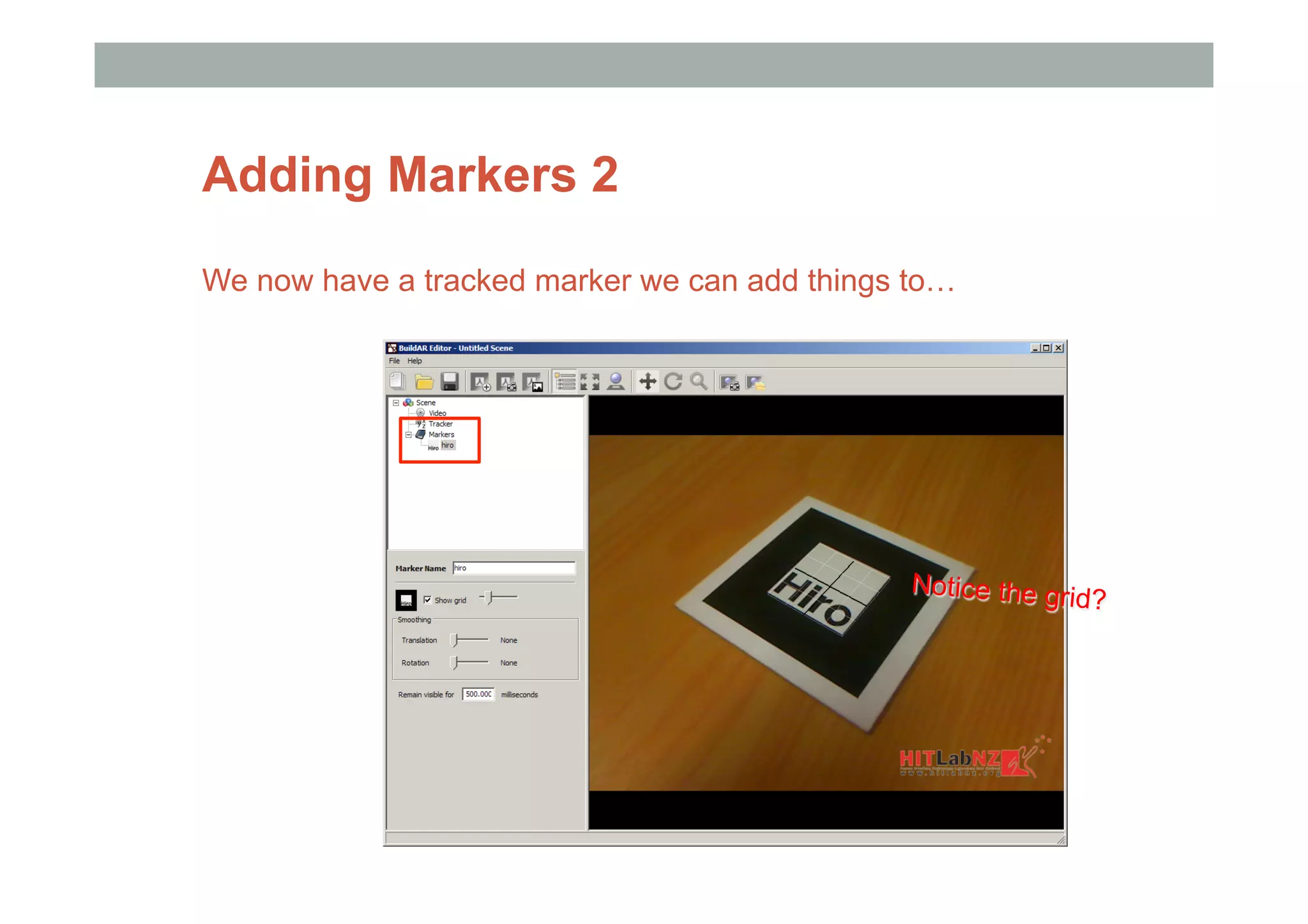
Adding Markers 2
We now have a tracked marker we can add things to…
Notice the grid?
Adding 3D Models
1. Right click on the newly added marker in the scene tree
2. Select “Add 3D Model”
3. A blue cube appears on the marker
Adding 3D Models 2
1.  Double-click on the new item in the scene tree
2.  Select a model file
3.  The blue cube is replaced by the new model 1
2
3
Adjusting Models
Now we want to adjust the model. We can change its:
-  Position: Where it is in relation to the marker
-  Rotation: Which way it is facing
-  Scale: How big it is
Click on the model to select it.
A set of three arrows appears.
This is the adjustment tool (widget)
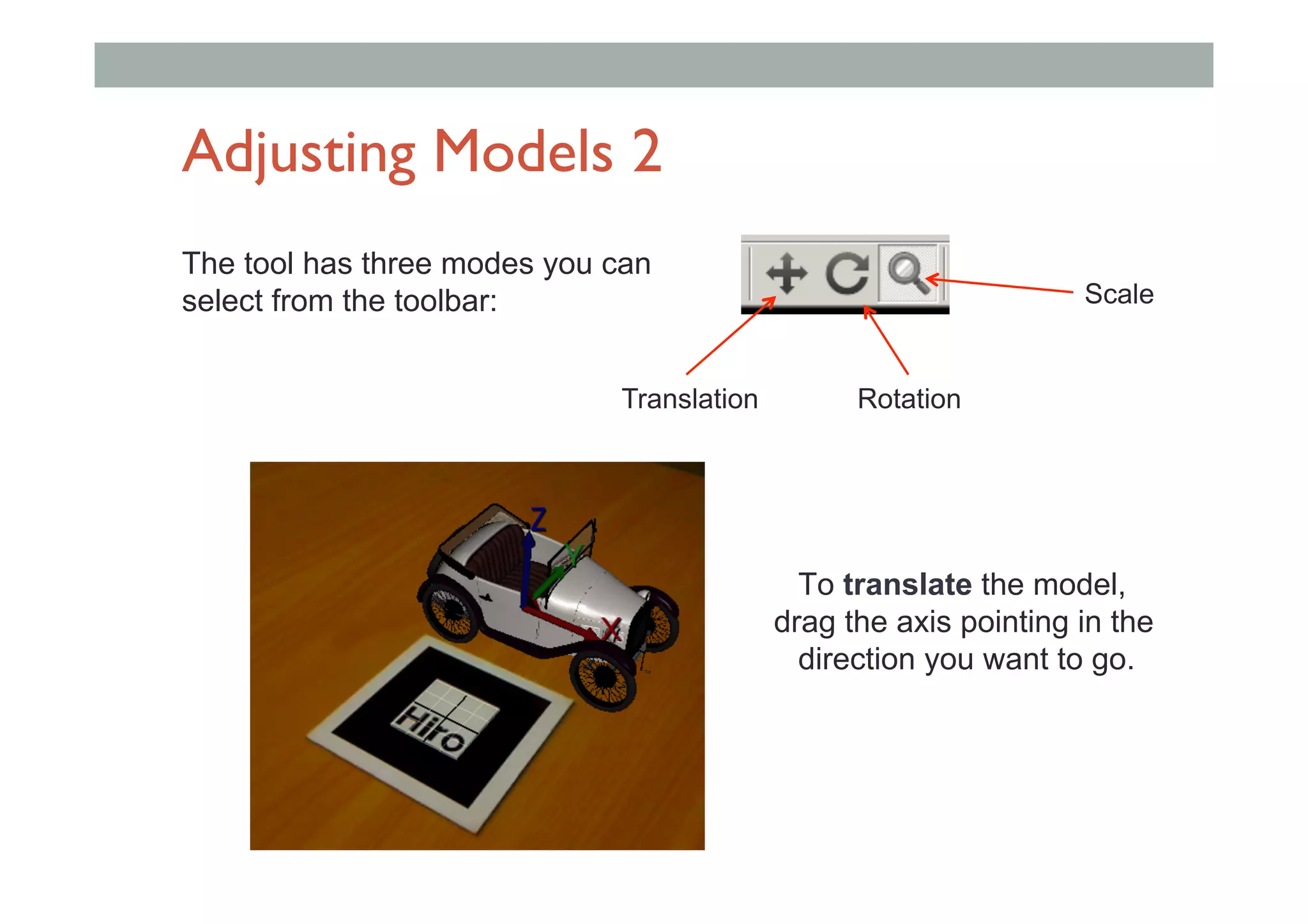
Adjusting Models 2
The tool has three modes you can
select from the toolbar:
Translation Rotation
Scale
To translate the model,
drag the axis pointing in the
direction you want to go.
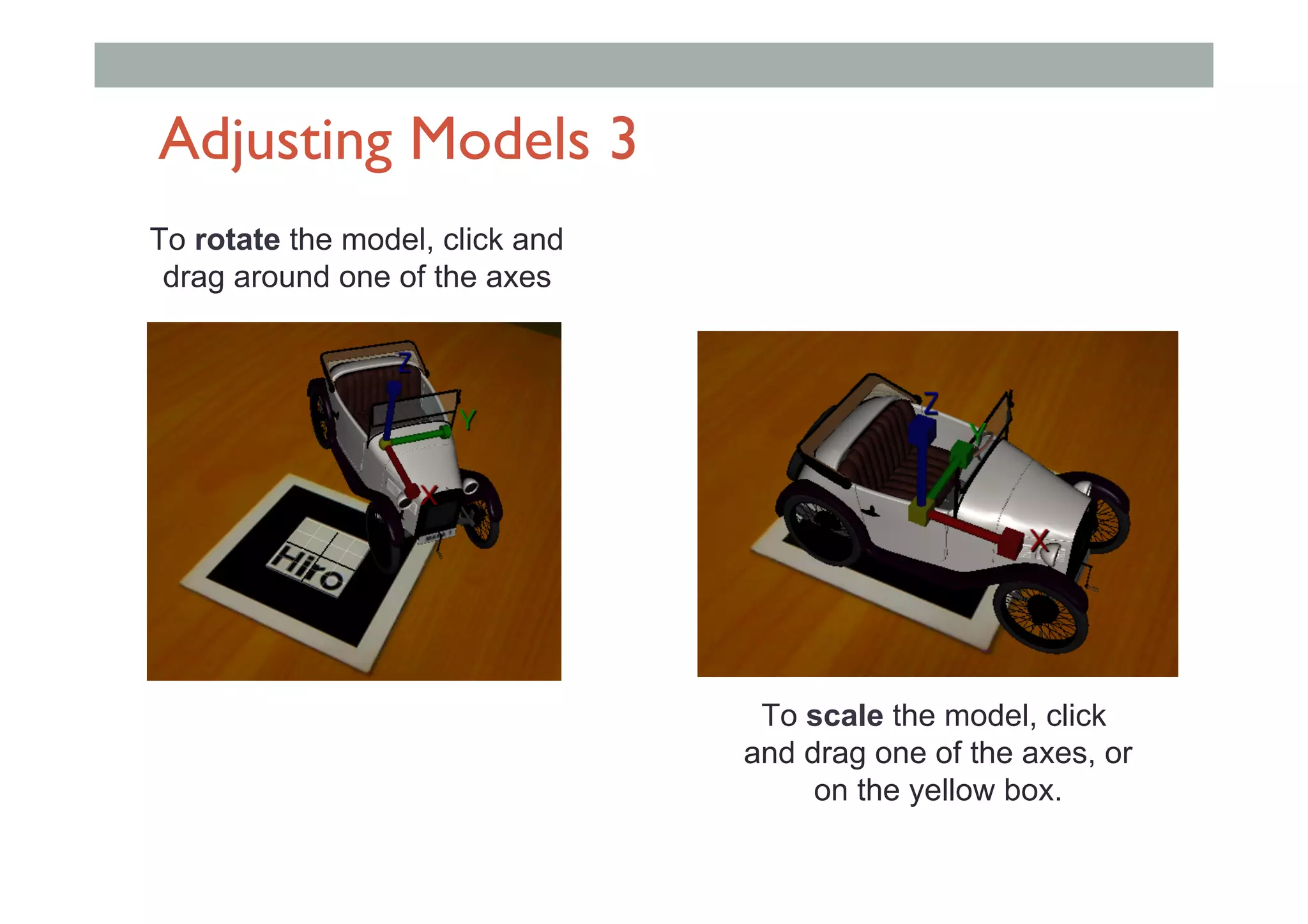
Adjusting Models 3
To rotate the model, click and
drag around one of the axes
To scale the model, click
and drag one of the axes, or
on the yellow box.
Adding Other Things
In addition to 3D models, you can also add:
- Images
- Text
- Simple 3D objects (“primitives”)
- Sounds
Images
When you add an image, you can select a picture file. e.g. JPG,
PNG, BMP
It will show up as a rectangle with the picture on it. You can move
the rectangle around in the same way as a 3D model.
Text
You can add text and chose what it says.
You can move the text around in the same way as a 3D model.
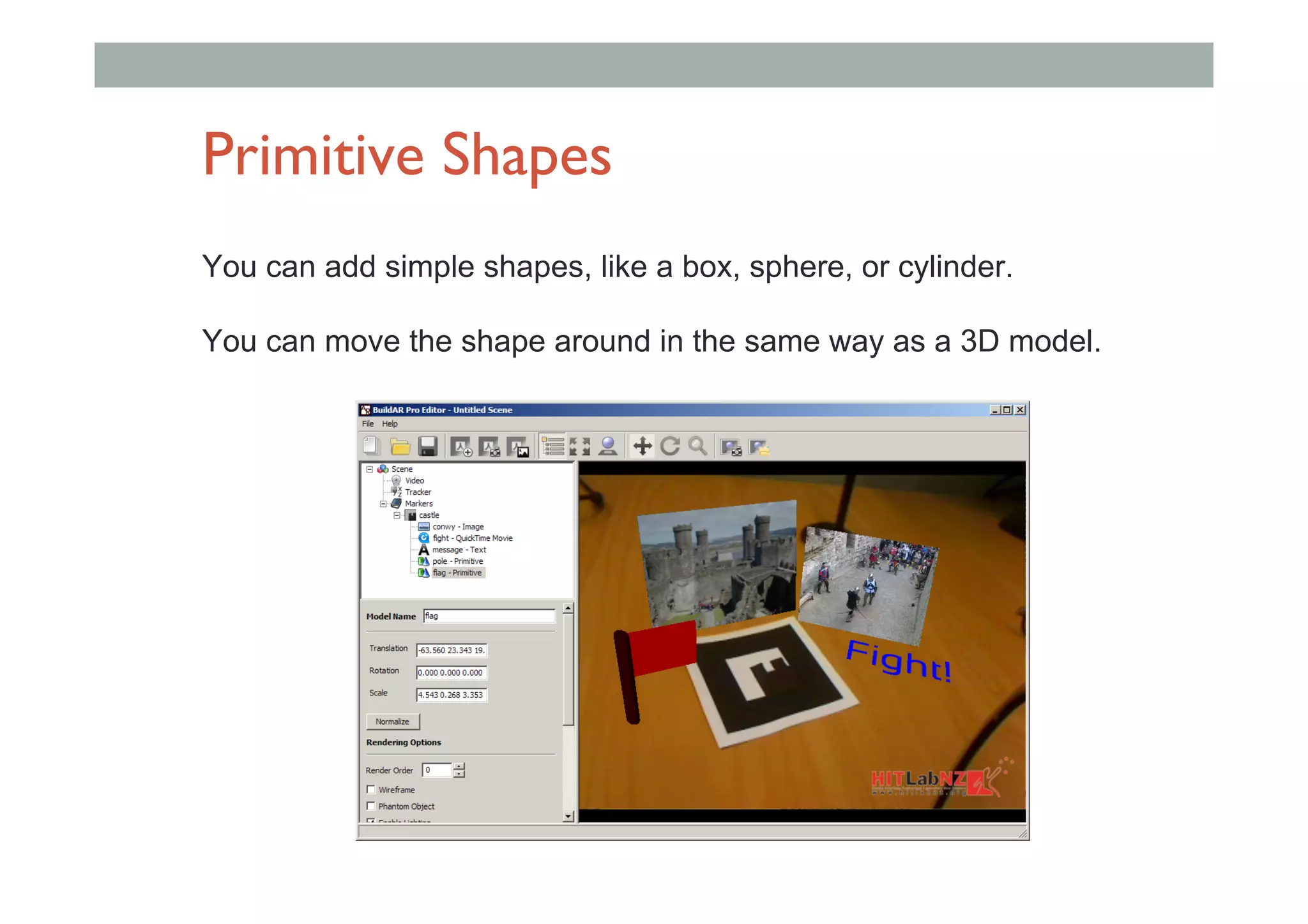
Primitive Shapes
You can add simple shapes, like a box, sphere, or cylinder.
You can move the shape around in the same way as a 3D model.
Sounds
When you add a sound, you can select a Wave file. i.e. WAV
You can move the speaker around in the same way as a 3D
model, to make it sound like it comes from a certain place.
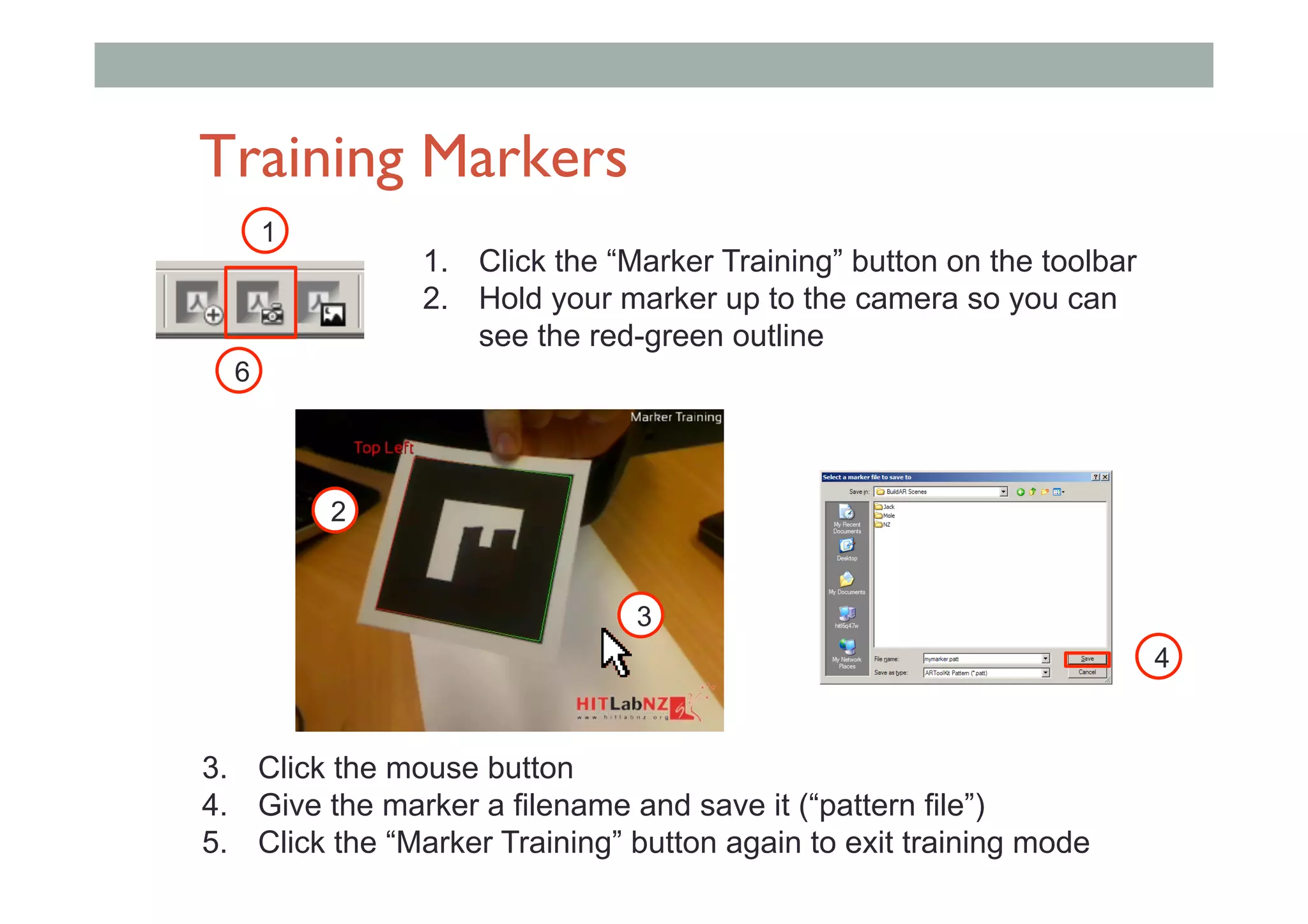
Training Markers
1.  Click the “Marker Training” button on the toolbar
2.  Hold your marker up to the camera so you can
see the red-green outline
1
3.  Click the mouse button
4.  Give the marker a filename and save it (“pattern file”)
5.  Click the “Marker Training” button again to exit training mode
2
3
4
6
Tracking Markers
You can make your own markers by drawing inside
the provided black frames.
For your designs to work, they must be:
- Bold: avoid fine detail
- Different from each other: the computer has to tell
them apart
- Different from all sides: the computer has to tell
which way is up
FUTURE RESEARCH
Future ResearchTrends
• New display technologies
•  Unobtrusive head mounted displays
• New interaction methods
•  Natural speech and gesture interaction
• Better authoring tools
•  Everyone can make AR content
• Better educational experiences
•  Shared learning spaces
Example: Hololens Anatomy
https://www.youtube.com/watch?v=SKpKlh1-en0
CONCLUSIONS
Conclusion
• Augmented Reality seamlessly brings digital
content into the real world
• AR industry rapidly growing
• Hardware and software becoming widely available
• Many educational possibilities
• Content creation
• Innovative game play
• Spatial information presentation
• Many interesting areas for future development
More Information
www.envisage-ar.com
sns@envisage-ar.com

AR in Education