MICROSOFT ACCESSMICROSOFT ACCESS
WHAT IS MS ACCESS ?
• Microsoft Access is a part of the Microsoft Office Suite. It does not
come with all versions of Microsoft Office, so if you specifically
want Microsoft Access make sure the office suite you are
purchasing has it.
• Microsoft Access has the look and feel of other Microsoft Office
products, including its layout and navigational aspects. That is
where the similarity ends. Microsoft® Access is a database and,
more specifically, a relational database.
• Access has an .mdb extension by default. This has changed in
Access 2007 where the extension is now an accdb extension.
What is Microsoft Access
made up of?
The Microsoft® Access Database is made up of 7 major components:
• Tables;
• Relationships;
• Queries;
• Forms;
• Reports;
• Macros;
• Modules.
Features of MS Access
Tables
• The tables are the backbone and the storage container
of the data entered into the database. If the tables are
not set up correctly, with the correct relationships, then
the database may be slow, give you the wrong results or
not react the way you expect. So, take a bit of time
when setting up your tables.
• Queries, forms, etc. are usually based on a table.
• They have columns and rows as does a table in
Microsoft® Word and an Excel worksheet. Each of the
columns will have a field name at the top and each of
the rows will represent a record.
Relationships
• Relationships are the bonds you build between the tables.
They join tables that have associated elements. To do this
there is a field in each table, which is linked to each other,
and have the same values.
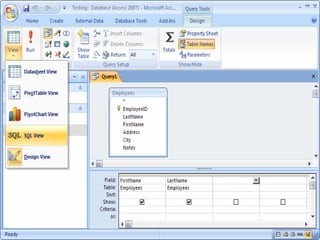
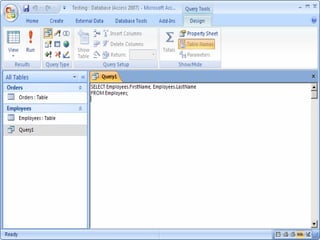
Queries
• Are the means of manipulating the data to display in a
form or a report. Queries can sort, calculate, group, filter,
join tables, update data, delete data, etc. Their power is
immense. The Microsoft® Access database query language
is SQL (Structured Query Language). Microsoft® Access
writes the SQL for you, after you tell it what you want, in
the Design view of the queries window.
Forms
• Forms are the primary interface through which the users of
the database enter data. The person who enters the data
will interact with forms regularly. The programmer can set
the forms to show only the data required. By using
queries, properties, macros and VBA (Visual Basic for
Applications), the ability to add, edit and delete data can
also be set.
Reports
• Reports are the results of the manipulation of the data you
have entered into the database. Unlike forms, they cannot
be edited. Reports are intended to be used to output data to
another device or application, i.e. printer, fax, Microsoft®
Word or Microsoft® Excel.
Macros
• Macros are an automatic way for Access to carry out a
series of actions for the database. Access gives you a
selection of actions that are carried out in the order you
enter. Macros can open forms; run queries, change
values of a field, run other Macros, etc. the list is
almost endless.
Modules
• Modules are the basis of the programming language
that supports Microsoft® Access, The module window
is where you can write and store Visual Basic for
Applications (VBA). Advanced users of Microsoft®
Access tend to use VBA instead of Macros
Starting Microsoft Access
To start up the program:
• 1. Open the Windows start menu and choose All
Programs
• 2. Select Microsoft Office then Microsoft Office
Access 2007
The Access Screen
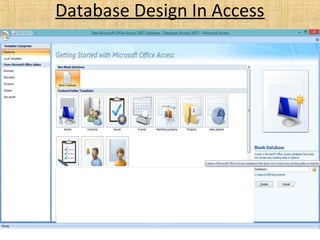
On entering Access you are presented with a Getting Started
with Microsoft Office Access screen. This has set of
sample templates to help you create your own database.
Further templates, grouped into four categories, are
available from Microsoft Office Online via the links
provided in the left pane. These can be quite helpful for
particular applications but you nearly always have to tailor
the database produced to your own requirements. You can
also either create a new blank database (without help) or
open an existing one.
Database Design In Access
Towards the top left of the screen you will see a "Blank Database"
icon. Click this icon to bring up the Blank Database side bar on the
right hand side of the screen. This is where you will enter details
about the database file that you are about to create.
Begin by entering the name that you want to call the database
in the filename textbox.
Browse and select folder
Next click the folder icon and browse for a folder to put your database. Once selected you
should see the file path below the textbox.
Click Create
All you need to do now is click the "Create" command button below, and your database
file saves to the location that you specified, and opens for you to work on.
Select Blank Database Template
Enter filename for your Access 2007 database
Creating Tables In Design View
• Open database file
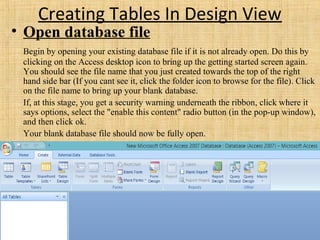
Begin by opening your existing database file if it is not already open. Do this by
clicking on the Access desktop icon to bring up the getting started screen again.
You should see the file name that you just created towards the top of the right
hand side bar (If you cant see it, click the folder icon to browse for the file). Click
on the file name to bring up your blank database.
If, at this stage, you get a security warning underneath the ribbon, click where it
says options, select the "enable this content" radio button (in the pop-up window),
and then click ok.
Your blank database file should now be fully open.
Create Access Table
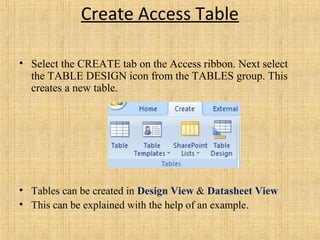
• Select the CREATE tab on the Access ribbon. Next select
the TABLE DESIGN icon from the TABLES group. This
creates a new table.
• Tables can be created in Design View & Datasheet View
• This can be explained with the help of an example.
• Consider an employee information system consisting of data items
about each employee, various departments and the projects in
which various employees are assigned. Three tables can be created
to store the details. The first table ‘Employee_Details’ stores the
details of all employees. Second table ‘Department_Details’ stores
details of departments. The third table ‘Project_Details’ stores the
details of project. These three are master tables. Here, there is an
assumption that an employee may be assigned many projects and a
project may be shared among many employees. To avoid
redundancy, we use a transaction table.
Create fields in DESIGN VIEW
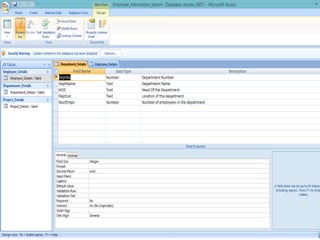
• This brings up the TABLE DESIGN GRID where you enter each
field name, its data type and description. This is how the design
view of three tables appear.
Defining Primary Key And
Establishing relationships
Setting the Primary Key
• View your table in Design View
• Select the field (or fields) that you want to use as the primary
key
• Choose the Primary Key command in the Tools group on the
Design tab
Removing the Primary Key
• View your table in Design View
• Select the field (or fields) that contain the primary key you
want to remove
• Choose the Primary Key command in the Tools group on the
Design tab
Establishing Relationship
• To create a one-to-many or a one-to-one relationship, follow these steps:
Close all tables. You cannot create or change relationships between open
tables.
In Access 2007, Access 2010, or Access 2013, click Relationships in the
Show/Hide group on the Database Tools tab. If you have not yet defined
any relationships in your database, the Show Table dialog box is
automatically displayed. If you want to add the tables that you want to relate
but the Show Table dialog box does not appear, click Show Table on the
Relationships menu. Double-click the names of the tables that you want to
relate, and then close the Show Table dialog box. To create a relationship
between a table and itself, add that table two times. Drag the field that you
want to relate from one table to the related field in the other table. To drag
multiple fields, press Ctrl, click each field, and then drag them.
In most cases, you drag the primary key field (this field is displayed in bold
text) from one table to a similar field (this field frequently has the same
name) that is called the foreign key in the other table. The Edit
• Relationships dialog box appears. Make sure that the field 
names that are displayed in the two columns are correct. You can 
change the names if it is necessary. 
• Set the relationship options if it is necessary. If you have to have 
information about a specific item in the Edit Relationships 
dialog box, click the question mark button, and then click the 
item. (These options will be explained in detail later in this 
article.) Click Create to create the relationship. Repeat steps 4 
through 7 for each pair of tables that you want to relate.
•
When you close the Edit Relationships dialog box, Access asks 
whether you want to save the layout. Whether you save the 
layout or do not save the layout, the relationships that you create 
are saved in the database.
Note You can create relationships not only in tables but also in 
queries. However, referential integrity is not enforced with 
queries.
Simple SQL Commands
THANK YOU

Microsoft Access 2007

  • 1.
  • 2.
    WHAT IS MSACCESS ? • Microsoft Access is a part of the Microsoft Office Suite. It does not come with all versions of Microsoft Office, so if you specifically want Microsoft Access make sure the office suite you are purchasing has it. • Microsoft Access has the look and feel of other Microsoft Office products, including its layout and navigational aspects. That is where the similarity ends. Microsoft® Access is a database and, more specifically, a relational database. • Access has an .mdb extension by default. This has changed in Access 2007 where the extension is now an accdb extension.
  • 3.
    What is MicrosoftAccess made up of? The Microsoft® Access Database is made up of 7 major components: • Tables; • Relationships; • Queries; • Forms; • Reports; • Macros; • Modules.
  • 4.
    Features of MSAccess Tables • The tables are the backbone and the storage container of the data entered into the database. If the tables are not set up correctly, with the correct relationships, then the database may be slow, give you the wrong results or not react the way you expect. So, take a bit of time when setting up your tables. • Queries, forms, etc. are usually based on a table. • They have columns and rows as does a table in Microsoft® Word and an Excel worksheet. Each of the columns will have a field name at the top and each of the rows will represent a record.
  • 5.
    Relationships • Relationships arethe bonds you build between the tables. They join tables that have associated elements. To do this there is a field in each table, which is linked to each other, and have the same values. Queries • Are the means of manipulating the data to display in a form or a report. Queries can sort, calculate, group, filter, join tables, update data, delete data, etc. Their power is immense. The Microsoft® Access database query language is SQL (Structured Query Language). Microsoft® Access writes the SQL for you, after you tell it what you want, in the Design view of the queries window.
  • 6.
    Forms • Forms arethe primary interface through which the users of the database enter data. The person who enters the data will interact with forms regularly. The programmer can set the forms to show only the data required. By using queries, properties, macros and VBA (Visual Basic for Applications), the ability to add, edit and delete data can also be set. Reports • Reports are the results of the manipulation of the data you have entered into the database. Unlike forms, they cannot be edited. Reports are intended to be used to output data to another device or application, i.e. printer, fax, Microsoft® Word or Microsoft® Excel.
  • 7.
    Macros • Macros arean automatic way for Access to carry out a series of actions for the database. Access gives you a selection of actions that are carried out in the order you enter. Macros can open forms; run queries, change values of a field, run other Macros, etc. the list is almost endless. Modules • Modules are the basis of the programming language that supports Microsoft® Access, The module window is where you can write and store Visual Basic for Applications (VBA). Advanced users of Microsoft® Access tend to use VBA instead of Macros
  • 8.
    Starting Microsoft Access Tostart up the program: • 1. Open the Windows start menu and choose All Programs • 2. Select Microsoft Office then Microsoft Office Access 2007
  • 9.
    The Access Screen Onentering Access you are presented with a Getting Started with Microsoft Office Access screen. This has set of sample templates to help you create your own database. Further templates, grouped into four categories, are available from Microsoft Office Online via the links provided in the left pane. These can be quite helpful for particular applications but you nearly always have to tailor the database produced to your own requirements. You can also either create a new blank database (without help) or open an existing one.
  • 11.
  • 12.
    Towards the topleft of the screen you will see a "Blank Database" icon. Click this icon to bring up the Blank Database side bar on the right hand side of the screen. This is where you will enter details about the database file that you are about to create. Begin by entering the name that you want to call the database in the filename textbox. Browse and select folder Next click the folder icon and browse for a folder to put your database. Once selected you should see the file path below the textbox. Click Create All you need to do now is click the "Create" command button below, and your database file saves to the location that you specified, and opens for you to work on. Select Blank Database Template Enter filename for your Access 2007 database
  • 13.
    Creating Tables InDesign View • Open database file Begin by opening your existing database file if it is not already open. Do this by clicking on the Access desktop icon to bring up the getting started screen again. You should see the file name that you just created towards the top of the right hand side bar (If you cant see it, click the folder icon to browse for the file). Click on the file name to bring up your blank database. If, at this stage, you get a security warning underneath the ribbon, click where it says options, select the "enable this content" radio button (in the pop-up window), and then click ok. Your blank database file should now be fully open.
  • 14.
    Create Access Table •Select the CREATE tab on the Access ribbon. Next select the TABLE DESIGN icon from the TABLES group. This creates a new table. • Tables can be created in Design View & Datasheet View • This can be explained with the help of an example.
  • 15.
    • Consider anemployee information system consisting of data items about each employee, various departments and the projects in which various employees are assigned. Three tables can be created to store the details. The first table ‘Employee_Details’ stores the details of all employees. Second table ‘Department_Details’ stores details of departments. The third table ‘Project_Details’ stores the details of project. These three are master tables. Here, there is an assumption that an employee may be assigned many projects and a project may be shared among many employees. To avoid redundancy, we use a transaction table. Create fields in DESIGN VIEW • This brings up the TABLE DESIGN GRID where you enter each field name, its data type and description. This is how the design view of three tables appear.
  • 20.
    Defining Primary KeyAnd Establishing relationships Setting the Primary Key • View your table in Design View • Select the field (or fields) that you want to use as the primary key • Choose the Primary Key command in the Tools group on the Design tab Removing the Primary Key • View your table in Design View • Select the field (or fields) that contain the primary key you want to remove • Choose the Primary Key command in the Tools group on the Design tab
  • 21.
    Establishing Relationship • Tocreate a one-to-many or a one-to-one relationship, follow these steps: Close all tables. You cannot create or change relationships between open tables. In Access 2007, Access 2010, or Access 2013, click Relationships in the Show/Hide group on the Database Tools tab. If you have not yet defined any relationships in your database, the Show Table dialog box is automatically displayed. If you want to add the tables that you want to relate but the Show Table dialog box does not appear, click Show Table on the Relationships menu. Double-click the names of the tables that you want to relate, and then close the Show Table dialog box. To create a relationship between a table and itself, add that table two times. Drag the field that you want to relate from one table to the related field in the other table. To drag multiple fields, press Ctrl, click each field, and then drag them. In most cases, you drag the primary key field (this field is displayed in bold text) from one table to a similar field (this field frequently has the same name) that is called the foreign key in the other table. The Edit
  • 22.
    • Relationships dialog box appears. Make sure that the field  names that are displayed in the two columns are correct. You can  change the names if it is necessary.  • Set the relationship options if it is necessary. If you have to have  information about a specific item in the EditRelationships  dialog box, click the question mark button, and then click the  item. (These options will be explained in detail later in this  article.) Click Create to create the relationship. Repeat steps 4  through 7 for each pair of tables that you want to relate. • When you close the Edit Relationships dialog box, Access asks  whether you want to save the layout. Whether you save the  layout or do not save the layout, the relationships that you create  are saved in the database. Note You can create relationships not only in tables but also in  queries. However, referential integrity is not enforced with  queries.
  • 23.
  • 27.