
Web Browser and E-mail
1
Presented
by
B.SaiPrakash M.B.A
Web browser and Web pages
2
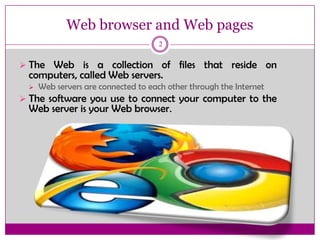
 The Web is a collection of files that reside on
computers, called Web servers.
 Web servers are connected to each other through the Internet
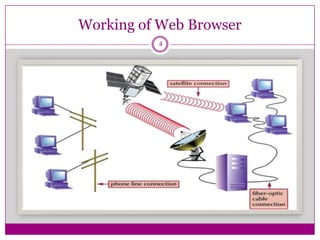
 The software you use to connect your computer to the
Web server is your Web browser.
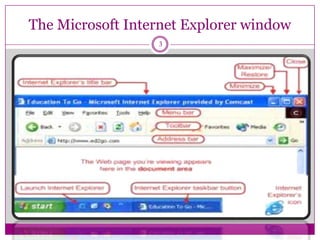
The Microsoft Internet Explorer window
3
Working of Web Browser
4
Web addresses and URLs
5
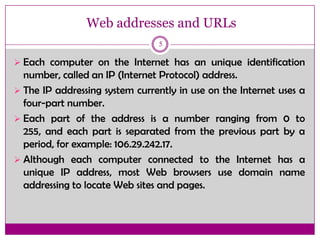
 Each computer on the Internet has an unique identification
number, called an IP (Internet Protocol) address.
 The IP addressing system currently in use on the Internet uses a
four-part number.
 Each part of the address is a number ranging from 0 to
255, and each part is separated from the previous part by a
period, for example: 106.29.242.17.
 Although each computer connected to the Internet has a
unique IP address, most Web browsers use domain name
addressing to locate Web sites and pages.
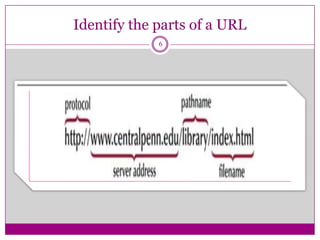
Identify the parts of a URL
6
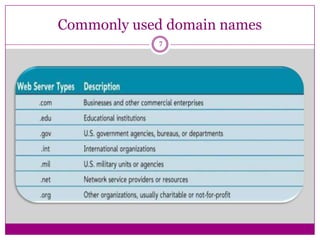
Commonly used domain names
7
Anchor tags hat are used to define hyperlinks
8
 Text files on Web servers are coded with HTML formatting tags
that enable your browser to read text.
 The tag that gives HTML its power, however, is the anchor tag.
 Each anchor tag used in an HTML document, or Web
page, creates a hypertext link or hypermedia link to other
HTML documents or to other media.
 These links are a different color than other text on the
page, and are sometimes underlined. When you click the
link, you connect to another Web page.
Save and organize Web addresses
9
 Use Internet Explorer's Favorites list to store and organize a list
of Web pages that you have visited so you can return to them
easily.
 The Favorites button on the Standard Buttons toolbar opens
the Add Favorite dialog box.
 Use the Favorites list to open URLs you have stored as favorites.
 Create folders to organize your favorites in the way that best
suits your needs and working style.
 Organize your folders in a hierarchical structure using the
Organize button on the Favorites Explorer Bar.
Printing a Web Page
10
 Make sure the page you want to print is displayed in the
browser window.
 Select Print from the File menu to open the Print dialog box.
 Ready the printer and click the Print button.
Saving a Web Page
11
 You can save a Web page by clicking the Save As option in the
File menu.
 Options for saving a Web page:
 Web Page, complete
 HTML code
 Web page text
E-mail
12
 E-mail, or electronic mail, is an efficient way to exchange
messages with others on a network.
 This network may be small and self-contained, such as
within an office, or as large as the Internet.
 E-mail messages can go to only one recipient or to dozens
of recipients at once.
 When you send a message, it travels through the network
to an e-mail server.
 The e-mail server stores messages until the recipient(s)
request them.
How E-mail works
13
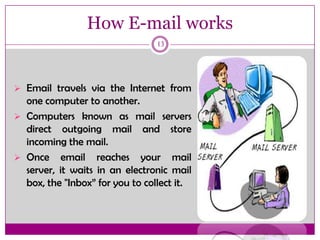
 Email travels via the Internet from
one computer to another.
 Computers known as mail servers
direct outgoing mail and store
incoming the mail.
 Once email reaches your mail
server, it waits in an electronic mail
box, the "Inbox” for you to collect it.
Things You Can Do with Email
14
 Compose and Send: write an email and send it to
others.
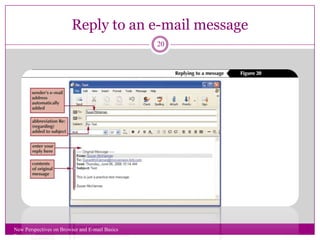
 Reply: reply to an email that you received.
 Forward: pass on an email that you received to
others.
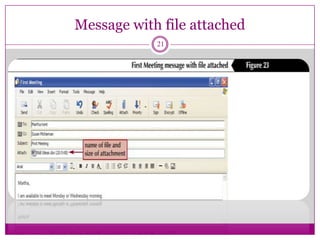
 Attachment: You can send files with your email such
as pictures, music, software and documents.
E-mail address components
15
 You may have an e-mail account through a business network
or you may create an e-mail account with a service that
provides Internet access.
 An e-mail address consists of:
 A user name or login ID
 The “at” symbol (@)
 The name of the e-mail server
16
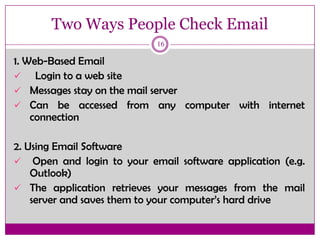
1. Web-Based Email
 Login to a web site
 Messages stay on the mail server
 Can be accessed from any computer with internet
connection
2. Using Email Software
 Open and login to your email software application (e.g.
Outlook)
 The application retrieves your messages from the mail
server and saves them to your computer’s hard drive
Two Ways People Check Email
Send and receive e-mail using Microsoft Outlook
Express
17
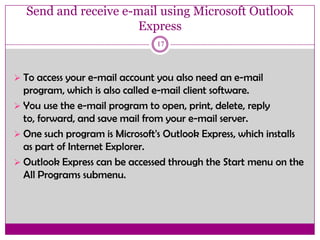
 To access your e-mail account you also need an e-mail
program, which is also called e-mail client software.
 You use the e-mail program to open, print, delete, reply
to, forward, and save mail from your e-mail server.
 One such program is Microsoft's Outlook Express, which installs
as part of Internet Explorer.
 Outlook Express can be accessed through the Start menu on the
All Programs submenu.
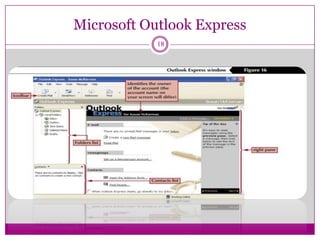
Microsoft Outlook Express
18
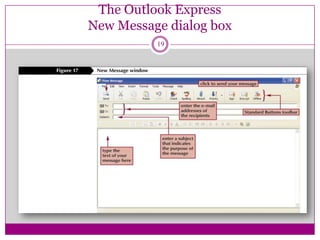
The Outlook Express
New Message dialog box
19
Reply to an e-mail message
New Perspectives on Browser and E-mail Basics
Tutorial 1
20
Message with file attached
21
22

About Web and E-mail

  • 1.
    Web Browser andE-mail 1 Presented by B.SaiPrakash M.B.A
  • 2.
    Web browser andWeb pages 2  The Web is a collection of files that reside on computers, called Web servers.  Web servers are connected to each other through the Internet  The software you use to connect your computer to the Web server is your Web browser.
  • 3.
    The Microsoft InternetExplorer window 3
  • 4.
    Working of WebBrowser 4
  • 5.
    Web addresses andURLs 5  Each computer on the Internet has an unique identification number, called an IP (Internet Protocol) address.  The IP addressing system currently in use on the Internet uses a four-part number.  Each part of the address is a number ranging from 0 to 255, and each part is separated from the previous part by a period, for example: 106.29.242.17.  Although each computer connected to the Internet has a unique IP address, most Web browsers use domain name addressing to locate Web sites and pages.
  • 6.
  • 7.
  • 8.
    Anchor tags hatare used to define hyperlinks 8  Text files on Web servers are coded with HTML formatting tags that enable your browser to read text.  The tag that gives HTML its power, however, is the anchor tag.  Each anchor tag used in an HTML document, or Web page, creates a hypertext link or hypermedia link to other HTML documents or to other media.  These links are a different color than other text on the page, and are sometimes underlined. When you click the link, you connect to another Web page.
  • 9.
    Save and organizeWeb addresses 9  Use Internet Explorer's Favorites list to store and organize a list of Web pages that you have visited so you can return to them easily.  The Favorites button on the Standard Buttons toolbar opens the Add Favorite dialog box.  Use the Favorites list to open URLs you have stored as favorites.  Create folders to organize your favorites in the way that best suits your needs and working style.  Organize your folders in a hierarchical structure using the Organize button on the Favorites Explorer Bar.
  • 10.
    Printing a WebPage 10  Make sure the page you want to print is displayed in the browser window.  Select Print from the File menu to open the Print dialog box.  Ready the printer and click the Print button.
  • 11.
    Saving a WebPage 11  You can save a Web page by clicking the Save As option in the File menu.  Options for saving a Web page:  Web Page, complete  HTML code  Web page text
  • 12.
    E-mail 12  E-mail, orelectronic mail, is an efficient way to exchange messages with others on a network.  This network may be small and self-contained, such as within an office, or as large as the Internet.  E-mail messages can go to only one recipient or to dozens of recipients at once.  When you send a message, it travels through the network to an e-mail server.  The e-mail server stores messages until the recipient(s) request them.
  • 13.
    How E-mail works 13 Email travels via the Internet from one computer to another.  Computers known as mail servers direct outgoing mail and store incoming the mail.  Once email reaches your mail server, it waits in an electronic mail box, the "Inbox” for you to collect it.
  • 14.
    Things You CanDo with Email 14  Compose and Send: write an email and send it to others.  Reply: reply to an email that you received.  Forward: pass on an email that you received to others.  Attachment: You can send files with your email such as pictures, music, software and documents.
  • 15.
    E-mail address components 15 You may have an e-mail account through a business network or you may create an e-mail account with a service that provides Internet access.  An e-mail address consists of:  A user name or login ID  The “at” symbol (@)  The name of the e-mail server
  • 16.
    16 1. Web-Based Email Login to a web site  Messages stay on the mail server  Can be accessed from any computer with internet connection 2. Using Email Software  Open and login to your email software application (e.g. Outlook)  The application retrieves your messages from the mail server and saves them to your computer’s hard drive Two Ways People Check Email
  • 17.
    Send and receivee-mail using Microsoft Outlook Express 17  To access your e-mail account you also need an e-mail program, which is also called e-mail client software.  You use the e-mail program to open, print, delete, reply to, forward, and save mail from your e-mail server.  One such program is Microsoft's Outlook Express, which installs as part of Internet Explorer.  Outlook Express can be accessed through the Start menu on the All Programs submenu.
  • 18.
  • 19.
    The Outlook Express NewMessage dialog box 19
  • 20.
    Reply to ane-mail message New Perspectives on Browser and E-mail Basics Tutorial 1 20
  • 21.
    Message with fileattached 21
  • 22.