Chapter 1
Internet and e-mail
1
Internet
 It’s a large network of networks that covers
the whole world and enables millions of
computers from different organisations
and people to communicate globally.
2
Description of Internet
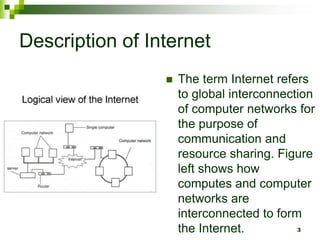
 The term Internet refers
to global interconnection
of computer networks for
the purpose of
communication and
resource sharing. Figure
left shows how
computes and computer
networks are
interconnected to form
the Internet. 3
Development of Internet (1969)
 In 1969, a research body in USA (ARPA)
Advance Research Project Agency set up
a computer network that connected for
universities and was given the name
ARPANET. ARPA’s goal was to allow
multiple users to send and receive
information at the same time.
4
Development of Internet (1973-1981)
 By 1973, e-mail was the most common
service on the Internet. By 1981, many
people had seen the importance of
computer networking and the Internet.
ARAPnet formed the backbone on which
many organisations started connecting to,
hence expanding it.
5
Development of Internet (1987-1994)
 By 1987, the Internet boasted of 10,000
host computers. As the importance of
Internet grew, businesses spent billions of
dollars to improve it in order to offer better
services to their clients. By 1994, 3 million
computers were connected to Internet.
Today the Internet has grown and covered
the whole world.
6
Importance of Internet
 The importance of Internet can be seen
through its contribution to;
Research activities
News and information dissemination
Leisure
Communication
Business Transaction etc.
7
Internet Connectivity Requirements
 Telecommunication facilities
 Satellite transmission
 Modem
 Wireless telecommunication
 Internet Service Providers (ISP’s)
 Internet Software
8
Telecommunication facilities
 Internet relies on telecommunication
facilities like telephone lines, telephone
exchange station and satellite
transmission in order to cover the whole
world. Therefore a computer is connected
to the external world through a telephone
line and has to dial a remote computer on
the net to establish connection for data
transfer.
9
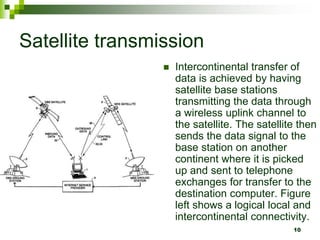
Satellite transmission
 Intercontinental transfer of
data is achieved by having
satellite base stations
transmitting the data through
a wireless uplink channel to
the satellite. The satellite then
sends the data signal to the
base station on another
continent where it is picked
up and sent to telephone
exchanges for transfer to the
destination computer. Figure
left shows a logical local and
intercontinental connectivity.
10
Modem
 It’s a special digital to analog interface
card that changes data from digital to
analog so as to be transmitted on
telephone lines and on receiving end the
data is changed from analog to digital for
computer to understand.
11
Wireless telecommunication
 With the dynamic growth in mobile
communication and computing, it is now
possible to access Internet using devices such
as mobile phones, PDAs and notebook PCs.
Heard about Wireless Fidelity to a hotspot?
Global system for mobiles (GMS) provides a
wireless connectivity to mobile devices users
known as General Packet Radio Service
(GPRS). 12
Internet Service Providers (ISP’s)
 They are companies that offer Internet
Services to end users. They provide the
Internet services to end users at a fee.
Examples of ISP in Kenya include;
Swiftkenya
Africaonline
Todays online
Wananchi online
Interconnect 13
Internet Software
 Internet software help facilitate your
access to Internet. To achieve
communication between computers
special software called Protocol is
needed.
There are two types of protocols used
with Internet.
14
Types of protocols
 Transmission Control Protocol (TCP) – it
governs how data is transferred from one
computer to the next.
 Internet Protocol (IP) – it determines the
addressing system on the Internet.
15
Internet Service 1
 E-mail – this is the exchange of electronic
letters, data and graphics on the Internet.
 Electronic Learning (E-learning) – this is
learning through interaction with special
programs on the computer.
 Internet fax – Internet provides you with
complete fax facilities from your computer.
16
Internet Service 2
 Electronic Commerce (e-commerce) – it’s
a commercial activity that takes place by
digital processes over a computer network,
usually the Internet between and among
entitles in the private sector, government
and members of public i.e. the buying and
selling of goods and services over the
Internet.
17
Internet services 3
 Instant messaging – this is a more enhanced
messaging service that allows two or more
people to communicate directly. To get the
services, you must first register with an instant
messenger such as Yahoo! Messenger.
 Newsgroups – are organized groups of Internet
users who wish to share ideas and interests.
Once you join a newsgroups, you can
participate in discussion forums and debates.
18
Internet Service 3
 World Wide Web (WWW) – in order to connect a
network to the Internet, the local area network needs
an Internet server. This server is given the name world
wide web (www) and has all the information that
others on the Internet access. Individuals and
organisations establish sites where their web
documents can be placed for easy access by external
world. These sites are called websites and each has
a special address called Uniform Resource Locater
(URL) that is used to access them
19
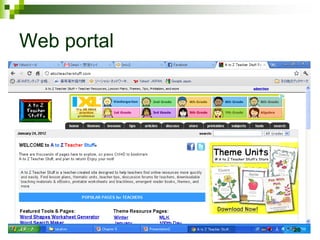
Web portal
20
Accessing the Internet
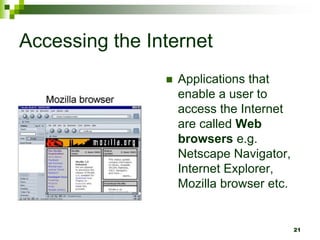
 Applications that
enable a user to
access the Internet
are called Web
browsers e.g.
Netscape Navigator,
Internet Explorer,
Mozilla browser etc.
21
Login/Sign In
 To access a website, type the full address of
the website in the address bar then press
enter key. Some websites allow free access
to all their pages by all visitors. However
others require people to be members hence
a new visitor has to register (sign up). The
registration process gives the visitor a user
name, pass word that can be used to sign
in or log on the website for each visit.
22
Surf/Browse
 Surfing /Browsing is the process of
accessing Internet resources like web
pages and website.
23
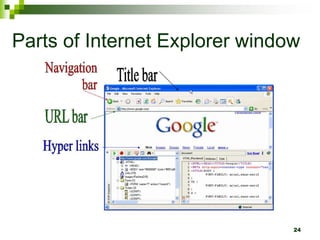
Parts of Internet Explorer window
24
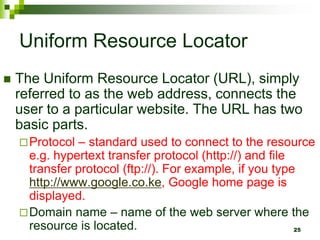
Uniform Resource Locator
 The Uniform Resource Locator (URL), simply
referred to as the web address, connects the
user to a particular website. The URL has two
basic parts.
Protocol – standard used to connect to the resource
e.g. hypertext transfer protocol (http://) and file
transfer protocol (ftp://). For example, if you type
http://www.google.co.ke, Google home page is
displayed.
Domain name – name of the web server where the
resource is located. 25
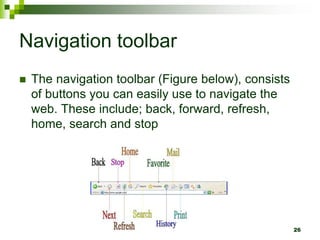
Navigation toolbar
 The navigation toolbar (Figure below), consists
of buttons you can easily use to navigate the
web. These include; back, forward, refresh,
home, search and stop
26
Functions of each button on the navigation toolbar 1
 Back – returns the browser to the immediate
former web page.
 Next – moves the browser to the next web page in
case a person had clicked the back button.
 Stop – is used terminate loading the current web
page.
 Refresh – is used to reload a web page after failing
the current attempt.
 Home – takes the user to the first page (the home
page) of the default website. 27
Functions of each button on the navigation toolbar 2
 Search – enables a person to locate information on
the website.
 Favourites – displays all links bookmarked to be
revisited later.
 History – displays the websites that were visited in
the recent past.
 Mail – is used to view and send e-mails.
 Print – is used to print web pages.
 Go – is used to load the website whose address is
in the address bar.
28
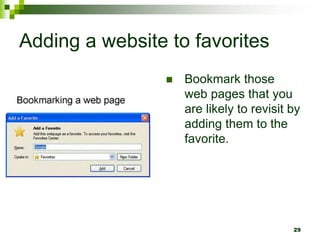
Adding a website to favorites
 Bookmark those
web pages that you
are likely to revisit by
adding them to the
favorite.
29
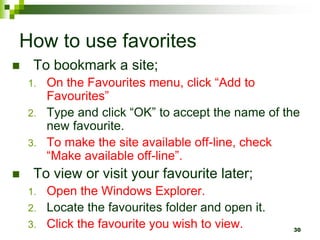
How to use favorites
 To bookmark a site;
1. On the Favourites menu, click “Add to
Favourites”
2. Type and click “OK” to accept the name of the
new favourite.
3. To make the site available off-line, check
“Make available off-line”.
 To view or visit your favourite later;
1. Open the Windows Explorer.
2. Locate the favourites folder and open it.
3. Click the favourite you wish to view. 30
Hyperlinks and Search Engines
 A Hyperlink is a text or picture on an
electronic document, especially web page
that causes web pages to open when the
link is clicked.
31
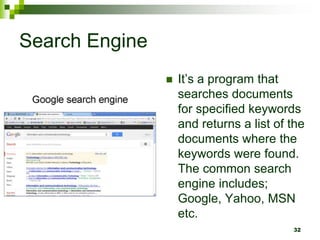
Search Engine
 It’s a program that
searches documents
for specified keywords
and returns a list of the
documents where the
keywords were found.
The common search
engine includes;
Google, Yahoo, MSN
etc.
32
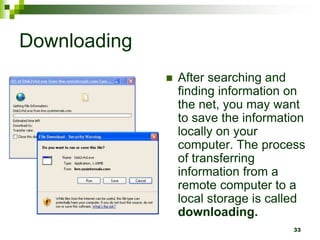
Downloading
 After searching and
finding information on
the net, you may want
to save the information
locally on your
computer. The process
of transferring
information from a
remote computer to a
local storage is called
downloading.
33
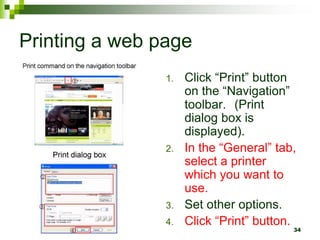
Printing a web page
1. Click “Print” button
on the “Navigation”
toolbar. (Print
dialog box is
displayed).
2. In the “General” tab,
select a printer
which you want to
use.
3. Set other options.
4. Click “Print” button.
34
Electronic Mail (E-mail)
 Electronic mail refers to the sending and
receiving of electronic letters and
documents on the Internet.
35
E-mail Software
 E-mail Software falls
under communication
software that are
designed to help the
user to read and send
individual text
documents on the
Internet so long as
the sender and
receiver have an e-
mail address.
36
E-mail Facilities
 Mails
 File Attachment
 On-line meeting
 Telephone messages
 Contact Management 37
Mails 1
 Checking Mail – in order to check mail the
user has to open the e-mail account by
providing the correct user name and
password. In e-mail account, click the
Inbox command to view a link list of all
received mails.
 Compose a mail – composing implies
writing. To compose a message, click the
compose command. 38
Mails 2
 Send mail – to send mail, type the correct
e-mail address of the recipient in to; text
box, type four letter then click send
command.
 Forward mail – a received mail can be
forwarded to another recipient. After
reading click the Forward command and
then provide the address of the recipient. 39
Checking for mails in Yahoo
 The use Yahoo mail, you first sign up for
an e-mail account. Yahoo assigns each
user a unique user name referred to as an
ID and a password.
40
How to check an e-mail in Yahoo
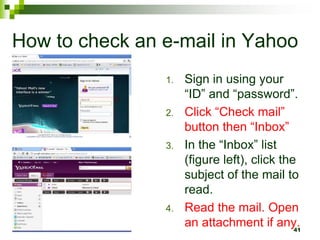
1. Sign in using your
“ID” and “password”.
2. Click “Check mail”
button then “Inbox”
3. In the “Inbox” list
(figure left), click the
subject of the mail to
read.
4. Read the mail. Open
an attachment if any.
41
How to check an e-mail in Outlook Express
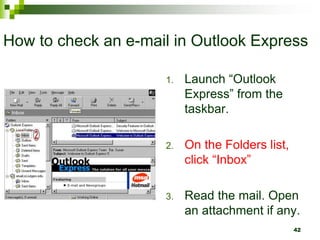
1. Launch “Outlook
Express” from the
taskbar.
2. On the Folders list,
click “Inbox”
3. Read the mail. Open
an attachment if any.
42
E-mail compose window
A typical e-mail compose window has three basic
elements;
1. Header; the e-mail header is made up of the following
parts;
 Addresses of the recipients; the e-mail recipients can be more
than one.
 Subject; presents the topic of the message.
 Attachment; files attached from other programs such as Word
processors and spreadsheets.
2. Message; this is the content of the e-mail. It is typically
short and to the point. It may include text and graphics.
3. Signature; the signature provides additional
information about the sender such as full name,
address and telephone number. 43
E-mail address format 1
 Just like the normal postal address, an e-mail address
determines the destination of the e-mail sent. A typical e-mail
address would look like this;
takangaroo1031@gmail.com
1. takangaroo1031 is the user name and is usually coined by
the user during e-mail account registration.
2. @ is the symbol for “at” which separates the user name from
the rest of the address.
3. gmail.com is the name of the host computer in the network i.e.
the computer on which the e-mail account is hosted.
4. The period “.” is read as dot and is used to separate different
parts of the e-mail address.
5. com identifies the type of organisation offering a particular
service(s) and is called the domain, meaning it is a
commercial institution. 44
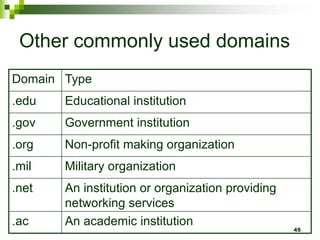
Other commonly used domains
Domain Type
.edu Educational institution
.gov Government institution
.org Non-profit making organization
.mil Military organization
.net An institution or organization providing
networking services
.ac An academic institution
45
Other types of domain
 Sometimes a two letter extension is added after
the domain name to show the country where
the site is located.
e.g. ta19791031@yahoo.co.jp
the domain .jp stands for Japan. Other domain
names include .ke (Kenya), .uk (United
Kingdom), .ug (Uganda), .tz (Tanzania), .au
(Australia) etc. 46
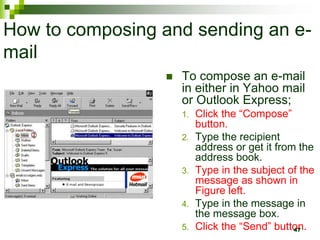
How to composing and sending an e-
mail
 To compose an e-mail
in either in Yahoo mail
or Outlook Express;
1. Click the “Compose”
button.
2. Type the recipient
address or get it from the
address book.
3. Type in the subject of the
message as shown in
Figure left.
4. Type in the message in
the message box.
5. Click the “Send” button.
47
File Attachment
 E-mail software enables a person to attach
other files like pictures, music, movies
Clips etc. To an e-mail for sharing with
others before sending. The source of
attached files can be from the hard disk or
other storage devices.
48
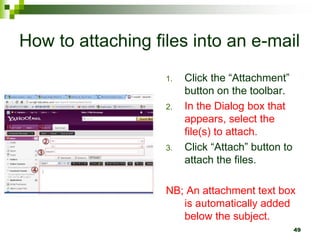
How to attaching files into an e-mail
1. Click the “Attachment”
button on the toolbar.
2. In the Dialog box that
appears, select the
file(s) to attach.
3. Click “Attach” button to
attach the files.
NB; An attachment text box
is automatically added
below the subject.
49
On-line meeting
 It’s possible to hold on-line meeting with
people by sending mails to them e.g. On-
line interviews may involve a person
sending electronic mail composed of
interview questions to a recipient who can
read and answer back.
50
Telephone messages
 Wireless Access Protocol (WAP) makes it
possible to send e-mail to a mobile
handset and a mobile message to e-mail
account.
51
Contact Management
 Most mails programs allow the user to
develop an address book which holds
contact information like e-mail address of
different people.
52
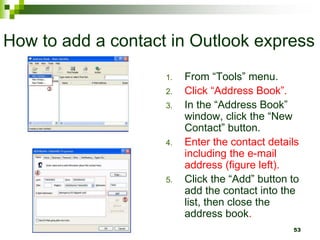
How to add a contact in Outlook express
1. From “Tools” menu.
2. Click “Address Book”.
3. In the “Address Book”
window, click the “New
Contact” button.
4. Enter the contact details
including the e-mail
address (figure left).
5. Click the “Add” button to
add the contact into the
list, then close the
address book.
53
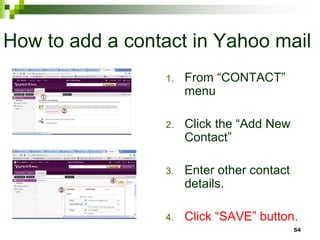
How to add a contact in Yahoo mail
1. From “CONTACT”
menu
2. Click the “Add New
Contact”
3. Enter other contact
details.
4. Click “SAVE” button.
54
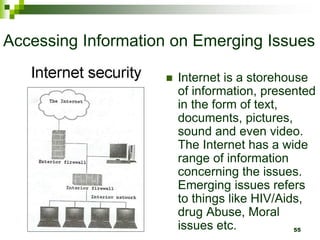
Accessing Information on Emerging Issues
 Internet is a storehouse
of information, presented
in the form of text,
documents, pictures,
sound and even video.
The Internet has a wide
range of information
concerning the issues.
Emerging issues refers
to things like HIV/Aids,
drug Abuse, Moral
issues etc. 55
Review questions 1
1. Define the term Internet.
2. Give a brief account of how the Internet has evolved.
3. Explain three ways in which you can connect your
computer or web-enabled handheld device to the
Internet.
4. Using illustrations, discuss three types of transmission
media used to connect to the Internet.
5. Discuss how Wi-Fi and GPRS wireless connectivities
work.
6. Explain five uses of the Internet.
7. State three advantages and three disadvantages of the
Internet.
8. State three advantages of using wireless transmission
media to connect to the Internet. 56
Answer of review questions 1-1
1. Global interconnection of computer networks.
2. Started as a research project in USA by ARPA. Today,
Internet is one of the most popular information service.
3. Using GSM, GPRS service, Wi-Fi or Satellite.
4. The student to draw or use conceptual diagrams on
telecommunication lines, satellite or cellular (wireless) media.
5. GPRS is a GSM packet switching services while Wi-Fi
(wireless fidelity) is a long range radio connectivity standard
for mobile devices used to connect to Internet at hot spots.
6. Some uses of Internet include;
A) World wide web
B) Electronic mail
C) Instant messaging
D) E-commerce, e-learning and Newsgroup. 57
Answer of review questions 1-2
7. Advantages of Internet:
A) Efficient communication
B) Availability of information
C) Cost saving
D) Socialisation, etc.
Disadvantages of Internet:
A) Setup cost may be prohibitive.
B) Security to data and information.
C) Inequality in society
8. Allow mobility
Ease of setup
Not quite expensive to setup
Do not take any physical space.
58
Review questions 2
1. State three measures you can take to have a targeted search
of Internet content.
2. Define the term “Internet blog” and list four types of blogs.
3. In what circumstances would you choose to view a document
as HTML instead of downloading it?
4. Explain how you would open a document in its original
application without downloading it.
5. Explain how you would send one e-mail to may recipients once.
6. Describe the three parts of an e-mail.
7. List three examples of e-mail client.
8. Differentiate between replying and forwarding and e-mail.
9. Explain how you would send an e-mail that includes photos.
59
Answer of review questions 2
1. Identify a search engine.
Enter keywords.
Use quotation marks to identify
keywords.
2. Website that contains personal
information.
3. When not sure of its integrity or
source.
4. Right click then “Open target as…”.
5. Mailing group list.
6. Header (address, subject,
attachment)
Message
Signature
7. Email
Yahoo! Mail
Eudora
Microsoft Express.
8. Replying means sending
back feedback to the sender
while forward is mailing a
received mail to a third party
recipient.
9. Add file attachments the
photos should be in a jpeg.
or tif. format.
60
Review questions 3
1. Outline the procedure for creating an e-
mail in Yahoo mail or Outlook express.
2. Explain how you add a contract into an
address book.
61
Answer of review questions 3
1. Composing and
sending e-mail.
1. Click the compose
button.
2. Type the recipient
address or get it from
the address book.
3. Type in the subject of
the message.
4. Type in the message
in the message box.
5. Click the Send button.
2. Outlook express:
1. From “Tools” menu, click
“Address Book”.
2. In the “Address Book” window,
click the “New Contact” button.
3. Enter the contact details
including the e-mail address.
4. Click the “Add” button to add
the contact into the list, then
close the address book.
Yahoo mail:
1. Click the e-mail address of the
sender.
2. Click “Add” to contacts button.
3. Enter other contact details.
62
Revision questions 1
1. Define the term Internet.
2. Explain the term web page format.
3. Explain the following Internet address
http://www.google.com in reference to the
structure of a URL.
4. Define the term Internet telephony.
5. What is the World Wide Web (www)?
6. What is a browser?
7. Explain the process of loading a website.
8. Explain four uses of e-mail software.
63
Answer of revision questions 1-1
1. It is a network of networks that covers nearly the
whole world and enables transfer of messages,
data and information across continents.
2. A hypertext page prepared to display content on
the web.
3. http – hypertext transfer protocol.
www – world wide web.
Google – name of computer with web content.
.com – commercial organisation.
4. Transmission of voice data over the Internet.
64
Answer of revision questions 1-2
4. A virtual space on the Internet that allows web
pages and sites to be accessed. Interlinked
pages formatted in virtual language.
5. Software that allows viewing of web content.
6. Start the browser software like Internet
Explorer. Type the URL address of the web
page you wish to access in the address bar
then press the Enter key to load the website.
7. Sending/receiving text and attachments.
Sending fax.
Keeping address book.
Mobile mail to mobile devices. 65
Revision question 2
1. What is file download? Explain the procedure.
2. Explain the meaning of the word hyperlink.
3. Give three steps that you would follow to search for
information on the web.
4. What would you do if a website refused to load in the browser
on the first attempt?
5. What is a search engine?
6. Explain the meaning of the term Internet Service Provider
(ISP).
7. What three things apart from the computer are needed for one
to be connected to the Internet?
8. What is a protocol? Write the following in full: TCP/IP, HTML,
HTTP and ftp. 66
Answer of revision questions 2-1
1. Downloading or saving files from remote hosts on the Internet
on to your computer.
 Procedure
i. Right click the link to the file.
ii. Select the “Save” target as command.
iii. Select a folder and name for the file in the “Save as” dialog box then
click “Save”.
2. A text or a picture that is a link to another webpage on the
Internet.
3. Check newsrooms for latest information on the topic then use a
search engine to look for links to the information required.
4. Click the refresh button on toolbar.
5. A search engine is a special program that collects and stores
links to information websites allowing user to search its
database for them. 67
Answer of revision questions 2-2
6. A company that offers Internet services to end users.
7. Modems, Internet software, Internet service provider,
telecommunication lines, TCP/IP protocols.
8. Modem – term stands for modulator demodulator. A
device that enables telecommunication use telephone
lines.
9. Are special communication rules that govern sending
and receiving of messages by computers on a network.
 Transmission Control Protocol (TCP).
 Internet protocol (IP).
 Hypertext markup language (HTML).
 Hypertext transmission protocol (HTTP).
 File transfer protocol (FTP). 68
Practical activity 1
1. If the computers in the laboratory are
connected to the Internet check on the
following.
a. The TCP/IP address of one of the computer
b. The DNS server address of your service
provider.
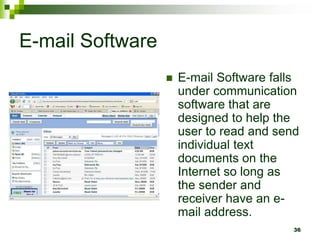
2. Using a laptop or mobile phone that is
configured with GPRS and a Bluetooth or
Wi-Fi connectivity, establish an Internet
connection. 69
Practical activity 2
1. Launch Internet explorer and use it to visit one of the
academic sites such as a high school, colleges or universities.
2. Download a PDF file from the academic site you have chosen.
3. Create and send an e-mail to a friend inviting him/her for a
birthday party to be held on the coming Sunday. The mail
should include a picture of a cake.
4. Using a search engine, find information on the historical
development of the Internet. Copy and paste the material you
get in a five page Microsoft Word document that has the
following structure;
1. Title page.
2. Introduction.
3. Historical development of the Internet.
4. Future trends.
5. Conclusion.
Edit, format and save the document as History.doc 70

Chapter 1 Internet and e-mail.ppt

  • 1.
  • 2.
    Internet  It’s alarge network of networks that covers the whole world and enables millions of computers from different organisations and people to communicate globally. 2
  • 3.
    Description of Internet The term Internet refers to global interconnection of computer networks for the purpose of communication and resource sharing. Figure left shows how computes and computer networks are interconnected to form the Internet. 3
  • 4.
    Development of Internet(1969)  In 1969, a research body in USA (ARPA) Advance Research Project Agency set up a computer network that connected for universities and was given the name ARPANET. ARPA’s goal was to allow multiple users to send and receive information at the same time. 4
  • 5.
    Development of Internet(1973-1981)  By 1973, e-mail was the most common service on the Internet. By 1981, many people had seen the importance of computer networking and the Internet. ARAPnet formed the backbone on which many organisations started connecting to, hence expanding it. 5
  • 6.
    Development of Internet(1987-1994)  By 1987, the Internet boasted of 10,000 host computers. As the importance of Internet grew, businesses spent billions of dollars to improve it in order to offer better services to their clients. By 1994, 3 million computers were connected to Internet. Today the Internet has grown and covered the whole world. 6
  • 7.
    Importance of Internet The importance of Internet can be seen through its contribution to; Research activities News and information dissemination Leisure Communication Business Transaction etc. 7
  • 8.
    Internet Connectivity Requirements Telecommunication facilities  Satellite transmission  Modem  Wireless telecommunication  Internet Service Providers (ISP’s)  Internet Software 8
  • 9.
    Telecommunication facilities  Internetrelies on telecommunication facilities like telephone lines, telephone exchange station and satellite transmission in order to cover the whole world. Therefore a computer is connected to the external world through a telephone line and has to dial a remote computer on the net to establish connection for data transfer. 9
  • 10.
    Satellite transmission  Intercontinentaltransfer of data is achieved by having satellite base stations transmitting the data through a wireless uplink channel to the satellite. The satellite then sends the data signal to the base station on another continent where it is picked up and sent to telephone exchanges for transfer to the destination computer. Figure left shows a logical local and intercontinental connectivity. 10
  • 11.
    Modem  It’s aspecial digital to analog interface card that changes data from digital to analog so as to be transmitted on telephone lines and on receiving end the data is changed from analog to digital for computer to understand. 11
  • 12.
    Wireless telecommunication  Withthe dynamic growth in mobile communication and computing, it is now possible to access Internet using devices such as mobile phones, PDAs and notebook PCs. Heard about Wireless Fidelity to a hotspot? Global system for mobiles (GMS) provides a wireless connectivity to mobile devices users known as General Packet Radio Service (GPRS). 12
  • 13.
    Internet Service Providers(ISP’s)  They are companies that offer Internet Services to end users. They provide the Internet services to end users at a fee. Examples of ISP in Kenya include; Swiftkenya Africaonline Todays online Wananchi online Interconnect 13
  • 14.
    Internet Software  Internetsoftware help facilitate your access to Internet. To achieve communication between computers special software called Protocol is needed. There are two types of protocols used with Internet. 14
  • 15.
    Types of protocols Transmission Control Protocol (TCP) – it governs how data is transferred from one computer to the next.  Internet Protocol (IP) – it determines the addressing system on the Internet. 15
  • 16.
    Internet Service 1 E-mail – this is the exchange of electronic letters, data and graphics on the Internet.  Electronic Learning (E-learning) – this is learning through interaction with special programs on the computer.  Internet fax – Internet provides you with complete fax facilities from your computer. 16
  • 17.
    Internet Service 2 Electronic Commerce (e-commerce) – it’s a commercial activity that takes place by digital processes over a computer network, usually the Internet between and among entitles in the private sector, government and members of public i.e. the buying and selling of goods and services over the Internet. 17
  • 18.
    Internet services 3 Instant messaging – this is a more enhanced messaging service that allows two or more people to communicate directly. To get the services, you must first register with an instant messenger such as Yahoo! Messenger.  Newsgroups – are organized groups of Internet users who wish to share ideas and interests. Once you join a newsgroups, you can participate in discussion forums and debates. 18
  • 19.
    Internet Service 3 World Wide Web (WWW) – in order to connect a network to the Internet, the local area network needs an Internet server. This server is given the name world wide web (www) and has all the information that others on the Internet access. Individuals and organisations establish sites where their web documents can be placed for easy access by external world. These sites are called websites and each has a special address called Uniform Resource Locater (URL) that is used to access them 19
  • 20.
  • 21.
    Accessing the Internet Applications that enable a user to access the Internet are called Web browsers e.g. Netscape Navigator, Internet Explorer, Mozilla browser etc. 21
  • 22.
    Login/Sign In  Toaccess a website, type the full address of the website in the address bar then press enter key. Some websites allow free access to all their pages by all visitors. However others require people to be members hence a new visitor has to register (sign up). The registration process gives the visitor a user name, pass word that can be used to sign in or log on the website for each visit. 22
  • 23.
    Surf/Browse  Surfing /Browsingis the process of accessing Internet resources like web pages and website. 23
  • 24.
    Parts of InternetExplorer window 24
  • 25.
    Uniform Resource Locator The Uniform Resource Locator (URL), simply referred to as the web address, connects the user to a particular website. The URL has two basic parts. Protocol – standard used to connect to the resource e.g. hypertext transfer protocol (http://) and file transfer protocol (ftp://). For example, if you type http://www.google.co.ke, Google home page is displayed. Domain name – name of the web server where the resource is located. 25
  • 26.
    Navigation toolbar  Thenavigation toolbar (Figure below), consists of buttons you can easily use to navigate the web. These include; back, forward, refresh, home, search and stop 26
  • 27.
    Functions of eachbutton on the navigation toolbar 1  Back – returns the browser to the immediate former web page.  Next – moves the browser to the next web page in case a person had clicked the back button.  Stop – is used terminate loading the current web page.  Refresh – is used to reload a web page after failing the current attempt.  Home – takes the user to the first page (the home page) of the default website. 27
  • 28.
    Functions of eachbutton on the navigation toolbar 2  Search – enables a person to locate information on the website.  Favourites – displays all links bookmarked to be revisited later.  History – displays the websites that were visited in the recent past.  Mail – is used to view and send e-mails.  Print – is used to print web pages.  Go – is used to load the website whose address is in the address bar. 28
  • 29.
    Adding a websiteto favorites  Bookmark those web pages that you are likely to revisit by adding them to the favorite. 29
  • 30.
    How to usefavorites  To bookmark a site; 1. On the Favourites menu, click “Add to Favourites” 2. Type and click “OK” to accept the name of the new favourite. 3. To make the site available off-line, check “Make available off-line”.  To view or visit your favourite later; 1. Open the Windows Explorer. 2. Locate the favourites folder and open it. 3. Click the favourite you wish to view. 30
  • 31.
    Hyperlinks and SearchEngines  A Hyperlink is a text or picture on an electronic document, especially web page that causes web pages to open when the link is clicked. 31
  • 32.
    Search Engine  It’sa program that searches documents for specified keywords and returns a list of the documents where the keywords were found. The common search engine includes; Google, Yahoo, MSN etc. 32
  • 33.
    Downloading  After searchingand finding information on the net, you may want to save the information locally on your computer. The process of transferring information from a remote computer to a local storage is called downloading. 33
  • 34.
    Printing a webpage 1. Click “Print” button on the “Navigation” toolbar. (Print dialog box is displayed). 2. In the “General” tab, select a printer which you want to use. 3. Set other options. 4. Click “Print” button. 34
  • 35.
    Electronic Mail (E-mail) Electronic mail refers to the sending and receiving of electronic letters and documents on the Internet. 35
  • 36.
    E-mail Software  E-mailSoftware falls under communication software that are designed to help the user to read and send individual text documents on the Internet so long as the sender and receiver have an e- mail address. 36
  • 37.
    E-mail Facilities  Mails File Attachment  On-line meeting  Telephone messages  Contact Management 37
  • 38.
    Mails 1  CheckingMail – in order to check mail the user has to open the e-mail account by providing the correct user name and password. In e-mail account, click the Inbox command to view a link list of all received mails.  Compose a mail – composing implies writing. To compose a message, click the compose command. 38
  • 39.
    Mails 2  Sendmail – to send mail, type the correct e-mail address of the recipient in to; text box, type four letter then click send command.  Forward mail – a received mail can be forwarded to another recipient. After reading click the Forward command and then provide the address of the recipient. 39
  • 40.
    Checking for mailsin Yahoo  The use Yahoo mail, you first sign up for an e-mail account. Yahoo assigns each user a unique user name referred to as an ID and a password. 40
  • 41.
    How to checkan e-mail in Yahoo 1. Sign in using your “ID” and “password”. 2. Click “Check mail” button then “Inbox” 3. In the “Inbox” list (figure left), click the subject of the mail to read. 4. Read the mail. Open an attachment if any. 41
  • 42.
    How to checkan e-mail in Outlook Express 1. Launch “Outlook Express” from the taskbar. 2. On the Folders list, click “Inbox” 3. Read the mail. Open an attachment if any. 42
  • 43.
    E-mail compose window Atypical e-mail compose window has three basic elements; 1. Header; the e-mail header is made up of the following parts;  Addresses of the recipients; the e-mail recipients can be more than one.  Subject; presents the topic of the message.  Attachment; files attached from other programs such as Word processors and spreadsheets. 2. Message; this is the content of the e-mail. It is typically short and to the point. It may include text and graphics. 3. Signature; the signature provides additional information about the sender such as full name, address and telephone number. 43
  • 44.
    E-mail address format1  Just like the normal postal address, an e-mail address determines the destination of the e-mail sent. A typical e-mail address would look like this; takangaroo1031@gmail.com 1. takangaroo1031 is the user name and is usually coined by the user during e-mail account registration. 2. @ is the symbol for “at” which separates the user name from the rest of the address. 3. gmail.com is the name of the host computer in the network i.e. the computer on which the e-mail account is hosted. 4. The period “.” is read as dot and is used to separate different parts of the e-mail address. 5. com identifies the type of organisation offering a particular service(s) and is called the domain, meaning it is a commercial institution. 44
  • 45.
    Other commonly useddomains Domain Type .edu Educational institution .gov Government institution .org Non-profit making organization .mil Military organization .net An institution or organization providing networking services .ac An academic institution 45
  • 46.
    Other types ofdomain  Sometimes a two letter extension is added after the domain name to show the country where the site is located. e.g. ta19791031@yahoo.co.jp the domain .jp stands for Japan. Other domain names include .ke (Kenya), .uk (United Kingdom), .ug (Uganda), .tz (Tanzania), .au (Australia) etc. 46
  • 47.
    How to composingand sending an e- mail  To compose an e-mail in either in Yahoo mail or Outlook Express; 1. Click the “Compose” button. 2. Type the recipient address or get it from the address book. 3. Type in the subject of the message as shown in Figure left. 4. Type in the message in the message box. 5. Click the “Send” button. 47
  • 48.
    File Attachment  E-mailsoftware enables a person to attach other files like pictures, music, movies Clips etc. To an e-mail for sharing with others before sending. The source of attached files can be from the hard disk or other storage devices. 48
  • 49.
    How to attachingfiles into an e-mail 1. Click the “Attachment” button on the toolbar. 2. In the Dialog box that appears, select the file(s) to attach. 3. Click “Attach” button to attach the files. NB; An attachment text box is automatically added below the subject. 49
  • 50.
    On-line meeting  It’spossible to hold on-line meeting with people by sending mails to them e.g. On- line interviews may involve a person sending electronic mail composed of interview questions to a recipient who can read and answer back. 50
  • 51.
    Telephone messages  WirelessAccess Protocol (WAP) makes it possible to send e-mail to a mobile handset and a mobile message to e-mail account. 51
  • 52.
    Contact Management  Mostmails programs allow the user to develop an address book which holds contact information like e-mail address of different people. 52
  • 53.
    How to adda contact in Outlook express 1. From “Tools” menu. 2. Click “Address Book”. 3. In the “Address Book” window, click the “New Contact” button. 4. Enter the contact details including the e-mail address (figure left). 5. Click the “Add” button to add the contact into the list, then close the address book. 53
  • 54.
    How to adda contact in Yahoo mail 1. From “CONTACT” menu 2. Click the “Add New Contact” 3. Enter other contact details. 4. Click “SAVE” button. 54
  • 55.
    Accessing Information onEmerging Issues  Internet is a storehouse of information, presented in the form of text, documents, pictures, sound and even video. The Internet has a wide range of information concerning the issues. Emerging issues refers to things like HIV/Aids, drug Abuse, Moral issues etc. 55
  • 56.
    Review questions 1 1.Define the term Internet. 2. Give a brief account of how the Internet has evolved. 3. Explain three ways in which you can connect your computer or web-enabled handheld device to the Internet. 4. Using illustrations, discuss three types of transmission media used to connect to the Internet. 5. Discuss how Wi-Fi and GPRS wireless connectivities work. 6. Explain five uses of the Internet. 7. State three advantages and three disadvantages of the Internet. 8. State three advantages of using wireless transmission media to connect to the Internet. 56
  • 57.
    Answer of reviewquestions 1-1 1. Global interconnection of computer networks. 2. Started as a research project in USA by ARPA. Today, Internet is one of the most popular information service. 3. Using GSM, GPRS service, Wi-Fi or Satellite. 4. The student to draw or use conceptual diagrams on telecommunication lines, satellite or cellular (wireless) media. 5. GPRS is a GSM packet switching services while Wi-Fi (wireless fidelity) is a long range radio connectivity standard for mobile devices used to connect to Internet at hot spots. 6. Some uses of Internet include; A) World wide web B) Electronic mail C) Instant messaging D) E-commerce, e-learning and Newsgroup. 57
  • 58.
    Answer of reviewquestions 1-2 7. Advantages of Internet: A) Efficient communication B) Availability of information C) Cost saving D) Socialisation, etc. Disadvantages of Internet: A) Setup cost may be prohibitive. B) Security to data and information. C) Inequality in society 8. Allow mobility Ease of setup Not quite expensive to setup Do not take any physical space. 58
  • 59.
    Review questions 2 1.State three measures you can take to have a targeted search of Internet content. 2. Define the term “Internet blog” and list four types of blogs. 3. In what circumstances would you choose to view a document as HTML instead of downloading it? 4. Explain how you would open a document in its original application without downloading it. 5. Explain how you would send one e-mail to may recipients once. 6. Describe the three parts of an e-mail. 7. List three examples of e-mail client. 8. Differentiate between replying and forwarding and e-mail. 9. Explain how you would send an e-mail that includes photos. 59
  • 60.
    Answer of reviewquestions 2 1. Identify a search engine. Enter keywords. Use quotation marks to identify keywords. 2. Website that contains personal information. 3. When not sure of its integrity or source. 4. Right click then “Open target as…”. 5. Mailing group list. 6. Header (address, subject, attachment) Message Signature 7. Email Yahoo! Mail Eudora Microsoft Express. 8. Replying means sending back feedback to the sender while forward is mailing a received mail to a third party recipient. 9. Add file attachments the photos should be in a jpeg. or tif. format. 60
  • 61.
    Review questions 3 1.Outline the procedure for creating an e- mail in Yahoo mail or Outlook express. 2. Explain how you add a contract into an address book. 61
  • 62.
    Answer of reviewquestions 3 1. Composing and sending e-mail. 1. Click the compose button. 2. Type the recipient address or get it from the address book. 3. Type in the subject of the message. 4. Type in the message in the message box. 5. Click the Send button. 2. Outlook express: 1. From “Tools” menu, click “Address Book”. 2. In the “Address Book” window, click the “New Contact” button. 3. Enter the contact details including the e-mail address. 4. Click the “Add” button to add the contact into the list, then close the address book. Yahoo mail: 1. Click the e-mail address of the sender. 2. Click “Add” to contacts button. 3. Enter other contact details. 62
  • 63.
    Revision questions 1 1.Define the term Internet. 2. Explain the term web page format. 3. Explain the following Internet address http://www.google.com in reference to the structure of a URL. 4. Define the term Internet telephony. 5. What is the World Wide Web (www)? 6. What is a browser? 7. Explain the process of loading a website. 8. Explain four uses of e-mail software. 63
  • 64.
    Answer of revisionquestions 1-1 1. It is a network of networks that covers nearly the whole world and enables transfer of messages, data and information across continents. 2. A hypertext page prepared to display content on the web. 3. http – hypertext transfer protocol. www – world wide web. Google – name of computer with web content. .com – commercial organisation. 4. Transmission of voice data over the Internet. 64
  • 65.
    Answer of revisionquestions 1-2 4. A virtual space on the Internet that allows web pages and sites to be accessed. Interlinked pages formatted in virtual language. 5. Software that allows viewing of web content. 6. Start the browser software like Internet Explorer. Type the URL address of the web page you wish to access in the address bar then press the Enter key to load the website. 7. Sending/receiving text and attachments. Sending fax. Keeping address book. Mobile mail to mobile devices. 65
  • 66.
    Revision question 2 1.What is file download? Explain the procedure. 2. Explain the meaning of the word hyperlink. 3. Give three steps that you would follow to search for information on the web. 4. What would you do if a website refused to load in the browser on the first attempt? 5. What is a search engine? 6. Explain the meaning of the term Internet Service Provider (ISP). 7. What three things apart from the computer are needed for one to be connected to the Internet? 8. What is a protocol? Write the following in full: TCP/IP, HTML, HTTP and ftp. 66
  • 67.
    Answer of revisionquestions 2-1 1. Downloading or saving files from remote hosts on the Internet on to your computer.  Procedure i. Right click the link to the file. ii. Select the “Save” target as command. iii. Select a folder and name for the file in the “Save as” dialog box then click “Save”. 2. A text or a picture that is a link to another webpage on the Internet. 3. Check newsrooms for latest information on the topic then use a search engine to look for links to the information required. 4. Click the refresh button on toolbar. 5. A search engine is a special program that collects and stores links to information websites allowing user to search its database for them. 67
  • 68.
    Answer of revisionquestions 2-2 6. A company that offers Internet services to end users. 7. Modems, Internet software, Internet service provider, telecommunication lines, TCP/IP protocols. 8. Modem – term stands for modulator demodulator. A device that enables telecommunication use telephone lines. 9. Are special communication rules that govern sending and receiving of messages by computers on a network.  Transmission Control Protocol (TCP).  Internet protocol (IP).  Hypertext markup language (HTML).  Hypertext transmission protocol (HTTP).  File transfer protocol (FTP). 68
  • 69.
    Practical activity 1 1.If the computers in the laboratory are connected to the Internet check on the following. a. The TCP/IP address of one of the computer b. The DNS server address of your service provider. 2. Using a laptop or mobile phone that is configured with GPRS and a Bluetooth or Wi-Fi connectivity, establish an Internet connection. 69
  • 70.
    Practical activity 2 1.Launch Internet explorer and use it to visit one of the academic sites such as a high school, colleges or universities. 2. Download a PDF file from the academic site you have chosen. 3. Create and send an e-mail to a friend inviting him/her for a birthday party to be held on the coming Sunday. The mail should include a picture of a cake. 4. Using a search engine, find information on the historical development of the Internet. Copy and paste the material you get in a five page Microsoft Word document that has the following structure; 1. Title page. 2. Introduction. 3. Historical development of the Internet. 4. Future trends. 5. Conclusion. Edit, format and save the document as History.doc 70