The CPU is located on the motherboard and acts as the computer's brain by carrying out commands. The motherboard connects all components like the CPU, RAM, hard drive, and expansion cards. RAM acts as short-term memory while the hard drive provides long-term storage. Expansion cards can boost capabilities for video, sound, networking and more.
INSIDE AN COMPUTERCASE
CPU
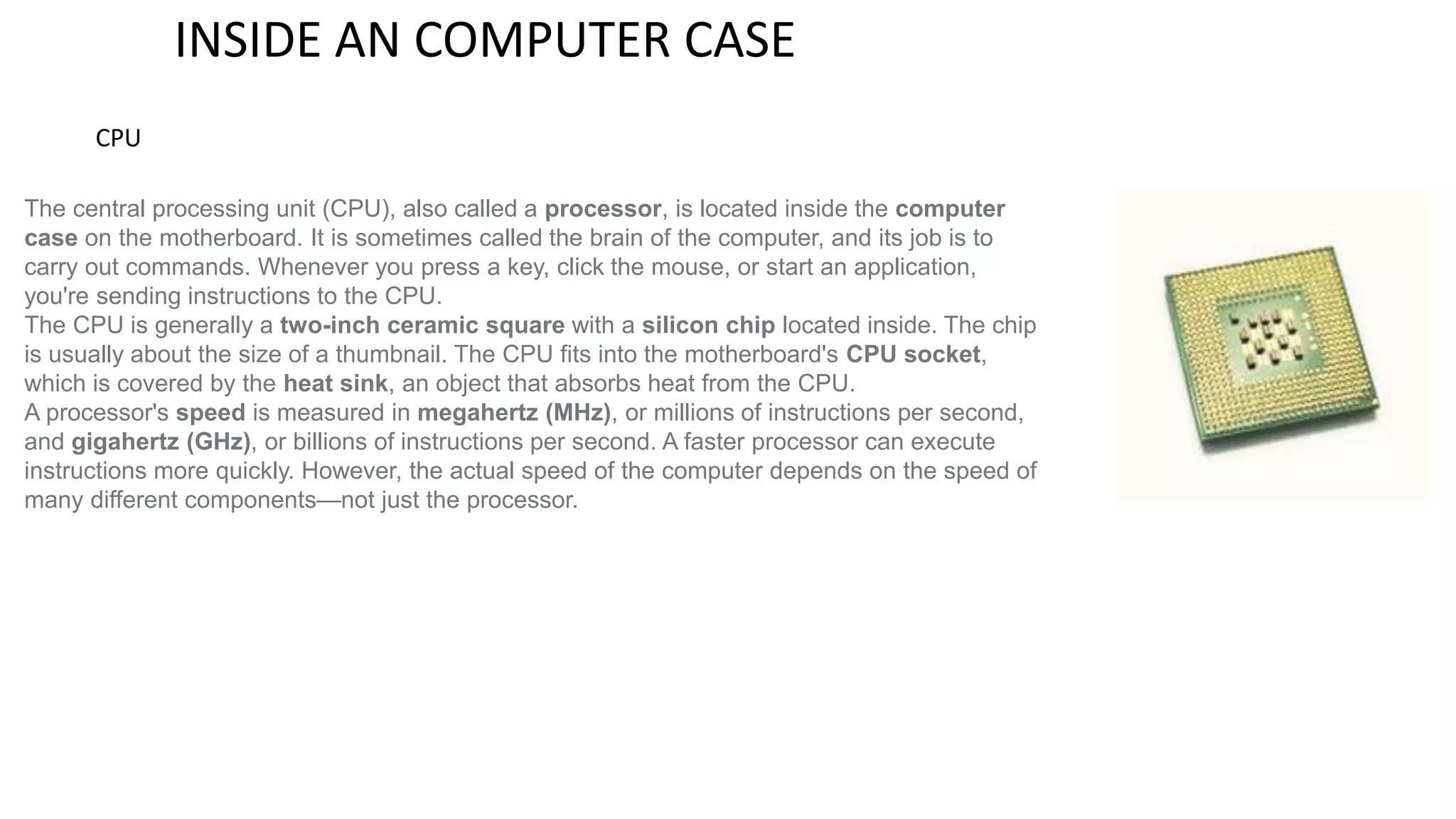
The central processing unit (CPU), also called a processor, is located inside the computer
case on the motherboard. It is sometimes called the brain of the computer, and its job is to
carry out commands. Whenever you press a key, click the mouse, or start an application,
you're sending instructions to the CPU.
The CPU is generally a two-inch ceramic square with a silicon chip located inside. The chip
is usually about the size of a thumbnail. The CPU fits into the motherboard's CPU socket,
which is covered by the heat sink, an object that absorbs heat from the CPU.
A processor's speed is measured in megahertz (MHz), or millions of instructions per second,
and gigahertz (GHz), or billions of instructions per second. A faster processor can execute
instructions more quickly. However, the actual speed of the computer depends on the speed of
many different components—not just the processor.
2.
MOTHERBOARD
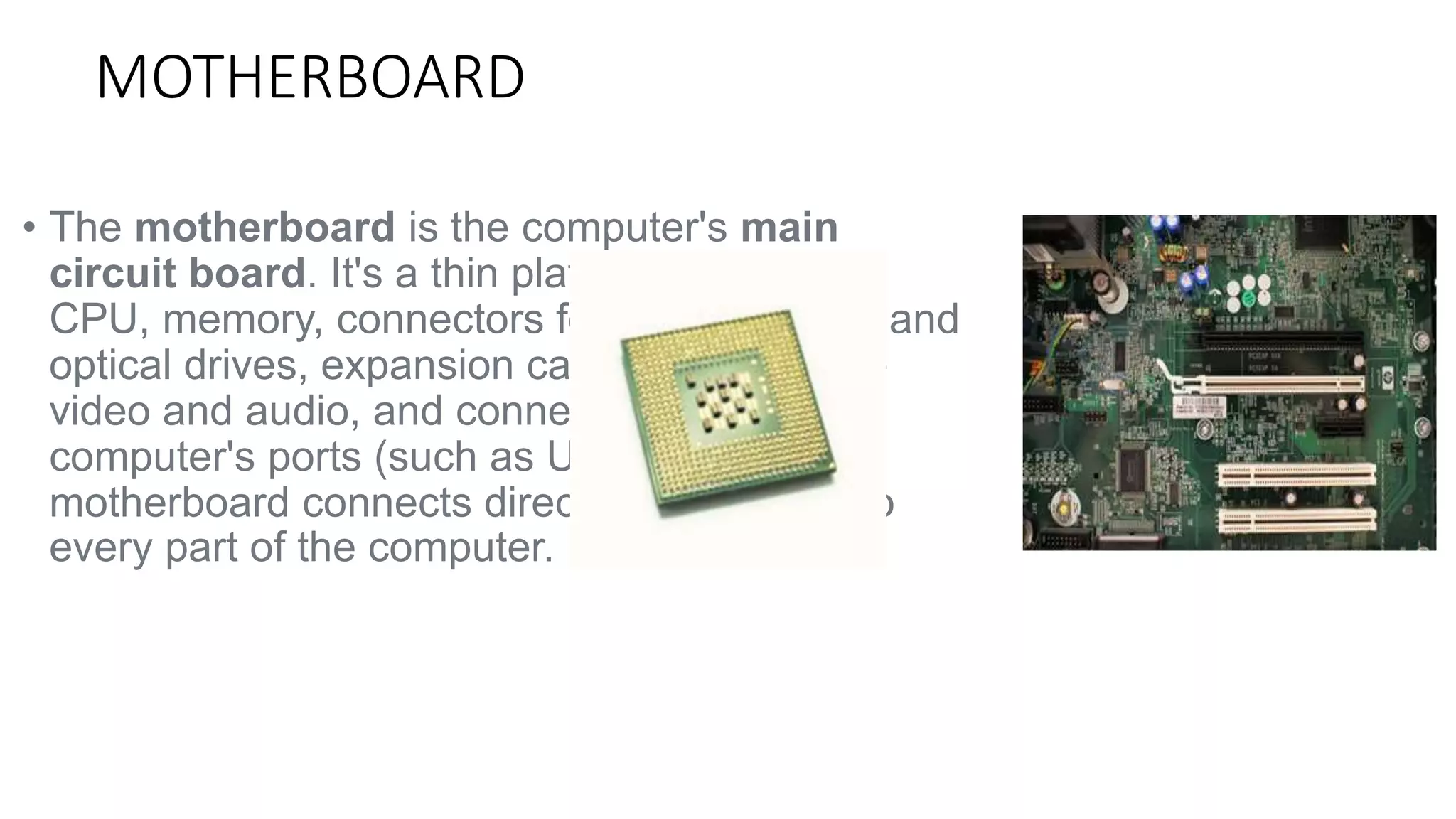
• Themotherboard is the computer's main
circuit board. It's a thin plate that holds the
CPU, memory, connectors for the hard drive and
optical drives, expansion cards to control the
video and audio, and connections to your
computer's ports (such as USB ports). The
motherboard connects directly or indirectly to
every part of the computer.
3.
Power supply unit
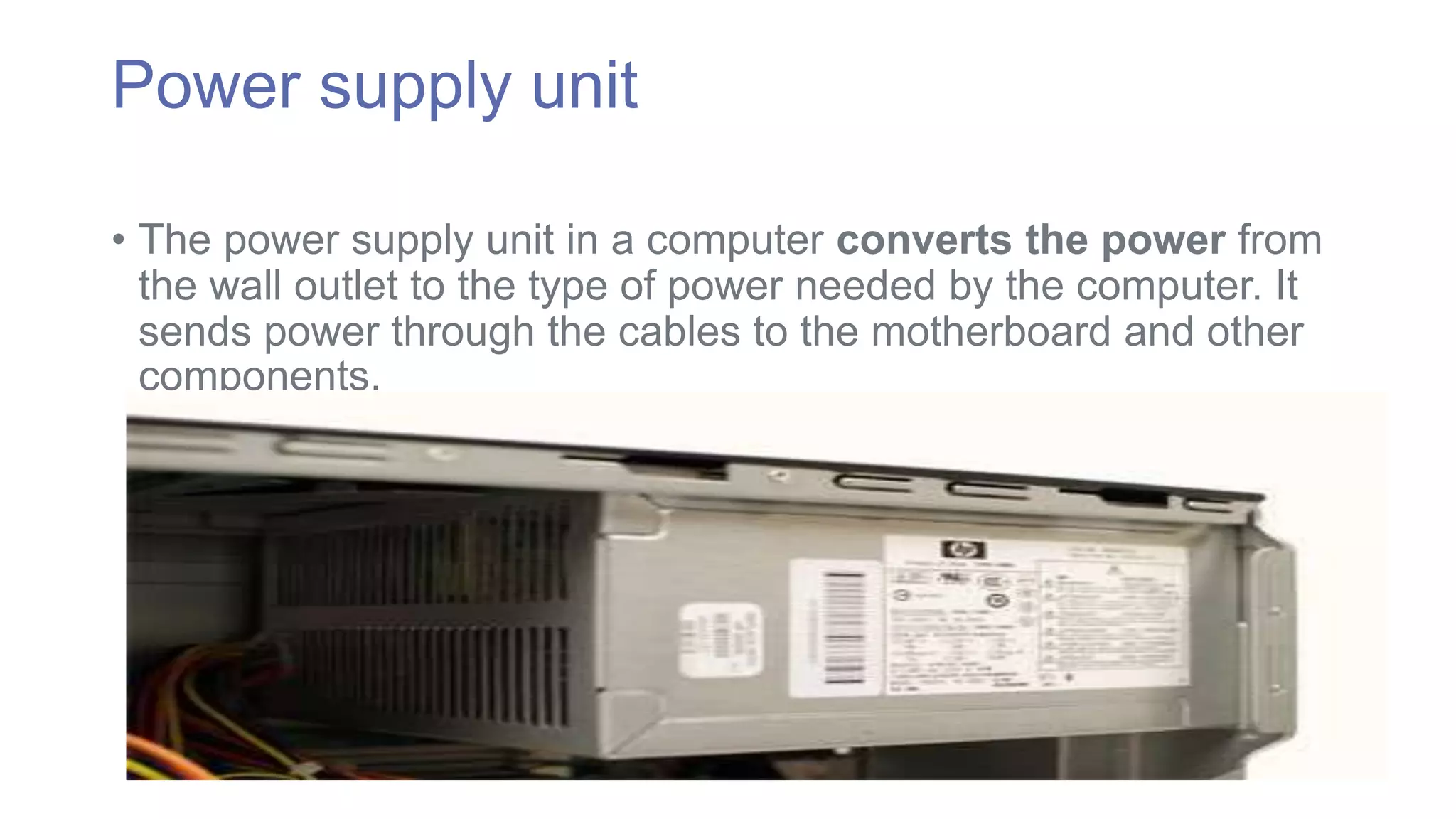
• The power supply unit in a computer converts the power from
the wall outlet to the type of power needed by the computer. It
sends power through the cables to the motherboard and other
components.
4.
RAM (random accessmemory)
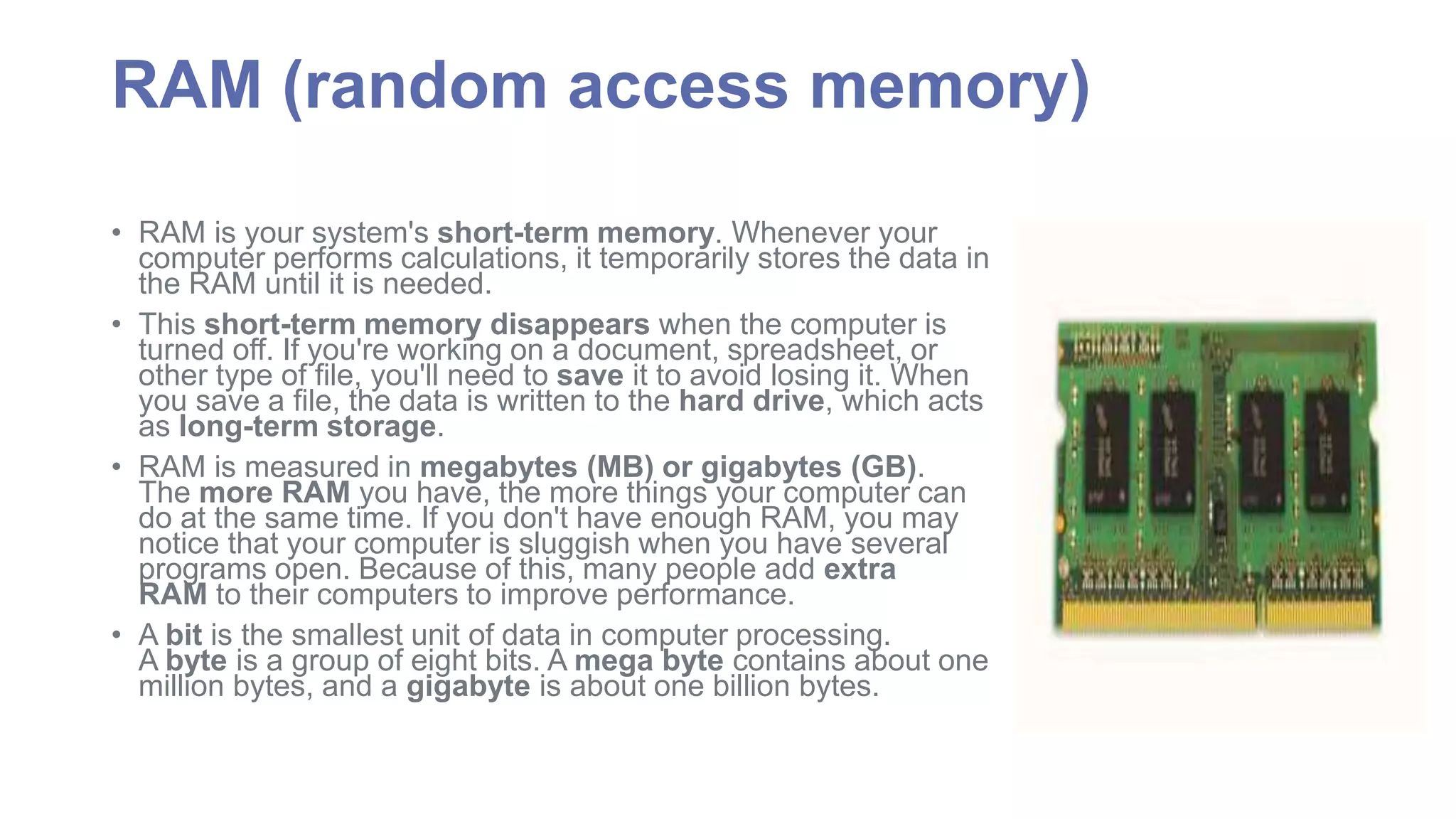
• RAM is your system's short-term memory. Whenever your
computer performs calculations, it temporarily stores the data in
the RAM until it is needed.
• This short-term memory disappears when the computer is
turned off. If you're working on a document, spreadsheet, or
other type of file, you'll need to save it to avoid losing it. When
you save a file, the data is written to the hard drive, which acts
as long-term storage.
• RAM is measured in megabytes (MB) or gigabytes (GB).
The more RAM you have, the more things your computer can
do at the same time. If you don't have enough RAM, you may
notice that your computer is sluggish when you have several
programs open. Because of this, many people add extra
RAM to their computers to improve performance.
• A bit is the smallest unit of data in computer processing.
A byte is a group of eight bits. Amega byte contains about one
million bytes, and a gigabyte is about one billion bytes.
5.
HARD DRIVE
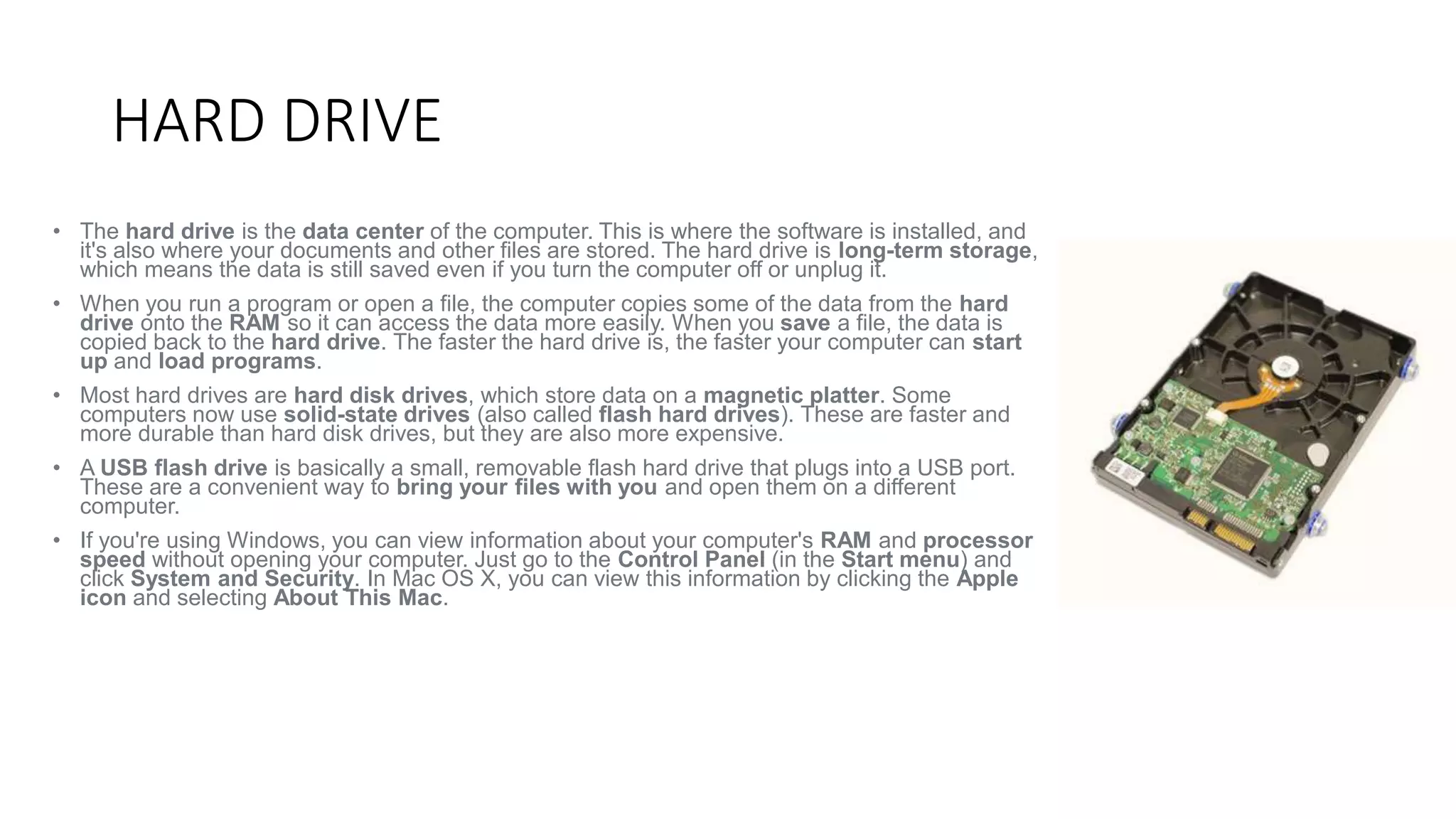
•The hard drive is the data center of the computer. This is where the software is installed, and
it's also where your documents and other files are stored. The hard drive is long-term storage,
which means the data is still saved even if you turn the computer off or unplug it.
• When you run a program or open a file, the computer copies some of the data from the hard
drive onto the RAM so it can access the data more easily. When you save a file, the data is
copied back to the hard drive. The faster the hard drive is, the faster your computer can start
up and load programs.
• Most hard drives are hard disk drives, which store data on a magnetic platter. Some
computers now use solid-state drives (also called flash hard drives). These are faster and
more durable than hard disk drives, but they are also more expensive.
• A USB flash drive is basically a small, removable flash hard drive that plugs into a USB port.
These are a convenient way to bring your files with you and open them on a different
computer.
• If you're using Windows, you can view information about your computer's RAM and processor
speed without opening your computer. Just go to the Control Panel (in the Start menu) and
click System and Security. In Mac OS X, you can view this information by clicking the Apple
icon and selecting About This Mac.
6.
Expansion cards
•Most computers have expansion slots on the motherboard that
allow you to add various types of expansion cards. These are
sometimes called PCI (peripheral component interconnect)
cards. You may never have to add any PCI cards, as most
motherboards have built-in video, sound, network, and other
capabilities. However, if you want to boost the performance of
your computer or update the capabilities of an older computer,
you can always add one or more cards. Below are some of the
most common types of expansion cards:
7.
VIDIO CARD
•The video card is responsible for what you see on the monitor.
Most computers have a GPU (graphics processing unit) built
into the motherboard, instead of having a separate video card. If
you like playing graphics-intensive games
• on the computer, you can add a faster video card to one of
the expansion slots to get better performance.
8.
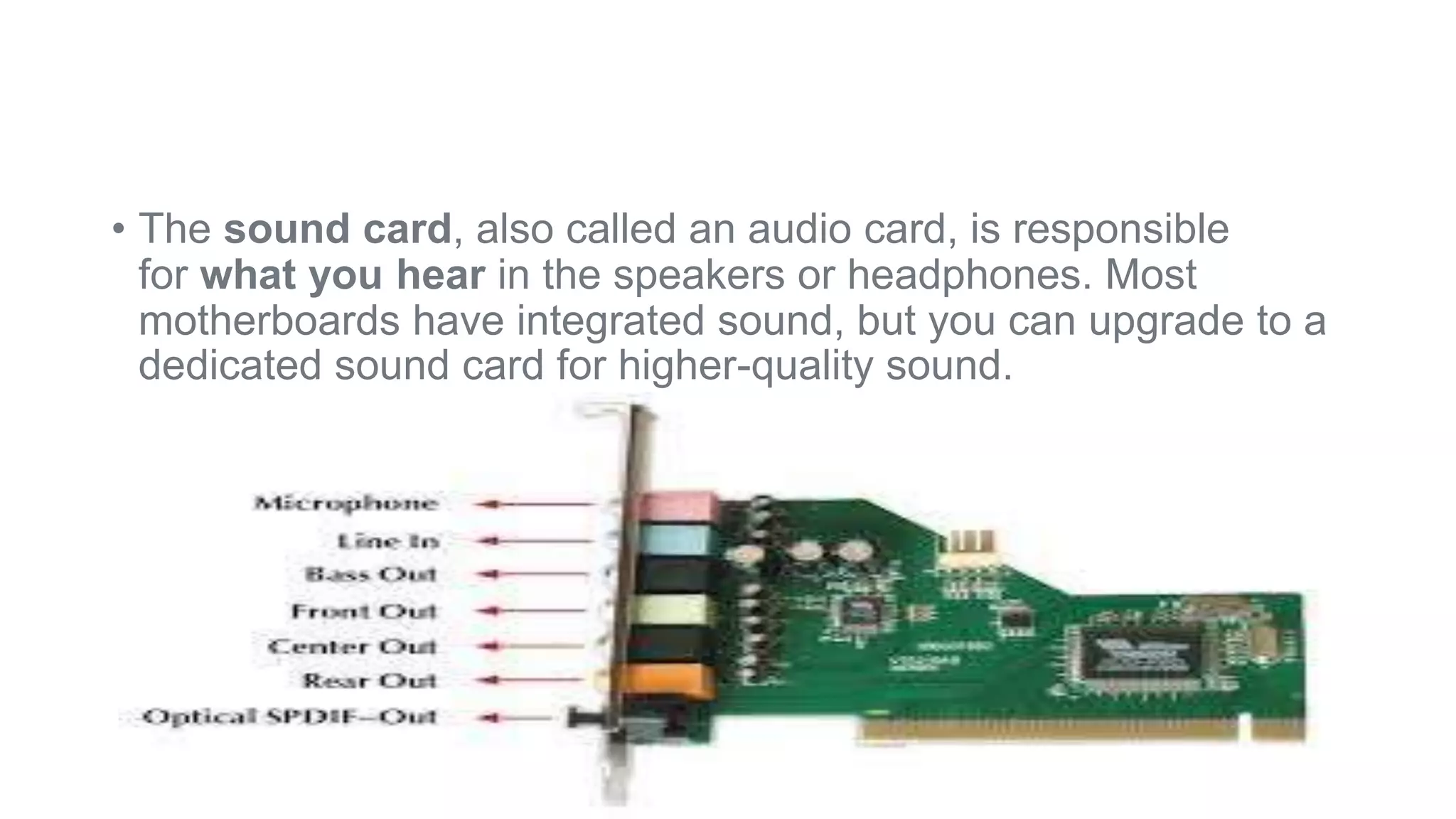
• The soundcard, also called an audio card, is responsible
for what you hear in the speakers or headphones. Most
motherboards have integrated sound, but you can upgrade to a
dedicated sound card for higher-quality sound.
9.
Network Card
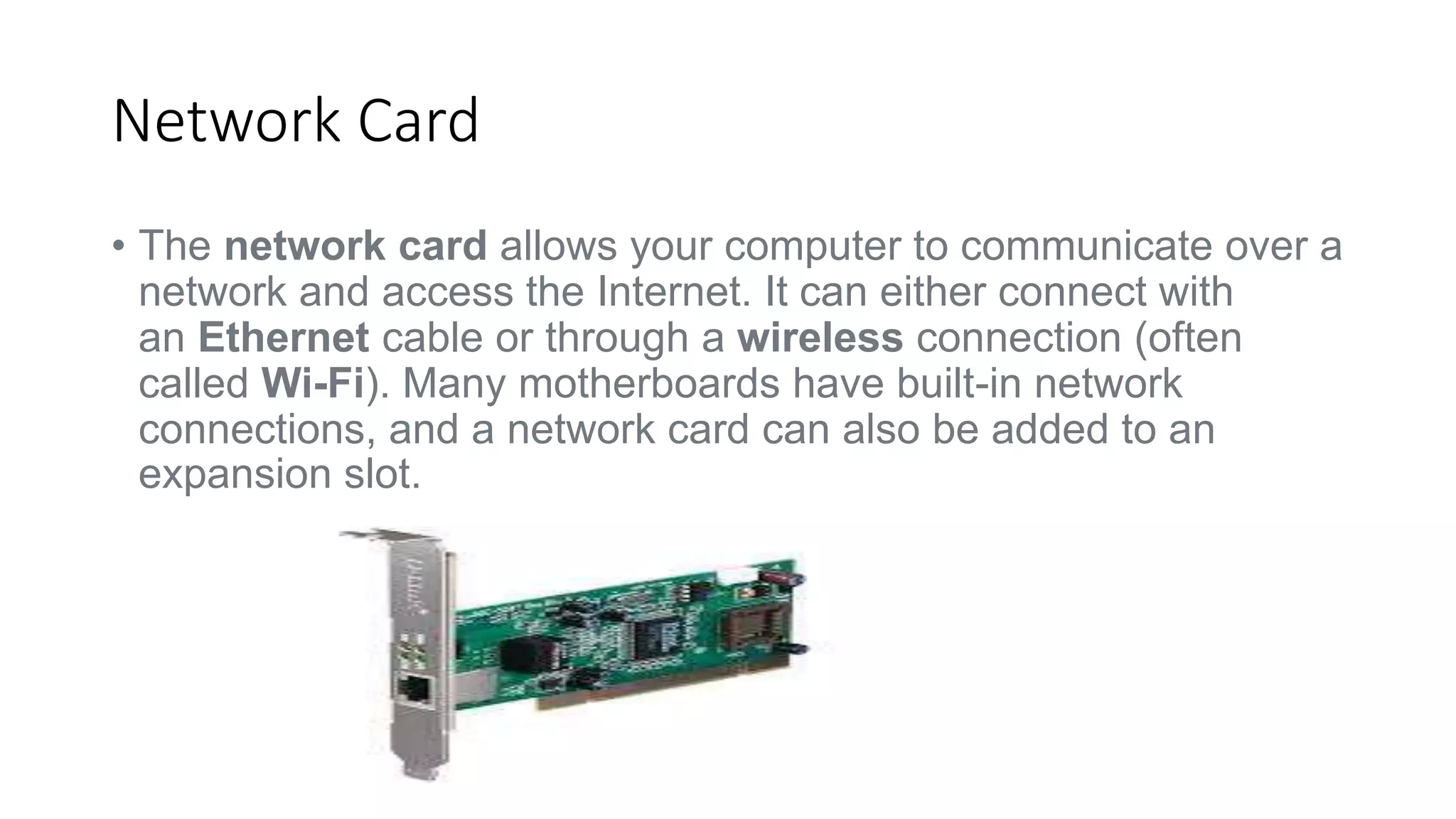
•The network card allows your computer to communicate over a
network and access the Internet. It can either connect with
an Ethernet cable or through a wireless connection (often
called Wi-Fi). Many motherboards have built-in network
connections, and a network card can also be added to an
expansion slot.
10.
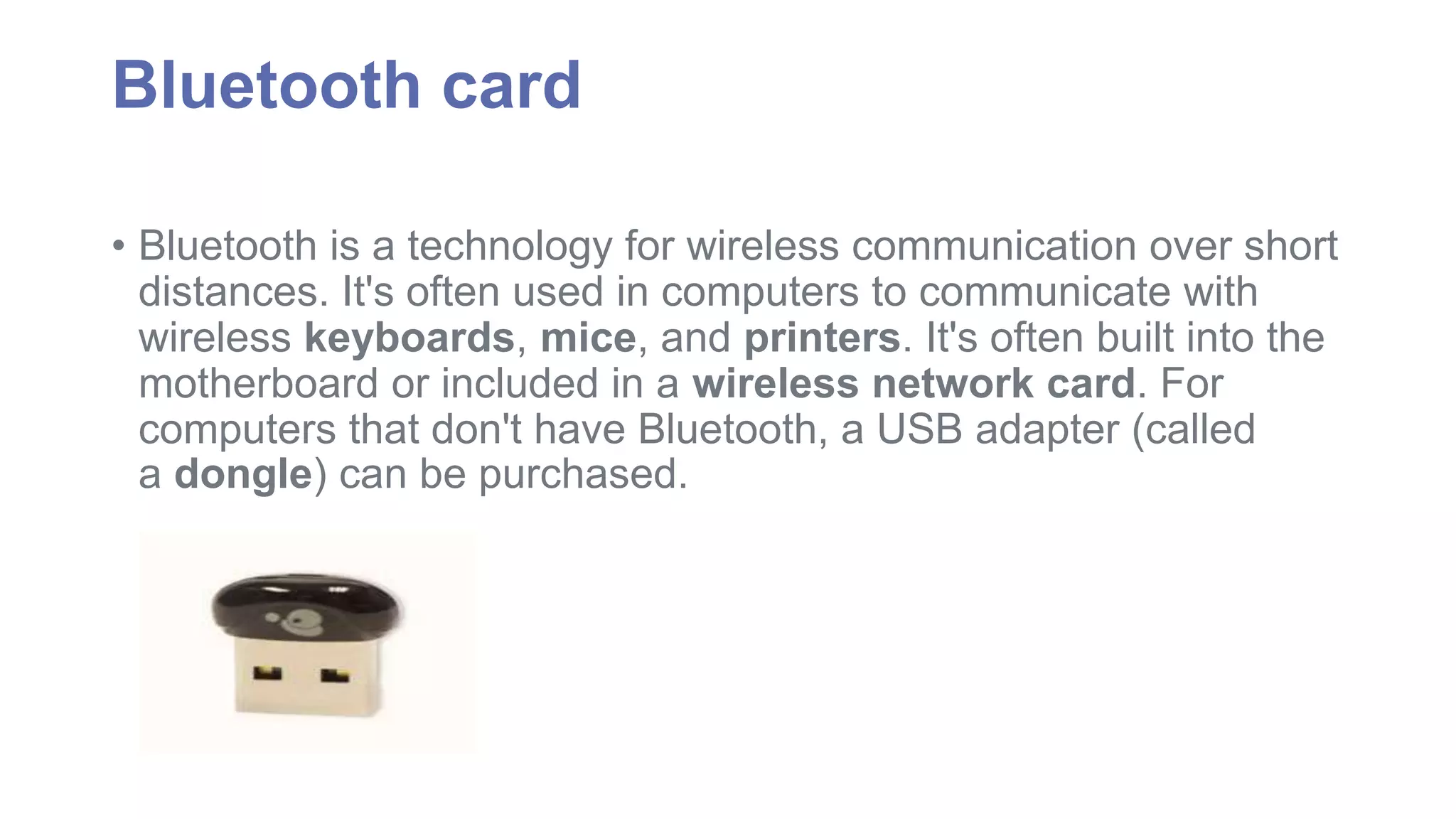
Bluetooth card
•Bluetooth is a technology for wireless communication over short
distances. It's often used in computers to communicate with
wireless keyboards, mice, and printers. It's often built into the
motherboard or included in a wireless network card. For
computers that don't have Bluetooth, a USB adapter (called
a dongle) can be purchased.



![Exposicion de disco duro diapositivas[1]](https://cdn.slidesharecdn.com/ss_thumbnails/exposiciondediscoduro-diapositivas1-101202144438-phpapp01-thumbnail.jpg?width=640&height=640&fit=bounds)


