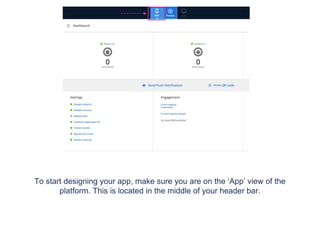
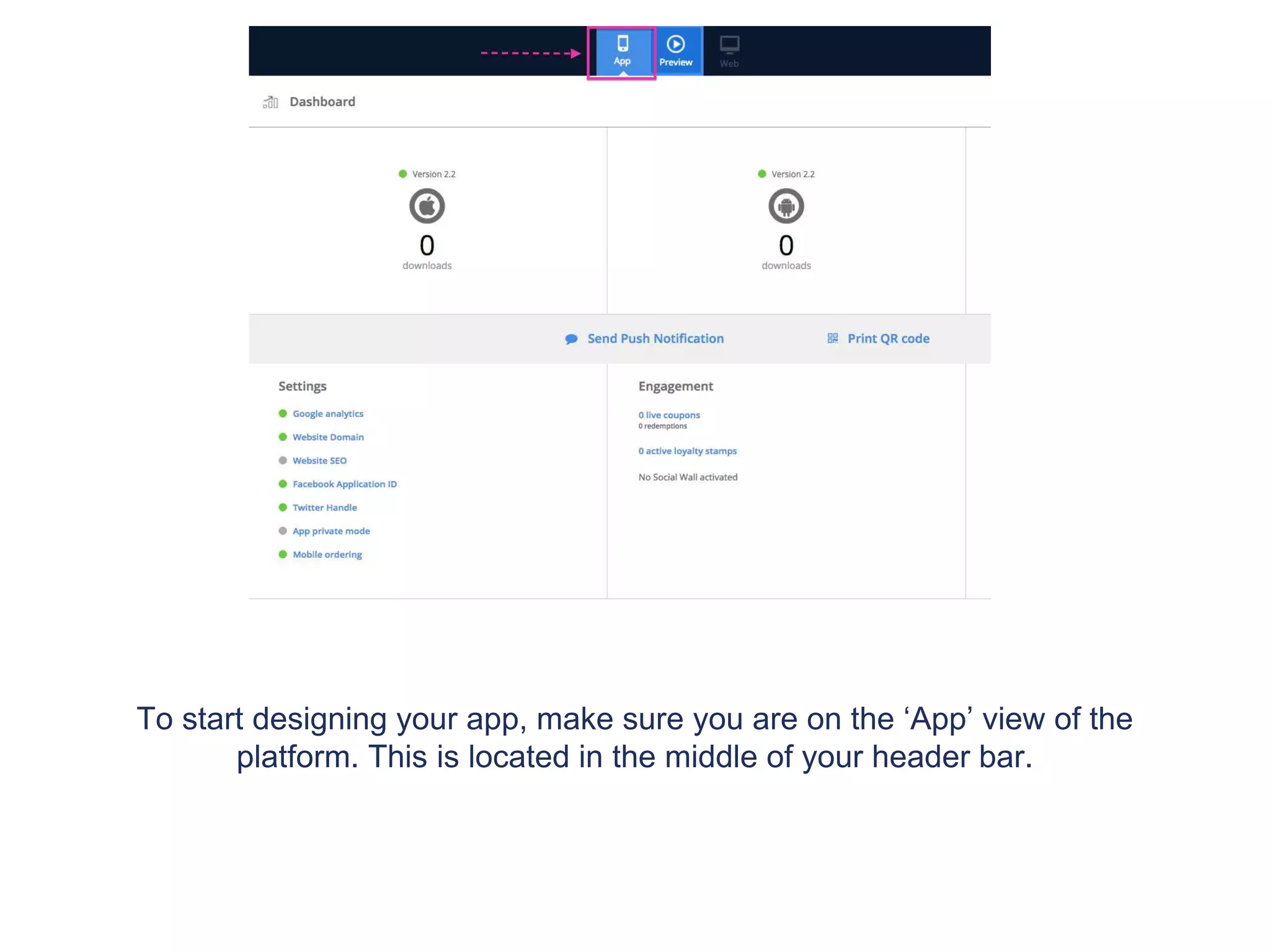
To start designing your app, make sure you are on the ‘App’ view of the
platform. This is located in the middle of your header bar.
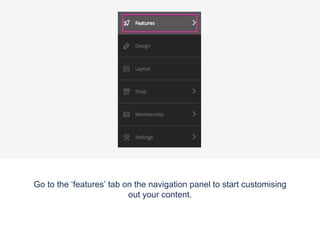
Go to the ‘features’ tab on the navigation panel to start customising
out your content.
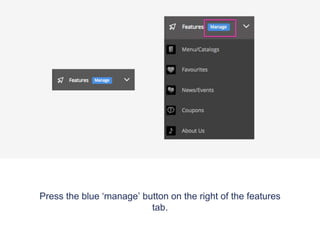
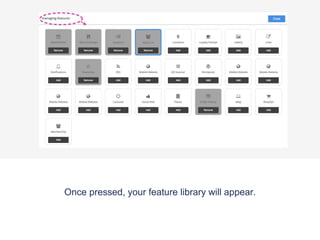
Press the blue ‘manage’ button on the right of the features
tab.
Once pressed, your feature library will appear.
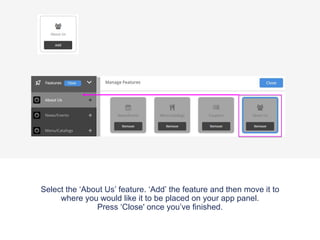
Select the ‘About Us’ feature. ‘Add’ the feature and then move it to
where you would like it to be placed on your app panel.
Press ‘Close' once you’ve finished.
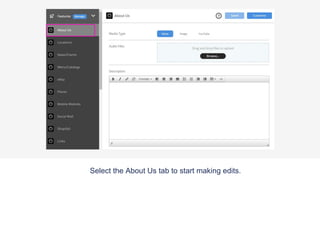
Select the About Us tab to start making edits.
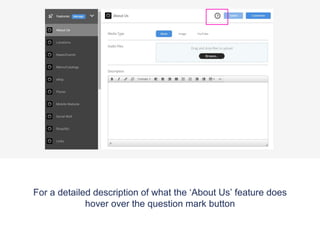
For a detailed description of what the ‘About Us’ feature does
hover over the question mark button
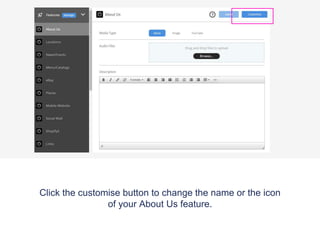
Click the customise button to change the name or the icon
of your About Us feature.
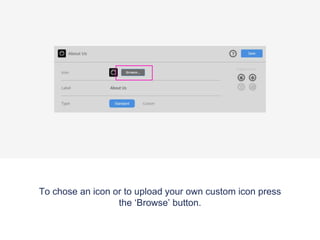
To chose an icon or to upload your own custom icon press
the ‘Browse’ button.
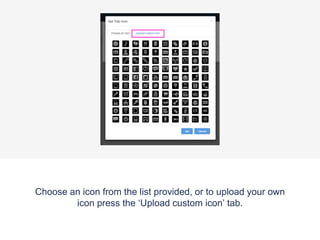
Choose an icon from the list provided, or to upload your own
icon press the ‘Upload custom icon’ tab.
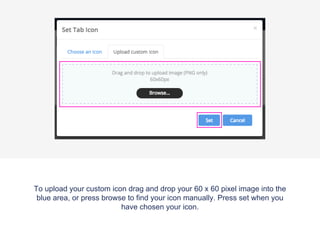
To upload your custom icon drag and drop your 60 x 60 pixel image into the
blue area, or press browse to find your icon manually. Press set when you
have chosen your icon.
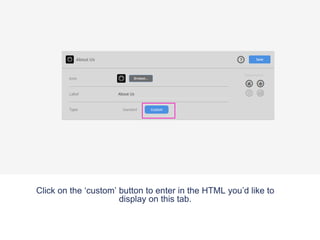
Click on the ‘custom’ button to enter in the HTML you’d like to
display on this tab.
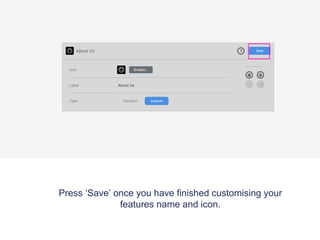
Press ‘Save’ once you have finished customising your
features name and icon.
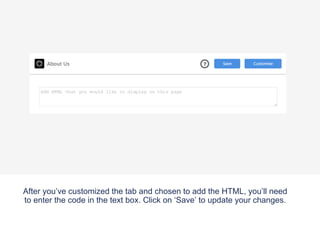
After you’ve customized the tab and chosen to add the HTML, you’ll need
to enter the code in the text box. Click on ‘Save’ to update your changes.
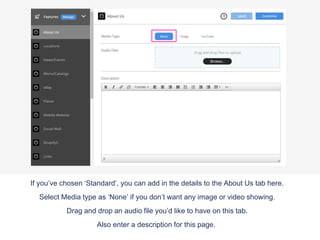
If you’ve chosen ‘Standard’, you can add in the details to the About Us tab here.
Select Media type as ‘None’ if you don’t want any image or video showing.
Drag and drop an audio file you’d like to have on this tab.
Also enter a description for this page.
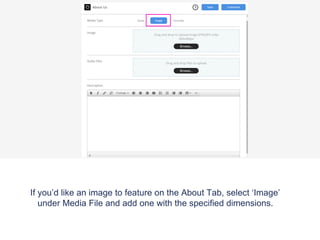
If you’d like an image to feature on the About Tab, select ‘Image’
under Media File and add one with the specified dimensions.
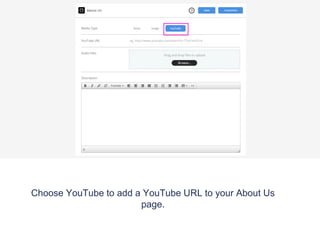
Choose YouTube to add a YouTube URL to your About Us
page.
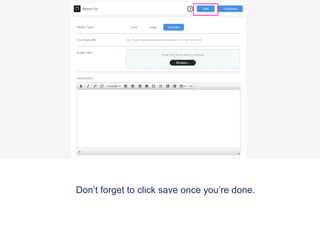
Don’t forget to click save once you’re done.
Preview App
To view your new feature for your app download the Putti
Preview App and navigate to the About Us tab.
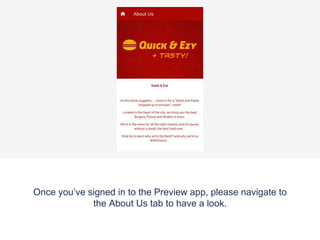
Once you’ve signed in to the Preview app, please navigate to
the About Us tab to have a look.
About Us tutorial

About Us tutorial

  • 1.
    To start designingyour app, make sure you are on the ‘App’ view of the platform. This is located in the middle of your header bar.
  • 2.
    Go to the‘features’ tab on the navigation panel to start customising out your content.
  • 3.
    Press the blue‘manage’ button on the right of the features tab.
  • 4.
    Once pressed, yourfeature library will appear.
  • 5.
    Select the ‘AboutUs’ feature. ‘Add’ the feature and then move it to where you would like it to be placed on your app panel. Press ‘Close' once you’ve finished.
  • 6.
    Select the AboutUs tab to start making edits.
  • 7.
    For a detaileddescription of what the ‘About Us’ feature does hover over the question mark button
  • 8.
    Click the customisebutton to change the name or the icon of your About Us feature.
  • 9.
    To chose anicon or to upload your own custom icon press the ‘Browse’ button.
  • 10.
    Choose an iconfrom the list provided, or to upload your own icon press the ‘Upload custom icon’ tab.
  • 11.
    To upload yourcustom icon drag and drop your 60 x 60 pixel image into the blue area, or press browse to find your icon manually. Press set when you have chosen your icon.
  • 12.
    Click on the‘custom’ button to enter in the HTML you’d like to display on this tab.
  • 13.
    Press ‘Save’ onceyou have finished customising your features name and icon.
  • 14.
    After you’ve customizedthe tab and chosen to add the HTML, you’ll need to enter the code in the text box. Click on ‘Save’ to update your changes.
  • 15.
    If you’ve chosen‘Standard’, you can add in the details to the About Us tab here. Select Media type as ‘None’ if you don’t want any image or video showing. Drag and drop an audio file you’d like to have on this tab. Also enter a description for this page.
  • 16.
    If you’d likean image to feature on the About Tab, select ‘Image’ under Media File and add one with the specified dimensions.
  • 17.
    Choose YouTube toadd a YouTube URL to your About Us page.
  • 18.
    Don’t forget toclick save once you’re done.
  • 19.
    Preview App To viewyour new feature for your app download the Putti Preview App and navigate to the About Us tab.
  • 20.
    Once you’ve signedin to the Preview app, please navigate to the About Us tab to have a look.