To start editing your app, make sure you are on the ‘App’ view of the
platform. This is located in the middle of your header bar.
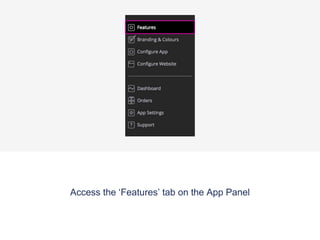
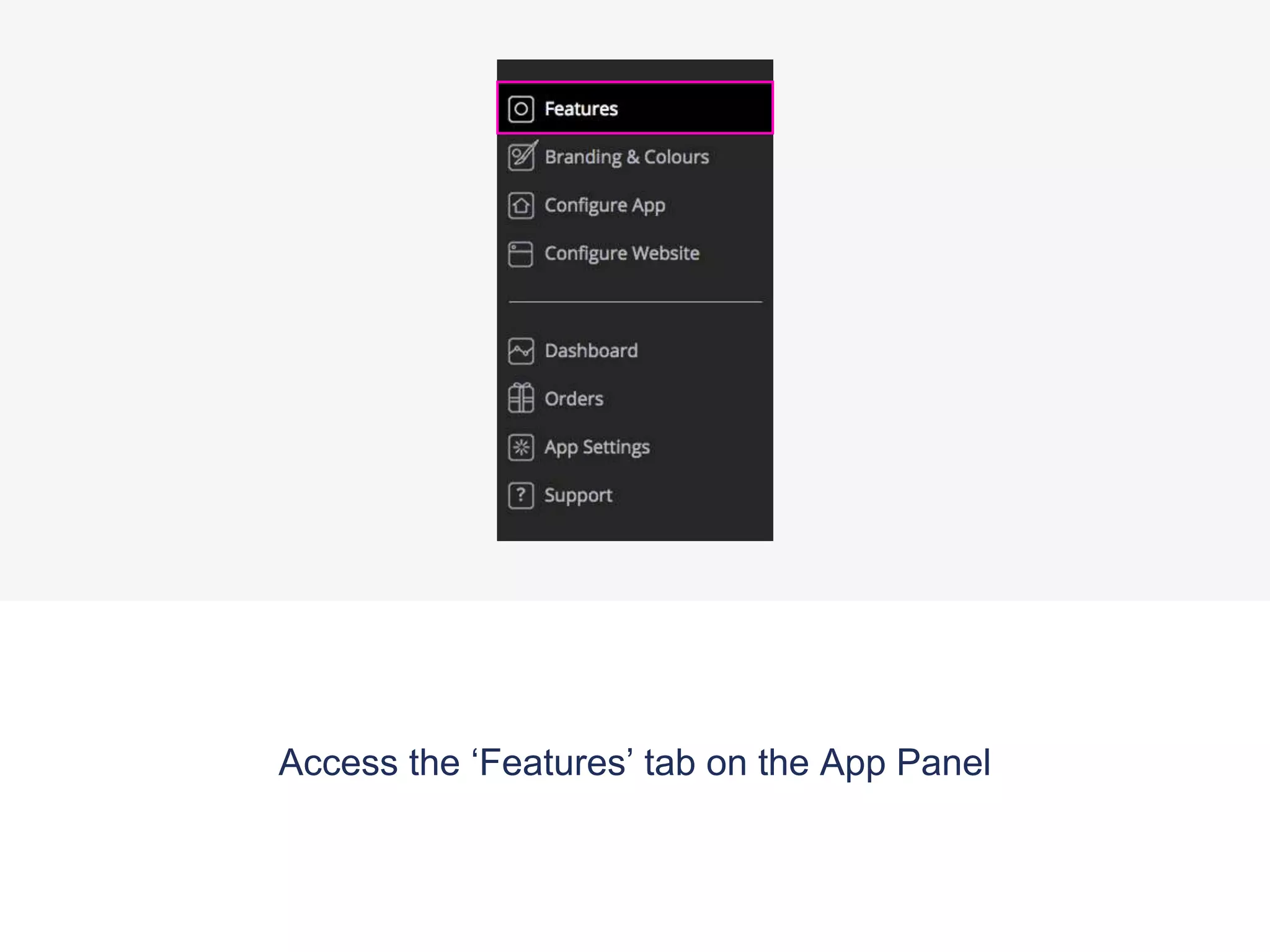
Go to the ‘features’ tab on the navigation panel to start customising
out your content.
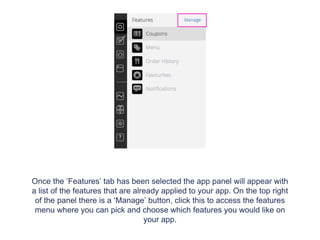
Once the ‘Features’ tab has been selected the app panel will appear with
a list of the features that are already applied to your app. On the top right
of the panel there is a ‘Manage’ button, click this to access the features
menu where you can pick and choose which features you would like on
your app.
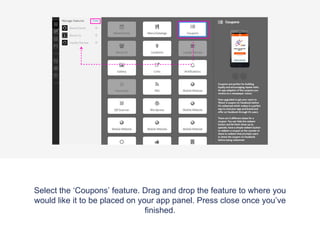
Select the feature and click on ‘Add’. Move the feature to where you
would like it to be placed on your app panel. Press close once you’ve
finished.
Press the ‘add’ button on the Coupons feature to add it to
your app.
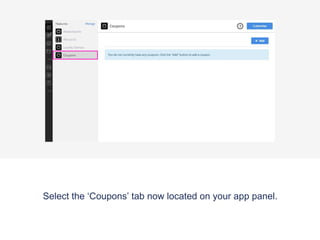
Select the ‘Coupons’ tab now located on your app panel.
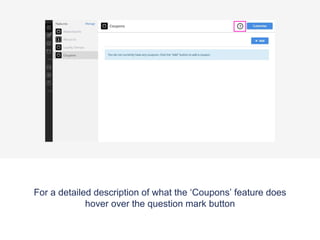
For a detailed description of what the ‘Coupons’ feature does
hover over the question mark button
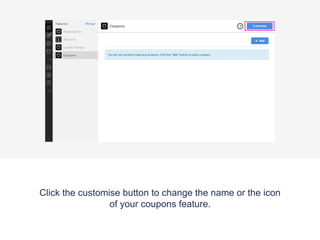
Click the customise button to change the name or the icon
of your coupons feature.
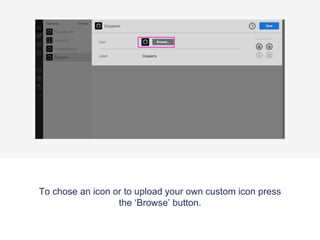
To chose an icon or to upload your own custom icon press
the ‘Browse’ button.
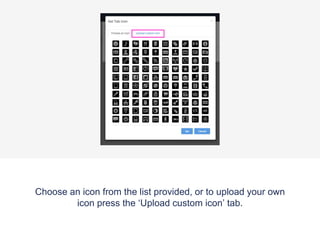
Choose an icon from the list provided, or to upload your own
icon press the ‘Upload custom icon’ tab.
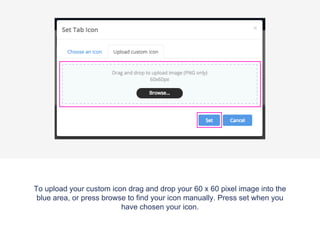
To upload your custom icon drag and drop your 60 x 60 pixel image into the
blue area, or press browse to find your icon manually. Press set when you
have chosen your icon.
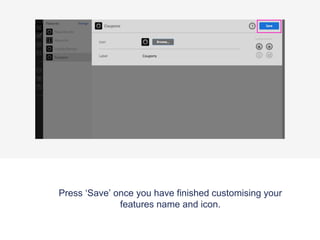
Press ‘Save’ once you have finished customising your
features name and icon.
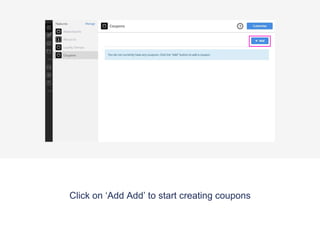
Click on ‘Add Add’ to start creating coupons
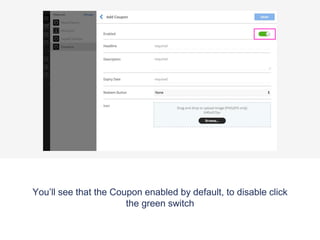
You’ll see that the Coupon enabled by default, to disable click
the green switch
Select the Branch that you’d like to make this Coupon
available to.
You can select All or just a particular Branch.
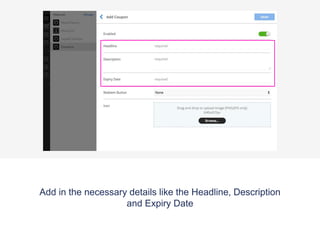
Add in the necessary details like the Headline, Description
and Expiry Date
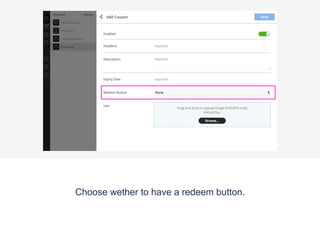
Choose whether to have a redeem button.
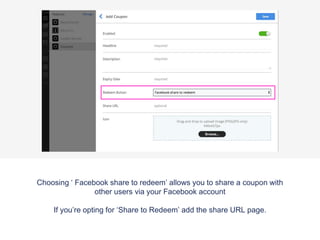
Choosing ‘ Facebook share to redeem’ allows you to share a coupon with
other users via your Facebook account
If you’re opting for ‘Share to Redeem’ add the share URL page.
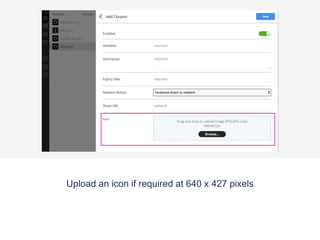
Upload an icon if required at 640 x 427 pixels
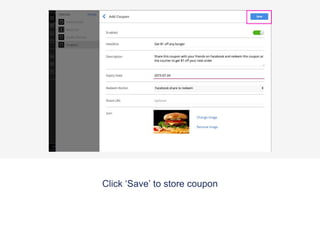
Click ‘Save’ to store Coupon
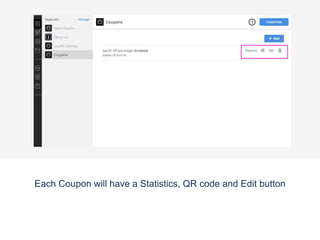
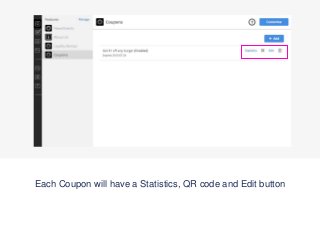
Each Coupon will have a Statistics, QR code and Edit button
Preview App
To view your new app feature download the Putti Preview
App and navigate to your coupons tab.
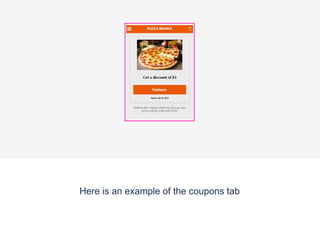
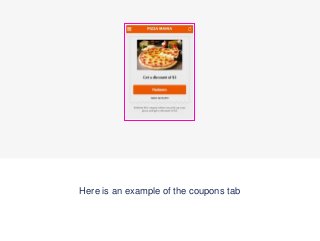
Here is an example of the coupons tab
Coupons Tutorial

Coupons Tutorial

  • 1.
    To start editingyour app, make sure you are on the ‘App’ view of the platform. This is located in the middle of your header bar.
  • 2.
    Go to the‘features’ tab on the navigation panel to start customising out your content.
  • 3.
    Once the ‘Features’tab has been selected the app panel will appear with a list of the features that are already applied to your app. On the top right of the panel there is a ‘Manage’ button, click this to access the features menu where you can pick and choose which features you would like on your app.
  • 4.
    Select the featureand click on ‘Add’. Move the feature to where you would like it to be placed on your app panel. Press close once you’ve finished.
  • 5.
    Press the ‘add’button on the Coupons feature to add it to your app.
  • 6.
    Select the ‘Coupons’tab now located on your app panel.
  • 7.
    For a detaileddescription of what the ‘Coupons’ feature does hover over the question mark button
  • 8.
    Click the customisebutton to change the name or the icon of your coupons feature.
  • 9.
    To chose anicon or to upload your own custom icon press the ‘Browse’ button.
  • 10.
    Choose an iconfrom the list provided, or to upload your own icon press the ‘Upload custom icon’ tab.
  • 11.
    To upload yourcustom icon drag and drop your 60 x 60 pixel image into the blue area, or press browse to find your icon manually. Press set when you have chosen your icon.
  • 12.
    Press ‘Save’ onceyou have finished customising your features name and icon.
  • 13.
    Click on ‘AddAdd’ to start creating coupons
  • 14.
    You’ll see thatthe Coupon enabled by default, to disable click the green switch
  • 15.
    Select the Branchthat you’d like to make this Coupon available to. You can select All or just a particular Branch.
  • 16.
    Add in thenecessary details like the Headline, Description and Expiry Date
  • 17.
    Choose whether tohave a redeem button.
  • 18.
    Choosing ‘ Facebookshare to redeem’ allows you to share a coupon with other users via your Facebook account If you’re opting for ‘Share to Redeem’ add the share URL page.
  • 19.
    Upload an iconif required at 640 x 427 pixels
  • 20.
    Click ‘Save’ tostore Coupon
  • 21.
    Each Coupon willhave a Statistics, QR code and Edit button
  • 22.
    Preview App To viewyour new app feature download the Putti Preview App and navigate to your coupons tab.
  • 23.
    Here is anexample of the coupons tab