A2W Press Woodberry Complete Documentation
Like other themes onA2WPress, this Woodberry theme is also extremely
easy to install and setup and you’d love creating your website with this theme.
1. Beginning
Creating the Pages
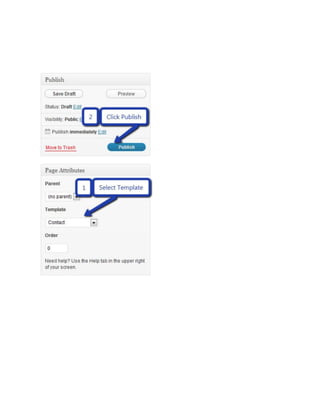
You would need to build new pages from Add Page menu and select the Appropriate Template
for each page.
For “Blog” Choose the “Blog Template” from Page Attributes.
For “Gallery Page” Choose the “Gallery Template” from Page Attributes.
For “Fullwidth Page” Choose the “Fullwidth Template” from Page Attributes.
For “Contact Page” Choose the “Contact Us Template” from Page Attributes.
2. Configuring Homepage
Specifying Logo & Favicon
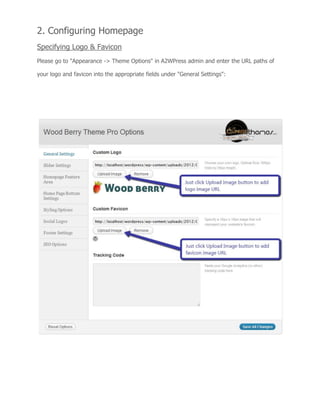
Please go to "Appearance -> Theme Options" in A2WPress admin and enter the URL paths of
your logo and favicon into the appropriate fields under "General Settings":
Sliders on homepage
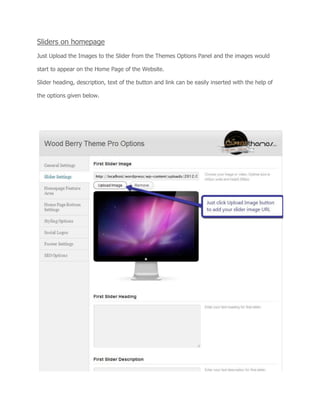
Just Upload the Images to the Slider from the Themes Options Panel and the images would
start to appear on the Home Page of the Website.
Slider heading, description, text of the button and link can be easily inserted with the help of
the options given below.
Video in slider
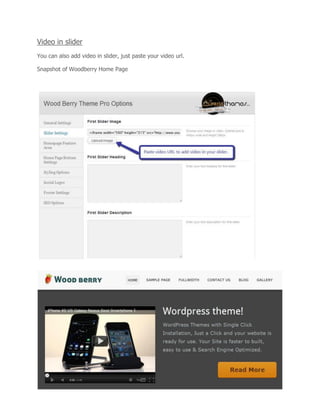
You can also add video in slider, just paste your video url.
Snapshot of Woodberry Home Page
While adding slider one thing you have to remember is paste ?wmode=transparent just after
your video embed code. For example
Your video embed code:- <iframe title="YouTube video player" width="480" height="390"
src="http://www.youtube.com/embed/lzQgAR_J1PI?wmode=transparent" frameborder="0"
wmode="Opaque">
3. Home Page Feature Area
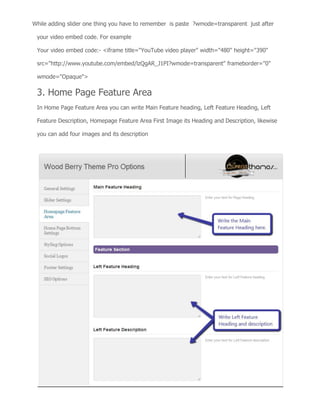
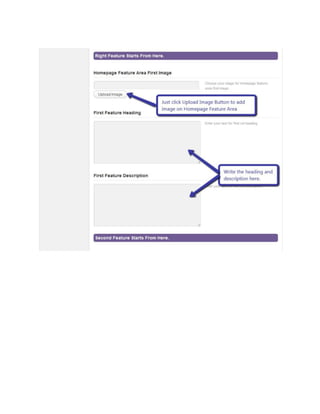
In Home Page Feature Area you can write Main Feature heading, Left Feature Heading, Left
Feature Description, Homepage Feature Area First Image its Heading and Description, likewise
you can add four images and its description
4. Home Page Bottom Settings
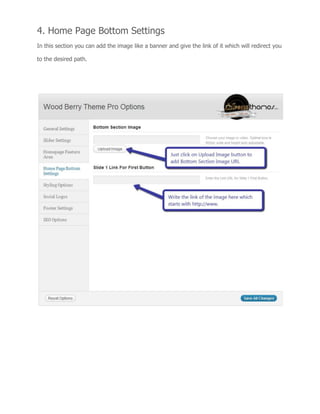
In this section you can add the image like a banner and give the link of it which will redirect you
to the desired path.
5. Theme Color
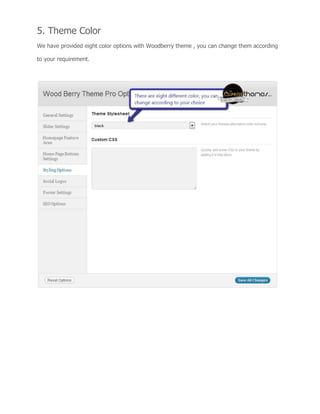
We have provided eight color options with Woodberry theme , you can change them according
to your requirement.
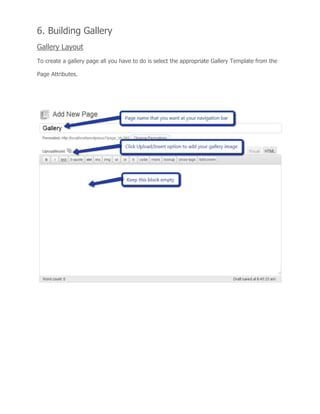
6. Building Gallery
Gallery Layout
To create a gallery page all you have to do is select the appropriate Gallery Template from the
Page Attributes.
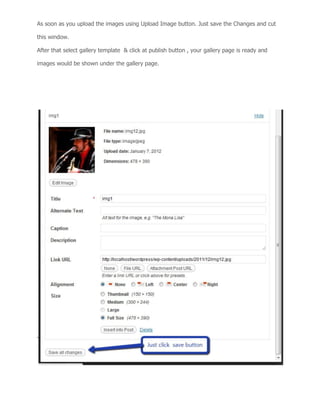
As soon as you upload the images using Upload Image button. Just save the Changes and cut
this window.
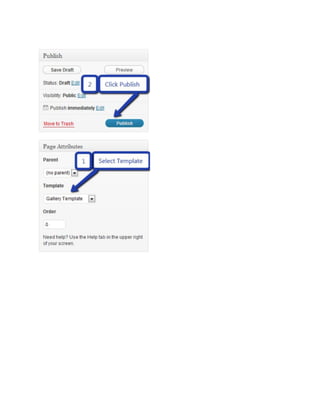
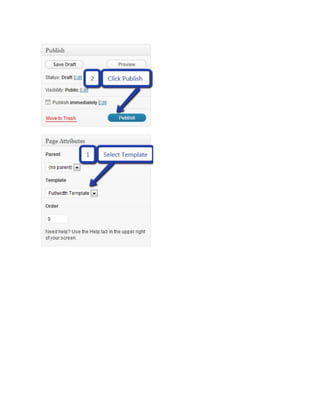
After that select gallery template & click at publish button , your gallery page is ready and
images would be shown under the gallery page.
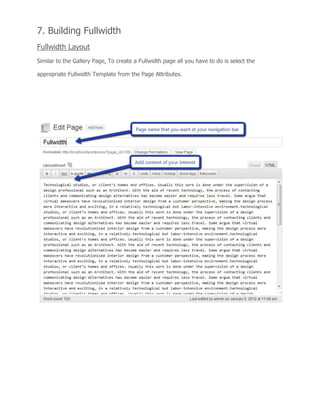
7. Building Fullwidth
Fullwidth Layout
Similar to the Gallery Page, To create a Fullwidth page all you have to do is select the
appropriate Fullwidth Template from the Page Attributes.
8. Building Blog
Blog Layout
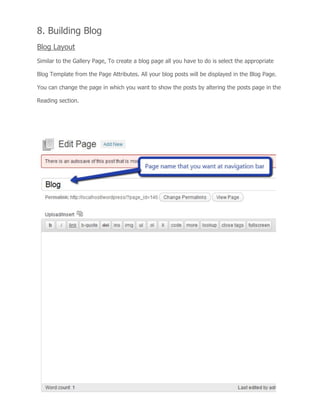
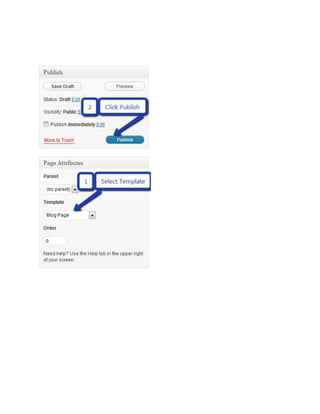
Similar to the Gallery Page, To create a blog page all you have to do is select the appropriate
Blog Template from the Page Attributes. All your blog posts will be displayed in the Blog Page.
You can change the page in which you want to show the posts by altering the posts page in the
Reading section.
9. Contact Page
Contact Layout
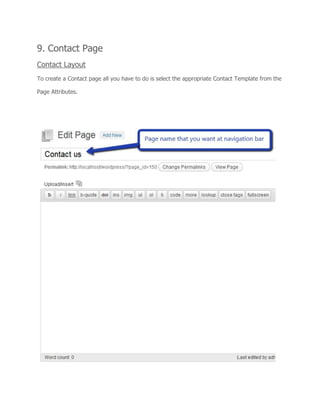
To create a Contact page all you have to do is select the appropriate Contact Template from the
Page Attributes.
10. Building Menus
Menu with Menu Manager
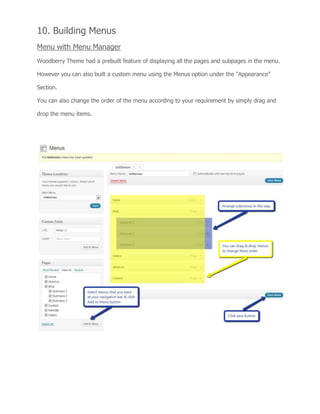
Woodberry Theme had a prebuilt feature of displaying all the pages and subpages in the menu.
However you can also built a custom menu using the Menus option under the “Appearance”
Section.
You can also change the order of the menu according to your requirement by simply drag and
drop the menu items.
11. Building Dropdown Menus
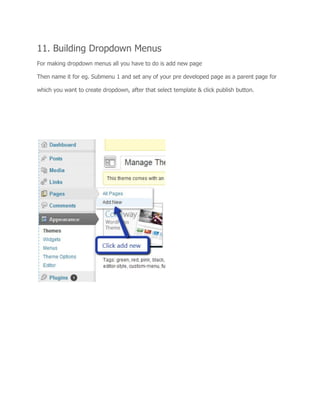
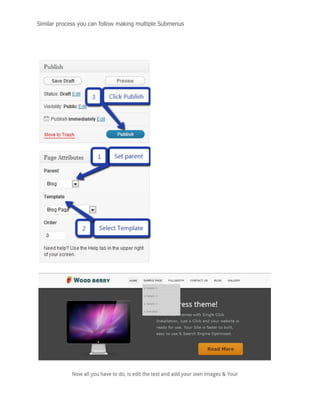
For making dropdown menus all you have to do is add new page
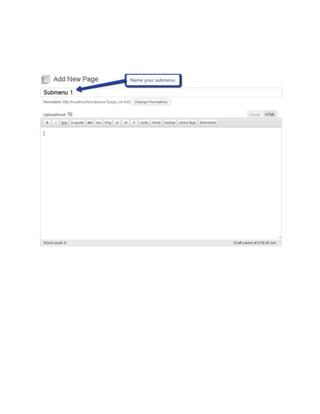
Then name it for eg. Submenu 1 and set any of your pre developed page as a parent page for
which you want to create dropdown, after that select template & click publish button.
Similar process you can follow making multiple Submenus
12. How to add Widgets
Widgets in Sidebar
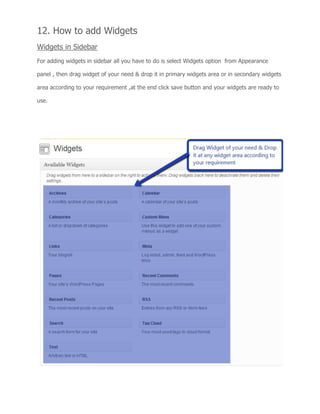
For adding widgets in sidebar all you have to do is select Widgets option from Appearance
panel , then drag widget of your need & drop it in primary widgets area or in secondary widgets
area according to your requirement ,at the end click save button and your widgets are ready to
use.
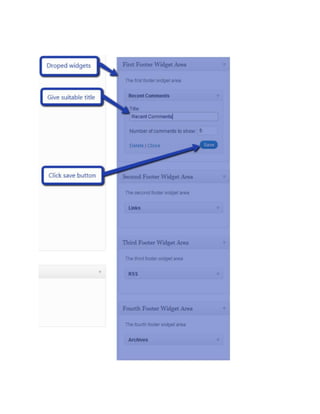
Widgets in Footer
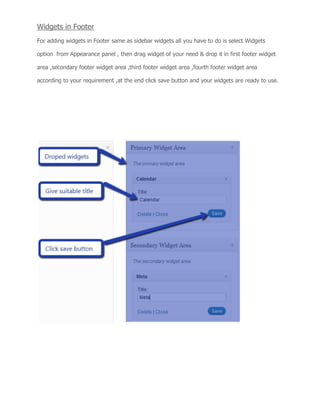
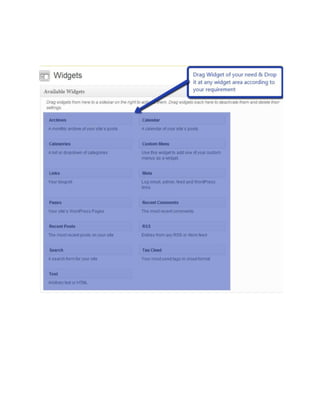
For adding widgets in Footer same as sidebar widgets all you have to do is select Widgets
option from Appearance panel , then drag widget of your need & drop it in first footer widget
area ,secondary footer widget area ,third footer widget area ,fourth footer widget area
according to your requirement ,at the end click save button and your widgets are ready to use.
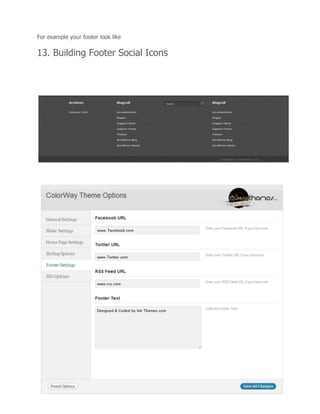
For example your footer look like
13. Building Footer Social Icons
Additional Assistance.
You can click here to watch the Video Demo Available in the Membership Area.
Better still, click here if you wish to Hire Professionals to assist you with customizations.

A2WPress Woodberry Theme Documentation

  • 1.
    A2W Press WoodberryComplete Documentation Like other themes onA2WPress, this Woodberry theme is also extremely easy to install and setup and you’d love creating your website with this theme. 1. Beginning Creating the Pages You would need to build new pages from Add Page menu and select the Appropriate Template for each page. For “Blog” Choose the “Blog Template” from Page Attributes. For “Gallery Page” Choose the “Gallery Template” from Page Attributes. For “Fullwidth Page” Choose the “Fullwidth Template” from Page Attributes. For “Contact Page” Choose the “Contact Us Template” from Page Attributes.
  • 2.
    2. Configuring Homepage SpecifyingLogo & Favicon Please go to "Appearance -> Theme Options" in A2WPress admin and enter the URL paths of your logo and favicon into the appropriate fields under "General Settings":
  • 3.
    Sliders on homepage JustUpload the Images to the Slider from the Themes Options Panel and the images would start to appear on the Home Page of the Website. Slider heading, description, text of the button and link can be easily inserted with the help of the options given below.
  • 4.
    Video in slider Youcan also add video in slider, just paste your video url. Snapshot of Woodberry Home Page
  • 5.
    While adding sliderone thing you have to remember is paste ?wmode=transparent just after your video embed code. For example Your video embed code:- <iframe title="YouTube video player" width="480" height="390" src="http://www.youtube.com/embed/lzQgAR_J1PI?wmode=transparent" frameborder="0" wmode="Opaque"> 3. Home Page Feature Area In Home Page Feature Area you can write Main Feature heading, Left Feature Heading, Left Feature Description, Homepage Feature Area First Image its Heading and Description, likewise you can add four images and its description
  • 7.
    4. Home PageBottom Settings In this section you can add the image like a banner and give the link of it which will redirect you to the desired path.
  • 8.
    5. Theme Color Wehave provided eight color options with Woodberry theme , you can change them according to your requirement.
  • 9.
    6. Building Gallery GalleryLayout To create a gallery page all you have to do is select the appropriate Gallery Template from the Page Attributes.
  • 10.
    As soon asyou upload the images using Upload Image button. Just save the Changes and cut this window. After that select gallery template & click at publish button , your gallery page is ready and images would be shown under the gallery page.
  • 12.
    7. Building Fullwidth FullwidthLayout Similar to the Gallery Page, To create a Fullwidth page all you have to do is select the appropriate Fullwidth Template from the Page Attributes.
  • 14.
    8. Building Blog BlogLayout Similar to the Gallery Page, To create a blog page all you have to do is select the appropriate Blog Template from the Page Attributes. All your blog posts will be displayed in the Blog Page. You can change the page in which you want to show the posts by altering the posts page in the Reading section.
  • 16.
    9. Contact Page ContactLayout To create a Contact page all you have to do is select the appropriate Contact Template from the Page Attributes.
  • 18.
    10. Building Menus Menuwith Menu Manager Woodberry Theme had a prebuilt feature of displaying all the pages and subpages in the menu. However you can also built a custom menu using the Menus option under the “Appearance” Section. You can also change the order of the menu according to your requirement by simply drag and drop the menu items.
  • 19.
    11. Building DropdownMenus For making dropdown menus all you have to do is add new page Then name it for eg. Submenu 1 and set any of your pre developed page as a parent page for which you want to create dropdown, after that select template & click publish button.
  • 21.
    Similar process youcan follow making multiple Submenus
  • 22.
    12. How toadd Widgets Widgets in Sidebar For adding widgets in sidebar all you have to do is select Widgets option from Appearance panel , then drag widget of your need & drop it in primary widgets area or in secondary widgets area according to your requirement ,at the end click save button and your widgets are ready to use.
  • 23.
    Widgets in Footer Foradding widgets in Footer same as sidebar widgets all you have to do is select Widgets option from Appearance panel , then drag widget of your need & drop it in first footer widget area ,secondary footer widget area ,third footer widget area ,fourth footer widget area according to your requirement ,at the end click save button and your widgets are ready to use.
  • 26.
    For example yourfooter look like 13. Building Footer Social Icons
  • 27.
    Additional Assistance. You canclick here to watch the Video Demo Available in the Membership Area. Better still, click here if you wish to Hire Professionals to assist you with customizations.