Production Reflection
Your Name
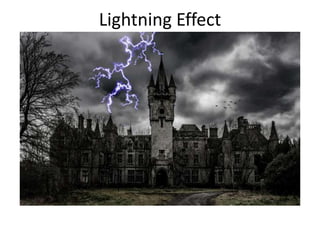
Lightning Effect
Process
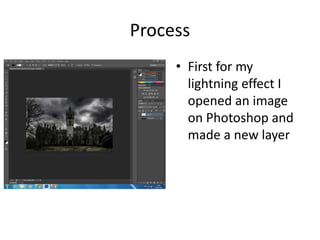
• First for my
lightning effect I
opened an image
on Photoshop and
made a new layer
Process
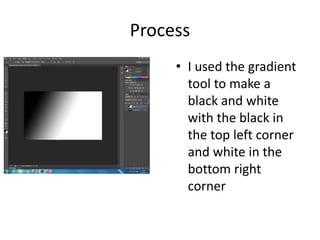
• I used the gradient
tool to make a
black and white
with the black in
the top left corner
and white in the
bottom right
corner
Process
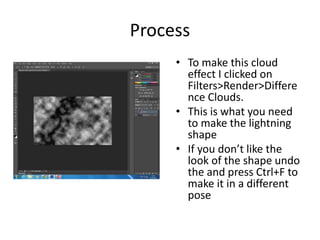
• To make this cloud
effect I clicked on
Filters>Render>Differe
nce Clouds.
• This is what you need
to make the lightning
shape
• If you don’t like the
look of the shape undo
the and press Ctrl+F to
make it in a different
pose
Process
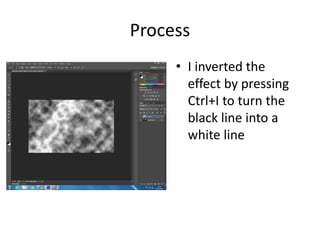
• I inverted the
effect by pressing
Ctrl+I to turn the
black line into a
white line
Process
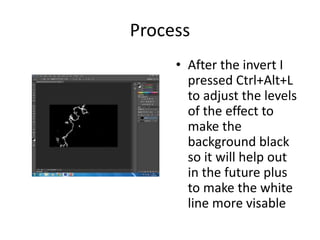
• After the invert I
pressed Ctrl+Alt+L
to adjust the levels
of the effect to
make the
background black
so it will help out
in the future plus
to make the white
line more visable
Process
• To edit the lightning you
need to use the black
brush tool and draw off
any white bits you don’t
want
• The best thing to do is
make the bush hardness
to 25% so that when you
brush of the cloudy bits
it doesn’t leave a hard
line
• [I had to make the effect
again because messed
up]
Process
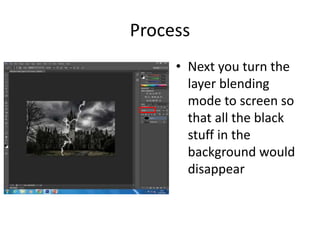
• Next you turn the
layer blending
mode to screen so
that all the black
stuff in the
background would
disappear
Process
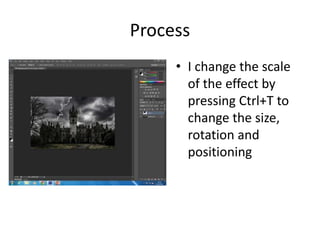
• I change the scale
of the effect by
pressing Ctrl+T to
change the size,
rotation and
positioning
Process
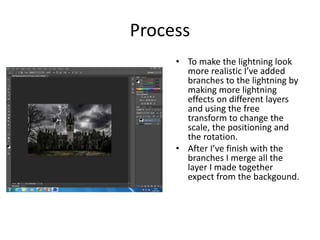
• To make the lightning look
more realistic I’ve added
branches to the lightning by
making more lightning
effects on different layers
and using the free
transform to change the
scale, the positioning and
the rotation.
• After I’ve finish with the
branches I merge all the
layer I made together
expect from the backgound.
Process
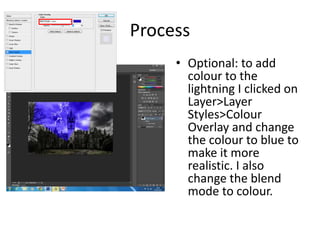
• Optional: to add
colour to the
lightning I clicked on
Layer>Layer
Styles>Colour
Overlay and change
the colour to blue to
make it more
realistic. I also
change the blend
mode to colour.
Process
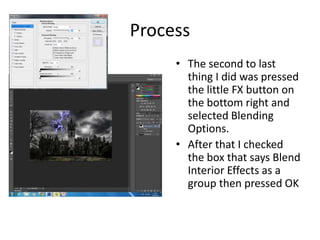
• The second to last
thing I did was pressed
the little FX button on
the bottom right and
selected Blending
Options.
• After that I checked
the box that says Blend
Interior Effects as a
group then pressed OK
Process
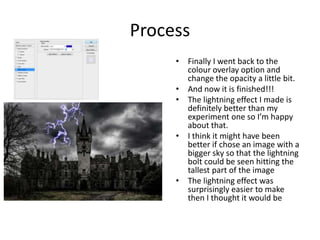
• Finally I went back to the
colour overlay option and
change the opacity a little bit.
• And now it is finished!!!
• The lightning effect I made is
definitely better than my
experiment one so I’m happy
about that.
• I think it might have been
better if chose an image with a
bigger sky so that the lightning
bolt could be seen hitting the
tallest part of the image
• The lightning effect was
surprisingly easier to make
then I thought it would be
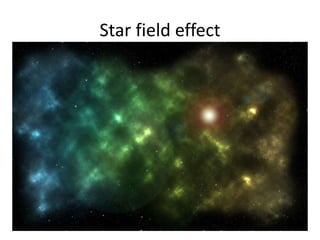
Star field effect
Process
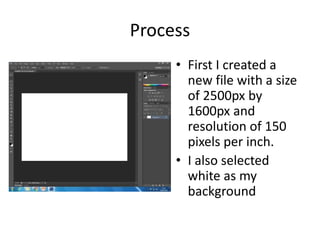
• First I created a
new file with a size
of 2500px by
1600px and
resolution of 150
pixels per inch.
• I also selected
white as my
background
Process
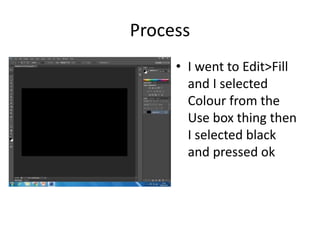
• I went to Edit>Fill
and I selected
Colour from the
Use box thing then
I selected black
and pressed ok
Process
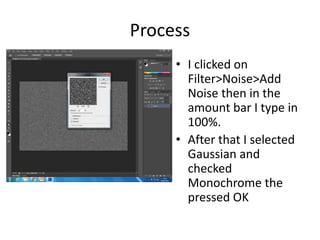
• I clicked on
Filter>Noise>Add
Noise then in the
amount bar I type in
100%.
• After that I selected
Gaussian and
checked
Monochrome the
pressed OK
Process
• After that I made a
new layer then I
hide the new layer
by clicking on the
eye symbol
Process
• I selected the
background layer
and selected
Filter>Gaussian
Blur
• Then I entered 0.5
in the radius box
Process
• To create my small
stars I selected
Image>Adjustment
s>Levels
• In the Input Levels
area I entered the
values 200, 0.42,
255
Process
• After that I
selected the first
layer then went to
the filter menu and
clicked on
Blur>Gaussian Blur
and type in 2 in the
radius box
Process
• After that I went to
the filter menu and
selected
Adjustments>Levels
• In the Input Levels
box I entered in the
value boxes 170, 1,
172 then I pressed
ok
Process
• Back to the filter
menu I clicked on
Blur>Gaussian Blur
and entered 1 in
the radius box then
pressed ok
Process
• I’ll be honest I
don’t remember
the next things I
did. It had
something to do
with the channels
panel, creating a
new layer and
doing something to
it
Process
• I’ll be honest I
don’t remember
the next things I
did here aswell
Process
• I selected white from
my colour picker
• Then I created a new
layer
• In the filter menu I
clicked on
Render>Clouds
• In the layers panel I
changed the new
layer’s blend mode to
Colour Dodge
Process
• I made a new layer
between the
background layer and
the clouds layer
• I selected the brush tool
and set the brush
opacity to 10%, hardness
to 0% then I set the
brush size somewhere
around 450px
• After that I chose some
colours from the colour
picker to colour in my
star fields
Process
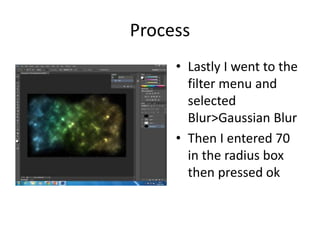
• Lastly I went to the
filter menu and
selected
Blur>Gaussian Blur
• Then I entered 70
in the radius box
then pressed ok
Process
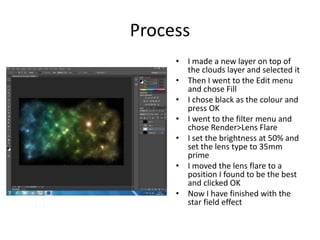
• I made a new layer on top of
the clouds layer and selected it
• Then I went to the Edit menu
and chose Fill
• I chose black as the colour and
press OK
• I went to the filter menu and
chose Render>Lens Flare
• I set the brightness at 50% and
set the lens type to 35mm
prime
• I moved the lens flare to a
position I found to be the best
and clicked OK
• Now I have finished with the
star field effect
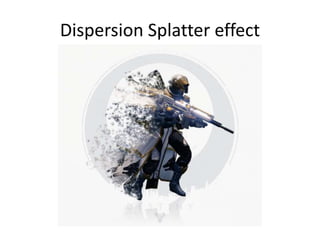
Dispersion Splatter effect
Process
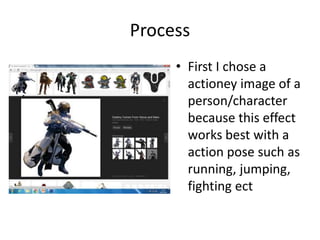
• First I chose a
actioney image of a
person/character
because this effect
works best with a
action pose such as
running, jumping,
fighting ect
Process
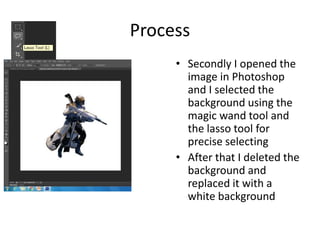
• Secondly I opened the
image in Photoshop
and I selected the
background using the
magic wand tool and
the lasso tool for
precise selecting
• After that I deleted the
background and
replaced it with a
white background
Process
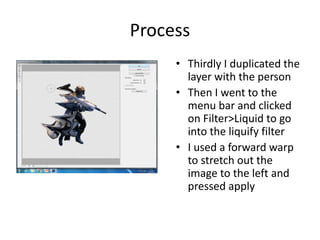
• Thirdly I duplicated the
layer with the person
• Then I went to the
menu bar and clicked
on Filter>Liquid to go
into the liquify filter
• I used a forward warp
to stretch out the
image to the left and
pressed apply
Process
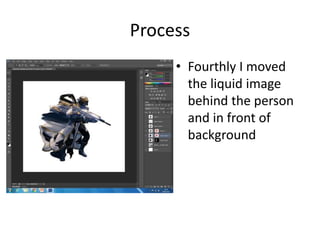
• Fourthly I moved
the liquid image
behind the person
and in front of
background
Process
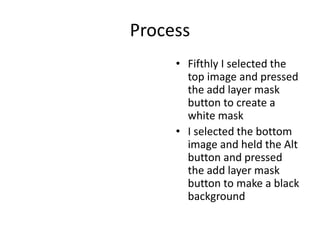
• Fifthly I selected the
top image and pressed
the add layer mask
button to create a
white mask
• I selected the bottom
image and held the Alt
button and pressed
the add layer mask
button to make a black
background
Process
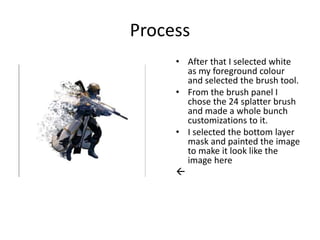
• After that I selected white
as my foreground colour
and selected the brush tool.
• From the brush panel I
chose the 24 splatter brush
and made a whole bunch
customizations to it.
• I selected the bottom layer
mask and painted the image
to make it look like the
image here

Process
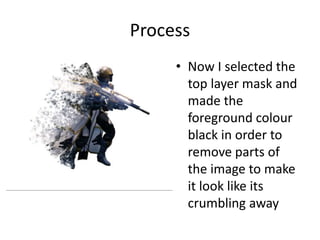
• Now I selected the
top layer mask and
made the
foreground colour
black in order to
remove parts of
the image to make
it look like its
crumbling away
Process
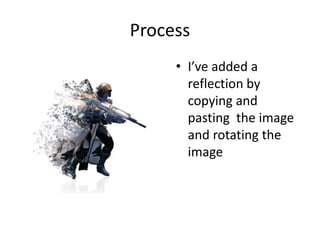
• I’ve added a
reflection by
copying and
pasting the image
and rotating the
image
Process
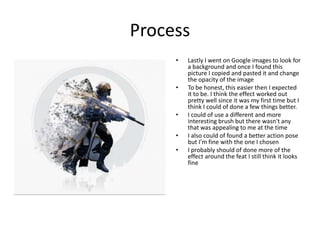
• Lastly I went on Google images to look for
a background and once I found this
picture I copied and pasted it and change
the opacity of the image
• To be honest, this easier then I expected
it to be. I think the effect worked out
pretty well since it was my first time but I
think I could of done a few things better.
• I could of use a different and more
interesting brush but there wasn't any
that was appealing to me at the time
• I also could of found a better action pose
but I'm fine with the one I chosen
• I probably should of done more of the
effect around the feat I still think it looks
fine
Process
Process
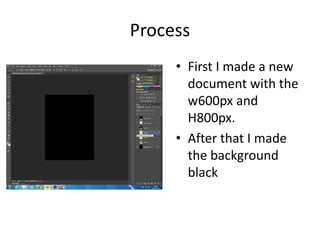
• First I made a new
document with the
w600px and
H800px.
• After that I made
the background
black
Process
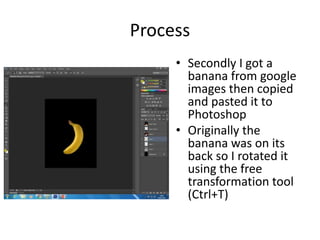
• Secondly I got a
banana from google
images then copied
and pasted it to
Photoshop
• Originally the
banana was on its
back so I rotated it
using the free
transformation tool
(Ctrl+T)
Process
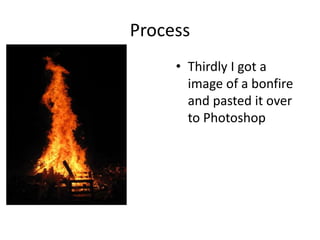
• Thirdly I got a
image of a bonfire
and pasted it over
to Photoshop
Process
• After that I change
the layer’s blend
mode to screen to
make the dark sky
see through then I
position it in the
middle of the
banana
Process
• Then I got large and
soft eraser brush at
a low opacity to
erase the bottom of
the flames so that
they somewhat fit
around the banana
• After that I warped
the fire to make it fit
the banana even
better
Process
• I’ve copied and
pasted the image
to more times to
get the fire shape I
wanted.
Process
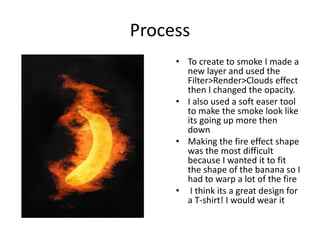
• To create to smoke I made a
new layer and used the
Filter>Render>Clouds effect
then I changed the opacity.
• I also used a soft easer tool
to make the smoke look like
its going up more then
down
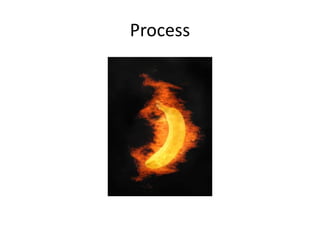
• Making the fire effect shape
was the most difficult
because I wanted it to fit
the shape of the banana so I
had to warp a lot of the fire
• I think its a great design for
a T-shirt! I would wear it
Process
Process
Process

6. production reflection

  • 1.
  • 2.
  • 3.
    Process • First formy lightning effect I opened an image on Photoshop and made a new layer
  • 4.
    Process • I usedthe gradient tool to make a black and white with the black in the top left corner and white in the bottom right corner
  • 5.
    Process • To makethis cloud effect I clicked on Filters>Render>Differe nce Clouds. • This is what you need to make the lightning shape • If you don’t like the look of the shape undo the and press Ctrl+F to make it in a different pose
  • 6.
    Process • I invertedthe effect by pressing Ctrl+I to turn the black line into a white line
  • 7.
    Process • After theinvert I pressed Ctrl+Alt+L to adjust the levels of the effect to make the background black so it will help out in the future plus to make the white line more visable
  • 8.
    Process • To editthe lightning you need to use the black brush tool and draw off any white bits you don’t want • The best thing to do is make the bush hardness to 25% so that when you brush of the cloudy bits it doesn’t leave a hard line • [I had to make the effect again because messed up]
  • 9.
    Process • Next youturn the layer blending mode to screen so that all the black stuff in the background would disappear
  • 10.
    Process • I changethe scale of the effect by pressing Ctrl+T to change the size, rotation and positioning
  • 11.
    Process • To makethe lightning look more realistic I’ve added branches to the lightning by making more lightning effects on different layers and using the free transform to change the scale, the positioning and the rotation. • After I’ve finish with the branches I merge all the layer I made together expect from the backgound.
  • 12.
    Process • Optional: toadd colour to the lightning I clicked on Layer>Layer Styles>Colour Overlay and change the colour to blue to make it more realistic. I also change the blend mode to colour.
  • 13.
    Process • The secondto last thing I did was pressed the little FX button on the bottom right and selected Blending Options. • After that I checked the box that says Blend Interior Effects as a group then pressed OK
  • 14.
    Process • Finally Iwent back to the colour overlay option and change the opacity a little bit. • And now it is finished!!! • The lightning effect I made is definitely better than my experiment one so I’m happy about that. • I think it might have been better if chose an image with a bigger sky so that the lightning bolt could be seen hitting the tallest part of the image • The lightning effect was surprisingly easier to make then I thought it would be
  • 15.
  • 16.
    Process • First Icreated a new file with a size of 2500px by 1600px and resolution of 150 pixels per inch. • I also selected white as my background
  • 17.
    Process • I wentto Edit>Fill and I selected Colour from the Use box thing then I selected black and pressed ok
  • 18.
    Process • I clickedon Filter>Noise>Add Noise then in the amount bar I type in 100%. • After that I selected Gaussian and checked Monochrome the pressed OK
  • 19.
    Process • After thatI made a new layer then I hide the new layer by clicking on the eye symbol
  • 20.
    Process • I selectedthe background layer and selected Filter>Gaussian Blur • Then I entered 0.5 in the radius box
  • 21.
    Process • To createmy small stars I selected Image>Adjustment s>Levels • In the Input Levels area I entered the values 200, 0.42, 255
  • 22.
    Process • After thatI selected the first layer then went to the filter menu and clicked on Blur>Gaussian Blur and type in 2 in the radius box
  • 23.
    Process • After thatI went to the filter menu and selected Adjustments>Levels • In the Input Levels box I entered in the value boxes 170, 1, 172 then I pressed ok
  • 24.
    Process • Back tothe filter menu I clicked on Blur>Gaussian Blur and entered 1 in the radius box then pressed ok
  • 25.
    Process • I’ll behonest I don’t remember the next things I did. It had something to do with the channels panel, creating a new layer and doing something to it
  • 26.
    Process • I’ll behonest I don’t remember the next things I did here aswell
  • 27.
    Process • I selectedwhite from my colour picker • Then I created a new layer • In the filter menu I clicked on Render>Clouds • In the layers panel I changed the new layer’s blend mode to Colour Dodge
  • 28.
    Process • I madea new layer between the background layer and the clouds layer • I selected the brush tool and set the brush opacity to 10%, hardness to 0% then I set the brush size somewhere around 450px • After that I chose some colours from the colour picker to colour in my star fields
  • 29.
    Process • Lastly Iwent to the filter menu and selected Blur>Gaussian Blur • Then I entered 70 in the radius box then pressed ok
  • 30.
    Process • I madea new layer on top of the clouds layer and selected it • Then I went to the Edit menu and chose Fill • I chose black as the colour and press OK • I went to the filter menu and chose Render>Lens Flare • I set the brightness at 50% and set the lens type to 35mm prime • I moved the lens flare to a position I found to be the best and clicked OK • Now I have finished with the star field effect
  • 31.
  • 32.
    Process • First Ichose a actioney image of a person/character because this effect works best with a action pose such as running, jumping, fighting ect
  • 33.
    Process • Secondly Iopened the image in Photoshop and I selected the background using the magic wand tool and the lasso tool for precise selecting • After that I deleted the background and replaced it with a white background
  • 34.
    Process • Thirdly Iduplicated the layer with the person • Then I went to the menu bar and clicked on Filter>Liquid to go into the liquify filter • I used a forward warp to stretch out the image to the left and pressed apply
  • 35.
    Process • Fourthly Imoved the liquid image behind the person and in front of background
  • 36.
    Process • Fifthly Iselected the top image and pressed the add layer mask button to create a white mask • I selected the bottom image and held the Alt button and pressed the add layer mask button to make a black background
  • 37.
    Process • After thatI selected white as my foreground colour and selected the brush tool. • From the brush panel I chose the 24 splatter brush and made a whole bunch customizations to it. • I selected the bottom layer mask and painted the image to make it look like the image here 
  • 38.
    Process • Now Iselected the top layer mask and made the foreground colour black in order to remove parts of the image to make it look like its crumbling away
  • 39.
    Process • I’ve addeda reflection by copying and pasting the image and rotating the image
  • 40.
    Process • Lastly Iwent on Google images to look for a background and once I found this picture I copied and pasted it and change the opacity of the image • To be honest, this easier then I expected it to be. I think the effect worked out pretty well since it was my first time but I think I could of done a few things better. • I could of use a different and more interesting brush but there wasn't any that was appealing to me at the time • I also could of found a better action pose but I'm fine with the one I chosen • I probably should of done more of the effect around the feat I still think it looks fine
  • 41.
  • 42.
    Process • First Imade a new document with the w600px and H800px. • After that I made the background black
  • 43.
    Process • Secondly Igot a banana from google images then copied and pasted it to Photoshop • Originally the banana was on its back so I rotated it using the free transformation tool (Ctrl+T)
  • 44.
    Process • Thirdly Igot a image of a bonfire and pasted it over to Photoshop
  • 45.
    Process • After thatI change the layer’s blend mode to screen to make the dark sky see through then I position it in the middle of the banana
  • 46.
    Process • Then Igot large and soft eraser brush at a low opacity to erase the bottom of the flames so that they somewhat fit around the banana • After that I warped the fire to make it fit the banana even better
  • 47.
    Process • I’ve copiedand pasted the image to more times to get the fire shape I wanted.
  • 48.
    Process • To createto smoke I made a new layer and used the Filter>Render>Clouds effect then I changed the opacity. • I also used a soft easer tool to make the smoke look like its going up more then down • Making the fire effect shape was the most difficult because I wanted it to fit the shape of the banana so I had to warp a lot of the fire • I think its a great design for a T-shirt! I would wear it
  • 49.
  • 50.
  • 51.

Editor's Notes

  • #3 Discuss the tools and processes used in your production. Log your thoughts and feelings about your work.
  • #4 Discuss the tools and processes used in your production. Log your thoughts and feelings about your work.
  • #5 Discuss the tools and processes used in your production. Log your thoughts and feelings about your work.
  • #6 Discuss the tools and processes used in your production. Log your thoughts and feelings about your work.
  • #7 Discuss the tools and processes used in your production. Log your thoughts and feelings about your work.
  • #8 Discuss the tools and processes used in your production. Log your thoughts and feelings about your work.
  • #9 Discuss the tools and processes used in your production. Log your thoughts and feelings about your work.
  • #10 Discuss the tools and processes used in your production. Log your thoughts and feelings about your work.
  • #11 Discuss the tools and processes used in your production. Log your thoughts and feelings about your work.
  • #12 Discuss the tools and processes used in your production. Log your thoughts and feelings about your work.
  • #13 Discuss the tools and processes used in your production. Log your thoughts and feelings about your work.
  • #14 Discuss the tools and processes used in your production. Log your thoughts and feelings about your work.
  • #15 Discuss the tools and processes used in your production. Log your thoughts and feelings about your work.
  • #16 Discuss the tools and processes used in your production. Log your thoughts and feelings about your work.
  • #17 Discuss the tools and processes used in your production. Log your thoughts and feelings about your work.
  • #18 Discuss the tools and processes used in your production. Log your thoughts and feelings about your work.
  • #19 Discuss the tools and processes used in your production. Log your thoughts and feelings about your work.
  • #20 Discuss the tools and processes used in your production. Log your thoughts and feelings about your work.
  • #21 Discuss the tools and processes used in your production. Log your thoughts and feelings about your work.
  • #22 Discuss the tools and processes used in your production. Log your thoughts and feelings about your work.
  • #23 Discuss the tools and processes used in your production. Log your thoughts and feelings about your work.
  • #24 Discuss the tools and processes used in your production. Log your thoughts and feelings about your work.
  • #25 Discuss the tools and processes used in your production. Log your thoughts and feelings about your work.
  • #26 Discuss the tools and processes used in your production. Log your thoughts and feelings about your work.
  • #27 Discuss the tools and processes used in your production. Log your thoughts and feelings about your work.
  • #28 Discuss the tools and processes used in your production. Log your thoughts and feelings about your work.
  • #29 Discuss the tools and processes used in your production. Log your thoughts and feelings about your work.
  • #30 Discuss the tools and processes used in your production. Log your thoughts and feelings about your work.
  • #32 Discuss the tools and processes used in your production. Log your thoughts and feelings about your work.
  • #33 Discuss the tools and processes used in your production. Log your thoughts and feelings about your work.
  • #34 Discuss the tools and processes used in your production. Log your thoughts and feelings about your work.
  • #35 Discuss the tools and processes used in your production. Log your thoughts and feelings about your work.
  • #36 Discuss the tools and processes used in your production. Log your thoughts and feelings about your work.
  • #37 Discuss the tools and processes used in your production. Log your thoughts and feelings about your work.
  • #38 Discuss the tools and processes used in your production. Log your thoughts and feelings about your work.
  • #39 Discuss the tools and processes used in your production. Log your thoughts and feelings about your work.
  • #40 Discuss the tools and processes used in your production. Log your thoughts and feelings about your work.
  • #41 Discuss the tools and processes used in your production. Log your thoughts and feelings about your work.
  • #42 Discuss the tools and processes used in your production. Log your thoughts and feelings about your work.
  • #43 Discuss the tools and processes used in your production. Log your thoughts and feelings about your work.
  • #44 Discuss the tools and processes used in your production. Log your thoughts and feelings about your work.
  • #45 Discuss the tools and processes used in your production. Log your thoughts and feelings about your work.
  • #46 Discuss the tools and processes used in your production. Log your thoughts and feelings about your work.
  • #47 Discuss the tools and processes used in your production. Log your thoughts and feelings about your work.
  • #48 Discuss the tools and processes used in your production. Log your thoughts and feelings about your work.
  • #49 Discuss the tools and processes used in your production. Log your thoughts and feelings about your work.
  • #50 Discuss the tools and processes used in your production. Log your thoughts and feelings about your work.
  • #51 Discuss the tools and processes used in your production. Log your thoughts and feelings about your work.
  • #52 Discuss the tools and processes used in your production. Log your thoughts and feelings about your work.