
MarcEdit - makes the life easier
Md. Zahid Hossain Shoeb
Deputy Librarian
Independent University, Bangladesh
Friday, 05 July, 2013, Dhaka
Training programme on Marc 21
Bangladesh Association of Librarians, Information Scientists and Documentalists
Presentation Objectives
 Overview of MarcEdit's functionality
 Demonstration of selected features
 Editing MARC records
 Individually
 As a batch
 Creating MARC records from Excel spreadsheet
What is MarcEdit
 MarcEdit is a FREE program that allows you to:
 Preview and edit MARC records outside ILS
 Create spreadsheets of fields from MARC records
 Crosswalk records (from MARCXML to MARC or other
metadata schemes), record harvester
 Create/Edit MARC records from spreadsheet data, SQL,
RDA data etc
 …and many more…
12/13/11
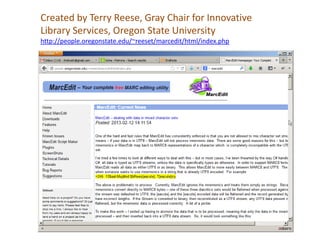
Created by Terry Reese, Gray Chair for Innovative
Library Services, Oregon State University
http://people.oregonstate.edu/~reeset/marcedit/html/index.php
Why MarcEdit
 MarcEdit is the best choice as:
 Allow staffs to work easily in current environment (record
loads, different metadata schemes and many more) to
know possible options
 Origin: Program conceived in 2000 by Terry Reese, Oregon
State University
 Updates pushed out regularly to enhance and for bug fixes
 Lots of help- MarcEdit homepage, You Tube videos,
Conference presentations, Terry Reese workshops,
MarcEdit software help, What’s New in MarcEdit blog and
RSS feed on MarcEdit StartPage, MarcEdit-L
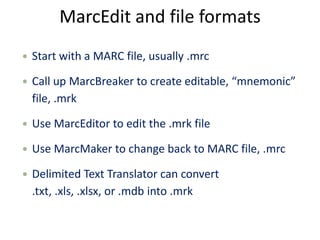
MarcEdit and file formats
 Start with a MARC file, usually .mrc
 Call up MarcBreaker to create editable, “mnemonic”
file, .mrk
 Use MarcEditor to edit the .mrk file
 Use MarcMaker to change back to MARC file, .mrc
 Delimited Text Translator can convert
.txt, .xls, .xlsx, or .mdb into .mrk
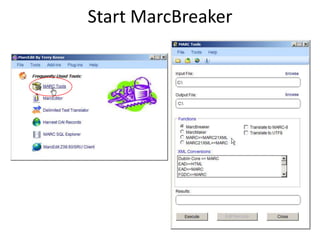
Start MarcBreaker
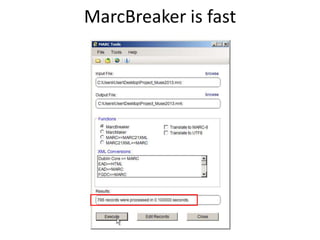
MarcBreaker is fast
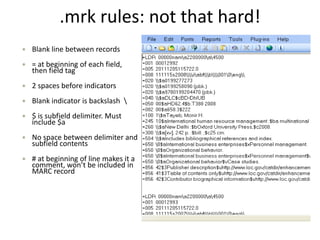
.mrk rules: not that hard!
 Blank line between records
 = at beginning of each field,
then field tag
 2 spaces before indicators
 Blank indicator is backslash 
 $ is subfield delimiter. Must
include $a
 No space between delimiter and
subfield contents
 # at beginning of line makes it a
comment, won’t be included in
MARC record
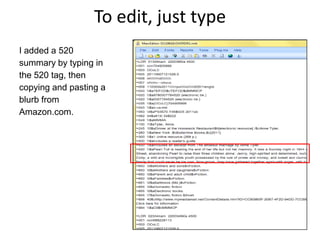
To edit, just type
I added a 520
summary by typing in
the 520 tag, then
copying and pasting a
blurb from
Amazon.com.
Edit Features, Basic
 Find (Ctrl-F)
 Simple find (in page)
 Find All
 Replace (Ctrl-R)
 One at a time or replace all (if you're feeling lucky!)
 Remember: Special Undo is your friend
 Can use regular expressions (advanced
“Find and Replace” is available under the “Edit” also
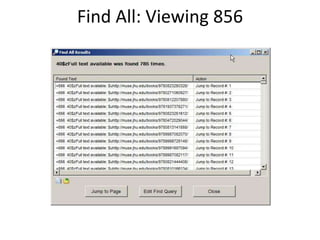
Find All: Viewing 856
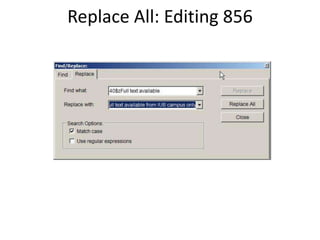
Replace All: Editing 856
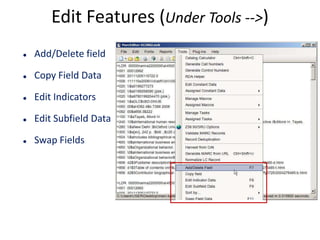
Edit Features (Under Tools -->)
 Add/Delete field
 Copy Field Data
 Edit Indicators
 Edit Subfield Data
 Swap Fields
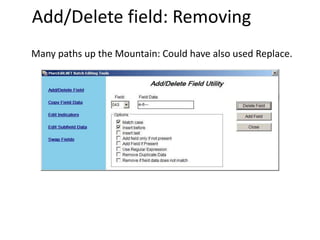
Add/Delete field: Removing
Many paths up the Mountain: Could have also used Replace.
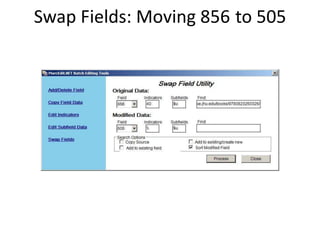
Swap Fields: Moving 856 to 505
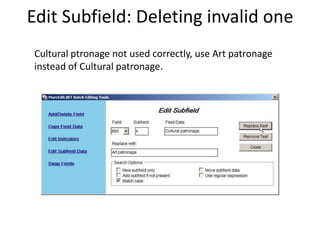
Edit Subfield: Deleting invalid one
Cultural ptronage not used correctly, use Art patronage
instead of Cultural patronage.
Other features
 Change Case (HELPFUL FOR UPPERCASE):
 Edit → Edit Shortcuts → Change Case
 Find Missing Field
 Edit → Edit Shortcuts → Field Edits → Find Records Missing
Field
 Record Deduplication
 Tools → Record Deduplication
 Manage Tasks
 Tools → Manage Tasks
 Handy if you have repeated loads with consistent changes
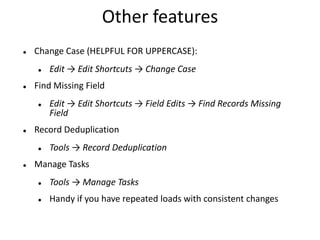
Generating Record Identifiers
 Generate Control Numbers (such as 001)
 Tools → Generate Control Numbers
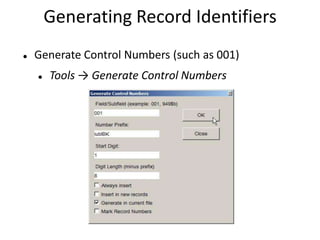
Generating Call Numbers
Tools →
Generate
Call Numbers
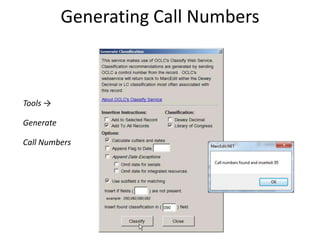
When you're done with the File
 Compile back into MARC
 File → Compile File into
MARC
 Better to keep track of all
the steps you have done,
especially if this will be a
periodic load
 Recommend not to save
under original filename,
but create an edited one
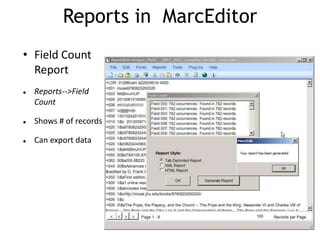
Reports in MarcEditor
• Field Count
Report
 Reports-->Field
Count
 Shows # of records
 Can export data
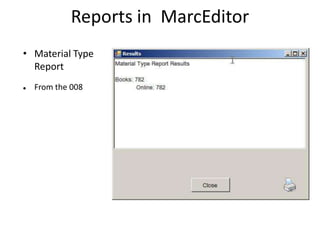
Reports in MarcEditor
• Material Type
Report
 From the 008
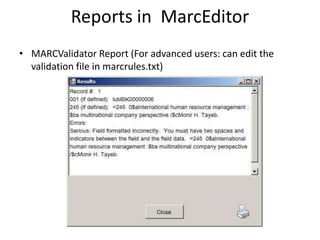
Reports in MarcEditor
• MARCValidator Report (For advanced users: can edit the
validation file in marcrules.txt)
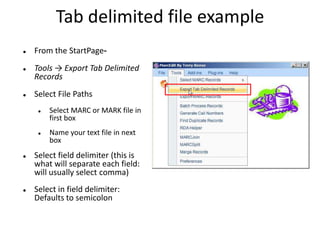
Tab delimited file example
 From the StartPage-
 Tools → Export Tab Delimited
Records
 Select File Paths
 Select MARC or MARK file in
first box
 Name your text file in next
box
 Select field delimiter (this is
what will separate each field:
will usually select comma)
 Select in field delimiter:
Defaults to semicolon
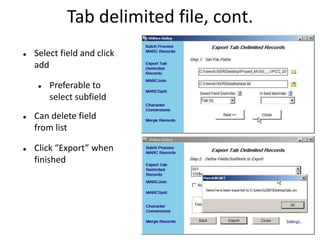
Tab delimited file, cont.
 Select field and click
add
 Preferable to
select subfield
 Can delete field
from list
 Click “Export” when
finished
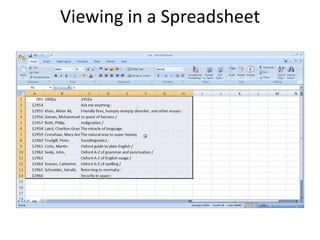
Viewing in a Spreadsheet
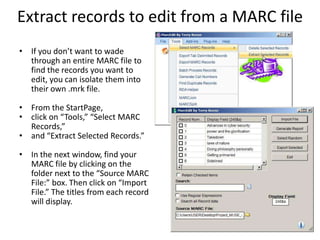
Extract records to edit from a MARC file
• If you don’t want to wade
through an entire MARC file to
find the records you want to
edit, you can isolate them into
their own .mrk file.
• From the StartPage,
• click on “Tools,” “Select MARC
Records,”
• and “Extract Selected Records.”
• In the next window, find your
MARC file by clicking on the
folder next to the “Source MARC
File:” box. Then click on “Import
File.” The titles from each record
will display.
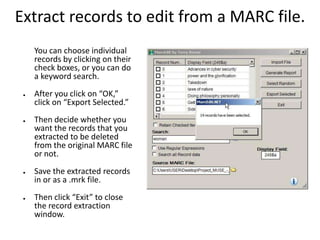
Extract records to edit from a MARC file.
You can choose individual
records by clicking on their
check boxes, or you can do
a keyword search.
● After you click on “OK,”
click on “Export Selected.”
● Then decide whether you
want the records that you
extracted to be deleted
from the original MARC file
or not.
● Save the extracted records
in or as a .mrk file.
● Then click “Exit” to close
the record extraction
window.
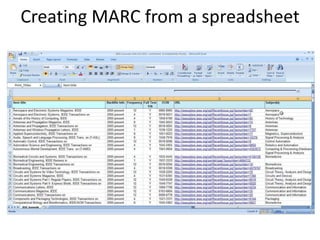
Creating MARC from a spreadsheet
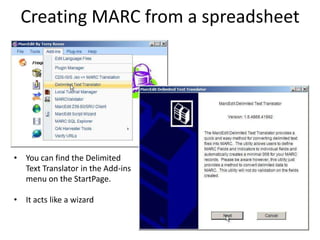
• You can find the Delimited
Text Translator in the Add-ins
menu on the StartPage.
• It acts like a wizard
Creating MARC from a spreadsheet
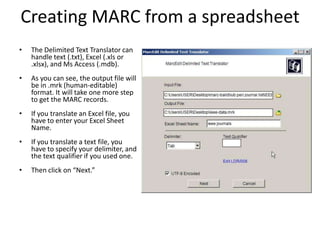
• The Delimited Text Translator can
handle text (.txt), Excel (.xls or
.xlsx), and Ms Access (.mdb).
• As you can see, the output file will
be in .mrk (human-editable)
format. It will take one more step
to get the MARC records.
• If you translate an Excel file, you
have to enter your Excel Sheet
Name.
• If you translate a text file, you
have to specify your delimiter, and
the text qualifier if you used one.
• Then click on “Next.”
Creating MARC from a spreadsheet
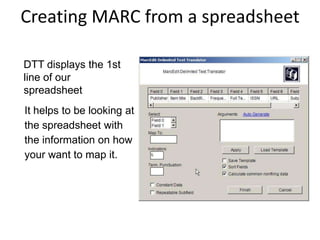
DTT displays the 1st
line of our
spreadsheet
It helps to be looking at
the spreadsheet with
the information on how
your want to map it.
Creating MARC from a spreadsheet
Decide which columns you want to map Map the columns as
follows, ist column is 0
Field Field Tag Map to
0 Publisher  260$b
1 Title 00 245$h[electronic resource]$a
3 Frequency  310$a
5 ISSN  22$a
6 url 40 856$zOnline access: IEEE$u
7 subject 0 $a
 538$aMode of access:Web
 500$aOn campus access
=LDR 00000casa2200000a4500
=008 110605d9999xxqrpso0a0engd
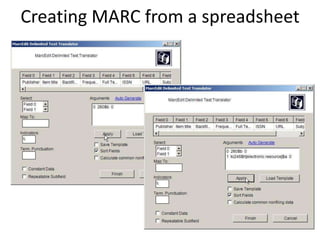
Creating MARC from a spreadsheet
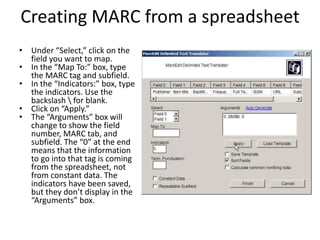
• Under “Select,” click on the
field you want to map.
• In the “Map To:” box, type
the MARC tag and subfield.
• In the “Indicators:” box, type
the indicators. Use the
backslash  for blank.
• Click on “Apply.”
• The “Arguments” box will
change to show the field
number, MARC tab, and
subfield. The “0” at the end
means that the information
to go into that tag is coming
from the spreadsheet, not
from constant data. The
indicators have been saved,
but they don’t display in the
“Arguments” box.
Creating MARC from a spreadsheet
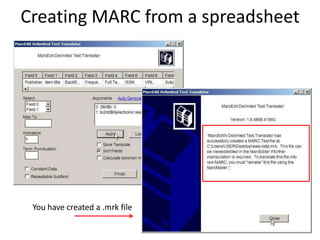
You have created a .mrk file
Creating MARC from a spreadsheet
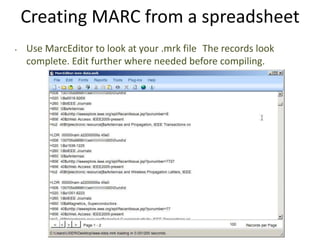
• Use MarcEditor to look at your .mrk file The records look
complete. Edit further where needed before compiling.
References/Resources
 MarcEdit homepage (to download):
http://people.oregonstate.edu/~reeset/marcedit/ht
ml/index.php
 MarcEdit Listserv: http://metis3.gmu.edu/cgi-
bin/wa?A0=MARCEDIT-L
 Terry Reese's YouTube channel (video demos):
http://www.youtube.com/user/tpreese?ob=0
THANK YOU

MarcEdit - makes the life easier (BALID Training programme on Marc 21)

  • 1.
    MarcEdit - makesthe life easier Md. Zahid Hossain Shoeb Deputy Librarian Independent University, Bangladesh Friday, 05 July, 2013, Dhaka Training programme on Marc 21 Bangladesh Association of Librarians, Information Scientists and Documentalists
  • 2.
    Presentation Objectives  Overviewof MarcEdit's functionality  Demonstration of selected features  Editing MARC records  Individually  As a batch  Creating MARC records from Excel spreadsheet
  • 3.
    What is MarcEdit MarcEdit is a FREE program that allows you to:  Preview and edit MARC records outside ILS  Create spreadsheets of fields from MARC records  Crosswalk records (from MARCXML to MARC or other metadata schemes), record harvester  Create/Edit MARC records from spreadsheet data, SQL, RDA data etc  …and many more…
  • 4.
    12/13/11 Created by TerryReese, Gray Chair for Innovative Library Services, Oregon State University http://people.oregonstate.edu/~reeset/marcedit/html/index.php
  • 5.
    Why MarcEdit  MarcEditis the best choice as:  Allow staffs to work easily in current environment (record loads, different metadata schemes and many more) to know possible options  Origin: Program conceived in 2000 by Terry Reese, Oregon State University  Updates pushed out regularly to enhance and for bug fixes  Lots of help- MarcEdit homepage, You Tube videos, Conference presentations, Terry Reese workshops, MarcEdit software help, What’s New in MarcEdit blog and RSS feed on MarcEdit StartPage, MarcEdit-L
  • 6.
    MarcEdit and fileformats  Start with a MARC file, usually .mrc  Call up MarcBreaker to create editable, “mnemonic” file, .mrk  Use MarcEditor to edit the .mrk file  Use MarcMaker to change back to MARC file, .mrc  Delimited Text Translator can convert .txt, .xls, .xlsx, or .mdb into .mrk
  • 7.
  • 8.
  • 9.
    .mrk rules: notthat hard!  Blank line between records  = at beginning of each field, then field tag  2 spaces before indicators  Blank indicator is backslash  $ is subfield delimiter. Must include $a  No space between delimiter and subfield contents  # at beginning of line makes it a comment, won’t be included in MARC record
  • 10.
    To edit, justtype I added a 520 summary by typing in the 520 tag, then copying and pasting a blurb from Amazon.com.
  • 11.
    Edit Features, Basic Find (Ctrl-F)  Simple find (in page)  Find All  Replace (Ctrl-R)  One at a time or replace all (if you're feeling lucky!)  Remember: Special Undo is your friend  Can use regular expressions (advanced “Find and Replace” is available under the “Edit” also
  • 12.
  • 13.
  • 14.
    Edit Features (UnderTools -->)  Add/Delete field  Copy Field Data  Edit Indicators  Edit Subfield Data  Swap Fields
  • 15.
    Add/Delete field: Removing Manypaths up the Mountain: Could have also used Replace.
  • 16.
  • 17.
    Edit Subfield: Deletinginvalid one Cultural ptronage not used correctly, use Art patronage instead of Cultural patronage.
  • 18.
    Other features  ChangeCase (HELPFUL FOR UPPERCASE):  Edit → Edit Shortcuts → Change Case  Find Missing Field  Edit → Edit Shortcuts → Field Edits → Find Records Missing Field  Record Deduplication  Tools → Record Deduplication  Manage Tasks  Tools → Manage Tasks  Handy if you have repeated loads with consistent changes
  • 19.
    Generating Record Identifiers Generate Control Numbers (such as 001)  Tools → Generate Control Numbers
  • 20.
    Generating Call Numbers Tools→ Generate Call Numbers
  • 21.
    When you're donewith the File  Compile back into MARC  File → Compile File into MARC  Better to keep track of all the steps you have done, especially if this will be a periodic load  Recommend not to save under original filename, but create an edited one
  • 22.
    Reports in MarcEditor •Field Count Report  Reports-->Field Count  Shows # of records  Can export data
  • 23.
    Reports in MarcEditor •Material Type Report  From the 008
  • 24.
    Reports in MarcEditor •MARCValidator Report (For advanced users: can edit the validation file in marcrules.txt)
  • 25.
    Tab delimited fileexample  From the StartPage-  Tools → Export Tab Delimited Records  Select File Paths  Select MARC or MARK file in first box  Name your text file in next box  Select field delimiter (this is what will separate each field: will usually select comma)  Select in field delimiter: Defaults to semicolon
  • 26.
    Tab delimited file,cont.  Select field and click add  Preferable to select subfield  Can delete field from list  Click “Export” when finished
  • 27.
    Viewing in aSpreadsheet
  • 28.
    Extract records toedit from a MARC file • If you don’t want to wade through an entire MARC file to find the records you want to edit, you can isolate them into their own .mrk file. • From the StartPage, • click on “Tools,” “Select MARC Records,” • and “Extract Selected Records.” • In the next window, find your MARC file by clicking on the folder next to the “Source MARC File:” box. Then click on “Import File.” The titles from each record will display.
  • 29.
    Extract records toedit from a MARC file. You can choose individual records by clicking on their check boxes, or you can do a keyword search. ● After you click on “OK,” click on “Export Selected.” ● Then decide whether you want the records that you extracted to be deleted from the original MARC file or not. ● Save the extracted records in or as a .mrk file. ● Then click “Exit” to close the record extraction window.
  • 30.
    Creating MARC froma spreadsheet
  • 31.
    Creating MARC froma spreadsheet • You can find the Delimited Text Translator in the Add-ins menu on the StartPage. • It acts like a wizard
  • 32.
    Creating MARC froma spreadsheet • The Delimited Text Translator can handle text (.txt), Excel (.xls or .xlsx), and Ms Access (.mdb). • As you can see, the output file will be in .mrk (human-editable) format. It will take one more step to get the MARC records. • If you translate an Excel file, you have to enter your Excel Sheet Name. • If you translate a text file, you have to specify your delimiter, and the text qualifier if you used one. • Then click on “Next.”
  • 33.
    Creating MARC froma spreadsheet DTT displays the 1st line of our spreadsheet It helps to be looking at the spreadsheet with the information on how your want to map it.
  • 34.
    Creating MARC froma spreadsheet
  • 35.
    Creating MARC froma spreadsheet Decide which columns you want to map Map the columns as follows, ist column is 0 Field Field Tag Map to 0 Publisher 260$b 1 Title 00 245$h[electronic resource]$a 3 Frequency 310$a 5 ISSN 22$a 6 url 40 856$zOnline access: IEEE$u 7 subject 0 $a 538$aMode of access:Web 500$aOn campus access =LDR 00000casa2200000a4500 =008 110605d9999xxqrpso0a0engd
  • 36.
    Creating MARC froma spreadsheet • Under “Select,” click on the field you want to map. • In the “Map To:” box, type the MARC tag and subfield. • In the “Indicators:” box, type the indicators. Use the backslash for blank. • Click on “Apply.” • The “Arguments” box will change to show the field number, MARC tab, and subfield. The “0” at the end means that the information to go into that tag is coming from the spreadsheet, not from constant data. The indicators have been saved, but they don’t display in the “Arguments” box.
  • 37.
    Creating MARC froma spreadsheet You have created a .mrk file
  • 38.
    Creating MARC froma spreadsheet • Use MarcEditor to look at your .mrk file The records look complete. Edit further where needed before compiling.
  • 39.
    References/Resources  MarcEdit homepage(to download): http://people.oregonstate.edu/~reeset/marcedit/ht ml/index.php  MarcEdit Listserv: http://metis3.gmu.edu/cgi- bin/wa?A0=MARCEDIT-L  Terry Reese's YouTube channel (video demos): http://www.youtube.com/user/tpreese?ob=0
  • 40.