
®
Microsoft
Project 2007
Training


Module 1: The Basic
Welcome
This training module was created by: Eng’r Sid Calayag

   Credentials:
•   Trained in Planning and Scheduling using Primavera
•   Experienced in using Harvard Project Manager and MS Project since version 3
•   Trained in Project Management and Quality Management System
•   Regular Trainer for Taikisha Philippines Inc.
•   Certified Lead auditor for ISO 9001:2000 and ISO 9001:2008
•   Practiced Project Management (local and abroad)
•   Published major training materials in the internet on the following subjects:
    • Guidelines for Project Kick-off Meeting
    • Quality in Construction Works
    • Improve Project Performance Using 5S Concept
    • QA/QC Concept, Roles and Responsibilities in TPI Organization
    • Quality Improvement Using Root Cause Analysis
    •    Practical Auditing
    • Upgrade QMS System to ISO 9001:2008
    • Introduction to Cleanroom Technology

                                                                                    2
Course Objectives


  This Microsoft Project course gives delegates an
   introduction to project management and to the
   concepts of planning and scheduling using Microsoft
   Project 2007. Delegates on this training will learn
   how to identify, organize and manage the tasks and
   resources required to complete a project under the
   constraints of time and cost to achieve a final project
   target.


                                                             4
Course contents

  • Lesson 1: Project Management
    •  Concept of Project Management
    •  Key Metrics and Success Factors
    •  PERT and CPM
  • Lesson 2: Microsoft Project
    • Planning the Project
    • Task Entry and Linking
    • Updating the Project
    • Working with your views
    • Printing and Reporting
                                         5
Lesson 1

  Project Management
 • Commonly used terms
 • Concept of Project Management
 • Key metrics to Project Management
 • Key Success Factors
 • The Critical Path / PERT Chart
Commonly used terms

 Activity – a specific project task that requires resources
    and time to complete
   Baseline – the original approved plan
   Crash - in CPM, an activity can be conducted at a normal
    pace or at an expedited pace at a greater cost
   Critical - an activity or event that if delayed will delay
    project completion
   Critical path – the series of activities that determines the
    duration of a project. It is the longest path through the
    project.

                                                                   7
Commonly used terms

 Deliverables- any measurable, tangible, verifiable
  outcome, result, or item that must be produced to
  complete a project
 Fast tracking – a method of shortening the critical path by
  carrying out activities in parallel
 Gantt chart – a manner of illustrating multiple time-based
  activities on a horizontal time scale
 PERT – Program Evaluation and Review Technique chart
  depict task, duration, and dependency information in a
  network form.


                                                                8
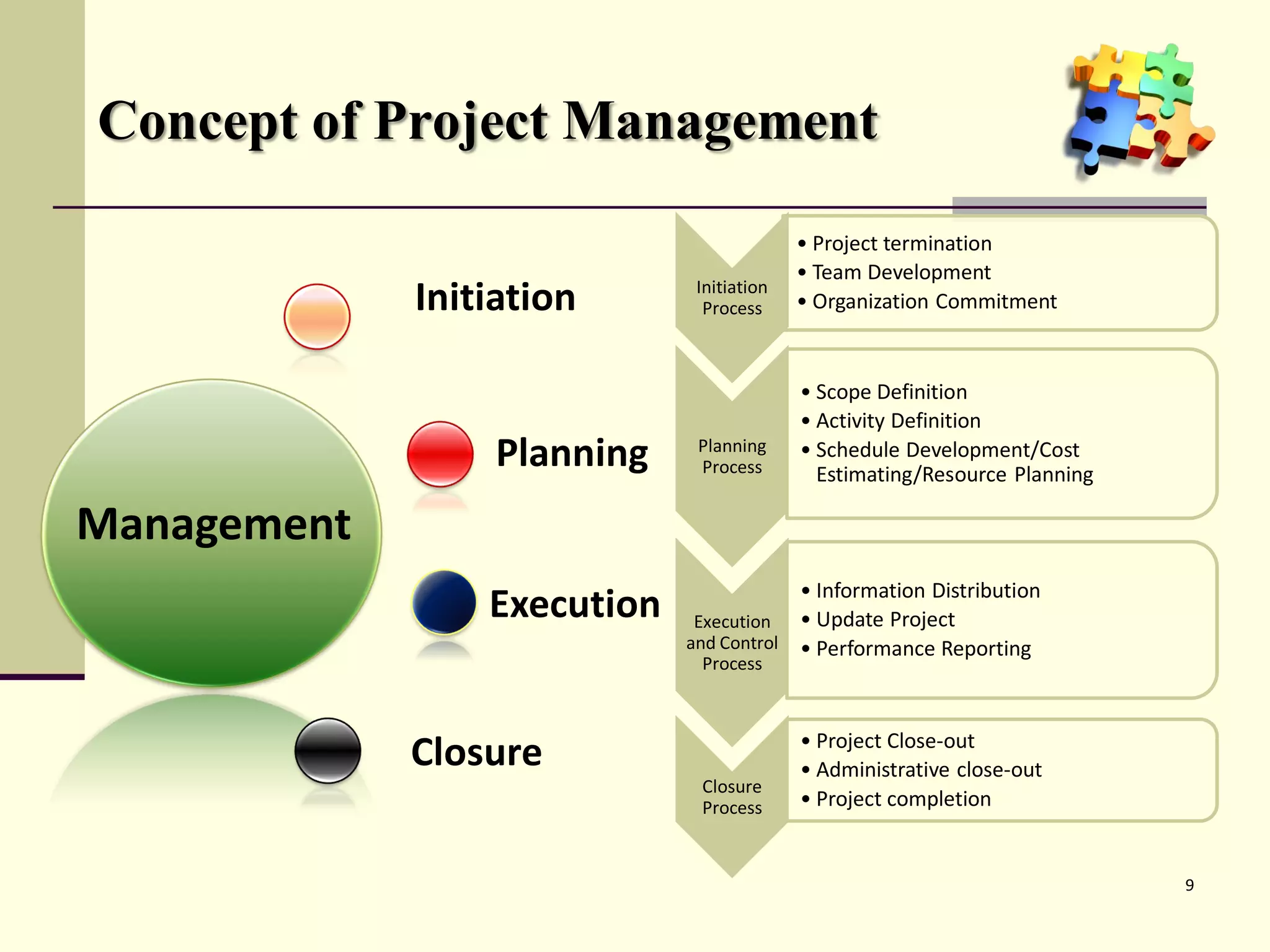
Concept of Project Management
                                           • Project termination
                                           • Team Development
             Initiation       Initiation
                               Process     • Organization Commitment


                                           • Scope Definition
                                           • Activity Definition
                  Planning    Planning
                              Process
                                           • Schedule Development/Cost
                                             Estimating/Resource Planning

Management
                                         • Information Distribution
                 Execution    Execution • Update Project
                             and Control • Performance Reporting
                              Process


                                           • Project Close-out
             Closure                       • Administrative close-out
                              Closure
                              Process      • Project completion


                                                                            9
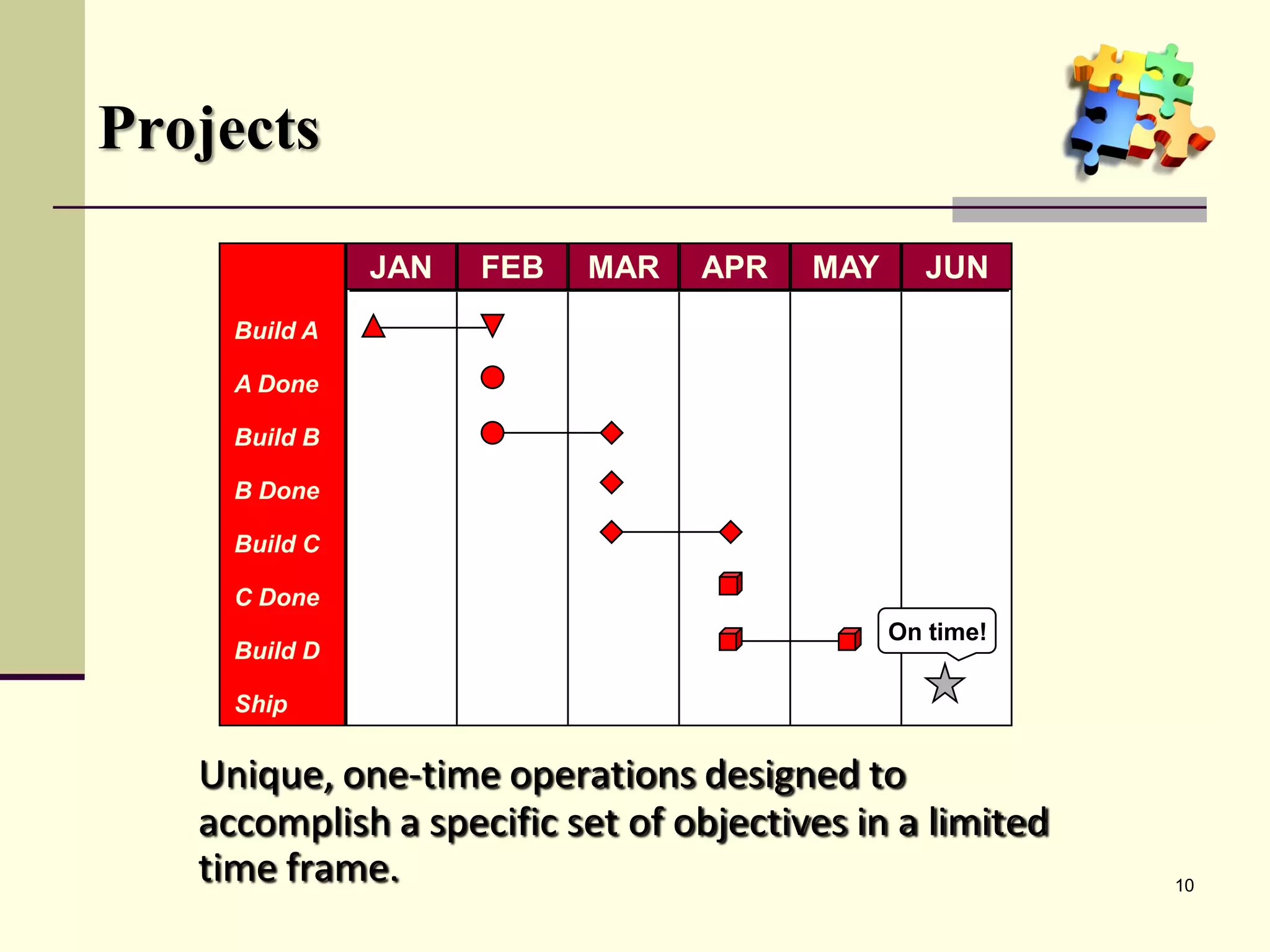
Projects

               JAN   FEB   MAR   APR    MAY      JUN
     Build A

     A Done

     Build B

     B Done

     Build C

     C Done
                                              On time!
     Build D

     Ship


   Unique, one-time operations designed to
   accomplish a specific set of objectives in a limited
   time frame.                                            10
Key metrics and success factors

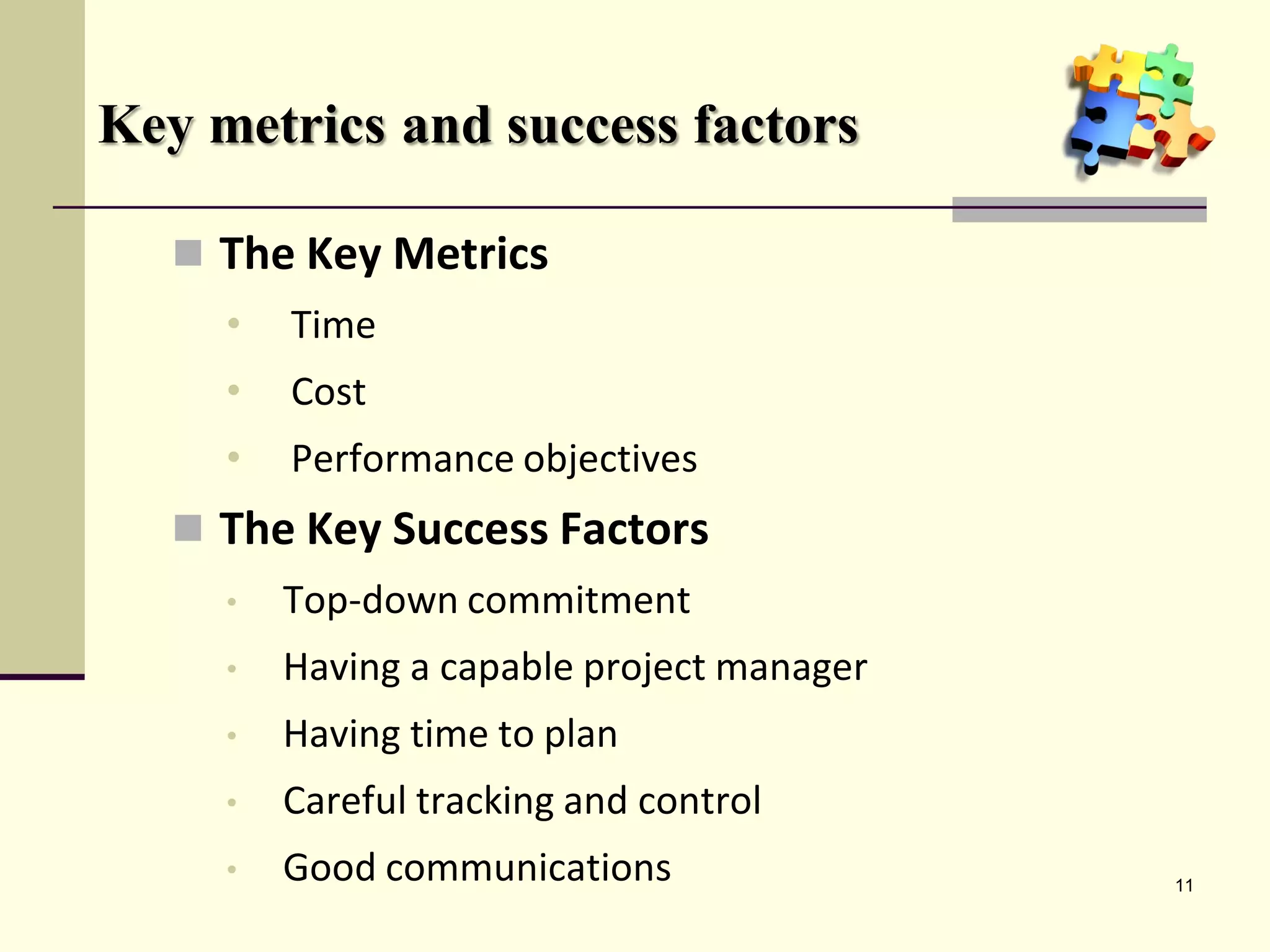
    The Key Metrics
     •   Time
     •   Cost
     •   Performance objectives
    The Key Success Factors
     •   Top-down commitment
     •   Having a capable project manager
     •   Having time to plan
     •   Careful tracking and control
     •   Good communications                11
Project Management

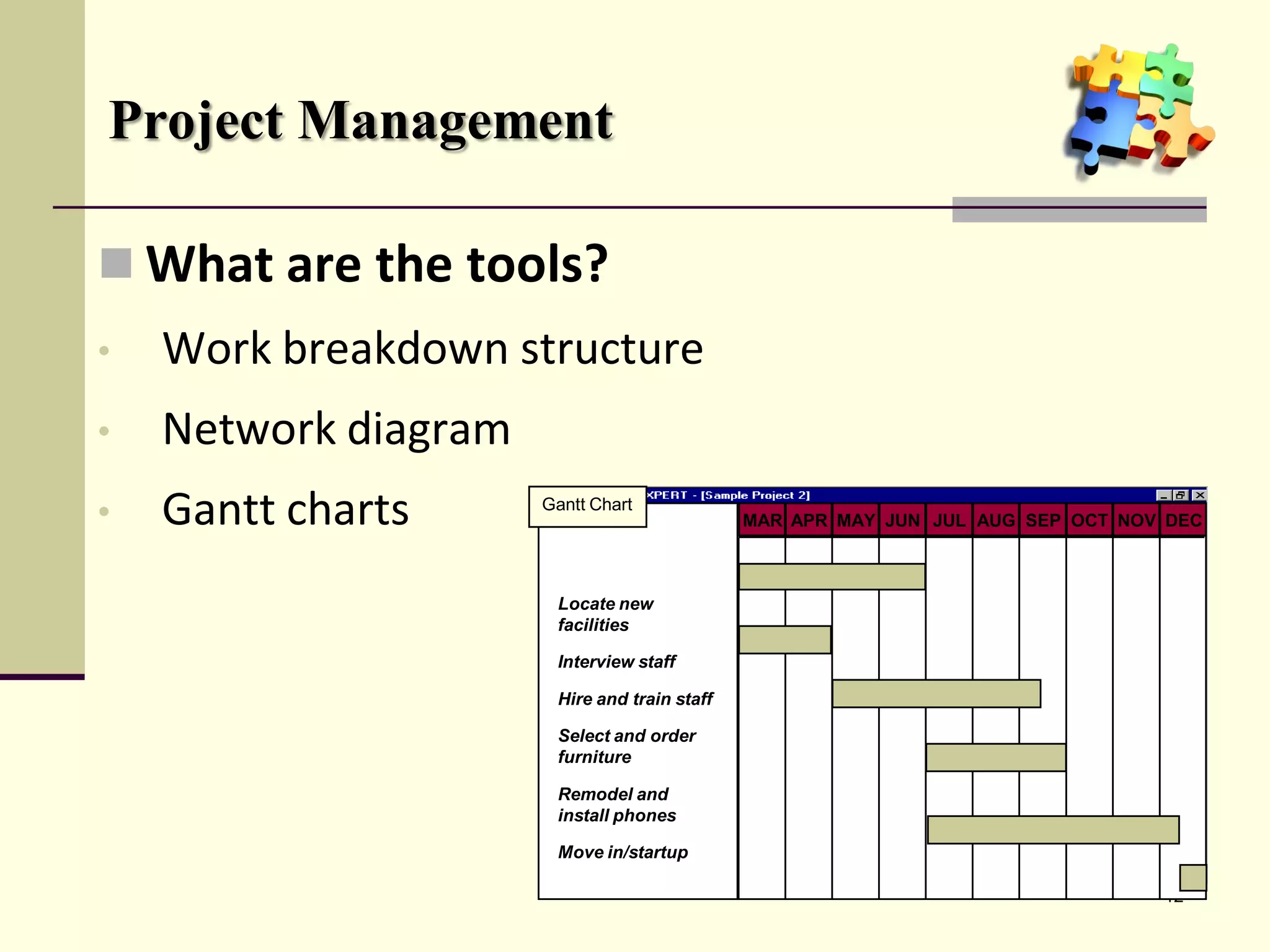
 What are the tools?
•   Work breakdown structure
•   Network diagram
•   Gantt charts      Gantt Chart                       Project X
                                              MAR APR MAY JUN JUL AUG SEP OCT NOV DEC


                        Level 1
                       Locate new
                       facilities

                        Level 2
                       Interview staff

                       Hire and train staff
                        Level 3
                       Select and order
                       furniture

                       Remodel and
                        Level 4
                       install phones

                       Move in/startup

                                                                                 12
Project Manager

Responsible for:   Work              Quality
                   Human Resources   Time
                   Communications    Costs


                                               13
Review Lesson 1-a

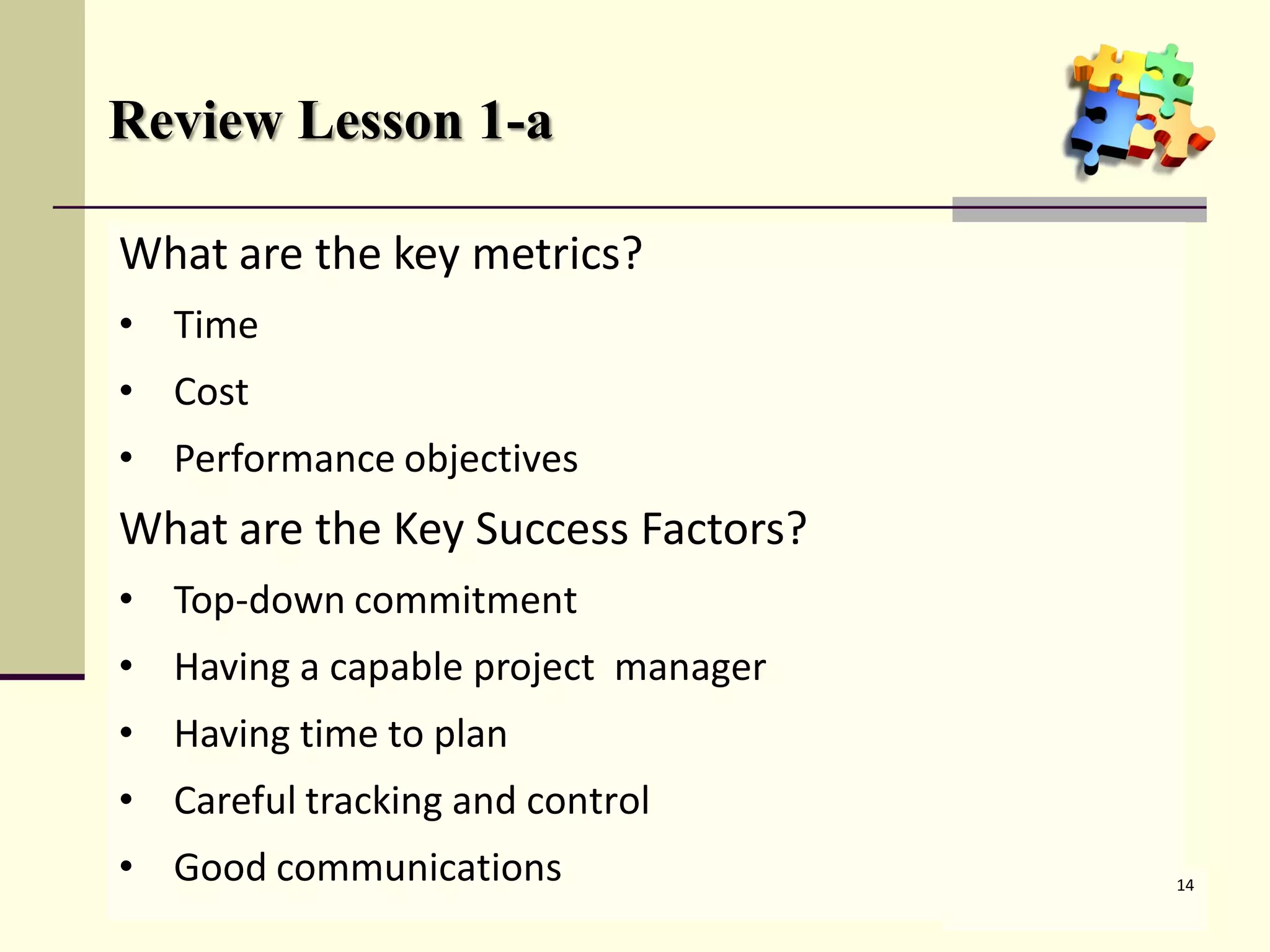
What are the key metrics?
• ____
  Time
• ____
  Cost
• Performance ___________
              objectives
What are the Key Success Factors?
• Top-down __________
           commitment
• Having a _______project _______
           ______ project manager
           capable project _______
• Having ____ to plan
         time to plan
• Careful tracking and _______
                       control
• Good ______________.
       communications                14

    Critical Path /“Pert” Charts
PERT and CPM

PERT:         Program Evaluation and
              Review Technique
CPM:          Critical Path Method

  • Graphically displays project activities
  • Estimates how long the project will take
  • Indicates most critical activities
  • Show where delays will not affect project
The Network Diagram

• Network (precedence) diagram
• Activity-on-arrow (AOA)
• Activity-on-node (AON)
• Activities
• Events
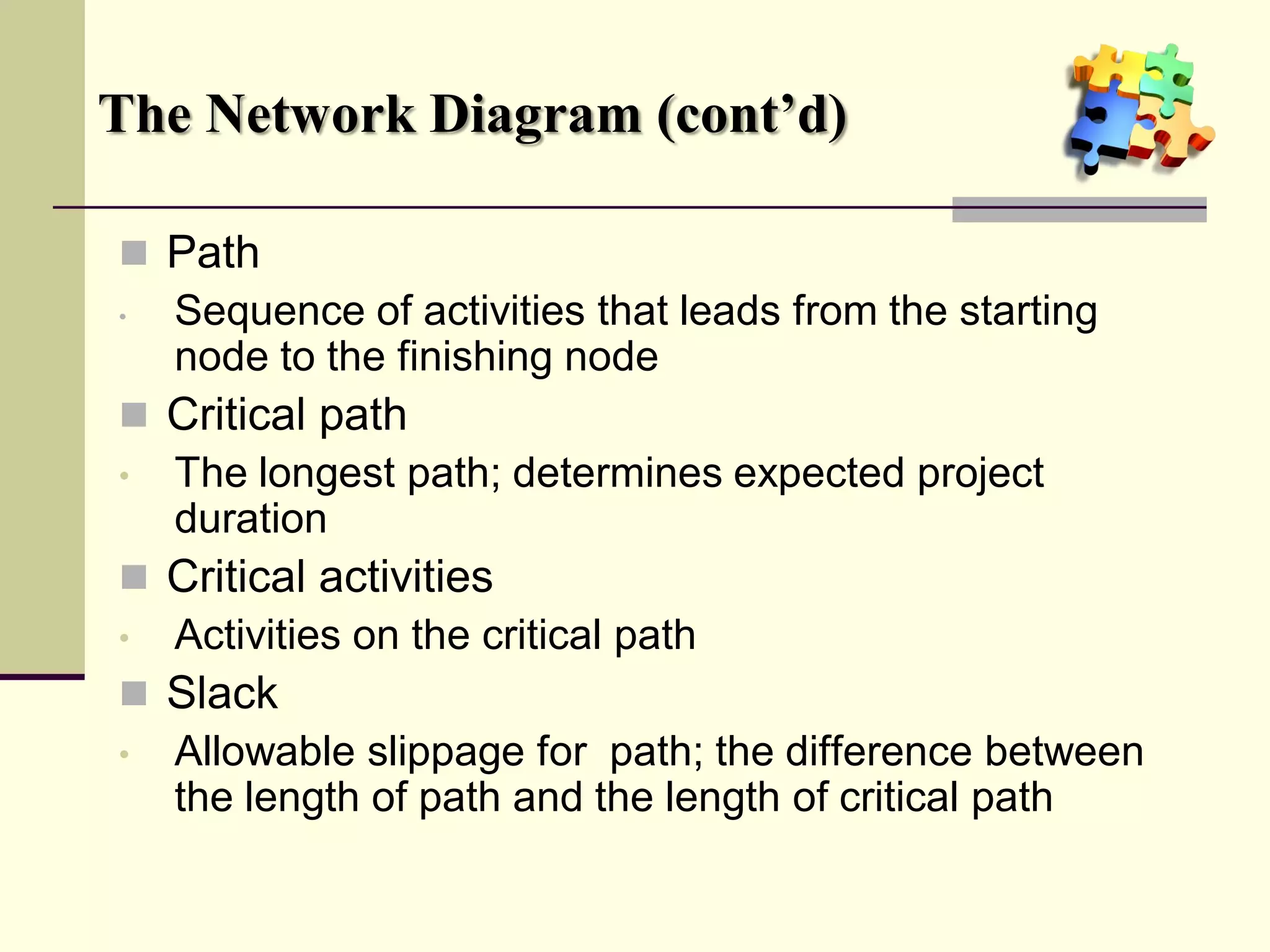
The Network Diagram (cont’d)

 Path
• Sequence of activities that leads from the starting
  node to the finishing node
 Critical path
• The longest path; determines expected project
  duration
 Critical activities
• Activities on the critical path
 Slack
• Allowable slippage for path; the difference between
  the length of path and the length of critical path
Project Network – Activity on Arrow

                   Order
   AOA             furniture      4
                                          Furniture
      Locate       2                      setup
      facilities
                       Remodel
     1                                     5           6
                                                Move
                                                in
    Interview
                               Hire and
                               train
                   3
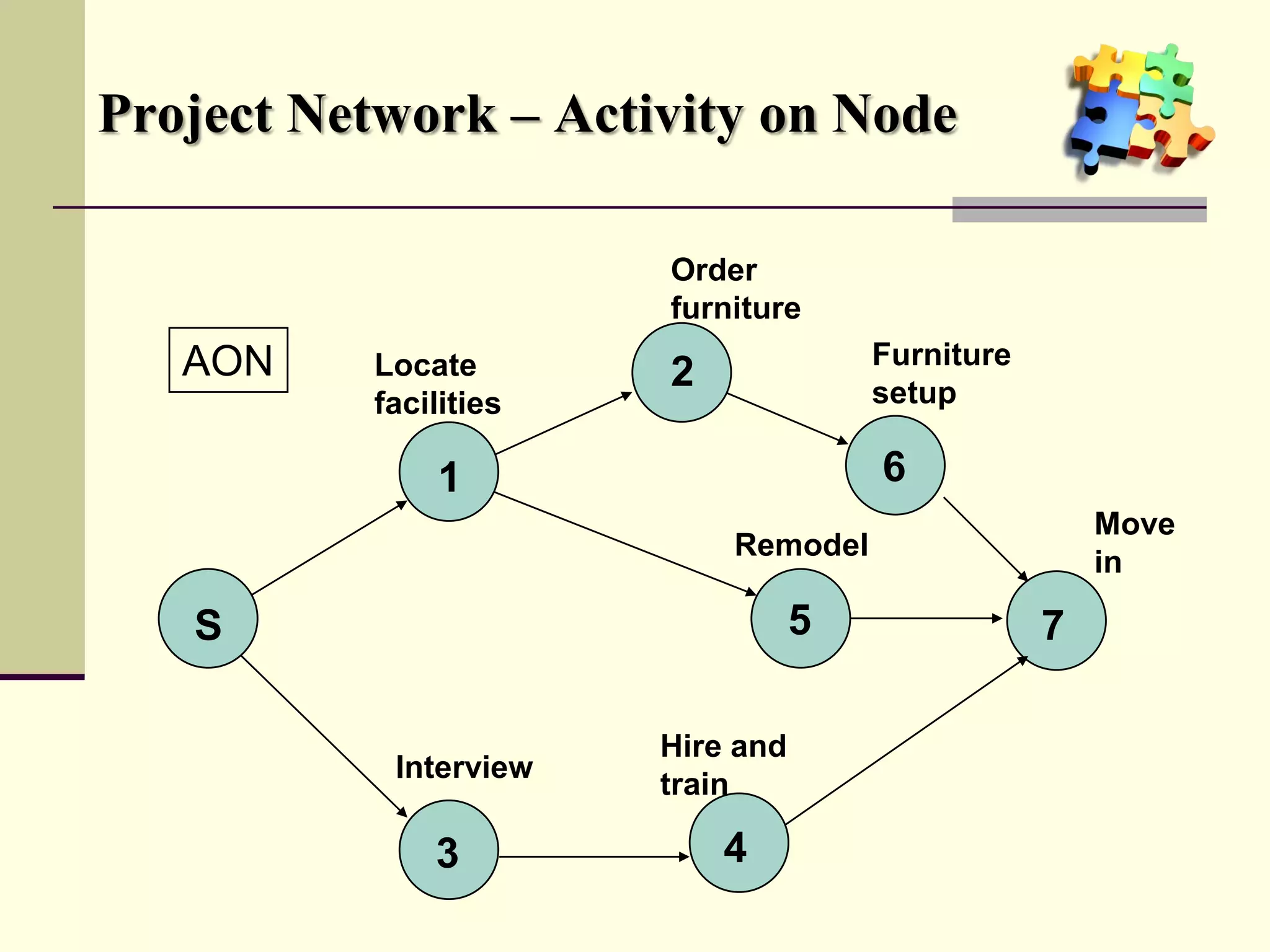
Project Network – Activity on Node

                       Order
                       furniture
   AON    Locate                      Furniture
                       2              setup
          facilities

              1                       6
                                                      Move
                           Remodel
                                                      in

   S                              5               7

                       Hire and
           Interview
                       train

              3            4
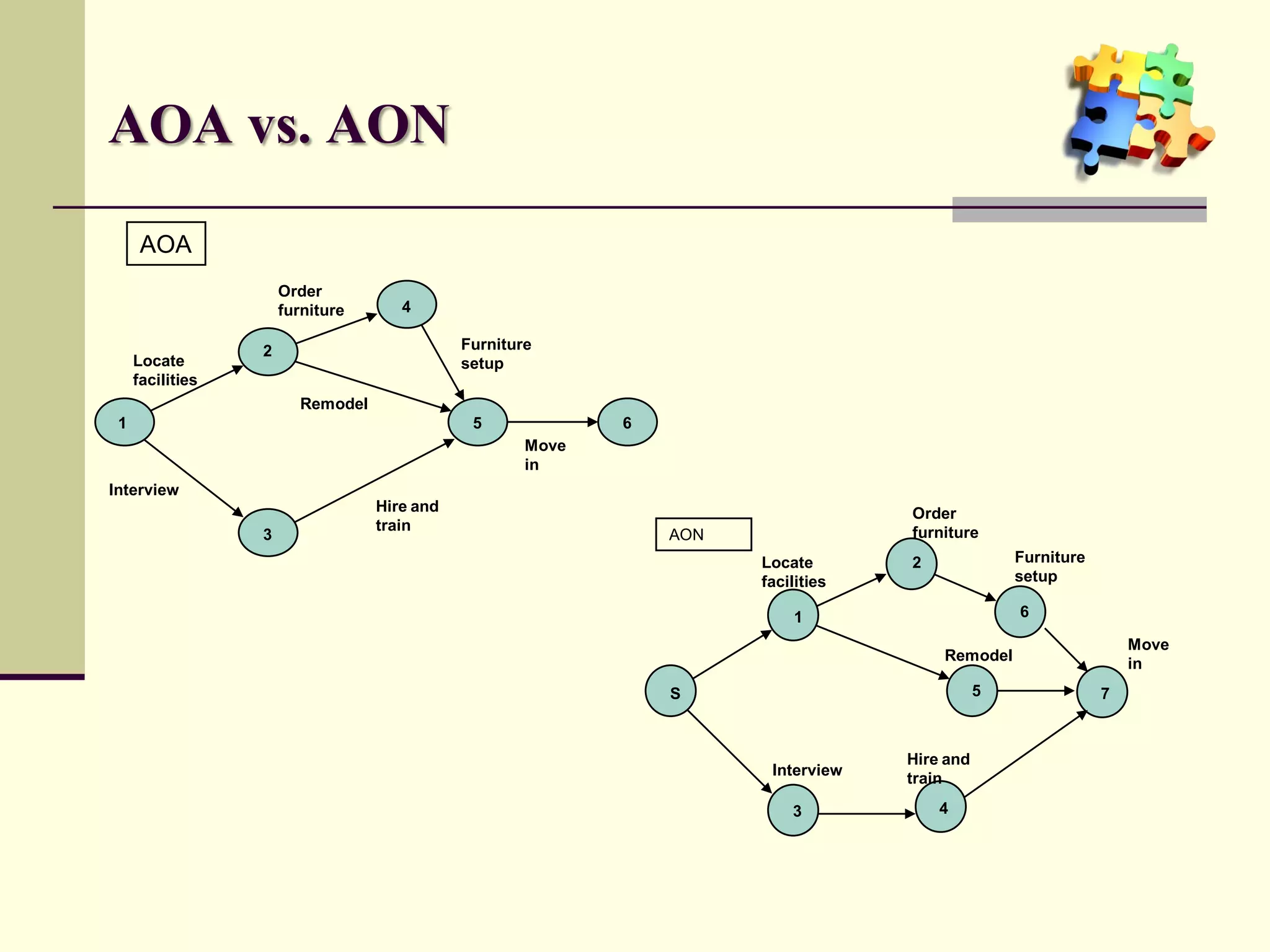
AOA vs. AON
      AOA
                      Order
                      furniture      4

                  2                          Furniture
     Locate                                  setup
     facilities
                        Remodel
 1                                            5             6
                                                     Move
                                                     in
Interview
                                  Hire and                                         Order
                                  train                                            furniture
                  3                                             AON
                                                                      Locate       2              Furniture
                                                                      facilities                  setup

                                                                          1                       6

                                                                                                                  Move
                                                                                       Remodel
                                                                                                                  in
                                                                S                             5               7


                                                                                   Hire and
                                                                       Interview
                                                                                   train

                                                                          3            4
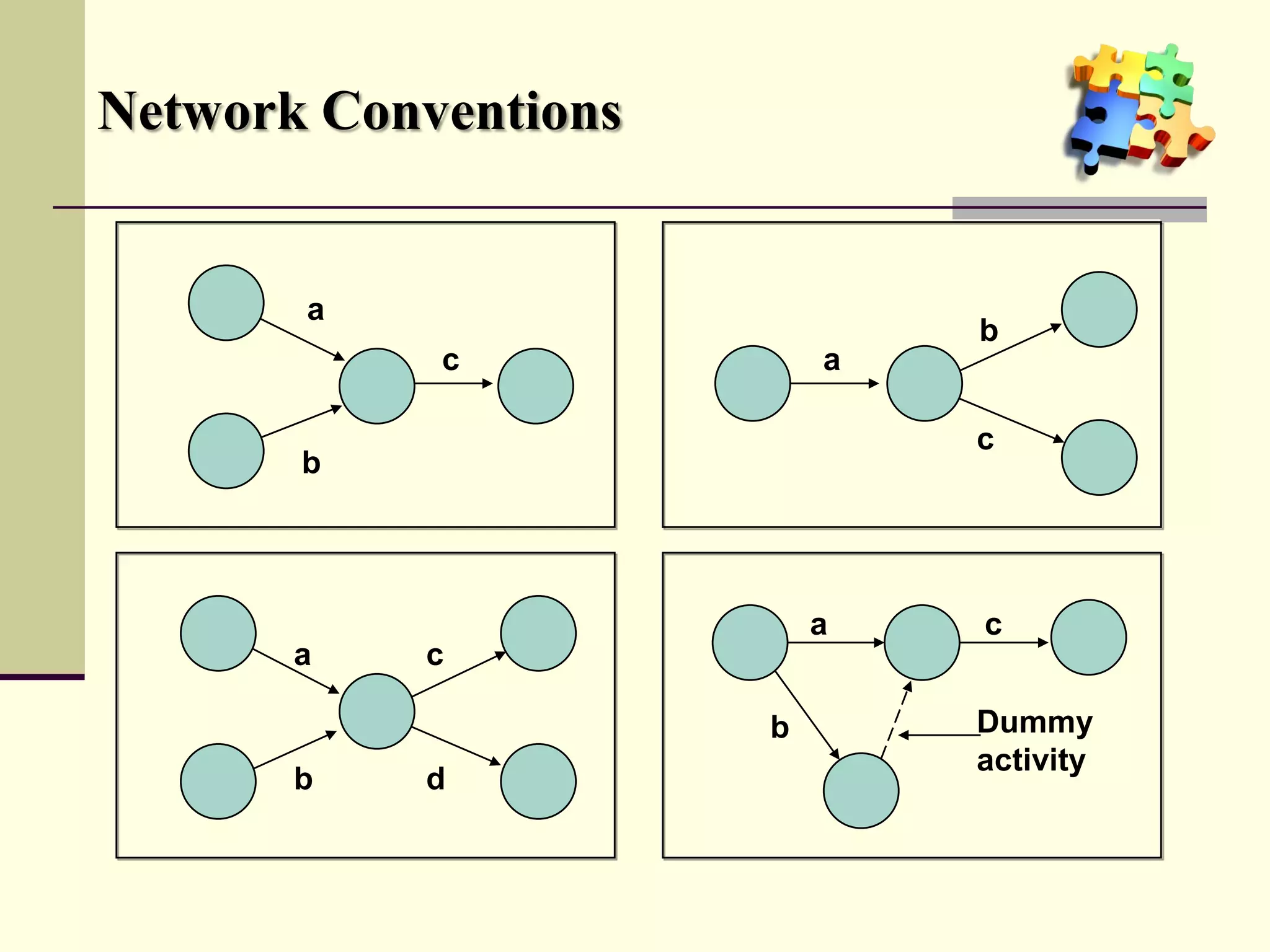
Network Conventions


       a
                              b
            c             a

                              c
       b


                          a   c
       a   c

                      b       Dummy
                              activity
       b   d
Time Estimates

 Deterministic

•   Time estimates that are fairly certain
 Probabilistic

•   Estimates of times that allow for variation
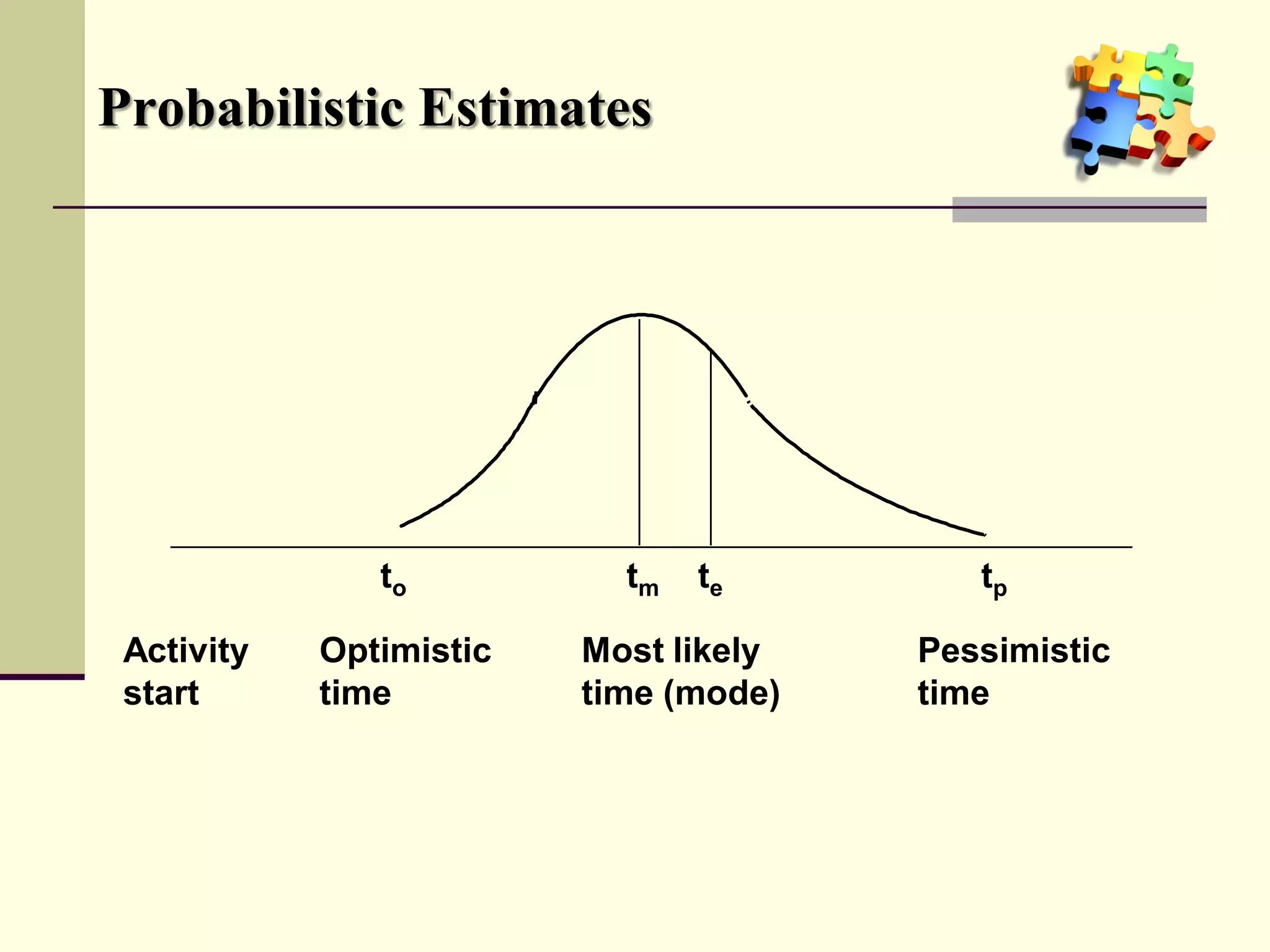
Probabilistic Estimates


               to          tm   te        tp

 Activity   Optimistic   Most likely   Pessimistic
 start      time         time (mode)   time
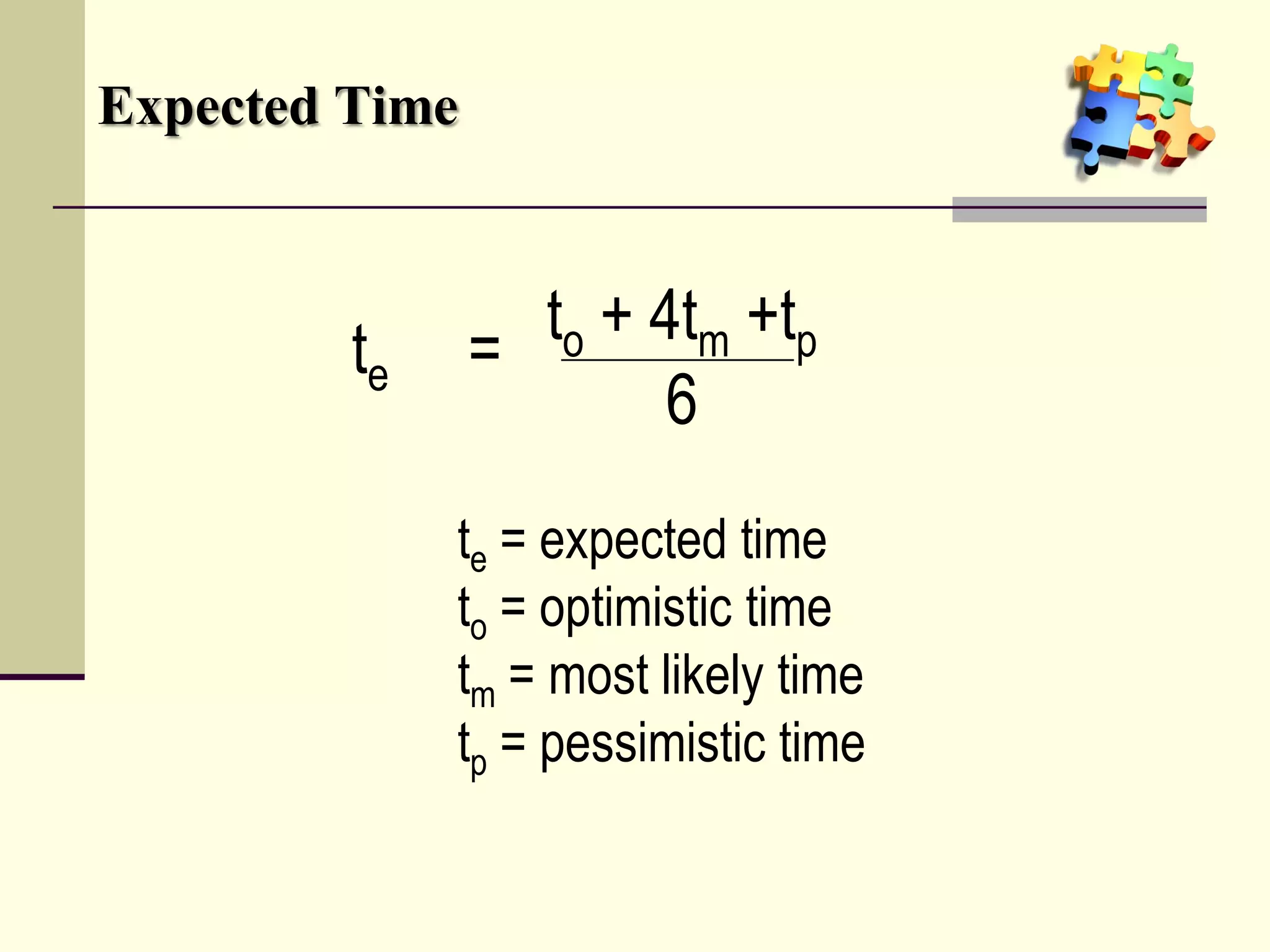
Expected Time


         te     = to + 4tm +tp
                        6
              te = expected time
              to = optimistic time
              tm = most likely time
              tp = pessimistic time
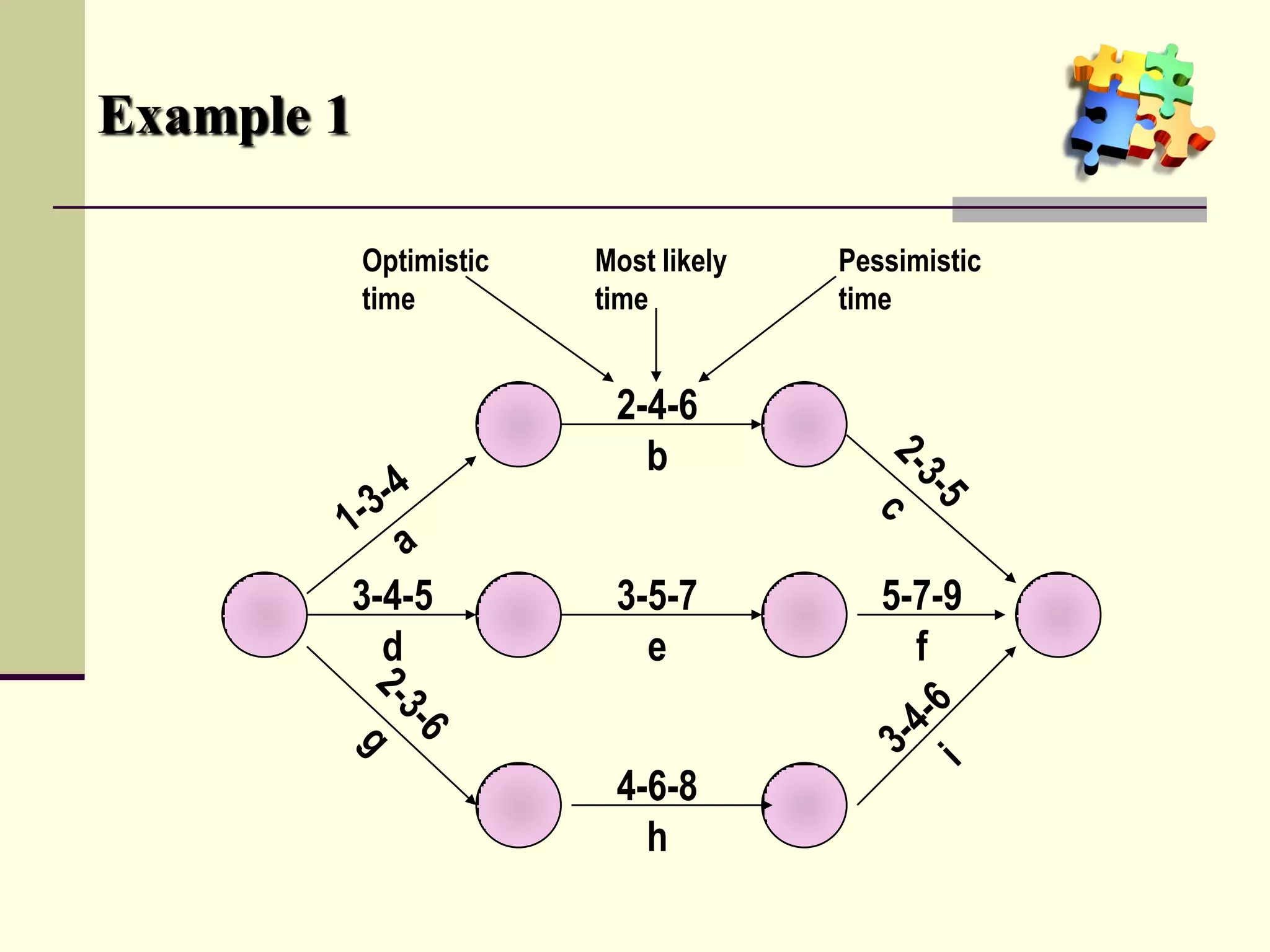
Example 1

            Optimistic   Most likely   Pessimistic
            time         time          time


                          2-4-6
                            b


        3-4-5             3-5-7           5-7-9
          d                 e               f


                          4-6-8
                            h
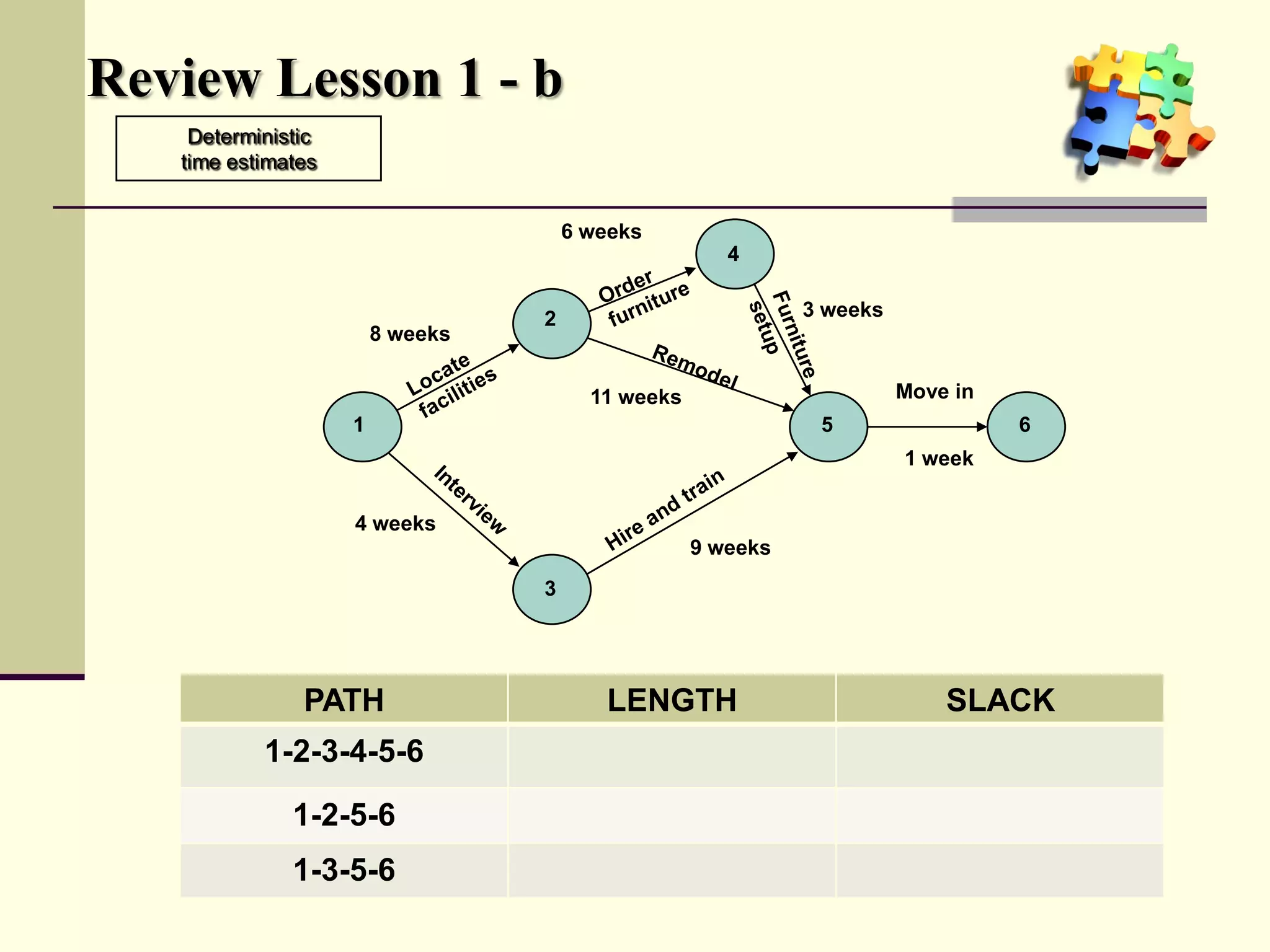
Review Lesson 1 - b
    Deterministic
   time estimates


                                      6 weeks
                                                      4


                                  2                          3 weeks
                        8 weeks

                                        11 weeks                       Move in
                    1                                         5                  6
                                                                       1 week


                    4 weeks
                                                   9 weeks
                                  3


               PATH                      LENGTH                            SLACK
           1-2-3-4-5-6

              1-2-5-6
              1-3-5-6
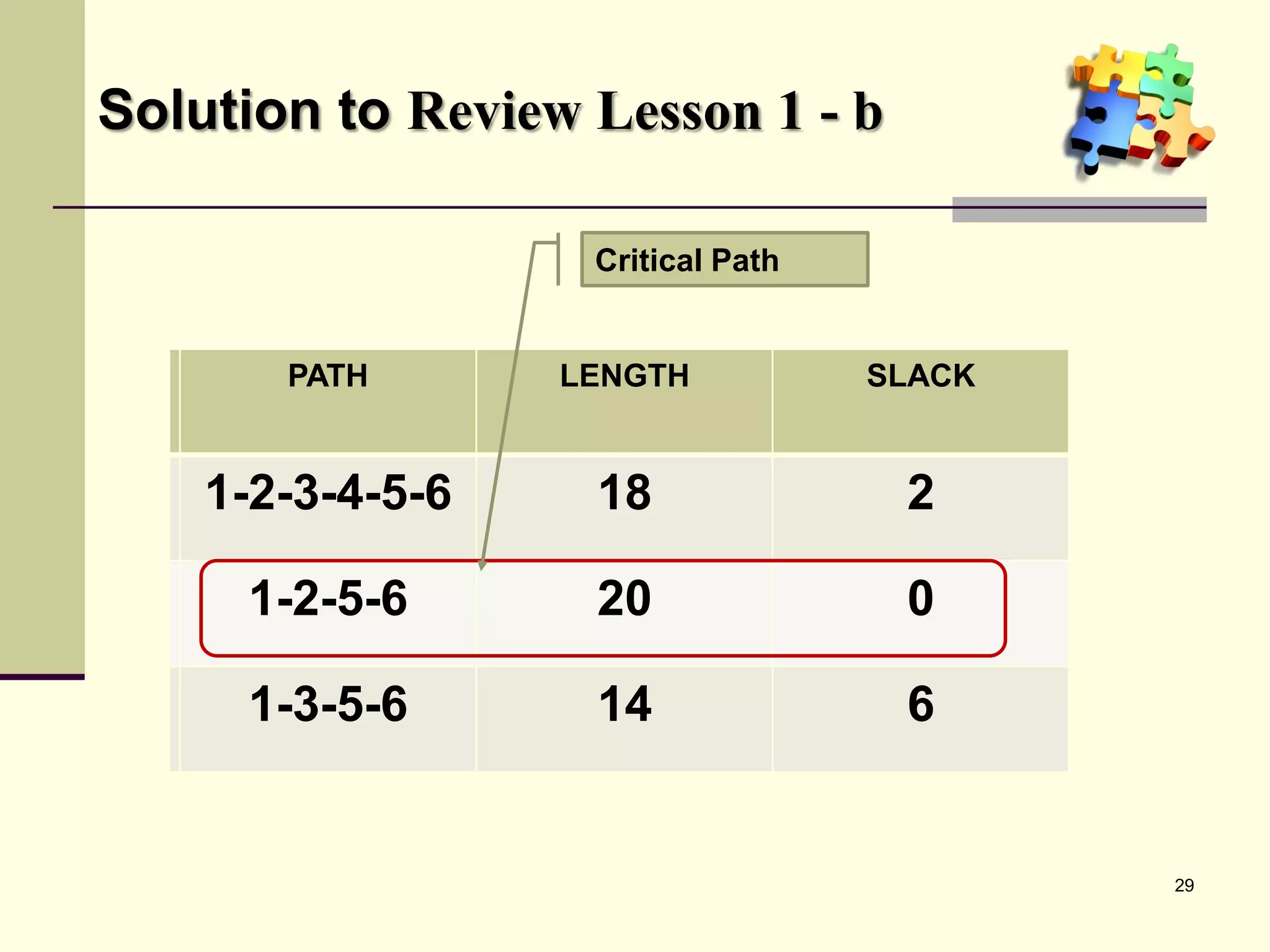
Solution to Review Lesson 1 - b

                   Critical Path


       PATH
        PATH     LENGTH
                  LENGTH           SLACK
                                   SLACK


   1-2-3-4-5-6
   1-2-3-4-5-6     18
                   18               2
                                    2

     1-2-5-6
     1-2-5-6       20                0

     1-3-5-6
     1-3-5-6       14                6


                                           29
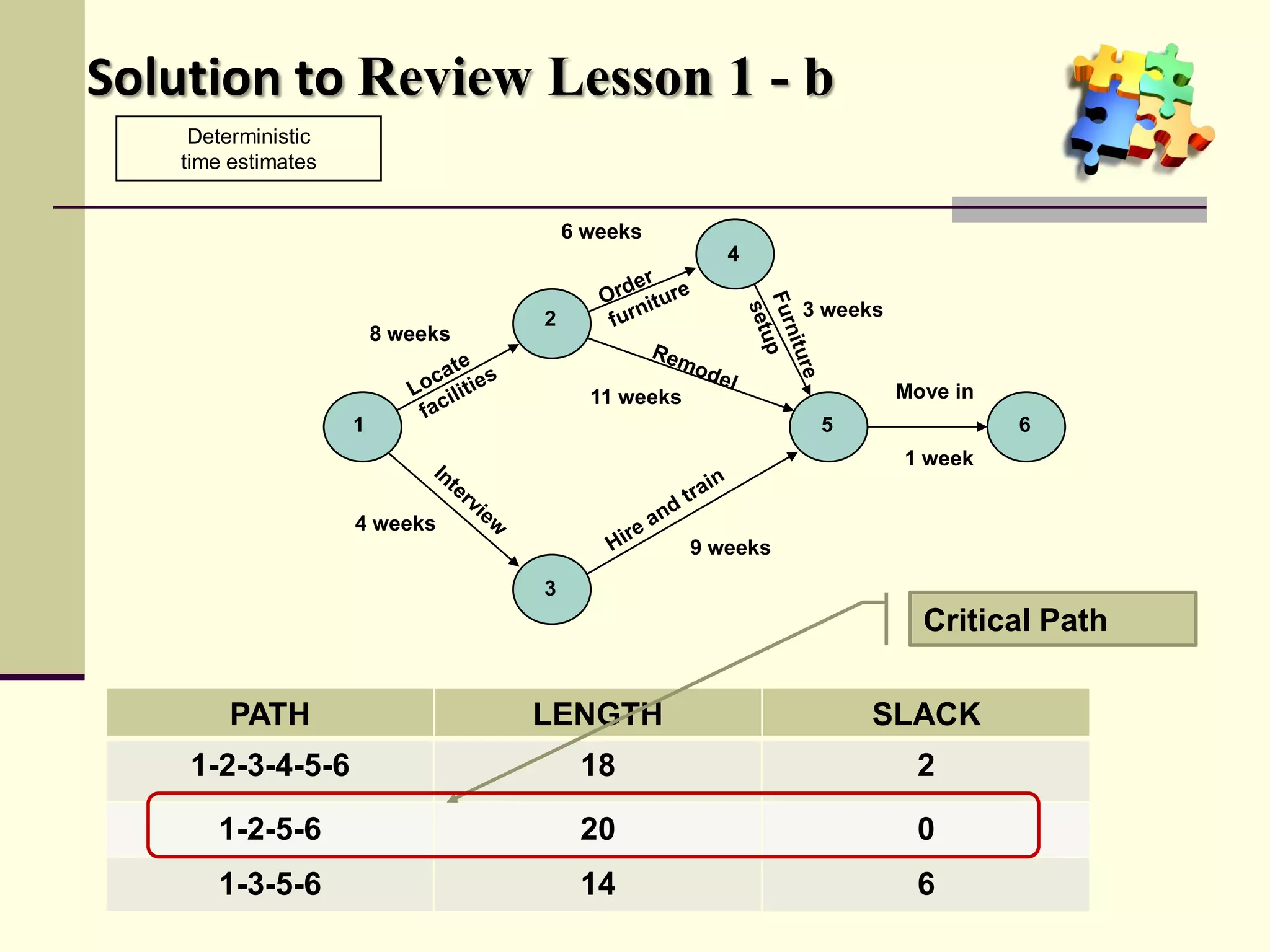
Solution to Review Lesson 1 - b
    Deterministic
   time estimates


                                      6 weeks
                                                      4


                                  2                          3 weeks
                        8 weeks

                                        11 weeks                       Move in
                    1                                         5                  6
                                                                       1 week


                    4 weeks
                                                   9 weeks
                                  3
                                                                         Critical Path

        PATH                      LENGTH                          SLACK
    1-2-3-4-5-6                        18                               2

      1-2-5-6                          20                               0
      1-3-5-6                          14                               6
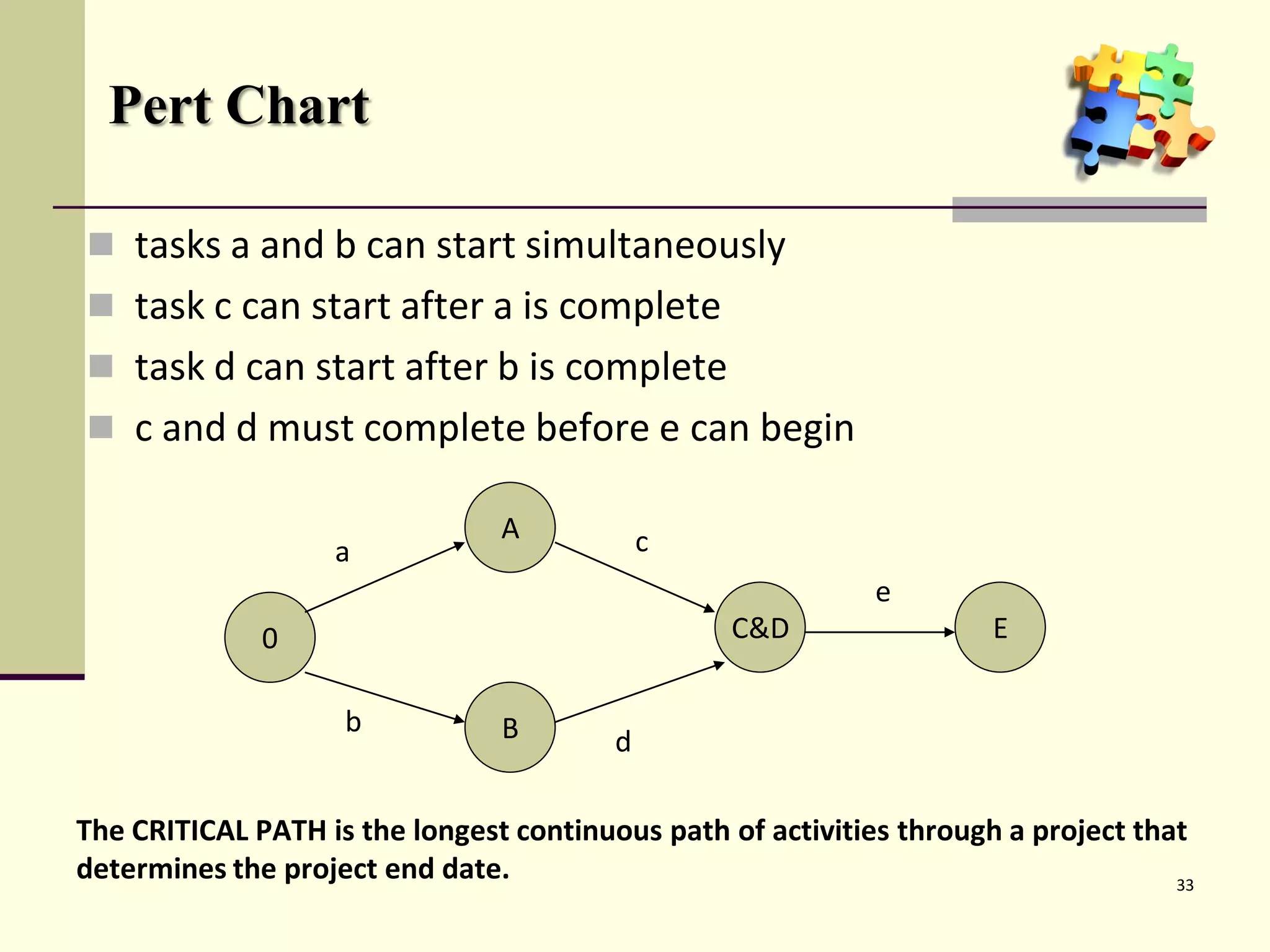
Pert Chart

 tasks a and b can start simultaneously
 task c can start after a is complete
 task d can start after b is complete
 c and d must complete before e can begin

                                A            c
                   a
                                                             e
              0                                   C&D                 E

                    b           B        d

The CRITICAL PATH is the longest continuous path of activities through a project that
determines the project end date.                                                    33
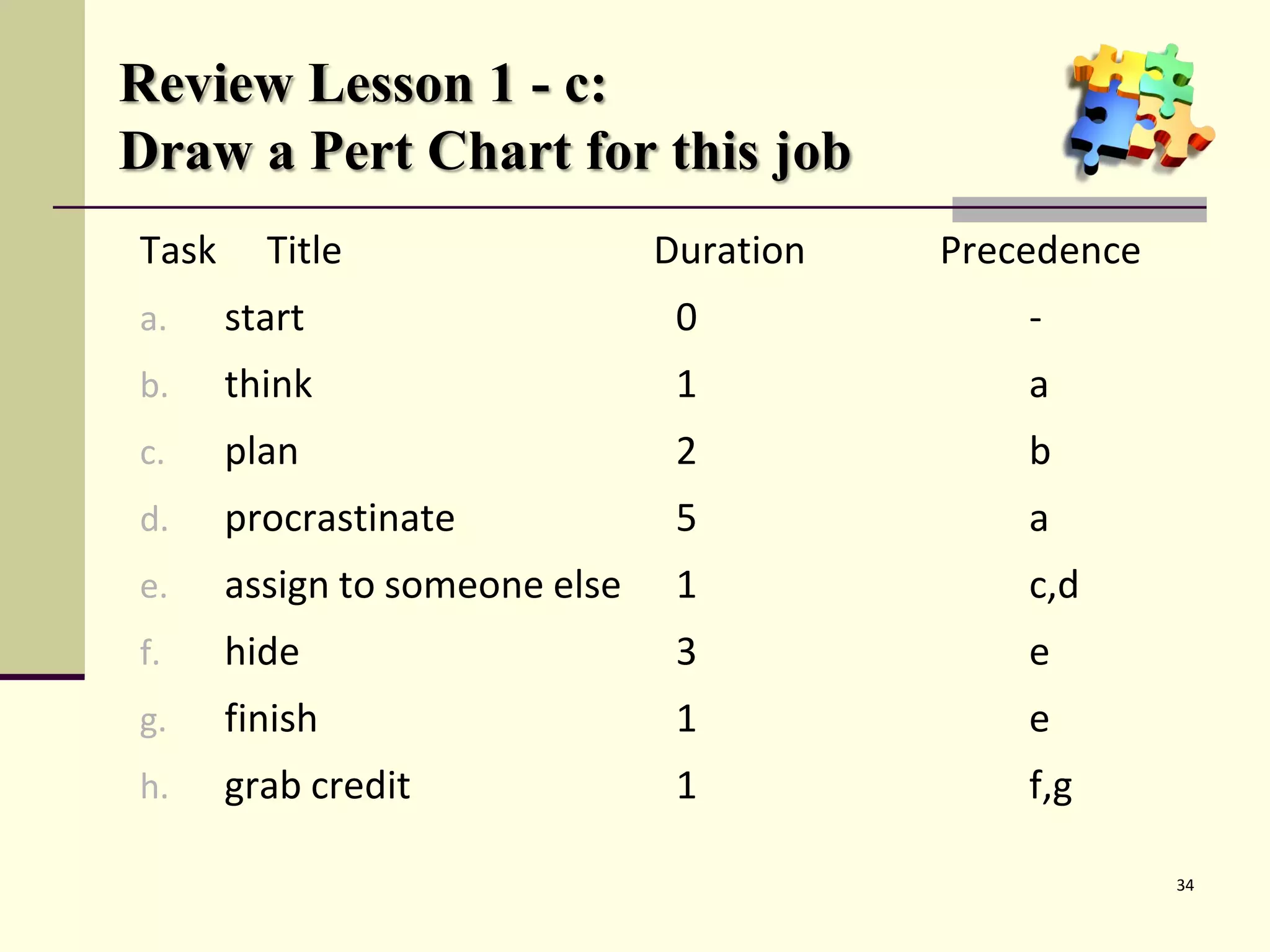
Review Lesson 1 - c:
Draw a Pert Chart for this job
Task     Title                  Duration   Precedence
a.     start                     0             -
b.     think                     1             a
c.     plan                      2             b
d.     procrastinate             5             a
e.     assign to someone else    1             c,d
f.     hide                      3             e
g.     finish                    1             e
h.     grab credit               1             f,g

                                                        34
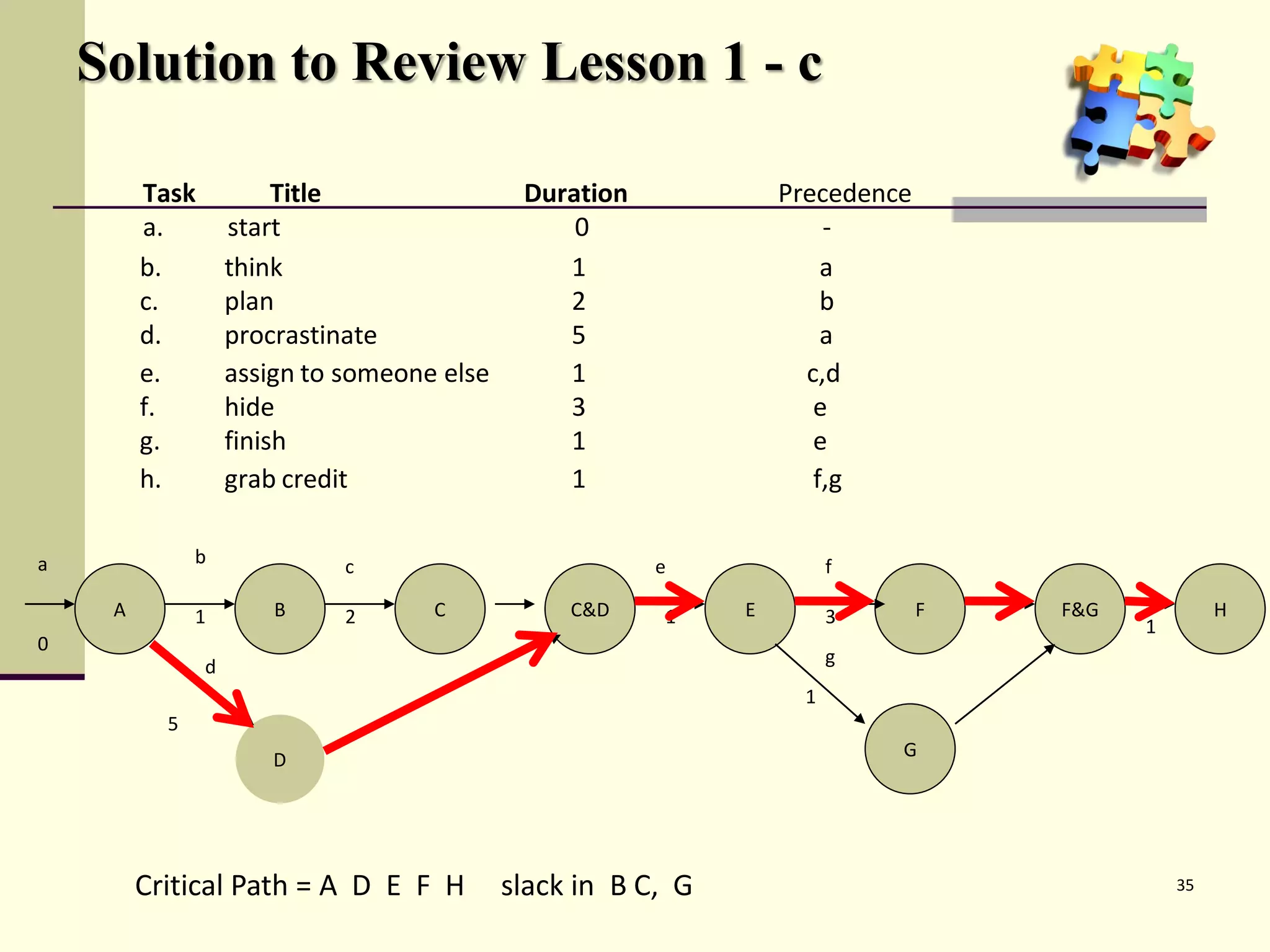
Solution to Review Lesson 1 - c

         Task            Title                Duration             Precedence
         a.         start                         0                    -
         b.         think                        1                     a
         c.         plan                         2                     b
         d.         procrastinate                5                     a
         e.         assign to someone else       1                   c,d
         f.         hide                         3                    e
         g.         finish                       1                    e
         h.         grab credit                  1                    f,g

a              b              c                          e               f

     A         1        B     2      C            C&D    1     E         3      F   F&G            H
                                                                                          1
0
                d                                                        g
                                                                     1
           5
                        D                                                    G


         Critical Path = A D E F H           slack in B C, G                                  35
Lesson 2: Microsoft Project

 • Starting Microsoft Project

 • The Screen

 • The Default View

 • Views and Tables

 • Menus

 • The Tool Bar
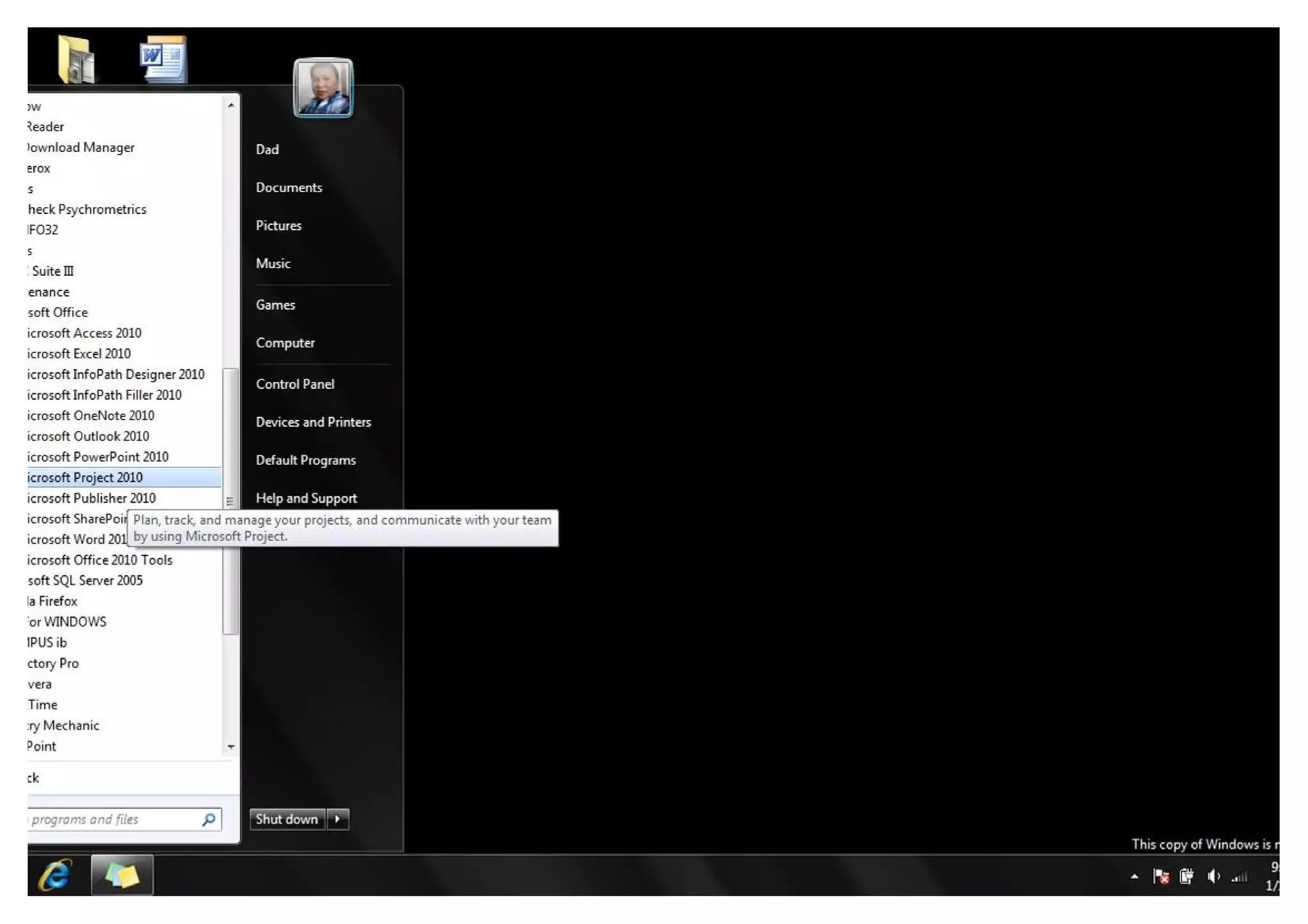
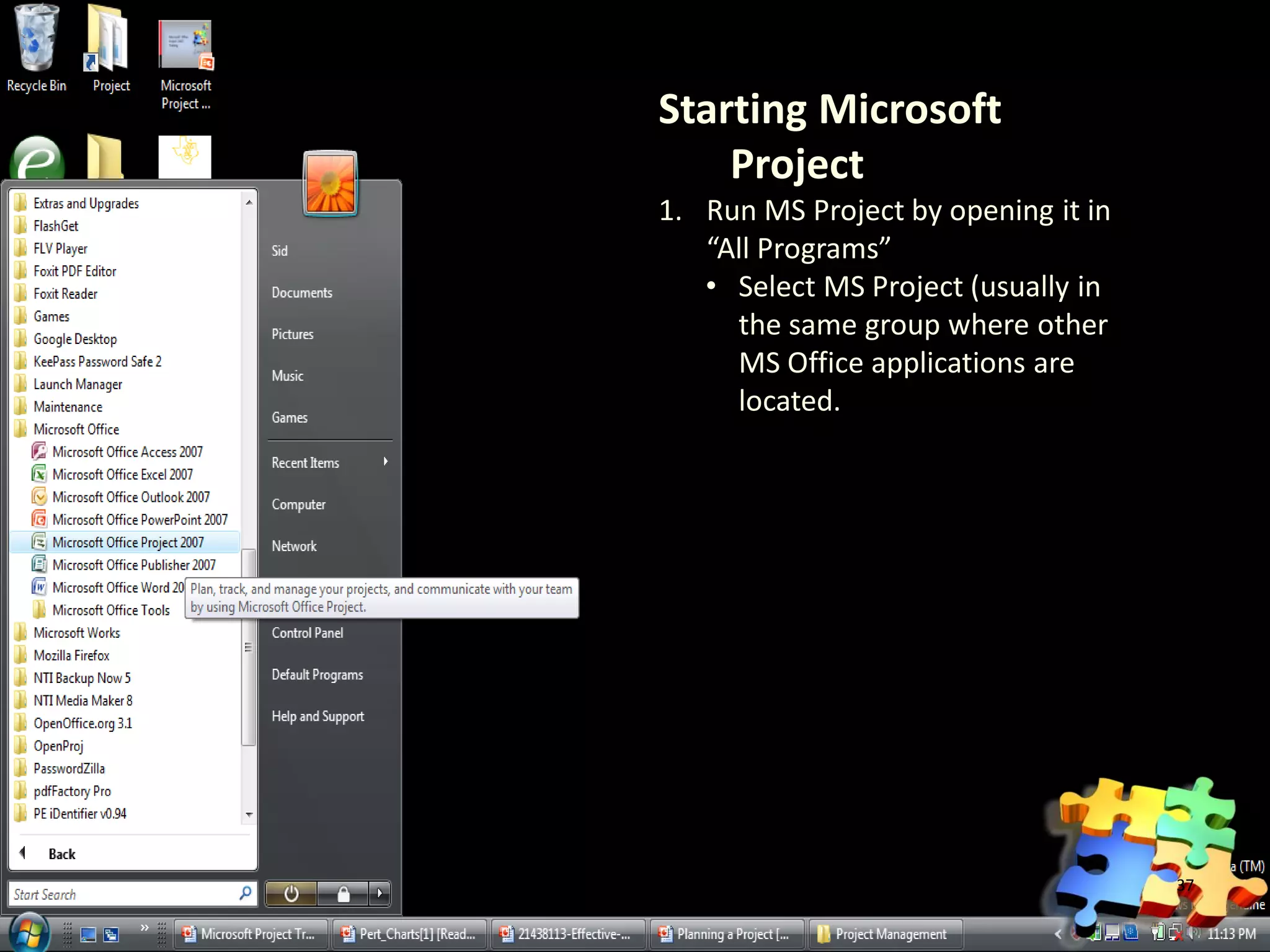
Starting Microsoft
    Project
1. Run MS Project by opening it in
   “All Programs”
   • Select MS Project (usually in
     the same group where other
     MS Office applications are
     located.


                                     37
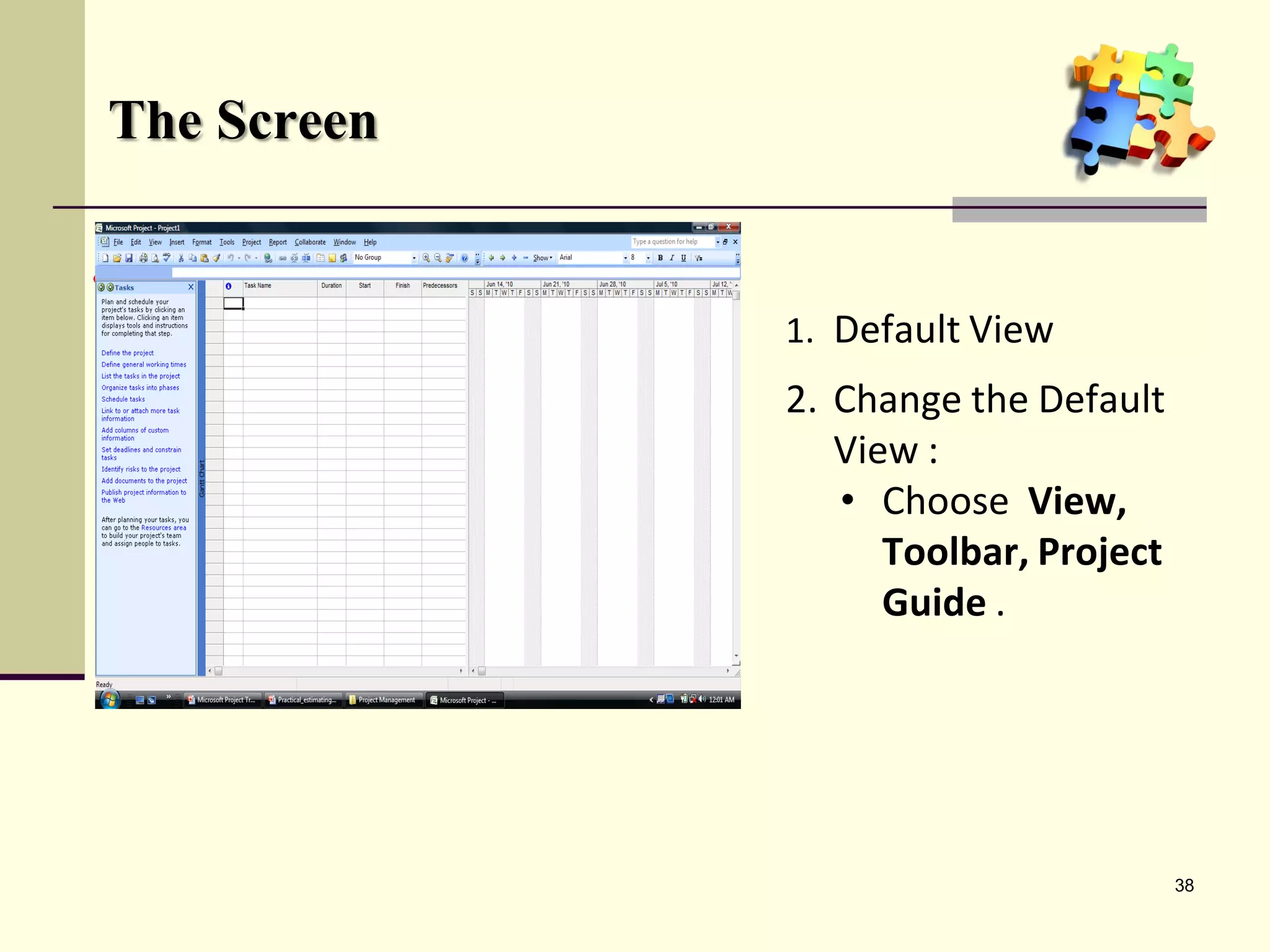
The Screen


             1. Default View
             2. Change the Default
                View :
                 • Choose View,
             3. You may add or delete some
                of the Toolbar Project
                    Toolbar, in the Screen
                    Guide .
                from this menu.


                                     38
Planning the Project

 • Where to Begin
 • Defining the Project
 • Setting the project start date
 • Complete the Project Plan
 • The base calendar
 • Save the New Project File
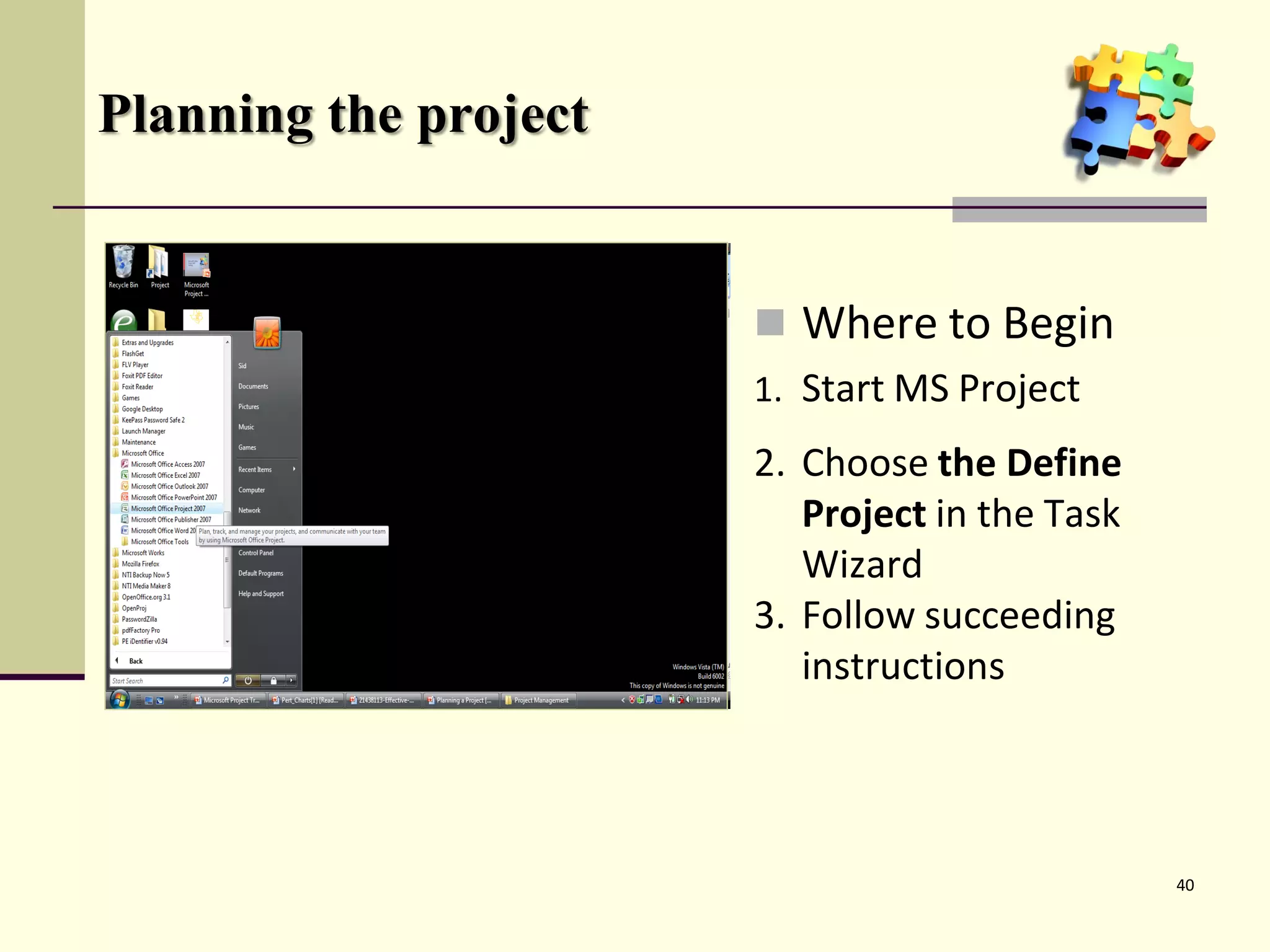
Planning the project


                        Where to Begin
                       1. Start MS Project
                       2. Choose the Define
                          Project in the Task
                          Wizard
                       3. Follow succeeding
                          instructions


                                                40
Planning the Project

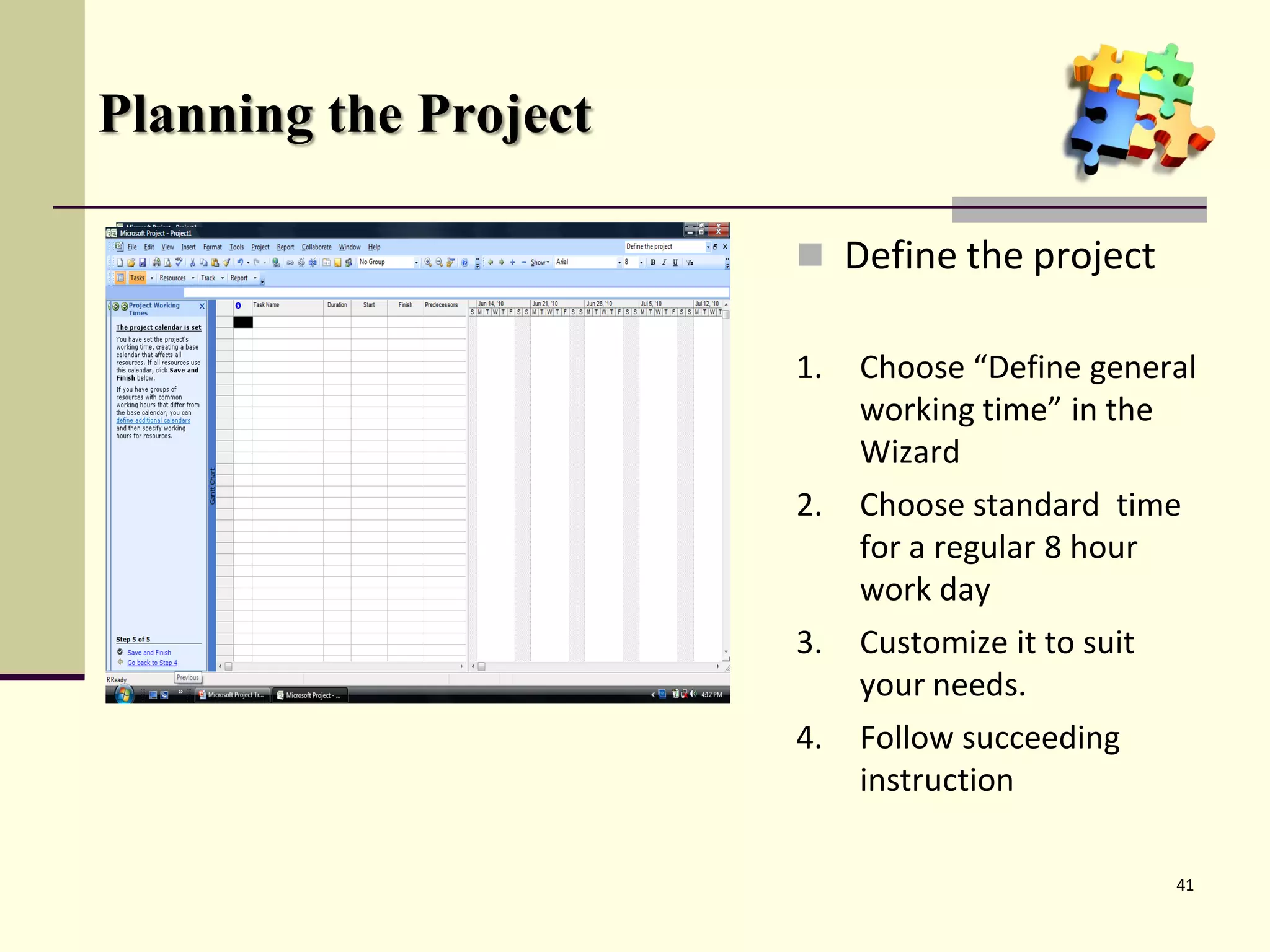
                        Define the project

                       1.   Choose “Define general
                            working time” in the
                            Wizard
                       2.   Choose standard time
                            for a regular 8 hour
                            work day
                       3.   Customize it to suit
                            your needs.
                       4.   Follow succeeding
                            instruction

                                                   41
Task Entry and Linking

 • Creating Milestone,
 • Task Relationships
 • Linking Tasks
 • Editing the Task Information
 • Formatting the Gantt Chart
 • Highlighting the critical path
Create Milestone, Link and Relationship

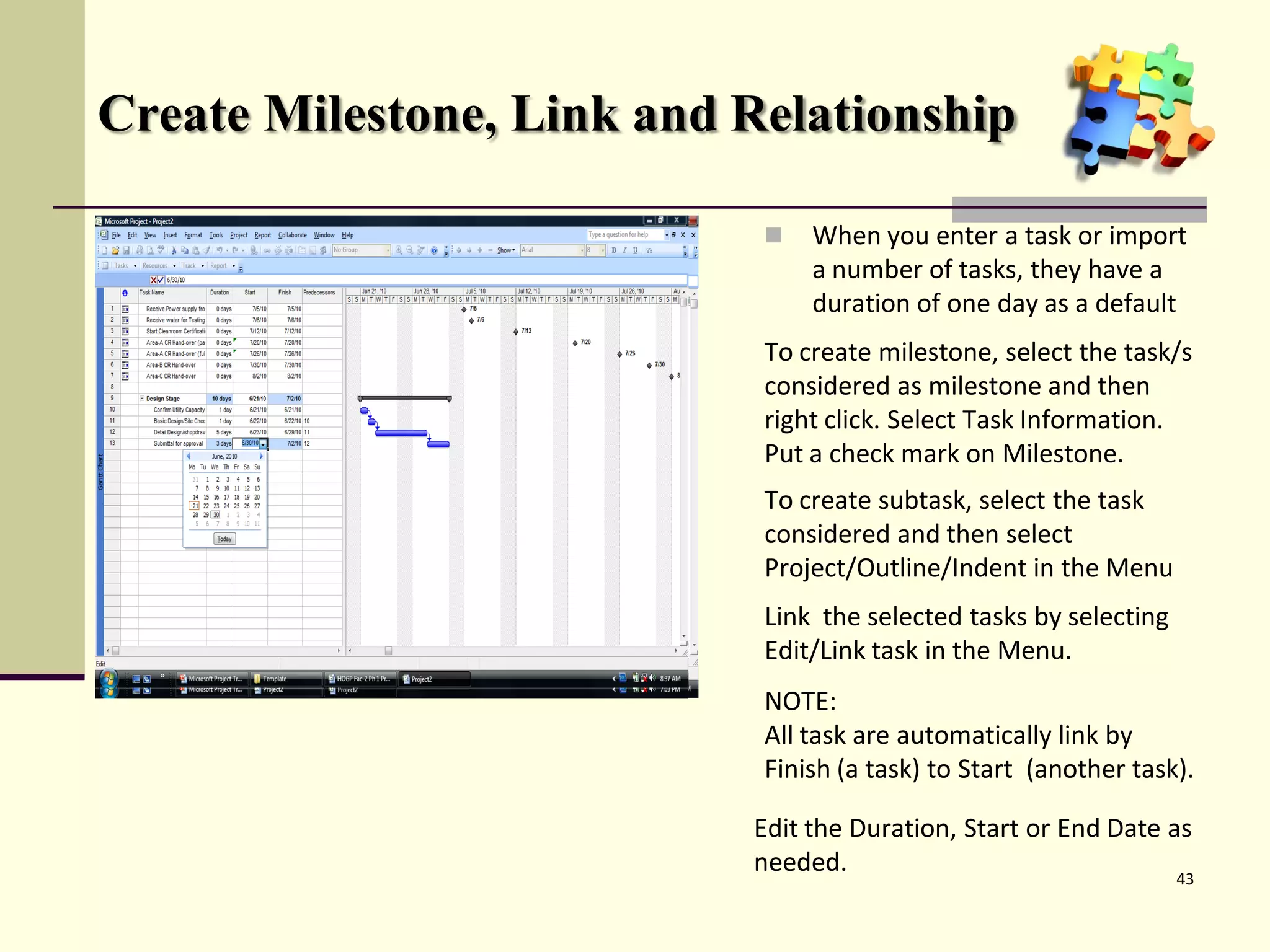
                               When you enter a task or import
                                a number of tasks, they have a
                                duration of one day as a default
                            To create milestone, select the task/s
                            considered as milestone and then
                            right click. Select Task Information.
                            Put a check mark on Milestone.
                            To create subtask, select the task
                            considered and then select
                            Project/Outline/Indent in the Menu
                            Link the selected tasks by selecting
                            Edit/Link task in the Menu.
                            NOTE:
                            All task are automatically link by
                            Finish (a task) to Start (another task).

                           Edit the Duration, Start or End Date as
                           needed.                               43
Editing Task Information

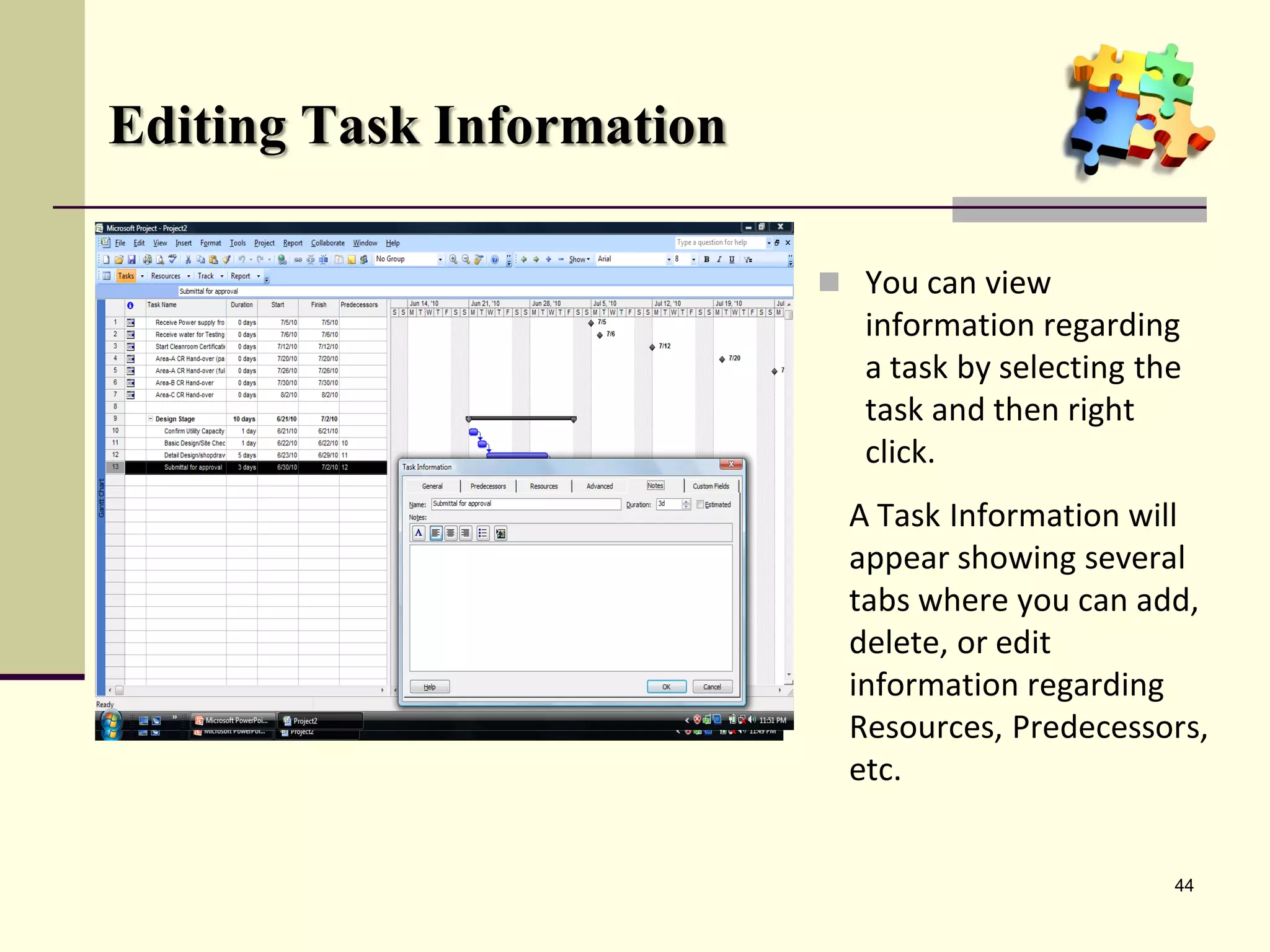
                            You can view
                             information regarding
                             a task by selecting the
                             task and then right
                             click.
                            A Task Information will
                            appear showing several
                            tabs where you can add,
                            delete, or edit
                            information regarding
                            Resources, Predecessors,
                            etc.


                                                   44
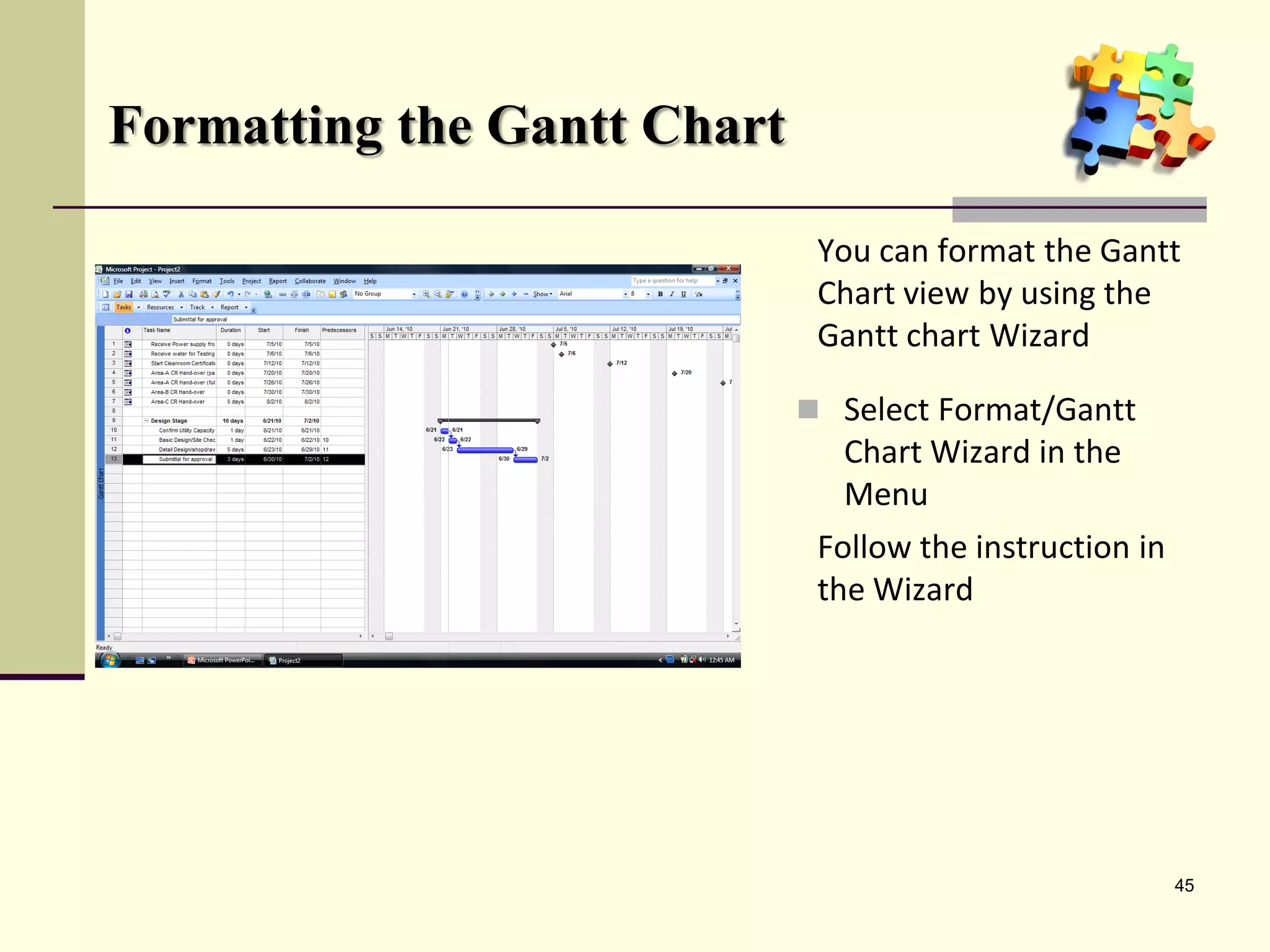
Formatting the Gantt Chart

                              You can format the Gantt
                              Chart view by using the
                              Gantt chart Wizard

                              Select Format/Gantt
                               Chart Wizard in the
                               Menu
                              Follow the instruction in
                              the Wizard


                                                          45
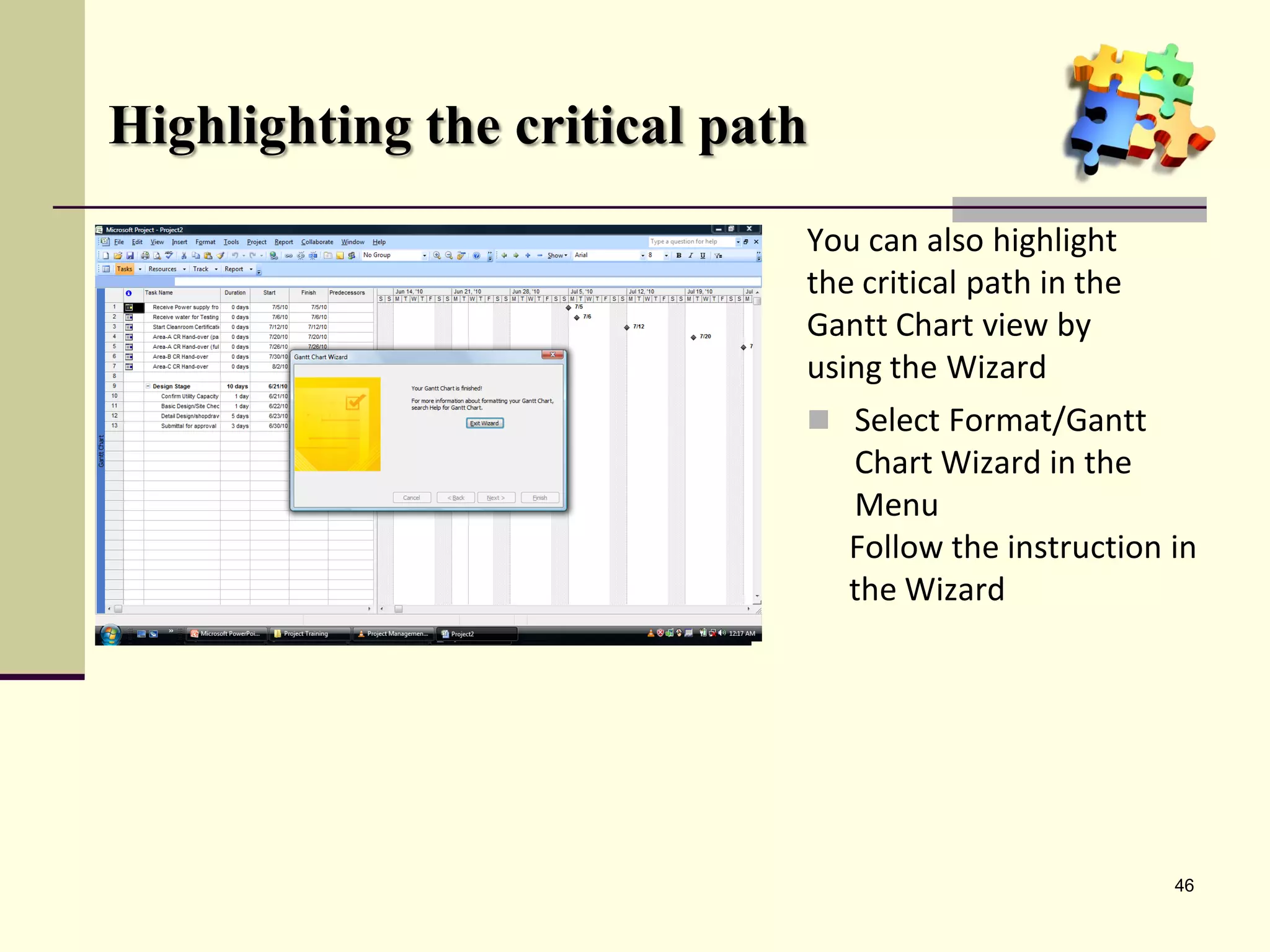
Highlighting the critical path
                             You can also highlight
                             the critical path in the
                             Gantt Chart view by
                             using the Wizard
                              Select Format/Gantt
                                 Chart Wizard in the
                                 Menu
                                 Follow the instruction in
                                 the Wizard


                                                        46
Updating the Project

 • Setting the baseline

 • Update the project

 • Tracking Progress
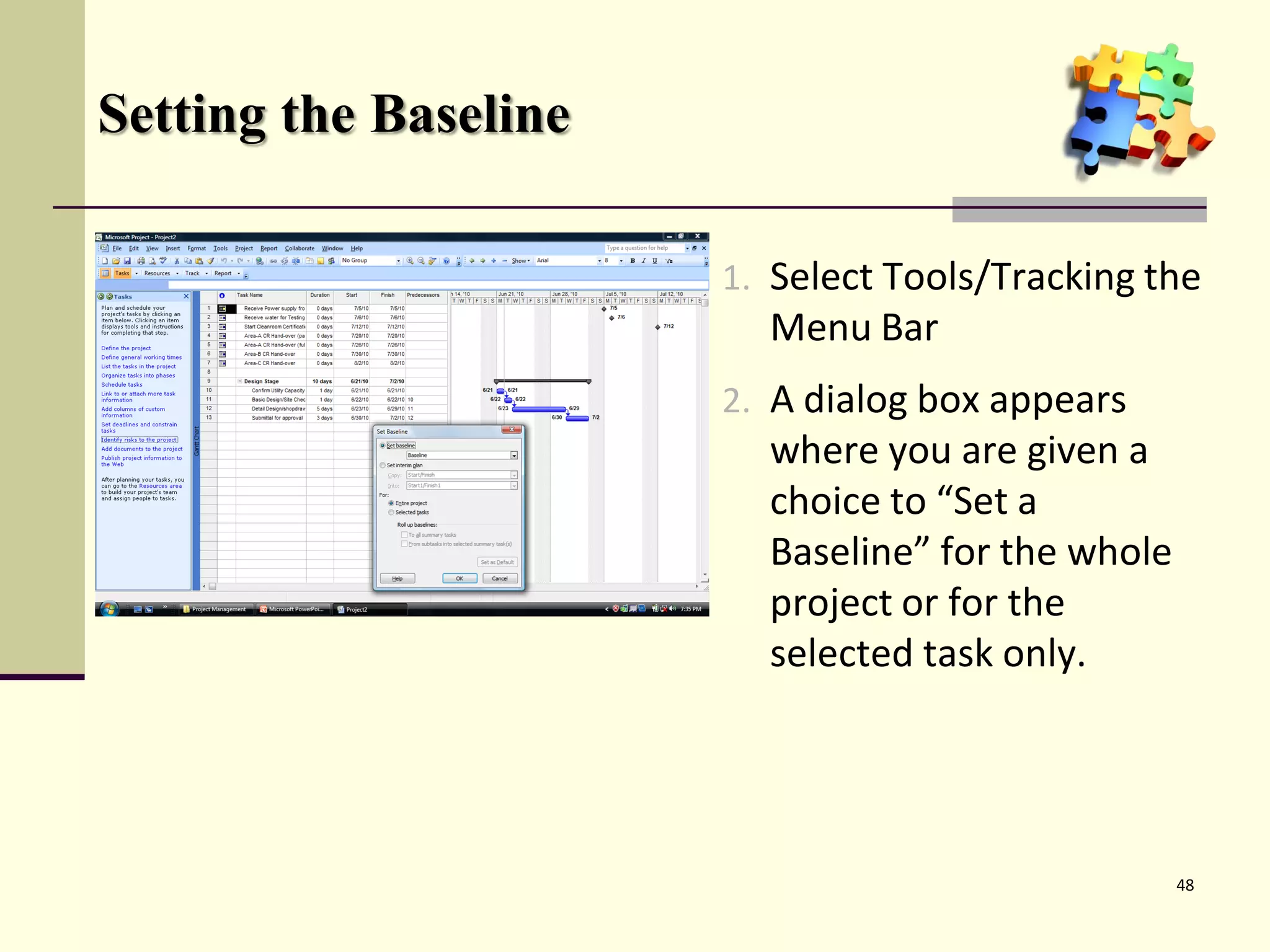
Setting the Baseline

                       1. Select Tools/Tracking the
                         Menu Bar
                       2. A dialog box appears
                         where you are given a
                         choice to “Set a
                         Baseline” for the whole
                         project or for the
                         selected task only.


                                                   48
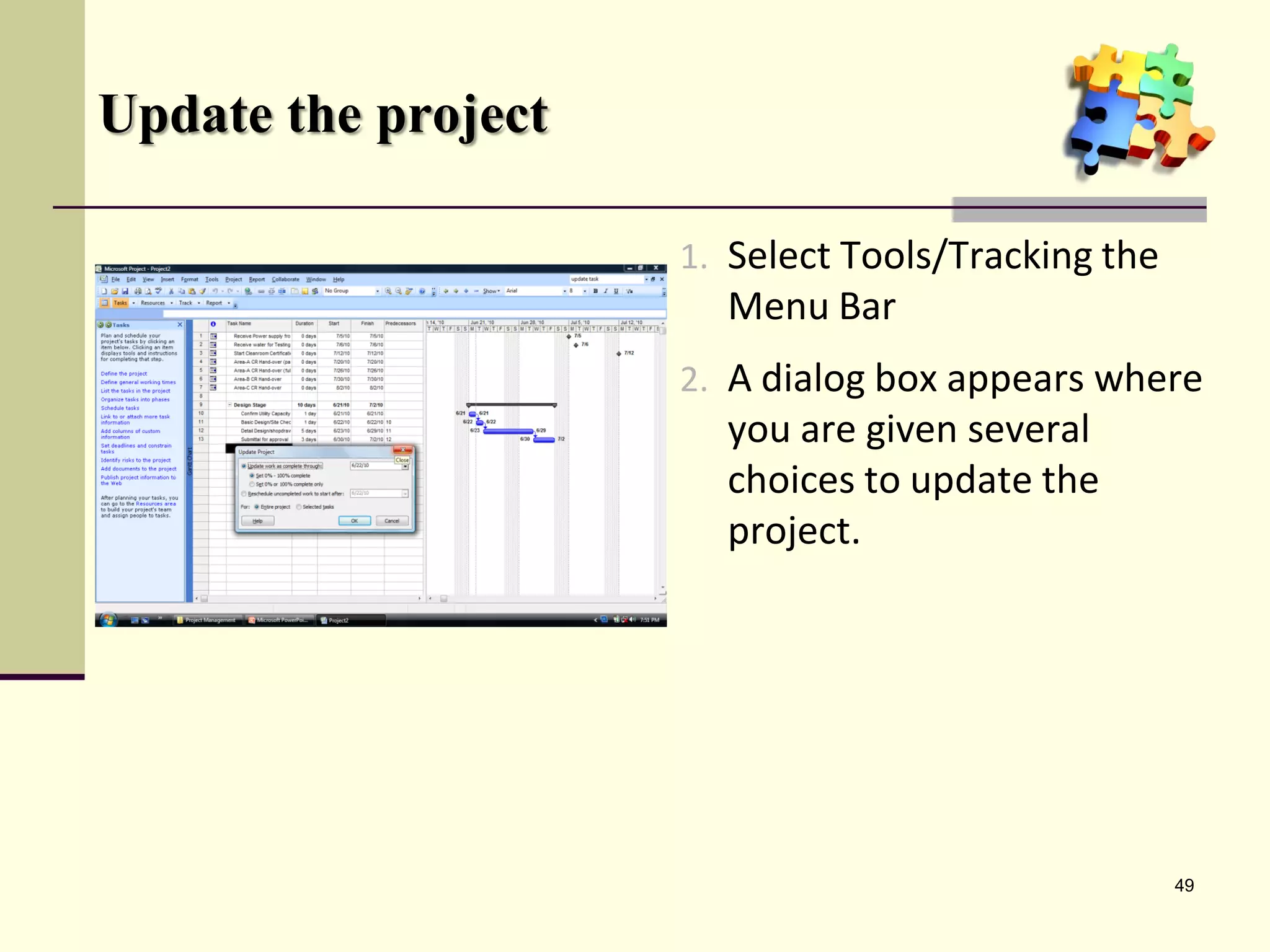
Update the project

                     1. Select Tools/Tracking the
                       Menu Bar
                     2. A dialog box appears where
                       you are given several
                       choices to update the
                       project.


                                                    49
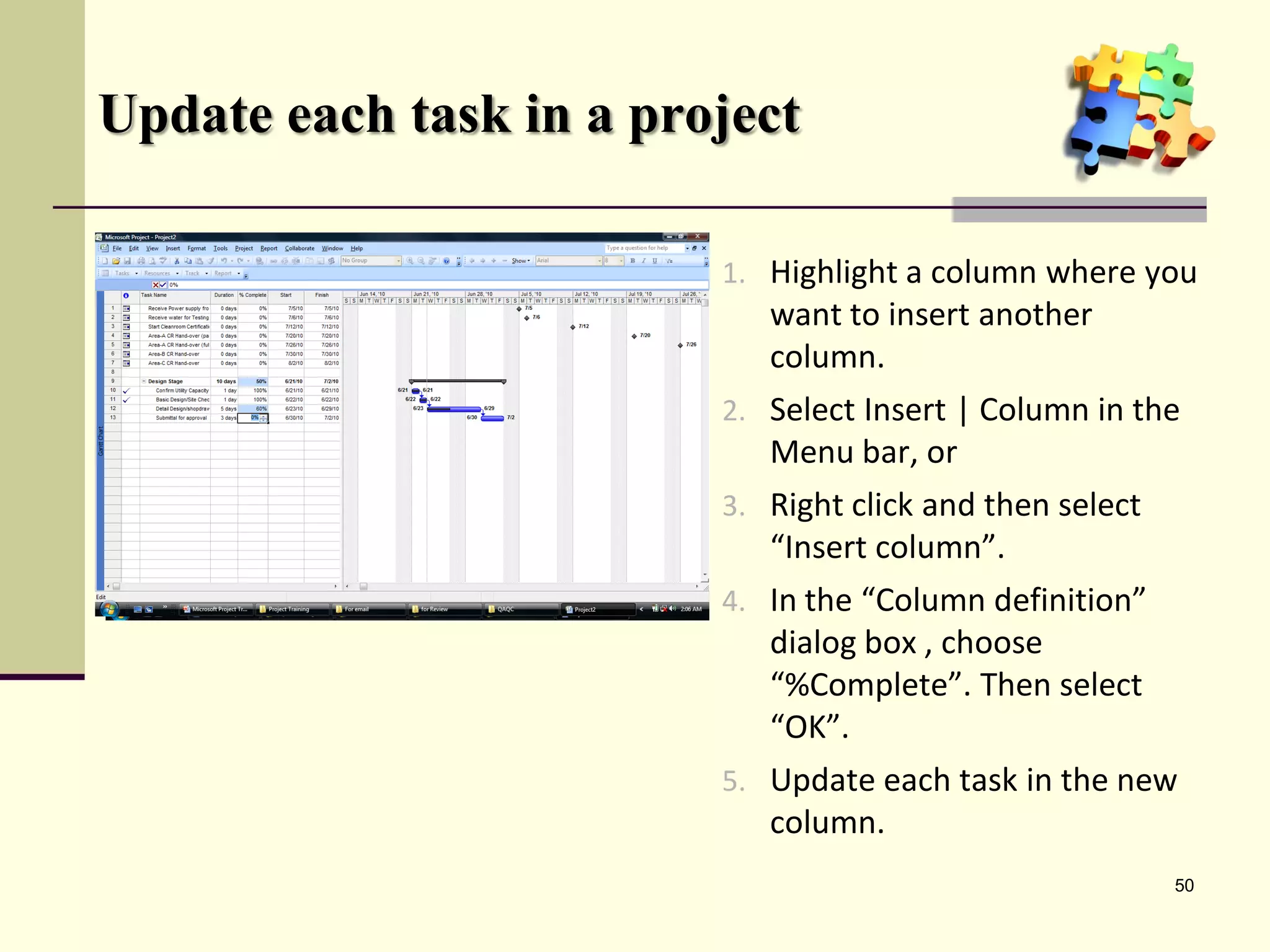
Update each task in a project

                         1. Highlight a column where you
                            want to insert another
                            column.
                         2. Select Insert | Column in the
                            Menu bar, or
                         3. Right click and then select
                            “Insert column”.
                         4. In the “Column definition”
                            dialog box , choose
                            “%Complete”. Then select
                            “OK”.
                         5. Update each task in the new
                            column.
                                                          50
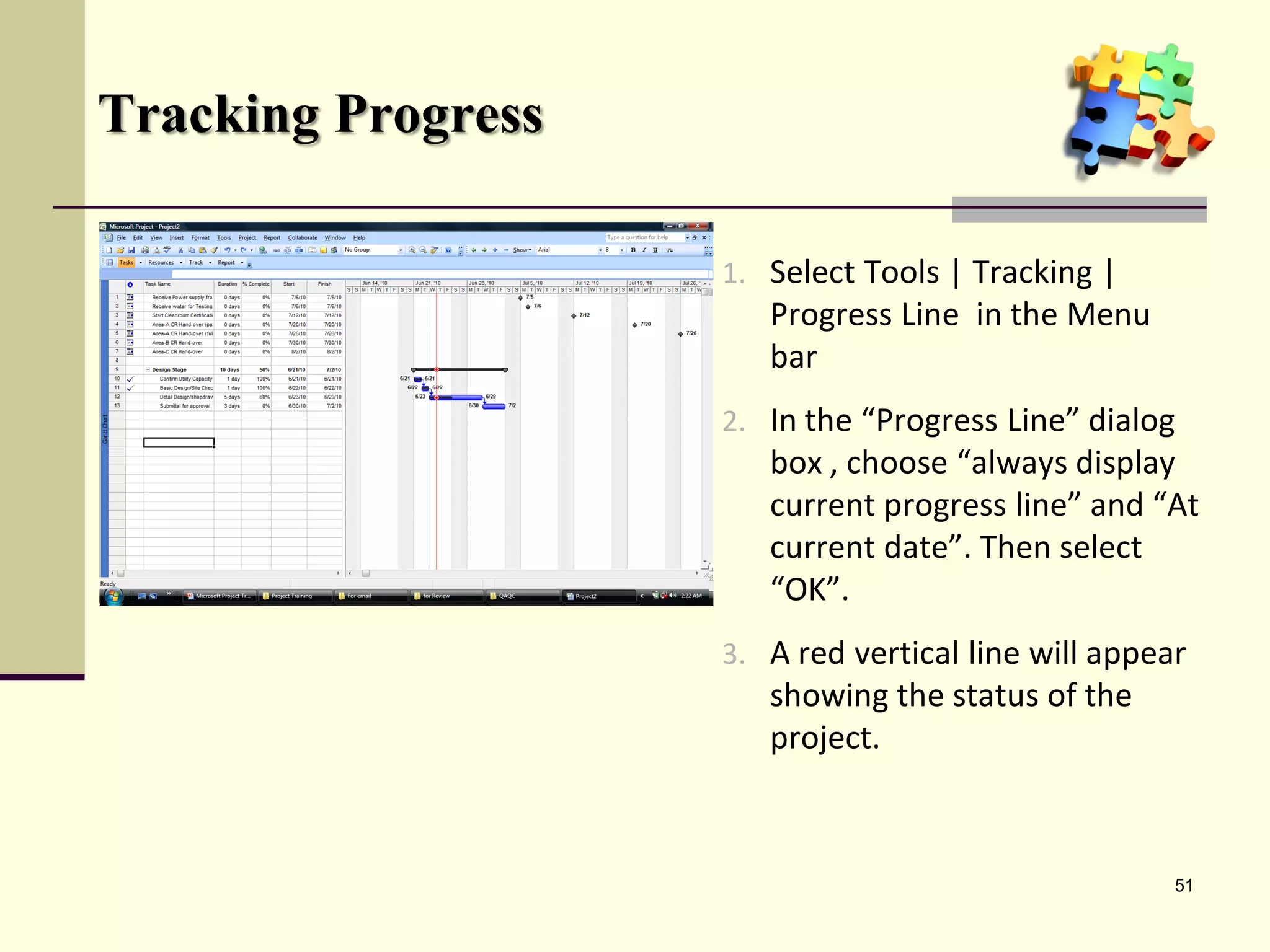
Tracking Progress

                    1. Select Tools | Tracking |
                       Progress Line in the Menu
                       bar
                    2. In the “Progress Line” dialog
                       box , choose “always display
                       current progress line” and “At
                       current date”. Then select
                       “OK”.
                    3. A red vertical line will appear
                       showing the status of the
                       project.


                                                     51
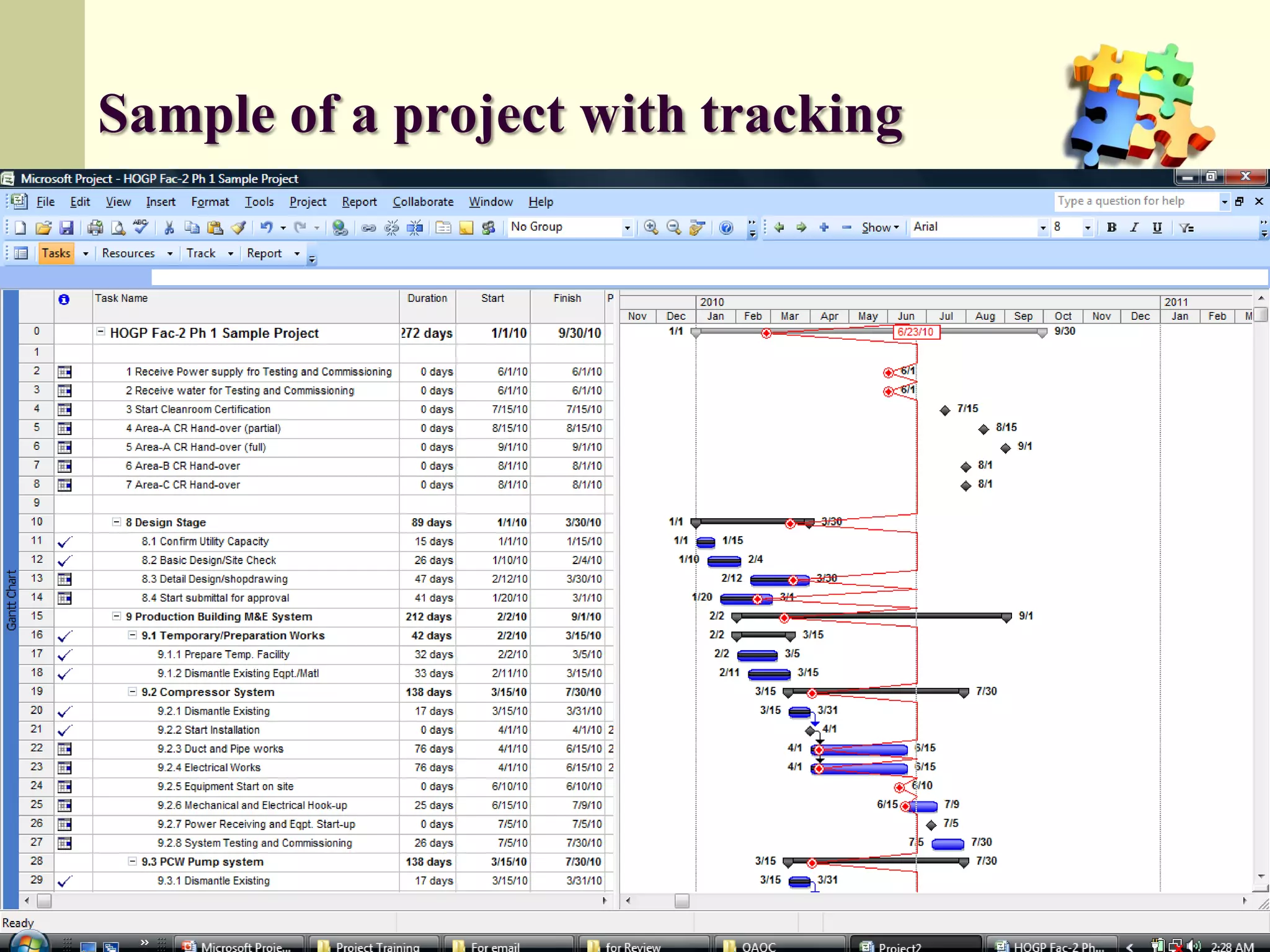
Sample of a project with tracking


                                    52
Network Diagram

 • View the Network Diagram

 • Elements of the Network Diagram
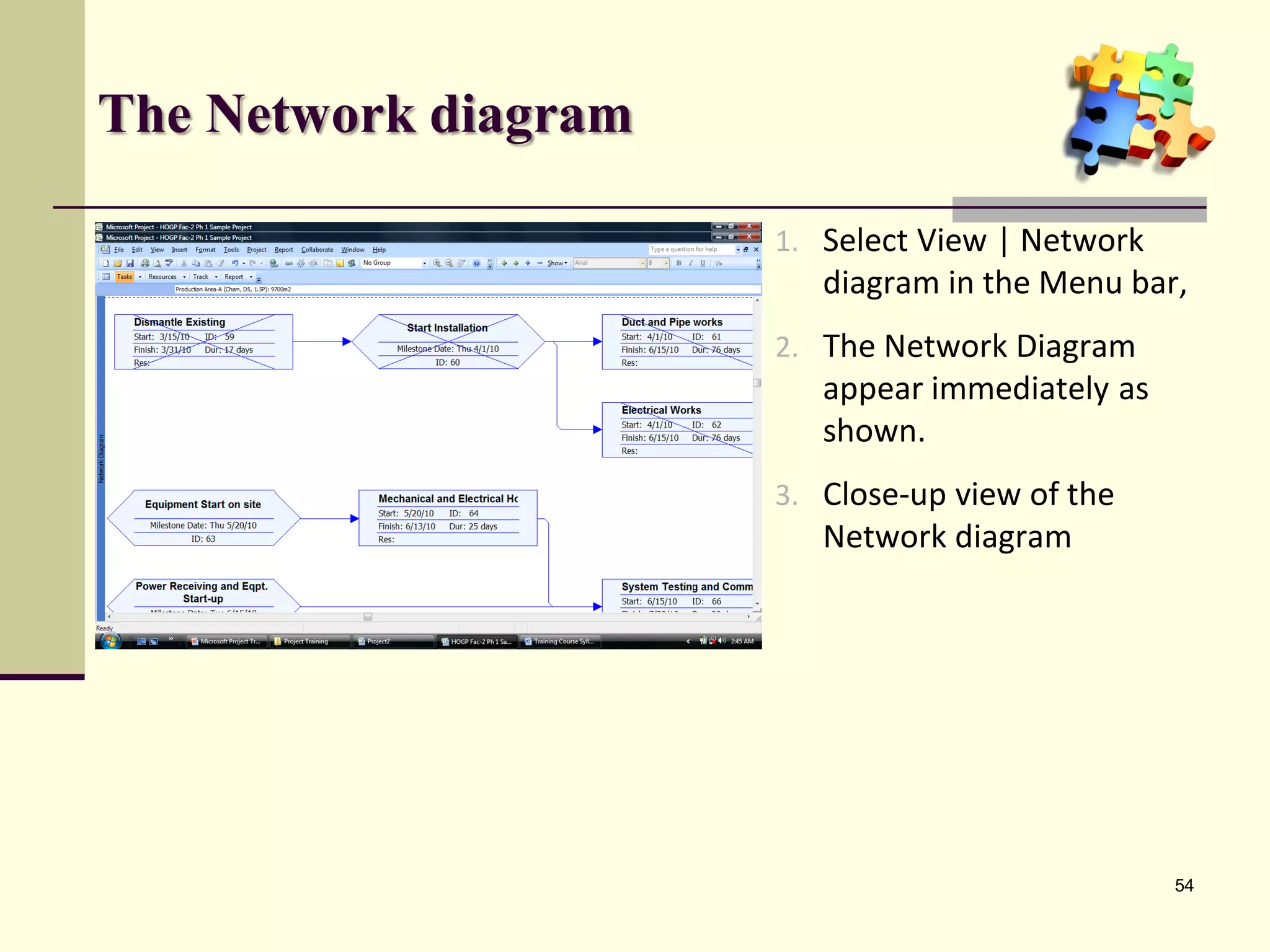
The Network diagram

                      1. Select View | Network
                         diagram in the Menu bar,
                      2. The Network Diagram
                         appear immediately as
                         shown.
                      3. Close-up view of the
                         Network diagram


                                                 54
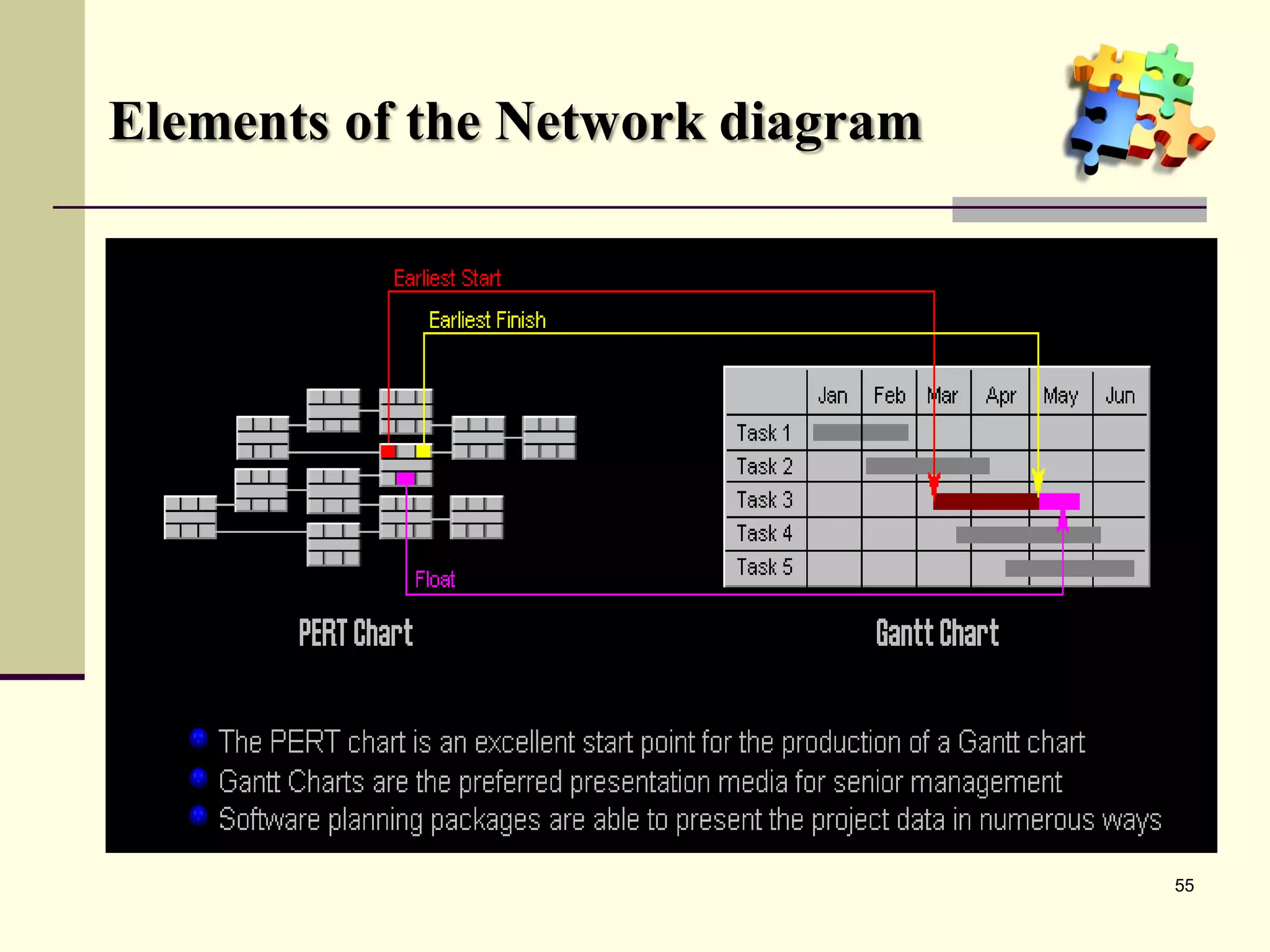
Elements of the Network diagram


                                  55
Printing and Reporting

 • Page Setup
 • Reports Setup


                         56
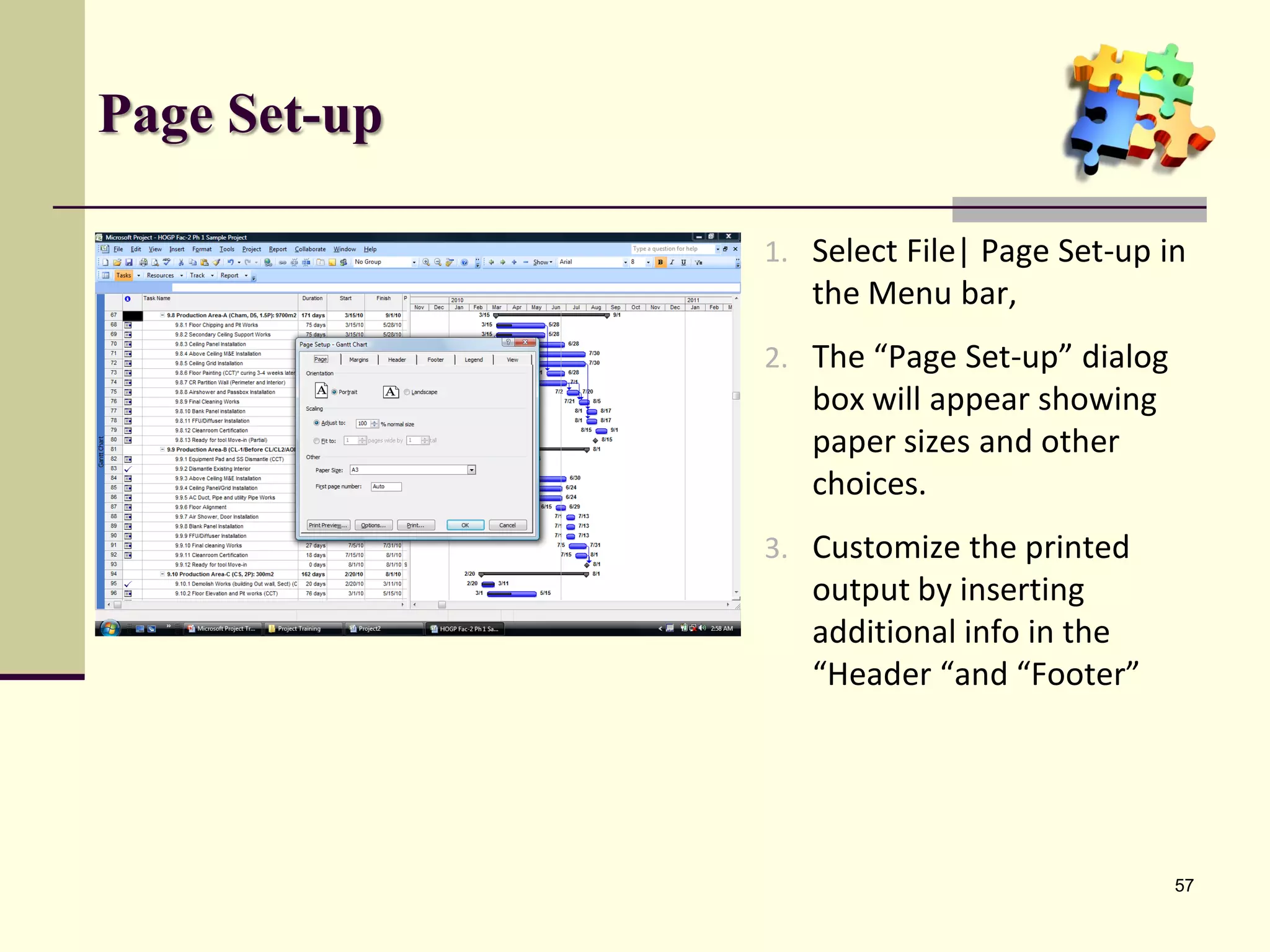
Page Set-up

              1. Select File| Page Set-up in
                 the Menu bar,
              2. The “Page Set-up” dialog
                 box will appear showing
                 paper sizes and other
                 choices.
              3. Customize the printed
                 output by inserting
                 additional info in the
                 “Header “and “Footer”


                                            57
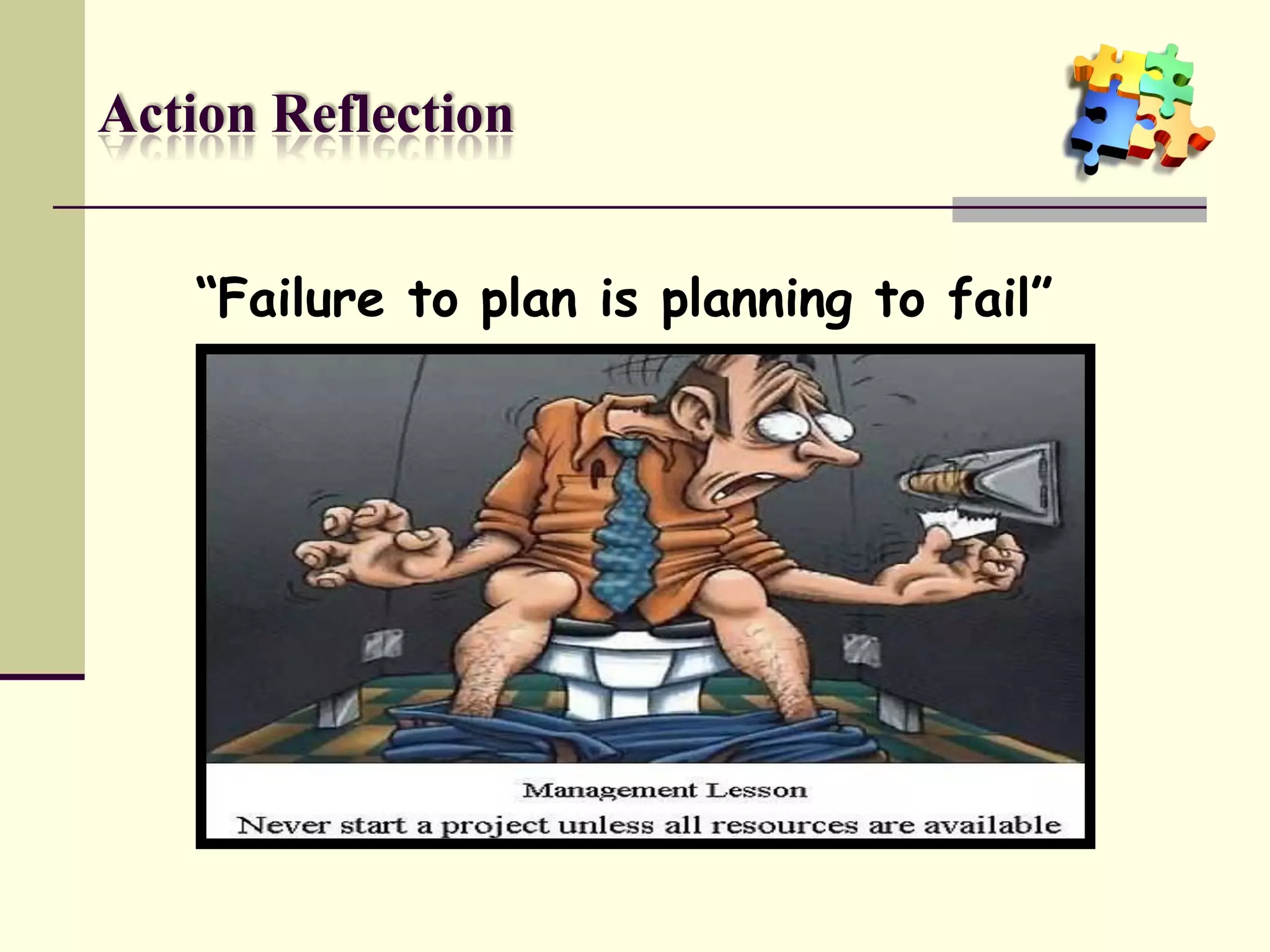
Action Reflection


    “Failure to plan is planning to fail”
END OF TRAINING

 FOR MODULE 1


                  60

Ms project training ver 01

  • 1.
  • 2.
    Welcome This training modulewas created by: Eng’r Sid Calayag  Credentials: • Trained in Planning and Scheduling using Primavera • Experienced in using Harvard Project Manager and MS Project since version 3 • Trained in Project Management and Quality Management System • Regular Trainer for Taikisha Philippines Inc. • Certified Lead auditor for ISO 9001:2000 and ISO 9001:2008 • Practiced Project Management (local and abroad) • Published major training materials in the internet on the following subjects: • Guidelines for Project Kick-off Meeting • Quality in Construction Works • Improve Project Performance Using 5S Concept • QA/QC Concept, Roles and Responsibilities in TPI Organization • Quality Improvement Using Root Cause Analysis • Practical Auditing • Upgrade QMS System to ISO 9001:2008 • Introduction to Cleanroom Technology 2
  • 3.
    Course Objectives This Microsoft Project course gives delegates an introduction to project management and to the concepts of planning and scheduling using Microsoft Project 2007. Delegates on this training will learn how to identify, organize and manage the tasks and resources required to complete a project under the constraints of time and cost to achieve a final project target. 4
  • 4.
    Course contents • Lesson 1: Project Management • Concept of Project Management • Key Metrics and Success Factors • PERT and CPM • Lesson 2: Microsoft Project • Planning the Project • Task Entry and Linking • Updating the Project • Working with your views • Printing and Reporting 5
  • 5.
    Lesson 1 Project Management • Commonly used terms • Concept of Project Management • Key metrics to Project Management • Key Success Factors • The Critical Path / PERT Chart
  • 6.
    Commonly used terms Activity – a specific project task that requires resources and time to complete  Baseline – the original approved plan  Crash - in CPM, an activity can be conducted at a normal pace or at an expedited pace at a greater cost  Critical - an activity or event that if delayed will delay project completion  Critical path – the series of activities that determines the duration of a project. It is the longest path through the project. 7
  • 7.
    Commonly used terms Deliverables- any measurable, tangible, verifiable outcome, result, or item that must be produced to complete a project  Fast tracking – a method of shortening the critical path by carrying out activities in parallel  Gantt chart – a manner of illustrating multiple time-based activities on a horizontal time scale  PERT – Program Evaluation and Review Technique chart depict task, duration, and dependency information in a network form. 8
  • 8.
    Concept of ProjectManagement • Project termination • Team Development Initiation Initiation Process • Organization Commitment • Scope Definition • Activity Definition Planning Planning Process • Schedule Development/Cost Estimating/Resource Planning Management • Information Distribution Execution Execution • Update Project and Control • Performance Reporting Process • Project Close-out Closure • Administrative close-out Closure Process • Project completion 9
  • 9.
    Projects JAN FEB MAR APR MAY JUN Build A A Done Build B B Done Build C C Done On time! Build D Ship Unique, one-time operations designed to accomplish a specific set of objectives in a limited time frame. 10
  • 10.
    Key metrics andsuccess factors  The Key Metrics • Time • Cost • Performance objectives  The Key Success Factors • Top-down commitment • Having a capable project manager • Having time to plan • Careful tracking and control • Good communications 11
  • 11.
    Project Management  Whatare the tools? • Work breakdown structure • Network diagram • Gantt charts Gantt Chart Project X MAR APR MAY JUN JUL AUG SEP OCT NOV DEC Level 1 Locate new facilities Level 2 Interview staff Hire and train staff Level 3 Select and order furniture Remodel and Level 4 install phones Move in/startup 12
  • 12.
    Project Manager Responsible for: Work Quality Human Resources Time Communications Costs 13
  • 13.
    Review Lesson 1-a Whatare the key metrics? • ____ Time • ____ Cost • Performance ___________ objectives What are the Key Success Factors? • Top-down __________ commitment • Having a _______project _______ ______ project manager capable project _______ • Having ____ to plan time to plan • Careful tracking and _______ control • Good ______________. communications 14
  • 14.
    Critical Path /“Pert” Charts
  • 15.
    PERT and CPM PERT: Program Evaluation and Review Technique CPM: Critical Path Method • Graphically displays project activities • Estimates how long the project will take • Indicates most critical activities • Show where delays will not affect project
  • 16.
    The Network Diagram •Network (precedence) diagram • Activity-on-arrow (AOA) • Activity-on-node (AON) • Activities • Events
  • 17.
    The Network Diagram(cont’d)  Path • Sequence of activities that leads from the starting node to the finishing node  Critical path • The longest path; determines expected project duration  Critical activities • Activities on the critical path  Slack • Allowable slippage for path; the difference between the length of path and the length of critical path
  • 18.
    Project Network –Activity on Arrow Order AOA furniture 4 Furniture Locate 2 setup facilities Remodel 1 5 6 Move in Interview Hire and train 3
  • 19.
    Project Network –Activity on Node Order furniture AON Locate Furniture 2 setup facilities 1 6 Move Remodel in S 5 7 Hire and Interview train 3 4
  • 20.
    AOA vs. AON AOA Order furniture 4 2 Furniture Locate setup facilities Remodel 1 5 6 Move in Interview Hire and Order train furniture 3 AON Locate 2 Furniture facilities setup 1 6 Move Remodel in S 5 7 Hire and Interview train 3 4
  • 21.
    Network Conventions a b c a c b a c a c b Dummy activity b d
  • 22.
    Time Estimates  Deterministic • Time estimates that are fairly certain  Probabilistic • Estimates of times that allow for variation
  • 23.
    Probabilistic Estimates to tm te tp Activity Optimistic Most likely Pessimistic start time time (mode) time
  • 24.
    Expected Time te = to + 4tm +tp 6 te = expected time to = optimistic time tm = most likely time tp = pessimistic time
  • 25.
    Example 1 Optimistic Most likely Pessimistic time time time 2-4-6 b 3-4-5 3-5-7 5-7-9 d e f 4-6-8 h
  • 26.
    Review Lesson 1- b Deterministic time estimates 6 weeks 4 2 3 weeks 8 weeks 11 weeks Move in 1 5 6 1 week 4 weeks 9 weeks 3 PATH LENGTH SLACK 1-2-3-4-5-6 1-2-5-6 1-3-5-6
  • 27.
    Solution to ReviewLesson 1 - b Critical Path PATH PATH LENGTH LENGTH SLACK SLACK 1-2-3-4-5-6 1-2-3-4-5-6 18 18 2 2 1-2-5-6 1-2-5-6 20 0 1-3-5-6 1-3-5-6 14 6 29
  • 28.
    Solution to ReviewLesson 1 - b Deterministic time estimates 6 weeks 4 2 3 weeks 8 weeks 11 weeks Move in 1 5 6 1 week 4 weeks 9 weeks 3 Critical Path PATH LENGTH SLACK 1-2-3-4-5-6 18 2 1-2-5-6 20 0 1-3-5-6 14 6
  • 29.
    Pert Chart  tasksa and b can start simultaneously  task c can start after a is complete  task d can start after b is complete  c and d must complete before e can begin A c a e 0 C&D E b B d The CRITICAL PATH is the longest continuous path of activities through a project that determines the project end date. 33
  • 30.
    Review Lesson 1- c: Draw a Pert Chart for this job Task Title Duration Precedence a. start 0 - b. think 1 a c. plan 2 b d. procrastinate 5 a e. assign to someone else 1 c,d f. hide 3 e g. finish 1 e h. grab credit 1 f,g 34
  • 31.
    Solution to ReviewLesson 1 - c Task Title Duration Precedence a. start 0 - b. think 1 a c. plan 2 b d. procrastinate 5 a e. assign to someone else 1 c,d f. hide 3 e g. finish 1 e h. grab credit 1 f,g a b c e f A 1 B 2 C C&D 1 E 3 F F&G H 1 0 d g 1 5 D G Critical Path = A D E F H slack in B C, G 35
  • 32.
    Lesson 2: MicrosoftProject • Starting Microsoft Project • The Screen • The Default View • Views and Tables • Menus • The Tool Bar
  • 34.
    Starting Microsoft Project 1. Run MS Project by opening it in “All Programs” • Select MS Project (usually in the same group where other MS Office applications are located. 37
  • 35.
    The Screen 1. Default View 2. Change the Default View : • Choose View, 3. You may add or delete some of the Toolbar Project Toolbar, in the Screen Guide . from this menu. 38
  • 36.
    Planning the Project • Where to Begin • Defining the Project • Setting the project start date • Complete the Project Plan • The base calendar • Save the New Project File
  • 37.
    Planning the project  Where to Begin 1. Start MS Project 2. Choose the Define Project in the Task Wizard 3. Follow succeeding instructions 40
  • 38.
    Planning the Project  Define the project 1. Choose “Define general working time” in the Wizard 2. Choose standard time for a regular 8 hour work day 3. Customize it to suit your needs. 4. Follow succeeding instruction 41
  • 39.
    Task Entry andLinking • Creating Milestone, • Task Relationships • Linking Tasks • Editing the Task Information • Formatting the Gantt Chart • Highlighting the critical path
  • 40.
    Create Milestone, Linkand Relationship  When you enter a task or import a number of tasks, they have a duration of one day as a default To create milestone, select the task/s considered as milestone and then right click. Select Task Information. Put a check mark on Milestone. To create subtask, select the task considered and then select Project/Outline/Indent in the Menu Link the selected tasks by selecting Edit/Link task in the Menu. NOTE: All task are automatically link by Finish (a task) to Start (another task). Edit the Duration, Start or End Date as needed. 43
  • 41.
    Editing Task Information  You can view information regarding a task by selecting the task and then right click. A Task Information will appear showing several tabs where you can add, delete, or edit information regarding Resources, Predecessors, etc. 44
  • 42.
    Formatting the GanttChart You can format the Gantt Chart view by using the Gantt chart Wizard  Select Format/Gantt Chart Wizard in the Menu Follow the instruction in the Wizard 45
  • 43.
    Highlighting the criticalpath You can also highlight the critical path in the Gantt Chart view by using the Wizard  Select Format/Gantt Chart Wizard in the Menu Follow the instruction in the Wizard 46
  • 44.
    Updating the Project • Setting the baseline • Update the project • Tracking Progress
  • 45.
    Setting the Baseline 1. Select Tools/Tracking the Menu Bar 2. A dialog box appears where you are given a choice to “Set a Baseline” for the whole project or for the selected task only. 48
  • 46.
    Update the project 1. Select Tools/Tracking the Menu Bar 2. A dialog box appears where you are given several choices to update the project. 49
  • 47.
    Update each taskin a project 1. Highlight a column where you want to insert another column. 2. Select Insert | Column in the Menu bar, or 3. Right click and then select “Insert column”. 4. In the “Column definition” dialog box , choose “%Complete”. Then select “OK”. 5. Update each task in the new column. 50
  • 48.
    Tracking Progress 1. Select Tools | Tracking | Progress Line in the Menu bar 2. In the “Progress Line” dialog box , choose “always display current progress line” and “At current date”. Then select “OK”. 3. A red vertical line will appear showing the status of the project. 51
  • 49.
    Sample of aproject with tracking 52
  • 50.
    Network Diagram •View the Network Diagram • Elements of the Network Diagram
  • 51.
    The Network diagram 1. Select View | Network diagram in the Menu bar, 2. The Network Diagram appear immediately as shown. 3. Close-up view of the Network diagram 54
  • 52.
    Elements of theNetwork diagram 55
  • 53.
    Printing and Reporting • Page Setup • Reports Setup 56
  • 54.
    Page Set-up 1. Select File| Page Set-up in the Menu bar, 2. The “Page Set-up” dialog box will appear showing paper sizes and other choices. 3. Customize the printed output by inserting additional info in the “Header “and “Footer” 57
  • 55.
    Action Reflection “Failure to plan is planning to fail”
  • 56.
    END OF TRAINING FOR MODULE 1 60