1
WELCOME TO THE NEW
SESSION OF EXCEL
 INTRODUCTION TO MS-EXCEL………………………………
 FEATURES OF EXCEL……………………………………………
 APPLICATIONS OF EXCEL……………………………………...
 OFFICE BUTTON……………………………………….................
 RIBBONS……………………………………………………………….
 OVERVIEW OF EXCEL…………………………………………...
 VIEW OF MENU BAR……..……………………………………....
 INSERT MENU…………...…………………………………………...
 VIEW MENU……………...…………………………………………...
3
4
6
7
8
9-11
12
13
14
2
INDEX
 Excel is a computer program used to create electronic
spreadsheets.
 Within excel user can organize data ,create chart and
perform calculations.
 Excel is a convenient program because it allow user to
create large spreadsheets, reference information, and it
allows for better storage of information.
 Excels operates like other Microsoft(MS) office programs
and has many of the same functions and shortcuts of other
MS programs. 3
INTRODUCTION TO
MS_EXCEL
 It allows organization, tabulation, search, and
exploration of data of large sizes.
 It allows the design of professionally looking
charts 3-D effects, shadowing , transparency.
 Data can be filtered and sorted.
 Formatting of spreadsheet allows changing the
font color, and font style.
4
Features of Excel
 A function library consists of various
function groups like financial, logical, math
& trigonometry etc.
 Based on the values entered in different
cells in the spreadsheet, formulas can be
defined, which automatically perform
calculation.
5
1. To mange name list of data records.
2. To perform mathematical calculation easily
in daily business.
3. Inventory management
4. Create forms and consolidate results
5. Analytical tools
6. Corporate budgeting.
6
Applications of Excel
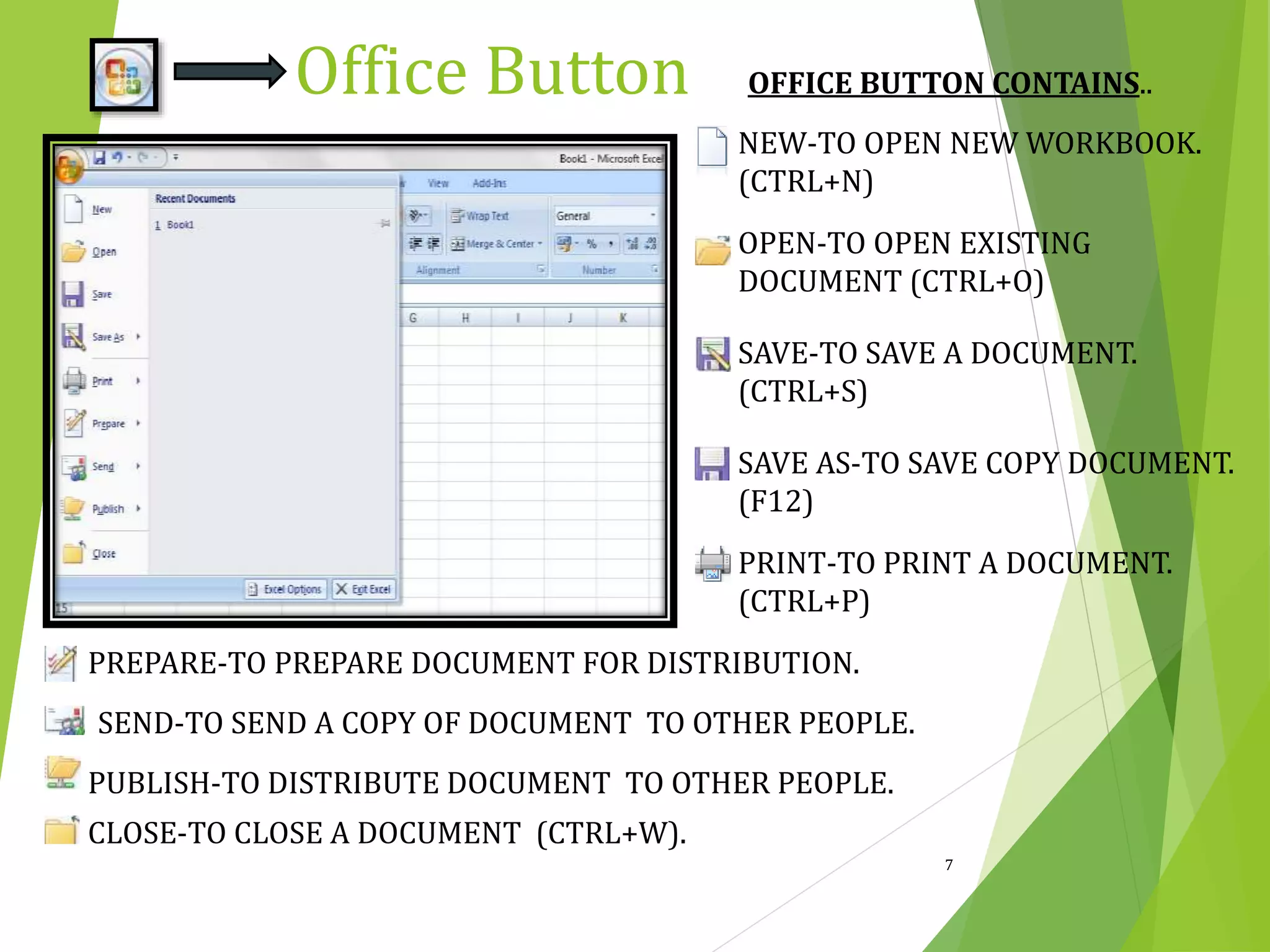
OFFICE BUTTON CONTAINS..
NEW-TO OPEN NEW WORKBOOK.
(CTRL+N)
OPEN-TO OPEN EXISTING
DOCUMENT (CTRL+O)
SAVE-TO SAVE A DOCUMENT.
(CTRL+S)
SAVE AS-TO SAVE COPY DOCUMENT.
(F12)
PRINT-TO PRINT A DOCUMENT.
(CTRL+P)
PREPARE-TO PREPARE DOCUMENT FOR DISTRIBUTION.
SEND-TO SEND A COPY OF DOCUMENT TO OTHER PEOPLE.
PUBLISH-TO DISTRIBUTE DOCUMENT TO OTHER PEOPLE.
CLOSE-TO CLOSE A DOCUMENT (CTRL+W).
7
Office Button
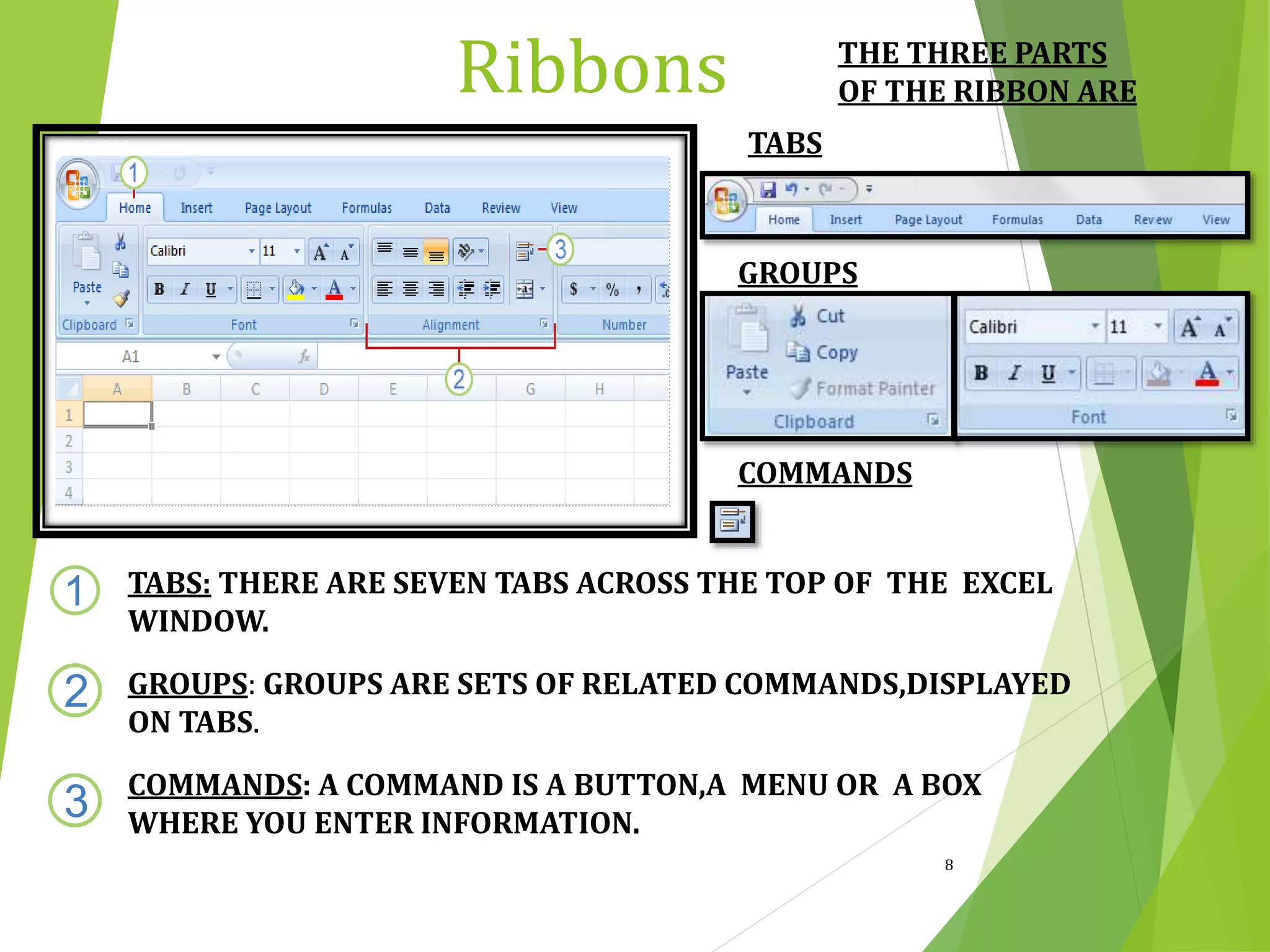
TABS: THERE ARE SEVEN TABS ACROSS THE TOP OF THE EXCEL
WINDOW.
GROUPS: GROUPS ARE SETS OF RELATED COMMANDS,DISPLAYED
ON TABS.
COMMANDS: A COMMAND IS A BUTTON,A MENU OR A BOX
WHERE YOU ENTER INFORMATION.
1
2
3
THE THREE PARTS
OF THE RIBBON ARE
TABS
GROUPS
COMMANDS
8
Ribbons
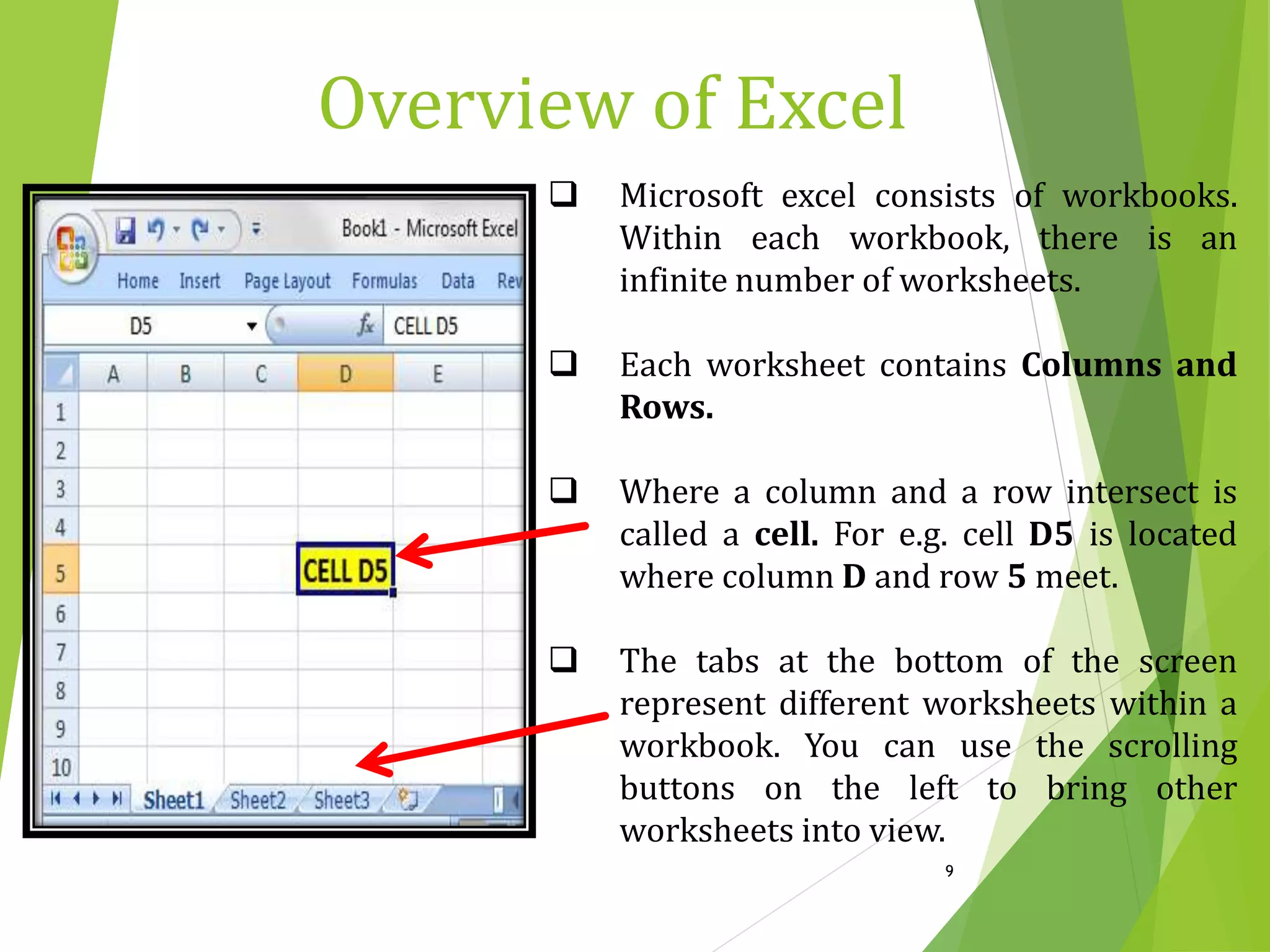
 Microsoft excel consists of workbooks.
Within each workbook, there is an
infinite number of worksheets.
 Each worksheet contains Columns and
Rows.
 Where a column and a row intersect is
called a cell. For e.g. cell D5 is located
where column D and row 5 meet.
 The tabs at the bottom of the screen
represent different worksheets within a
workbook. You can use the scrolling
buttons on the left to bring other
worksheets into view.
9
Overview of Excel
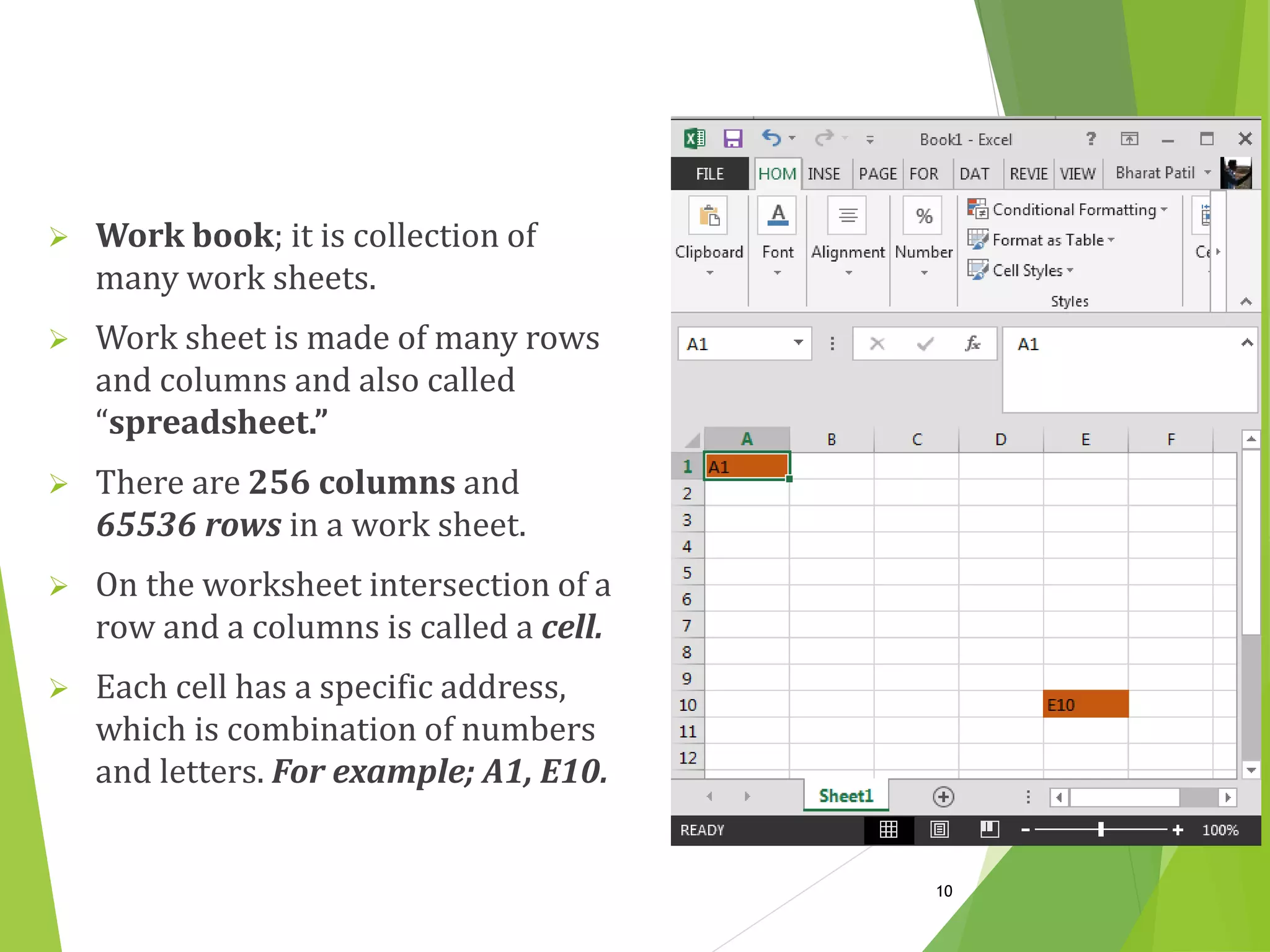
 Work book; it is collection of
many work sheets.
 Work sheet is made of many rows
and columns and also called
“spreadsheet.”
 There are 256 columns and
65536 rows in a work sheet.
 On the worksheet intersection of a
row and a columns is called a cell.
 Each cell has a specific address,
which is combination of numbers
and letters. For example; A1, E10.
10
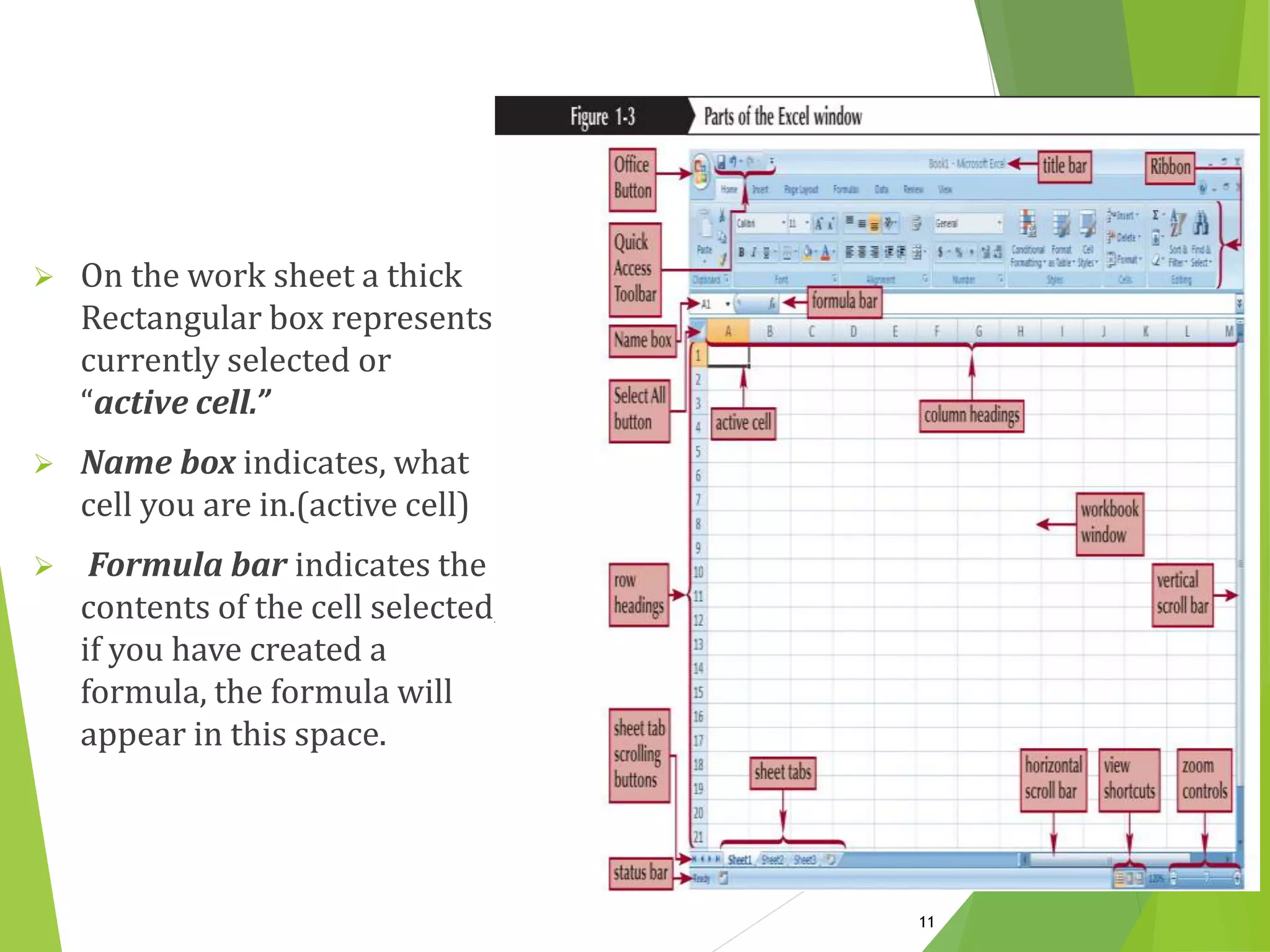
 On the work sheet a thick
Rectangular box represents
currently selected or
“active cell.”
 Name box indicates, what
cell you are in.(active cell)
 Formula bar indicates the
contents of the cell selected,
if you have created a
formula, the formula will
appear in this space.
11
View of Menu bar
 Menu bar in excel provides an easy way to access various commands in an
easy and convenient way.
 The contents of any menu bar can be displayed by clicking on the menu
name with the left mouse button. Various menus of excel are follows:
I. Home
II. Insert
III. Page layout
IV. Formulas
V. Data
VI. Review
VII. View
12
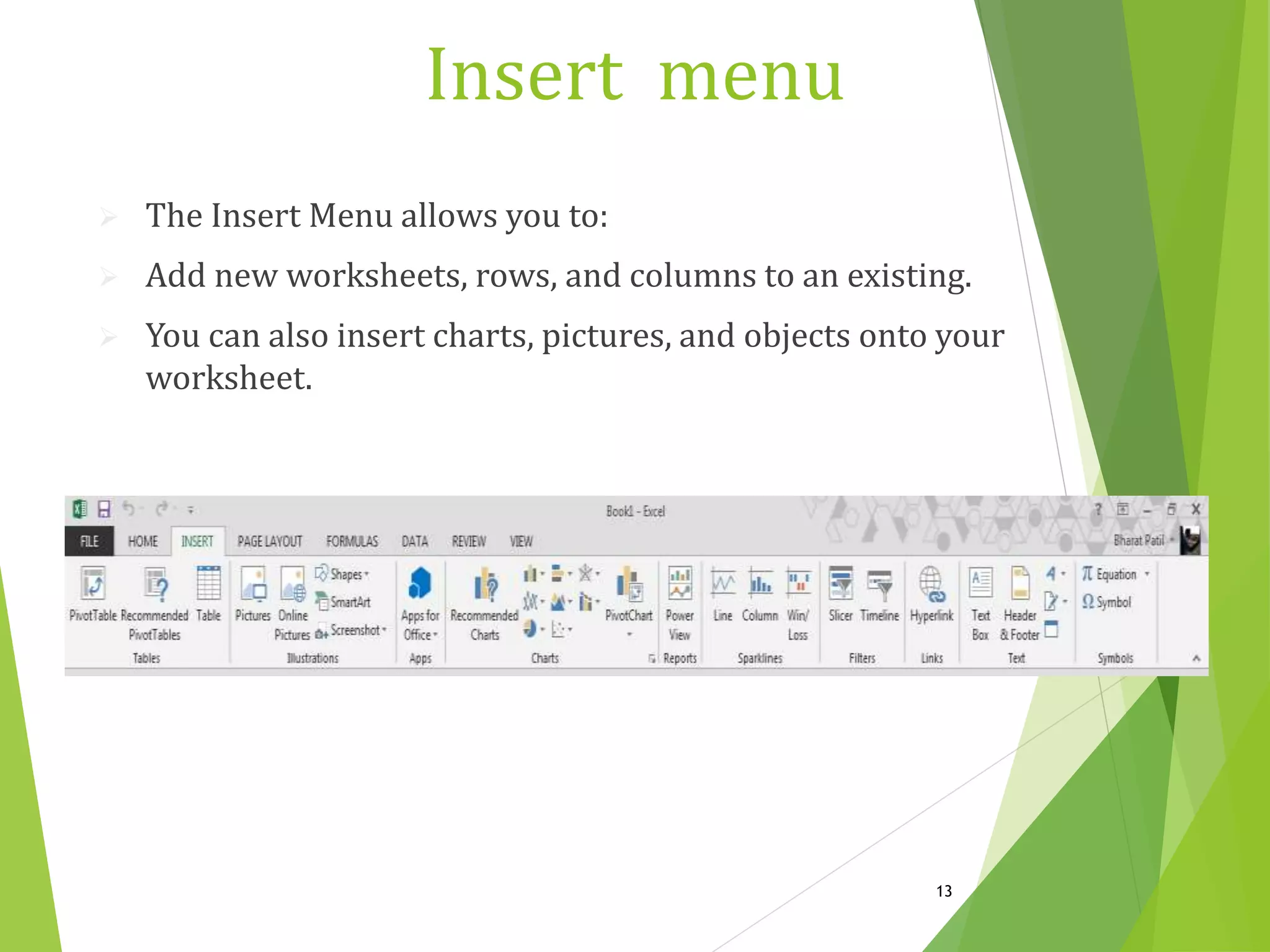
Insert menu
 The Insert Menu allows you to:
 Add new worksheets, rows, and columns to an existing.
 You can also insert charts, pictures, and objects onto your
worksheet.
13
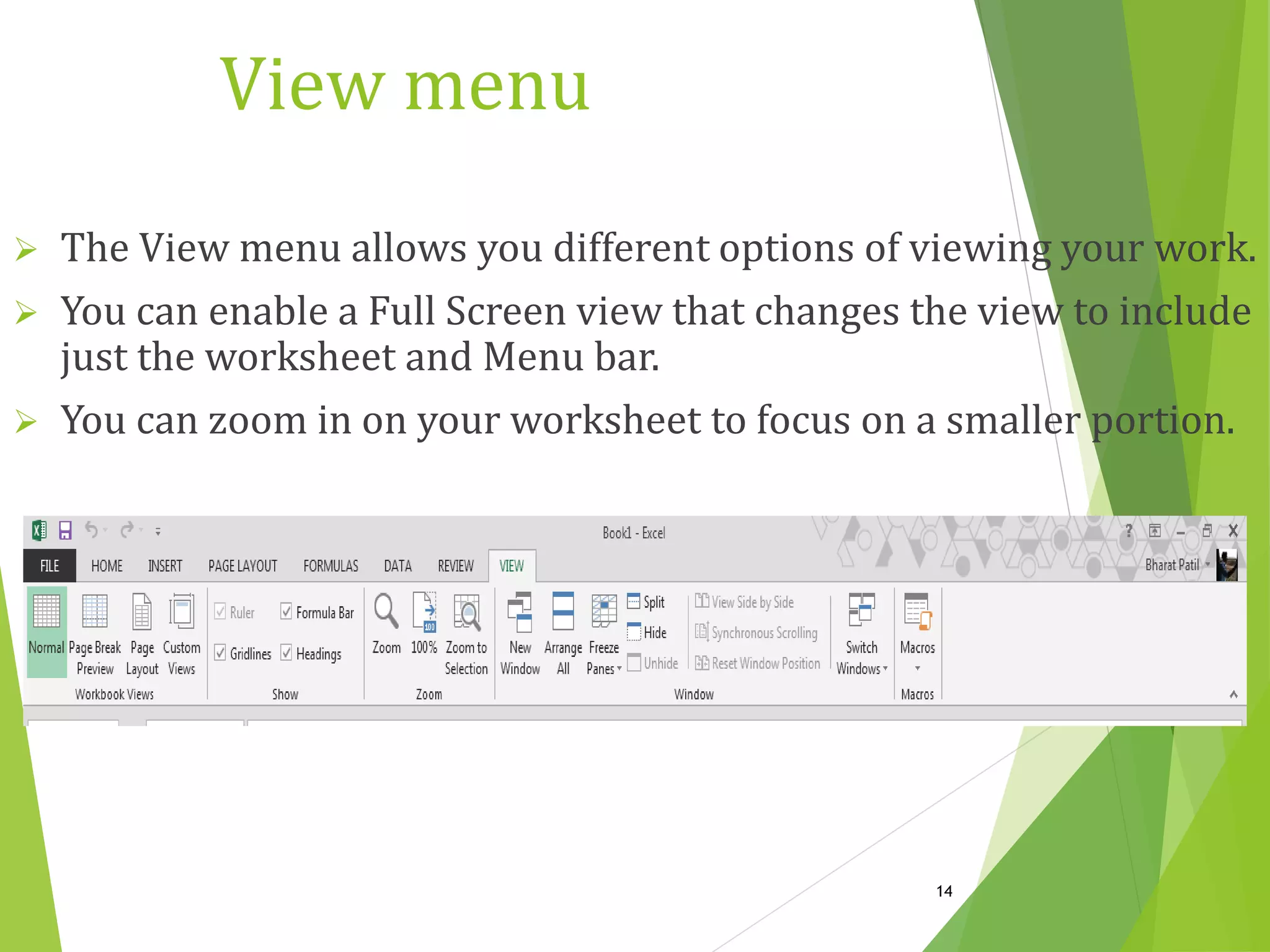
View menu
 The View menu allows you different options of viewing your work.
 You can enable a Full Screen view that changes the view to include
just the worksheet and Menu bar.
 You can zoom in on your worksheet to focus on a smaller portion.
14

Excel ppt

  • 1.
    1 WELCOME TO THENEW SESSION OF EXCEL
  • 2.
     INTRODUCTION TOMS-EXCEL………………………………  FEATURES OF EXCEL……………………………………………  APPLICATIONS OF EXCEL……………………………………...  OFFICE BUTTON……………………………………….................  RIBBONS……………………………………………………………….  OVERVIEW OF EXCEL…………………………………………...  VIEW OF MENU BAR……..……………………………………....  INSERT MENU…………...…………………………………………...  VIEW MENU……………...…………………………………………... 3 4 6 7 8 9-11 12 13 14 2 INDEX
  • 3.
     Excel isa computer program used to create electronic spreadsheets.  Within excel user can organize data ,create chart and perform calculations.  Excel is a convenient program because it allow user to create large spreadsheets, reference information, and it allows for better storage of information.  Excels operates like other Microsoft(MS) office programs and has many of the same functions and shortcuts of other MS programs. 3 INTRODUCTION TO MS_EXCEL
  • 4.
     It allowsorganization, tabulation, search, and exploration of data of large sizes.  It allows the design of professionally looking charts 3-D effects, shadowing , transparency.  Data can be filtered and sorted.  Formatting of spreadsheet allows changing the font color, and font style. 4 Features of Excel
  • 5.
     A functionlibrary consists of various function groups like financial, logical, math & trigonometry etc.  Based on the values entered in different cells in the spreadsheet, formulas can be defined, which automatically perform calculation. 5
  • 6.
    1. To mangename list of data records. 2. To perform mathematical calculation easily in daily business. 3. Inventory management 4. Create forms and consolidate results 5. Analytical tools 6. Corporate budgeting. 6 Applications of Excel
  • 7.
    OFFICE BUTTON CONTAINS.. NEW-TOOPEN NEW WORKBOOK. (CTRL+N) OPEN-TO OPEN EXISTING DOCUMENT (CTRL+O) SAVE-TO SAVE A DOCUMENT. (CTRL+S) SAVE AS-TO SAVE COPY DOCUMENT. (F12) PRINT-TO PRINT A DOCUMENT. (CTRL+P) PREPARE-TO PREPARE DOCUMENT FOR DISTRIBUTION. SEND-TO SEND A COPY OF DOCUMENT TO OTHER PEOPLE. PUBLISH-TO DISTRIBUTE DOCUMENT TO OTHER PEOPLE. CLOSE-TO CLOSE A DOCUMENT (CTRL+W). 7 Office Button
  • 8.
    TABS: THERE ARESEVEN TABS ACROSS THE TOP OF THE EXCEL WINDOW. GROUPS: GROUPS ARE SETS OF RELATED COMMANDS,DISPLAYED ON TABS. COMMANDS: A COMMAND IS A BUTTON,A MENU OR A BOX WHERE YOU ENTER INFORMATION. 1 2 3 THE THREE PARTS OF THE RIBBON ARE TABS GROUPS COMMANDS 8 Ribbons
  • 9.
     Microsoft excelconsists of workbooks. Within each workbook, there is an infinite number of worksheets.  Each worksheet contains Columns and Rows.  Where a column and a row intersect is called a cell. For e.g. cell D5 is located where column D and row 5 meet.  The tabs at the bottom of the screen represent different worksheets within a workbook. You can use the scrolling buttons on the left to bring other worksheets into view. 9 Overview of Excel
  • 10.
     Work book;it is collection of many work sheets.  Work sheet is made of many rows and columns and also called “spreadsheet.”  There are 256 columns and 65536 rows in a work sheet.  On the worksheet intersection of a row and a columns is called a cell.  Each cell has a specific address, which is combination of numbers and letters. For example; A1, E10. 10
  • 11.
     On thework sheet a thick Rectangular box represents currently selected or “active cell.”  Name box indicates, what cell you are in.(active cell)  Formula bar indicates the contents of the cell selected, if you have created a formula, the formula will appear in this space. 11
  • 12.
    View of Menubar  Menu bar in excel provides an easy way to access various commands in an easy and convenient way.  The contents of any menu bar can be displayed by clicking on the menu name with the left mouse button. Various menus of excel are follows: I. Home II. Insert III. Page layout IV. Formulas V. Data VI. Review VII. View 12
  • 13.
    Insert menu  TheInsert Menu allows you to:  Add new worksheets, rows, and columns to an existing.  You can also insert charts, pictures, and objects onto your worksheet. 13
  • 14.
    View menu  TheView menu allows you different options of viewing your work.  You can enable a Full Screen view that changes the view to include just the worksheet and Menu bar.  You can zoom in on your worksheet to focus on a smaller portion. 14