Designed by: Shivani
Chandel

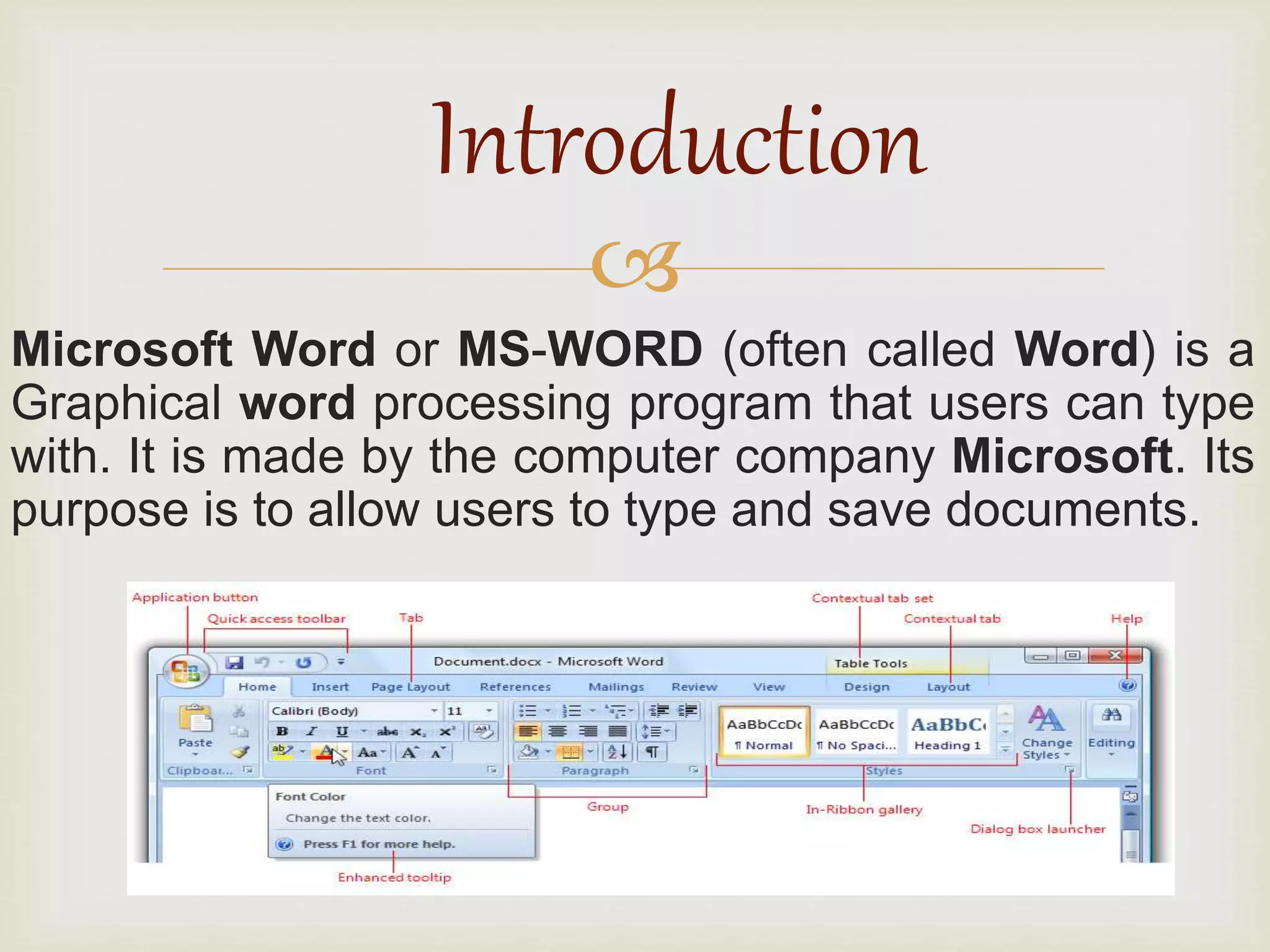
Microsoft Word or MS-WORD (often called Word) is a
Graphical word processing program that users can type
with. It is made by the computer company Microsoft. Its
purpose is to allow users to type and save documents.
Introduction

 Speech recognition
 Spelling & grammar checker, word count (this also counts
letters and lines)
 Inserts pictures in documents
 Choice of typefaces
 Special codes
 Web pages, graphs, etc.
 Tables
 Displays synonyms of words and can read out the text
 Prints in different ways
 MS Word is a part of Microsoft Office, but can also be bought
separately.
Features of MS Word

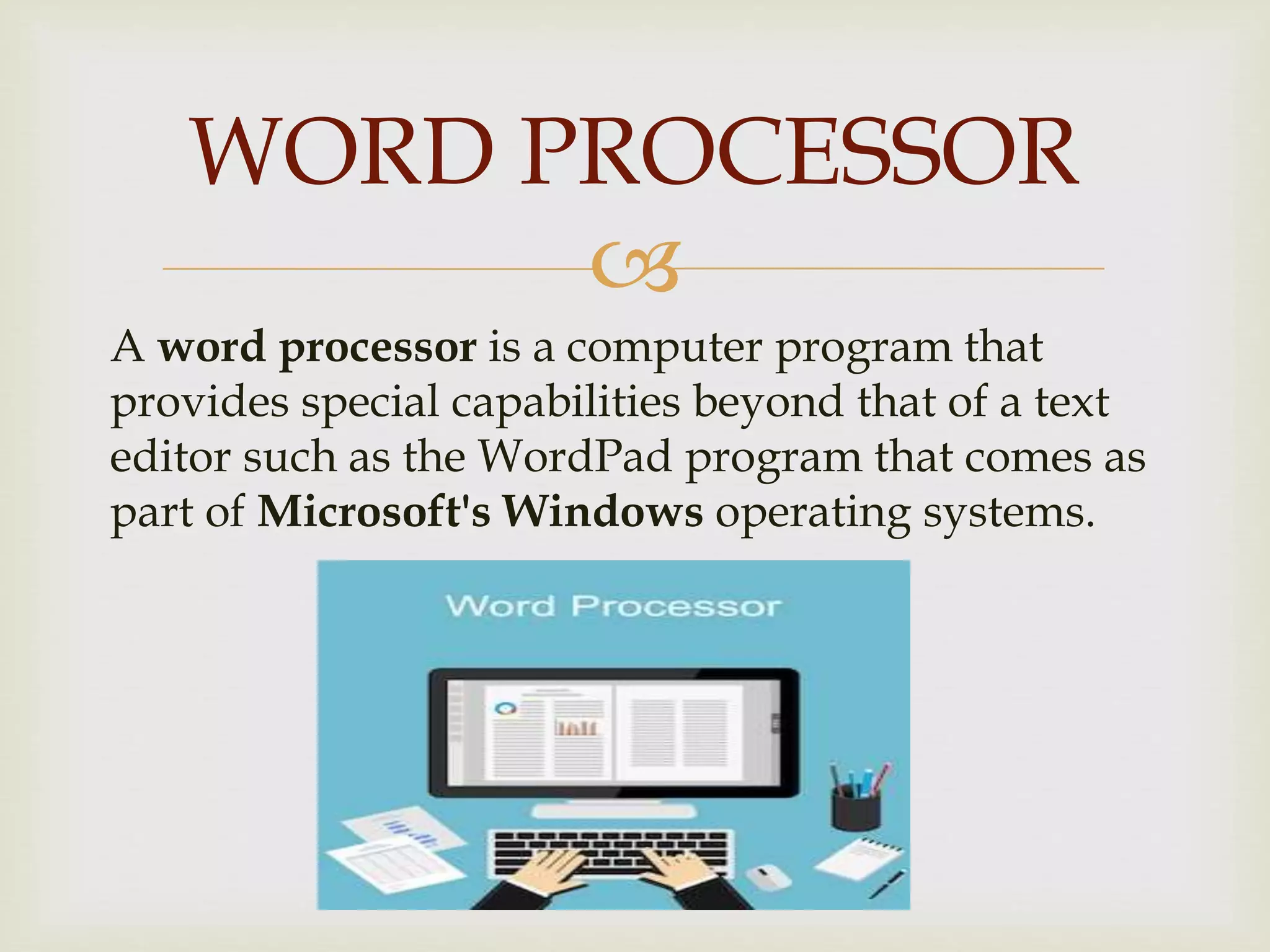
A word processor is a computer program that
provides special capabilities beyond that of a text
editor such as the WordPad program that comes as
part of Microsoft's Windows operating systems.
WORD PROCESSOR

 Saves time
 Enhances document appearance
 Allows sharing of documents
 Allows collaboration of documents
 Copies can easily be made, which saves on printing
and it is much easier to do
 Can save multiple versions of documents
and easily sort them so that you can go back to
previous versions of the same document
Advantages of MS Word

 Preparing Letters
 Preparing Applications
 Preparing Notices
 Preparing Faxes
 Preparing Memorandums
 Preparing Legal Pleadings
 Preparing meeting Agendas
 Preparing Calendars
 Preparing resumes
 Preparing reports
Uses of MS Word
PARTS OF
WORD
INTERFACE
RIBBON
The Ribbon is a user interface element which was
introduced by Microsoft in Microsoft Office 2007. It
is located below the Quick Access Toolbar and the
Title Bar. It comprises seven tabs; Home, Insert,
Page layout, References, Mailing, Review and View.
Each tab has specific groups of related commands.
TITLE BAR
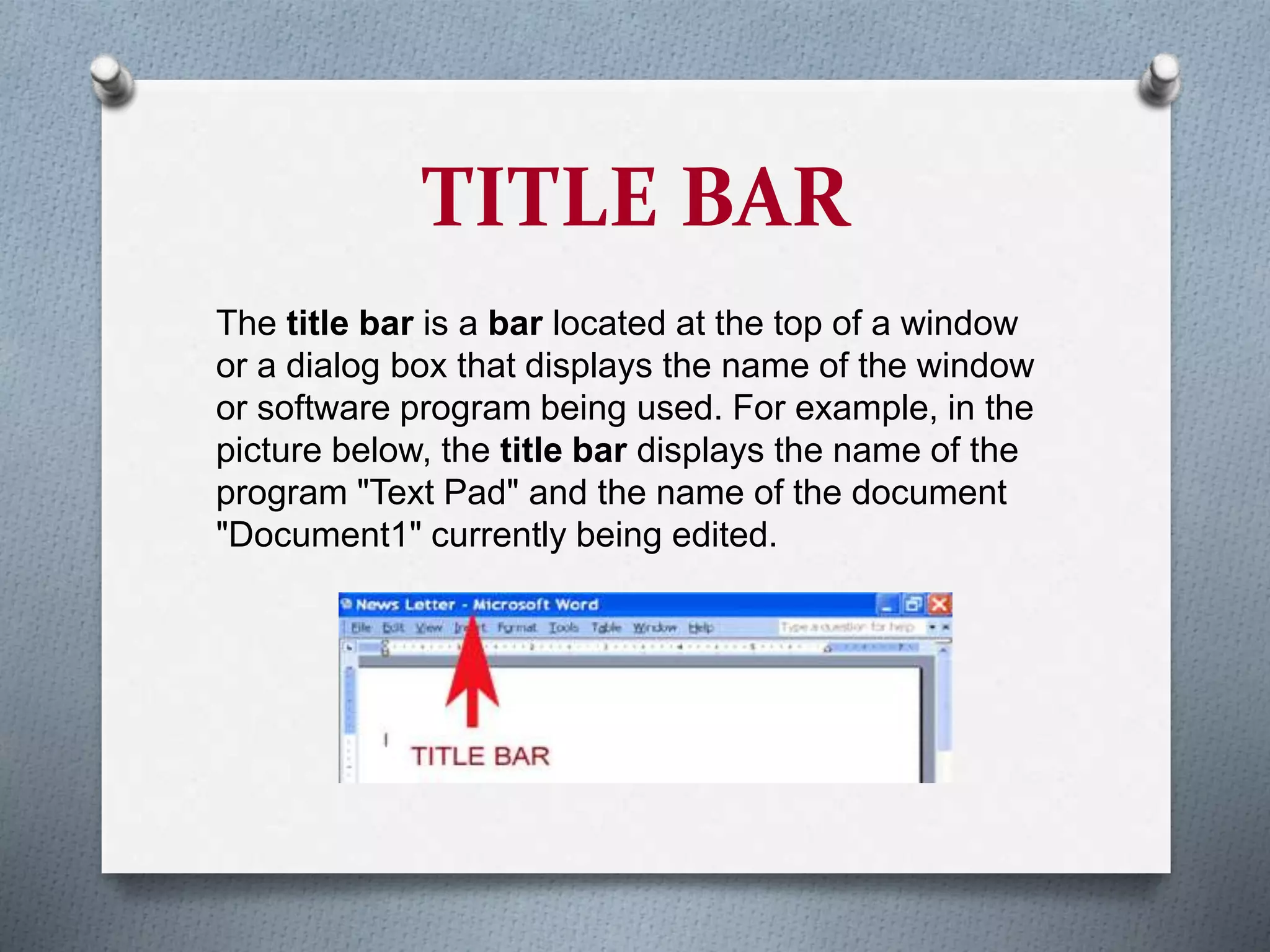
The title bar is a bar located at the top of a window
or a dialog box that displays the name of the window
or software program being used. For example, in the
picture below, the title bar displays the name of the
program "Text Pad" and the name of the document
"Document1" currently being edited.
MENU BAR
When you first start Word, the menus and
toolbars display basic commands and buttons.
As you work with Word, the commands and
buttons that you use most often are stored as
personalized settings and displayed on menus
and toolbars.
TOOL BAR
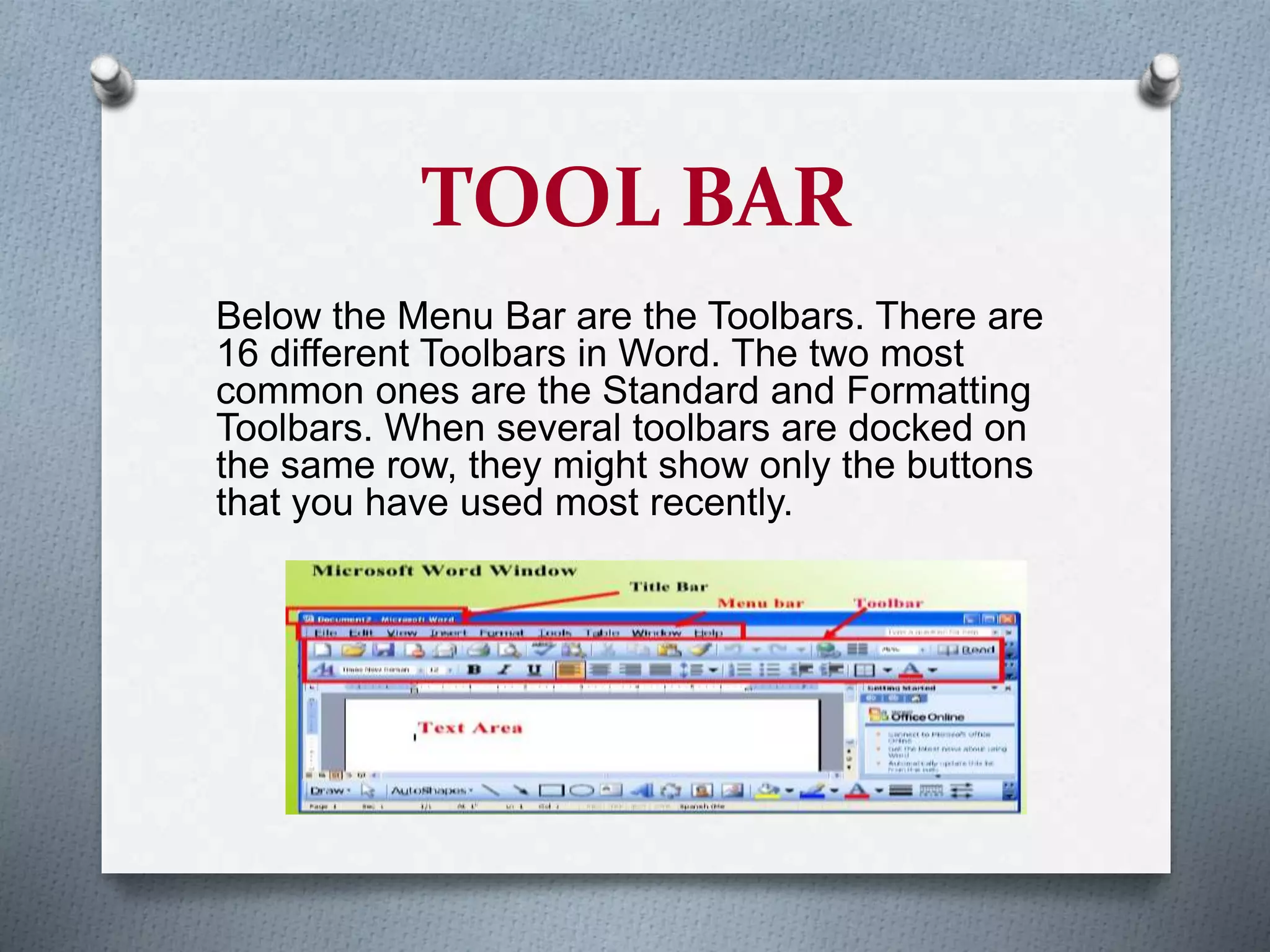
Below the Menu Bar are the Toolbars. There are
16 different Toolbars in Word. The two most
common ones are the Standard and Formatting
Toolbars. When several toolbars are docked on
the same row, they might show only the buttons
that you have used most recently.
SCROLL BAR
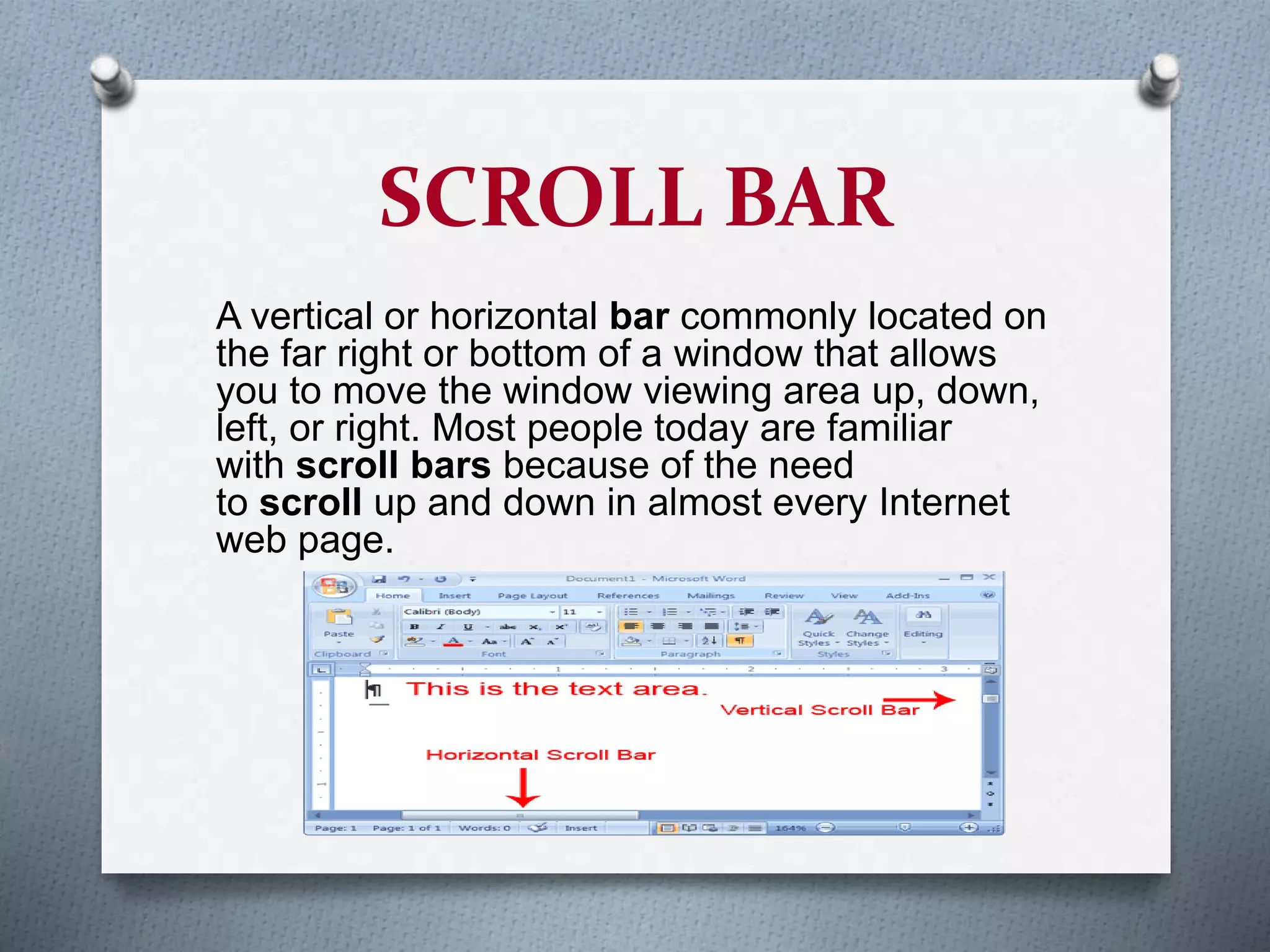
A vertical or horizontal bar commonly located on
the far right or bottom of a window that allows
you to move the window viewing area up, down,
left, or right. Most people today are familiar
with scroll bars because of the need
to scroll up and down in almost every Internet
web page.
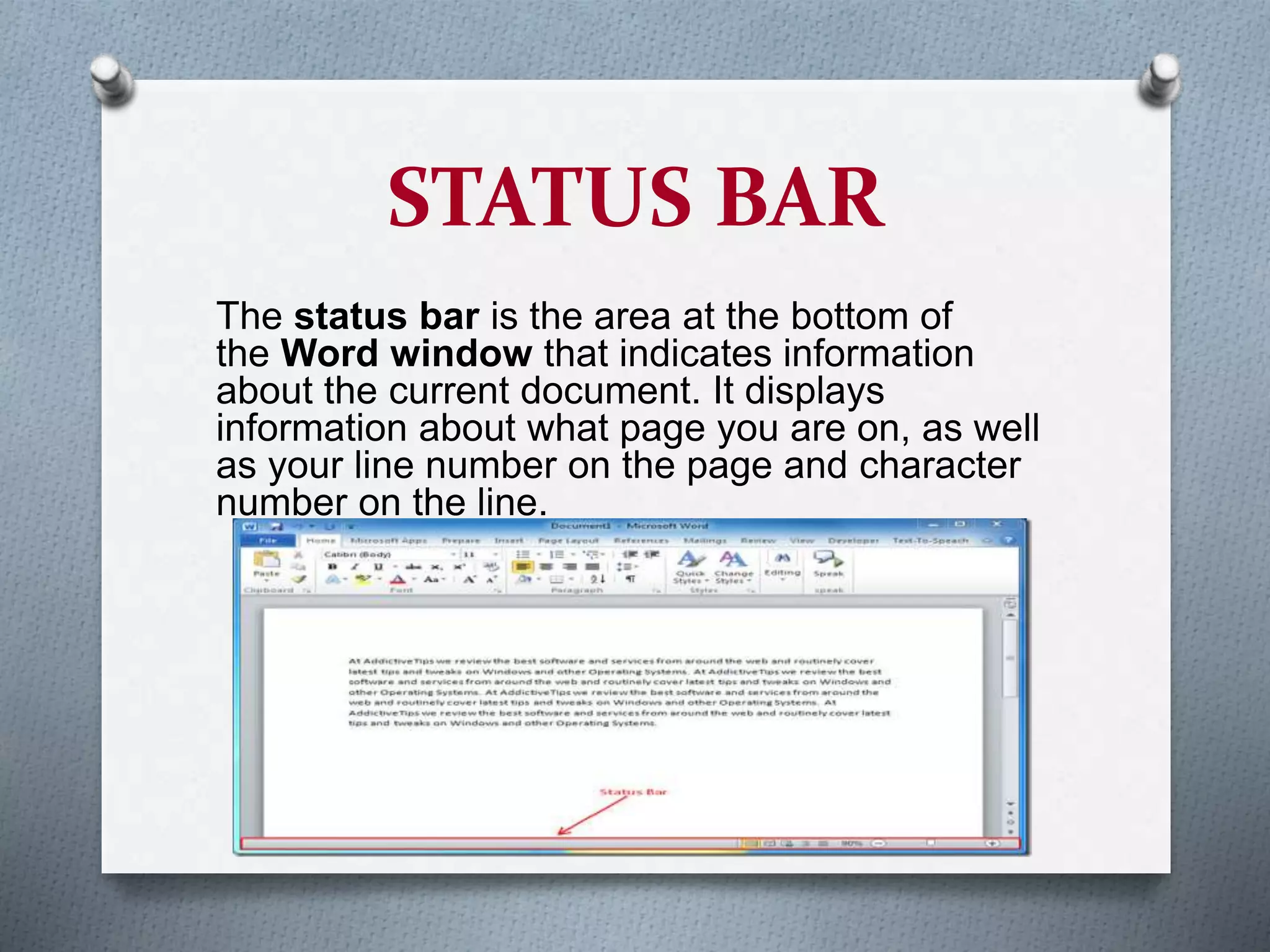
STATUS BAR
The status bar is the area at the bottom of
the Word window that indicates information
about the current document. It displays
information about what page you are on, as well
as your line number on the page and character
number on the line.
 Home tab
 Insert Tab
 Page Layout Tab
 References
 Mailing
 Review
 View
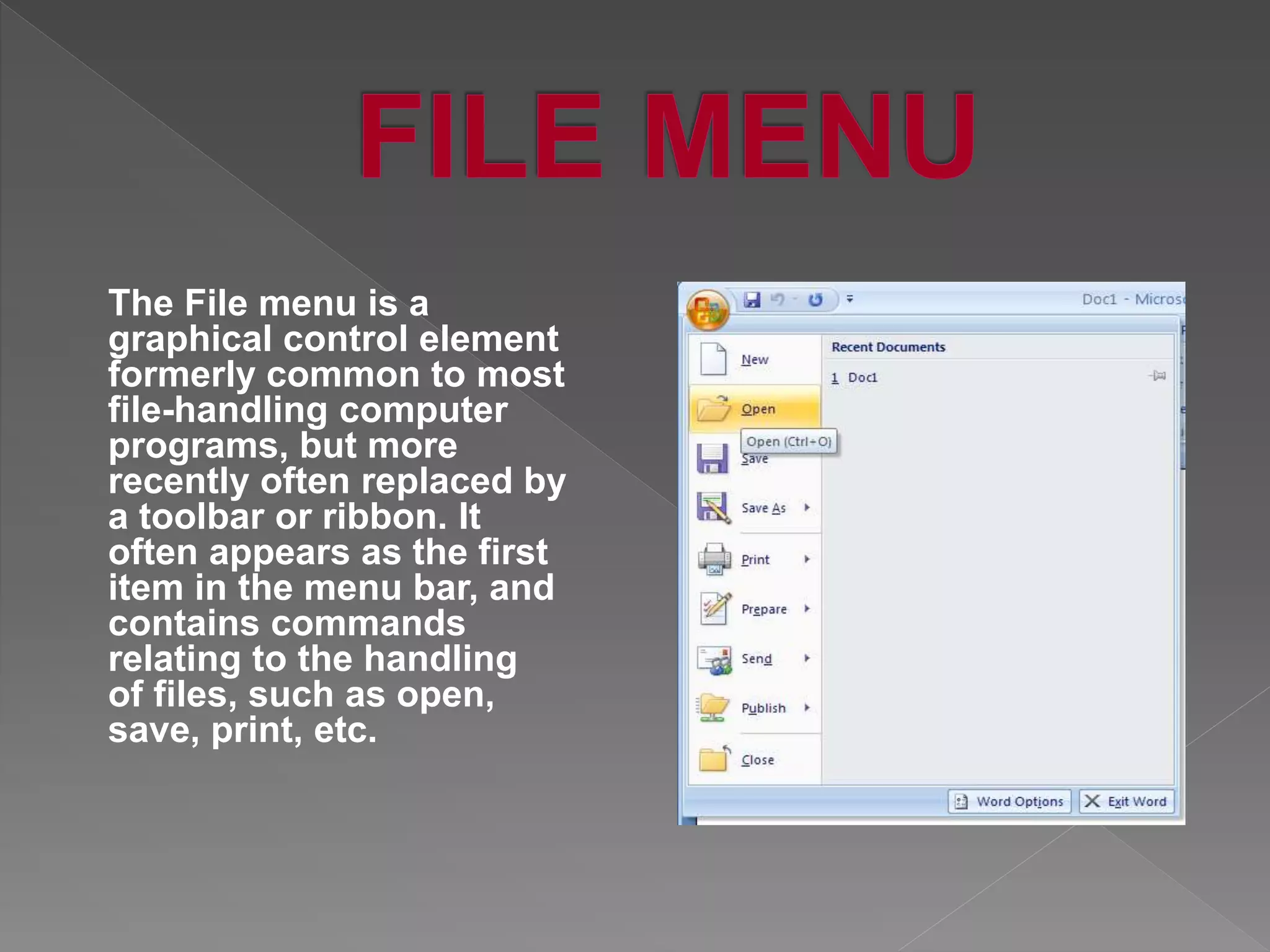
The File menu is a
graphical control element
formerly common to most
file-handling computer
programs, but more
recently often replaced by
a toolbar or ribbon. It
often appears as the first
item in the menu bar, and
contains commands
relating to the handling
of files, such as open,
save, print, etc.
In general, the home tab is a tab or button in an
application or web page that returns you to the home
section. 2. In Microsoft Office, the Home tab is the
default tab in Microsoft Word, Microsoft Excel,
Microsoft PowerPoint, and other Microsoft Office
products
To place an object between two other
objects. Inserting characters, words, paragraphs and
documents is common in word processing. Note
that insert differs from append, which means to add at the end.
Most computer keyboards have an Insert key, which
turns insert mode on and off.
Page layout is the term used to describe how
each page of your document will appear when it is
printed. In Word, page layout includes elements
such as the margins, the number of columns, how
headers and footers appear, and a host of other
considerations.
The References tab is a wealth of commands
designed to help properly document your work with
Footnotes, Citations and Bibliography commands.
You'll also find commands for creating a Table of
Contents, an Index and a Table of Authorities.
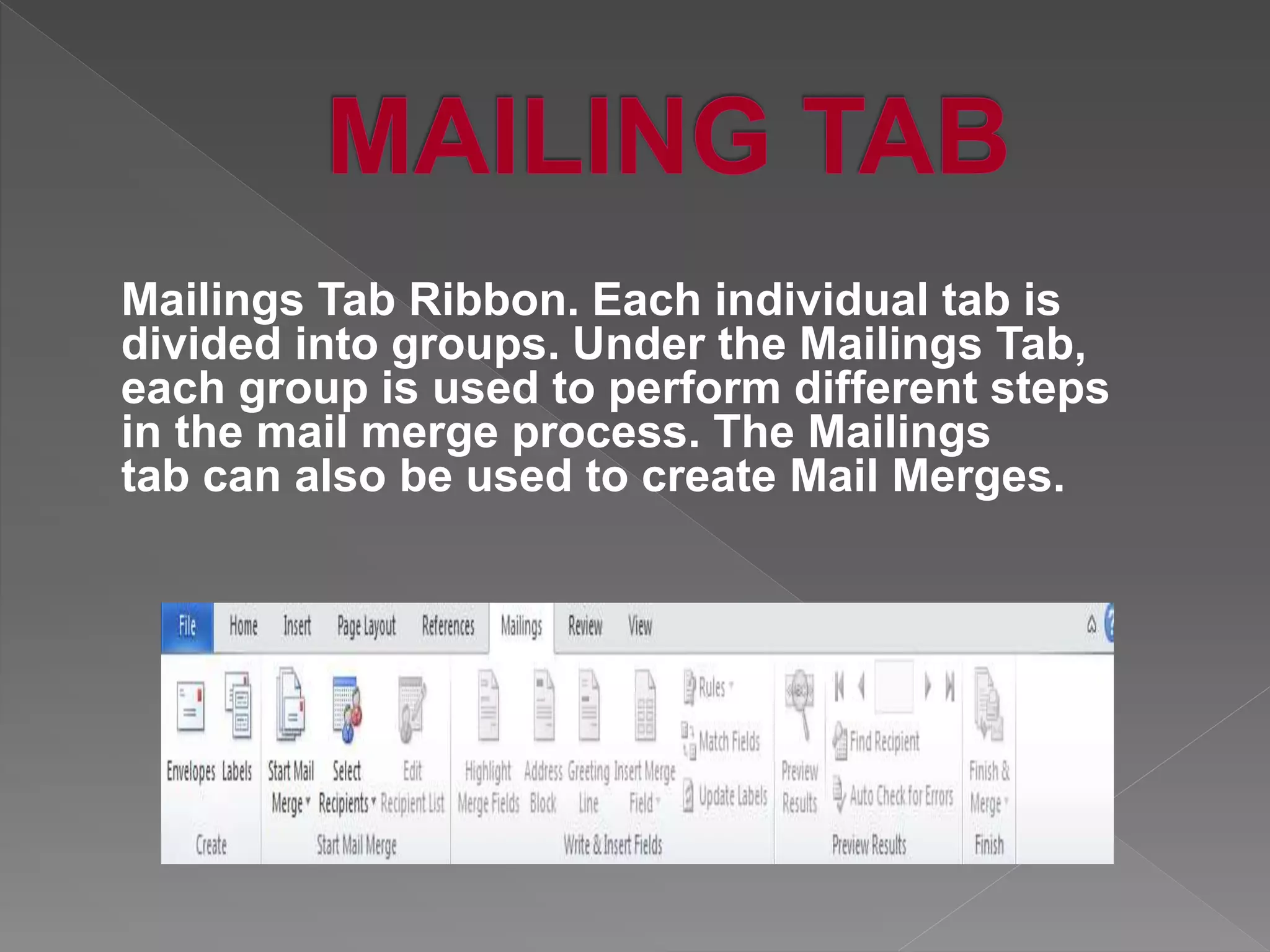
Mailings Tab Ribbon. Each individual tab is
divided into groups. Under the Mailings Tab,
each group is used to perform different steps
in the mail merge process. The Mailings
tab can also be used to create Mail Merges.
The review tab of Microsoft Office Word 2007 has got
some important commands that you can use to modify
your document. The review tab is useful in a number
of ways. For instance, you can use it for proofing your
document, adding or removing comments, and
tracking changes among other things.
The view tab will be mostly used with your complete
document, usually to see how it will look like. These tools
are important and you will keep using them from time to time
depending on your needs. There are other important
commands like the documents view and the show/hide ruler
option. These are the groups that we have in the view tab of
Microsoft Office Word 2007 and their respective commands.
Microsoft word
Microsoft word

Microsoft word

  • 1.
  • 2.
     Microsoft Word orMS-WORD (often called Word) is a Graphical word processing program that users can type with. It is made by the computer company Microsoft. Its purpose is to allow users to type and save documents. Introduction
  • 3.
      Speech recognition Spelling & grammar checker, word count (this also counts letters and lines)  Inserts pictures in documents  Choice of typefaces  Special codes  Web pages, graphs, etc.  Tables  Displays synonyms of words and can read out the text  Prints in different ways  MS Word is a part of Microsoft Office, but can also be bought separately. Features of MS Word
  • 4.
     A word processoris a computer program that provides special capabilities beyond that of a text editor such as the WordPad program that comes as part of Microsoft's Windows operating systems. WORD PROCESSOR
  • 5.
      Saves time Enhances document appearance  Allows sharing of documents  Allows collaboration of documents  Copies can easily be made, which saves on printing and it is much easier to do  Can save multiple versions of documents and easily sort them so that you can go back to previous versions of the same document Advantages of MS Word
  • 6.
      Preparing Letters Preparing Applications  Preparing Notices  Preparing Faxes  Preparing Memorandums  Preparing Legal Pleadings  Preparing meeting Agendas  Preparing Calendars  Preparing resumes  Preparing reports Uses of MS Word
  • 7.
  • 8.
    RIBBON The Ribbon isa user interface element which was introduced by Microsoft in Microsoft Office 2007. It is located below the Quick Access Toolbar and the Title Bar. It comprises seven tabs; Home, Insert, Page layout, References, Mailing, Review and View. Each tab has specific groups of related commands.
  • 9.
    TITLE BAR The titlebar is a bar located at the top of a window or a dialog box that displays the name of the window or software program being used. For example, in the picture below, the title bar displays the name of the program "Text Pad" and the name of the document "Document1" currently being edited.
  • 10.
    MENU BAR When youfirst start Word, the menus and toolbars display basic commands and buttons. As you work with Word, the commands and buttons that you use most often are stored as personalized settings and displayed on menus and toolbars.
  • 11.
    TOOL BAR Below theMenu Bar are the Toolbars. There are 16 different Toolbars in Word. The two most common ones are the Standard and Formatting Toolbars. When several toolbars are docked on the same row, they might show only the buttons that you have used most recently.
  • 12.
    SCROLL BAR A verticalor horizontal bar commonly located on the far right or bottom of a window that allows you to move the window viewing area up, down, left, or right. Most people today are familiar with scroll bars because of the need to scroll up and down in almost every Internet web page.
  • 13.
    STATUS BAR The statusbar is the area at the bottom of the Word window that indicates information about the current document. It displays information about what page you are on, as well as your line number on the page and character number on the line.
  • 14.
     Home tab Insert Tab  Page Layout Tab  References  Mailing  Review  View
  • 15.
    The File menuis a graphical control element formerly common to most file-handling computer programs, but more recently often replaced by a toolbar or ribbon. It often appears as the first item in the menu bar, and contains commands relating to the handling of files, such as open, save, print, etc.
  • 16.
    In general, thehome tab is a tab or button in an application or web page that returns you to the home section. 2. In Microsoft Office, the Home tab is the default tab in Microsoft Word, Microsoft Excel, Microsoft PowerPoint, and other Microsoft Office products
  • 17.
    To place anobject between two other objects. Inserting characters, words, paragraphs and documents is common in word processing. Note that insert differs from append, which means to add at the end. Most computer keyboards have an Insert key, which turns insert mode on and off.
  • 18.
    Page layout isthe term used to describe how each page of your document will appear when it is printed. In Word, page layout includes elements such as the margins, the number of columns, how headers and footers appear, and a host of other considerations.
  • 19.
    The References tabis a wealth of commands designed to help properly document your work with Footnotes, Citations and Bibliography commands. You'll also find commands for creating a Table of Contents, an Index and a Table of Authorities.
  • 20.
    Mailings Tab Ribbon.Each individual tab is divided into groups. Under the Mailings Tab, each group is used to perform different steps in the mail merge process. The Mailings tab can also be used to create Mail Merges.
  • 21.
    The review tabof Microsoft Office Word 2007 has got some important commands that you can use to modify your document. The review tab is useful in a number of ways. For instance, you can use it for proofing your document, adding or removing comments, and tracking changes among other things.
  • 22.
    The view tabwill be mostly used with your complete document, usually to see how it will look like. These tools are important and you will keep using them from time to time depending on your needs. There are other important commands like the documents view and the show/hide ruler option. These are the groups that we have in the view tab of Microsoft Office Word 2007 and their respective commands.