What is Word Processing ?
 It is also known as
a document
preparation
System
 It is a programme
where you can
type and print
documents
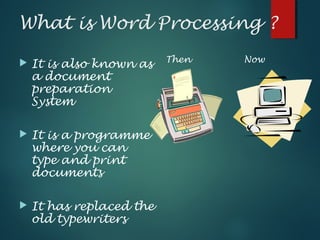
 It has replaced the
old typewriters
Then Now
Application areas of word processing :
 Business - Legal Copies, Letterheads, Letters,
Memos, Circulars etc.
 Education - To develop word processing skills
from the very beginning
 Home - Dealing with assignments being
completed at home, or occasionally
recreational e.g. Maintaining diary
Word Processing
 Advantages
1. Faster
2. Can edit documents
3. Change font style,
size, colour
4. Change layout
5. Print many copies
6. Less noise
7. Add pictures
8. Make tables
9. Email documents
 Disadvantages
1. Equipment costs
2. Upgrade software
3. Train staff
4. More complicated
5. Virus, popup
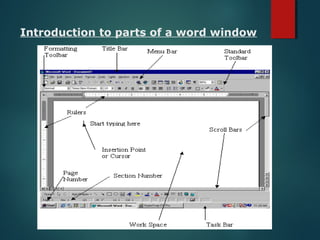
Introduction to parts of a word window
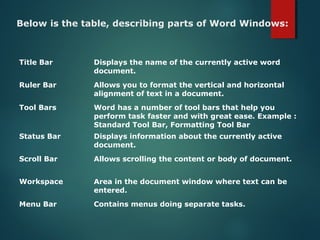
Below is the table, describing parts of Word Windows:
Title Bar Displays the name of the currently active word
document.
Ruler Bar Allows you to format the vertical and horizontal
alignment of text in a document.
Tool Bars Word has a number of tool bars that help you
perform task faster and with great ease. Example :
Standard Tool Bar, Formatting Tool Bar
Status Bar Displays information about the currently active
document.
Scroll Bar Allows scrolling the content or body of document.
Workspace Area in the document window where text can be
entered.
Menu Bar Contains menus doing separate tasks.
How to enter and edit text
 You can enter text by using the
keyboard
 Editing text may involve
inserting, deleting, or
amending
 Other possiblemethodsare
using ascanner and optical
character recognition (OCR)
 You can do thisby speaking
into amicrophoneor using
voicerecognition software
Word Wrap
 With aword processor, when you reach theend of aline
you don’t need to usethereturn key to makeanew line.
 Word processor will makeanew lineautomatically and
it will movepartly completed wordsat theend of one
lineto thestart of thenext line
Word Count
 It is very useful if you are writing
an essay or an article containing a
certain amount of words
 Instead of using spell checker to
count words use word count it saves
time.
Inserting Clip ArtTo insert
clip art
Click on
insert and
then picture
Then
click on
Clip art
Some pictures from Clip art
Mail merge
The process of linking
the fields in a
database to a
standard letter.
It can be accessed
by pressing the
“Tools” tab and
selecting Mail Merge.
Text Alignment
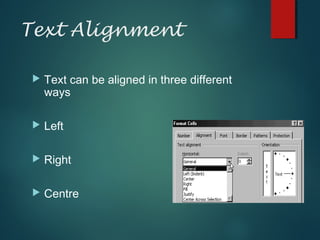
 Text can be aligned in three different
ways
 Left
 Right
 Centre
Features of Word
Processor
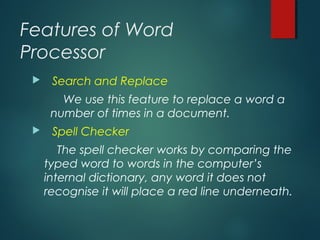
 Search and Replace
We use this feature to replace a word a
number of times in a document.
 Spell Checker
The spell checker works by comparing the
typed word to words in the computer’s
internal dictionary, any word it does not
recognise it will place a red line underneath.
Features of Word Processor
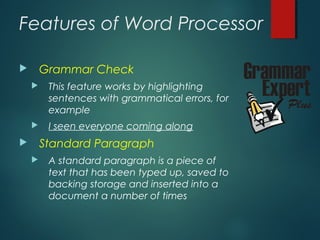
 Grammar Check
 This feature works by highlighting
sentences with grammatical errors, for
example
 I seen everyone coming along
 Standard Paragraph
 A standard paragraph is a piece of
text that has been typed up, saved to
backing storage and inserted into a
document a number of times
Features of Word Processor
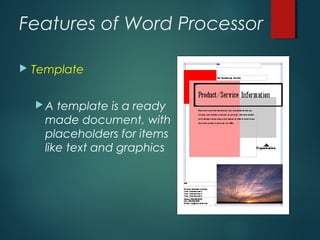
 Template
 A template is a ready
made document, with
placeholders for items
like text and graphics
WYSIWYG
 Development of higher-resolution monitors allowed
them to provide limited WYSIWYG - What You See Is
What You Get, to the extent that typographical
features like bold and italics, indentation,
justification and margins were approximated on
screen.
 MacWrite, Microsoft Word and other word
processing programs for the bit-mapped Apple
Macintosh screen, introduced in 1984, were
probably the first true WYSIWYG word processors to
become known to many people until the
introduction of Microsoft Windows.
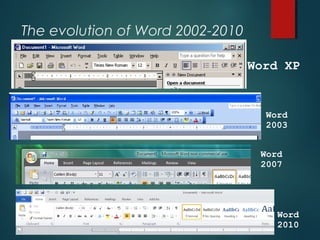
The evolution of Word 2002-2010
17
Word XP
Word
2003
Word
2007
Word
2010
New features in Word 2007
 The Microsoft Office Button
 The Quick Access Toolbar
Customizable
 The Ribbon
THANK
YOU

Word processing

  • 2.
    What is WordProcessing ?  It is also known as a document preparation System  It is a programme where you can type and print documents  It has replaced the old typewriters Then Now
  • 3.
    Application areas ofword processing :  Business - Legal Copies, Letterheads, Letters, Memos, Circulars etc.  Education - To develop word processing skills from the very beginning  Home - Dealing with assignments being completed at home, or occasionally recreational e.g. Maintaining diary
  • 4.
    Word Processing  Advantages 1.Faster 2. Can edit documents 3. Change font style, size, colour 4. Change layout 5. Print many copies 6. Less noise 7. Add pictures 8. Make tables 9. Email documents  Disadvantages 1. Equipment costs 2. Upgrade software 3. Train staff 4. More complicated 5. Virus, popup
  • 5.
    Introduction to partsof a word window
  • 6.
    Below is thetable, describing parts of Word Windows: Title Bar Displays the name of the currently active word document. Ruler Bar Allows you to format the vertical and horizontal alignment of text in a document. Tool Bars Word has a number of tool bars that help you perform task faster and with great ease. Example : Standard Tool Bar, Formatting Tool Bar Status Bar Displays information about the currently active document. Scroll Bar Allows scrolling the content or body of document. Workspace Area in the document window where text can be entered. Menu Bar Contains menus doing separate tasks.
  • 7.
    How to enterand edit text  You can enter text by using the keyboard  Editing text may involve inserting, deleting, or amending  Other possiblemethodsare using ascanner and optical character recognition (OCR)  You can do thisby speaking into amicrophoneor using voicerecognition software
  • 8.
    Word Wrap  Withaword processor, when you reach theend of aline you don’t need to usethereturn key to makeanew line.  Word processor will makeanew lineautomatically and it will movepartly completed wordsat theend of one lineto thestart of thenext line
  • 9.
    Word Count  Itis very useful if you are writing an essay or an article containing a certain amount of words  Instead of using spell checker to count words use word count it saves time.
  • 10.
    Inserting Clip ArtToinsert clip art Click on insert and then picture Then click on Clip art Some pictures from Clip art
  • 11.
    Mail merge The processof linking the fields in a database to a standard letter. It can be accessed by pressing the “Tools” tab and selecting Mail Merge.
  • 12.
    Text Alignment  Textcan be aligned in three different ways  Left  Right  Centre
  • 13.
    Features of Word Processor Search and Replace We use this feature to replace a word a number of times in a document.  Spell Checker The spell checker works by comparing the typed word to words in the computer’s internal dictionary, any word it does not recognise it will place a red line underneath.
  • 14.
    Features of WordProcessor  Grammar Check  This feature works by highlighting sentences with grammatical errors, for example  I seen everyone coming along  Standard Paragraph  A standard paragraph is a piece of text that has been typed up, saved to backing storage and inserted into a document a number of times
  • 15.
    Features of WordProcessor  Template  A template is a ready made document, with placeholders for items like text and graphics
  • 16.
    WYSIWYG  Development ofhigher-resolution monitors allowed them to provide limited WYSIWYG - What You See Is What You Get, to the extent that typographical features like bold and italics, indentation, justification and margins were approximated on screen.  MacWrite, Microsoft Word and other word processing programs for the bit-mapped Apple Macintosh screen, introduced in 1984, were probably the first true WYSIWYG word processors to become known to many people until the introduction of Microsoft Windows.
  • 17.
    The evolution ofWord 2002-2010 17 Word XP Word 2003 Word 2007 Word 2010
  • 18.
    New features inWord 2007  The Microsoft Office Button  The Quick Access Toolbar Customizable  The Ribbon
  • 19.