WORD
PROCESSING
COMPUTER
ENHANCEMENT COURSE
Word Processor
“A word processor is software or a device that
allows users to create, edit, and print documents.”
 It enables you to write text, store it
electronically, display it on a screen, modify it
by entering commands and characters from the
keyboard, and print it.
WORD PROCESSING
Word processing describes the process of
creating or editing a document using a
word processor, such as Microsoft Word,
Google Docs, or OpenOffice Writer.
 It is also known as a
document preparation
System.
A word processor is a computer program or
device that provides for input, editing,
formatting and output of text often with some
additional features. Early word processors
were stand-alone devices often on its function,
but current word processors are word
processor programs running on general
purpose computers.
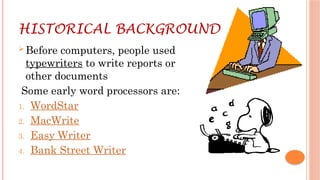
HISTORICAL BACKGROUND
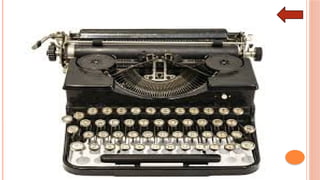
 Before computers, people used
typewriters to write reports or
other documents
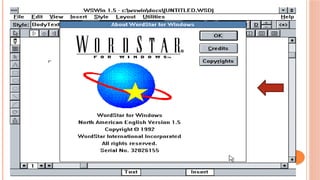
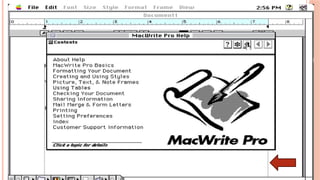
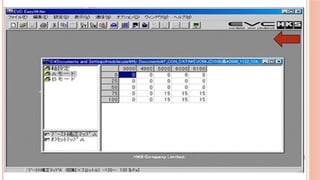
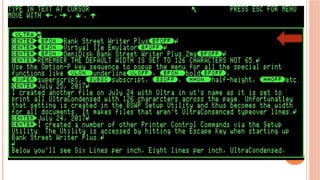
Some early word processors are:
1. WordStar
2. MacWrite
3. Easy Writer
4. Bank Street Writer
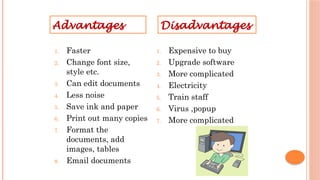
1. Faster
2. Change font size,
style etc.
3. Can edit documents
4. Less noise
5. Save ink and paper
6. Print out many copies
7. Format the
documents, add
images, tables
8. Email documents
1. Expensive to buy
2. Upgrade software
3. More complicated
4. Electricity
5. Train staff
6. Virus ,popup
7. More complicated
Advantages Disadvantages
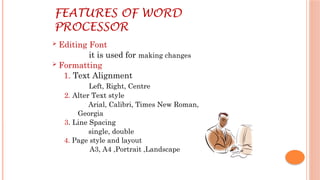
FEATURES OF WORD
PROCESSOR
 Editing Font
it is used for making changes
 Formatting
1. Text Alignment
Left, Right, Centre
2. Alter Text style
Arial, Calibri, Times New Roman,
Georgia
3. Line Spacing
single, double
4. Page style and layout
A3, A4 ,Portrait ,Landscape
5. Set margins
6. Page Breaks
Start a new page
7. Tabulations and tables-
Makes Text easier to read
 Search and Replace
We can use this feature to replace a
word a number of times in a document.
 Spell Checker
It works by comparing the words
typed by us to the words in computer’s internal
dictionary. Any word not recognized it will place
a red line underneath.
Double Spacing
Highlight the texts that you want to
double space > Home > Paragraph
> Indents and Spacing > Spacing >
Line Spacing > choose double >
OK.
Inserting Header and
Footer
1. Open Word processor.
2. Click Insert > Header &
Footer.
Inserting a Page Number
1. In the same area of the footer
and header, select the page
number.
2. Choose what format and style
you want to use in a page number.
 Grammer check
This feature works by highlighting
sentences with grammatical errors.
For examples: I seen everyone coming along
 Standard Paragraph
A standard paragraph is a piece of text that
has been typed up, saved to backing storage and
inserted into a document a number of times.
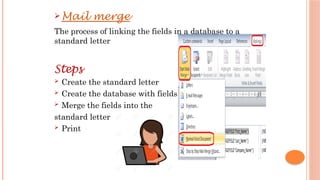
 Mail merge
The process of linking the fields in a database to a
standard letter
Steps
 Create the standard letter
 Create the database with fields
 Merge the fields into the
standard letter
 Print
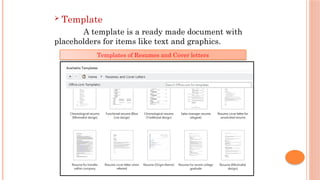
 Template
A template is a ready made document with
placeholders for items like text and graphics.
Templates of Resumes and Cover letters
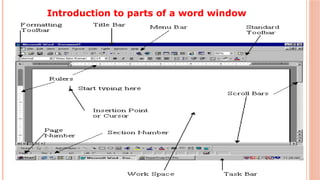
Introduction to parts of a word window
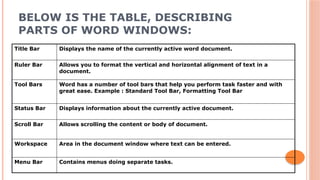
BELOW IS THE TABLE, DESCRIBING
PARTS OF WORD WINDOWS:
Title Bar Displays the name of the currently active word document.
Ruler Bar Allows you to format the vertical and horizontal alignment of text in a
document.
Tool Bars Word has a number of tool bars that help you perform task faster and with
great ease. Example : Standard Tool Bar, Formatting Tool Bar
Status Bar Displays information about the currently active document.
Scroll Bar Allows scrolling the content or body of document.
Workspace Area in the document window where text can be entered.
Menu Bar Contains menus doing separate tasks.
With a word processor, when
you reach the end of a line
you don’t need to use the
return key to make a new
line.
Word processor will make a
new line automatically and it
will move partly completed
words at the end of one line
to the start of the next line
Word Wrap
WORD COUNT
It is very useful if you are writing an
essay or an article containing a
certain amount of words
Instead of using spell checker to count
words use word count it saves time.
Application Areas of Word
Processing
1. Business - Legal copies, Letter heads, letters,
Memos. Circulars etc.
2. Education - To develop word processing skills from
the very beginning
3. Home - Dealing with assignments being completed
at home, or occasionally recreational e.g. Maintaining
diary
In Summary
In a recent study, word processing was ranked as
the primary software need for teachers and
students.
LET’S HAVE AN
ACTIVITY
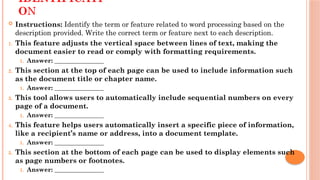
IDENTIFICATI
ON
 Instructions: Identify the term or feature related to word processing based on the
description provided. Write the correct term or feature next to each description.
1. This feature adjusts the vertical space between lines of text, making the
document easier to read or comply with formatting requirements.
1. Answer: ________________
2. This section at the top of each page can be used to include information such
as the document title or chapter name.
1. Answer: ________________
3. This tool allows users to automatically include sequential numbers on every
page of a document.
1. Answer: ________________
4. This feature helps users automatically insert a specific piece of information,
like a recipient’s name or address, into a document template.
1. Answer: ________________
5. This section at the bottom of each page can be used to display elements such
as page numbers or footnotes.
1. Answer: ________________
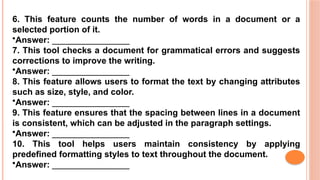
6. This feature counts the number of words in a document or a
selected portion of it.
•Answer: ________________
7. This tool checks a document for grammatical errors and suggests
corrections to improve the writing.
•Answer: ________________
8. This feature allows users to format the text by changing attributes
such as size, style, and color.
•Answer: ________________
9. This feature ensures that the spacing between lines in a document
is consistent, which can be adjusted in the paragraph settings.
•Answer: ________________
10. This tool helps users maintain consistency by applying
predefined formatting styles to text throughout the document.
•Answer: ________________
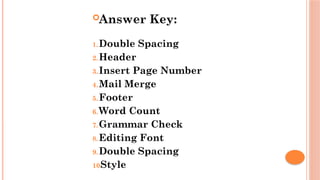
Answer Key:
1.Double Spacing
2.Header
3.Insert Page Number
4.Mail Merge
5.Footer
6.Word Count
7.Grammar Check
8.Editing Font
9.Double Spacing
10.
Style

WORD PROCESSING.pptx_Powerpoint Presentation

  • 1.
  • 2.
    Word Processor “A wordprocessor is software or a device that allows users to create, edit, and print documents.”  It enables you to write text, store it electronically, display it on a screen, modify it by entering commands and characters from the keyboard, and print it.
  • 3.
    WORD PROCESSING Word processingdescribes the process of creating or editing a document using a word processor, such as Microsoft Word, Google Docs, or OpenOffice Writer.  It is also known as a document preparation System.
  • 4.
    A word processoris a computer program or device that provides for input, editing, formatting and output of text often with some additional features. Early word processors were stand-alone devices often on its function, but current word processors are word processor programs running on general purpose computers.
  • 5.
    HISTORICAL BACKGROUND  Beforecomputers, people used typewriters to write reports or other documents Some early word processors are: 1. WordStar 2. MacWrite 3. Easy Writer 4. Bank Street Writer
  • 11.
    1. Faster 2. Changefont size, style etc. 3. Can edit documents 4. Less noise 5. Save ink and paper 6. Print out many copies 7. Format the documents, add images, tables 8. Email documents 1. Expensive to buy 2. Upgrade software 3. More complicated 4. Electricity 5. Train staff 6. Virus ,popup 7. More complicated Advantages Disadvantages
  • 12.
    FEATURES OF WORD PROCESSOR Editing Font it is used for making changes  Formatting 1. Text Alignment Left, Right, Centre 2. Alter Text style Arial, Calibri, Times New Roman, Georgia 3. Line Spacing single, double 4. Page style and layout A3, A4 ,Portrait ,Landscape
  • 13.
    5. Set margins 6.Page Breaks Start a new page 7. Tabulations and tables- Makes Text easier to read  Search and Replace We can use this feature to replace a word a number of times in a document.  Spell Checker It works by comparing the words typed by us to the words in computer’s internal dictionary. Any word not recognized it will place a red line underneath.
  • 14.
    Double Spacing Highlight thetexts that you want to double space > Home > Paragraph > Indents and Spacing > Spacing > Line Spacing > choose double > OK.
  • 15.
    Inserting Header and Footer 1.Open Word processor. 2. Click Insert > Header & Footer.
  • 16.
    Inserting a PageNumber 1. In the same area of the footer and header, select the page number. 2. Choose what format and style you want to use in a page number.
  • 17.
     Grammer check Thisfeature works by highlighting sentences with grammatical errors. For examples: I seen everyone coming along  Standard Paragraph A standard paragraph is a piece of text that has been typed up, saved to backing storage and inserted into a document a number of times.
  • 18.
     Mail merge Theprocess of linking the fields in a database to a standard letter Steps  Create the standard letter  Create the database with fields  Merge the fields into the standard letter  Print
  • 19.
     Template A templateis a ready made document with placeholders for items like text and graphics. Templates of Resumes and Cover letters
  • 20.
    Introduction to partsof a word window
  • 21.
    BELOW IS THETABLE, DESCRIBING PARTS OF WORD WINDOWS: Title Bar Displays the name of the currently active word document. Ruler Bar Allows you to format the vertical and horizontal alignment of text in a document. Tool Bars Word has a number of tool bars that help you perform task faster and with great ease. Example : Standard Tool Bar, Formatting Tool Bar Status Bar Displays information about the currently active document. Scroll Bar Allows scrolling the content or body of document. Workspace Area in the document window where text can be entered. Menu Bar Contains menus doing separate tasks.
  • 22.
    With a wordprocessor, when you reach the end of a line you don’t need to use the return key to make a new line. Word processor will make a new line automatically and it will move partly completed words at the end of one line to the start of the next line Word Wrap
  • 23.
    WORD COUNT It isvery useful if you are writing an essay or an article containing a certain amount of words Instead of using spell checker to count words use word count it saves time.
  • 24.
    Application Areas ofWord Processing 1. Business - Legal copies, Letter heads, letters, Memos. Circulars etc. 2. Education - To develop word processing skills from the very beginning 3. Home - Dealing with assignments being completed at home, or occasionally recreational e.g. Maintaining diary
  • 25.
    In Summary In arecent study, word processing was ranked as the primary software need for teachers and students.
  • 26.
  • 27.
    IDENTIFICATI ON  Instructions: Identifythe term or feature related to word processing based on the description provided. Write the correct term or feature next to each description. 1. This feature adjusts the vertical space between lines of text, making the document easier to read or comply with formatting requirements. 1. Answer: ________________ 2. This section at the top of each page can be used to include information such as the document title or chapter name. 1. Answer: ________________ 3. This tool allows users to automatically include sequential numbers on every page of a document. 1. Answer: ________________ 4. This feature helps users automatically insert a specific piece of information, like a recipient’s name or address, into a document template. 1. Answer: ________________ 5. This section at the bottom of each page can be used to display elements such as page numbers or footnotes. 1. Answer: ________________
  • 28.
    6. This featurecounts the number of words in a document or a selected portion of it. •Answer: ________________ 7. This tool checks a document for grammatical errors and suggests corrections to improve the writing. •Answer: ________________ 8. This feature allows users to format the text by changing attributes such as size, style, and color. •Answer: ________________ 9. This feature ensures that the spacing between lines in a document is consistent, which can be adjusted in the paragraph settings. •Answer: ________________ 10. This tool helps users maintain consistency by applying predefined formatting styles to text throughout the document. •Answer: ________________
  • 29.
    Answer Key: 1.Double Spacing 2.Header 3.InsertPage Number 4.Mail Merge 5.Footer 6.Word Count 7.Grammar Check 8.Editing Font 9.Double Spacing 10. Style