CREATED BY:
MS. AESHWARYA CHAUHAN
Computer Applications in Business
Word Processor
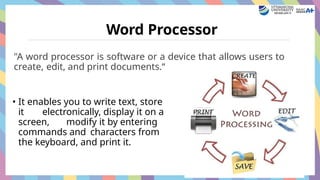
"A word processor is software or a device that allows users to
create, edit, and print documents.“
• It enables you to write text, store
it electronically, display it on a
screen, modify it by entering
commands and characters from
the keyboard, and print it.
Word Processing
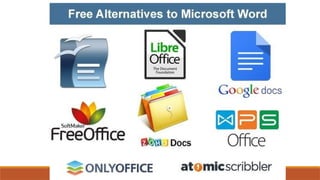
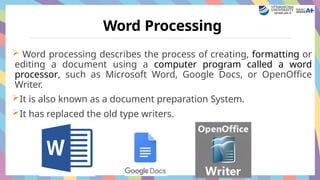
 Word processing describes the process of creating, formatting or
editing a document using a computer program called a word
processor, such as Microsoft Word, Google Docs, or OpenOffice
Writer.
It is also known as a document preparation System.
It has replaced the old type writers.
Historical Background
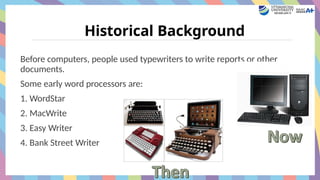
Before computers, people used typewriters to write reports or other
documents.
Some early word processors are:
1. WordStar
2. MacWrite
3. Easy Writer
4. Bank Street Writer
ADVANTAGES
1. Expensive to buy
2. Upgrade software
3. More complicated
4. Electricity
5. Train staff
6. Virus, popup
7. More complicated
1. Faster
2. Change font size, style etc.
3. Can edit documents
4. Less noise
5. Save ink and paper
6. Print out many copies
7. Email documents
8. Format the documents, add
images, tables
DISADVANTAGES
FEATURES OF WORD PROCESSing
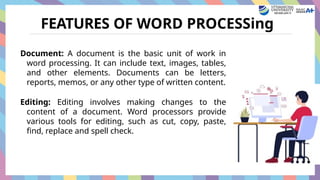
Document: A document is the basic unit of work in
word processing. It can include text, images, tables,
and other elements. Documents can be letters,
reports, memos, or any other type of written content.
Editing: Editing involves making changes to the
content of a document. Word processors provide
various tools for editing, such as cut, copy, paste,
find, replace and spell check.
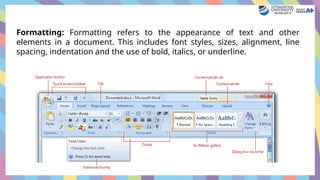
Formatting: Formatting refers to the appearance of text and other
elements in a document. This includes font styles, sizes, alignment, line
spacing, indentation and the use of bold, italics, or underline.
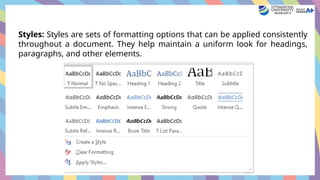
Styles: Styles are sets of formatting options that can be applied consistently
throughout a document. They help maintain a uniform look for headings,
paragraphs, and other elements.
Headers and Footers: Headers and footers are sections at the top and
bottom of each page, respectively. They often contain page numbers,
document titles, or other repeating information.
Tables: Tables allow users to organize information in rows and columns.
Word processors provide tools for creating, editing, and formatting tables
within documents.
Graphics and Images: Word processing software allows users to insert and
manipulate graphics, images, and other visual elements within documents.
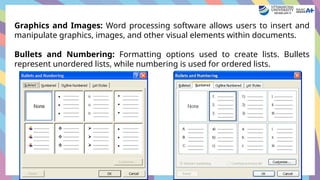
Bullets and Numbering: Formatting options used to create lists. Bullets
represent unordered lists, while numbering is used for ordered lists.
Cut, Copy, and Paste: Operations used to move or duplicate text and
other elements within a document or between different documents.
Undo and Redo: Allow users to reverse or repeat the last action
performed, providing a way to correct mistakes.
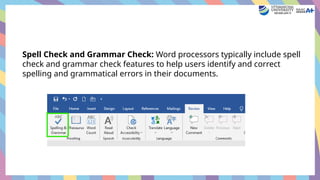
Spell Check and Grammar Check: Word processors typically include spell
check and grammar check features to help users identify and correct
spelling and grammatical errors in their documents.
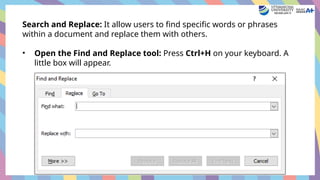
Search and Replace: It allow users to find specific words or phrases
within a document and replace them with others.
• Open the Find and Replace tool: Press Ctrl+H on your keyboard. A
little box will appear.
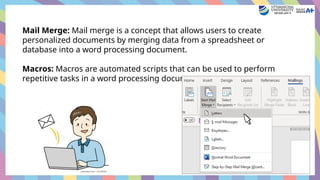
Mail Merge: Mail merge is a concept that allows users to create
personalized documents by merging data from a spreadsheet or
database into a word processing document.
Macros: Macros are automated scripts that can be used to perform
repetitive tasks in a word processing document.
Page Layout: Adjusting the overall appearance of a page, including margins,
orientation (portrait or landscape), and page size.
Printing: The process of producing a hard copy of a document on paper
using a printer.
Document Export: Saving a document in different file formats, such as PDF,
for sharing or printing while maintaining formatting.
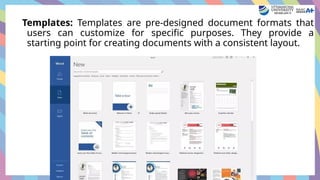
Templates: Templates are pre-designed document formats that
users can customize for specific purposes. They provide a
starting point for creating documents with a consistent layout.
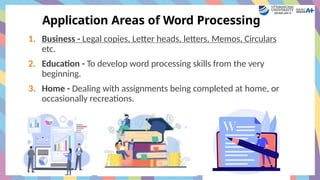
Application Areas of Word Processing
1. Business - Legal copies, Letter heads, letters, Memos, Circulars
etc.
2. Education - To develop word processing skills from the very
beginning.
3. Home - Dealing with assignments being completed at home, or
occasionally recreations.
Tips for word
processing
1. Use clear and concise language.
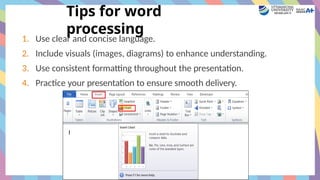
2. Include visuals (images, diagrams) to enhance understanding.
3. Use consistent formatting throughout the presentation.
4. Practice your presentation to ensure smooth delivery.
References
1. https://www.slideshare.net/slideshow/word-processing-233054464/233054464
2. https://www.slideshare.net/slide
3. https://www.slideshare.net/slideshow/word-processing-
233054464/233054464#12show/word-processing-45571416/45571416
4. https://www.slideshare.net/slideshow/word-
processing-45571416/45571416#2

Word Processing in computer applications.pptx

  • 1.
    CREATED BY: MS. AESHWARYACHAUHAN Computer Applications in Business
  • 2.
    Word Processor "A wordprocessor is software or a device that allows users to create, edit, and print documents.“ • It enables you to write text, store it electronically, display it on a screen, modify it by entering commands and characters from the keyboard, and print it.
  • 4.
    Word Processing  Wordprocessing describes the process of creating, formatting or editing a document using a computer program called a word processor, such as Microsoft Word, Google Docs, or OpenOffice Writer. It is also known as a document preparation System. It has replaced the old type writers.
  • 5.
    Historical Background Before computers,people used typewriters to write reports or other documents. Some early word processors are: 1. WordStar 2. MacWrite 3. Easy Writer 4. Bank Street Writer
  • 6.
    ADVANTAGES 1. Expensive tobuy 2. Upgrade software 3. More complicated 4. Electricity 5. Train staff 6. Virus, popup 7. More complicated 1. Faster 2. Change font size, style etc. 3. Can edit documents 4. Less noise 5. Save ink and paper 6. Print out many copies 7. Email documents 8. Format the documents, add images, tables DISADVANTAGES
  • 7.
    FEATURES OF WORDPROCESSing Document: A document is the basic unit of work in word processing. It can include text, images, tables, and other elements. Documents can be letters, reports, memos, or any other type of written content. Editing: Editing involves making changes to the content of a document. Word processors provide various tools for editing, such as cut, copy, paste, find, replace and spell check.
  • 8.
    Formatting: Formatting refersto the appearance of text and other elements in a document. This includes font styles, sizes, alignment, line spacing, indentation and the use of bold, italics, or underline.
  • 9.
    Styles: Styles aresets of formatting options that can be applied consistently throughout a document. They help maintain a uniform look for headings, paragraphs, and other elements.
  • 10.
    Headers and Footers:Headers and footers are sections at the top and bottom of each page, respectively. They often contain page numbers, document titles, or other repeating information. Tables: Tables allow users to organize information in rows and columns. Word processors provide tools for creating, editing, and formatting tables within documents.
  • 11.
    Graphics and Images:Word processing software allows users to insert and manipulate graphics, images, and other visual elements within documents. Bullets and Numbering: Formatting options used to create lists. Bullets represent unordered lists, while numbering is used for ordered lists.
  • 12.
    Cut, Copy, andPaste: Operations used to move or duplicate text and other elements within a document or between different documents. Undo and Redo: Allow users to reverse or repeat the last action performed, providing a way to correct mistakes.
  • 13.
    Spell Check andGrammar Check: Word processors typically include spell check and grammar check features to help users identify and correct spelling and grammatical errors in their documents.
  • 14.
    Search and Replace:It allow users to find specific words or phrases within a document and replace them with others. • Open the Find and Replace tool: Press Ctrl+H on your keyboard. A little box will appear.
  • 15.
    Mail Merge: Mailmerge is a concept that allows users to create personalized documents by merging data from a spreadsheet or database into a word processing document. Macros: Macros are automated scripts that can be used to perform repetitive tasks in a word processing document.
  • 16.
    Page Layout: Adjustingthe overall appearance of a page, including margins, orientation (portrait or landscape), and page size. Printing: The process of producing a hard copy of a document on paper using a printer. Document Export: Saving a document in different file formats, such as PDF, for sharing or printing while maintaining formatting.
  • 17.
    Templates: Templates arepre-designed document formats that users can customize for specific purposes. They provide a starting point for creating documents with a consistent layout.
  • 18.
    Application Areas ofWord Processing 1. Business - Legal copies, Letter heads, letters, Memos, Circulars etc. 2. Education - To develop word processing skills from the very beginning. 3. Home - Dealing with assignments being completed at home, or occasionally recreations.
  • 19.
    Tips for word processing 1.Use clear and concise language. 2. Include visuals (images, diagrams) to enhance understanding. 3. Use consistent formatting throughout the presentation. 4. Practice your presentation to ensure smooth delivery.
  • 20.
    References 1. https://www.slideshare.net/slideshow/word-processing-233054464/233054464 2. https://www.slideshare.net/slide 3.https://www.slideshare.net/slideshow/word-processing- 233054464/233054464#12show/word-processing-45571416/45571416 4. https://www.slideshare.net/slideshow/word- processing-45571416/45571416#2