








An introduction for educators
Microsoft Teams
Digital Transformation Team: Catholic Education Western Australia
LEARNING INTENTION
To provide an overview of
Microsoft Teams and explore
its use case for education.
SUCCESS CRITERIA
A clear, enthused and
practical understanding
of TEAMS and its use in
education
Teams is a chat-centred workspace in Office
365. It brings people, conversations, files, and
tools into one place, so everyone has instant
access to everything they need.
”
“
Dudes @ Microsoft
Purpose
Use Case
Function
Collaboration
Communication
To create a single space
where teams
collaborate easily with
immediate access to all
their resources
Application
curation
A
comprehensive
digital meeting
room
Scenarios
Teacher
Student
Consultant
1
Scenario
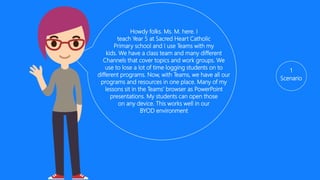
Howdy folks. Ms. G here. I
teach Year 5 at Sacred Heart Catholic
Primary school and I use Teams with my
kids. We have a class team and many different
Channels that cover topics and work groups. We
use to lose a lot of time logging students on to
different programs. Now, with Teams, we have all our
programs and resources in one place. Many of my
lessons sit in the Teams’ browser as PowerPoint
presentations or OneNotes. My students can open
those on any device. This works well in our
BYOD environment as we all get the same
experience irrespective of device.
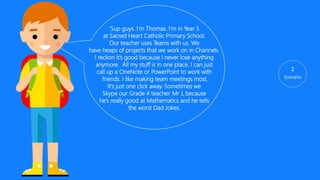
‘Sup guys. I’m Jamie. I’m in Year 5
at Sacred Heart Catholic Primary School.
Our teacher uses Teams with us. We
have heaps of projects that we work on in Channels.
I reckon it’s good because I never lose anything
anymore. All my stuff is in one place. I can just
call up a OneNote or PowerPoint to work with
friends. I like making team meetings most.
It’s just one click away. Sometimes we
Skype our Grade 4 teacher. Mr J, because
he’s really good at Maths and he tells
the worst Dad Jokes. Teams is just easier
Than looking for everything
2
3
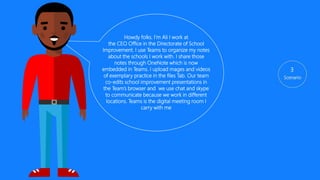
Howdy folks. I’m Ali. I work at
the CEO Office in the Directorate of School
Improvement. I use Teams to organize my notes
about the schools I work with. I share those
notes through OneNote which is now
embedded in Teams. I upload mages and videos
of exemplary practice in the files Tab. Our team
co-edits school improvement presentations in
the Team’s browser and we use chat and skype
to communicate because we work in different
locations. Teams is the digital meeting room I
carry in my backpack and pocket.
4
Good Evening. I’m Peta the principal.
It’s late and I shouldn’t be up but the buck stops
with me so yes I’m flicking through my Team
Channels. I use Teams a lot because I am offsite
often and I must be involved in all key decision
making. I must have visibility over what my staff
are thinking and sharing. For example, I am
included in all Key Learning Area Team and also
their major curriculum channels. Teams
provides the easiest way for me to have input
into the school that I’m charge of. In the past, I
could not see the conversations that were
happening behind closed doors and influence
those so that they are aligned with our school
values and direction. But with teams, I can.
Let’s explore TEAMS
1. Download the Teams client software for your PC at:
https://teams.microsoft.com/downloads
2. Open and run the software
4. You can now login either through:
a) You client software on your desktop (or)
b) your web login in: teams.microsoft.com
Downloading the client software
3. Pin the Teams application to your taskbar or dock
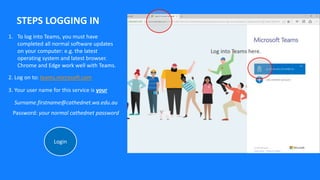
Log into Teams here.
LOGGING IN
Login
1. Log on to: https://login.microsoftonline.com
2. Your username for this service is your
Surname.firstname@cathednet.wa.edu.au
Password: cathednet password
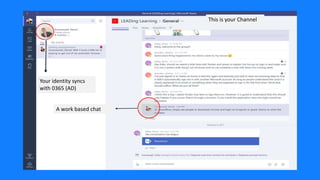
Your identity syncs
with 0365 (AD)
This is your Channel
A work based chat
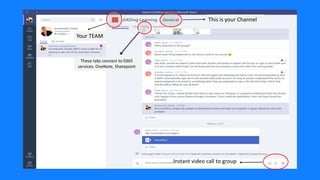
This is your Channel
Instant video call to group
These tabs connect to 0365
services: OneNote, Sharepoint
Your TEAM
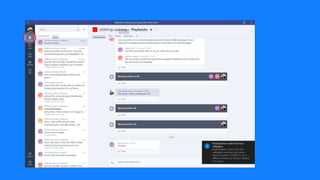
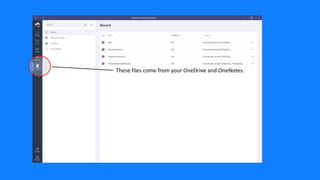
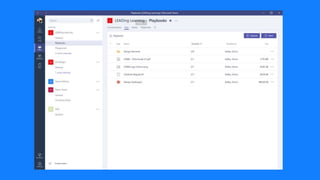
These files come from your OneDrive and OneNotes.
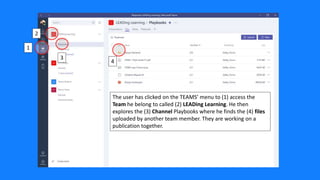
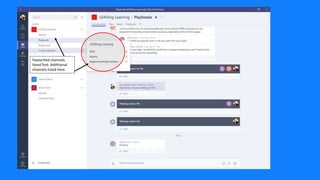
The user has clicked on the TEAMS’ menu to (1) access the
Team he belong to called (2) LEADing Learning. He then
explores the (3) Channel Playbooks where he finds the (4) files
uploaded by another team member. They are working on a
publication together.
2
3
1
4
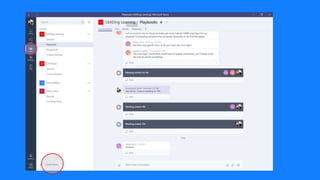
Favourited channels
listed first. Additional
channels listed here.
These meetings will
be drawn from your
normal outlook
calendar
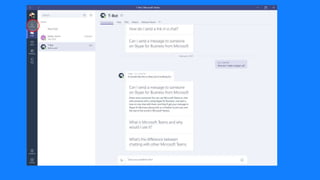
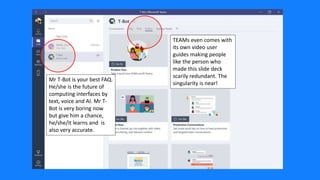
Mr T-Bot is your best FAQ.
He/she is the future of
computing interfaces by
text, voice and AI. Mr T-
Bot is very boring now
but give him a chance,
he/she/it learns and is
also very accurate.
TEAMs even comes with
its own video user
guides making people
like the person who
made this slide deck
scarily redundant. The
singularity is near!
Teams is the digital meeting
room I carry in my pocket ”
“
Dr Ali Ava-tar, Directorate of School Improvement
REVIEW
What’s the purpose of Teams?
How would you use it?
SUCCESS CRITERIA
A clear, enthused and
practical understanding
of TEAMS and its use in
education
WANT MORE RESOURCES..?
• Teams video overview ; video overview
• Teams quick guide
• Satya Nadella introduces rationale for Teams
• Teams as the future of productivity
• Teams Product Review

Microsoft Teams for Educators @ CEWA

  • 1.
    An introduction foreducators Microsoft Teams Digital Transformation Team: Catholic Education Western Australia
  • 2.
    LEARNING INTENTION To providean overview of Microsoft Teams and explore its use case for education.
  • 3.
    SUCCESS CRITERIA A clear,enthused and practical understanding of TEAMS and its use in education
  • 4.
    Teams is achat-centred workspace in Office 365. It brings people, conversations, files, and tools into one place, so everyone has instant access to everything they need. ” “ Dudes @ Microsoft
  • 5.
    Purpose Use Case Function Collaboration Communication To createa single space where teams collaborate easily with immediate access to all their resources Application curation A comprehensive digital meeting room Scenarios Teacher Student Consultant
  • 6.
    1 Scenario Howdy folks. Ms.G here. I teach Year 5 at Sacred Heart Catholic Primary school and I use Teams with my kids. We have a class team and many different Channels that cover topics and work groups. We use to lose a lot of time logging students on to different programs. Now, with Teams, we have all our programs and resources in one place. Many of my lessons sit in the Teams’ browser as PowerPoint presentations or OneNotes. My students can open those on any device. This works well in our BYOD environment as we all get the same experience irrespective of device.
  • 7.
    ‘Sup guys. I’mJamie. I’m in Year 5 at Sacred Heart Catholic Primary School. Our teacher uses Teams with us. We have heaps of projects that we work on in Channels. I reckon it’s good because I never lose anything anymore. All my stuff is in one place. I can just call up a OneNote or PowerPoint to work with friends. I like making team meetings most. It’s just one click away. Sometimes we Skype our Grade 4 teacher. Mr J, because he’s really good at Maths and he tells the worst Dad Jokes. Teams is just easier Than looking for everything 2
  • 8.
    3 Howdy folks. I’mAli. I work at the CEO Office in the Directorate of School Improvement. I use Teams to organize my notes about the schools I work with. I share those notes through OneNote which is now embedded in Teams. I upload mages and videos of exemplary practice in the files Tab. Our team co-edits school improvement presentations in the Team’s browser and we use chat and skype to communicate because we work in different locations. Teams is the digital meeting room I carry in my backpack and pocket.
  • 9.
    4 Good Evening. I’mPeta the principal. It’s late and I shouldn’t be up but the buck stops with me so yes I’m flicking through my Team Channels. I use Teams a lot because I am offsite often and I must be involved in all key decision making. I must have visibility over what my staff are thinking and sharing. For example, I am included in all Key Learning Area Team and also their major curriculum channels. Teams provides the easiest way for me to have input into the school that I’m charge of. In the past, I could not see the conversations that were happening behind closed doors and influence those so that they are aligned with our school values and direction. But with teams, I can.
  • 10.
  • 11.
    1. Download theTeams client software for your PC at: https://teams.microsoft.com/downloads 2. Open and run the software 4. You can now login either through: a) You client software on your desktop (or) b) your web login in: teams.microsoft.com Downloading the client software 3. Pin the Teams application to your taskbar or dock
  • 12.
    Log into Teamshere. LOGGING IN Login 1. Log on to: https://login.microsoftonline.com 2. Your username for this service is your Surname.firstname@cathednet.wa.edu.au Password: cathednet password
  • 13.
    Your identity syncs with0365 (AD) This is your Channel A work based chat
  • 14.
    This is yourChannel Instant video call to group These tabs connect to 0365 services: OneNote, Sharepoint Your TEAM
  • 18.
    These files comefrom your OneDrive and OneNotes.
  • 19.
    The user hasclicked on the TEAMS’ menu to (1) access the Team he belong to called (2) LEADing Learning. He then explores the (3) Channel Playbooks where he finds the (4) files uploaded by another team member. They are working on a publication together. 2 3 1 4
  • 20.
    Favourited channels listed first.Additional channels listed here.
  • 21.
    These meetings will bedrawn from your normal outlook calendar
  • 23.
    Mr T-Bot isyour best FAQ. He/she is the future of computing interfaces by text, voice and AI. Mr T- Bot is very boring now but give him a chance, he/she/it learns and is also very accurate. TEAMs even comes with its own video user guides making people like the person who made this slide deck scarily redundant. The singularity is near!
  • 24.
    Teams is thedigital meeting room I carry in my pocket ” “ Dr Ali Ava-tar, Directorate of School Improvement
  • 25.
    REVIEW What’s the purposeof Teams? How would you use it?
  • 26.
    SUCCESS CRITERIA A clear,enthused and practical understanding of TEAMS and its use in education
  • 27.
    WANT MORE RESOURCES..? •Teams video overview ; video overview • Teams quick guide • Satya Nadella introduces rationale for Teams • Teams as the future of productivity • Teams Product Review