
Microsoft
Learn more about Teams
Quick Start Guide
New to Microsoft Teams for Education? Use this guide to learn the basics.
Microsoft Teams for Education
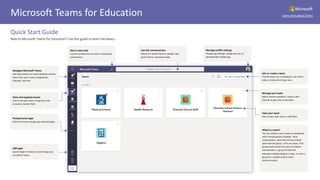
Navigate Microsoft Teams
Use these buttons to switch between Activity
Feed, Chat, your Teams, Assignments,
Calendar, and Files.
Add apps
Launch Apps to browse or search apps you
can add to Teams.
Join or create a team
Find the team you’re looking for, join with a
code, or make one of your own.
Start a new chat
Launch a private one-on-one or small group
conversation.
Use the command box
Search for specific items or people, take
quick actions, and launch apps.
Manage profile settings
Change app settings, change your pic, or
download the mobile app.
What is a team?
You can create or join a team to collaborate
with a certain group of people. Have
conversations, share files and use shared
tools with the group – all in one place. That
group could consist of a class of students
and educators, a group of staff and
educators collaborating on a topic, or even a
group for a student club or other
extracurriculars.
View and organize teams
Click to see your teams. Drag team tiles
around to reorder them.
Find personal apps
Click to find and manage your personal apps.
Manage your team
Add or remove members, create a new
channel, or get a link to the team.
View your team
Click to open your class or staff team.
Microsoft
Learn more about TeamsMicrosoft Teams for Education
Class teams
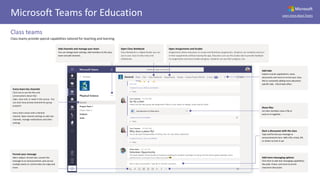
Class teams provide special capabilities tailored for teaching and learning
Every team has channels
Click one to see the files and
conversations about that
topic, class unit, or week in the course. You
can even have private channels for group
projects!
Every team comes with a General
channel. Open channel settings to add new
channels, manage notifications and other
settings.
Format your message
Add a subject, format text, convert the
message to an announcement, post across
multiple teams or control who can reply and
more.
Add channels and manage your team
You can change team settings, add members to the class
team and add channels .
Add tabs
Explore and pin applications, tools,
documents and more to enrich your class.
We’re constantly adding more education
specific tabs. Check back often.
Share files
Let class members view a file or
work on it together.
Start a discussion with the class
Type and format you message or
announcements here. Add a file, emoji, GIF,
or sticker to liven it up!
Add more messaging options
Click here to add new messaging capabilities
like polls, Praise, and more to enrich
classroom discussion.
Open Assignments and Grades
Assignments allows educators to create and distribute assignments. Students can complete and turn
in their assignments without leaving the app. Educators can use the Grades tab to provide feedback
on assignments and track student progress. Students can see their progress, too.
Open Class Notebook
Class Notebook is a digital binder you can
use in your class to take notes and
collaborate.
Microsoft
Learn more about TeamsMicrosoft Teams for Education
Schedule a meeting with your team or class
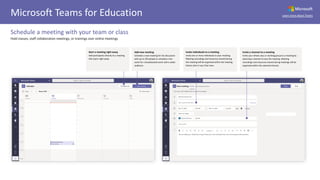
Hold classes, staff collaboration meetings, or trainings over online meetings
Start a meeting right away
Add participants directly to a meeting
that starts right away.
Add new meeting
Schedule a new meeting for live discussion
with up to 250 people or schedule a live
event for a broadcasted event with a wider
audience.
Invite a channel to a meeting
Invite your whole class or working group to a meeting by
selecting a channel to host the meeting. Meeting
recordings and resources shared during meetings will be
organized within the selected channel.
Invite individuals to a meeting
Invite one or more individuals to your meeting.
Meeting recordings and resources shared during
the meeting will be organized within the meeting
history item in you Chat view.
Microsoft
Learn more about Teams
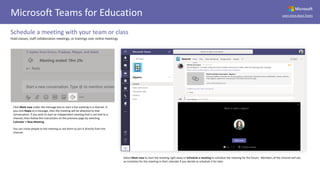
Click Meet now under the message box to start a live meeting in a channel. If
you click Reply to a message, then the meeting will be attached to that
conversation. If you wish to start an independent meeting that is not tied to a
channel, then follow the instructions on the previous page by selecting
Calendar > New Meeting.
You can invite people to the meeting or ask them to join it directly from the
channel.
Select Meet now to start the meeting right away or Schedule a meeting to schedule the meeting for the future. Members of the channel will see
an invitation for the meeting in their calendar if you decide to schedule it for later.
Microsoft Teams for Education
Schedule a meeting with your team or class
Hold classes, staff collaboration meetings, or trainings over online meetings
Microsoft
Learn more about Teams
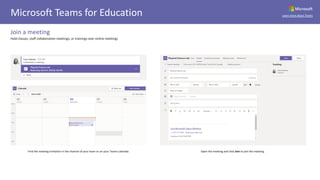
Find the meeting invitation in the channel of your team or on your Teams calendar. Open the meeting and click Join to join the meeting.
Microsoft Teams for Education
Join a meeting
Hold classes, staff collaboration meetings, or trainings over online meetings
Microsoft
Learn more about Teams
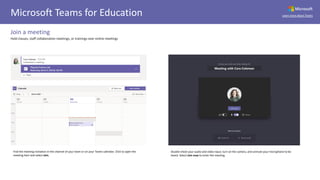
Find the meeting invitation in the channel of your team or on your Teams calendar. Click to open the
meeting item and select Join.
Double-check your audio and video input, turn on the camera, and unmute your microphone to be
heard. Select Join now to enter the meeting.
Microsoft Teams for Education
Join a meeting
Hold classes, staff collaboration meetings, or trainings over online meetings
Microsoft
Learn more about TeamsMicrosoft Teams for Education
Participate in a meeting
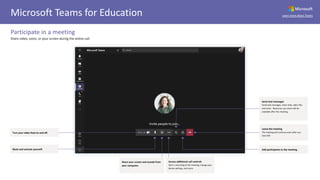
Share video, voice, or your screen during the online call.
Turn your video feed on and off.
Leave the meeting
The meeting will continue even after you
have left.
Access additional call controls
Start a recording of the meeting, change your
device settings, and more.
Mute and unmute yourself.
Share your screen and sounds from
your computer.
Send chat messages
Send chat messages, share links, add a file,
and more. Resources you share will be
available after the meeting.
Add participants to the meeting.
Microsoft
Learn more about TeamsMicrosoft Teams for Education
Assignments
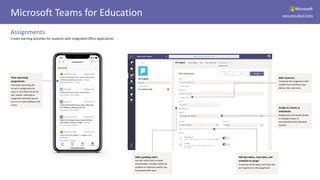
Create learning activities for students with integrated Office applications.
View upcoming
assignments
View both upcoming and
turned in assignments by
class, or view them across all
your classes. Selecting an
assignment will allow you to
turn it in or view feedback and
scores.
Add resources
Customize the assignment with
content from OneDrive, your
device, links, and more.
Assign to classes or
individuals
Assignments can be distributed
to multiple classes or
personalized to the individual
student.
Edit due dates, close date, and
schedule to assign
Customize all the dates and times that
are important to the assignment.
Add a grading rubric
Use the rubrics tool to create
customizable, reusable rubrics for
students to reference and for you
to evaluate their work.
Microsoft
Learn more about TeamsMicrosoft Teams for Education
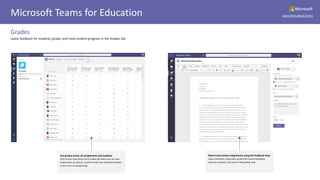
Grades
Leave feedback for students, grade, and track student progress in the Grades tab.
See grades across all assignments and students
Each of your class teams has a Grades tab where you can view
assignments at a glance, as well as track how individual students
in your class are progressing.
Return and review assignments using the feedback loop
Leave comments, make edits, grade with criteria/standards,
check for similarity, and more in the grading view.
Microsoft
Learn more about TeamsMicrosoft Teams for Education
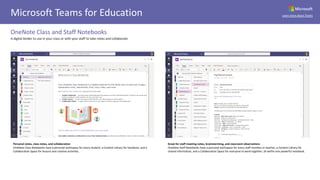
OneNote Class and Staff Notebooks
A digital binder to use in your class or with your staff to take notes and collaborate
Personal notes, class notes, and collaboration
OneNote Class Notebooks have a personal workspace for every student, a Content Library for handouts, and a
Collaboration Space for lessons and creative activities.
Great for staff meeting notes, brainstorming, and classroom observations
OneNote Staff Notebooks have a personal workspace for every staff member or teacher, a Content Library for
shared information, and a Collaboration Space for everyone to work together, all within one powerful notebook.
Microsoft
Learn more about TeamsMicrosoft Teams for Education
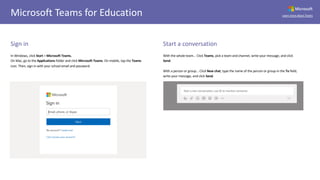
Sign in
In Windows, click Start > Microsoft Teams.
On Mac, go to the Applications folder and click Microsoft Teams. On mobile, tap the Teams
icon. Then, sign in with your school email and password.
Start a conversation
With the whole team... Click Teams, pick a team and channel, write your message, and click
Send.
With a person or group... Click New chat, type the name of the person or group in the To field,
write your message, and click Send.
Microsoft
Learn more about TeamsMicrosoft Teams for Education
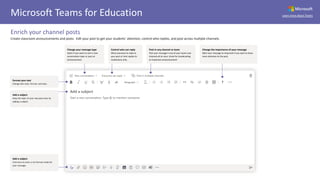
Enrich your channel posts
Create classroom announcements and posts. Edit your post to get your students' attention, control who replies, and post across multiple channels.
Format your text
Change text color, format, and style.
Add a subject
Keep the topic of your new post clear by
adding a subject.
Add a subject
Click here to enter a rich format mode for
your message.
Change your message type
Select if you want to start a new
conversation topic or post an
announcement.
Change the importance of your message
Mark your message as important if you want to draw
more attention to the post.
Control who can reply
Allow everyone to reply to
your post or limit replies to
moderators only.
Post in any channel or team
Post your message in any of your teams and
channels all at once. Great for broadcasting
an important announcement!
Microsoft
Learn more about TeamsMicrosoft Teams for Education
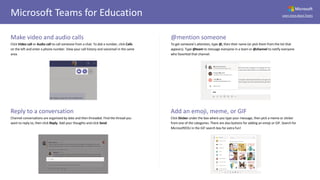
Make video and audio calls
Click Video call or Audio call to call someone from a chat. To dial a number, click Calls
on the left and enter a phone number. View your call history and voicemail in the same
area.
@mention someone
To get someone’s attention, type @, then their name (or pick them from the list that
appears). Type @team to message everyone in a team or @channel to notify everyone
who favorited that channel.
Reply to a conversation
Channel conversations are organized by date and then threaded. Find the thread you
want to reply to, then click Reply. Add your thoughts and click Send.
Add an emoji, meme, or GIF
Click Sticker under the box where you type your message, then pick a meme or sticker
from one of the categories. There are also buttons for adding an emoji or GIF. Search for
MicrosoftEDU in the GIF search box for extra fun!
Microsoft
Learn more about TeamsMicrosoft Teams for Education
Stay on top of things
Click Activity on the left. The Feed shows you all your notifications and everything that's
happened lately in the channels you follow. This is also where you'll see notifications
about your assignments.
Share a file
Click Attach under the box where you type messages, select the file location and then the file
you want. Depending on the location of the file, you’ll get options for uploading a copy, sharing a
link, or other ways to share.
Add a tab in a channel
Click + by the tabs at the top of the channel, click the app you want, and then follow the
prompts. Use Search if you don’t see the app you want.
Work with files
Click Files on the left to see all files shared across all of your teams. Click Files at the top of a
channel to see all files shared in that channel. Click More options ... next to a file to see what you
can do with it. In a channel, you can instantly turn a file into a tab at the top!
Microsoft
Learn more about TeamsMicrosoft Teams for Education
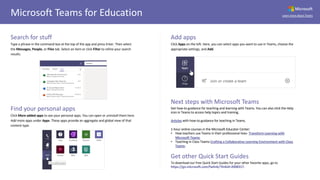
Search for stuff
Type a phrase in the command box at the top of the app and press Enter. Then select
the Messages, People, or Files tab. Select an item or click Filter to refine your search
results.
Add apps
Click Apps on the left. Here, you can select apps you want to use in Teams, choose the
appropriate settings, and Add.
Find your personal apps
Click More added apps to see your personal apps. You can open or uninstall them here.
Add more apps under Apps. These apps provide an aggregate and global view of that
content type.
Next steps with Microsoft Teams
Get how-to guidance for teaching and learning with Teams. You can also click the Help
icon in Teams to access help topics and training.
Articles with how-to guidance for teaching in Teams.
1-hour online courses in the Microsoft Educator Center:
• How teachers use Teams in their professional lives- Transform Learning with
Microsoft Teams.
• Teaching in Class Teams-Crafting a Collaborative Learning Environment with Class
Teams.
Get other Quick Start Guides
To download our free Quick Start Guides for your other favorite apps, go to
https://go.microsoft.com/fwlink/?linkid=2008317.

Microsoft Teams for Education Quick Start Guide

  • 1.
    Microsoft Learn more aboutTeams Quick Start Guide New to Microsoft Teams for Education? Use this guide to learn the basics. Microsoft Teams for Education Navigate Microsoft Teams Use these buttons to switch between Activity Feed, Chat, your Teams, Assignments, Calendar, and Files. Add apps Launch Apps to browse or search apps you can add to Teams. Join or create a team Find the team you’re looking for, join with a code, or make one of your own. Start a new chat Launch a private one-on-one or small group conversation. Use the command box Search for specific items or people, take quick actions, and launch apps. Manage profile settings Change app settings, change your pic, or download the mobile app. What is a team? You can create or join a team to collaborate with a certain group of people. Have conversations, share files and use shared tools with the group – all in one place. That group could consist of a class of students and educators, a group of staff and educators collaborating on a topic, or even a group for a student club or other extracurriculars. View and organize teams Click to see your teams. Drag team tiles around to reorder them. Find personal apps Click to find and manage your personal apps. Manage your team Add or remove members, create a new channel, or get a link to the team. View your team Click to open your class or staff team.
  • 2.
    Microsoft Learn more aboutTeamsMicrosoft Teams for Education Class teams Class teams provide special capabilities tailored for teaching and learning Every team has channels Click one to see the files and conversations about that topic, class unit, or week in the course. You can even have private channels for group projects! Every team comes with a General channel. Open channel settings to add new channels, manage notifications and other settings. Format your message Add a subject, format text, convert the message to an announcement, post across multiple teams or control who can reply and more. Add channels and manage your team You can change team settings, add members to the class team and add channels . Add tabs Explore and pin applications, tools, documents and more to enrich your class. We’re constantly adding more education specific tabs. Check back often. Share files Let class members view a file or work on it together. Start a discussion with the class Type and format you message or announcements here. Add a file, emoji, GIF, or sticker to liven it up! Add more messaging options Click here to add new messaging capabilities like polls, Praise, and more to enrich classroom discussion. Open Assignments and Grades Assignments allows educators to create and distribute assignments. Students can complete and turn in their assignments without leaving the app. Educators can use the Grades tab to provide feedback on assignments and track student progress. Students can see their progress, too. Open Class Notebook Class Notebook is a digital binder you can use in your class to take notes and collaborate.
  • 3.
    Microsoft Learn more aboutTeamsMicrosoft Teams for Education Schedule a meeting with your team or class Hold classes, staff collaboration meetings, or trainings over online meetings Start a meeting right away Add participants directly to a meeting that starts right away. Add new meeting Schedule a new meeting for live discussion with up to 250 people or schedule a live event for a broadcasted event with a wider audience. Invite a channel to a meeting Invite your whole class or working group to a meeting by selecting a channel to host the meeting. Meeting recordings and resources shared during meetings will be organized within the selected channel. Invite individuals to a meeting Invite one or more individuals to your meeting. Meeting recordings and resources shared during the meeting will be organized within the meeting history item in you Chat view.
  • 4.
    Microsoft Learn more aboutTeams Click Meet now under the message box to start a live meeting in a channel. If you click Reply to a message, then the meeting will be attached to that conversation. If you wish to start an independent meeting that is not tied to a channel, then follow the instructions on the previous page by selecting Calendar > New Meeting. You can invite people to the meeting or ask them to join it directly from the channel. Select Meet now to start the meeting right away or Schedule a meeting to schedule the meeting for the future. Members of the channel will see an invitation for the meeting in their calendar if you decide to schedule it for later. Microsoft Teams for Education Schedule a meeting with your team or class Hold classes, staff collaboration meetings, or trainings over online meetings
  • 5.
    Microsoft Learn more aboutTeams Find the meeting invitation in the channel of your team or on your Teams calendar. Open the meeting and click Join to join the meeting. Microsoft Teams for Education Join a meeting Hold classes, staff collaboration meetings, or trainings over online meetings
  • 6.
    Microsoft Learn more aboutTeams Find the meeting invitation in the channel of your team or on your Teams calendar. Click to open the meeting item and select Join. Double-check your audio and video input, turn on the camera, and unmute your microphone to be heard. Select Join now to enter the meeting. Microsoft Teams for Education Join a meeting Hold classes, staff collaboration meetings, or trainings over online meetings
  • 7.
    Microsoft Learn more aboutTeamsMicrosoft Teams for Education Participate in a meeting Share video, voice, or your screen during the online call. Turn your video feed on and off. Leave the meeting The meeting will continue even after you have left. Access additional call controls Start a recording of the meeting, change your device settings, and more. Mute and unmute yourself. Share your screen and sounds from your computer. Send chat messages Send chat messages, share links, add a file, and more. Resources you share will be available after the meeting. Add participants to the meeting.
  • 8.
    Microsoft Learn more aboutTeamsMicrosoft Teams for Education Assignments Create learning activities for students with integrated Office applications. View upcoming assignments View both upcoming and turned in assignments by class, or view them across all your classes. Selecting an assignment will allow you to turn it in or view feedback and scores. Add resources Customize the assignment with content from OneDrive, your device, links, and more. Assign to classes or individuals Assignments can be distributed to multiple classes or personalized to the individual student. Edit due dates, close date, and schedule to assign Customize all the dates and times that are important to the assignment. Add a grading rubric Use the rubrics tool to create customizable, reusable rubrics for students to reference and for you to evaluate their work.
  • 9.
    Microsoft Learn more aboutTeamsMicrosoft Teams for Education Grades Leave feedback for students, grade, and track student progress in the Grades tab. See grades across all assignments and students Each of your class teams has a Grades tab where you can view assignments at a glance, as well as track how individual students in your class are progressing. Return and review assignments using the feedback loop Leave comments, make edits, grade with criteria/standards, check for similarity, and more in the grading view.
  • 10.
    Microsoft Learn more aboutTeamsMicrosoft Teams for Education OneNote Class and Staff Notebooks A digital binder to use in your class or with your staff to take notes and collaborate Personal notes, class notes, and collaboration OneNote Class Notebooks have a personal workspace for every student, a Content Library for handouts, and a Collaboration Space for lessons and creative activities. Great for staff meeting notes, brainstorming, and classroom observations OneNote Staff Notebooks have a personal workspace for every staff member or teacher, a Content Library for shared information, and a Collaboration Space for everyone to work together, all within one powerful notebook.
  • 11.
    Microsoft Learn more aboutTeamsMicrosoft Teams for Education Sign in In Windows, click Start > Microsoft Teams. On Mac, go to the Applications folder and click Microsoft Teams. On mobile, tap the Teams icon. Then, sign in with your school email and password. Start a conversation With the whole team... Click Teams, pick a team and channel, write your message, and click Send. With a person or group... Click New chat, type the name of the person or group in the To field, write your message, and click Send.
  • 12.
    Microsoft Learn more aboutTeamsMicrosoft Teams for Education Enrich your channel posts Create classroom announcements and posts. Edit your post to get your students' attention, control who replies, and post across multiple channels. Format your text Change text color, format, and style. Add a subject Keep the topic of your new post clear by adding a subject. Add a subject Click here to enter a rich format mode for your message. Change your message type Select if you want to start a new conversation topic or post an announcement. Change the importance of your message Mark your message as important if you want to draw more attention to the post. Control who can reply Allow everyone to reply to your post or limit replies to moderators only. Post in any channel or team Post your message in any of your teams and channels all at once. Great for broadcasting an important announcement!
  • 13.
    Microsoft Learn more aboutTeamsMicrosoft Teams for Education Make video and audio calls Click Video call or Audio call to call someone from a chat. To dial a number, click Calls on the left and enter a phone number. View your call history and voicemail in the same area. @mention someone To get someone’s attention, type @, then their name (or pick them from the list that appears). Type @team to message everyone in a team or @channel to notify everyone who favorited that channel. Reply to a conversation Channel conversations are organized by date and then threaded. Find the thread you want to reply to, then click Reply. Add your thoughts and click Send. Add an emoji, meme, or GIF Click Sticker under the box where you type your message, then pick a meme or sticker from one of the categories. There are also buttons for adding an emoji or GIF. Search for MicrosoftEDU in the GIF search box for extra fun!
  • 14.
    Microsoft Learn more aboutTeamsMicrosoft Teams for Education Stay on top of things Click Activity on the left. The Feed shows you all your notifications and everything that's happened lately in the channels you follow. This is also where you'll see notifications about your assignments. Share a file Click Attach under the box where you type messages, select the file location and then the file you want. Depending on the location of the file, you’ll get options for uploading a copy, sharing a link, or other ways to share. Add a tab in a channel Click + by the tabs at the top of the channel, click the app you want, and then follow the prompts. Use Search if you don’t see the app you want. Work with files Click Files on the left to see all files shared across all of your teams. Click Files at the top of a channel to see all files shared in that channel. Click More options ... next to a file to see what you can do with it. In a channel, you can instantly turn a file into a tab at the top!
  • 15.
    Microsoft Learn more aboutTeamsMicrosoft Teams for Education Search for stuff Type a phrase in the command box at the top of the app and press Enter. Then select the Messages, People, or Files tab. Select an item or click Filter to refine your search results. Add apps Click Apps on the left. Here, you can select apps you want to use in Teams, choose the appropriate settings, and Add. Find your personal apps Click More added apps to see your personal apps. You can open or uninstall them here. Add more apps under Apps. These apps provide an aggregate and global view of that content type. Next steps with Microsoft Teams Get how-to guidance for teaching and learning with Teams. You can also click the Help icon in Teams to access help topics and training. Articles with how-to guidance for teaching in Teams. 1-hour online courses in the Microsoft Educator Center: • How teachers use Teams in their professional lives- Transform Learning with Microsoft Teams. • Teaching in Class Teams-Crafting a Collaborative Learning Environment with Class Teams. Get other Quick Start Guides To download our free Quick Start Guides for your other favorite apps, go to https://go.microsoft.com/fwlink/?linkid=2008317.