








How to Successfully Manage
OneDrive
SharePoint Fest Chicago
2021
#SPFest
Drew Madelung
Email : drew.madelung@protiviti.com
Twitter : @dmadelung
Website: drewmadelung.com
Associate Director – M365 Cloud Applications
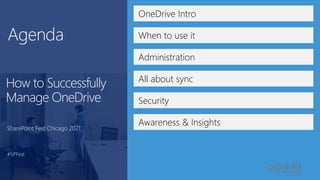
OneDrive Intro
When to use it
Administration
All about sync
Awareness & Insights
Security
How to Successfully
Manage OneDrive
SharePoint Fest Chicago 2021
#SPFest
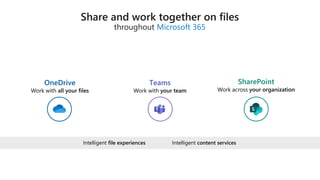
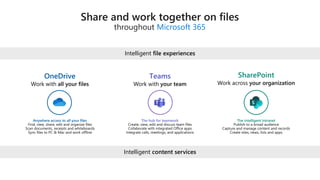
Microsoft 365
Teams
Intelligent content services
Intelligent file experiences
Microsoft 365
Anywhere access to all your files The hub for teamwork The intelligent intranet
Intelligent content services
Intelligent file experiences
Teams
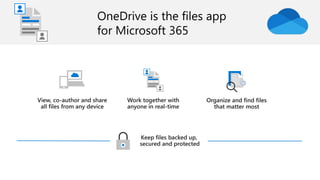
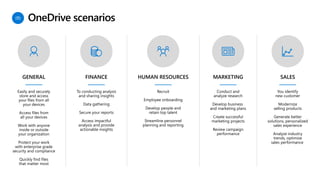
OneDrive scenarios
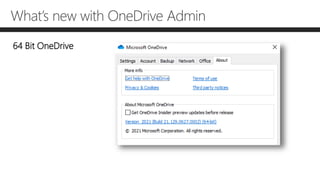
What’s new with OneDrive Admin
64 Bit OneDrive
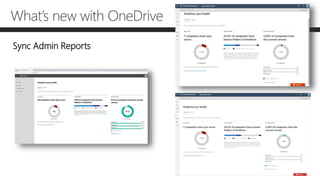
What’s new with OneDrive
Sync Admin Reports
What’s new with OneDrive Admin
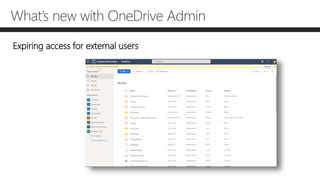
Expiring access for external users
OneDrive for Business not
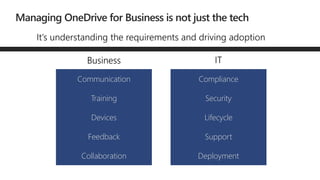
Communication
Training
Devices
Feedback
Collaboration
Compliance
Security
Lifecycle
Support
Deployment
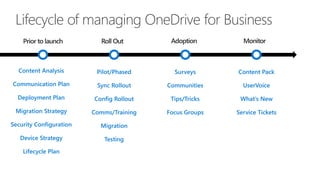
Lifecycle of managing OneDrive for Business
Surveys
Communities
Tips/Tricks
Focus Groups
Content Analysis
Communication Plan
Deployment Plan
Migration Strategy
Security Configuration
Device Strategy
Lifecycle Plan
Pilot/Phased
Sync Rollout
Config Rollout
Comms/Training
Migration
Testing
Content Pack
UserVoice
What’s New
Service Tickets
OneDrive
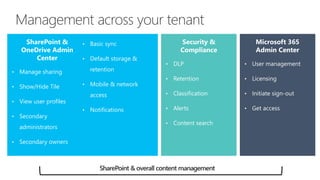
• Manage sharing
• Show/Hide Tile
• View user profiles
• Secondary
administrators
• Secondary owners
• Basic sync
• Default storage &
retention
• Mobile & network
access
• Notifications
• DLP
• Retention
• Classification
• Alerts
• Content search
• User management
• Licensing
• Initiate sign-out
• Get access
Management across your tenant
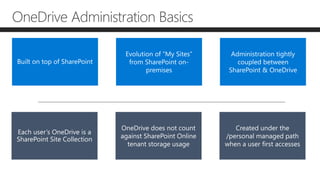
OneDrive Administration Basics
Built on top of SharePoint
Evolution of “My Sites”
from SharePoint on-
premises
Administration tightly
coupled between
SharePoint & OneDrive
Each user’s OneDrive is a
SharePoint Site Collection
OneDrive does not count
against SharePoint Online
tenant storage usage
Created under the
/personal managed path
when a user first accesses
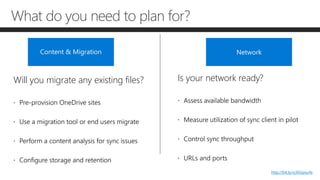
What do you need to plan for?
Content & Migration Network
Will you migrate any existing files? Is your network ready?
http://bit.ly/o365ipsurls
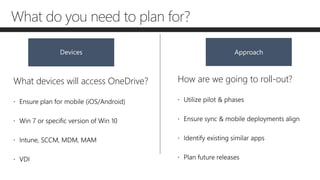
Devices Approach
What do you need to plan for?
What devices will access OneDrive? How are we going to roll-out?
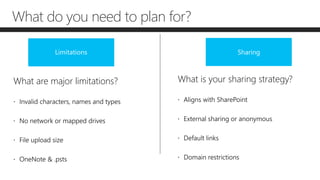
Limitations Sharing
What do you need to plan for?
What are major limitations? What is your sharing strategy?
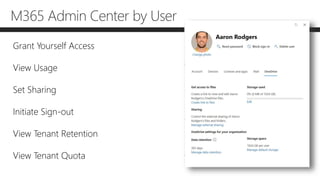
M365 Admin Center by User
Grant Yourself Access
View Usage
Set Sharing
Initiate Sign-out
View Tenant Retention
View Tenant Quota
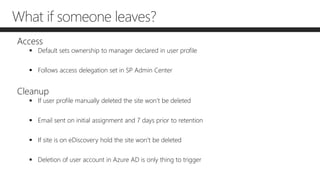
What if someone leaves?
Access
 Default sets ownership to manager declared in user profile
 Follows access delegation set in SP Admin Center
Cleanup
 If user profile manually deleted the site won’t be deleted
 Email sent on initial assignment and 7 days prior to retention
 If site is on eDiscovery hold the site won’t be deleted
 Deletion of user account in Azure AD is only thing to trigger
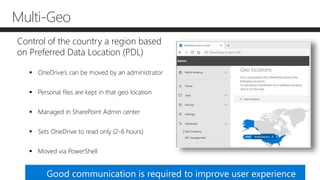
Multi-Geo
Control of the country a region based
on Preferred Data Location (PDL)
 OneDrive’s can be moved by an administrator
 Personal files are kept in that geo location
 Managed in SharePoint Admin center
 Sets OneDrive to read only (2-6 hours)
 Moved via PowerShell
Good communication is required to improve user experience
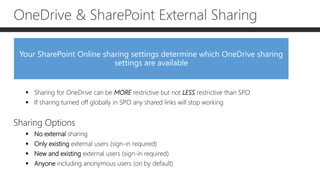
OneDrive & SharePoint External Sharing
 Sharing for OneDrive can be MORE restrictive but not LESS restrictive than SPO
 If sharing turned off globally in SPO any shared links will stop working
Sharing Options
 No external sharing
 Only existing external users (sign-in required)
 New and existing external users (sign-in required)
 Anyone including anonymous users (on by default)
Your SharePoint Online sharing settings determine which OneDrive sharing
settings are available
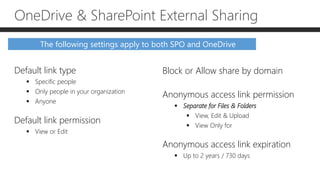
OneDrive & SharePoint External Sharing
The following settings apply to both SPO and OneDrive
Default link type
 Specific people
 Only people in your organization
 Anyone
Default link permission
 View or Edit
Block or Allow share by domain
Anonymous access link permission
 Separate for Files & Folders
 View, Edit & Upload
 View Only for
Anonymous access link expiration
 Up to 2 years / 730 days
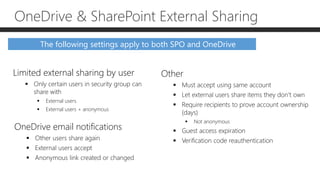
The following settings apply to both SPO and OneDrive
Limited external sharing by user
 Only certain users in security group can
share with
 External users
 External users + anonymous
OneDrive email notifications
 Other users share again
 External users accept
 Anonymous link created or changed
OneDrive & SharePoint External Sharing
Other
 Must accept using same account
 Let external users share items they don’t own
 Require recipients to prove account ownership
(days)
 Not anonymous
 Guest access expiration
 Verification code reauthentication
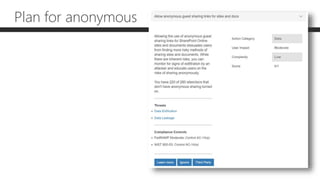
Plan for anonymous
Demo!
OneDrive sync client
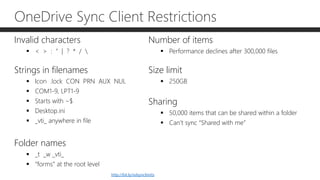
OneDrive Sync Client Restrictions
Invalid characters
 < > : “ | ? * / 
Strings in filenames
 Icon .lock CON PRN AUX NUL
 COM1-9, LPT1-9
 Starts with ~$
 Desktop.ini
 _vti_ anywhere in file
Folder names
 _t _w _vti_
 “forms” at the root level
Number of items
 Performance declines after 300,000 files
Size limit
 250GB
Sharing
 50,000 items that can be shared within a folder
 Can’t sync “Shared with me”
http://bit.ly/odsynclimits
OneDrive Sync Client Restrictions
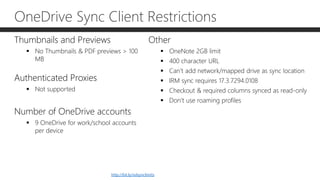
Thumbnails and Previews
 No Thumbnails & PDF previews > 100
MB
Authenticated Proxies
 Not supported
Number of OneDrive accounts
 9 OneDrive for work/school accounts
per device
Other
 OneNote 2GB limit
 400 character URL
 Can’t add network/mapped drive as sync location
 IRM sync requires 17.3.7294.0108
 Checkout & required columns synced as read-only
 Don’t use roaming profiles
http://bit.ly/odsynclimits
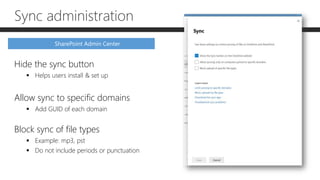
Sync administration
Hide the sync button
 Helps users install & set up
Allow sync to specific domains
 Add GUID of each domain
Block sync of file types
 Example: mp3, pst
 Do not include periods or punctuation
SharePoint Admin Center
Sync administration
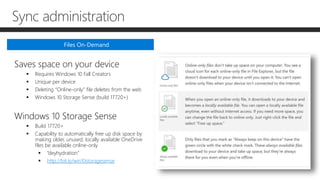
Saves space on your device
 Requires Windows 10 Fall Creators
 Unique per device
 Deleting “Online-only” file deletes from the web
 Windows 10 Storage Sense (build 17720+)
Windows 10 Storage Sense
 Build 17720+
 Capability to automatically free up disk space by
making older, unused, locally available OneDrive
files be available online-only
 “deyhydration”
 http://bit.ly/win10storagesense
Files On-Demand
Sync administration
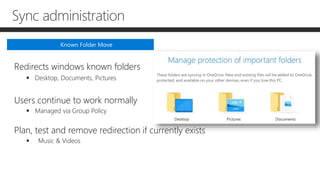
Redirects windows known folders
 Desktop, Documents, Pictures
Users continue to work normally
 Managed via Group Policy
Plan, test and remove redirection if currently exists
 Music & Videos
Known Folder Move
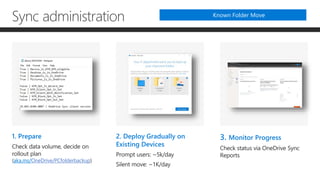
1. Prepare
aka.ms/OneDrive/PCfolderbackup
2. Deploy Gradually on
Existing Devices
3. Monitor Progress
Sync administration Known Folder Move
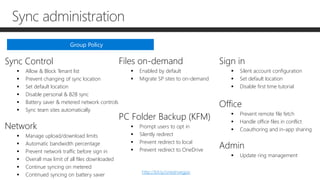
Sync Control
 Allow & Block Tenant list
 Prevent changing of sync location
 Set default location
 Disable personal & B2B sync
 Battery saver & metered network controls
 Sync team sites automatically
Network
 Manage upload/download limits
 Automatic bandwidth percentage
 Prevent network traffic before sign in
 Overall max limit of all files downloaded
 Continue syncing on metered
 Continued syncing on battery saver
Group Policy
http://bit.ly/onedrivegpo
Files on-demand
 Enabled by default
 Migrate SP sites to on-demand
PC Folder Backup (KFM)
 Prompt users to opt in
 Silently redirect
 Prevent redirect to local
 Prevent redirect to OneDrive
Sign in
 Silent account configuration
 Set default location
 Disable first time tutorial
Office
 Prevent remote file fetch
 Handle office files in conflict
 Coauthoring and in-app sharing
Admin
 Update ring management
Sync administration
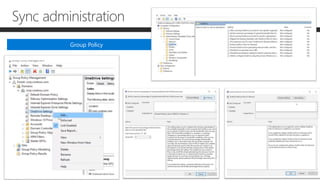
Group Policy
Sync administration
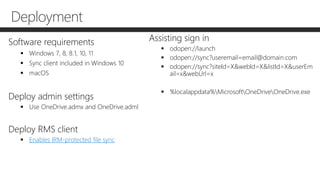
Deployment
Deployment
Software requirements
 Windows 7, 8, 8.1, 10, 11
 Sync client included in Windows 10
 macOS
Deploy admin settings
 Use OneDrive.admx and OneDrive.adml
Deploy RMS client
 Enables IRM-protected file sync
Assisting sign in
 odopen://launch
 odopen://sync?useremail=email@domain.com
 odopen://sync?siteId=X&webId=X&listId=X&userEm
ail=x&webUrl=x
 %localappdata%MicrosoftOneDriveOneDrive.exe
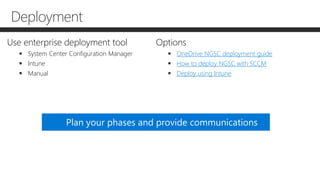
Use enterprise deployment tool
 System Center Configuration Manager
 Intune
 Manual
Options
 OneDrive NGSC deployment guide
 How to deploy NGSC with SCCM
 Deploy using Intune
Plan your phases and provide communications
Deployment
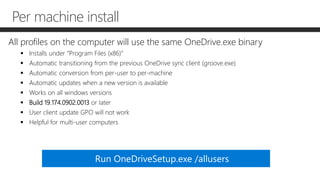
Per machine install
All profiles on the computer will use the same OneDrive.exe binary
 Installs under “Program Files (x86)”
 Automatic transitioning from the previous OneDrive sync client (groove.exe)
 Automatic conversion from per-user to per-machine
 Automatic updates when a new version is available
 Works on all windows versions
 Build 19.174.0902.0013 or later
 User client update GPO will not work
 Helpful for multi-user computers
Run OneDriveSetup.exe /allusers
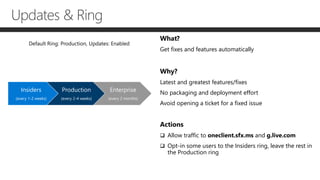
What?
Get fixes and features automatically
Why?
Latest and greatest features/fixes
No packaging and deployment effort
Avoid opening a ticket for a fixed issue
Actions
 Allow traffic to oneclient.sfx.ms and g.live.com
 Opt-in some users to the Insiders ring, leave the rest in
the Production ring
Insiders
(every 1-2 weeks)
Production
(every 2-4 weeks)
Enterprise
(every 2 months)
Updates & Ring
Security, Compliance, & Reporting
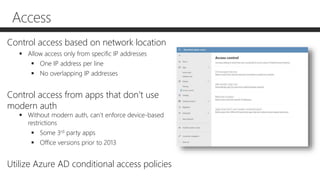
Access
Control access based on network location
 Allow access only from specific IP addresses
 One IP address per line
 No overlapping IP addresses
Control access from apps that don’t use
modern auth
 Without modern auth, can’t enforce device-based
restrictions
 Some 3rd party apps
 Office versions prior to 2013
Utilize Azure AD conditional access policies
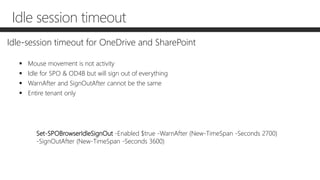
Idle session timeout
Idle-session timeout for OneDrive and SharePoint
 Mouse movement is not activity
 Idle for SPO & OD4B but will sign out of everything
 WarnAfter and SignOutAfter cannot be the same
 Entire tenant only
Set-SPOBrowserIdleSignOut -Enabled $true -WarnAfter (New-TimeSpan -Seconds 2700)
-SignOutAfter (New-TimeSpan -Seconds 3600)
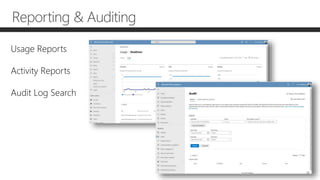
Reporting & Auditing
Usage Reports
Activity Reports
Audit Log Search
• xxxx
Help Contribute &
Stay Informed!
OneDrive UserVoice
https://onedrive.uservoice.com/
Microsoft Tech Community
https://techcommunity.microsoft.com
Microsoft 365 Roadmap
https://fasttrack.microsoft.com/roadmap
Office 365 Admin Center – Message Center
https://portal.office.com/AdminPortal
OneDrive Documentation
https://docs.microsoft.com/en-us/OneDrive/onedrive
Sync Up – A OneDrive podcast
https://aka.ms/syncup
OneDrive Adoptions
https://aka.ms/onedrive/adoption
Questions?
Email: drew.madelung@protiviti.com
Twitter: @dmadelung
Website: drewmadelung.com
Slides: http://bit.ly/DrewSlides
How to Manage
OneDrive
SharePoint Fest Chicago 2021
#SPFestChi

How to successfully manage OneDrive

  • 1.
    How to SuccessfullyManage OneDrive SharePoint Fest Chicago 2021 #SPFest
  • 2.
    Drew Madelung Email :drew.madelung@protiviti.com Twitter : @dmadelung Website: drewmadelung.com Associate Director – M365 Cloud Applications
  • 3.
    OneDrive Intro When touse it Administration All about sync Awareness & Insights Security How to Successfully Manage OneDrive SharePoint Fest Chicago 2021 #SPFest
  • 5.
    Microsoft 365 Teams Intelligent contentservices Intelligent file experiences
  • 6.
    Microsoft 365 Anywhere accessto all your files The hub for teamwork The intelligent intranet Intelligent content services Intelligent file experiences Teams
  • 7.
  • 8.
    What’s new withOneDrive Admin 64 Bit OneDrive
  • 9.
    What’s new withOneDrive Sync Admin Reports
  • 10.
    What’s new withOneDrive Admin Expiring access for external users
  • 11.
  • 12.
  • 13.
    Lifecycle of managingOneDrive for Business Surveys Communities Tips/Tricks Focus Groups Content Analysis Communication Plan Deployment Plan Migration Strategy Security Configuration Device Strategy Lifecycle Plan Pilot/Phased Sync Rollout Config Rollout Comms/Training Migration Testing Content Pack UserVoice What’s New Service Tickets
  • 14.
  • 15.
    • Manage sharing •Show/Hide Tile • View user profiles • Secondary administrators • Secondary owners • Basic sync • Default storage & retention • Mobile & network access • Notifications • DLP • Retention • Classification • Alerts • Content search • User management • Licensing • Initiate sign-out • Get access Management across your tenant
  • 16.
    OneDrive Administration Basics Builton top of SharePoint Evolution of “My Sites” from SharePoint on- premises Administration tightly coupled between SharePoint & OneDrive Each user’s OneDrive is a SharePoint Site Collection OneDrive does not count against SharePoint Online tenant storage usage Created under the /personal managed path when a user first accesses
  • 17.
    What do youneed to plan for? Content & Migration Network Will you migrate any existing files? Is your network ready? http://bit.ly/o365ipsurls
  • 18.
    Devices Approach What doyou need to plan for? What devices will access OneDrive? How are we going to roll-out?
  • 19.
    Limitations Sharing What doyou need to plan for? What are major limitations? What is your sharing strategy?
  • 20.
    M365 Admin Centerby User Grant Yourself Access View Usage Set Sharing Initiate Sign-out View Tenant Retention View Tenant Quota
  • 21.
    What if someoneleaves? Access  Default sets ownership to manager declared in user profile  Follows access delegation set in SP Admin Center Cleanup  If user profile manually deleted the site won’t be deleted  Email sent on initial assignment and 7 days prior to retention  If site is on eDiscovery hold the site won’t be deleted  Deletion of user account in Azure AD is only thing to trigger
  • 22.
    Multi-Geo Control of thecountry a region based on Preferred Data Location (PDL)  OneDrive’s can be moved by an administrator  Personal files are kept in that geo location  Managed in SharePoint Admin center  Sets OneDrive to read only (2-6 hours)  Moved via PowerShell Good communication is required to improve user experience
  • 23.
    OneDrive & SharePointExternal Sharing  Sharing for OneDrive can be MORE restrictive but not LESS restrictive than SPO  If sharing turned off globally in SPO any shared links will stop working Sharing Options  No external sharing  Only existing external users (sign-in required)  New and existing external users (sign-in required)  Anyone including anonymous users (on by default) Your SharePoint Online sharing settings determine which OneDrive sharing settings are available
  • 24.
    OneDrive & SharePointExternal Sharing The following settings apply to both SPO and OneDrive Default link type  Specific people  Only people in your organization  Anyone Default link permission  View or Edit Block or Allow share by domain Anonymous access link permission  Separate for Files & Folders  View, Edit & Upload  View Only for Anonymous access link expiration  Up to 2 years / 730 days
  • 25.
    The following settingsapply to both SPO and OneDrive Limited external sharing by user  Only certain users in security group can share with  External users  External users + anonymous OneDrive email notifications  Other users share again  External users accept  Anonymous link created or changed OneDrive & SharePoint External Sharing Other  Must accept using same account  Let external users share items they don’t own  Require recipients to prove account ownership (days)  Not anonymous  Guest access expiration  Verification code reauthentication
  • 26.
  • 27.
  • 28.
  • 29.
    OneDrive Sync ClientRestrictions Invalid characters  < > : “ | ? * / Strings in filenames  Icon .lock CON PRN AUX NUL  COM1-9, LPT1-9  Starts with ~$  Desktop.ini  _vti_ anywhere in file Folder names  _t _w _vti_  “forms” at the root level Number of items  Performance declines after 300,000 files Size limit  250GB Sharing  50,000 items that can be shared within a folder  Can’t sync “Shared with me” http://bit.ly/odsynclimits
  • 30.
    OneDrive Sync ClientRestrictions Thumbnails and Previews  No Thumbnails & PDF previews > 100 MB Authenticated Proxies  Not supported Number of OneDrive accounts  9 OneDrive for work/school accounts per device Other  OneNote 2GB limit  400 character URL  Can’t add network/mapped drive as sync location  IRM sync requires 17.3.7294.0108  Checkout & required columns synced as read-only  Don’t use roaming profiles http://bit.ly/odsynclimits
  • 31.
    Sync administration Hide thesync button  Helps users install & set up Allow sync to specific domains  Add GUID of each domain Block sync of file types  Example: mp3, pst  Do not include periods or punctuation SharePoint Admin Center
  • 32.
    Sync administration Saves spaceon your device  Requires Windows 10 Fall Creators  Unique per device  Deleting “Online-only” file deletes from the web  Windows 10 Storage Sense (build 17720+) Windows 10 Storage Sense  Build 17720+  Capability to automatically free up disk space by making older, unused, locally available OneDrive files be available online-only  “deyhydration”  http://bit.ly/win10storagesense Files On-Demand
  • 33.
    Sync administration Redirects windowsknown folders  Desktop, Documents, Pictures Users continue to work normally  Managed via Group Policy Plan, test and remove redirection if currently exists  Music & Videos Known Folder Move
  • 34.
    1. Prepare aka.ms/OneDrive/PCfolderbackup 2. DeployGradually on Existing Devices 3. Monitor Progress Sync administration Known Folder Move
  • 35.
    Sync Control  Allow& Block Tenant list  Prevent changing of sync location  Set default location  Disable personal & B2B sync  Battery saver & metered network controls  Sync team sites automatically Network  Manage upload/download limits  Automatic bandwidth percentage  Prevent network traffic before sign in  Overall max limit of all files downloaded  Continue syncing on metered  Continued syncing on battery saver Group Policy http://bit.ly/onedrivegpo Files on-demand  Enabled by default  Migrate SP sites to on-demand PC Folder Backup (KFM)  Prompt users to opt in  Silently redirect  Prevent redirect to local  Prevent redirect to OneDrive Sign in  Silent account configuration  Set default location  Disable first time tutorial Office  Prevent remote file fetch  Handle office files in conflict  Coauthoring and in-app sharing Admin  Update ring management Sync administration
  • 36.
  • 37.
  • 38.
    Deployment Software requirements  Windows7, 8, 8.1, 10, 11  Sync client included in Windows 10  macOS Deploy admin settings  Use OneDrive.admx and OneDrive.adml Deploy RMS client  Enables IRM-protected file sync Assisting sign in  odopen://launch  odopen://sync?useremail=email@domain.com  odopen://sync?siteId=X&webId=X&listId=X&userEm ail=x&webUrl=x  %localappdata%MicrosoftOneDriveOneDrive.exe
  • 39.
    Use enterprise deploymenttool  System Center Configuration Manager  Intune  Manual Options  OneDrive NGSC deployment guide  How to deploy NGSC with SCCM  Deploy using Intune Plan your phases and provide communications Deployment
  • 40.
    Per machine install Allprofiles on the computer will use the same OneDrive.exe binary  Installs under “Program Files (x86)”  Automatic transitioning from the previous OneDrive sync client (groove.exe)  Automatic conversion from per-user to per-machine  Automatic updates when a new version is available  Works on all windows versions  Build 19.174.0902.0013 or later  User client update GPO will not work  Helpful for multi-user computers Run OneDriveSetup.exe /allusers
  • 41.
    What? Get fixes andfeatures automatically Why? Latest and greatest features/fixes No packaging and deployment effort Avoid opening a ticket for a fixed issue Actions  Allow traffic to oneclient.sfx.ms and g.live.com  Opt-in some users to the Insiders ring, leave the rest in the Production ring Insiders (every 1-2 weeks) Production (every 2-4 weeks) Enterprise (every 2 months) Updates & Ring
  • 42.
  • 43.
    Access Control access basedon network location  Allow access only from specific IP addresses  One IP address per line  No overlapping IP addresses Control access from apps that don’t use modern auth  Without modern auth, can’t enforce device-based restrictions  Some 3rd party apps  Office versions prior to 2013 Utilize Azure AD conditional access policies
  • 44.
    Idle session timeout Idle-sessiontimeout for OneDrive and SharePoint  Mouse movement is not activity  Idle for SPO & OD4B but will sign out of everything  WarnAfter and SignOutAfter cannot be the same  Entire tenant only Set-SPOBrowserIdleSignOut -Enabled $true -WarnAfter (New-TimeSpan -Seconds 2700) -SignOutAfter (New-TimeSpan -Seconds 3600)
  • 45.
    Reporting & Auditing UsageReports Activity Reports Audit Log Search
  • 46.
    • xxxx Help Contribute& Stay Informed! OneDrive UserVoice https://onedrive.uservoice.com/ Microsoft Tech Community https://techcommunity.microsoft.com Microsoft 365 Roadmap https://fasttrack.microsoft.com/roadmap Office 365 Admin Center – Message Center https://portal.office.com/AdminPortal OneDrive Documentation https://docs.microsoft.com/en-us/OneDrive/onedrive Sync Up – A OneDrive podcast https://aka.ms/syncup OneDrive Adoptions https://aka.ms/onedrive/adoption
  • 48.
    Questions? Email: drew.madelung@protiviti.com Twitter: @dmadelung Website:drewmadelung.com Slides: http://bit.ly/DrewSlides
  • 49.
    How to Manage OneDrive SharePointFest Chicago 2021 #SPFestChi