1
Technology In Action
2
Technology In Action
Chapter 5
Using System Software:
The Operating System, Utility
Programs, and File Management
3
Topics
 System software
 Operating systems (OS):
• Kinds of systems
• Common desktop systems
• User interaction
• How the OS manages the processor
• How the OS manages memory
4
Topics
 Operating systems:
• How the OS manages hardware
• How the OS manages interacts with
application software
• How the OS helps to start the computer
• How the OS helps you keep the
computer organized
 Desktop and windows features
 Utility programs
5
System Software
Operating
systems
 Control computer
functions:
• Hardware
• Memory
• Application
programs
• System
maintenance
 Provide user
interface
System utilities
 Programs that perform
computer
housekeeping tasks:
• Manage system
resources
• Improve efficiency
• Virus prevention
6
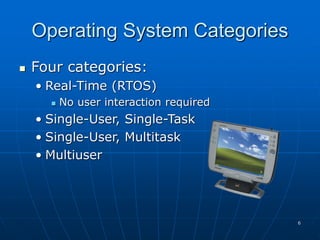
Operating System Categories
 Four categories:
• Real-Time (RTOS)
 No user interaction required
• Single-User, Single-Task
• Single-User, Multitask
• Multiuser
7
Real-Time Operating Systems
 Built into devices,
not usually sold
separately
 Uses include:
• Industrial machines
• Robotic equipment
• Automobiles
• Video game
consoles
• Home appliances
8
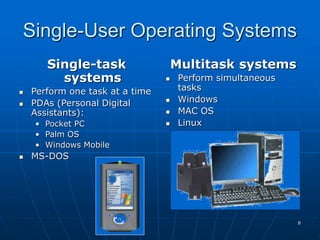
Single-User Operating Systems
Single-task
systems
 Perform one task at a time
 PDAs (Personal Digital
Assistants):
• Pocket PC
• Palm OS
• Windows Mobile
 MS-DOS
Multitask systems
 Perform simultaneous
tasks
 Windows
 MAC OS
 Linux
9
Multiuser Operating Systems
 Known as network operating systems
 Allow access to the computer system by
more than one user
 Manage user requests
 Systems include:
• UNIX
• Linux
• Novell Netware
• Windows Server 2003
10
Desktop Operating Systems
 Operating system combined with the
processor is known as a platform
• Microsoft Windows / Intel
• Apple Macintosh / Motorola in older versions
• Now Apple also uses the Intel processor
 Desktop operating systems include:
• Microsoft Windows
• MAC OS
• UNIX
• Linux
11
Microsoft Windows
 Market leader – 90% market share
Click to view the various Windows systems
Windows
XP
(2001)
Offers a new
multi-user
desktop as
well as
improved
digital media
features and
Internet
capabilities.
Windows
ME
(2000)
This upgrade
to Windows
95 and
Windows 98
includes
system
backup and
multimedia
capabilities
(such as
Media Player).
Windows
2000
(2000)
This upgrade
to Windows NT
offers
improvements
to file security
and Internet
support.
Windows
98
(1998)
This upgrade
includes
additional file
protection and
incorporates
Internet
Explorer 4.0, a
customizable
taskbar, and
desktop
features
Windows
95
(1995)
This operating
system runs
faster
and more
efficiently,
introduces Plug
and Play
capabilities,
long file names,
short-cut
right-click
menus, and a
cleaner
desktop.
Windows
NT
(1993)
Fundamentally
different
operating
system with
increased
security, power,
performance,
and
multitasking
scheduler.
Windows
3.x
(1990-
1992)
First widely
used PC
graphical user
interface (GUI)
operating
system.
Improved
point-and-click
mouse
operations and
multitasking
capabilities.
Windows
2.0
(1987)
Includes better
graphics
capabilities and
introduces
keyboard
shortcuts and
the ability to
overlap
windows.
Windows
1.0
(1985)
Introduces
point-and-click
commands with
a mouse and
includes modest
multitasking
capabilities and
desktop
applications.
12
Windows Vista
 Introduced in 2007
Versions Description
Windows XP
Comparable
Version
Windows Vista Home Basic Low-level, budget home users. Windows XP Home Edition
Windows Vista Home
Premium
Combines media features of to support advanced home
media uses such as HDTV and DVD authoring.
Windows XP Home Edition
with features from
Windows XP Media
Center Edition
Windows Vista Business
As its name implies, this version is aimed at the
business market. Similar to Windows XP
Professional, this version has added support for
networking capabilities. This product comes
bundled with a new version of Internet
Information Services (IIS), the most widely used
Web server for corporate Web sites. Windows XP Professional
Windows Vista Enterprise
This edition is aimed at the enterprise segment of the
business market and is not be available through
retail stores or OEMs (Original Equipment
Manufacturers). It comes with Microsoft Virtual PC,
which enables it to run on any platform, and has a
multilingual user interface.
Windows Vista Ultimate
This is the “ultimate” operating system for high-end PC
users, gamers, multimedia professionals, and PC
enthusiasts. Vista Ultimate comes with RSS (Real-
time Simple Syndication) support for easy access
to podcasts and weblogs, a game performance
tweaker, DVD ripping capabilities, and other
online capabilities for downloading media.
13
MAC OS
 First operating system with point-and-click
technology (Graphical User Interface)
 Excellent in:
• Graphics display
• Processing capabilities
• System reliability
• Document recovery
 Fewer software applications
MAC OS X
14
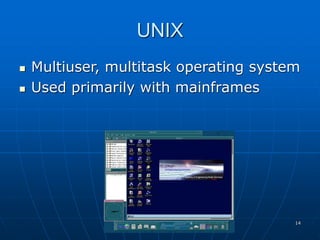
UNIX
 Multiuser, multitask operating system
 Used primarily with mainframes
15
Linux
 Open-source
operating system
 Based on UNIX
 Stable system
 Free
 May be downloaded
through the
Internet
16
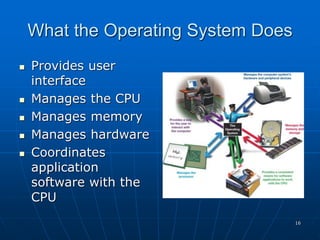
What the Operating System Does
 Provides user
interface
 Manages the CPU
 Manages memory
 Manages hardware
 Coordinates
application
software with the
CPU
17
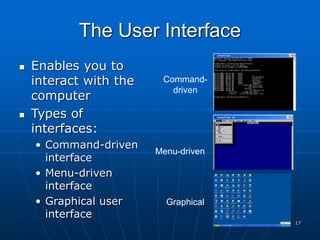
The User Interface
 Enables you to
interact with the
computer
 Types of
interfaces:
• Command-driven
interface
• Menu-driven
interface
• Graphical user
interface
Command-
driven
Menu-driven
Graphical
18
Process
4th
Process
3rd
Process
2nd
Process
1st
Processor Management
 Controls the timing of events the
processor works on
• Interrupts
• Interrupt handler
• Interrupt table
• Stack
REQUEST
Operatin
g
System
19
Memory Management
 The operating system allocates space
in RAM for instructions and data
RAM
Operating
System
20
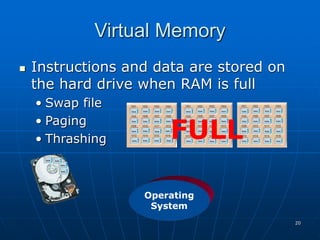
Virtual Memory
 Instructions and data are stored on
the hard drive when RAM is full
• Swap file
• Paging
• Thrashing
Operating
System
FULL
21
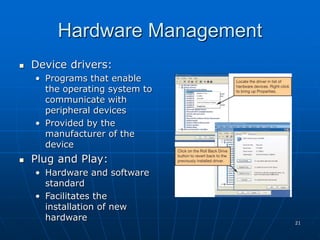
Hardware Management
 Device drivers:
• Programs that enable
the operating system to
communicate with
peripheral devices
• Provided by the
manufacturer of the
device
 Plug and Play:
• Hardware and software
standard
• Facilitates the
installation of new
hardware
22
Software Application Coordination
 Application programming interfaces
(APIs):
• Blocks of code contained in the
operating system
• Coordinates the operating system with
software applications
 Similar toolbars and menus
• Microsoft Direct X
23
Starting the Computer
The Boot Process
 Step 1: The basic
input/output system (BIOS)
is activated
 Step 2: A Power-on self-test
(POST) checks attached
hardware
 Step 3: The operating
system loads into memory
 Step 4: Configuration and
customization settings are
checked
1
2
3
4
24
Handling Errors in the
Boot Process
 Non-system disk or disk
error
• Remove the floppy from
the drive and press any
key
 POST errors
• Single beep: Everything is
loading properly
• Series of beeps: Hardware
problem
 Safe mode
• Windows does not boot
properly
• Uninstall any new devices
or software
25
The Desktop
 Desktop
features:
• Shortcut icons
• My Documents
• Start button
• Quick launch
• Open programs
• Taskbar
• System tray
• toolbar
SHORTCUT ICONS
A
B
C
D
E G H
I
_______________
MY DOCUMENTS
MY COMPUTER
START BUTTON
QUICK LAUNCH
TASKBAR SYSTEM TRAY
TOOLBAR
____________
____________
____________
____________
_________ ___________
_________
F
OPEN
PROGRAMS
_________
_________
Click to view
Desktop features
26
G
PINNED ITEMS LIST
_______________
Start Menu
A
USER NAME
ALL PROGRAMS
BUTTON
SPECIAL FOLDERS
SYSTEM AREA
HELP
MOST FREQUENTLY
USED LIST
USER LOG OFF
SHUT DOWN/RESTART
F
E
D
C
B
_____________
___________
_______________
____________
_______________
_______________
_______________
_______________
Click to view Start
menu features
27
Window
A
B
C
D
E
F
G
SCROLLBARS
STATUS BAR
VIEW OPTIONS
TOOLBARS
MENU BAR
TITLE BAR
SIZING BUTTONS
__________
__________
__________
______________
____________
____________
_______________
Click to view
Window features
28
File Management
 The operating system provides an
organizational structure to the
computer’s contents
 Hierarchical structure of directories:
• Drives
 Folders
Subfolders
 Files
29
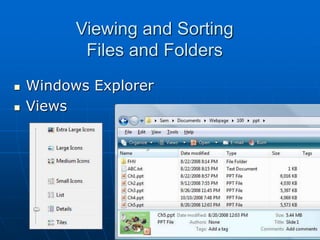
Viewing and Sorting
Files and Folders
 Windows Explorer
 Views
30
Viewing and Sorting
Files and Folders
 Windows
Explorer
• Detail
View
• Sorted
and
grouped
31
Naming Files
 Filename:
• Name assigned plus
filename extension
 only characters not
legal in filenames
are:
 ⁄ : * ? " <
> ¦
 all others are
allowed
Bioreport.doc
or
Bio report.doc
32
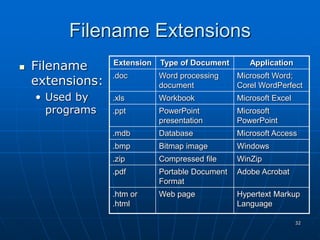
Filename Extensions
 Filename
extensions:
• Used by
programs
Extension Type of Document Application
.doc Word processing
document
Microsoft Word;
Corel WordPerfect
.xls Workbook Microsoft Excel
.ppt PowerPoint
presentation
Microsoft
PowerPoint
.mdb Database Microsoft Access
.bmp Bitmap image Windows
.zip Compressed file WinZip
.pdf Portable Document
Format
Adobe Acrobat
.htm or
.html
Web page Hypertext Markup
Language
33
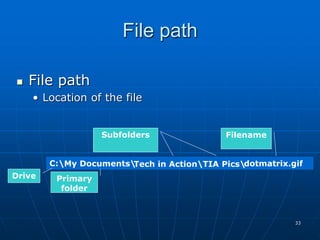
File path
 File path
• Location of the file
C: Tech in ActionTIA Pics
My Documents dotmatrix.gif
Drive Primary
folder
Subfolders Filename
34
Working with Files
 File management
actions:
• Open
• Copy
• Move
• Rename
• Delete
 Recycle bin
Saving files
35
Utility Programs
 Small application programs that
perform special functions:
• Manage system
resources
• Create a pleasant
environment
• Improve efficiency
36
Display Utilities
 Change the appearance of:
• Desktop
• Windows colors
• Font sizes
• Screen savers
• Screen resolution
37
Add or Remove Programs
 Installation wizard
 Uninstall wizard:
• Do not just delete program files to
remove programs
38
System Maintenance Utilities
 Disk cleanup
• Deletes
unnecessary files
39
System Maintenance Utilities
 Disk defragmenter
• Tidies up a disk to
make it run faster
 ScanDisk:
• Error-checker
40
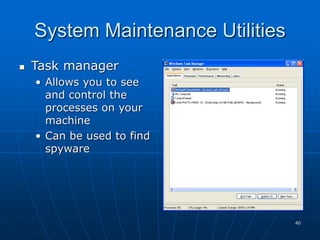
System Maintenance Utilities
 Task manager
• Allows you to see
and control the
processes on your
machine
• Can be used to find
spyware
41
System Restore
 System
Restore:
• Restores the
system settings
back to a
specific date
42
System Backup
 Backup:
• Creates a copy of
the hard drive to
another storage
device
43
Accessibility Utilities
 Utility manager:
• Magnify screen
image
• Screen contents
narration
• On-screen keyboard

Windows 7

  • 1.
  • 2.
    2 Technology In Action Chapter5 Using System Software: The Operating System, Utility Programs, and File Management
  • 3.
    3 Topics  System software Operating systems (OS): • Kinds of systems • Common desktop systems • User interaction • How the OS manages the processor • How the OS manages memory
  • 4.
    4 Topics  Operating systems: •How the OS manages hardware • How the OS manages interacts with application software • How the OS helps to start the computer • How the OS helps you keep the computer organized  Desktop and windows features  Utility programs
  • 5.
    5 System Software Operating systems  Controlcomputer functions: • Hardware • Memory • Application programs • System maintenance  Provide user interface System utilities  Programs that perform computer housekeeping tasks: • Manage system resources • Improve efficiency • Virus prevention
  • 6.
    6 Operating System Categories Four categories: • Real-Time (RTOS)  No user interaction required • Single-User, Single-Task • Single-User, Multitask • Multiuser
  • 7.
    7 Real-Time Operating Systems Built into devices, not usually sold separately  Uses include: • Industrial machines • Robotic equipment • Automobiles • Video game consoles • Home appliances
  • 8.
    8 Single-User Operating Systems Single-task systems Perform one task at a time  PDAs (Personal Digital Assistants): • Pocket PC • Palm OS • Windows Mobile  MS-DOS Multitask systems  Perform simultaneous tasks  Windows  MAC OS  Linux
  • 9.
    9 Multiuser Operating Systems Known as network operating systems  Allow access to the computer system by more than one user  Manage user requests  Systems include: • UNIX • Linux • Novell Netware • Windows Server 2003
  • 10.
    10 Desktop Operating Systems Operating system combined with the processor is known as a platform • Microsoft Windows / Intel • Apple Macintosh / Motorola in older versions • Now Apple also uses the Intel processor  Desktop operating systems include: • Microsoft Windows • MAC OS • UNIX • Linux
  • 11.
    11 Microsoft Windows  Marketleader – 90% market share Click to view the various Windows systems Windows XP (2001) Offers a new multi-user desktop as well as improved digital media features and Internet capabilities. Windows ME (2000) This upgrade to Windows 95 and Windows 98 includes system backup and multimedia capabilities (such as Media Player). Windows 2000 (2000) This upgrade to Windows NT offers improvements to file security and Internet support. Windows 98 (1998) This upgrade includes additional file protection and incorporates Internet Explorer 4.0, a customizable taskbar, and desktop features Windows 95 (1995) This operating system runs faster and more efficiently, introduces Plug and Play capabilities, long file names, short-cut right-click menus, and a cleaner desktop. Windows NT (1993) Fundamentally different operating system with increased security, power, performance, and multitasking scheduler. Windows 3.x (1990- 1992) First widely used PC graphical user interface (GUI) operating system. Improved point-and-click mouse operations and multitasking capabilities. Windows 2.0 (1987) Includes better graphics capabilities and introduces keyboard shortcuts and the ability to overlap windows. Windows 1.0 (1985) Introduces point-and-click commands with a mouse and includes modest multitasking capabilities and desktop applications.
  • 12.
    12 Windows Vista  Introducedin 2007 Versions Description Windows XP Comparable Version Windows Vista Home Basic Low-level, budget home users. Windows XP Home Edition Windows Vista Home Premium Combines media features of to support advanced home media uses such as HDTV and DVD authoring. Windows XP Home Edition with features from Windows XP Media Center Edition Windows Vista Business As its name implies, this version is aimed at the business market. Similar to Windows XP Professional, this version has added support for networking capabilities. This product comes bundled with a new version of Internet Information Services (IIS), the most widely used Web server for corporate Web sites. Windows XP Professional Windows Vista Enterprise This edition is aimed at the enterprise segment of the business market and is not be available through retail stores or OEMs (Original Equipment Manufacturers). It comes with Microsoft Virtual PC, which enables it to run on any platform, and has a multilingual user interface. Windows Vista Ultimate This is the “ultimate” operating system for high-end PC users, gamers, multimedia professionals, and PC enthusiasts. Vista Ultimate comes with RSS (Real- time Simple Syndication) support for easy access to podcasts and weblogs, a game performance tweaker, DVD ripping capabilities, and other online capabilities for downloading media.
  • 13.
    13 MAC OS  Firstoperating system with point-and-click technology (Graphical User Interface)  Excellent in: • Graphics display • Processing capabilities • System reliability • Document recovery  Fewer software applications MAC OS X
  • 14.
    14 UNIX  Multiuser, multitaskoperating system  Used primarily with mainframes
  • 15.
    15 Linux  Open-source operating system Based on UNIX  Stable system  Free  May be downloaded through the Internet
  • 16.
    16 What the OperatingSystem Does  Provides user interface  Manages the CPU  Manages memory  Manages hardware  Coordinates application software with the CPU
  • 17.
    17 The User Interface Enables you to interact with the computer  Types of interfaces: • Command-driven interface • Menu-driven interface • Graphical user interface Command- driven Menu-driven Graphical
  • 18.
    18 Process 4th Process 3rd Process 2nd Process 1st Processor Management  Controlsthe timing of events the processor works on • Interrupts • Interrupt handler • Interrupt table • Stack REQUEST Operatin g System
  • 19.
    19 Memory Management  Theoperating system allocates space in RAM for instructions and data RAM Operating System
  • 20.
    20 Virtual Memory  Instructionsand data are stored on the hard drive when RAM is full • Swap file • Paging • Thrashing Operating System FULL
  • 21.
    21 Hardware Management  Devicedrivers: • Programs that enable the operating system to communicate with peripheral devices • Provided by the manufacturer of the device  Plug and Play: • Hardware and software standard • Facilitates the installation of new hardware
  • 22.
    22 Software Application Coordination Application programming interfaces (APIs): • Blocks of code contained in the operating system • Coordinates the operating system with software applications  Similar toolbars and menus • Microsoft Direct X
  • 23.
    23 Starting the Computer TheBoot Process  Step 1: The basic input/output system (BIOS) is activated  Step 2: A Power-on self-test (POST) checks attached hardware  Step 3: The operating system loads into memory  Step 4: Configuration and customization settings are checked 1 2 3 4
  • 24.
    24 Handling Errors inthe Boot Process  Non-system disk or disk error • Remove the floppy from the drive and press any key  POST errors • Single beep: Everything is loading properly • Series of beeps: Hardware problem  Safe mode • Windows does not boot properly • Uninstall any new devices or software
  • 25.
    25 The Desktop  Desktop features: •Shortcut icons • My Documents • Start button • Quick launch • Open programs • Taskbar • System tray • toolbar SHORTCUT ICONS A B C D E G H I _______________ MY DOCUMENTS MY COMPUTER START BUTTON QUICK LAUNCH TASKBAR SYSTEM TRAY TOOLBAR ____________ ____________ ____________ ____________ _________ ___________ _________ F OPEN PROGRAMS _________ _________ Click to view Desktop features
  • 26.
    26 G PINNED ITEMS LIST _______________ StartMenu A USER NAME ALL PROGRAMS BUTTON SPECIAL FOLDERS SYSTEM AREA HELP MOST FREQUENTLY USED LIST USER LOG OFF SHUT DOWN/RESTART F E D C B _____________ ___________ _______________ ____________ _______________ _______________ _______________ _______________ Click to view Start menu features
  • 27.
    27 Window A B C D E F G SCROLLBARS STATUS BAR VIEW OPTIONS TOOLBARS MENUBAR TITLE BAR SIZING BUTTONS __________ __________ __________ ______________ ____________ ____________ _______________ Click to view Window features
  • 28.
    28 File Management  Theoperating system provides an organizational structure to the computer’s contents  Hierarchical structure of directories: • Drives  Folders Subfolders  Files
  • 29.
    29 Viewing and Sorting Filesand Folders  Windows Explorer  Views
  • 30.
    30 Viewing and Sorting Filesand Folders  Windows Explorer • Detail View • Sorted and grouped
  • 31.
    31 Naming Files  Filename: •Name assigned plus filename extension  only characters not legal in filenames are: ⁄ : * ? " < > ¦  all others are allowed Bioreport.doc or Bio report.doc
  • 32.
    32 Filename Extensions  Filename extensions: •Used by programs Extension Type of Document Application .doc Word processing document Microsoft Word; Corel WordPerfect .xls Workbook Microsoft Excel .ppt PowerPoint presentation Microsoft PowerPoint .mdb Database Microsoft Access .bmp Bitmap image Windows .zip Compressed file WinZip .pdf Portable Document Format Adobe Acrobat .htm or .html Web page Hypertext Markup Language
  • 33.
    33 File path  Filepath • Location of the file C: Tech in ActionTIA Pics My Documents dotmatrix.gif Drive Primary folder Subfolders Filename
  • 34.
    34 Working with Files File management actions: • Open • Copy • Move • Rename • Delete  Recycle bin Saving files
  • 35.
    35 Utility Programs  Smallapplication programs that perform special functions: • Manage system resources • Create a pleasant environment • Improve efficiency
  • 36.
    36 Display Utilities  Changethe appearance of: • Desktop • Windows colors • Font sizes • Screen savers • Screen resolution
  • 37.
    37 Add or RemovePrograms  Installation wizard  Uninstall wizard: • Do not just delete program files to remove programs
  • 38.
    38 System Maintenance Utilities Disk cleanup • Deletes unnecessary files
  • 39.
    39 System Maintenance Utilities Disk defragmenter • Tidies up a disk to make it run faster  ScanDisk: • Error-checker
  • 40.
    40 System Maintenance Utilities Task manager • Allows you to see and control the processes on your machine • Can be used to find spyware
  • 41.
    41 System Restore  System Restore: •Restores the system settings back to a specific date
  • 42.
    42 System Backup  Backup: •Creates a copy of the hard drive to another storage device
  • 43.
    43 Accessibility Utilities  Utilitymanager: • Magnify screen image • Screen contents narration • On-screen keyboard