A+ Guide to Managing and Maintaining your PC, 6e Chapter 11 Installing Windows 2000/XP
Objectives Learn about Windows 2000/XP features and architecture Learn how to plan a Windows 2000/XP installation Learn the steps to install Windows XP  Learn what to do after Windows XP is installed Learn how to install Windows 2000 Professional
Introduction Windows 2000 and Windows XP are similar Windows 2000  True 32-bit, module-oriented operating system Improved security User-friendly Plug and Play installations Windows XP  Extra support for multimedia, PnP, legacy software Merges Windows 9x/Me and Windows NT  Current choice as Windows OS for a PC Only Windows OS for which you can buy a license
Features and Architecture of Windows XP Topics to cover in this section Various versions of Windows 2000/XP Operating modes used by Windows Networking features in Windows  How Windows manages hard drives and file systems  Appropriate uses of Windows XP or Windows 2000
Versions and Features of Windows XP and 2000 Windows XP (Home Edition and Professional) New user interface with new look and feel Ability to simultaneously log on two or more users Windows Media Player and Windows Messenger Windows Security Center (with Service Pack 2) User-friendly CD burning process Remote Assistance and expanded Help  Windows XP Professional offers additional features Example: support for new higher-performance CPUs
Figure 11-1  New user interface and sample windows
Versions and Features of Windows XP and 2000 (continued) Two systems built on Windows XP Professional Windows XP Media Center Edition Windows XP Tablet PC Edition Windows XP Professional x64 Edition Used with 64-bit processors such as Intel Itanium Windows 2000 includes four operating systems: Windows 2000 Professional Windows 2000 Server  Windows 2000 Advanced Server  Windows 2000 Datacenter Server
Figure 11-4  Media Center is set to watch live TV, record TV, search your online TV guide, and play movies
Windows 2000/XP Architecture and Operating Modes Two operating modes used: kernel and user User mode Several subsystems that interact with users/programs All applications relate to the OS via Win32 subsystem Each DOS application runs on its own NTVDM 16-bit Windows 3.x apps run in a WOW environment 32-bit applications interact directly with OS (protected) Process: running program or group of programs A process can spawn multiple threads
Figure 11-6  User mode and kernel mode in Windows 2000/XP and how they relate to users, application software, and hardware
Figure 11-7  Environment subsystems in Windows 2000/XP user mode include NTVDMs for DOS and Windows 3.x applications and optional multithreading for 32-bit applications
Windows 2000/XP Architecture and Operating Modes (continued) Kernel mode Comprises HAL and Executive services HAL (hardware abstraction layer) interacts with CPU Executive services manage hardware resources Applications in user mode cannot access hardware Benefits of dividing OS into user and kernel modes HAL and Executive services operate more efficiently Application address space is protected System is protected from illegal demands
Networking Features Workgroup: logical group of computers and users Resources are shared within a workgroup Administration is decentralized  Workgroup uses a peer-to-peer networking model Domain: group of networked computers  Resources are controlled via a centralized directory A domain uses a client/server   networking model Network operating system (NOS) controls directory Some NOSs: Windows Server 2003, Novel NetWare
Figure 11-9  A Windows workgroup is a peer-to-peer network where no single computer controls the network and each computer controls its own resources
Figure 11-10  A Windows domain is a client/server network where security on each PC or other device is controlled by a centralized database on a domain controller
Networking Features (continued) Windows domains Security accounts manager (SAM) database contents User accounts, group accounts, computer accounts Domain controller stores and controls SAM  Primary domain controller (PDC)   holds original directory Backup domain controller (BDC) holds read-only copy Active directory: single point of control over network Active Directory includes the SAM database
Networking Features (continued) Windows 2000/XP Logon   Administrator account Has rights and permissions to all computer resources Used to set up other user accounts and assign privileges Logon is required before OS can be used Rights and permissions granted according to user group Windows XP allows multiple users to be logged on To logoff or switch to another user, press Ctrl-Alt-Del  Log Off Windows dialog box appears
Figure 11-11  Switch users or log off in Windows XP
How Windows 2000/XP Manages Hard Drives Hard drive organization: partition, logical drive, sector  Steps involved in logically organizing a drive: Cylinders on the drive are divided into partitions Partition table defines where partition begins and ends Partitions are divided into logical drives; e.g., C, D, E Creating first two levels is called partitioning the drives Each logical drive is formatted with a file system Some file systems used: FAT16, FAT32, or NTFS Master Boot Record (MBR) or master boot sector Contains master boot program and the partition table
How Windows 2000/XP Manages Hard Drives (continued) Actions performed by master boot program at POST: Integrity of partition table is checked Active (system) partition is located OS boot program in active partition is executed Types of partitions in Windows 2000/XP  Primary: has only one logical drive, such as drive C Extended: can have multiple logical drives; e.g., D, E
How Windows 2000/XP Manages Hard Drives (continued) System partition: active partition with OS boot record  Boot partition: store Windows 2000/XP OS System and boot partitions are usually the same  Each logical drive is formatted with a file system FAT16 16-bit cluster entries A cluster contains four 512-byte sectors (2,048 bytes) Minimum of one cluster per file Slack: wasted space in a cluster
How Windows 2000/XP Manages Hard Drives (continued) FAT32 Each FAT contains 32 bits per FAT entry Only 28 bits are used to hold a cluster number  Cluster sizes range between 8KB to 16KB NTFS (New Technology File System) Master file table (MFT): index for files and directories Small data files can be contained in the MFT itself Large data files are pointed to by extended attribute Range of cluster sizes: 512 bytes to 4KB
How Windows 2000/XP Manages Hard Drives (continued) Some advantages of NTFS over FAT NTFS is a recoverable file system NTFS under supports encryption and disk quotas Advantages of FAT over NTFS FAT is compatible with Windows 9x/Me and DOS Some reasons for more partitions and logical drives You are creating a dual-boot system (two OSs) To improve data organization; e.g., a drive for backup
Table 11-2  Size of some logical drives compared to cluster size for FAT16, FAT32, and NTFS
When to Use Windows 2000 and Windows XP  Advantages of Windows XP over Windows 2000 Greater stability  Easier installation Increased security Better driver support When to retain Windows 2000 The OS was included with a notebook
Plan the Windows 2000/XP Installation Careful planning will improve the installation process Preparatory steps: Verify that the system hardware can support the OS Decide about Windows 2000/XP installation option Decide how the drive will be partitioned and formatted  Decide how your computer will connect to a network Decide how the installation process will work Use a checklist to verify steps have been completed
Table 11-3  Minimum and recommended requirements for Windows XP Professional
Minimum Requirements and  Hardware Compatibility Questions to ask to verify system specifications: What CPU and how much RAM is installed? How much hard drive space is available? Does my motherboard BIOS qualify? Will my software work under Windows 2000/XP? Will my hardware work under Windows 2000/XP? What if I can’t find the drivers?
Figure 11-19  Make sure you have enough free hard drive space for Windows 2000/XP
Upgrade, Clean Install, Or Dual Boot? Clean install: Windows 2000/XP put on a new drive Clean install – erasing existing installations Advantage: you start with a brand new operating system Disadvantage: need to restore software and data  Decide between an upgrade and a clean install Upgrades carry software and data into new environment For certain OSs, an upgrade installation is faster  Creating a dual boot At least two partitions on the hard drive are required Only perform this operation when two OSs are needed
Hard Drive Partitions and File Systems Minimum space required: Windows XP: 2 GB for partition and 1.5 GB free  Windows 2000: 650 MB for partition; use > 2 GB You can install OS on partition used by another OS Consequence: the existing OS will be overwritten Ensure that partitions on hard drive are adequate Check disk usage with Fdisk or Disk Management Select a file system Choices: NTFS, FAT32, and FAT16  Needs, such as dual-booting, drive choice
Will the PC Join a Workgroup or Domain? Use a workgroup for a network with < 10 nodes  Each account is set up on local computer No centralized control When to use a domain controller running an NOS The network has more than 10 nodes  Centralized administrative control is needed Things to know before beginning an installation: Computer workgroup names for peer-to-peer network Username, user password, computer and domain names For TCP/IP networks, know how IP address is assigned
How Will the Installation Process Work? If PC is not part of a network, install from setup CD If PC is part of a network, you have two choices: Install the OS from the Windows 2000/XP setup CD Install OS from file server (files copied from setup CD) Two options for automated installation: Unattended installation (based on an answer file) Drive imaging (or disk cloning) Options for proceeding through the installation: Custom, Typical, Express, or others
Final Checklist A checklist summarizes the steps for preparation  Complete the checklist before starting installation
Table 11-4  Checklist to complete before installing Windows 2000/XP
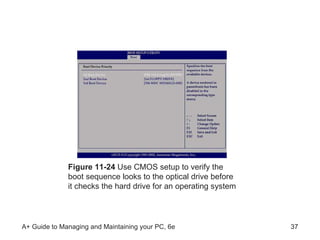
Steps to Install Windows XP General tips about installing Windows XP: If booting from a CD, verify boot sequence  Disable the PnP feature of motherboard BIOS Disable virus protection preventing boot sector changes Select an installation program:  Winnt.exe, Winnt32.exe If internal CD drive not present, boot from external drive If installing on a notebook, plug in the AC adapter
Figure 11-24  Use CMOS setup to verify the boot sequence looks to the optical drive before it checks the hard drive for an operating system
Windows XP Clean Install When an OS is Not Already Installed Overview of instructions: Boot from the Windows XP CD Create and delete partitions; select OS partition Format the partition using NTFS or FAT Select your geographical location  Enter your name, organization name, product key Enter computer name and Administrator password Select the date, time, and time zone Configure network settings (if connected to a network) Enter a workgroup or domain name
Figure 11-26  During Setup, you can create and delete partitions and select a partition on which to install Windows XP
Windows XP When an OS is Already Installed  Overview of instructions: Close any open applications Insert Windows XP CD to launch the opening window Select the option to Install Windows XP Select New installation  Read and accept licensing agreement Pick up from Step 2 of regular clean installation
Figure 11-27  Windows XP Setup menu
Upgrade to Windows XP Overview of instructions: Clean up the hard drive If necessary upgrade hardware and software If BIOS is not current, flash your BIOS Backup files and scan for viruses If drive is compressed, uncompress the drive Inset the Windows XP Upgrade CD Select the upgrade type and  Select the partition to install Windows XP  Stop installation if serious compatibility issues arise
Dual Boot Using Windows XP Begin installation like clean install over another OS Choose to install XP on partition without an OS Boot loader menu asks you to select an OS to start Install the other OS first Install Windows XP in a different partition Windows XP is divided into two parts: Boot initiation files are placed in the system partition Remainder of OS is placed in the other partition XP is aware of the applications under the other OS
Figure 11-28  Menu displayed for a dual boot
After the Windows XP Installation Preparing the system for use: Activate Windows XP using Product activation Verify you can access the network and the Internet Verify all hardware works, install additional devices Create user accounts for Windows XP Install additional Windows components Install applications Verify system functions and backup system state Uninstall or curtail functions of unneeded programs
Product Activation Used by Microsoft to prevent software piracy Product activation via the Internet: Activate Windows dialog box appears after installation Choose activation over Internet option Windows XP sends numeric identifier to MS server MS server sends certificate activating product Activate Windows XP within 30 days of installation  Resolve suspected violations with MS representative
Update Windows MS Web site offers patches, fixes, updates, advice How to install updates Connect to Internet and start Windows Update ActiveX controls scan system and report needed items Respond to installation prompt Updates will be downloaded and installed Windows XP Service Pack 2 (SP2) Offers great benefits, including Windows Firewall Where to configure automatic updates Automatic Updates tab of System Properties dialog
Figure 11-32  Installing updates to Windows XP
Steps to Install Windows 2000 Procedures: clean install, upgrade, and dual-boot Installation process similar to that for Windows XP There are some differences Installation programs used by Windows 2000/XP: 16-bit Winnt.exe program, or the 32-bit Winnt32.exe
Clean Installation Overview of instructions: Boot PC from setup CD or four setup disks Select a partition and a file system Enter your name, company name, and product key Enter date and time, and administrator password  If applicable, configure Networking Settings Remove Windows 2000 CD/disk and reboot If applicable, complete network configuration
Clean Install When the Hard Drive has an Operating System Installed Overview of instructions Insert the Windows 2000 CD in the CD-ROM drive When prompted to upgrade existing OS, answer “No” Click Install Windows 2000 Respond to Windows Setup Wizard After reboot, installation is like a regular clean install
Figure 11-37  Windows 2000 Setup window
Upgrade Installation First step: prepare for installation (like Windows XP) Overview of instructions Insert the Windows 2000 CD in the CD-ROM drive Respond to issues raised (if any) in Report phase Allow PC to reboot and enter two-part Setup phase The first part of setup takes place in Text mode Windows registry and profile are moved to old OS folder Allow PC to reboot and continue Setup in GUI mode Registry is updated and application DLLs migrated After system reboots again, retrieve updates
Summary  User mode: comprises user, applications, and various subsystems  Kernel mode: comprises HAL and Executive services Workgroups use a peer-to-peer networking model Domains use a client-server networking model Two types of partitions: primary and extended
Summary (continued) Formatting: process of creating a file system on a disk Two file systems: NTFS and FAT Proper preparation improves the process of installing an OS Major installation procedures: clean install, upgrade, and dual-boot installation Windows XP and Windows 2000 use the same installation programs

Ch11

  • 1.
    A+ Guide toManaging and Maintaining your PC, 6e Chapter 11 Installing Windows 2000/XP
  • 2.
    Objectives Learn aboutWindows 2000/XP features and architecture Learn how to plan a Windows 2000/XP installation Learn the steps to install Windows XP Learn what to do after Windows XP is installed Learn how to install Windows 2000 Professional
  • 3.
    Introduction Windows 2000and Windows XP are similar Windows 2000 True 32-bit, module-oriented operating system Improved security User-friendly Plug and Play installations Windows XP Extra support for multimedia, PnP, legacy software Merges Windows 9x/Me and Windows NT Current choice as Windows OS for a PC Only Windows OS for which you can buy a license
  • 4.
    Features and Architectureof Windows XP Topics to cover in this section Various versions of Windows 2000/XP Operating modes used by Windows Networking features in Windows How Windows manages hard drives and file systems Appropriate uses of Windows XP or Windows 2000
  • 5.
    Versions and Featuresof Windows XP and 2000 Windows XP (Home Edition and Professional) New user interface with new look and feel Ability to simultaneously log on two or more users Windows Media Player and Windows Messenger Windows Security Center (with Service Pack 2) User-friendly CD burning process Remote Assistance and expanded Help Windows XP Professional offers additional features Example: support for new higher-performance CPUs
  • 6.
    Figure 11-1 New user interface and sample windows
  • 7.
    Versions and Featuresof Windows XP and 2000 (continued) Two systems built on Windows XP Professional Windows XP Media Center Edition Windows XP Tablet PC Edition Windows XP Professional x64 Edition Used with 64-bit processors such as Intel Itanium Windows 2000 includes four operating systems: Windows 2000 Professional Windows 2000 Server Windows 2000 Advanced Server Windows 2000 Datacenter Server
  • 8.
    Figure 11-4 Media Center is set to watch live TV, record TV, search your online TV guide, and play movies
  • 9.
    Windows 2000/XP Architectureand Operating Modes Two operating modes used: kernel and user User mode Several subsystems that interact with users/programs All applications relate to the OS via Win32 subsystem Each DOS application runs on its own NTVDM 16-bit Windows 3.x apps run in a WOW environment 32-bit applications interact directly with OS (protected) Process: running program or group of programs A process can spawn multiple threads
  • 10.
    Figure 11-6 User mode and kernel mode in Windows 2000/XP and how they relate to users, application software, and hardware
  • 11.
    Figure 11-7 Environment subsystems in Windows 2000/XP user mode include NTVDMs for DOS and Windows 3.x applications and optional multithreading for 32-bit applications
  • 12.
    Windows 2000/XP Architectureand Operating Modes (continued) Kernel mode Comprises HAL and Executive services HAL (hardware abstraction layer) interacts with CPU Executive services manage hardware resources Applications in user mode cannot access hardware Benefits of dividing OS into user and kernel modes HAL and Executive services operate more efficiently Application address space is protected System is protected from illegal demands
  • 13.
    Networking Features Workgroup:logical group of computers and users Resources are shared within a workgroup Administration is decentralized Workgroup uses a peer-to-peer networking model Domain: group of networked computers Resources are controlled via a centralized directory A domain uses a client/server networking model Network operating system (NOS) controls directory Some NOSs: Windows Server 2003, Novel NetWare
  • 14.
    Figure 11-9 A Windows workgroup is a peer-to-peer network where no single computer controls the network and each computer controls its own resources
  • 15.
    Figure 11-10 A Windows domain is a client/server network where security on each PC or other device is controlled by a centralized database on a domain controller
  • 16.
    Networking Features (continued)Windows domains Security accounts manager (SAM) database contents User accounts, group accounts, computer accounts Domain controller stores and controls SAM Primary domain controller (PDC) holds original directory Backup domain controller (BDC) holds read-only copy Active directory: single point of control over network Active Directory includes the SAM database
  • 17.
    Networking Features (continued)Windows 2000/XP Logon Administrator account Has rights and permissions to all computer resources Used to set up other user accounts and assign privileges Logon is required before OS can be used Rights and permissions granted according to user group Windows XP allows multiple users to be logged on To logoff or switch to another user, press Ctrl-Alt-Del Log Off Windows dialog box appears
  • 18.
    Figure 11-11 Switch users or log off in Windows XP
  • 19.
    How Windows 2000/XPManages Hard Drives Hard drive organization: partition, logical drive, sector Steps involved in logically organizing a drive: Cylinders on the drive are divided into partitions Partition table defines where partition begins and ends Partitions are divided into logical drives; e.g., C, D, E Creating first two levels is called partitioning the drives Each logical drive is formatted with a file system Some file systems used: FAT16, FAT32, or NTFS Master Boot Record (MBR) or master boot sector Contains master boot program and the partition table
  • 20.
    How Windows 2000/XPManages Hard Drives (continued) Actions performed by master boot program at POST: Integrity of partition table is checked Active (system) partition is located OS boot program in active partition is executed Types of partitions in Windows 2000/XP Primary: has only one logical drive, such as drive C Extended: can have multiple logical drives; e.g., D, E
  • 21.
    How Windows 2000/XPManages Hard Drives (continued) System partition: active partition with OS boot record Boot partition: store Windows 2000/XP OS System and boot partitions are usually the same Each logical drive is formatted with a file system FAT16 16-bit cluster entries A cluster contains four 512-byte sectors (2,048 bytes) Minimum of one cluster per file Slack: wasted space in a cluster
  • 22.
    How Windows 2000/XPManages Hard Drives (continued) FAT32 Each FAT contains 32 bits per FAT entry Only 28 bits are used to hold a cluster number Cluster sizes range between 8KB to 16KB NTFS (New Technology File System) Master file table (MFT): index for files and directories Small data files can be contained in the MFT itself Large data files are pointed to by extended attribute Range of cluster sizes: 512 bytes to 4KB
  • 23.
    How Windows 2000/XPManages Hard Drives (continued) Some advantages of NTFS over FAT NTFS is a recoverable file system NTFS under supports encryption and disk quotas Advantages of FAT over NTFS FAT is compatible with Windows 9x/Me and DOS Some reasons for more partitions and logical drives You are creating a dual-boot system (two OSs) To improve data organization; e.g., a drive for backup
  • 24.
    Table 11-2 Size of some logical drives compared to cluster size for FAT16, FAT32, and NTFS
  • 25.
    When to UseWindows 2000 and Windows XP Advantages of Windows XP over Windows 2000 Greater stability Easier installation Increased security Better driver support When to retain Windows 2000 The OS was included with a notebook
  • 26.
    Plan the Windows2000/XP Installation Careful planning will improve the installation process Preparatory steps: Verify that the system hardware can support the OS Decide about Windows 2000/XP installation option Decide how the drive will be partitioned and formatted Decide how your computer will connect to a network Decide how the installation process will work Use a checklist to verify steps have been completed
  • 27.
    Table 11-3 Minimum and recommended requirements for Windows XP Professional
  • 28.
    Minimum Requirements and Hardware Compatibility Questions to ask to verify system specifications: What CPU and how much RAM is installed? How much hard drive space is available? Does my motherboard BIOS qualify? Will my software work under Windows 2000/XP? Will my hardware work under Windows 2000/XP? What if I can’t find the drivers?
  • 29.
    Figure 11-19 Make sure you have enough free hard drive space for Windows 2000/XP
  • 30.
    Upgrade, Clean Install,Or Dual Boot? Clean install: Windows 2000/XP put on a new drive Clean install – erasing existing installations Advantage: you start with a brand new operating system Disadvantage: need to restore software and data Decide between an upgrade and a clean install Upgrades carry software and data into new environment For certain OSs, an upgrade installation is faster Creating a dual boot At least two partitions on the hard drive are required Only perform this operation when two OSs are needed
  • 31.
    Hard Drive Partitionsand File Systems Minimum space required: Windows XP: 2 GB for partition and 1.5 GB free Windows 2000: 650 MB for partition; use > 2 GB You can install OS on partition used by another OS Consequence: the existing OS will be overwritten Ensure that partitions on hard drive are adequate Check disk usage with Fdisk or Disk Management Select a file system Choices: NTFS, FAT32, and FAT16 Needs, such as dual-booting, drive choice
  • 32.
    Will the PCJoin a Workgroup or Domain? Use a workgroup for a network with < 10 nodes Each account is set up on local computer No centralized control When to use a domain controller running an NOS The network has more than 10 nodes Centralized administrative control is needed Things to know before beginning an installation: Computer workgroup names for peer-to-peer network Username, user password, computer and domain names For TCP/IP networks, know how IP address is assigned
  • 33.
    How Will theInstallation Process Work? If PC is not part of a network, install from setup CD If PC is part of a network, you have two choices: Install the OS from the Windows 2000/XP setup CD Install OS from file server (files copied from setup CD) Two options for automated installation: Unattended installation (based on an answer file) Drive imaging (or disk cloning) Options for proceeding through the installation: Custom, Typical, Express, or others
  • 34.
    Final Checklist Achecklist summarizes the steps for preparation Complete the checklist before starting installation
  • 35.
    Table 11-4 Checklist to complete before installing Windows 2000/XP
  • 36.
    Steps to InstallWindows XP General tips about installing Windows XP: If booting from a CD, verify boot sequence Disable the PnP feature of motherboard BIOS Disable virus protection preventing boot sector changes Select an installation program: Winnt.exe, Winnt32.exe If internal CD drive not present, boot from external drive If installing on a notebook, plug in the AC adapter
  • 37.
    Figure 11-24 Use CMOS setup to verify the boot sequence looks to the optical drive before it checks the hard drive for an operating system
  • 38.
    Windows XP CleanInstall When an OS is Not Already Installed Overview of instructions: Boot from the Windows XP CD Create and delete partitions; select OS partition Format the partition using NTFS or FAT Select your geographical location Enter your name, organization name, product key Enter computer name and Administrator password Select the date, time, and time zone Configure network settings (if connected to a network) Enter a workgroup or domain name
  • 39.
    Figure 11-26 During Setup, you can create and delete partitions and select a partition on which to install Windows XP
  • 40.
    Windows XP Whenan OS is Already Installed Overview of instructions: Close any open applications Insert Windows XP CD to launch the opening window Select the option to Install Windows XP Select New installation Read and accept licensing agreement Pick up from Step 2 of regular clean installation
  • 41.
    Figure 11-27 Windows XP Setup menu
  • 42.
    Upgrade to WindowsXP Overview of instructions: Clean up the hard drive If necessary upgrade hardware and software If BIOS is not current, flash your BIOS Backup files and scan for viruses If drive is compressed, uncompress the drive Inset the Windows XP Upgrade CD Select the upgrade type and Select the partition to install Windows XP Stop installation if serious compatibility issues arise
  • 43.
    Dual Boot UsingWindows XP Begin installation like clean install over another OS Choose to install XP on partition without an OS Boot loader menu asks you to select an OS to start Install the other OS first Install Windows XP in a different partition Windows XP is divided into two parts: Boot initiation files are placed in the system partition Remainder of OS is placed in the other partition XP is aware of the applications under the other OS
  • 44.
    Figure 11-28 Menu displayed for a dual boot
  • 45.
    After the WindowsXP Installation Preparing the system for use: Activate Windows XP using Product activation Verify you can access the network and the Internet Verify all hardware works, install additional devices Create user accounts for Windows XP Install additional Windows components Install applications Verify system functions and backup system state Uninstall or curtail functions of unneeded programs
  • 46.
    Product Activation Usedby Microsoft to prevent software piracy Product activation via the Internet: Activate Windows dialog box appears after installation Choose activation over Internet option Windows XP sends numeric identifier to MS server MS server sends certificate activating product Activate Windows XP within 30 days of installation Resolve suspected violations with MS representative
  • 47.
    Update Windows MSWeb site offers patches, fixes, updates, advice How to install updates Connect to Internet and start Windows Update ActiveX controls scan system and report needed items Respond to installation prompt Updates will be downloaded and installed Windows XP Service Pack 2 (SP2) Offers great benefits, including Windows Firewall Where to configure automatic updates Automatic Updates tab of System Properties dialog
  • 48.
    Figure 11-32 Installing updates to Windows XP
  • 49.
    Steps to InstallWindows 2000 Procedures: clean install, upgrade, and dual-boot Installation process similar to that for Windows XP There are some differences Installation programs used by Windows 2000/XP: 16-bit Winnt.exe program, or the 32-bit Winnt32.exe
  • 50.
    Clean Installation Overviewof instructions: Boot PC from setup CD or four setup disks Select a partition and a file system Enter your name, company name, and product key Enter date and time, and administrator password If applicable, configure Networking Settings Remove Windows 2000 CD/disk and reboot If applicable, complete network configuration
  • 51.
    Clean Install Whenthe Hard Drive has an Operating System Installed Overview of instructions Insert the Windows 2000 CD in the CD-ROM drive When prompted to upgrade existing OS, answer “No” Click Install Windows 2000 Respond to Windows Setup Wizard After reboot, installation is like a regular clean install
  • 52.
    Figure 11-37 Windows 2000 Setup window
  • 53.
    Upgrade Installation Firststep: prepare for installation (like Windows XP) Overview of instructions Insert the Windows 2000 CD in the CD-ROM drive Respond to issues raised (if any) in Report phase Allow PC to reboot and enter two-part Setup phase The first part of setup takes place in Text mode Windows registry and profile are moved to old OS folder Allow PC to reboot and continue Setup in GUI mode Registry is updated and application DLLs migrated After system reboots again, retrieve updates
  • 54.
    Summary Usermode: comprises user, applications, and various subsystems Kernel mode: comprises HAL and Executive services Workgroups use a peer-to-peer networking model Domains use a client-server networking model Two types of partitions: primary and extended
  • 55.
    Summary (continued) Formatting:process of creating a file system on a disk Two file systems: NTFS and FAT Proper preparation improves the process of installing an OS Major installation procedures: clean install, upgrade, and dual-boot installation Windows XP and Windows 2000 use the same installation programs