abdulquyyumbutt


WIN XP INSTALLATION

    ABDUL QUYYUM BUTT
  M.Sc Information Technology
   University of Gujrat UOG
           PAKISTAN

   aqbutt_786@yahoo.com
 abdulquyyumbutt@gmail.com
abdulquyyumbutt


WIN XP INSTALLATION
abdulquyyumbutt


Part 1: Begin the installation
• Insert the Windows XP CD into your computer and restart your
  computer.
• If prompted to start from the CD, press SPACEBAR. If you miss the
  prompt (it only appears for a few seconds), restart your computer to
  try again.
abdulquyyumbutt


• Windows XP Setup begins. During this portion of
 setup, your mouse will not work, so you must use the
 keyboard. On the Welcome to Setup page, press
 ENTER.
abdulquyyumbutt


• On the Windows XP Licensing Agreement page, read
 the licensing agreement. Press the PAGE DOWN key to
 scroll to the bottom of the agreement. Then press F8.
abdulquyyumbutt


• This page enables you to select the hard disk drive on which Windows XP will
  be installed. Once you complete this step, all data on your hard disk drive will
  be removed and cannot be recovered. It is extremely important that you have
  a recent backup copy of your files before continuing. When you have a
  backup copy, press D, and then press L when prompted. This deletes your
  existing data.
• Press ENTER to select Unpartitioned space, which appears by default.
abdulquyyumbutt


• Press ENTER again to select Format the partition using
 the NTFS file system, which appears by default.
abdulquyyumbutt


• Windows XP erases your hard disk drive using a process
 called formatting and then copies the setup files. You can
 leave your computer and return in 20 to 30 minutes.
abdulquyyumbutt


Part 2: Continue the installation
• Windows XP restarts and then continues with the installation process.
 From this point forward, you can use your mouse. Eventually, the
 Regional and Language Options page appears. Click Next to
 accept the default settings. If you are multilingual or prefer a language
 other than English, you can change language settings after setup is
 complete.
abdulquyyumbutt


• On the Personalize Your Software page, type your name
 and your organization name. Some programs use this
 information to automatically fill in your name when
 required. Then, click Next.
abdulquyyumbutt


• On the Your Product Key page, type your product key as
 it appears on your Windows XP CD case. The product key
 is unique for every Windows XP installation. Then, click
 Next.
abdulquyyumbutt


• On the Computer Name and Administrator Password page, in the
 Computer name box, type a name that uniquely identifies your computer in
 your house, such as FAMILYROOM or TOMS. You cannot use spaces or
 punctuation. If you connect your computer to a network, you will use this
 computer name to find shared files and printers. Type a strong password that
 you can remember in the Administrator password box, and then retype it in
 the Confirm password box. Write the password down and store it in a
 secure place. Click Next.
abdulquyyumbutt


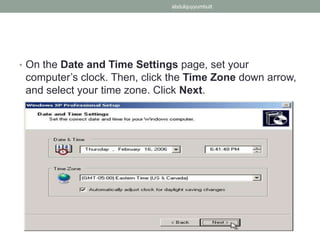
• On the Date and Time Settings page, set your
 computer’s clock. Then, click the Time Zone down arrow,
 and select your time zone. Click Next.
abdulquyyumbutt


• Windows XP will spend about a minute configuring your
 computer. On the Networking Settings page, click Next.
abdulquyyumbutt


• On the Workgroup or Computer Domain page,
click Next.
abdulquyyumbutt


Part 3: Complete the installation

• Windows XP will spend 20 or 30 minutes configuring your
 computer and will automatically restart when finished.
 When the Display Settings dialog appears, click OK.
abdulquyyumbutt


• When the Monitor Settings dialog box appears, click OK.
abdulquyyumbutt


• The final stage of setup begins. On the Welcome to
 Microsoft Windows page, click Next.
abdulquyyumbutt


• On the Help protect your PC page, click Help protect
 my PC by turning on Automatic Updates now.
 Then, click Next.
abdulquyyumbutt


• Windows XP will then check if you are connected to the Internet:
        • If you are connected to the Internet, select the choice that
 describes your network connection on the Will this computer
 connect to the Internet directly, or through a network? page. If
 you’re not sure, accept the default selection, and click Next.
abdulquyyumbutt


• If you use dial-up Internet access, or if Windows XP
 cannot connect to the Internet, you can connect to the
 Internet after setup is complete. On the How will this
 computer connect to the Internet? page, click Skip.
abdulquyyumbutt


• Windows XP Setup displays the Ready to activate Windows? page. If you
 are connected to the Internet, click Yes, and then click Next. If you are not yet
 connected to the Internet, click No, click Next, and then skip to step 24. After
 setup is complete, Windows XP will automatically remind you to activate and
 register your copy of Windows XP.
abdulquyyumbutt


• On the Ready to register with Microsoft? page, click
 Yes, and then click Next.
abdulquyyumbutt


• On the Collecting Registration Information
 page, complete the form. Then, click Next.
abdulquyyumbutt


• On the Who will use this computer? page, type the name of each person
 who will use the computer. You can use first names only, nicknames, or full
 names. Then click Next. To add users after setup is complete or to specify a
 password to keep your account private, read Create and customize user
 accounts.
abdulquyyumbutt


• On the Thank you! page, click Finish.

Win xp installation

  • 1.
    abdulquyyumbutt WIN XP INSTALLATION ABDUL QUYYUM BUTT M.Sc Information Technology University of Gujrat UOG PAKISTAN aqbutt_786@yahoo.com abdulquyyumbutt@gmail.com
  • 2.
  • 3.
    abdulquyyumbutt Part 1: Beginthe installation • Insert the Windows XP CD into your computer and restart your computer. • If prompted to start from the CD, press SPACEBAR. If you miss the prompt (it only appears for a few seconds), restart your computer to try again.
  • 4.
    abdulquyyumbutt • Windows XPSetup begins. During this portion of setup, your mouse will not work, so you must use the keyboard. On the Welcome to Setup page, press ENTER.
  • 5.
    abdulquyyumbutt • On theWindows XP Licensing Agreement page, read the licensing agreement. Press the PAGE DOWN key to scroll to the bottom of the agreement. Then press F8.
  • 6.
    abdulquyyumbutt • This pageenables you to select the hard disk drive on which Windows XP will be installed. Once you complete this step, all data on your hard disk drive will be removed and cannot be recovered. It is extremely important that you have a recent backup copy of your files before continuing. When you have a backup copy, press D, and then press L when prompted. This deletes your existing data. • Press ENTER to select Unpartitioned space, which appears by default.
  • 7.
    abdulquyyumbutt • Press ENTERagain to select Format the partition using the NTFS file system, which appears by default.
  • 8.
    abdulquyyumbutt • Windows XPerases your hard disk drive using a process called formatting and then copies the setup files. You can leave your computer and return in 20 to 30 minutes.
  • 9.
    abdulquyyumbutt Part 2: Continuethe installation • Windows XP restarts and then continues with the installation process. From this point forward, you can use your mouse. Eventually, the Regional and Language Options page appears. Click Next to accept the default settings. If you are multilingual or prefer a language other than English, you can change language settings after setup is complete.
  • 10.
    abdulquyyumbutt • On thePersonalize Your Software page, type your name and your organization name. Some programs use this information to automatically fill in your name when required. Then, click Next.
  • 11.
    abdulquyyumbutt • On theYour Product Key page, type your product key as it appears on your Windows XP CD case. The product key is unique for every Windows XP installation. Then, click Next.
  • 12.
    abdulquyyumbutt • On theComputer Name and Administrator Password page, in the Computer name box, type a name that uniquely identifies your computer in your house, such as FAMILYROOM or TOMS. You cannot use spaces or punctuation. If you connect your computer to a network, you will use this computer name to find shared files and printers. Type a strong password that you can remember in the Administrator password box, and then retype it in the Confirm password box. Write the password down and store it in a secure place. Click Next.
  • 13.
    abdulquyyumbutt • On theDate and Time Settings page, set your computer’s clock. Then, click the Time Zone down arrow, and select your time zone. Click Next.
  • 14.
    abdulquyyumbutt • Windows XPwill spend about a minute configuring your computer. On the Networking Settings page, click Next.
  • 15.
    abdulquyyumbutt • On theWorkgroup or Computer Domain page, click Next.
  • 16.
    abdulquyyumbutt Part 3: Completethe installation • Windows XP will spend 20 or 30 minutes configuring your computer and will automatically restart when finished. When the Display Settings dialog appears, click OK.
  • 17.
    abdulquyyumbutt • When theMonitor Settings dialog box appears, click OK.
  • 18.
    abdulquyyumbutt • The finalstage of setup begins. On the Welcome to Microsoft Windows page, click Next.
  • 19.
    abdulquyyumbutt • On theHelp protect your PC page, click Help protect my PC by turning on Automatic Updates now. Then, click Next.
  • 20.
    abdulquyyumbutt • Windows XPwill then check if you are connected to the Internet: • If you are connected to the Internet, select the choice that describes your network connection on the Will this computer connect to the Internet directly, or through a network? page. If you’re not sure, accept the default selection, and click Next.
  • 21.
    abdulquyyumbutt • If youuse dial-up Internet access, or if Windows XP cannot connect to the Internet, you can connect to the Internet after setup is complete. On the How will this computer connect to the Internet? page, click Skip.
  • 22.
    abdulquyyumbutt • Windows XPSetup displays the Ready to activate Windows? page. If you are connected to the Internet, click Yes, and then click Next. If you are not yet connected to the Internet, click No, click Next, and then skip to step 24. After setup is complete, Windows XP will automatically remind you to activate and register your copy of Windows XP.
  • 23.
    abdulquyyumbutt • On theReady to register with Microsoft? page, click Yes, and then click Next.
  • 24.
    abdulquyyumbutt • On theCollecting Registration Information page, complete the form. Then, click Next.
  • 25.
    abdulquyyumbutt • On theWho will use this computer? page, type the name of each person who will use the computer. You can use first names only, nicknames, or full names. Then click Next. To add users after setup is complete or to specify a password to keep your account private, read Create and customize user accounts.
  • 26.
    abdulquyyumbutt • On theThank you! page, click Finish.