Windows for the Jedi: Optimizing Windows XP Tuning the performance of your  Windows XP Professional workstation
Forward “ I don’t feel in control of Windows” Reminisce about the days of… AUTOEXEC.BAT, CONFIG.SYS, HIMEM.SYS, EMM386.SYS, SMARTDRV.EXE WIN.INI, SYSTEM.INI QEMM, ODI drivers, NDIS drivers Windows for Workgroups 3.11 provided geeky levels of tweaking DOS, TCP/IP, INI files It’s all there.  The tools just changed. Regedit.exe, Services.msc, Resource Kit tools 3 rd  party tools
Why did it get slow? Non-optimal or default configuration Network designed for generic scenarios Video & disk drivers installed are usually generic Compatibility forever! Higher average number of processes Growth in average process count due to installations SVCHOST.EXE processes growth Conflicting execution threads Serial requests kill performance Escalating bottlenecks Max disk efficiency is 50% used or less Every network I/O filter slows performance Memory usage at 80% always swaps system Immediate performance > Operational efficiency Memory Disk
What can we do about it? OS Optimization Reducing boot time Reducing shutdown time System resource optimization Clearing Temp & History Files Resource Performance Tuning Disk  Network Memory Application Performance Tuning Optimizing Internet Explorer  Optimizing application execution Cool Windows XP add-ons & tools
From the “duh” file Things that should be looked into before anything else Current drivers Updated BIOS firmware  Updated adapter drivers Disk considerations Always use NTFS;  Never use FAT32. Indexing service:  Just say no. Display performance (Optional) Don’t use a desktop picture Minimize the number of icons on your desktop Disable themes
OS Optimization Reducing Boot Time through Drivers & System Resources
Reduce boot time Understand Windows boot What software is loading How long is each taking Optimize what Windows loads at boot Remove unnecessary applications/utilities Disable unused hardware resources  Uninstall unused Fonts Clean out the Prefetch cache Parallelize the boot sequence
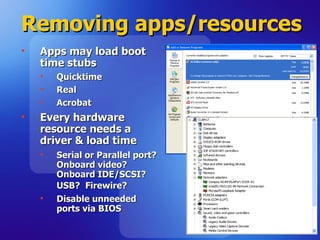
Removing apps/resources Apps may load boot time stubs Quicktime Real Acrobat Every hardware resource needs a driver & load time Serial or Parallel port? Onboard video?  Onboard IDE/SCSI? USB?  Firewire?   Disable unneeded ports via BIOS
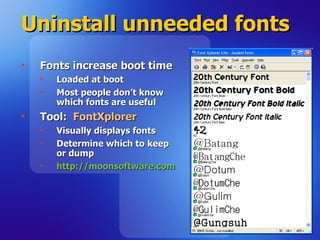
Uninstall unneeded fonts Fonts increase boot time Loaded at boot Most people don’t know which fonts are useful Tool:  FontXplorer Visually displays fonts  Determine which to keep or dump http://moonsoftware.com
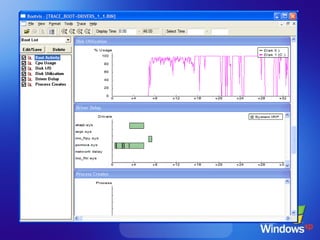
Optimize boot sequence TOOL:  Bootvis.exe Logs every driver/service loaded at boot Clocks each for load time Provides “boot information intelligence” Enables analysis of software loaded Graphs time-to-load for each driver Auto-optimizes boot sequence for fastest performance; enables drivers to load in parallel (Note:  Windows XP does this optimization operation 24 hours after installation automatically) http://download.microsoft.com/download/whistler/BTV/1.0/WXP/EN-US/BootVis-Tool.exe
Parallelize boot sequence TOOL:  Bootvis.exe Logs every driver/service loaded at boot Times each load Analyzes software loaded in log Provides “boot intelligence” Enables viewing of software loaded Graphs time-to-load for each driver Auto-optimizes boot sequence for fastest performance (Some drivers load in parallel)
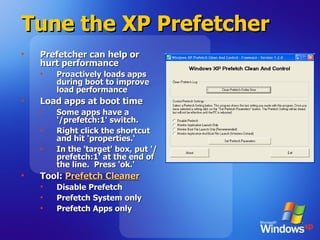
Tune the XP Prefetcher Prefetcher can help or hurt performance Proactively loads apps during boot to improve load performance Load apps at boot time Some apps have a '/prefetch:1' switch.  Right click the shortcut and hit 'properties.‘ In the 'target' box, put '/prefetch:1' at the end of the line.  Press 'ok.' Tool:  Prefetch Cleaner Disable Prefetch Prefetch System only Prefetch Apps only
OS Optimization Reducing Boot Time through the Registry
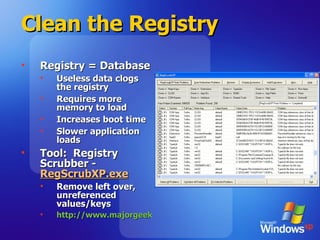
Clean the Registry Registry = Database Useless data clogs the registry Requires more memory to load Increases boot time Slower application loads Tool:  Registry Scrubber -  RegScrubXP.exe Remove left over, unreferenced values/keys http://www.majorgeeks.com/download.php?det=2048
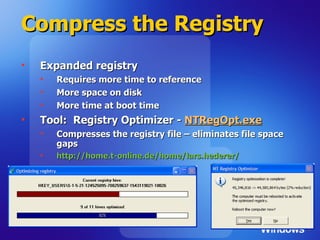
Compress the Registry Expanded registry Requires more time to reference More space on disk More time at boot time Tool:  Registry Optimizer -  NTRegOpt.exe Compresses the registry file – eliminates file space gaps http://home.t-online.de/home/lars.hederer/
OS Optimization Reducing Boot Time through Services & Startup
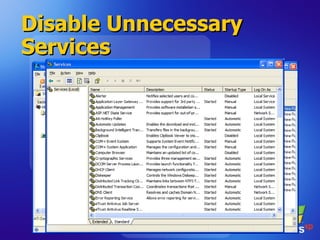
Disable Unnecessary Services Not all system services are necessary Use memory Increase boot time Slows the CPU down Tool:  Starter -  Start.exe Know what programs run at “start” (Via the RUN registry key, Startup folder, etc.) Disable jobs that are unnecessary http://codestuff.mirrorz.com   Tool:  Services Console -  Services.msc Disable any of the 75+ services you don’t use Review  http://www.blackviper.com  for information about what each services does and why you do or do not need it.
Disable Unnecessary Services
Summary Reducing boot time Drivers, System Resources Bootvis Font Explorer Prefetch Cleaner Registry Registry Optimizer RegScrubXP Services Start Cleanup Services Console
OS Optimization Reducing Shutdown Time
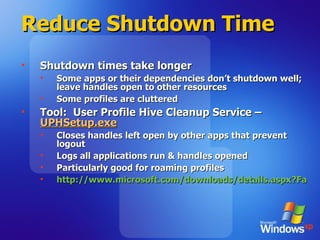
Reduce Shutdown Time Shutdown times take longer Some apps or their dependencies don’t shutdown well; leave handles open to other resources Some profiles are cluttered  Tool:  User Profile Hive Cleanup Service –  UPHSetup.exe Closes handles left open by other apps that prevent logout Logs all applications run & handles opened Particularly good for roaming profiles http://www.microsoft.com/downloads/details.aspx?FamilyID=1b286e6d-8912-4e18-b570-42470e2f3582&displaylang=en
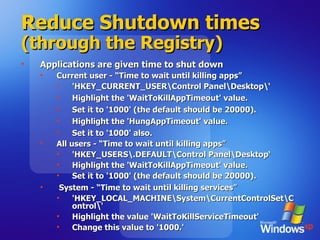
Reduce Shutdown times  (through the Registry) Applications are given time to shut down Current user - “Time to wait until killing apps” 'HKEY_CURRENT_USER\Control Panel\Desktop\‘ Highlight the 'WaitToKillAppTimeout' value.  Set it to '1000' (the default should be 20000). Highlight the 'HungAppTimeout' value. Set it to '1000' also. All users - “Time to wait until killing apps” 'HKEY_USERS\.DEFAULT\Control Panel\Desktop‘ Highlight the 'WaitToKillAppTimeout' value.  Set it to '1000' (the default should be 20000).  System - “Time to wait until killing services” 'HKEY_LOCAL_MACHINE\System\CurrentControlSet\Control\' Highlight the value 'WaitToKillServiceTimeout'  Change this value to '1000.'
Summary Reducing shutdown time User Profile Hive Cleanup Allocated shutdown timeout values User All users System
Resource Performance Tuning Disk Performance
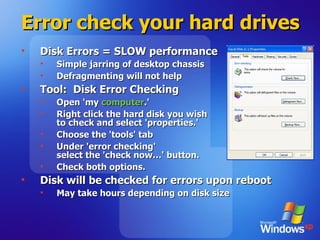
Error check your hard drives Disk Errors = SLOW performance Simple jarring of desktop chassis Defragmenting will not help Tool:  Disk Error Checking Open 'my  computer .' Right click the hard disk you wish  to check and select 'properties.' Choose the 'tools' tab Under 'error checking'  select the 'check now…' button. Check both options.  Disk will be checked for errors upon reboot May take hours depending on disk size
Disk Defragmentation #1 Biggest Bottleneck in Performance Registry access Page file swapping System files Event log I/O Applications/data Outlook 2003 .OST/.PST files Project .MPP fils What does defragmentation do? Organizes files for max read/write time DEFRAG.EXE does an “okay” job on normal files Why do we need this with NTFS? Using more than 50% of disk? Locked system files  Most commonly used Most commonly fragmented
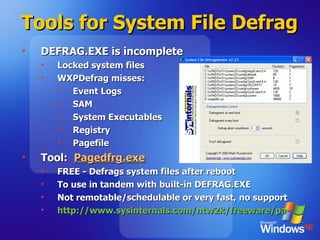
Tools for System File Defrag  DEFRAG.EXE is incomplete Locked system files WXPDefrag misses: Event Logs SAM System Executables Registry Pagefile Tool:  Pagedfrg.exe FREE - Defrags system files after reboot To use in tandem with built-in DEFRAG.EXE Not remotable/schedulable or very fast, no support http://www.sysinternals.com/ntw2k/freeware/pagedefrag.shtml
Tools for System File Defrag   Upgrade DEFRAG.EXE Tool:  Diskeeper 9.0   Executive Software “ Enterprise” version of Pagedfrg.exe http://www.execsoft.com (Acct Rep:  Rachel Jackson [email_address] ) Enterprise Defragmentation 4x-8x faster than DEFRAG.EXE Remotely manageable Smart Schedule detection or ‘Screen saver’ Laptop battery/power management-aware  Adjustable system priority  Safe & Enterprise Supported
Disable NTFS Last Access Update Stop the 'last access update' stamp  Directory FAT entries written to on every access Writes “Last access” time stamp to every folder Significant impact on hierarchical folder structures NTFS update can be disabled through the registry:  Open REGEDIT Navigate to: HKEY_LOCAL_MACHINES\System\CurrentControlSet\Control\FileSystem Create new DWORD value called 'NtfsDisableLastAccessUpdate'  Set the value to '1'
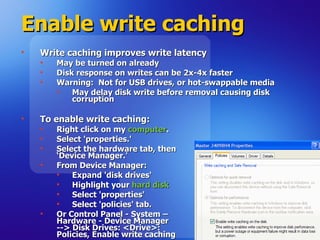
Enable write caching Write caching improves write latency May be turned on already Disk response on writes can be 2x-4x faster Warning:  Not for USB drives, or hot-swappable media May delay disk write before removal causing disk corruption To enable write caching: Right click on my  computer . Select 'properties.' Select the hardware tab, then  ‘Device Manager.'  From Device Manager: Expand 'disk drives'  Highlight your  hard disk Select 'properties'  Select 'policies' tab. Or Control Panel - System –  Hardware - Device Manager  --> Disk Drives: <Drive>:  Policies, Enable write caching
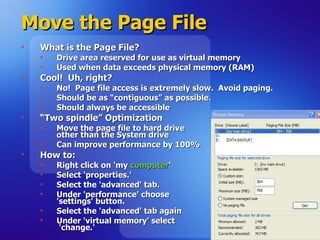
Move the Page File  What is the Page File? Drive area reserved for use as virtual memory  Used when data exceeds physical memory (RAM) Cool!  Uh, right? No!  Page file access is extremely slow.  Avoid paging. Should be as “contiguous” as possible. Should always be accessible “ Two spindle” Optimization Move the page file to hard drive  other than the System drive Can improve performance by 100% How to: Right click on 'my  computer '  Select 'properties.' Select the 'advanced' tab. Under 'performance' choose  'settings' button. Select the 'advanced' tab again Under 'virtual memory' select  'change.'
Resource Performance Tuning Network Performance
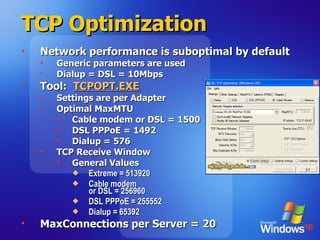
TCP Optimization Network performance is suboptimal by default Generic parameters are used Dialup = DSL = 10Mbps Tool:  TCPOPT.EXE Settings are per Adapter Optimal MaxMTU Cable modem or DSL = 1500 DSL PPPoE = 1492 Dialup = 576 TCP Receive Window General Values Extreme = 513920 Cable modem  or DSL = 256960 DSL PPPoE = 255552 Dialup = 65392 MaxConnections per Server = 20
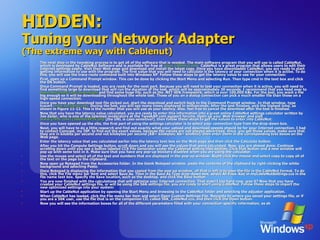
HIDDEN: Tuning your Network Adapter (The extreme way with Cablenut) The next step in the tweaking process is to get all of the software that is needed. The main software program that you will use is called CableNut, which is developed by CableNut Software and is available for free at  www.cablenut.com.  CableNut is a great program that allows users to edit their Internet settings easily. Visit their Web page and download and install the latest copy. Once you have downloaded CableNut, you are ready to start getting information to use with the program. The first value that you will need to calculate is the latency of your connection when it is active. To do this, you will use the trace route command built into Windows XP. Follow these steps to get the latency value to use for your connection:  First, open up a Command Prompt window. This can be done by clicking the Start Menu and selecting Run. Then type cmd in the text box and click the OK button.  Once Command Prompt is loaded, you are ready for the next part. Because you will need to test your connection when it is active, you will need to find something large to download that will run the duration of the test, which will be approximately 30 seconds. I recommend that you head over to  www.microsoft.com/downloads  and find some huge file, such as the .NET SDK framework, which is over 100,000 KBs. For the test, you want a file big enough so it will be downloading throughout the whole test. Those of you on a dialup connection can pick a much smaller file than those on a high-speed connection.  Once you have your download test file picked out, start the download and switch back to the Command Prompt window. In that window, type tracert  www.tweakxp.com.  During the test, you will see many times displayed in milliseconds. After the test finishes, pick the highest time, as shown in Figure 11-12. This is the number that you will use as your latency. Also, feel free to cancel the download after the test is finished.  Now that you have the latency value calculated, you are ready to enter this information into a great online CableNut settings calculator written by Joe Zeiler, who is one of the talented moderators at the TweakXP.com support forums. Open up your Web browser and visit  www.j79zlr.com/cablenutXP2k.php  (the URL is case-sensitive!), then follow these steps to get the values to enter into CableNut:  Once you have opened up the site, the first part of using the settings calculator is to select your connection type from the drop-down box.  Next, you will have to do a little research and find out exactly what your upload and download speeds should be for your Internet connection. I had to contact Comcast, my ISP, to find out the exact values, because the values are not always advertised. Once, you get those values, make sure that they are in kilobits per second and not kilobytes per second (KB= kilobytes; Kb= kilobits), then enter them in the corresponding text boxes on the Web page.  Enter the latency value that you calculated earlier into the latency text box on the Web page and then click the Calculate button.  After you hit the Compute Settings button, scroll down and you will see the values that were calculated. Now, you are almost done. Continue scrolling down until you see a button labeled CCS File Generator under the Cablenut setting files section. Click that button and a new window will pop up with some text in it. Make sure that you have any pop-up blockers disabled when you are using the calculator.  Use the mouse and select all of the text and numbers that are displayed in the pop-up window. Right-click the mouse and select copy to copy all of the text on the page to the clipboard.  Now open up Notepad from the Accessories folder. In the blank Notepad window, paste the contents of the clipboard by right-clicking the white background and selecting Paste.  Once Notepad is displaying the information that you copied from the pop-up window, all that is left is to save the file in the CableNut format. To do this, click the File menu bar item and select Save As. Then in the Save As Type drop-down box, select All Files. Key in myCableNutSettings.ccs in the file name text box. Specify the Save location, such as the desktop, and click the Save button.  You are now finished with the calculations that will optimize your Internet connection. That wasn't too hard now, was it? Now that you have created your CableNut settings file, or will be using the 56K settings file, you are ready to start using CableNut. Follow these steps to import the new optimized settings into your system:  Start up the CableNut application by opening the Start Menu and browsing to the CableNut folder and selecting the adjuster application.  When CableNut has loaded, click the File menu bar item and select Open Custom Settings File. Navigate to where you saved your settings file, or if you are a 56K user, use the file that is on the companion CD, called 56K_CableNut.ccs, and then click the Open button.  Now you will see the information boxes for all of the different parameters filled with your connection-specific information, as sh
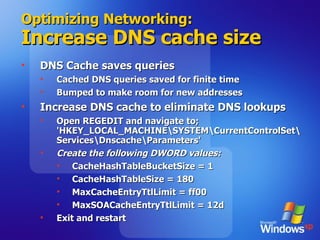
Optimizing Networking: Increase DNS cache size DNS Cache saves queries Cached DNS queries saved for finite time Bumped to make room for new addresses Increase DNS cache to eliminate DNS lookups Open REGEDIT and navigate to; 'HKEY_LOCAL_MACHINE\SYSTEM\CurrentControlSet\Services\Dnscache\Parameters' Create the following DWORD values: CacheHashTableBucketSize = 1  CacheHashTableSize = 180 MaxCacheEntryTtlLimit = ff00 MaxSOACacheEntryTtlLimit = 12d Exit and restart
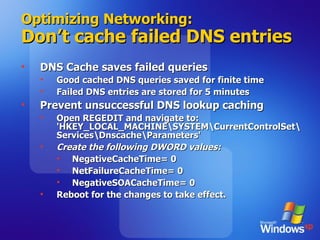
Optimizing Networking: Don’t cache failed DNS entries DNS Cache saves failed queries Good cached DNS queries saved for finite time Failed DNS entries are stored for 5 minutes Prevent unsuccessful DNS lookup caching Open REGEDIT and navigate to: 'HKEY_LOCAL_MACHINE\SYSTEM\CurrentControlSet\Services\Dnscache\Parameters' Create the following DWORD values: NegativeCacheTime= 0 NetFailureCacheTime= 0 NegativeSOACacheTime= 0 Reboot for the changes to take effect.
Resource Performance Tuning Memory Performance
Keep Windows Operating Data in Main Memory   Windows System Services swap to Page File Takes time to save/retrieve to/from disk Does this  whether or not  system is low on physical RAM Disable Windows System paging If you have 256MB of system memory or more, force Windows to keep its operating data in main memory Open Regedit. Navigate to HKEY_LOCAL_MACHINE\SYSTEM\ControlSet001\Control\Session Manager\Memory Management. Select the DisablePagingExecutive value to '1'
Force DLL Unload Applications load DLLs that linger Dynamic Link Libraries contain data or functions Applications call DLLs Windows XP cache DLLs in memory for faster access DLLs use memory AFTER applications close Force Windows XP to unload DLLs on Application exit To do this, first run REGEDIT. Navigate to HKEY_LOCAL_MACHINE\SOFTWARE\Microsoft\Windows\CurrentVersion\Explorer.  Create a new key named 'AlwaysUnloadDLL‘ Set the default value to equal '1.'
Resource Performance Tuning Operating System Performance
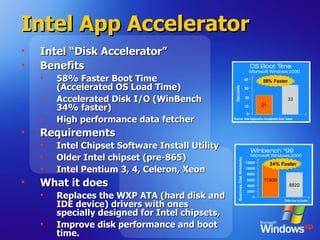
Intel App Accelerator Intel “Disk Accelerator” Benefits 58% Faster Boot Time (Accelerated OS Load Time) Accelerated Disk I/O (WinBench 34% faster) High performance data fetcher Requirements Intel Chipset Software Install Utility Older Intel chipset (pre-865) Intel Pentium 3, 4, Celeron, Xeon What it does Replaces the WXP ATA (hard disk and IDE device) drivers with ones specially designed for Intel chipsets,  Improve disk performance and boot time.
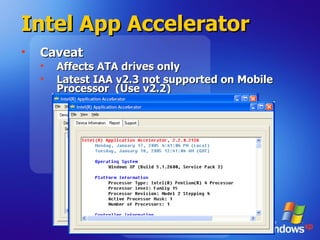
Intel App Accelerator Caveat Affects ATA drives only Latest IAA v2.3 not supported on Mobile Processor  (Use v2.2)
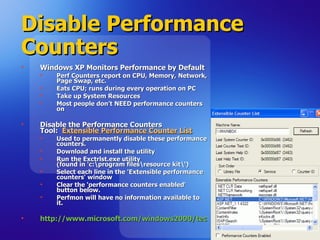
Disable Performance Counters Windows XP Monitors Performance by Default Perf Counters report on CPU, Memory, Network, Page Swap, etc. Eats CPU; runs during every operation on PC Take up System Resources Most people don’t NEED performance counters on Disable the Performance Counters Tool:  Extensible Performance Counter List   Used to permanently disable these performance counters.  Download and install the utility Run the Exctrlst.exe utility (found in 'c:\program files\resource kit\‘) Select each line in the 'Extensible performance counters' window Clear the 'performance counters enabled' button below.  Perfmon will have no information available to it. http://www.microsoft.com/windows2000/techinfo/reskit/tools/existing/exctrlst-o.asp
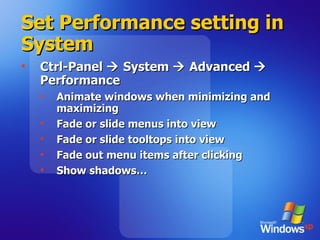
Set Performance setting in System Ctrl-Panel    System    Advanced    Performance Animate windows when minimizing and maximizing Fade or slide menus into view Fade or slide tooltops into view Fade out menu items after clicking Show shadows…
Summary Disk performance Scan your disk for logical/physical errors System & Page File Defrag/Diskeeper Enable write caching Move the Page file from the System drive Registry Disable NTFS Last Update Network performance TCP Optimizer Registry Increase DNS Cache Don’t cache DNS failed entries Memory utilization & performance BlackViper & Services.msc Registry: Keep Kernel in Memory Force Application DLL unloading from Memory OS resource optimization Enable Intel Application Accelerator Disable Performance Counters Unset Performance checkboxes in CtrlPanel-System
Hardware Adjustments Video/Memory Latency & Why  enabling everything is evil
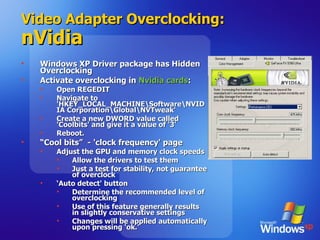
Video Adapter Overclocking: nVidia Windows XP Driver package has Hidden Overclocking Activate overclocking in  Nvidia cards : Open REGEDIT Navigate to 'HKEY_LOCAL_MACHINE\Software\NVIDIA Corporation\Global\NVTweak' Create a new DWORD value called 'Coolbits' and give it a value of '3' Reboot. “ Cool bits”  - 'clock frequency' page Adjust the GPU and memory clock speeds Allow the drivers to test them  Just a test for stability, not guarantee of overclock  ‘ Auto detect' button Determine the recommended level of overclocking Use of this feature generally results in slightly conservative settings Changes will be applied automatically upon pressing 'ok.'
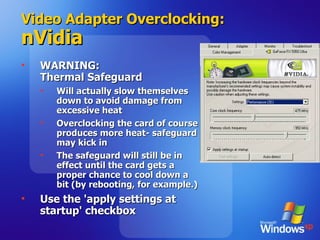
Video Adapter Overclocking: nVidia WARNING:  Thermal Safeguard Will actually slow themselves down to avoid damage from excessive heat Overclocking the card of course produces more heat- safeguard may kick in The safeguard will still be in effect until the card gets a proper chance to cool down a bit (by rebooting, for example.) Use the 'apply settings at startup' checkbox
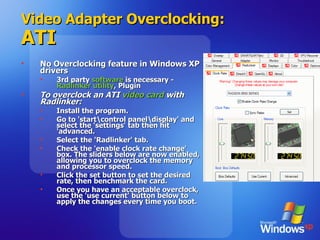
Video Adapter Overclocking: ATI No Overclocking feature in Windows XP drivers 3rd party  software  is necessary -  Radlinker utility , Plugin To overclock an ATI  video card  with Radlinker: Install the program.  Go to 'start\control panel\display' and select the 'settings' tab then hit 'advanced. Select the 'Radlinker' tab. Check the 'enable clock rate change' box. The sliders below are now enabled, allowing you to overclock the memory and processor speed.  Click the set button to set the desired rate, then benchmark the card.  Once you have an acceptable overclock, use the 'use current' button below to apply the changes every time you boot.
Change Memory Latency Times Latency = ‘Turnaround' time of your memory How long it takes for the memory to prepare to send and receive data. Lower latency equal better system performance Lowering times puts stress on your memory Facts about Memory Higher the rating, the higher its latency will be.  Memory designed for overclocking have higher latency settings than 'normal' memory.  Significant latency settings for modern DDR memory (listed here in order of significance) CAS (Column Address strobe) Latency:  The time between a data request and the data being made available.  RAS-to-CAS latency:  Delay incurred by activating a new 'row' of memory addresses to read from. More important for DDR memory. RAS precharge:  How long a row of memory is held 'open' (powered) so that data can be read from it. ACT to precharge delay:  I have no idea. More info: http://www.pcstats.com/articleview.cfm?articleID=873
Disable unneeded ports Do you really use your serial port? Parallel port?  That’s what I thought. Disabling unneeded ports in BIOS Streamlines boot Improves performance Easy to reverse Look in the 'integrated peripherals' section of the BIOS to find your ports and disable them.
Cleaning up the System DLLs, Temp files, & Turds
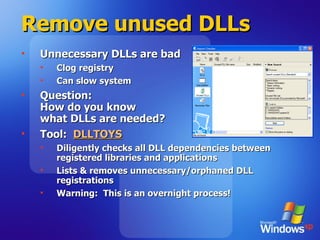
Remove unused DLLs Unnecessary DLLs are bad Clog registry Can slow system Question: How do you know  what DLLs are needed? Tool:  DLLTOYS Diligently checks all DLL dependencies between registered libraries and applications Lists & removes unnecessary/orphaned DLL registrations Warning:  This is an overnight process!
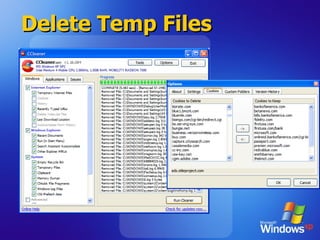
Delete Temp Files Temp files lurk all over IE cache, cookies Memory dumps Application temp directories Histories, partial downloads Log files Chkdisk fragments Clipboard Recycle Bin Prefetch data Multiple Profiles! Tool:  CCLEANER.EXE Automagically cleans out every directory Includes 3 rd  party application (Adobe, Netscape, Real) Saves desired cookies
Delete Temp Files
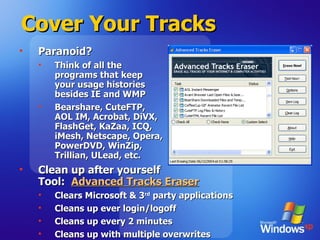
Cover Your Tracks Paranoid? Think of all the  programs that keep  your usage histories  besides IE and WMP Bearshare, CuteFTP,  AOL IM, Acrobat, DiVX,  FlashGet, KaZaa, ICQ,  iMesh, Netscape, Opera,  PowerDVD, WinZip,  Trillian, ULead, etc.  Clean up after yourself Tool:  Advanced Tracks Eraser Clears Microsoft & 3 rd  party applications Cleans up ever login/logoff Cleans up every 2 minutes Cleans up with multiple overwrites
Summary Hardware Adjustments Video overclocking Adjust Memory Latency Disable ports  Cleaning up the system DLLToys CrapCleaner Advanced Tracks Eraser
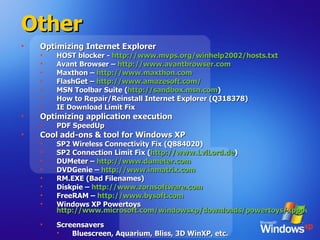
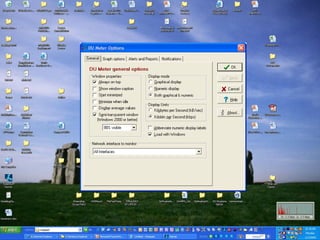
Other Optimizing Internet Explorer HOST blocker -  http://www.mvps.org/winhelp2002/hosts.txt   Avant Browser –  http://www.avantbrowser.com   Maxthon –  http://www.maxthon.com   FlashGet –  http://www.amazesoft.com/   MSN Toolbar Suite ( http://sandbox.msn.com ) How to Repair/Reinstall Internet Explorer (Q 318378) IE Download Limit Fix Optimizing application execution PDF SpeedUp Cool add-ons & tool for Windows XP SP2 Wireless Connectivity Fix (Q884020) SP2 Connection Limit Fix ( http://www.LvlLord.de ) DUMeter –  http://www.dumeter.com   DVDGenie –  http://www.inmatrix.com   RM.EXE (Bad Filenames)  Diskpie –  http://www.zornsoftware.com   FreeRAM –  http://www.bysoft.com   Windows XP Powertoys  http://www.microsoft.com/windowsxp/downloads/powertoys/xppowertoys.mspx   Screensavers Bluescreen, Aquarium, Bliss, 3D WinXP, etc.
 
Resources CDROM:  Kurt’s Optimization Toolkit Contains all software referenced here Also available at: http://www.evilkoala.org/download/optimizingWinXP.zip   DOC:  “Beginner’s Guide to Speeding Up Windows XP” A summary document with many of the improvements mentioned here Also available at: http://www.evilkoala.org/download/bgsuwxp.zip
 
Appendix Slides I still haven’t cleaned up for inclusion
Increase Network Browsing Speeds   See notes. Need to clean this up.
How to Repair/Reinstall Windows XP System File Checker sfc /scannow  Taken from Support Q 318378
Repairing Windows XP See notes. Need to clean this up.
How to Repair/Reinstall Internet Explorer 6.0 Initiate System File Checker scan sfc /scannow  WinXP Gold or SP1? HKEY_LOCAL_MACHINE\SOFTWARE\Microsoft\Active Setup\Installed Components\{89820200-ECBD-11cf-8B85-00AA005B4383} Set to 0 Download & install IE6.0 then update with WindowsUpdate WinXP SP2? Reinstall SP2 Taken from Support Q 318378
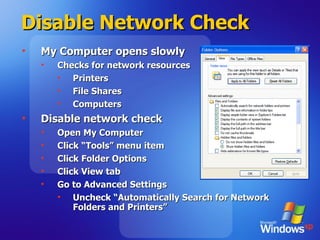
Disable Network Check My Computer opens slowly Checks for network resources Printers File Shares Computers Disable network check Open My Computer Click “Tools” menu item Click Folder Options Click View tab Go to Advanced Settings Uncheck “Automatically Search for Network Folders and Printers”
A Word on Benchmarking: Use 'whole system' performance benchmarks  Artificial  benchmarking  programs are a great way to see the relative performance increase that your tweaks and changes have achieved. Running a benchmark before and after a prospective change will give you a good idea of where you stand.  Several companies produce 'whole system benchmarks' designed to stress test every area of your  PC's  performance and give you a result which you can use as a benchmark for improving your system's speed.  Try  PCMark 2004 by Futuremark ,  SiSoftware's Sandra 2004  and  Veritest's Winbench 99 . In addition to benchmarking, these applications can also provide valuable information about your PC and its configuration.
The “Hidden” Applications in Add/Remove Programs What is it? Uninstall unwanted Windows Components How c:\windows\inf\sysoc.inf  Remove the word &quot;hide“ Go to Add/Remove Windows Components Uninstall
Thank You http://optimizurpc.co.cc http://optimize-ur-pc.blogspot.com

Windows Xp Optimization

  • 1.
    Windows for theJedi: Optimizing Windows XP Tuning the performance of your Windows XP Professional workstation
  • 2.
    Forward “ Idon’t feel in control of Windows” Reminisce about the days of… AUTOEXEC.BAT, CONFIG.SYS, HIMEM.SYS, EMM386.SYS, SMARTDRV.EXE WIN.INI, SYSTEM.INI QEMM, ODI drivers, NDIS drivers Windows for Workgroups 3.11 provided geeky levels of tweaking DOS, TCP/IP, INI files It’s all there. The tools just changed. Regedit.exe, Services.msc, Resource Kit tools 3 rd party tools
  • 3.
    Why did itget slow? Non-optimal or default configuration Network designed for generic scenarios Video & disk drivers installed are usually generic Compatibility forever! Higher average number of processes Growth in average process count due to installations SVCHOST.EXE processes growth Conflicting execution threads Serial requests kill performance Escalating bottlenecks Max disk efficiency is 50% used or less Every network I/O filter slows performance Memory usage at 80% always swaps system Immediate performance > Operational efficiency Memory Disk
  • 4.
    What can wedo about it? OS Optimization Reducing boot time Reducing shutdown time System resource optimization Clearing Temp & History Files Resource Performance Tuning Disk Network Memory Application Performance Tuning Optimizing Internet Explorer Optimizing application execution Cool Windows XP add-ons & tools
  • 5.
    From the “duh”file Things that should be looked into before anything else Current drivers Updated BIOS firmware Updated adapter drivers Disk considerations Always use NTFS; Never use FAT32. Indexing service: Just say no. Display performance (Optional) Don’t use a desktop picture Minimize the number of icons on your desktop Disable themes
  • 6.
    OS Optimization ReducingBoot Time through Drivers & System Resources
  • 7.
    Reduce boot timeUnderstand Windows boot What software is loading How long is each taking Optimize what Windows loads at boot Remove unnecessary applications/utilities Disable unused hardware resources Uninstall unused Fonts Clean out the Prefetch cache Parallelize the boot sequence
  • 8.
    Removing apps/resources Appsmay load boot time stubs Quicktime Real Acrobat Every hardware resource needs a driver & load time Serial or Parallel port? Onboard video? Onboard IDE/SCSI? USB? Firewire? Disable unneeded ports via BIOS
  • 9.
    Uninstall unneeded fontsFonts increase boot time Loaded at boot Most people don’t know which fonts are useful Tool: FontXplorer Visually displays fonts Determine which to keep or dump http://moonsoftware.com
  • 10.
    Optimize boot sequenceTOOL: Bootvis.exe Logs every driver/service loaded at boot Clocks each for load time Provides “boot information intelligence” Enables analysis of software loaded Graphs time-to-load for each driver Auto-optimizes boot sequence for fastest performance; enables drivers to load in parallel (Note: Windows XP does this optimization operation 24 hours after installation automatically) http://download.microsoft.com/download/whistler/BTV/1.0/WXP/EN-US/BootVis-Tool.exe
  • 11.
    Parallelize boot sequenceTOOL: Bootvis.exe Logs every driver/service loaded at boot Times each load Analyzes software loaded in log Provides “boot intelligence” Enables viewing of software loaded Graphs time-to-load for each driver Auto-optimizes boot sequence for fastest performance (Some drivers load in parallel)
  • 12.
    Tune the XPPrefetcher Prefetcher can help or hurt performance Proactively loads apps during boot to improve load performance Load apps at boot time Some apps have a '/prefetch:1' switch. Right click the shortcut and hit 'properties.‘ In the 'target' box, put '/prefetch:1' at the end of the line. Press 'ok.' Tool: Prefetch Cleaner Disable Prefetch Prefetch System only Prefetch Apps only
  • 13.
    OS Optimization ReducingBoot Time through the Registry
  • 14.
    Clean the RegistryRegistry = Database Useless data clogs the registry Requires more memory to load Increases boot time Slower application loads Tool: Registry Scrubber - RegScrubXP.exe Remove left over, unreferenced values/keys http://www.majorgeeks.com/download.php?det=2048
  • 15.
    Compress the RegistryExpanded registry Requires more time to reference More space on disk More time at boot time Tool: Registry Optimizer - NTRegOpt.exe Compresses the registry file – eliminates file space gaps http://home.t-online.de/home/lars.hederer/
  • 16.
    OS Optimization ReducingBoot Time through Services & Startup
  • 17.
    Disable Unnecessary ServicesNot all system services are necessary Use memory Increase boot time Slows the CPU down Tool: Starter - Start.exe Know what programs run at “start” (Via the RUN registry key, Startup folder, etc.) Disable jobs that are unnecessary http://codestuff.mirrorz.com Tool: Services Console - Services.msc Disable any of the 75+ services you don’t use Review http://www.blackviper.com for information about what each services does and why you do or do not need it.
  • 18.
  • 19.
    Summary Reducing boottime Drivers, System Resources Bootvis Font Explorer Prefetch Cleaner Registry Registry Optimizer RegScrubXP Services Start Cleanup Services Console
  • 20.
  • 21.
    Reduce Shutdown TimeShutdown times take longer Some apps or their dependencies don’t shutdown well; leave handles open to other resources Some profiles are cluttered Tool: User Profile Hive Cleanup Service – UPHSetup.exe Closes handles left open by other apps that prevent logout Logs all applications run & handles opened Particularly good for roaming profiles http://www.microsoft.com/downloads/details.aspx?FamilyID=1b286e6d-8912-4e18-b570-42470e2f3582&displaylang=en
  • 22.
    Reduce Shutdown times (through the Registry) Applications are given time to shut down Current user - “Time to wait until killing apps” 'HKEY_CURRENT_USER\Control Panel\Desktop\‘ Highlight the 'WaitToKillAppTimeout' value. Set it to '1000' (the default should be 20000). Highlight the 'HungAppTimeout' value. Set it to '1000' also. All users - “Time to wait until killing apps” 'HKEY_USERS\.DEFAULT\Control Panel\Desktop‘ Highlight the 'WaitToKillAppTimeout' value. Set it to '1000' (the default should be 20000). System - “Time to wait until killing services” 'HKEY_LOCAL_MACHINE\System\CurrentControlSet\Control\' Highlight the value 'WaitToKillServiceTimeout' Change this value to '1000.'
  • 23.
    Summary Reducing shutdowntime User Profile Hive Cleanup Allocated shutdown timeout values User All users System
  • 24.
  • 25.
    Error check yourhard drives Disk Errors = SLOW performance Simple jarring of desktop chassis Defragmenting will not help Tool: Disk Error Checking Open 'my computer .' Right click the hard disk you wish to check and select 'properties.' Choose the 'tools' tab Under 'error checking' select the 'check now…' button. Check both options. Disk will be checked for errors upon reboot May take hours depending on disk size
  • 26.
    Disk Defragmentation #1Biggest Bottleneck in Performance Registry access Page file swapping System files Event log I/O Applications/data Outlook 2003 .OST/.PST files Project .MPP fils What does defragmentation do? Organizes files for max read/write time DEFRAG.EXE does an “okay” job on normal files Why do we need this with NTFS? Using more than 50% of disk? Locked system files Most commonly used Most commonly fragmented
  • 27.
    Tools for SystemFile Defrag DEFRAG.EXE is incomplete Locked system files WXPDefrag misses: Event Logs SAM System Executables Registry Pagefile Tool: Pagedfrg.exe FREE - Defrags system files after reboot To use in tandem with built-in DEFRAG.EXE Not remotable/schedulable or very fast, no support http://www.sysinternals.com/ntw2k/freeware/pagedefrag.shtml
  • 28.
    Tools for SystemFile Defrag Upgrade DEFRAG.EXE Tool: Diskeeper 9.0 Executive Software “ Enterprise” version of Pagedfrg.exe http://www.execsoft.com (Acct Rep: Rachel Jackson [email_address] ) Enterprise Defragmentation 4x-8x faster than DEFRAG.EXE Remotely manageable Smart Schedule detection or ‘Screen saver’ Laptop battery/power management-aware Adjustable system priority Safe & Enterprise Supported
  • 29.
    Disable NTFS LastAccess Update Stop the 'last access update' stamp Directory FAT entries written to on every access Writes “Last access” time stamp to every folder Significant impact on hierarchical folder structures NTFS update can be disabled through the registry: Open REGEDIT Navigate to: HKEY_LOCAL_MACHINES\System\CurrentControlSet\Control\FileSystem Create new DWORD value called 'NtfsDisableLastAccessUpdate' Set the value to '1'
  • 30.
    Enable write cachingWrite caching improves write latency May be turned on already Disk response on writes can be 2x-4x faster Warning: Not for USB drives, or hot-swappable media May delay disk write before removal causing disk corruption To enable write caching: Right click on my computer . Select 'properties.' Select the hardware tab, then ‘Device Manager.' From Device Manager: Expand 'disk drives' Highlight your hard disk Select 'properties' Select 'policies' tab. Or Control Panel - System – Hardware - Device Manager --> Disk Drives: <Drive>: Policies, Enable write caching
  • 31.
    Move the PageFile What is the Page File? Drive area reserved for use as virtual memory Used when data exceeds physical memory (RAM) Cool! Uh, right? No! Page file access is extremely slow. Avoid paging. Should be as “contiguous” as possible. Should always be accessible “ Two spindle” Optimization Move the page file to hard drive other than the System drive Can improve performance by 100% How to: Right click on 'my computer ' Select 'properties.' Select the 'advanced' tab. Under 'performance' choose 'settings' button. Select the 'advanced' tab again Under 'virtual memory' select 'change.'
  • 32.
    Resource Performance TuningNetwork Performance
  • 33.
    TCP Optimization Networkperformance is suboptimal by default Generic parameters are used Dialup = DSL = 10Mbps Tool: TCPOPT.EXE Settings are per Adapter Optimal MaxMTU Cable modem or DSL = 1500 DSL PPPoE = 1492 Dialup = 576 TCP Receive Window General Values Extreme = 513920 Cable modem or DSL = 256960 DSL PPPoE = 255552 Dialup = 65392 MaxConnections per Server = 20
  • 34.
    HIDDEN: Tuning yourNetwork Adapter (The extreme way with Cablenut) The next step in the tweaking process is to get all of the software that is needed. The main software program that you will use is called CableNut, which is developed by CableNut Software and is available for free at www.cablenut.com. CableNut is a great program that allows users to edit their Internet settings easily. Visit their Web page and download and install the latest copy. Once you have downloaded CableNut, you are ready to start getting information to use with the program. The first value that you will need to calculate is the latency of your connection when it is active. To do this, you will use the trace route command built into Windows XP. Follow these steps to get the latency value to use for your connection: First, open up a Command Prompt window. This can be done by clicking the Start Menu and selecting Run. Then type cmd in the text box and click the OK button. Once Command Prompt is loaded, you are ready for the next part. Because you will need to test your connection when it is active, you will need to find something large to download that will run the duration of the test, which will be approximately 30 seconds. I recommend that you head over to www.microsoft.com/downloads and find some huge file, such as the .NET SDK framework, which is over 100,000 KBs. For the test, you want a file big enough so it will be downloading throughout the whole test. Those of you on a dialup connection can pick a much smaller file than those on a high-speed connection. Once you have your download test file picked out, start the download and switch back to the Command Prompt window. In that window, type tracert www.tweakxp.com. During the test, you will see many times displayed in milliseconds. After the test finishes, pick the highest time, as shown in Figure 11-12. This is the number that you will use as your latency. Also, feel free to cancel the download after the test is finished. Now that you have the latency value calculated, you are ready to enter this information into a great online CableNut settings calculator written by Joe Zeiler, who is one of the talented moderators at the TweakXP.com support forums. Open up your Web browser and visit www.j79zlr.com/cablenutXP2k.php (the URL is case-sensitive!), then follow these steps to get the values to enter into CableNut: Once you have opened up the site, the first part of using the settings calculator is to select your connection type from the drop-down box. Next, you will have to do a little research and find out exactly what your upload and download speeds should be for your Internet connection. I had to contact Comcast, my ISP, to find out the exact values, because the values are not always advertised. Once, you get those values, make sure that they are in kilobits per second and not kilobytes per second (KB= kilobytes; Kb= kilobits), then enter them in the corresponding text boxes on the Web page. Enter the latency value that you calculated earlier into the latency text box on the Web page and then click the Calculate button. After you hit the Compute Settings button, scroll down and you will see the values that were calculated. Now, you are almost done. Continue scrolling down until you see a button labeled CCS File Generator under the Cablenut setting files section. Click that button and a new window will pop up with some text in it. Make sure that you have any pop-up blockers disabled when you are using the calculator. Use the mouse and select all of the text and numbers that are displayed in the pop-up window. Right-click the mouse and select copy to copy all of the text on the page to the clipboard. Now open up Notepad from the Accessories folder. In the blank Notepad window, paste the contents of the clipboard by right-clicking the white background and selecting Paste. Once Notepad is displaying the information that you copied from the pop-up window, all that is left is to save the file in the CableNut format. To do this, click the File menu bar item and select Save As. Then in the Save As Type drop-down box, select All Files. Key in myCableNutSettings.ccs in the file name text box. Specify the Save location, such as the desktop, and click the Save button. You are now finished with the calculations that will optimize your Internet connection. That wasn't too hard now, was it? Now that you have created your CableNut settings file, or will be using the 56K settings file, you are ready to start using CableNut. Follow these steps to import the new optimized settings into your system: Start up the CableNut application by opening the Start Menu and browsing to the CableNut folder and selecting the adjuster application. When CableNut has loaded, click the File menu bar item and select Open Custom Settings File. Navigate to where you saved your settings file, or if you are a 56K user, use the file that is on the companion CD, called 56K_CableNut.ccs, and then click the Open button. Now you will see the information boxes for all of the different parameters filled with your connection-specific information, as sh
  • 35.
    Optimizing Networking: IncreaseDNS cache size DNS Cache saves queries Cached DNS queries saved for finite time Bumped to make room for new addresses Increase DNS cache to eliminate DNS lookups Open REGEDIT and navigate to; 'HKEY_LOCAL_MACHINE\SYSTEM\CurrentControlSet\Services\Dnscache\Parameters' Create the following DWORD values: CacheHashTableBucketSize = 1 CacheHashTableSize = 180 MaxCacheEntryTtlLimit = ff00 MaxSOACacheEntryTtlLimit = 12d Exit and restart
  • 36.
    Optimizing Networking: Don’tcache failed DNS entries DNS Cache saves failed queries Good cached DNS queries saved for finite time Failed DNS entries are stored for 5 minutes Prevent unsuccessful DNS lookup caching Open REGEDIT and navigate to: 'HKEY_LOCAL_MACHINE\SYSTEM\CurrentControlSet\Services\Dnscache\Parameters' Create the following DWORD values: NegativeCacheTime= 0 NetFailureCacheTime= 0 NegativeSOACacheTime= 0 Reboot for the changes to take effect.
  • 37.
    Resource Performance TuningMemory Performance
  • 38.
    Keep Windows OperatingData in Main Memory Windows System Services swap to Page File Takes time to save/retrieve to/from disk Does this whether or not system is low on physical RAM Disable Windows System paging If you have 256MB of system memory or more, force Windows to keep its operating data in main memory Open Regedit. Navigate to HKEY_LOCAL_MACHINE\SYSTEM\ControlSet001\Control\Session Manager\Memory Management. Select the DisablePagingExecutive value to '1'
  • 39.
    Force DLL UnloadApplications load DLLs that linger Dynamic Link Libraries contain data or functions Applications call DLLs Windows XP cache DLLs in memory for faster access DLLs use memory AFTER applications close Force Windows XP to unload DLLs on Application exit To do this, first run REGEDIT. Navigate to HKEY_LOCAL_MACHINE\SOFTWARE\Microsoft\Windows\CurrentVersion\Explorer. Create a new key named 'AlwaysUnloadDLL‘ Set the default value to equal '1.'
  • 40.
    Resource Performance TuningOperating System Performance
  • 41.
    Intel App AcceleratorIntel “Disk Accelerator” Benefits 58% Faster Boot Time (Accelerated OS Load Time) Accelerated Disk I/O (WinBench 34% faster) High performance data fetcher Requirements Intel Chipset Software Install Utility Older Intel chipset (pre-865) Intel Pentium 3, 4, Celeron, Xeon What it does Replaces the WXP ATA (hard disk and IDE device) drivers with ones specially designed for Intel chipsets, Improve disk performance and boot time.
  • 42.
    Intel App AcceleratorCaveat Affects ATA drives only Latest IAA v2.3 not supported on Mobile Processor (Use v2.2)
  • 43.
    Disable Performance CountersWindows XP Monitors Performance by Default Perf Counters report on CPU, Memory, Network, Page Swap, etc. Eats CPU; runs during every operation on PC Take up System Resources Most people don’t NEED performance counters on Disable the Performance Counters Tool: Extensible Performance Counter List Used to permanently disable these performance counters. Download and install the utility Run the Exctrlst.exe utility (found in 'c:\program files\resource kit\‘) Select each line in the 'Extensible performance counters' window Clear the 'performance counters enabled' button below. Perfmon will have no information available to it. http://www.microsoft.com/windows2000/techinfo/reskit/tools/existing/exctrlst-o.asp
  • 44.
    Set Performance settingin System Ctrl-Panel  System  Advanced  Performance Animate windows when minimizing and maximizing Fade or slide menus into view Fade or slide tooltops into view Fade out menu items after clicking Show shadows…
  • 45.
    Summary Disk performanceScan your disk for logical/physical errors System & Page File Defrag/Diskeeper Enable write caching Move the Page file from the System drive Registry Disable NTFS Last Update Network performance TCP Optimizer Registry Increase DNS Cache Don’t cache DNS failed entries Memory utilization & performance BlackViper & Services.msc Registry: Keep Kernel in Memory Force Application DLL unloading from Memory OS resource optimization Enable Intel Application Accelerator Disable Performance Counters Unset Performance checkboxes in CtrlPanel-System
  • 46.
    Hardware Adjustments Video/MemoryLatency & Why enabling everything is evil
  • 47.
    Video Adapter Overclocking:nVidia Windows XP Driver package has Hidden Overclocking Activate overclocking in Nvidia cards : Open REGEDIT Navigate to 'HKEY_LOCAL_MACHINE\Software\NVIDIA Corporation\Global\NVTweak' Create a new DWORD value called 'Coolbits' and give it a value of '3' Reboot. “ Cool bits” - 'clock frequency' page Adjust the GPU and memory clock speeds Allow the drivers to test them Just a test for stability, not guarantee of overclock ‘ Auto detect' button Determine the recommended level of overclocking Use of this feature generally results in slightly conservative settings Changes will be applied automatically upon pressing 'ok.'
  • 48.
    Video Adapter Overclocking:nVidia WARNING: Thermal Safeguard Will actually slow themselves down to avoid damage from excessive heat Overclocking the card of course produces more heat- safeguard may kick in The safeguard will still be in effect until the card gets a proper chance to cool down a bit (by rebooting, for example.) Use the 'apply settings at startup' checkbox
  • 49.
    Video Adapter Overclocking:ATI No Overclocking feature in Windows XP drivers 3rd party software is necessary - Radlinker utility , Plugin To overclock an ATI video card with Radlinker: Install the program. Go to 'start\control panel\display' and select the 'settings' tab then hit 'advanced. Select the 'Radlinker' tab. Check the 'enable clock rate change' box. The sliders below are now enabled, allowing you to overclock the memory and processor speed. Click the set button to set the desired rate, then benchmark the card. Once you have an acceptable overclock, use the 'use current' button below to apply the changes every time you boot.
  • 50.
    Change Memory LatencyTimes Latency = ‘Turnaround' time of your memory How long it takes for the memory to prepare to send and receive data. Lower latency equal better system performance Lowering times puts stress on your memory Facts about Memory Higher the rating, the higher its latency will be. Memory designed for overclocking have higher latency settings than 'normal' memory. Significant latency settings for modern DDR memory (listed here in order of significance) CAS (Column Address strobe) Latency: The time between a data request and the data being made available. RAS-to-CAS latency: Delay incurred by activating a new 'row' of memory addresses to read from. More important for DDR memory. RAS precharge: How long a row of memory is held 'open' (powered) so that data can be read from it. ACT to precharge delay: I have no idea. More info: http://www.pcstats.com/articleview.cfm?articleID=873
  • 51.
    Disable unneeded portsDo you really use your serial port? Parallel port? That’s what I thought. Disabling unneeded ports in BIOS Streamlines boot Improves performance Easy to reverse Look in the 'integrated peripherals' section of the BIOS to find your ports and disable them.
  • 52.
    Cleaning up theSystem DLLs, Temp files, & Turds
  • 53.
    Remove unused DLLsUnnecessary DLLs are bad Clog registry Can slow system Question: How do you know what DLLs are needed? Tool: DLLTOYS Diligently checks all DLL dependencies between registered libraries and applications Lists & removes unnecessary/orphaned DLL registrations Warning: This is an overnight process!
  • 54.
    Delete Temp FilesTemp files lurk all over IE cache, cookies Memory dumps Application temp directories Histories, partial downloads Log files Chkdisk fragments Clipboard Recycle Bin Prefetch data Multiple Profiles! Tool: CCLEANER.EXE Automagically cleans out every directory Includes 3 rd party application (Adobe, Netscape, Real) Saves desired cookies
  • 55.
  • 56.
    Cover Your TracksParanoid? Think of all the programs that keep your usage histories besides IE and WMP Bearshare, CuteFTP, AOL IM, Acrobat, DiVX, FlashGet, KaZaa, ICQ, iMesh, Netscape, Opera, PowerDVD, WinZip, Trillian, ULead, etc. Clean up after yourself Tool: Advanced Tracks Eraser Clears Microsoft & 3 rd party applications Cleans up ever login/logoff Cleans up every 2 minutes Cleans up with multiple overwrites
  • 57.
    Summary Hardware AdjustmentsVideo overclocking Adjust Memory Latency Disable ports Cleaning up the system DLLToys CrapCleaner Advanced Tracks Eraser
  • 58.
    Other Optimizing InternetExplorer HOST blocker - http://www.mvps.org/winhelp2002/hosts.txt Avant Browser – http://www.avantbrowser.com Maxthon – http://www.maxthon.com FlashGet – http://www.amazesoft.com/ MSN Toolbar Suite ( http://sandbox.msn.com ) How to Repair/Reinstall Internet Explorer (Q 318378) IE Download Limit Fix Optimizing application execution PDF SpeedUp Cool add-ons & tool for Windows XP SP2 Wireless Connectivity Fix (Q884020) SP2 Connection Limit Fix ( http://www.LvlLord.de ) DUMeter – http://www.dumeter.com DVDGenie – http://www.inmatrix.com RM.EXE (Bad Filenames) Diskpie – http://www.zornsoftware.com FreeRAM – http://www.bysoft.com Windows XP Powertoys http://www.microsoft.com/windowsxp/downloads/powertoys/xppowertoys.mspx Screensavers Bluescreen, Aquarium, Bliss, 3D WinXP, etc.
  • 59.
  • 60.
    Resources CDROM: Kurt’s Optimization Toolkit Contains all software referenced here Also available at: http://www.evilkoala.org/download/optimizingWinXP.zip DOC: “Beginner’s Guide to Speeding Up Windows XP” A summary document with many of the improvements mentioned here Also available at: http://www.evilkoala.org/download/bgsuwxp.zip
  • 61.
  • 62.
    Appendix Slides Istill haven’t cleaned up for inclusion
  • 63.
    Increase Network BrowsingSpeeds See notes. Need to clean this up.
  • 64.
    How to Repair/ReinstallWindows XP System File Checker sfc /scannow Taken from Support Q 318378
  • 65.
    Repairing Windows XPSee notes. Need to clean this up.
  • 66.
    How to Repair/ReinstallInternet Explorer 6.0 Initiate System File Checker scan sfc /scannow WinXP Gold or SP1? HKEY_LOCAL_MACHINE\SOFTWARE\Microsoft\Active Setup\Installed Components\{89820200-ECBD-11cf-8B85-00AA005B4383} Set to 0 Download & install IE6.0 then update with WindowsUpdate WinXP SP2? Reinstall SP2 Taken from Support Q 318378
  • 67.
    Disable Network CheckMy Computer opens slowly Checks for network resources Printers File Shares Computers Disable network check Open My Computer Click “Tools” menu item Click Folder Options Click View tab Go to Advanced Settings Uncheck “Automatically Search for Network Folders and Printers”
  • 68.
    A Word onBenchmarking: Use 'whole system' performance benchmarks Artificial benchmarking programs are a great way to see the relative performance increase that your tweaks and changes have achieved. Running a benchmark before and after a prospective change will give you a good idea of where you stand. Several companies produce 'whole system benchmarks' designed to stress test every area of your PC's performance and give you a result which you can use as a benchmark for improving your system's speed. Try PCMark 2004 by Futuremark , SiSoftware's Sandra 2004 and Veritest's Winbench 99 . In addition to benchmarking, these applications can also provide valuable information about your PC and its configuration.
  • 69.
    The “Hidden” Applicationsin Add/Remove Programs What is it? Uninstall unwanted Windows Components How c:\windows\inf\sysoc.inf Remove the word &quot;hide“ Go to Add/Remove Windows Components Uninstall
  • 70.
    Thank You http://optimizurpc.co.cchttp://optimize-ur-pc.blogspot.com