HOW TO INSTALL
WINDOWS 7?
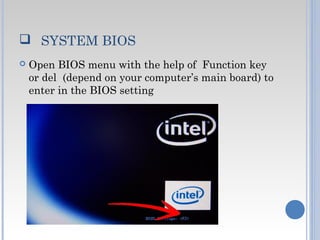
  SYSTEM BIOS
 Open BIOS menu with the help of Function key
or del  (depend on your computer’s main board) to
enter in the BIOS setting
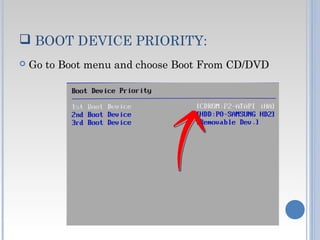
 BOOT DEVICE PRIORITY:
 Go to Boot menu and choose Boot From CD/DVD
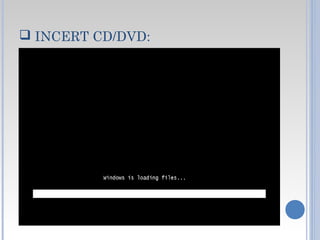
 INCERT CD/DVD:
 After Incert your CD/DVD If you're asked
to press a key to boot from DVD or CD,
press any key. A black window will appear
momentarily while the DVD content is
read.
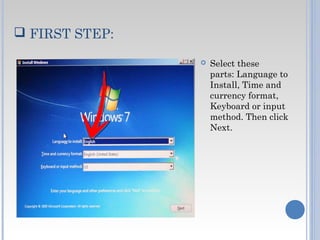
 FIRST STEP:
 Select these
parts: Language to
Install, Time and
currency format,
Keyboard or input
method. Then click
Next.
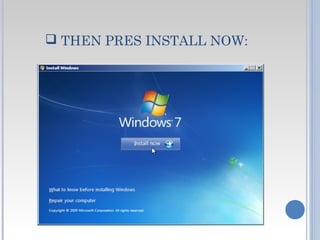
 THEN PRES INSTALL NOW:
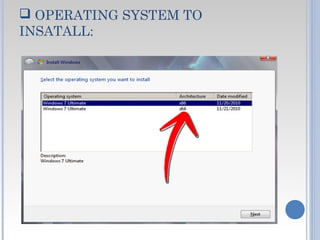
 OPERATING SYSTEM TO
INSATALL:
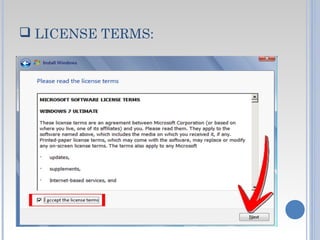
 LICENSE TERMS:
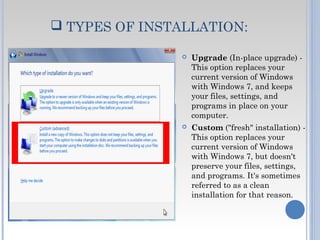
 TYPES OF INSTALLATION:
 Upgrade (In-place upgrade) -
This option replaces your
current version of Windows
with Windows 7, and keeps
your files, settings, and
programs in place on your
computer.
 Custom ("fresh" installation) -
This option replaces your
current version of Windows
with Windows 7, but doesn't
preserve your files, settings,
and programs. It's sometimes
referred to as a clean
installation for that reason.
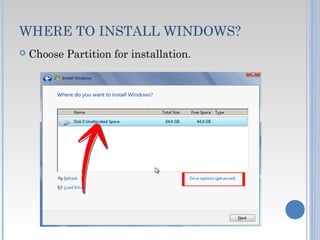
WHERE TO INSTALL WINDOWS?
 Choose Partition for installation.
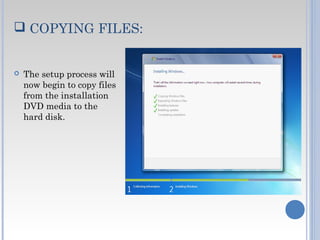
 COPYING FILES:
 The setup process will
now begin to copy files
from the installation
DVD media to the
hard disk.
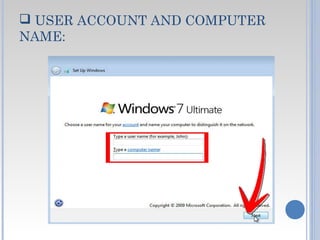
 USER ACCOUNT AND COMPUTER
NAME:
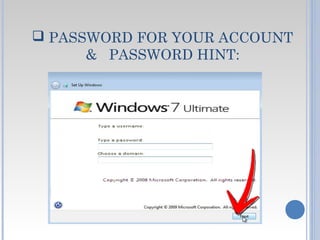
 PASSWORD FOR YOUR ACCOUNT
& PASSWORD HINT:
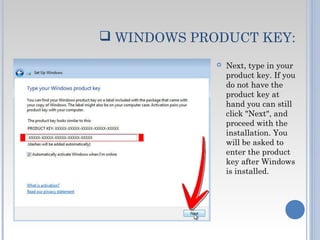
 WINDOWS PRODUCT KEY:
 Next, type in your
product key. If you
do not have the
product key at
hand you can still
click "Next", and
proceed with the
installation. You
will be asked to
enter the product
key after Windows
is installed.
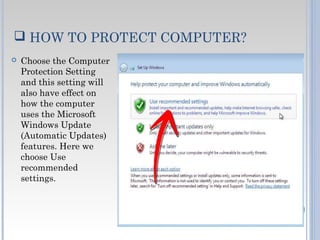
 HOW TO PROTECT COMPUTER?
 Choose the Computer
Protection Setting
and this setting will
also have effect on
how the computer
uses the Microsoft
Windows Update
(Automatic Updates)
features. Here we
choose Use
recommended
settings.
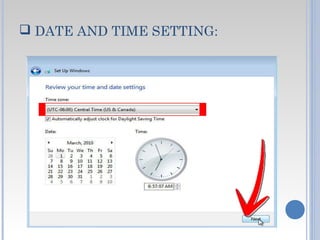
 DATE AND TIME SETTING:
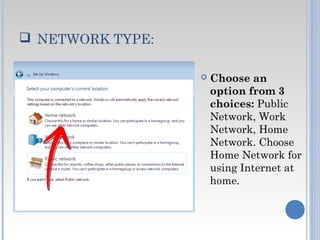
 NETWORK TYPE:
 Choose an
option from 3
choices: Public
Network, Work
Network, Home
Network. Choose
Home Network for
using Internet at
home.
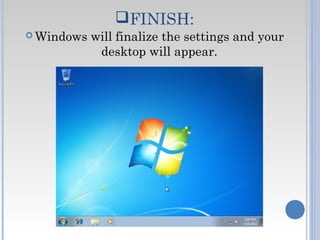
FINISH:
 Windows will finalize the settings and your
desktop will appear.
THANKS…

How to install windows 7

  • 1.
  • 2.
      SYSTEM BIOS Open BIOS menu with the help of Function key or del  (depend on your computer’s main board) to enter in the BIOS setting
  • 3.
     BOOT DEVICEPRIORITY:  Go to Boot menu and choose Boot From CD/DVD
  • 4.
     INCERT CD/DVD: After Incert your CD/DVD If you're asked to press a key to boot from DVD or CD, press any key. A black window will appear momentarily while the DVD content is read.
  • 5.
     FIRST STEP: Select these parts: Language to Install, Time and currency format, Keyboard or input method. Then click Next.
  • 6.
     THEN PRESINSTALL NOW:
  • 7.
  • 8.
  • 9.
     TYPES OFINSTALLATION:  Upgrade (In-place upgrade) - This option replaces your current version of Windows with Windows 7, and keeps your files, settings, and programs in place on your computer.  Custom ("fresh" installation) - This option replaces your current version of Windows with Windows 7, but doesn't preserve your files, settings, and programs. It's sometimes referred to as a clean installation for that reason.
  • 10.
    WHERE TO INSTALLWINDOWS?  Choose Partition for installation.
  • 11.
     COPYING FILES: The setup process will now begin to copy files from the installation DVD media to the hard disk.
  • 12.
     USER ACCOUNTAND COMPUTER NAME:
  • 13.
     PASSWORD FORYOUR ACCOUNT & PASSWORD HINT:
  • 14.
     WINDOWS PRODUCTKEY:  Next, type in your product key. If you do not have the product key at hand you can still click "Next", and proceed with the installation. You will be asked to enter the product key after Windows is installed.
  • 15.
     HOW TOPROTECT COMPUTER?  Choose the Computer Protection Setting and this setting will also have effect on how the computer uses the Microsoft Windows Update (Automatic Updates) features. Here we choose Use recommended settings.
  • 16.
     DATE ANDTIME SETTING:
  • 17.
     NETWORK TYPE: Choose an option from 3 choices: Public Network, Work Network, Home Network. Choose Home Network for using Internet at home.
  • 18.
    FINISH:  Windows willfinalize the settings and your desktop will appear.
  • 19.