QT/E Workshop on TI Processors Dec 2009 Prabindh Sundareson ( [email_address] )
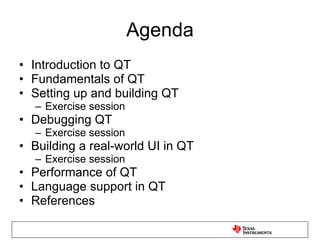
Agenda Introduction to QT Fundamentals of QT Setting up and building QT Exercise session Debugging QT Exercise session Building a real-world UI in QT Exercise session Performance of QT Language support in QT References
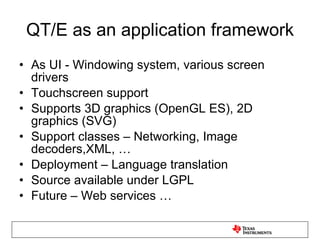
QT/E as an application framework As UI - Windowing system, various screen drivers Touchscreen support Supports 3D graphics (OpenGL ES), 2D graphics (SVG) Support classes – Networking, Image decoders,XML, … Deployment – Language translation Source available under LGPL Future – Web services …
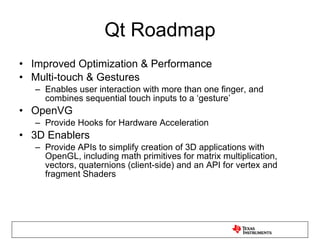
Qt Roadmap Improved Optimization & Performance Multi-touch & Gestures Enables user interaction with more than one finger, and combines sequential touch inputs to a ‘gesture’ OpenVG Provide Hooks for Hardware Acceleration 3D Enablers Provide APIs to simplify creation of 3D applications with OpenGL, including math primitives for matrix multiplication, vectors, quaternions (client-side) and an API for vertex and fragment Shaders
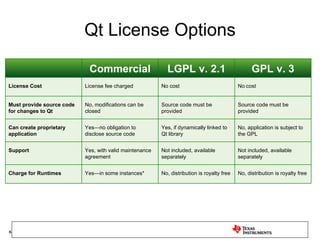
Qt License Options Commercial LGPL v. 2.1 GPL v. 3 License Cost License fee charged No cost No cost Must provide source code for changes to Qt No, modifications can be closed Source code must be provided Source code must be provided Can create proprietary application Yes—no obligation to disclose source code Yes, if dynamically linked to Qt library No, application is subject to the GPL Support Yes, with valid maintenance agreement Not included, available separately Not included, available separately Charge for Runtimes Yes—in some instances* No, distribution is royalty free No, distribution is royalty free
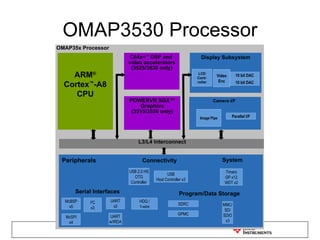
OMAP3530 Processor ARM ® Cortex ™ -A8 CPU L3/L4 Interconnect C64x+ ™  DSP and  video accelerators (3525/3530 only) Peripherals Program/Data Storage System I 2 C x3 Serial Interfaces Display Subsystem Connectivity MMC/ SD/ SDIO x3 USB Host Controller x3 USB 2.0 HS OTG Controller GPMC SDRC UART x2 UART w/IRDA McBSP x5 McSPI x4 Timers GP x12 WDT x2 Image Pipe Parallel I/F Camera I/F POWERVR SGX™ Graphics (3515/3530 only) HDQ / 1-wire OMAP35x Processor 10 bit DAC Video Enc 10 bit DAC LCD Cont- roller
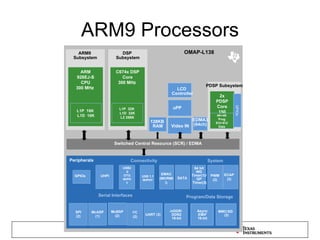
ARM9 Processors ARM9  Subsystem DSP  Subsystem ARM 926EJ-S  CPU  300 MHz  C674x DSP  Core  300 MHz  Switched Central Resource (SCR) / EDMA Peripherals mDDR/  DDR2 16-bit Program/Data Storage I 2 C (2) Serial Interfaces Connectivity 64 bit WD Timer(1)/ GP Timer(3) System PWM (2) SATA UHPI USB2.0 OTG W/PHY UART (3) McASP (1) SPI (2) MMC/SD  (2) L1P  16K  L1D  16K L1P  32K  L1D  32K L2 256K Video IN USB 1.1 W/PHY EMAC (MII/RMII) Async EMIF 16-bit LCD  Controller OMAP-L138  uPP McBSP (2) 128KB  RAM PDSP Subsystem 2x PDSP  Core  150 MHz  4K+4K Prog 512+512 Data GPIOs GPIOs ECAP (3) EDMA3 (64ch)
Typical Applications Industrial Equipment HMI Medical devices Video Conferencing Mobile phones - Maemo in Nokia N series QT is an efficient framework built on C++
Basics of QT
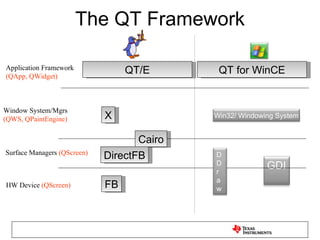
The QT Framework FB Cairo QT/E DirectFB Surface Managers  (QScreen) X Window System/Mgrs (QWS, QPaintEngine) Application Framework (QApp, QWidget) HW Device  (QScreen) QT for WinCE GDI DDr a w Win32/ Windowing System
Simple 6 Steps Steps to create UI: Design the UI in QT Designer Add necessary event handlers in CPP file Add necessary application level code Ex, Timers, Network stacks, Motor control, … Create .PRO file Build, debug in QT Creator Configure, build, install to target
OOP Concepts in QT Inheritance (ex QGLWidget derived from QWidget .) Templates (ex, Blit_* functions) Design Patterns Virtual Functions (ex, Paintevents) Review virtual functions  Visual Studio Project
Basics of QT - Widgets
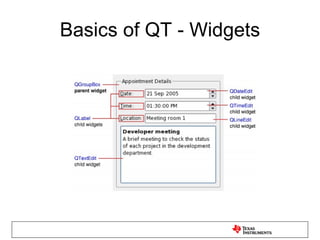
Basics of QT - Widgets QT UI framework is based on widgets Widgets respond to UI events (key presses/mouse movements), and update their screen area Each widget has a parent, that affects its behaviour Window is a widget that is not embedded in a parent
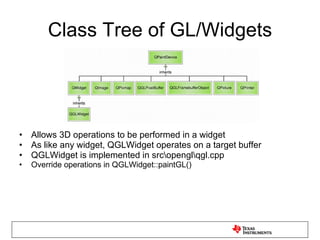
Class Tree of GL/Widgets Allows 3D operations to be performed in a widget As like any widget, QGLWidget operates on a target buffer QGLWidget is implemented in src\opengl\qgl.cpp Override operations in QGLWidget::paintGL()
Event Handling Flow - PaintEvent
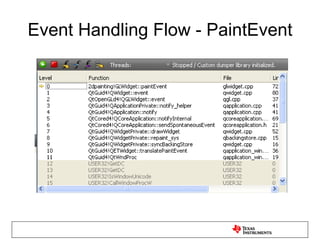
QPainter Working of QWidget::event() Handed down from QApplication, passes on to widget event handler Src\gui\kernel\qwidget.cpp case QEvent::Paint: Handling paint events, why is the need to override ? Recall: Each window/widget is responsible for updating its own area
Sample Painting flow void GLWidget::paintEvent(QPaintEvent *event) { QPainter painter; painter.begin(this);  //All widgets have a PaintDevice painter.setRenderHint(QPainter::Antialiasing); //rotate,draw, write text, all graphics operations helper->paint(&painter, event, elapsed);  painter.end(); }
How does the draw happen ? All drawings are converted to Vector paths !!!! - Refer src\gui\painting\qpaintengineex.cpp void QPaintEngineEx::drawEllipse(const QRectF &r) { qreal pts[26]; // QPointF[13] without constructors... union { qreal *ptr; QPointF *points; } x; x.ptr = pts; int point_count = 0; x.points[0] = qt_curves_for_arc(r, 0, -360, x.points + 1, &point_count); QVectorPath vp((qreal *) pts, 13, qpaintengineex_ellipse_types,  QVectorPath::EllipseHint); draw(vp); }
QPaintEngine QPaintEngine is an abstraction between QPainter and QPaintdevice.  OpenGL has its own Paint Engine for example, accessible through QGLWidget. src\opengl\qpaintengine_opengl.cpp QPainter can use QGLWidget as a paintdevice as it inherits QPaintDevice Using OpenGL ES to accelerate regular widgets as well as compositing top-level windows with OpenGL ES are not currently supported
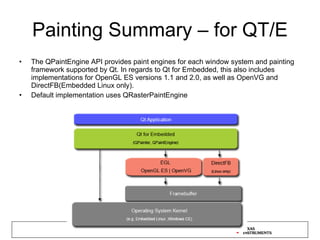
Painting Summary – for QT/E The QPaintEngine API provides paint engines for each window system and painting framework supported by Qt. In regards to Qt for Embedded, this also includes implementations for OpenGL ES versions 1.1 and 2.0, as well as OpenVG and DirectFB(Embedded Linux only). Default implementation uses QRasterPaintEngine
Window Surfaces When a screen update is required, the server runs through all the top-level windows that intersect with the region that is about to be updated, and ensures that the associated clients have updated their memory buffer. Then the server uses the screen driver (represented by an instance of the QScreen class) to copy the content of the memory to the screen. There are in fact two window surface instances for each top-level window; one used by the application when drawing a window, and another used by the server application to perform window compositing (using QScreenDriverPlugin)
QScreenDriverPlugin The screen driver encapsulates all the HW display functionality of the platform in QT/E Ex, Graphics HW like PowerVR,  Linux FB All QT/E Window system implementations are in, Src\gui\embedded\ folder Screen drivers for powervr, linuxfb, directfb, qvfb are supported src\plugins\gfxdrivers\powervr\pvreglscreenplugin.cpp src\gui\embedded\qscreen***.cpp PvrEglScreen is an implementation of QScreenDriverPlugin The server uses the QScreenDriver plugin to copy content of the widget rendered memory to the display How to set ? Set as env variable by QWS_DISPLAY=xxx  ex. “powervr”, “LinuxFb” (default),…
Updating the Screen For each update, the server runs through all the top-level windows that intersect with the region that is about to be updated,  To let the client widgets update their screen area (memory buffer).  The server uses the screen driver to copy the content of the memory to the screen.
QGraphicsView The QGraphicsView class provides a widget for displaying the contents of a QGraphicsScene. This provides a  scrollable view  model By default, QGraphicsView provides a regular QWidget for the viewport widget. Can replace default by calling setViewport() with another widget type To render using OpenGL, simply call setViewport(new QGLWidget). QGraphicsView takes ownership of the viewport widget.
3D usage in QT #1 -- As a Widget paint device (QGLWidget) Allows native GL calls in widget, also does drawing of objects (ex Text) using OpenGL like other paint engines Operates on widget client buffer Paint Engine for ES2.0 is at Src\opengl\gl2paintengineex\qpaintengineex_opengl2.cpp For ES1.1 is at, Src\opengl\qpaintengine_opengl.cpp #2 -- As a screen driver (server paint device) set by QWS_DISPLAY operates on display buffer, through PVR2D PvrEglWindowSurface src\plugins\gfxdrivers\pvreglscreen\pvreglwindowsurface.cpp
QGraphicsView Because  QGraphicsView  inherits  QWidget  indirectly, it already provides the same drag and drop functionality that  QWidget  provides. In addition, as a convenience, the Graphics View framework provides drag and drop support for the scene, and for each and every item QGraphicsView  provides the view widget, which visualizes the contents of a scene.  You can attach several views to the same scene, to provide several viewports into the same data set.  QGraphicsScene  provides the Graphics View scene QGraphicsScene  allows you to render parts of the scene into a paint device through the  GraphicsScene::render () function QGraphicsScene  provides the Graphics View scene.  QGraphicsView::render (), on the other hand, is suitable for taking screenshots; its default behavior is to render the exact contents of the viewport using the provided painter.
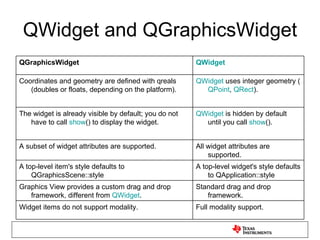
QWidget and QGraphicsWidget Full modality support. Widget items do not support modality. Standard drag and drop framework. Graphics View provides a custom drag and drop framework, different from  QWidget . A top-level widget's style defaults to QApplication::style A top-level item's style defaults to QGraphicsScene::style All widget attributes are supported. A subset of widget attributes are supported. QWidget  is hidden by default until you call  show (). The widget is already visible by default; you do not have to call  show () to display the widget. QWidget  uses integer geometry ( QPoint ,  QRect ). Coordinates and geometry are defined with qreals (doubles or floats, depending on the platform). QWidget QGraphicsWidget
Using SVG with QT QSVG uses QPainter paths to draw vector objects directly (without tessellation) Using OpenGL as a backend, however, uses tessellation to render the triangle primitives
How does QTessellator work Uses a horizontal scanline QTessellator calls addTrap() function to let application know of broken up trapezoids generated during scanning from top to bottom Application has to store these, in order to draw them using OpenGL ES triangles qpaintengine_opengl.cpp
Mouse Driver The mouse driver and the associated device can be specified using the QWS_MOUSE_PROTO environment variable, whose value must have the syntax  type  :  device  , where  type  is one of the supported drivers and  device  is the path to the device (e.g.,  QWS_MOUSE_PROTO=IntelliMouse:/dev/mouse ). Keyboards are handled similarly through the QWS_KEYBOARD environment variable
Creating accelerated Graphics Drivers Step 1: Create a Custom Screen  (to accelerate copying to screen) Step 2: Implement a Custom Raster Paint Engine  (to accelerate the painting operations) Step 3: Make the Paint Device Aware of Your Paint Engine   Step 4: Make the Window Surface Aware of Your Paint Device   Step 5: Enable Creation of an Instance of Your Window Surface
Accelerated Drivers on OMAP3 ARM-NEON instructions can be used to accelerate 2D rendering on OMAP3 This will be released public in Jan 10
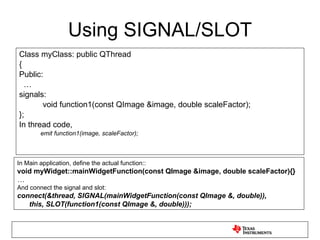
Threads in QT Perform blocking/ time consuming activities in separate thread Use paintEvent() to trigger/consume the result of actions happening in parallel (ex. Upload next video frame) Use SIGNAL/SLOT to communicate between threads Ex – Mandelbrot example in  Examples\mandelbrot
Using SIGNAL/SLOT Class myClass: public QThread { Public: … signals:   void function1(const QImage &image, double scaleFactor); }; In thread code, emit function1(image, scaleFactor); In Main application, define the actual function:: void myWidget::mainWidgetFunction(const QImage &image, double scaleFactor){} … And connect the signal and slot: connect(&thread, SIGNAL(mainWidgetFunction(const QImage &, double)),  this, SLOT(function1(const QImage &, double)));
Creating Splash screen widgets Use QSplashScreen Widget to create startup screens before the main application starts Hides application startup delays
Other useful application classes Networking State Machine Browser (Webkit based) Media player (Phonon) …
Setting up and building QT
Downloading the Source Download from Nokia/Trolltech website Ex, http://ftp3.ie.freebsd.org/pub/trolltech/pub/qt/source/ For WinCE, http://qt.nokia.com/products/platform/qt-for-windows-ce
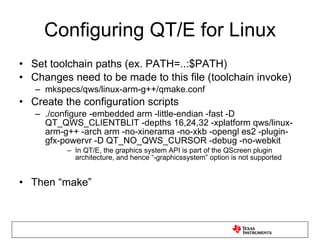
Configuring QT/E for Linux Set toolchain paths (ex. PATH=..:$PATH) Changes need to be made to this file (toolchain invoke) mkspecs/qws/linux-arm-g++/qmake.conf Create the configuration scripts ./configure -embedded arm -little-endian -fast -D QT_QWS_CLIENTBLIT -depths 16,24,32 -xplatform qws/linux-arm-g++ -arch arm -no-xinerama -no-xkb -opengl es2 -plugin-gfx-powervr -D QT_NO_QWS_CURSOR -debug -no-webkit In QT/E, the graphics system API is part of the QScreen plugin architecture, and hence “-graphicssystem” option is not supported Then “make”
Adding Touchscreen Support For TSlib on Linux First configure and build tslib then configure and build Qt with [-qt-mouse-tslib] option. http://doc.trolltech.com/4.5/qt-embedded-pointer.html
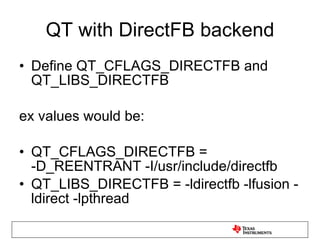
QT with DirectFB backend Define QT_CFLAGS_DIRECTFB and QT_LIBS_DIRECTFB ex values would be: QT_CFLAGS_DIRECTFB = -D_REENTRANT -I/usr/include/directfb QT_LIBS_DIRECTFB = -ldirectfb -lfusion -ldirect -lpthread
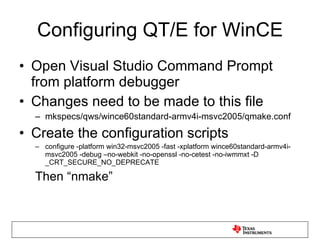
Configuring QT/E for WinCE Open Visual Studio Command Prompt from platform debugger Changes need to be made to this file mkspecs/qws/wince60standard-armv4i-msvc2005/qmake.conf Create the configuration scripts configure -platform win32-msvc2005 -fast -xplatform wince60standard-armv4i-msvc2005 -debug –no-webkit -no-openssl -no-cetest -no-iwmmxt -D _CRT_SECURE_NO_DEPRECATE Then “nmake”
Getting debug output QWarning, QDebug are enabled in –debug mode only
Debugging QT
Debugging QT http://qt.nokia.com/downloads/qt-creator-binary-for-linux-x11-32-bit Needs GDB on Linux, and CDB for PC
QT Creator On Linux, compile GDB Server for target and run GDB on host Then follow instructions On Windows, use with x86 symbol set Next -> Hands on debugging 2D painting Widgets
Using QT-Creator Navigate to required folder, and open .pro file “Set Build Configuration” “Build Project” Place breakpoints in source where needed “Debug-> Start Debugging”
QWidget Examples\network\http\ Src\gui\kernel\QWidget_win.cpp (on QWS_WIN), qwidget_qws.cpp (on QWS) Void show_sys() Src\gui\kernel\QWidget.cpp void QWidgetPrivate::showChildren(bool spontaneous) Src\gui\painting\QBackingstore.cpp invalidateBuffer() Src\gui\dialogs\QDialog.cpp eventLoop.exec()
Building a real-world UI
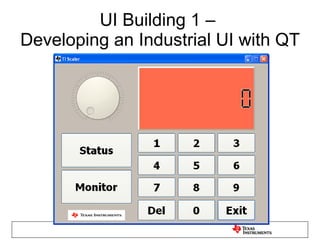
UI Building 1 –  Developing an Industrial UI with QT
QT Designer Can build for your platform – For example >  cd qt-everywhere-opensource-src-4.6.0-tp1\tools\designer > nmake Create a widget, or Form QTDesigner generates a .UI file
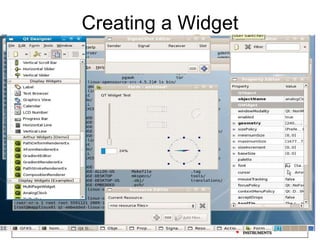
Creating a Widget
Using QTdesigner generated files QTDesigner generates -> .UI file Steps to create application from .UI file: Run “qmake” / “uic” to generate .h file from .UI file Alternately, use QUiLoader as below QWidget *formWidget = loader.load(&uifile..); QUiloader method allows application to create dynamic UIs using plugins loaded from the filesystem Create .PRO, .CPP files (next slide) Run “nmake” (Windows) or “make” (Linux) to generate executable
Creating required files HEADERS  = mainwindow.h  pieceslist.h  puzzlewidget.h RESOURCES  = puzzle.qrc SOURCES  = main.cpp  mainwindow.cpp  pieceslist.cpp  puzzlewidget.cpp # install target.path = $$[QT_INSTALL_EXAMPLES]/draganddrop/puzzle sources.files = $$SOURCES $$HEADERS $$RESOURCES *.pro *.jpg sources.path = $$[QT_INSTALL_EXAMPLES]/draganddrop/puzzle INSTALLS += target sources #include "mainwindow.h“ int main(int argc, char *argv[]) { Q_INIT_RESOURCE(puzzle); QApplication app(argc, argv); MainWindow window; window.openImage(":/images/example.jpg"); window.show(); return app.exec(); } For QT 4.6 protected: void paintEvent(QPaintEvent *event); … \examples\draganddrop\puzzle .pro .cpp .h
Adding Event Handlers Event handlers are of the form, On_<Widgetname>_<SignalName> Ex, for “dial” widget, and “SliderReleased”,  void Scaler::on_dial_sliderReleased(){}
Transparency effects Transparency of a widget is set by widget->setWindowOpacity(fOpacity);
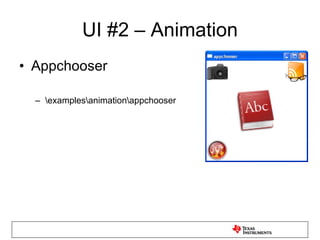
UI #2 – Animation Appchooser \examples\animation\appchooser
QT Animation Use “QAnimationGroup” class Animation States – Running, Stopped, Paused Changes the defined “property” – ex “geometry” Defined by “Duration” Runs for “loopCount” Sample Steps QPropertyAnimation animation(myWidget, &quot;geometry&quot;); animation.setDuration(10000);  animation.setStartValue(QRect(0, 0, 100, 30)); animation.setEndValue(QRect(250, 250, 100, 30)); animation.start();
Performance of QT
Performance of QT CPU Resources used How to optimise memory consumption QT/E takes about 10 MB (default package)
Language Support in QT
Internationalisation QT supports Asian Languages Use QString, tr during coding Update Project files Tools – QT Linguist, lupdate, lrelease
Conclusion Q&A
Queries Basics of QT Is it possible to integrate flash object in qt ? How can we integrated qt with webkit( / it is already integrated) and after integration what will be the performance Overview of QT  Typically how the UI part interacts with the processing pieces – like separate processes, Various threads linked into Single executable etc  How does it allow Open GL constructs to be used within QT etc
References QT Documentation http://qt.nokia.com/ QT Creator documentation http://qt.nokia.com/doc/qtcreator-1.2/index.html Building QT on OMAP3 http://www.tiexpressdsp.com/index.php/Building_Qt

Qt Programming on TI Processors

  • 1.
    QT/E Workshop onTI Processors Dec 2009 Prabindh Sundareson ( [email_address] )
  • 2.
    Agenda Introduction toQT Fundamentals of QT Setting up and building QT Exercise session Debugging QT Exercise session Building a real-world UI in QT Exercise session Performance of QT Language support in QT References
  • 3.
    QT/E as anapplication framework As UI - Windowing system, various screen drivers Touchscreen support Supports 3D graphics (OpenGL ES), 2D graphics (SVG) Support classes – Networking, Image decoders,XML, … Deployment – Language translation Source available under LGPL Future – Web services …
  • 4.
    Qt Roadmap ImprovedOptimization & Performance Multi-touch & Gestures Enables user interaction with more than one finger, and combines sequential touch inputs to a ‘gesture’ OpenVG Provide Hooks for Hardware Acceleration 3D Enablers Provide APIs to simplify creation of 3D applications with OpenGL, including math primitives for matrix multiplication, vectors, quaternions (client-side) and an API for vertex and fragment Shaders
  • 5.
    Qt License OptionsCommercial LGPL v. 2.1 GPL v. 3 License Cost License fee charged No cost No cost Must provide source code for changes to Qt No, modifications can be closed Source code must be provided Source code must be provided Can create proprietary application Yes—no obligation to disclose source code Yes, if dynamically linked to Qt library No, application is subject to the GPL Support Yes, with valid maintenance agreement Not included, available separately Not included, available separately Charge for Runtimes Yes—in some instances* No, distribution is royalty free No, distribution is royalty free
  • 6.
    OMAP3530 Processor ARM® Cortex ™ -A8 CPU L3/L4 Interconnect C64x+ ™ DSP and video accelerators (3525/3530 only) Peripherals Program/Data Storage System I 2 C x3 Serial Interfaces Display Subsystem Connectivity MMC/ SD/ SDIO x3 USB Host Controller x3 USB 2.0 HS OTG Controller GPMC SDRC UART x2 UART w/IRDA McBSP x5 McSPI x4 Timers GP x12 WDT x2 Image Pipe Parallel I/F Camera I/F POWERVR SGX™ Graphics (3515/3530 only) HDQ / 1-wire OMAP35x Processor 10 bit DAC Video Enc 10 bit DAC LCD Cont- roller
  • 7.
    ARM9 Processors ARM9 Subsystem DSP Subsystem ARM 926EJ-S CPU 300 MHz C674x DSP Core 300 MHz Switched Central Resource (SCR) / EDMA Peripherals mDDR/ DDR2 16-bit Program/Data Storage I 2 C (2) Serial Interfaces Connectivity 64 bit WD Timer(1)/ GP Timer(3) System PWM (2) SATA UHPI USB2.0 OTG W/PHY UART (3) McASP (1) SPI (2) MMC/SD (2) L1P 16K L1D 16K L1P 32K L1D 32K L2 256K Video IN USB 1.1 W/PHY EMAC (MII/RMII) Async EMIF 16-bit LCD Controller OMAP-L138 uPP McBSP (2) 128KB RAM PDSP Subsystem 2x PDSP Core 150 MHz 4K+4K Prog 512+512 Data GPIOs GPIOs ECAP (3) EDMA3 (64ch)
  • 8.
    Typical Applications IndustrialEquipment HMI Medical devices Video Conferencing Mobile phones - Maemo in Nokia N series QT is an efficient framework built on C++
  • 9.
  • 10.
    The QT FrameworkFB Cairo QT/E DirectFB Surface Managers (QScreen) X Window System/Mgrs (QWS, QPaintEngine) Application Framework (QApp, QWidget) HW Device (QScreen) QT for WinCE GDI DDr a w Win32/ Windowing System
  • 11.
    Simple 6 StepsSteps to create UI: Design the UI in QT Designer Add necessary event handlers in CPP file Add necessary application level code Ex, Timers, Network stacks, Motor control, … Create .PRO file Build, debug in QT Creator Configure, build, install to target
  • 12.
    OOP Concepts inQT Inheritance (ex QGLWidget derived from QWidget .) Templates (ex, Blit_* functions) Design Patterns Virtual Functions (ex, Paintevents) Review virtual functions Visual Studio Project
  • 13.
    Basics of QT- Widgets
  • 14.
    Basics of QT- Widgets QT UI framework is based on widgets Widgets respond to UI events (key presses/mouse movements), and update their screen area Each widget has a parent, that affects its behaviour Window is a widget that is not embedded in a parent
  • 15.
    Class Tree ofGL/Widgets Allows 3D operations to be performed in a widget As like any widget, QGLWidget operates on a target buffer QGLWidget is implemented in src\opengl\qgl.cpp Override operations in QGLWidget::paintGL()
  • 16.
    Event Handling Flow- PaintEvent
  • 17.
    QPainter Working ofQWidget::event() Handed down from QApplication, passes on to widget event handler Src\gui\kernel\qwidget.cpp case QEvent::Paint: Handling paint events, why is the need to override ? Recall: Each window/widget is responsible for updating its own area
  • 18.
    Sample Painting flowvoid GLWidget::paintEvent(QPaintEvent *event) { QPainter painter; painter.begin(this); //All widgets have a PaintDevice painter.setRenderHint(QPainter::Antialiasing); //rotate,draw, write text, all graphics operations helper->paint(&painter, event, elapsed); painter.end(); }
  • 19.
    How does thedraw happen ? All drawings are converted to Vector paths !!!! - Refer src\gui\painting\qpaintengineex.cpp void QPaintEngineEx::drawEllipse(const QRectF &r) { qreal pts[26]; // QPointF[13] without constructors... union { qreal *ptr; QPointF *points; } x; x.ptr = pts; int point_count = 0; x.points[0] = qt_curves_for_arc(r, 0, -360, x.points + 1, &point_count); QVectorPath vp((qreal *) pts, 13, qpaintengineex_ellipse_types, QVectorPath::EllipseHint); draw(vp); }
  • 20.
    QPaintEngine QPaintEngine isan abstraction between QPainter and QPaintdevice. OpenGL has its own Paint Engine for example, accessible through QGLWidget. src\opengl\qpaintengine_opengl.cpp QPainter can use QGLWidget as a paintdevice as it inherits QPaintDevice Using OpenGL ES to accelerate regular widgets as well as compositing top-level windows with OpenGL ES are not currently supported
  • 21.
    Painting Summary –for QT/E The QPaintEngine API provides paint engines for each window system and painting framework supported by Qt. In regards to Qt for Embedded, this also includes implementations for OpenGL ES versions 1.1 and 2.0, as well as OpenVG and DirectFB(Embedded Linux only). Default implementation uses QRasterPaintEngine
  • 22.
    Window Surfaces Whena screen update is required, the server runs through all the top-level windows that intersect with the region that is about to be updated, and ensures that the associated clients have updated their memory buffer. Then the server uses the screen driver (represented by an instance of the QScreen class) to copy the content of the memory to the screen. There are in fact two window surface instances for each top-level window; one used by the application when drawing a window, and another used by the server application to perform window compositing (using QScreenDriverPlugin)
  • 23.
    QScreenDriverPlugin The screendriver encapsulates all the HW display functionality of the platform in QT/E Ex, Graphics HW like PowerVR, Linux FB All QT/E Window system implementations are in, Src\gui\embedded\ folder Screen drivers for powervr, linuxfb, directfb, qvfb are supported src\plugins\gfxdrivers\powervr\pvreglscreenplugin.cpp src\gui\embedded\qscreen***.cpp PvrEglScreen is an implementation of QScreenDriverPlugin The server uses the QScreenDriver plugin to copy content of the widget rendered memory to the display How to set ? Set as env variable by QWS_DISPLAY=xxx ex. “powervr”, “LinuxFb” (default),…
  • 24.
    Updating the ScreenFor each update, the server runs through all the top-level windows that intersect with the region that is about to be updated, To let the client widgets update their screen area (memory buffer). The server uses the screen driver to copy the content of the memory to the screen.
  • 25.
    QGraphicsView The QGraphicsViewclass provides a widget for displaying the contents of a QGraphicsScene. This provides a scrollable view model By default, QGraphicsView provides a regular QWidget for the viewport widget. Can replace default by calling setViewport() with another widget type To render using OpenGL, simply call setViewport(new QGLWidget). QGraphicsView takes ownership of the viewport widget.
  • 26.
    3D usage inQT #1 -- As a Widget paint device (QGLWidget) Allows native GL calls in widget, also does drawing of objects (ex Text) using OpenGL like other paint engines Operates on widget client buffer Paint Engine for ES2.0 is at Src\opengl\gl2paintengineex\qpaintengineex_opengl2.cpp For ES1.1 is at, Src\opengl\qpaintengine_opengl.cpp #2 -- As a screen driver (server paint device) set by QWS_DISPLAY operates on display buffer, through PVR2D PvrEglWindowSurface src\plugins\gfxdrivers\pvreglscreen\pvreglwindowsurface.cpp
  • 27.
    QGraphicsView Because QGraphicsView inherits QWidget indirectly, it already provides the same drag and drop functionality that QWidget provides. In addition, as a convenience, the Graphics View framework provides drag and drop support for the scene, and for each and every item QGraphicsView provides the view widget, which visualizes the contents of a scene. You can attach several views to the same scene, to provide several viewports into the same data set. QGraphicsScene provides the Graphics View scene QGraphicsScene allows you to render parts of the scene into a paint device through the GraphicsScene::render () function QGraphicsScene provides the Graphics View scene. QGraphicsView::render (), on the other hand, is suitable for taking screenshots; its default behavior is to render the exact contents of the viewport using the provided painter.
  • 28.
    QWidget and QGraphicsWidgetFull modality support. Widget items do not support modality. Standard drag and drop framework. Graphics View provides a custom drag and drop framework, different from QWidget . A top-level widget's style defaults to QApplication::style A top-level item's style defaults to QGraphicsScene::style All widget attributes are supported. A subset of widget attributes are supported. QWidget is hidden by default until you call show (). The widget is already visible by default; you do not have to call show () to display the widget. QWidget uses integer geometry ( QPoint , QRect ). Coordinates and geometry are defined with qreals (doubles or floats, depending on the platform). QWidget QGraphicsWidget
  • 29.
    Using SVG withQT QSVG uses QPainter paths to draw vector objects directly (without tessellation) Using OpenGL as a backend, however, uses tessellation to render the triangle primitives
  • 30.
    How does QTessellatorwork Uses a horizontal scanline QTessellator calls addTrap() function to let application know of broken up trapezoids generated during scanning from top to bottom Application has to store these, in order to draw them using OpenGL ES triangles qpaintengine_opengl.cpp
  • 31.
    Mouse Driver Themouse driver and the associated device can be specified using the QWS_MOUSE_PROTO environment variable, whose value must have the syntax type : device , where type is one of the supported drivers and device is the path to the device (e.g., QWS_MOUSE_PROTO=IntelliMouse:/dev/mouse ). Keyboards are handled similarly through the QWS_KEYBOARD environment variable
  • 32.
    Creating accelerated GraphicsDrivers Step 1: Create a Custom Screen (to accelerate copying to screen) Step 2: Implement a Custom Raster Paint Engine (to accelerate the painting operations) Step 3: Make the Paint Device Aware of Your Paint Engine Step 4: Make the Window Surface Aware of Your Paint Device Step 5: Enable Creation of an Instance of Your Window Surface
  • 33.
    Accelerated Drivers onOMAP3 ARM-NEON instructions can be used to accelerate 2D rendering on OMAP3 This will be released public in Jan 10
  • 34.
    Threads in QTPerform blocking/ time consuming activities in separate thread Use paintEvent() to trigger/consume the result of actions happening in parallel (ex. Upload next video frame) Use SIGNAL/SLOT to communicate between threads Ex – Mandelbrot example in Examples\mandelbrot
  • 35.
    Using SIGNAL/SLOT ClassmyClass: public QThread { Public: … signals: void function1(const QImage &image, double scaleFactor); }; In thread code, emit function1(image, scaleFactor); In Main application, define the actual function:: void myWidget::mainWidgetFunction(const QImage &image, double scaleFactor){} … And connect the signal and slot: connect(&thread, SIGNAL(mainWidgetFunction(const QImage &, double)), this, SLOT(function1(const QImage &, double)));
  • 36.
    Creating Splash screenwidgets Use QSplashScreen Widget to create startup screens before the main application starts Hides application startup delays
  • 37.
    Other useful applicationclasses Networking State Machine Browser (Webkit based) Media player (Phonon) …
  • 38.
    Setting up andbuilding QT
  • 39.
    Downloading the SourceDownload from Nokia/Trolltech website Ex, http://ftp3.ie.freebsd.org/pub/trolltech/pub/qt/source/ For WinCE, http://qt.nokia.com/products/platform/qt-for-windows-ce
  • 40.
    Configuring QT/E forLinux Set toolchain paths (ex. PATH=..:$PATH) Changes need to be made to this file (toolchain invoke) mkspecs/qws/linux-arm-g++/qmake.conf Create the configuration scripts ./configure -embedded arm -little-endian -fast -D QT_QWS_CLIENTBLIT -depths 16,24,32 -xplatform qws/linux-arm-g++ -arch arm -no-xinerama -no-xkb -opengl es2 -plugin-gfx-powervr -D QT_NO_QWS_CURSOR -debug -no-webkit In QT/E, the graphics system API is part of the QScreen plugin architecture, and hence “-graphicssystem” option is not supported Then “make”
  • 41.
    Adding Touchscreen SupportFor TSlib on Linux First configure and build tslib then configure and build Qt with [-qt-mouse-tslib] option. http://doc.trolltech.com/4.5/qt-embedded-pointer.html
  • 42.
    QT with DirectFBbackend Define QT_CFLAGS_DIRECTFB and QT_LIBS_DIRECTFB ex values would be: QT_CFLAGS_DIRECTFB = -D_REENTRANT -I/usr/include/directfb QT_LIBS_DIRECTFB = -ldirectfb -lfusion -ldirect -lpthread
  • 43.
    Configuring QT/E forWinCE Open Visual Studio Command Prompt from platform debugger Changes need to be made to this file mkspecs/qws/wince60standard-armv4i-msvc2005/qmake.conf Create the configuration scripts configure -platform win32-msvc2005 -fast -xplatform wince60standard-armv4i-msvc2005 -debug –no-webkit -no-openssl -no-cetest -no-iwmmxt -D _CRT_SECURE_NO_DEPRECATE Then “nmake”
  • 44.
    Getting debug outputQWarning, QDebug are enabled in –debug mode only
  • 45.
  • 46.
  • 47.
    QT Creator OnLinux, compile GDB Server for target and run GDB on host Then follow instructions On Windows, use with x86 symbol set Next -> Hands on debugging 2D painting Widgets
  • 48.
    Using QT-Creator Navigateto required folder, and open .pro file “Set Build Configuration” “Build Project” Place breakpoints in source where needed “Debug-> Start Debugging”
  • 49.
    QWidget Examples\network\http\ Src\gui\kernel\QWidget_win.cpp(on QWS_WIN), qwidget_qws.cpp (on QWS) Void show_sys() Src\gui\kernel\QWidget.cpp void QWidgetPrivate::showChildren(bool spontaneous) Src\gui\painting\QBackingstore.cpp invalidateBuffer() Src\gui\dialogs\QDialog.cpp eventLoop.exec()
  • 50.
  • 51.
    UI Building 1– Developing an Industrial UI with QT
  • 52.
    QT Designer Canbuild for your platform – For example > cd qt-everywhere-opensource-src-4.6.0-tp1\tools\designer > nmake Create a widget, or Form QTDesigner generates a .UI file
  • 53.
  • 54.
    Using QTdesigner generatedfiles QTDesigner generates -> .UI file Steps to create application from .UI file: Run “qmake” / “uic” to generate .h file from .UI file Alternately, use QUiLoader as below QWidget *formWidget = loader.load(&uifile..); QUiloader method allows application to create dynamic UIs using plugins loaded from the filesystem Create .PRO, .CPP files (next slide) Run “nmake” (Windows) or “make” (Linux) to generate executable
  • 55.
    Creating required filesHEADERS = mainwindow.h pieceslist.h puzzlewidget.h RESOURCES = puzzle.qrc SOURCES = main.cpp mainwindow.cpp pieceslist.cpp puzzlewidget.cpp # install target.path = $$[QT_INSTALL_EXAMPLES]/draganddrop/puzzle sources.files = $$SOURCES $$HEADERS $$RESOURCES *.pro *.jpg sources.path = $$[QT_INSTALL_EXAMPLES]/draganddrop/puzzle INSTALLS += target sources #include &quot;mainwindow.h“ int main(int argc, char *argv[]) { Q_INIT_RESOURCE(puzzle); QApplication app(argc, argv); MainWindow window; window.openImage(&quot;:/images/example.jpg&quot;); window.show(); return app.exec(); } For QT 4.6 protected: void paintEvent(QPaintEvent *event); … \examples\draganddrop\puzzle .pro .cpp .h
  • 56.
    Adding Event HandlersEvent handlers are of the form, On_<Widgetname>_<SignalName> Ex, for “dial” widget, and “SliderReleased”, void Scaler::on_dial_sliderReleased(){}
  • 57.
    Transparency effects Transparencyof a widget is set by widget->setWindowOpacity(fOpacity);
  • 58.
    UI #2 –Animation Appchooser \examples\animation\appchooser
  • 59.
    QT Animation Use“QAnimationGroup” class Animation States – Running, Stopped, Paused Changes the defined “property” – ex “geometry” Defined by “Duration” Runs for “loopCount” Sample Steps QPropertyAnimation animation(myWidget, &quot;geometry&quot;); animation.setDuration(10000); animation.setStartValue(QRect(0, 0, 100, 30)); animation.setEndValue(QRect(250, 250, 100, 30)); animation.start();
  • 60.
  • 61.
    Performance of QTCPU Resources used How to optimise memory consumption QT/E takes about 10 MB (default package)
  • 62.
  • 63.
    Internationalisation QT supportsAsian Languages Use QString, tr during coding Update Project files Tools – QT Linguist, lupdate, lrelease
  • 64.
  • 65.
    Queries Basics ofQT Is it possible to integrate flash object in qt ? How can we integrated qt with webkit( / it is already integrated) and after integration what will be the performance Overview of QT Typically how the UI part interacts with the processing pieces – like separate processes, Various threads linked into Single executable etc How does it allow Open GL constructs to be used within QT etc
  • 66.
    References QT Documentationhttp://qt.nokia.com/ QT Creator documentation http://qt.nokia.com/doc/qtcreator-1.2/index.html Building QT on OMAP3 http://www.tiexpressdsp.com/index.php/Building_Qt

Editor's Notes

  • #6 Runtime charges apply when the Qt-based application is part of a joint hardware and software distribution and the main UI of the device is controlled by Qt.