Qt 
Animation 
William.L 2010-05-19 
wiliwe@gmail.com
Outline 
 What is animation? 
 Timer 
 Timeline 
 Animation Framework 
 State Machine Framework 
 GraphicsView Framework
What is animation? 
 A series of pictures, each of which is shown for a 
fixed period
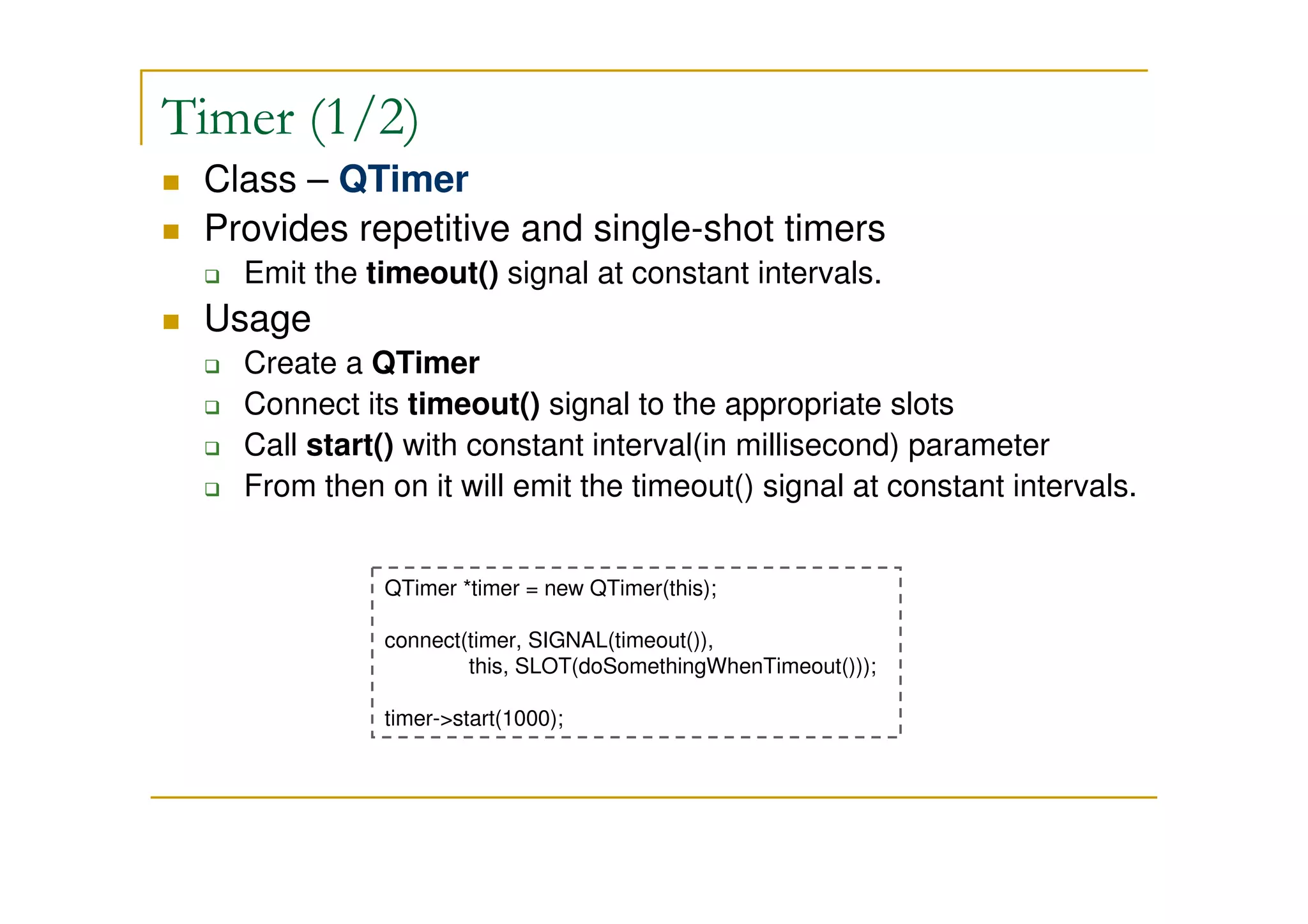
Timer (1/2) 
 Class – QTimer 
 Provides repetitive and single-shot timers 
 Emit the timeout() signal at constant intervals. 
 Usage 
 Create a QTimer 
 Connect its timeout() signal to the appropriate slots 
 Call start() with constant interval(in millisecond) parameter 
 From then on it will emit the timeout() signal at constant intervals. 
QTimer *timer = new QTimer(this); 
connect(timer, SIGNAL(timeout()), 
this, SLOT(doSomethingWhenTimeout())); 
timer-start(1000);
Timer (2/2) 
 Example 
 Timer-Button 
 A QPushButton moving between two points
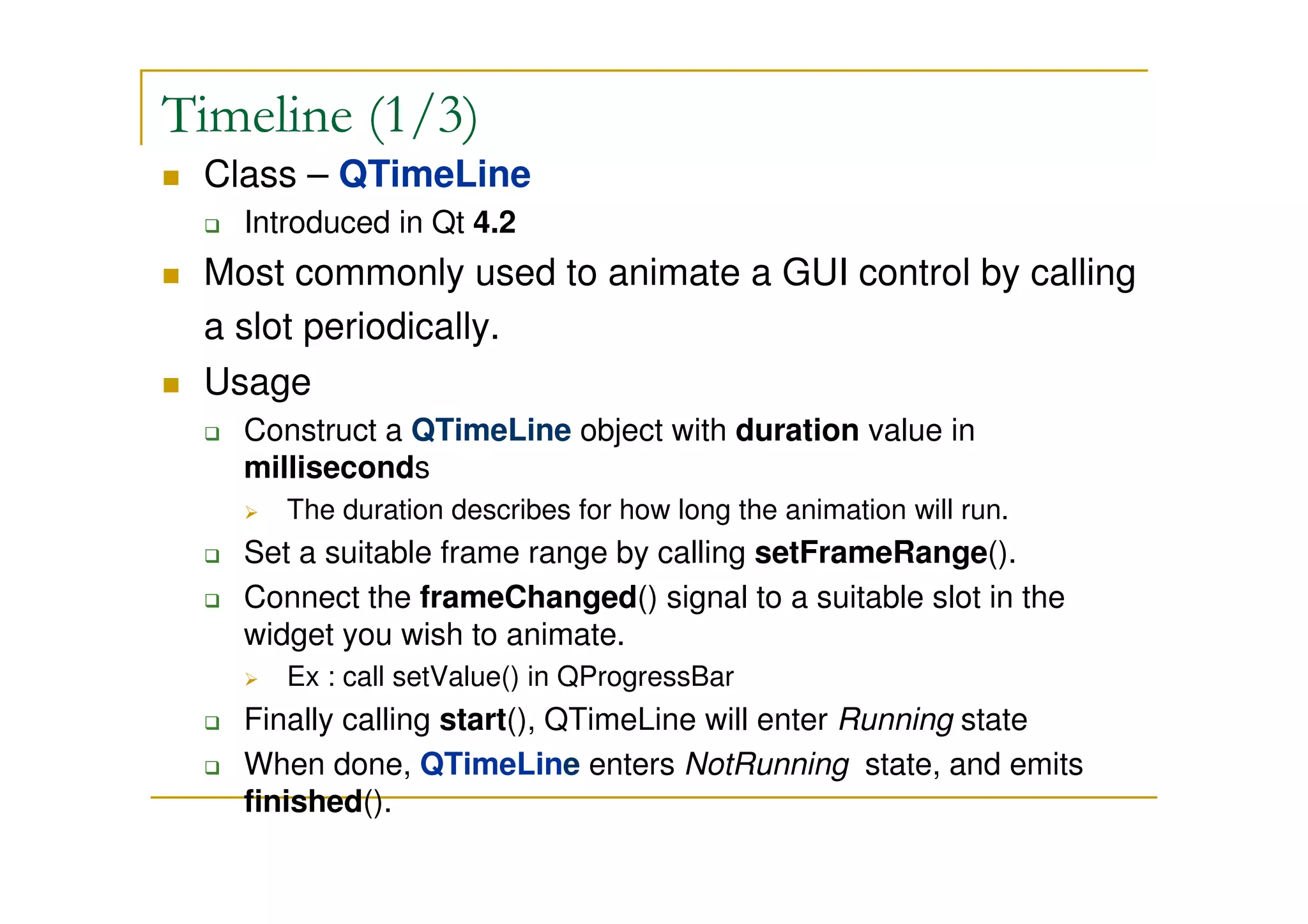
Timeline (1/3) 
 Class – QTimeLine 
 Introduced in Qt 4.2 
 Most commonly used to animate a GUI control by calling 
a slot periodically. 
 Usage 
 Construct a QTimeLine object with duration value in 
milliseconds 
 The duration describes for how long the animation will run. 
 Set a suitable frame range by calling setFrameRange(). 
 Connect the frameChanged() signal to a suitable slot in the 
widget you wish to animate. 
 Ex : call setValue() in QProgressBar 
 Finally calling start(), QTimeLine will enter Running state 
 When done, QTimeLine enters NotRunning state, and emits 
finished().
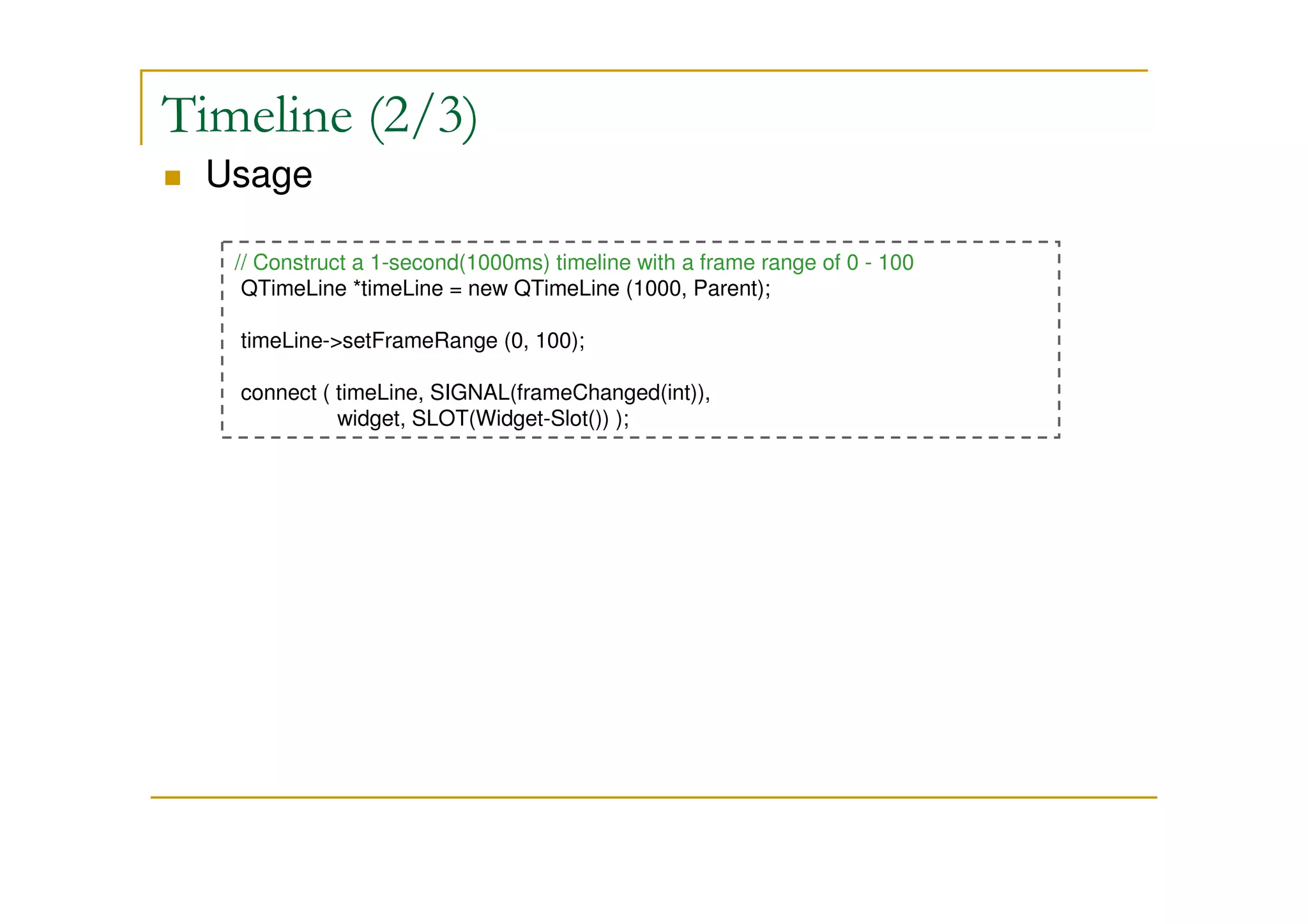
Timeline (2/3) 
 Usage 
// Construct a 1-second(1000ms) timeline with a frame range of 0 - 100 
QTimeLine *timeLine = new QTimeLine (1000, Parent); 
timeLine-setFrameRange (0, 100); 
connect ( timeLine, SIGNAL(frameChanged(int)), 
widget, SLOT(Widget-Slot()) );
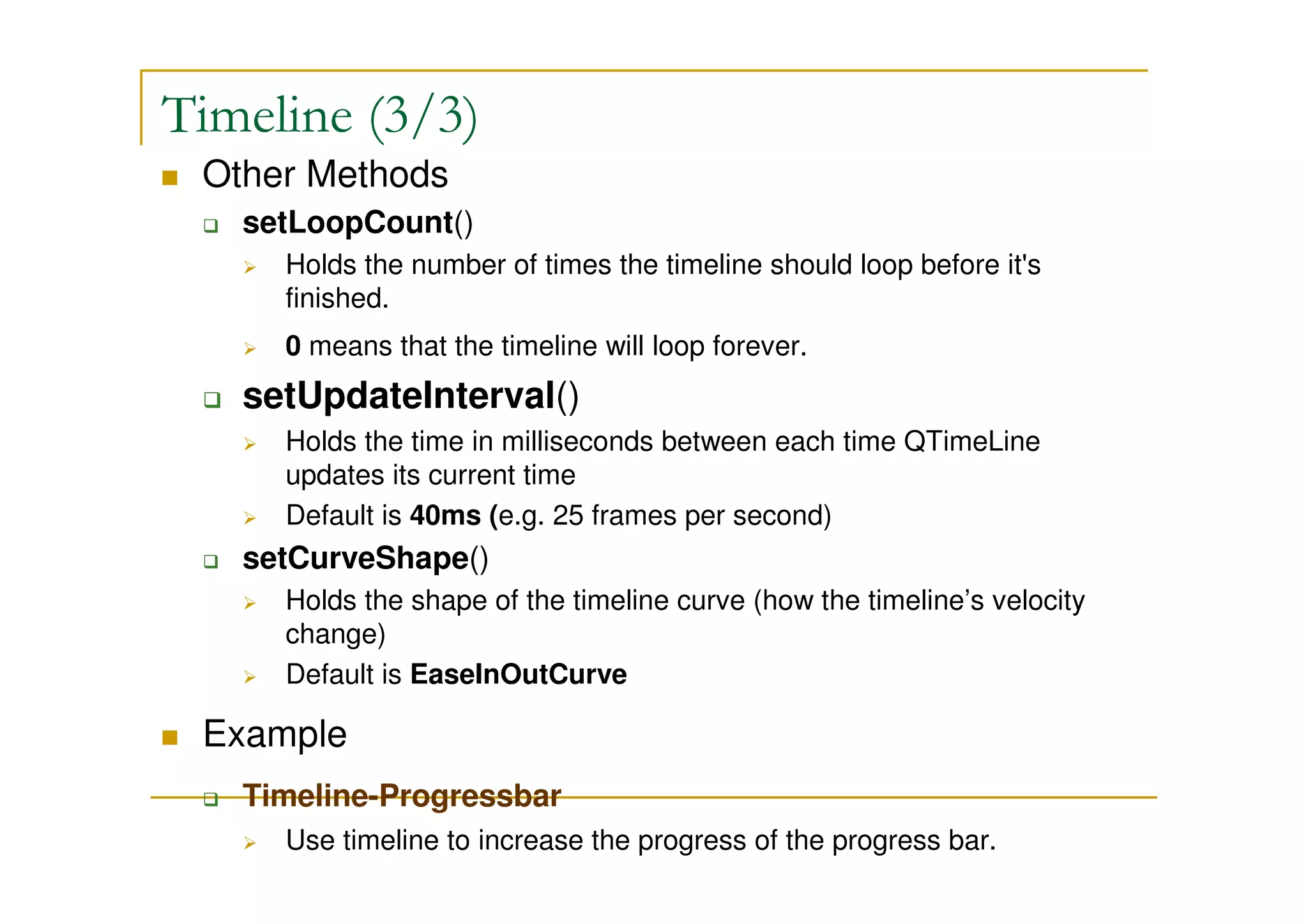
Timeline (3/3) 
 Other Methods 
 setLoopCount() 
 Holds the number of times the timeline should loop before it's 
finished. 
 0 means that the timeline will loop forever. 
 setUpdateInterval() 
 Holds the time in milliseconds between each time QTimeLine 
updates its current time 
 Default is 40ms (e.g. 25 frames per second) 
 setCurveShape() 
 Holds the shape of the timeline curve (how the timeline’s velocity 
change) 
 Default is EaseInOutCurve 
 Example 
 Timeline-Progressbar 
 Use timeline to increase the progress of the progress bar.
Animation Framework (1/5) 
 Introduced in 4.6 
 Part of the Kinetic project 
 Makes it easy to animate QObjects, including QWidgets, 
by allowing Qt properties to be animated. 
 Animations are controlled using Easing Curves and can 
be grouped together.
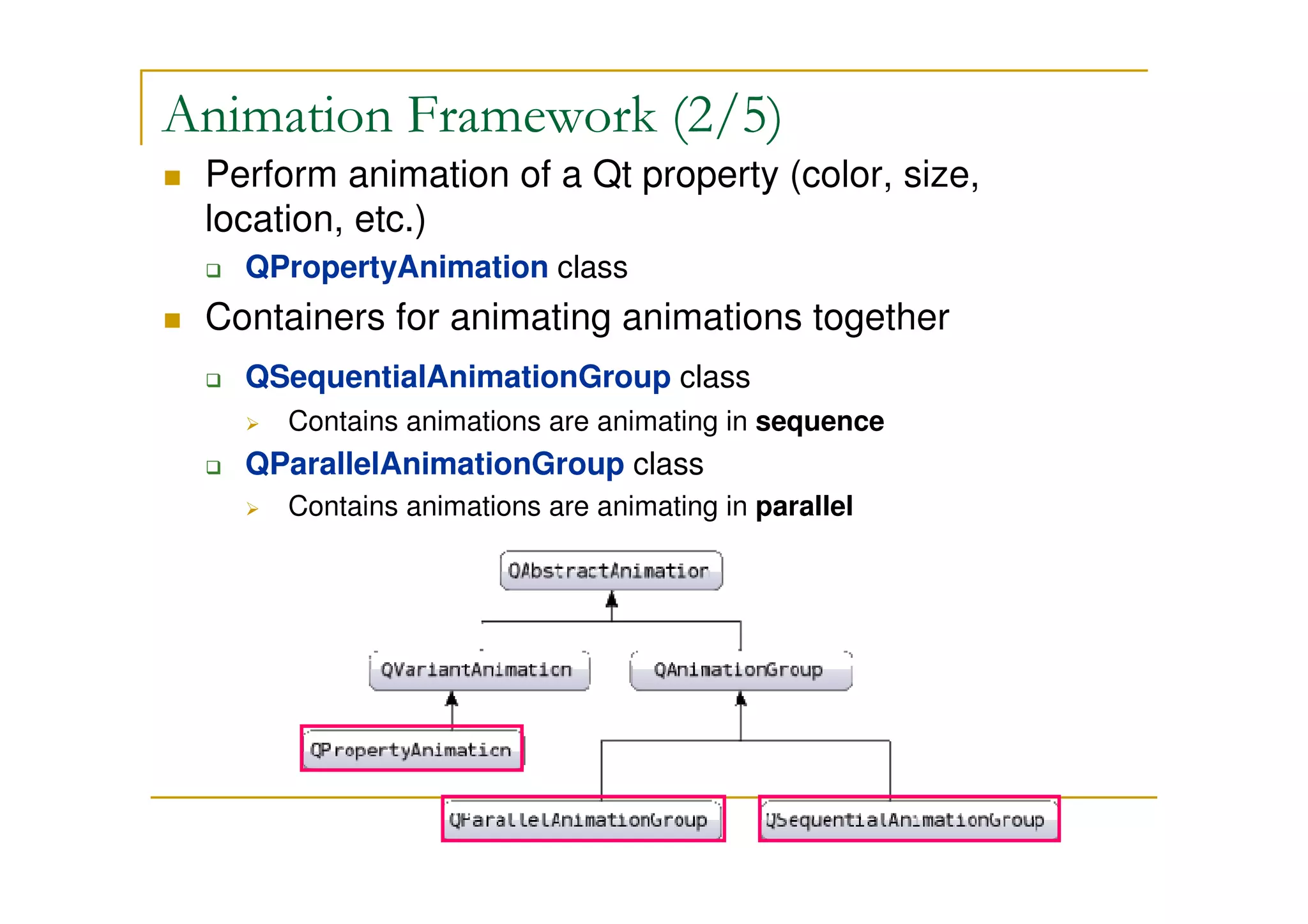
Animation Framework (2/5) 
 Perform animation of a Qt property (color, size, 
location, etc.) 
 QPropertyAnimation class 
 Containers for animating animations together 
 QSequentialAnimationGroup class 
 Contains animations are animating in sequence 
 QParallelAnimationGroup class 
 Contains animations are animating in parallel
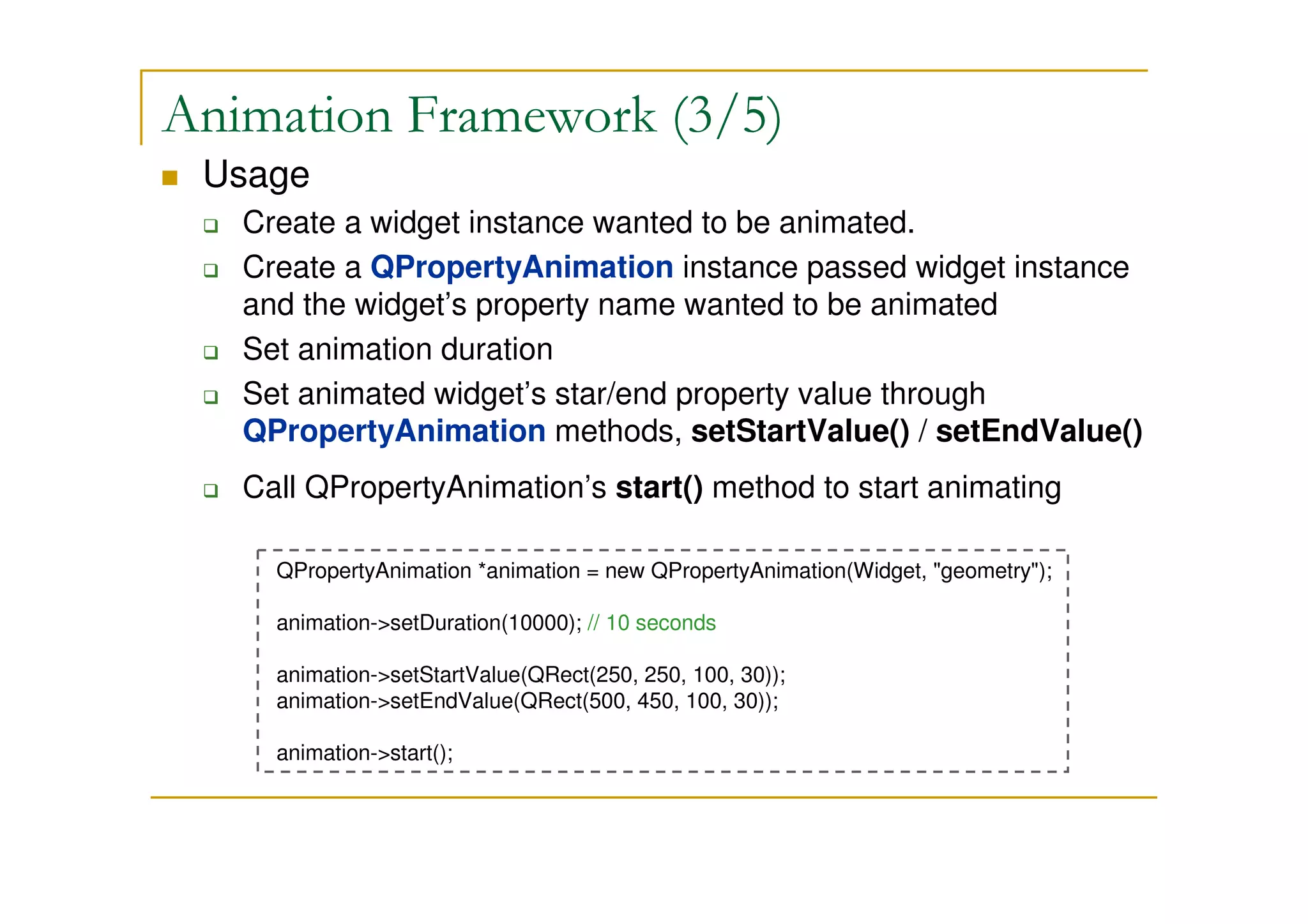
Animation Framework (3/5) 
 Usage 
 Create a widget instance wanted to be animated. 
 Create a QPropertyAnimation instance passed widget instance 
and the widget’s property name wanted to be animated 
 Set animation duration 
 Set animated widget’s star/end property value through 
QPropertyAnimation methods, setStartValue() / setEndValue() 
 Call QPropertyAnimation’s start() method to start animating 
QPropertyAnimation *animation = new QPropertyAnimation(Widget, geometry); 
animation-setDuration(10000); // 10 seconds 
animation-setStartValue(QRect(250, 250, 100, 30)); 
animation-setEndValue(QRect(500, 450, 100, 30)); 
animation-start();
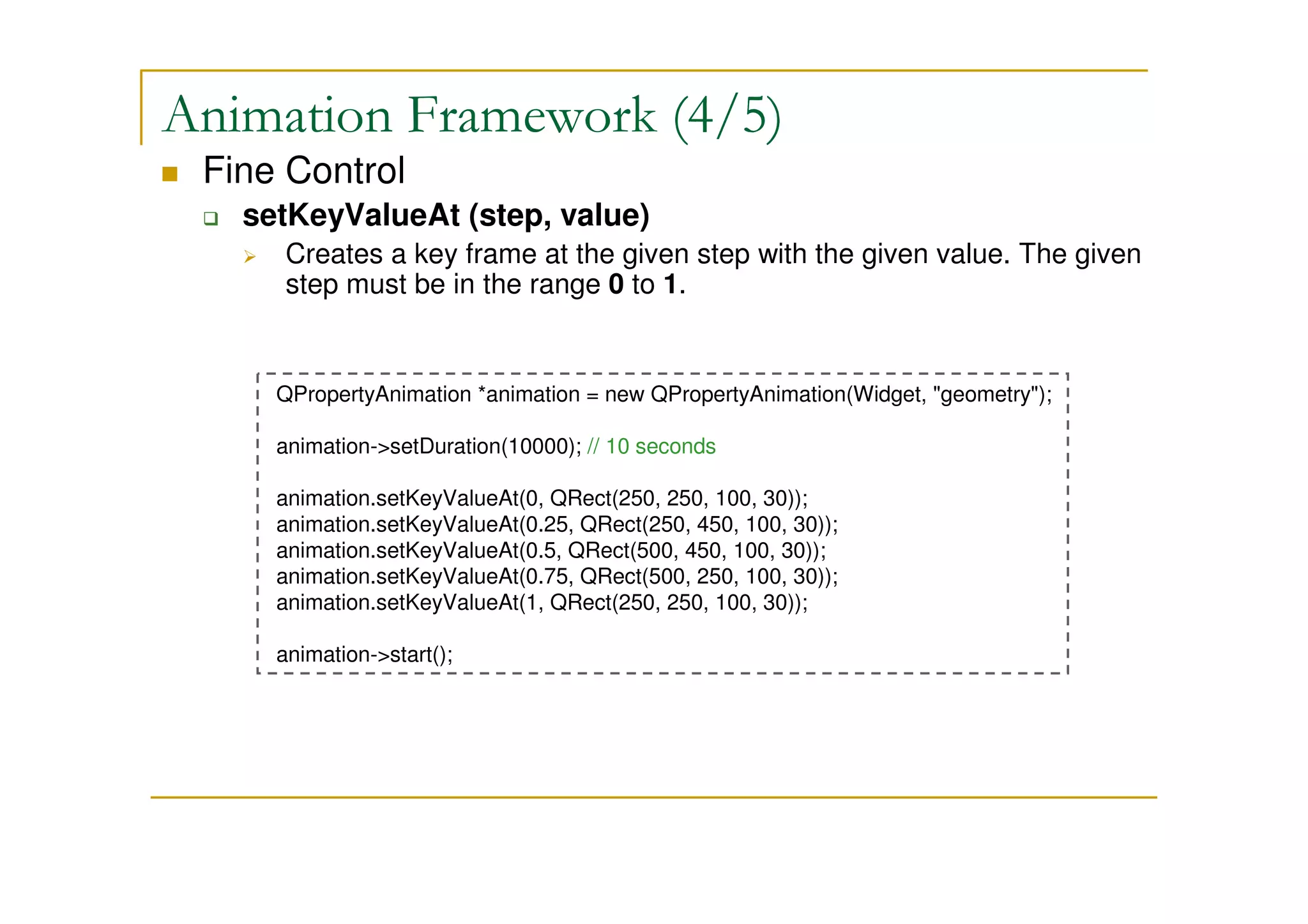
Animation Framework (4/5) 
 Fine Control 
 setKeyValueAt (step, value) 
 Creates a key frame at the given step with the given value. The given 
step must be in the range 0 to 1. 
QPropertyAnimation *animation = new QPropertyAnimation(Widget, geometry); 
animation-setDuration(10000); // 10 seconds 
animation.setKeyValueAt(0, QRect(250, 250, 100, 30)); 
animation.setKeyValueAt(0.25, QRect(250, 450, 100, 30)); 
animation.setKeyValueAt(0.5, QRect(500, 450, 100, 30)); 
animation.setKeyValueAt(0.75, QRect(500, 250, 100, 30)); 
animation.setKeyValueAt(1, QRect(250, 250, 100, 30)); 
animation-start();
Animation Framework (5/5) 
 Example 
 AnimFmwk-BounceEasyCurve-ParalSequ 
 Three buttons animating in sequential and parallel animations 
with easing curve 
 AnimFmwk-SetKeyValue 
 An animating button controlled by setKeyValueAt()
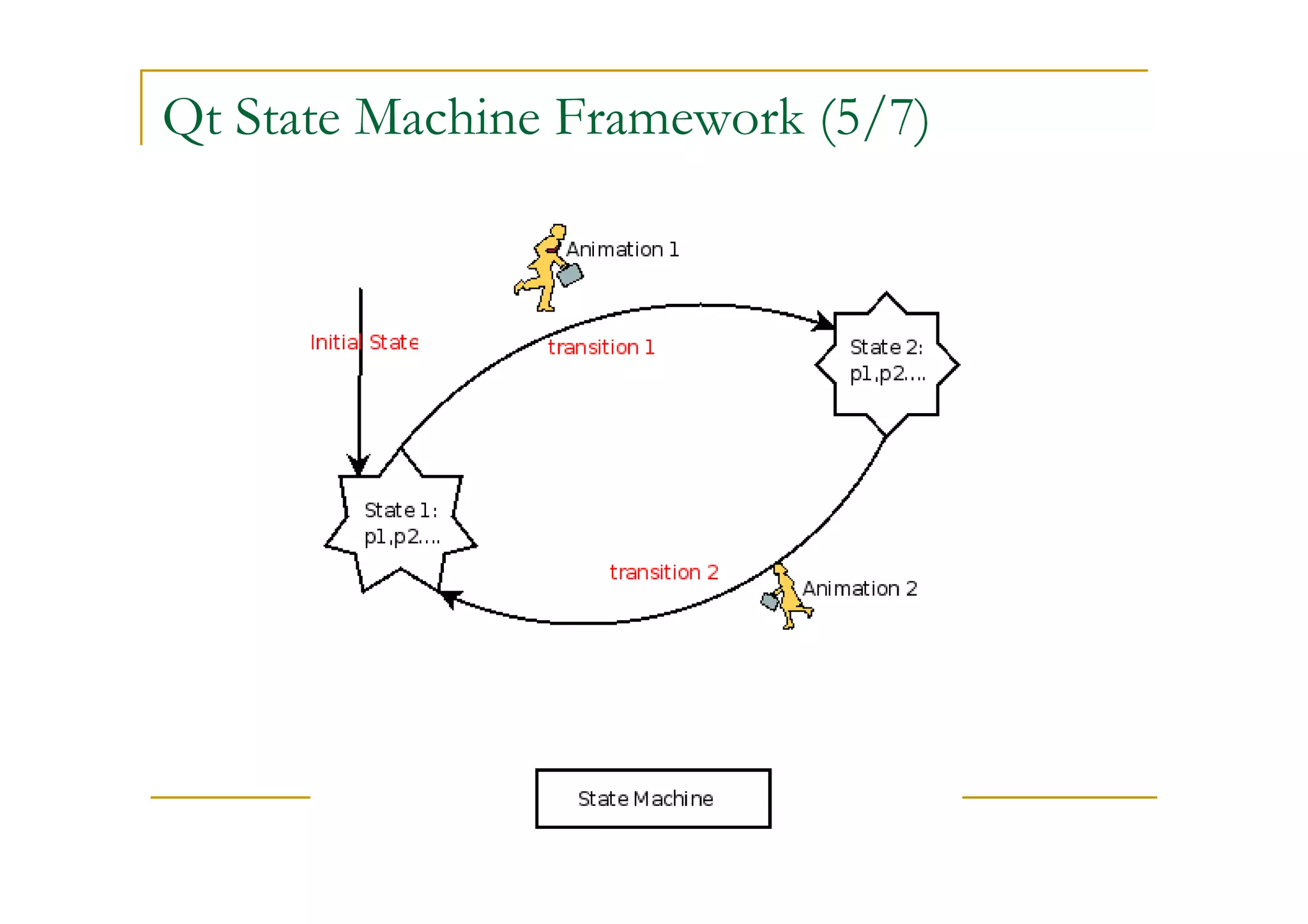
Qt State Machine Framework (1/7) 
 Classes – QStateMachine, QState, QFinalState, 
QSignalTransition 
 For creating and executing state graphs. 
 Provides an API and execution model that can be used 
to effectively embed the elements and semantics of 
statecharts in Qt applications. 
 Qt's event system is used to drive the state machines. 
 The animation framework also plugs into the new Qt 
state machine by allowing an animation to be played 
when transitions are triggered.
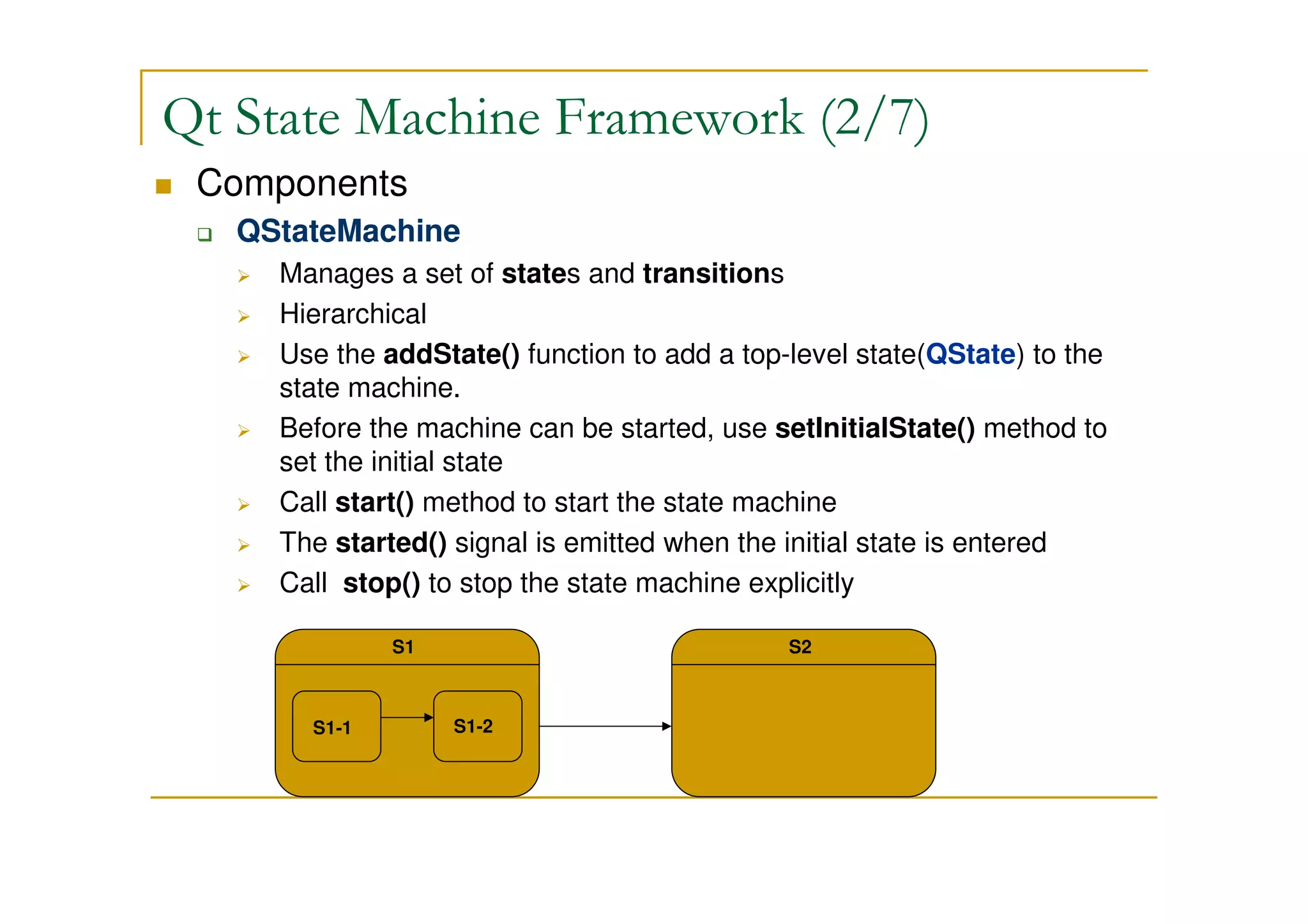
Qt State Machine Framework (2/7) 
 Components 
 QStateMachine 
 Manages a set of states and transitions 
 Hierarchical 
 Use the addState() function to add a top-level state(QState) to the 
state machine. 
 Before the machine can be started, use setInitialState() method to 
set the initial state 
 Call start() method to start the state machine 
 The started() signal is emitted when the initial state is entered 
 Call stop() to stop the state machine explicitly 
S1 
S1-1 S1-2 
S2
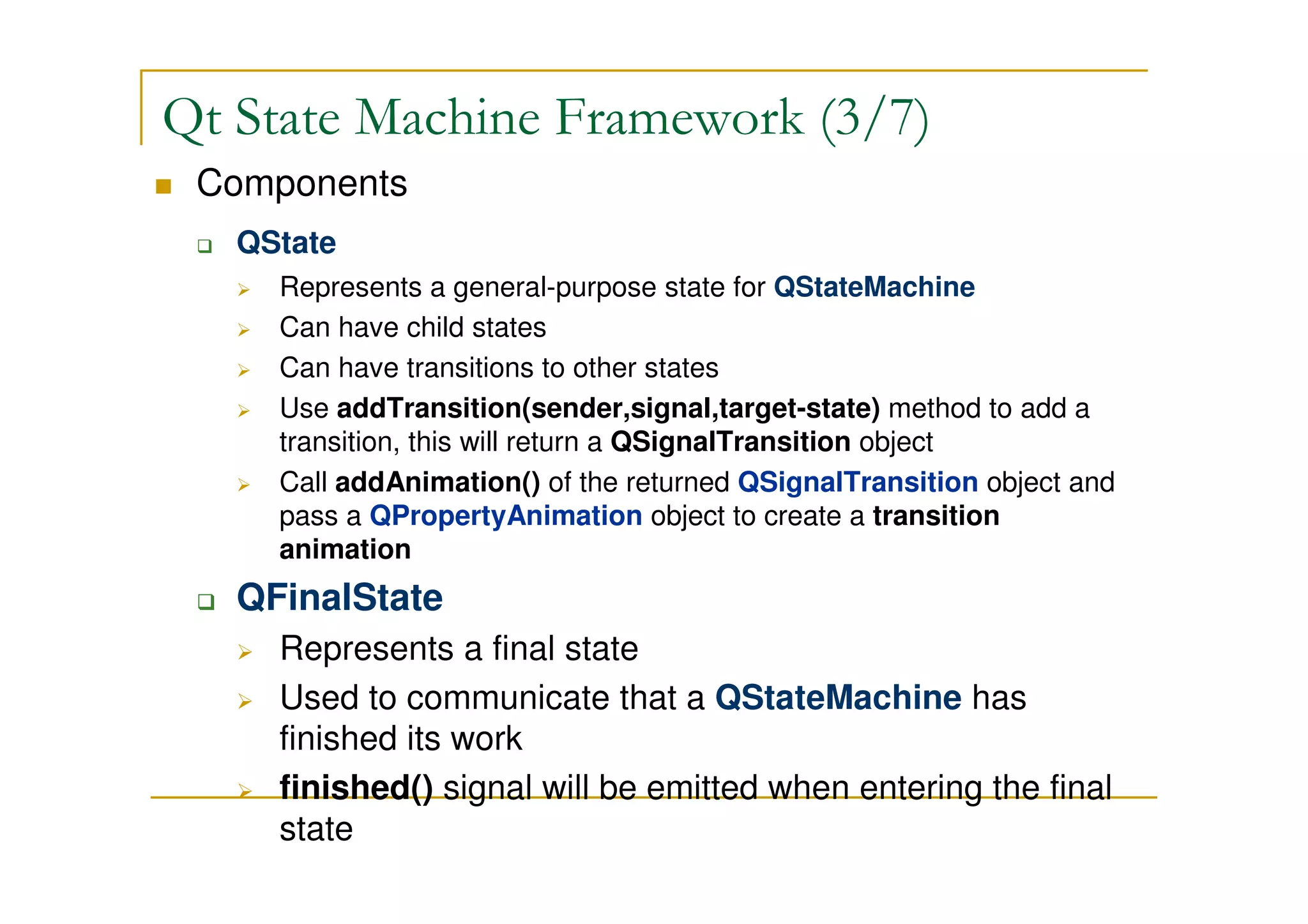
Qt State Machine Framework (3/7) 
 Components 
 QState 
 Represents a general-purpose state for QStateMachine 
 Can have child states 
 Can have transitions to other states 
 Use addTransition(sender,signal,target-state) method to add a 
transition, this will return a QSignalTransition object 
 Call addAnimation() of the returned QSignalTransition object and 
pass a QPropertyAnimation object to create a transition 
animation 
 QFinalState 
 Represents a final state 
 Used to communicate that a QStateMachine has finished its work 
 finished() signal will be emitted when entering the final state
Qt State Machine Framework (4/7) 
 Components 
 QSignalTransition 
 Provides a transition based on a Qt signal.
Qt State Machine Framework (5/7)
Qt State Machine Framework (6/7) 
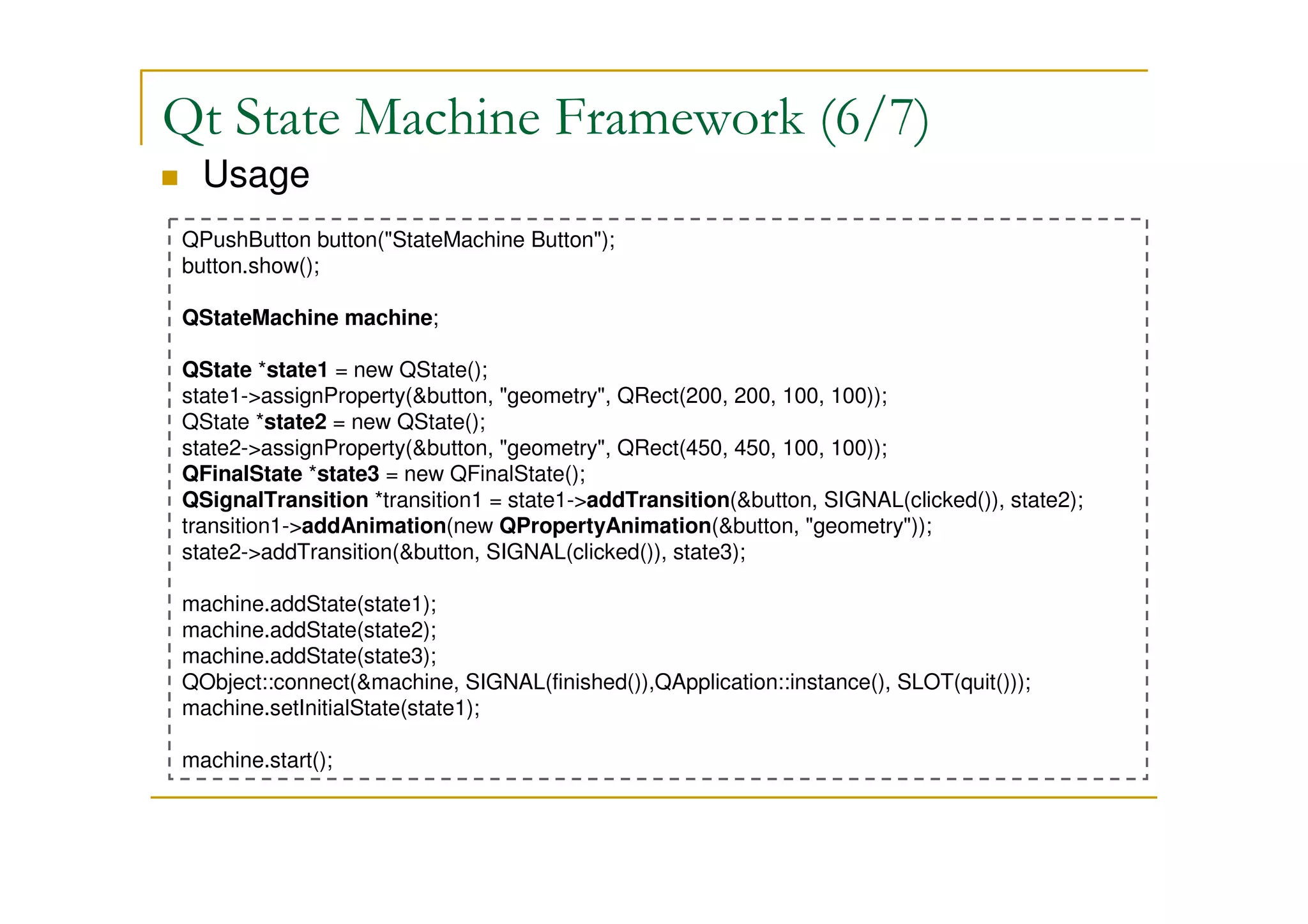
 Usage 
QPushButton button(StateMachine Button); 
button.show(); 
QStateMachine machine; 
QState *state1 = new QState(); 
state1-assignProperty(button, geometry, QRect(200, 200, 100, 100)); 
QState *state2 = new QState(); 
state2-assignProperty(button, geometry, QRect(450, 450, 100, 100)); 
QFinalState *state3 = new QFinalState(); 
QSignalTransition *transition1 = state1-addTransition(button, SIGNAL(clicked()), state2); 
transition1-addAnimation(new QPropertyAnimation(button, geometry)); 
state2-addTransition(button, SIGNAL(clicked()), state3); 
machine.addState(state1); 
machine.addState(state2); 
machine.addState(state3); 
QObject::connect(machine, SIGNAL(finished()),QApplication::instance(), SLOT(quit())); 
machine.setInitialState(state1); 
machine.start();
Qt State Machine Framework (7/7) 
 Example 
 StateMachine-AnimButton 
 A QPushButton moves and changes its states when it is 
pressed. When reaching final state, the application will quit.
GraphicsView Framework (1/8) 
 Introduced in Qt 4.2 
 Replaced its predecessor, QCanvas 
 Item-based 
 Provides 
 A surface(scene) for managing and interacting with a large 
number of custom-made 2D graphical items 
 A view widget for visualizing the items, with support for zooming 
and rotation. 
 Items are varying geometric shapes(rectangle, line, circle, etc.)
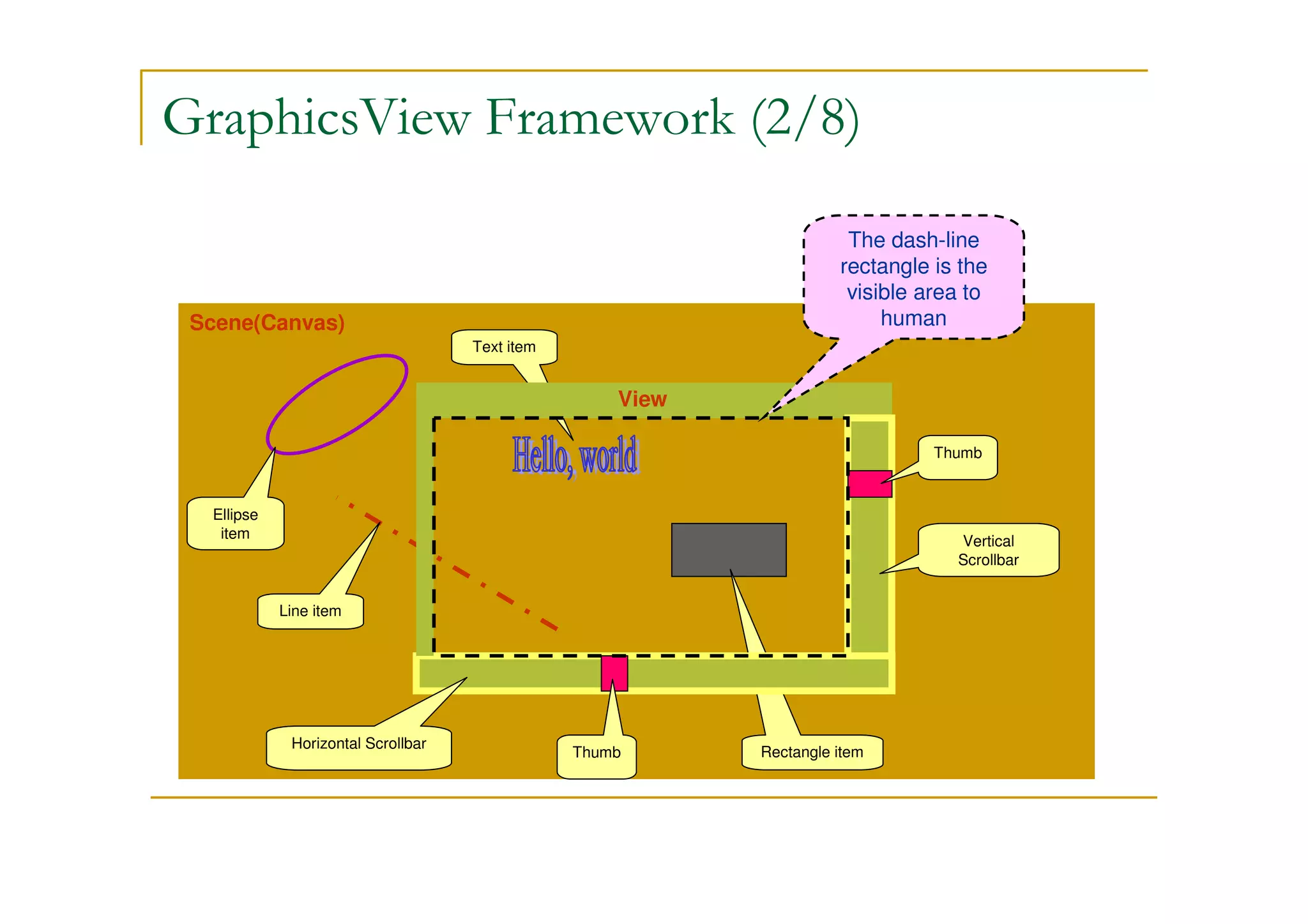
GraphicsView Framework (2/8) 
Scene(Canvas) 
Line item 
Text item 
Rectangle item 
View 
Vertical 
Scrollbar 
Thumb 
Horizontal Scrollbar 
Thumb 
Ellipse 
item 
The dash-line 
rectangle is the 
visible area to 
human
GraphicsView Framework (3/8) 
 Components 
 The Scene - QGraphicsScene 
 Serves as a container for QGraphicsItem objects 
 Manages a large number of items 
 Propagating events from QGraphicsView to each item 
 Managing item state, such as item selection and focus.
GraphicsView Framework (4/8) 
 Components 
 The View - QGraphicsView 
 Provides the view widget 
 To visualize the contents of a scene 
 It is a scroll area 
 Can attach several views to the same scene 
 provide several viewports into the same data set. 
 Receives input events from the keyboard and mouse, and translates 
these to scene events
GraphicsView Framework (5/8) 
 Components 
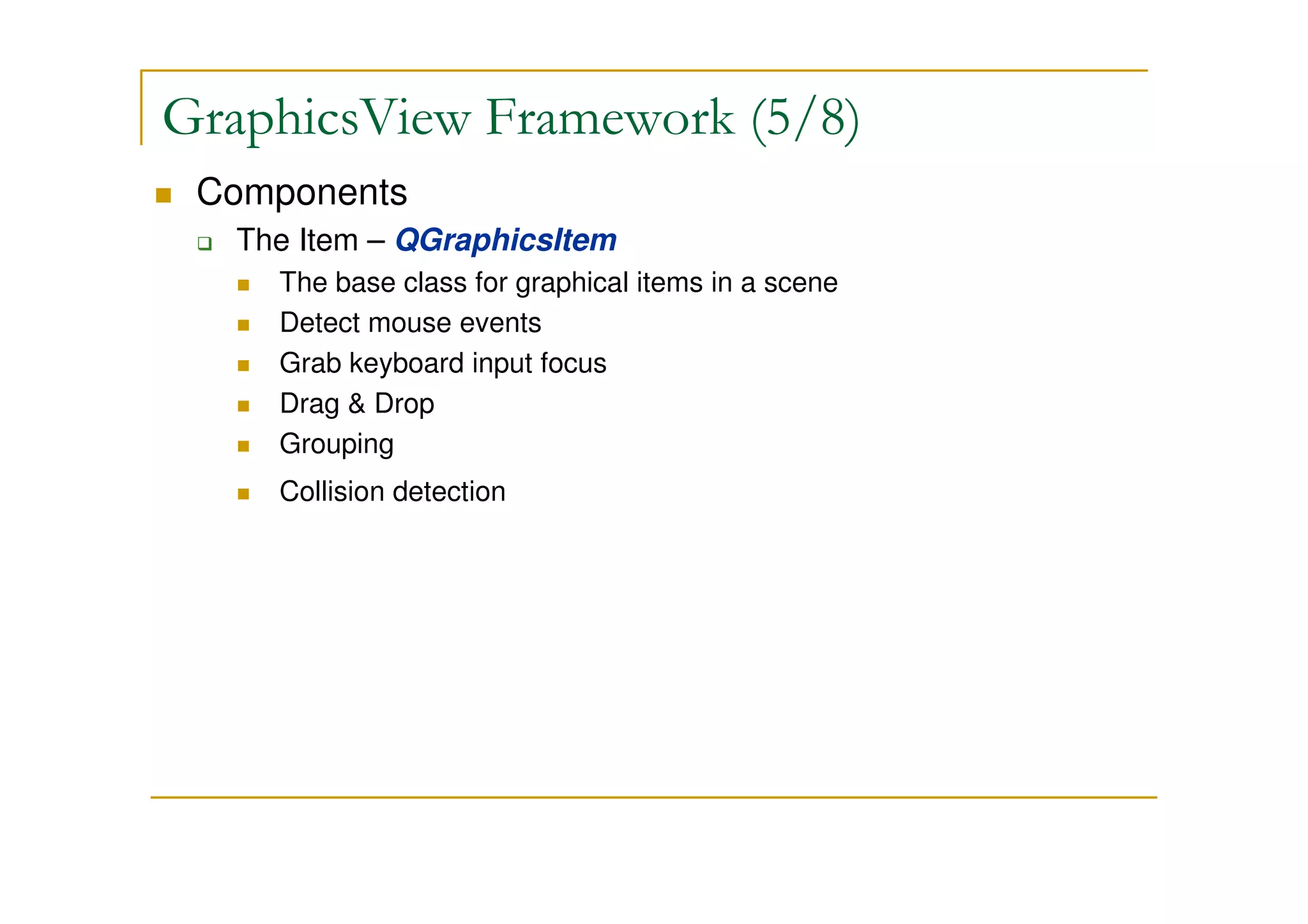
 The Item – QGraphicsItem 
 The base class for graphical items in a scene 
 Detect mouse events 
 Grab keyboard input focus 
 Drag  Drop 
 Grouping 
 Collision detection
GraphicsView Framework (6/8) 
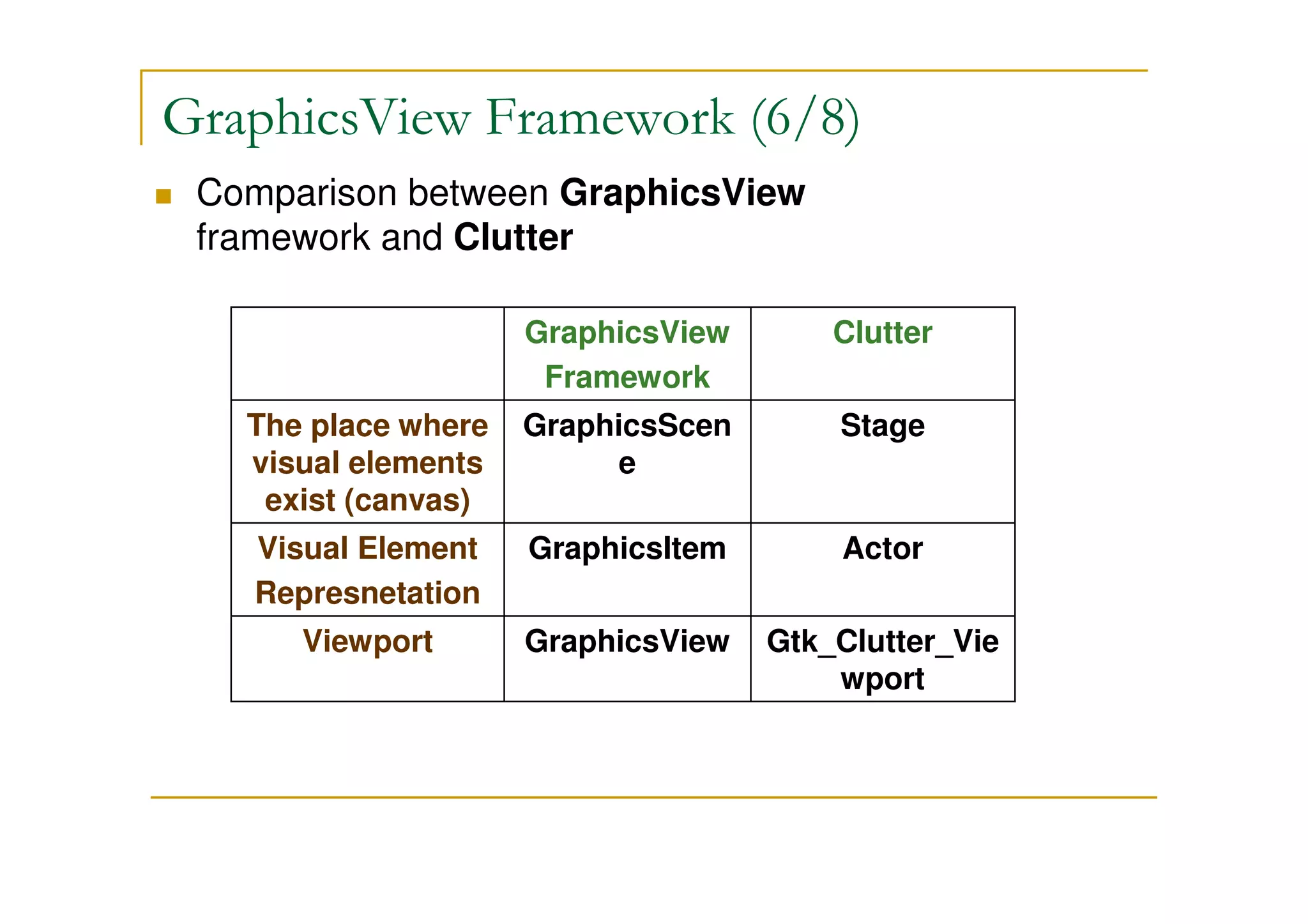
 Comparison between GraphicsView 
framework and Clutter 
Clutter 
Stage 
GraphicsView 
Framework 
GraphicsScene 
The place where 
visual elements 
exist (canvas) 
Visual Element GraphicsItem Actor 
Represnetation 
Viewport GraphicsView Gtk_Clutter_Viewport
GraphicsView Framework (7/8) 
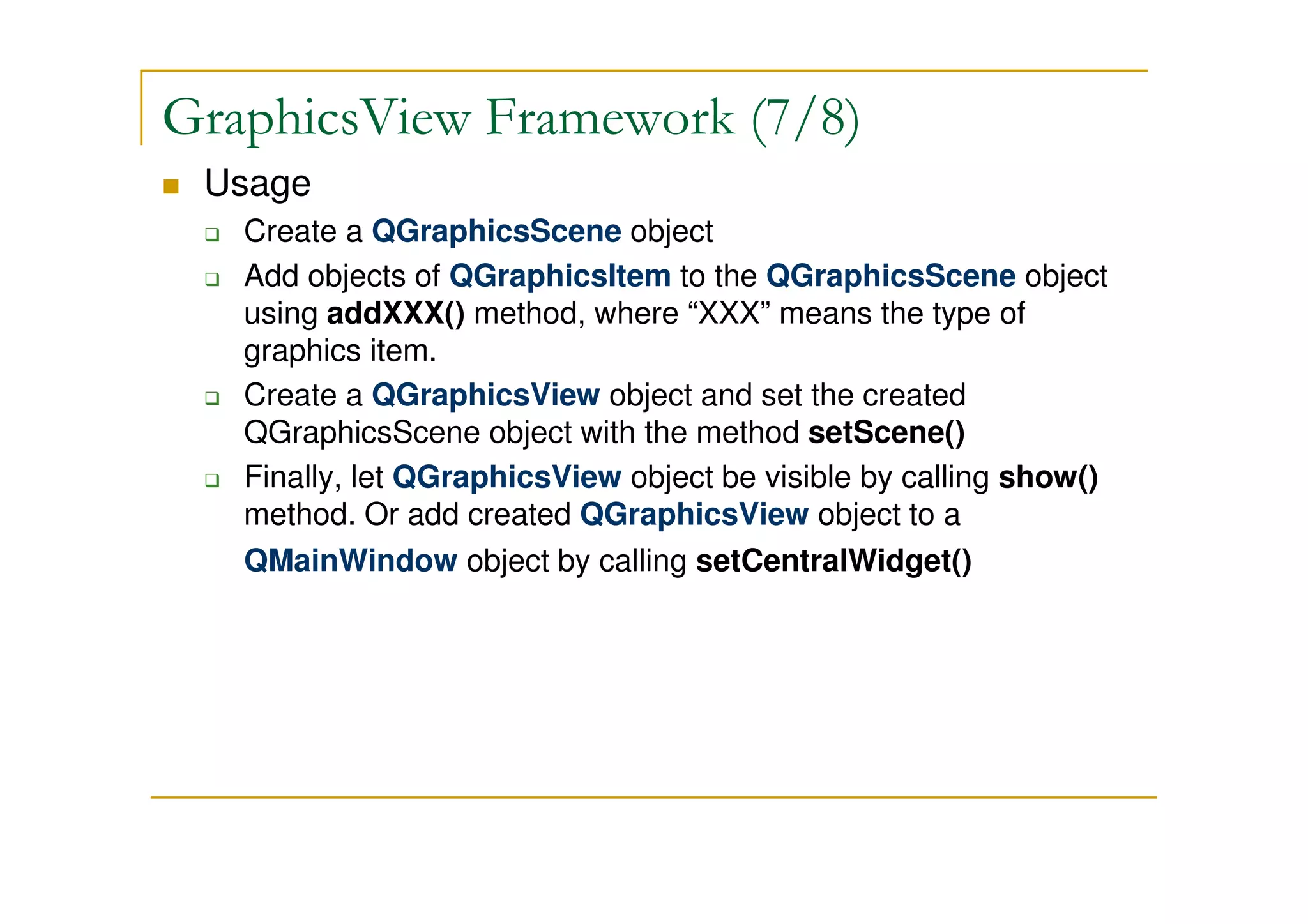
 Usage 
 Create a QGraphicsScene object 
 Add objects of QGraphicsItem to the QGraphicsScene object 
using addXXX() method, where “XXX” means the type of 
graphics item. 
 Create a QGraphicsView object and set the created 
QGraphicsScene object with the method setScene() 
 Finally, let QGraphicsView object be visible by calling show() 
method. Or add created QGraphicsView object to a 
QMainWindow object by calling setCentralWidget()
GraphicsView Framework (8/8) 
 Example 
 GrphView-SimpleAnim 
 Shows how scene/view/items work together and an animation 
that a rectangle graphic item moves and fades out.
Example Source Codes Download 
 The example codes for this slide (GitHub). 
 https://github.com/wiliwe/qt-animation-example.git 
 Using Git tool to download: 
git clone https://github.com/wiliwe/qt-animation-example.git
References 
 http://doc.qt.nokia.com/4.6/qtimer.html 
 http://doc.qt.nokia.com/4.6/qtimeline.html 
 http://doc.qt.nokia.com/4.6/qtimeline.html#CurveShape-enum 
 http://doc.qt.nokia.com/4.6/animation-overview.html 
 http://doc.qt.nokia.com/4.6/statemachine-api.html 
 http://doc.qt.nokia.com/4.6/graphicsview.html 
 http://doc.qt.nokia.com/4.6/qgraphicsscene.html 
 http://doc.qt.nokia.com/4.6/qgraphicsitem.html

Qt Animation

  • 1.
    Qt Animation William.L2010-05-19 wiliwe@gmail.com
  • 2.
    Outline Whatis animation? Timer Timeline Animation Framework State Machine Framework GraphicsView Framework
  • 3.
    What is animation? A series of pictures, each of which is shown for a fixed period
  • 4.
    Timer (1/2) Class – QTimer Provides repetitive and single-shot timers Emit the timeout() signal at constant intervals. Usage Create a QTimer Connect its timeout() signal to the appropriate slots Call start() with constant interval(in millisecond) parameter From then on it will emit the timeout() signal at constant intervals. QTimer *timer = new QTimer(this); connect(timer, SIGNAL(timeout()), this, SLOT(doSomethingWhenTimeout())); timer-start(1000);
  • 5.
    Timer (2/2) Example Timer-Button A QPushButton moving between two points
  • 6.
    Timeline (1/3) Class – QTimeLine Introduced in Qt 4.2 Most commonly used to animate a GUI control by calling a slot periodically. Usage Construct a QTimeLine object with duration value in milliseconds The duration describes for how long the animation will run. Set a suitable frame range by calling setFrameRange(). Connect the frameChanged() signal to a suitable slot in the widget you wish to animate. Ex : call setValue() in QProgressBar Finally calling start(), QTimeLine will enter Running state When done, QTimeLine enters NotRunning state, and emits finished().
  • 7.
    Timeline (2/3) Usage // Construct a 1-second(1000ms) timeline with a frame range of 0 - 100 QTimeLine *timeLine = new QTimeLine (1000, Parent); timeLine-setFrameRange (0, 100); connect ( timeLine, SIGNAL(frameChanged(int)), widget, SLOT(Widget-Slot()) );
  • 8.
    Timeline (3/3) Other Methods setLoopCount() Holds the number of times the timeline should loop before it's finished. 0 means that the timeline will loop forever. setUpdateInterval() Holds the time in milliseconds between each time QTimeLine updates its current time Default is 40ms (e.g. 25 frames per second) setCurveShape() Holds the shape of the timeline curve (how the timeline’s velocity change) Default is EaseInOutCurve Example Timeline-Progressbar Use timeline to increase the progress of the progress bar.
  • 9.
    Animation Framework (1/5) Introduced in 4.6 Part of the Kinetic project Makes it easy to animate QObjects, including QWidgets, by allowing Qt properties to be animated. Animations are controlled using Easing Curves and can be grouped together.
  • 10.
    Animation Framework (2/5) Perform animation of a Qt property (color, size, location, etc.) QPropertyAnimation class Containers for animating animations together QSequentialAnimationGroup class Contains animations are animating in sequence QParallelAnimationGroup class Contains animations are animating in parallel
  • 11.
    Animation Framework (3/5) Usage Create a widget instance wanted to be animated. Create a QPropertyAnimation instance passed widget instance and the widget’s property name wanted to be animated Set animation duration Set animated widget’s star/end property value through QPropertyAnimation methods, setStartValue() / setEndValue() Call QPropertyAnimation’s start() method to start animating QPropertyAnimation *animation = new QPropertyAnimation(Widget, geometry); animation-setDuration(10000); // 10 seconds animation-setStartValue(QRect(250, 250, 100, 30)); animation-setEndValue(QRect(500, 450, 100, 30)); animation-start();
  • 12.
    Animation Framework (4/5) Fine Control setKeyValueAt (step, value) Creates a key frame at the given step with the given value. The given step must be in the range 0 to 1. QPropertyAnimation *animation = new QPropertyAnimation(Widget, geometry); animation-setDuration(10000); // 10 seconds animation.setKeyValueAt(0, QRect(250, 250, 100, 30)); animation.setKeyValueAt(0.25, QRect(250, 450, 100, 30)); animation.setKeyValueAt(0.5, QRect(500, 450, 100, 30)); animation.setKeyValueAt(0.75, QRect(500, 250, 100, 30)); animation.setKeyValueAt(1, QRect(250, 250, 100, 30)); animation-start();
  • 13.
    Animation Framework (5/5) Example AnimFmwk-BounceEasyCurve-ParalSequ Three buttons animating in sequential and parallel animations with easing curve AnimFmwk-SetKeyValue An animating button controlled by setKeyValueAt()
  • 14.
    Qt State MachineFramework (1/7) Classes – QStateMachine, QState, QFinalState, QSignalTransition For creating and executing state graphs. Provides an API and execution model that can be used to effectively embed the elements and semantics of statecharts in Qt applications. Qt's event system is used to drive the state machines. The animation framework also plugs into the new Qt state machine by allowing an animation to be played when transitions are triggered.
  • 15.
    Qt State MachineFramework (2/7) Components QStateMachine Manages a set of states and transitions Hierarchical Use the addState() function to add a top-level state(QState) to the state machine. Before the machine can be started, use setInitialState() method to set the initial state Call start() method to start the state machine The started() signal is emitted when the initial state is entered Call stop() to stop the state machine explicitly S1 S1-1 S1-2 S2
  • 16.
    Qt State MachineFramework (3/7) Components QState Represents a general-purpose state for QStateMachine Can have child states Can have transitions to other states Use addTransition(sender,signal,target-state) method to add a transition, this will return a QSignalTransition object Call addAnimation() of the returned QSignalTransition object and pass a QPropertyAnimation object to create a transition animation QFinalState Represents a final state Used to communicate that a QStateMachine has finished its work finished() signal will be emitted when entering the final state
  • 17.
    Qt State MachineFramework (4/7) Components QSignalTransition Provides a transition based on a Qt signal.
  • 18.
    Qt State MachineFramework (5/7)
  • 19.
    Qt State MachineFramework (6/7) Usage QPushButton button(StateMachine Button); button.show(); QStateMachine machine; QState *state1 = new QState(); state1-assignProperty(button, geometry, QRect(200, 200, 100, 100)); QState *state2 = new QState(); state2-assignProperty(button, geometry, QRect(450, 450, 100, 100)); QFinalState *state3 = new QFinalState(); QSignalTransition *transition1 = state1-addTransition(button, SIGNAL(clicked()), state2); transition1-addAnimation(new QPropertyAnimation(button, geometry)); state2-addTransition(button, SIGNAL(clicked()), state3); machine.addState(state1); machine.addState(state2); machine.addState(state3); QObject::connect(machine, SIGNAL(finished()),QApplication::instance(), SLOT(quit())); machine.setInitialState(state1); machine.start();
  • 20.
    Qt State MachineFramework (7/7) Example StateMachine-AnimButton A QPushButton moves and changes its states when it is pressed. When reaching final state, the application will quit.
  • 21.
    GraphicsView Framework (1/8) Introduced in Qt 4.2 Replaced its predecessor, QCanvas Item-based Provides A surface(scene) for managing and interacting with a large number of custom-made 2D graphical items A view widget for visualizing the items, with support for zooming and rotation. Items are varying geometric shapes(rectangle, line, circle, etc.)
  • 22.
    GraphicsView Framework (2/8) Scene(Canvas) Line item Text item Rectangle item View Vertical Scrollbar Thumb Horizontal Scrollbar Thumb Ellipse item The dash-line rectangle is the visible area to human
  • 23.
    GraphicsView Framework (3/8) Components The Scene - QGraphicsScene Serves as a container for QGraphicsItem objects Manages a large number of items Propagating events from QGraphicsView to each item Managing item state, such as item selection and focus.
  • 24.
    GraphicsView Framework (4/8) Components The View - QGraphicsView Provides the view widget To visualize the contents of a scene It is a scroll area Can attach several views to the same scene provide several viewports into the same data set. Receives input events from the keyboard and mouse, and translates these to scene events
  • 25.
    GraphicsView Framework (5/8) Components The Item – QGraphicsItem The base class for graphical items in a scene Detect mouse events Grab keyboard input focus Drag Drop Grouping Collision detection
  • 26.
    GraphicsView Framework (6/8) Comparison between GraphicsView framework and Clutter Clutter Stage GraphicsView Framework GraphicsScene The place where visual elements exist (canvas) Visual Element GraphicsItem Actor Represnetation Viewport GraphicsView Gtk_Clutter_Viewport
  • 27.
    GraphicsView Framework (7/8) Usage Create a QGraphicsScene object Add objects of QGraphicsItem to the QGraphicsScene object using addXXX() method, where “XXX” means the type of graphics item. Create a QGraphicsView object and set the created QGraphicsScene object with the method setScene() Finally, let QGraphicsView object be visible by calling show() method. Or add created QGraphicsView object to a QMainWindow object by calling setCentralWidget()
  • 28.
    GraphicsView Framework (8/8) Example GrphView-SimpleAnim Shows how scene/view/items work together and an animation that a rectangle graphic item moves and fades out.
  • 29.
    Example Source CodesDownload The example codes for this slide (GitHub). https://github.com/wiliwe/qt-animation-example.git Using Git tool to download: git clone https://github.com/wiliwe/qt-animation-example.git
  • 30.
    References http://doc.qt.nokia.com/4.6/qtimer.html http://doc.qt.nokia.com/4.6/qtimeline.html http://doc.qt.nokia.com/4.6/qtimeline.html#CurveShape-enum http://doc.qt.nokia.com/4.6/animation-overview.html http://doc.qt.nokia.com/4.6/statemachine-api.html http://doc.qt.nokia.com/4.6/graphicsview.html http://doc.qt.nokia.com/4.6/qgraphicsscene.html http://doc.qt.nokia.com/4.6/qgraphicsitem.html