Qt For Beginners - Part 2
Widgets
Brian Quinn, Qt Consultant and Engineer
Integrated Computer Solutions
Visit us at http://www.ics.com
Video Available at: http://bit.ly/qt-beginners-part-2-widgets
Copyright 2016, Integrated Computers Solutions, Inc.
This work may not be reproduced in whole or in part without the express written consent of
Integrated Computer Solutions, Inc.
1
Agenda
● Introduction to Widgets
● Layout Management
● Qt Designer Introduction
● Dialogs
● Designer Forms and Code Integration
● Application Creation
● Resources
● Q & A
2
Agenda
● Introduction to Widgets
● Layout Management
● Qt Designer Introduction
● Dialogs
● Designer Forms and Code Integration
● Application Creation
● Resources
● Q & A
3
Why Widgets?
● Solid and Reliable
● Easy to Use
● Multitude of Features
● Extensive Documentation
4
All of the Parts and Pieces
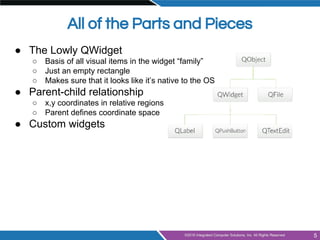
● The Lowly QWidget
○ Basis of all visual items in the widget “family”
○ Just an empty rectangle
○ Makes sure that it looks like it’s native to the OS
● Parent-child relationship
○ x,y coordinates in relative regions
○ Parent defines coordinate space
● Custom widgets
5
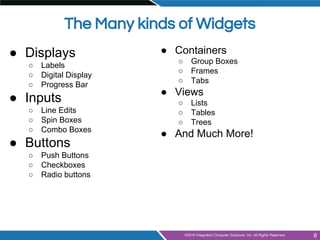
● Displays
○ Labels
○ Digital Display
○ Progress Bar
● Inputs
○ Line Edits
○ Spin Boxes
○ Combo Boxes
● Buttons
○ Push Buttons
○ Checkboxes
○ Radio buttons
● Containers
○ Group Boxes
○ Frames
○ Tabs
● Views
○ Lists
○ Tables
○ Trees
● And Much More!
The Many kinds of Widgets
6
Display Widgets
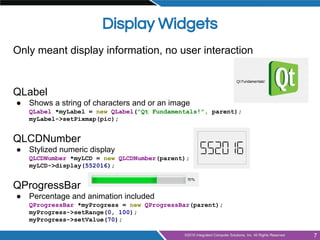
Only meant display information, no user interaction
QLabel
● Shows a string of characters and or an image
QLabel *myLabel = new QLabel("Qt Fundamentals!", parent);
myLabel->setPixmap(pic);
QLCDNumber
● Stylized numeric display
QLCDNumber *myLCD = new QLCDNumber(parent);
myLCD->display(552016);
QProgressBar
● Percentage and animation included
QProgressBar *myProgress = new QProgressBar(parent);
myProgress->setRange(0, 100);
myProgress->setValue(70);
7
Text Input Widgets
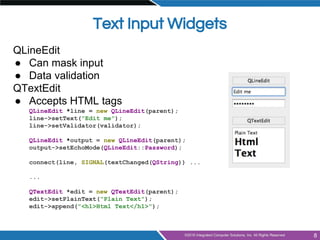
QLineEdit
● Can mask input
● Data validation
QTextEdit
● Accepts HTML tags
QLineEdit *line = new QLineEdit(parent);
line->setText("Edit me");
line->setValidator(validator);
QLineEdit *output = new QLineEdit(parent);
output->setEchoMode(QLineEdit::Password);
connect(line, SIGNAL(textChanged(QString)) ...
...
QTextEdit *edit = new QTextEdit(parent);
edit->setPlainText("Plain Text");
edit->append("<h1>Html Text</h1>");
8
Button Widgets
9
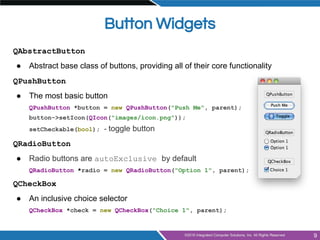
QAbstractButton
● Abstract base class of buttons, providing all of their core functionality
QPushButton
● The most basic button
QPushButton *button = new QPushButton("Push Me", parent);
button->setIcon(QIcon("images/icon.png"));
setCheckable(bool); - toggle button
QRadioButton
● Radio buttons are autoExclusive by default
QRadioButton *radio = new QRadioButton("Option 1", parent);
QCheckBox
● An inclusive choice selector
QCheckBox *check = new QCheckBox("Choice 1", parent);
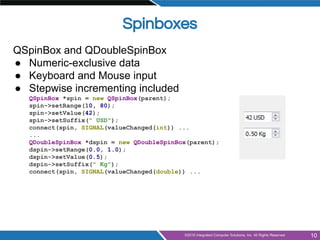
Spinboxes
QSpinBox and QDoubleSpinBox
● Numeric-exclusive data
● Keyboard and Mouse input
● Stepwise incrementing included
QSpinBox *spin = new QSpinBox(parent);
spin->setRange(10, 80);
spin->setValue(42);
spin->setSuffix(" USD");
connect(spin, SIGNAL(valueChanged(int)) ...
...
QDoubleSpinBox *dspin = new QDoubleSpinBox(parent);
dspin->setRange(0.0, 1.0);
dspin->setValue(0.5);
dspin->setSuffix(" Kg");
connect(spin, SIGNAL(valueChanged(double)) ...
10
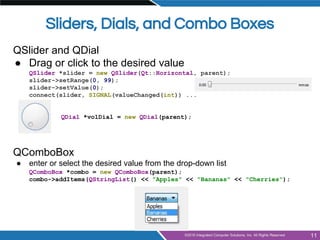
Sliders, Dials, and Combo Boxes
QSlider and QDial
● Drag or click to the desired value
QSlider *slider = new QSlider(Qt::Horizontal, parent);
slider->setRange(0, 99);
slider->setValue(0);
connect(slider, SIGNAL(valueChanged(int)) ...
QDial *volDial = new QDial(parent);
QComboBox
● enter or select the desired value from the drop-down list
QComboBox *combo = new QComboBox(parent);
combo->addItems(QStringList() << "Apples" << "Bananas" << "Cherries");
11
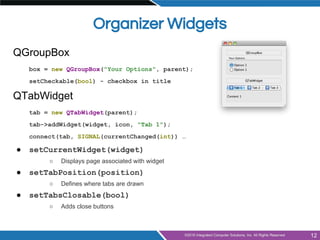
Organizer Widgets
QGroupBox
box = new QGroupBox("Your Options", parent);
setCheckable(bool) - checkbox in title
QTabWidget
tab = new QTabWidget(parent);
tab->addWidget(widget, icon, "Tab 1");
connect(tab, SIGNAL(currentChanged(int)) …
● setCurrentWidget(widget)
○ Displays page associated with widget
● setTabPosition(position)
○ Defines where tabs are drawn
● setTabsClosable(bool)
○ Adds close buttons
12
Agenda
● Introduction to Widgets
● Layout Management
● Qt Designer Introduction
● Dialogs
● Designer Forms and Code Integration
● Application Creation
● Resources
● Q & A
13
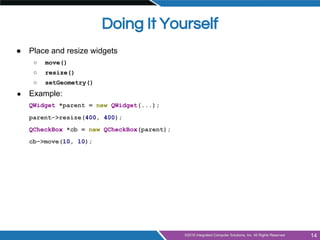
Doing It Yourself
● Place and resize widgets
○ move()
○ resize()
○ setGeometry()
● Example:
QWidget *parent = new QWidget(...);
parent->resize(400, 400);
QCheckBox *cb = new QCheckBox(parent);
cb->move(10, 10);
14
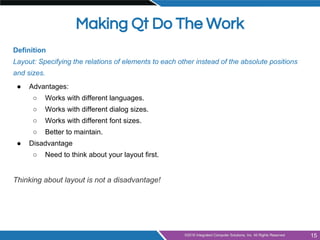
Making Qt Do The Work
Definition
Layout: Specifying the relations of elements to each other instead of the absolute positions
and sizes.
● Advantages:
○ Works with different languages.
○ Works with different dialog sizes.
○ Works with different font sizes.
○ Better to maintain.
● Disadvantage
○ Need to think about your layout first.
Thinking about layout is not a disadvantage!
15
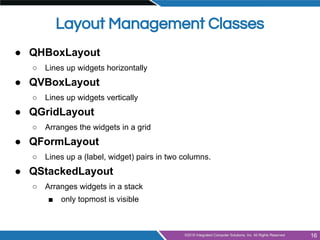
Layout Management Classes
● QHBoxLayout
○ Lines up widgets horizontally
● QVBoxLayout
○ Lines up widgets vertically
● QGridLayout
○ Arranges the widgets in a grid
● QFormLayout
○ Lines up a (label, widget) pairs in two columns.
● QStackedLayout
○ Arranges widgets in a stack
■ only topmost is visible
16
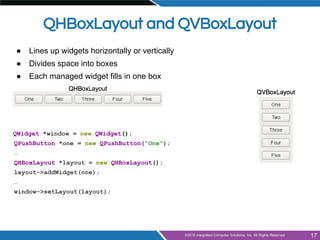
QHBoxLayout and QVBoxLayout
● Lines up widgets horizontally or vertically
● Divides space into boxes
● Each managed widget fills in one box
QWidget *window = new QWidget();
QPushButton *one = new QPushButton("One");
…
QHBoxLayout *layout = new QHBoxLayout();
layout->addWidget(one);
…
window->setLayout(layout);
17
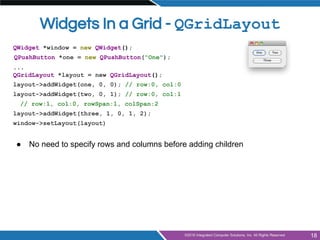
Widgets In a Grid - QGridLayout
QWidget *window = new QWidget();
QPushButton *one = new QPushButton("One");
...
QGridLayout *layout = new QGridLayout();
layout->addWidget(one, 0, 0); // row:0, col:0
layout->addWidget(two, 0, 1); // row:0, col:1
// row:1, col:0, rowSpan:1, colSpan:2
layout->addWidget(three, 1, 0, 1, 2);
window->setLayout(layout)
● No need to specify rows and columns before adding children
18
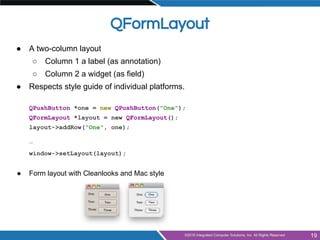
QFormLayout
● A two-column layout
○ Column 1 a label (as annotation)
○ Column 2 a widget (as field)
● Respects style guide of individual platforms.
QPushButton *one = new QPushButton("One");
QFormLayout *layout = new QFormLayout();
layout->addRow("One", one);
…
window->setLayout(layout);
● Form layout with Cleanlooks and Mac style
19
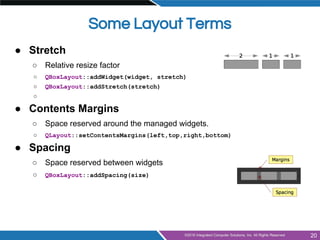
Some Layout Terms
● Stretch
○ Relative resize factor
○ QBoxLayout::addWidget(widget, stretch)
○ QBoxLayout::addStretch(stretch)
○
● Contents Margins
○ Space reserved around the managed widgets.
○ QLayout::setContentsMargins(left,top,right,bottom)
● Spacing
○ Space reserved between widgets
○ QBoxLayout::addSpacing(size)
20
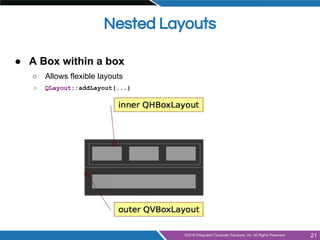
Nested Layouts
● A Box within a box
○ Allows flexible layouts
○ QLayout::addLayout(...)
21
Agenda
● Introduction to Widgets
● Layout Management
● Qt Designer Introduction
● Dialogs
● Designer Forms and Code Integration
● Application Creation
● Resources
22
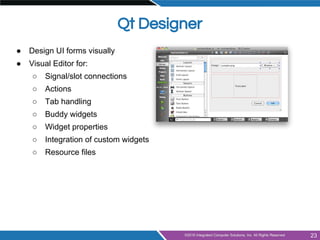
Qt Designer
● Design UI forms visually
● Visual Editor for:
○ Signal/slot connections
○ Actions
○ Tab handling
○ Buddy widgets
○ Widget properties
○ Integration of custom widgets
○ Resource files
23
Designer Tips
● Use the Designer!
● Avoid d'n'd of layouts from the Widget Box in favor of
multiple-selection + Layout Toolbar Buttons above the Widget Editor.
● "Signals and Slots" edit mode is easier for creating signals and slots. The
"signals and slots" dockable is good for editing and removing already existing
connections.
● Don't add something to a GroupBox until it is already laid out correctly.
● Move things temporarily to another empty widget as scratch-space when you
have complicated nested layouts and Group Boxes.
24
Agenda
● Introduction to Widgets
● Layout Management
● Qt Designer Introduction
● Dialogs
● Designer Forms and Code Integration
● Application Creation
● Resources
● Q & A
25
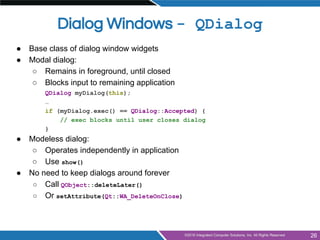
Dialog Windows - QDialog
● Base class of dialog window widgets
● Modal dialog:
○ Remains in foreground, until closed
○ Blocks input to remaining application
QDialog myDialog(this);
…
if (myDialog.exec() == QDialog::Accepted) {
// exec blocks until user closes dialog
}
● Modeless dialog:
○ Operates independently in application
○ Use show()
● No need to keep dialogs around forever
○ Call QObject::deleteLater()
○ Or setAttribute(Qt::WA_DeleteOnClose)
26
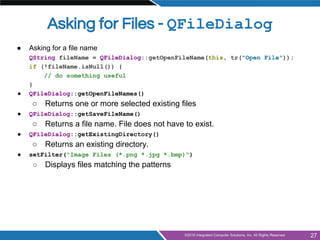
Asking for Files - QFileDialog
● Asking for a file name
QString fileName = QFileDialog::getOpenFileName(this, tr("Open File"));
if (!fileName.isNull()) {
// do something useful
}
● QFileDialog::getOpenFileNames()
○ Returns one or more selected existing files
● QFileDialog::getSaveFileName()
○ Returns a file name. File does not have to exist.
● QFileDialog::getExistingDirectory()
○ Returns an existing directory.
● setFilter("Image Files (*.png *.jpg *.bmp)")
○ Displays files matching the patterns
27
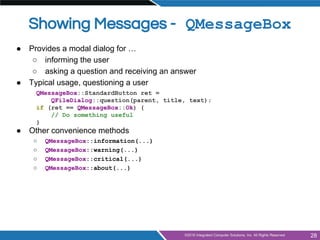
Showing Messages - QMessageBox
● Provides a modal dialog for …
○ informing the user
○ asking a question and receiving an answer
● Typical usage, questioning a user
QMessageBox::StandardButton ret =
QFileDialog::question(parent, title, text);
if (ret == QMessageBox::Ok) {
// Do something useful
}
● Other convenience methods
○ QMessageBox::information(...)
○ QMessageBox::warning(...)
○ QMessageBox::critical(...)
○ QMessageBox::about(...)
28
29
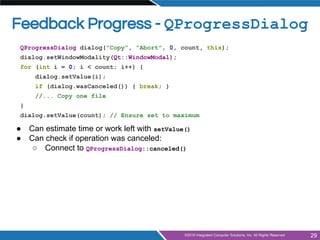
Feedback Progress - QProgressDialog
QProgressDialog dialog("Copy", "Abort", 0, count, this);
dialog.setWindowModality(Qt::WindowModal);
for (int i = 0; i < count; i++) {
dialog.setValue(i);
if (dialog.wasCanceled()) { break; }
//... Copy one file
}
dialog.setValue(count); // Ensure set to maximum
● Can estimate time or work left with setValue()
● Can check if operation was canceled:
○ Connect to QProgressDialog::canceled()
Other Common Dialogs
● Selecting Color - QColorDialog
○ QColorDialog::getColor(...)
● Selecting Font - QFontDialog
○ QFontDialog::getFont(...)
30
Agenda
● Introduction to Widgets
● Layout Management
● Qt Designer Introduction
● Dialogs
● Designer Forms and Code Integration
● Application Creation
● Resources
● Q & A
31
Code Integration
● Code integration of .ui files with C++ classes:
○ Separates UI from back-end code
○ Allows drag and drop WYSIWYG adjustments
○ Easy communication to/from C++
○ Using properties and signal/slot connections
32
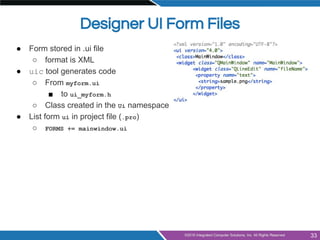
Designer UI Form Files
● Form stored in .ui file
○ format is XML
● uic tool generates code
○ From myform.ui
■ to ui_myform.h
○ Class created in the Ui namespace
● List form ui in project file (.pro)
○ FORMS += mainwindow.ui
33
From .ui to C++
34
OrderForm.ui
saves to
uic
Qt Designer
or
Design Mode in Qt Creator
class Ui_OrderForm { public:
QVBoxLayout *verticalLayout;
QLineEdit *lineEdit;
QDoubleSpinBox *doubleSpinBox;
QSpinBox *spinBox;
[...]
#include "orderform.h"
#include "ui_orderform.h"
OrderForm::OrderForm(QWidget *parent)
: QWidget(parent), ui(new Ui::OrderForm)
{ ui->setupUi(this);}
OrderForm::~OrderForm()
{ delete ui; }
produces
orderform.h
ui_orderform.
h
orderform.cpp
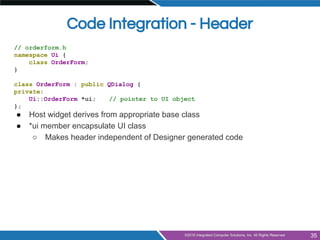
Code Integration - Header
// orderform.h
namespace Ui {
class OrderForm;
}
class OrderForm : public QDialog {
private:
Ui::OrderForm *ui; // pointer to UI object
};
● Host widget derives from appropriate base class
● *ui member encapsulate UI class
○ Makes header independent of Designer generated code
35
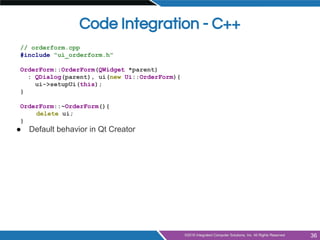
Code Integration - C++
// orderform.cpp
#include "ui_orderform.h"
OrderForm::OrderForm(QWidget *parent)
: QDialog(parent), ui(new Ui::OrderForm){
ui->setupUi(this);
}
OrderForm::~OrderForm(){
delete ui;
}
● Default behavior in Qt Creator
36
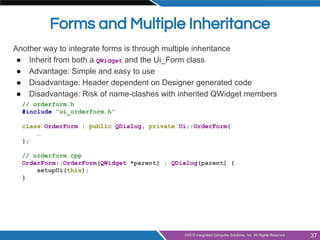
Forms and Multiple Inheritance
Another way to integrate forms is through multiple inheritance
● Inherit from both a QWidget and the Ui_Form class
● Advantage: Simple and easy to use
● Disadvantage: Header dependent on Designer generated code
● Disadvantage: Risk of name-clashes with inherited QWidget members
// orderform.h
#include "ui_orderform.h"
class OrderForm : public QDialog, private Ui::OrderForm{
…
};
// orderform.cpp
OrderForm::OrderForm(QWidget *parent) : QDialog(parent) {
setupUi(this);
}
37
Agenda
● Introduction to Widgets
● Layout Management
● Qt Designer Introduction
● Dialogs
● Designer Forms and Code Integration
● Application Creation
● Resources
38
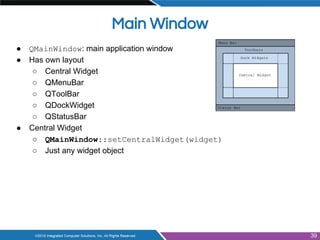
Main Window
● QMainWindow: main application window
● Has own layout
○ Central Widget
○ QMenuBar
○ QToolBar
○ QDockWidget
○ QStatusBar
● Central Widget
○ QMainWindow::setCentralWidget(widget)
○ Just any widget object
39
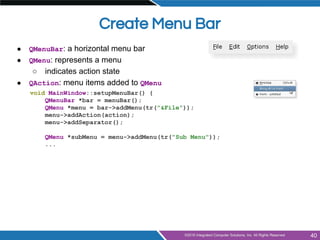
Create Menu Bar
● QMenuBar: a horizontal menu bar
● QMenu: represents a menu
○ indicates action state
● QAction: menu items added to QMenu
void MainWindow::setupMenuBar() {
QMenuBar *bar = menuBar();
QMenu *menu = bar->addMenu(tr("&File"));
menu->addAction(action);
menu->addSeparator();
QMenu *subMenu = menu->addMenu(tr("Sub Menu"));
...
40
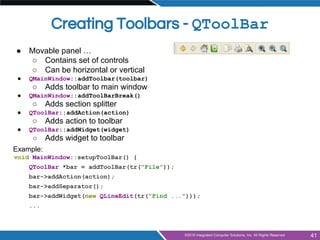
Creating Toolbars - QToolBar
● Movable panel …
○ Contains set of controls
○ Can be horizontal or vertical
● QMainWindow::addToolbar(toolbar)
○ Adds toolbar to main window
● QMainWindow::addToolBarBreak()
○ Adds section splitter
● QToolBar::addAction(action)
○ Adds action to toolbar
● QToolBar::addWidget(widget)
○ Adds widget to toolbar
Example:
void MainWindow::setupToolBar() {
QToolBar *bar = addToolBar(tr("File"));
bar->addAction(action);
bar->addSeparator();
bar->addWidget(new QLineEdit(tr("Find ...")));
...
41
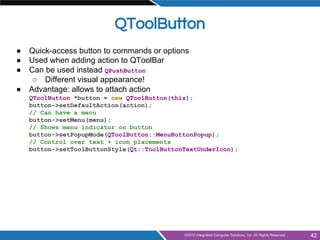
QToolButton
● Quick-access button to commands or options
● Used when adding action to QToolBar
● Can be used instead QPushButton
○ Different visual appearance!
● Advantage: allows to attach action
QToolButton *button = new QToolButton(this);
button->setDefaultAction(action);
// Can have a menu
button->setMenu(menu);
// Shows menu indicator on button
button->setPopupMode(QToolButton::MenuButtonPopup);
// Control over text + icon placements
button->setToolButtonStyle(Qt::ToolButtonTextUnderIcon);
42
QIcon, QPixmap, QImage
● Qt has different classes for representing images
○ QPixmap
■ for on-screen images
○ QImage
■ for off-screen images
○ QIcon
■ Support for:
● different sizes
● states (on, off)
● modes (active, disabled, selected)
43
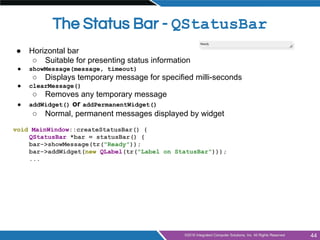
The Status Bar - QStatusBar
● Horizontal bar
○ Suitable for presenting status information
● showMessage(message, timeout)
○ Displays temporary message for specified milli-seconds
● clearMessage()
○ Removes any temporary message
● addWidget() or addPermanentWidget()
○ Normal, permanent messages displayed by widget
void MainWindow::createStatusBar() {
QStatusBar *bar = statusBar() {
bar->showMessage(tr("Ready"));
bar->addWidget(new QLabel(tr("Label on StatusBar")));
...
44
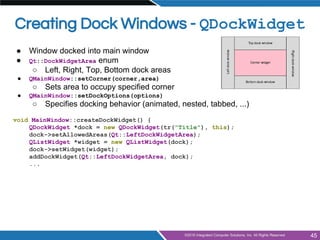
Creating Dock Windows - QDockWidget
● Window docked into main window
● Qt::DockWidgetArea enum
○ Left, Right, Top, Bottom dock areas
● QMainWindow::setCorner(corner,area)
○ Sets area to occupy specified corner
● QMainWindow::setDockOptions(options)
○ Specifies docking behavior (animated, nested, tabbed, ...)
void MainWindow::createDockWidget() {
QDockWidget *dock = new QDockWidget(tr("Title"), this);
dock->setAllowedAreas(Qt::LeftDockWidgetArea);
QListWidget *widget = new QListWidget(dock);
dock->setWidget(widget);
addDockWidget(Qt::LeftDockWidgetArea, dock);
...
45
QMenu and Context Menus
● Launch via event handler
void MyWidget::contextMenuEvent(event) {
m_contextMenu->exec(event->globalPos());
● or signal customContextMenuRequested()
○ Connect to signal to show context menu
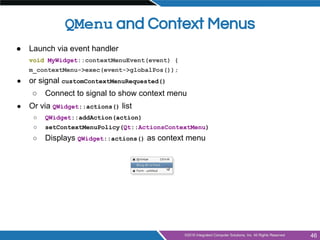
● Or via QWidget::actions() list
○ QWidget::addAction(action)
○ setContextMenuPolicy(Qt::ActionsContextMenu)
○ Displays QWidget::actions() as context menu
46
Agenda
● Introduction to Widgets
● Layout Management
● Qt Designer Introduction
● Dialogs
● Designer Forms and Code Integration
● Application Creation
● Resources
● Q & A
47
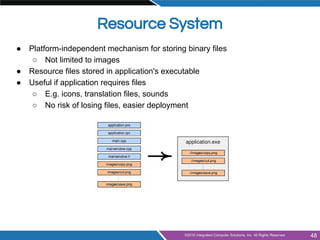
Resource System
● Platform-independent mechanism for storing binary files
○ Not limited to images
● Resource files stored in application's executable
● Useful if application requires files
○ E.g. icons, translation files, sounds
○ No risk of losing files, easier deployment
48
Using Resources
● Resources specified in .qrc file
<!DOCTYPE RCC><RCC version="1.0">
<qresource>
<file>images/copy.png</file>
<file>images/cut.png</file>
...
<qresource>
</RCC>
○ Can be created using Qt Creator
● Resources are accessible with ':' prefix
○ Example: ":/images/cut.png"
○ Simply use resource path instead of filename
○ QIcon(":/images/cut.png")
● To compile resource, edit .pro file
○ RESOURCES += application.qrc
○ qmake produces make rules to generate binary file
49
● Path Prefix
○ <qresource prefix="/myresources">
○ File accessible via ":/myresources/..."
● Aliases
○ <file alias="cut.png">images/scissors.png</file>
○ File accessible via ":/cut.png"
● Static Libraries and Resources
○ Need to force initialization
○ Q_INIT_RESOURCE(basename);
● Loading resources at runtime
○ Use rcc to create binary and register resource
○ rcc -binary data.qrc -o data.rcc
○ QResource::registerResource("data.rcc")
● Traverse resource tree using QDir(":/")
Resource Specifics
50
Agenda
● Introduction to Widgets
● Layout Management
● Qt Designer Introduction
● Dialogs
● Designer Forms and Code Integration
● Application Creation
● Resources
● Q & A
51
Next Time on Qt for Beginners!
Join us as we explore QML on May 19!

Qt for beginners part 2 widgets

  • 1.
    Qt For Beginners- Part 2 Widgets Brian Quinn, Qt Consultant and Engineer Integrated Computer Solutions Visit us at http://www.ics.com Video Available at: http://bit.ly/qt-beginners-part-2-widgets Copyright 2016, Integrated Computers Solutions, Inc. This work may not be reproduced in whole or in part without the express written consent of Integrated Computer Solutions, Inc. 1
  • 2.
    Agenda ● Introduction toWidgets ● Layout Management ● Qt Designer Introduction ● Dialogs ● Designer Forms and Code Integration ● Application Creation ● Resources ● Q & A 2
  • 3.
    Agenda ● Introduction toWidgets ● Layout Management ● Qt Designer Introduction ● Dialogs ● Designer Forms and Code Integration ● Application Creation ● Resources ● Q & A 3
  • 4.
    Why Widgets? ● Solidand Reliable ● Easy to Use ● Multitude of Features ● Extensive Documentation 4
  • 5.
    All of theParts and Pieces ● The Lowly QWidget ○ Basis of all visual items in the widget “family” ○ Just an empty rectangle ○ Makes sure that it looks like it’s native to the OS ● Parent-child relationship ○ x,y coordinates in relative regions ○ Parent defines coordinate space ● Custom widgets 5
  • 6.
    ● Displays ○ Labels ○Digital Display ○ Progress Bar ● Inputs ○ Line Edits ○ Spin Boxes ○ Combo Boxes ● Buttons ○ Push Buttons ○ Checkboxes ○ Radio buttons ● Containers ○ Group Boxes ○ Frames ○ Tabs ● Views ○ Lists ○ Tables ○ Trees ● And Much More! The Many kinds of Widgets 6
  • 7.
    Display Widgets Only meantdisplay information, no user interaction QLabel ● Shows a string of characters and or an image QLabel *myLabel = new QLabel("Qt Fundamentals!", parent); myLabel->setPixmap(pic); QLCDNumber ● Stylized numeric display QLCDNumber *myLCD = new QLCDNumber(parent); myLCD->display(552016); QProgressBar ● Percentage and animation included QProgressBar *myProgress = new QProgressBar(parent); myProgress->setRange(0, 100); myProgress->setValue(70); 7
  • 8.
    Text Input Widgets QLineEdit ●Can mask input ● Data validation QTextEdit ● Accepts HTML tags QLineEdit *line = new QLineEdit(parent); line->setText("Edit me"); line->setValidator(validator); QLineEdit *output = new QLineEdit(parent); output->setEchoMode(QLineEdit::Password); connect(line, SIGNAL(textChanged(QString)) ... ... QTextEdit *edit = new QTextEdit(parent); edit->setPlainText("Plain Text"); edit->append("<h1>Html Text</h1>"); 8
  • 9.
    Button Widgets 9 QAbstractButton ● Abstractbase class of buttons, providing all of their core functionality QPushButton ● The most basic button QPushButton *button = new QPushButton("Push Me", parent); button->setIcon(QIcon("images/icon.png")); setCheckable(bool); - toggle button QRadioButton ● Radio buttons are autoExclusive by default QRadioButton *radio = new QRadioButton("Option 1", parent); QCheckBox ● An inclusive choice selector QCheckBox *check = new QCheckBox("Choice 1", parent);
  • 10.
    Spinboxes QSpinBox and QDoubleSpinBox ●Numeric-exclusive data ● Keyboard and Mouse input ● Stepwise incrementing included QSpinBox *spin = new QSpinBox(parent); spin->setRange(10, 80); spin->setValue(42); spin->setSuffix(" USD"); connect(spin, SIGNAL(valueChanged(int)) ... ... QDoubleSpinBox *dspin = new QDoubleSpinBox(parent); dspin->setRange(0.0, 1.0); dspin->setValue(0.5); dspin->setSuffix(" Kg"); connect(spin, SIGNAL(valueChanged(double)) ... 10
  • 11.
    Sliders, Dials, andCombo Boxes QSlider and QDial ● Drag or click to the desired value QSlider *slider = new QSlider(Qt::Horizontal, parent); slider->setRange(0, 99); slider->setValue(0); connect(slider, SIGNAL(valueChanged(int)) ... QDial *volDial = new QDial(parent); QComboBox ● enter or select the desired value from the drop-down list QComboBox *combo = new QComboBox(parent); combo->addItems(QStringList() << "Apples" << "Bananas" << "Cherries"); 11
  • 12.
    Organizer Widgets QGroupBox box =new QGroupBox("Your Options", parent); setCheckable(bool) - checkbox in title QTabWidget tab = new QTabWidget(parent); tab->addWidget(widget, icon, "Tab 1"); connect(tab, SIGNAL(currentChanged(int)) … ● setCurrentWidget(widget) ○ Displays page associated with widget ● setTabPosition(position) ○ Defines where tabs are drawn ● setTabsClosable(bool) ○ Adds close buttons 12
  • 13.
    Agenda ● Introduction toWidgets ● Layout Management ● Qt Designer Introduction ● Dialogs ● Designer Forms and Code Integration ● Application Creation ● Resources ● Q & A 13
  • 14.
    Doing It Yourself ●Place and resize widgets ○ move() ○ resize() ○ setGeometry() ● Example: QWidget *parent = new QWidget(...); parent->resize(400, 400); QCheckBox *cb = new QCheckBox(parent); cb->move(10, 10); 14
  • 15.
    Making Qt DoThe Work Definition Layout: Specifying the relations of elements to each other instead of the absolute positions and sizes. ● Advantages: ○ Works with different languages. ○ Works with different dialog sizes. ○ Works with different font sizes. ○ Better to maintain. ● Disadvantage ○ Need to think about your layout first. Thinking about layout is not a disadvantage! 15
  • 16.
    Layout Management Classes ●QHBoxLayout ○ Lines up widgets horizontally ● QVBoxLayout ○ Lines up widgets vertically ● QGridLayout ○ Arranges the widgets in a grid ● QFormLayout ○ Lines up a (label, widget) pairs in two columns. ● QStackedLayout ○ Arranges widgets in a stack ■ only topmost is visible 16
  • 17.
    QHBoxLayout and QVBoxLayout ●Lines up widgets horizontally or vertically ● Divides space into boxes ● Each managed widget fills in one box QWidget *window = new QWidget(); QPushButton *one = new QPushButton("One"); … QHBoxLayout *layout = new QHBoxLayout(); layout->addWidget(one); … window->setLayout(layout); 17
  • 18.
    Widgets In aGrid - QGridLayout QWidget *window = new QWidget(); QPushButton *one = new QPushButton("One"); ... QGridLayout *layout = new QGridLayout(); layout->addWidget(one, 0, 0); // row:0, col:0 layout->addWidget(two, 0, 1); // row:0, col:1 // row:1, col:0, rowSpan:1, colSpan:2 layout->addWidget(three, 1, 0, 1, 2); window->setLayout(layout) ● No need to specify rows and columns before adding children 18
  • 19.
    QFormLayout ● A two-columnlayout ○ Column 1 a label (as annotation) ○ Column 2 a widget (as field) ● Respects style guide of individual platforms. QPushButton *one = new QPushButton("One"); QFormLayout *layout = new QFormLayout(); layout->addRow("One", one); … window->setLayout(layout); ● Form layout with Cleanlooks and Mac style 19
  • 20.
    Some Layout Terms ●Stretch ○ Relative resize factor ○ QBoxLayout::addWidget(widget, stretch) ○ QBoxLayout::addStretch(stretch) ○ ● Contents Margins ○ Space reserved around the managed widgets. ○ QLayout::setContentsMargins(left,top,right,bottom) ● Spacing ○ Space reserved between widgets ○ QBoxLayout::addSpacing(size) 20
  • 21.
    Nested Layouts ● ABox within a box ○ Allows flexible layouts ○ QLayout::addLayout(...) 21
  • 22.
    Agenda ● Introduction toWidgets ● Layout Management ● Qt Designer Introduction ● Dialogs ● Designer Forms and Code Integration ● Application Creation ● Resources 22
  • 23.
    Qt Designer ● DesignUI forms visually ● Visual Editor for: ○ Signal/slot connections ○ Actions ○ Tab handling ○ Buddy widgets ○ Widget properties ○ Integration of custom widgets ○ Resource files 23
  • 24.
    Designer Tips ● Usethe Designer! ● Avoid d'n'd of layouts from the Widget Box in favor of multiple-selection + Layout Toolbar Buttons above the Widget Editor. ● "Signals and Slots" edit mode is easier for creating signals and slots. The "signals and slots" dockable is good for editing and removing already existing connections. ● Don't add something to a GroupBox until it is already laid out correctly. ● Move things temporarily to another empty widget as scratch-space when you have complicated nested layouts and Group Boxes. 24
  • 25.
    Agenda ● Introduction toWidgets ● Layout Management ● Qt Designer Introduction ● Dialogs ● Designer Forms and Code Integration ● Application Creation ● Resources ● Q & A 25
  • 26.
    Dialog Windows -QDialog ● Base class of dialog window widgets ● Modal dialog: ○ Remains in foreground, until closed ○ Blocks input to remaining application QDialog myDialog(this); … if (myDialog.exec() == QDialog::Accepted) { // exec blocks until user closes dialog } ● Modeless dialog: ○ Operates independently in application ○ Use show() ● No need to keep dialogs around forever ○ Call QObject::deleteLater() ○ Or setAttribute(Qt::WA_DeleteOnClose) 26
  • 27.
    Asking for Files- QFileDialog ● Asking for a file name QString fileName = QFileDialog::getOpenFileName(this, tr("Open File")); if (!fileName.isNull()) { // do something useful } ● QFileDialog::getOpenFileNames() ○ Returns one or more selected existing files ● QFileDialog::getSaveFileName() ○ Returns a file name. File does not have to exist. ● QFileDialog::getExistingDirectory() ○ Returns an existing directory. ● setFilter("Image Files (*.png *.jpg *.bmp)") ○ Displays files matching the patterns 27
  • 28.
    Showing Messages -QMessageBox ● Provides a modal dialog for … ○ informing the user ○ asking a question and receiving an answer ● Typical usage, questioning a user QMessageBox::StandardButton ret = QFileDialog::question(parent, title, text); if (ret == QMessageBox::Ok) { // Do something useful } ● Other convenience methods ○ QMessageBox::information(...) ○ QMessageBox::warning(...) ○ QMessageBox::critical(...) ○ QMessageBox::about(...) 28
  • 29.
    29 Feedback Progress -QProgressDialog QProgressDialog dialog("Copy", "Abort", 0, count, this); dialog.setWindowModality(Qt::WindowModal); for (int i = 0; i < count; i++) { dialog.setValue(i); if (dialog.wasCanceled()) { break; } //... Copy one file } dialog.setValue(count); // Ensure set to maximum ● Can estimate time or work left with setValue() ● Can check if operation was canceled: ○ Connect to QProgressDialog::canceled()
  • 30.
    Other Common Dialogs ●Selecting Color - QColorDialog ○ QColorDialog::getColor(...) ● Selecting Font - QFontDialog ○ QFontDialog::getFont(...) 30
  • 31.
    Agenda ● Introduction toWidgets ● Layout Management ● Qt Designer Introduction ● Dialogs ● Designer Forms and Code Integration ● Application Creation ● Resources ● Q & A 31
  • 32.
    Code Integration ● Codeintegration of .ui files with C++ classes: ○ Separates UI from back-end code ○ Allows drag and drop WYSIWYG adjustments ○ Easy communication to/from C++ ○ Using properties and signal/slot connections 32
  • 33.
    Designer UI FormFiles ● Form stored in .ui file ○ format is XML ● uic tool generates code ○ From myform.ui ■ to ui_myform.h ○ Class created in the Ui namespace ● List form ui in project file (.pro) ○ FORMS += mainwindow.ui 33
  • 34.
    From .ui toC++ 34 OrderForm.ui saves to uic Qt Designer or Design Mode in Qt Creator class Ui_OrderForm { public: QVBoxLayout *verticalLayout; QLineEdit *lineEdit; QDoubleSpinBox *doubleSpinBox; QSpinBox *spinBox; [...] #include "orderform.h" #include "ui_orderform.h" OrderForm::OrderForm(QWidget *parent) : QWidget(parent), ui(new Ui::OrderForm) { ui->setupUi(this);} OrderForm::~OrderForm() { delete ui; } produces orderform.h ui_orderform. h orderform.cpp
  • 35.
    Code Integration -Header // orderform.h namespace Ui { class OrderForm; } class OrderForm : public QDialog { private: Ui::OrderForm *ui; // pointer to UI object }; ● Host widget derives from appropriate base class ● *ui member encapsulate UI class ○ Makes header independent of Designer generated code 35
  • 36.
    Code Integration -C++ // orderform.cpp #include "ui_orderform.h" OrderForm::OrderForm(QWidget *parent) : QDialog(parent), ui(new Ui::OrderForm){ ui->setupUi(this); } OrderForm::~OrderForm(){ delete ui; } ● Default behavior in Qt Creator 36
  • 37.
    Forms and MultipleInheritance Another way to integrate forms is through multiple inheritance ● Inherit from both a QWidget and the Ui_Form class ● Advantage: Simple and easy to use ● Disadvantage: Header dependent on Designer generated code ● Disadvantage: Risk of name-clashes with inherited QWidget members // orderform.h #include "ui_orderform.h" class OrderForm : public QDialog, private Ui::OrderForm{ … }; // orderform.cpp OrderForm::OrderForm(QWidget *parent) : QDialog(parent) { setupUi(this); } 37
  • 38.
    Agenda ● Introduction toWidgets ● Layout Management ● Qt Designer Introduction ● Dialogs ● Designer Forms and Code Integration ● Application Creation ● Resources 38
  • 39.
    Main Window ● QMainWindow:main application window ● Has own layout ○ Central Widget ○ QMenuBar ○ QToolBar ○ QDockWidget ○ QStatusBar ● Central Widget ○ QMainWindow::setCentralWidget(widget) ○ Just any widget object 39
  • 40.
    Create Menu Bar ●QMenuBar: a horizontal menu bar ● QMenu: represents a menu ○ indicates action state ● QAction: menu items added to QMenu void MainWindow::setupMenuBar() { QMenuBar *bar = menuBar(); QMenu *menu = bar->addMenu(tr("&File")); menu->addAction(action); menu->addSeparator(); QMenu *subMenu = menu->addMenu(tr("Sub Menu")); ... 40
  • 41.
    Creating Toolbars -QToolBar ● Movable panel … ○ Contains set of controls ○ Can be horizontal or vertical ● QMainWindow::addToolbar(toolbar) ○ Adds toolbar to main window ● QMainWindow::addToolBarBreak() ○ Adds section splitter ● QToolBar::addAction(action) ○ Adds action to toolbar ● QToolBar::addWidget(widget) ○ Adds widget to toolbar Example: void MainWindow::setupToolBar() { QToolBar *bar = addToolBar(tr("File")); bar->addAction(action); bar->addSeparator(); bar->addWidget(new QLineEdit(tr("Find ..."))); ... 41
  • 42.
    QToolButton ● Quick-access buttonto commands or options ● Used when adding action to QToolBar ● Can be used instead QPushButton ○ Different visual appearance! ● Advantage: allows to attach action QToolButton *button = new QToolButton(this); button->setDefaultAction(action); // Can have a menu button->setMenu(menu); // Shows menu indicator on button button->setPopupMode(QToolButton::MenuButtonPopup); // Control over text + icon placements button->setToolButtonStyle(Qt::ToolButtonTextUnderIcon); 42
  • 43.
    QIcon, QPixmap, QImage ●Qt has different classes for representing images ○ QPixmap ■ for on-screen images ○ QImage ■ for off-screen images ○ QIcon ■ Support for: ● different sizes ● states (on, off) ● modes (active, disabled, selected) 43
  • 44.
    The Status Bar- QStatusBar ● Horizontal bar ○ Suitable for presenting status information ● showMessage(message, timeout) ○ Displays temporary message for specified milli-seconds ● clearMessage() ○ Removes any temporary message ● addWidget() or addPermanentWidget() ○ Normal, permanent messages displayed by widget void MainWindow::createStatusBar() { QStatusBar *bar = statusBar() { bar->showMessage(tr("Ready")); bar->addWidget(new QLabel(tr("Label on StatusBar"))); ... 44
  • 45.
    Creating Dock Windows- QDockWidget ● Window docked into main window ● Qt::DockWidgetArea enum ○ Left, Right, Top, Bottom dock areas ● QMainWindow::setCorner(corner,area) ○ Sets area to occupy specified corner ● QMainWindow::setDockOptions(options) ○ Specifies docking behavior (animated, nested, tabbed, ...) void MainWindow::createDockWidget() { QDockWidget *dock = new QDockWidget(tr("Title"), this); dock->setAllowedAreas(Qt::LeftDockWidgetArea); QListWidget *widget = new QListWidget(dock); dock->setWidget(widget); addDockWidget(Qt::LeftDockWidgetArea, dock); ... 45
  • 46.
    QMenu and ContextMenus ● Launch via event handler void MyWidget::contextMenuEvent(event) { m_contextMenu->exec(event->globalPos()); ● or signal customContextMenuRequested() ○ Connect to signal to show context menu ● Or via QWidget::actions() list ○ QWidget::addAction(action) ○ setContextMenuPolicy(Qt::ActionsContextMenu) ○ Displays QWidget::actions() as context menu 46
  • 47.
    Agenda ● Introduction toWidgets ● Layout Management ● Qt Designer Introduction ● Dialogs ● Designer Forms and Code Integration ● Application Creation ● Resources ● Q & A 47
  • 48.
    Resource System ● Platform-independentmechanism for storing binary files ○ Not limited to images ● Resource files stored in application's executable ● Useful if application requires files ○ E.g. icons, translation files, sounds ○ No risk of losing files, easier deployment 48
  • 49.
    Using Resources ● Resourcesspecified in .qrc file <!DOCTYPE RCC><RCC version="1.0"> <qresource> <file>images/copy.png</file> <file>images/cut.png</file> ... <qresource> </RCC> ○ Can be created using Qt Creator ● Resources are accessible with ':' prefix ○ Example: ":/images/cut.png" ○ Simply use resource path instead of filename ○ QIcon(":/images/cut.png") ● To compile resource, edit .pro file ○ RESOURCES += application.qrc ○ qmake produces make rules to generate binary file 49
  • 50.
    ● Path Prefix ○<qresource prefix="/myresources"> ○ File accessible via ":/myresources/..." ● Aliases ○ <file alias="cut.png">images/scissors.png</file> ○ File accessible via ":/cut.png" ● Static Libraries and Resources ○ Need to force initialization ○ Q_INIT_RESOURCE(basename); ● Loading resources at runtime ○ Use rcc to create binary and register resource ○ rcc -binary data.qrc -o data.rcc ○ QResource::registerResource("data.rcc") ● Traverse resource tree using QDir(":/") Resource Specifics 50
  • 51.
    Agenda ● Introduction toWidgets ● Layout Management ● Qt Designer Introduction ● Dialogs ● Designer Forms and Code Integration ● Application Creation ● Resources ● Q & A 51
  • 52.
    Next Time onQt for Beginners! Join us as we explore QML on May 19!