Custom Modern Qt Quick 2
components
2
• Presentation
• Adrien Leravat (France)
• Embedded software engineer
• Adeneo Embedded
• France, Germany (Franckfurt), USA
• BSPs and OS porting to ARM (Linux, Windows,
Android, QNX)
• Embedded software architecture and development
• Mobile expertise (cloud, internet of things)
Introduction
3
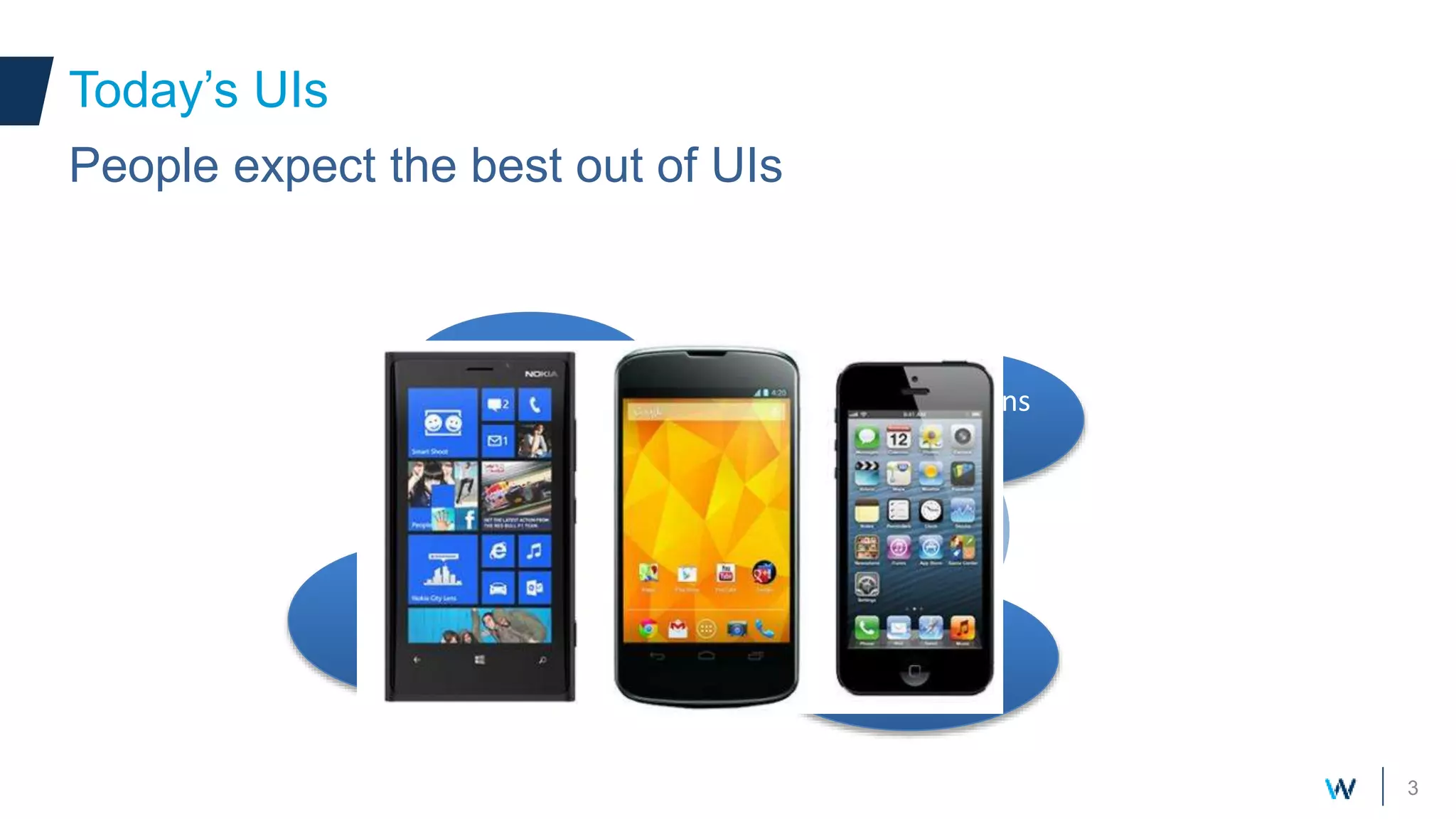
Today’s UIs
People expect the best out of UIs
Sensors
Animations
Effects
Graphical
acceleration
Touch
Gestures
Modern
feeling
4
• Reminder: custom components can
be QML files or C++ classes
• QML file: collection of QML
components
• Quick & easy
• Limited to existing components
Your own components
[MyComponent.qml]
Rectangle {
width: 100
height: 100
color: “blue”
MouseArea {
anchors.fill: parent
onPressed: {
log.message(“Pressed !”);
}
}
}
Your own components
5
• Custom Item C++ class
• More effort
• More possibilities
• Custom painting
• Custom events handling
Your own components
[mycomponent.h]
class MyComponent : public QQuickItem {
Q_OBJECT
public:
MyComponent();
mousePressEvent(QMouseEvent*);
};
Plugins and
events
Handling Plugings and events
7
• Gestures part of everyday UIs
• Slide, pinch, rotate
• Now a natural way to interact
• Qt provides different ways to handle multi-touch
• More involving than single touch
Multi-touch
8
• Requirements
• Screen with multi-touch capability (ex:
capacitive screen)
• Appropriate driver
• Qt plugin handling multi-touch events for
Linux (EvdevTouch)
• Enjoy multi-touch events in Qt !
Multi-touch
9
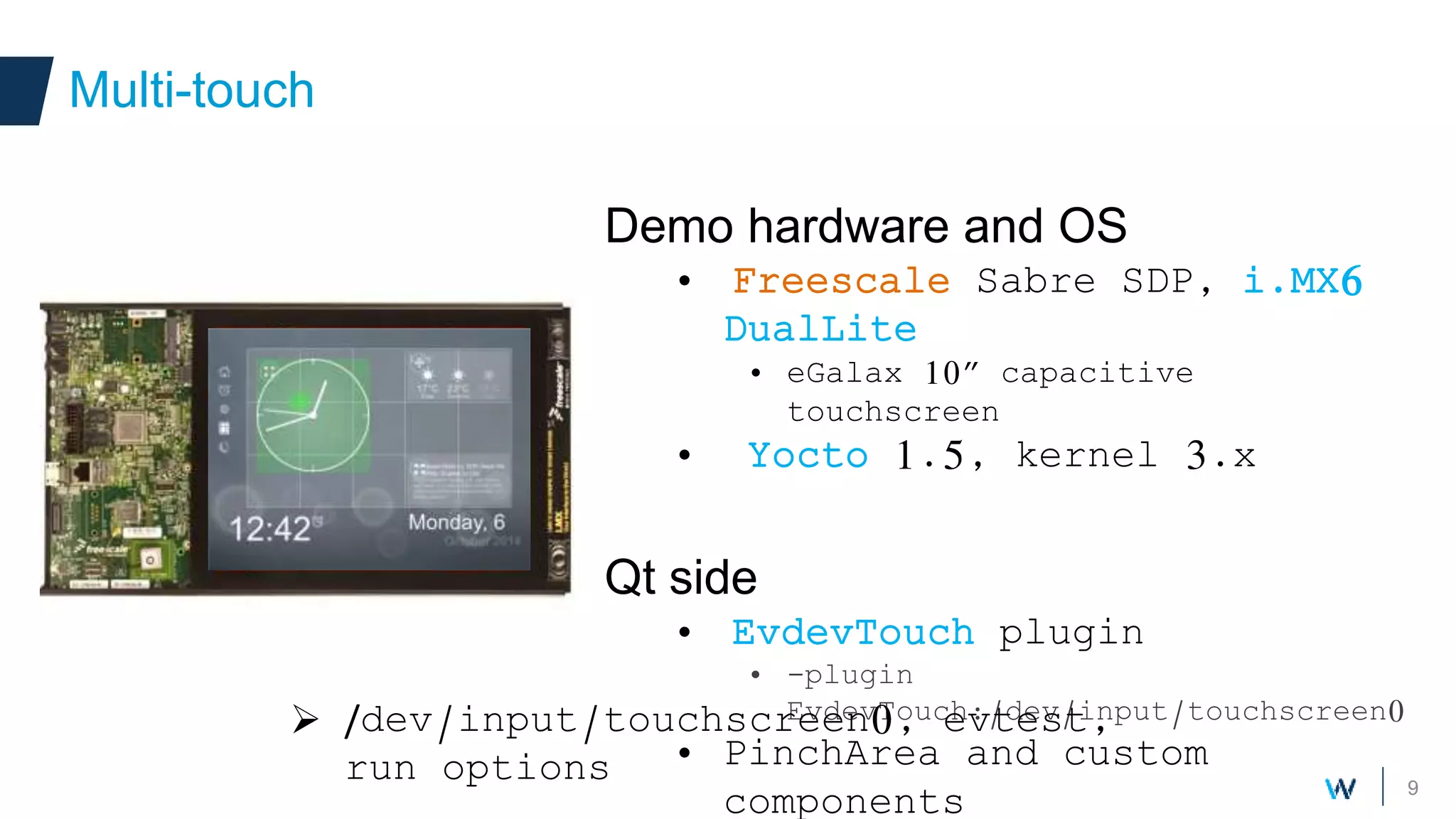
Demo hardware and OS
• Freescale Sabre SDP, i.MX6
DualLite
• eGalax 10” capacitive
touchscreen
• Yocto 1.5, kernel 3.x
Qt side
• EvdevTouch plugin
• -plugin
EvdevTouch:/dev/input/touchscreen0
• PinchArea and custom
components
Multi-touch
 /dev/input/touchscreen0, evtest,
run options
10
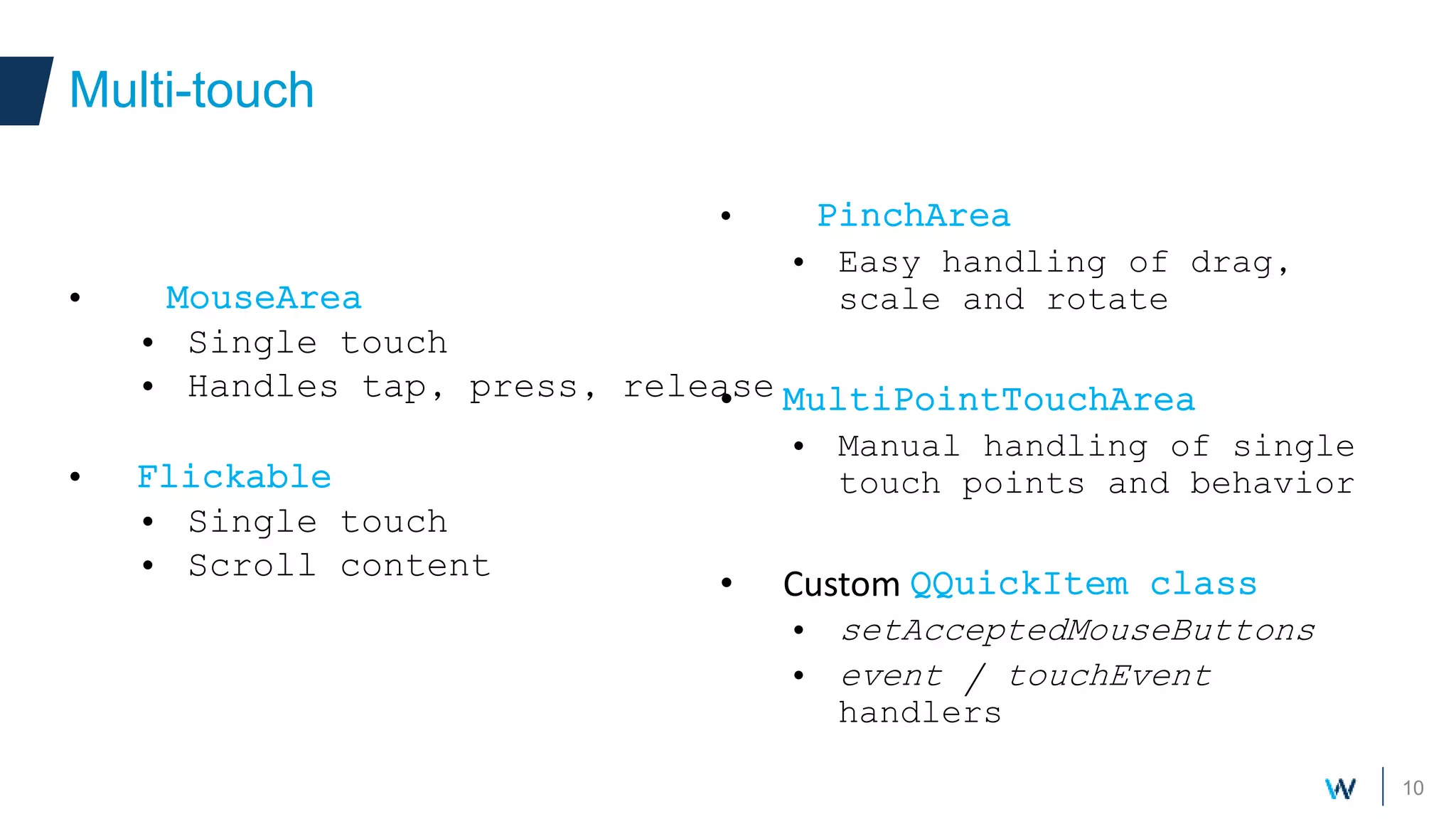
• MouseArea
• Single touch
• Handles tap, press, release
• Flickable
• Single touch
• Scroll content
Multi-touch
• PinchArea
• Easy handling of drag,
scale and rotate
• MultiPointTouchArea
• Manual handling of single
touch points and behavior
• Custom QQuickItem class
• setAcceptedMouseButtons
• event / touchEvent
handlers
11
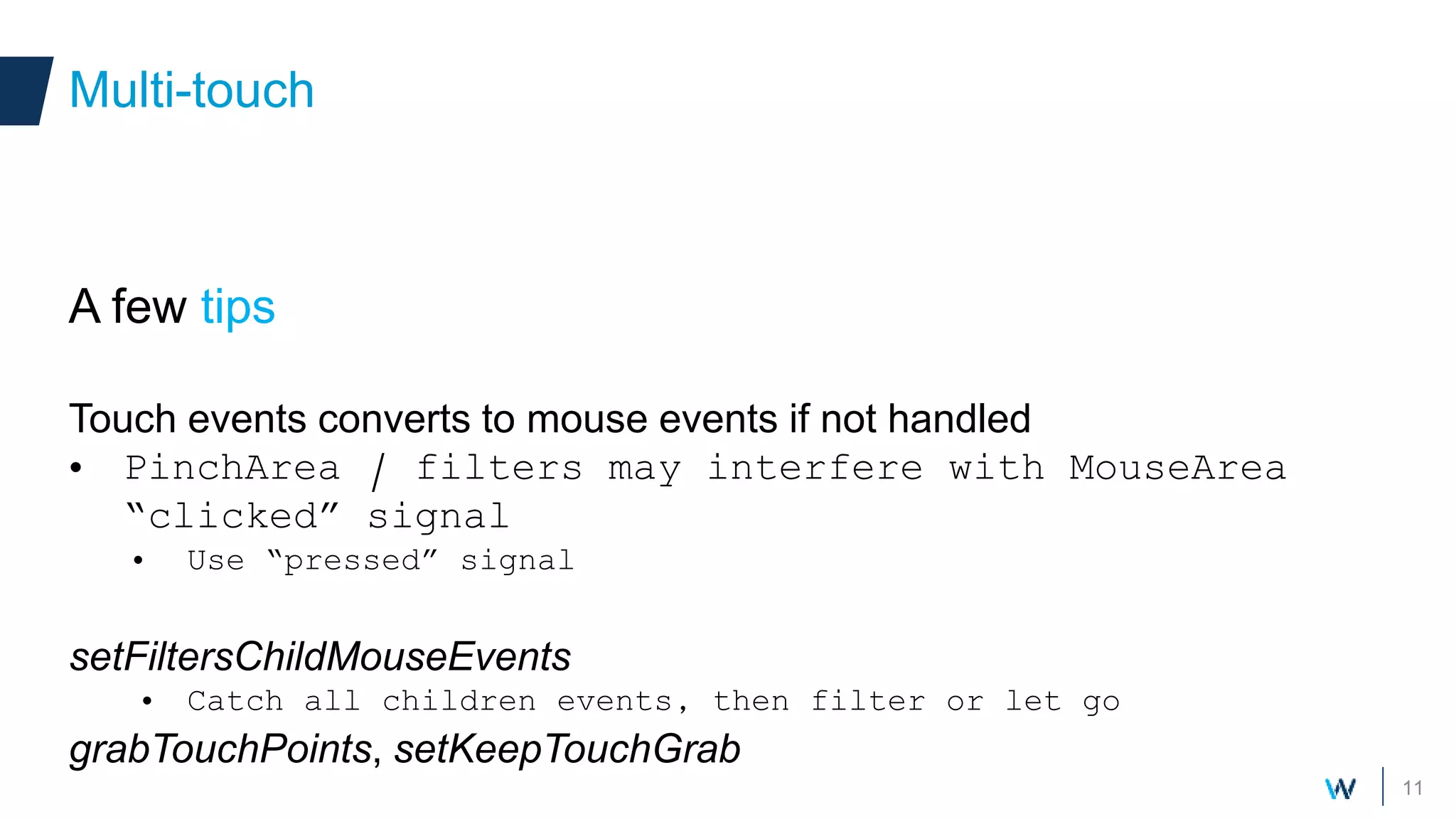
A few tips
Touch events converts to mouse events if not handled
• PinchArea / filters may interfere with MouseArea
“clicked” signal
• Use “pressed” signal
setFiltersChildMouseEvents
• Catch all children events, then filter or let go
grabTouchPoints, setKeepTouchGrab
Multi-touch
Polishing with effects
Animations and
shaders
Polishing with effects
13
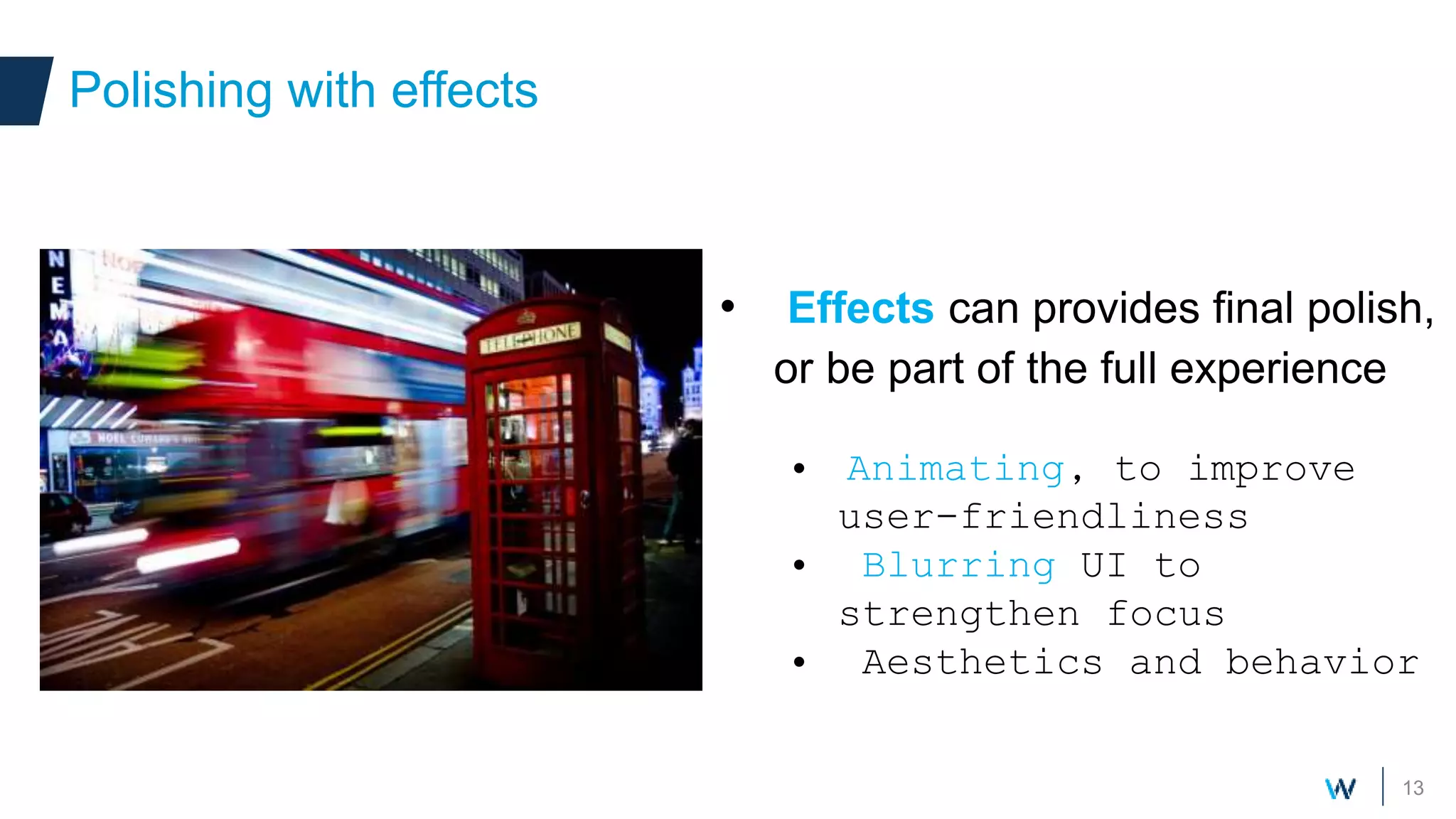
• Effects can provides final polish,
or be part of the full experience
• Animating, to improve
user-friendliness
• Blurring UI to
strengthen focus
• Aesthetics and behavior
Polishing with effects
14
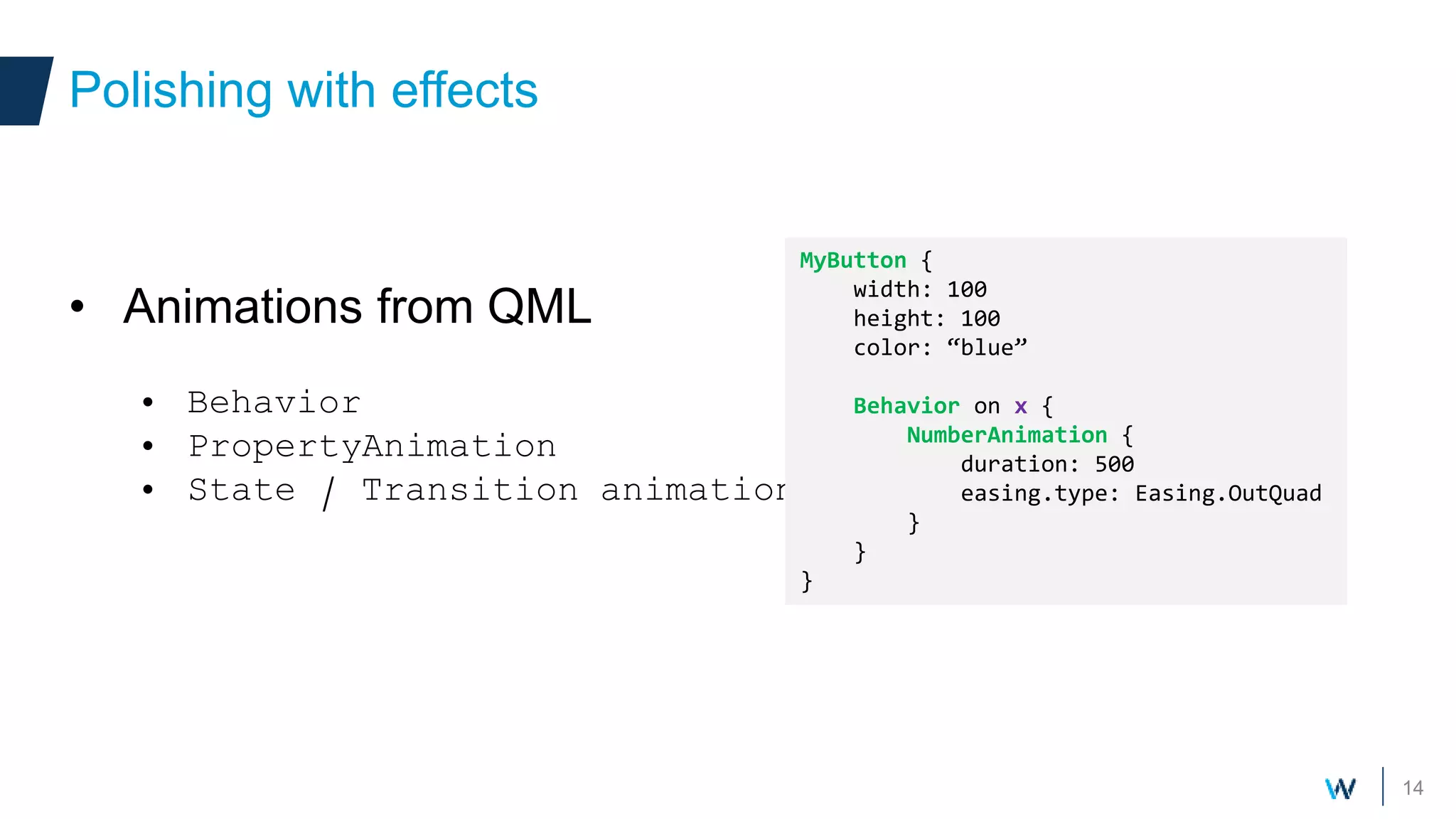
• Animations from QML
• Behavior
• PropertyAnimation
• State / Transition animations
Polishing with effects
MyButton {
width: 100
height: 100
color: “blue”
Behavior on x {
NumberAnimation {
duration: 500
easing.type: Easing.OutQuad
}
}
}
15
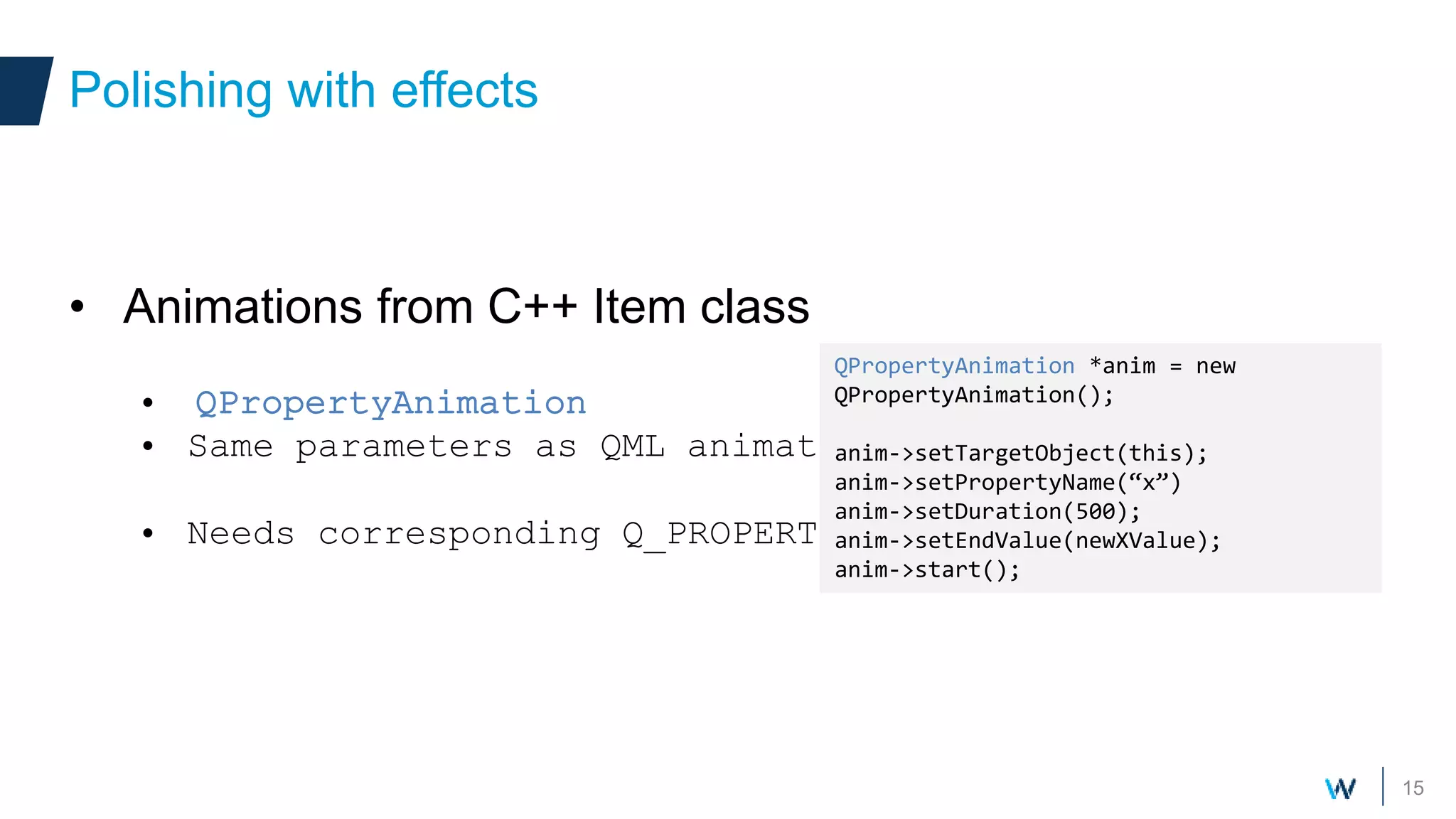
• Animations from C++ Item class
• QPropertyAnimation
• Same parameters as QML animations
• Needs corresponding Q_PROPERTY
Polishing with effects
QPropertyAnimation *anim = new
QPropertyAnimation();
anim->setTargetObject(this);
anim->setPropertyName(“x”)
anim->setDuration(500);
anim->setEndValue(newXValue);
anim->start();
16
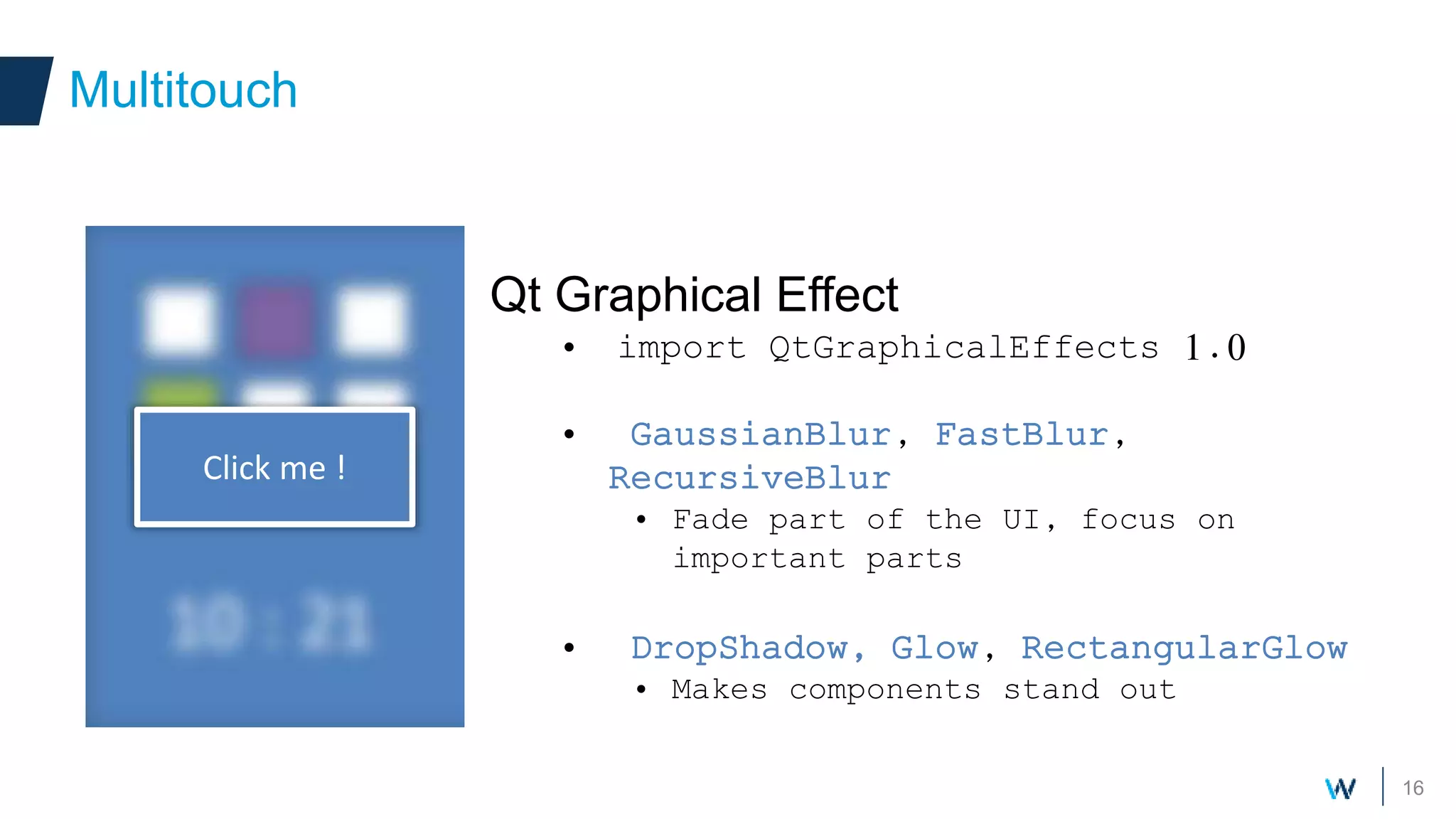
Qt Graphical Effect
• import QtGraphicalEffects 1.0
• GaussianBlur, FastBlur,
RecursiveBlur
• Fade part of the UI, focus on
important parts
• DropShadow, Glow, RectangularGlow
• Makes components stand out
Multitouch
Click me !
OpenGL drawings
Make it faster !
18
• Fluidity and responsiveness are critical
• Challenging on embedded devices
• Since Qt 5, full OpenGL acceleration for QtQuick
• Backend provides graphical acceleration
• Eglfs is the common choice on linux
• MyApp –platform eglfs
Context Context
19
• Qt Quick 1
• QDeclarativeItem
• QDeclarativeItem inherited QGraphicsItem
• paint() method with QPainter
• Qt Quick 2
• QQuickItem
• QQuickItem inherits QObject
• No paint() method !
Qt Quick item class
20
• How to draw QtQuick2 item ?
• QQuickPaintedItem (QQuickItem)
• Implement paint() method (QPainter drawing)
• Convenience class, don’t fully leverage Scene
Graph and OpenGL
• Suited for light components
QQuickPaintedItem
21
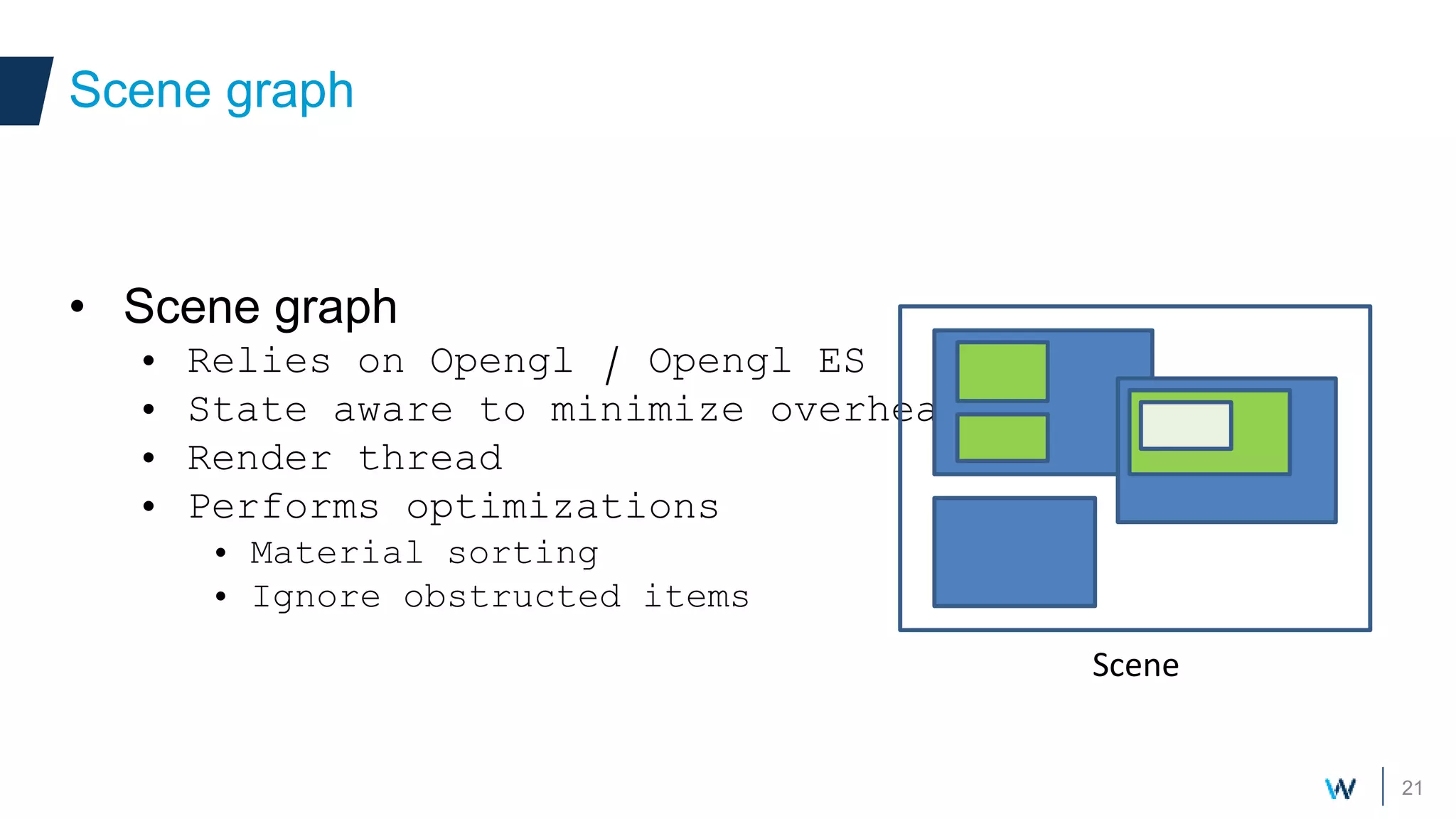
• Scene graph
• Relies on Opengl / Opengl ES
• State aware to minimize overhead
• Render thread
• Performs optimizations
• Material sorting
• Ignore obstructed items
Scene graph
Scene
22
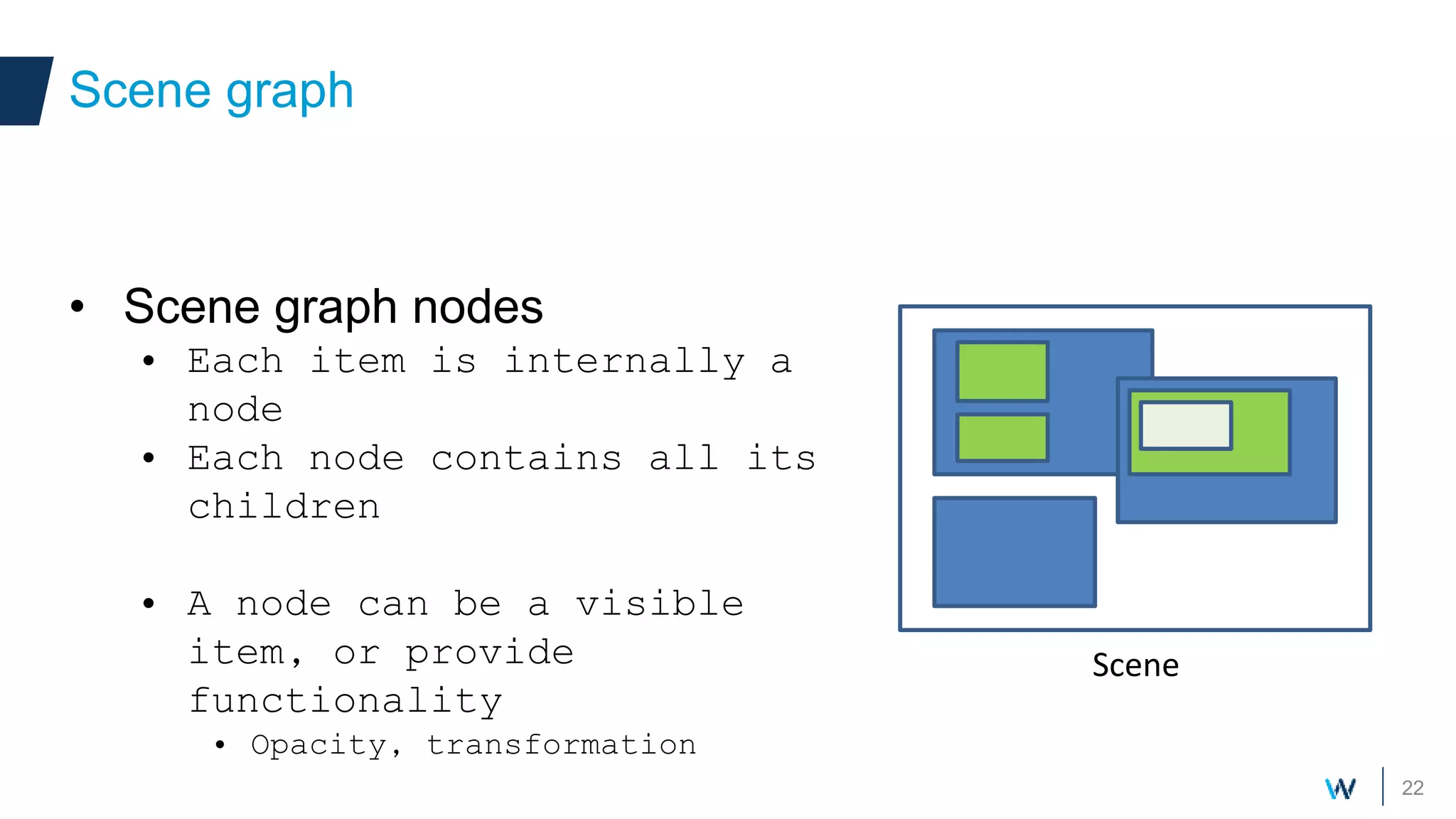
• Scene graph nodes
• Each item is internally a
node
• Each node contains all its
children
• A node can be a visible
item, or provide
functionality
• Opacity, transformation
Scene graph
Scene
23
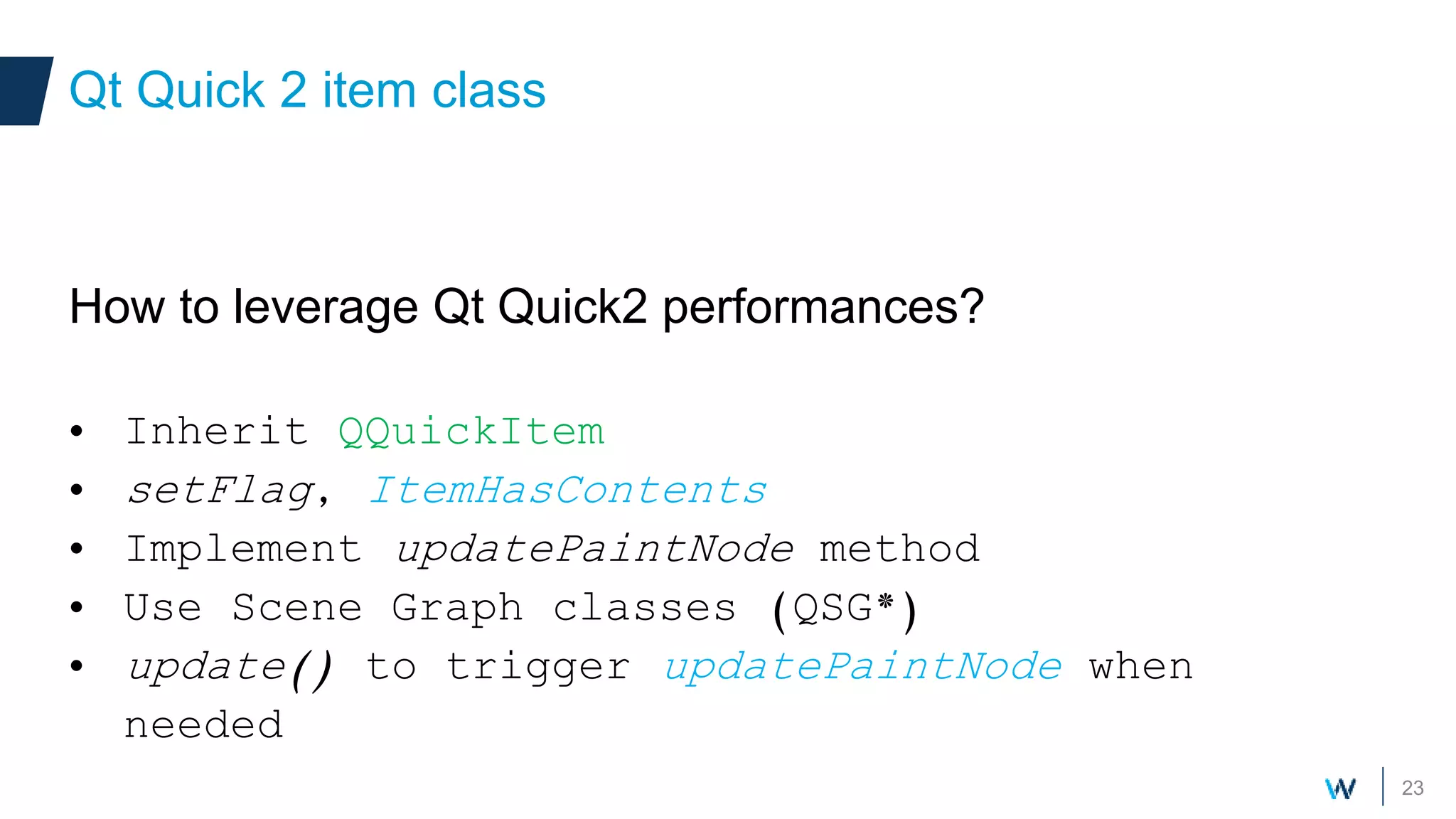
How to leverage Qt Quick2 performances?
• Inherit QQuickItem
• setFlag, ItemHasContents
• Implement updatePaintNode method
• Use Scene Graph classes (QSG*)
• update() to trigger updatePaintNode when
needed
Qt Quick 2 item class
24
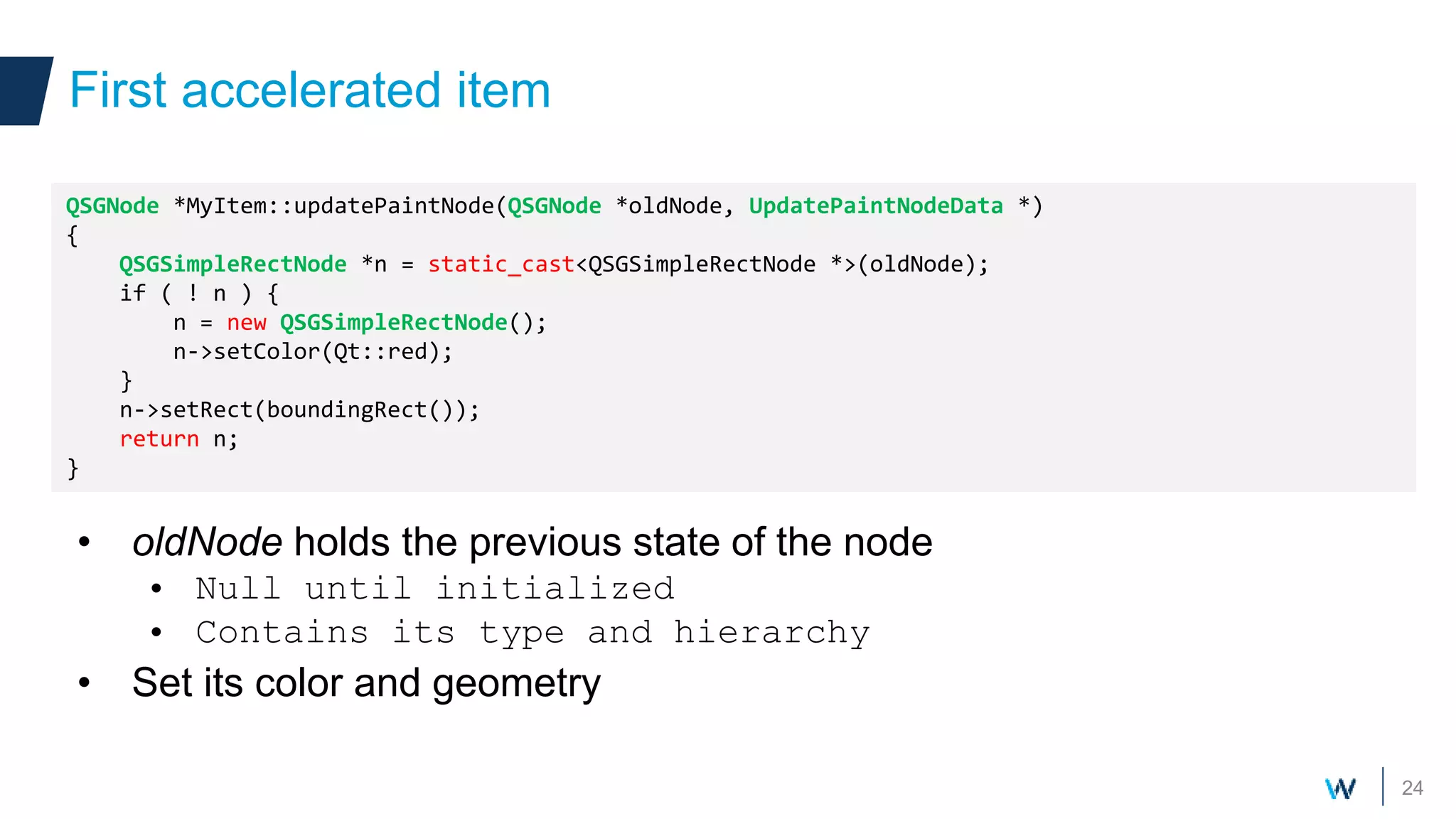
• oldNode holds the previous state of the node
• Null until initialized
• Contains its type and hierarchy
• Set its color and geometry
First accelerated item
QSGNode *MyItem::updatePaintNode(QSGNode *oldNode, UpdatePaintNodeData *)
{
QSGSimpleRectNode *n = static_cast<QSGSimpleRectNode *>(oldNode);
if ( ! n ) {
n = new QSGSimpleRectNode();
n->setColor(Qt::red);
}
n->setRect(boundingRect());
return n;
}
25
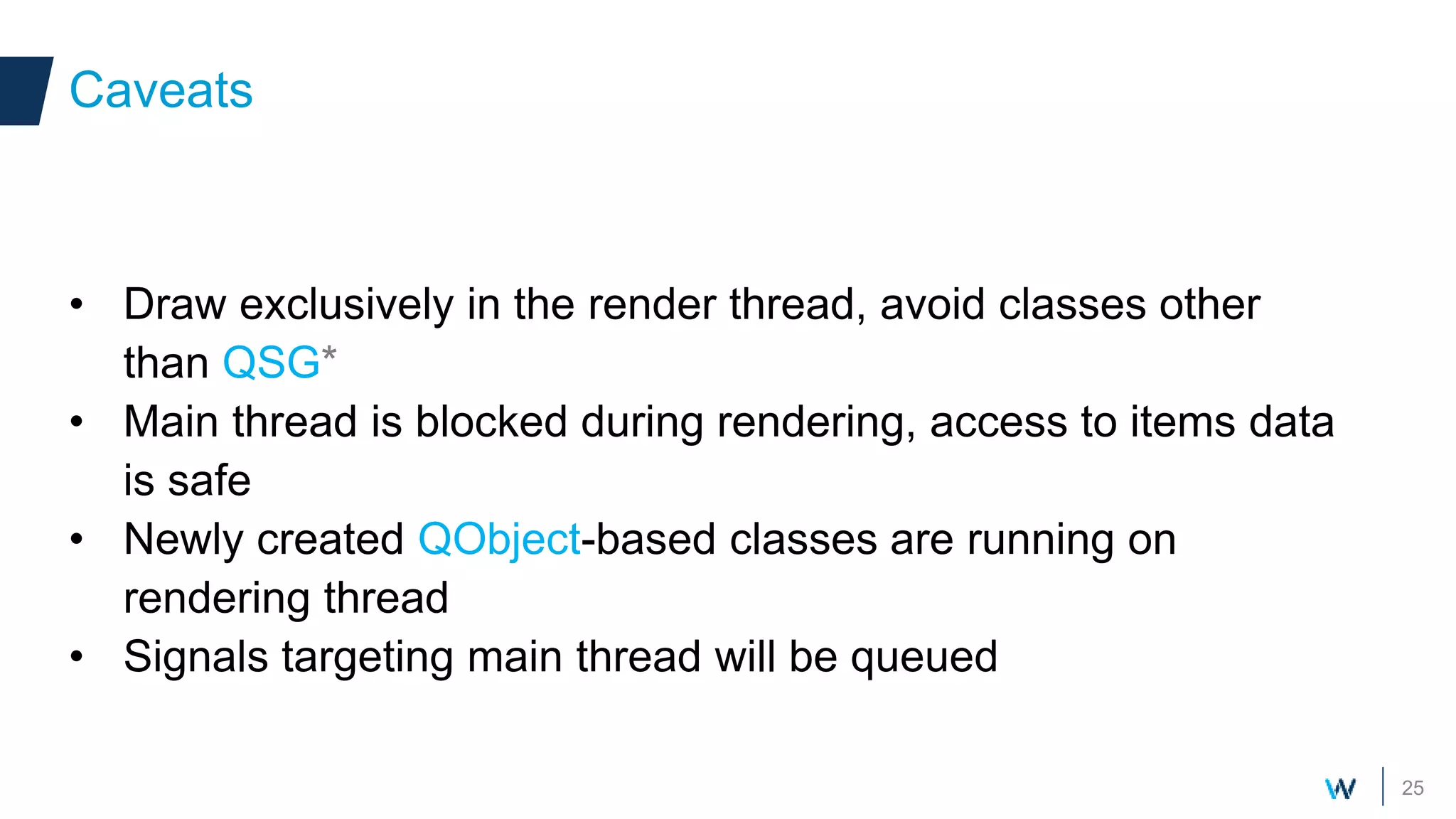
• Draw exclusively in the render thread, avoid classes other
than QSG*
• Main thread is blocked during rendering, access to items data
is safe
• Newly created QObject-based classes are running on
rendering thread
• Signals targeting main thread will be queued
Caveats
26
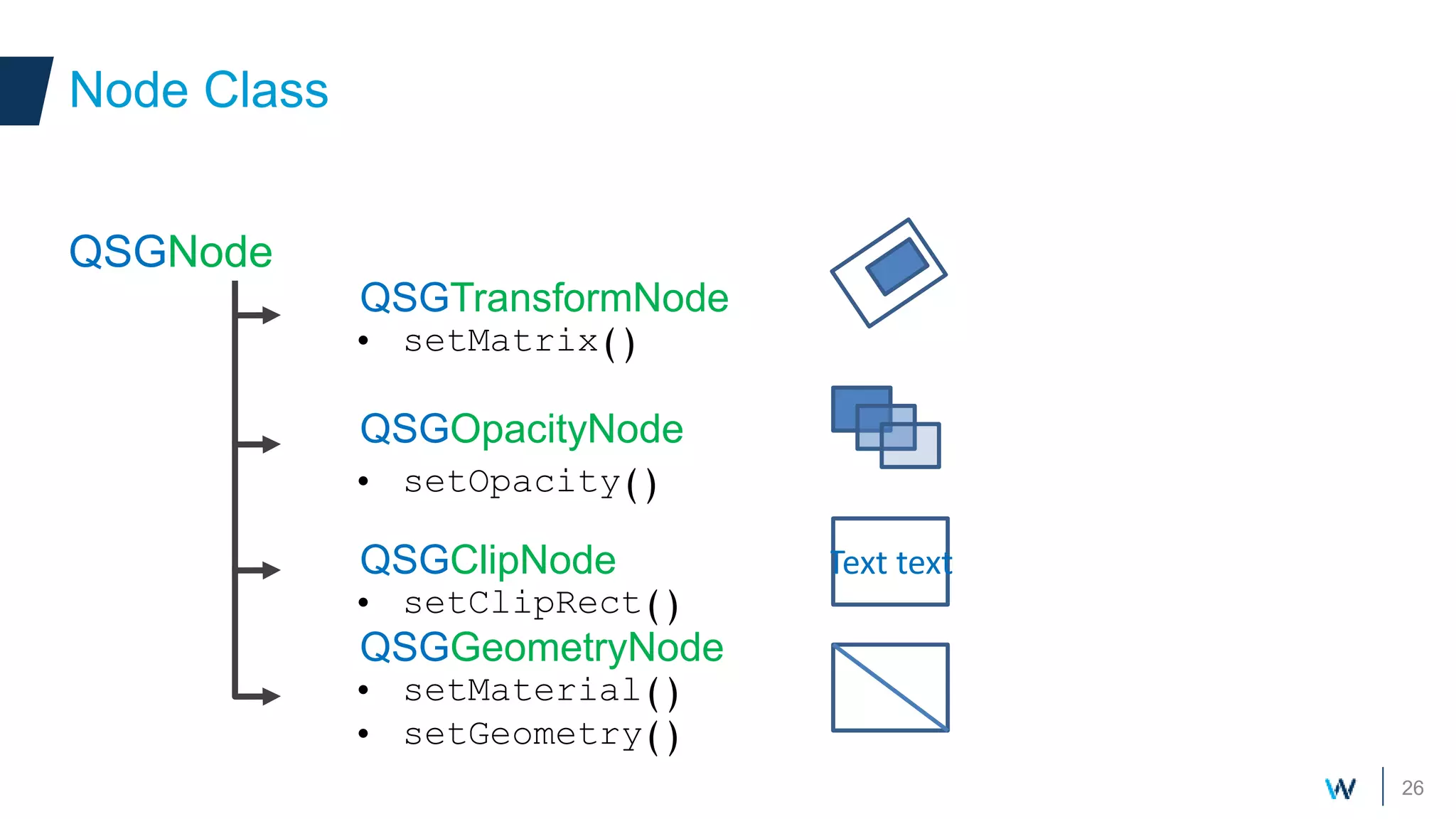
QSGNode
QSGTransformNode
QSGOpacityNode
QSGClipNode
QSGGeometryNode
Node Class
Text text
• setMatrix()
• setOpacity()
• setClipRect()
• setMaterial()
• setGeometry()
27
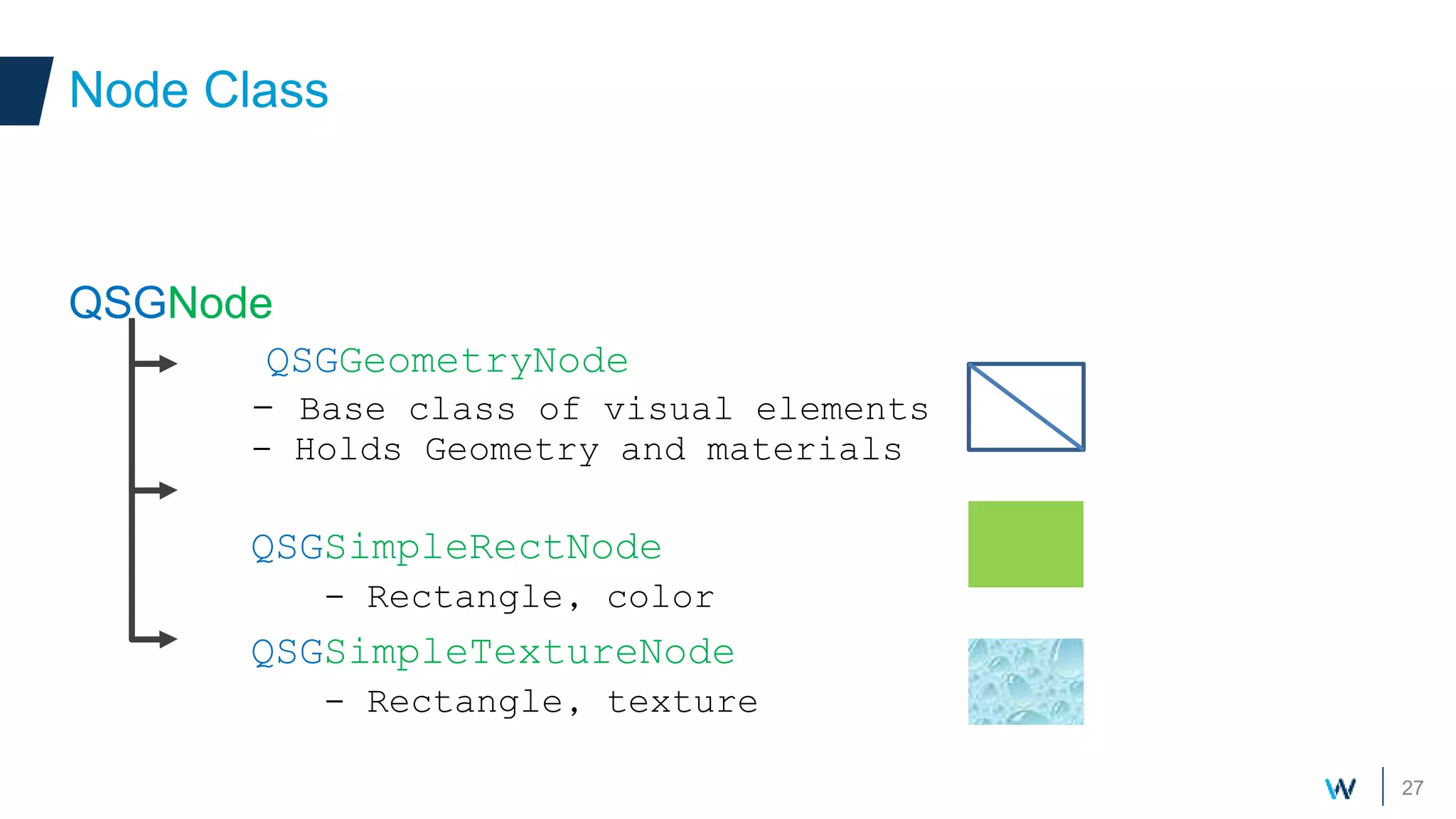
QSGNode
QSGGeometryNode
- Base class of visual elements
- Holds Geometry and materials
QSGSimpleRectNode
- Rectangle, color
QSGSimpleTextureNode
- Rectangle, texture
Node Class
28
QSGGeometryNode
• Geometry (vertices)
• QSGGeometry
• Points, lines, triangles
Geometry node
QSGGeometry *geometry = new QSGGeometry(QSGGeometry::defaultAttributes_Point2D(), 2);
geometry->setDrawingMode(GL_LINES);
geometry->setLineWidth(3);
geometry->vertexDataAsPoint2D()[0].set(0, 0);
geometry->vertexDataAsPoint2D()[1].set(width(), height());
QSGGeometryNode *node = new QSGGeometryNode;
node->setGeometry(geometry);
node->setFlag(QSGNode::OwnsGeometry);
29
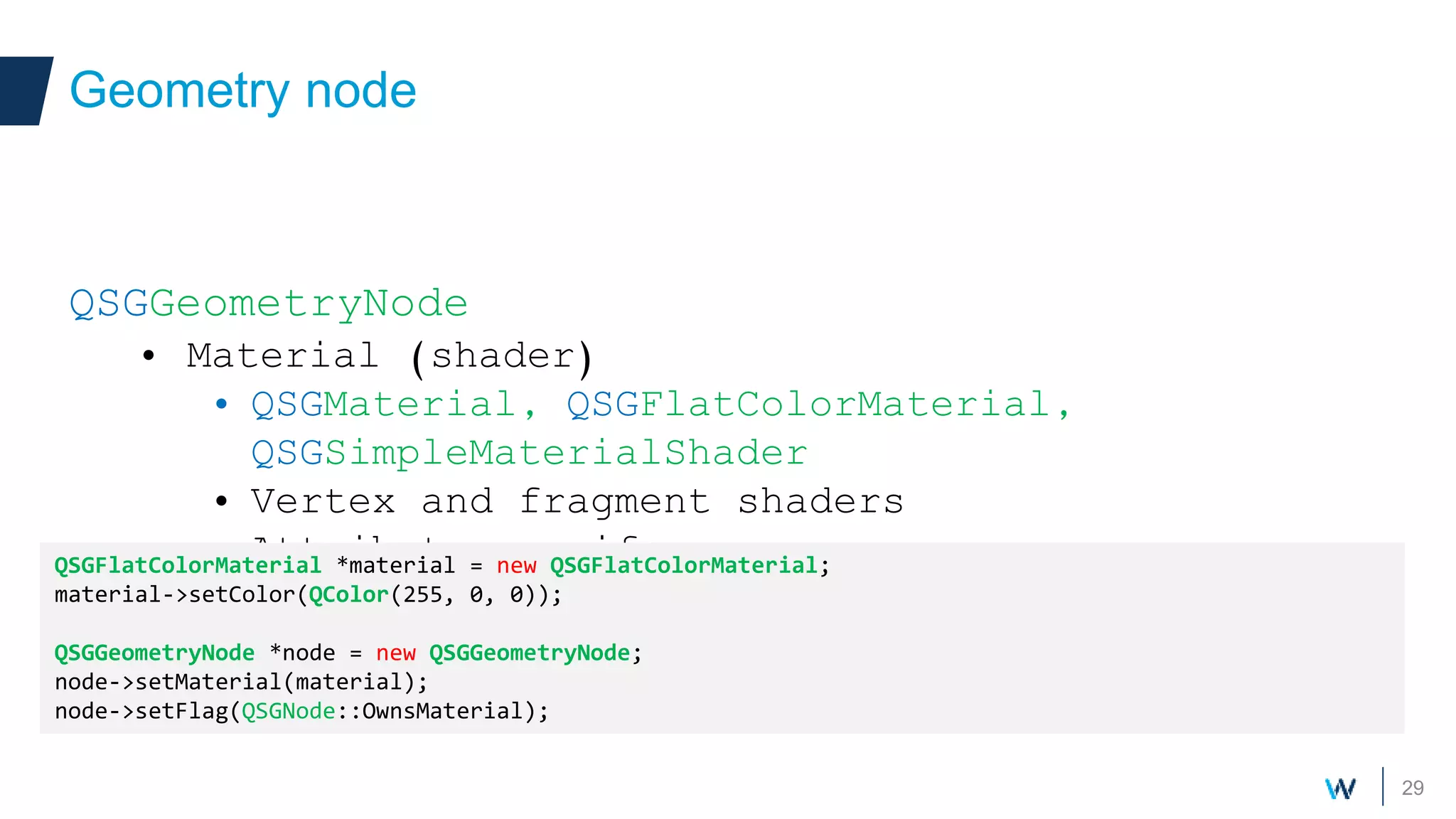
QSGGeometryNode
• Material (shader)
• QSGMaterial, QSGFlatColorMaterial,
QSGSimpleMaterialShader
• Vertex and fragment shaders
• Attributes, uniforms
Geometry node
QSGFlatColorMaterial *material = new QSGFlatColorMaterial;
material->setColor(QColor(255, 0, 0));
QSGGeometryNode *node = new QSGGeometryNode;
node->setMaterial(material);
node->setFlag(QSGNode::OwnsMaterial);
30
• Fully leveraging OpenGL acceleration require some work
• Needs some basic knowledge of OpenGL (vertices, textures,
shaders)
• QQuickPaintedItem when performance is not critical
Sum up
Polishing with effects
Accelerometer
Sensors to adapt to user
32
• Platform / hardware specific Qt Sensor plugin
• Support of your sensor may require creating a new
sensor plugin
• Direct access to drivers data
• Handling accelerometer
• QAccelerometer, QAccelerometerReading (based on
QSensor)
Accelerometer
33
• Create your own
• Duplicate one of the existing Qt sensor plugin
(qtbase/plugins/sensors)
• Composed of
• Sensor factory: QSensorPluginInterface,
QSensorBackendFactory
• Sensor: QSensorBackend
• Reimplement start/stop/poll methods
• Open your driver, read and parse
Accelerometer
34
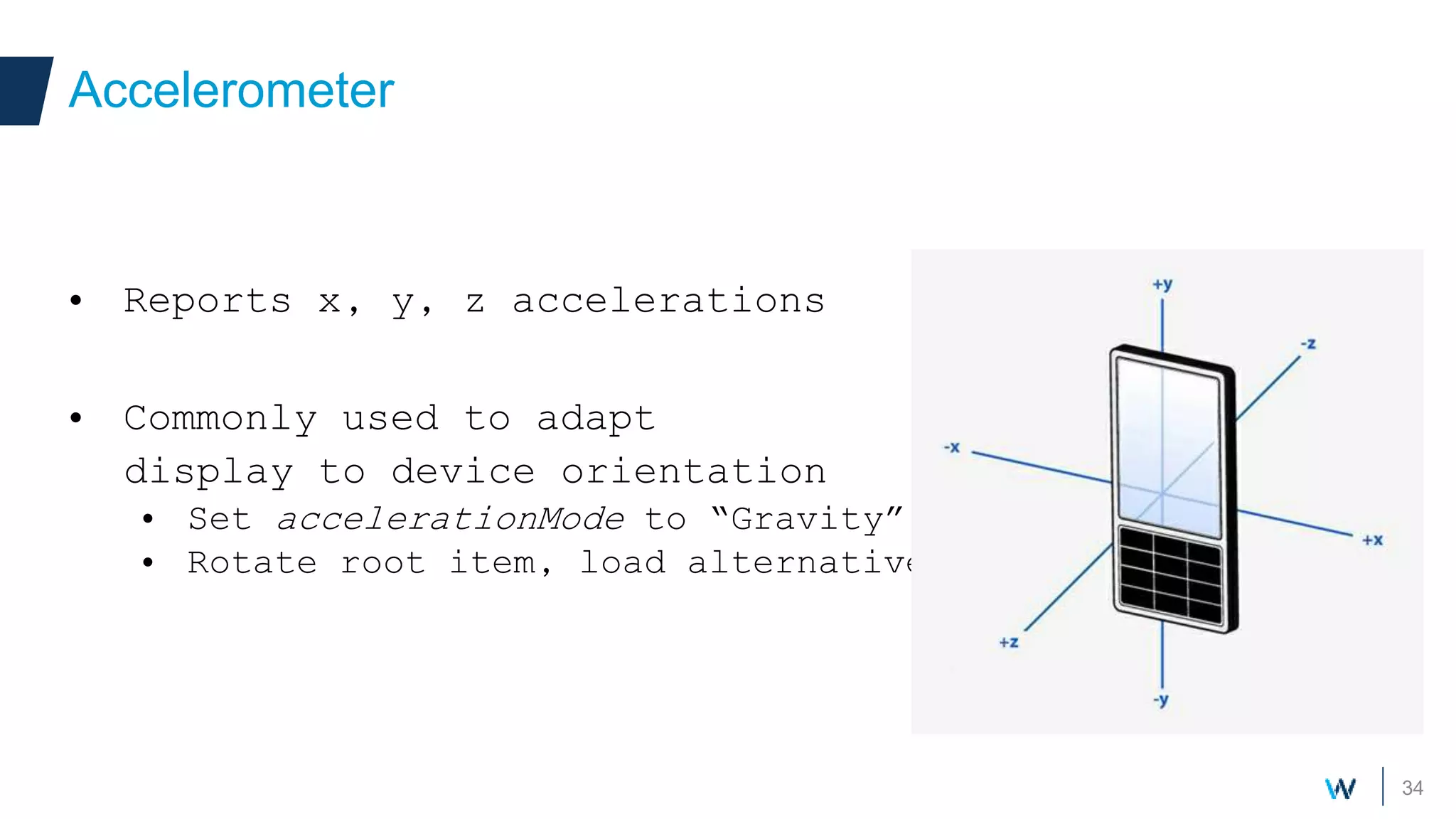
• Reports x, y, z accelerations
• Commonly used to adapt
display to device orientation
• Set accelerationMode to “Gravity”
• Rotate root item, load alternative UI, …
Accelerometer
35
• Qt let you create modern application
• Only needs your finger skills !
• Possibilities aren’t always visible to marketing
and designers…
Final words
 Enlight them
 Enjoy your work
!

Witekio custom modern qt quick components

  • 1.
    Custom Modern QtQuick 2 components
  • 2.
    2 • Presentation • AdrienLeravat (France) • Embedded software engineer • Adeneo Embedded • France, Germany (Franckfurt), USA • BSPs and OS porting to ARM (Linux, Windows, Android, QNX) • Embedded software architecture and development • Mobile expertise (cloud, internet of things) Introduction
  • 3.
    3 Today’s UIs People expectthe best out of UIs Sensors Animations Effects Graphical acceleration Touch Gestures Modern feeling
  • 4.
    4 • Reminder: customcomponents can be QML files or C++ classes • QML file: collection of QML components • Quick & easy • Limited to existing components Your own components [MyComponent.qml] Rectangle { width: 100 height: 100 color: “blue” MouseArea { anchors.fill: parent onPressed: { log.message(“Pressed !”); } } } Your own components
  • 5.
    5 • Custom ItemC++ class • More effort • More possibilities • Custom painting • Custom events handling Your own components [mycomponent.h] class MyComponent : public QQuickItem { Q_OBJECT public: MyComponent(); mousePressEvent(QMouseEvent*); };
  • 6.
  • 7.
    7 • Gestures partof everyday UIs • Slide, pinch, rotate • Now a natural way to interact • Qt provides different ways to handle multi-touch • More involving than single touch Multi-touch
  • 8.
    8 • Requirements • Screenwith multi-touch capability (ex: capacitive screen) • Appropriate driver • Qt plugin handling multi-touch events for Linux (EvdevTouch) • Enjoy multi-touch events in Qt ! Multi-touch
  • 9.
    9 Demo hardware andOS • Freescale Sabre SDP, i.MX6 DualLite • eGalax 10” capacitive touchscreen • Yocto 1.5, kernel 3.x Qt side • EvdevTouch plugin • -plugin EvdevTouch:/dev/input/touchscreen0 • PinchArea and custom components Multi-touch  /dev/input/touchscreen0, evtest, run options
  • 10.
    10 • MouseArea • Singletouch • Handles tap, press, release • Flickable • Single touch • Scroll content Multi-touch • PinchArea • Easy handling of drag, scale and rotate • MultiPointTouchArea • Manual handling of single touch points and behavior • Custom QQuickItem class • setAcceptedMouseButtons • event / touchEvent handlers
  • 11.
    11 A few tips Touchevents converts to mouse events if not handled • PinchArea / filters may interfere with MouseArea “clicked” signal • Use “pressed” signal setFiltersChildMouseEvents • Catch all children events, then filter or let go grabTouchPoints, setKeepTouchGrab Multi-touch
  • 12.
    Polishing with effects Animationsand shaders Polishing with effects
  • 13.
    13 • Effects canprovides final polish, or be part of the full experience • Animating, to improve user-friendliness • Blurring UI to strengthen focus • Aesthetics and behavior Polishing with effects
  • 14.
    14 • Animations fromQML • Behavior • PropertyAnimation • State / Transition animations Polishing with effects MyButton { width: 100 height: 100 color: “blue” Behavior on x { NumberAnimation { duration: 500 easing.type: Easing.OutQuad } } }
  • 15.
    15 • Animations fromC++ Item class • QPropertyAnimation • Same parameters as QML animations • Needs corresponding Q_PROPERTY Polishing with effects QPropertyAnimation *anim = new QPropertyAnimation(); anim->setTargetObject(this); anim->setPropertyName(“x”) anim->setDuration(500); anim->setEndValue(newXValue); anim->start();
  • 16.
    16 Qt Graphical Effect •import QtGraphicalEffects 1.0 • GaussianBlur, FastBlur, RecursiveBlur • Fade part of the UI, focus on important parts • DropShadow, Glow, RectangularGlow • Makes components stand out Multitouch Click me !
  • 17.
  • 18.
    18 • Fluidity andresponsiveness are critical • Challenging on embedded devices • Since Qt 5, full OpenGL acceleration for QtQuick • Backend provides graphical acceleration • Eglfs is the common choice on linux • MyApp –platform eglfs Context Context
  • 19.
    19 • Qt Quick1 • QDeclarativeItem • QDeclarativeItem inherited QGraphicsItem • paint() method with QPainter • Qt Quick 2 • QQuickItem • QQuickItem inherits QObject • No paint() method ! Qt Quick item class
  • 20.
    20 • How todraw QtQuick2 item ? • QQuickPaintedItem (QQuickItem) • Implement paint() method (QPainter drawing) • Convenience class, don’t fully leverage Scene Graph and OpenGL • Suited for light components QQuickPaintedItem
  • 21.
    21 • Scene graph •Relies on Opengl / Opengl ES • State aware to minimize overhead • Render thread • Performs optimizations • Material sorting • Ignore obstructed items Scene graph Scene
  • 22.
    22 • Scene graphnodes • Each item is internally a node • Each node contains all its children • A node can be a visible item, or provide functionality • Opacity, transformation Scene graph Scene
  • 23.
    23 How to leverageQt Quick2 performances? • Inherit QQuickItem • setFlag, ItemHasContents • Implement updatePaintNode method • Use Scene Graph classes (QSG*) • update() to trigger updatePaintNode when needed Qt Quick 2 item class
  • 24.
    24 • oldNode holdsthe previous state of the node • Null until initialized • Contains its type and hierarchy • Set its color and geometry First accelerated item QSGNode *MyItem::updatePaintNode(QSGNode *oldNode, UpdatePaintNodeData *) { QSGSimpleRectNode *n = static_cast<QSGSimpleRectNode *>(oldNode); if ( ! n ) { n = new QSGSimpleRectNode(); n->setColor(Qt::red); } n->setRect(boundingRect()); return n; }
  • 25.
    25 • Draw exclusivelyin the render thread, avoid classes other than QSG* • Main thread is blocked during rendering, access to items data is safe • Newly created QObject-based classes are running on rendering thread • Signals targeting main thread will be queued Caveats
  • 26.
    26 QSGNode QSGTransformNode QSGOpacityNode QSGClipNode QSGGeometryNode Node Class Text text •setMatrix() • setOpacity() • setClipRect() • setMaterial() • setGeometry()
  • 27.
    27 QSGNode QSGGeometryNode - Base classof visual elements - Holds Geometry and materials QSGSimpleRectNode - Rectangle, color QSGSimpleTextureNode - Rectangle, texture Node Class
  • 28.
    28 QSGGeometryNode • Geometry (vertices) •QSGGeometry • Points, lines, triangles Geometry node QSGGeometry *geometry = new QSGGeometry(QSGGeometry::defaultAttributes_Point2D(), 2); geometry->setDrawingMode(GL_LINES); geometry->setLineWidth(3); geometry->vertexDataAsPoint2D()[0].set(0, 0); geometry->vertexDataAsPoint2D()[1].set(width(), height()); QSGGeometryNode *node = new QSGGeometryNode; node->setGeometry(geometry); node->setFlag(QSGNode::OwnsGeometry);
  • 29.
    29 QSGGeometryNode • Material (shader) •QSGMaterial, QSGFlatColorMaterial, QSGSimpleMaterialShader • Vertex and fragment shaders • Attributes, uniforms Geometry node QSGFlatColorMaterial *material = new QSGFlatColorMaterial; material->setColor(QColor(255, 0, 0)); QSGGeometryNode *node = new QSGGeometryNode; node->setMaterial(material); node->setFlag(QSGNode::OwnsMaterial);
  • 30.
    30 • Fully leveragingOpenGL acceleration require some work • Needs some basic knowledge of OpenGL (vertices, textures, shaders) • QQuickPaintedItem when performance is not critical Sum up
  • 31.
  • 32.
    32 • Platform /hardware specific Qt Sensor plugin • Support of your sensor may require creating a new sensor plugin • Direct access to drivers data • Handling accelerometer • QAccelerometer, QAccelerometerReading (based on QSensor) Accelerometer
  • 33.
    33 • Create yourown • Duplicate one of the existing Qt sensor plugin (qtbase/plugins/sensors) • Composed of • Sensor factory: QSensorPluginInterface, QSensorBackendFactory • Sensor: QSensorBackend • Reimplement start/stop/poll methods • Open your driver, read and parse Accelerometer
  • 34.
    34 • Reports x,y, z accelerations • Commonly used to adapt display to device orientation • Set accelerationMode to “Gravity” • Rotate root item, load alternative UI, … Accelerometer
  • 35.
    35 • Qt letyou create modern application • Only needs your finger skills ! • Possibilities aren’t always visible to marketing and designers… Final words  Enlight them  Enjoy your work !