Operating System
Introduction
An operating system is a set of programs that manages all computer operations. An operating
system manages computer hardware and software resources and provides common services for
computer programs. The OS performs basic tasks, such as controlling allocating memory, listing
the processing of instructions, controlling input and output devices, assisting, networking, and
managing files.
Operating systems can be found on almost any device that contains a computer, from cellular
phones to video game consoles, from supercomputers to web servers.
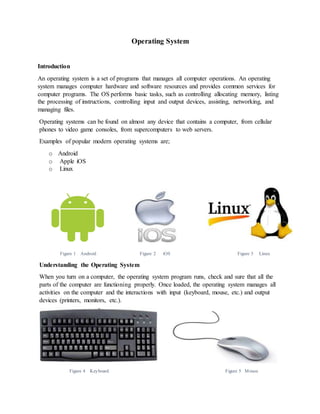
Examples of popular modern operating systems are;
o Android
o Apple iOS
o Linux
Figure 1 Android Figure 2 iOS Figure 3 Linux
Understanding the Operating System
When you turn on a computer, the operating system program runs, check and sure that all the
parts of the computer are functioning properly. Once loaded, the operating system manages all
activities on the computer and the interactions with input (keyboard, mouse, etc.) and output
devices (printers, monitors, etc.).
Figure 4 Keyboard Figure 5 Mouse
Figure 6 Monitor Figure 7 Printer
Command Line Interface (CLI) Operating System
A command line interface is also known as console user interface. A command line interface
(CLI) is a type of human computer interface (a way for humans to interact with computers) that
relies only on written input and output. In command line interface the user connects with the
operating system in the form of successive lines of text or by typing commands with the
keyboard, receives a response back from the system, and then enters another command, and so
forth. The command line interface is difficult to understand because the user have to remember
the commands. The CLI was the primary means of interaction with most computer systems until
the introduction of the video display terminal in the mid of 1960s, and continued to be used
throughout in the 1970s and 1980s on UNIX systems and personal computer systems including
MS-DOS and Apple DOS. The interface is usually implemented with a command line shell,
which is a program that accepts commands as text input and converts commands to appropriate
operating system function
Disk Operating System (D.O.S) is an example of command line interface.
Figure 8 Disk Operating System (D.O.S)
Graphical User Interface (GUI) Operating System
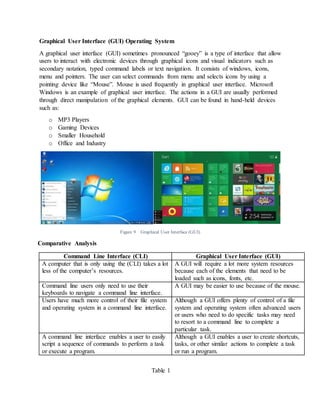
A graphical user interface (GUI) sometimes pronounced “gooey” is a type of interface that allow
users to interact with electronic devices through graphical icons and visual indicators such as
secondary notation, typed command labels or text navigation. It consists of windows, icons,
menu and pointers. The user can select commands from menu and selects icons by using a
pointing device like “Mouse”. Mouse is used frequently in graphical user interface. Microsoft
Windows is an example of graphical user interface. The actions in a GUI are usually performed
through direct manipulation of the graphical elements. GUI can be found in hand-held devices
such as:
o MP3 Players
o Gaming Devices
o Smaller Household
o Office and Industry
Figure 9 Graphical User Interface (GUI)
Comparative Analysis
Table 1
Command Line Interface (CLI) Graphical User Interface (GUI)
A computer that is only using the (CLI) takes a lot
less of the computer’s resources.
A GUI will require a lot more system resources
because each of the elements that need to be
loaded such as icons, fonts, etc.
Command line users only need to use their
keyboards to navigate a command line interface.
A GUI may be easier to use because of the mouse.
Users have much more control of their file system
and operating system in a command line interface.
Although a GUI offers plenty of control of a file
system and operating system often advanced users
or users who need to do specific tasks may need
to resort to a command line to complete a
particular task.
A command line interface enables a user to easily
script a sequence of commands to perform a task
or execute a program.
Although a GUI enables a user to create shortcuts,
tasks, or other similar actions to complete a task
or run a program.

Operating system

  • 1.
    Operating System Introduction An operatingsystem is a set of programs that manages all computer operations. An operating system manages computer hardware and software resources and provides common services for computer programs. The OS performs basic tasks, such as controlling allocating memory, listing the processing of instructions, controlling input and output devices, assisting, networking, and managing files. Operating systems can be found on almost any device that contains a computer, from cellular phones to video game consoles, from supercomputers to web servers. Examples of popular modern operating systems are; o Android o Apple iOS o Linux Figure 1 Android Figure 2 iOS Figure 3 Linux Understanding the Operating System When you turn on a computer, the operating system program runs, check and sure that all the parts of the computer are functioning properly. Once loaded, the operating system manages all activities on the computer and the interactions with input (keyboard, mouse, etc.) and output devices (printers, monitors, etc.). Figure 4 Keyboard Figure 5 Mouse
  • 2.
    Figure 6 MonitorFigure 7 Printer Command Line Interface (CLI) Operating System A command line interface is also known as console user interface. A command line interface (CLI) is a type of human computer interface (a way for humans to interact with computers) that relies only on written input and output. In command line interface the user connects with the operating system in the form of successive lines of text or by typing commands with the keyboard, receives a response back from the system, and then enters another command, and so forth. The command line interface is difficult to understand because the user have to remember the commands. The CLI was the primary means of interaction with most computer systems until the introduction of the video display terminal in the mid of 1960s, and continued to be used throughout in the 1970s and 1980s on UNIX systems and personal computer systems including MS-DOS and Apple DOS. The interface is usually implemented with a command line shell, which is a program that accepts commands as text input and converts commands to appropriate operating system function Disk Operating System (D.O.S) is an example of command line interface. Figure 8 Disk Operating System (D.O.S)
  • 3.
    Graphical User Interface(GUI) Operating System A graphical user interface (GUI) sometimes pronounced “gooey” is a type of interface that allow users to interact with electronic devices through graphical icons and visual indicators such as secondary notation, typed command labels or text navigation. It consists of windows, icons, menu and pointers. The user can select commands from menu and selects icons by using a pointing device like “Mouse”. Mouse is used frequently in graphical user interface. Microsoft Windows is an example of graphical user interface. The actions in a GUI are usually performed through direct manipulation of the graphical elements. GUI can be found in hand-held devices such as: o MP3 Players o Gaming Devices o Smaller Household o Office and Industry Figure 9 Graphical User Interface (GUI) Comparative Analysis Table 1 Command Line Interface (CLI) Graphical User Interface (GUI) A computer that is only using the (CLI) takes a lot less of the computer’s resources. A GUI will require a lot more system resources because each of the elements that need to be loaded such as icons, fonts, etc. Command line users only need to use their keyboards to navigate a command line interface. A GUI may be easier to use because of the mouse. Users have much more control of their file system and operating system in a command line interface. Although a GUI offers plenty of control of a file system and operating system often advanced users or users who need to do specific tasks may need to resort to a command line to complete a particular task. A command line interface enables a user to easily script a sequence of commands to perform a task or execute a program. Although a GUI enables a user to create shortcuts, tasks, or other similar actions to complete a task or run a program.