Session11
Aptech Computer Education Presented by: Muhammad Ehtisham Siddiqui 2
At the end of this session, students will be able to:
 Describe sorting and filtering of data
 Explain the methods to present the data graphically using
charts
 Explain the steps to create and format the charts
 Explain the methods of securing and protecting a Workbook
 The ability to analyze data is a powerful skill that helps you make
better decisions
 Microsoft Excel is one of the top tools for data analysis and the
built-in pivot tables are arguably the most popular analytic tool
 Excel allows users to organize data entries by sorting and
filtering
 Sorting:
 Reorganizes rows in the table based on the contents of a particular
column
 Sorts the data numerically or alphabetically
 Help users to understand and identify the required data
 Filtering:
◦ Used for viewing only certain items
◦ When users apply filter to a column, they can decide what they want to
see
 Users can also secure their workbooks when the data is highly
confidential
3Aptech Computer Education Presented by: Muhammad Ehtisham Siddiqui
4Aptech Computer Education Presented by: Muhammad Ehtisham Siddiqui
 Means arranging data entries based on the specified conditions
 Applied on data using pre-defined sorting methods, or by selecting
the range of cells and apply the rules using Custom Sort
 Using basic sorting, users can sort the data in the following ways:
◦ Sort A to Z or Sort Smallest to Largest
◦ Sort Z to A or Sort Largest to Smallest
◦ Put Selected Cell Color On Top
◦ Put Selected Font Color On Top
◦ Put Selected Cell Icon On Top
5Aptech Computer Education Presented by: Muhammad Ehtisham Siddiqui
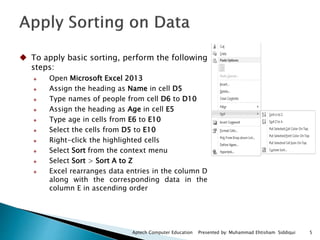
 To apply basic sorting, perform the following
steps:
 Open Microsoft Excel 2013
 Assign the heading as Name in cell D5
 Type names of people from cell D6 to D10
 Assign the heading as Age in cell E5
 Type age in cells from E6 to E10
 Select the cells from D5 to E10
 Right-click the highlighted cells
 Select Sort from the context menu
 Select Sort > Sort A to Z
 Excel rearranges data entries in the column D
along with the corresponding data in the
column E in ascending order
6Aptech Computer Education Presented by: Muhammad Ehtisham Siddiqui
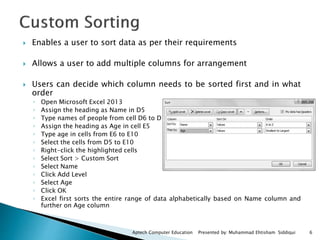
 Enables a user to sort data as per their requirements
 Allows a user to add multiple columns for arrangement
 Users can decide which column needs to be sorted first and in what
order
◦ Open Microsoft Excel 2013
◦ Assign the heading as Name in D5
◦ Type names of people from cell D6 to D10
◦ Assign the heading as Age in cell E5
◦ Type age in cells from E6 to E10
◦ Select the cells from D5 to E10
◦ Right-click the highlighted cells
◦ Select Sort > Custom Sort
◦ Select Name
◦ Click Add Level
◦ Select Age
◦ Click OK
◦ Excel first sorts the entire range of data alphabetically based on Name column and
further on Age column
 Displaying only those row that meet the specific criteria and hiding
non-specific rows in the table
 Allows users to filter data entries manually or by applying rules
 Involves displaying of data entries manually
 Users can decide what data they want to display in the spreadsheet
 Users can filter data in the following ways:
◦ Filter by Selected Cell’s Value
◦ Filter by Selected Cell’s Color
◦ Filter by Selected Cell’s Font Color
◦ Filter by Selected Cell’s Icon
Aptech Computer Education Presented by: Muhammad Ehtisham Siddiqui 7
8
Aptech Computer Education Presented by: Muhammad Ehtisham Siddiqui
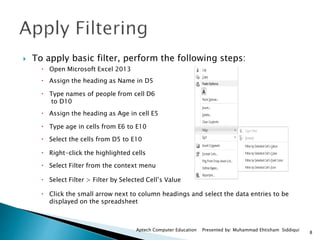
 To apply basic filter, perform the following steps:
 Open Microsoft Excel 2013
 Assign the heading as Name in D5
 Type names of people from cell D6
to D10
 Assign the heading as Age in cell E5
 Type age in cells from E6 to E10
 Select the cells from D5 to E10
 Right-click the highlighted cells
 Select Filter from the context menu
 Select Filter > Filter by Selected Cell’s Value
 Click the small arrow next to column headings and select the data entries to be
displayed on the spreadsheet
9
Aptech Computer Education Presented by: Muhammad Ehtisham Siddiqui
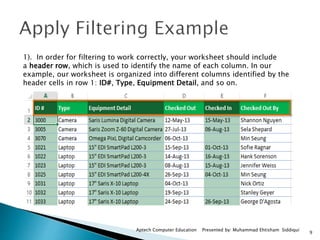
1). In order for filtering to work correctly, your worksheet should include
a header row, which is used to identify the name of each column. In our
example, our worksheet is organized into different columns identified by the
header cells in row 1: ID#, Type, Equipment Detail, and so on.
10
Aptech Computer Education Presented by: Muhammad Ehtisham Siddiqui
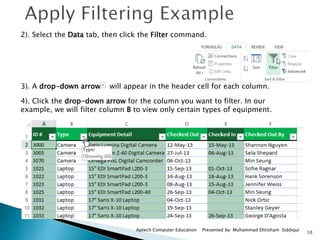
2). Select the Data tab, then click the Filter command.
3). A drop-down arrow will appear in the header cell for each column.
4). Click the drop-down arrow for the column you want to filter. In our
example, we will filter column B to view only certain types of equipment.
11
Aptech Computer Education Presented by: Muhammad Ehtisham Siddiqui
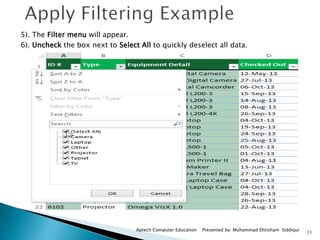
5). The Filter menu will appear.
6). Uncheck the box next to Select All to quickly deselect all data.
12
Aptech Computer Education Presented by: Muhammad Ehtisham Siddiqui
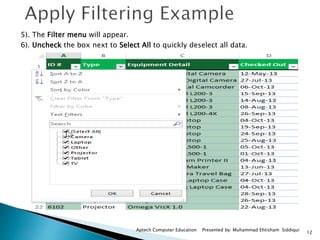
5). The Filter menu will appear.
6). Uncheck the box next to Select All to quickly deselect all data.
13
Aptech Computer Education Presented by: Muhammad Ehtisham Siddiqui
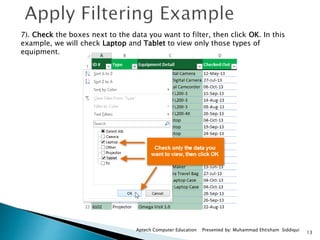
7). Check the boxes next to the data you want to filter, then click OK. In this
example, we will check Laptop and Tablet to view only those types of
equipment.
14
Aptech Computer Education Presented by: Muhammad Ehtisham Siddiqui
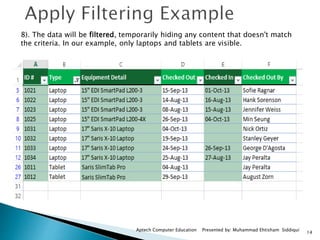
8). The data will be filtered, temporarily hiding any content that doesn't match
the criteria. In our example, only laptops and tablets are visible.
15
Aptech Computer Education Presented by: Muhammad Ehtisham Siddiqui
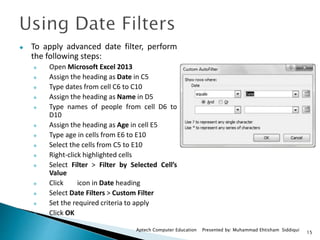
 To apply advanced date filter, perform
the following steps:
 Open Microsoft Excel 2013
 Assign the heading as Date in C5
 Type dates from cell C6 to C10
 Assign the heading as Name in D5
 Type names of people from cell D6 to
D10
 Assign the heading as Age in cell E5
 Type age in cells from E6 to E10
 Select the cells from C5 to E10
 Right-click highlighted cells
 Select Filter > Filter by Selected Cell’s
Value
 Click icon in Date heading
 Select Date Filters > Custom Filter
 Set the required criteria to apply
 Click OK
16
Aptech Computer Education Presented by: Muhammad Ehtisham Siddiqui
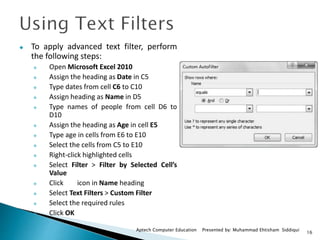
 To apply advanced text filter, perform
the following steps:
 Open Microsoft Excel 2010
 Assign the heading as Date in C5
 Type dates from cell C6 to C10
 Assign heading as Name in D5
 Type names of people from cell D6 to
D10
 Assign the heading as Age in cell E5
 Type age in cells from E6 to E10
 Select the cells from C5 to E10
 Right-click highlighted cells
 Select Filter > Filter by Selected Cell’s
Value
 Click icon in Name heading
 Select Text Filters > Custom Filter
 Select the required rules
 Click OK
17
Aptech Computer Education Presented by: Muhammad Ehtisham Siddiqui
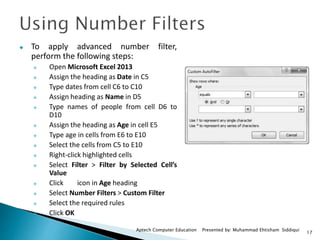
 To apply advanced number filter,
perform the following steps:
 Open Microsoft Excel 2013
 Assign the heading as Date in C5
 Type dates from cell C6 to C10
 Assign heading as Name in D5
 Type names of people from cell D6 to
D10
 Assign the heading as Age in cell E5
 Type age in cells from E6 to E10
 Select the cells from C5 to E10
 Right-click highlighted cells
 Select Filter > Filter by Selected Cell’s
Value
 Click icon in Age heading
 Select Number Filters > Custom Filter
 Select the required rules
 Click OK
18
Aptech Computer Education Presented by: Muhammad Ehtisham Siddiqui
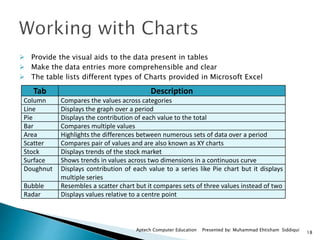
 Provide the visual aids to the data present in tables
 Make the data entries more comprehensible and clear
 The table lists different types of Charts provided in Microsoft Excel
Tab Description
Column Compares the values across categories
Line Displays the graph over a period
Pie Displays the contribution of each value to the total
Bar Compares multiple values
Area Highlights the differences between numerous sets of data over a period
Scatter Compares pair of values and are also known as XY charts
Stock Displays trends of the stock market
Surface Shows trends in values across two dimensions in a continuous curve
Doughnut Displays contribution of each value to a series like Pie chart but it displays
multiple series
Bubble Resembles a scatter chart but it compares sets of three values instead of two
Radar Displays values relative to a centre point
19
Aptech Computer Education Presented by: Muhammad Ehtisham Siddiqui
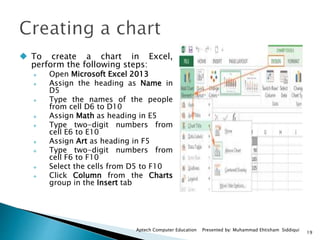
 To create a chart in Excel,
perform the following steps:
 Open Microsoft Excel 2013
 Assign the heading as Name in
D5
 Type the names of the people
from cell D6 to D10
 Assign Math as heading in E5
 Type two-digit numbers from
cell E6 to E10
 Assign Art as heading in F5
 Type two-digit numbers from
cell F6 to F10
 Select the cells from D5 to F10
 Click Column from the Charts
group in the Insert tab
20
Aptech Computer Education Presented by: Muhammad Ehtisham Siddiqui
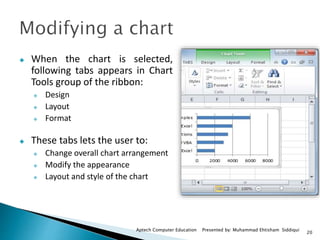
 When the chart is selected,
following tabs appears in Chart
Tools group of the ribbon:
 Design
 Layout
 Format
 These tabs lets the user to:
 Change overall chart arrangement
 Modify the appearance
 Layout and style of the chart
21
Aptech Computer Education Presented by: Muhammad Ehtisham Siddiqui
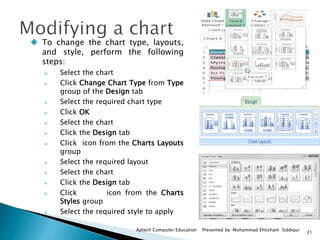
 To change the chart type, layouts,
and style, perform the following
steps:
 Select the chart
 Click Change Chart Type from Type
group of the Design tab
 Select the required chart type
 Click OK
 Select the chart
 Click the Design tab
 Click icon from the Charts Layouts
group
 Select the required layout
 Select the chart
 Click the Design tab
 Click icon from the Charts
Styles group
 Select the required style to apply
22
Aptech Computer Education Presented by: Muhammad Ehtisham Siddiqui
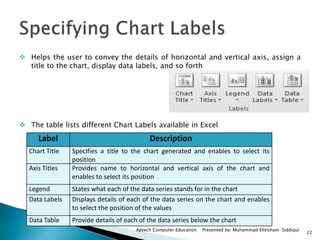
 Helps the user to convey the details of horizontal and vertical axis, assign a
title to the chart, display data labels, and so forth
 The table lists different Chart Labels available in Excel
Label Description
Chart Title Specifies a title to the chart generated and enables to select its
position
Axis Titles Provides name to horizontal and vertical axis of the chart and
enables to select its position
Legend States what each of the data series stands for in the chart
Data Labels Displays details of each of the data series on the chart and enables
to select the position of the values
Data Table Provide details of each of the data series below the chart
23
Aptech Computer Education Presented by: Muhammad Ehtisham Siddiqui
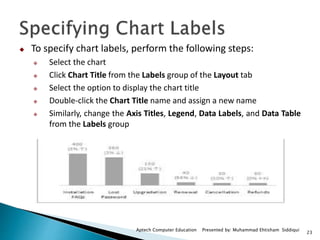
 To specify chart labels, perform the following steps:
 Select the chart
 Click Chart Title from the Labels group of the Layout tab
 Select the option to display the chart title
 Double-click the Chart Title name and assign a new name
 Similarly, change the Axis Titles, Legend, Data Labels, and Data Table
from the Labels group
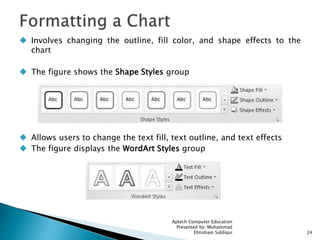
 Involves changing the outline, fill color, and shape effects to the
chart
 The figure shows the Shape Styles group
 Allows users to change the text fill, text outline, and text effects
 The figure displays the WordArt Styles group
Aptech Computer Education
Presented by: Muhammad
Ehtisham Siddiqui 24
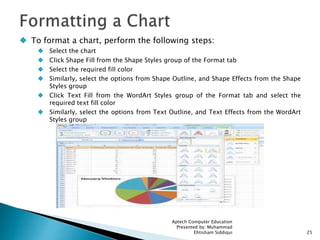
 To format a chart, perform the following steps:
 Select the chart
 Click Shape Fill from the Shape Styles group of the Format tab
 Select the required fill color
 Similarly, select the options from Shape Outline, and Shape Effects from the Shape
Styles group
 Click Text Fill from the WordArt Styles group of the Format tab and select the
required text fill color
 Similarly, select the options from Text Outline, and Text Effects from the WordArt
Styles group
Aptech Computer Education
Presented by: Muhammad
Ehtisham Siddiqui 25
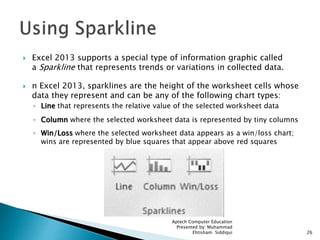
 Excel 2013 supports a special type of information graphic called
a Sparkline that represents trends or variations in collected data.
 n Excel 2013, sparklines are the height of the worksheet cells whose
data they represent and can be any of the following chart types:
◦ Line that represents the relative value of the selected worksheet data
◦ Column where the selected worksheet data is represented by tiny columns
◦ Win/Loss where the selected worksheet data appears as a win/loss chart;
wins are represented by blue squares that appear above red squares
Aptech Computer Education
Presented by: Muhammad
Ehtisham Siddiqui 26
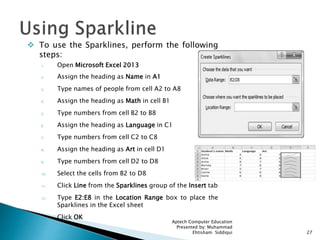
 To use the Sparklines, perform the following
steps:
1. Open Microsoft Excel 2013
2. Assign the heading as Name in A1
3. Type names of people from cell A2 to A8
4. Assign the heading as Math in cell B1
5. Type numbers from cell B2 to B8
6. Assign the heading as Language in C1
7. Type numbers from cell C2 to C8
8. Assign the heading as Art in cell D1
9. Type numbers from cell D2 to D8
10. Select the cells from B2 to D8
11. Click Line from the Sparklines group of the Insert tab
12. Type E2:E8 in the Location Range box to place the
Sparklines in the Excel sheet
13. Click OK
Aptech Computer Education
Presented by: Muhammad
Ehtisham Siddiqui 27
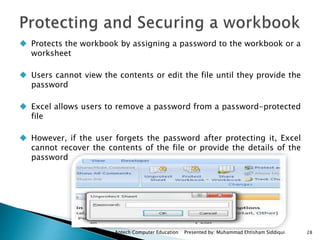
 Protects the workbook by assigning a password to the workbook or a
worksheet
 Users cannot view the contents or edit the file until they provide the
password
 Excel allows users to remove a password from a password-protected
file
 However, if the user forgets the password after protecting it, Excel
cannot recover the contents of the file or provide the details of the
password
Aptech Computer Education Presented by: Muhammad Ehtisham Siddiqui 28
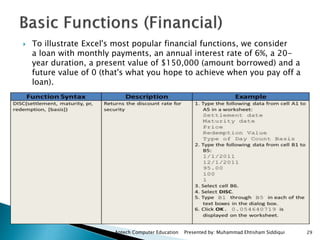
 To illustrate Excel's most popular financial functions, we consider
a loan with monthly payments, an annual interest rate of 6%, a 20-
year duration, a present value of $150,000 (amount borrowed) and a
future value of 0 (that's what you hope to achieve when you pay off a
loan).
Aptech Computer Education Presented by: Muhammad Ehtisham Siddiqui 29
Aptech Computer Education Presented by: Muhammad Ehtisham Siddiqui 30
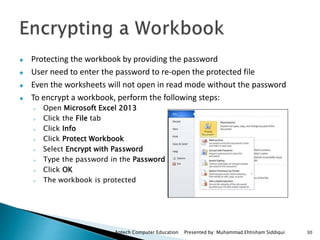
 Protecting the workbook by providing the password
 User need to enter the password to re-open the protected file
 Even the worksheets will not open in read mode without the password
 To encrypt a workbook, perform the following steps:
 Open Microsoft Excel 2013
 Click the File tab
 Click Info
 Click Protect Workbook
 Select Encrypt with Password
 Type the password in the Password box
 Click OK
 The workbook is protected
Aptech Computer Education Presented by: Muhammad Ehtisham Siddiqui 31
 To decrypt a workbook, perform the following steps:
 Open an encrypted document in Microsoft Excel 2010
 Enter the password
 Click the File tab
 Click Info
 Click Protect Workbook
 Select Encrypt with Password
 Clear the password from the Password box
 Click OK
Aptech Computer Education Presented by: Muhammad Ehtisham Siddiqui 32
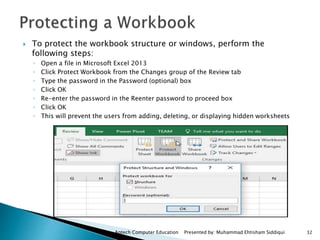
 To protect the workbook structure or windows, perform the
following steps:
◦ Open a file in Microsoft Excel 2013
◦ Click Protect Workbook from the Changes group of the Review tab
◦ Type the password in the Password (optional) box
◦ Click OK
◦ Re-enter the password in the Reenter password to proceed box
◦ Click OK
◦ This will prevent the users from adding, deleting, or displaying hidden worksheets
Aptech Computer Education Presented by: Muhammad Ehtisham Siddiqui 33
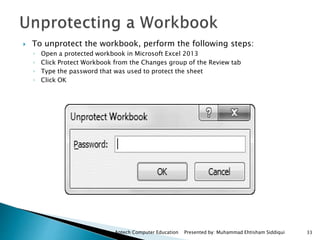
 To unprotect the workbook, perform the following steps:
◦ Open a protected workbook in Microsoft Excel 2013
◦ Click Protect Workbook from the Changes group of the Review tab
◦ Type the password that was used to protect the sheet
◦ Click OK
34

Office session11

  • 1.
  • 2.
    Aptech Computer EducationPresented by: Muhammad Ehtisham Siddiqui 2 At the end of this session, students will be able to:  Describe sorting and filtering of data  Explain the methods to present the data graphically using charts  Explain the steps to create and format the charts  Explain the methods of securing and protecting a Workbook
  • 3.
     The abilityto analyze data is a powerful skill that helps you make better decisions  Microsoft Excel is one of the top tools for data analysis and the built-in pivot tables are arguably the most popular analytic tool  Excel allows users to organize data entries by sorting and filtering  Sorting:  Reorganizes rows in the table based on the contents of a particular column  Sorts the data numerically or alphabetically  Help users to understand and identify the required data  Filtering: ◦ Used for viewing only certain items ◦ When users apply filter to a column, they can decide what they want to see  Users can also secure their workbooks when the data is highly confidential 3Aptech Computer Education Presented by: Muhammad Ehtisham Siddiqui
  • 4.
    4Aptech Computer EducationPresented by: Muhammad Ehtisham Siddiqui  Means arranging data entries based on the specified conditions  Applied on data using pre-defined sorting methods, or by selecting the range of cells and apply the rules using Custom Sort  Using basic sorting, users can sort the data in the following ways: ◦ Sort A to Z or Sort Smallest to Largest ◦ Sort Z to A or Sort Largest to Smallest ◦ Put Selected Cell Color On Top ◦ Put Selected Font Color On Top ◦ Put Selected Cell Icon On Top
  • 5.
    5Aptech Computer EducationPresented by: Muhammad Ehtisham Siddiqui  To apply basic sorting, perform the following steps:  Open Microsoft Excel 2013  Assign the heading as Name in cell D5  Type names of people from cell D6 to D10  Assign the heading as Age in cell E5  Type age in cells from E6 to E10  Select the cells from D5 to E10  Right-click the highlighted cells  Select Sort from the context menu  Select Sort > Sort A to Z  Excel rearranges data entries in the column D along with the corresponding data in the column E in ascending order
  • 6.
    6Aptech Computer EducationPresented by: Muhammad Ehtisham Siddiqui  Enables a user to sort data as per their requirements  Allows a user to add multiple columns for arrangement  Users can decide which column needs to be sorted first and in what order ◦ Open Microsoft Excel 2013 ◦ Assign the heading as Name in D5 ◦ Type names of people from cell D6 to D10 ◦ Assign the heading as Age in cell E5 ◦ Type age in cells from E6 to E10 ◦ Select the cells from D5 to E10 ◦ Right-click the highlighted cells ◦ Select Sort > Custom Sort ◦ Select Name ◦ Click Add Level ◦ Select Age ◦ Click OK ◦ Excel first sorts the entire range of data alphabetically based on Name column and further on Age column
  • 7.
     Displaying onlythose row that meet the specific criteria and hiding non-specific rows in the table  Allows users to filter data entries manually or by applying rules  Involves displaying of data entries manually  Users can decide what data they want to display in the spreadsheet  Users can filter data in the following ways: ◦ Filter by Selected Cell’s Value ◦ Filter by Selected Cell’s Color ◦ Filter by Selected Cell’s Font Color ◦ Filter by Selected Cell’s Icon Aptech Computer Education Presented by: Muhammad Ehtisham Siddiqui 7
  • 8.
    8 Aptech Computer EducationPresented by: Muhammad Ehtisham Siddiqui  To apply basic filter, perform the following steps:  Open Microsoft Excel 2013  Assign the heading as Name in D5  Type names of people from cell D6 to D10  Assign the heading as Age in cell E5  Type age in cells from E6 to E10  Select the cells from D5 to E10  Right-click the highlighted cells  Select Filter from the context menu  Select Filter > Filter by Selected Cell’s Value  Click the small arrow next to column headings and select the data entries to be displayed on the spreadsheet
  • 9.
    9 Aptech Computer EducationPresented by: Muhammad Ehtisham Siddiqui 1). In order for filtering to work correctly, your worksheet should include a header row, which is used to identify the name of each column. In our example, our worksheet is organized into different columns identified by the header cells in row 1: ID#, Type, Equipment Detail, and so on.
  • 10.
    10 Aptech Computer EducationPresented by: Muhammad Ehtisham Siddiqui 2). Select the Data tab, then click the Filter command. 3). A drop-down arrow will appear in the header cell for each column. 4). Click the drop-down arrow for the column you want to filter. In our example, we will filter column B to view only certain types of equipment.
  • 11.
    11 Aptech Computer EducationPresented by: Muhammad Ehtisham Siddiqui 5). The Filter menu will appear. 6). Uncheck the box next to Select All to quickly deselect all data.
  • 12.
    12 Aptech Computer EducationPresented by: Muhammad Ehtisham Siddiqui 5). The Filter menu will appear. 6). Uncheck the box next to Select All to quickly deselect all data.
  • 13.
    13 Aptech Computer EducationPresented by: Muhammad Ehtisham Siddiqui 7). Check the boxes next to the data you want to filter, then click OK. In this example, we will check Laptop and Tablet to view only those types of equipment.
  • 14.
    14 Aptech Computer EducationPresented by: Muhammad Ehtisham Siddiqui 8). The data will be filtered, temporarily hiding any content that doesn't match the criteria. In our example, only laptops and tablets are visible.
  • 15.
    15 Aptech Computer EducationPresented by: Muhammad Ehtisham Siddiqui  To apply advanced date filter, perform the following steps:  Open Microsoft Excel 2013  Assign the heading as Date in C5  Type dates from cell C6 to C10  Assign the heading as Name in D5  Type names of people from cell D6 to D10  Assign the heading as Age in cell E5  Type age in cells from E6 to E10  Select the cells from C5 to E10  Right-click highlighted cells  Select Filter > Filter by Selected Cell’s Value  Click icon in Date heading  Select Date Filters > Custom Filter  Set the required criteria to apply  Click OK
  • 16.
    16 Aptech Computer EducationPresented by: Muhammad Ehtisham Siddiqui  To apply advanced text filter, perform the following steps:  Open Microsoft Excel 2010  Assign the heading as Date in C5  Type dates from cell C6 to C10  Assign heading as Name in D5  Type names of people from cell D6 to D10  Assign the heading as Age in cell E5  Type age in cells from E6 to E10  Select the cells from C5 to E10  Right-click highlighted cells  Select Filter > Filter by Selected Cell’s Value  Click icon in Name heading  Select Text Filters > Custom Filter  Select the required rules  Click OK
  • 17.
    17 Aptech Computer EducationPresented by: Muhammad Ehtisham Siddiqui  To apply advanced number filter, perform the following steps:  Open Microsoft Excel 2013  Assign the heading as Date in C5  Type dates from cell C6 to C10  Assign heading as Name in D5  Type names of people from cell D6 to D10  Assign the heading as Age in cell E5  Type age in cells from E6 to E10  Select the cells from C5 to E10  Right-click highlighted cells  Select Filter > Filter by Selected Cell’s Value  Click icon in Age heading  Select Number Filters > Custom Filter  Select the required rules  Click OK
  • 18.
    18 Aptech Computer EducationPresented by: Muhammad Ehtisham Siddiqui  Provide the visual aids to the data present in tables  Make the data entries more comprehensible and clear  The table lists different types of Charts provided in Microsoft Excel Tab Description Column Compares the values across categories Line Displays the graph over a period Pie Displays the contribution of each value to the total Bar Compares multiple values Area Highlights the differences between numerous sets of data over a period Scatter Compares pair of values and are also known as XY charts Stock Displays trends of the stock market Surface Shows trends in values across two dimensions in a continuous curve Doughnut Displays contribution of each value to a series like Pie chart but it displays multiple series Bubble Resembles a scatter chart but it compares sets of three values instead of two Radar Displays values relative to a centre point
  • 19.
    19 Aptech Computer EducationPresented by: Muhammad Ehtisham Siddiqui  To create a chart in Excel, perform the following steps:  Open Microsoft Excel 2013  Assign the heading as Name in D5  Type the names of the people from cell D6 to D10  Assign Math as heading in E5  Type two-digit numbers from cell E6 to E10  Assign Art as heading in F5  Type two-digit numbers from cell F6 to F10  Select the cells from D5 to F10  Click Column from the Charts group in the Insert tab
  • 20.
    20 Aptech Computer EducationPresented by: Muhammad Ehtisham Siddiqui  When the chart is selected, following tabs appears in Chart Tools group of the ribbon:  Design  Layout  Format  These tabs lets the user to:  Change overall chart arrangement  Modify the appearance  Layout and style of the chart
  • 21.
    21 Aptech Computer EducationPresented by: Muhammad Ehtisham Siddiqui  To change the chart type, layouts, and style, perform the following steps:  Select the chart  Click Change Chart Type from Type group of the Design tab  Select the required chart type  Click OK  Select the chart  Click the Design tab  Click icon from the Charts Layouts group  Select the required layout  Select the chart  Click the Design tab  Click icon from the Charts Styles group  Select the required style to apply
  • 22.
    22 Aptech Computer EducationPresented by: Muhammad Ehtisham Siddiqui  Helps the user to convey the details of horizontal and vertical axis, assign a title to the chart, display data labels, and so forth  The table lists different Chart Labels available in Excel Label Description Chart Title Specifies a title to the chart generated and enables to select its position Axis Titles Provides name to horizontal and vertical axis of the chart and enables to select its position Legend States what each of the data series stands for in the chart Data Labels Displays details of each of the data series on the chart and enables to select the position of the values Data Table Provide details of each of the data series below the chart
  • 23.
    23 Aptech Computer EducationPresented by: Muhammad Ehtisham Siddiqui  To specify chart labels, perform the following steps:  Select the chart  Click Chart Title from the Labels group of the Layout tab  Select the option to display the chart title  Double-click the Chart Title name and assign a new name  Similarly, change the Axis Titles, Legend, Data Labels, and Data Table from the Labels group
  • 24.
     Involves changingthe outline, fill color, and shape effects to the chart  The figure shows the Shape Styles group  Allows users to change the text fill, text outline, and text effects  The figure displays the WordArt Styles group Aptech Computer Education Presented by: Muhammad Ehtisham Siddiqui 24
  • 25.
     To formata chart, perform the following steps:  Select the chart  Click Shape Fill from the Shape Styles group of the Format tab  Select the required fill color  Similarly, select the options from Shape Outline, and Shape Effects from the Shape Styles group  Click Text Fill from the WordArt Styles group of the Format tab and select the required text fill color  Similarly, select the options from Text Outline, and Text Effects from the WordArt Styles group Aptech Computer Education Presented by: Muhammad Ehtisham Siddiqui 25
  • 26.
     Excel 2013supports a special type of information graphic called a Sparkline that represents trends or variations in collected data.  n Excel 2013, sparklines are the height of the worksheet cells whose data they represent and can be any of the following chart types: ◦ Line that represents the relative value of the selected worksheet data ◦ Column where the selected worksheet data is represented by tiny columns ◦ Win/Loss where the selected worksheet data appears as a win/loss chart; wins are represented by blue squares that appear above red squares Aptech Computer Education Presented by: Muhammad Ehtisham Siddiqui 26
  • 27.
     To usethe Sparklines, perform the following steps: 1. Open Microsoft Excel 2013 2. Assign the heading as Name in A1 3. Type names of people from cell A2 to A8 4. Assign the heading as Math in cell B1 5. Type numbers from cell B2 to B8 6. Assign the heading as Language in C1 7. Type numbers from cell C2 to C8 8. Assign the heading as Art in cell D1 9. Type numbers from cell D2 to D8 10. Select the cells from B2 to D8 11. Click Line from the Sparklines group of the Insert tab 12. Type E2:E8 in the Location Range box to place the Sparklines in the Excel sheet 13. Click OK Aptech Computer Education Presented by: Muhammad Ehtisham Siddiqui 27
  • 28.
     Protects theworkbook by assigning a password to the workbook or a worksheet  Users cannot view the contents or edit the file until they provide the password  Excel allows users to remove a password from a password-protected file  However, if the user forgets the password after protecting it, Excel cannot recover the contents of the file or provide the details of the password Aptech Computer Education Presented by: Muhammad Ehtisham Siddiqui 28
  • 29.
     To illustrateExcel's most popular financial functions, we consider a loan with monthly payments, an annual interest rate of 6%, a 20- year duration, a present value of $150,000 (amount borrowed) and a future value of 0 (that's what you hope to achieve when you pay off a loan). Aptech Computer Education Presented by: Muhammad Ehtisham Siddiqui 29
  • 30.
    Aptech Computer EducationPresented by: Muhammad Ehtisham Siddiqui 30  Protecting the workbook by providing the password  User need to enter the password to re-open the protected file  Even the worksheets will not open in read mode without the password  To encrypt a workbook, perform the following steps:  Open Microsoft Excel 2013  Click the File tab  Click Info  Click Protect Workbook  Select Encrypt with Password  Type the password in the Password box  Click OK  The workbook is protected
  • 31.
    Aptech Computer EducationPresented by: Muhammad Ehtisham Siddiqui 31  To decrypt a workbook, perform the following steps:  Open an encrypted document in Microsoft Excel 2010  Enter the password  Click the File tab  Click Info  Click Protect Workbook  Select Encrypt with Password  Clear the password from the Password box  Click OK
  • 32.
    Aptech Computer EducationPresented by: Muhammad Ehtisham Siddiqui 32  To protect the workbook structure or windows, perform the following steps: ◦ Open a file in Microsoft Excel 2013 ◦ Click Protect Workbook from the Changes group of the Review tab ◦ Type the password in the Password (optional) box ◦ Click OK ◦ Re-enter the password in the Reenter password to proceed box ◦ Click OK ◦ This will prevent the users from adding, deleting, or displaying hidden worksheets
  • 33.
    Aptech Computer EducationPresented by: Muhammad Ehtisham Siddiqui 33  To unprotect the workbook, perform the following steps: ◦ Open a protected workbook in Microsoft Excel 2013 ◦ Click Protect Workbook from the Changes group of the Review tab ◦ Type the password that was used to protect the sheet ◦ Click OK
  • 34.