Session9
 Describe the basics of Microsoft Excel
 Explain the various elements of Excel
 Explain the procedure for creating and using the
workbook
 Explain the formatting procedure for a worksheet
 Explain page and print options
Aptech Computer Education Presented by: Muhammad Ehtisham Siddiqui 2
 Microsoft Excel is an application for creating spreadsheet that
helps user to collect, systematize, and edit the data
 It provides the user with tools and features which enables them
to organize and analyze the data and generate results.
 In other words, it is an electronic spreadsheet that runs on a
computer.
 Excel is the most popular spreadsheet application used in
educational institutes and corporate houses.
3Aptech Computer Education Presented by: Muhammad Ehtisham Siddiqui
4Aptech Computer Education Presented by: Muhammad Ehtisham Siddiqui
 In excel, most of work is performed in the workbook file, which is
saved using .xlsx as the file extension.
 Each workbook contains one or more worksheets.
 Each of these worksheet consist of multiple rows and columns.
 The intersection of rows and columns is known as cells, which
stores either a value, or a formula, or text.
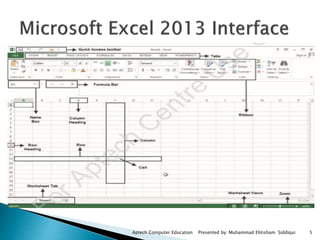
 To start Microsoft Excel, perform the following steps:
Click Start > All Programs > Microsoft Office > Microsoft Excel 2010. The new Excel
spreadsheet window is displayed
5Aptech Computer Education Presented by: Muhammad Ehtisham Siddiqui
6
Aptech Computer Education Presented by: Muhammad Ehtisham Siddiqui
Element Description
Quick Access
Toolbar
Present above the File tab, contains shortcuts for frequently used tasks, such
as Save, Undo, Redo, and so forth. Users can customize this toolbar according
to their requirement.
Tabs Present as menu bar on top such as Home, Insert, Page Layout, Formulas, Data,
Review, View, Add-Ins, which allows user to format the document, insert tables
and charts, change the layout, insert formulas, and so forth.
Cell Represents the intersection of a row and column.
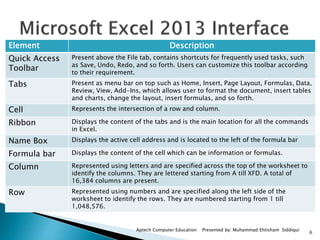
Ribbon Displays the content of the tabs and is the main location for all the commands
in Excel.
Name Box Displays the active cell address and is located to the left of the formula bar
Formula bar Displays the content of the cell which can be information or formulas.
Column Represented using letters and are specified across the top of the worksheet to
identify the columns. They are lettered starting from A till XFD. A total of
16,384 columns are present.
Row Represented using numbers and are specified along the left side of the
worksheet to identify the rows. They are numbered starting from 1 till
1,048,576.
7
Aptech Computer Education Presented by: Muhammad Ehtisham Siddiqui
Element Description
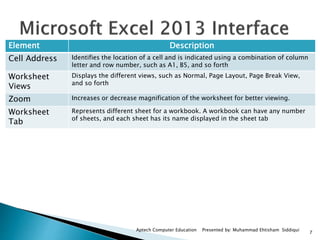
Cell Address Identifies the location of a cell and is indicated using a combination of column
letter and row number, such as A1, B5, and so forth
Worksheet
Views
Displays the different views, such as Normal, Page Layout, Page Break View,
and so forth
Zoom Increases or decrease magnification of the worksheet for better viewing.
Worksheet
Tab
Represents different sheet for a workbook. A workbook can have any number
of sheets, and each sheet has its name displayed in the sheet tab
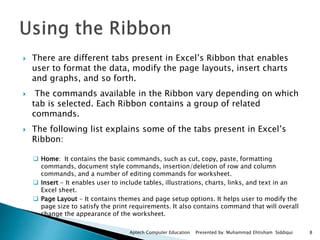
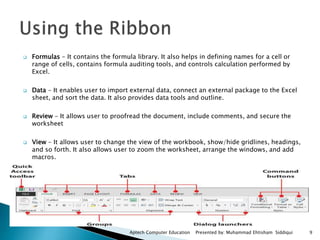
 There are different tabs present in Excel’s Ribbon that enables
user to format the data, modify the page layouts, insert charts
and graphs, and so forth.
 The commands available in the Ribbon vary depending on which
tab is selected. Each Ribbon contains a group of related
commands.
 The following list explains some of the tabs present in Excel’s
Ribbon:
 Home: It contains the basic commands, such as cut, copy, paste, formatting
commands, document style commands, insertion/deletion of row and column
commands, and a number of editing commands for worksheet.
 Insert - It enables user to include tables, illustrations, charts, links, and text in an
Excel sheet.
 Page Layout - It contains themes and page setup options. It helps user to modify the
page size to satisfy the print requirements. It also contains command that will overall
change the appearance of the worksheet.
Aptech Computer Education Presented by: Muhammad Ehtisham Siddiqui 8
 Formulas - It contains the formula library. It also helps in defining names for a cell or
range of cells, contains formula auditing tools, and controls calculation performed by
Excel.
 Data - It enables user to import external data, connect an external package to the Excel
sheet, and sort the data. It also provides data tools and outline.
 Review - It allows user to proofread the document, include comments, and secure the
worksheet
 View - It allows user to change the view of the workbook, show/hide gridlines, headings,
and so forth. It also allows user to zoom the worksheet, arrange the windows, and add
macros.
Aptech Computer Education Presented by: Muhammad Ehtisham Siddiqui 9
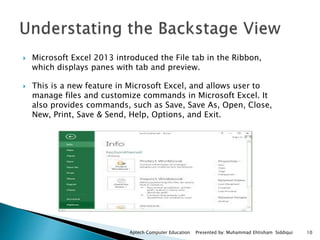
 Microsoft Excel 2013 introduced the File tab in the Ribbon,
which displays panes with tab and preview.
 This is a new feature in Microsoft Excel, and allows user to
manage files and customize commands in Microsoft Excel. It
also provides commands, such as Save, Save As, Open, Close,
New, Print, Save & Send, Help, Options, and Exit.
Aptech Computer Education Presented by: Muhammad Ehtisham Siddiqui 10
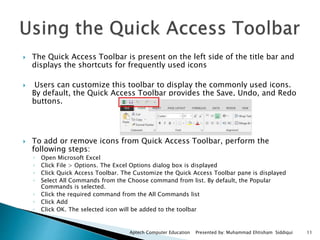
 The Quick Access Toolbar is present on the left side of the title bar and
displays the shortcuts for frequently used icons
 Users can customize this toolbar to display the commonly used icons.
By default, the Quick Access Toolbar provides the Save, Undo, and Redo
buttons.
 To add or remove icons from Quick Access Toolbar, perform the
following steps:
◦ Open Microsoft Excel
◦ Click File > Options. The Excel Options dialog box is displayed
◦ Click Quick Access Toolbar. The Customize the Quick Access Toolbar pane is displayed
◦ Select All Commands from the Choose command from list. By default, the Popular
Commands is selected.
◦ Click the required command from the All Commands list
◦ Click Add
◦ Click OK. The selected icon will be added to the toolbar
Aptech Computer Education Presented by: Muhammad Ehtisham Siddiqui 11
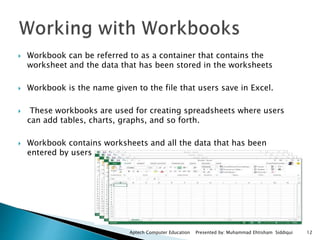
 Workbook can be referred to as a container that contains the
worksheet and the data that has been stored in the worksheets
 Workbook is the name given to the file that users save in Excel.
 These workbooks are used for creating spreadsheets where users
can add tables, charts, graphs, and so forth.
 Workbook contains worksheets and all the data that has been
entered by users
Aptech Computer Education Presented by: Muhammad Ehtisham Siddiqui 12
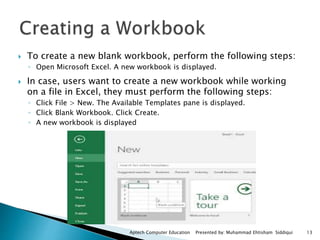
 To create a new blank workbook, perform the following steps:
◦ Open Microsoft Excel. A new workbook is displayed.
 In case, users want to create a new workbook while working
on a file in Excel, they must perform the following steps:
◦ Click File > New. The Available Templates pane is displayed.
◦ Click Blank Workbook. Click Create.
◦ A new workbook is displayed
Aptech Computer Education Presented by: Muhammad Ehtisham Siddiqui 13
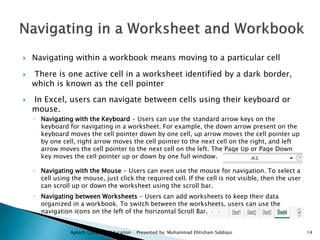
 Navigating within a workbook means moving to a particular cell
 There is one active cell in a worksheet identified by a dark border,
which is known as the cell pointer
 In Excel, users can navigate between cells using their keyboard or
mouse.
◦ Navigating with the Keyboard - Users can use the standard arrow keys on the
keyboard for navigating in a worksheet. For example, the down arrow present on the
keyboard moves the cell pointer down by one cell, up arrow moves the cell pointer up
by one cell, right arrow moves the cell pointer to the next cell on the right, and left
arrow moves the cell pointer to the next cell on the left. The Page Up or Page Down
key moves the cell pointer up or down by one full window.
◦ Navigating with the Mouse - Users can even use the mouse for navigation. To select a
cell using the mouse, just click the required cell. If the cell is not visible, then the user
can scroll up or down the worksheet using the scroll bar.
◦ Navigating between Worksheets - Users can add worksheets to keep their data
organized in a workbook. To switch between the worksheets, users can use the
navigation icons on the left of the horizontal Scroll Bar.
Aptech Computer Education Presented by: Muhammad Ehtisham Siddiqui 14
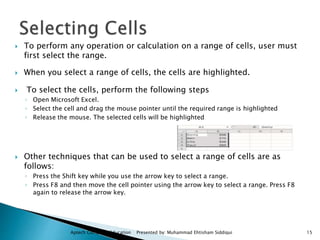
 To perform any operation or calculation on a range of cells, user must
first select the range.
 When you select a range of cells, the cells are highlighted.
 To select the cells, perform the following steps
◦ Open Microsoft Excel.
◦ Select the cell and drag the mouse pointer until the required range is highlighted
◦ Release the mouse. The selected cells will be highlighted
 Other techniques that can be used to select a range of cells are as
follows:
◦ Press the Shift key while you use the arrow key to select a range.
◦ Press F8 and then move the cell pointer using the arrow key to select a range. Press F8
again to release the arrow key.
Aptech Computer Education Presented by: Muhammad Ehtisham Siddiqui 15
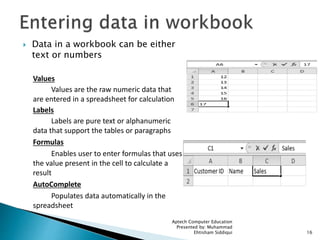
 Data in a workbook can be either
text or numbers
Values
Values are the raw numeric data that
are entered in a spreadsheet for calculation
Labels
Labels are pure text or alphanumeric
data that support the tables or paragraphs
Formulas
Enables user to enter formulas that uses
the value present in the cell to calculate a
result
AutoComplete
Populates data automatically in the
spreadsheet
Aptech Computer Education
Presented by: Muhammad
Ehtisham Siddiqui 16
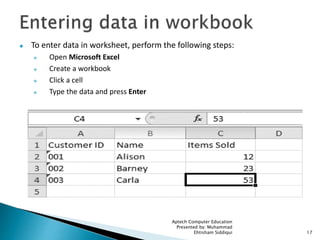
 To enter data in worksheet, perform the following steps:
 Open Microsoft Excel
 Create a workbook
 Click a cell
 Type the data and press Enter
Aptech Computer Education
Presented by: Muhammad
Ehtisham Siddiqui 17
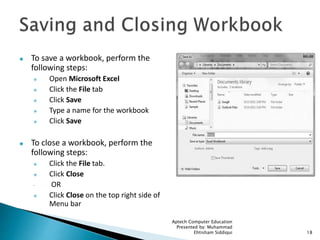
 To save a workbook, perform the
following steps:
 Open Microsoft Excel
 Click the File tab
 Click Save
 Type a name for the workbook
 Click Save
 To close a workbook, perform the
following steps:
 Click the File tab.
 Click Close
 OR
 Click Close on the top right side of
Menu bar
Aptech Computer Education
Presented by: Muhammad
Ehtisham Siddiqui 18
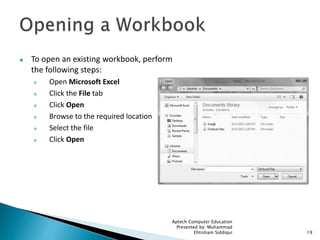
 To open an existing workbook, perform
the following steps:
 Open Microsoft Excel
 Click the File tab
 Click Open
 Browse to the required location
 Select the file
 Click Open
Aptech Computer Education
Presented by: Muhammad
Ehtisham Siddiqui 19
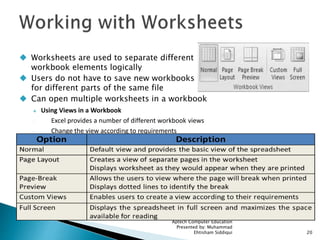
 Worksheets are used to separate different
workbook elements logically
 Users do not have to save new workbooks
for different parts of the same file
 Can open multiple worksheets in a workbook
 Using Views in a Workbook
◦ Excel provides a number of different workbook views
◦ Change the view according to requirements
Aptech Computer Education
Presented by: Muhammad
Ehtisham Siddiqui 20
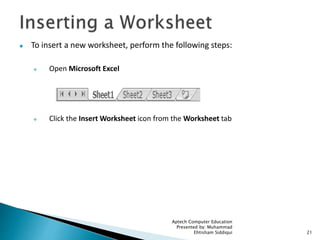
 To insert a new worksheet, perform the following steps:
 Open Microsoft Excel
 Click the Insert Worksheet icon from the Worksheet tab
Aptech Computer Education
Presented by: Muhammad
Ehtisham Siddiqui 21
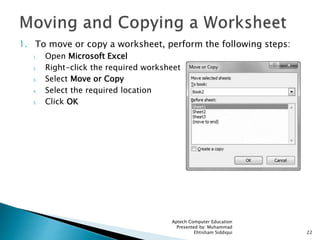
1. To move or copy a worksheet, perform the following steps:
1. Open Microsoft Excel
2. Right-click the required worksheet
3. Select Move or Copy
4. Select the required location
5. Click OK
Aptech Computer Education
Presented by: Muhammad
Ehtisham Siddiqui 22
 To rename a worksheet, perform the following steps:
 Open Microsoft Excel
 Right-click the worksheet tab
 Select Rename
 Type a name for the worksheet and press Enter
 To protect the worksheet, perform the following steps:
 Open Microsoft Excel
 Right-click the worksheet tab
 Select Protect Sheet
 Type a password for the worksheet
 Select the required options
 Click OK
 Type the same password again
 Click OK
Aptech Computer Education
Presented by: Muhammad
Ehtisham Siddiqui 23
 To change the color of the worksheet tab, perform the
following steps:
 Open Microsoft Excel
 Right-click the worksheet tab
 Select Tab Color
 Select the required color
 To delete a worksheet, perform the following steps:
 Open Microsoft Excel
 Right-click the sheet to delete
 Select Delete
Aptech Computer Education
Presented by: Muhammad
Ehtisham Siddiqui 24
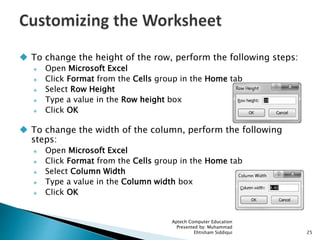
 To change the height of the row, perform the following steps:
 Open Microsoft Excel
 Click Format from the Cells group in the Home tab
 Select Row Height
 Type a value in the Row height box
 Click OK
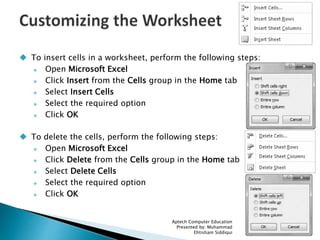
 To change the width of the column, perform the following
steps:
 Open Microsoft Excel
 Click Format from the Cells group in the Home tab
 Select Column Width
 Type a value in the Column width box
 Click OK
Aptech Computer Education
Presented by: Muhammad
Ehtisham Siddiqui 25
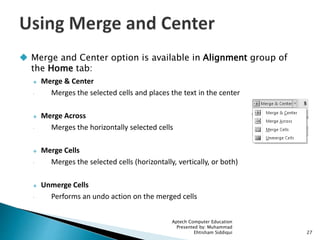
 To insert cells in a worksheet, perform the following steps:
 Open Microsoft Excel
 Click Insert from the Cells group in the Home tab
 Select Insert Cells
 Select the required option
 Click OK
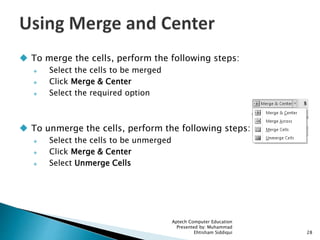
 To delete the cells, perform the following steps:
 Open Microsoft Excel
 Click Delete from the Cells group in the Home tab
 Select Delete Cells
 Select the required option
 Click OK
Aptech Computer Education
Presented by: Muhammad
Ehtisham Siddiqui 26
 Merge and Center option is available in Alignment group of
the Home tab:
 Merge & Center
◦ Merges the selected cells and places the text in the center
 Merge Across
◦ Merges the horizontally selected cells
 Merge Cells
◦ Merges the selected cells (horizontally, vertically, or both)
 Unmerge Cells
◦ Performs an undo action on the merged cells
Aptech Computer Education
Presented by: Muhammad
Ehtisham Siddiqui 27
 To merge the cells, perform the following steps:
 Select the cells to be merged
 Click Merge & Center
 Select the required option
 To unmerge the cells, perform the following steps:
 Select the cells to be unmerged
 Click Merge & Center
 Select Unmerge Cells
Aptech Computer Education
Presented by: Muhammad
Ehtisham Siddiqui 28
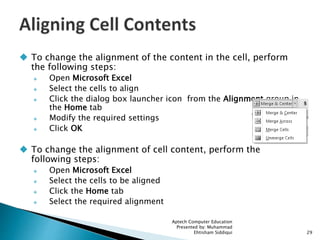
 To change the alignment of the content in the cell, perform
the following steps:
 Open Microsoft Excel
 Select the cells to align
 Click the dialog box launcher icon from the Alignment group in
the Home tab
 Modify the required settings
 Click OK
 To change the alignment of cell content, perform the
following steps:
 Open Microsoft Excel
 Select the cells to be aligned
 Click the Home tab
 Select the required alignment
Aptech Computer Education
Presented by: Muhammad
Ehtisham Siddiqui 29
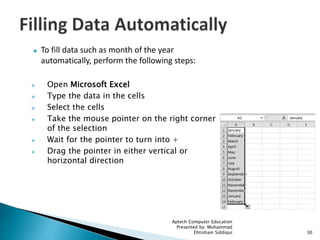
 To fill data such as month of the year
automatically, perform the following steps:
 Open Microsoft Excel
 Type the data in the cells
 Select the cells
 Take the mouse pointer on the right corner
of the selection
 Wait for the pointer to turn into +
 Drag the pointer in either vertical or
horizontal direction
Aptech Computer Education
Presented by: Muhammad
Ehtisham Siddiqui 30
 To use the Cut, Copy, and Paste functions, perform the following
steps:
 Open Microsoft Excel
 Select the cells to be cut or copied
 Click Cut or Copy from the Clipboard group in the Home tab
 Select the space to paste the cells
 Click Paste from the Clipboard group in the Home tab
Aptech Computer Education
Presented by: Muhammad
Ehtisham Siddiqui 31
 To use the Cut, Copy, and Paste functions, perform the following
steps:
 Open Microsoft Excel
 Select the cells to be cut or copied
 Click Cut or Copy from the Clipboard group in the Home tab
 Select the space to paste the cells
 Click Paste from the Clipboard group in the Home tab
 The Paste option will only paste the content
 The pasted content will be formatted according to the formatting style
present in the new location
 To retain the original formatting style, use Keep Source Formatting option
 The Formula option will help to paste formulas or functions
 The Paste Value option enables users to paste values calculated by a
formula or a function
 The Paste Link option enables the user to link the copied data to the
destination cells
Aptech Computer Education
Presented by: Muhammad
Ehtisham Siddiqui 32
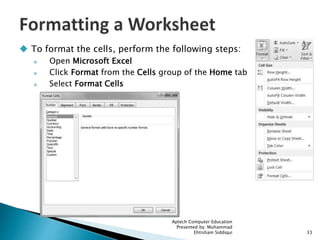
 To format the cells, perform the following steps:
 Open Microsoft Excel
 Click Format from the Cells group of the Home tab
 Select Format Cells
Aptech Computer Education
Presented by: Muhammad
Ehtisham Siddiqui 33
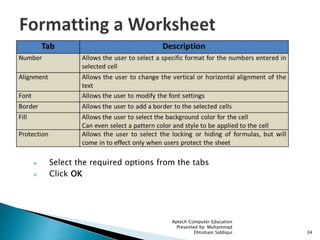
 Select the required options from the tabs
 Click OK
Aptech Computer Education
Presented by: Muhammad
Ehtisham Siddiqui 34
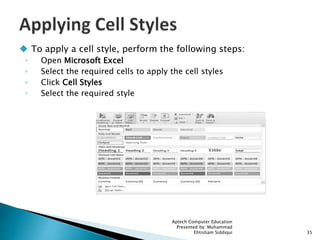
 To apply a cell style, perform the following steps:
◦ Open Microsoft Excel
◦ Select the required cells to apply the cell styles
◦ Click Cell Styles
◦ Select the required style
Aptech Computer Education
Presented by: Muhammad
Ehtisham Siddiqui 35
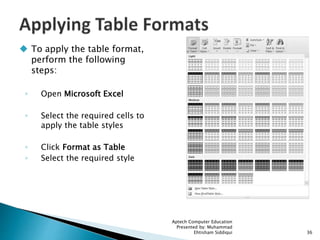
 To apply the table format,
perform the following
steps:
◦ Open Microsoft Excel
◦ Select the required cells to
apply the table styles
◦ Click Format as Table
◦ Select the required style
Aptech Computer Education
Presented by: Muhammad
Ehtisham Siddiqui 36
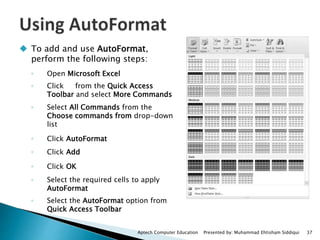
 To add and use AutoFormat,
perform the following steps:
◦ Open Microsoft Excel
◦ Click from the Quick Access
Toolbar and select More Commands
◦ Select All Commands from the
Choose commands from drop-down
list
◦ Click AutoFormat
◦ Click Add
◦ Click OK
◦ Select the required cells to apply
AutoFormat
◦ Select the AutoFormat option from
Quick Access Toolbar
Aptech Computer Education Presented by: Muhammad Ehtisham Siddiqui 37
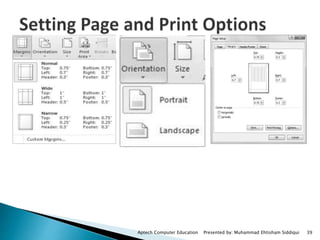
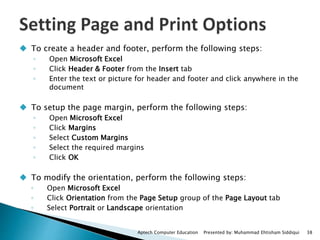
 To create a header and footer, perform the following steps:
◦ Open Microsoft Excel
◦ Click Header & Footer from the Insert tab
◦ Enter the text or picture for header and footer and click anywhere in the
document
 To setup the page margin, perform the following steps:
◦ Open Microsoft Excel
◦ Click Margins
◦ Select Custom Margins
◦ Select the required margins
◦ Click OK
 To modify the orientation, perform the following steps:
◦ Open Microsoft Excel
◦ Click Orientation from the Page Setup group of the Page Layout tab
◦ Select Portrait or Landscape orientation
Aptech Computer Education Presented by: Muhammad Ehtisham Siddiqui 38
Aptech Computer Education Presented by: Muhammad Ehtisham Siddiqui 39
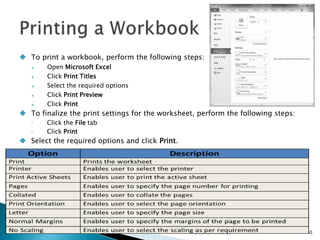
 To print a workbook, perform the following steps:
 Open Microsoft Excel
 Click Print Titles
 Select the required options
 Click Print Preview
 Click Print
 To finalize the print settings for the worksheet, perform the following steps:
◦ Click the File tab
◦ Click Print
 Select the required options and click Print.
Aptech Computer Education
Presented by: Muhammad
Ehtisham Siddiqui 40
41

Office session9

  • 1.
  • 2.
     Describe thebasics of Microsoft Excel  Explain the various elements of Excel  Explain the procedure for creating and using the workbook  Explain the formatting procedure for a worksheet  Explain page and print options Aptech Computer Education Presented by: Muhammad Ehtisham Siddiqui 2
  • 3.
     Microsoft Excelis an application for creating spreadsheet that helps user to collect, systematize, and edit the data  It provides the user with tools and features which enables them to organize and analyze the data and generate results.  In other words, it is an electronic spreadsheet that runs on a computer.  Excel is the most popular spreadsheet application used in educational institutes and corporate houses. 3Aptech Computer Education Presented by: Muhammad Ehtisham Siddiqui
  • 4.
    4Aptech Computer EducationPresented by: Muhammad Ehtisham Siddiqui  In excel, most of work is performed in the workbook file, which is saved using .xlsx as the file extension.  Each workbook contains one or more worksheets.  Each of these worksheet consist of multiple rows and columns.  The intersection of rows and columns is known as cells, which stores either a value, or a formula, or text.  To start Microsoft Excel, perform the following steps: Click Start > All Programs > Microsoft Office > Microsoft Excel 2010. The new Excel spreadsheet window is displayed
  • 5.
    5Aptech Computer EducationPresented by: Muhammad Ehtisham Siddiqui
  • 6.
    6 Aptech Computer EducationPresented by: Muhammad Ehtisham Siddiqui Element Description Quick Access Toolbar Present above the File tab, contains shortcuts for frequently used tasks, such as Save, Undo, Redo, and so forth. Users can customize this toolbar according to their requirement. Tabs Present as menu bar on top such as Home, Insert, Page Layout, Formulas, Data, Review, View, Add-Ins, which allows user to format the document, insert tables and charts, change the layout, insert formulas, and so forth. Cell Represents the intersection of a row and column. Ribbon Displays the content of the tabs and is the main location for all the commands in Excel. Name Box Displays the active cell address and is located to the left of the formula bar Formula bar Displays the content of the cell which can be information or formulas. Column Represented using letters and are specified across the top of the worksheet to identify the columns. They are lettered starting from A till XFD. A total of 16,384 columns are present. Row Represented using numbers and are specified along the left side of the worksheet to identify the rows. They are numbered starting from 1 till 1,048,576.
  • 7.
    7 Aptech Computer EducationPresented by: Muhammad Ehtisham Siddiqui Element Description Cell Address Identifies the location of a cell and is indicated using a combination of column letter and row number, such as A1, B5, and so forth Worksheet Views Displays the different views, such as Normal, Page Layout, Page Break View, and so forth Zoom Increases or decrease magnification of the worksheet for better viewing. Worksheet Tab Represents different sheet for a workbook. A workbook can have any number of sheets, and each sheet has its name displayed in the sheet tab
  • 8.
     There aredifferent tabs present in Excel’s Ribbon that enables user to format the data, modify the page layouts, insert charts and graphs, and so forth.  The commands available in the Ribbon vary depending on which tab is selected. Each Ribbon contains a group of related commands.  The following list explains some of the tabs present in Excel’s Ribbon:  Home: It contains the basic commands, such as cut, copy, paste, formatting commands, document style commands, insertion/deletion of row and column commands, and a number of editing commands for worksheet.  Insert - It enables user to include tables, illustrations, charts, links, and text in an Excel sheet.  Page Layout - It contains themes and page setup options. It helps user to modify the page size to satisfy the print requirements. It also contains command that will overall change the appearance of the worksheet. Aptech Computer Education Presented by: Muhammad Ehtisham Siddiqui 8
  • 9.
     Formulas -It contains the formula library. It also helps in defining names for a cell or range of cells, contains formula auditing tools, and controls calculation performed by Excel.  Data - It enables user to import external data, connect an external package to the Excel sheet, and sort the data. It also provides data tools and outline.  Review - It allows user to proofread the document, include comments, and secure the worksheet  View - It allows user to change the view of the workbook, show/hide gridlines, headings, and so forth. It also allows user to zoom the worksheet, arrange the windows, and add macros. Aptech Computer Education Presented by: Muhammad Ehtisham Siddiqui 9
  • 10.
     Microsoft Excel2013 introduced the File tab in the Ribbon, which displays panes with tab and preview.  This is a new feature in Microsoft Excel, and allows user to manage files and customize commands in Microsoft Excel. It also provides commands, such as Save, Save As, Open, Close, New, Print, Save & Send, Help, Options, and Exit. Aptech Computer Education Presented by: Muhammad Ehtisham Siddiqui 10
  • 11.
     The QuickAccess Toolbar is present on the left side of the title bar and displays the shortcuts for frequently used icons  Users can customize this toolbar to display the commonly used icons. By default, the Quick Access Toolbar provides the Save, Undo, and Redo buttons.  To add or remove icons from Quick Access Toolbar, perform the following steps: ◦ Open Microsoft Excel ◦ Click File > Options. The Excel Options dialog box is displayed ◦ Click Quick Access Toolbar. The Customize the Quick Access Toolbar pane is displayed ◦ Select All Commands from the Choose command from list. By default, the Popular Commands is selected. ◦ Click the required command from the All Commands list ◦ Click Add ◦ Click OK. The selected icon will be added to the toolbar Aptech Computer Education Presented by: Muhammad Ehtisham Siddiqui 11
  • 12.
     Workbook canbe referred to as a container that contains the worksheet and the data that has been stored in the worksheets  Workbook is the name given to the file that users save in Excel.  These workbooks are used for creating spreadsheets where users can add tables, charts, graphs, and so forth.  Workbook contains worksheets and all the data that has been entered by users Aptech Computer Education Presented by: Muhammad Ehtisham Siddiqui 12
  • 13.
     To createa new blank workbook, perform the following steps: ◦ Open Microsoft Excel. A new workbook is displayed.  In case, users want to create a new workbook while working on a file in Excel, they must perform the following steps: ◦ Click File > New. The Available Templates pane is displayed. ◦ Click Blank Workbook. Click Create. ◦ A new workbook is displayed Aptech Computer Education Presented by: Muhammad Ehtisham Siddiqui 13
  • 14.
     Navigating withina workbook means moving to a particular cell  There is one active cell in a worksheet identified by a dark border, which is known as the cell pointer  In Excel, users can navigate between cells using their keyboard or mouse. ◦ Navigating with the Keyboard - Users can use the standard arrow keys on the keyboard for navigating in a worksheet. For example, the down arrow present on the keyboard moves the cell pointer down by one cell, up arrow moves the cell pointer up by one cell, right arrow moves the cell pointer to the next cell on the right, and left arrow moves the cell pointer to the next cell on the left. The Page Up or Page Down key moves the cell pointer up or down by one full window. ◦ Navigating with the Mouse - Users can even use the mouse for navigation. To select a cell using the mouse, just click the required cell. If the cell is not visible, then the user can scroll up or down the worksheet using the scroll bar. ◦ Navigating between Worksheets - Users can add worksheets to keep their data organized in a workbook. To switch between the worksheets, users can use the navigation icons on the left of the horizontal Scroll Bar. Aptech Computer Education Presented by: Muhammad Ehtisham Siddiqui 14
  • 15.
     To performany operation or calculation on a range of cells, user must first select the range.  When you select a range of cells, the cells are highlighted.  To select the cells, perform the following steps ◦ Open Microsoft Excel. ◦ Select the cell and drag the mouse pointer until the required range is highlighted ◦ Release the mouse. The selected cells will be highlighted  Other techniques that can be used to select a range of cells are as follows: ◦ Press the Shift key while you use the arrow key to select a range. ◦ Press F8 and then move the cell pointer using the arrow key to select a range. Press F8 again to release the arrow key. Aptech Computer Education Presented by: Muhammad Ehtisham Siddiqui 15
  • 16.
     Data ina workbook can be either text or numbers Values Values are the raw numeric data that are entered in a spreadsheet for calculation Labels Labels are pure text or alphanumeric data that support the tables or paragraphs Formulas Enables user to enter formulas that uses the value present in the cell to calculate a result AutoComplete Populates data automatically in the spreadsheet Aptech Computer Education Presented by: Muhammad Ehtisham Siddiqui 16
  • 17.
     To enterdata in worksheet, perform the following steps:  Open Microsoft Excel  Create a workbook  Click a cell  Type the data and press Enter Aptech Computer Education Presented by: Muhammad Ehtisham Siddiqui 17
  • 18.
     To savea workbook, perform the following steps:  Open Microsoft Excel  Click the File tab  Click Save  Type a name for the workbook  Click Save  To close a workbook, perform the following steps:  Click the File tab.  Click Close  OR  Click Close on the top right side of Menu bar Aptech Computer Education Presented by: Muhammad Ehtisham Siddiqui 18
  • 19.
     To openan existing workbook, perform the following steps:  Open Microsoft Excel  Click the File tab  Click Open  Browse to the required location  Select the file  Click Open Aptech Computer Education Presented by: Muhammad Ehtisham Siddiqui 19
  • 20.
     Worksheets areused to separate different workbook elements logically  Users do not have to save new workbooks for different parts of the same file  Can open multiple worksheets in a workbook  Using Views in a Workbook ◦ Excel provides a number of different workbook views ◦ Change the view according to requirements Aptech Computer Education Presented by: Muhammad Ehtisham Siddiqui 20
  • 21.
     To inserta new worksheet, perform the following steps:  Open Microsoft Excel  Click the Insert Worksheet icon from the Worksheet tab Aptech Computer Education Presented by: Muhammad Ehtisham Siddiqui 21
  • 22.
    1. To moveor copy a worksheet, perform the following steps: 1. Open Microsoft Excel 2. Right-click the required worksheet 3. Select Move or Copy 4. Select the required location 5. Click OK Aptech Computer Education Presented by: Muhammad Ehtisham Siddiqui 22
  • 23.
     To renamea worksheet, perform the following steps:  Open Microsoft Excel  Right-click the worksheet tab  Select Rename  Type a name for the worksheet and press Enter  To protect the worksheet, perform the following steps:  Open Microsoft Excel  Right-click the worksheet tab  Select Protect Sheet  Type a password for the worksheet  Select the required options  Click OK  Type the same password again  Click OK Aptech Computer Education Presented by: Muhammad Ehtisham Siddiqui 23
  • 24.
     To changethe color of the worksheet tab, perform the following steps:  Open Microsoft Excel  Right-click the worksheet tab  Select Tab Color  Select the required color  To delete a worksheet, perform the following steps:  Open Microsoft Excel  Right-click the sheet to delete  Select Delete Aptech Computer Education Presented by: Muhammad Ehtisham Siddiqui 24
  • 25.
     To changethe height of the row, perform the following steps:  Open Microsoft Excel  Click Format from the Cells group in the Home tab  Select Row Height  Type a value in the Row height box  Click OK  To change the width of the column, perform the following steps:  Open Microsoft Excel  Click Format from the Cells group in the Home tab  Select Column Width  Type a value in the Column width box  Click OK Aptech Computer Education Presented by: Muhammad Ehtisham Siddiqui 25
  • 26.
     To insertcells in a worksheet, perform the following steps:  Open Microsoft Excel  Click Insert from the Cells group in the Home tab  Select Insert Cells  Select the required option  Click OK  To delete the cells, perform the following steps:  Open Microsoft Excel  Click Delete from the Cells group in the Home tab  Select Delete Cells  Select the required option  Click OK Aptech Computer Education Presented by: Muhammad Ehtisham Siddiqui 26
  • 27.
     Merge andCenter option is available in Alignment group of the Home tab:  Merge & Center ◦ Merges the selected cells and places the text in the center  Merge Across ◦ Merges the horizontally selected cells  Merge Cells ◦ Merges the selected cells (horizontally, vertically, or both)  Unmerge Cells ◦ Performs an undo action on the merged cells Aptech Computer Education Presented by: Muhammad Ehtisham Siddiqui 27
  • 28.
     To mergethe cells, perform the following steps:  Select the cells to be merged  Click Merge & Center  Select the required option  To unmerge the cells, perform the following steps:  Select the cells to be unmerged  Click Merge & Center  Select Unmerge Cells Aptech Computer Education Presented by: Muhammad Ehtisham Siddiqui 28
  • 29.
     To changethe alignment of the content in the cell, perform the following steps:  Open Microsoft Excel  Select the cells to align  Click the dialog box launcher icon from the Alignment group in the Home tab  Modify the required settings  Click OK  To change the alignment of cell content, perform the following steps:  Open Microsoft Excel  Select the cells to be aligned  Click the Home tab  Select the required alignment Aptech Computer Education Presented by: Muhammad Ehtisham Siddiqui 29
  • 30.
     To filldata such as month of the year automatically, perform the following steps:  Open Microsoft Excel  Type the data in the cells  Select the cells  Take the mouse pointer on the right corner of the selection  Wait for the pointer to turn into +  Drag the pointer in either vertical or horizontal direction Aptech Computer Education Presented by: Muhammad Ehtisham Siddiqui 30
  • 31.
     To usethe Cut, Copy, and Paste functions, perform the following steps:  Open Microsoft Excel  Select the cells to be cut or copied  Click Cut or Copy from the Clipboard group in the Home tab  Select the space to paste the cells  Click Paste from the Clipboard group in the Home tab Aptech Computer Education Presented by: Muhammad Ehtisham Siddiqui 31
  • 32.
     To usethe Cut, Copy, and Paste functions, perform the following steps:  Open Microsoft Excel  Select the cells to be cut or copied  Click Cut or Copy from the Clipboard group in the Home tab  Select the space to paste the cells  Click Paste from the Clipboard group in the Home tab  The Paste option will only paste the content  The pasted content will be formatted according to the formatting style present in the new location  To retain the original formatting style, use Keep Source Formatting option  The Formula option will help to paste formulas or functions  The Paste Value option enables users to paste values calculated by a formula or a function  The Paste Link option enables the user to link the copied data to the destination cells Aptech Computer Education Presented by: Muhammad Ehtisham Siddiqui 32
  • 33.
     To formatthe cells, perform the following steps:  Open Microsoft Excel  Click Format from the Cells group of the Home tab  Select Format Cells Aptech Computer Education Presented by: Muhammad Ehtisham Siddiqui 33
  • 34.
     Select therequired options from the tabs  Click OK Aptech Computer Education Presented by: Muhammad Ehtisham Siddiqui 34
  • 35.
     To applya cell style, perform the following steps: ◦ Open Microsoft Excel ◦ Select the required cells to apply the cell styles ◦ Click Cell Styles ◦ Select the required style Aptech Computer Education Presented by: Muhammad Ehtisham Siddiqui 35
  • 36.
     To applythe table format, perform the following steps: ◦ Open Microsoft Excel ◦ Select the required cells to apply the table styles ◦ Click Format as Table ◦ Select the required style Aptech Computer Education Presented by: Muhammad Ehtisham Siddiqui 36
  • 37.
     To addand use AutoFormat, perform the following steps: ◦ Open Microsoft Excel ◦ Click from the Quick Access Toolbar and select More Commands ◦ Select All Commands from the Choose commands from drop-down list ◦ Click AutoFormat ◦ Click Add ◦ Click OK ◦ Select the required cells to apply AutoFormat ◦ Select the AutoFormat option from Quick Access Toolbar Aptech Computer Education Presented by: Muhammad Ehtisham Siddiqui 37
  • 38.
     To createa header and footer, perform the following steps: ◦ Open Microsoft Excel ◦ Click Header & Footer from the Insert tab ◦ Enter the text or picture for header and footer and click anywhere in the document  To setup the page margin, perform the following steps: ◦ Open Microsoft Excel ◦ Click Margins ◦ Select Custom Margins ◦ Select the required margins ◦ Click OK  To modify the orientation, perform the following steps: ◦ Open Microsoft Excel ◦ Click Orientation from the Page Setup group of the Page Layout tab ◦ Select Portrait or Landscape orientation Aptech Computer Education Presented by: Muhammad Ehtisham Siddiqui 38
  • 39.
    Aptech Computer EducationPresented by: Muhammad Ehtisham Siddiqui 39
  • 40.
     To printa workbook, perform the following steps:  Open Microsoft Excel  Click Print Titles  Select the required options  Click Print Preview  Click Print  To finalize the print settings for the worksheet, perform the following steps: ◦ Click the File tab ◦ Click Print  Select the required options and click Print. Aptech Computer Education Presented by: Muhammad Ehtisham Siddiqui 40
  • 41.