





Microsoft Teams: A New Way to Manage
Projects, Connect, and Collaborate With
Your Peers
How to successfully adopt Microsoft Teams within your Project
Management Practices
By: Haniel Croitoru
Thank You!
Platinum Sponsors
Other Sponsors
HANIEL
CROITORU
I’m passionate about process automation, and I work at .
LEADCONSULTANT | OFFICE365 MVP | SPEAKER
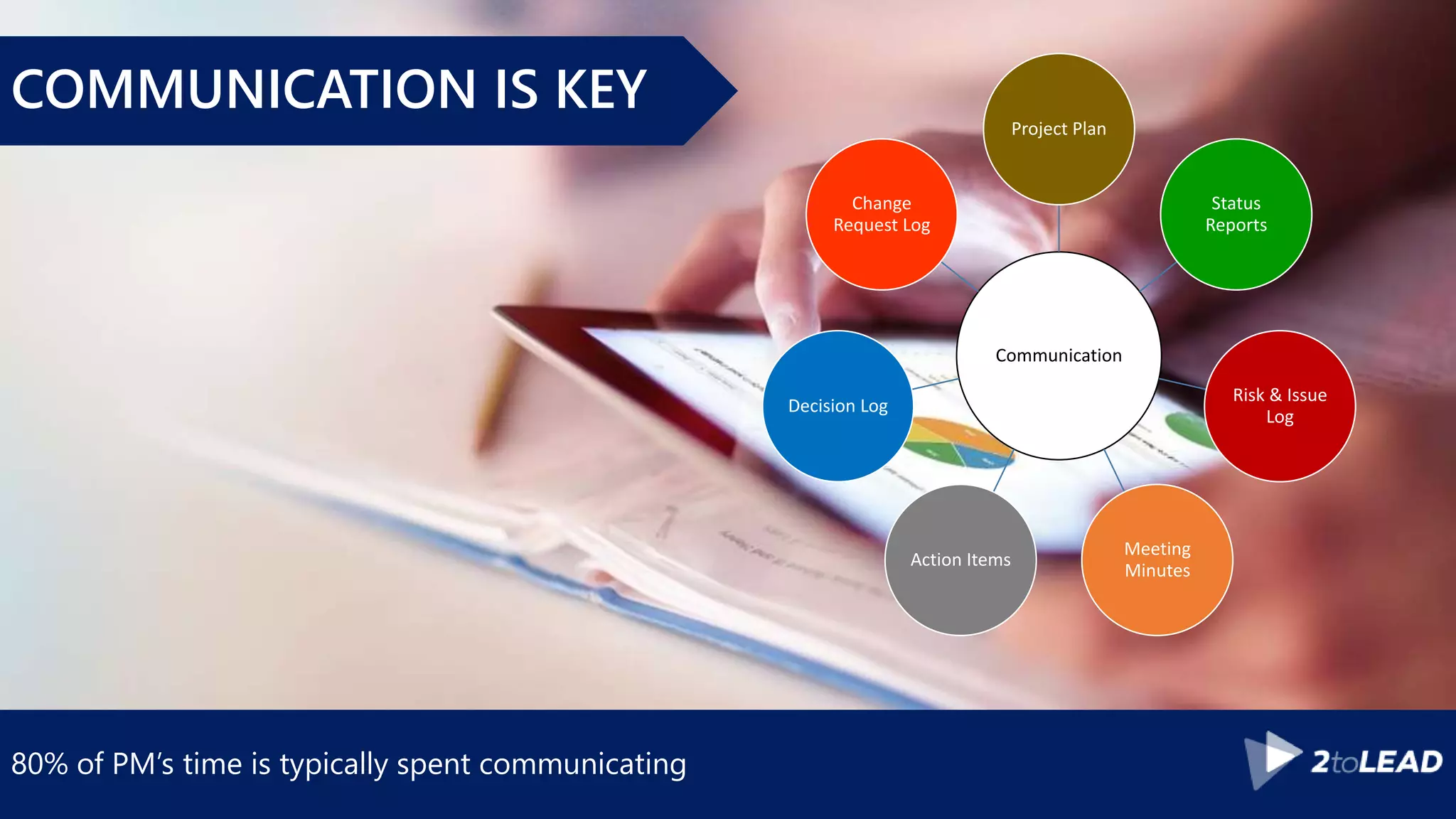
80% of PM’s time is typically spent communicating
Communication
Project Plan
Status
Reports
Risk & Issue
Log
Meeting
Minutes
Action Items
Decision Log
Change
Request Log
COMMUNICATION IS KEY
Source: PMI’s Pulse of the Profession™ In-Depth Report: The Essential Role of
Communications
0
10
20
30
40
50
60
70
80
90
Project Goals Met Project Delivered Within
Budget
Project Delivered On Time
Effective Ineffective
Communication needs to be effective at all levels of the project team and organization
COMMUNICATE AT ALL LEVELS
Provide the right information, to the right person, at the right time, in the right format
COLLABORATION GOAL
Reality Check: Information is poorly managed today
REALITY CHECK!
Office 365 continues to evolve
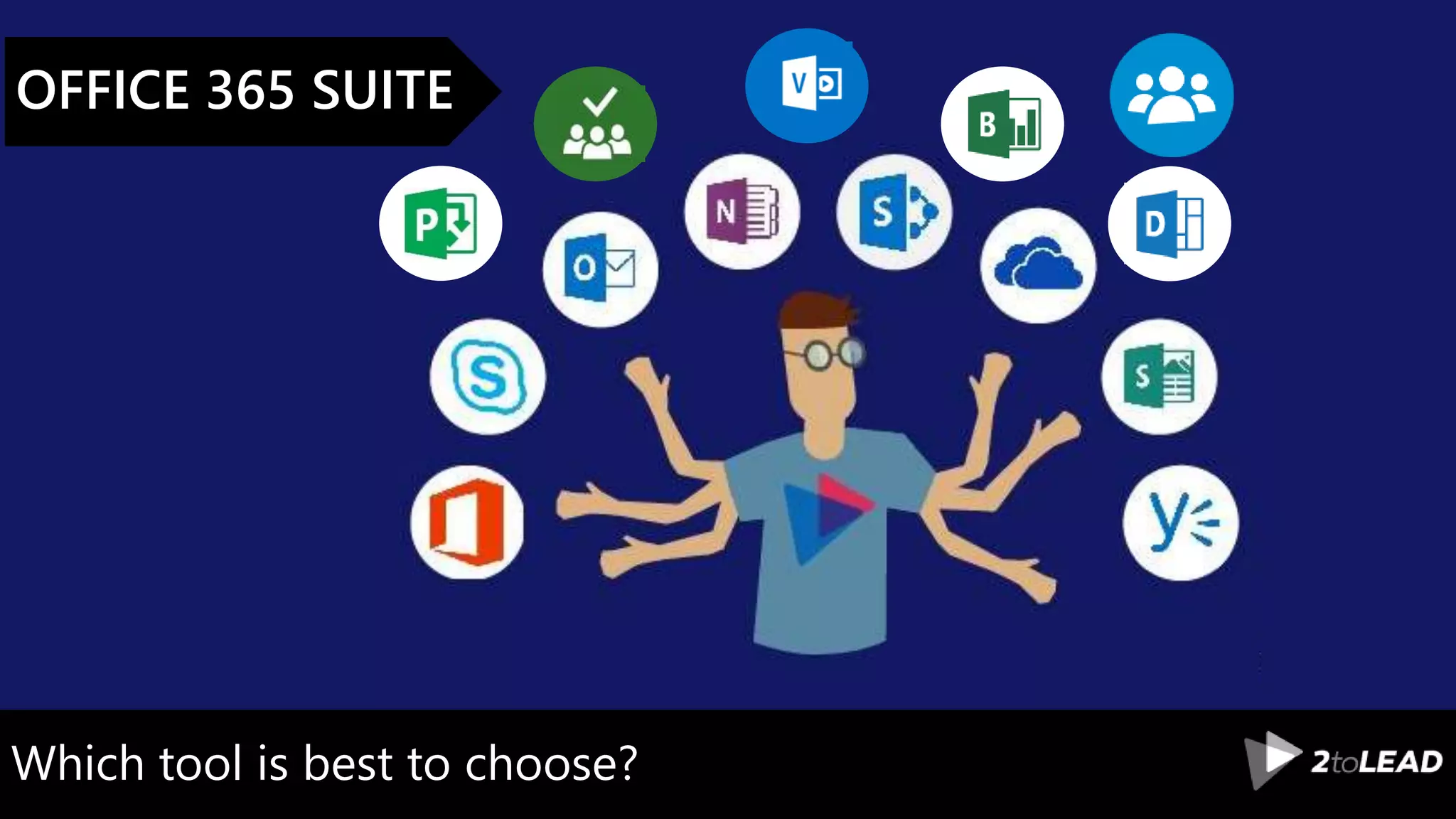
OFFICE 365 SUITE
Constantly updating and impossible to stay current
https://products.office.com/en-us/business/office-365-roadmap
OFFICE 365 ROADMAP
In some cases, there’s more than one app to choose
from
YOU HAVE OPTIONS!
Which tool is best to choose?
OFFICE 365 SUITE
PowerPoint vs. Sway
PRESENTATIONS
Word vs. OneNote vs. Email
NOTE TAKING
Power BI vs. Excel
CHARTS & REPORTING
Project vs. Planner vs. Tasks
TASKS
It isn’t always easy to know when to use what
HARD TO KEEP UP!
It goes into much greater depth and can be found @ WhenToUseWhat.com
DOWNLOAD THE WHEN TO USE
WHAT IN OFFICE 365 ENTERPRISE
USER GUIDANCE WHITEPAPER!
Microsoft Teams Enterprise
Guidance coming soon
Your decisions will be based on these questions
Information
What Info
is
required?
How often
does it
change?
What are
the
source(s)?
How will it
be used /
accessed?
What
format is it
in?
Who will
need it?
KEY QUESTIONS
MICROSOFT TEAMS
A hub for managing team-related chats and other artifacts stored in Microsoft Office 365
Groups and other LOB systems
TEAMS
COMMUNICATIONS
ACCESS
INTEGRATION
BOTS
MOBILITY
Enable users to respond when they can
ASYNC COMMUNICATION
Leverage Skype for Business-like instant messaging
PEER-TO-PEER
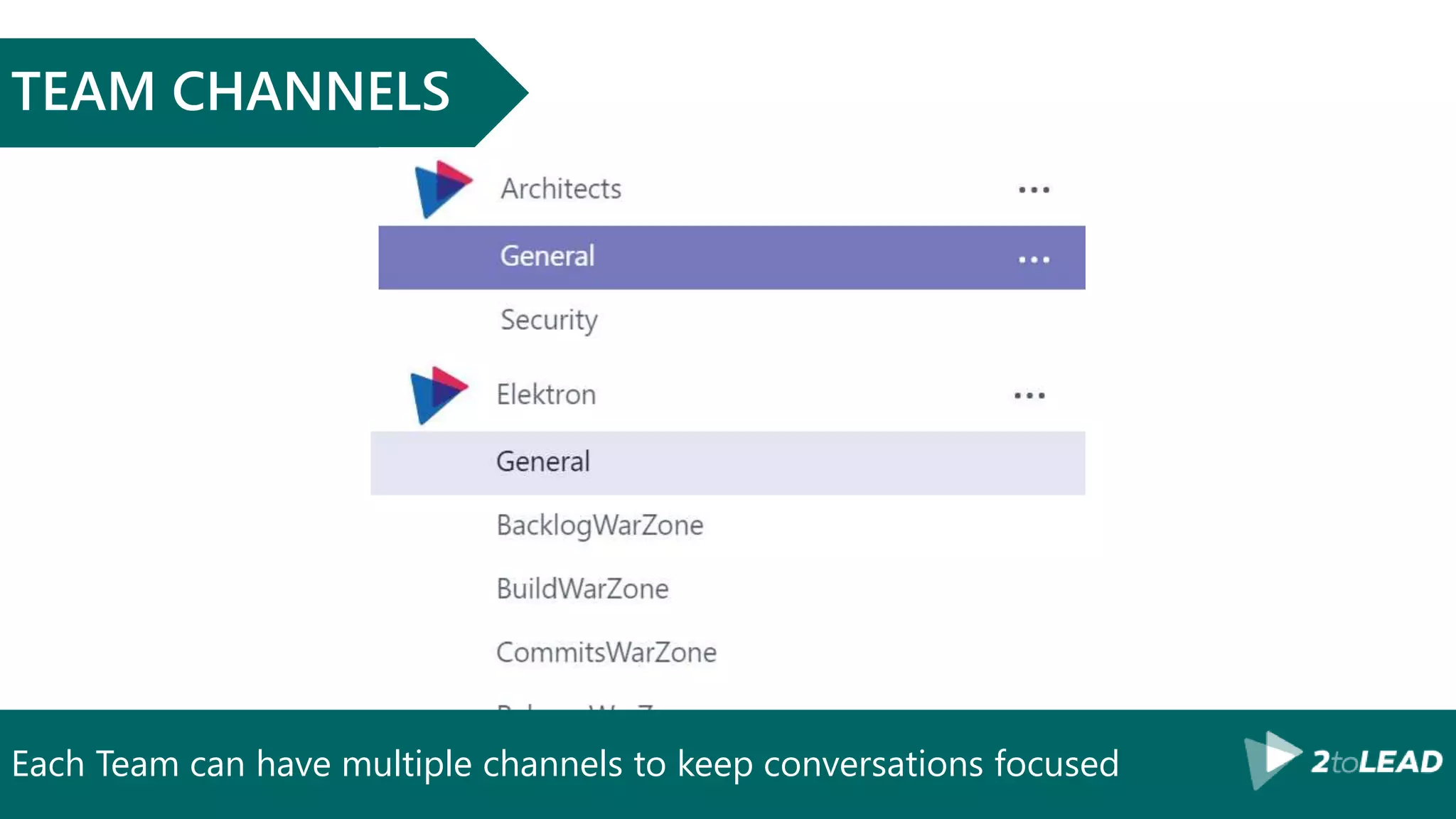
Each Team can have multiple channels to keep conversations focused
TEAM CHANNELS
Keep conversations fun and informative through images, links, and memes
RICH CONTENT
Meetings automatically synchronize with Skype for Business
MEETING SCHEDULING
Email conversations can be brought into Team by emailing a channel
EMAIL CHANNELS
Leverage Skype for Business-like instant messaging
REAL-TIME COMMUNICATION
Conduct real-time online conversations with your team members
AUDIO/VIDEO CHATS
COMMUNICATIONS
ACCESS
INTEGRATION
BOTS
MOBILITY
Provide access only to those who should have access to the Team
USER ACCESS
Teams can be public to the entire organization or private to specific users
TEAMS PRIVACY
Users can be added from another team
ADDING USERS
COMMUNICATIONS
ACCESS
INTEGRATION
BOTS
MOBILITY
Bots, Connectors, Webhooks, API’s… the future of integration
Enrich your team’s by incorporating external information
INTEGRATIONS
Ability to add tabs
Planner integration
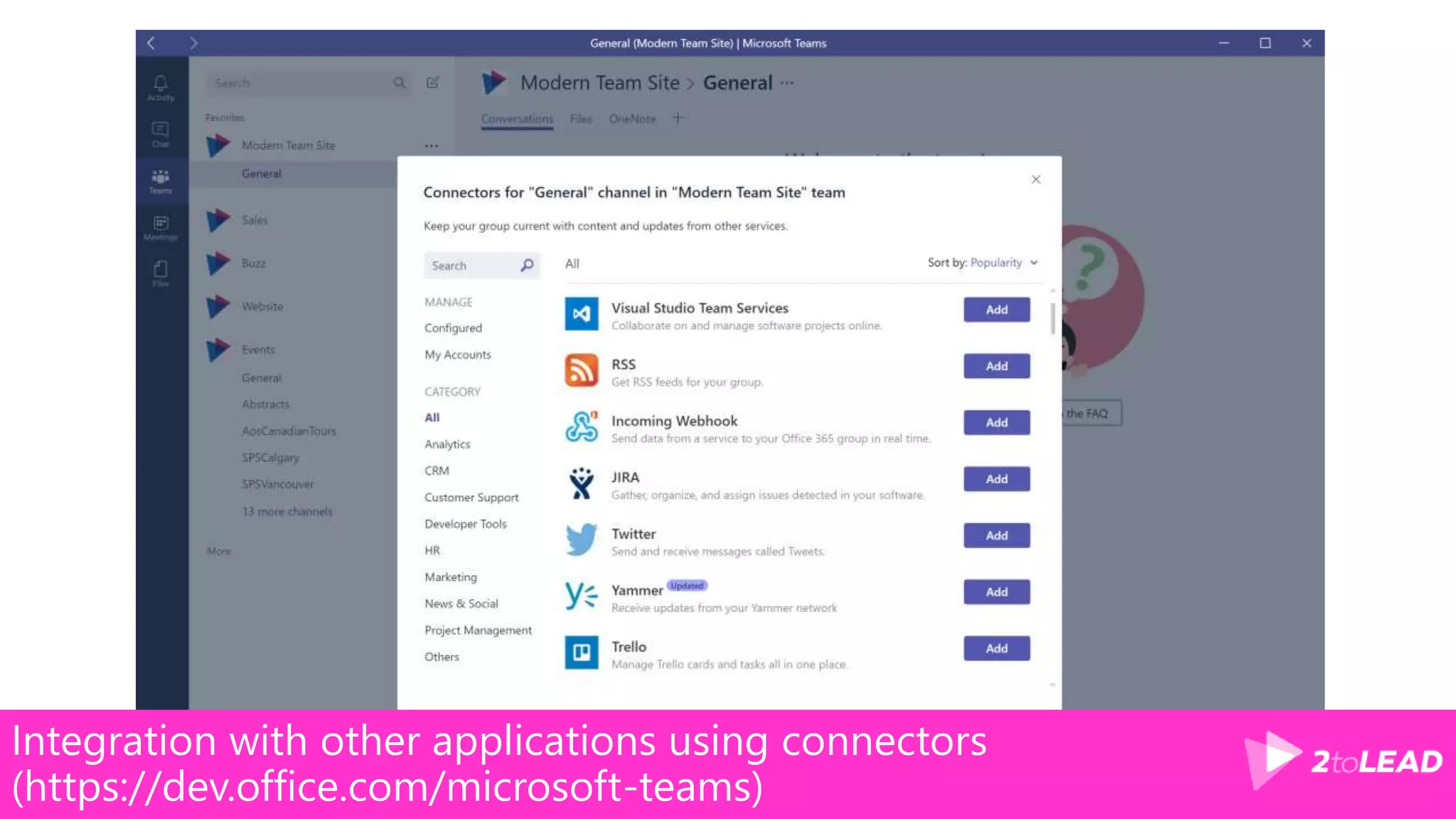
Integration with other applications using connectors
(https://dev.office.com/microsoft-teams)
COMMUNICATIONS
ACCESS
INTEGRATION
BOTS
MOBILITY
Bots simplify the FAQ and todo experience
BOTS
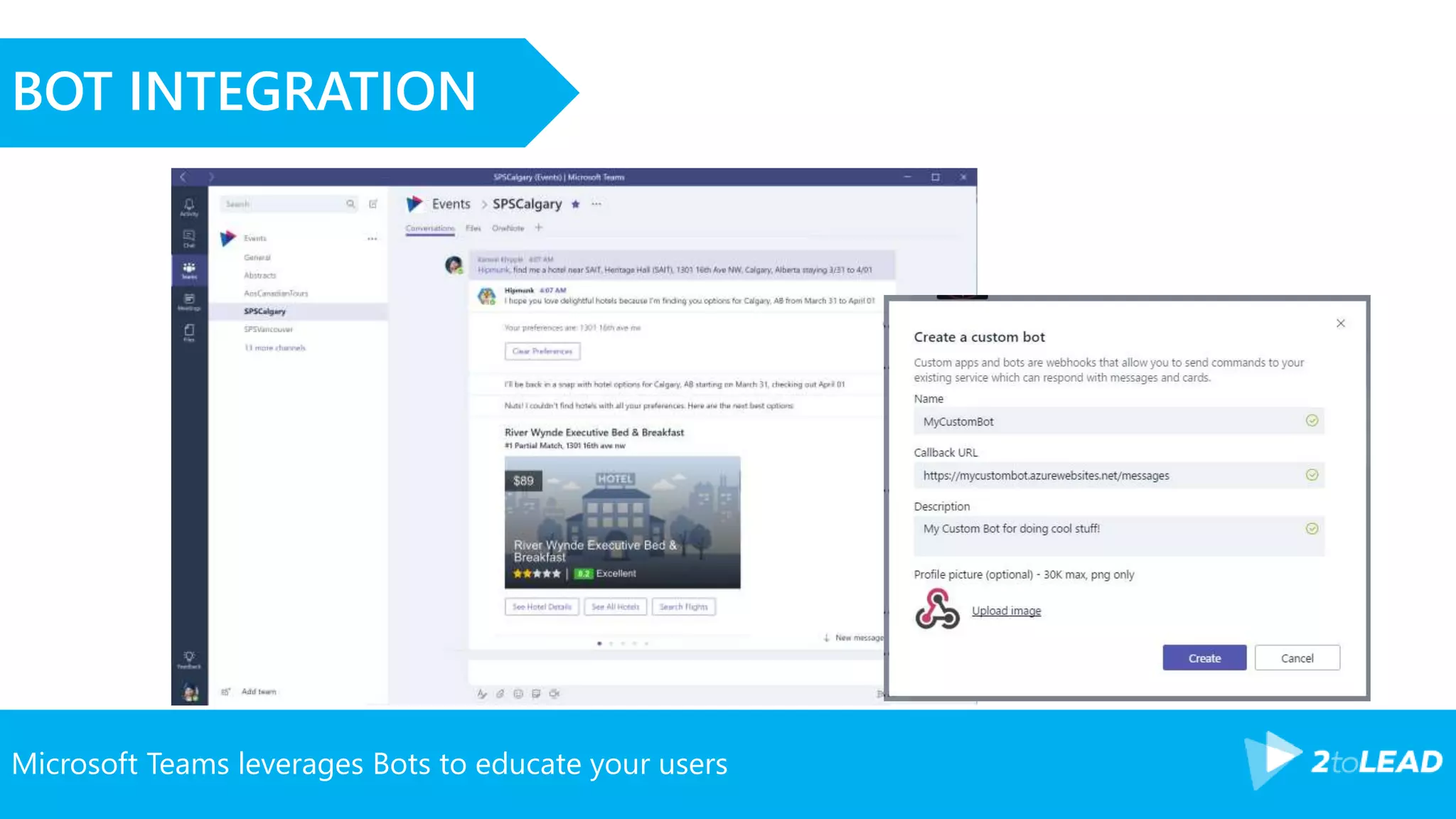
Microsoft Teams leverages Bots to educate your users
BOT INTEGRATION
Microsoft Teams leverages Bots to educate your users
BOT INTEGRATION
COMMUNICATIONS
ACCESS
INTEGRATION
BOTS
MOBILITY
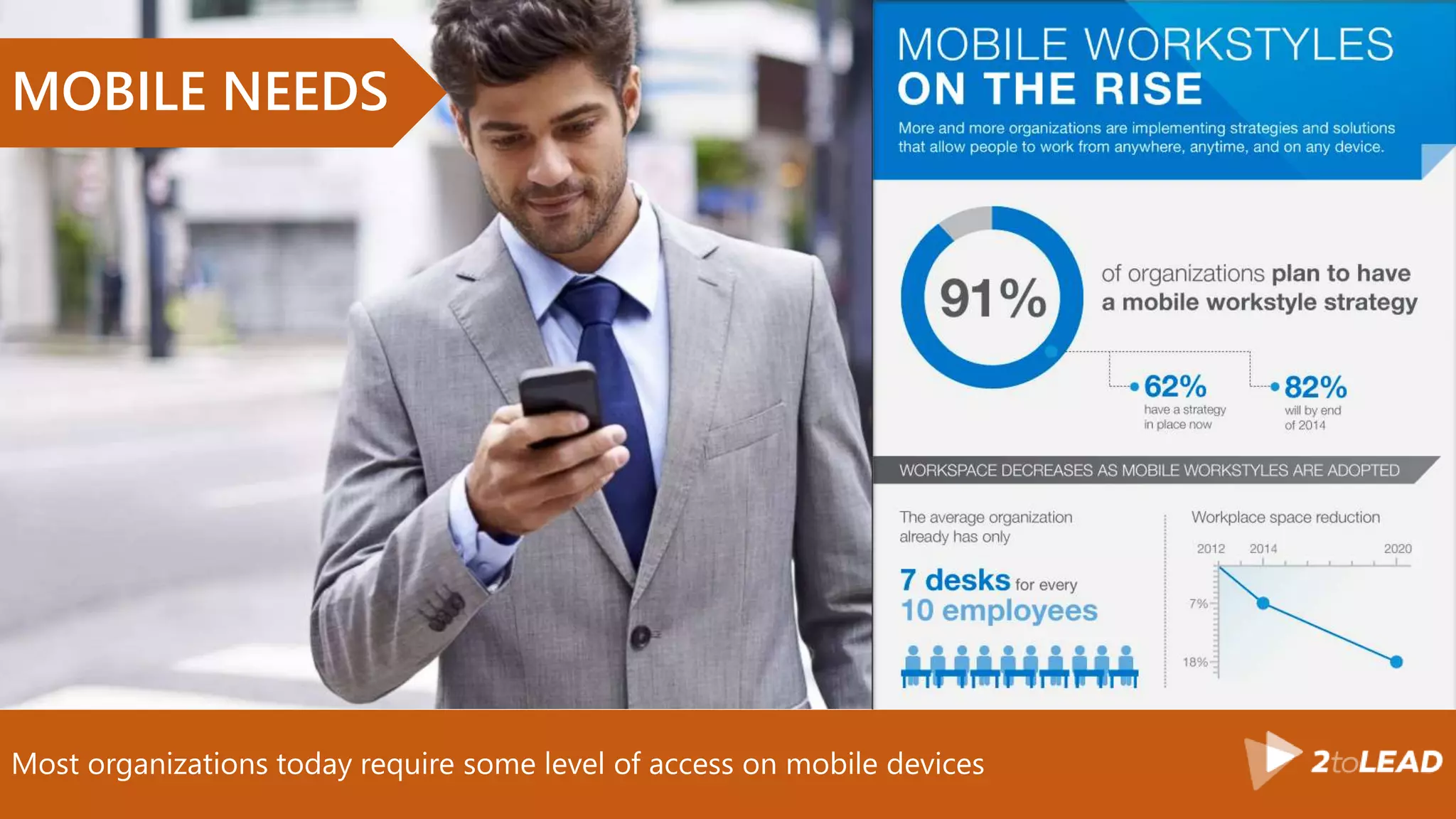
Most organizations today require some level of access on mobile devices
MOBILE NEEDS
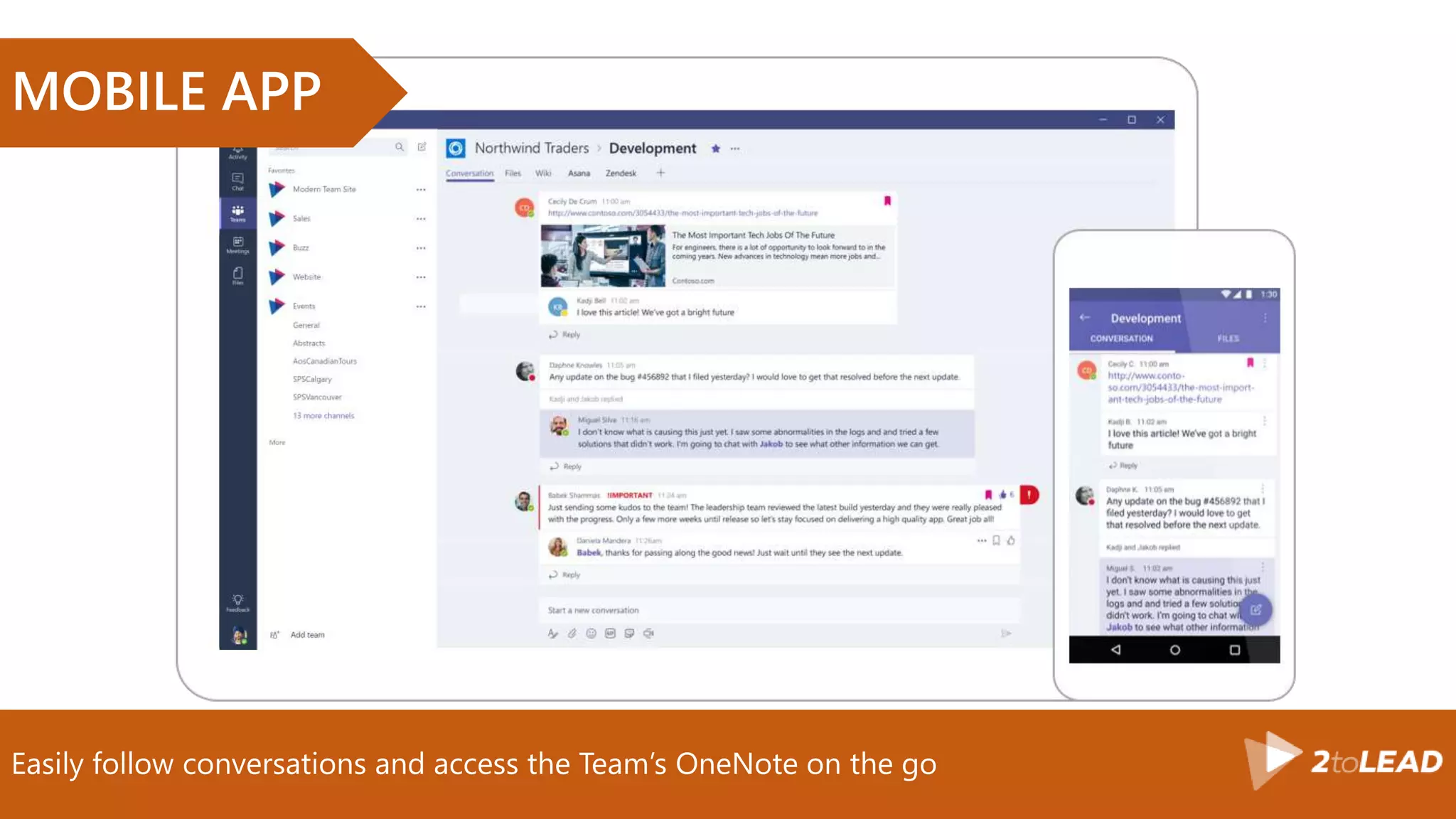
Easily follow conversations and access the Team’s OneNote on the go
MOBILE APP
Email is so 2015!
BUILDING SUCCESS
Email is so 2015!
KEEP ALL CONVERSATIONS IN TEAMS
• Encourage all team members to discuss project matters in channels
• Leverage channel emails for conversations with external users
• Use the @ mention to inform team members about topics of their
interes
Connectors to various other systems bring in vital information
LEVERAGE CONNECTORS
• Build and Deployment status from VSTS
TIP: Leverage webhooks for other sources not natively available as
connectors
Core component of Teams
LEVERAGE ONENOTE
• Great for capturing unstructured content
• Inherent part of Teams and Office 365 Groups
• OneNote is also accessible on mobile devices
Save time for team looking for information
LEVERAGE TABS
• Create tabs with important and frequently accessed project
information
• Use SharePoint to access your project’s documents
• Use the Web Site tab when a specific app is not available for the app
you need
For project-specific information, keep access limited. For internal group, make them
public
LIMIT ACCESS
• Control who can create Teams
• Control who gets Teams functionality
Microsoft Teams Customer Success Kit
Microsoft Teams resources
• Learn more about Microsoft Teams
• Introducing Microsoft Teams – webcast and announcement
• Microsoft Teams technical community
• Training and enablement
• Yammer group
• How to get Started
• Step-by-step intro for using, enabling, and managing the Microsoft Teams experience
• Microsoft Bot Framework Preview
• Microsoft Teams Developer Preview
• Microsoft Teams training on Microsoft Virtual Academy
• Microsoft Teams Tech Community
• Success with Teams
• Microsoft Teams Quick Start
• Microsoft Teams Customer Success Kit
LEAD CONSULTANT | OFFICE 365 MVP | SPEAKER
Thank You!
Organizers,SponsorsandYouformaking
thispossible.
Message Me On LinkedIn or Email
linkedin.com/in/hanielcroitoru
haniel@2tolead.com
Download the full whitepapers at
http://www.whentousewhat.com
http://Office365Intranets.com

Microsoft Teams A New Way To Manage Projects, Connect, and Collaborate With Your Peers

Editor's Notes

  • #5 What varies in communication are the following: Medium Frequency Audience Triggers
  • #6 80% of projects delivered by organizations considered highly effective communicators meet their original goals, versus only 52 percent at their minimally effective counterparts. highly effective communicators are also more likely to deliver projects on time (71 percent versus 37 percent) and within budget (76 percent versus 48 percent).
  • #9 Document duplication Poor access control and audit trails Finding information is tedious Lack of consistency between project sites Poor team collaboration
  • #10 Today, there are around 24 apps in Office 365, which are continuously evolving
  • #20 Main questions to ask yourself How often is the content accessed? E.g. SOW, Project Charter, RACI, Requirements How often does it change? Rarely (e.g. SOW) Frequently (e.g. project plan) What are the sources? Tasks – Planner Project Plan – Web page Sprint Backlog – VSTS Notes – OneNote Documents – SharePoint/Office 365 Groups Reports – Power BI Other LOB’s – Connectors and Tabs How will it be used/accessed? CRUD Mobile – functional, but limited on mobile devices Tabs What format is it in? Native format – interact directly with the sources Who will need it? Access to team sites
  • #22 Microsoft Teams is available in the following Office 365 commercial suites: Office 365 Business Essentials Office 365 Business Premium Office 365 Enterprise E1, E3, and E5 plans. (E4 before retirement) All Office 365 Education suite licensing: Office 365 Education Office 365 Education Plus Office 365 Education E5 Office 365 Education E3 customers who purchased E3 prior to its retirement. Limits 500,000 teams per tenant 10 owners per team User can create 250 teams 999 members per team 20 members per private chat 80 people per meeting
  • #23 When a new team is created, a new Office 365 Group is also created, including the associated group SharePoint site, mailbox, and OneNote notebook. If a team is activated on an existing group, the existing site, mailbox, and notebook are used in place. For each new team, a single channel named General is also created, along with the associated SharePoint folder and OneNote notebook section.
  • #27 You can edit or delete your chat messages during the first 24 hours after they are posted. In the upper-right corner of the chat message, click or tap the More options icon (…), and then choose Edit or Delete.
  • #29 The Meetings icon on the app bar is currently enabled only for users whose mailbox is on Office 365 multi-tenant and a select few dedicated users whose mailbox location can be discovered using Exchange auto discovery.
  • #30 The group email conversation remains in Microsoft Outlook. In Microsoft Teams, Office 365 Group members can use chat to communicate in a separate service within Teams. Microsoft Teams team names appear in the Outlook global address book
  • #36 You can add email distribution lists and mail-enabled security groups as members of a team. But, if you later add more members to the distribution list or security group, those members are not automatically added to the team. You must add the new members separately or add the distribution list or security group to the team again. (If you add the distribution list again, deduplication makes sure members are added only once.) The team continues to function as-is. All data remains and all existing users can continue to use the team. If the removed user was the only owner of the team, an IT admin can retake control of the team by going through the Office 365 admin center and adding themselves or someone else as the team owner. The team recognizes that change. Any connectors added to the team by the removed user do stop working. Scheduled meetings continue to work because they're on the group calendar. Files and conversations are retained.
  • #37 Create teams for private groups of less than 1,000 users. When creating a new team in Microsoft Teams, an owner of an existing private Office 365 Group has an option to use the membership in the Office 365 Group to create the team. Users can add their existing SharePoint and OneNote files by adding a tab for SharePoint and merging OneNote files.
  • #40 For the full Microsoft Teams experience, every user should be enabled for Exchange Online, SharePoint Online, and Office 365 Group creation. Users' Exchange mailboxes can be hosted online or on-premises. Users hosted on Exchange Online or Exchange Dedicated vNext can use all the features of Microsoft Teams. They can create and join teams and channels, create and view meetings, modify user profile pictures, add and configure connectors, tabs, and bots, and they can chat and call.
  • #41 https://msdn.microsoft.com/en-us/microsoft-teams/tabs There are Microsoft Teams samples in our GitHub repositories for you to clone or download: 'Maps' tab sample. This is the simple example that is used in this documentation. Simple Todo List tab sample. This Node.js sample shows how easy it is to convert an existing web app into a tab.
  • #43 https://dev.office.com/microsoft-teams
  • #57 https://support.office.com/en-us/article/Administrator-settings-for-Microsoft-Teams-3966a3f5-7e0f-4ea9-a402-41888f455ba2?ui=en-US&rs=en-US&ad=US
  • #58 Access from the Microsoft Teams client is blocked, but data available through other clients and services is still available, such as files via SharePoint and OneDrive. All data remains in place unless the teams are explicitly deleted.