NOTE IT ACADEMYpresents:Microsoft® Office Word 2007 TrainingCreate your first document
Create your first documentCourse contentsOverview: New to Word?
Lesson: Meet the documentThe lesson includes a list of suggested tasks and a set of test questions.
Create your first documentOverview: New to Word? Do you need to use Word 2007, but you’re not quite sure how to get started? Take this course to learn the basics of creating your first document. You’ll find out how to type where you want to on a page, fix spelling errors, change spacing and page margins, and save your work.
Create your first documentCourse goals			Create and save a document.
Accept or reject suggested revisions for spelling and grammar as you type.
Change page margins.
Adjust spacing by deleting any extra spaces between words or extra lines between paragraphs. Lesson Meet the document
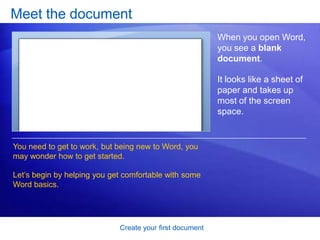
Create your first documentMeet the documentWhen you open Word, you see a blank document. It looks like a sheet of paper and takes up most of the screen space.You need to get to work, but being new to Word, you may wonder how to get started. Let’s begin by helping you get comfortable with some Word basics.
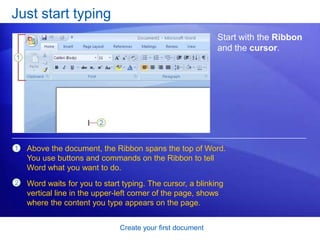
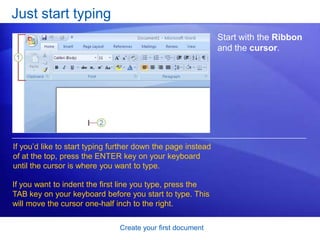
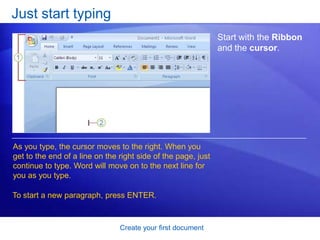
Create your first documentJust start typingStart with the Ribbon and the cursor.  Above the document, the Ribbon spans the top of Word. You use buttons and commands on the Ribbon to tell Word what you want to do. Word waits for you to start typing. The cursor, a blinking vertical line in the upper-left corner of the page, shows where the content you type appears on the page.
Create your first documentJust start typingStart with the Ribbon and the cursor.  If you’d like to start typing further down the page instead of at the top, press the ENTER key on your keyboard until the cursor is where you want to type.If you want to indent the first line you type, press the TAB key on your keyboard before you start to type. This will move the cursor one-half inch to the right.
Create your first documentJust start typingStart with the Ribbon and the cursor.  As you type, the cursor moves to the right. When you get to the end of a line on the right side of the page, just continue to type. Word will move on to the next line for you as you type.To start a new paragraph, press ENTER.
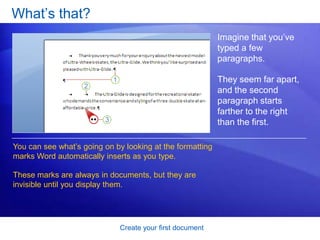
Create your first documentWhat’s that? Imagine that you’ve typed a few paragraphs. They seem far apart, and the second paragraph starts farther to the right than the first.You can see what’s going on by looking at the formatting marks Word automatically inserts as you type. These marks are always in documents, but they are invisible until you display them.
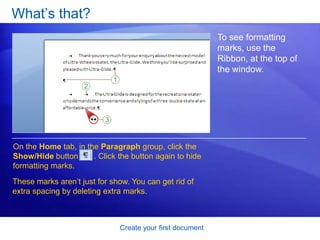
Create your first documentWhat’s that? To see formatting marks, use the Ribbon, at the top of the window. On the Home tab, in the Paragraph group, click the Show/Hide button       . Click the button again to hide formatting marks.These marks aren’t just for show. You can get rid of extra spacing by deleting extra marks.
Create your first documentWhat’s that? So what are formatting marks, and what do they mean? The picture shows a few examples. Extra paragraph mark: ENTER was pressed twice.Extra tab mark: TAB was pressed twice, making the second paragraph indented more than the first. Extra space between words: The SPACEBAR was pressed twice instead of once.
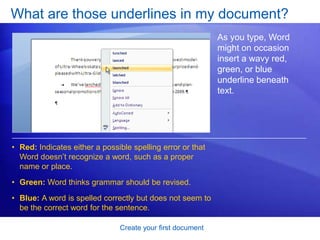
Create your first documentWhat are those underlines in my document?As you type, Word might on occasion insert a wavy red, green, or blue underline beneath text. Red: Indicates either a possible spelling error or that Word doesn’t recognize a word, such as a proper name or place.
Green: Word thinks grammar should be revised.
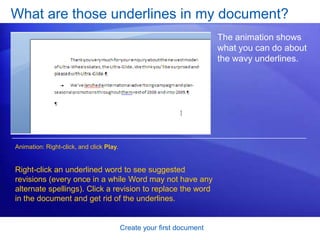
Blue: A word is spelled correctly but does not seem to be the correct word for the sentence. Create your first documentWhat are those underlines in my document? The animation shows what you can do about the wavy underlines. [Author: .swf gets inserted here; delete this placeholder before inserting .swf file.]Animation: Right-click, and click Play.Right-click an underlined word to see suggested revisions (every once in a while Word may not have any alternate spellings). Click a revision to replace the word in the document and get rid of the underlines.
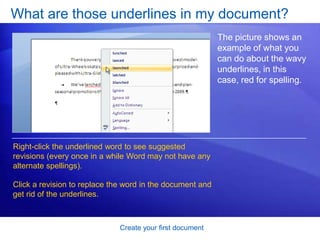
Create your first documentWhat are those underlines in my document?The picture shows an example of what you can do about the wavy underlines, in this case, red for spelling. Right-click the underlined word to see suggested revisions (every once in a while Word may not have any alternate spellings). Click a revision to replace the word in the document and get rid of the underlines.
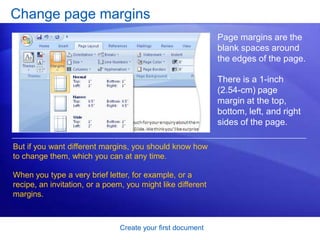
Create your first documentChange page marginsPage margins are the blank spaces around the edges of the page. There is a 1-inch (2.54-cm) page margin at the top, bottom, left, and right sides of the page. But if you want different margins, you should know how to change them, which you can at any time. When you type a very brief letter, for example, or a recipe, an invitation, or a poem, you might like different margins.
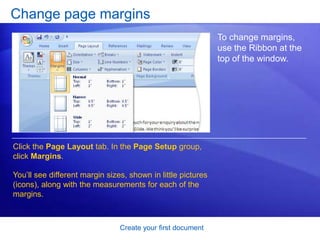
Create your first documentChange page marginsTo change margins, use the Ribbon at the top of the window. Click the Page Layout tab. In the Page Setup group, click Margins. You’ll see different margin sizes, shown in little pictures (icons), along with the measurements for each of the margins.
Create your first documentChange page marginsThe first margin in the list is Normal, the current margin. To get narrower margins, click Narrow. If you want the left and right margins to be much wider, click Wide. When you click the margin type that you want, your entire document automatically changes to the margin type you selected.
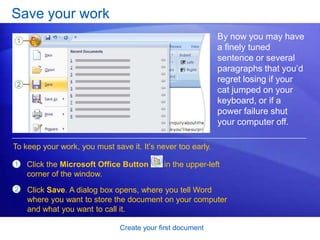
Create your first documentSave your workBy now you may have a finely tuned sentence or several paragraphs that you’d regret losing if your cat jumped on your keyboard, or if a power failure shut your computer off.To keep your work, you must save it. It’s never too early. Click the Microsoft Office Button       in the upper-left corner of the window. Click Save. A dialog box opens, where you tell Word where you want to store the document on your computer and what you want to call it.
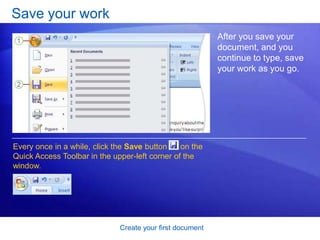
Create your first documentSave your workAfter you save your document, and you continue to type, save your work as you go. Every once in a while, click the Save button      on the Quick Access Toolbar in the upper-left corner of the window.
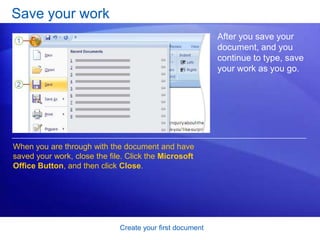
Create your first documentSave your workAfter you save your document, and you continue to type, save your work as you go. When you are through with the document and have saved your work, close the file. Click the Microsoft Office Button, and then click Close.
Create your first documentSuggestions for practiceTurn formatting marks on. Do some typing in your document. Work with revision marks. Change page margins. Save your document. Online practice (requires Word 2007)
Create your first documentTest question 1When should you save your document? (Pick one answer.)Soon after you begin working.When you’re through typing it. It doesn’t matter.
Create your first documentTest question 1: AnswerSoon after you begin working. It takes just a second to lose your work. Get in the habit of saving early, and saving often.
Create your first documentTest question 2Word puts a red underline beneath text. The word must be misspelled.  (Pick one answer.)True.False.

Microsoft Word 2007: Create Your First Document

  • 1.
    NOTE IT ACADEMYpresents:Microsoft®Office Word 2007 TrainingCreate your first document
  • 2.
    Create your firstdocumentCourse contentsOverview: New to Word?
  • 3.
    Lesson: Meet thedocumentThe lesson includes a list of suggested tasks and a set of test questions.
  • 4.
    Create your firstdocumentOverview: New to Word? Do you need to use Word 2007, but you’re not quite sure how to get started? Take this course to learn the basics of creating your first document. You’ll find out how to type where you want to on a page, fix spelling errors, change spacing and page margins, and save your work.
  • 5.
    Create your firstdocumentCourse goals Create and save a document.
  • 6.
    Accept or rejectsuggested revisions for spelling and grammar as you type.
  • 7.
  • 8.
    Adjust spacing bydeleting any extra spaces between words or extra lines between paragraphs. Lesson Meet the document
  • 9.
    Create your firstdocumentMeet the documentWhen you open Word, you see a blank document. It looks like a sheet of paper and takes up most of the screen space.You need to get to work, but being new to Word, you may wonder how to get started. Let’s begin by helping you get comfortable with some Word basics.
  • 10.
    Create your firstdocumentJust start typingStart with the Ribbon and the cursor. Above the document, the Ribbon spans the top of Word. You use buttons and commands on the Ribbon to tell Word what you want to do. Word waits for you to start typing. The cursor, a blinking vertical line in the upper-left corner of the page, shows where the content you type appears on the page.
  • 11.
    Create your firstdocumentJust start typingStart with the Ribbon and the cursor. If you’d like to start typing further down the page instead of at the top, press the ENTER key on your keyboard until the cursor is where you want to type.If you want to indent the first line you type, press the TAB key on your keyboard before you start to type. This will move the cursor one-half inch to the right.
  • 12.
    Create your firstdocumentJust start typingStart with the Ribbon and the cursor. As you type, the cursor moves to the right. When you get to the end of a line on the right side of the page, just continue to type. Word will move on to the next line for you as you type.To start a new paragraph, press ENTER.
  • 13.
    Create your firstdocumentWhat’s that? Imagine that you’ve typed a few paragraphs. They seem far apart, and the second paragraph starts farther to the right than the first.You can see what’s going on by looking at the formatting marks Word automatically inserts as you type. These marks are always in documents, but they are invisible until you display them.
  • 14.
    Create your firstdocumentWhat’s that? To see formatting marks, use the Ribbon, at the top of the window. On the Home tab, in the Paragraph group, click the Show/Hide button . Click the button again to hide formatting marks.These marks aren’t just for show. You can get rid of extra spacing by deleting extra marks.
  • 15.
    Create your firstdocumentWhat’s that? So what are formatting marks, and what do they mean? The picture shows a few examples. Extra paragraph mark: ENTER was pressed twice.Extra tab mark: TAB was pressed twice, making the second paragraph indented more than the first. Extra space between words: The SPACEBAR was pressed twice instead of once.
  • 16.
    Create your firstdocumentWhat are those underlines in my document?As you type, Word might on occasion insert a wavy red, green, or blue underline beneath text. Red: Indicates either a possible spelling error or that Word doesn’t recognize a word, such as a proper name or place.
  • 17.
    Green: Word thinksgrammar should be revised.
  • 18.
    Blue: A wordis spelled correctly but does not seem to be the correct word for the sentence. Create your first documentWhat are those underlines in my document? The animation shows what you can do about the wavy underlines. [Author: .swf gets inserted here; delete this placeholder before inserting .swf file.]Animation: Right-click, and click Play.Right-click an underlined word to see suggested revisions (every once in a while Word may not have any alternate spellings). Click a revision to replace the word in the document and get rid of the underlines.
  • 19.
    Create your firstdocumentWhat are those underlines in my document?The picture shows an example of what you can do about the wavy underlines, in this case, red for spelling. Right-click the underlined word to see suggested revisions (every once in a while Word may not have any alternate spellings). Click a revision to replace the word in the document and get rid of the underlines.
  • 20.
    Create your firstdocumentChange page marginsPage margins are the blank spaces around the edges of the page. There is a 1-inch (2.54-cm) page margin at the top, bottom, left, and right sides of the page. But if you want different margins, you should know how to change them, which you can at any time. When you type a very brief letter, for example, or a recipe, an invitation, or a poem, you might like different margins.
  • 21.
    Create your firstdocumentChange page marginsTo change margins, use the Ribbon at the top of the window. Click the Page Layout tab. In the Page Setup group, click Margins. You’ll see different margin sizes, shown in little pictures (icons), along with the measurements for each of the margins.
  • 22.
    Create your firstdocumentChange page marginsThe first margin in the list is Normal, the current margin. To get narrower margins, click Narrow. If you want the left and right margins to be much wider, click Wide. When you click the margin type that you want, your entire document automatically changes to the margin type you selected.
  • 23.
    Create your firstdocumentSave your workBy now you may have a finely tuned sentence or several paragraphs that you’d regret losing if your cat jumped on your keyboard, or if a power failure shut your computer off.To keep your work, you must save it. It’s never too early. Click the Microsoft Office Button in the upper-left corner of the window. Click Save. A dialog box opens, where you tell Word where you want to store the document on your computer and what you want to call it.
  • 24.
    Create your firstdocumentSave your workAfter you save your document, and you continue to type, save your work as you go. Every once in a while, click the Save button on the Quick Access Toolbar in the upper-left corner of the window.
  • 25.
    Create your firstdocumentSave your workAfter you save your document, and you continue to type, save your work as you go. When you are through with the document and have saved your work, close the file. Click the Microsoft Office Button, and then click Close.
  • 26.
    Create your firstdocumentSuggestions for practiceTurn formatting marks on. Do some typing in your document. Work with revision marks. Change page margins. Save your document. Online practice (requires Word 2007)
  • 27.
    Create your firstdocumentTest question 1When should you save your document? (Pick one answer.)Soon after you begin working.When you’re through typing it. It doesn’t matter.
  • 28.
    Create your firstdocumentTest question 1: AnswerSoon after you begin working. It takes just a second to lose your work. Get in the habit of saving early, and saving often.
  • 29.
    Create your firstdocumentTest question 2Word puts a red underline beneath text. The word must be misspelled. (Pick one answer.)True.False.